An Introduction to SQL Server FileStream
Filestream allows us to store and manage unstructured datain SQL Server more easily. Initially, the accounts of FILESTREAM assumed prodigious powers of concentration and cognition, and we mortals all recoiled numbly. However, it became clear that we were missing out on some extraordinarily useful functionality, so we asked Jacob Sebastian to come up with a simple and clear-cut account of the FILESTREAM feature in SQL Server 2008. You’ll agree he has managed the feat superbly.
Problems with storing unstructured data
Storing and managing unstructured data was tricky prior to the release of SQL Server 2008. Before then, there were two approaches to storing unstructured data in SQL Server. One approach suggests storing the data in a VARBINARY or IMAGE column. This ensures transactional consistency and reduces management complexities, but is bad for performance. The other approach is to store the unstructured data as disk files and store the location of the file in the table along with the other structured data linked to it. This approach was found to be good in terms of performance, but does not ensure transactional consistency. Moreover management (backup, restore, security etc) of the data will be a pain too.
FILESTREAM Feature
FILESTREAM was introduced in SQL Server 2008 for the storage and management of unstructured data. The FILESTREAM feature allows storing BLOB data (example: word documents, image files, music and videos etc) in the NT file system and ensures transactional consistency between the unstructured data stored in the NT file system and the structured data stored in the table.
Storing BLOB data in NT file system, allows SQL Server to take advantage of the NTFS I/O streaming capabilities and at the same time, maintain transactional consistency of the data. FILESTREAM uses NT System Cache for caching file data. This minimizes the effect that FILESTREAM data might have on the Database Engine performance. When accessing FILESTREAM data through the streaming API, SQL Server buffer pool is not used and hence it does not reduce the amount of memory available for Database Engine query processing.
The term ‘FILESTREAM data type’ or ‘FILESTREAM column’ is very commonly used and it gives an indication that the FILESTREAM feature is implemented as a data type. This is not true. FILESTREAM is not a data type; instead, it is an attribute that can be assigned to a VARBINARY (MAX) column. When the FILESTREAM attribute of a VARBINARY (MAX) column is set, it becomes a ‘FILESTREAM enabled’ column. Any data that you store in such columns will be stored in the NT file system as a disk files and a pointer to the disk file is stored in the table. A VARBINARY (MAX) column with FILESTREAM attribute is not restricted to the 2 GB limit SQL Server imposes on Large Value Types. The size of the file is limited by the size of the disk volume only.
When the FILESTREAM attribute is set, SQL Server stores the BLOB data in the NT file system and keeps a pointer the file, in the table. SQL Server ensures transactional consistency between the FILESTREAM data stored in the NT file system and the structured data stored in the tables.
Installing and Configuring FILESTREAM
The default installation of SQL Server 2008 disables FILESTREAM feature. It is quite easy to enable the FILESTREAM feature as part of a new SQL Server 2008 installation. If the SQL Server 2008 instance is already installed without FILESTREAM feature, it can still be enabled following the steps explained later in this section.
Enabling FILESTREAM as part of installation
The easiest way to enable FILESTREAM feature is to do so as part of the installation process. You will see a new tab labeled “FILESTREAM” on the “Database Engine Configuration” page of the installation wizard. This tab allows you to specify the FILESTREAM configuration options that you wish to enable on your new SQL Server Instance.
FILESTREAM feature may be enabled with three different levels of access to the FILESTREAM data, namely:
- Enable FILESTREAM for Transact-SQL access
- Enable FILESTREAM for file I/O streaming access
- Allow remote clients to have streaming access to FILESTREAM data
Enabling FILESTREAM during an Unattended installation
If you are installing SQL Server 2008 in ‘Unattended mode’, you can use /FILESTREAMLEVEL and /FILESTREAMSHARENAME configuration options to configure FILESTREAM features. For more information about installing SQL Server 2008 in ‘Unattended mode’, see How to: Install SQL Server 2008 from the Command Prompt
Enabling FILESTREAM after installation
Enabling FILESTREAM feature on a SQL Server 2008 Instance, installed without FILESTREAM features, would require a little more work. To enable FILESTREAM feature, go to ‘SQL Server configuration Manager’ and right click on instance of SQL Server Service and select ‘properties’. The property page will show an additional tab labeled ‘FILESTREAM’, which looks exactly the same as the FILESTREAM configuration page shown as part of the installation wizard. The FILESTREAM feature can be enabled by setting the appropriate options on this page.
If you wish to automate this process, you could try running the VBScript given at How to enable FILESTREAM from the command line. to do it.
Once FILESTREAM feature is enabled, the next step is to configure FILESTREAM Access Level. This is an additional step that is required only if you configure FILESTREAM after the installation of SQL Server. Open SQL Server Management Studio and open the properties of the SQL Server 2008 instance. Select the ‘Advanced’ tab and change the ‘FILESTREAM Access Level’ to ‘Transact-SQL Access enabled’ or ‘Full access enabled’.
Alternatively, ‘FILESTREAM Access Level’ can be configured using TSQL by running the following statement.
Name already in use
sql-docs / docs / relational-databases / blob / filestream-sql-server.md
- Go to file T
- Go to line L
- Copy path
- Copy permalink
- Open with Desktop
- View raw
- Copy raw contents Copy raw contents
Copy raw contents
Copy raw contents
FILESTREAM (SQL Server)
FILESTREAM enables [!INCLUDEssNoVersion]-based applications to store unstructured data, such as documents and images, on the file system. Applications can use the rich streaming APIs and performance of the file system and at the same time maintain transactional consistency between the unstructured data and corresponding structured data.
FILESTREAM integrates the [!INCLUDEssDEnoversion] with an NTFS or ReFS file systems by storing varbinary(max) binary large object (BLOB) data as files on the file system. [!INCLUDEtsql] statements can insert, update, query, search, and back up FILESTREAM data. Win32 file system interfaces provide streaming access to the data.
FILESTREAM uses the NT system cache for caching file data. Caching files in the system cache helps reduce any impact that FILESTREAM data might have on [!INCLUDEssDE] performance. The [!INCLUDEssNoVersion] buffer pool isn’t used; therefore, this memory is available for query processing.
FILESTREAM is not automatically enabled when you install or upgrade [!INCLUDEssNoVersion]. You must enable FILESTREAM by using SQL Server Configuration Manager and [!INCLUDEssManStudioFull]. To use FILESTREAM, you must create or modify a database to contain a special type of filegroup. Then, create or modify a table so that it contains a varbinary(max) column with the FILESTREAM attribute. After you complete these tasks, you can use [!INCLUDEtsql] and Win32 to manage the FILESTREAM data.
When to Use FILESTREAM
In [!INCLUDEssNoVersion], BLOBs can be standard varbinary(max) data that stores the data in tables, or FILESTREAM varbinary(max) objects that store the data in the file system. The size and use of the data determines whether you should use database storage or file system storage. If the following conditions are true, you should consider using FILESTREAM:
- Objects that are being stored are, on average, larger than 1 MB.
- Fast read access is important.
- You’re developing applications that use a middle tier for application logic.
For smaller objects, storing varbinary(max) BLOBs in the database often provides better streaming performance.
FILESTREAM storage is implemented as a varbinary(max) column in which the data is stored as BLOBs in the file system. The sizes of the BLOBs are limited only by the volume size of the file system. The standard varbinary(max) limitation of 2-GB file sizes doesn’t apply to BLOBs that are stored in the file system.
To specify that a column should store data on the file system, specify the FILESTREAM attribute on a varbinary(max) column. This attribute causes the [!INCLUDEssDE] to store all data for that column on the file system, but not in the database file.
FILESTREAM data must be stored in FILESTREAM filegroups. A FILESTREAM filegroup is a special filegroup that contains file system directories instead of the files themselves. These file system directories are called data containers. Data containers are the interface between [!INCLUDEssDE] storage and file system storage.
When you use FILESTREAM storage, consider the following:
- When a table contains a FILESTREAM column, each row must have a nonnull unique row ID.
- Multiple data containers can be added to a FILESTREAM filegroup.
- FILESTREAM data containers can’t be nested.
- When you’re using failover clustering, the FILESTREAM filegroups must be on shared disk resources.
- FILESTREAM filegroups can be on compressed volumes.
Because FILESTREAM is implemented as a varbinary(max) column and integrated directly into the [!INCLUDEssDE], most [!INCLUDEssNoVersion] management tools and functions work without modification for FILESTREAM data. For example, you can use all backup and recovery models with FILESTREAM data, and the FILESTREAM data is backed up with the structured data in the database. If you don’t want to back up FILESTREAM data with relational data, you can use a partial backup to exclude FILESTREAM filegroups.
In [!INCLUDEssNoVersion], FILESTREAM data is secured just like other data is secured: by granting permissions at the table or column levels. If a user has permission to the FILESTREAM column in a table, the user can open the associated files.
[!NOTE] Encryption is not supported on FILESTREAM data.
Only the account under which the [!INCLUDEssNoVersion] service account runs is granted permissions to the FILESTREAM container. We recommend that no other account be granted permissions on the data container.
[!NOTE] SQL logins will not work with FILESTREAM containers. Only NTFS or ReFS authentication will work with FILESTREAM containers.
Accessing BLOB Data with Transact-SQL and File System Streaming Access
After you store data in a FILESTREAM column, you can access the files by using [!INCLUDEtsql] transactions or by using Win32 APIs.
By using [!INCLUDEtsql], you can insert, update, and delete FILESTREAM data:
- You can use an insert operation to prepopulate a FILESTREAM field with a null value, empty value, or relatively short inline data. However, a large amount of data is more efficiently streamed into a file that uses Win32 interfaces.
- When you update a FILESTREAM field, you modify the underlying BLOB data in the file system. When a FILESTREAM field is set to NULL, the BLOB data associated with the field is deleted. You can’t use a [!INCLUDEtsql] chunked update, implemented as UPDATE**.**Write(), to perform partial updates to the data.
- When you delete a row or delete or truncate a table that contains FILESTREAM data, you delete the underlying BLOB data in the file system.
File System Streaming Access
The Win32 streaming support works in the context of a [!INCLUDEssNoVersion] transaction. Within a transaction, you can use FILESTREAM functions to obtain a logical UNC file system path of a file. You then use the OpenSqlFilestream API to obtain a file handle. This handle can then be used by Win32 file streaming interfaces, such as ReadFile() and WriteFile(), to access and update the file by way of the file system.
Because file operations are transactional, you can’t delete or rename FILESTREAM files through the file system.
[!WARNING] The FILESTREAM container is a folder managed by SQL Server. Do not add or remove files in the FILESTREAM folder manually or through other applications. If you do, this will result in backup and inconsistency errors. For more information, see MSSQLSERVER_3056, MSSQLSERVER_7908, and MSSQLSERVER_7906.
Statement Model
The FILESTREAM file system access models a [!INCLUDEtsql] statement by using file open and close. The statement starts when a file handle is opened and ends when the handle is closed. For example, when a write handle is closed, any possible AFTER trigger that is registered on the table, fires as if an UPDATE statement is completed.
Storage Namespace
In FILESTREAM, the [!INCLUDEssDE] controls the BLOB physical file system namespace. A new intrinsic function, PathName, provides the logical UNC path of the BLOB that corresponds to each FILESTREAM cell in the table. The application uses this logical path to obtain the Win32 handle and operate on the BLOB data by using regular Win32 file system interfaces. The function returns NULL if the value of the FILESTREAM column is NULL.
Transacted File System Access
A new intrinsic function, GET_FILESTREAM_TRANSACTION_CONTEXT(), provides the token that represents the current transaction that the session is associated with. The transaction must have been started and not yet aborted or committed. By obtaining a token, the application binds the FILESTREAM file system streaming operations with a started transaction. The function returns NULL in case of no explicitly started transaction.
All file handles must be closed before the transaction commits or aborts. If a handle is left open beyond the transaction scope, additional reads against the handle will cause a failure; additional writes against the handle will succeed, but the actual data won’t be written to disk. Similarly, if the database or instance of the [!INCLUDEssDE] shuts down, all open handles are invalidated.
Transactional Durability
With FILESTREAM, upon transaction commit, the [!INCLUDEssDE] ensures transaction durability for FILESTREAM BLOB data that is modified from the file system streaming access.
Isolation Semantics
The isolation semantics are governed by [!INCLUDEssDE] transaction isolation levels. Read-committed isolation level is supported for [!INCLUDEtsql] and file system access. Repeatable read operations, serializable and snapshot isolation levels are supported. Dirty read isn’t supported.
The file system access open operations do not wait for any locks. Instead, the open operations fail immediately if they can’t access the data because of transaction isolation. The streaming API calls fail with ERROR_SHARING_VIOLATION if the open operation cannot continue because of isolation violation.
To allow for partial updates to be made, the application can issue a device FS control (FSCTL_SQL_FILESTREAM_FETCH_OLD_CONTENT) to fetch the old content into the file that the opened handle references. This will trigger a server-side old content copy. For better application performance and to avoid running into potential time-outs when you are working with very large files, we recommend that you use asynchronous I/O.
If the FSCTL is issued after the handle has been written to, the last write operation will persist, and prior writes that were made to the handle are lost.
File System APIs and Supported Isolation Levels
When a file system API cannot open a file because of an isolation violation, an ERROR_SHARING_VIOLATION exception is returned. This isolation violation occurs when two transactions try to access the same file. The outcome of the access operation depends on the mode the file was opened in and the version of [!INCLUDEssNoVersion] that the transaction is running on. The following table outlines the possible outcomes for two transactions that are accessing the same file.
| Transaction 1 | Transaction 2 | Outcome on SQL Server 2008 | Outcome on SQL Server 2008 R2 and later versions |
|---|---|---|---|
| Open for read. | Open for read. | Both succeed. | Both succeed. |
| Open for read. | Open for write. | Both succeed. Write operations under transaction 2 do not affect read operations performed in transaction 1. | Both succeed. Write operations under transaction 2 do not affect read operations performed in transaction 1. |
| Open for write. | Open for read. | Open for transaction 2 fails with an ERROR_SHARING_VIOLATION exception. | Both succeed. |
| Open for write. | Open for write. | Open for transaction 2 fails with an ERROR_SHARING_VIOLATION exception. | Open for transaction 2 fails with an ERROR_SHARING_VIOLATION exception. |
| Open for read. | Open for SELECT. | Both succeed. | Both succeed. |
| Open for read. | Open for UPDATE or DELETE. | Both succeed. Write operations under transaction 2 do not affect read operations performed in transaction 1. | Both succeed. Write operations under transaction 2 do not affect read operations performed in transaction 1. |
| Open for write. | open for SELECT. | Transaction 2 blocks until transaction 1 commits or ends the transaction, or the transaction lock times out. | Both succeed. |
| Open for write. | Open for UPDATE or DELETE. | Transaction 2 blocks until transaction 1 commits or ends the transaction, or the transaction lock times out. | Transaction 2 blocks until transaction 1 commits or ends the transaction, or the transaction lock times out. |
| Open for SELECT. | Open for read. | Both succeed. | Both succeed. |
| Open for SELECT. | Open for write. | Both succeed. Write operations under transaction 2 do not affect transaction 1. | Both succeed. Write operations under transaction 2 do not affect transaction 1. |
| Open for UPDATE or DELETE. | Open for read. | The open operation on transaction 2 fails with an ERROR_SHARING_VIOLATION exception. | Both succeed. |
| Open for UPDATE or DELETE. | Open for write. | The open operation on transaction 2 fails with an ERROR_SHARING_VIOLATION exception. | The open operation on transaction 2 fails with an ERROR_SHARING_VIOLATION exception. |
| Open for SELECT with repeatable read. | Open for read. | Both succeed. | Both succeed. |
| Open for SELECT with repeatable read. | Open for write. | The open operation on transaction 2 fails with an ERROR_SHARING_VIOLATION exception. | The open operation on transaction 2 fails with an ERROR_SHARING_VIOLATION exception. |
Write-Through from Remote Clients
Remote file system access to FILESTREAM data is enabled over the Server Message Block (SMB) protocol. If the client is remote, no write operations are cached by the client side. The write operations will always be sent to the server. The data can be cached on the server side. We recommend that applications that are running on remote clients consolidate small write operations into larger size operations. The goal is to perform fewer writes.
Creating memory mapped views (memory mapped I/O) by using a FILESTREAM handle is not supported. If memory mapping is used for FILESTREAM data, the [!INCLUDEssDE] cannot guarantee consistency and durability of the data or the integrity of the database.
Recommendations and guidelines for improving FILESTREAM performance
The SQL Server FILESTREAM feature allows you to store varbinary(max) binary large object data as files in the file system. When you have a large number of rows in FILESTREAM containers, which are the underlying storage for both FILESTREAM columns and FileTables, you can end up with a file system volume that contains large number of files. To achieve best performance when processing the integrated data from the database and the file system, it is important to ensure the file system is tuned optimally. The following are some of the tuning options that are available from a file system perspective:
Altitude check for the SQL Server FILESTREAM filter driver [for example, rsfx0100.sys]. Evaluate all the filter drivers loaded for the storage stack associated with a volume where the FILESTREAM feature stores files and make sure that rsfx driver is located at the bottom of the stack. You can use the FLTMC.EXE control program to enumerate the filter drivers for a specific volume. Here’s a sample output from the FLTMC utility: C:\Windows\System32>fltMC.exe filters
Check that the server has the «last access time» property disabled for the files. This file system attribute is maintained in the registry:
Key Name: HKEY_LOCAL_MACHINE\SYSTEM\CurrentControlSet\Control\FileSystem
Name: NtfsDisableLastAccessUpdate
Type: REG_DWORD
Value: 1
Check that the server has 8.3 naming disabled. This file system attribute is maintained in the registry:
Key Name: HKEY_LOCAL_MACHINE\SYSTEM\CurrentControlSet\Control\FileSystem
Name: NtfsDisable8dot3NameCreation
Type: REG_DWORD
Value: 1
Check that the FILESTREAM directory containers do not have file system encryption or file system compression enabled, as these can introduce a level of overhead when accessing these files.
From an elevated command prompt, run fltmc instances and make sure that no filter drivers are attached to the volume where you try to restore.
Check that FILESTREAM directory containers do not have more than 300,000 files. You can use the information from sys.database_files catalog view to find out which directories in the file system store FILESTREAM-related files. This can be prevented by having multiple containers. (See the next bullet item for more information.)
With only one FILESTREAM filegroup, all data files are created under the same folder. File creation of very large numbers of files may be impacted by large NTFS indices, which can also become fragmented.
Having multiple filegroups generally should help with this (the application uses partitioning or has multiple tables, each going to its own filegroup).
With SQL Server 2012 and later versions, you can have multiple containers or files under a FILESTREAM filegroup, and a round-robin allocation scheme will apply. Therefore the number of NTFS files per directory will get smaller.
Backup and restore can become faster with multiple FILESTREAM containers, if multiple volumes storing containers are used.
SQL Server 2012 supports multiple containers per filegroup and can make things much easier. No complicated partitioning schemes may be needed to manage larger number of files.
When there are a very large number of FILESTREAM containers in a SQL instance, starting the databases with many FILESTREAM containers might take a long time to register them in the FILESTREAM filter driver. Spreading them in multiple different volumes will help with improving database startup time.
The NTFS MFT may become fragmented, and that can cause performance issues. The MFT reserved size does depend on volume size, so you may or may not encounter this.
You can check the MFT fragmentation with defrag /A /V C: (change C: to the actual volume name).
You can reserve more MFT space by using fsutil behavior set mftzone 2.
FILESTREAM data files should be excluded from antivirus software scanning.
[!NOTE] Windows Server 2016 automatically enables Windows Defender. Make sure that Windows Defender is configured to exclude Filestream files. Failure to do this can result in decreased performance for backup and restore operations.
SQL Server FILESTREAM – Giving a bit of structure to your unstructured data
When it comes to familiarizing yourself with any new technology there are always two parts. First, you need to understand its intended use case, and second you need to understand how to use/implement this technology in practice (and, for your own good, you should do it strictly in that order). In this article I want to talk about SQL Server FILESTREAM feature making sure that both parts are covered.
Main benefit of any DBMS is an ability to store data in a structured way facilitating information retrieval combined with capabilities to manage your data, ensuring that you have such things as backups and security controls which can be applied on the level of one management entity – database. You have some of these features with modern file system level storage, but DBMS capabilities are richer.
Frequent business requirement you may encounter is requirement to store some large files so that they are linked/associated with all other business information which is stored in your LOB (line of business) database. Depending on business, these files can be anything from scanned originals of legal documents to audio, video, drawings or any other possible proprietary file format which stores data you need. Historically, there was no way of storing these files or, in other terminology, BLOBs (binary large objects) in SQL Server database. Although file system serves well for storing files, it lacks in management capabilities if compared with those provided by DBMS and potentially leaves your business data in two disconnected silos: database and file system. This requirement drove search for ways of joining those two disparate data silos into one or at least connecting them in some way.
SQL Server FILESTREAM is one of the technologies allowing you to do this. But let’s look at what we had before first. Prior to availability of SQL Server FILESTREAM feature possible answers to the problem described above were:
1) Storing data in table storage/VARBINARY(MAX) columns. This approach provides all the benefits of having all your data inside of database, including ability to ensure transactional consistency (meaning that BLOB data stored it the database subject to all database constraints you defined) and simplified management. Downsides of this approach are complicated access to files for external applications and bloat of database size which may lead to overuse of premium storage space or violating database file size limits (for Express Edition).
Conclusion: with this approach your unstructured data is integrated into / stored in database with all storage and data management capabilities, but it cannot be retrieved using conventional file system APIs (your client or intermediate layer application need to take care about this).
2) Storing links to the files locations on the file system in the database. This approach is free from downsides of one we just considered, but it also free from its advantages. Using this approach means that data is still stored separately (good thing you can access it via filesystem APIs) but you are not getting any DBMS data management capabilities available for this data (you rather getting a problem of taking care about keeping in sync your database and file system storage combination, having two objects which you have to manage separately creating double work).
Conclusion: Viable and simple solution which leaves BLOBs outside of DBMS control and only acceptable if you can afford associated management overhead and risks of missing unified controls over your data (e.g. transactional consistency).
Enters FILESTREAM. This SQL Server feature allows varbinary(max) columns to store the data on the filesystem through use of specially designated file groups which contain directories acting as data containers. Thus, we have data stored as files but integrated directly into DBMS so that we can use backup and recovery and integrity protection features both for BLOB files and structured data.
FILESTREAM feature was first introduced in SQL Server 2008 (known under codename Katmai and released in August 2008) and currently available in any edition of any current version of SQL Server. As you can guess from description above FILESTREAM is not a datatype but rather a setting/attribute you configure on varbinary(max) column which tells SQL Server that data must be stored on the file system. This feature integrates SQL Server DBMS with NTFS/ReFS file system. That gives you ability to use Transact-SQL statements to operate on this data (insert, update, query, search, backup) combined with ability to use streaming APIs and performance of file system and all this maintaining transactional consistency both for structured and unstructured data.
FILESTREAM improves DBMS performance as FILESTREAM columns not cached in SQL Server buffer pool, using the NT system cache instead. This saves more SQL Server buffer pool memory for query processing. With FILESTREAM enabled you can use both Transact-SQL and Win32 to manage the FILESTREAM data.
Although data is stored in the form of files (and potentially accessible via conventional filesystem APIs) we are still missing full Windows application capability with FILESTREAM as data cannot be accessed using non-transactional streaming and Windows applications are not aware of database transactions. It also means that there is no full compatibility with the file systems API for file and directory data. As FILESTREAM Win32 streaming support works only in the context of SQL Server transactions we cannot delete or rename FILESTREAM files through the file system.
Conclusion: With FILESTRAM you get transactional consistency and ability to use streaming APIs and performance of the file system. Filesystem APIs/streaming support is limited by transactional mode only. This option is better than solutions which we had before combining benefits of SQL Server management and file system performance.
Any downsides/limitations? Limitation here is that using FILESTREAM implies writing some custom code to allow Windows client applications to access this data. FILESTREAM does not have full Windows API file and directory storage compatibility and does not support non-transactional access.
With FILESTREAM Win32 streaming support works in the context of a SQL Server transaction. Within a transaction, it is possible to use FILESTREAM functions to obtain a logical UNC file system path of a file. Next you can use the OpenSqlFILESTREAM API to obtain a file handle. This handle can then be used by Win32 file streaming interfaces, such as ReadFile() and WriteFile(), to access and update the file by way of the file system.
When you may want to use it? To put it simply use of FILESTREAM can be considered in the following scenarios:
- When you need to store files larger than 1 MB (use conventional table storage for smaller files)
- When fast read access is important
- When you have database file size limits imposed by SQL Server edition limitations which you need to overcome (e.g. Express edition has maximum database size limit of 10 GB, i.e. you have 10 GB to store relational data, but FILESTEAM data is not a subject to this restriction)
To sum it up, if your LOB database needs to include large files you can leverage file stream to optimize performance and have benefits of managing this data as a part of DBMS.
Now with intended use case and limitations of FILESTREAM technology clarified we can move on to practical side of things.
First of all, FILESTREAM needs to be enabled on the SQL Server instance level. It is not enabled by default during installation or upgrade of SQL Server instance, though you can enable it on the Database Engine Configuration step in the SQL Server Setup Wizard:
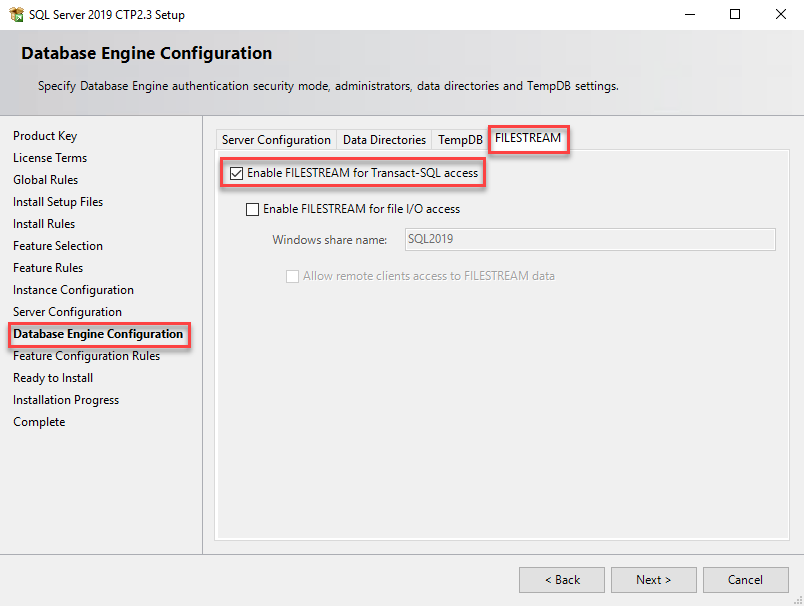
Normally FILESTREAM configuration performed post installation using SQL Server Configuration Manager and SQL Server Management Studio (SSMS). To check if it is enabled you can use sp_configure system stored procedure:
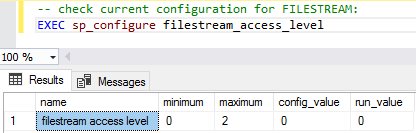
If your config_value set to 0 it means that FILESTREAM is disabled and you need to set it config_value to 2 to enable it. Alternatively, you can verify configuration state navigating to SQL Server Configuration Manager > SQL Server Services selecting your SQL Server Instance and accessing its properties where you will find FILESTREAM tab:
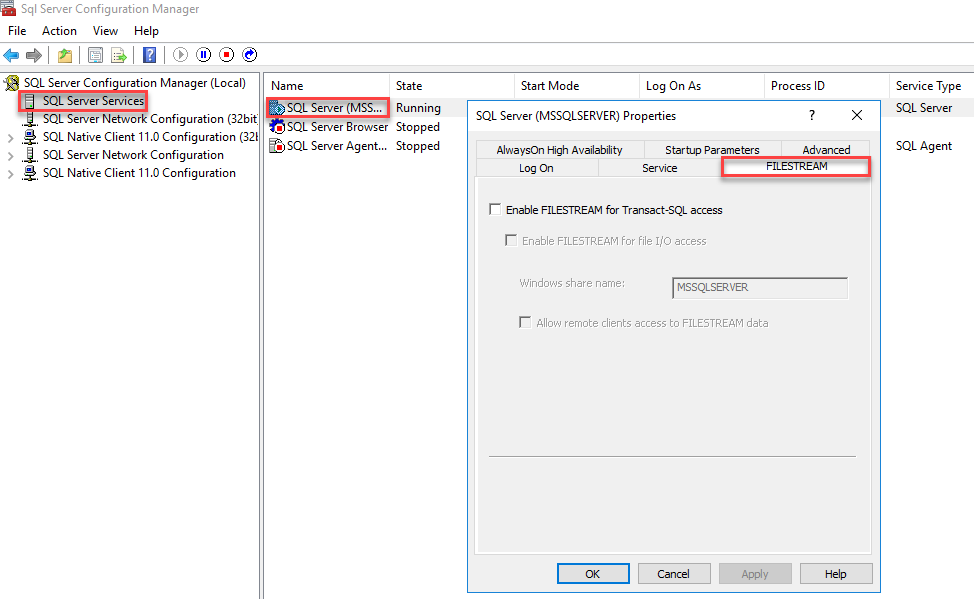
We can enable FILESTREAM using Transact-SQL/SSMS and SQL Server Configuration Manager.
Let’s enable FILESTREAM using sp_configure stored procedure as shown below:
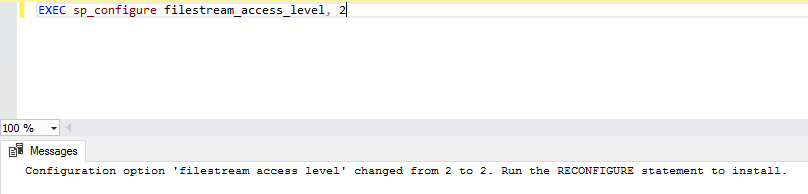
Executing this command will change your config_value from 0 to 2:
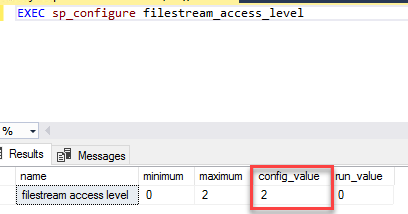
You may be a little bit confused by the message you will receive after changing FILESTREAM_access_level which says: “Configuration option ‘FILESTREAM access level’ changed from 0 to 2. Run the RECONFIGURE statement to install.” If you try to run RECONFIGURE after this, you will see the following message: “FILESTREAM feature could not be initialized. The operating system Administrator must enable FILESTREAM on the instance using Configuration Manager.”
Your next step after changing configuration with sp_configure will be switching over to FILESTREAM tab of instance properties in SQL Server Configuration Manager and ticking Enable FILESTREAM for Transact-SQL access as well as Enable FILESTREAM for file I/O access checkboxes, adjusting Windows share name if necessary (it defaults to MSSQLSERVER in case of default instance or to instance name in case of named instance) optionally you may tick Allow remote clients access to FILESTREAM data:
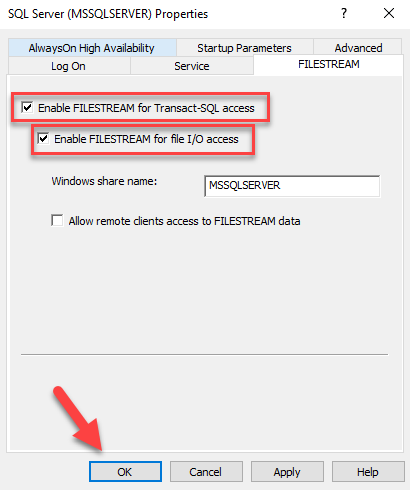
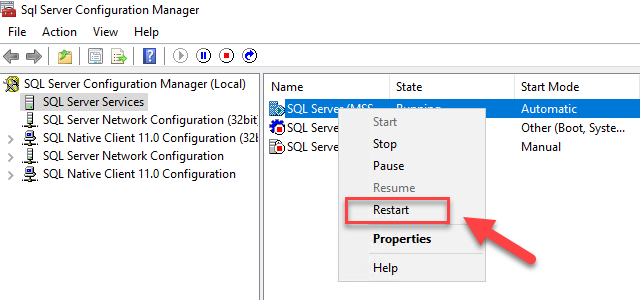
Click OK in Instance properties and restart your SQL instance to get this setting applied:
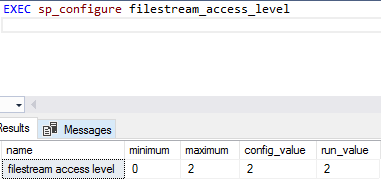
Once restart completed you can execute EXEC sp_configure FILESTREAM_access_level command again and see that we have both config_value and run_value set to 2:
Now we can add FILESTREAM enabled file group and file and start using FILESTREAM. To add FILESTREAM file group you can use SSMS GUI (Database Properties > Filegroups):
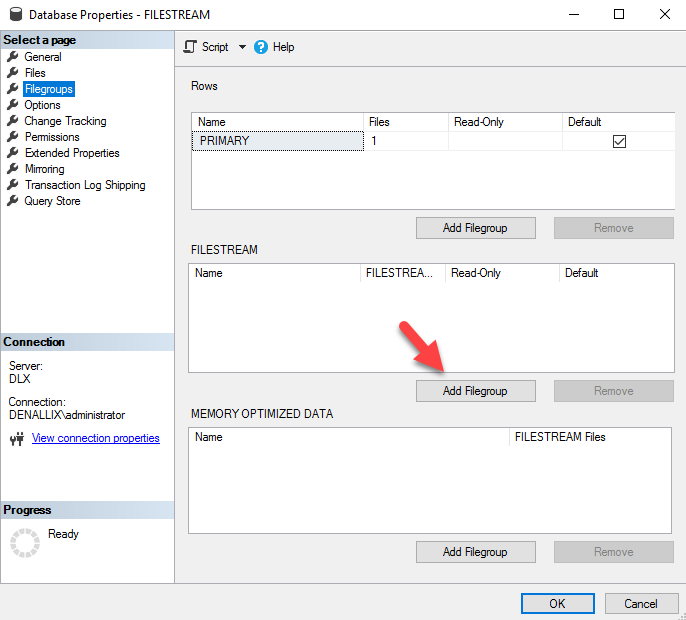
And T-SQL can be used to do the same as well:
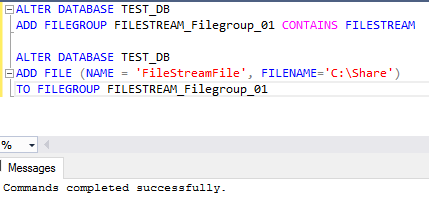
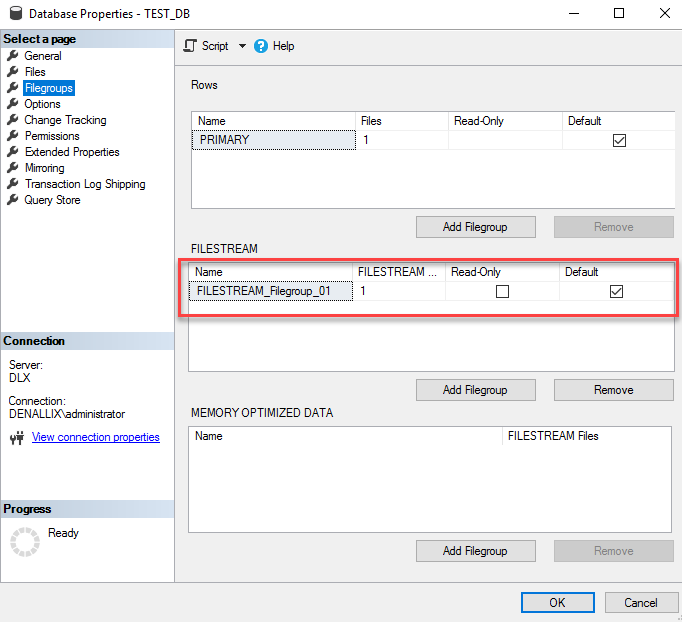
Once you executed commands shown above you will see that FILESTREAM filegroup has been added to your database:
You will also see that folder you specified in SQL script is created with FILESTREAM.hdr file and $FSLOG folder inside:
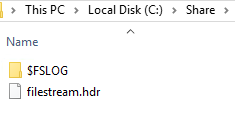
FILESTREAM.hdr file used to store FILESTREAM header information (metadata describing data container) and $FSLOG directory acts as a FILESTREAM equivalent of the transaction log. Subsequently subdirectories will be created in this folder for each table and inside of those there will be subdirectories foreach FILESTREAM column within the table with GUIDs acting as a file names for all these file system objects.
We can now create table with FILESTREAM column:

Note that for FILESTREAM table you must have column marked as ROWGUIDCOL which allows you to have immutable column separate from the primary key, otherwise on attempt to create table you will receive this error message: “A table that has FILESTREAM columns must have a nonnull unique column with the ROWGUIDCOL property.”
And once table is created we can either save existing file into our FILESTREAM column or convert some text into binary format and save it:
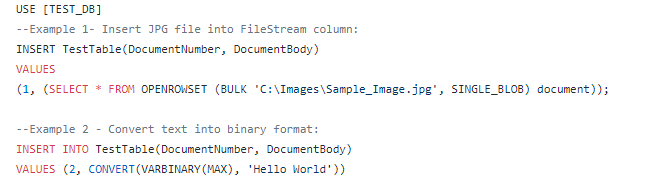
You will see that our binary data was stored in database and GUID was assigned to each record as ID:

You can access these files through file system, but there is no easy way to locate files within GUID based folder structure with files named with GUIDs and having no extension. Still you can locate the file and open it from file system (it is especially easy in the beginning when you have just a few files stored in FILESTREAM container):
FILESTREAM in SQL Server

This article will discuss SQL Server FILESTREAM including installation, configuration, enabling and general considerations.
We may need to store a different kind of data in our SQL Server database apart from the regular table-based data. This data may be in multiple forms such as a document, images, audio or video files. You might have seen people using BLOB data to store these kinds of data, but you can save only up to 2 GB using this. This kind of data also slow down the performance of your database system since it tends to be large and takes significant system resources to bring it back from the disk.
FILESTREAM, in SQL Server, allows storing these large documents, images or files onto the file system itself. In FILESTREAM, we do not have a limit of storage up to 2 GB, unlike the BLOB data type. We can store large size documents as per the underlying file system limitation. SQL Server or other applications can access these files using the NTFS streaming API. Therefore, we get the performance benefit of this streaming API as well while accessing these documents.
Note: FILESTREAM is not a SQL Server data type to store data
Traditionally if we store the data in the BLOB data type, it is stored in the Primary file group only. In SQL Server FILESTREAM, We need to define a new filegroup ‘FILESTREAM’. We need to define a table having varbinary(max) column with the FILESTREAM attribute. It allows SQL Server to store the data in the file system for these data type. When we access the documents that are stored in the file system using the FILESTREAM, we do not notice any changes in accessing it. It looks similar to the data stored in a traditional database.
Let us understand the difference in storing the images in the database or the file system using SQL Server FILESTREAM.
Below you can traditional database storing the employee photo in the database itself.
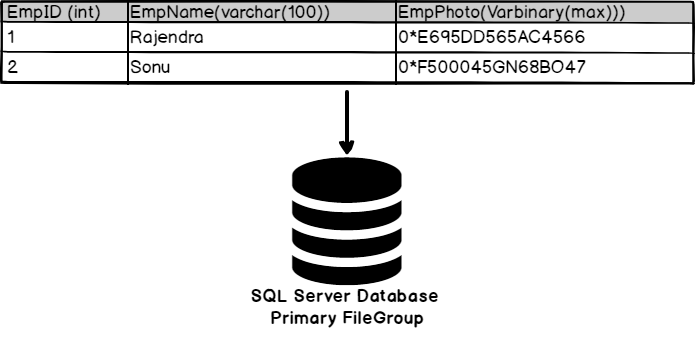
Now let us look at the changes in this example using the SQL Server FILESTREAM feature.
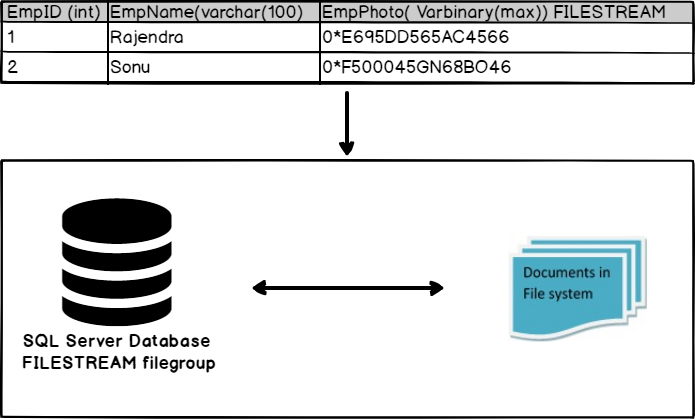
In the above illustration, you can see the documents are stored in the file system, and the database has a particular filegroup ‘FILESTREAM’. You can perform actions on the documents using the SQL Server database itself.
One more advantage of the FILESTREAM is that it does not use the buffer pool memory for caching these objects. If we cache these large objects in the SQL Server memory, it will cause issues for normal database processing. Therefore, FILESTREAM provides caching at the system cache providing performance benefits without affecting core SQL Server performance.
Enabling the FILESTREAM feature in SQL Server
We can enable the FILESTREAM feature differently in SQL Server.
- During Installation: You can configure FILESTREAM during the SQL Server installation. However, I do not recommend doing it during the installation because we can later enable it as per our requirements
- SQL Server Configuration Manager: In the SQL Server Configuration Manager (start -> Programs -> SQL Server Configuration Manager), go to SQL Server properties
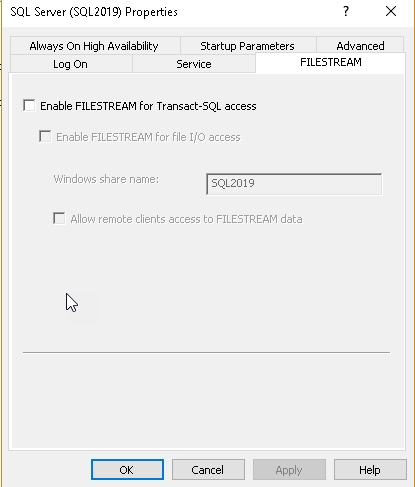
In the SQL Server properties, you can see a tab ‘FILESTREAM’.
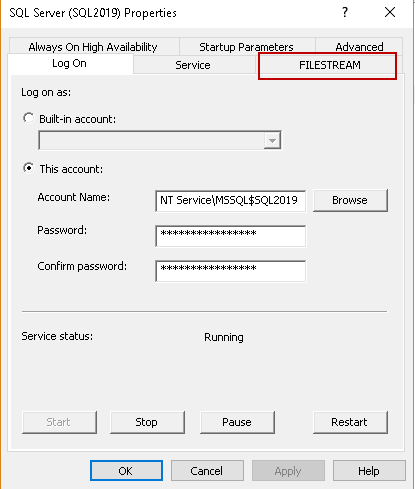
Click on ‘FILESTREAM’, and you get below screen. Here you can see that this feature is not enabled by default
- Put a tick in the checkbox ‘Enable FILESTREAM for Transact-SQL access’
- We can also enable the read\write access from the windows for file I/O access. Put a tick on the ‘Enable FILESTREAM for file I/O access’ as well
- Specify the Windows share name and allow remote client access for this FILESTREAM data
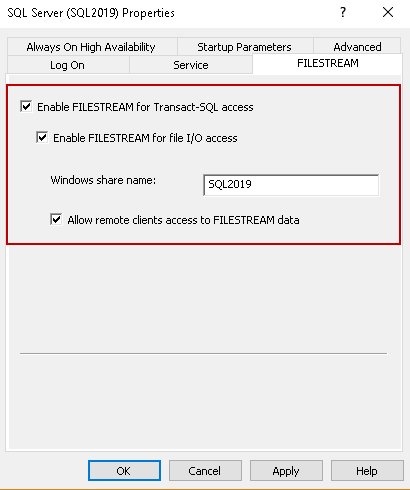
Click Apply to activate the FILESTREAM feature in SQL Server. You will get a prompt to restart the SQL Server service. Once we have enabled FILESTREAM access and restarted SQL Server, we also need to specify the access level using SSMS. We need to make changes in sp_configure to apply this setting.