WhatsApp is Accused of using microphone constantly in the background; Meta claims its a bug

Some WhatsApp users noticed that the Android app has been using the microphone in the background constantly. They found that app triggers microphone permission when the app is not in use.
A user posted a screenshot of Android’s Privacy Dashboard to confirm the suspicious microphone usage by WhatsApp. His Pixel 7 Pro recorded 9 separate reports of the app using the microphone in the background when the phone was not active.
WhatsApp has been using the microphone in the background, while I was asleep and since I woke up at 6AM (and that's just a part of the timeline!) What's going on? pic.twitter.com/pNIfe4VlHV
This was not an isolated event. Several users found similar suspicious activity by the app. It is happening across multiple Android versions running on different devices including Pixel and Samsung phones. So, it is certainly a thing to worry about.
After the tweet went viral, WhatsApp tweeted to claim that this happened due to a bug on Android.
“We believe this is a bug on Android that miss-attributes information in their Privacy Dashboard and have asked Google to investigate and remediate,” says the company.
Over the last 24 hours we’ve been in touch with a Twitter engineer who posted an issue with his Pixel phone and WhatsApp.
We believe this is a bug on Android that mis-attributes information in their Privacy Dashboard and have asked Google to investigate and remediate. https://t.co/MnBi3qE6Gp
— WhatsApp (@WhatsApp) May 9, 2023
WhatsApp further claims that users have full control over their phone’s mic settings and the app only uses a microphone when a user is making a call or sending a voice message.
Meta has been accused of spying with mics for years. Users complain of seeing ads and suggested posts they were talking about in person. This is the reason it is hard to trust Meta when it comes to privacy. Now that Meta claims it is the bug one associated with Android, let’s wait for Google’s reply.
WhatsApp using Device’s Microphone even when not running [Fix]
In this guide, we will show you a couple of methods to fix the issue of WhatsApp using your device’s microphone even when it is not running. With the twelfth iteration of the OS, it was the Material You theme that took away all the limelight. However, there was a much more important feature that didn’t get the appreciation that it deserved- we are talking about the Privacy Indicators.
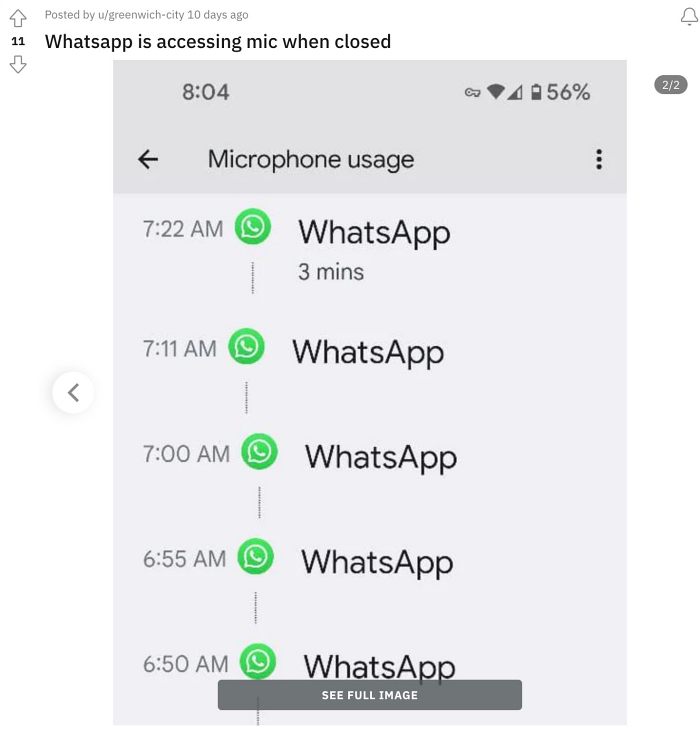
For the unaware, when your device’s camera or microphone is in use, then you’ll get a green indicator icon of the same at the top right of your screen. This indicator comes in quite useful if an app tries to secretly use system-level permissions without your consent. And thanks to this privacy feature, many users have reportedly caught WhatsApp using the device’s microphone even when the app is not running.
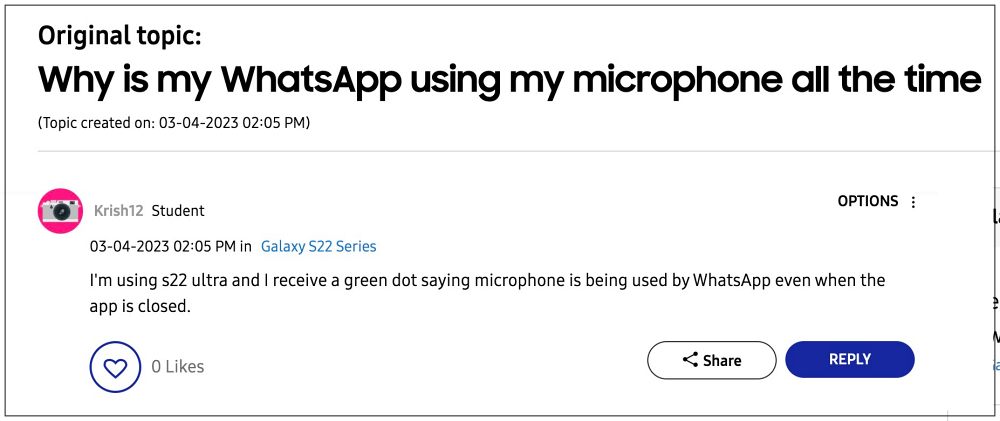
This usually happens when a user is on a WhatsApp call. But even after the call gets over, the microphone indicator is still being shown, signifying that the instant messaging app is still using the microphone, the implication of which could be quite alarming and frightening. With that said, there does exist. a few nifty workarounds that might help you address this issue. So without further ado, let’s check them out.
Table of Contents
Fix WhatsApp using the Device’s Microphone even when not running

It is recommended that you try out each of the below-mentioned workarounds and then see which one spells out success. So with that in mind, let’s get started.
Change WhatsApp Microphone Permissions
First and foremost, make sure that WhatsApp is allowed to access the device’s microphone only when it is running. Here’s how it could be done:
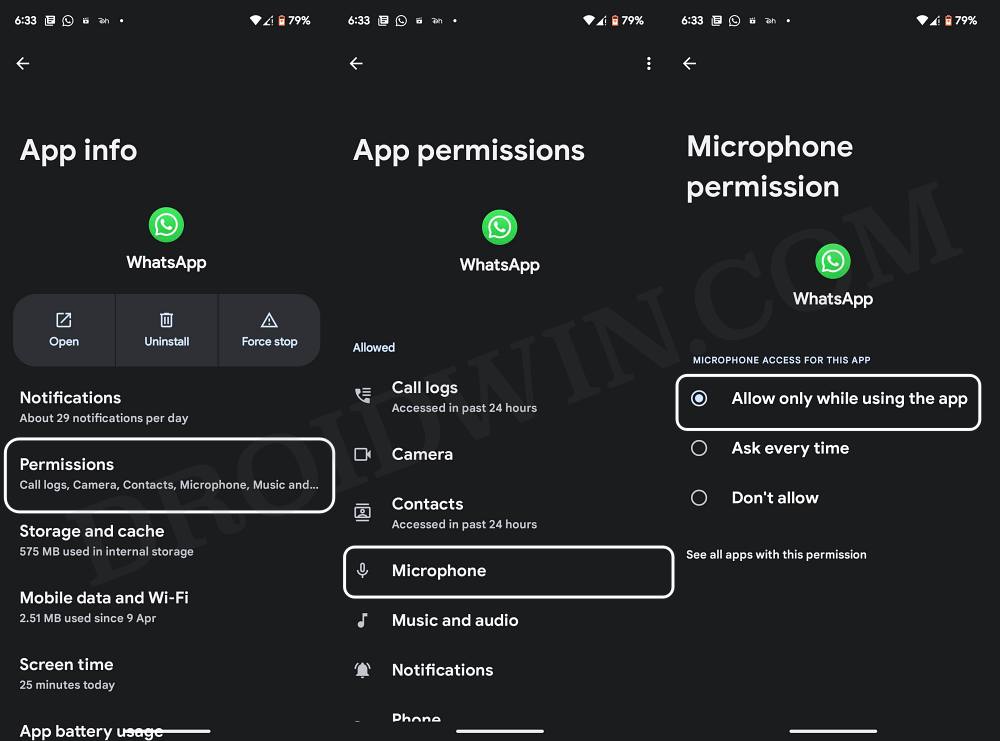
- Head over to Settings > Apps > See All Apps > WhatsApp.
- Then go to Permissions > Allow only while using the app.
- Check if it fixes the issue of WhatsApp using the device’s microphone even when not running.
Switch to WhatsApp Beta
The culprit could also be a buggy update released by the developers. In such cases, it might take a while before a patch is released in the stable build. However, the same fix is released pretty quickly in the beta build. Moreover, in certain cases, the issue might not even be present in the beta build. So to round things up, you should consider joining the beta testing group and then check out the results. Here’s how it could be done:
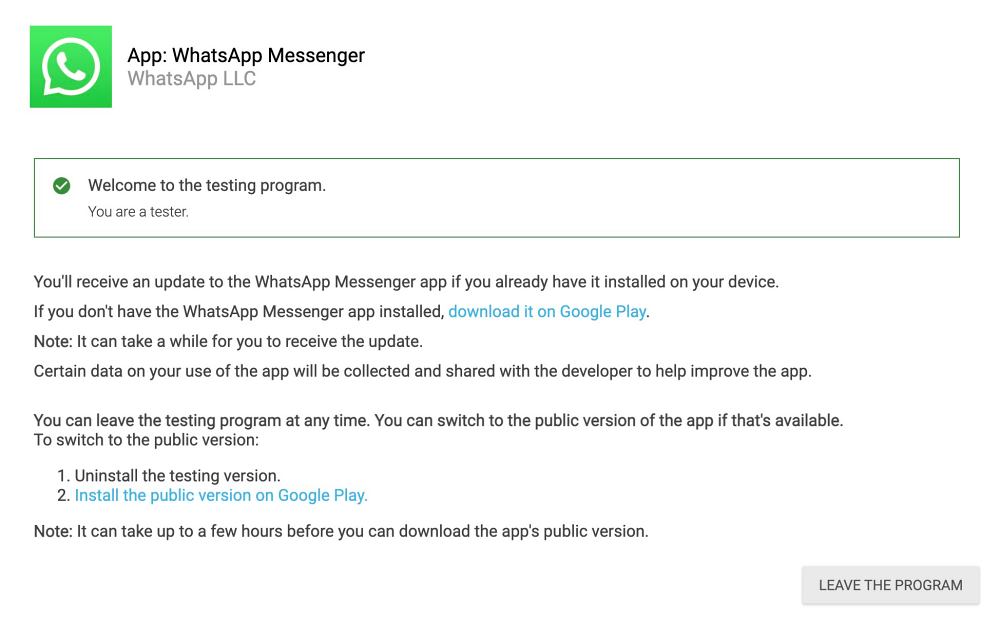
- Head over to the WhatsApp beta testing page and sign up as a beta tester.
- Then wait for a couple of minutes, open Play Store, and search WhatsApp.
- You should get a beta update, download and install it right away.
- Check if it fixes the issue of WhatsApp using the device’s microphone even when not running.
Revoke WhatsApp Permissions
If any of the app’s permission settings get corrupted, then it might have an adverse impact on its other associated permission or even on the overall functioning of the app. So in such cases, your best bet should be to take matters into your own hands and manually give WhatsApp permission to access the microphone when the need really arises. Here’s how it could be done:
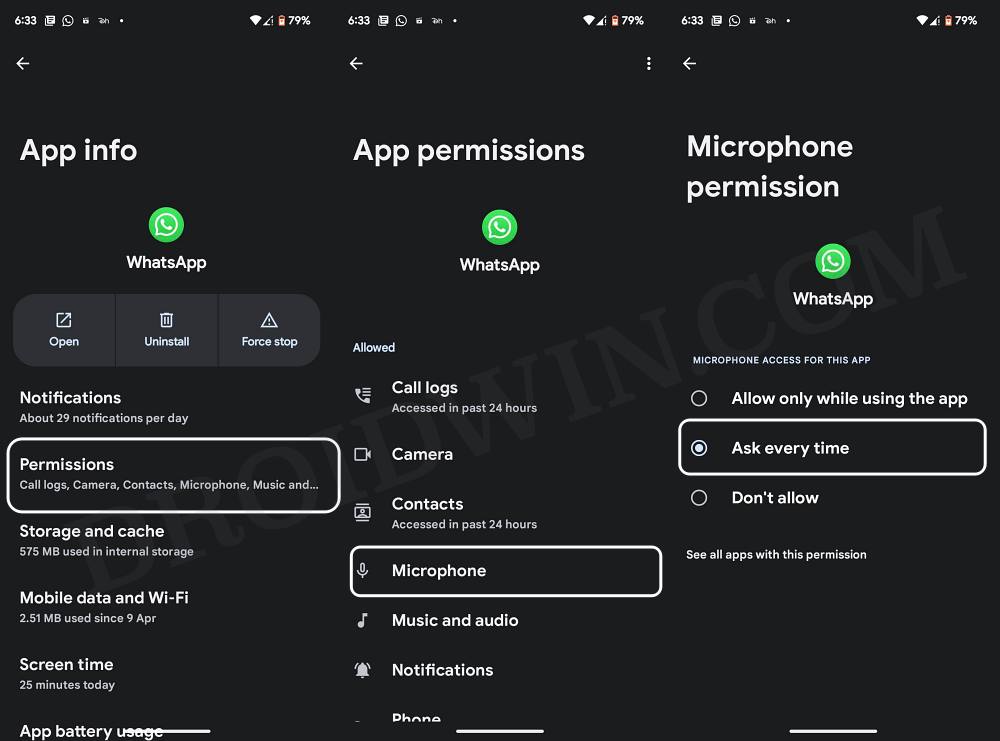
- Head over to Settings > Apps > See All Apps > WhatsApp.
- Then go to its Permissions section and select As every time.
- Now every time you or any other app tries to access the WhatsApp microphone, then you’ll have to manually grant it permission to do so.
Disable Pause App Activity for WhatsApp
If an app hasn’t been used for a specific time frame, then the OS will automatically delete its temporary file, stop notifications, and even remove all its permission. To stop that from happening, you should consider turning off this feature, using the instructions given below.
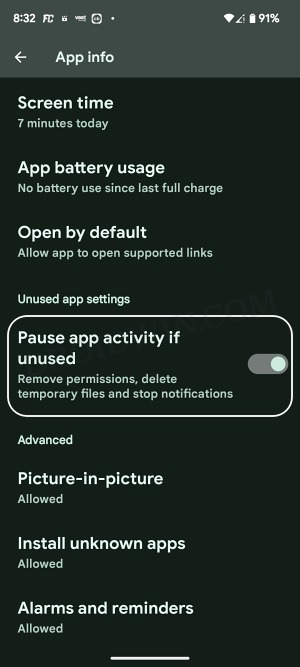
- Head over to Settings > Apps > See All Apps > WhatsApp.
- Then disable the toggle next to Pause App Activity if unused.
That’s it. These were the various methods to fix the issue of WhatsApp using your device’s microphone even when it is not running. If you have any queries concerning the aforementioned steps, do let us know in the comments. We will get back to you with a solution at the earliest.
About Chief Editor
Sadique Hassan
A technical geek by birth, he always has a keen interest in the Android platform right since the birth of the HTC Dream. The open-source environment always seems to intrigue him with the plethora of options available at his fingertips. “MBA by profession, blogger by choice!”
[Updated] WhatsApp allegedly accessing microphone on Google Pixel 7, Galaxy S23 & other phones even when not in use (workaround inside)
![[Updated] WhatsApp allegedly accessing microphone on Google Pixel 7, Galaxy S23 & other phones even when not in use (workaround inside)](https://piunikaweb.com/wp-content/uploads/2022/12/WhatsApp-featured-1.jpg)
WhatsApp is currently the most popular messaging app in the world. It managed to establish its dominance from birth by allowing free unlimited messaging at a time when text messages were still relatively expensive.
WhatsApp has been part of the big technology conglomerate META (Facebook) for some years now. This has raised some concerns related to user data privacy due to Zuckerberg’s company background.

Now, there are WhatsApp users claiming that the app is accessing the microphone on their smartphones even when it is not in use.
WhatsApp allegedly accessing microphone even when not in use
The issue is not exactly new, since there have been similar reports for weeks. People have been able to notice the use of the microphone thanks to the ‘Privacy Indicators’ feature (present since Android 12).
‘Privacy Indicators’ basically adds a little green notification in the top right edge of the screen when some sensitive permission (microphone or camera access) is in use.
That said, multiple WhatsApp users have noticed that the little green dot with a microphone is still active even after exiting or closing the app.
Microphone always keep switched on after Whatsapp call.
The green dot on the upper right corner on my screen is always on and the microphone is used by the WhatsApp. Green dot disappear after restarting but again appears after making a Whatsapp call. This is happening for last 15-20 days.
Source
WhatsApp permission for microphone
I have given the permission of microphone to WhatsApp to use it while using the app , but it shows using microphone even after I stop using WhatsApp or also after I remove the WhatsApp from the running apps
Source
For reference, the icon should only be active while the hardware involved is in use. For example, in the case of the microphone, the green dot will appear when recording voice notes, making video calls, etc.
However, after checking the ‘Permissions History’ section on Android settings, some users have found that WhatsApp has been accessing the microphone in the background.
Several related reports come from users of Google Pixel smartphones (including the Pixel 7 series). However, there are also reports from users of Samsung Galaxy devices (including the Galaxy S23 series) and others.
Why is my WhatsApp using my microphone all the time
I’m using s22 ultra and I receive a green dot saying microphone is being used by WhatsApp even when the app is closed.
Source
Same issues, s21 ultra, whatsapp seems to reproduce this error almost instantly.
Source
A couple of potential workarounds
That said, some reports suggest that the situation is actually caused by a bug, and there are a couple of potential workarounds that could help you resolve it.
First, a redditor points out that the bug could have been fixed in a recent WhatsApp update. After updating it to the latest version available, restarting the phone was enough to solve it.
Another redditor suggests an alternative method. This consists of revoking the sensitive permissions to the WhatsApp app (microphone and camera), restarting the device and then re-enabling the permissions.
Revoking permission then restarting my phone and then enabling it again helped me solve the issue. (for now)
Source
There is still no official word from the WhatsApp team on this situation. We will update this story as events unfold.
Update 1 (May 10, 2023)
09:04 am (IST): According WhatsApp support, this is a bug in Android that mis-attributes information in Privacy Dashboard. Moreover, they’ve asked Google to investigate it.
Over the last 24 hours we’ve been in touch with a Twitter engineer who posted an issue with his Pixel phone and WhatsApp. We believe this is a bug on Android that mis-attributes information in their Privacy Dashboard and have asked Google to investigate and remediate. (Source)
Update 2 (May 11, 2023)
01:30 pm (IST): The minister stated that the government will investigate the alleged breach of privacy while preparing the new Digital Personal Data Protection Bill.
PiunikaWeb started as purely an investigative tech journalism website with main focus on ‘breaking’ or ‘exclusive’ news. In no time, our stories got picked up by the likes of Forbes, Foxnews, Gizmodo, TechCrunch, Engadget, The Verge, Macrumors, and many others. Want to know more about us? Head here.
Приложение использует камеру в фоновом режиме: о чем говорят оповещения Xiaomi
Пользуясь мобильными устройствами, многие жалуются на непонятные и даже подозрительные оповещения. Одно из них: приложение использует камеру в фоновом режиме в Xiaomi, что это значит и почему эта информация попала в раздел безопасности? Насколько это опасно для персональных данных? Можно и нужно ли запрещать это или не имеет смысла?

Что означает такое предупреждение?
Сведения о том, что приложение (Viber, WhatsApp, Intagram) задействует в фоновом режиме камеру, – это системное сообщение. Что это за предупреждение и насколько серьезны последствия, если его игнорировать?
Приложение использует камеру в фоновом режиме – это стандартное оповещение службы безопасности MIUI о том, что одна из программ обладает скрытым доступом к записывающим функциям смартфона. Никакого конкретного вреда от действия такого разрешения нет, но формально подобная доступность может нарушать базовые правила безопасности при пользовании.
Обычно сам пользователь автоматически, по запросу устройства, дает разрешение на включение камеры, когда его запрашивают программы типа Viber. Но программное обеспечение гаджета отслеживает случаи активности разных программ и предупреждает об этом. Оповещение полезно не только этим. Если своевременно отключить действие некоторых встроенных функций без специального желания юзера, батарея разряжается медленнее.
Похожие оповещения мы можем получать и относительно других мультимедийных объектов. Например, предупреждение о том, что приложение использует микрофон в фоновом режиме. Алгоритм действий здесь очень похож.
Как отключить эту функцию?
Многие пользователи, беспокоясь о сохранности персональных данных, задумываются, как запретить приложениям такой доступ. Первое, что предстоит решить – хотите ли запретить это. Если нет – достаточно кликнуть на появляющееся оповещение и выполнить действия, которые подсказывает система. Этот процесс несложный, его достаточно сделать один раз, и по умолчанию устройство не будет разрешать программам самовольно подключать камеру.
Если вы установите запрет, возможно другое неудобство. Каждый раз, обращаясь к Instagram или Viber, придется давать разрешение по запросу. Тогда система будет направлять соответствующее оповещение.
Другие варианты решений
Если вы не беспокоитесь о сохранении персональных данных и доверяете системе смартфона, то можете выбрать другой вариант. Самый простой вариант – отключить сообщения вообще.
- Зайти в меню. Открыть стандартный пункт «Настройки», выбрать опцию «Питание и производительность». Далее найти пункт «Контроль активности».
- Пункт «Контроль активности» предлагает стандартный перечень программ, для работы которых нужны соответствующие мультимедийные устройства.
- Из представленных в перечне вариантов вручную выберите программы, к которым хотим предоставить доступ по умолчанию. По отношению к ним выставите пункт «Нет ограничений».

Этот алгоритм можно выполнить с несколькими отдельно взятыми приложениями. Но чтобы сэкономить время, часто такое разрешение предоставляют сразу всем пунктам из списка.
Второй вариант – предоставить такое разрешение через меню «Настройки» и пункт «Разрешения». Тогда ограничения придется снять с камеры и микрофона как отдельных программ. Так вы разрешите использовать их всем программам, которым эти программы могут понадобиться.
В результате Instagram или Viber получает неограниченный контроль над датчиками устройства. Но это не опасно для работы мобильного, эти приложения не были замечен в незаконных процедурах.
Вопрос, как отключить использование камеры и микрофона в фоновом режиме, можно решить, воспользовавшись настройками устройства. Все пункты есть в меню, просто пройдитесь по меню и установите нужные опции.