Разработка сценариев
Узнайте, как выполнить автоматизацию общих задач разработки сценариев с помощью панели сценариев и панели ярлыков сценариев в InDesign.


Разработка сценариев в InDesign
Сценарии представляют собой удобный инструмент для выполнения различных задач. Сценарий может быть как простым (например, автоматизированная типовая задача), так и сложным (например, полностью новая функция). Возможно как создание собственных сценариев, так и запуск сценариев, созданных другими пользователями. Дополнительные сведения о сценариях см. в руководстве по разработке сценариев, в требованиях к сценариям, а также на других ресурсах для разработчиков на сайте.
Руководство содержит введение в написание сценариев и учебные пособия. В нем также представлен ряд полезных сценариев, например сценарий, который рисует направляющие вокруг выделенного объекта. Некоторые из этих сценариев по умолчанию отображаются в палитре «Сценарии».
Сценарии UXP
Сценарии в InDesign теперь поддерживаются Unified Extensibility Platform (UXP), так что для автоматизации задач можно использовать современный JavaScript (ES5 и большинство функций ES6). Получите более подробную информацию о Сценарии UXP.
Обзор палитр «Сценарии» и «Ярлык сценария»
InDesign содержит две палитры для работы со сценариями: Сценарии и Ярлык сценария .
С помощью палитры Сценарии можно выполнять сценарии, не выходя из программы InDesign. В палитре Сценарии отображаются сценарии, расположенные в подпапках Scripts папки приложения InDesign и в пользовательских папках Установки .
Выберите Windows > Утилиты > Сценарии , чтобы открыть Палитру сценариев . Чтобы сценарий появился в палитре Сценарии , после создания или получения его необходимо поместить в папку Scripts Panel .
Users/[имя_пользователя]/Library/Preferences/Adobe InDesign/[версия]/[язык]/Scripts/Scripts Panel
Documents and Settings\[имя пользователя]\Application Data\Adobe\InDesign\[версия]\[язык]\Scripts\Scripts Panel
Windows Vista и Windows 7
Users\[имя_пользователя]\AppData\Roaming\Adobe\InDesign\[версия]\[язык]\Scripts\Scripts Panel
Для быстрого перехода к папке Scripts Panel щелкните сценарий в палитре Сценарии правой кнопкой мыши (Windows) или удерживая клавишу Control (macOS), а затем выберите пункт Показать в Проводнике (Windows) или Показать в программе Finder (macOS).
Палитра Ярлык сценария позволяет задавать ярлыки для элементов страницы: текстовых фреймов, фигур и др. Задание ярлыков для элементов страницы особенно полезно при написании сценариев, в которых необходима идентификация объектов. Выберите Windows > Утилиты > Ярлык сценария , чтобы открыть палитру Ярлык сценария .
Дополнительные сведения о добавлении, выполнении и редактировании сценариев см. в руководстве по разработке сценариев.
Образцы сценариев
Вы можете дважды щелкнуть сценарий в палитре Сценарии , чтобы выполнить его, либо выполнять сценарии с помощью функции Быстрое применение .
Добавление направляющих вокруг выбранного объекта или объектов.
Добавление точек в контур выбранного объекта или объектов.
QR-код может быть размещен на графическом объекте или непосредственно в качестве элемента страницы.
Перемещает содержимое четных/нечетных страниц на указанную величину; пытается вернуть объекты в правильное положение после изменения поля мастер-страницы и/или вставки страницы.
Выравнивание объектов в указанном местоположении на странице.
Автоматическое создание кнопок с различными свойствами анимации.
Удаление выбранного текстового фрейма и его содержимого из материала.
Повторная прорисовка контура выбранного элемента или элементов с использованием различных типов углов. Типы углов могут быть применены к выбранным точкам контура.
Определение полного стиля символа на основе выбранного текста.
Добавление меток обреза или меток приводки вокруг выбранного объекта или объектов.
Экспорт всех материалов документа в несколько текстовых файлов.
Выполнение нескольких операций по поиску и замене текста на основе файла с разделителями-табуляциями.
Размещение всей графики в определенной папке макета «галереи».
Создание сетки путем разделения или дублирования выбранного объекта или объектов.
Применение эффекта «наложения» к выбранному объекту или объектам.
Изменение положения точек контура на выбранном объекте или объектах для добавления художественного эффекта.
Помещение всех страниц файла PDF.
Выбор объектов на активном развороте по типу.
Сортировка всех абзацев выбранного фрагмента в алфавитном порядке.
Разделение текстовых фреймов в выбранном материале на отдельные несвязанные текстовые фреймы.
Применение табуляции и отступа к выбранному тексту.
Для получения дополнительной информации об установке и использовании этих образцов сценариев см. раздел Автоматизация.
Сценарии, созданные сообществом
Теперь в InDesign можно найти еще больше сценариев, созданных сообществом InDesign.
-
, автор Крис Коппитерс (Kris Coppieters) — позволяет использовать сочетания клавиш для вставки в текст InDesign любого символа или последовательности символов Unicode. Дополнительные сведения см. в разделе Инструкции. , автор Штефан Ракете (Stefan Rakete) — позволяет использовать сочетания клавиш для обрамления выделенного текста кавычками разных видов. Дополнительные сведения см. в разделе Инструкции. , автор Паоло Агостинетто (Paolo Agostinetto) — этот сценарий позволяет скопировать один слой вместе с элементами из одного документа в другой. Дополнительные сведения см. в разделе Инструкции. , автор Роланд Дрегер (Roland Dreger) — определение высоты строчных знаков абзаца текста. Дополнительные сведения см. в разделе Инструкции. , автор Ариэль Уолден (Ariel Walden) — сценарий позволяет изменить поля во всем документе, чтобы они соответствовали полям выбранного текстового фрейма. Дополнительные сведения см. в разделе Инструкции. , автор Ариэль Уолден (Ariel Walden) — сценарий InDesign, который облегчает добавление разрывов между текстовыми фреймами. Дополнительные сведения см. в разделе Инструкции. , автор Крис Коппитерс (Kris Coppieters) — сценарий запуска для Adobe® InDesign® и Adobe InCopy®, который предупреждает о наличии примечаний. Дополнительные сведения см. в разделе Инструкции. , автор Крис Коппитерс (Kris Coppieters) — сценарий для копирования и вставки координат в элементы страницы. Дополнительные сведения см. в разделе Инструкции. , автор Грегор Фелленц (Gregor Fellenz) — позволяет привязывать запросы InDesign GREP к новым сценариям. Дополнительные сведения см. в разделе Инструкции. , автор Грегор Фелленц (Gregor Fellenz) — позволяет сбросить изменения текста, таблиц и объектов InDesign. Дополнительные сведения см. в разделе Инструкции. , автор Луис Фелипе Корульон (Luis Felipe Corullón) — Сценарий для инвертирования выделения в документе InDesign. Дополнительные сведения см. в разделе Инструкции. , автор Паоло Агостинетто (Paolo Agostinetto) — Этот сценарий позволяет скопировать слой вместе с элементами из одного документа в другой. Дополнительные сведения см. в разделе Инструкции.
, автор Питер Карел (Peter Kahrel) — Преобразование сносок в конце документа в сноски в конце книги. Дополнительные сведения см. в разделе Инструкции.
, автор Питер Карел (Peter Kahrel) — Сценарий создает концевые сноски, ссылки на которые не обновляются автоматически при добавлении или удалении концевых сносок. Дополнительные сведения см. в разделе Инструкции.
, автор Олав Кверн (Olav Kvern) — Изменение размера текущего выделения, например изображения, до размера страницы. Дополнительные сведения см. в разделе Инструкции. , автор Олав Кверн (Olav Kvern) — Изменение размера страницы до размера текущего выделения, например изображения. Дополнительные сведения см. в разделе Инструкции.
Adobe поддерживает на GitHub репозиторий со сценариями сообщества с открытым исходным кодом. Дополнительные сведения о репозитории InDesign Community Script см. в файле ReadMe. Этот файл ReadMe содержит подробную информацию о том, как внести свой сценарий в репозиторий, а также ссылки на создателей сценариев.
как увидеть скрипты?
Только-только установил InDesigne CS. Теперь хотелось бы увидеть какие-то скрипты и попробовать их запустить, но в палитрах Scripts и Script Label ничего нет (и никакого меню, типа "редактировать" или "создать новый скрипт" в этих палитрах тоже нет), хотя в папке Presets/Scripts сидят четыре скрипта *.js.
Как можно их увидеть и запустить?
P.S. Может быть из-за того, что дистрибутив программы "левый"?
- 18.01.2008
- #2
Ответ: как увидеть скрипты?
индизайн не приспособлен для создания и редактирования скриптов
sakhar
Professional
- 18.01.2008
- #3
Ответ: как увидеть скрипты?
hulk1776
- 18.01.2008
- #4
Ответ: как увидеть скрипты?
Хорошо, я согласен не редактировать и не создавать, но запустить-то предложенные скриптовые примерчики я должен иметь право 😉
Опять же извиняюсь за чудовищно глупый вопрос типа "как завести двигатель у автомашины?". Но надо же это когда-то сделать первый раз.
"Прежде, чем спрашивать.
Попытайтесь найти ответ с помошью поиска в Web.
Этот шаг и привел меня сюда, на форумы DTP.
Попытайтесь найти ответ в руководстве.
Читаю официальный Адобовский учебный курс по Индизайну. Там нет даже упоминания о скриптах.
Попытайтесь найти ответ в списке часто задаваемых вопросов (ЧаВО).
Там ответы (насколько я понял), как пользоваться форумом, но не программами.
Попытайтесь найти ответ путем проверок или экспериментов.
2 часа перебирал все менюшки и подменюшки во всех палитрах — и тишина, а в скриптовой палитре таковых менюшек даже не оказалось.
Спросите опытного товарища.
Все товарищи по работе понятия не имеют о скриптинге в верстальных программах. В Web’e — пожалуйста, а про Индизайн не знают — верстальщиков кроме меня нет.
Может быть все же подскажите (ну в виде исключения), как воспользоваться скриптами в программе Индизайн.
В Пейдже я это освоил, а с Индизайном накладочка выходит. (
- 18.01.2008
- #5
Ответ: как увидеть скрипты?
CS версия сейчас, подозреваю, мало у кого осталась
а хелп программы про это что говорит, вы спрашивали?
sakhar
Professional
- 18.01.2008
- #6
Ответ: как увидеть скрипты?
Window/Automation/Scripts
http://forum.rudtp.ru/showthread.php?t=16007
http://toolbox.rudtp.ru/
В официальном адобовском курсе скрипты называются сценариями.
Mic256
- 18.01.2008
- #7
Ответ: как увидеть скрипты?
Выдержка из русского Help-а:
Обзор палитр "Сценарии" и "Ярлык сценария"
InDesign содержит две палитры для работы со сценариями: "Сценарии" и "Ярлык сценария".
С помощью палитры "Сценарии" можно выполнять сценарии, не выходя из программы InDesign. В палитре "Сценарии" отображаются сценарии, расположенные в подпапках Scripts папки приложения InDesign и в пользовательских папках "Установки". Чтобы сценарий появился в палитре "Сценарии", после создания или получения его необходимо поместить в папку Scripts.
Mac OS Users/[имя_пользователя]/Library/Preferences/Adobe InDesign/[версия]/Scripts
Windows XP Documents and Settings\[имя_пользователя]\Application Data\Adobe\InDesign\[версия]\Scripts
Windows Vista Users\[имя_пользователя]\AppData\Roaming\Adobe\InDesign\[Версия]\Scripts
Затем можно дважды щелкнуть сценарий в палитре "Сценарии", чтобы выполнить его, либо выполнять сценарии с помощью функции "Быстрое применение".
Палитра "Ярлык сценария" позволяет задавать ярлыки для элементов страницы: текстовых фреймов, фигур и др. Задание ярлыков для элементов страницы особенно полезно при написании сценариев, в которых необходима идентификация объектов.
Подробные сведения о добавлении, запуске и редактировании сценариев см. в руководстве по созданию сценариев в папке Adobe InDesign Technical Info на DVD-диске с InDesign или на web-сайте Adobe.
Не по теме:
Сценарии — надо же.
Из английского надо?
How to install scripts in InDesign
We all love the power of using scripts, but before you can use them, you have to install scripts in InDesign. Here’s how.
Download the script onto your computer and if necessary, unzip it. You should end up with a plain text file with a special filename extension:
- Javascript files can be run on Mac or Windows and have a .js, .jsx, or .jsxbin extension – “script.jsx”
- Applescript files are Mac-only and have an .applescript or .scpt extension – “script.applescript”
- Visual Basic files are Windows-only and have a .vbs extension – “script.vbs”
Tweaking Scripts
If you need to change a setting inside of a script, you can edit it in a text editor. Be sure to save the file as a plain text file with the original extension.
Installing Scripts in the InDesign Scripts Panel
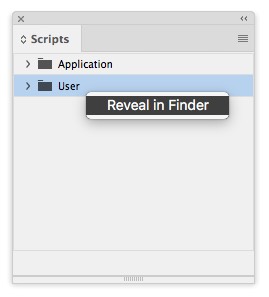
There are two places you can install scripts in InDesign: The Application script folder and the User script folder. The easiest way to find these folders is to open the Scripts panel in InDesign (Window > Utilities > Scripts), then right-click on either Application or User, and from the context menu, choose Reveal in Finder (or Reveal in Windows Explorer).
We tend to use the User folder for scripts that we’ve downloaded. But if you share a computer with colleagues (or if you make use of multiple user accounts on your machine), you can make scripts available to everyone by putting them in the Application folder.
Inside the window that opens there is a folder called Scripts Panel. Put your scripts inside that.
Any script inside the Scripts Panel folder will show up immediately in InDesign. There’s no need to restart the program.
How to Run Scripts from the InDesign Scripts Panel
To run the script, open a document in InDesign, then open the Scripts panel (see above) and double-click the script name. Some scripts require you make a selection first before you run them, because they act on the selection. See if the script writer provided any sort of documentation if you can’t figure it out.
When the Script is Nothing But Text
If you’ve downloaded or clicked on a script and you just see a bunch of text, you’ll need to get it into a format for you to install. Click here to read how to do just that.
- in InDesign , Plug-ins and Scripts , Scripting , Troubleshooting by Anne-Marie Concepcion
- |
- October 28, 2017
- |
- 103 comments
Recommended For You
Sales Enablement Platforms
IndexMatic 3 Review
Using Layers in InDesign
Beautiful. It worked like a charm. Actually better, ‘cuz charms never work.
Now, if I only had a script to unlink all stories in a given document, I’d be set. How hard can that be, right?
Sorry, I meant to write this in another thread. Guess that’s the draw back of tabbed browsing. 😉
this is absolutely amazing!! thanks so much.
Can this be made (for a novice) to work in CS? i d not have the luxury of CS2 and with CS3 on the way soon it may not be worth moving to CS2.
Had a little trouble editing the script for zooming to actual size, but finally found a script editor on my mac that did it. Great help, thanks very much.
You need to make sure it’s a .as and not anything else. .scpt or .app won’t work. Save your script as ‘text’ from Script Editor, then rename it from .applescript to .as (took me half an hour to work this out…)
I’m curious why a person would need the Script Editor … I just open or copy/paste ID scripts in TextEdit (switching to Plain Text mode if necessary), then save them from there as .jsx or .as.
It cant add pages between pages. Only adds in end 🙁
How can i install PDF presets that seem to be missing in my CS2?
just trying to get in on the correct topic here. Thanks!
I tried the jsx file on Indesign CS with no luck. I also attempted to resave the file as a VBS with no success running it either.
Scott, I think CS1 Javascripts end with just “.js” … but sometimes the scripts call for CS2-only functions, so just changing .jsx to .js might not work. Look on your CS1 install CD for the folder containing the CS1 scripts. (They’re in the Extras/Resources CD, I think in the Technical folder.) Adobe doesn’t offer the CS1 scripts for downloading at the site I mentioned in the post, only the CS2 ones.
Renaming a .jsx file to .vbs doesn’t do a thing, the coding the file actually contains is still Javascript, not VBScript. Sorry …
Thank you for describing this process! I could not find it anywhere in the CS2 documentation. (It tells you to install but never tells you how.) Thanks also for including how to open the Scripts palette — the menus are not intuitive, and I don’t use InDesign often enough to remember everything from use to use. It would be a big help for Adobe to include that sort of stuff when they write their manuals.
Thank you, I almost have tears on my eyes, I’ve been looking for this procedure for hours. I wonder what the adobe guys was thinking when they wrote the online help.
Great stuff! However, I tried to use Clever Find/Change Dialog Box Closer and it isn’t working. I can set the shortcut, but there isn’t a way to get out of the find or change boxes. So, when I hit the key it simply places the stroke in the box and doesn’t close the box. I’m sure it’s something simple, but what am I doing wrong?
Caryn, this plug-in may only work in CS2. Are you trying it with CS3?
to:David Blatner
Yes. Its working in CS3 too.
Altough I have
place a script into the scripts folder
indesign cs2 doesnt read it..
could you please give me an advice ??
I don’t how i can eddit or save a txt to a script format
but i have also tried to fix it with a scipt editor and stil doesnt work
Awesome. Works great. Thank you. 😀
Is there a website on the web with free InDesign scripts available ?
WOW! Life saving script! (a little over the top, I know, but you don’t know how much this has helped me in a very time critical situation.)
Big Thanks! But… the script doesn’t work correctly with the changing of Hebrew vowel’s punctuation of MSS text… does any body could help me to adjust the script?
Thank You SO much David for this action script. It’s a
life saver for those of us who don’t want to plunk down another grand on the ME version.
In InDesign CS3 I used the Dave Saunders´ Change Case of Selected Style script and it worked fine. Now, in CS4 the script reports an error on line 41:
app.findPreferences = null;
Any suggestions? this is a very usefull script I use all the time. Thanks in advance.
Hello,
I’m French, so sorry for my english.
I want change the price Euro on my doc.
How do that ?
Because the prefixe, for me, is at the end.
Ex : 1500,50 ? -> 1500.50 x 1.78
Thk you in advance.
In Cs3 it just doesn’t work, When a double klick it, I mean the script, in the script folder in indesign, it does nothing, I even made the Version 4.0 Scripts folder, installed java again…
I’m new at this, It just doesn’t work 🙂
That is quite a common problem, and the solution is discussed here:
Basically, your preferences are probably set so that scripts don’t interact with anyone.
What you should do is copy and paste the following technical-looking line into a text file, save it with the extension .jsx, then put that file into the scripts panel folder (where the other scripts are). Then run it by double-clicking on its name in InDesign’s Scripts Panel. After that, all the scripts should work.
That script saved me … and so much time
million thanx!
I’m on cs1 and I just can’t get this script to work. I’ve followed the above comments and tried saving the file in various formats both from TextEdit and ScriptEditor and nothing seems to work for me. Please help! I need this script desperately.
i am getting error in document system freezes & crashes
breath taking! Works perfect.
thank you again
Answer to ioanna
remove the word .txt from ReverseText.jsx.txt so it should read ReverseText.jsx instead of ReverseText.jsx.txt then place it in your javascript of indesign.
It worked like a charm
This is an AMAZING script. I love it!
Which script are you talking about?
I can’t thank you enough! It worked just fine in CS3.
awesome script, just saved me an hour on a 105 page layout import. thanks a ton
I am using InDesign CS4, I tried it for Arabic, but it’s not working.
If anyone knows how to deal it with CS4, it would be great help.
Man! This is great! Thank you so much!
This script is a lifesaver!!
Thank you so much , well done on the script ,it’s amazing how something so small can have such a huge impact on your productivity.
I’m using “InDesign CS4 Middle-Eastern” on win XP SP2 32-bit , But I got A problem
When I copy scripts to the User folder or the App folder, nothing shows up in InDesign Scripts Panel.
I tried a variety of script types, I even copied (duplicated) some of the default scripts (the default is working fine for me) .. but also nothing shows up
I also tried to install an mxp script with Adobe Extension Manager, then the Extension Manager put the file in the right folder, But also the script doesn’t show up in InDesign.
Any help will be great !
I’m also enabling the “Enable Attached Scripts” in Preferences > General
@Jim: Are you putting them inside the user folder or inside the Scripts Panel folder? They have to go inside Scripts panel. Also, make sure they are .jsx or .js or something like that, not .zip files.
I do exactly as you said, David, I even open those folders from InDesign “Reveal in Explorer” command, even more I copied one or 2 of the default scripts to the destination folders, but InDesign acts like there is nothing.
By the way, thanks for the great work 🙂
@Jim: Thanks! I don’t know what the problem could be. Perhaps rebuild preferences? Restart? Very mysterious.
oh, I reinstalled InDesign and it’s working fine now
Thanks David for your replies 🙂
Yes, thank you for your explanation. Bye
Thank you so much! It actually worked – wow.
I need, how to layout for head level and body matter in script method.
For example: Head level 1 is 46p and body matter is 32p how to split in script. (ID-xml workflow)
Any help will be great !
It looks like this script only allows for years 2004-2007. How do you change this or how can I get an updated scipt that includes current and future years?
@Kevin: Which script are you talking about? Sounds like a calendar script. Do you mean the calendarwizard script I talked about here?
thanks, super helpful to a new script user!
I am writing a script in JSX to modify the text in an anchored text frame and modify the size of a graphic frame, but when I run it the anchored object disappears (it seems that the anchor vanishes). I’m really stuck with the main problem being lack of detailed documentation.
If anyone has experience of the above that would be great, but just as importantly does anyone have any proper documentation for scripting InDesign CS5.5 via jsx?
Andrzej, you can ask specific questions in the Scripting forum (you have to register as forum member first but it’s free).
On documentation: there is a lot of basic how-to’s in the PDFs in Adobe’s own Scripting Resources section. For a detailed item-by-item description, you can consult the built-in Help in the Toolkit Editor, or see the list at the end of my article JavaScript for the Absolute Beginner.
Does anybody still need a script to unlink stories in document/book?
The scripts folder won’t open. “Application” and “user” won’t open. How do I get it to open. I have Indesign CS5. I am trying to import a multi-page PDF file into an Indesign CS5 document. Why should this simple task be so difficult and time-consuming? If somebody can help, I would appreciate it. Adobe Tech Support could not fine an answer for this. Thanks, Bill
Bill, are you trying Scott Zanelli’s Multipage importer script?
Not being able to open must be some sort of local issue with your computer — you don’t mention your OS, but if it is Windows 7 it might be something related to your user account.
For the time being: if you get stuck by this and can’t get on with the job at hand, try the Manual way. Use “Place” the usual way to select your PDF, but make sure “Show options” is selected. In the little Import Options dialog, choose “All” for page range. This ‘loads’ your Place Gun with all pages, and you can click once per page to place all of them.
very, very nice – thank you so much!
For anyone still needing to split threaded stories using a script, try Story Splitter, mentioned here:
https://creativepro.com/splitting-up-threaded-stories-into-separate-frames.php
has anyone gotten this “multi-page pdf placing” script to work with CS6? I’ve placed the script file in the correct place as described above…but when I click on the script to launch it, InDesign thinks about it forever and nothing actually happens.
Same thing happening here. Did you ever come up with a solution?
Yes I have S6 and its working very nicely, thank you for the programmer of this script. God blees you
Is it just me or does this script only place the pages of the PDF as images?
THIS IS BRILLIANT. THANKS! WHERE HAS IT BEEN ALL MY LIFE
Thank you so much!
hi i may be ignorant on this…but i downloaded the Adobe Calendar Wizard and the scripts are in Dreamweaver…? is this what i place in InDesign…any help would be great….1st time with a calendar and anything to do with scripts
Never mind guys…i figured it out:)
Thank you! I have Adobe Cloud and it worked great, except it deleted the pages that were already there, after the placement, e.g., I placed the pages at p11 and I had content on page 30-35. Those were deleted.
Thank you so much!! This script was amazing and so fast whew I was dreading opening all those pages and you really saved me the headache. By the way this website is an invaluable resource for all of us.
How can I install indesign free of cost in window 8.1?
I downloaded the MergeTables script from a link on this site. I’m on a Mac/Mavericks/InDesign CC 10.2.0.69. I opened the Scripts panel, right clicked on it to “reveal in finder” and it opened the folder “armcomdes” which is a folder inside the Users folder on my system. Copied or dragged the “MergeTables.jsx” to that folder and… nothing. It doesn’t show up in the Scripts panel. Not sure what I’m doing wrong.
Tried the Applications folder and it worked!
Then went back to the Users folder and it worked!
Thank you for such a nice tip. Implemented smoothly and working fine on my PC.
I came to this page from indesign-faq.de. The author from this site has provided instructions to edit the script. Pasting here with due credit :
I just got an email telling me that this very very old script of mine stopped working under CS5
The script automatically creates a backup copy of the current document while saving. Apply cmd-S as shortcut for the script and you won’t notice it is there.
The new version of “save_with_backup” is now a JavaScript (i.e. works on PC as well as on Mac) with a few minor improvements.
Configuration
Before using the script you need to adjust three lines in the code to point to your preferred backup-location.
var desktop_path = Folder.desktop.toString();
// var backup_path = “/someFolder/someSubfolder/backupLocation”;
var backup_path = desktop_path+”/backup”
Currently the backupfolder is on the desktop. You could point to a deeper subfolder of the desktop by changing line 4
var backup_path = desktop_path+”/diversesZeuchs/InDesign-Backups”
In case you want your backupfolder somewhere else, change the code like this
var desktop_path = Folder.desktop.toString();
var backup_path = “/someFolder/someSubfolder/backupLocation”;
//var backup_path = desktop_path+”/backup”
The Result
The script creates a subfolder structure. One subfolder for each day you do a save in the form yyyy mm dd and each document gets a time-prefix in the form hhmmss_
Hi,
The plugin works great but i have one question.
How can i make it to round up after to 2 numbers behind the comma.
Наш канал на Youtube
Здравствуйте все, кто работает в Индизайне!
Извещаем вас о том, что на youtube.com работает канал «InDesign Мастерская вёрстки». Там уже размещены более 70 видео с полным описанием как работать с программой DoTextOK. Другие интересные темы, касающиеся работы …
Хитрости и секреты, приемы работы, уроки
Особенности новой версии Индизайна
Описание плагинов, информация о плагинах для работы с Adobe InDesign
Готовые к использованию скрипты для Adobe InDesign
Описание языка, приёмов и методов программирования для Adobe InDesign
Скрипт — инсталлятор скриптов
Процесс установки скриптов сводится к копированию файла скрипта в папочку Script Panel. Казалось бы всё просто. Но не тут то было. Часто невозможно добраться до этой папки средствами системы, так как папка скрыта от пользователя. Да и путь у нее такой, что чёрт ногу сломит. Например, в Windows она располагается по адресу:
c:\Users\User\AppData\Roaming\Adobe\InDesign\Version №\en_US\Scripts\Scripts Panel\
где User — имя пользователя или имя учетной записи, Version № — порядковый номер версии Индизайна.
Существует и более простой способ открыть папку Scripts Panel. Для этого надо в Индизайне войти в меню панели Scripts, выбрать пункт Reveal in Explorer, и папка будет открыта средствами системы (Проводник или Finder). Остаётся вставить в неё ранее скопированный скрипт.
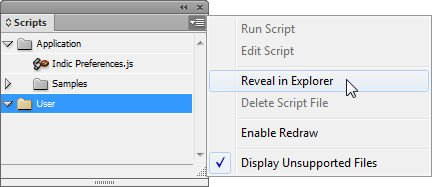
К сожалению, при помощи панели Scripts невозможно сразу открыть папку, куда копируются скрипты типа Startup, то есть стартующие вместе с запуском Индизайна. Невозможно в стандартной комплектации Индизайна. Но если использовать скрипт InstallScript.jsx, (автор Olav Martin Kvern ), то процесс установки скриптов значительно упрощается. В результате работы этого сценария в меню панели Scripts появляются дополнительные пункты, смотрите рисунок ниже.
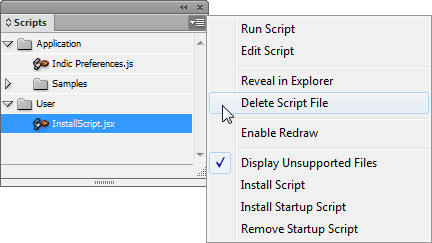
Но алгоритм работы новых команд несколько иной. Если стандартная команда Reveal in Explorer просто открывала папку со скриптами, то при использовании новых команд Install Script и Install Startup Script открывается окно Проводника, предлагая указать, где находится скрипт, который нужно установить. А куда его скопировать — дело известное.

И последнее — скачанный вами скрипт относится к классу Startup, и его следует положить в папку Startup Scripts, которая находится на одном уровне с папкой Scripts Panel
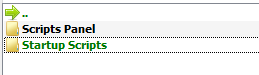
Если у вас такой папки ещё нет — её надо создать самому. А дальше, после установки скрипта InstalScript, устанавливать другие скрипты будет значительно проще.