How To Edit Text In Paint 3D? – Ultimate Guide
Paint 3D is the refreshed version of the old Microsoft Paint that was introduced with the Windows 10 Creators update. It provides several 3D modeling features on top of the traditional Paint features. Even though Paint 3D is a refreshed version of the old Microsoft Paint, it doesn’t improve on several basic features that Paint still lacks.
One such feature is a proper text editing solution. Like Paint, Paint 3D also allows the addition of Textboxes. However, both Paint and Paint 3D have complications while editing the text box. Keeping these complications in mind, I have discussed in this article how to edit text in Paint 3D.
Also, read this article if you want to change the text color on Windows 10.
What Is The Issue With Editing Text Boxes In Paint?
Paint and Paint 3D has a simple complication while editing text boxes. What are Textboxes? They are the boxes that the user creates to enter words in their Paint projects. It is a simple process of selecting the Text box option and creating a box as big as the user wants and then enter the text they desire.
The user can change the color, font, size, and background of the text they enter. However, once the user confirms the entered text by clicking outside the box the text cannot be edited again. The text can be selected using the Select feature, the users can also copy, paste, move, resize, or rotate the text box, but they become unable to actually change the text file.
Microsoft has acknowledged that Paint and Paint 3D lacks the ability to edit the text files after they are confirmed, so we may see an update in the future solving this issue. Until then you can follow the guidelines given below to edit the text in Paint.
How To Edit Text Box In Paint?
Let’s start with editing text in the good old Paint. Read the steps carefully and you will be able to edit it. To edit the text in Paint, follow the steps given below:
- Open Paint and click create a new page.
- In the Home tab, click on the A icon in the Tools section.
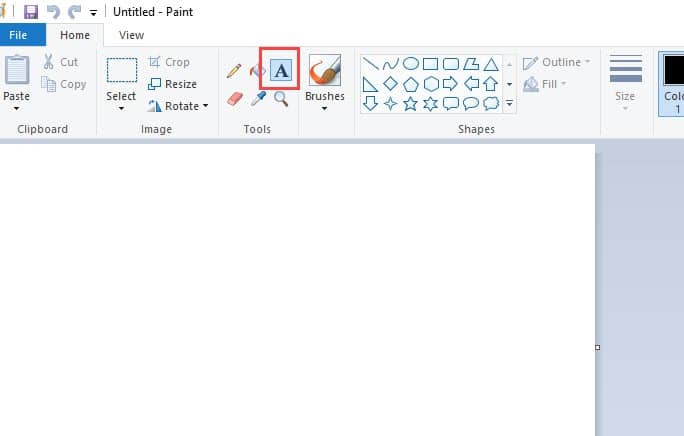
- Draw a box as big as you want. Don’t worry as you can change the box size.
- Click inside the box and type the text you want to enter.
- You can select the text and change the font from the Font section.
- Also, in the Font section, you will be able to change the size of the text, make it bold, italic, underline the text, or strikethrough.
- To change the color, select the text and click on the color you want to change to in the Colors section. You can further choose a color by clicking on the Edit Colors option and selecting the shade you want.
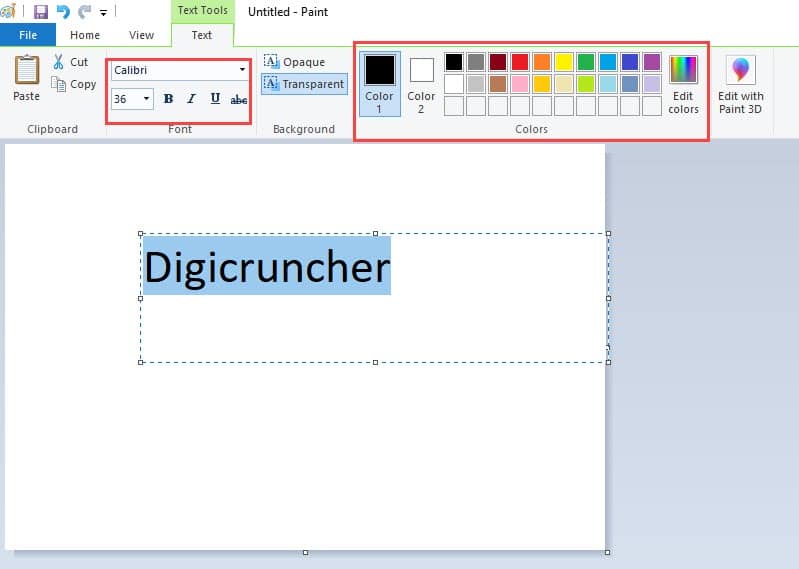
- After you are sure about the text you have entered, click outside the box in the sheet to confirm the text. Remember once you click outside the box, you can no longer edit the text in the box.
Now, you may not be able to edit the text after confirming it, but you can still move it.
- Click on the Select option in the Image section under the Home tab.
- Create a box around the text you want to move.
- Now you can move the selected text.
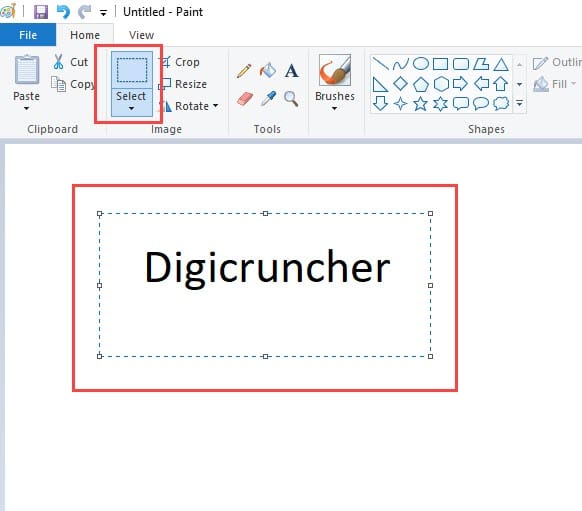
- To cut or copy the text, right-click on it, and select the option from the menu. Remember that you are not copying the text, but everything in the selected box. Similarly, you can also delete the text.
If you want to edit a text box that you have confirmed, the only way you can do it by deleting the text and writing a new one.
How To Edit Text In Paint 3D?
Editing the text in Paint 3D is similar to that of the Paint with some minor differences. One difference is that in Paint 3D you can type 3D text, which can also be rotated in 3D. Now, let’s see the steps for editing text in Paint 3D.
- Open Paint 3D and create a new project.
- Click on the T icon in the ribbon.
- On the right-panel, select whether you want to enter text in 3D or 2D.
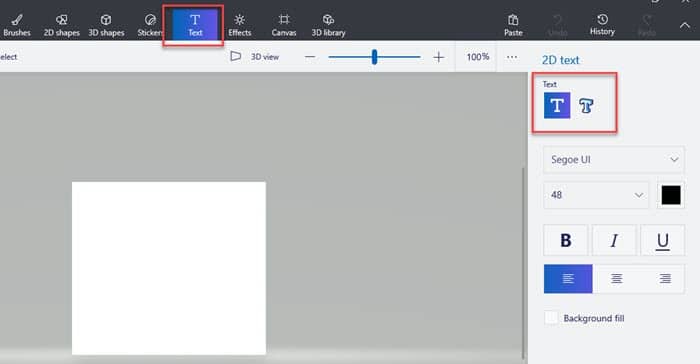
- Enter the desired text.
- To edit it, select the text and change the font, color, size, make it bold, italic, or underline it. Also, you can enter a background color and change the text position.
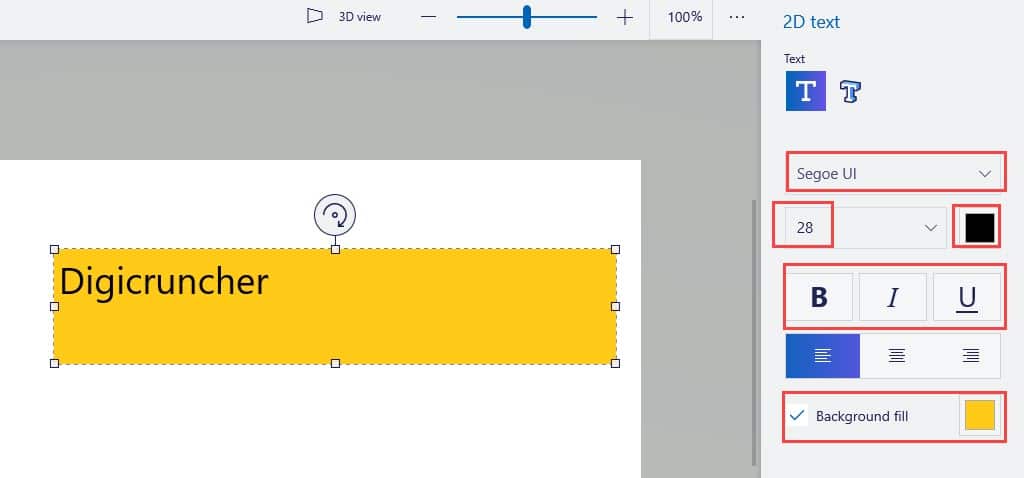
- After you are done, click outside the text box. This will confirm the text box and you won’t be able to edit the text again.
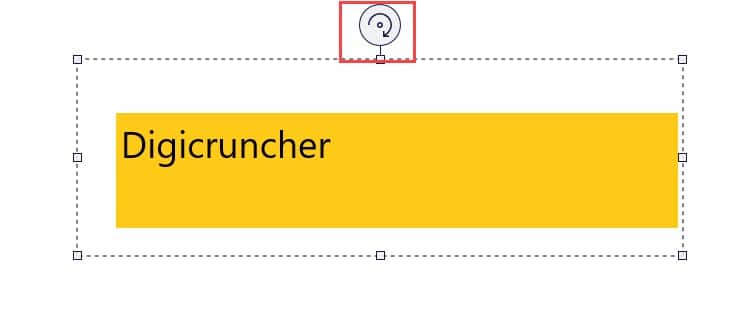
- After confirming the text, you can still change its size as a whole, rotate, flip, copy, cut, make it 3D all by selecting the Text again. Remember that whatever you do, it will change the entire section that is selected and not the text. This is how to edit text in Paint 3D.
Wrapping Up
So, there you have it. Now you know how to edit text in paint 3D. Remember that once you confirm the text in either Paint and Paint 3D, you cannot edit it again. If you have any other questions regarding this topic, ask them in the comment section below.
About Sanmay Chakrabarti
Sanmay is a Tech enthusiast. He has been troubleshooting PC issues for 6 years and writing about them for 4. Reading books, traveling to new places and listening to music are some of his favorite hobbies.
Comments
Marilyn Yoder says
After I entered text in the box and clicked outside the box, the right half of the text disappeared.
I’ve been having the same problem for several hours now. I have tried every fix I’ve seen that I understood how to do & nothing works. I am so unbelievably frustrated right now I’m about to cry. I have made projects this way dozens of times. I do not understand why this keeps happening! Exceedingly frustrating.
How To Edit The Text In Paint 3D – Complete Guide
Paint is popular for its simplicity and is one of the most used applications in the early versions of Windows.
This is one of our favorites who taught us the A, B, C of painting on a computer for the first time! Microsoft Paint is still widely used for simple image editing tasks.
To encourage people to read through our pages, we often tend to decorate with colored boxes, text formatting elements, or hyperlinks.
We often try to find how to edit the text in Paint 3D to make our pages more attractive but search for the proper procedure to do so.
Text Editing In Paint 3D
Table of Contents
You have options provided in Windows 7 and 8 with a basic text placement tool, but it only allows you to edit the text that you just introduced.
As soon as you close a text box in Paint, the text gets flattened and becomes a part of the picture. Various advanced photo editors support layers but you will not get this option in Paint.
To edit a text in paint, you will have to delete it and then type it once again. Once you’ve typed the text and closed the box, this is the only method for how to edit the text in Paint 3d.
Through this article, we will explore the possibilities of how to edit the text in Paint 3D and how you can edit it.
1. Procedure To Add Text Inside The Paint 3D App
Sometimes we may need to add some text to a certain image either to impart some detailed meaning or to glorify the image page.
The process of adding text to Paint is rather simple, straightforward forward and the same process applies to create watermarks also.
We are providing a detailed guide so that you may commence the task successfully:
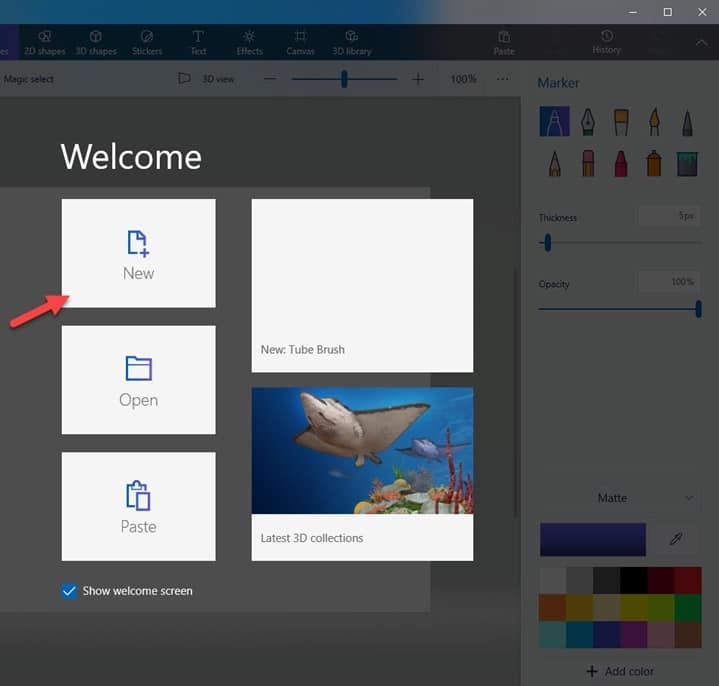
Step 1: First of all, open Paint 3D and then open a new blank canvas by selecting the New icon.
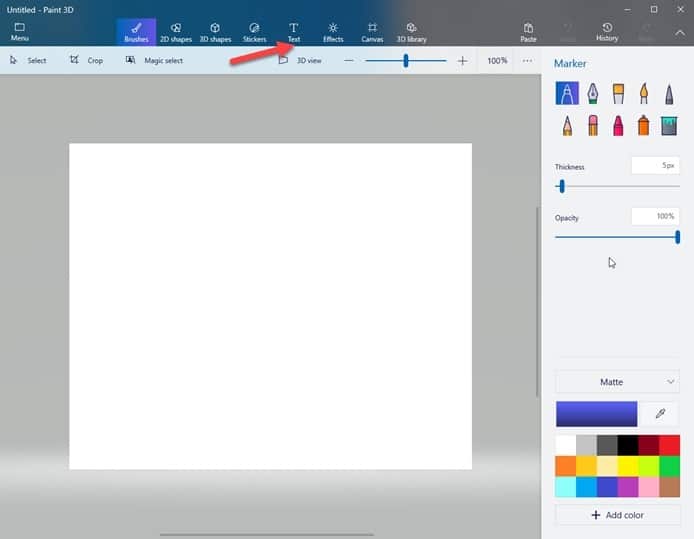
Step 2: Now, when a new canvas is opened, select the Text icon from the top menu bar of your screen.
Step 3: Now, the Text Menu will be displayed in front of you and from here you’ll be able to change from 2D text to 3D text. You may also play with the perform font style, size, formatting, and color your text.
Step 4: To add text to your canvas just click and drag a box on the canvas space. When you have created the text box, start to type text according to your requirement with the help of your keyboard.
In case you need only 3D text, from the right-side menu, remember to choose the 3D text icon.
2. Edit The Created Text
Now, as you have introduced your preferred text in the Paint 3D App. You may need to edit the same text to get your desired form.
Here, I am describing how to edit text box in paint so that you can easily edit the text in Paint according to your choice and preferences:
Step 1: Go to the Text box that you have created earlier and Double-click on the text box to select it.
Step 2: If you wish to delete the text, use the Backspace key or the Delete key on your keyboard to delete the written text. After that, click on an empty space on the canvas and close the text box.
Step 3: In case you want to do some addition or alteration to your text, type the desired text in the box with the help of your keyboard.
Step 4: After you have finished writing your text, select the text you want to modify. You will be supplied with several options at the right-side menu to change the details of your text.
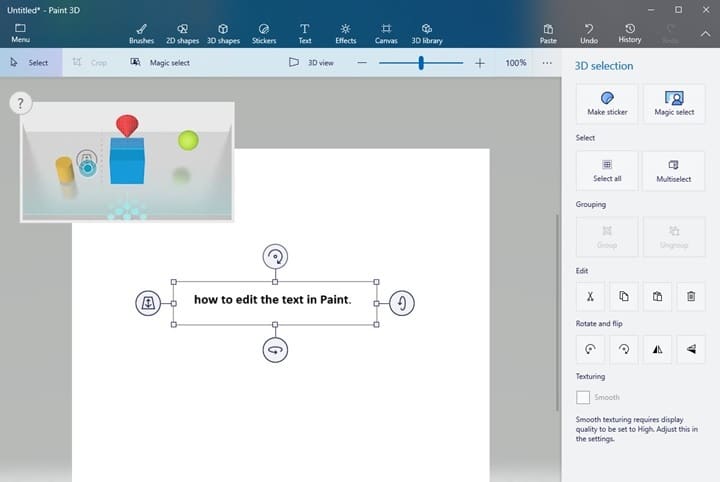
You may alter the font, format, color, 2D or 3D, etc. as per your choice and preferences. You may add any design of your choice from the given options.
You will also be provided other options to play with, such as – bold, italic, underline, and strikethrough text formats. If you wish you may also make the text box opaque.
After you have successfully accomplished all the tasks, remember to save your work and they leave Paint.
With the help of this method, you can work well with single-colored backgrounds but not on colourful like when it appears atop a photo.
Following the above-mentioned steps, we hope you could discover how to edit the text in Paint.
Winding Up
Through the Article, we tried to explore the easiest way to know how to edit the text in paint 3D and then edit the same.
If you have any suggestions relating to this article, please feel free to intimate us in the comments section provided below. Besides, you may also shoot us a mail with your ideas or opinions. We always look forward to hearing back from you.
About Sanchita Das
Seasoned, creative person with a professional mindset. Experienced working for both marginal and mainstream communities. Always loves to explore new ways and accept challenges.
Как использовать наклейки и текст в Paint 3D
Обзор Paint 3D : Новый бесплатный Paint от Microsoft (Май 2023)
У Paint 3D есть несколько вариантов, когда дело доходит до использования наклеек для ваших работ. С помощью нескольких настроек вы можете буквально печать забавные фигуры, наклейки и текстуры, чтобы они мгновенно появлялись на вашем холсте или модели.
Текстовый инструмент, включенный в Paint 3D, также очень прост в использовании. Хотя вы можете сделать все стандартные настройки текста, такие как полужирный или подчеркнутый, изменить цвет или создать большой / маленький текст, Paint 3D также позволяет создавать 3D-текст, который может выскочить из изображения или даже быть установлен непосредственно на 3D-объект.
Если вы строите свой проект с нуля и новичок в этом процессе, посмотрите, как создать 3D-чертеж в Microsoft Paint 3D. В противном случае вы можете узнать больше об открытии локальных 3D-и 2D-изображений или загрузке моделей из Remix 3D в наш способ вставки и рисования руководства по 3D-моделям.
Краска 3D наклейки

Наклейки в Paint 3D находятся подНаклейки меню вверху. Выбрав это, вы увидите новое меню в правой части программы.
Нарисуйте 3D-наклейки в форме фигур, таких как линии, кривые, квадраты, звезды и многое другое; традиционные наклейки, такие как облако, вихрь, радуга и черты лица; и текстуры поверхности. Вы также можете сделать свои собственные наклейки с изображения.
Наклейки могут быть добавлены к 2D-холсту, а также к 3D-моделям, и процесс одинаковый для обоих.
Нажмите или коснитесь наклейки из любой из этих категорий, а затем нарисуйте ее непосредственно на холсте, чтобы получить доступ к блоку выбора, как показано на изображении выше.
Оттуда вы можете изменить размер и переместить наклейку, но она не доработана до тех пор, пока вы не нажмете кнопку штампа в правой части окна.
Если вы нажмете или коснитесьСделайте 3Dперед тиснением, форма, наклейка или текстура не будут прилипать к 2D-холсту, а вместо этого отплыть от него, как и другие 3D-объекты.
Краска 3D-текст

Текстовый инструмент, доступ к которому осуществляется черезТекст значок из верхнего меню, где вы можете сделать 2D и 3D-текст в Paint 3D.
Выбрав один из текстовых инструментов, нажмите и перетащите в любом месте на холсте, чтобы открыть текстовое поле, в которое вы можете вписать. Параметры текста справа позволяют изменять тип, размер, цвет, выравнивание текста в поле и многое другое. ,
Инструмент 2D-текста также позволяет добавить цвет заливки фона, чтобы мгновенно добавить цвет позади текста.
Используйте поле выбора, чтобы повернуть текст и отрегулировать размер и положение поля, чтобы настроить, где текст может течь. Если вы используете 3D-текст, вы также можете позиционировать его 3D-способом, например, позади или перед другими 3D-объектами.
С помощью 2D и 3D-текста щелкните за пределами поля выбора, чтобы сохранить изменения.
Замечания: Размер, тип, стиль и цвет текста можно манипулировать на основе каждого символа. Это означает, что вы можете выделить часть слова, чтобы изменить выбор.
Отклеить наклейки в Illustrator (эффект скручивания страницы)

Узнайте, как создать отслаивающуюся палку со скручиванием страницы или эффектом страницы с помощью иллюстратора. В этом процессе вы также узнаете об изменении текста.
Как создать редактируемый текст в Paint.NET

Вот как установить и использовать редактируемый текстовый плагин для Paint.NET от Simon Brown, чтобы легко вернуться и отредактировать или изменить положение вашего текста.
Как получить приложения iMessage и наклейки для iPhone

Благодаря iMessage приложениям в iOS 10 стало намного прохладнее. Добавьте стикеры, функции и новые способы общения, добавив эти приложения на свой телефон.
Как в paint 3d написать текст (вставить, добавить, сохранить)
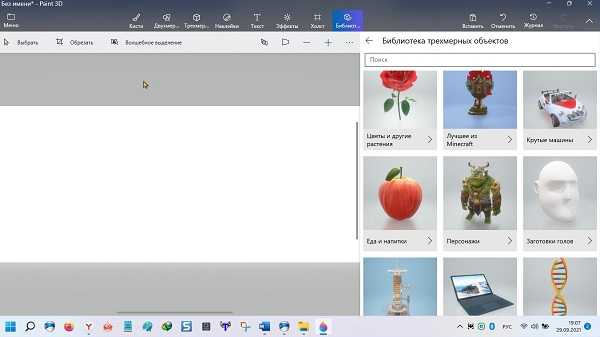
Виндовс 10, а теперь уже и виндовс 11 обзавелась программой paint 3d. Только находится на windows 11 paint 3d уже не в обычном, а отдельно.
Это, разумеется, это не Фотошоп, но тем не менее интерес среди пользователей у него есть, тем более что пользоваться им можно бесплатно.
Паинт 3д подкупает простотой. Если возьметесь за Фотошоп, например, чтобы написать 3d текст, вам понадобится пол дня чтобы хоть чуть-чуть освоить базовые функции, а без них ничего не сможете.
Как для меня, то главное достоинство это текст, только не простой, а именно 3д. Его можно вставить куда угодно, например добавить на картинку, для лучшего визуального восприятия.
Да есть там еще несколько функций, но они, толерантно говоря никуда не годятся, а вот чтобы сделать красивую завораживающую надпись он как раз кстати – просто и быстро.
Как в paint 3D вставить текст на картинку
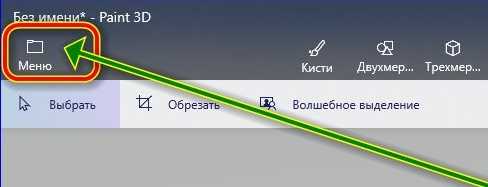
Этому научитесь мгновенно. Чтобы не ходить по кругу, я для примера возьму скриншот рабочего стола. Теперь на первом этапе в запущенном паинте 3д, нажимаем «Меню».
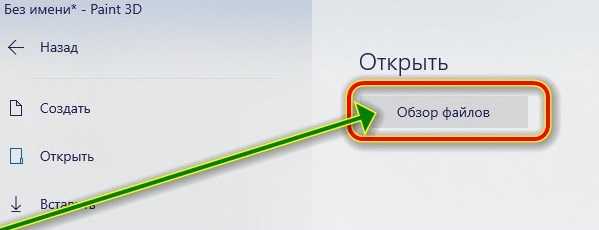
Затем в большом окне нажимаем «Обзор файлов».
Теперь выделяем нужную нам картинку и снизу щелкаем «Открыть».
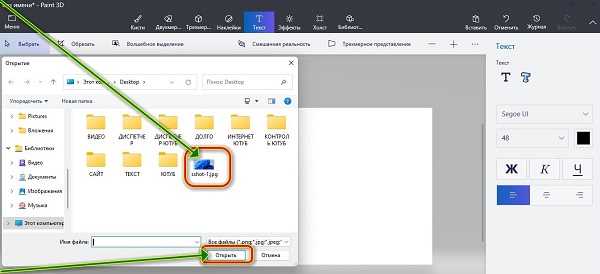
Следующие шаги нажать вверху на кнопку «Текст» и букву «Т» с правой стороны.
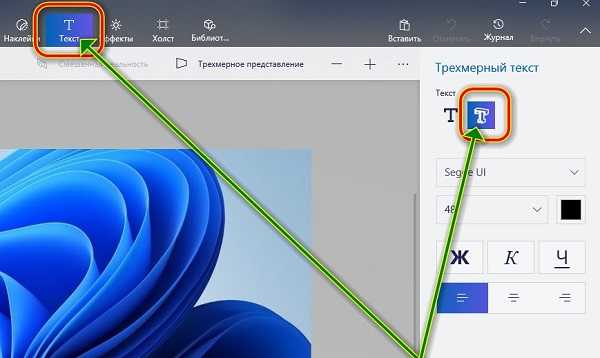
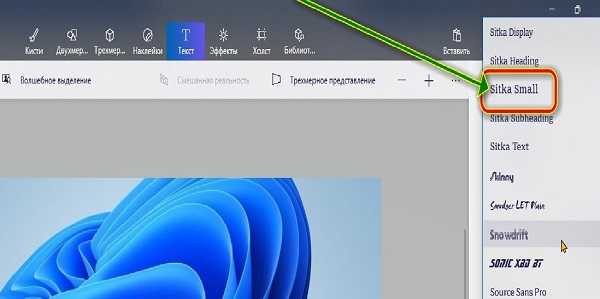
Теперь беремся за Шрифт. По умолчанию всегда «Segoe UI», но если нажать на него, то откроется множество других.
Найдите, тот который вам больше все по вкусу и щелкните по нему. Именно на выбранном вами и будет ваша надпись.
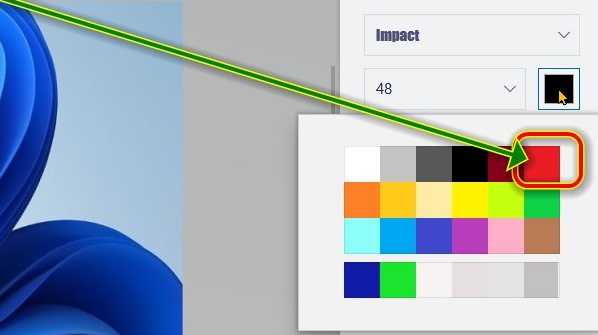
Далее возьмитесь за цвет. Нажмите на черный квадрат и выберите любимый или наиболее подходящий.
Далее на картинке с зажатой левой мышкой выделите место куда хотите добавить текст и можете вставить скопированный текст или напишите что хотите.
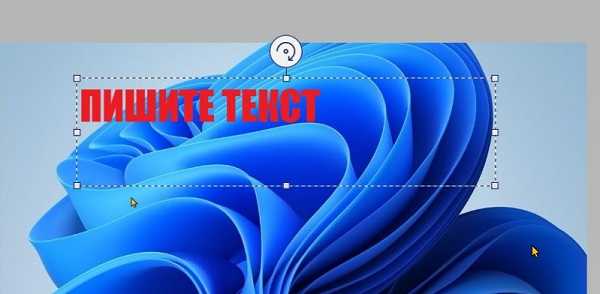
Далее щелкните по месте, где нет текста и крутя-вертя тремя белыми кнопками со стрелками с полукругом сделайте 3d текст.
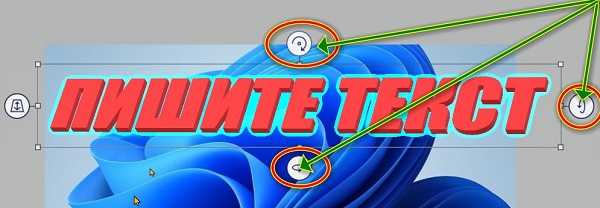
В конце щелкните на свободном месте и можете свою работу сохранить. После сохранения уже ничего не обрезается и не добавляется и невозможно изменить. Только начать с начала.
Как сохранить текст в paint 3d
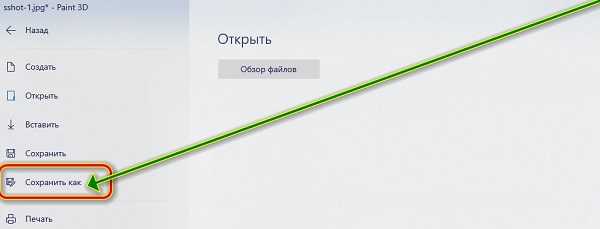
Сохранить текст в паинт 3д, довольно просто. Нажмите опять меню (как делали раньше) и нажмите «Сохранить как».
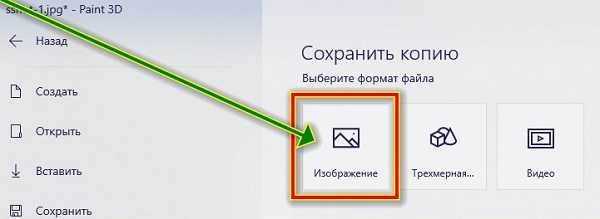
Затем жмите на значок «Изображение».
Далее снизу справа «Сохранить»
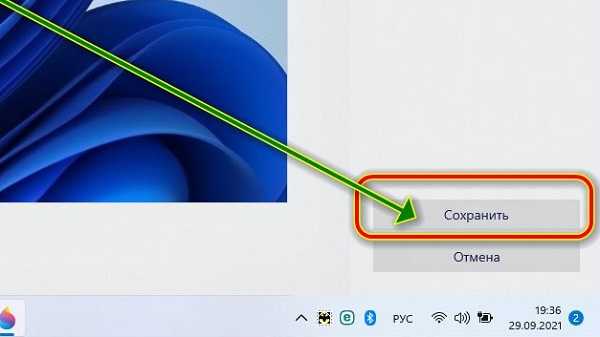
Теперь при желании напишите свое название и еще раз «Сохранить». Вот и все. Да первый раз может получится не совсем то, что хотелось бы, но это дело поправимое.
Несколько раз и вы профессионал. С первого раза всегда могут быть некоторые «глюки» — это со всеми так. Успеха.
Один комментарий к “Как в paint 3d написать текст (вставить, добавить, сохранить)”
Не так все просто! Этот редактор обрезает текст! Попробуйте загрузить фотку и максимальным размером букв (130) написать строчку вдоль всей фотографии и сохранить. У вас останется только треть текста, остальное справа он обрежет автоматически!