Удаление Sql Server
Данное руководство содержит последовательность действий для полного удаления SQL Server (опробовано на 2008-ом). Использовать в случае, если при попытках удалить существующий или установить новый экземпляр возникают ошибки, и стандартные процедуры по удалению заканчиваются неудачей. Когда я столкнулся с этой проблемой, такая инструкция мне бы здорово пригодилась.
1) Пробуем удалить SQL Server с помощью Microsoft Fix it. Как и ожидалось у меня этот способ не сработал. Идем дальше.
2) На всякий случай делаем бэкап реестра и удаляем следуюее:
- HKEY_LOCAL_MACHINE\SOFTWARE\Microsoft\Microsoft SQL Server;
- HKEY_LOCAL_MACHINE\SOFTWARE\Microsoft\MSSQLServer.
- HKEY_LOCAL_MACHINE\SOFTWARE\Microsoft\Windows\CurrentVersion\Uninstall;
- HKEY_LOCAL_MACHINE\SYSTEM\CurrentControlSet\Services.
3) Если при установке получаем следующую ошибку: Компоненту MsiGetProductInfo не удалось получить значение ProductVersion для пакета со значением Product Code = «
- из лога установки SQL Server нас интересует следующая строка: например, «Exit message: Компоненту MsiGetProductInfo не удалось получить значение ProductVersion для пакета со значением Product Code = „
“ . Нам нужен Product Code. Копируем его первую часть CC8BA866, ищем в реестре и удаляем все найденные ключи. После этого, записываем его наоборот 668AB8CC, опять ищем в реестре, удаляем все найденные значения; - запускаем установку;
- при установке могут возникать похожие ошибки, но с другим Product Code. Повторяем установку и удаление ключей из реестра до тех пор, пока не пропадет ошибка.
4) Если при установке получаем следующую ошибку: Error result: -2068643839; Result facility code: 1203; Result error code: 1 делаем следующее:
Name already in use
sql-docs / docs / sql-server / install / uninstall-an-existing-instance-of-sql-server-setup.md
- Go to file T
- Go to line L
- Copy path
- Copy permalink
14 contributors
Users who have contributed to this file
- Open with Desktop
- View raw
- Copy raw contents Copy raw contents
Copy raw contents
Copy raw contents
Uninstall an existing instance of SQL Server (Setup)
This article describes how to uninstall a stand-alone instance of [!INCLUDEssNoVersion]. By following the steps in this article, you also prepare the system so that you can reinstall [!INCLUDEssNoVersion].
[!NOTE]
To uninstall a [!INCLUDEssNoVersion] failover cluster, use the Remove Node functionality provided by [!INCLUDEssNoVersion] Setup to remove each node individually. For more information, see Add or Remove Nodes in a SQL Server Failover Cluster (Setup)
- To uninstall SQL Server, you must be a local administrator with permissions to log on as a service.
- If your computer has the minimum required amount of physical memory, increase the size of the page file to two times the amount of physical memory. Insufficient virtual memory can result in an incomplete removal of SQL Server.
- On a system with multiple instances of SQL Server, the SQL Server browser service is uninstalled only once the last instance of SQL Server is removed. The SQL Server Browser service can be removed manually from Programs and Features in the Control Panel.
- Uninstalling [!INCLUDEssNoVersion] deletes tempdb data files that were added during the install process. Files with tempdb_mssql_*.ndf name pattern are deleted if they exist in the system database directory.
Back up your data. Either create full backups of all databases, including system databases, or manually copy the .mdf and .ldf files to a separate location. The master database contains all system level information for the server, such as logins, and schemas. The msdb database contains job information such as SQL Server agent jobs, backup history, and maintenance plans. For more information about system databases, see System databases.
The files that you must save include the following database files 1 :
- master.mdf
- mastlog.ldf
- msdbdata.mdf
- msdblog.ldf
- model.mdf
- modellog.ldf
- mssqlsystemresource.mdf
- mssqlsystemresource.ldf
- ReportServer[$InstanceName] data and log files 2
- ReportServer[$InstanceName]TempDB data and log files 2
1 You can’t back up the tempdb system database.
2 The ReportServer databases are included with SQL Server Reporting Services.
Stop all [!INCLUDEssNoVersion] services. We recommend that you stop all [!INCLUDEssNoVersion] services before you uninstall [!INCLUDEssNoVersion] components. Active connections can prevent successful uninstallation.
Use an account that has the appropriate permissions. Sign in to the server by using the [!INCLUDEssNoVersion] service account or by using an account that has equivalent permissions. For example, you can log on to the server by using an account that is a member of the local Administrators group.
To uninstall SQL Server from Windows 10, Windows Server 2016, Windows Server 2019, and greater, follow these steps:
To begin the removal process, navigate to Settings from the Start menu and then choose Apps.
Search for sql in the search box.
Select Microsoft SQL Server (Version) (Bit). For example, Microsoft SQL Server 2017 (64-bit) .
Select Uninstall.
. image type=»content» source=»media/uninstall-an-existing-instance-of-sql-server-setup/uninstall-sql-server-windows-10.png» alt-text=»Screenshot showing how to uninstall SQL Server.».
Select Remove on the SQL Server dialog pop-up to launch the Microsoft SQL Server installation wizard.
. image type=»content» source=»media/uninstall-an-existing-instance-of-sql-server-setup/remove-sql-2017.png» alt-text=»Screenshot showing how to remove SQL Server.».
On the Select Instance page, use the drop-down box to specify an instance of [!INCLUDEssNoVersion] to remove, or specify the option to remove only the [!INCLUDEssNoVersion] shared features and management tools. To continue, select Next.
On the Select Features page, specify the features to remove from the specified instance of [!INCLUDEssNoVersion].
On the Ready to Remove page, review the list of components and features that will be uninstalled. Select Remove to begin uninstalling
Refresh the Apps and Features window to verify the SQL Server instance has been removed successfully, and determine which, if any, SQL Server components still exist. Remove these components from this window as well, if you so choose.
To uninstall SQL Server from Windows Server 2008, Windows Server 2012 and Windows 2012 R2, follow these steps:
To begin the removal process, navigate to the Control Panel and then select Programs and Features.
Right-click Microsoft SQL Server (Version) (Bit) and select Uninstall. For example, Microsoft SQL Server 2012 (64-bit) .
. image type=»content» source=»media/uninstall-an-existing-instance-of-sql-server-setup/uninstall-sql-server-windows-2012.png» alt-text=»Screenshot showing how to uninstall SQL Server.».
Select Remove on the SQL Server dialog pop-up to launch the Microsoft SQL Server installation wizard.
. image type=»content» source=»media/uninstall-an-existing-instance-of-sql-server-setup/remove-sql-2012.png» alt-text=»Screenshot showing how to remove SQL Server.».
On the Select Instance page, use the drop-down box to specify an instance of [!INCLUDEssNoVersion] to remove, or specify the option to remove only the [!INCLUDEssNoVersion] shared features and management tools. To continue, select Next.
On the Select Features page, specify the features to remove from the specified instance of [!INCLUDEssNoVersion].
On the Ready to Remove page, review the list of components and features that will be uninstalled. Select Remove to begin uninstalling
Refresh the Programs and Features window to verify the SQL Server instance has been removed successfully, and determine which, if any, SQL Server components still exist. Remove these components from this window as well, if you so choose.
In the event of failure
If the removal process fails, review the SQL Server Setup log files to determine the root cause.
Как удалить MS SQL Server 2008 в Windows
Для того, чтобы удалить MS SQL Server 2008 со всеми компонентами, который уже не поддерживается в Windows 10 необходимо:
- Открыть список программ и компонент для удаления с помощью команды appwiz.cpl
- Произвести удаление компонент SQL Server согласно последовательности, рекомендованной в статье Microsoft:
- SQL Server FullText
- Служб качества данных (DQS)
- SQL Server (ядро СУБД), репликация
- Службы Analysis Services в режиме интеграции с SharePoint
- Службы Analysis Services
- Службы Analysis Services, SQL Server (ядро СУБД)
- Службы Reporting services
- Средства управления SQL Server — полную, обратную совместимость, SDK, подключения к
- Средства управления SQL Server — Basic
- Центр разработки бизнес-аналитики
- Службы интеграции
- Качество данных клиента
- Клиент распределенного воспроизведения
- Контроллер распределенного воспроизведения
- SharePoint веб-интерфейс служб отчетов
- Отчеты служб SharePoint
- Книги в режиме реального времени
- Business Intelligence Development Studio, средства управления SQL Server — завершить
- Business Intelligence Development Studio, средства управления SQL Server — Basic
- Средства управления SQL Server
- SQL Server (ядро СУБД), Business Intelligence Development Studio, средства управления SQL Server
- Центр разработки бизнес-аналитики, службы интеграции
- LocalDB
- Другие
В завершении при удалении Microsoft SQL Server 2008 R2 необходимо выбрать пункт «Remove«.

При удалении возможно потребуется установка Framwork 3.5.
Появится окно «SQL Server 2008 R2 Setup«:
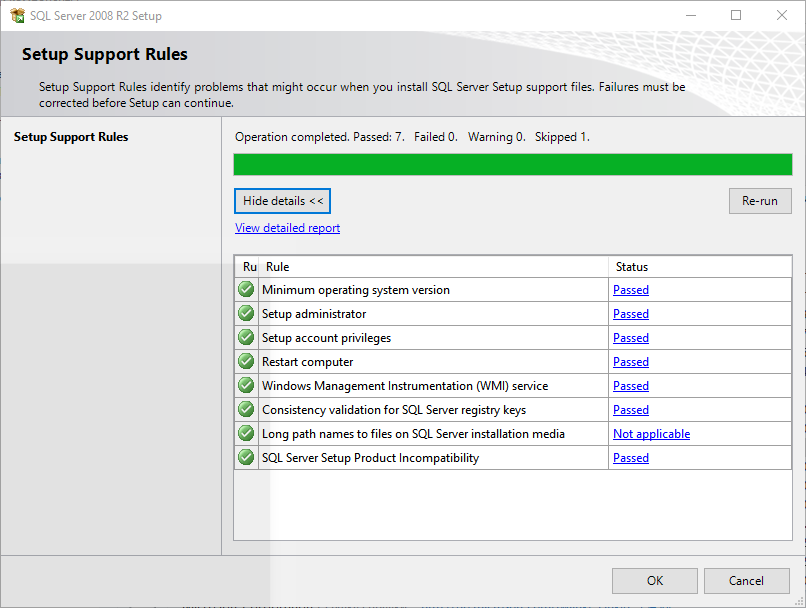
Нажмите на кнопку «ОК»
В следующем окне необходимо выбрать экземпляр SQL Server. В данном случае это «SQLEXPRESS«:
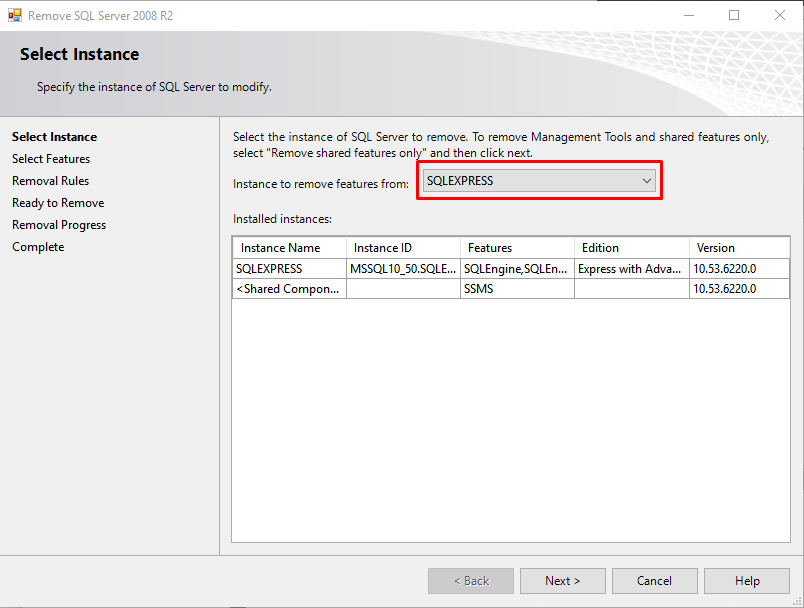
Нажмите на кнопку «Next»
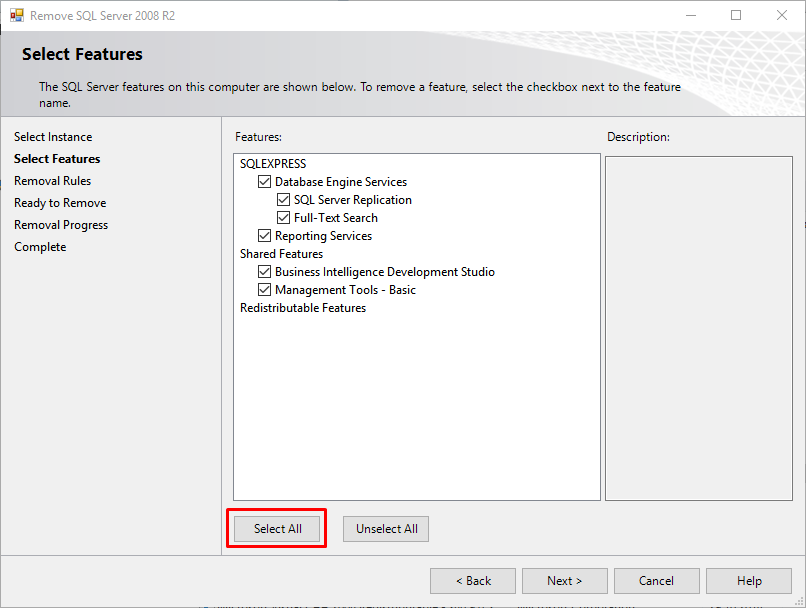
В следующем окне необходимо нажать на кнопку «Select All»
Ms sql server как удалить
This forum has migrated to Microsoft Q&A. Visit Microsoft Q&A to post new questions.
Answered by:
Question
I have a server with Windows Server 2008 R2. It had several versions of SQL server installed, including multiple instances of SQL server 2008 R2. I uninstalled everything I could using the windows installer (control panel-> programs and features). However, after removing one instance of 2008 R2, the Windows Installer entries completely disappeared, leaving other instances of SQL server installed and running. I’ve been searching MSDN and these forums for several hours, but everything I find points to the windows installer (which doesn’t have the entries), or the original installation media (which I don’t have because all the SQL versions were installed by other software).
As far as I know the following versions of SQL server were installed
SQL 2008 R2 32 bit (no instances used)
SQL 2008 R2 64 bit (2 instances)
SQL server 2012 (1 instance)
At this point, I’m not even sure what’s been removed, and what hasn’t been removed.
Is there some utility for completely removing all of it? Or is there some utility that could rebuild the Windows installer entries?
Or would I be better served by simply re-installing windows server 2008 R2 completely?
To clarify, my end goal is to completely remove all versions of SQL server, and all data associated with them, so I can do a clean install of the only version I actually want to use.