MS SQL Server в .NET 6
MS SQL Server — одна из наиболее популярных систем управления базами данных, а при работе с фреймворком .NET, возможно, наиболее часто выбираемая СУБД. И в этой части руководства рассмотрим подключение к MS SQL Server.
Строка подключения для MS SQL Server
Для работы с MS SQL Server естественно нам потребуется MS SQL Server. Можно выбрать как полноценный MS SQL Server (в весиях Enterprise, Developer), так и MS SQL Server Express.
Про установку MS SQL Server в выпусках Developer или Express можно почитать в статье Установка MS SQL Server 2019
Также можно использовать специально предназначенный для целей разработки и тестирования легковесный движок MS SQL Server Express LocalDB, про установку которого можно почитать в статье Установка SQL Server Express LocalDB.
Вначале необходимо определить строку подключения, которая содержит набор параметров сервера MS SQL Server. Строка подключения представляет набор параметров в виде пар ключ=значение , которые отделяются друг от друга точкой с запятой.
Прежде всего, определение строки подключения зависит от типа подключения: либо мы подлючаемся по логину и паролю, либо мы используем доверенное подключение (trusted connection), где не требуются логин и пароль (например, при подключении к локальному серверу SQL Server).
Если подключение производится по логину и паролю, то общий вид строки подключения выглядит следующим образом:
В данном случае строка подключения состоит из четырех параметров:
Server : указывает на название сервера
Database : указывает на название базы данных на сервере
Если мы используем так называемое доверенное подключение (trusted connection) и применяем аутентификацию Windwows, например, при подключении к локальному серверу, который запущен на том же компьютере, то строка подключения в общем виде выглядит следующим образом:
Вместо параметров User Id и Password , здесь применяется параметр Trusted_Connection=True . Значение True указывает, что будет применяться аутентификация на основе учетных записей Windows.
Список основных параметров строки подключения, которые могут использоваться:
Application Name : название приложения. Может принимать в качестве значения любую строку. Значение по умолчанию: «.Net SqlClient Data Provide»
AttachDBFileName : хранит полный путь к прикрепляемой базе данных
Connect Timeout : временной период в секундах, через который ожидается установка подключения. Принимает одно из значений из интервала 0–32767. По умолчанию равно 15.
В качестве альтернативного названия параметра может использоваться Connection Timeout
Server : название экземпляра SQL Servera, с которым будет идти взаимодействие. Это может быть название локального сервера, например, «./SQLEXPRESS», «localhost», либо сетевой адрес.
В качестве альтернативного названия параметра можно использовать Data Source , Address , Addr и NetworkAddress
Encrypt : устанавливает шифрование SSL при подключении. Может принимать значения true , false , yes и no . По умолчанию значение false
Database : хранит имя базы данных
В качестве альтернативного названия параметра можно использовать Initial Catalog
Trusted_Connection : задает режим аутентификации. Может принимать значения true , false , yes , no и sspi . По умолчанию значение false
Если значение true , то для аутентификации будет использоваться текущая учетная запись Windows. Подходит для подключения к локальному серверу.
В качестве альтернативного названия параметра может использоваться Integrated Security
Packet Size : размер сетевого пакета в байтах. Может принимать значение, которое кратно 512. По умолчанию равно 8192
Persist Security Info : указывает, должна ли конфиденциальная информация передаваться обратно при подключении. Может принимать значения true , false , yes и no . По умолчанию значение false
Pooling : если значение равно true , любое новое подключение при его закрытии добавляется в пул подключений. В следующий раз при создании такого же подключения (которое имеет ту же самую строку подключения) оно будет извлекаться из пула. Может принимать значения true , false , yes и no . По умолчанию значение true
Workstation ID : указывает на рабочую станцию — имя локального компьютера, на котором запущен SQL Server
Password : пароль пользователя
User ID : логин пользователя
В данном случае мы будем использовать к локальному серверу. Если мы подключаемся к полноценному серверу MS SQL Server (например, версия Developer Edition), то в качестве адреса сервера, как правило, выступает localhost :
Если установлен MS SQL Server Express , то адрес сервера — «.\SQLEXPRESS»
SQL Server Connection Strings using SqlClient, OLDEDB and ODBC
I need to connect to SQL Server from a .NET application and wanted to know what options there are for connection strings.
Solution
In this tutorial, we will show different ways to connect to Microsoft SQL Server using different connection string properties in .NET.
In ADO.NET you can create connections several ways like SqlClient, OleDB and ODBC. In this tutorial, we will show different combinations of connections using these three options. We will also show the syntax to retrieve data using SqlClient, OLEDB and ODBC.
SqlClient Database Connection String Examples for SQL Server
To make a database connection using SqlClient, we have to provide the following:
- Server — is the SQL Server instance name. If it is an instance you need to specify the serverName\instanceName. You can use a period (.) for a local SQL Server. If you use a port, you need to specify the server name with a comma and the port.
- Database — SQL Server database name.
- For SQL Server Authentication
- User Id is the SQL Server login
- Password is the login password
- Use Trusted_Connection=True
SqlClient to connect using a SQL Server login:
SqlClient to connect to localhost using Windows Authentication:
SqlClient to connect to named instance using a port number on localhost using Windows Authentication:
SqlClient to connect to SQL Server Express on localhost using Windows Authentication:
ODBC Database Connection String Examples for SQL Server
The following shows how to connect using ODBC.
For an ODBC database connection, you use the ODBC driver for SQL Server. You need to specify the following:
- Driver — this is the driver to connect to SQL Server ODBC Driver 17 for SQL Server
- Server — is the SQL Server name. If it is an instance you need to specify the servername\instance name. You can use a period (.) for a local SQL Server. If you use a port, you need to specify the server name, a comma and the port.
- Database — is the name of the SQL Server database.
- Failover_Partner — this is database mirroring failover
- DSN — this is used if you setup a DSN with the connection information
- For SQL Server Authentication
- UID is the SQL Server login
- PWD is the login password
- Use Trusted_Connection=yes
ODBC to connect using a SQL Server login:
ODBC to connect using a Windows Authentication:
ODBC to connect to named instance using Windows Authentication:
ODBC to connect to using Windows Authentication and specifying a failover server:
ODBC to connect using a DSN and using Windows Authentication:
OLEDB Database Connection String Examples for SQL Server
Finally, we have examples for an OLEDB database connection. You need to specify that the provider is MSOLEDBSQL which is the OLE DB provider for SQL Server. Then you need to specify the following:
- Provider— specify the OLEDB provider which is MSOLEDBSQL
- Server — is the SQL Server name. If it is an instance you need to specify the servername\instance name. You can use a period (.) for a local SQL Server. If you use a port, you need to specify the server name, a comma and the port.
- Database — is the name of the SQL Server database.
- MultiSubnetFailover
- Failover Partner
- Encrypt
- Connect Timeout
- For SQL Server Authentication
- UID is the SQL Server login
- PWD is the login password
- Use Integrated Security=SSPI
OLEDB to connect using Windows Authentication:
OLEDB to connect to an Availability Group using Windows Authentication:
OLEDB to connect using a SQL Server login and encrypt connection:
OLEDB to connect using Windows Authentication for database mirroring:
Code Samples
We created three examples that do the same thing except use different connection strings. They get data from the Sales.Currency table, from the Adventureworks database on the database server and retrieves data from the CurrencyCode and Name columns.
SQLClient Example
The following example is using SqlClient:
ODBC Example
This is an example using an ODBC.
OLEDB Example
This is an example using OLEDB.
Next Steps
If you want to learn more information about Microsoft Visual Studio with .NET and SQL Server, refer to these links:
- How to Get Started with SQL Server and .NET
- Understanding SQL Server Connection Pooling in ADO.NET
- C# Application for Azure SQL Database
- SQL Server Connection String Examples with PowerShell


About the author
 Daniel Calbimonte is a Microsoft SQL Server MVP, Microsoft Certified Trainer and 6-time Microsoft Certified IT Professional. Daniel started his career in 2001 and has worked with SQL Server 6.0 to 2022. Daniel is a DBA as well as specializes in Business Intelligence (SSIS, SSAS, SSRS) technologies.
Подключение к базе данных
Приветствую всех сегодня мы рассмотрим подключения к базам данных от разных поставщиков.
Для создания подключения к источнику данных в ADO.NET существует специальный объект Connection. В зависимости от выбранного источника данных этот объект может
называться по-разному. Для создания подключения к базам данных MS SQL Server следует использовать объект SqlConnection, который находится в пространстве имен System.Data.SqlClientПространство имен System.Data.SqlClient является поставщиком данных .NET FrameWork для источников данных MS SQL Server
Для работы с объектом SqlConnection ему нужно предоставить строку соединения, которая указывает каким образом нужно подключиться к источнику данных. Строка соединения-строка, состоящая из пар имя — значение, содержащая сведения об инициализации, передаваемые в виде параметра от приложения к источнику данных. Синтаксис строки соединения зависит от выбранного источника данных.
Строка подключения:
Формат строки соединения является списком разделенных точкой с запятой пар «параметр -значение». Знак равенства (=) соединяет каждый параметр с его значением.
Connect to SQL Server in C# (example using Console application)
In this article, I will provide your working example to create a database connection in C# using console application example or you can say an example, to connect to SQL Server using C#, you can use same C# code in Console application or Windows or ASP.NET Web-Form/MVC, we are using Console application example in this post.
First of all, open your Visual Studio and navigate to File->New->Project -> Select «Windows» from left pane and select «Console app» from the right pane, provide a name to your project and click «OK»

Once the Console Application template is generated by Visual Studio, Navigate to Program.cs from Solution Explorer ( You can open it by Clicking «View»-> «Solution Explorer»).
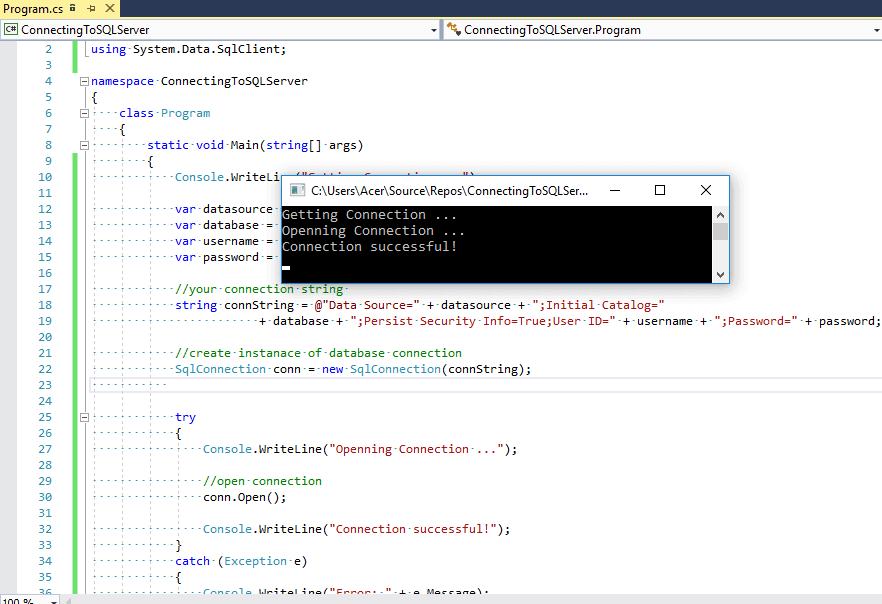
Now to connect to SQL Server, we need to create an instance of SQLConnection and pass a connection string to it.
The SqlConnection Object is used to handle the part of physical communication between the C# application and the SQL Server Database.
An instance of the SqlConnection class in C# has supported the Data Provider for SQL Server Database.
The SqlConnection instance takes Connection String as argument and pass the value to the Constructor statement.
Here is the sample SQL server connection string should look like
If you have a named instance of SQL Server, you’ll need to add that as well.
When the connection is established, SQL Commands will execute with the help of the Connection Object and retrieve or manipulate the data in the database. Once the Database activities is over , Connection should be closed and release the Data Source resources
Here is the console application example to connect to local database and open the connection
Add New Values In Database Table using C#
Once you are connected to database in C# using Console Application, you can also insert new values in database, by creating query as a string and then executing it. Suppose this is our sample database(Students) -> Student_details table data, before inserting values

As you can see from above table, «Id» is Primary Key column and «Identity» is set to true, so we don’t need to pass it’s value as it will be incremented atuomatically.
We need to pass «Name, Email, Class» column values, so we will have C# code as below
You will need to add namespace » System.Text » for using StringBuilder.
In the above code, we are creating a SQL Query using StringBuilder object and then passing the SQL Query to SqlCommand instace and execute it.
Once the command is executed, your database table will addded 2 rows and table looks like this

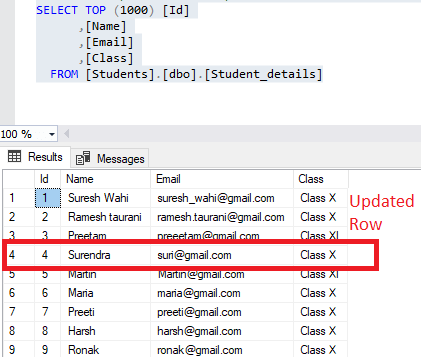
Similarly, to Update the values in database you can build SQL Query and execute it.
After executing above code, you will see updated Student_details table, output will be as shown below:
Complete C# Code for adding/updating and connecting to database looks like below
Once executing above code, you will see output as below

Note: In the above example, we are using Raw SQL Query to connect to the SQL Server database in C# Console application, but while creating real-world application, we use Entity-Framework with .NET or EF Core with .NET Core to connect to database, as it gives us better grasp to connect and query database, with extra level of security. You can also, take a look at following articles: Performing CRUD Operation in ASP.NET MVC Using Entity Framework
You can also create a connection string in another file like XML, to store connection strings in an external configuration file, create a separate file that contains only the connectionStrings section. Do not include any additional elements, sections, or attributes. This example shows the syntax for an external configuration file.
In the main application configuration file, you use the configSource attribute to specify the fully qualified name and location of the external file. This example refers to an external configuration file named connections.config .
Here are possible connection string to connect to the database in C#
Standard security
Trusted connection string in C#
Connection to SQL server instance
Connect via an IP address
LocalDB auto-matic connection string
Attach a database file on connect to a local SQL Server Express instance
Why is the Database parameter needed? If the named database have already been attached, SQL Server does not reattach it. It uses the attached database as the default for the connection.
Connect to SQL server using windows authentication
Trusted connection from CE device
That’s it, there can be more ways of connection strings but these are widely used one.