[Fixed] Spotify not showing on Discord
Discord is a popular VOIP platform that also supports chatting and digital distribution, designed specifically for niche communities. The platform was originally built for gamers but that has changed as many other communities and groups have flooded the site. One can do a lot more than just send a plain text or a voice message on Discord as it hosts a great number of other features- like custom servers and dedicated channels with lots of personalizations and integrations.
One of the many ways Discord shows its versatility is by allowing you to connect different applications with Discord. Through this Discord integration feature, you can link your Youtube, Twitch, Steam, Twitter, Spotify, and Reddit accounts to your Discord account. This unlocks many amazing things you can do on Discord.
TABLE OF CONTENTS
Spotify + Discord Integration
Among these integrations, the Discord and Spotify connection is probably the coolest feature for several reasons:
Hence, you can not only chat and hang out with your friends but also stream music with them using this feature.
Unfortunately, the Discord users often face this issue where the «Listening to Spotify» status is not visible on the profile even after linking the accounts. So, if you are facing a similar issue and wondering how to fix it, you have come to the right place. Here is a step-by-step guide with five different fixes that you can use to resolve this issue.
How to fix Spotify not showing on Discord?
Before we dive into the different ways you can fix this issue, let’s first learn how to connect your Spotify account to Discord.
Connecting your Spotify account
Note: After following these steps make sure that the Device Broadcast Status on your Spotify app is turned on. You can do this by clicking on Settings → Device Broadcast Status on the Spotify app on your Android so you can use this feature on your phone as well.
Now that you know how to connect your Spotify account, here are a few methods you can try out to fix the ‘Spotify not showing on Discord issue’ issue.
Method #1: Relink the Spotify and Discord Account
Many Discord users manage to fix the issue by relinking Spotify to Discord. All you have to do is unlink and relink the accounts. After that, the «Listening to Spotify» status will show up. This works out because if you have recently changed your Spotify password, you are required to relink the account. You can relink the accounts by following these steps:
Method #2: Clear Browsing Cache/Passwords
In this method, you simply have to clear all your browser cache and passwords. Here are the steps to follow:
It’s advisable you use Discord on your browser for these steps.
Method #3: Disable «Display currently running game as a status message»
To get the Spotify status to show on your profile you need to disable the «Display currently running game as a status message». If this status is turned on it can directly conflict with the Spotify Status. Here are the steps:
Now check if the Spotify status is visible by playing a song on Spotify.
Method #4: Check if Discord Status is «Online»
Firstly, you need to make sure that your discord status is Online to make sure the Spotify status will appear on your Profile. You can follow these steps to make the status ‘Online’
Method #5: Reinstall both Discord and Spotify
For some users reinstalling the applications has worked in solving the ‘Spotify not showing on Discord issue’ problem. Here are the steps:
Spotify not showing on Discord (Mobile)
Now that we have learnt about various fixes to the ‘Spotify not Showing on Discord Problem’ for your desktop apps on your PC, we move on to resolving this issue on your mobile phones.
Method #1: Enable “Device Broadcast Status” on Spotify App
After following through all the steps that go into connecting Spotify to Discord (“User Settings -> “Connections” -> “Spotify”), you have to make sure the “Device Broadcast Status” on the Spotify app is turned on. Here are the steps to do the same:
Method #2: Reconnect Spotify through Discord Web
If the previous method doesn’t work out, you will need to disconnect Spotify integration and reconnect it using a web browser. Here are the steps:
Conclusion
Hopefully, now you know how to fix the ‘Spotify not showing on Discord issue’ after following these steps. Now you can go on and hang out with your friends on Discord and also stream music!
Как исправить, когда Spotify не отображается как ваш статус в Discord

Подключив свою учетную запись Spotify и Discord, ваши друзья по каналу смогут видеть, какую музыку вы слушаете во время потоковой передачи. У них есть возможность слушать ваши любимые музыкальные джемы вместе с вами, обсуждая игровые стратегии. Однако были сообщения о том, что Discord не отображает «Прослушивание Spotify». статус, даже если две учетные записи связаны. Обычно это вызвано измененным паролем Spotify или конфликтом со статусом запуска игры в Discord. В этой статье мы рассмотрим два распространенных решения этой проблемы на мобильных устройствах и ПК.
Spotify не отображается в Discord на Android
Если вы не видите свой статус Spotify через Discord на своем устройстве Android, помните, что статус будет отображаться в Discord только тогда, когда вы используете Spotify на своем компьютере а не мобильное приложение.
Попробуйте возобновить подключение
Если вы недавно изменили свой пароль Spotify, это изменение могло разорвать связь между двумя учетными записями. Но даже если вы не изменили его, попробуйте отменить связь, а затем снова связать учетные записи в Discord. Многие пользователи сообщают, что это устранило проблему. Вот как возобновить соединение между Spotify и Discord на вашем устройстве Android:
- Откройте “Discord.”

- Коснитесь значка трехстрочного меню в левом верхнем углу.

- Вкл. в правом нижнем углу коснитесь значка профиля, чтобы открыть настройки пользователя.

- Нажмите “Подключения”

- В “Spotify” интеграции, нажмите на значок “X” чтобы отключить Spotify от Discord.

- На правой стороне окна “Подключения” нажмите “Добавить” затем выберите “Spotify” значок. Вы будете перенаправлены на страницу входа в Spotify.

- Войдите в свою учетную запись и примите условия. Ваш аккаунт снова подключится к Discord.

- На компьютере воспроизведите песню в Spotify.

- На устройстве Android проверьте статус своего профиля Discord, чтобы узнать, не отображается ли “Прослушивание Spotify&rdquo ; отображается статус.

Попробуйте отключить статус игры в Discord
Возможно, параметр “Отображать текущую игру как сообщение о состоянии” настройка в Discord конфликтует со статусом Spotify. Выполните следующие действия, чтобы отключить этот параметр:
- Запустите “Discord.”

- Нажмите значок меню.

- Нажмите “значок профиля” для доступа к настройкам пользователя.

- Под “Настройки игры” выберите “Активность в игре”
- В поле “Отображать текущую игру как сообщение о состоянии” настройки, выключите переключатель, чтобы отключить его.

- Воспроизведение песни из Spotify через ваш компьютер.

- Проверьте свой статус Discord на устройстве Android, чтобы узнать, устранена ли проблема. .

Spotify не отображается в Discord на iPhone
Прослушивание Spotify” статус будет отображаться в Discord через ваш iPhone только в том случае, если вы используете Spotify с компьютера.
Попробуйте возобновить подключение
Вы недавно изменили свой пароль Spotify? Если это так, учетные записи могут быть больше не интегрированы. Но пользователи сообщают, что отключение и повторное подключение учетных записей в Discord может решить проблему. Выполните следующие действия, чтобы возобновить подключение:
- Откройте “Discord.”

- В правом верхнем углу коснитесь значка меню.
- Нажмите значок профиля, чтобы открыть “Настройки пользователя”

- Выберите “Подключения”

- В “Spotify” интеграции, нажмите на значок “X” чтобы отключить Spotify от Discord.

- С правой стороны окна “Подключения” нажмите “Добавить” затем выберите “Spotify” значок. Вы будете перенаправлены на страницу входа в Spotify.

- Войдите в свою учетную запись и согласитесь с условиями. Ваша учетная запись будет повторно связана с Discord.

- На компьютере воспроизвести песню на Spotify.

- Проверьте статус своего профиля Discord на iPhone, чтобы узнать, не отображается ли “Прослушивание Spotify” отображается статус.

Попробуйте отключить статус игры в Discord
Параметр “Отображать текущую игру в виде сообщения о состоянии” настройка в Discord может конфликтовать со статусом Spotify. Выполните следующие действия, чтобы отключить настройку в Discord.
- Откройте “Discord” app.

- Нажмите значок меню.

- Откройте “Настройки пользователя” коснувшись значка профиля.

- В разделе “Игровые настройки” коснитесь “Активность в игре”
- Отключите параметр “Отображать текущую игру как сообщение о состоянии” установите переключатель, чтобы отключить его.

- Воспроизведите трек из Spotify на своем компьютер.

- Проверьте, видите ли вы сообщение “Прослушивание Spotify” через iPhone.

Spotify не отображается в Discord на iPad
Вкладка “Прослушивание Spotify” статус будет отображаться в Discord только при доступе к Spotify с настольного компьютера – а не мобильное приложение.
Попробуйте возобновить подключение
Если вы недавно обновили пароль своей учетной записи Spotify, это могло повлиять на соединение между учетными записями. Даже если вы не меняли пароль, все равно попробуйте повторно связать аккаунты. Известно, что это решает проблему. Вот как отменить и повторно связать интеграцию Spotify и Discord:
- Откройте “Discord” app.

- Нажмите значок меню в правом верхнем углу.

- Выберите “Настройки пользователя” значок шестеренки.

- Выберите “Подключения”

- Нажмите на значок “X” в “Spotify” интеграция для отключения от Discord.

- В правой части окна «Подключения» нажмите “Добавить” затем выберите “Spotify” значок. Вы будете перенаправлены на страницу входа в Spotify.

- Войдите в свою учетную запись и согласитесь с условиями. Ваш аккаунт снова подключится к Discord.

- Воспроизведите трек Spotify со своего компьютер.

- Проверьте свой iPad, чтобы убедиться, что “Прослушивание Spotify” Отображается статус Discord.

Попробуйте отключить игровой статус Discord
Если параметр “Отображать текущую игру в виде сообщения о состоянии” параметр включен в Discord, он может конфликтовать со статусом Spotify. Чтобы отключить параметр, выполните следующие действия:
- Запустите “Discord.”

- В правом верхнем углу коснитесь значка меню.

Spotify не отображается в Discord на ПК
&ldquo ;Прослушивание Spotify” статус профиля будет отображаться в Discord только тогда, когда вы слушаете музыку Spotify со своего ПК.
Попробуйте возобновить подключение
Вы недавно меняли пароль своей учетной записи Spotify? Это может быть ключевым, поскольку это может повлиять на связь между учетными записями. Даже если вы этого не сделали, в любом случае нет ничего плохого в том, чтобы попытаться обновить соединение, поскольку известно, что это иногда решает проблему. На своем ПК выполните следующие действия, чтобы повторно интегрировать Spotify с Discord:
- Запустите “Discord” app.

- В нижней части левой панели нажмите на свой профиль.

- Нажмите на значок шестеренки, чтобы открыть “Настройки пользователя”

- Выберите “Подключения”

- Нажмите “ X” в “Spotify” интеграция для отключения от Discord.

- В разделе “Подключите свои аккаунты” выберите “Spotify” значок. Вы попадете на страницу входа в Spotify.

- Подписать в свой аккаунт и соглашаетесь с условиями. Ваша учетная запись Spotify будет повторно подключена к Discord.

- Воспроизведите песню из Spotify через ваш компьютер.

- Проверьте свой статус Discord, чтобы узнать, решена ли проблема.

Попробуйте отключить статус игры в Discord
Если параметр “Отображать текущую игру как сообщение о статусе” параметр в Discord включен, он может конфликтовать со статусом Spotify. Выполните следующие действия на своем ПК, чтобы отключить этот параметр:
- Войдите в “Discord.”

- Нажмите на свой профиль в нижней части левой панели навигации.

- Нажмите на значок шестеренки, чтобы открыть “Настройки пользователя”

- Из “Настройки игры” выберите “Игровая активность” вариант.
- Отключите параметр “Отображать текущую игру как сообщение о состоянии” выключив его.

- Воспроизведите песню Spotify со своего ПК. .

- Проверьте свой профиль Discord на предмет “Прослушивание Spotify” статус.

Прослушивание Spotify в Discord
Когда связывается ваш аккаунт Spotify к Discord, в вашем статусе Discord будет отображаться “Прослушивание Spotify” всякий раз, когда вы получаете доступ к Spotify через рабочий стол. Эта интересная функция отлично подходит для воспроизведения ваших любимых треков в фоновом режиме во время игры или общения с друзьями.
Однако бывают случаи, когда статус Spotify не отображается в Discord. Типичные причины включают конфликт статуса Spotify со статусом игры Discord или нарушение интеграции между учетными записями. Обе возможные причины можно легко устранить, отключив игровой статус Discord и повторно связав учетные записи соответственно.
Какую музыку вы любите слушать в Discord? Вы слушаете какие-то определенные жанры для конкретных занятий? Расскажите нам в разделе комментариев.
9 Ways to Fix Spotify Not Showing as Status on Discord
Listening to music on Spotify is fun and playing games on Discord is even more entertaining. But what if you get gaming and music served on a single plate? Well, I guess there won’t be a better cuisine to savor. Both Discord and Spotify are ace in their fields. Where one is used as a communication tool by gamers from around the world, the other is an immaculate platform for music lovers. And when both of them integrate, it’s like a match made in heaven.

A few years back, Discord and Spotify joined hands to serve the Discord users with the best online experience. But sometimes this experience can be ruined when the integration of both the apps does not work properly. One such example can be seen when you do not see the “listening to Spotify” status on your Discord account. This can be quite irritating as the status looks quite impressive on your account. But don’t worry, we have got you covered. This article covers the whole pack of fixes to help you resolve the Spotify not showing as status on the Discord issue.
Table of Contents
1. Connect Spotify and Discord properly
The main reason why you do not see the “listening to Spotify” status on your Discord account is that you have not connected both apps in the first place. Here’s how you need to integrate both apps to work simultaneously.
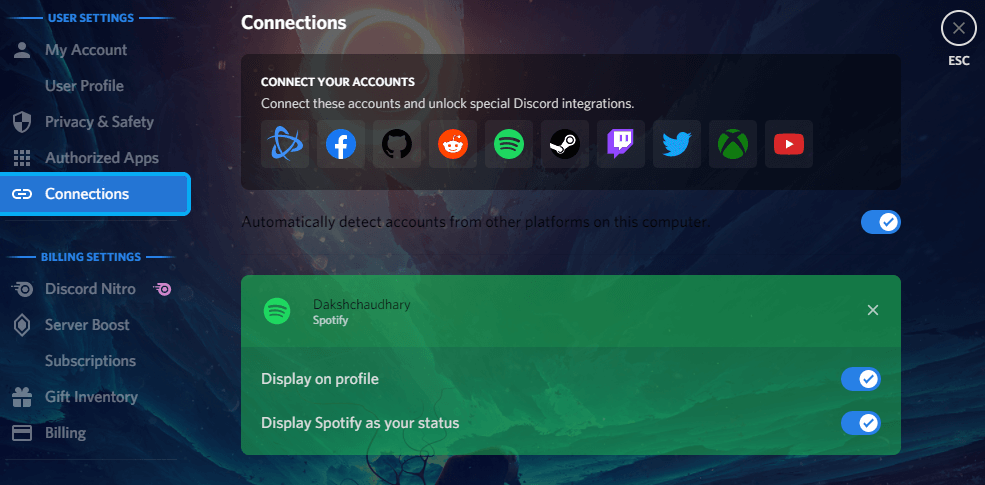
- Open the Discord app on your PC and click on the settings icon at the bottom-left of your screen. If you are using Discord on mobile, then tap the profile icon from the menu at the bottom.
- Now select the Connections option under the USER SETTINGS heading.
- Here you will see all the apps supported by Discord for integration under CONNECT YOUR ACCOUNT option. On the Discord mobile app, you need to click on the Add option to see these apps.
- Select the Spotify app from the list. After clicking on it, you will be redirected to the official website of Spotify where you need to sign in to your account and allow the Discord to connect with your Spotify.Once it’s done, both the apps will get connected and you will be able to see Spotify listening status on your Discord.
- Enable all the options related to Spotify that appear on the screen if not already.
2. Disable currently running game

Discord not just shows the Spotify activity but also reflects the name of the game you are currently playing. But this setting can sometimes conflict with the settings enabled for Spotify. In order to fix the status issue, you can try to disable the currently running game setting. Go to the Discord settings on your PC or phone and select the Activity Status option from the ACTIVITY SETTINGS heading. Simply toggle off the button here that says Display current activity as a status message. Now try to play any song on Spotify and hopefully the listening status will be visible now. Please note that disabling activity status feature will hide your game status so people won’t be able to see what game you’re playing on Discord.
3. Relink Spotify with Discord
In some conditions, the connection between Spotify and Discord can break due to some technical issues. To fix this, you need to establish a relink. The best example of this can be seen after you change your Spotify account password. For relinking both the apps again, follow these simple steps –
- Open the Discord app or website and click the settings gear icon. On the mobile app, you need to tap the profile icon at the bottom.
- Now go to Connections and there you will see the Spotify app connected with your Discord. Click the cross or remove icon to disconnect it.
- After that, select Spotify from the list of apps available for connection. Sign in to your Spotify account now and allow it to connect with your Discord again. That’s it.
With these simple steps, you have successfully relinked your Spotify account with Discord and now you will be able to see the listening status on your profile.
4. Delete Discord and Spotify cache

The cache is one of the major reasons why people face unexpected problems with apps. And if the app cache is the one causing all the problems then there’s only one way to resolve the issue, and that is by clearing up the app cache. Below we have discussed how you can achieve this on Windows, mobile and browser.
Clear app cache on Windows
While working on a PC, you need to open the run command by pressing the Windows key and R button. After that, type %appdata% and then locate the Discord app from the list. Simply delete the folder to clear the cache of Discord. Similarly you can locate the Spotify app and delete that folder too. Once done, check the Spotify status and it will be showing if everything worked fine.
Clear app cache on Android
On your Android phone, you can clear the cache from the app info page. First open the Settings app and select the Apps and notifications option. Now you will see a list of apps that are installed on your device. Find and select the Discord app in this list. In the App Info page, go to Storage and there you need to click on Clear Cache option. You can also reset the Discord app completely to its default state with the Clear Data option. The same can be done for the Spotify app.
Clear browsing data on Chrome
If you are using Discord and Spotify on a web browser, then you need to clear the browsing data instead of app cache. We will use Google Chrome as an example here as it is most widely used web browser. First you need to click the menu button (three dots) at the top-right corner on the browser. This will open a drop-down menu. Go to More tools and click on Clear browsing data. Now choose a time range and the items you want to delete. Make sure that cookies are selected. Finally click on Clear data option and you are good to go.
5. Reinstall Discord and Spotify apps
One hack that is capable of fixing all the small issues like this one is reinstalling the app. If none of the above given methods work, try to reinstall the Discord app. You need to uninstall the app first for reinstalling it. This can be done from the control panel of your PC. Follow these more detailed guide on this particular topic:
For Windows PC
Just open the Control Panel and select Programs and Features option. Here you need to find the Discord app, right-click on it and tap on Uninstall. Now to reinstall the app, go to the Discord’s official website and download the latest version available for your OS. Once the installer is downloaded, launch the exe file and follow the on-screen instructions to complete the installation process.
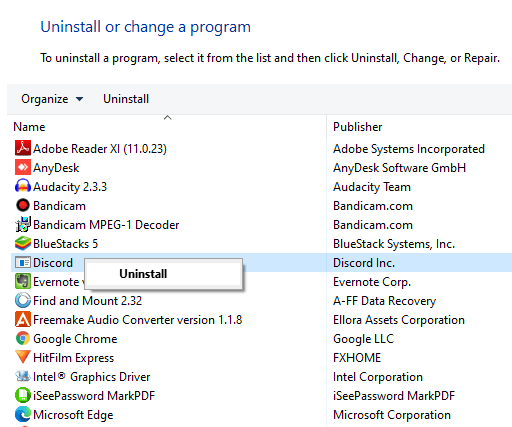
For Android smartphones
Similarly on your smartphone, you can uninstall the app by long pressing on it from the app drawer and then selecting the Uninstall option. Alternatively, you can reach the App Info page from Settings > Apps > Discord and tap the Uninstall button. Do the same for Spotify app as well. Once the uninstalling part is done, go to the app store of your phone and download these apps again. This will hopefully fix the Spotify not showing as status problem on Discord.
6. Force stop Discord and Spotify

Force stopping the apps can work in your favor sometimes. When you close the app like you always do, all the functions might not stop working in the background, hence causing small issues. Open the taskbar on your PC by pressing CTRL + SHIFT + ESCAPE key. You will see all the apps running in the background. Select Discord and Spotify and click on End task. If you are on Android, then go to the App Info settings and there you will see an option to force stop the app.
7. Update both apps to the latest version

Older versions of the apps are often known to cause unexpected problems. But simply by updating the apps to their newer versions, you can kill all the existing bugs, making the apps to work properly. After updating both Spotify and Discord, the Spotify status is likely to be shown on Discord.
An app can be updated on your PC automatically, and if not, click on the Windows icon and select the Windows Store option. You will be redirected to its website and here you need to click on your profile name at the top. Select App Settings option there and then toggle on the App updates. All the apps will be updated automatically now. On your smartphone, you can check for the updates by going to the Play Store or App Store.
8. Enable device broadcast status

If you use both Discord and Spotify on your smartphone then you got to try this method. device broadcast status setting when enabled, other apps get access to see what activities are going on in Spotify. To enable this setting, follow these simple steps –
- Open the Spotify app on your mobile. Make sure you are on the Home tab.
- Click on the settings (gear) icon at the top-right side of the screen.
- From the list of options available, locate Device Broadcast Status and toggle on the button. With this option enabled, Discord is likely to show Spotify as status.
9. Enable Spotify status settings
There is a setting on Discord which allows you to enable or disable showing Spotify as status on your profile. When you connect your Spotify with Discord, this setting get enabled automatically. Maybe it has been disabled somehow and for that reason you are unable to see Spotify listening status on your Discord. To verify this, you can follow these steps:
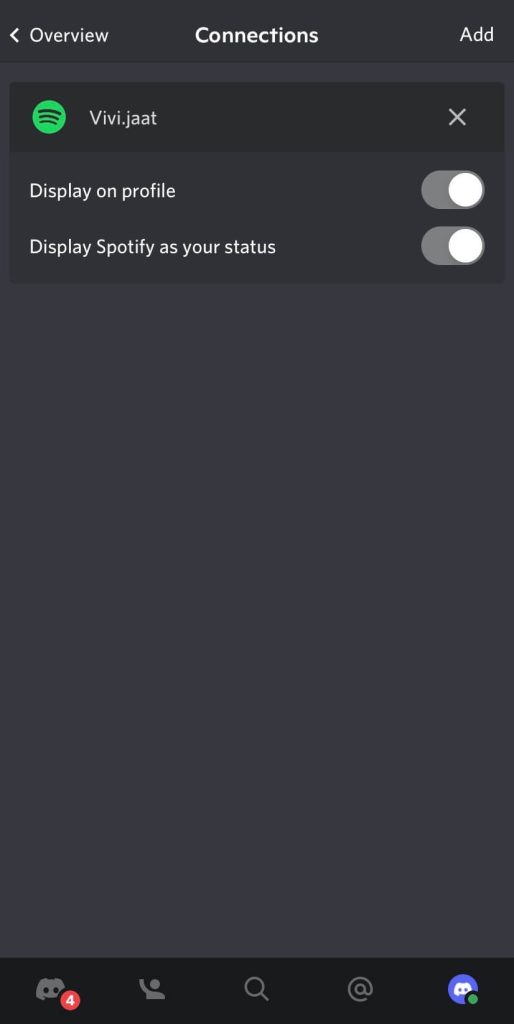
- Open the Discord website and click the settings icon. If you are on mobile app, go to the profile tab by clicking on profile icon at the bottom-right corner.
- From the menu on the left side, go to User Settings > Connections. Here you will see your Spotify account linked with Discord already.
- Make sure that Display on profile and Display Spotify as your status options are enabled. If not, then you have finally figured out what is causing Spotify status not showing issue on your Discord. Just enable both these options and you have fixed this problem.
Conclusion
Most of us love to listen songs side by side when we are browsing the internet and the same case goes with Discord as well. Many people use Spotify to listen to their favourite songs while chatting or streaming on Discord. The integration of both these apps have made it possible to show your Spotify status on Discord. When someone clicks on your profile, they will be able to see that you are listening to Spotify.
Sometimes this status doesn’t show due to some technical issues. It is nothing important but definitely a cool thing to add to your profile. In this guide, we had shared all possible methods that can help you to fix Spotify not showing as status on Discord. Try all these methods one by one and at the end you will be able to resolve this issue successfully. Let us know if this tutorial was helpful for you and don’t forget to share your thoughts in the comment section below.
4 способа исправить Spotify, который не отображается в Discord (05.14.23)
Spotify — один из самых популярных сервисов потоковой передачи музыки в мире. Через Spotify пользователям разрешено слушать бесчисленное количество песен и музыки. Они могут создавать свои собственные библиотеки песен и делиться ими с другими пользователями.
Более того, пользователи будут часто получать рекомендации в зависимости от типа песни, которую они слушают. Затем вы можете добавить их в избранное и слушать в любое время. У него миллионы пользователей по всему миру. Однако Spotify не обязательно доступен в каждом регионе.
Популярные уроки Discord
Ваш статус будет отображаться в Discord в зависимости от типа активности, которой вы в данный момент занимаетесь. Например, если вы используете Spotify, Discord покажет ваш статус воспроизведения песен на Spotify. К сожалению, ряд пользователей сообщили, что столкнулись с проблемой, когда Discord не показывает статус Spotify. Большинство пользователей не понимают, почему они столкнулись с этой проблемой.
Вот почему сегодня; мы перечислим некоторые из возможных причин, по которым вы можете столкнуться с этой проблемой. Мы также объясним, что вы можете сделать, чтобы решить эту проблему. Итак, не теряя времени, давайте приступим!
Хотя это не должно сильно помочь, но все же стоит пытающийся. Мы предлагаем вам снова попробовать установить Spotify и Discord. Также пытаюсь выйти из своих учетных записей и снова войти в систему.
Это должно устранить любую ненужную ошибку, из-за которой Discord может неправильно отображать статус пользователя. В любом случае гарантированного решения вашей проблемы нет, но попытаться вам не повредит. Если он вообще ничего не делает, переходите к следующему шагу.
Весьма вероятно, что вы не подключились Discord в свою учетную запись Spotify. Если нет, то вам нужно будет это сделать. Просто перейдите в настройки Discord, щелкнув значок шестеренки в нижнем левом углу.
Теперь вы увидите набор настроек. Зайдите в Connections. Если вы не подключили Spotify к своей учетной записи, вы должны увидеть возможность подключения учетных записей вместе. Просто выберите Spotify и войдите в свою учетную запись. Если вы уже подключили учетные записи, мы предлагаем вам удалить эти учетные записи и подключить их снова.
Это помогло исправить проблема для многих пользователей. Проще говоря, им нужно было удалить учетные записи Spotify из настроек Discord Connection. Затем им пришлось выйти из Discord и Spotify. Теперь приступите к очистке всего кеша и паролей браузера.
Убедитесь, что вы запускаете и Discord, и Spotify от имени администратора. Войдите в обе эти учетные записи. Теперь снова подключите Spotify к Discord, еще раз перейдя в настройки подключения. Мы рекомендуем вам попробовать использовать Discord в своем браузере для этого процесса.
Большинство пользователей любят отключать их статус. По разным причинам они могут отключить статус программы или игры, в которую они сейчас играют. Кроме того, игроки, которые установили свой статус «офлайн» или что-то подобное, не будут показывать надлежащий статус.
Сначала перейдите в настройки Discord и проверьте, включены ли настройки статуса показа. Также убедитесь, что Discord обнаруживает Spotify. Иногда вам может потребоваться вручную определить программное обеспечение или игру, прежде чем вы сможете отобразить их в качестве своего статуса. Наконец, убедитесь, что ваш статус находится в сети.
Итог
Это 4 самых простых способа исправить Spotify, который не отображается в Discord. Обязательно следуйте каждому из этих шагов. К тому времени, когда вы дойдете до конца статьи, вы сможете легко устранить неполадки и навсегда решить проблему.