How To Stop an Echo in Parsec
Echo is quite a common issue during streaming – it occurs when the stream is playing back on the same device that does the encoding. Of course, this problem is also present on Parsec. It’s undoubtedly annoying and leads to difficulties understanding your teammates. Thankfully, we know how to fix the issue.

In this guide, we’ll explain how to stop echo during your Parsec stream using several methods. Additionally, we’ll explain why exactly it appears, and answer the most common questions related to audio issues on Parsec.
How to Stop Echo in Parsec
There are two ways to eliminate echo on Parsec. For both, you have to be the host of the game. The first method is easier, but it doesn’t always work – you can try fixing the issue through Parsec Settings. Follow the steps below:
- Launch the Parsec app and sign in.
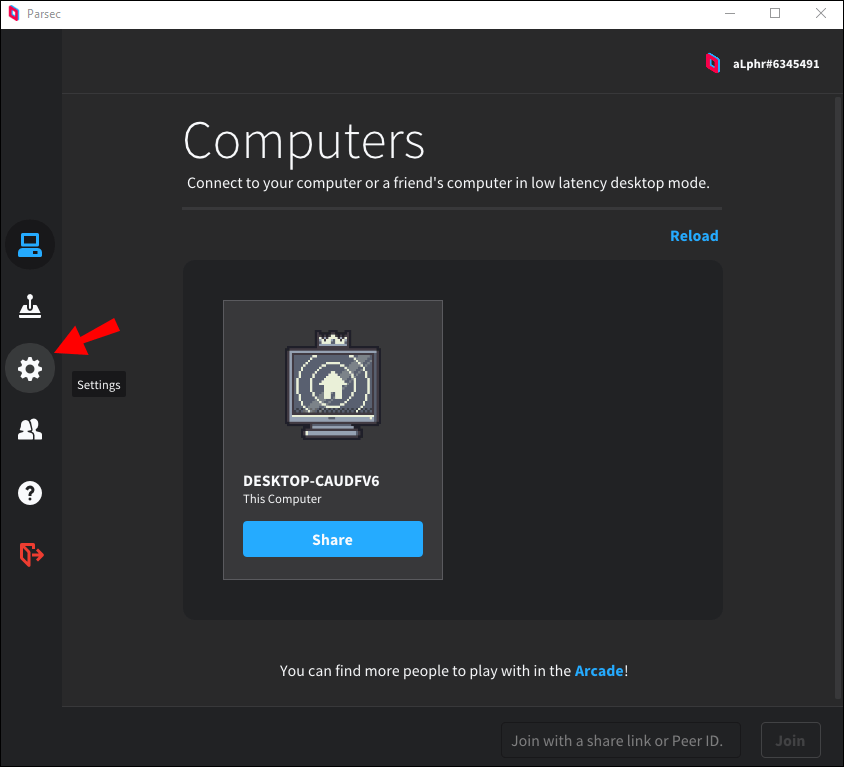
- From the left sidebar, select the gear icon to open Settings.

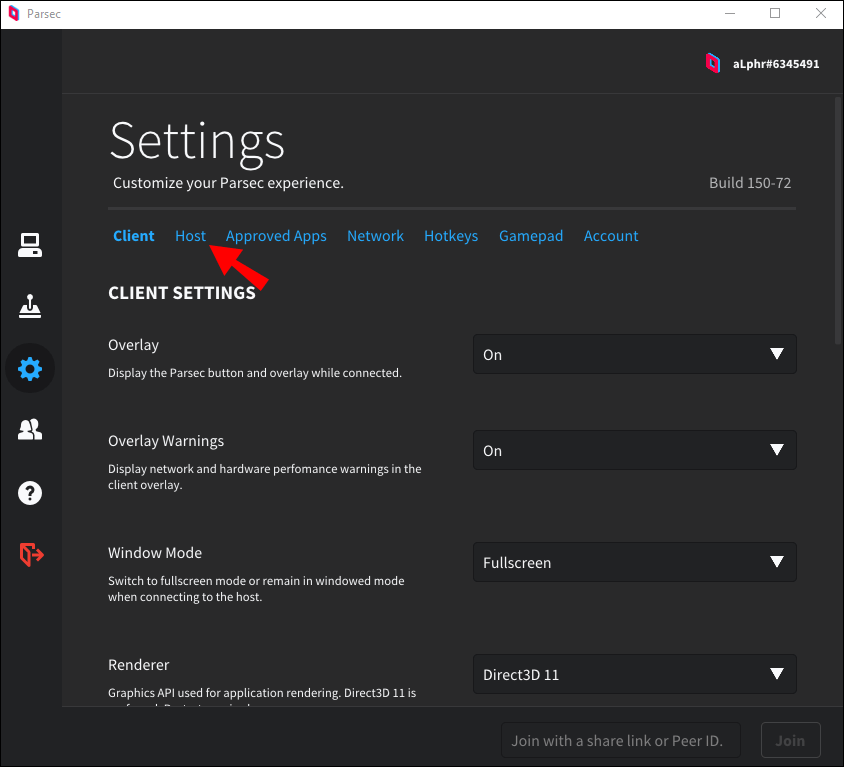
- Navigate to the “Host” tab.

- Expand the menu next to “Echo Cancelling,” then select “On.”

- Open Discord and go to Settings, then to “Voice and Video.”

- Click “Audio Subsystem” and select “Standard.”

- Restart Discord or another app you’re using to communicate.
If adjusting Parsec’s audio settings didn’t help, you may have to install additional software on your PC – VB-Cable, and try the second method. Follow the instructions below:
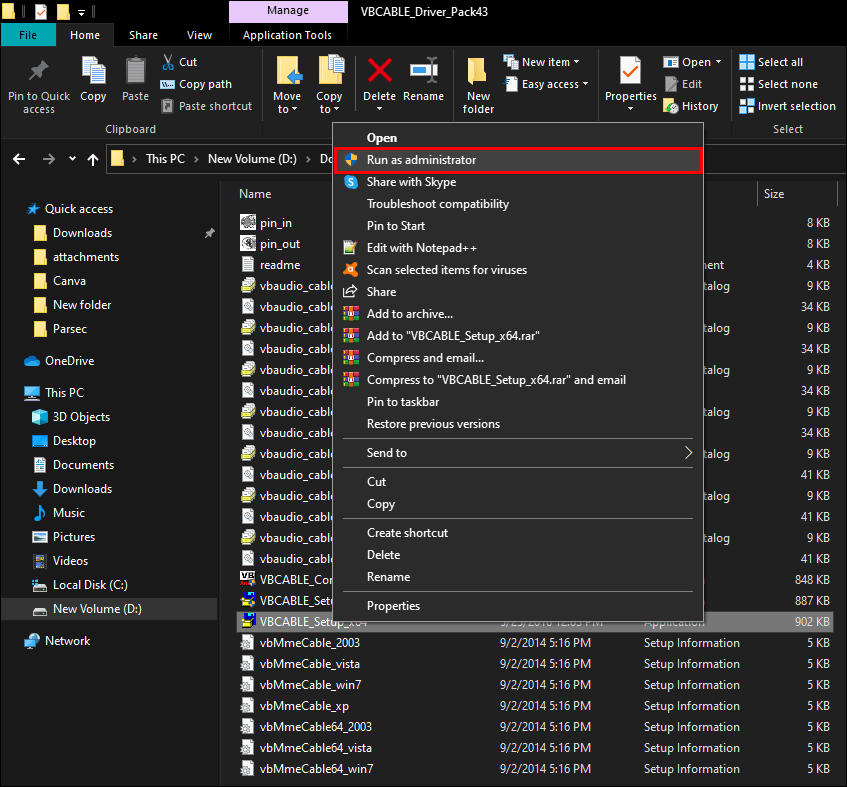
- Install VB-Cable on your computer. Unzip the file and right-click “VBCABLE_Setup.exe,” then select “Run as administrator.”

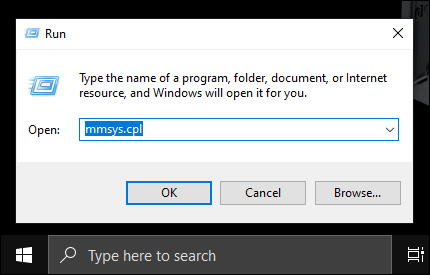
- Hit the “Win” and “R” keys at the same time, then type in “ mmsys.cpl ” t the window that appears. Press the “Enter” key.

- Mark your audio output device, then select “Cable Input” and click “Set Default.”

- Move to the “Recording” tab, then double-click “Cable Output” to open settings.

- Navigate to the “Listen” tab and mark the checkbox next to “Listen to this device.”

- Expand the dropdown menu under “Playback through this device” and select “Original device.”

- Click “Ok.”

- Switch the audio output device to your original device in the Settings of the app you use for communication with your team, for example, Discord.
- Restart your device.
In this section, we’ll answer more questions related to sound setting on Parsec.
How do you cancel an echo on Discord with Parsec?
If you’re using Discord to communicate on Parsec, you may try to eliminate echo through the Discord app first instead of changing your computer or Parsec app settings. Here’s what you can do:
1. Launch the Discord app and sign in.
2. Click the gear icon to open Settings.

3. Navigate to “Voice and Video” settings, then click “Audio Subsystem.”

4. Select “Standard” and restart Discord.
Optionally, you can try the Noise Suppression feature – to use it, you don’t even have to leave your voice chat. Keep in mind that it’s only a beta version. Follow the steps below:
1. Launch Discord and sign in.
2. Join a voice chat and click the crossed vertical lines icon next to the “End Call” icon.
3. Shift the toggle next to “Noise Suppression” to the “On” position.
What Is echo cancellation?
Echo Cancellation is a feature on Parsec that reduces the sound of all channels when someone talks. If two players are talking simultaneously, you will only hear the one who started talking first. If you prefer to hear all of your teammates, you can try fixing the echo issue using other methods, such as adjusting your device settings through VB-Cable. Echo may also appear due to the acoustics of your room – in this case, try covering your walls or floor with something soft, for example, a carpet.
Improve Your Communication
Hopefully, our guide has helped you to eliminate echo on Parsec. If you aren’t the host, send a link to this article to your friend who’s streaming the game. Fixing this issue usually doesn’t take much time, but clear audio certainly does improve your communication with teammates and, consequently, your gaming experience.
What’s your preferred way to communicate with friends while playing on Parsec? Share your experiences in the comments section below.
Parsec эхо discord что делать


| 686 | уникальных посетителей |
| 2 | добавили в избранное |

При использовании Parsec люди могут слышать то, что слышит хост, включая самих себя , если хост разговаривает с ними в Discord или подобном приложении. Вот список способов, которыми хост может это исправить.
- Parsec Arcade Beta
- Совместное использование рабочего стола (вкладка «Компьютеры»)
- Не сработало/что-то не так
- Изменить вывод, используемый вашим приложением для чата
- Изменить динамики, используемые всем остальным
Arcade предоставляет доступ только к игре и как ее часть из этого он будет захватывать только звук игры, что предотвращает эхо. В настоящее время он находится в стадии бета-тестирования, поэтому некоторые игры могут работать некорректно. Узнайте об Arcade здесь.
- Перезапустить Discord
- Убедитесь, что Standard используется в Discord Настройки> Голос и видео> Аудио подсистема
- Отключите все программы для виртуального объемного звука или улучшения звука, затем перезапустите Discord и Parsec с помощью значков на панели задач в правом нижнем углу.
- Если у вас сложная настройка звука для потоковой передачи в реальном времени, вам следует изучить другие исправления
- Загрузите VB-Cable, разархивируйте и запустите установку от имени администратора. Выберите правильную 32-разрядную или 64-разрядную версию для своего ПК.
- Нажмите Windows + R , введите mmsys.cpl и нажмите Enter чтобы открыть настройки звука.
- Запишите свое исходное устройство, на котором есть зеленая галочка (в моем случае это «Динамики» ). Мы будем использовать его в руководстве.
- Нажмите КАБЕЛЬНЫЙ ввод и нажмите Установить по умолчанию
- Перейдите на вкладку Запись
- Дважды щелкните CABLE Output. В новом окне перейдите на вкладку Слушать
- Активировать Слушать это устройство
- Установите Воспроизведение через это устройство на ваше исходное устройство
- Нажмите ОК
- Измените настройки приложения, которое вы используете для общения с друзьями. Для Discord измените «Устройство вывода» в настройках голоса и видео на свое исходное устройство
- Наконец, обязательно перезагрузите компьютер прямо сейчас программы для переключения на правильные аудиоустройства
В противном случае очень вероятно, что что-то было настроено неправильно (внимательно проверьте руководство еще раз) или компьютер не был перезагружен в конце.
Используйте другое устройство или динамик для своего коммуникационного приложения
Другое устройство: помните, что люди слышат то, что находится на главном ПК; вот почему существует эхо. Если хост использует Discord (или аналогичные приложения) на своем телефоне или другом устройстве помимо компьютера, на котором размещен хостинг, на Parsec не будет никакого эха.
Другой output: Например, если на главном компьютере есть наушники и монитор, выводящий звук, они могут использовать один для общения в чате, а другой для всего остального. Поскольку чат отделен от того, что захватывает Parsec, эха нет.
Parsec как убрать эхо из дискорда
Eliminating Sound Echo While Co-Op'ing With Friends
When joining someone’s computer on Parsec, you can hear all audio playing in that computer, including chatting apps like Discord. This means you may hear yourself when joining a friend that is talking to you. Below is how the person hosting can solve this issue.
Echo in the Computers tab (Desktop sharing)
The host can enable Echo Cancelling in Parsec’s settings > Host. After enabling, it may be necessary to scroll to the top of the settings and click Restart to apply the changes.
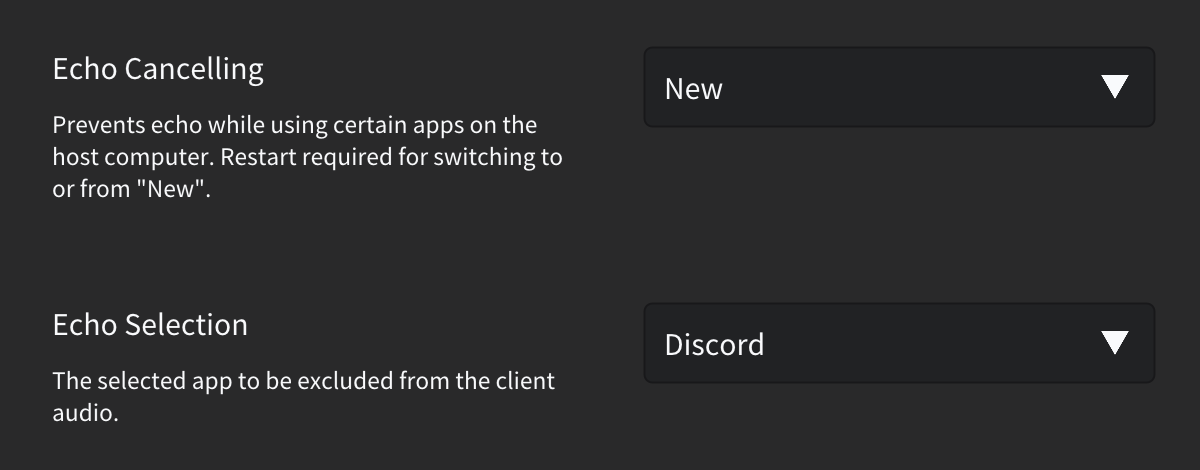
“New” option
The new option requires Windows 10 21H1 or newer, and allows you to choose a specific app to exclude from being captured. Unlike the legacy option, this one does not lower the audio of other programs when someone talks.
Some important notes about this method:
- Due to how this option works, Parsec captures audio from all audio devices on your system at once, like your headphones, speakers and virtual outputs all at the same time. This means it’ll also capture programs that re-route audio through different devices, like VB-Cable, Voicemeeter, RTX Voice, OBS’ audio monitoring mode and others. If those have your communication app audio, people will still hear themselves on Parsec
- The stream audio may stutter in some cases, due to issues with the Windows API used. If this stutter happens often, try to change your audio device’s properties in Windows to use 48000hz as the sampling rate
“Legacy” option
The legacy option lowers the audio of the stream when it detects Discord audio to prevent echo. This affects the audio of other programs being streamed while someone is talking on Discord.
If this setting doesn’t work, confirm that “Standard” is used in Discord’s settings, in Voice & Video > Audio subsystem, and disable any virtual surround sound or audio enhancing software. Then, restart both Discord and Parsec via their taskbar icons in the bottom-right. If you still have issues, try to use a different fix in this page.
Alternative fixes
If you’re having trouble with both of Parsec’s automatic options, change the Parsec setting to «Off», scroll to the top of the settings and click Restart if needed, and follow either of the methods below.
This is a consistent fix that uses a separate program, and doesn’t lower the volume of the stream. You might however notice a bit of added latency. The following steps should be done by the host:
-
, unzip and run the setup as administrator. Choose the correct 32 or 64-bit version for your PC.
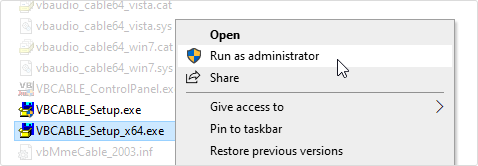
- Press Windows + R, type mmsys.cpl and press Enter to open the sound settings
- Note down your original device which has a green checkmark (in my case it’s ‘Speakers’). We’ll use it in the tutorial
- Click CABLE Input and click Set Default
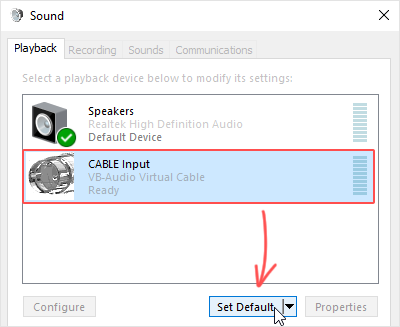
- Go into the Recording tab
- Double-click CABLE Output. In the new window, go to the Listen tab
- Activate Listen to this device
- Set Playback through this device to your original device
- Click OK
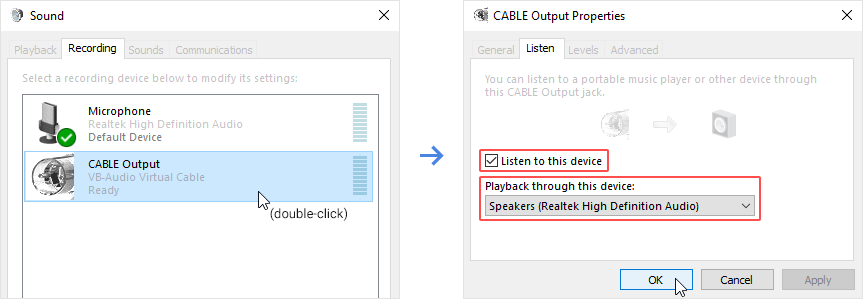
- Modify the settings of the app you use to communicate with friends. For Discord, change ‘Output device’ in the Voice & Video settings to your original device
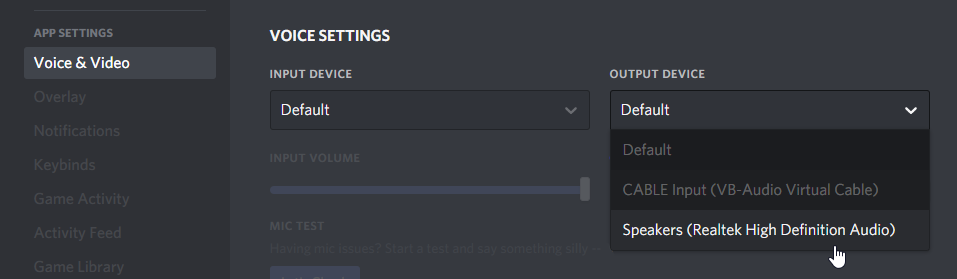
- Lastly, make sure to restart your computer right now for programs to switch to the correct audio devices
It didn’t work / something is wrong
If you or the clients are unable to hear anything at all, you should double-click the original device and Cable Input, and set both to use 24 bit, 44100 Hz on Advanced > Default Format. Do the same for Cable Output, but use 2 channel, 24 bit, 44100 Hz instead. Restart your computer if nothing’s changed right away.
Otherwise, it’s very likely that something was set incorrectly (carefully re-check the tutorial), or the computer wasn’t restarted at the end.
A different device: Remember that people hear what is in the host PC; that’s why the echo exists. If the host uses Discord (or similar apps) on their phone or another device aside from the computer that is hosting, there won’t be any echo on Parsec.
A different output: For example, if the host computer has a headphone and a monitor that outputs audio, they can use one for chatting and the other for everything else. With the chat separated from what Parsec captures, there’s no echo.
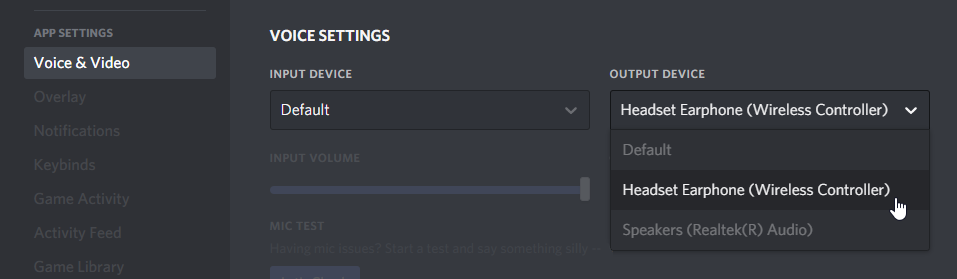
Change output used by your chatting app
Change to another audio device in the settings of the app you use to communicate with friends. For Discord, change ‘Output device’ in Voice & Video.
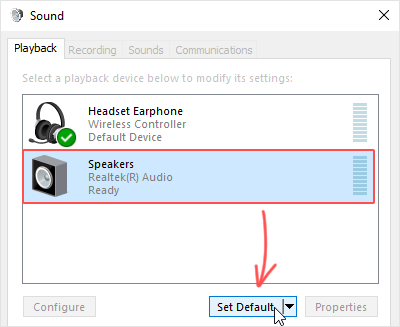
Change speakers used by everything else
- Press Windows + R, type mmsys.cpl and press Enter to open the sound settings
- Select the one you want and click Set Default
- Restart your PC in case things don’t start using the device you set
Arcade Beta
Arcade shares just the game, and as part of that it will only capture the game’s sound, which naturally avoids echo. It’s currently in Beta and some games will not work correctly, so we recommend using the Computers tab if you’re playing with friends, with one of the previous fixes in this article. Learn more about Arcade.
How To Stop Echo On Discord?
It’s next to the gear icon in the window that slides up from the bottom of your screen when you join a voice chat. Tap Enable Noise Suppression. This will enable the feature and you can disable it by tapping that icon again and tapping Disable. You can also go to Settings > Voice > Voice Processing > Noise Suppression.
Should I cancel discord echo?
Discord has a voice activation threshold setting, but it comes with echo detection inaccuracies. Thus, Discord echo cancellation doesn’t benefit or harm the user.
How do I cancel echo?
Let me help you on this.
- On the search bar, type Sound and press Enter.
- Select the Recording tab.
- Right-click on Microphone and click Properties.
- On the Properties window, select Enhancement tab and check(enable) the Noise Suppression and Acoustic Echo Cancellation feature.
- Click OK.
How do I get rid of echo Parsec?
Launch the Parsec app and sign in. From the left sidebar, select the gear icon to open Settings. Navigate to the “Host” tab. Expand the menu next to “Echo Cancelling,” then select “On.”
Why can I hear my own voice in Discord?
The simplest and most likely cause of an echo is not even caused by your microphone. If the people you are speaking to have microphones of their own and are receiving your voice through speakers, their microphones can pick up the sound from their speakers and send it back to you.
Why is my audio echoing?
Echoes can occur on computers, mainly due to audio feedback between microphones and speakers.Sound enters the mic, and as it exits the speakers, it’s detected by the mic again. This cycle is called a “looped signal” and can cause sounds to become even more amplified and discordant as the cycle repeats itself.
How do I stop my video calls from echoing?
Take control of problem-solving.
- Understand the difference between echo vs. reverb.
- Plug in your headphones. If you ever hear an echo during a one-on-one conversation, headphones are often the easiest solution.
- Make meeting attendees mute themselves when they’re not speaking.
- Take control of problem-solving.
How do I turn off acoustic echo cancel?
Disable Acoustic Echo Cancellation
- Press Home .
- Go to Preferences > AEC RJ9 Headset.
- Press the Disable soft key.
- Press Home to exit Preferences and confirm your selection.
How do I stop my mic from echoing?
Lower your speaker volume to reduce the echo. If your microphone or audio device is near a wall or other reflective surface that does not absorb sound, consider moving the microphone or changing its direction away from the reflective surface to reduce potential echoes.
What does echo cancellation do?
Echo suppression and echo cancellation are methods used in telephony to improve voice quality by preventing echo from being created or removing it after it is already present.
Why do I hear my own voice when I call someone?
Some common causes are acoustic feedback coming from the phone of the party you are talking to, slow internet connection, defective headset, or a damaged ethernet cable. There are also different symptoms to diagnose of phone echoing. Sometimes callers will hear their voice through their own device, for example.
Why can I hear myself through my friends mic?
If you can hear yourself in another users headset like an echo, it is usually down to the fact that the friend in question has his mic to close to the headphones, the headphones are too loud, he has chat still playing through his tv speakers and his tv sound is still on or to loud or the headset is not quite plugged in
Why is my audio echoing on discord?
A few main causes can be: The Noise Suppression feature is disabled on Discord. There is some issue with your headsets or your microphone jack.If your microphone happens to be very close to a wall or any surface that doesn’t absorb the sound, it can cause an echo.
Why can I hear myself when I talk on the phone?
The basic cause of echo during a cell phone conversation is from side tone a process that allows you to hear your own voice in your cell phone’s speaker as you talk to make the call more comfortable for you — otherwise the line would seem dead to you.
What causes feedback on video calls?
Echo is caused by sound coming out of the speakers and back into the microphone, which is called “feedback”. If you hear your voice echoing then that means the patient’s device is causing feedback.
Why do I hear an echo in my ear when I talk?
An echo in the ear usually occurs when sound waves start to have trouble passing through your inner ears. Many different factors cause a clogged ear. Even though some causes are minor, many require seeking medical attention from experts, like those at Internal Medicine Diagnostic Center.
How do I remove echo from audio free?
Enter Audacity, a free little program that helps you edit your audio files and is available on both Windows and Mac. Even though it’s impossible to completely remove it, you can use Audacity to reduce the echo found in your audio recordings.
How do I adjust mic sensitivity in Discord?
Open Discord and click the “Discord” menu in the toolbar, then click “Preferences”. Click “Voice & Video” on the left to open the Voice Settings. Click the switch under “Input Sensitivity” to turn on the manual settings. After switching to manual input sensitivity, you’ll notice a bar with a slider.
Is Discord Mic always on?
By default, Discord will activate your microphone when it detects noise. You can change this setting to push-to-talk, which will instead activate your microphone only when you decide to push the corresponding key.
Why is my mic so loud on Discord?
If your mic jumps from too loud to too soft, or some of your voice is getting cut off at the end of sentences, uncheck this box! Why’s that? Essentially what’s happening is that Discord is trying to adjust your mic to an ideal speaking level based on the volume of what’s coming into your mic.
How is echo caused?
This phenomenon is called an echo, which has its origins in the Greek ekho, meaning “sound.” An echo happens when a sound wave reflects off a surface, such as the water at the bottom of a well, and the sound is repeated back to you.
How To Stop an Echo in Parsec
Echo is quite a common issue during streaming – it occurs when the stream is playing back on the same device that does the encoding. Of course, this problem is also present on Parsec. It’s undoubtedly annoying and leads to difficulties understanding your teammates. Thankfully, we know how to fix the issue.

In this guide, we’ll explain how to stop echo during your Parsec stream using several methods. Additionally, we’ll explain why exactly it appears, and answer the most common questions related to audio issues on Parsec.
How to Stop Echo in Parsec
There are two ways to eliminate echo on Parsec. For both, you have to be the host of the game. The first method is easier, but it doesn’t always work – you can try fixing the issue through Parsec Settings. Follow the steps below:
- Launch the Parsec app and sign in.
- From the left sidebar, select the gear icon to open Settings.
- Navigate to the “Host” tab.
- Expand the menu next to “Echo Cancelling,” then select “On.”

- Open Discord and go to Settings, then to “Voice and Video.”

- Click “Audio Subsystem” and select “Standard.”

- Restart Discord or another app you’re using to communicate.
If adjusting Parsec’s audio settings didn’t help, you may have to install additional software on your PC – VB-Cable, and try the second method. Follow the instructions below:
- Install VB-Cable on your computer. Unzip the file and right-click “VBCABLE_Setup.exe,” then select “Run as administrator.”
- Hit the “Win” and “R” keys at the same time, then type in “ mmsys.cpl ” t the window that appears. Press the “Enter” key.
- Mark your audio output device, then select “Cable Input” and click “Set Default.”
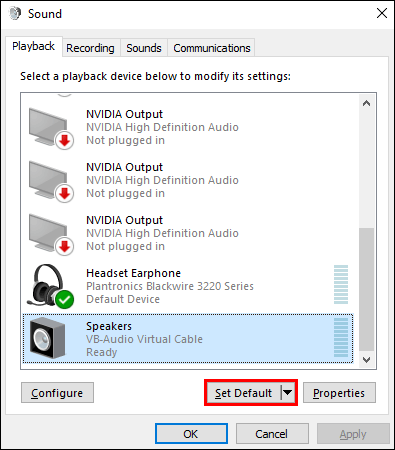
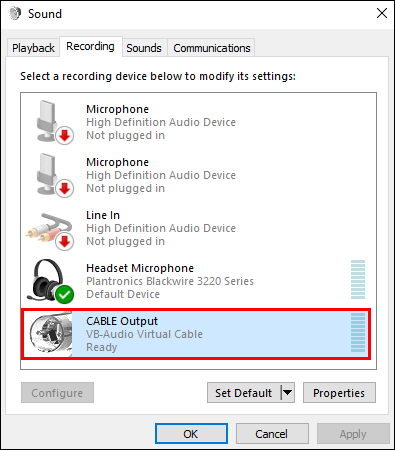
- Move to the “Recording” tab, then double-click “Cable Output” to open settings.
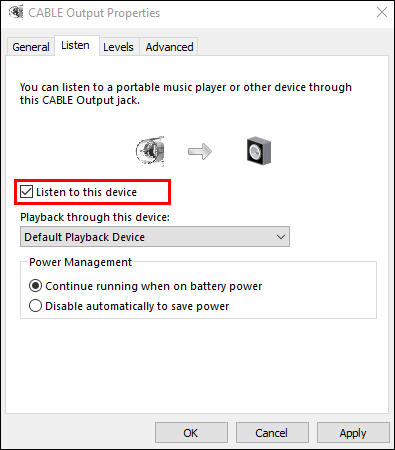
- Navigate to the “Listen” tab and mark the checkbox next to “Listen to this device.”
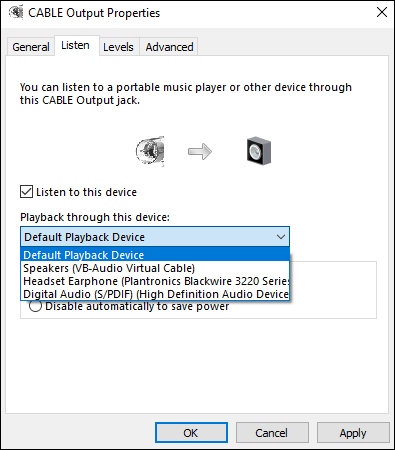
- Expand the dropdown menu under “Playback through this device” and select “Original device.”
- Click “Ok.”
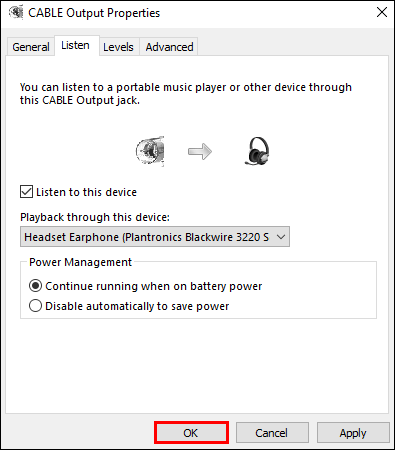
- Switch the audio output device to your original device in the Settings of the app you use for communication with your team, for example, Discord.
- Restart your device.
In this section, we’ll answer more questions related to sound setting on Parsec.
How do you cancel an echo on Discord with Parsec?
If you’re using Discord to communicate on Parsec, you may try to eliminate echo through the Discord app first instead of changing your computer or Parsec app settings. Here’s what you can do:
1. Launch the Discord app and sign in.
2. Click the gear icon to open Settings.
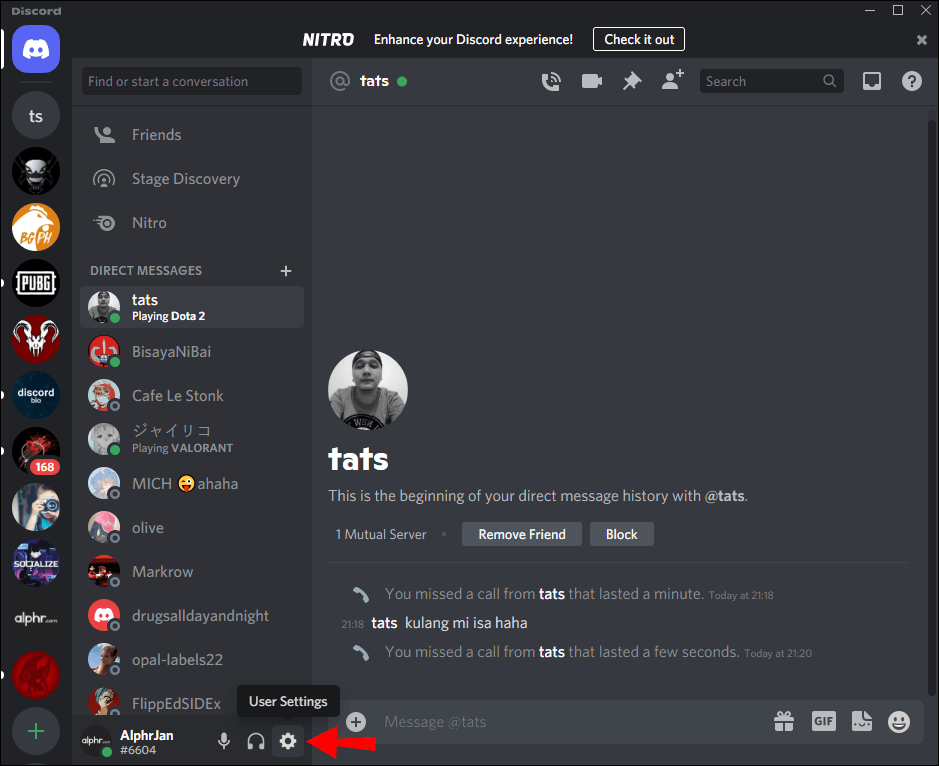
3. Navigate to “Voice and Video” settings, then click “Audio Subsystem.”
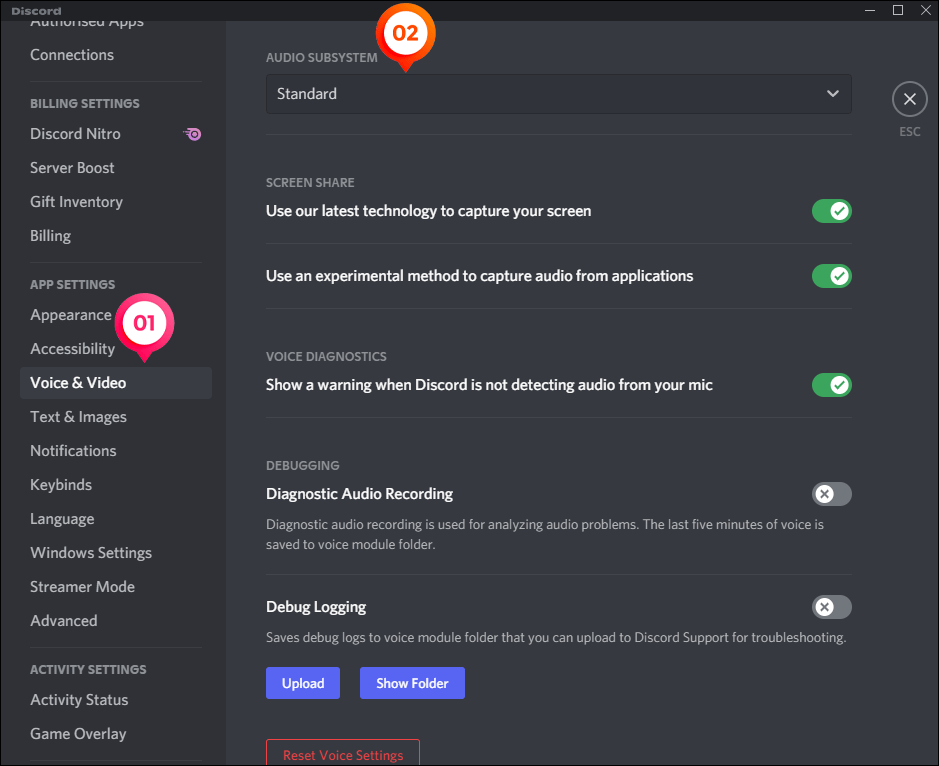
4. Select “Standard” and restart Discord.
Optionally, you can try the Noise Suppression feature – to use it, you don’t even have to leave your voice chat. Keep in mind that it’s only a beta version. Follow the steps below:
1. Launch Discord and sign in.
2. Join a voice chat and click the crossed vertical lines icon next to the “End Call” icon.
3. Shift the toggle next to “Noise Suppression” to the “On” position.
What Is echo cancellation?
Echo Cancellation is a feature on Parsec that reduces the sound of all channels when someone talks. If two players are talking simultaneously, you will only hear the one who started talking first. If you prefer to hear all of your teammates, you can try fixing the echo issue using other methods, such as adjusting your device settings through VB-Cable. Echo may also appear due to the acoustics of your room – in this case, try covering your walls or floor with something soft, for example, a carpet.
Improve Your Communication
Hopefully, our guide has helped you to eliminate echo on Parsec. If you aren’t the host, send a link to this article to your friend who’s streaming the game. Fixing this issue usually doesn’t take much time, but clear audio certainly does improve your communication with teammates and, consequently, your gaming experience.
What’s your preferred way to communicate with friends while playing on Parsec? Share your experiences in the comments section below.
4 Fixes For Parsec Discord Echo Cancellation Not Working
One of the most annoying issues that you can face while trying to stream your favorite games is hearing an unnecessary echo. Even worse, issues like echo are likely to increase when you are using Discord along with streaming the game. Talking about this, a particular complaint that we have heard users make is regarding the echo cancellation feature. They have mentioned how the echo cancellation feature on Discord is not working when using Parsec to record and stream their games. So, if you are also facing the same issue and have no idea what to do about it, then here is what you should know!
Parsec Discord Echo Cancellation Not Working
1. Use Discord On Windows
An important thing to know is that the noise cancellation feature does not seem to work on the browser version of Discord. Due to the limited capabilities present because of the application running online on your browser rather than the machine, you can’t use any such feature.
So, if you are currently running Discord on any browser, we recommend that you try running it on your Windows first. However, you might have to install Discord on your desktop before you can successfully run it.
2. Ensure Echo Cancellation Is Enabled On Both Platforms
Apart from running the application on Windows, another thing that you have to keep in mind is that the noise cancellation option should be enabled on both Discord and Parsec. You should check the settings on both platforms.
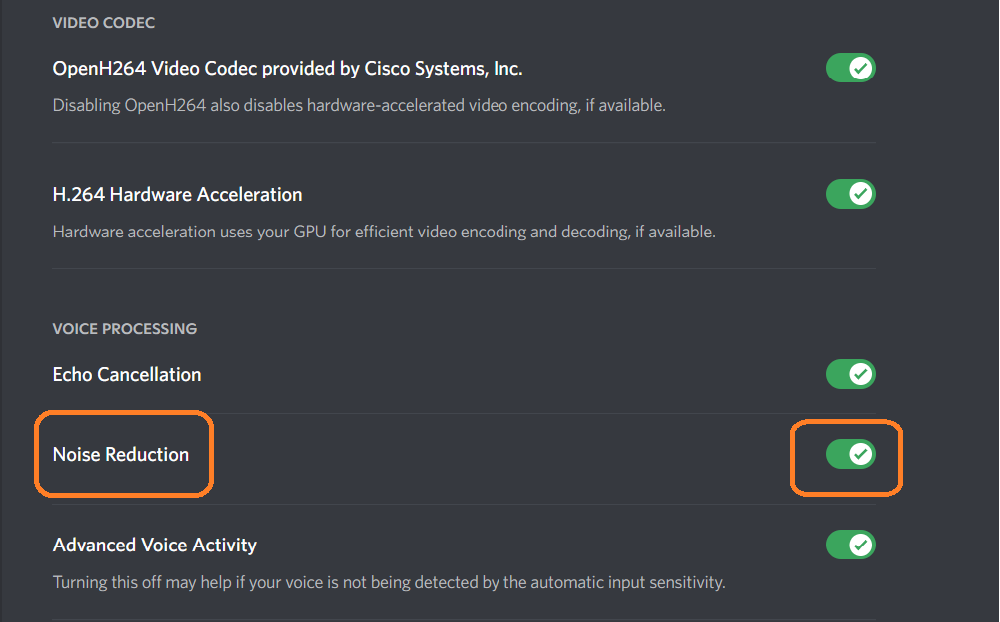
In Discord, navigate to Settings > Voice & Video > Enable Echo Cancellation. Similarly, you will have to access the hosting settings inside Parsec. After scrolling down and locating the Host Settings, simply ensure that the echo canceling is turned on.
3. Turn Off Surround Sound
We have seen cases where features like surround sound seem to have been causing issues with echo cancellation. To prevent this from happening, we recommend that you temporarily try turning off the feature on your system.
Also, ensure that you turn off any other sound feature that is known to boost the volume in any artificial way.
4. Using A Reliable Input Device
As the echo sound mainly comes from the host on Parsec, the host must be using a reliable input device. If the host uses any device such as a phone for voice, there will be echoes. However, using any good input device with decent quality should ensure that there isn’t any echo.
The Bottom Line
It can be surely annoying to have your echo cancellation suddenly stop working on Discord while using Parsec. Most of the time, these types of errors occur when Discord is launched through the browser instead of Windows. So, fixing them only requires you to launch the application through your desktop.