Как обновить прошивку NVMe SSD Samsung 980 PRO?

ЭМПИРИЧЕСКИЙ АНАЛИЗ.
Методом экспериментов пришёл к определённым заключениям, которые позволили мне в своём конечном итоге прекрасно обновить прошивку на всёх устройствах.
Я так понял, что проблемы с обновлением прошивки подобных дисков с помощью ПО Samsung Magician заключаются в том, что в ОС по-дефолту установлены стандартные драйвера NVMe контроллера(ов).
Эти стандартные драйвера ОС Windows не даёт сменить на что-либо иное, даже при наличии цифровой подписи драйверов. Вот тут и возникает серьёзная «предъява» к МикроОкнам.
Просто так подкинуть драйвера дискам не получится, поэтому мы открываем диспетчер задач, кликаем ПКМ на названии своего компьютера (в самом верху) и выбираем «Добавить драйверы». 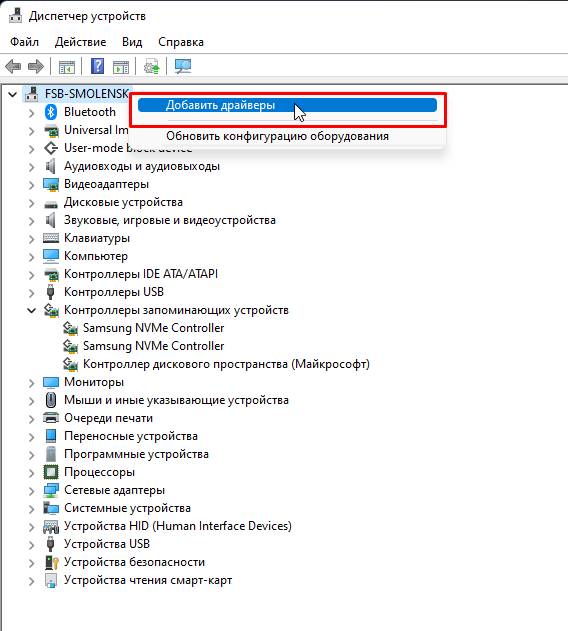
Далее выбираем папку с переработанными (доведёнными до приемлимого к установке уровня) мной драйверами Samsung для NVMe накопителей, взятыми изначально из официального установочного пакета:
https://drive.google.com/file/d/1_PRPExthMQNLT6I1U.
и жмём кнопку «Далее». В итоге вы должны увидеть сообщение, говорящее о том, что драйвера были успешно установлены.
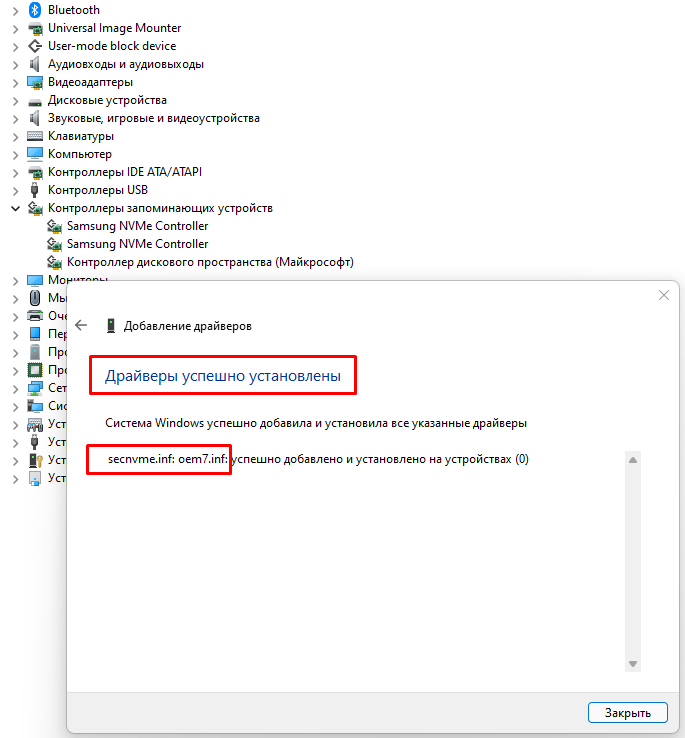 Установлены, НО! Это означает лишь то, что они добавлены в систему, а не «привязаны» к оборудованию.
Следубщим действием нам нужно «привязать» драйвера к имеющемуся оборудованию NVMe от Samsung, т.е. заменить дефолтные драйвера, которые установились ОС при её установке на нативные.
Делаем ПКМ по контроллеру NVMe Samsung в диспетчере задач, далее «Обновить драйвер», далее «Найти драйверы на этом компьютере», далее «Выбрать драйвер из списка доступных драйверов на компьютере», снять галку «Только совместимые устройства», найти Samsung Electronics Co., Ltd и в окошке «Модель» выбираем «Samsung NVMe Controller». 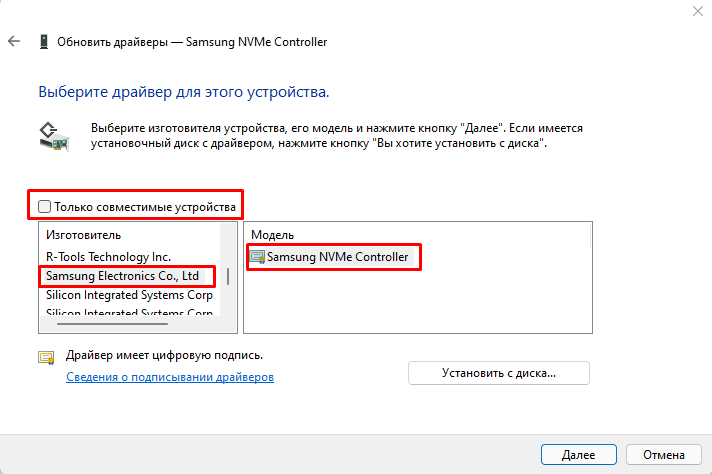
Затем мы нажимаем кнопку «Далее» и утвердительно отвечаем на предупреждение о том, что Windows якобы не может проверить совместимость данного драйвера. (А чего бояться? Мамка ещё денег даст на 2Тб Samsung NVMe 980 PRO) Ржущий смайлик 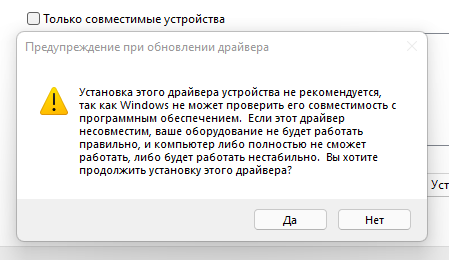
В итоге имеет сообщение об успешном обновлении драйвера. 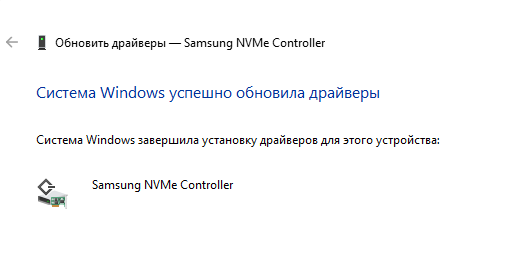
Примечание.
Если речь идёт о диске, на котором НЕ стоит действующая система из под которой вы загружены, то перезагрузка НЕ потребуется.
Если же вы хотите обновить драйверы из под текущей системы, то потребуется перезагрузка.
Самое главное тут не пытаться после установки нативных драйверов пытаться нажать кнопку «Обновить драйвер», иначе родные драйвера сразу слетят и будут заменены тем, чему Windows отдаёт предпочтение.
Теперь, когда драйвера заменены на нативные, можно запустить Samsung Magician и обновить прошивку удобным методом.
Если вы заметили, то я ранее употребил выражение «удобным методом». Судя по всему есть ещё какой-то, «неудобный».
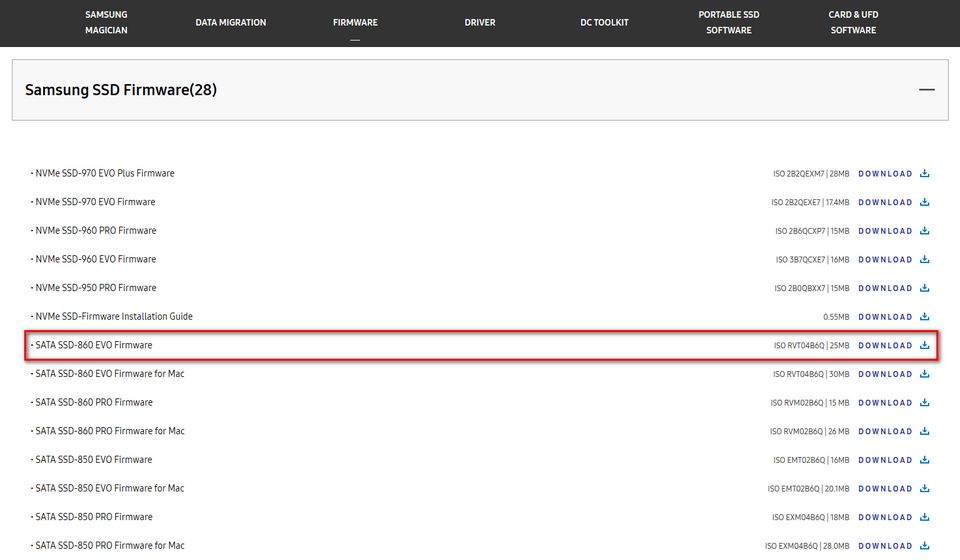
Да. Именно так. Существует возможность для «энтузазистов» обновить прошивку SSD ( в т.ч. NVMe) Samsung. Это загрузка официального образа с прошивкой для последующего «нарезания» на флешку с помощью Rufus или Unetbootin и затем загрузки с него. Про этот вариант писать не буду, ибо там всё элементарно для тех, кто понимает, что и как. Самый главный посыл моей темы-рассказать, что является проблемой в обновлении прошивки штатными методами (официальным ПО Samsung Magician). Скажу только, что официальные образы крайних прошивок для SSD (в т.ч. NVMe) Samsung можно скачать по ссылке в разделе «Firmware»:
ЭПИЛОГ.
Проблемы с обновлением прошивки SSD и SSD NVMe накопителей возникает по причине работы вышеуказанных посредством стандартного драйвера от Майкрософт, а не родного драйвера от Samsung.
В первую очередь надеюсь, что мой материал поможет тем, кто ищет решение вопроса, которым задался и я.
Во-вторых Не могу сам для себя определить, почему Samsung не может «дописать» код ПО таким образом, чтобы прошивка обновлялась в т.ч. и на стандартных драйверах Windows.
В-третьих не понимаю политику Windows, которая не даёт ни специализированному ПО, ни персонально пользователю (ручками) установить родной драйвер для этих твердотельных дисков.
Всем спасибо. Ваши одобрительные комментарии как всегда ценны. Спасибо прежде всего тем, кто помогает другим, а не тупо набивает посты, как некоторые, праздно шатающиеся тут.
How to update SAMSUNG SSD Firmware? (Step by Step)
Usually, we are fond of updating the latest software version in our phone device and OS. Updating to the latest version, lets us enjoy new features. Moreover, it helps the device to perform better. Similarly, SSDs can perform better, if you update them with the latest Firmware. In this article, I have described relevant steps to update the latest Firmware for Samsung SSDs.

In case, if you have upgraded your Operating System with any of the Samsung SSDs then, this article is a must for you. Investing a few minutes reading the article will help you to understand the necessary steps to update Samsung SSD Firmware. Moreover, this blog can be considered as a detailed guide for Samsung Magician Software.
Nowadays, the majority of SSD brands such as Samsung, Kingston, Crucial, etc. have introduced their SSD-based Software. Making use of random SSD-based software may damage your SSD, corrupt data, or decrease the actual lifespan of the SSD. Hence, I would recommend you make use of the compatible SSD software to have a health check-up of SSD.
Ok, let’s get into the actual topic. Here, we are discussing Samsung Magician Software which is mainly meant for Samsung SSDs. Almost, all the latest models of Samsung SSDs are compatible with Samsung Magician Software. However, you can check the compatible SSDs list in the official Samsung portal.
Steps to update Samsung SSD with latest Firmware
Well, updating the latest Firmware for Samsung SSD using Samsung Magician Software is one of the simplest tasks. Within a few minutes you can complete the whole process, simply implement the below-stated steps in your Operating System.
Step 1: Download Samsung Magician Software
- Firstly, visit the Official Samsung portal
- Scroll down a bit to find “Magician Software”
- Now, click on Download. (Look at the above image for better understanding)
You can directly download the Samsung Magician Software: Click to Download
Note: Following the above steps will help you to get the latest version of Samsung Magician Software.
Step 2: Install Samsung Magician Software in OS
- Open the downloaded file “Samsung Magician Software”
- Right-click on it and to “Extract Files”
- Click on it, to extract Samsung Magician files.
- Once done, Right-click on Samsung Magician Software
- Now, click on “Run as administrator” to proceed further
- You will find a pop-up stating “Do you want to allow this app to make changes to your device?” Simply, click on “YES” to proceed further.
- Now, if you want to choose a new destination path, you can or else simply click on the OK tab.
- Now, you will be prompted to select the language. You can choose the favorable language from the given list, and click the OK tab.
- Now, click on the Next tab to continue with the installation process.
- Kindly, select the option “I accept the agreement” and click on the NEXT tab.
- Now, you have to give a checkmark on “Create a desktop icon” and click on the NEXT tab. Have a look at the above-given image for better understanding.
- The Next step is to click on the “Install” option.
- The installation process will consume some time “Few seconds” kindly, wait till it gets completed.
- The final step for the installation process is to click on the “Finish” tab. Once done, refresh your PC/Laptop.
Step 3: Launch the Samsung Magician Software to update the latest Firmware.
- Simply, double click on Samsung Magician Software to launch it. “You will find it in Desktop”
- The Software will scan for installed SSDs kindly, wait for a few seconds.
- In case, if you have installed more than one SSDs kindly, select the Samsung SSD from the given drop-down box.
- Once done, you will find the current health status of your Samsung SSD and Firmware Version.
- You will find an “Update” option if any new firmware update is available for a particular Samsung SSD.
- Kindly, click on Update to proceed further.
- You will find a pop-up stating Firmware Update kindly, click on YES to proceed further.
- The firmware update will consume some time kindly, wait till it gets completed. Meanwhile, you can save any of the current files or docs that you’re working on.
- You will get a pop-up stating “Latest Firmware download completed System will be shut down now” Within 15 seconds your system will restart, make sure to save active files or docs if any. Moreover, you can skip the 15-second timer by clicking on the Shutdown tab.
- Once your system is active kindly, launch the Samsung Magician Software to make sure whether the Samsung drive is installed with the latest Firmware. Have a look at the above image for a better understanding.
That’s it! You have successfully updated the latest Firmware in your Samsung SSD.
Benefits of Samsung Magician Software
Check out the benefits (features) of Samsung Magician Software. You can make use of each feature after installing the Samsung Magician Software in your Operating System.
- Have routine health check-up for Samsung SSDs
- Boost-up Read/Write Speed
- Performance benchmark
- Delete temp “unwanted files” increase storage
- Perform Secure erase
- Diagnostic Scan for SSD
- OS Optimization
- Collect detailed info for SSD
- Fix minor bugs
- Perform, PSID Revert
- Check for the latest Firmware update and install the same.
Conclusion
Hope you enjoyed the article! Simply, follow the stated steps to update the latest Firmware in your Samsung SSDs. In case, if you have any queries or doubts do let me know in the comment section. I’ll look into it.
Ускоряем SSD / Как обновить прошивку SSD диска / Samsung Magician
#ssd #samsung #windows #magician В данном видео ролике научимся обновлять прошивку SSD дисков, на примере SSD от Samaung и утилиты Samsung Magician, подобные утилиты так же есть и для SSD дисков других производителей. ➖➖➖➖➖➖➖➖➖➖ Сайт: %D0%B3%D0%BB%D0%B0%D0%B2%D0%BD%D0%B0%D1%8F-%D1%81%D1%82%D1%80%D0%B0%D0%BD%D0%B8%D1%86%D0%B0 Boosty: Dzen: ➖➖➖➖➖➖➖➖➖➖ ��Добро пожаловать на канал Maxim Efimov, посвященный IT тематике, программам, играм, технике. ⚠️P.s⚠️ Уважаемые посетители данного канала, все что вы увидите носит исключительно информационный-развлекательный характер. Весь используемый софт ставится на машины с лицензионными ключами или условно бесплатный, программы и софт который вы увидите в роликах в свободном доступе и разрешён для скачивания. Все совпадения случайны. ��Этот канал не про политику, любое высказывание, оскорбление сразу в БАН�� ��Запрещено спамить �� ��Ни каких оскорблений и мата �� ��Не вести темы запрещенные законодательством РФ�� ��Запрещено вести политические темы ❌ ��Запрещена любая реклама, за это- сразу в БАН�� ✅Уважайте друг друга. ➖➖➖➖➖➖➖➖➖➖ ��➖Мой основной ПК: ЦП: 11th Gen Intel(R) Core(TM) i7-11700 МП: ASUS PRIME Z590-A БП: ASUS ROG-STRIX-1000G ОЗУ: TRIDENT Z Neo RGB [F4-3200C16Q-64GTZN]-64 ГБ SSD: Samsung-870 EVO-1tb SSD: Samsung 980 -1tb Корпус: Cooler Master MasterCase H500P MESH Монитор: LG UltraGear 27GN850-B Видеокарта: ASUS ROG Strix GeForce RTX 3070 Ti OC Edition Кулер ЦП: Noctua NH-U12A ��➖Мой тестовый ПК: ЦП:4th Gen Intel(R) Core(TM) i5-4590 МП: ASUS B85M-E SSD:Apacer AS350 PANTHER -128gb SSD:Apacer AS350 PANTHER -128gb SSD:Apacer AS350 PANTHER -128gb HDD: WD blue — 1tb БП: A-Data XPG PYLON BRONZE 450W ОЗУ: CRUCIAL 16 ГБ Корпус: Emachines Кулер ЦП: stock intel ��➖Mой тестовый Mac: Mac mini — 2018 ЦП: 8th Gen Intel(R) Core(TM) i3-8100B ОЗУ: 8 ГБ SSD: Apple SSD -256gb —————————————— Микрофон: HyperX DuoCast ➖➖➖➖➖➖➖➖➖➖
Max Yuzhniy
Автор, правильно я понимаю, что на уже остановленной операционке выполняем обновление прошивки диска, и это обновление не затрагивает ОС, можно работать на ней дальше?
Как обновить прошивку ssd samsung
Как оптимизировать SSD с утилитой Samsung SSD Magician
Как использовать Magician?


Как обновить прошивку SSD диска Samsung EVO MZ-76E250BW
Предыстория Samsung Magician
Прошивка firmware для SSD диска с помощью ISO образа
Как обновить прошивку ssd samsung
Magician Software Installation Guide
Magician Software Open Source Announcement
* Notice : Latest version of Magician software is recommended for optimal performance.
Samsung Magician Software for Enterprise SSD (5)
Magician Software for Windows OS 32bit
Magician Software for Windows OS 64bit
Magician Software for Linux OS 32bit
Magician Software for Linux OS 64bit
Magician Software User Manual
* Notice : Latest version of Magician software is recommended for optimal performance.
DATA MIGRATION
Samsung Data Migration Software for Consumer SSD (11)
Data Migration Software
Data Migration Software User guide | Chinese-Simplified (简体中文)
Data Migration Software User guide | English
Data Migration Software User guide | French (Français)
Data Migration Software User guide | German (Deutsch)
Data Migration Software User guide | Italian (Italiano)
Data Migration Software User guide | Japanese (日本語)
Data Migration Software User guide | Korean(한국어)
Data Migration Software User guide | Portuguese (Português)
Data Migration Software User guide | Spanish (Español)
FIRMWARE
Samsung SSD Firmware (40)
NVMe SSD-980 PRO Firmware
NVMe SSD-980 Firmware
NVMe SSD-970 EVO Plus Firmware
NVMe SSD-970 EVO Firmware
NVMe SSD-960 PRO Firmware
NVMe SSD-960 EVO Firmware
NVMe SSD-950 PRO Firmware
NVMe SSD-Firmware Installation Guide
SATA SSD-870 QVO Firmware
SATA SSD-870 QVO Firmware for Mac
SATA SSD-870 EVO Firmware
SATA SSD-870 EVO Firmware for Mac
SATA SSD-860 QVO Firmware
SATA SSD-860 QVO Firmware for Mac
SATA SSD-860 EVO mSATA Firmware
SATA SSD-860 EVO mSATA Firmware for Mac
SATA SSD-860 EVO M.2 Firmware
SATA SSD-860 EVO M.2 Firmware for Mac
SATA SSD-860 EVO Firmware
SATA SSD-860 EVO Firmware for Mac
SATA SSD-860 PRO Firmware
SATA SSD-860 PRO Firmware for Mac
SATA SSD-850 EVO Firmware
SATA SSD-850 EVO Firmware for Mac
SATA SSD-850 PRO Firmware
SATA SSD-850 PRO Firmware for Mac
SATA SSD-840 EVO mSATA Firmware
SATA SSD-840 EVO mSATA Firmware for Mac
SATA SSD-840 EVO Firmware
SATA SSD-840 EVO Firmware for Mac
SATA SSD-840 PRO Firmware
SATA SSD-840 PRO Firmware for Mac
SATA SSD-840 Firmware
SATA SSD-840 Firmware for Mac
SATA SSD-830 Firmware
SATA SSD-830 Firmware for Mac
SATA SSD-470 Firmware
SATA SSD-470 Firmware for Mac
SATA SSD-470 Firmware for Mac (Format)
SATA SSD-Firmware Installation Guide
* Notice: ISO files may be used only via DOS using a bootable CD/DVD.
DRIVER
Samsung NVMe™ Driver (2)
NVMe™ Driver Installation Guide
* Notice : The driver supports Windows 7, Windows 8.1 and Windows 10.
Recommended minimum system configuration is Intel Haswell Refresh Processor, 2GB RAM, 50MB free disk space and UEFI Bios v2.3.
* Enhanced security for installation

DC TOOLKIT
Samsung SSD Toolkit for Data center (3)
DC Toolkit User Guide
DC Toolkit for Windows
DC Toolkit for Linux
PORTABLE SSD SOFTWARE
Portable SSD Software Compatibility Troubleshooting Guide for MacOS
Portable SSD Software Compatibility Troubleshooting Guide for MacOS
Background
macOS security policies are continuously updated, so some users may encounter software that is not distributed by Apple incompatible with macOS. Portable SSD Software included in Samsung Portable SSDs may run into such incompatibility issue.
A «System Extension Blocked» message appears when installing Samsung Portable SSD Software.

Example of error message
“No Samsung Portable SSD is connected.” message appears even though the Samsung Portable SSD Software has been installed on the device running macOS

Example of error message
Troubleshooting Guide
The issues vary depending on the macOS version. If you encounter a problem when running the Samsung Portable SSD software on macOS, please follow the steps below:
1. Check which version of macOS your system is running and whether you have the latest version 1 of the Portable SSD Software (version 1.6.6 or higher).
The latest version of the Portable SSD Software can be found at http://www.samsung.com/semiconductor/minisite/ssd/download/tools/.
Please note that the software for the T7 Touch and T7 is different from the software for previous generations of portable SSD (T5, X5, and lower).
1 Please refer to the following link for more details on how to find out your macOS version — https://support.apple.com/en-us/HT201260
2. Change software settings in your system running macOS in order to use the software.
Open «Security & Privacy» in the «System Preferences» menu.
Click the «Allow» button next to the message, “System software from developer «Samsung Electronics» was blocked from loading”.

Security & Privacy settings
Re-connect your Portable SSD to the device running macOS system and execute the Samsung Portable SSD Software.
3. If the problem continues, delete and re-install the Samsung Portable SSD Software.
4. If the problem does not get resolved even after following the troubleshooting guidelines, please contact an authorized Samsung service center.