Grand Explorer — это рекламное ПО, выдающее себя за приложение

Grand Explorer — это тип вредоносной программы, которая перехватывает настройки вашего браузера и отображает нежелательную рекламу во время просмотра. Он изменяет домашнюю страницу вашего браузера и поисковую систему, а также размещает рекламу на веб-сайтах, которые вы посещаете. После установки Grand Explorer перенаправляет поисковые запросы вашего браузера через ненадежные поисковые системы и открывает новые вкладки с рекламой программного обеспечения, поддельными обновлениями программного обеспечения и мошенничеством с технической поддержкой.
Пользователи могут установить Grand Explorer по незнанию с помощью различных средств, таких как реклама, взлом игр или в комплекте с другим программным обеспечением. Бесплатная загрузка может не раскрывать, что будет установлено другое программное обеспечение, и пользователи могут быть озадачены тем, откуда взялось это программное обеспечение.
Чтобы избежать установки нежелательного программного обеспечения, такого как Grand Explorer, пользователям следует соблюдать осторожность при установке программного обеспечения и всегда выбирать вариант выборочной установки. Это позволяет им отменить выбор любого незнакомого программного обеспечения, особенно дополнительного программного обеспечения, которое они никогда не собирались загружать. Пользователи также должны быть осторожны при установке программного обеспечения из ненадежных источников и не соглашаться на установку любого дополнительного программного обеспечения, которому они не доверяют.
Как рекламное ПО может подвергнуть вашу систему дальнейшим угрозам?
Рекламное ПО может подвергнуть вашу систему новым угрозам несколькими способами.
Во-первых, рекламное ПО может отображать рекламу, содержащую вредоносные ссылки или установщики, которые могут загружать и устанавливать дополнительные вредоносные программы в вашу систему без вашего ведома или согласия. Эти объявления могут казаться законными и убедительными, из-за чего их трудно отличить от настоящих объявлений.
Во-вторых, некоторые рекламные программы могут собирать конфиденциальную информацию, например историю посещенных страниц, поисковые запросы и личную информацию, и передавать ее сторонним рекламодателям или киберпреступникам. Эта информация может быть использована для целевой рекламы, кражи личных данных или других злонамеренных целей.
В-третьих, рекламное ПО также может вызывать проблемы с производительностью системы, замедлять работу компьютера и мешать работе в Интернете. В некоторых случаях рекламное ПО может даже изменить настройки вашего браузера, домашней страницы или поисковой системы, что затруднит их восстановление до исходного состояния.
Наконец, рекламное ПО может быть связано с другими типами вредоносных программ, такими как программы-шпионы, трояны или программы-вымогатели, которые могут еще больше поставить под угрозу безопасность и конфиденциальность вашей системы.
Чтобы защитить свою систему от рекламного ПО и других угроз, вы должны использовать надежное антивирусное и антивредоносное программное обеспечение, обновлять свое программное обеспечение и операционную систему, избегать загрузки программного обеспечения из ненадежных источников и быть осторожным при нажатии на рекламу или ссылки, особенно те, которые появляются подозрительно или слишком хорошо, чтобы быть правдой.
Как удалить Grand Explorer (удаление рекламного ПО)
Grand Explorer называют недавно обнаруженным вредоносным ПО. Основываясь на своих атрибутах, его можно классифицировать как рекламное ПО, и недавно он был представлен Virustotal. Это приложение, если оно установлено на целевом устройстве, может изменять внутренние настройки в браузерах или системе без предварительного уведомления и побуждать жертв нажимать или взаимодействовать с фишинговыми рекламными кампаниями, мошенническими рекламными акциями программного обеспечения и другими обманчивыми вариантами. Технически это особенно влияет на веб-сеансы, и в ближайшее время его следует устранить, чтобы предотвратить его влияние.
Технически рекламное ПО считается компьютерной инфекцией умеренного уровня, которая в основном помогает ее создателям получать прибыль от киберпреступлений, генерируя потенциальных клиентов. Их создатели фактически сотрудничают с несколькими незаконными или фишинговыми рекламодателями, которые намерены просто обмануть пользователей и их ценности и продвигают только небезопасный контент. Рекламные акции могут показаться очень похожими на настоящую рекламу, но часто загружают ссылки на поддельные загрузки программного обеспечения, поддельные средства обновления программного обеспечения, фишинговые веб-сайты и многое другое.
Страдают не только онлайн-сеансы, но и атрибут отслеживания данных таких вредоносных программ. На самом деле, путем изменения настроек браузера он легко отслеживает все пользовательские данные, предпочтения поиска и конфиденциальную информацию пользователей. Собранные данные хранятся в журналах в супер скрытых каталогах, но хакеры могут получить к ним доступ несанкционированным путем. Это указывает на то, что пользователи должны быть очень осторожны в отношении таких негативных воздействий, чтобы предотвратить высокие потенциальные потери или проблемы, а также их конфиденциальную информацию. давайте обсудим, как разобраться в проблемах, вызванных Grand Explorer на скомпрометированном устройстве.
Сводка угроз:
Имя: Grand Explorer POP-UP Scam
Тип угрозы: перенаправить вирус
Расширение браузера: Grand Explorer POP-UP Scam
Поддельная функциональность: Grand Explorer POP-UP Scam — это мошенническая веб-страница или веб-сайт, который предлагает посетителям загрузить и установить последнюю версию программного обеспечения.
Методы распространения: спам вложения электронной почты, бесплатное скачивание, обновление программного обеспечения системы, переход по вредоносным ссылкам и другие методы социальной инженерии.
Процесс удаления: для того, чтобы сохранить Систему в безопасности и избежать других проблем, мы настоятельно рекомендуем сканировать систему с помощью надежного средства защиты от вредоносных программ.
Больше риска, связанного с Grand Explorer POP-UP Scam:
Кроме того, он показывает ложное предупреждение системы безопасности, что ваше системное программное обеспечение, например, Adobe читает, Flash Player, PDF создатель устарели, поэтому настоятельно рекомендуется обновить сейчас. Но таким образом это заставляет пользователей устанавливать мошеннические приложения, которые вызывают много инфекций. Он отключает безопасность и конфиденциальность системы с помощью блочного брандмауэра, диспетчера задач, панели управления и реальной антивирусной программы. Он также повреждает системные файлы и реестры Windows, а также создает дубликаты файлов под тем же именем. Он собирает пользовательские онлайн-ключи для сбора конфиденциальной и конфиденциальной информации, такой как идентификатор электронной почты, пароль, банковские реквизиты и т. Д., Которые пересылают их злоумышленнику для незаконного использования. Он соединяет систему с удаленным сервером для удаленного доступа к вашей системе, поэтому пользователи не могут выполнять даже одну задачу как обычно. Это постепенно снижает общую производительность работающей системы и делает ваш браузер абсолютно бесполезным. Поэтому настоятельно рекомендуется максимально удалить Grand Explorer POP-UP Scam из зараженной системы.
Как Grand Explorer POP-UP Scam был установлен на ПК:
В основном Grand Explorer POP-UP Scam устанавливают на ПК со спамом вложения электронной почты, обновляя системное программное обеспечение, нажимая на вредоносные программы, загружая нежелательные программы, обмениваясь файлами через сетевое окружение и другими хитрыми способами. Киберпреступник часто рассылает тысячи спам-сообщений, которые содержат вредоносные файлы, такие как текстовые файлы, файлы документов, текстовые файлы, exe-файлы, таблицы Excel, лучники и Zip-файлы, а также подозрительные ссылки. Такие типы файлов выглядят настолько легитимными и полезными, а также получены от заслуживающих доверия или легальных компаний и организаций. Открытие таких типов файлов вызывает установку вредоносных инфекций.
Как защитить систему от Grand Explorer POP-UP Scam:
В целях защиты Системы от Grand Explorer POP-UP Scam и других вредоносных угроз пользователям настоятельно рекомендуется избегать вложений в спам-сообщения, которые приходят по неизвестным адресам. Не открывайте файлы, не зная их адреса отправителя. Просканируйте файлы с помощью инструмента защиты от вредоносных программ. Пожалуйста, проверьте орфографические и грамматические ошибки. Пользователи также должны избегать установки бесплатной программы с неизвестного сайта. Проверяйте все настройки загрузки и установки, такие как предварительные настройки и пользовательские настройки. Будьте внимательны при обновлении системного программного обеспечения, переходе по вредоносным ссылкам и выполнении других действий в Интернете.
Полный метод для Grand Explorer POP-UP Scam с зараженных компьютеров
Метод а: Удаление вредоносных угроз с помощью ручной руководство Grand Explorer POP-UP Scam (Технические только для пользователей)
Метод б: Устранение подозрительных угрозы автоматического Grand Explorer POP-UP Scam решение (для как технических & нетехнических пользователей)
Специальное предложение
Grand Explorer POP-UP Scam определяется как очень передаваемый компьютерный вирус. Это делает место на вашем компьютере глубоко внутри системной памяти и усложняет задачу удаления. Вы можете пройти Антивирусный инструмент и проверить, что он обнаруживает эту угрозу для вас. Если вы обнаружите эту вредоносную программу, вы можете воспользоваться процедурой ее удаления, как описано ниже в этой статье.

Метод а: как вручную удалить Grand Explorer POP-UP Scam с Windows PC
Это действительно паники ситуация, когда экран наполняется нон стоп бесполезно рекламные объявления и сообщения. Время и снова веб-страница получает переадресовывать вредные рискованные домены и пользователи являются обманом вкладывать свои деньги на бесполезные продукты и услуги.В такой ситуации прежде всего, сохранять спокойствие и не получите панику.Верите в свой технический опыт, если у вас есть необходимые компьютерные навыки и удалить Grand Explorer POP-UP Scam, используя ручные шаги, указанные ниже. Хотя эти шаги громоздким и требует много терпения, не будет большой проблемой, если у вас есть все необходимые знания и опыт.
- Прежде всего перезагрузите компьютер в безопасном режиме. Убедитесь, что вы постоянно нажмите клавишу F8 при загрузке системы и выберите пункт «Безопасный режим». Таким образом, ваш компьютер будет работать только необходимые запуска служб и исключает все ненужные тяжелый процесс.

- Нажмите сочетание клавиш Ctrl + Alt + Delete вообще, чтобы открыть диспетчер задач. Найдите процесс, связанный с Grand Explorer POP-UP Scam и закончить свою задачу, нажав на опцию «Завершить задачу».

- Откройте «Run» вариант и введите команду regedit для открытия редактора реестра. Ищите поврежденные и вредоносные записи и удалить каждый из них тщательно.

- Откройте панель управления и нажмите на Добавить/удалить программу. Поиск подозрительных программ, которые имеет отношения с Grand Explorer POP-UP Scam и удаленным их мгновенно.
- Поиск и сканировать все файлы и папки, связанные с Grand Explorer POP-UP Scam и мгновенно удалить их по одному

Исключить Grand Explorer POP-UP Scam из всех версий Windows
Для Windows XP:
На сначала нажмите кнопку Пуск и затем перейдите к меню и выберите Панель управления
Следующий выберите Установка и удаление программ
Затем найти связанные файлы и нажмите Удалить кнопку
Для Windows 7/Vista
На сначала нажмите кнопку Пуск и выберите Панель управления
Затем выберите программы и компоненты, а затем выберите удалить параметр программы
Поиск зараженных предметов, связанных с этой угрозой, гадкие
Наконец, нажмите на удалить кнопку
Для Windows 8/8.1
Сначала щелкните правой кнопкой мыши на левом углу рабочего экрана
Далее выберите для параметра панели управления
Нажмите на удалить параметр программы в разделе программы и компоненты
Узнайте все инфекционные предметы, связанные с этой угрозой
Наконец, нажмите на кнопку Удалить
Метод б: Как удалить Grand Explorer POP-UP Scam автоматически с помощью инструмента Grand Explorer POP-UP Scam
Автоматический инструмент Grand Explorer POP-UP Scam доказал свое наследие и преданность для обеспечения реального времени защиты от заражения тяжелой вредоносным программным обеспечением. Обнаружения шпионских программ, сканирование, удаление и др.все сделано очень согласованно, и следовательно, это первый выбор мире пользователей. Это всегда один шаг впереди угроз вредоносных программ, поскольку он получает регулярные обновления, касающиеся программы сканирования и алгоритмов. С помощью этого инструмента оптимизации хлопот бесплатно премиум система может легко получить безопасности со всеми последних вредоносных программ и инфекции.
Одна из лучших особенностей Grand Explorer POP-UP Scam средство Grand Explorer POP-UP Scam является обеспечение защиты от интернет-хакеров с защитой DNS что означает, что неполадка не незаконного доступа по IP-адресу веб-сайта. Общей безопасности и брандмауэр становится совершенно нетронутыми и мгновенно блокирует вредоносные веб-сайты, угрозы и фишинг атак домена и так далее.Источник атаки вредоносных программ полностью заблокирован, и он гарантирует, что такие угрозы не могут атаковать отмеченные ПК в будущем. Она обеспечивает надежную защиту всех опасных вредоносных программ, руткитов, троянских и так далее.
Нажмите здесь, чтобы просмотреть подробное руководство пользователя, чтобы устранить эту угрозу
Специальное предложение
Grand Explorer POP-UP Scam определяется как очень передаваемый компьютерный вирус. Это делает место на вашем компьютере глубоко внутри системной памяти и усложняет задачу удаления. Вы можете пройти Anti-malware Антивирусный инструмент и проверить, что он обнаруживает эту угрозу для вас. Если вы обнаружите эту вредоносную программу, вы можете воспользоваться процедурой ее удаления, как описано ниже в этой статье.
Как защитить компьютер от атак Grand Explorer POP-UP Scam в будущем
Для того, чтобы избежать инфекции Grand Explorer POP-UP Scam, это очень важно для практики безопасного просмотра. Было замечено, что в большинстве случаев, эти виды паразитов управляет их записи через Интернет. Она эксплуатирует уязвимости и пытается привлечь дополнительных вредоносных программ инфекции от фона. Так что по-прежнему осторожны, пока компьютер подключен с Интернетом и практике некоторые из метода простой профилактики как указано ниже.
- Остерегайтесь неизвестные подозрительные ссылки и избегать нажатия на них.
- Не загружайте неизвестных прибыльный freeware, потому что они, как правило, содержат скрытые коды с ними.
- Не получить манипулировать с невероятными предложениями, торговые преимущества, Лаки схем или победитель мошенничества и др.
- Не загружайте подозрительные плагины и дополнения, которые утверждает, предоставляют дополнительные возможности бесплатно, но на самом деле загружает пакеты вредоносного программного обеспечения.
- Отключите все дополнительные программы, которые используются очень меньше, таких как Active X, подозрительные файлы cookie и расширение и др.
- Удалить временные файлы, записи реестра неизвестных, печенье и др. на регулярные промежутки времени.
Удалите Grand Explorer POP-UP Scam, сразу же после того, как он получает обнаружили, как это не только ограничивает производительность системы, но и компромиссы с безопасностью данных и приводит к личной кражи личных данных.
Решение C: шаги для пользователей, которые сталкиваются с проблемами Grand Explorer POP-UP Scam в Mac OS
В случае, если ваш Mac OS был инфицирован с Grand Explorer POP-UP Scam, и вы ищете для мгновенного решения затем Combo Cleaner является одним из мощных приложений вы можете выбрать. Он способен дать вам простое и быстрое решение для лечения проблем, связанных с этой инфекционной программами.Используя инструмент, вы можете сделать ваш Mac PC быстрый, чистый и безопасный от всех видов вредоносных угроз.Он имеет построить большую репутацию среди пользователей в очень короткий промежуток времени из-за его быстрого и эффективного Grand Explorer POP-UP Scam процедуры. Ниже приведены шаги, вы должны следовать, чтобы установить Combo Cleaner и удалить Grand Explorer POP-UP Scam на Mac OS:
Сначала все, что вам нужно, это нажать на кнопку, чтобы загрузить «Combo Cleaner»
- Далее необходимо дважды нажать и щелкнуть правой кнопкой мыши на загруженном файле.
- Теперь вам нужно перетащить значок программы «Combo Cleaner» на новую открытую Windows и перейти на значок «Папка приложения».

Вам необходимо открыть «Launchpad» и нажать значок «Combo Cleaner».

Вы можете увидеть установку новых обновлений и патчей, загружаемых автоматически. Когда этот процесс завершится, программа откроется на вашем Mac

Вкладка «Антивирус» на панели инструментов позволяет выбрать вариант «Быстрая проверка», «Полная проверка» и «Выборочная проверка». Если вы сканируете в первый раз, рекомендуется выбрать опцию Full Scan

По завершении процесса сканирования вы можете увидеть все обнаруженные угрозы в виде списка. Вам нужно нажать на кнопку «Удалить все угрозы»

Когда процесс удаления завершится, вам нужно выбрать вкладку «Удаление» и удалить все ненужные программы. На этом этапе вам нужно выбрать все ненужные файлы и нажать «Удалить выбранные элементы».
Grand Explorer Malware – How to Remove Grand Explorer

Grand Explorer is a nasty app acting as PUP or Adware. It can use various unethical methods to invade user’s system and carry out many harmful activities. If you also have it on your computer, you’d better remove it for good, otherwise things get worse and worse.
Generally speaking, Grand Explorer virus not only displays tons of pop-up ads on your Edge, Safari, Chrome, Firefox and IE, but also it corrupts your routine applications and generates a bunch of malicious files. As a consequence, you will not be able to use your machine as usual. In addition to these, Grand Explorer virus can receive commands from its authors and bring in many other spyware/trojans/malware infections. It is very good at tracking your browsing habits. If you don’t take actions to remove it from your computer as soon as possible, the insidious virus will even collect your sensitive data, including web history, search queries, cookies, online banking details, IP, email contacts, phone number, home address and so on. In a word, Grand Explorer is dangerous adware-type virus. It’s of great importance to remove it from the infected machine immediately.
How to Remove Grand Explorer ? (Windows + Mac OS)
Quick Menu
Section A – Grand Explorer Removal Steps For Windows OS
Section A – Grand Explorer Removal Steps For Windows OS
( NOTE – Please bookmark this page first, because some steps will require you to restart your web browser or computer. )
Step 1. End malicious process run by Grand Explorer and related malware.
1. Hit Ctrl + Shift + Esc keys at the same time to open Windows Task Manager:
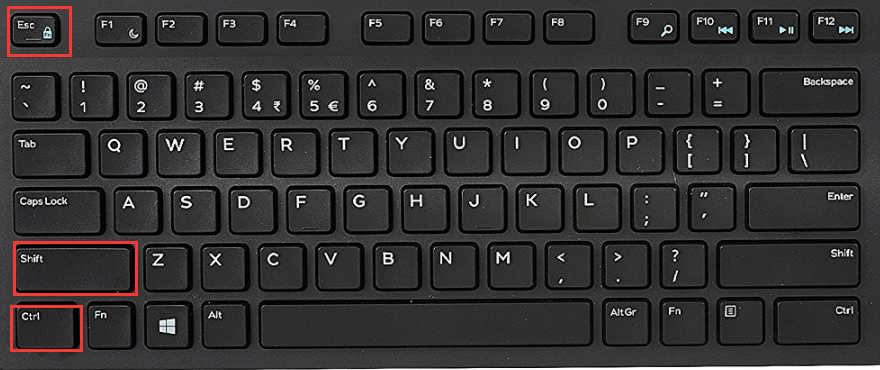
2. Find malicious process related with Grand Explorer or malware, and then right-click on it and click End Process or End Task.

Step 2. Uninstall malicious programs related with Grand Explorer .
Press “Win + R ” keys together to open the Run screen;

Type control panel in the Run window and click OK button;

In Control Panel, click Uninstall a program under Programs;

Look for malicious app related with Grand Explorer ; Right-click on the malicious program and click Uninstall.

Many malware may re-install themselves multiple times if you don’t delete thier core files. To get rid of Grand Explorer completely, we recommend downloading SpyHunter Aniti-malware to scan entire system and delete all malicious files .
*OFFER – The SpyHunter Trial version includes, for one device, a one-time 7-day Trial period for SpyHunter 5 Pro (Windows) or SpyHunter for Mac. Check Terms & Conditions of SpyHunter Free Trial , EULA and Privacy/Cookie Policy.
Step 3. Delete extension installed by Grand Explorer and related malware.
Chrome
On Chrome
Click the Chrome menu button >> Click Tools >> Select Extensions:

Find extension that may be related with Grand Explorer or potential threat >> Click the trash can icon to delete them.

Microsoft Edge
On Microsoft Edge
Start Edge: Click the More (…) button ahe tog right corner and click Extensions:

Select the extensions you want to remove and click Remove:


Firefox
On Firefox
Click the menu button and choose Add-ons. The Add-ons Manager tab will open.

In the Add-ons Manager tab, select the Extensions panel >> find extension that may be related with Grand Explorer or potential threat >> Click Remove button.

On Internet Explorer
Open the IE, click the Tools button , and then click Manage add-ons.

Choose Toolbars and Extensions on left side of the window >> Find extension that may be related with Grand Explorer or potential threat>> Click Disable button

Malicious extensions may re-install itself on web browser if you don’t delete core files of Grand Explorer and related malware. To get rid of Grand Explorer completely, we recommend downloading SpyHunter Aniti-malware to scan entire system and delete all malicious files .
*OFFER – The SpyHunter Trial version includes, for one device, a one-time 7-day Trial period for SpyHunter 5 Pro (Windows) or SpyHunter for Mac. Check Terms & Conditions of SpyHunter Free Trial , EULA and Privacy/Cookie Policy.
Step 4. Remove malicious files created by Grand Explorer or related malware.
1. Hit Windows + R keys at the same time to open Run window and input a regedit and click OK:

2. In the Registry Editor, hit Windows key + F key together to open Find window → Enter virus name → Press Enter key to start search.

3. When the search is completed, right click the folders related with Grand Explorer and click Delete button:

Please Read This Before You Remove Registry Files
PLEASE Be Carefully, Do Not Delete Healthy Registry Entries, Or Your Computer May Be Damaged.
If you are not able to determine which regsitry files are malicious, we recommend downloading SpyHunter Anti-malware to scan entire system and find out all malicious files. It can avoid mistakes and may reduce the cleanup time from hours to minutes.
*OFFER – The SpyHunter Trial version includes, for one device, a one-time 7-day Trial period for SpyHunter 5 Pro (Windows) or SpyHunter for Mac. Check Terms & Conditions of SpyHunter Free Trial , EULA and Privacy/Cookie Policy.
Step 5. Reset Web Browsers to remove Hijackers Brought by Grand Explorer .
Chrome
Reset Chrome:
- Click the Chrome menu button, represented by three horizontal lines;
- Click Settings when the drop-down menu appears;
- In the Settings screen, scroll to the bottom of the page and click on the “Advanced” link;
- Click on the “Reset settings to their original defaults” button.
- A confirmation dialog appears, click on the “Reset Settings” button.
Reset Microsoft Edge:
- Click on Microsoft Edge’s main menu button, represented by three horizontal dots;
- Click on “Settings“ button when the drop-down menu appears;
- Click on “Reset Settings”On the left side of the window;
- Click on “Restore settings to their default values”
- Click on the “Reset” button in the new confirmation window that opens.
Firefox
Reset Firefox:
- Click the menu button of firefox, represented by three horizontal lines;
- Click on “Help“ button when the drop-down menu appears;
- Click on “Troubleshooting Information“ from the Help menu;
- Click the “Refresh Firefox” button in the upper-right corner of the “Troubleshooting Information” page.
- Click on the “Refresh Firefox” button in the new confirmation window that opens.
Reset IE :
- Open Internet Explorer, click on the gear icon in the upper-right part of your browser, then select “Internet Options“.
- Now select the “Advanced” tab, then click on the “Reset” button
- In the “Reset Internet Explorer settings” section, select the “Delete personal settings” checkbox, then click on the “Reset” button.
NOTE – If the steps above doesn’t help, please rescan entire infected PC with Spyhunter anti-malware and let it help you fix all problems.
Section B – Grand Explorer Removal Steps For Mac OS
Step 1 – Remove nasty extension and browser hijacker related with Grand Explorer or malware.
Chrome
– Click the setting button “≡” at the top right of the browser window, choose “More Tools” and choose “Extensions“.

– Click the “trash can icon” button to remove extension related with Grand Explorer or malware:

Safari
Safari:
– Choose Safari > Preferences

– On the ‘Extensions’ tab, find out the extension related with adware or hijacker and click Uninstall or Disable

Firefox
Mozilla Firefox:
– Click the settings button (three horizontal bars) in the top-right corner and then select ‘Add-ons’.

– Click “Extensions” tab under Add-on Manager page to view the extensions.
– Find the suspicious add-on you want to disable and click its “Disable” button.
– If you want to delete an extension entirely, click “Remove.”

Malicious browser extensions hijack your Google Search and redirect you to unwanted websites. To get rid of related search hijacker, you need to delete core files of Grand Explorer and related malware. We recommend downloading SpyHunter Mac Antimalware to remove all malicious apps and hijacker for you. This may save you hours and ensure you don’t make mistakes that harm your system
*OFFER – The SpyHunter Trial version includes, for one device, a one-time 7-day Trial period for SpyHunter 5 Pro (Windows) or SpyHunter for Mac. Check Terms & Conditions of SpyHunter Free Trial , EULA and Privacy/Cookie Policy.
Step 2 – Uninstall harmful Apps related with Grand Explorer or malware
– Open Finder at the Dock

– Select Applications and find out suspicious apps related with Grand Explorer , then right click on the app and click Move to Trash:

– Right click on Trash icon to select Empty Trash

Step 3 – Remove malicious files generated by Grand Explorer or malware from your Mac
Malware geneates lots of malicious files and folders on infected Mac, to avoid Grand Explorer reinstalling itself, you need to find out and remove all malicious files:
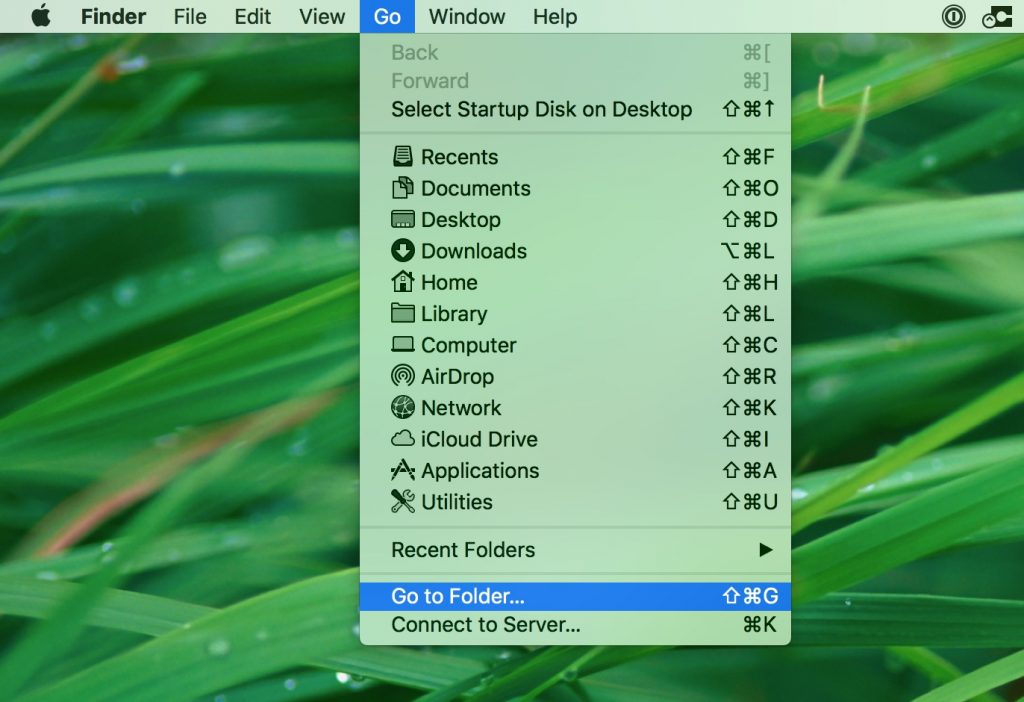
1. Click the Finder icon from the menu bar >> choose “Go” then click on “Go to Folder“:

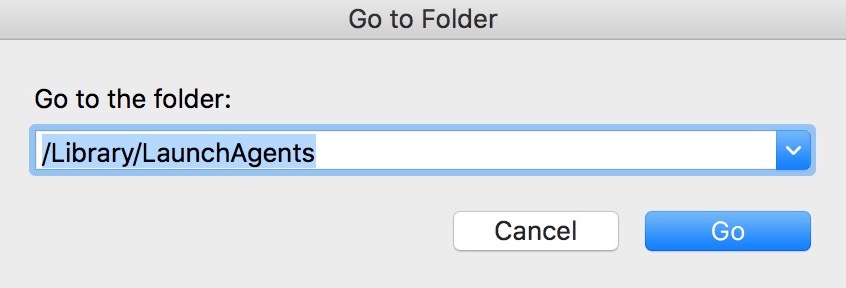
2. In the Go to Folder… bar, type “/Library/LaunchAgents” and click Go:

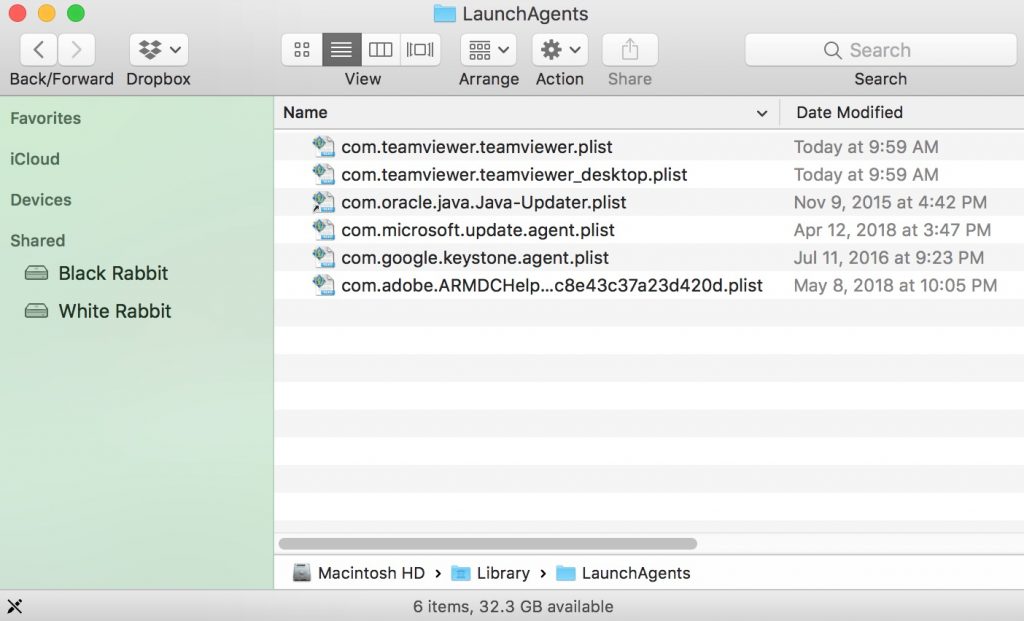
3. In LaunchAgents folder, search for any recently-added suspicious files and move them to the Trash.

Here are some examples of files generated by malware:
“installmac.AppRemoval.plist”, “com.genieo.completer.download.plist” “com.genieoinnovation.macextension.plist” “com.genieo.engine.plist” “com.adobe.fpsaud.plist” , “myppes.download.plist”, “mykotlerino.ltvbit.plist”
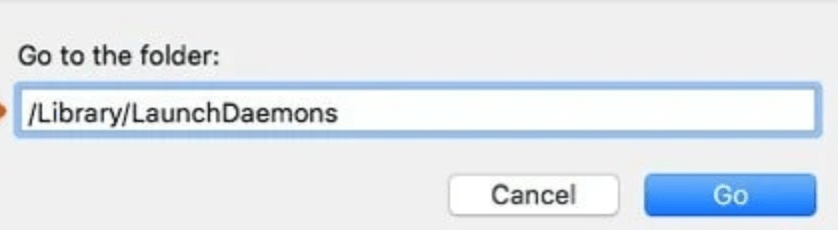
4.Repeat the process on the following folders:
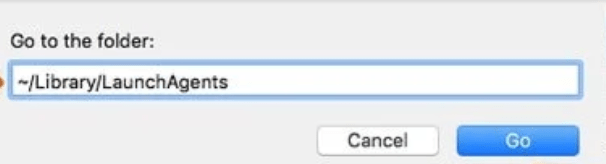
/Library/Application Support

/Library/LaunchDaemons
Many malware may re-install themselves multiple times if you don’t delete thier core files. To find and remove all malicious files , We recommend downloading SpyHunter Mac Antimalware to scan your Mac. This may save you hours and ensure you don’t make mistakes that harm your system
*OFFER – The SpyHunter Trial version includes, for one device, a one-time 7-day Trial period for SpyHunter 5 Pro (Windows) or SpyHunter for Mac. Check Terms & Conditions of SpyHunter Free Trial , EULA and Privacy/Cookie Policy.
Step 4 – Download SpyHunter Antimalware For Mac to Scan For Malicious Apps and Files.
Lots of Malware keep generating malicious files on infected computer deeply, thus it’s quite difficult for common computer users to find out and remove all harmful items related with Grand Explorer . Meanwhile, there will be possibility that users remove core system files by mistake and then the entire computer will be harmed seriously.
To avoid the risks, We recommend all users downloading SpyHunter Antimalware For Mac, a professional automatic malware removal tool which keeps your Mac away from virus and malware attack and avoid online spam and phishing websites and protect your privacy and files well.
1. Click Download button here to download SpyHunter For Mac :
( *OFFER – The SpyHunter Trial version includes, for one device, a one-time 7-day Trial period for SpyHunter 5 Pro (Windows) or SpyHunter for Mac. Check Terms & Conditions of SpyHunter Free Trial , EULA and Privacy/Cookie Policy. )
2. Double-click SpyHunter-1.2-15-7043-Installer.dmg to install Spyhunter For Mac:

3. Once SpyHunter For Mac is installed, run a scan and register its full version to remove all malicious objects on your Mac.

4. In case Grand Explorer is still infecting your Mac, Submit a Support Ticket and the support agent will conact to help you.
Grand Explorer Software Redirects Removal [Solved]

It has been determined that “Grand Explorer Software” is a browser hijacker, which may result in re-routings and odd search engine results. Even though this is not necessarily a malicious action, it is linked to intrusive ads. It is likely that an undesired program, such as a free computer program or a browser add-on, has been installed, making it the default search engine.
Grand Explorer Software Details
What Is a PUP?
Even though PUPs are not viruses, they can still be a menace to your PC. The advertisements generated by these programs can be a threat to your computer and the data stored on it.
How Did I Get Grand Explorer Software?
Grand Explorer Software browser hijacker could be linked to spyware, which may be downloaded through downloading a compromised program, browsing websites with dangerous material, or clicking on links that direct them to dangerous websites.
What Does Grand Explorer Software Do?
Grand Explorer Software’s malicious software may present computers with intrusive banners, pop-up ads, and push notifications that can cause a decrease in their performance, as well as tracking techniques to acquire data such as cookies, pixels, and tags.
Is Grand Explorer Software a Computer Virus?
In contrast to a virus, this malevolent software includes particular qualities used for illegal objectives to gain emails, accounts, financial documents, and other confidential data without the user’s awareness or authorization.
Is Grand Explorer Software Dangerous?
Employing Grand Explorer Software can bring about serious risks, from hampering the PC’s performance to stealing information and possibly doing irreparable harm.
How to Protect My Computer from Adware?
Implement the advice in the bullet points below to strengthen your security against this and other risks:
- Don’t download programs from Internet ads, pop-ups, torrent trackers, file sharing sites and other unreliable sources.
- Opt-out of the setting hidden in the “Custom” or “Advanced” sections when you’re installing a program. You can deselect most PUPs from there.
- Avoid installing programs you don’t need.
- Keep an eye out for any excessive or unusual Internet advertising. These ads can be brought on by PUPs and adware attached to your browser.
- Read the terms and conditions of use when you install any programs.
- Check your installed software regularly and uninstall any applications you do not want or need.
- Install an anti-malware program that also has the ability to detect and remove potentially unwanted programs.
How to Remove Grand Explorer Software from Your Computer?
To clean your device of the Grand Explorer Software Virus, an anti-malware program should be employed to conduct a comprehensive system scan to identify and delete all the virus’s related files. Also, it is suggested to manually eliminate any suspicious files or applications that could be connected to the virus for additional protection.
Ventsislav Krastev
Ventsislav is a cybersecurity expert at SensorsTechForum since 2015. He has been researching, covering, helping victims with the latest malware infections plus testing and reviewing software and the newest tech developments. Having graduated Marketing as well, Ventsislav also has passion for learning new shifts and innovations in cybersecurity that become game changers. After studying Value Chain Management, Network Administration and Computer Administration of System Applications, he found his true calling within the cybersecrurity industry and is a strong believer in the education of every user towards online safety and security.
Follow Me:
-
.[grand@horsefucker.org] file extension is placed on all of your files.This article will aid you to remove GrandBurst.com and its.Computer security experts reported the discovery of a new malware.An offer has been made by the company 1Password to.This blog post is created to help you removeExplorer v1.58.What Is Video Explorer Video Explorer is the name of.This is a software review of Hider 2 app for.Article created to demonstrate how Gemini program for MacOS X.
How to Remove Grand Explorer from Windows.
Step 1: Boot Your PC In Safe Mode to isolate and remove Grand Explorer
1. Hold Windows key + R
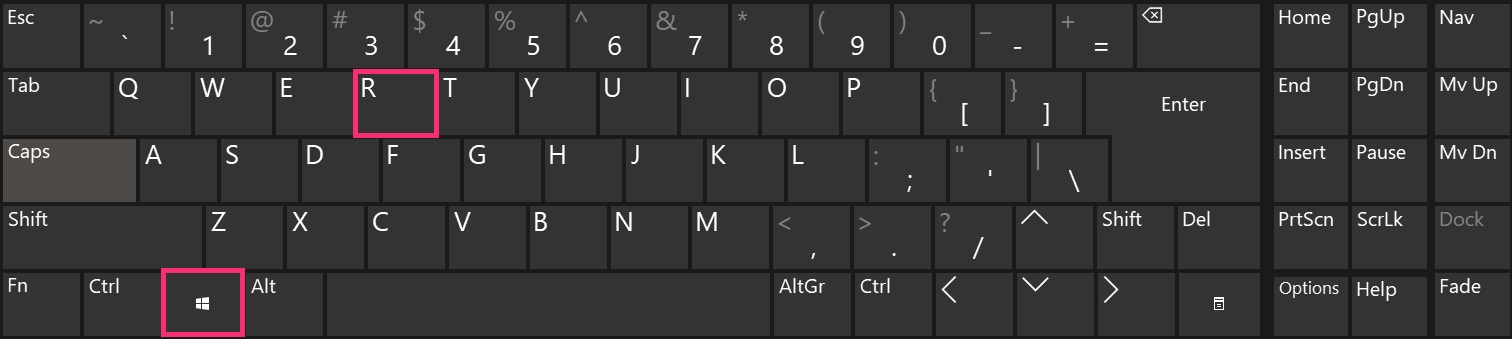
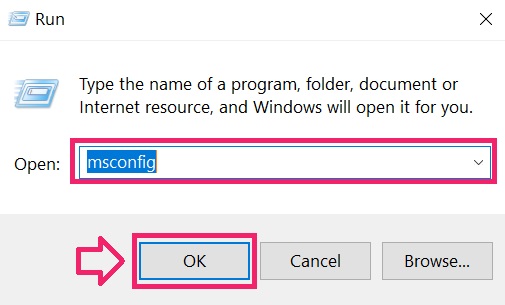
2. The «Run» Window will appear. In it, type «msconfig» and click OK.
3. Go to the «Boot» tab. There select «Safe Boot» and then click «Apply» and «OK».

Tip: Make sure to reverse those changes by unticking Safe Boot after that, because your system will always boot in Safe Boot from now on.
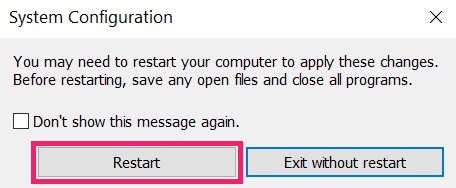
4. When prompted, click on «Restart» to go into Safe Mode.
Step 2: Uninstall Grand Explorer and related software from Windows
Here is a method in few easy steps that should be able to uninstall most programs. No matter if you are using Windows 10, 8, 7, Vista or XP, those steps will get the job done. Dragging the program or its folder to the recycle bin can be a very bad decision. If you do that, bits and pieces of the program are left behind, and that can lead to unstable work of your PC, errors with the file type associations and other unpleasant activities. The proper way to get a program off your computer is to Uninstall it. To do that:
1. Hold the Windows Logo Button and «R» on your keyboard. A Pop-up window will appear.
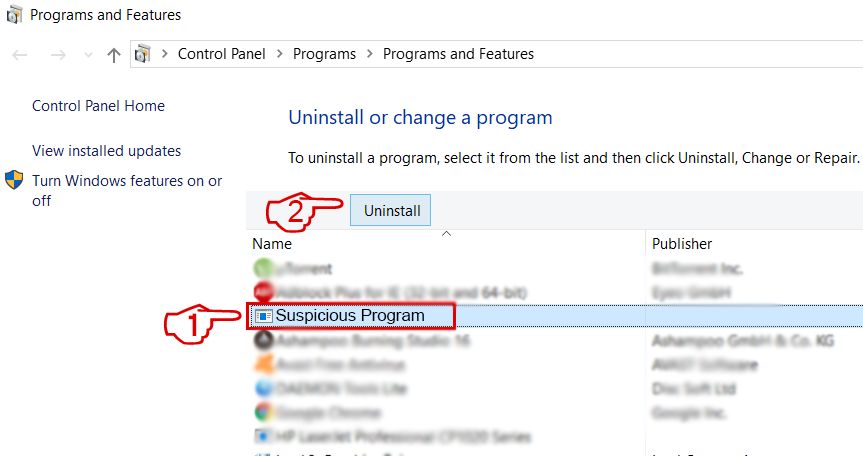
3. This will open a window with all the programs installed on the PC. Select the program that you want to remove, and press «Uninstall» Follow the instructions above and you will successfully uninstall most programs.
Step 3: Clean any registries, created by Grand Explorer on your computer.
The usually targeted registries of Windows machines are the following:
- HKEY_LOCAL_MACHINE\Software\Microsoft\Windows\CurrentVersion\Run
- HKEY_CURRENT_USER\Software\Microsoft\Windows\CurrentVersion\Run
- HKEY_LOCAL_MACHINE\Software\Microsoft\Windows\CurrentVersion\RunOnce
- HKEY_CURRENT_USER\Software\Microsoft\Windows\CurrentVersion\RunOnce
You can access them by opening the Windows registry editor and deleting any values, created by Grand Explorer there. This can happen by following the steps underneath:
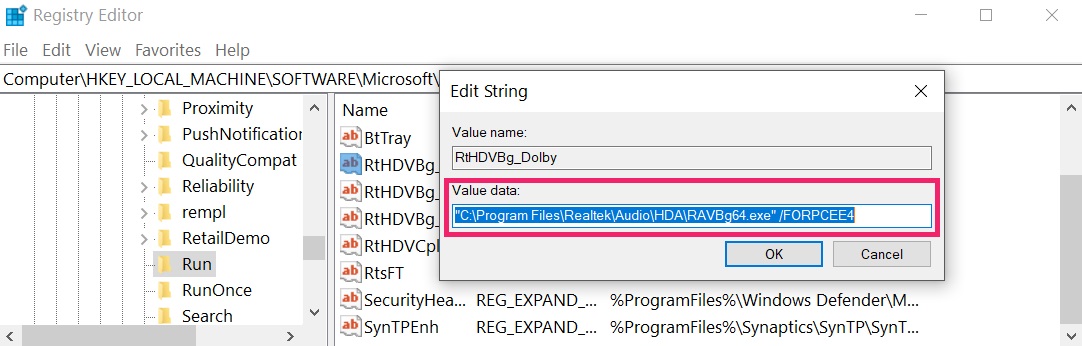
3. You can remove the value of the virus by right-clicking on it and removing it.
Tip: To find a virus-created value, you can right-click on it and click «Modify» to see which file it is set to run. If this is the virus file location, remove the value.
Step 4: Scan for Grand Explorer with SpyHunter Anti-Malware Tool
1. Click on the «Download» button to proceed to SpyHunter’s download page.
It is recommended to run a scan before purchasing the full version of the software to make sure that the current version of the malware can be detected by SpyHunter. Click on the corresponding links to check SpyHunter’s EULA, Privacy Policy and Threat Assessment Criteria.
2. After you have installed SpyHunter, wait for it to update automatically.

3. After the update process has finished, click on the ‘Malware/PC Scan’ tab. A new window will appear. Click on ‘Start Scan’.

4. After SpyHunter has finished scanning your PC for any files of the associated threat and found them, you can try to get them removed automatically and permanently by clicking on the ‘Next’ button.
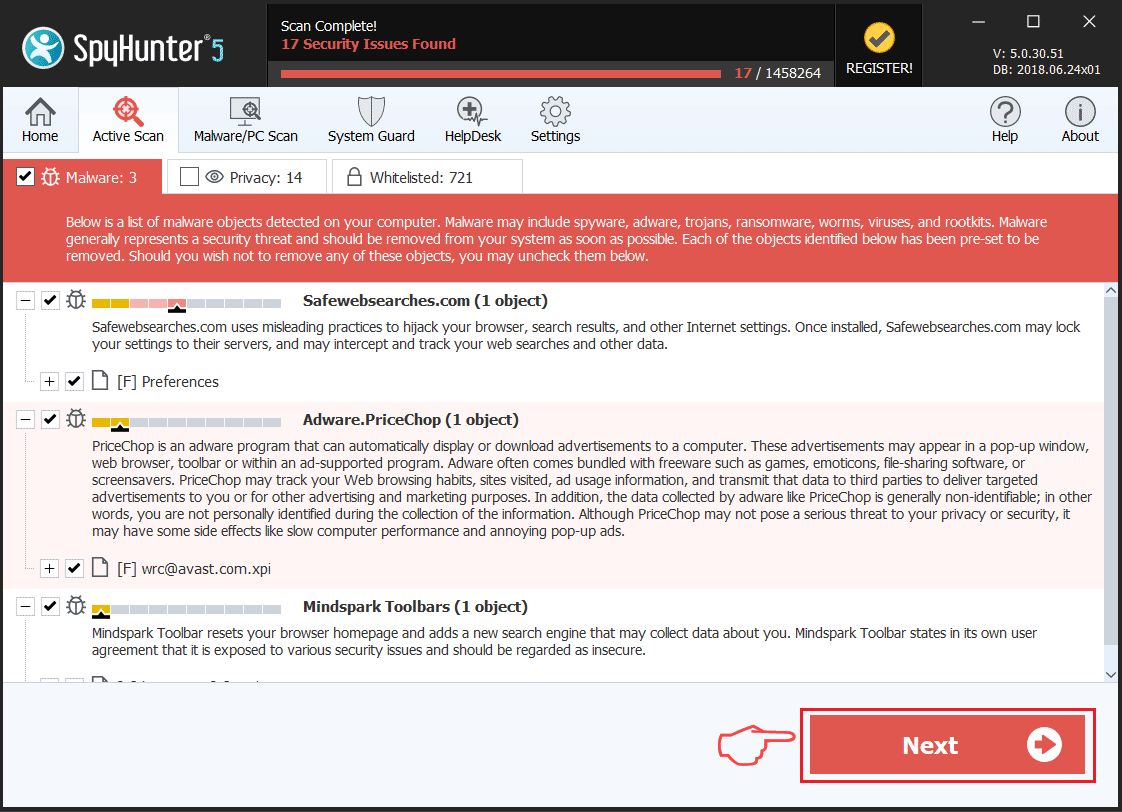
If any threats have been removed, it is highly recommended to restart your PC.
Video Removal Guide for Grand Explorer (Windows).
Get rid of Grand Explorer from Mac OS X.
Step 1: Uninstall Grand Explorer and remove related files and objects

1.Hit the ⇧+⌘+U keys to open Utilities. Another way is to click on “Go” and then click “Utilities”, like the image below shows:
2. Find Activity Monitor and double-click it:
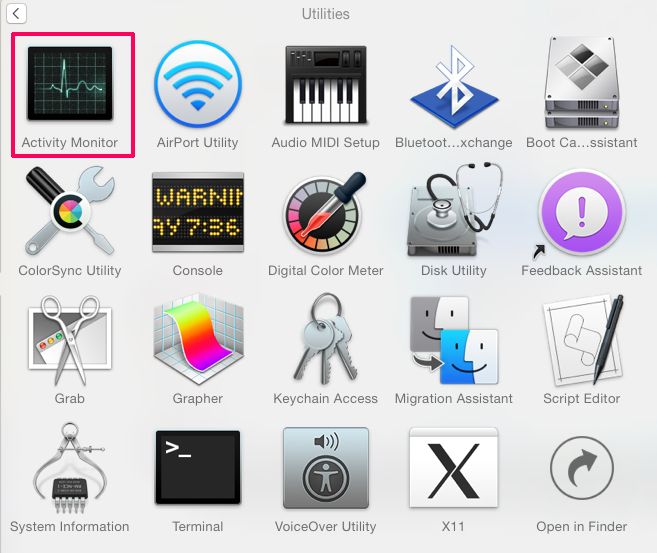
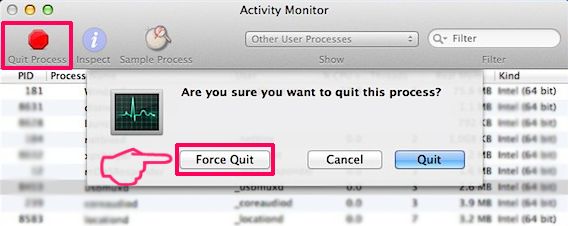
3.In the Activity Monitor look for any suspicious processes, belonging or related to Grand Explorer:

Tip: To quit a process completely, choose the “Force Quit” option.
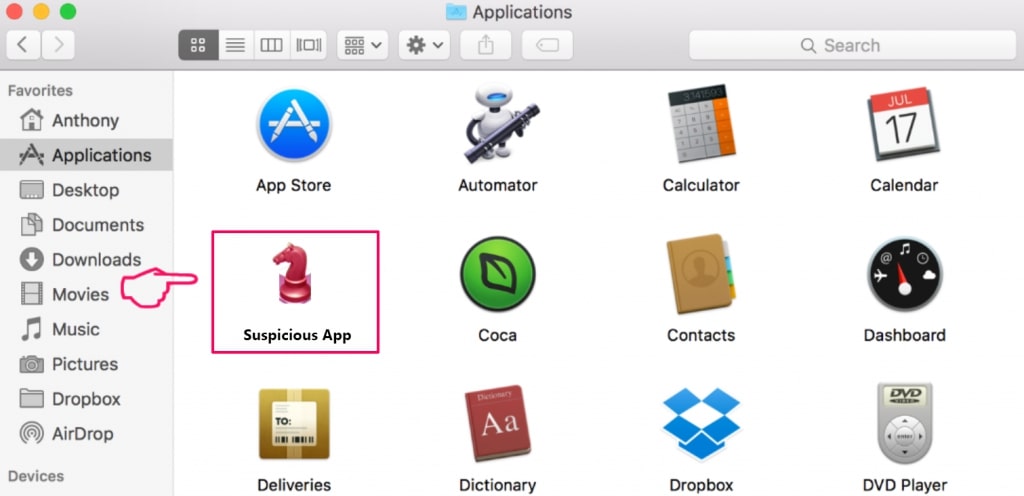
4.Click on the «Go» button again, but this time select Applications. Another way is with the ⇧+⌘+A buttons.
5.In the Applications menu, look for any suspicious app or an app with a name, similar or identical to Grand Explorer. If you find it, right-click on the app and select “Move to Trash”.
6: Select Accounts, after which click on the Login Items preference.
Your Mac will then show you a list of items that start automatically when you log in. Look for any suspicious apps identical or similar to Grand Explorer. Check the app you want to stop from running automatically and then select on the Minus (“—“) icon to hide it.
7: Remove any left-over files that might be related to this threat manually by following the sub-steps below:
- Go to Finder.
- In the search bar type the name of the app that you want to remove.
- Above the search bar change the two drop down menus to “System Files” and “Are Included” so that you can see all of the files associated with the application you want to remove. Bear in mind that some of the files may not be related to the app so be very careful which files you delete.
- If all of the files are related, hold the ⌘+A buttons to select them and then drive them to “Trash”.
In case you cannot remove Grand Explorer via Step 1 above:
In case you cannot find the virus files and objects in your Applications or other places we have shown above, you can manually look for them in the Libraries of your Mac. But before doing this, please read the disclaimer below:
1: Click on «Go» and Then «Go to Folder» as shown underneath:
2: Type in «/Library/LauchAgents/» and click Ok:
3: Delete all of the virus files that have similar or the same name as Grand Explorer. If you believe there is no such file, do not delete anything.
You can repeat the same procedure with the following other Library directories:
is there on purpose, because it leads to more LaunchAgents.
Step 2: Scan for and remove Grand Explorer files from your Mac
When you are facing problems on your Mac as a result of unwanted scripts and programs such as Grand Explorer, the recommended way of eliminating the threat is by using an anti-malware program. SpyHunter for Mac offers advanced security features along with other modules that will improve your Mac’s security and protect it in the future.
Click the button below below to download SpyHunter for Mac and scan for Grand Explorer:
Video Removal Guide for Grand Explorer (Mac)
Remove Grand Explorer from Google Chrome.
Step 1: Start Google Chrome and open the drop menu

Step 2: Move the cursor over «Tools» and then from the extended menu choose «Extensions»

Step 3: From the opened «Extensions» menu locate the unwanted extension and click on its «Remove» button.

Step 4: After the extension is removed, restart Google Chrome by closing it from the red «X» button at the top right corner and start it again.
Erase Grand Explorer from Mozilla Firefox.
Step 1: Start Mozilla Firefox. Open the menu window:

Step 2: Select the «Add-ons» icon from the menu.

Step 3: Select the unwanted extension and click «Remove»

Step 4: After the extension is removed, restart Mozilla Firefox by closing it from the red «X» button at the top right corner and start it again.
Uninstall Grand Explorer from Microsoft Edge.
Step 1: Start Edge browser.
Step 2: Open the drop menu by clicking on the icon at the top right corner.

Step 3: From the drop menu select «Extensions».

Step 4: Choose the suspected malicious extension you want to remove and then click on the gear icon.

Step 5: Remove the malicious extension by scrolling down and then clicking on Uninstall.

Remove Grand Explorer from Safari.
Step 1: Start the Safari app.
Step 2: After hovering your mouse cursor to the top of the screen, click on the Safari text to open its drop down menu.
Step 3: From the menu, click on «Preferences».
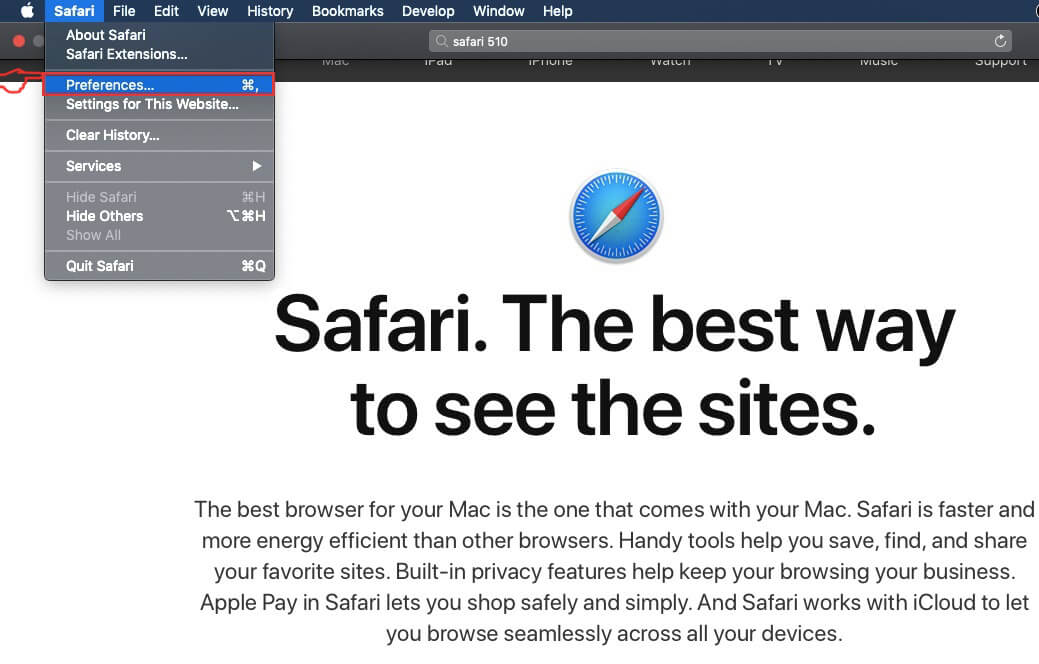
Step 4: After that, select the ‘Extensions’ Tab.

Step 5: Click once on the extension you want to remove.
Step 6: Click ‘Uninstall’.
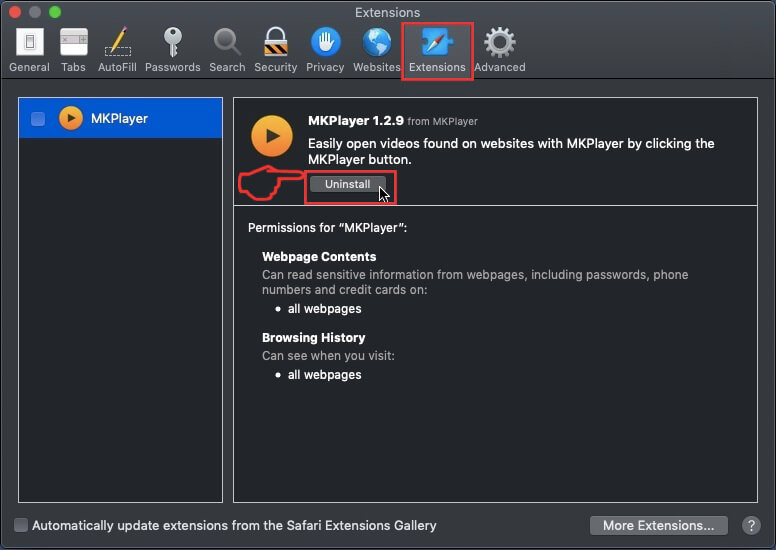
A pop-up window will appear asking for confirmation to uninstall the extension. Select ‘Uninstall’ again, and the Grand Explorer will be removed.
How to Reset Safari
IMPORTANT: Before resetting Safari make sure you back up all your saved passwords within the browser in case you forget them.
Start Safari and then click on the gear leaver icon.
Click the Reset Safari button and you will reset the browser.
Eliminate Grand Explorer from Internet Explorer.
Step 1: Start Internet Explorer.
Step 2: Click on the gear icon labeled ‘Tools’ to open the drop menu and select ‘Manage Add-ons’


Step 3: In the ‘Manage Add-ons’ window.
Step 4: Select the extension you want to remove and then click ‘Disable’. A pop-up window will appear to inform you that you are about to disable the selected extension, and some more add-ons might be disabled as well. Leave all the boxes checked, and click ‘Disable’.

Step 5: After the unwanted extension has been removed, restart Internet Explorer by closing it from the red ‘X’ button located at the top right corner and start it again.
Remove Push Notifications caused by Grand Explorer from Your Browsers.
Turn Off Push Notifications from Google Chrome
To disable any Push Notices from Google Chrome browser, please follow the steps below:
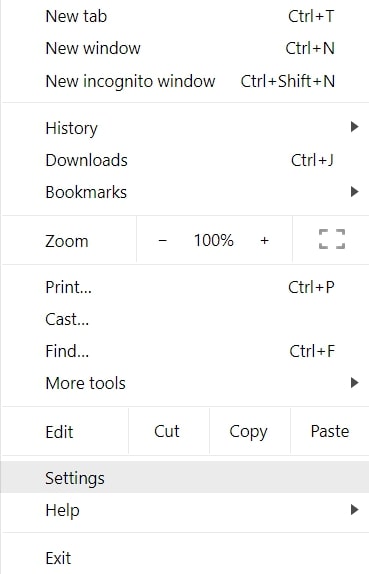
Step 1: Go to Settings in Chrome.
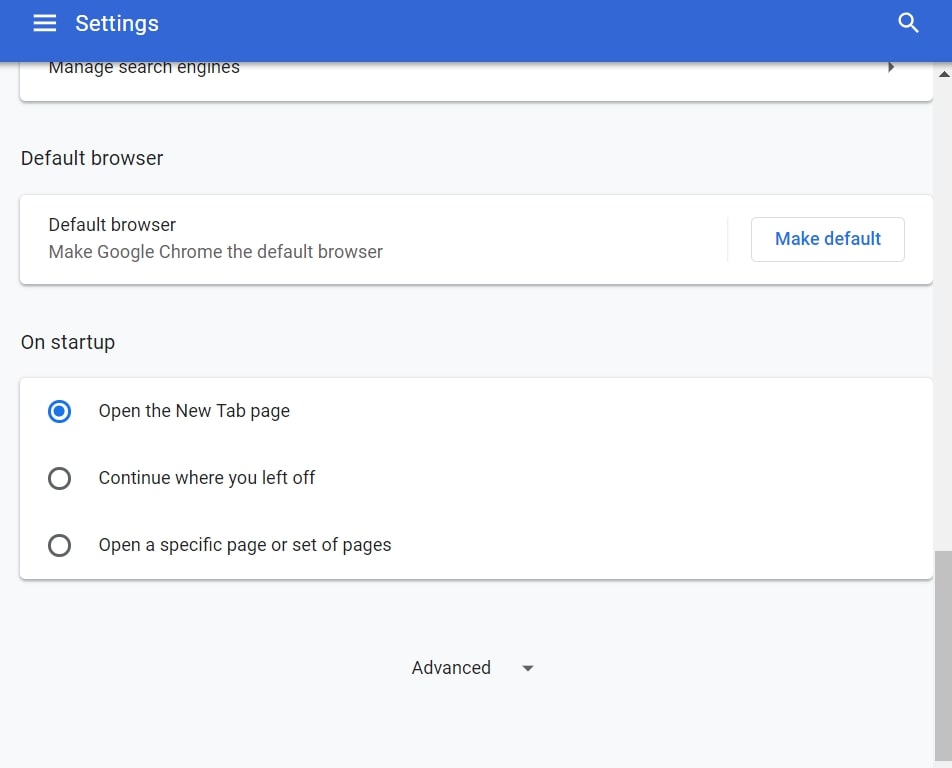
Step 2: In Settings, select “Advanced Settings”:
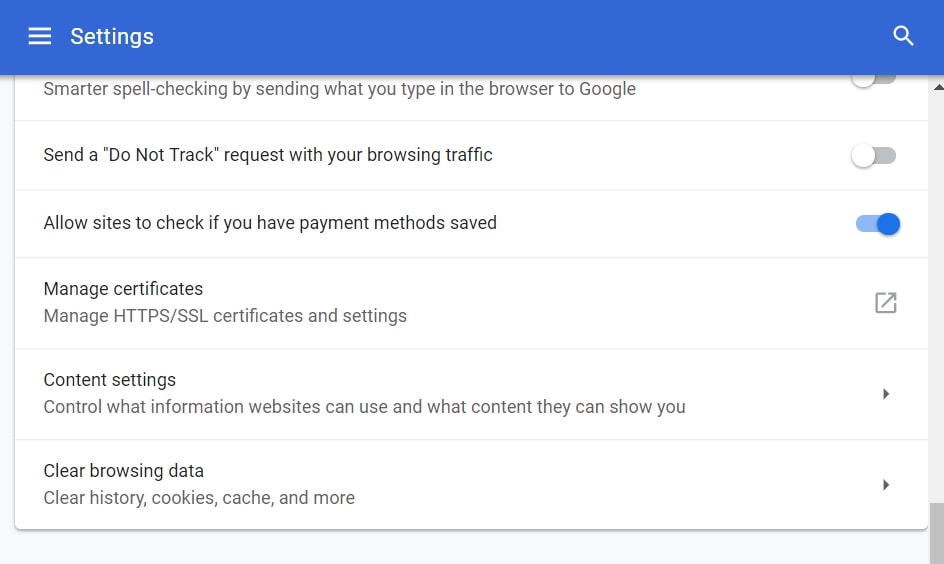
Step 3: Click “Content Settings”:
Step 4: Open “Notifications”:
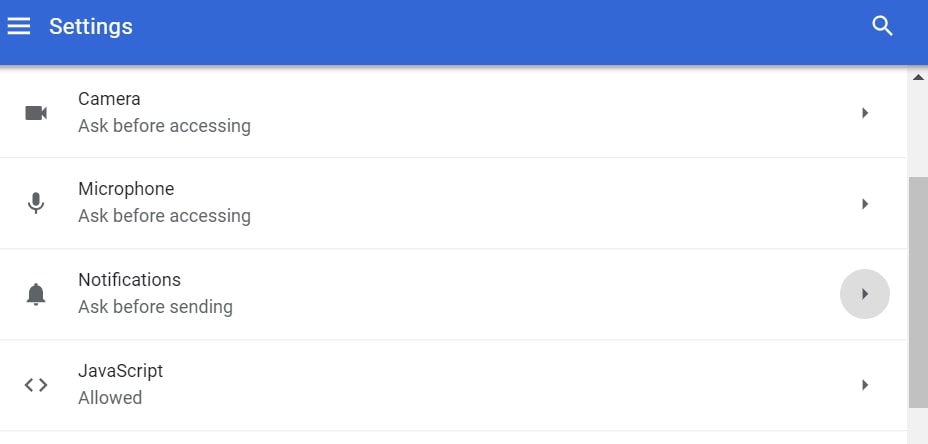
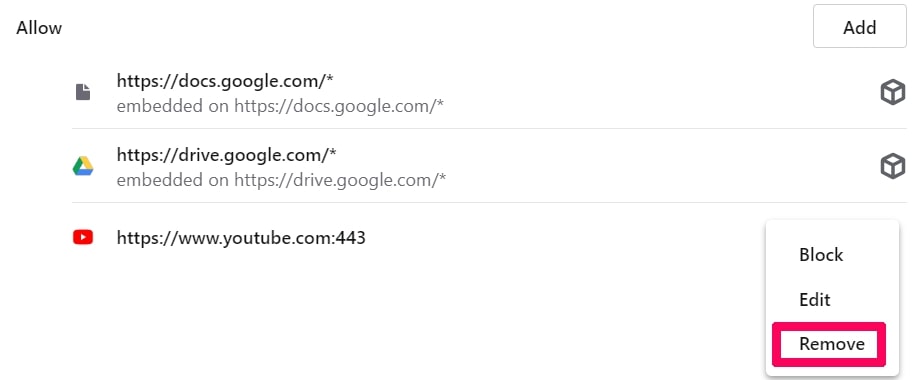
Step 5: Click the three dots and choose Block, Edit or Remove options:

Remove Push Notifications on Firefox
Step 1: Go to Firefox Options.
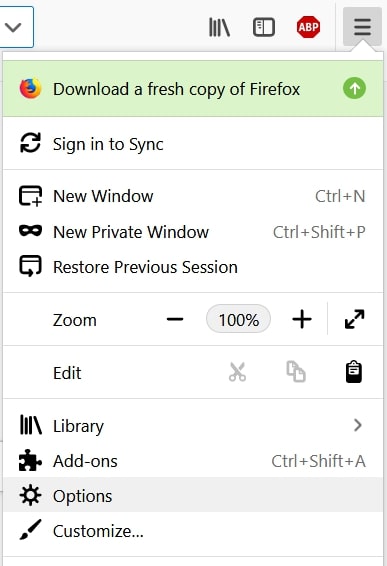
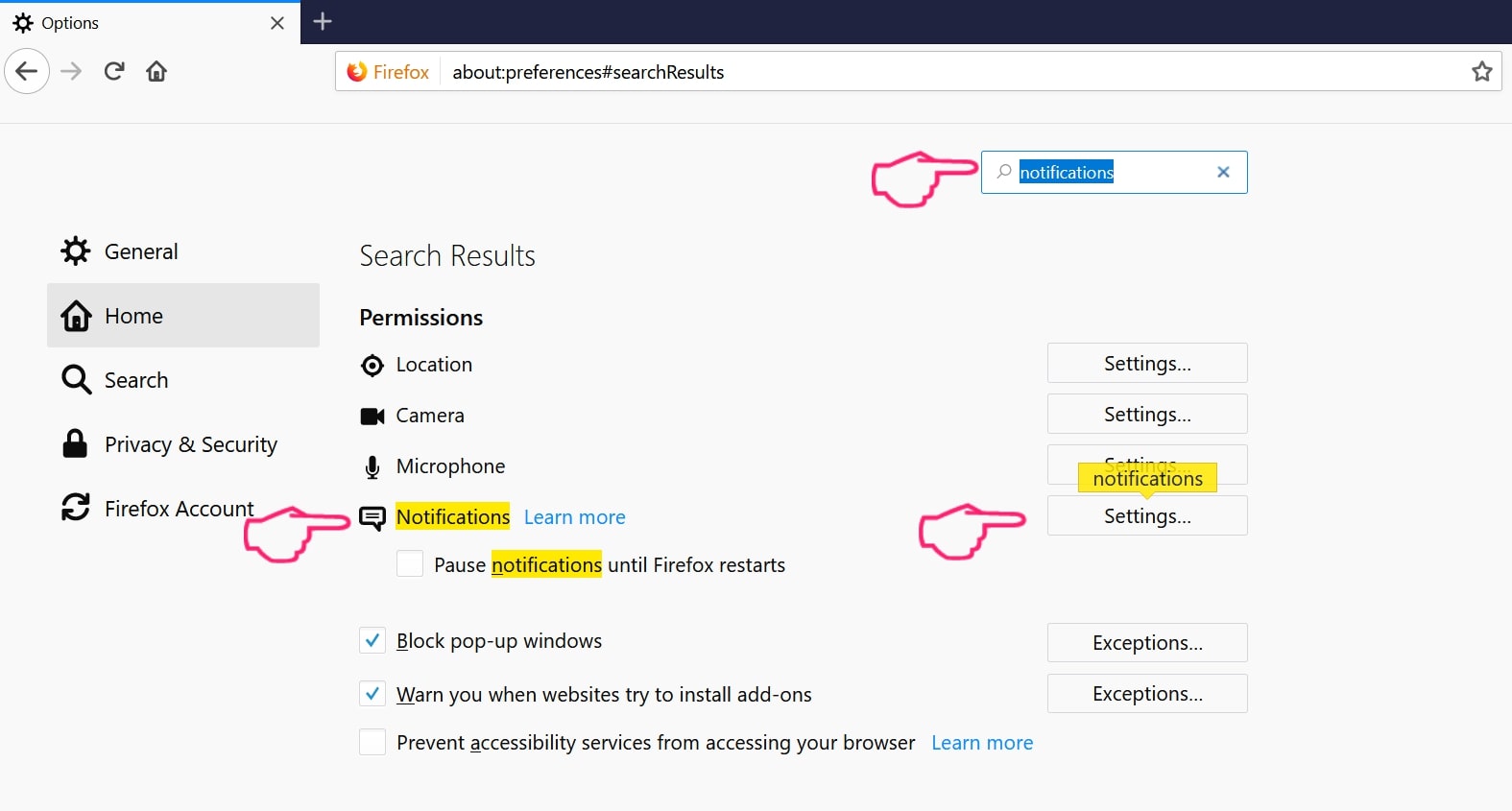
Step 2: Go to “Settings”, type “notifications” in the search bar and click «Settings»:
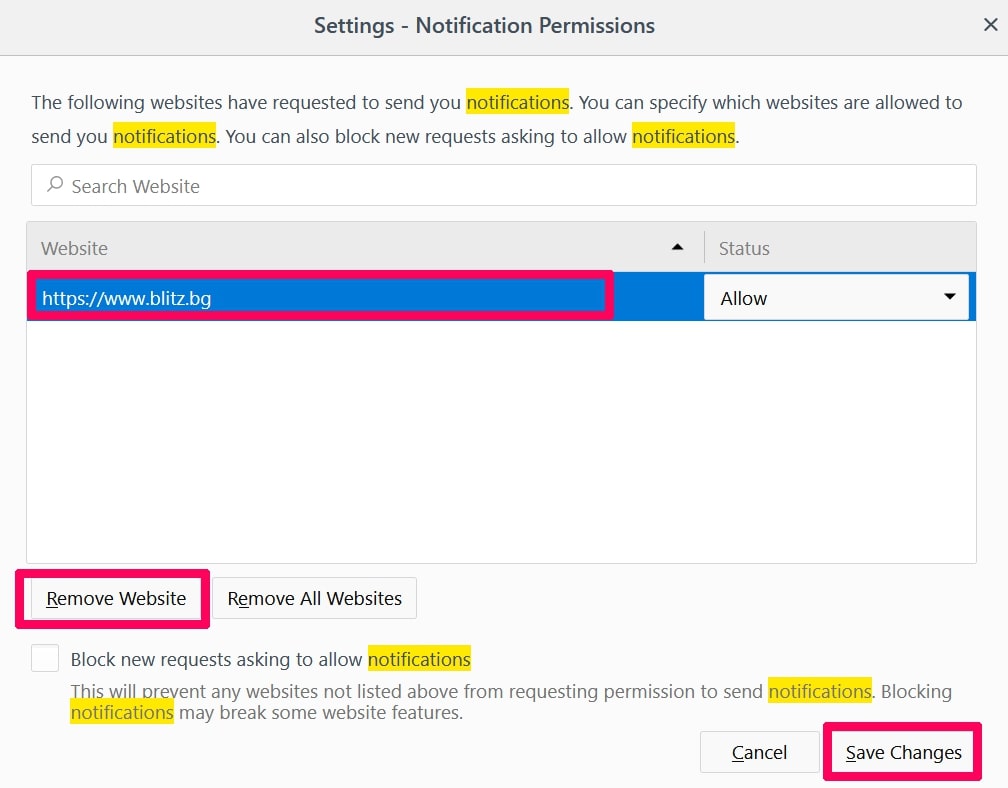
Step 3: Click “Remove” on any site you wish notifications gone and click “Save Changes”
Stop Push Notifications on Opera
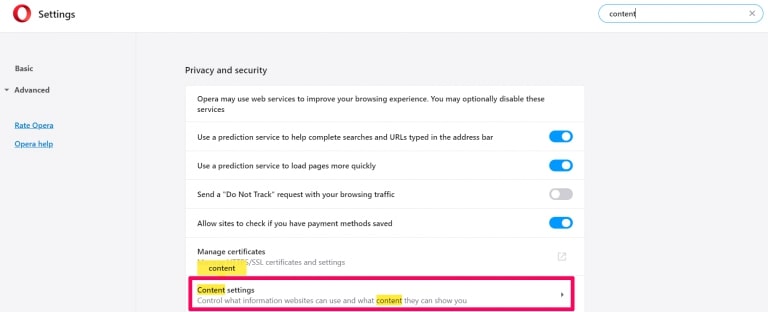
Step 1: In Opera, press ALT+P to go to Settings.

Step 2: In Setting search, type “Content” to go to Content Settings.
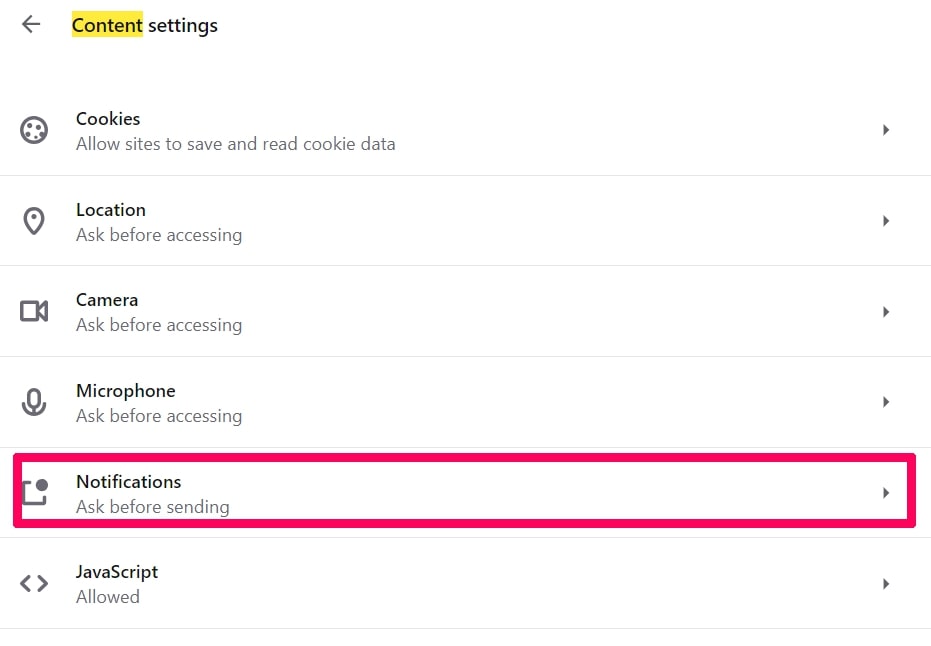
Step 3: Open Notifications:
Step 4: Do the same as you did with Google Chrome (explained below):
Eliminate Push Notifications on Safari
Step 1: Open Safari Preferences.
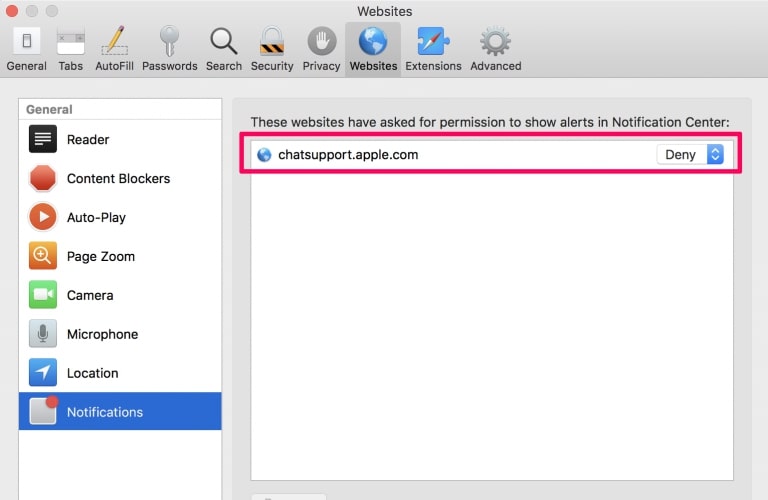
Step 2: Choose the domain from where you like push pop-ups gone and change to «Deny» from «Allow».
Grand Explorer-FAQ
What Is Grand Explorer?
The Grand Explorer threat is adware or browser redirect virus. It may slow your computer down significantly and display advertisements. The main idea is for your information to likely get stolen or more ads to appear on your device.
The creators of such unwanted apps work with pay-per-click schemes to get your computer to visit risky or different types of websites that may generate them funds. This is why they do not even care what types of websites show up on the ads. This makes their unwanted software indirectly risky for your OS.
What Are the Symptoms of Grand Explorer?
There are several symptoms to look for when this particular threat and also unwanted apps in general are active:
Symptom #1: Your computer may become slow and have poor performance in general.
Symptom #2: You have toolbars, add-ons or extensions on your web browsers that you don’t remember adding.
Symptom #3: You see all types of ads, like ad-supported search results, pop-ups and redirects to randomly appear.
Symptom #4: You see installed apps on your Mac running automatically and you do not remember installing them.
Symptom #5: You see suspicious processes running in your Task Manager.
If you see one or more of those symptoms, then security experts recommend that you check your computer for viruses.
What Types of Unwanted Programs Are There?
According to most malware researchers and cyber-security experts, the threats that can currently affect your Mac can be the following types:
- Rogue Antivirus programs.
- Adware.
- Browser hijackers.
- Clickers.
- Fake optimizers.
What to Do If I Have a «virus» like Grand Explorer?
Do not panic! You can easily get rid of most adware or unwanted programs by firstly isolating them and then removing them from your browser and computer. One recommended way to do that is by using a reputable malware removal software that can take care of the removal automatically for you. There are many anti-malware apps out there that you can choose from. SpyHunter is one of the recommended anti-malware apps that can scan your computer for free and detect any viruses, tracking cookies and unwanted adware apps and eliminate them quickly. This saves time when compared to doing the removal manually.
How to Secure My Passwords and Other Data from Grand Explorer?
With few simple actions. First and foremost, it is imperative that you follow these steps:
Step 1: Find a safe computer and connect it to another network, not the one that your Mac was infected in.
Step 2: Change all of your passwords, starting from your email passwords.
Step 3: Enable two-factor authentication for protection of your important accounts.
Step 4: Call your bank to change your credit card details (secret code, etc.) if you have saved your credit card for online shopping or have done online activities with your card.
Step 5: Make sure to call your ISP (Internet provider or carrier) and ask them to change your IP address.
Step 6: Change your Wi-Fi password.
Step 7: (Optional): Make sure to scan all of the devices connected to your network for viruses and repeat these steps for them if they are affected.
Step 8: Install anti-malware software with real-time protection on every device you have.
Step 9: Try not to download software from sites you know nothing about and stay away from low-reputation websites in general.
If you follow these recommendations, your network and all devices will become significantly more secure against any threats or information invasive software and be virus free and protected in the future too.
More tips you can find on our website, where you can also ask any questions and comment underneath the articles about your computer problems. We will try to respond as fast as possible.
How Does Grand Explorer Work?
The Grand Explorer threat is typically installed as part of another application that you may have downloaded from the internet. Unwanted apps are often disguised as helpful programs, such as browser add-ons or toolbars, but they can also be included in software downloads without your knowledge.
Threats such as Grand Explorer can also be installed through malicious websites, email attachments, and other dubious sources. Once installed, Grand Explorer can collect data about your web browsing habits, such as the websites you visit and the search terms you use. This data is then used to target you with ads or to sell your information to third parties. Grand Explorer can also download other malicious software onto your computer, such as viruses and spyware, which can be used to steal your personal information.
Is Grand Explorer Malware?
If you have noticed Grand Explorer on your computer, you may be wondering if it is considered malware. The answer is yes, it is possible for an unwanted program to be classified as malware.
Many security experts classify potentially unwanted programs as malware. This is because of the unwanted effects that PUPs can cause, such as displaying intrusive ads and collecting user data without the user’s knowledge or consent. The best way to protect your computer from PUPs is to be careful when downloading software from the internet. Be sure to read the terms of service and privacy policies before downloading any software, and be wary of any suspicious download links or ads.
About the Grand Explorer Research
The content we publish on SensorsTechForum.com, this Grand Explorer how-to removal guide included, is the outcome of extensive research, hard work and our team’s devotion to help you remove the specific, adware-related problem, and restore your browser and computer system.
How did we conduct the research on Grand Explorer?
Please note that our research is based on independent investigation. We are in contact with independent security researchers, thanks to which we receive daily updates on the latest malware, adware, and browser hijacker definitions.
Furthermore, the research behind the Grand Explorer threat is backed with VirusTotal.
To better understand this online threat, please refer to the following articles which provide knowledgeable details.