Transfering files with Putty
This blog introduces how to use `Putty` to transfer files from Windows OS to Linux OS and reverse.
During my daily working, I do the development on Windows OS; besides, we have a Debian server for running different jobs automatically, file storage, etc. Sometimes, we also need to transfer files from Windows OS to Linux OS, or reverse; in this case, we use Putty to realize the transfering. Today, I will talk about how to use Putty for transfer files with the following points:
- What is Putty ?
- Requirements
- Transfering files from Windows to Linux
- Transfering files from Linux to Windows
What is Putty ?
PuTTY is a free and open-source terminal emulator, serial console and network file transfer application. It supports several network protocols, including SCP, SSH, Telnet, rlogin, and raw socket connection. It can also connect to a serial port. The name “PuTTY” has no official meaning.
Requirements
- Windows OS
- Linux OS
- Putty installed: download Putty here
- Putty PSCP installed: download Putty PSCP here
Transfering files from Windows to Linux
To transfer files from Windows OS to Linux OS, we will apply PSCP . Before we start, let’s have a general understanding of it. PSCP means “PuTTy Secure Copy Protocol (PSCP)”, is a tool for transferring files securely between computers using an SSH connection. To use this utility, we should be comfortable working in the Windows Command Prompt.
Now, let’s start to transfer files to Linux:
- Open Windows Command Prompt.
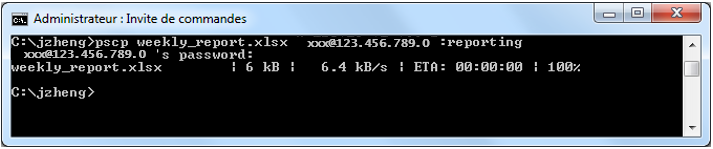
- Type pscp source_path user_name@host:target_path at the prompt

Here, ./weekly_report.xlsx specifies the path of source file, xxx is user’s account for accessing the Linux server, 123.456.789.0 is the host address, /reporting presents target path.
- After the bash script above, we also need to type the password for accessing the Linux server.
Transfering files from Linux to Windows
Transfering files from Linux OS to Windows OS is similar to the steps above:
- Open Windows Command Prompt.
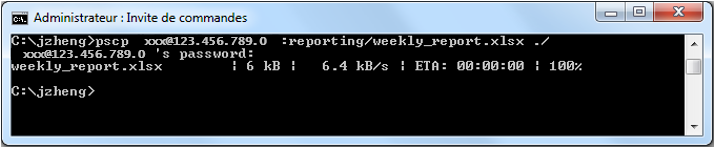
- Type pscp user_name@host:source_path target_path at the prompt

- Same as above, after the bash script above, we also need to type the password for accessing the Linux server.
Conclusion
In this blog, I introduced how to use Putty to transfer files from Windows OS to Linux OS and reverse. Hope it’s useful for you.
Reference
- “PuTTY”, wikipedia. [Online]. Available: https://en.wikipedia.org/wiki/PuTTY
- “Transfer Files Using PuTTY”, it.cornell.edu. [Online]. Available: https://it.cornell.edu/managed-servers/transfer-files-using-putty
- Comfreak, “traffic information superhighway”, pixabay.com. [Online]. Available: https://pixabay.com/photos/traffic-information-superhighway-3524185/
This work is licensed under a Attribution-NonCommercial 4.0 International license. alt=»Attribution-NonCommercial 4.0 International» />
How to transfer files from windows to linux using ssh?
I am using putty to connect to a linux computer using ssh. I am on a local windows machine that has a file. I want to transfer a file from my windows machine to the linux machine. How could I do this in command line without filezilla?
5 Answers 5
If ftp server is running in your Linux box then you can transfer files with filezilla (since it is ftp client). If that is not the case then download WinSCP a gui software like filezilla but uses SSH to transfer files.