How to create outlook friendly HTML email?
Outlook is the preferred email client that is used as an email application for accessing Microsoft Exchange Server email. Most of you might feel alienated when testing your email templates on Outlook web and desktop clients. The reason of the distortion is that Outlook uses Microsoft word to render the content. Having dealt with many issues while creating outlook compatible email newsletters, below are the ways that are listed for you to get out of them :
- Padding and margin do not work
Yes, there might be issues in Outlook 2005 and 2010, as both of these version don’t support margin-top attribute. All we can do for it is stick to margin-left, margin-right and margin-bottom css attributes.
The way that we would suggest is to use custom classes for spaces. Be it spaces between two vertical blocks or in between two sections, the best solution is to make a table with the specified height in between them. For example :
- Background Image does not display
Suppose you make html email template with high-definition images and background images to make it look compelling and attractive. It works well on other clients, but your background images vanish suddenly on Outlook on testing. Fortunately, we have a solution for making the background images viewable on the outlook clients :
- Image and content sizes in pixels
While we send our html email newsletter to our clients, there are times when the word rendering engine transforms it into something unrecognisable because of desktop scaling. The VML code below helps to keep the sizes of images and content in proper format:
- Distorted Grid Structure
Supposedly, we design our email newsletter in a perfect grid format with rows and columns. In order to get rid of the unstructured grid view of our newsletters in Outlook, we add the below vml code :
- Bulletproof buttons
As the prime motive of sending newsletters is to engage clients, the major role for the client conversion is CTA (call to action) button. The button styles should be such that they do not distort in different email clients. Below is the code of developing buttons with padding :
- Fallback Fonts
We need to specify a set of fonts in the font-family attribute in case one fails to load other comes to its rescue. Does it sound confusing? Let us take an example to clear your doubts :
As seen in the above code, when the fonts will be loaded it would follow the left to right order. In case Open Sans does not load, it will try to load the fonts according to the order in which they are specified, default fonts are loaded at the end.
Conclusion
We have tried to cover the most common issues that are faced while creating an outlook friendly email. For your convenience we have curated amazing email templates that cover all the hacks that are listed above and is fully compatible with the major email clients. Also, we would love to hear from you of any other issue that came into your way while coding for the email newsletters. And also hope that Outlook becomes little more lenient in the coming future 😉
How to insert HTML code to Outlook emails
Let’s say you are using Microsoft Outlook and you have to design & send a HTML email (for example, a HTML newsletter with some text & images). First of all, you will quickly learn that – if you design the email using Outlook or Word – the email source code will actually render badly on other email clients. This happens because Outlook is generating the email source code using mostly VML (Vector Markup Language) which is poorly supported by other email clients. So how do you insert HTML code to Outlook emails?
You will have to somehow import a clean HTML source code, to an Outlook email, in order to get it displayed correctly on most email client applications.
Outlook always alters imported HTML code, unless you use an OFT template file, a macro trick or Bells & Whistles for Outlook
Basically, to insert clean HTML code to an Outlook email, you have three solutions:
1. save your HTML file as an Outlook OFT email template, then pre-load your email with the OFT template (see this tutorial on how to create an Outlook OFT template from HTML);
2. use a macro script to load the HTML code directly to an Outlook email;
3. use Bells & Whistles for Outlook: it adds an “Insert HTML” button to your Outlook email editor, making it extremely easy for you to select a HTML file and insert its HTML code to your Outlook email.
How to insert clean HTML code to Outlook
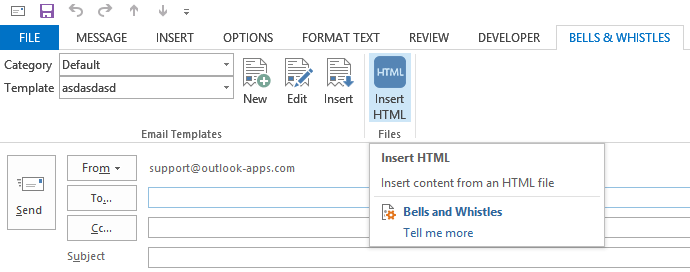
Assuming you’ve downloaded Bells & Whistles (download link), all you have to do is to open a new Outlook email, then go to the Bells menu and click on the big blue “Insert HTML” button and browse to select the HTML file that will be loaded in your email. That’s it!
If you don’t want to use the Bells & Whistles addin to insert HTML code, we will describe below a programmatic way to add your own HTML code to Outlook emails without having it altered by Outlook.
Make sure you are not using a trial-expired version of Office (Developer mode is disabled in expired Office trials). The following procedure was tested on Microsoft Outlook 2010 and 2013.
1. Enable the Outlook Developer mode by right clicking on the Outlook ribbon (menus area) -> choose Customize Ribbon -> mark / enable Developer;
alt=»customize Outlook ribbon» width=»300″ height=»60″ />
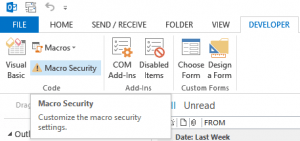
2. In the Developer tab, go to Macro Security -> enable “Notification for all macros”;
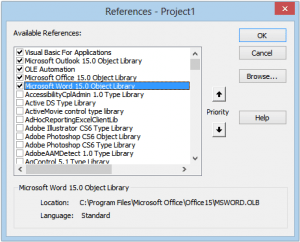
3. In the Developer tab, click on Visual Basic -> Tools -> References -> enable “Microsoft WORD 15.0 Object Library” (don’t confuse it with “Microsoft Office 15.0 Object Library”). If you are using Office 2010, look for Word 14.0 (15.0 means Office 2013);
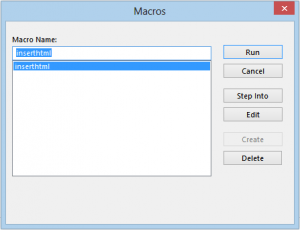
4. In the Developer Macros-> Macros menu, type a name for the new macro (for example, InsertHTMLFile) then click on Create;
5. In the Macro editor, copy & paste the following source code, between the Sub End Sub lines:
6. Replace “e:\test.html” with the actual path to the desired HTML file that you want to insert to the Outlook email message body. Make sure you use an absolute path to the HTML file (for example “C:\MyDocs\outlook-file.html” and not “MyDocs\outlook-file.html”);
7. Save the macro. Just in case, restart Outlook to activate the changes;
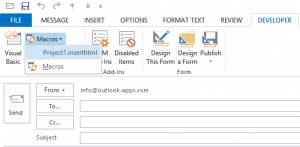
8. Create a new Outlook email, then go to the Developer tab -> Macros and select the newly created macro. It shall insert the non-altered HTML code to your Outlook email ��
While the above HTML insertion method is far from being a 2-clicks solution, it actually is the simplest method to insert non-altered, clean HTML code to Outlook emails. Although it surely is counter-productive to use this method on regular daily emails, it can be a helpful solution if you are sending an email newsletter through a mail merge add-in like Easy Mail Merge.
Outlook HTML limitations
Even if you insert your own HTML code to Outlook emails, Outlook will not render it properly unless you follow these simple guidelines:
1. all links and images must be linked as absolute URLs (using something like img src=”images/image1.png” will not work, you have to use an absolute URL like www.domain.com/images/image1.png);
2. do NOT load CSS styles from external CSS files – you have to use inline CSS. Here is a nice tool that can check & clean a HTML email file: http://premailer.dialect.ca/;
3. Make sure you use HTML tags & attributes that are actually supported by Outlook. Outlook is designed to support only a sub-set of HTML 4, so some HTML tags are simply ignored. These tags are not removed from your email code (they will display just fine on other email clients that support them), but Outlook skips them. Here is a list of ignored email HTML tags.
You can always use Bells & Whistles for Outlook to insert HTML files to Outlook emails with just a couple of clicks:
Вставить HTML в Outlook
Outlook известен своим HTML-рендерингом. Система относительно враждебна кодированию, вот почему “Отправить электронное письмо в формате HTML в Outlook” это обычный поисковый запрос. Учитывая разнообразие версий, как ты можешь сделать это правильно? Маркетологи адаптируют свои сообщения к Outlook. Этой системой пользуются миллионы. Вы можете быть уверены, что часть вашей аудитории читает сообщения в Windows.. Получателей почты раздражают битые ссылки и отсутствующие изображения.. Это может вызвать поток отказов от подписки. То, что начиналось как продуманная маркетинговая кампания, может вызвать сокращение вашей аудитории. Обычный текст не получит особого внимания. Вот почему профессионалы использовать HTML в Outlook . Цветные сообщения в HTML стали стандартом маркетинга. Если у вас есть готовый шаблон, это легко вставить HTML в Outlook.
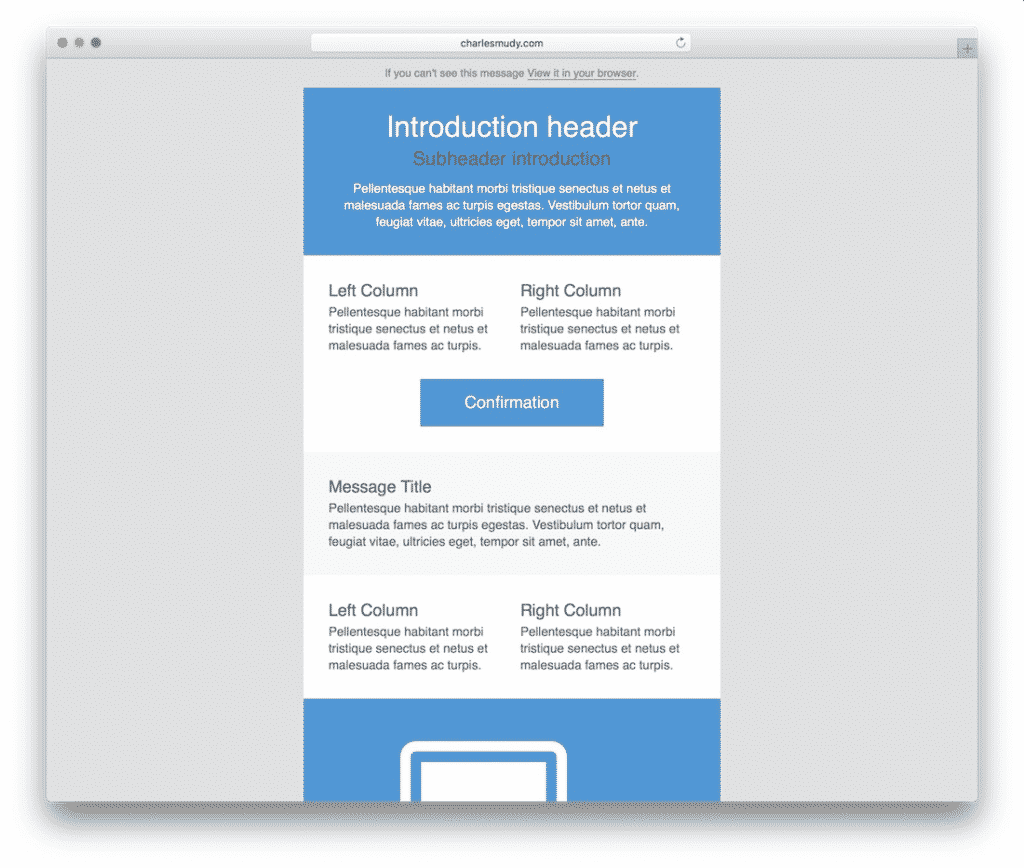
Как вставить HTML в электронную почту с помощью шаблонов
Следующая последовательность поможет вам вставить HTML в Outlook. 2016 и другие версии. С шаблоном, процесс быстрый и простой.
- Нажать на “Новый email-адрес” в Outlook,. Или используйте Ctrl + N сокращенный. Появится новое окно.
- Щелкните правой кнопкой мыши в верхней части окна, чтобы добавить “Прикрепить файл” вариант. Или используйте меню Вставить и Прикрепить файл кнопка на ленте.
- С курсором в окне сообщения, нажмите на недавно добавленную кнопку, чтобы прикрепить свой шаблон.
- Перейдите к местоположению файла HTML. Вставить как текст, щелкните стрелку рядом с “Вставить” кнопка.
- Выбрать “Вставить как текст“.
Опцию вложения также можно добавить на панель быстрого доступа.. Сделать это, варианты доступа через “Файл“. Ты увидишь “Панель быстрого доступа” в списке слева. Выбрать “Прикрепить файл“. Это позволяет быстро встраивать HTML в Outlook..
Важные советы по HTML в Outlook
Так, как вы можете убедиться, что ваше сообщение не искажено? Вот несколько советов от экспертов. Это предотвратит наиболее распространенные проблемы, такие как битые ссылки и сбои при форматировании.. Создавайте электронную почту HTML в Outlook с учетом этих факторов.
1. Используйте замещающий текст для каждого изображения
Почтовый клиент может блокировать изображения. Возможное решение — добавление альтернативного текста. Это простое слово или фраза, описывающая изображение. Если он отсутствует, получатель может прочитать описание в поле и разблокировать его.
<img vodafone” alt =”Приборная панель” src =”vf-логотип-белый.png” ширина =”40″ высота =”40″>
2. Убедитесь, что шрифты правильные
Одним из основных недостатков является то, что MS Outlook распознает ограниченный набор шрифтов.. Все незнакомое автоматически преобразуется в Таймс Нью Роман, что может выглядеть ужасно. Чтобы быть в безопасности, используйте стандартные параметры, например Курьер, Ариал, Веранда, или Грузия.
Но какой у вас шрифт, который является частью имиджа бренда?? В этом случае, заставить систему использовать приемлемый стандартный шрифт вместо Times New Roman. Это будет вашим запасным вариантом.
3. Таблицы удобны
Этот формат помогает структурировать ваш шаблон сообщения. Вы можете легко разделить контент, выбрать фон, стиль текста, и т.д.. Используйте таблицы, чтобы все получатели видели одно и то же представление независимо от их почтовой системы. Не забудьте добавить align = "влево" сделать сообщение отзывчивым. Сюда, боксы будут удобно отображаться как на широком, так и на маленьком экране. В первом случае, они будут выровнены рядом друг с другом. Во втором случае, они будут помещены друг на друга.
4. Не слишком широкий!
Практическое правило — придерживаться 550-600 пиксели. Это связано с тем, что более широкие электронные письма могут отображаться неправильно.. Держите свои сообщения узкими, чтобы их можно было просматривать на любом экране. Места еще хватит для броского дизайна.
Тестирование имеет решающее значение
Важно знать, как отправлять электронную почту в формате HTML в Outlook. Не забудьте протестировать свою работу перед отправкой. Проверьте, как это выглядит на каждой платформе. Этот этап стоит вашего времени, поскольку это гарантирует правильный вид.
Как вставить html код в письмо outlook
Hi, I have recently upgraded my Outlook 2013 to 2016 but unfortunately I cannot see the "Insert as Text" option when attaching html file — see the screenshot here https://social.technet.microsoft.com/Forums/getfile/437603
Is there any better easier way how to do an html email?
Answers
I can reproduce this issue and I guess this issue has something to do with the new Attach File menu button in Outlook 2016.
We can try the following method to work around this issue:
Method 1: Add the Attach File icon to the Quick Access Toolbar. To do this, click New Email button to open a new email message, click File > Options > Quick Access Toolbar. Under "Popular Commands", highlight Attach File and click Add button. Click OK.
Now, when we insert a html file, use the Attach File button on the QAT, you will see the Insert as Text option.
Note: It’s reported that this method doesn’t work on Windows 7 OS, but it’s worth a try.
Method 2: Open the HTML file using Word (right-click on the HTML file and select Open With. ), press Ctrl + A to copy all the contect in the Word document and then paste the content to Outlook.
Steve Fan
TechNet Community Support
Please mark the reply as an answer if you find it is helpful.
If you have feedback for TechNet Support, contact tnmff@microsoft.com.
- Marked as answer by mg-fcdm Tuesday, November 17, 2015 9:51 AM
All replies
I had the same problem. So create that mechanism:

Oskar Shon, Office System MVP — www.VBATools.pl
if Helpful; Answer when a problem solved
I can reproduce this issue and I guess this issue has something to do with the new Attach File menu button in Outlook 2016.
We can try the following method to work around this issue:
Method 1: Add the Attach File icon to the Quick Access Toolbar. To do this, click New Email button to open a new email message, click File > Options > Quick Access Toolbar. Under "Popular Commands", highlight Attach File and click Add button. Click OK.
Now, when we insert a html file, use the Attach File button on the QAT, you will see the Insert as Text option.
Note: It’s reported that this method doesn’t work on Windows 7 OS, but it’s worth a try.
Method 2: Open the HTML file using Word (right-click on the HTML file and select Open With. ), press Ctrl + A to copy all the contect in the Word document and then paste the content to Outlook.
Steve Fan
TechNet Community Support
Please mark the reply as an answer if you find it is helpful.
If you have feedback for TechNet Support, contact tnmff@microsoft.com.
- Marked as answer by mg-fcdm Tuesday, November 17, 2015 9:51 AM
Thanks! it really works..
I am using Windows 10 and Office 2016 🙂
- Edited by Taohidul.Hassan Tuesday, December 15, 2015 8:53 AM update
When inserting my nice coded HTML file, Outlook transform it as a crapy proprietary Microsoft HTML code. Breaking everything.
Microsoft you are still doing very bad thing regarding HTML.
pretty much the same way, by opening the HTML in Word then copy/pasting.
but you only get rudimentary formatting.
there was, through AppleScript, but it’s a tiny bit broken at the moment.
also because Microsoft (perhaps wisely) removed their proprietary Script Menu menu item (and all of the built in scripts)
That is, it worked in 2011, and it’s having issues in 2016. I found this thread looking for a solution to my issue.
anything other that rudimentary formatting won’t work in 2016. (and if someone knows of a way, please let me know) Image maps, also, won’t work. The internal rendering engine in Outlook simply ignores anything but the plainest HTML code. (pretty much what you could do with the built in formatting tools.)
so, if you’d like, I can share the code here.
(please note that, depending on the version and your AppleScript libraries, this script won’t even compile in Script Editor — one of the dictionary terms, “message,” has changed, and I haven’t taken the time to find a correction. Placed in the correct folder and run from the Script Menu it still runs, however.)
Copy the text above, open a new script in Script Editor, paste and save.
Activate the Script Menu (if you haven’t already) from within Script Editor via Preferences > General > Script Menu > “Show Script menu in menu bar” radio button.
From the Script Menu > Open Scripts Folder > Open Outlook Scripts Folder — then copy/save the above script there. (You may have to create this scripts folder if it doesn’t already exist.)
From Outlook, go to the Script Menu > Outlook > [html script file you saved]