Преобразование файла py в exe в Python
Чтобы преобразовать файл .py (Python) в .exe (исполняемый файл), вы можете использовать пакет и запустить команду pyinstaller в командной строке.
В этом руководстве мы возьмем простой файл, который выводит на консоль сообщение «Hello World!», и преобразуем этот файл в исполняемый файл.
Пошаговый процесс преобразования
Шаг 1: установите pyinstaller.
Откройте командную строку или терминал и выполните следующую команду pip, чтобы установить pyinstall.
Шаг 2: перейдите в папку .py.
Откройте командную строку или терминал и перейдите в папку с файлом .py, который вы хотите преобразовать в .exe.

Есть файл hello_world.py. Мы преобразуем его в файл exe.
Шаг 3: запустите команду pyinstaller.
Из местоположения файла .py выполните следующую команду, чтобы построить и создать файл .exe.
Вы получите следующую информацию в командной строке.

Рядом с файлом в Python будут созданы каталоги сборки и распространения.

Зайдите в каталог dist, и вы найдете файл .exe.

Заключение
В этом руководстве на примерах в Python мы узнали, как создать файл .exe из .py.
Auto PY to EXE
The only tool that we are gonna be using is Auto PY to EXE!
Auto PY to EXE is an amazing application for making .exe file out of your project whether it is one .py file or any number of them.
The application has a nice gui and looks like this:
How to start
Step 1. Installation
Installing using PyPI:
To install the application run this line in cmd:
pip install auto-py-to-exe
To open the application run this line in cmd:
Note: if you have any problems installing this way or you want to install it from GitHub go to the main page or watch this instructional video by the developer of «Auto PY to EXE» himself.
For more additional information use this
«Issues When Using auto-py-to-exe»
Step 2. Converting
There are few main options you need to choose:
- Pick your .py file
- Pick «One Directory» or «One File» option
- Pick additional files
1. Pick your .py file
If you have multiple files choose one that starts the program.
2.1. «One Directory» option

Pretty simple. When choosing «One Directory» option «Auto PY to EXE» will put all dependencies in one folder. You can choose Output directory in «Advanced» menu. If you have media files like icons and backgrounds you shouldn’t have any problems using them inside your .exe if you place media files/folders in the Output directory.
Something like this:

2.2. «One File» option

When choosing «One File» option «Auto PY to EXE» will create one .exe file containing all dependencies but NOT MEDIA FILES. If your program has only default Windows gui with no icons, backgrounds, media files or you are OK with placing media folder near .exe file feel free to skip the following explanation. For those who want to pack media files into .exe file itself read paragraph 3.
3. Pick additional files
There is a menu in «Auto PY to EXE» called «Additional Files» that lets you add files of your choice. There is a catch though. «Auto PY to EXE» uses pyinstaller which unpacks the data into a temporary folder and stores this directory path in the _MEIPASS environment variable. Your project won’t find necessary files because the path changed and it won’t see the new path either. In other words, if option «One File» is chosen picked files in the «Additional Files» menu will not be added to .exe file. To work around this you should use this code provided by developer of Auto PY to EXE here
Exit fullscreen mode
To use this code in your project replace the link to the media file you have now
For example:
How can I make an EXE file from a Python program? [duplicate]
I’ve used several modules to make EXEs for Python, but I’m not sure if I’m doing it right.
How should I go about this, and why? Please base your answers on personal experience, and provide references where necessary.
7 Answers 7
Auto PY to EXE — A .py to .exe converter using a simple graphical interface built using Eel and PyInstaller in Python.
py2exe is probably what you want, but it only works on Windows.
PyInstaller works on Windows and Linux.
Py2app works on the Mac.

I found this presentation to be very helpfull.
There are many deployment options for Python code. I’ll share what has worked well for me on Windows, packaging command line tools and services using py2exe and InnoSetup. I’ll demonstrate a simple build script which creates windows binaries and an InnoSetup installer in one step. In addition, I’ll go over common errors which come up when using py2exe and hints on troubleshooting them. This is a short talk, so there will be a follow-up Open Space session to share experience and help each other solve distribution problems.

Also known as Frozen Binaries but not the same as as the output of a true compiler- they run byte code through a virtual machine (PVM). Run the same as a compiled program just larger because the program is being compiled along with the PVM. Py2exe can freeze standalone programs that use the tkinter, PMW, wxPython, and PyGTK GUI libraties; programs that use the pygame game programming toolkit; win32com client programs; and more. The Stackless Python system is a standard CPython implementation variant that does not save state on the C language call stack. This makes Python more easy to port to small stack architectures, provides efficient multiprocessing options, and fosters novel programming structures such as coroutines. Other systems of study that are working on future development: Pyrex is working on the Cython system, the Parrot project, the PyPy is working on replacing the PVM altogether, and of course the founder of Python is working with Google to get Python to run 5 times faster than C with the Unladen Swallow project. In short, py2exe is the easiest and Cython is more efficient for now until these projects improve the Python Virtual Machine (PVM) for standalone files.
Not on the freehackers list is gui2exe which can be used to build standalone Windows executables, Linux applications and Mac OS application bundles and plugins starting from Python scripts.
Use cx_Freeze to make exe your python program
py2exe is a Python Distutils extension which converts Python scripts into executable Windows programs, able to run without requiring a Python installation.
Как скомпилировать python в exe файл

We create lots of Python programs per day and want to share them with the world. It is not that you share that Python program with everyone, and they will run this script in some IDLE shell. But you want everyone to run your Python script without the installation of Python. So for this work, you can convert the .py file to .exe file. In this article, you will learn how you can convert .py file to .exe file. Follow the below steps for the same.
Step 1:
Install the library pyinstaller.
Type below command in the command prompt.
Step 2:
Go into the directory where your ‘.py’ file is located.
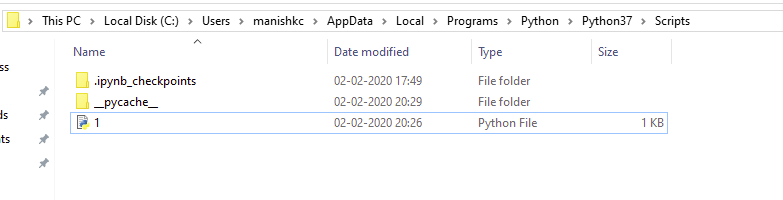
Step 3:
Press the shift⇧ button and simultaneously right-click at the same location. You will get the below box.
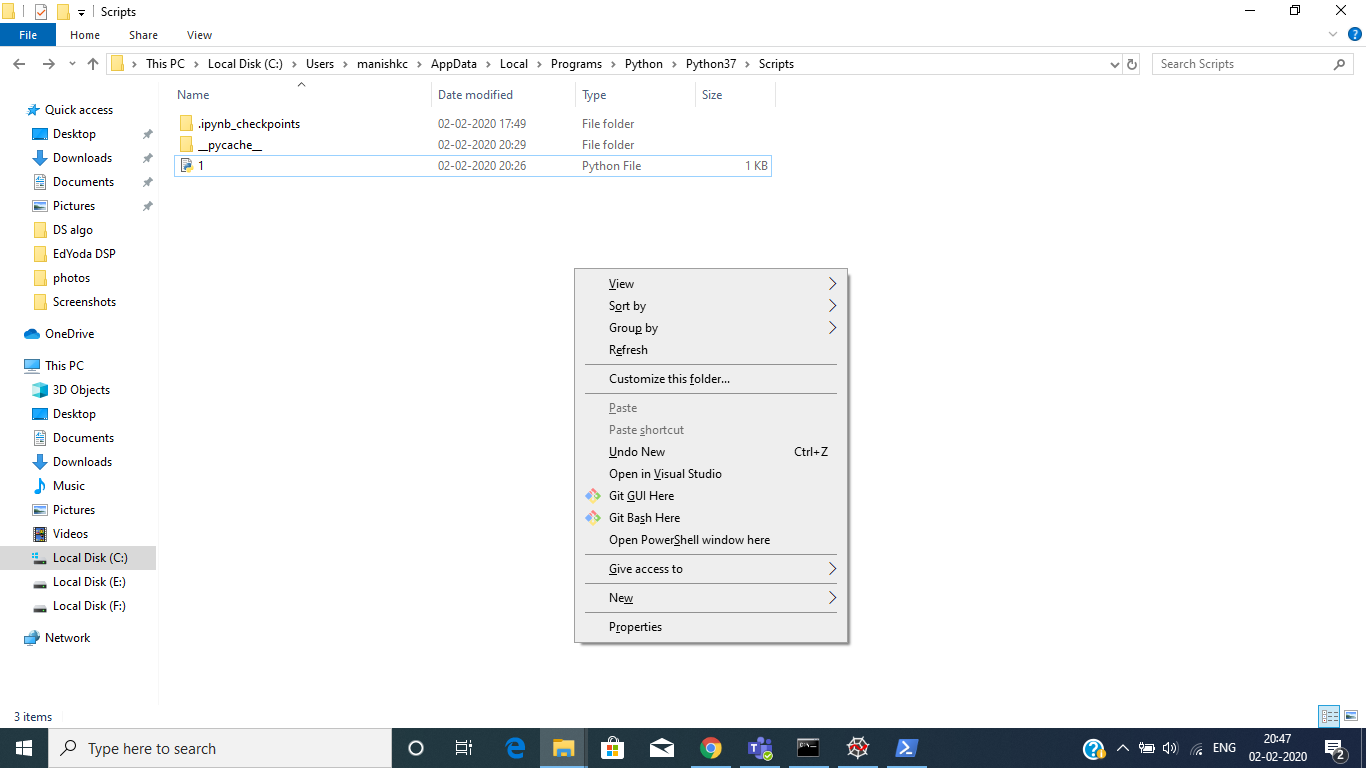
Step 4:
Click on ‘Open PowerShell window here’.
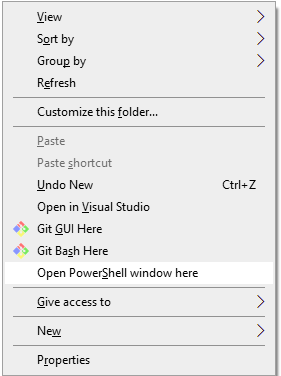
You will get a window shown below.

Step 5:
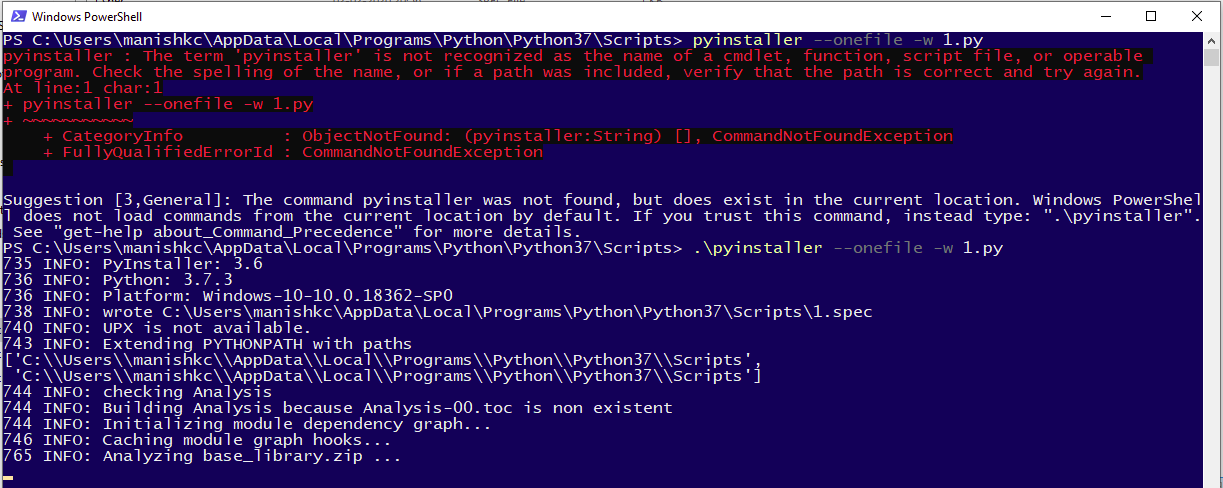
Type the command given below in that PowerShell window.
Here the ‘.py’ file name is ‘1’.
See below:

In case you get an error at this point in the PowerShell window like this:
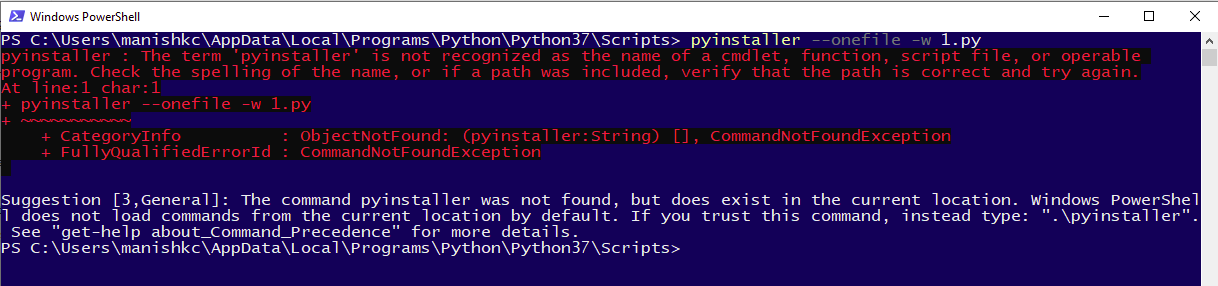
The correction while typing the above command:
Step 6:
After typing the command ‘Hit the Enter’.
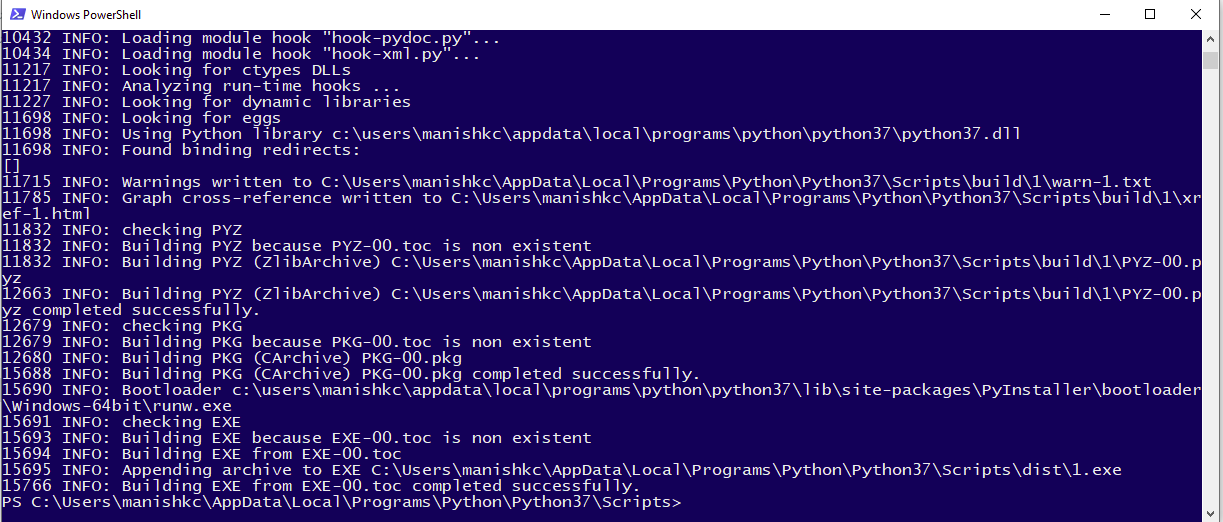
It will take some time to finish the process depending on the size of the file and how big is your project.
After the processing has been finished, the window will look as below:
Step 7:
See the directory it should look like this:
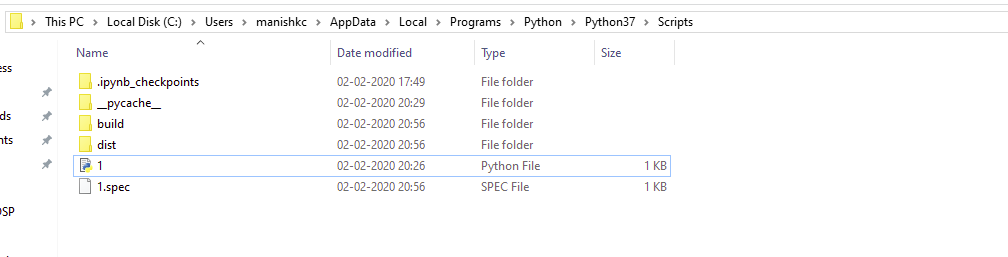
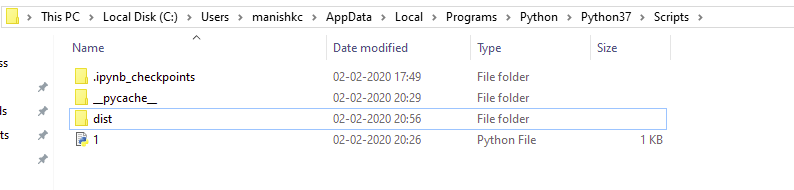
‘build’ folder and ‘1.spec’ is of no use. You can delete these if you want, it will not affect your ‘.exe’ file.
Step 8:
Open ‘dist’ folder above. Here you will get your ‘.exe’ file.