Lenovo ThinkPad X1 Extreme
A UEFI firmware update is strongly recommended for general use of the laptop — the initial 1.13 version devices seem to ship with contains multiple bugs that can result in bricking the laptop: Reddit thread discussing the issue; another Reddit thread discussing a different bricking issue.
Firmware updates are available via fwupd, the Lenovo Vantage application on Windows, or from Lenovo’s website.
The latest version, v1.35, is highly recommended. All information on this page assumes the latest firmware.
Video
Both the HDMI port and DisplayPort outputs created when using either a USB-C adapter or Thunderbolt dock are wired to the Nvidia dGPU.
A BIOS setting can be used to disable the integrated GPU, and run everything on the dedicated Nvidia card. The dedicated GPU cannot be disabled through firmware, so enabling runtime power management in some form is highly recommended when using the iGPU.
CPU thermal throttling
Basically, the laptop’s firmware uses an implementation of Intel’s Dynamic Platform and Thermal Framework (DPTF) that does not work with Linux. While newer generations of ThinkPads have gotten a BIOS update to fix this, a Lenovo employee confirmed that older affected Thinkpads (including T580, T480, T480s, X1C6, P1G1 and X1E1) will not get the fix.
A stress test using s-tui indicates that the CPU is limited to 38W/80C at boot, resulting in a sustained all-core frequency of around 2850 MHz on the i7-8750H.
Fix using reverse-engineered DPTF implementation
There is an ongoing effort to reverse-engineer DPTF on Linux. Results can be found here. Most of the work has been upstreamed already, though the implementation is still far from complete.
Starting with kernel 5.12, the work-in-progress can be utilized by installing and enabling thermald , which will attempt to make use of the firmware’s adaptive performance policy.
Unfortunately, the current implementation does not appear to help much on this laptop. While the CPU’s limit is raised to 45W/83C, the all-core frequency is erratic, resulting in only a marginal performance improvement.
Fix using dptfxtract and manual DPTF profile setting
Another option, which does result in full performance, is to extract the DPTF tables and use them in combination with a manual change of the DPTF profile.
Configuring thermald to use extracted dptf tables
First, make sure thermald is installed. Next, use Intel’s proprietary dptfxtract-bin AUR tool to extract the DPTF tables:
This will populate /etc/thermald/ with multiple configuration files of the form thermal-conf.xml.* , each of which represents a converted DPTF table.
The tool also creates a copy of each of these files in the current working directory, so you may want to remove those:
The thermald service file shipped with Arch Linux enables adaptive mode by default. In order to use the extracted tables we have to override it.
Create the necessary directory if it does not exist already:
Then create the following file:
Afterwards, reload the systemd manager configuration and enable thermald.
Selecting the appropriate configuration
Out of all the generated configuration files, thermald will use thermal-conf.xml.auto by default. You can try any of the other configurations by adding the —config-file flag to the override.conf created earlier.
The default configuration file already unlocks full performance. A stress test indicates that the CPU is now limited to 45W/95C, resulting in a sustained all-core frequency of around 3300 MHz on the i7-8750H.
Manually setting a DPTF profile to prevent temporary re-throttling
The setup above is not perfect, every time the CPU temperature trips over 80C the laptop’s embedded controller (EC) will re-throttle the CPU for a few seconds.
This issue can be fixed, without ‘fighting the EC’, by manually setting the adaptive performance DPTF profile using the following script:
Save the script somewhere and create a systemd service for it:
Do not forget to replace /path/to/script/ in the service file.
Finally, reload the systemd manager configuration and enable the service.
Disabling BDPROCHOT to prevent throttling on battery
- After this fix the laptop may run hotter than is comfortable when using it on your lap or similar positions.
- Disabling BDPROCHOT can be considered a ‘nuclear option’ in terms of power management. Use at your own risk!
The laptop’s performance on battery is far below expectations when using Linux. The cause appears to be something called ‘lap mode’ (documented by Lenovo, here).
Basically, when unplugged, the laptop will by default assume that it is being used on the user’s lap. And since Linux has no working DPTF implementation to tell the the laptop otherwise, it will always assume it is being used the user’s lap. Consequently, In order to keep the laptop base at a ‘skin friendly’ temperature, the laptop’s EC throttles the CPU with BDPROCHOT (BiDirectional PROCessor HOT) when one of many thermal sensors trips a predetermined value. Effectively this will keep the CPU at around 70C max while simultaneously preventing the fans from properly spinning up. A repeated on-again off-again all-core stress test causes the CPU to throttle as low as 800 MHz.
Since there is currently no known way to disable ‘lap mode’, the only path to full performance on battery is to disable BDPROCHOT altogether. This can be done using the following script:
Save the script somewhere and create a systemd service for it:
A suspend/resume-cycle will cause the EC to re-set the BDPROCHOT-bit.
Create the following file (and make it executable) to run the script on resume:
Do not forget to replace /path/to/script/ in both files.
Finally, reload the systemd manager configuration, enable the service and reboot.
The CPU’s performance on battery should now be roughly equal as when plugged in.
Microphone noise reduction
PulseAudio’s PulseAudio#Microphone echo/noise cancellation can be used to reduce the amount of microphone noise by adding the following to /etc/pulse/default.pa :
The above mic_geometry is specific to the X1 Extreme.
The module-filter-heuristics and module-filter-apply modules can sometimes result in adding additional noise, so the lines that enable them should be commented out:
Bad sound quality may also result from audio clipping, which can occur if «Internal Mic Boost» is larger than zero in alsamixer.
Fingerprint reader
A reverse engineering effort is ongoing here, and an experimental driver is available on the AUR as python-validity AUR .
Исправлено: проблема с динамической платформой и драйвером Thermal Framework.
DPTF или Dynamic Platform and Thermal Framework — это решение для управления температурным режимом и питанием, доступное во всех системах с набором микросхем Intel. Это больше похоже на интегрированное устройство, которое используется для устранения перегрева системы, шума вентилятора и проблем производительности, связанных с системой.
- 1 Исправления для проблемы с динамической платформой и драйвером Thermal Framework
- 1.1 ИСПРАВЛЕНИЕ 1. Обновите BIOS вашего ПК:
- 1.2 ИСПРАВЛЕНИЕ 2: Восстановите Windows 10 до старой / более ранней даты:
- 1.3 ИСПРАВЛЕНИЕ 3: Используйте программное обеспечение для автоматического обновления драйверов:
Исправления для проблемы с динамической платформой и драйвером Thermal Framework
Недавно сообщалось, что многие пользователи говорят, что Dynamic Platform и Thermal Framework не работают. По мнению пострадавших пользователей, проблема связана с проблемой драйвера, в результате чего отображается сообщение: «Windows не может загрузить драйвер устройства для этого оборудования. Драйвер может быть поврежден или отсутствует ». Сегодня в этой статье мы попытались перечислить некоторые из лучших возможных исправлений, которые помогут вам решить «проблему с динамической платформой и драйвером Thermal Framework».
ИСПРАВЛЕНИЕ 1. Обновите BIOS вашего ПК:
По мнению некоторых пользователей, обновление BIOS вашей системы помогло им избавиться от «Dynamic Platform и Thermal Проблема с драйвером фреймворка ». Однако любые ошибки или неправильные действия при обновлении BIOS могут привести к отрицательным результатам в вашем система. Таким образом, мы рекомендуем вам следить за тем, чтобы каждое выполняемое вами действие было на 100% правильным. Для обновления BIOS вашего ПК в Windows 10:
- Для процесса обновления BIOS пользователям необходимо ввести свои Страница загрузки драйверов производителя ПК с помощью браузера.
- Здесь, на сайте производителя, введите данные модели и платформы (Ноутбук или ПК), и откроется определенная страница загрузки драйвера. (Все подробности доступны на Окно информации о системе Windows 10.)
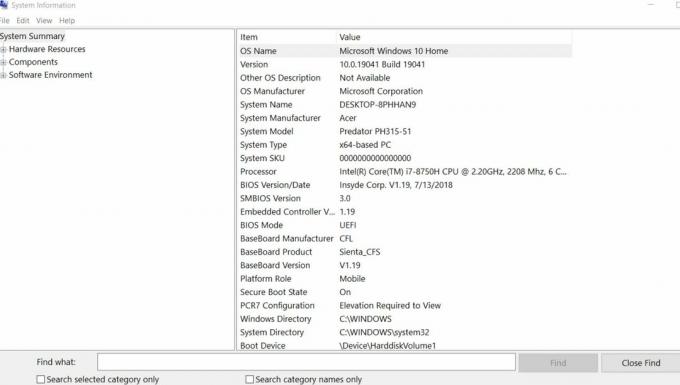
- Найдите Файл BIOS вашей Сайт производителя устройства.
- Как только вы найдете его, нажмите на него Кнопка загрузки.
- В дальнейшем извлеките и откройте загруженный файл обновления BIOS и следуйте инструкциям на экране в соответствии со сценарием инструмента обновления BIOS.
- После завершения процесса обновления BIOS проверьте, решена ли указанная проблема.
ИСПРАВЛЕНИЕ 2: Восстановите Windows 10 до старой / более ранней даты:
Могут существовать некоторые возможные шансы, что недавняя загрузка / обновление программы или программного обеспечения в вашей системе может вызвать «Проблема динамической платформы и драйвера теплового каркаса». Теперь поиск конкретной программы и ее удаление может быть утомительное занятие; поэтому мы рекомендуем вам восстановить Windows 10 до более ранней даты. Это приведет вашу систему к тому моменту, когда предполагаемое программное обеспечение / программа, вызывающая проблемы, не существовало бы. Чтобы ввести старую дату, выполните следующие действия:
- Во-первых, нажмите Клавиша Windows и R в целом, чтобы запустить БЕГАТЬ диалоговое окно.
- Теперь в пустом текстовом поле введите «рструи » а затем нажмите на ОК. Запустится утилита восстановления системы.
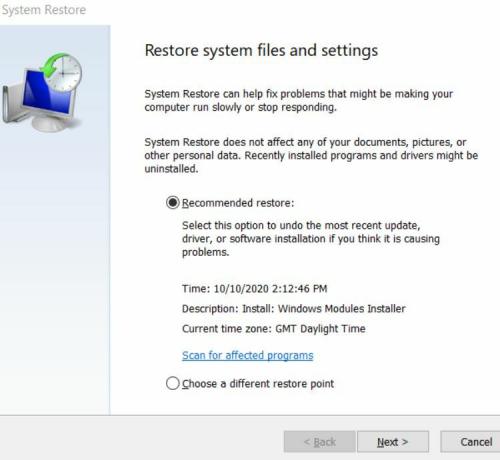
- В окне восстановления системы выберите Выберите другую точку восстановления круглую кнопку радио, а затем нажмите следующий.
- Теперь выберите Восстановить точку на более раннюю дату (за неделю или месяц до этого).
- Чтобы проверить эффекты (удаление программы / программного обеспечения / файлов, отмена настроек) восстановления до старой даты, нажмите на Сканировать на наличие уязвимых программ таб.
- После этого нажмите на следующий а также финиш таб.
После этого будут отменены любые недавние изменения устройства, которые вызвали «проблему с динамической платформой и драйвером Thermal Framework». Теперь проверьте, сработало ли исправление для вас.
ИСПРАВЛЕНИЕ 3. Используйте программное обеспечение для автоматического обновления драйверов.:
Когда поврежденный, устаревший или отсутствующий драйвер может привести к ошибке «Windows не может загрузить драйвер устройства для этого оборудования, драйвер может быть поврежден или отсутствует». В таких случаях рекомендуется обновить соответствующие драйверы. Вы можете сделать это с помощью инструмента автоматического обновления драйверов.
Это были все возможные исправления, которые помогут пользователям столкнуться с «проблемой динамической платформы и драйвера Thermal Framework». В Dynamic Platform и Thermal Framework являются важным решением для вашей системы, поэтому любые проблемы с их драйвером должны решаться на первый.
Исправления, упомянутые в этой статье выше, опробованы и протестированы и помогли пользователям, работающим в режиме реального времени. Однако, если ни один из них не работает для вас, мы рекомендуем вам сбросить Windows 10 или переустановить платформу с помощью метода чистой установки. После прочтения этой статьи, если у вас есть какие-либо вопросы или отзывы, напишите комментарий в поле для комментариев ниже.
Intel DPTF implementations in coreboot
Intel Dynamic Platform and Thermal Framework is a framework that can be used to help regulate the thermal properties (i.e., temperature) of an Intel-based computer. It does this by allowing the system designer to specify the different components that can generate heat, and/or dissipate heat. Under DPTF, the different components are referred to as participants . The different types of functionality available in DPTF are specified in terms of different policies .
Components (“Participants”)
The participants that can be involved in the current implementation are:
- CPU (monolithic from a DPTF point-of-view)
- Note that the CPU’s internal temperature sensor is used here
Policies
In the current implementation, there are 3 different policies available:
Passive Policy
The purpose of this policy is to monitor participant temperatures and is capable of controlling performance and throttling available on platform devices in order to regulate the temperatures of each participant. The temperature threshold points are defined by a _PSV ACPI object within each participant.
Critical Policy
The Critical Policy is used for gracefully suspending or powering off the system when the temperature of participants exceeds critical threshold temperatures. Suspend is effected by specifying temperatures in a _CRT object for a participant, and poweroff is effected by specifying a temperature threshold in a _HOT ACPI object.
Active Policy
This policy monitors the temperature of participants and controls fans to spin at varying speeds. These speeds are defined by the platform, and will be enabled depending on the various temperatures reported by participants.
Note about units
ACPI uses unusual units for specifying various physical measurements. For example, temperatures are specified in 10ths of a degree K, and time is measured in tenths of a second. Those oddities are abstracted away in the DPTF library, by using degrees C for temperature, milliseconds for time, mW for power, and mA for current.
Differences from the static ASL files (soc/intel/common/acpi/dptf/*.asl)
- TCPU had many redundant methods. The many references to _SB.CP00._* are not created anymore in recent SoCs and the ACPI spec says these are optional objects anyway. The defaults that were returned by these methods were redundant (all data was a 0). The following Methods were removed:
- _TSS
- _TPC
- _PTC
- _TSD
- _TDL
- _PSS
- _PDL
- There is no more implicit inclusion of _ACn methods for TCPU (these must be specified in the devicetree entries or by calling the DPTF acpigen API).
ACPI Tables
DPTF relies on an assortment of ACPI tables to provide parameters to the DPTF application. We will discuss the more important ones here.
- _TRT — Thermal Relationship Table
This table is used when the Passive Policy is enabled, and is used to represent the thermal relationships in the system that can be controlled passively (i.e., by throttling participants). A passive policy is defined by a Source (which generates heat), a Target (typically a temperature sensor), a Sampling Period (how often to check the temperature), an activation temperature threshold (for when to begin throttling), and a relative priority.
- _ART — Active Relationship Table
This table is used when the Active Policy is enabled, and is used to represent active cooling relationships (i.e., which TSRs the fan can cool). An active policy contains a Target (the device the fan can cool), a Weight to control which participant needs more attention than others, and a list of temperature / fan percentage pairs. The list of pairs defines the fan control percentage that should be applied when the TSR reaches each successive threshold (_AC0 is the highest threshold, and represents the highest fan control percentage).
- PPCC — Participant Power Control Capabilities
This table is used to describe parameters for controlling the SoC’s Running Average Power Limits (RAPL, see below).
- _FPS — Fan Performance States
This table describes the various fan speeds available for DPTF to use, along with various informational properties.
- PPSS — Participant Performance Supported States
This table describes performance states supported by a participant (typically the battery charger).
ACPI Methods
The Active and Passive policies also provide for short Methods to define different kinds of temperature thresholds.
- _AC0, _AC1, _AC2, _AC3, …, _AC9
These Methods can provide up to 10 temperature thresholds. What these do is set temperatures which act as the thresholds to active rows (fan speeds) in the ART. _AC0 is intended to be the highest temperature thresholds, and the lowest one can be any of them; leave the rest defined as 0 and they will be omitted from the output.
These are optional and are enabled by selecting the Active Policy.
- _PSV
_PSV is a temperature threshold that is used to indicate to DPTF that it should begin taking passive measures (i.e., throttling of the Source) in order to reduce the temperature of the Target in question. It will check on the temperature according to the given sampling period.
This is optional and is enabled by selecting the Passive Policy.
- _CRT and _HOT
When the temperature of the Source reaches the threshold specified in _CRT, then the system is supposed to execute a “graceful suspend”. Similarly, when the Source reaches the temperature specified in _HOT, then the system is supposed to execute a “graceful shutdown”.
These are optional, and are enabled by selecting the Critical Policy.
How to use the devicetree entries
The drivers/intel/dptf chip driver is organized into several sections:
- Policies
- Controls
- Options
The Policies section ( policies.active , policies.passive , and policies.critical ) is where the components of each policy are defined.
Active Policy
Each Active Policy is defined in terms of 4 parts:
- A Source (this is implicitly defined as TFN1, the system fan)
- A Target (this is the device that can be affected by the policy, i.e., this is a device that can be cooled by the fan)
- A ‘Weight’, which is defined as the Source’s contribution to the Target’s cooling capability (as a percentage, 0-100, often just left at 100).
- A list of temperature-fan percentage pairs, which define temperature thresholds that, when the Target reaches, the fan is defined to spin at the corresponding percentage of full duty cycle.
An example definition in the devicetree:
This example sets up a policy wherein the CPU temperature sensor can be cooled by the fan. The ‘weight’ of this policy is 100% (this policy contributes 100% of the CPU’s active cooling capability). When the CPU temperature first crosses 65C, the fan is defined to spin at 36% of its duty cycle, and so forth up the rest of the table (note that it must be defined from highest temperature/ percentage on down to the lowest).
Passive Policy
Each Passive Policy is defined in terms of 5 parts:
- Source — The device that can be throttled
- Target — The device that controls the amount of throttling
- Period — How often to check the temperature of the Target
- Trip point — What temperature threshold to start throttling
- Priority — A number indicating the relative priority between different Policies
An example definition in the devicetree:
This example sets up a policy to begin throttling the charger performance when temperature sensor 1 reaches 65C. The sampling period here is 60000 ms (60 s). The Priority is defaulted to 100 in this case.
Critical Policy
Each Critical Policy is defined in terms of 3 parts:
- Source — A device that can trigger a critical event
- Type — What type of critical event to trigger (S4-entry or shutdown)
- Temperature — The temperature threshold that will cause the entry into S4 or to shutdown the system.
An example definition in the devicetree:
This example sets up a policy wherein ACPI will cause the system to shutdown (in a “graceful” manner) when the CPU temperature reaches 75C.
Power Limits
Control over the SoC’s Running Average Power Limits (RAPL) is one of the tools that DPTF uses to enact Passive policies. DPTF can control both PL1 and PL2, if the PPCC table is provided for the TCPU object. Each power limit is given the following options:
- Minimum power (in mW)
- Maximum power (in mW)
- Minimum time window (in ms)
- Maximum time window (in ms)
- Granularity, or minimum step size to control limits (in mW)
This example allow DPTF to control the SoC’s PL1 level to between 3W and 15W, over a time interval ranging from 28 to 32 seconds, and it can move PL1 in increments of 200 mW.
Charger Performance
The battery charger can be a large contributor of unwanted heat in a system that has one. Controlling the rate of charging is another tool that DPTF uses to enact Passive Policies. Each entry in the PPSS table consists of:
- A ‘Control’ value — an opaque value that the platform firmware uses to initiate a transition to the specified performance state. DPTF will call an ACPI method called TCHG.SPPC (Set Participant Performance Capability) if applicable, and will pass this opaque control value as its argument.
- The intended charging rate (in mA).
In this example, when DPTF decides to throttle the charger, it has four different performance states to choose from.
Fan Performance
When using DPTF, the system fan ( TFN1 ) is the device responsible for actively cooling the other temperature sensors on the mainboard. A fan speed table can be provided to DPTF to assist with fan control. Each entry holds the following:
- Percentage of full duty to spin the fan at
- Speed — Speed of the fan at that percentage; informational only, but given in RPM
- Noise — Amount of noise created by the fan at that percentage; informational only, but given in tenths of a decibel (centibel).
- Power — Amount of power consumed by the fan at that percentage; informational only, but given in mA.
In this example, the fan has 10 different performance states, each in an even increment of 10 percentage points. This is common when specifying fine-grained control of the fan, wherein DPTF will interpolate between the percentages in the table for a given temperature threshold.
Options
- Fine-grained control — a boolean (see Fan Performance section above)
- Step-size — Recommended minimum step size (in percentage points) to adjust the fan speed when using fine-grained control (ranges from 1 — 9).
- Low-speed notify — If true, the platform will issue a Notify (0x80) to the fan device if a low fan speed is detected.
Temperature sensors
- Hysteresis — The amount of hysteresis implemented in either circuitry or the firmware that reads the temperature sensor (in degrees C).
- Name — This name is applied to the _STR property of the sensor
OEM Variables
Platform vendors can define an array of OEM-specific values as OEM variables to be used under DPTF policy. There are total six OEM variables available. These can be used in AP policy for more specific actions. These OEM variables can be defined as below mentioned example and can be used any variable between [0], [1],…,[5]. Platform vendors can enable and use this for specific platform by defining OEM variables macro under board variant.
Dptf что это в биосе lenovo
Обсуждение Lenovo IdeaPad Yoga 2, IdeaPad Yoga 2 Pro и ThinkPad Yoga S1
 Lenovo IdeaPad Yoga 2 Pro и Thinkpad Yoga S1
Windows 8 » | Windows 8.1 » | Ubuntu » | Меняем ОС » | Поиск программ » | Антивирусы » | Скорая помощь владельцам ноутбуков » | Курилка айтишников »

Lenovo IdeaPad Yoga 2 и Thinkpad Yoga S1 — второе поколение универсальных трансформируемых ультрабуков, умеющих работать в четырёх положениях: ноутбук, планшет, презентация и консоль. Благодаря мощным процессорам Intel Haswell они с легкостью справятся с любой задачей, а небольшие размеры и вес вместе с высокой автономностью позволяют использовать их повсюду.
Lenovo Yoga 2 Pro:
Процессор: Intel® Core™ i3-4010U 1.7 Ггц/i5-4200U 1.6 Ггц/i7-4500U 1.8 Ггц(Haswell).
Оперативная память: 4/8 Гб DDR3L-1600 Мгц, двухканальная, максимум 8 Гб.
Видеокарта: Intel HD Graphics 4400 200-1100 Мгц, до 2 Гб SMA.
Экран: 13.3″, 3200х1800, десятипальцевый мультитач.
Жесткий диск: SSD 128/256/512 ГБ.
Время автономной работы: до 9 часов.
Операционная система: OEM Windows 8.1 SL x64.
Вес: 1,4 кг.
Размеры(ДхШхГ), мм: 330x220x15.5.
Разъемы: USB 3.0 x1, USB 2.0 x1, Micro-HDMI, 1 аудио 3.5 мм, SD.
Беспроводная связь: Wi-Fi 802.11n/b/g, Bluetooth 4.0.
Видеокамера: фронтальная, 1.3 МП.Lenovo Yoga 2:
Процессор: Intel® Core™ i3-4010U 1.7 Ггц/i3-4030U 1.9 Ггц/i5-4200U 1.6 Ггц/i5-4210U 1.7 Ггц/i7-4500U 1.8 Ггц(Haswell).
Оперативная память: 4/8 Гб DDR3L-1600 Мгц, двухканальная, максимум 8 Гб.
Видеокарта: Intel HD Graphics 4400 200-1100 Мгц, до 2 Гб SMA.
Экран: 13.3″, 1920×1080, десятипальцевый мультитач.
Жесткий диск: SSD 128/256 ГБ, HDD 500 Гб, SSHD 500+16 Гб.
Время автономной работы: до 9 часов.
Операционная система: OEM Windows 8.1 SL x64.
Вес: 1,6 кг.
Размеры(ДхШхГ), мм: 330x221x17.3.
Разъемы: USB 3.0 x1, USB 2.0 x1, Micro-HDMI, 1 аудио 3.5 мм, SD.
Беспроводная связь: Wi-Fi 802.11n/b/g, Bluetooth 4.0.
Видеокамера: фронтальная, 1.3 МП.Lenovo ThinkPad Yoga S1:
Процессор: Intel® Core™ i3-4010U 1.7 Ггц/i5-4200U 1.6 Ггц/i7-4500U 1.8 Ггц/i7-4600U 2.1 Ггц(Haswell).
Оперативная память: 4/8 Гб DDR3L-1600 Мгц, двухканальная, максимум 8 Гб.
Видеокарта: Intel HD Graphics 4400 200-1100 Мгц, до 2 Гб SMA.
Экран: 12,5″ 1920х1080, десятипальцевый мультитач.
Жесткий диск: SSD 128 ГБ, HDD 500/750/1000 Гб.
Время автономной работы: до 8 часов.
Операционная система: OEM Windows 8.1 SL/Pro x64.
Вес: 1,57 кг.
Размеры(ДхШхГ), мм: 316х221х19.
Разъемы: USB 3.0 x2, HDMI, 1 аудио 3.5 мм, SD, 2 mSATA внутри.
Беспроводная связь: Wi-Fi 802.11n/b/g, Bluetooth 4.0.
Видеокамера: фронтальная, 1.3 МП.В: После переустановки Windows у меня в режиме планшета не отключается физическая клавиатура. Как это исправить?
О: Исправить это можно установив Lenovo Transition.В: В режиме планшета резко падает частота процессора и становится некомфортно работать. Как это исправить?
О: Это исправляется выключением в BIOS параметра DPTF.В: Каково время работы ультрабука от батареи?
О: От 7-9 часов в режиме экономии энергии до 3-4 часов в режиме высокой производительности.В: Как увеличить ширину канала 802.11n?
О: Так.В: Какую сетевую карту можно поставить в Yoga?
О: Такую или такую.В: Каких скоростей можно добиться на замененной сетевой карте?
О: Таких.В: Где я могу почитать про сервисное обслуживание у Lenovo?
О: Здесь.В: Из какого материала сделан корпус?
О: Из магниевого сплава.В: Как выглядит родная сетевая карта?
О: Так.В: Как правильно разбить диск?
О: Так.В: Как решить проблему с отваливающейся Bluetooth-мышью?
О: Так.В: Где я могу сравнить желтый цвет на Yoga и на откалиброванном мониторе?
О: Тут.В: Как решить проблему с тусклым желтым цветом на Yoga?
О: Так.В: Как выключить автояркость?
О: Так.В: Где я могу почитать впечатление человека, купившего Yoga?
О: Тут.В: Бывали ли какие-нибудь случаи брака?
О: Да, были, у трех человек после нескольких дней пользования искажалось изображение на матрице, по гарантии меняли(судя по всему неисправность контроллера дисплея). Так же у одного человека сломалась клавиша Enter.В: Есть ли какие-нибудь тесты Yoga?
О: Да, есть — CrystalMark.В: В некоторых программах шрифт смазан, как сделать его четким?
О: Универсальное способ — ПКМ на .exe программы — Свойства — Совместимость — Отключить масштабирование при высоком разрешении экрана. Но после этого некоторые надписи могут залазить друг на друга или быть невидимыми, для каждой программы это индивидуально!В: У меня ультрабук не заряжается больше 60%. Как исправить?
О: В программе Lenovo Management в параметрах нужно выключить режим хранения.В: Где я могу посмотреть игры, которые нормально идут на ультрабуке?
О: Тут.В: Я хочу увеличить ОЗУ до 8 Гб. Могу ли я это сделать?
О: Нет, ОЗУ распаяна по плате.В: По спецификации память должна быть 1600 Мгц, а по показаниям программ она 800 Мгц. В чем дело?
О: Читаем здесь.В: Я хочу увеличить объем SSD. Какой диск мне лучше взять?
О: Тема обсуждения SSD. По обзорам и отзывам лучший Crucial M4 CT256M4SSD3.В: Карты какого объема поддерживает Yoga?
О: Точно поддерживает карты SD и SDXC до 128 Гб.В: Работает Wi-Fi на частоте 5 Ггц?
О: Нет, подробнее читать здесь.В: Можно ли вместо SSD поставить HDD 2.5″?
О: Нет, т.к. у SATA другой интерфейс.В: Как включить/выключить Bluetooth?
О: Вот так.В: Как повысить чувствительность сенсора?
О: В диспетчере устройств в Устройствах HID снять галки на энергосбережении на обоих USB-устройствах ввода.В: Есть ли Flash в Metro IE?
О: Есть.В: У меня в играх ультрабук греется до 90-95 градусов. Это ему не повредит?
О: Нет, не повредит — максимальная рабочая температура ULV-процессоров 105 градусов. Такой нагрев происходит из-за неприспособленной для игр системы охлаждения.В: Как сделать так чтобы Wi-Fi видел много сетей вокруг?
О: Вот так.В: Почему различные ULV-процессоры греются по-разному, ведь у них одинаковый TDP 15 ватт?
О: Это не совсем так.В: Не работают Flash-приложения в Metro IE. Как исправить?
О: Вот так.В: Как сделать загрузку Windows 8 в особом режиме через командную строку? Как создать ярлык на завершение работы или перезагрузку компьютера в особые варианты загрузки?
О: Вот так.В: Как сделать больше доступных приложений в Windows Store?
О: В магазине в Charms Bar в настройках выключить оба параметра.В: IE из Metro открывается на рабочем столе. Как исправить?
О: Необходимо поставить IE браузером по умолчанию.В: Как сделать автоматическое появление клавиатуры при наборе текста на рабочем столе?
О: Вот так.В: Как увеличить масштаб всех элементов?
О: Панель управление — Оформление и персонализация — Экран — Масштаб 250%.В: Как убрать звук клавиш на виртуальной клавиатуре?
О: Charms Bar — Параметры — Изменение параметров компьютера — Общие — Воспроизводить звук клавиш при вводе.В: При подключении жесткого диска он жужжит/мигает лампочка, но не определяется. Как исправить?
О: Никак — этот диск требует дополнительное питание.В: Как поставить параметры энергопотребления автоматически?
О: Панель управления — Поиск и исправление проблем — Оптимизация энергопотребления.В: Внизу экрана на черном фоне видны засветы. Является ли это браком?
О: Это есть у многих, браком не является т.к. действительно не мешает.В: Почему система видит не всю ОЗУ?
О: Потому что 128 мб «привязаны» к видеокарте, и система не может ими воспользоваться.В: Останется ли гарантия после переустановки Windows?
О: Установка новой системы не будет легальной, восстановление системы с дисков легально независимо от количества раз.В: Как установить .appx приложение?
О: Так.В: Как установить приложение на SD-карту?
О: Так.В: Работают ли на Yoga AutoCAD и Photoshop?
О: Да, абсолютно нормально работают в т.ч. с 3D моделями.В: Нормально что папка Windows занимает 30 Гб?
О: Да, вполне нормально.В: Где в интернете можно посмотреть список приложений из Windows Store?
О: Тут.В: Есть ли для Yoga 2 Pro защитная пленка?
О: Да, Yoga 13″ screen protector SP830.В: Где можно прочесть про сенсорные жесты в Windows 8?
О: Тут:В: Как еще можно вызвать диспетчер задач, кроме как Alt+Ctrl+Del?
О: Нажать кнопку Windows внизу экрана и кнопку выключения.В: При открытии некоторых программ падает яркость экрана. Как это исправить?
О: Так.В: Можно ли на Lenovo Yoga установить 7/Vista/XP?
О: Можно, но нормально будет работать только 7, т.к. XP и Vista не поддерживают ULV-процессоры.В: При выключенном кулере слышен тихий писк, это нормально?
О: Да, это звук работающего SSD.В: Есть ли версия Yoga с поддержкой 3G?
О: Нет и в ближайшее время не будет.В: Какими отвертками откручивать винты на Yoga?
О: Такими.В: При закрытой крышке скачет указатель мыши. Как исправить?
О: Так.