[Материнская плата] AI Suite 3 — Обзор
Отсканируйте QR-код, чтобы открыть эту страницу на вашем смартфоне.
[Материнская плата] AI Suite 3 — Обзор
Как использовать AI Suite 3
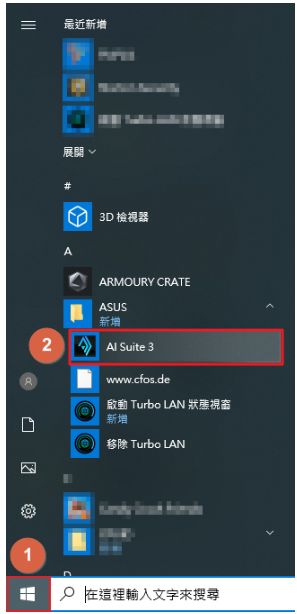
1. Нажмите на значок Windows, выберите AI Suite 3, чтобы открыть его.
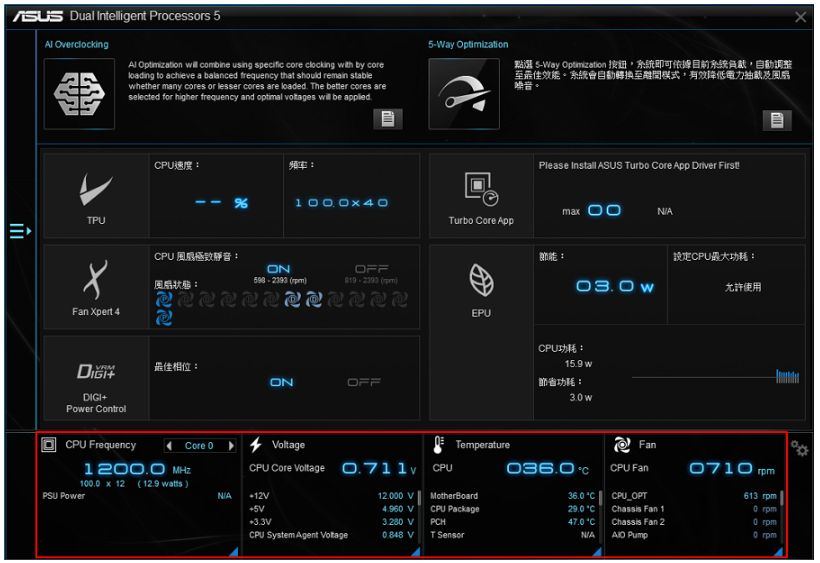
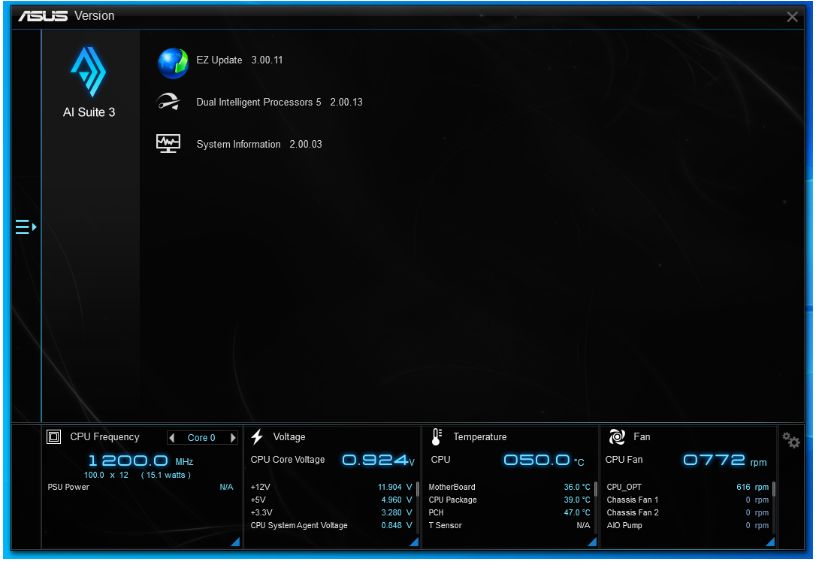
2. Вы можете контролировать частоту процессора, напряжение, температуру, вентилятор через AI Suite 3.
*Например, PRIME X299 EDITION 30.
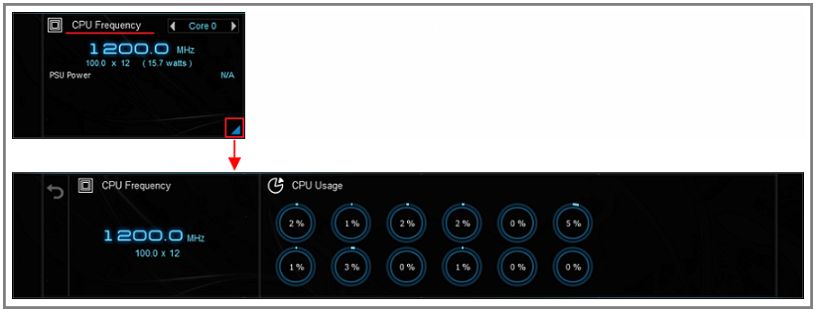
3. Нажмите синий треугольник, чтобы проверить частоту процессора и его загрузку.
*Частота процессора влияет на эффективность процессора.
*Использование ЦП означает, что ЦП используется в течение определенного периода времени, на следующем рисунке показано использование ЦП для 6-ядерных 12-потоков.
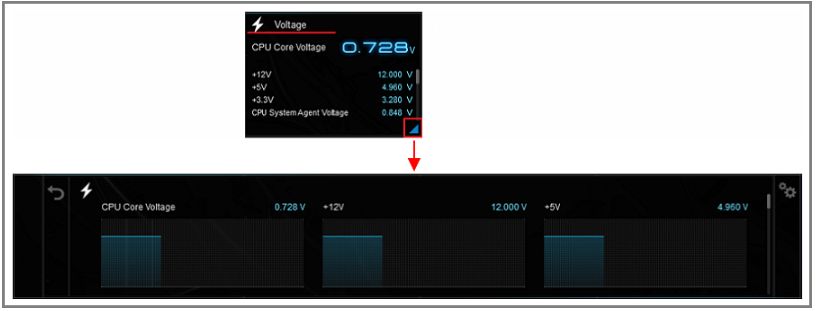
4. Нажмите синий треугольник, чтобы отслеживать разнообразие каждого напряжения.
* + 12В подает напряжение на процессор, графическую карту и PCI Express.
* + 5В обеспечивает напряжение для памяти, порта ввода / вывода и SSD.
* + 3,3В обеспечивает напряжение для PCI Express, южного моста и локальной сети на материнской плате.
5. Нажмите синий треугольник, чтобы отслеживать различные температуры, такие как CPU, PCH, VRM, PSU и т. д.
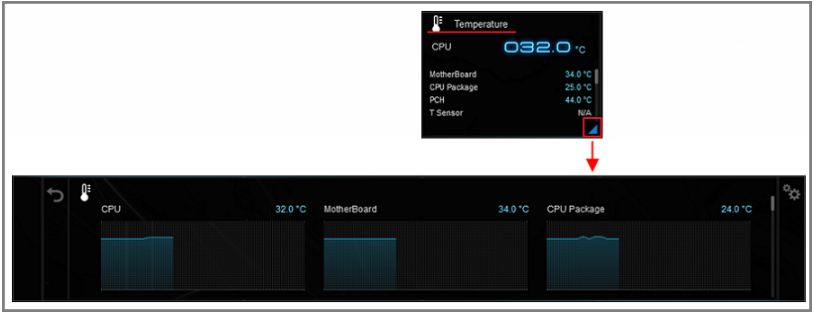
6. Нажмите синий треугольник, чтобы контролировать скорость вращения каждого вентилятора.
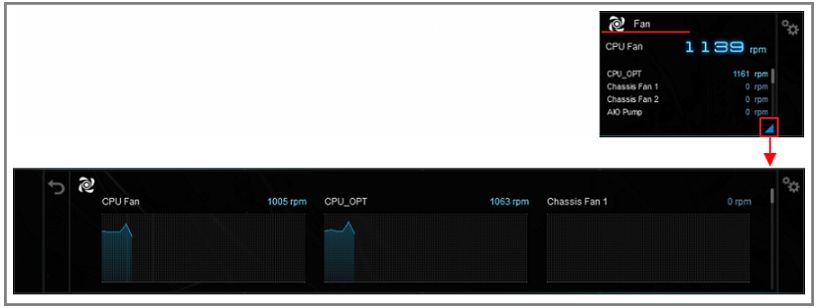
7. Щелкните значок Назад и щелкните значок списка, чтобы открыть список программного обеспечения.
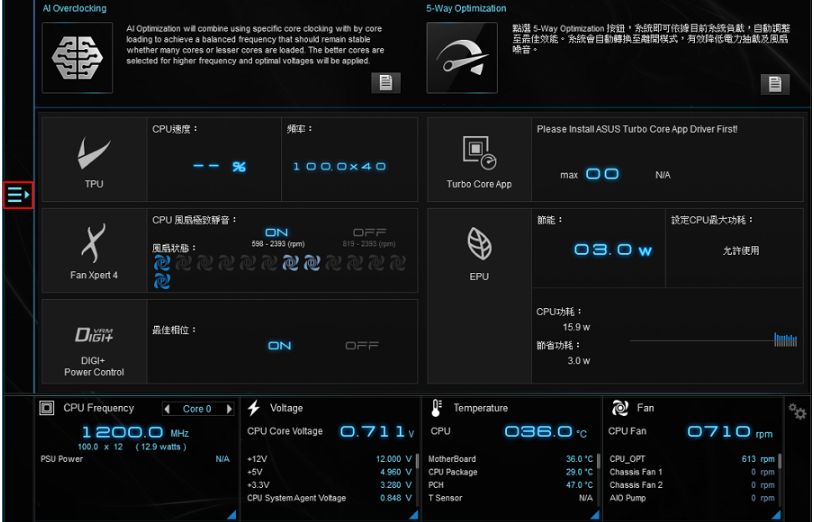
8. Нажмите, чтобы открыть программное обеспечение, список программного обеспечения может отличаться в зависимости от модели платы.
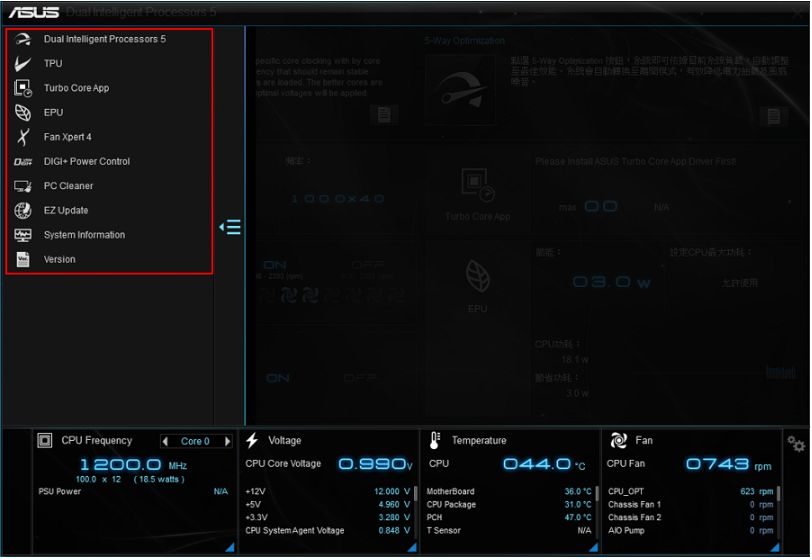
9. Для каждого программного обеспечения, пожалуйста, обратитесь к связанным темам для более подробной информации.
Системная информация предоставляет информацию о MB, CPU и SPD.
Версия предоставляет версию программного обеспечения в AI Suite 3 и версию системы.
FAQ
Q1: Как установить AI Suite 3?
Шаг2: Укажите модель вашей материнской платы.

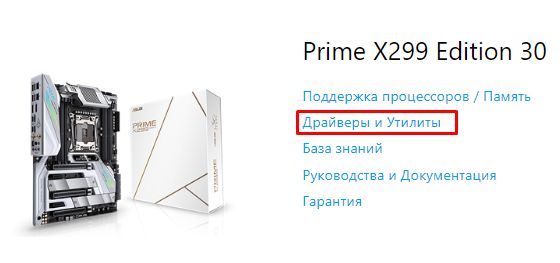
Шаг3: Выберите Драйверы и Утилиты
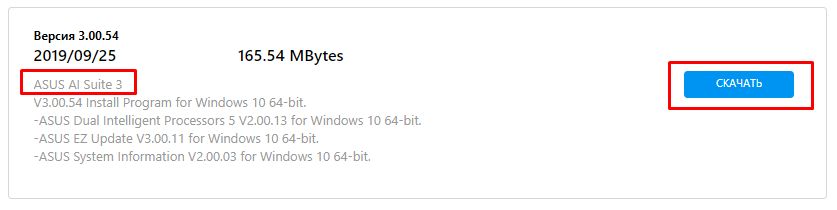
Шаг4. Укажите вашу ОС и скачайте последнюю версию AI Suite 3 из папки Utilitites
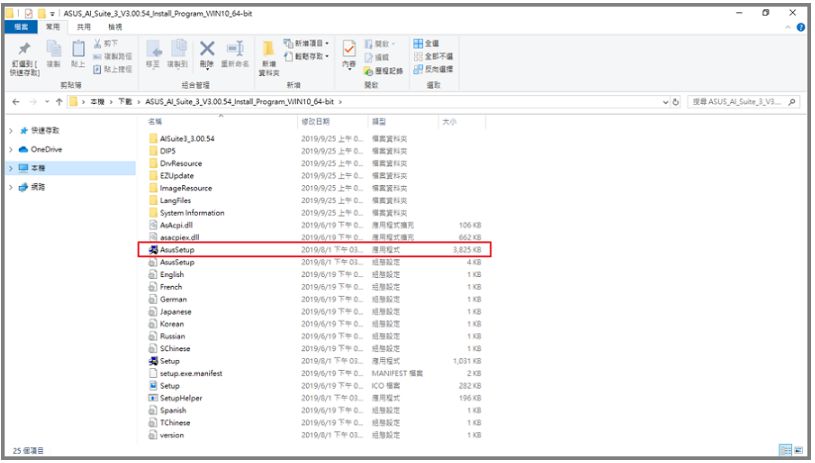
Шаг5: Извлеките файлы и откройте AsusSetup.
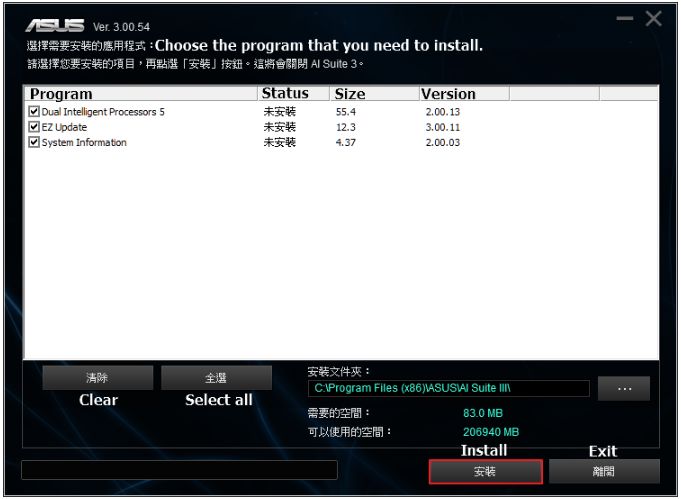
Шаг6: Выберите программу, которую вы собираетесь установить, и нажмите Установить. (Мы рекомендуем вам установить все программы для удобного мониторинга вашей системы.)
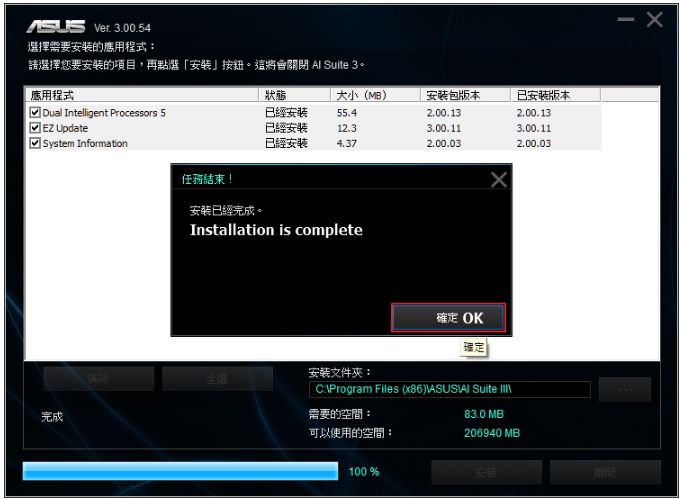
Шаг7: Нажмите OK, когда AI Suite 3 завершит установку.
Q2: Как удалить AI Suite 3?
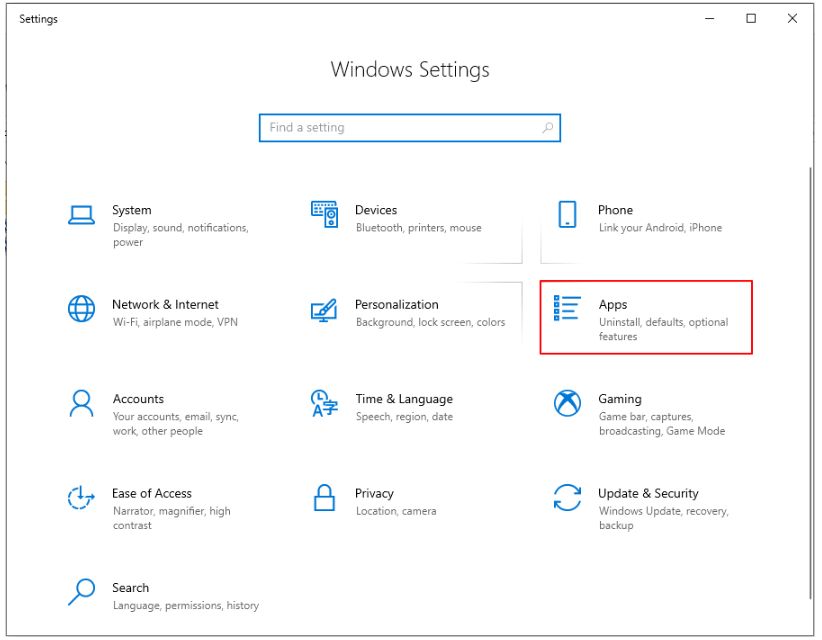
Шаг 1. Откройте настройки Windows и нажмите Приложения.
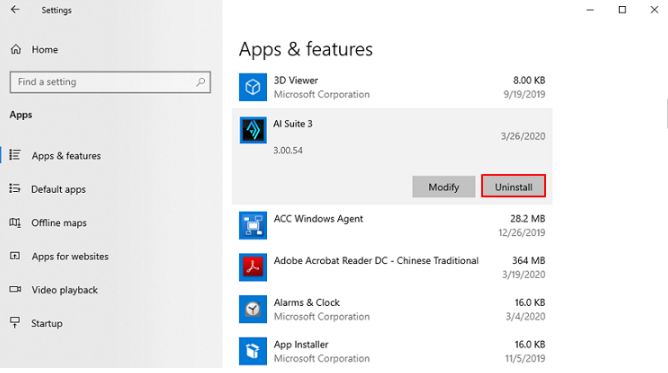
Шаг2: Выберите AI Suite 3 и нажмите Удалить
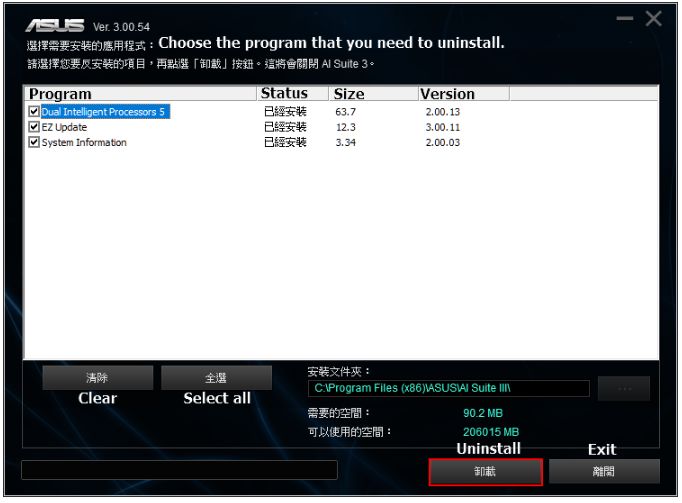
Шаг 3: выберите программу, которую вы собираетесь удалить, и нажмите Удалить.
Эта информация была полезной?
Что мы можем сделать, чтобы улучшить эту статью?
- Приведенная выше информация может быть частично или полностью процитирована с внешних веб-сайтов или источников. Пожалуйста, обратитесь к информации на основе источника, который мы отметили. Пожалуйста, свяжитесь напрямую или спросите у источников, если есть какие-либо дополнительные вопросы, и обратите внимание, что ASUS не имеет отношения к данному контенту / услуге и не несет ответственности за него.
- Эта информация может не подходить для всех продуктов из той же категории / серии. Некоторые снимки экрана и операции могут отличаться от версий программного обеспечения.
- ASUS предоставляет вышеуказанную информацию только для справки. Если у вас есть какие-либо вопросы о содержании, пожалуйста, свяжитесь напрямую с поставщиком вышеуказанного продукта. Обратите внимание, что ASUS не несет ответственности за контент или услуги, предоставляемые вышеуказанным поставщиком продукта.
- Support
Продукты и информация
- Ноутбуки
- Сетевое оборудование
- Материнские платы
- Видеокарты
- Смартфоны
- Мониторы
- Показать все продукты
-
Item_other —>
- Моноблоки (All-in-One)
- Планшеты
- Business Networking
- Серия ROG
- AIoT и промышленные решения
- Блоки питания
- Проекторы
- VivoWatch
- Настольные ПК
- Компактные ПК
- Внешние накопители и оптические приводы
- Звуковые карты
- Игровое сетевое оборудование
- Одноплатный компьютер
- Корпуса
- Компьютер-брелок
- Наушники и гарнитуры
- Охлаждение
- Chrome-устройства
- Коммерческие
как удалить al suite 3 asus с windows 10
Ran into this problem recently. After installing a new video card, Ai Suite III failed to run properly and could not uninstall due to «reboot required» bug.
Found this solution on another forum and thought I’d share since it worked for me.
Step 1: Open Task Manager – End the following Processes
AISuite3.exe
DIPAwayMode.exe
iUSB3.exe
U3Boost.exe
EPUShortcut.exe
Stop the following Services
AsusFanControlService
asComSvc
aS HmComSvc
Step 2: Go to C:\ProgramFiles(x86)\ASUS\
Erase program files and folders (erases all of them, but you might be able to only do selected ones).
Step 3: Obtain AI3 Cleaner.exe (shown as Cleaner.exe) from another post on this Forum and run the cleaner.
Step 4: Go to hidden directory C:\ProgramData\ASUS and erase at lease AISuiteIII, DipAwayMode, FanXpert folders. (I attempted to run Uninstall after each of the first three steps and got the “You must reboot…” warning until this step – so I suspect the uninstall issue was related to this alone)
Step 5: Reinstall AI3.
If the problem persist there are certain markers in the Registry that can cause this to occur. If the install/reinstall software is buggy it might not clean up:
HKEY_Local_Machine\SYSTEM\CurrentControlSet\Sessio nManager\PendingFileRenameOperations or \FileRenameOperations. (these can exist in ….\SYSTEM\ControlSet001 or 002).
These can make Windows continue to as for a reboot.
New ROGer Array Navajo PC Specs
| Navajo PC Specs | |
| Motherboard | ASUS RAMPAGE V EXTREME |
| Processor | Intel Core i7-5930K Prosessor Socket-LGA2011-3, 6-Core, 3.5GHz |
| Memory (part number) | Corsair Dominator DDR4 2666MHz 32GB |
| Graphics Card #1 | MSI GeForce® GTX 1080 ti |
| CPU Cooler | Corsair Hydro Series™ H100 Extreme Performance Liquid CPU Cooler |
| Power Supply | Corsair AX860i Digital ATX Power Supply |
| OS | Windows 10 |
Join Date Jan 2017 Reputation 10 Posts 3
AI Suit 3 is worse than a virus to get rid of.
Im having issues with CPU Fan stopping and restarting (Cooler Master V8 GTS in ROG Strix B250F Gaming MBoard)
Thought it may be to do with the AI Suite Fan control, so after a few adjustments and error messages for Fan Control during gaming
Thought I might just remove and reinstall, should be simple, Yeah Right
So now when I reinstall AI Suite, I only get AI Suite 3
no Performance & power Saving Tools, no EZ Update, No Fan Control expert 4 and so on
But i do notice, my Fan names have been remembered some how even after following your process
the below Registry entries, Do I delete them if im still having problems with AI Suite 3 Reinstall?[/COLOR]
«If the problem persist there are certain markers in the Registry that can cause this to occur. If the install/reinstall software is buggy it might not clean up:
HKEY_Local_Machine\SYSTEM\CurrentControlSet\Sessio nManager\PendingFileRenameOperations or \FileRenameOperations. (these can exist in ….\SYSTEM\ControlSet001 or 002).
These can make Windows continue to as for a reboot. «
If you want to download AI Suite Cleaner you can find it at the link below.
https://rog.asus.com/forum/showthrea. uite-3-cleaner
Thanks for joining in Pharma
Appreciate all any help i can get
I did manage to get a hold of cleaner tool and havent progressed any further so far
now ai suite wont start and recieved the following message
i thought i should add,
Been running this setup sine 2017 when i joined ROG and have no issues otherwise
The fans are running fine without the AI SUite 3 software Installed, (Running from ASUS UEFI BIOS settings)
and
Was running perfectly fine up untill i noticed the CPU Fan stopping and starting randomly, which is when i started the manual adjusted which ended with the above error messages
Again, any help is greatly appreciated
You path is likely different, but my path like «C:\Program Files (x86)\ASUS\AsusFanControlService\2.00.92\AsusFanCo ntrolService.exe»
It looks like you might have «installation junk» still left from a previous installation. I’m not certain, but I think older AI Suite installations used different folders for certain programs/executables. Sometimes registry entries are not removed with the cleaner, or a physical folder still exists on the harddrive.
What I do after running the cleaner is to edit the windows registry and perform a search for entries containing similar to the following:
C:\Program Files (x86)\ASUS\AI Suite III
C:\Program Files (x86)\ASUS\AsusFanControlService
C:\ProgramData\ASUS\AI Suite III
Etc.
In general if your computer is clean of AI Suite III installation and features, no physical folders on your hard drive or registry entries should exist that refer to AI Suite. If you do clean your registry make sure you know what you are doing. Always make a backup of your installation drive if problems occur later.
If the registry stuff is too much, one thing you can try is to install the last version of AI Suite that was working on your computer. Once that is installed you can run the newer AI Suite installation and upgrade the older AI Suite with the latest modules.
Как удалить ASUS AI Suite?
Как удалить ASUS AI Suite 3?
Используйте официальный деинсталлятор Ai Suite 3. Перезагрузить. Остановите все службы, связанные с ASUS. Удалите папку ASUS в программных файлах (x86).
Как удалить ASUS AI Suite из автозагрузки?
В крайнем левом углу разверните Библиотеку планировщика заданий. Выберите «ASUS» Посередине вы увидите две задачи под названием «ASUS AI Suite II Execute» и «Справка ASUS DigiVRM». Щелкните их правой кнопкой мыши и выберите «Отключить» (вы можете выбрать обе, удерживая Shift или Ctrl. и щелкнув по ним левой кнопкой мыши)
Как установить ASUS AI Suite?
Нужен ли мне AI suite3?
AI Suite 3 — отличная программа для легкого разгона. Это не даст вам максимального разгона, но даст вам самый быстрый стабильный разгон. Так что это нормально использовать. Но если вы хотите достичь наивысшего уровня, то вам нужно работать.
Стоит ли отключать службу ASUS com?
Также было много сообщений о том, что AtkexComSvc и Asus Motherboard Utility вызывают проблемы с другими элементами компьютера. Поэтому рекомендуется отключить или даже удалить Утилиту и связанные с ней компоненты. Это абсолютно безопасно и не будет иметь никаких побочных эффектов на компьютере.
Что такое ASUS AI Suite?
ASUS AI Suite II — это универсальный интерфейс, который объединяет несколько утилит ASUS и позволяет пользователям запускать и использовать эти утилиты одновременно.
Как отключить EZ Update при запуске?
Два варианта: 1] Щелкните правой кнопкой мыши значок панели задач для отображения расписания и маркированного пункта «Нет». 2] Перейдите в Панель управления, (Программы) удалите программу, щелкните правой кнопкой мыши AI Suite — Удалить / Изменить. Установите флажок EZ Update, чтобы удалить, и следуйте инструкциям.
Как мне избавиться от Fan Xpert 4?
Двумя способами, удалите его или нажмите на шестеренку там, где есть настройки, или, может быть, щелкните правой кнопкой мыши значок задачи и выключите.
Где я могу скачать ASUS AI Suite?
Путь загрузки следующий :
Как мне обновить AI Suite?
Как открыть AI Suite?
Как использовать AI Suite 3
Безопасен ли разгон ИИ?
Это безопасно, но обычно они используют очень высокое напряжение для часов, что вызывает более высокие температуры. Вы можете использовать AI в качестве ориентира, а затем немного снизить напряжение, пока все не станет нестабильным, а затем немного увеличить напряжение. …
Как отключить AI Suite?
Как отключить ASUS Mini Bar. Чтобы отключить виджет, перейдите на панель задач рядом с часами, найдите значок AI Suite 3 и щелкните его правой кнопкой мыши. Наконец, снимите галочку с ASUS. После того, как вы выполните этот шаг, виджет исчезнет с вашего рабочего стола и не вернется, если вы не проверите его снова.
Что такое ASUS AI Suite3?
AI Suite 3 имеет две функции: одна — отслеживать состояние системы, другая — интегрировать программное обеспечение ASUS, чтобы можно было легко получить доступ к программному обеспечению ASUS через AI Suite 3.
Asus AI Suite3 will not uninstall
Michael_707
Commendable
marksavio
Estimable
Michael_707
Commendable
Been, there, done that, I am not certain that it actually does anything.
I think it might be an exe that either fires off a bat file or a powershell script.
It opens up a small window that doesn’t even have time to render before it vanishes?
I would be much more interested in what is in the script its running?
Interestingly the installer does the same thing.
Put a pause in the bat file for readability!
Thanks for replying.
I would do a manual redgedit deletion, but its a suite of a least 8 or more apps all with different names and I have no ideal what needs to be removed?
Michael_707
Commendable
You would think that installing the upgrade would overwrite the old one, but unfortunately it doesn’t seem to install over the faulty one.
Why don’t they write complete uninstallers? Every unistaller I have seen to date always leaves some garbage in the registry.
I could fix the whole problem my backing out the microsoft update? Someone said they did that?
Michael_707
Commendable
Add/remove programs runs the installer in install mode, so I could not uninstall?
Running the installer I downloaded also puts in into install mode, so I could not uninstall?
Running Microsoft Program Install and Uninstall failed to detect Aisuite, so no joy?
Running AI3Cleaner did not seem to work, don’t really know cause all the apps trigger the problem?
AiSuite 3 comes with 8 applications, Ai Charger+, Dual Intelligent Processor 5, EZ Update, Mobo Connect, Push Notice, System Information, USB 3.1 Boost, USB BIOS Flashback.
If you launch the installer from the startmenu->program->ASUS->AiSuite3->uninstall AiSuite3, then the installer comes up in uninstall mode.
Unfortunately it only seems to uninstall one application at a time, sort of. I must of have rebooted about 12 times, but now it is all gone.
Windows 10 kept asking me if the installer was working, ha. Sort of I guess?
How to Uninstall/Remove Asus AI Suite III, EZ update and Fan Expert III From your Computer.
If you have recently built a new PC with one of Asus’s new motherboards or graphics cards, you’ve probably also taken the time to install Asus’s bundled AI Suite III software. Whilst AI Suite III comes with tons of system monitoring and performance management tools wrapped in a high-tech interface, it also comes with a cost. AI Suite III and its buddy software are resource hungry beasts and to top it all off, they are damn hard to remove from your PC.
When you initially installed AI Suite III, EZ update, Fan Expert III, and all the other add-ons on your computer, you were probably pretty stoked with the features and customization tools. After a while, if not immediately, you would have noticed just how much of a drain on your system it is. I too had this problem after installing the entire software bundle to manage my Asus ROG Crosshair Hero VI Motherboard.
Generally, when setting up a new computer I would normally just use the system BIOS to make all the performance changes I needed. This time around, however, after updating the BIOS and making some subtle changes, I thought I would try the AI Suite III bundle… At first, after installing the software and browsing the options, I was quite impressed with the layout, user interface design and the ease in which hardware settings could be managed. Unfortunately, this pleasant surprise was short lived after analyzing the impact AI Suite III had on startup speed and overall system resource use.
No doubt if you are reading this, you’ve also experienced similar resource issues and are now trying to uninstall/remove Asus AI suite III from your computer. For whatever reason AI suite 3 and all its buddies including EZ update and Fan Expert 3, don’t show in the Windows Control Panel program removal screen. They also don’t show as options to disable in the startup list, this makes uninstalling AI Suite a tremendously painful task.
How to Manually Uninstall AI Suite III and Remove AI Suite III Bundle Software.
As there are no traditional options available for removing AI suite III, you will need to manually delete the program from your computer. Even if you are lucky enough to have an uninstall option appear in your start menu or the control panel, you will still need to manually remove fragments left behind in the Windows registry.
Note: If you were smart enough to create a restore point before installing Asus AI suite III you can remove it by restoring your computer to a state before the Install. If you weren’t smart enough (like me) it’s still worth checking to see if there is another restore point available to use. If you don’t have any restore points, keep on reading below.
To start the removal process, if you have an uninstall option, use it and uninstall AI Suite III from your computer, then Restart your machine. If you don’t have the option, you will need to manually delete the contents from C:\Program Files (x86) > Asus > AI Suite III (or where ever you installed it to on your computer) Make sure you also delete EZ Update and Fan Expert 3 whilst you are inside the Asus folder.
Note: You may not be able to delete everything as Windows may say the contents of the folder are in use. If this is the case, Restart your computer in Safe Mode, return to the same folder and delete the remaining contents.
Once you have removed all the visible signs of AI Suite 3, you will need to clean the rest from your Windows registry. In order to do this, you will need to use a program called CCleaner. (it’s free) Once you have downloaded and installed CCleaner, run the registry cleaning tool and Fix all the errors it finds. Whilst you have the tool open, you should also run a full system scan to fix any issues.
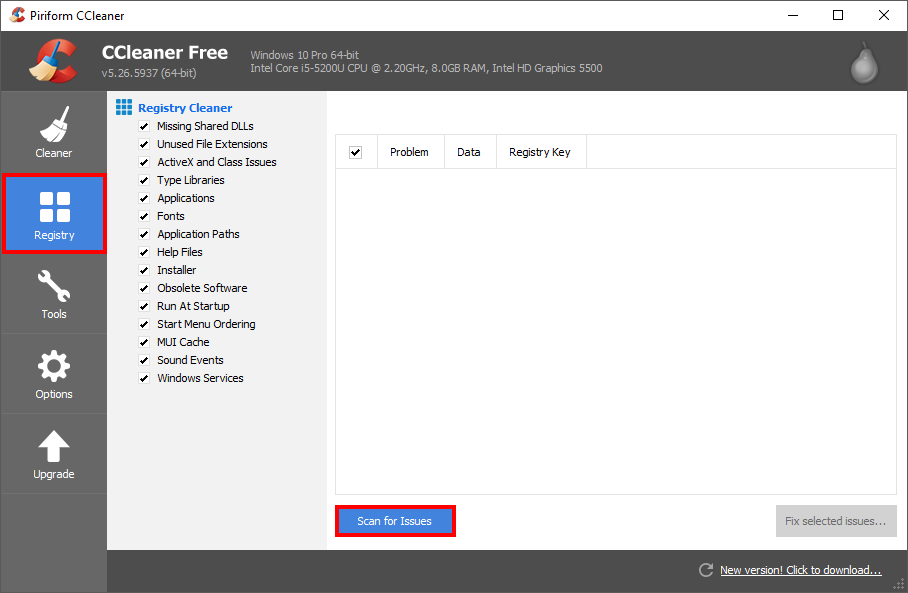
Generally, CCleaner will remove all traces of a program from your computer, however, in the case of AI Suite III, you will still manually need to delete contents from your Windows Registry, especially if you were using Fan Expert III. Even with most of the folders removed Fan Expert III will continue to control your fan speeds.
To manually remove the remaining AI suite files, open the Windows Run tool by pressing Windows key + R and typing regedit into the box. When you have the registry editor open, go to Edit > Find (at the top) and search AI Suite III. The search may take some time, so be patient. When search finds an item related to AI suite III delete the entry from the right-hand pane.
Note: Pay attention to the entries in the left-hand pane as the search will narrow down the files to their folders. If you see an entire ASUS AI Suite III folder in the left pane delete it.
You will need to keep searching AI Suite III until the registry search doesn’t show any more entries. Once you have deleted everything under AI Suite III, start searching and deleting content for Fan Expert III, EZ Update and whatever other add-ons you installed with AI Suite III bundle. (be patient, it will take some time to find all the files and folders.)
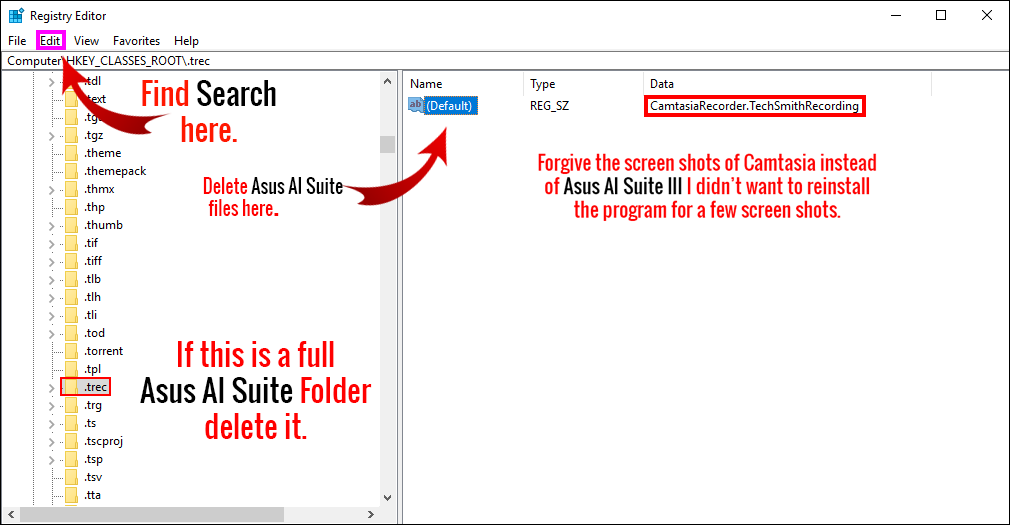
Once you have finished clearing all the files from the registry, Restart your computer in Safe Mode again and run CCleaner. Now, scan the registry and fix any errors or issues. Whilst you are still in safe mode, go back into the Asus folder in C: drive (or wherever you have Windows installed) and make sure everything related to AI suite has been removed.
That’s it, AI suite will be completely removed from your computer. In future, if you do need to make any changes to your computer’s hardware, I’d recommend sticking with the BIOS for all your major changes. On another note, if you are looking for more Fan Speed control options and information, check out the below video by JayzTwoCents on Youtube, you won’t regret it.
Как пользоваться ASUS AI Suite 3
Недавно получилось познакомиться с материнкой ASUS TUF Gaming X570-Plus (Wi-Fi). Она поддерживает фирменное программное обеспечение: AI Suite III, Armoury Crate и AURA Creator. Именно первое позволяет повысить производительность или энергосбережение системы.
Эта статья расскажет, как пользоваться ASUS AI Suite 3. Загрузить его можно с официального сайта производителя. В подразделе драйверов и утилит для Вашей материнской платы. Стоит отметить наличие несколько бесполезного бенчмарка и возможности очистки компьютера.
Настройка Performance and Power Saving Utilities
DIGI+VRM
Собственно AI Suite 3 имеет свой мониторинг частоты, напряжения, температуры и скорости вентиляторов. Эти данные отображаются во всех разделах приложения. Для того чтобы можно было контролировать состояние процессора (в основном только он и поддаётся разгону).

| VDDCR CPU & SOC Power Phase Control | Optimized: средне оптимизированные настройки фаз. Extreme: режим полной фазы, собственно экстрим. Manual: количество фаз регулируется шагом. |
| VDDCR CPU & SOC Load Line Calibration | Позволяет регулировать диапазон напряжений. Высокое для производительности или низкое для энергосбережения. |
| VDDCR CPU & SOC Current Capability | Высокое значение обеспечивает широкий диапазон питания и одновременно расширяет частотный диапазон разгона. |
| VDDCR CPU & SOC Switching Frequency | Переключение частоты влияет на переходные характеристики VRM и температуру компонентов. Высокая частота увеличивает производительность. |
Важно! Не вносите изменения в подразделе DIGI+VRM, если не имеете опыта в разгоне. Эти параметры напрямую могут как повысить производительность или снизить энергопотребление, так и навредить комплектующим. Внимательно вчитывайтесь в описание каждого параметра.
Этот раздел содержит режимы: Высокая производительность, Энергосбережение и Режим отсутствия. На примере энергосбережения можно рассмотреть доступные настройки. А это напряжения ядра, режим отсутствия, схема управления питанием и профиль вентилятора.

TurboV EVO
Здесь можно вручную поднять частоту и вольтаж процессора. Собственно имеется и автоматический разгон системы назыв. Auto Tuning, просто нажмите Начало. Протестировать авторазгон нет возможности. Например, мой Ryzen 5 3600 материнка MSI разгоняет до 4.2 ГГц.

Fan Xpert 4
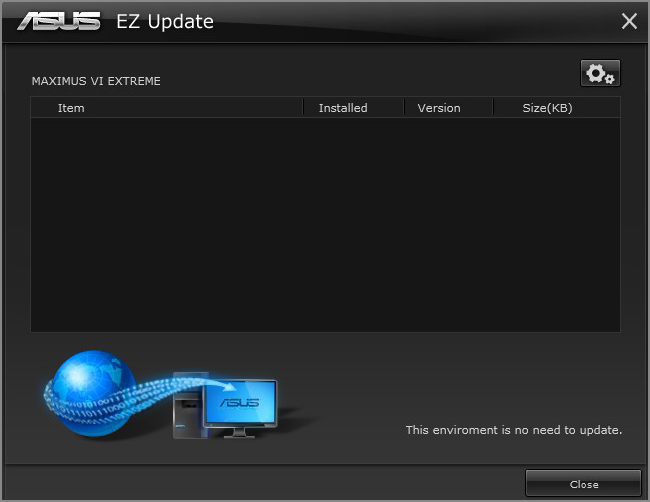
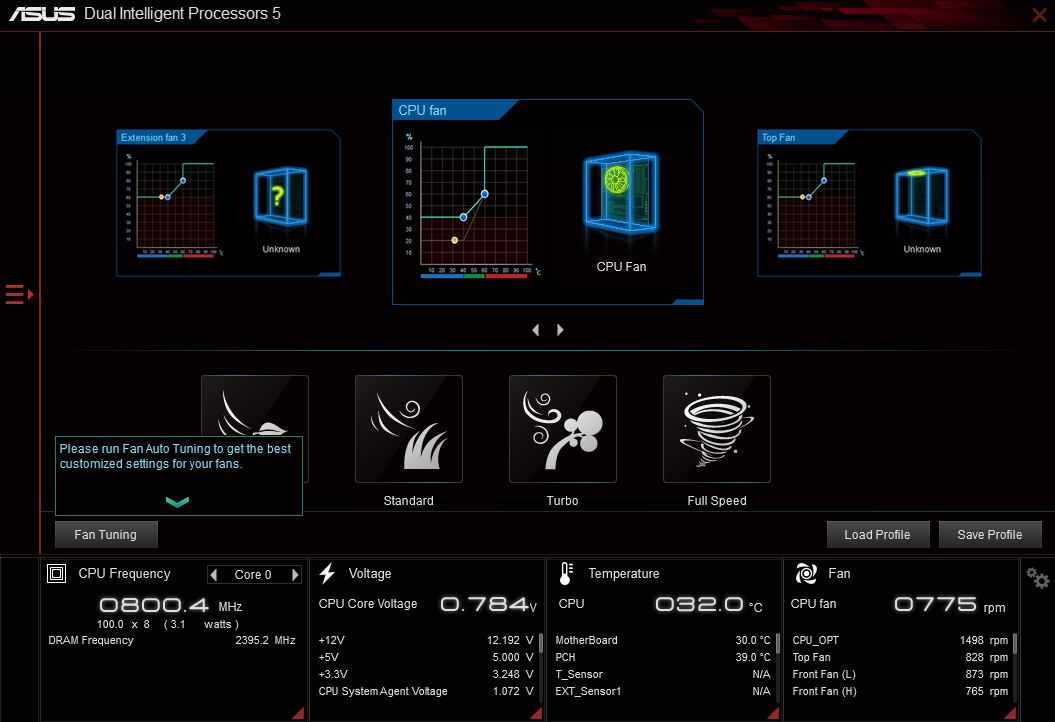
Раздел используется для регулировки скорости каждого вентилятора или автоматической настройки. Вы можете выбрать с предустановленных профилей: тихий, стандарт, турбо и полная скорость. А также присутствует небольшой встроенный Benchmark (бесполезный, зато свой).

Это то, что касается прямого назначения ASUS AI Suite 3. Не обошлось и без подраздела PC Cleaner (он должен помочь избавится от ненужных файлов). Раздел EZ Update поможет быстро обновить важные драйвера. Ну а System Information показывает характеристики компьютера.
Можно утверждать, что интерфейс ASUS AI Suite 3 нуждается в доработке. Какой-то он грустный и давно устаревший. В приложении имеются как полезные функции, так и полностью ненужные. Вот, например, я бы точно не рискнул в нём очищать свой компьютер от ненужных файлов.
Aisuite3 exe ошибка приложения
Если вы пользуетесь компьютером или ноутбуком ASUS, то можете столкнуться с ошибкой Aisuite 3 AtkexCom.axdata и Dipawaymode в Windows 11/10 после обновления системы.
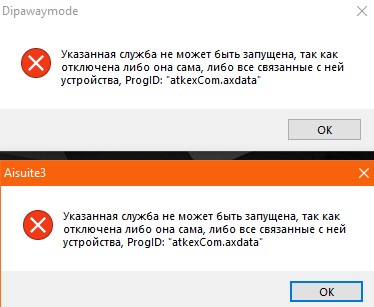
Ошибка Dipawaymode и Aisuite 3 AtkexCom.axdata может звучать в разных вариациях: сбой при удаленном вызове процедуры, служба ответила не своевременно, при выполнении приложения сервера или же Dipawaymode указывает на проблемы с AtkexCom.axdata.
Ошибка Dipawaymode (AtkexCom.axdata) обычно возникает из-за конфликта между Asus AI Suite 3 и каким-либо несовместимым патчем KB… в Windows 11/10. Кроме того, не со всеми материнскими материнскими платами Aisuite 3 совместимо. Это можно узнать на официальном сайте производителя выбрав свою модель, перейти в раздел драйвера и утилиты, нажав показать всё и, если в списке утилиты не будет, то значит она не будет работать.
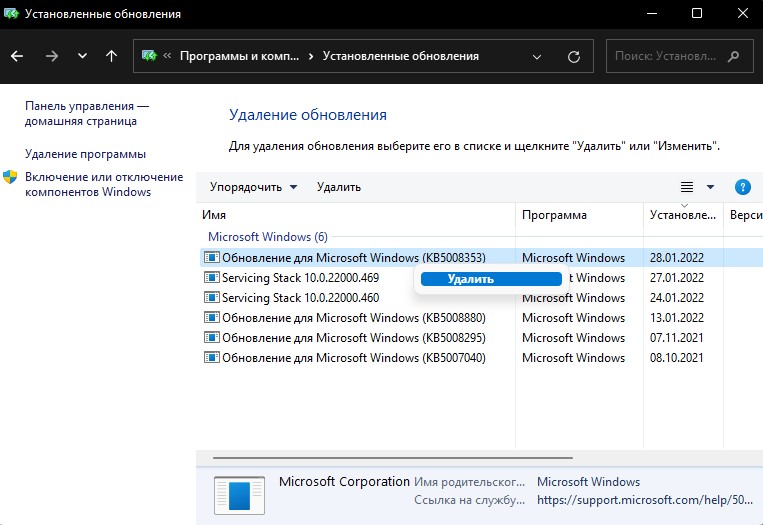
1. Удалить последнее обновление
- Нажмите Win+R и введите appwiz.cpl
- Справа выберите Просмотр установленных обновлений
- Удалите обновление после которого начала возникать ошибка
2. Удалить Asus AI Suite 3
Asus AI Suite 3 — Мощная программа для производителей материнских плат ASUS и ноутбуков для управления различными настройками как настройка сна, BIOS и многое другое. Это может и приводить к различным конфликтам и создавать проблемы в Windows 11/10.
- Нажмите Win+R и введите appwiz.cpl
- Найдите программу AI Suite 3 и удалите её

Примечание: Иногда AI Suite 3 может зависать с ошибкой не поддержки операционной системы Windows. В этом случае воспользуйтесь такой программой как Revo Uninstaller для удаления. Если это также не сработает, то используйте точку восстановления , чтобы откатить систему назад на пару дней.
Смотрите еще:
- Ошибка AsIO.sys на синем экране Windows 10
- Как удалить программы и приложения в Windows 11
- Что за процесс ASUS Com Service (atkexComSvc.exe) в Windows 10?
- Как удалить обновление Windows 11
- Как удалить обновление Windows 10
AI Suite 3 — Устранение неисправностей
Если AI Suite 3 работает некорректно во время установки или использования, пожалуйста, используйте следующие советы.
1. Я могу использовать первоначальную версию AI Suite III после обновления системы Windows 10?
После обновления до Windows 10, AI Suite 3 также необходимо обновить до совместимой с Windows 10 версией, чтобы все работало.(нажмите здесь для детального изучения.)
2. После обновления с исправлением безопасности от Microsoft AI Suite3 не может запуститься нормально, какое будет решение?
После обновления Windows 10, AI Suite 3 также необходимо обновить до совместимой с Windows 10 версией, чтобы все работало.(нажмите здесь для детального изучения.)
Пожалуйста, сперва удалите старую версию AI Suite 3, затем установите версию для Windows 10. Путь для скачивания следующий:
Вы можете скачать эту утилиту с сайта ASUS: https://www.asus.com/ru/support/ , указав свою модель платы.
Укажите наименование модели > Поддержка > Драйверы и Утилиты > Укажите ОС > Utilities > ASUS AI Suites III
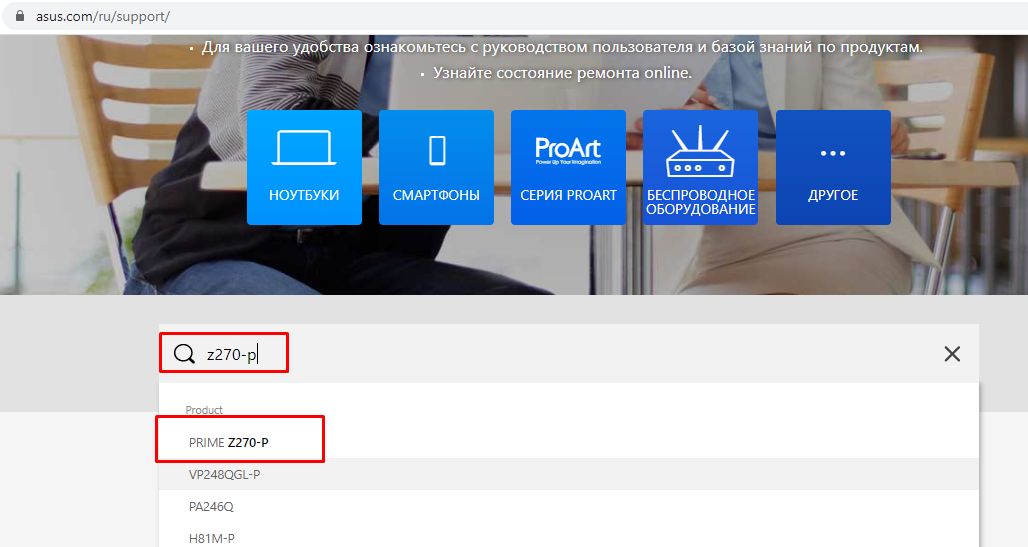
1. Перейдите на официальный сайт поддержки Asus, укажите модель и нажмите поиск.
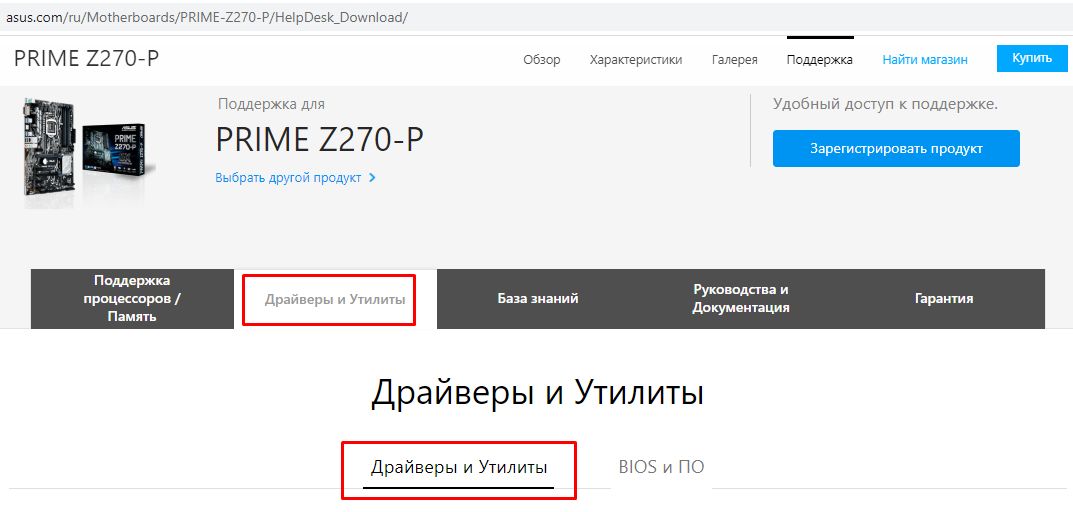
2. Перейдите на страницу поддержки и выберите Драйверы и Утилиты
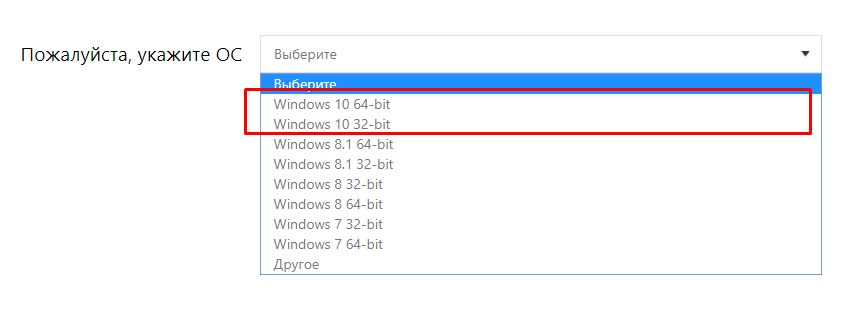
3. Укажите ОС Windows 10
4. Найдите папку Utilities и нажмите Показать все
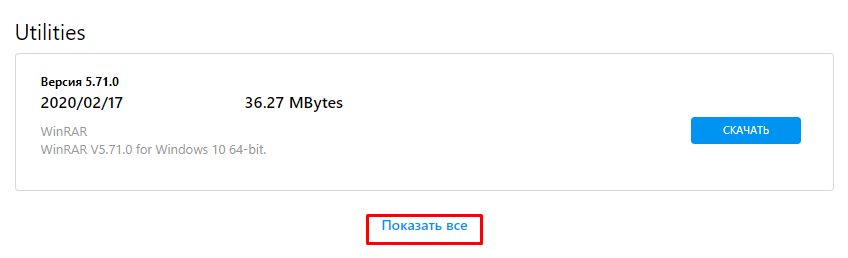
5. Выберите самую позднюю версию AI Suite III и нажмите СКАЧАТЬ

3. В списке утилит под Windows 10 для моей материнской платы нет утилиты AI Suite III, как тогда ее установить?
Пожалуйста, убедитесь, что ваша материнская плата имеет поддержку Windows 10 и AI Suite III.
Вы можете скачать утилиту с сайта поддержки https://www.asus.com/ru/support в соответствии с вашей моделью платы.
Укажите наименование модели > Поддержка > Драйверы и Утилиты > Укажите ОС > Utilities > ASUS AI Suites III
1. Перейдите на официальный сайт поддержки Asus, укажите модель и нажмите поиск.
2. Нажмите на Характеристики в верхнем правом углу и проверьте, указана ли Windows 10 для поддержки платы и есть ли AI Suite III в списке характеристик платы.
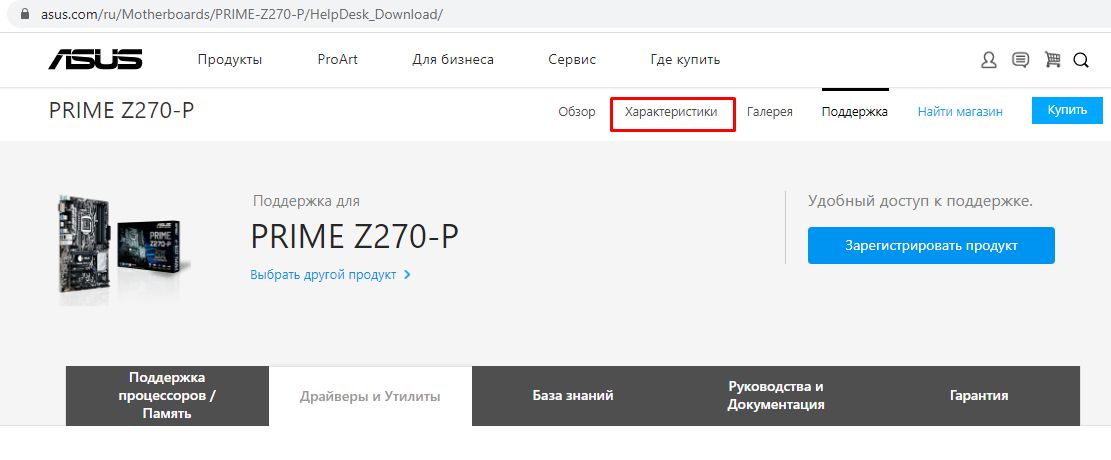
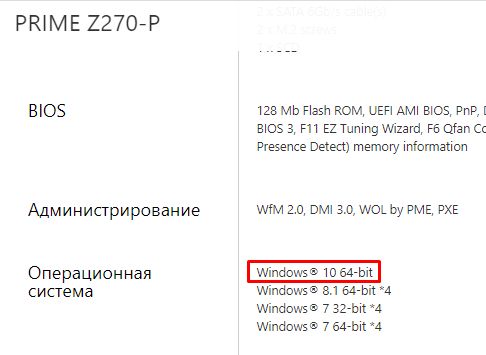
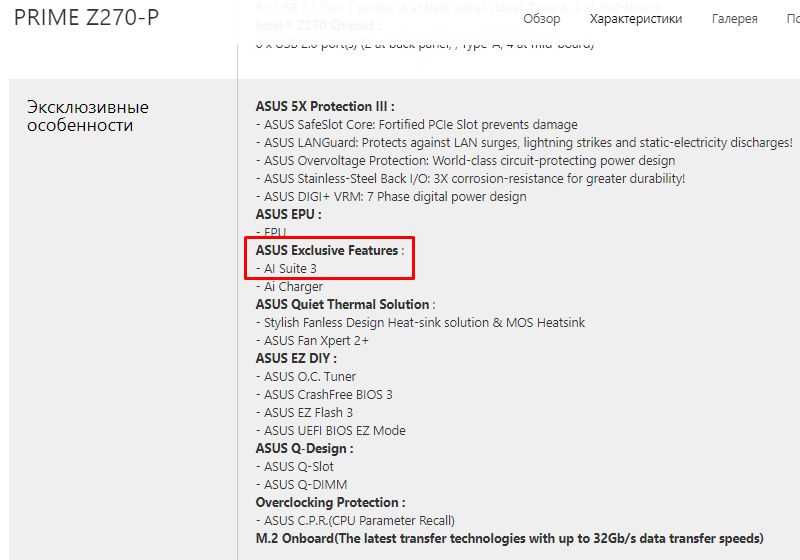
Если поддержка системы и утилиты обозначена, но в разделе Драйверы и Утилиты нет выбора ОС и данной утилиты, пожалуйста, свяжитесь со службой поддержки asus.
Если система Windows 10 не указана, или утилита AI Suite в списке характеристик не значится, значит она не поддерживается на вашей плате.
Шаги по удалению программы:
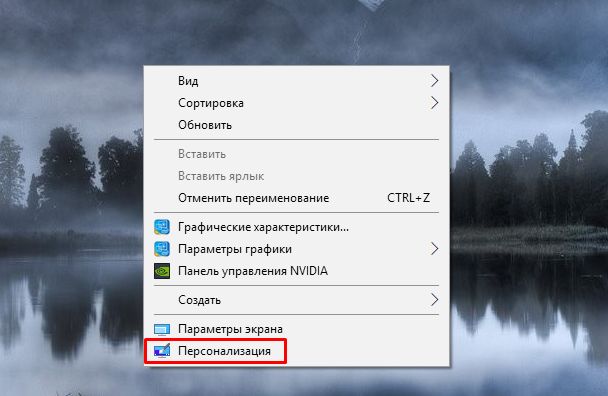
1. Кликните правой кнопкой мыши по рабочему столу и выберите Персонализация
2. Выберите Главная
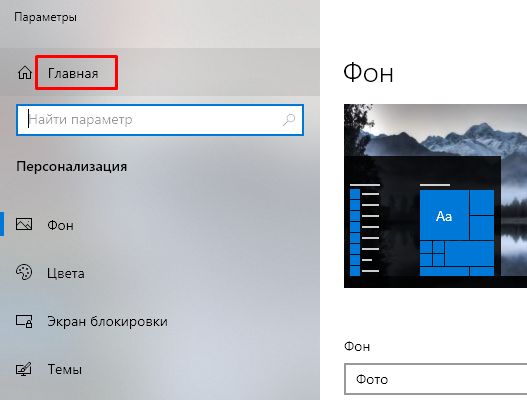
3. Перейдите на страницу параметров Windows, выберите Приложения
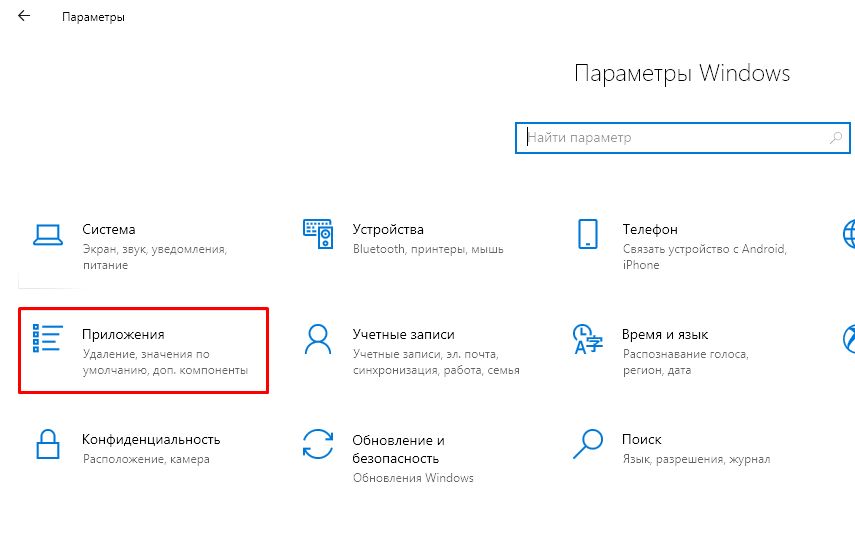
4. Выберите AI Suite 3 и нажмите Удалить
5. Выберите пункты, которые должны быть удалены из системы
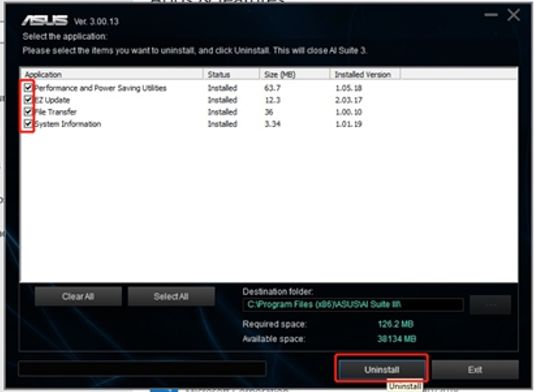
6. Перезагрузитесь и убедитесь, что AI Suite 3 полностью удалена.
Примечание : разные версии системы могут иметь отличный интерфейс от представленного в статье. Если AI Suite III не может быть удалена, пожалуйста, свяжитесь со службой поддержки Asus.
4. Проблемы при установке утилиты AI Suite III
Проверьте, не установлена ли старая версия AI Suite 3. Если да, удалите ее.
Затем проверьте версию Windows, попробуйте переустановить AI Suite 3 от аналогичной модели платы. Если установить утилиту так и не получилось, пожалуйста, свяжитесь со службой поддержки Asus
5. В AI Suite III представлены не все функции, которые описаны на сайте
Некоторые функции AI Suite 3 ограничены из-за спецификации той или иной материнской платы. (напр.PC Cleaner)
Если Вы уверены, что раннее работали все функции в меню AI Suite 3 и по каким-то причинам более не работают, пожалуйста, обновите AI Suite 3.
6. После переустановки платы я не могу установить AI Suite III на системный диск.
AI Suite 3 имеет собственный механизм защиты. Когда вы устанавливаете или удаляете AI Suite 3, программа проверяет: установлена у вас материнская плата ASUS или какая-то иная. Если плата от Asus, то ваш запрос система обработает, если нет — запрос будет отклонен.
Если эти советы по устранению проблем не помогли, пожалуйста, обратитесь в магазины по месту покупки, для сдачи платы в сервисные центры или обратитесь в Сервисный Центр Asus в Москве.
- ai suite 3 не запускается
- 1- Очистите мусорные файлы, чтобы исправить aisuite3.exe, которое перестало работать из-за ошибки.
- 2- Очистите реестр, чтобы исправить aisuite3.exe, которое перестало работать из-за ошибки.
- 3- Настройка Windows для исправления критических ошибок aisuite3.exe:
- Как вы поступите с файлом aisuite3.exe?
- Некоторые сообщения об ошибках, которые вы можете получить в связи с aisuite3.exe файлом
- AISUITE3.EXE
- процессов:
- asus ai suite не устанавливается
- Thread: AI Suite 3 won’t install (Win 10)
- AI Suite 3 won’t install (Win 10)
- Thread: AI Suite 3 stoped working after W10 Fall Creators Update
- Can’t install Asus Ai Suite 3 on Windows 10
- quiMthje
- GamingInsider
- quiMthje
- Giannifromq
- Giannifromq
- quiMthje
- TszChun
- hitmarker
- friskfrugt
ai suite 3 не запускается
Файл aisuite3.exe из ASUSTeK Computer Inc является частью unknown product. aisuite3.exe, расположенный в C:Program Files (x86)ASUSAI Suite IIIAISuite3.exe с размером файла 1366840 байт, версия файла 1.0.0.0, подпись 2187fec81a7a0b7b151cf4f0889c3d7c.
В вашей системе запущено много процессов, которые потребляют ресурсы процессора и памяти. Некоторые из этих процессов, кажется, являются вредоносными файлами, атакующими ваш компьютер.
Чтобы исправить критические ошибки aisuite3.exe,скачайте программу Asmwsoft PC Optimizer и установите ее на своем компьютере
1- Очистите мусорные файлы, чтобы исправить aisuite3.exe, которое перестало работать из-за ошибки.
2- Очистите реестр, чтобы исправить aisuite3.exe, которое перестало работать из-за ошибки.

3- Настройка Windows для исправления критических ошибок aisuite3.exe:

Всего голосов ( 32 ), 18 говорят, что не будут удалять, а 14 говорят, что удалят его с компьютера.
Как вы поступите с файлом aisuite3.exe?
Некоторые сообщения об ошибках, которые вы можете получить в связи с aisuite3.exe файлом
(aisuite3.exe) столкнулся с проблемой и должен быть закрыт. Просим прощения за неудобство.
(aisuite3.exe) перестал работать.
aisuite3.exe. Эта программа не отвечает.
(aisuite3.exe) — Ошибка приложения: the instruction at 0xXXXXXX referenced memory error, the memory could not be read. Нажмитие OK, чтобы завершить программу.
(aisuite3.exe) не является ошибкой действительного windows-приложения.
(aisuite3.exe) отсутствует или не обнаружен.
AISUITE3.EXE

Проверьте процессы, запущенные на вашем ПК, используя базу данных онлайн-безопасности. Можно использовать любой тип сканирования для проверки вашего ПК на вирусы, трояны, шпионские и другие вредоносные программы.
процессов:
Cookies help us deliver our services. By using our services, you agree to our use of cookies.
К сожалению, нет уверенности, что решение будет для Ai Suite 2-ого поколения, поскольку поддержка этого ПО, равно как и производство/поддержка Вашей и любой другой платы того поколения, давно прекращены.
На данный момент решением может быть откат обновления Windows.
asus ai suite не устанавливается
| Версия | Windows | Bit |  |
 |
 |
 |
| AI Suite 3 | 10 | 64 | 04.04.2019 | 3.00.50 | 163.2 [MB] | Скачать |
| 10 / 8.1 / 8 / 7 | 32 / 64 | 20.01.2016 | 1.01.30 | 207.0 [MB] | Скачать | |
| AI Suite 2 | 10 / 8.1 / 8 / 7 / Vista / XP | 32 / 64 | 13.08.2015 | 2.04.01 | 219 [MB] | Скачать |
| 8.1 | 64 | 21.06.2013 | 2.01.08 | 24.2 [MB] | Скачать | |
| 7 | 32 / 64 | 08.07.2013 | 2.01.05 | 58.7 [MB] | Скачать |
AI Suite от ASUS — это пакет программ, позволяющих снимать данные с датчиков на материнской плате и контролировать их в процессе работы. Предоставляет удобный интерфейс для управления частотой и энергопотреблением процессора, а так же доступ к другим программам поставлявшимся к вашей материнской плате.
Что входит в комплект AI Suite 2 (V2.04.01):
Определиться с разрядностью Windows поможет эта статья и видео в ней.
Для установки программного обеспечения требуется:
Если все сделано верно, а утилита не работает — удалите старую и загрузите последнюю версию AI Suite.
К сожалению, нет уверенности, что решение будет для Ai Suite 2-ого поколения, поскольку поддержка этого ПО, равно как и производство/поддержка Вашей и любой другой платы того поколения, давно прекращены.
На данный момент решением может быть откат обновления Windows.
Thread: AI Suite 3 won’t install (Win 10)
Thread Tools
Search Thread
Display
AI Suite 3 won’t install (Win 10)
I finally built my new PC and had a fair deal of trouble setting it up. Asus has a weird way of handling drivers (such as starting both 32 and 64 but sonic studio using task scheduler and then again using normal startup 2 times each (for total of 6 times), all giving popups to confirm startup of those programs ), but I managed to work around most of them somehow.
Now the only problem I have left is AI studio setup (got the latest one) simply not starting. I tried starting AsusSetup.exe and Setup.exe (as administrator) Cursor changes to indicate some sort of loading a few times, but nothing beyond that happens. I tried launching AI Suite setup directly (rather than centralized setup) and it starts, but closes shortly.
I was wondering if anyone knows what to do with that. Are there some pre-requisites I need to install first?
EDIT: I’ve tried every version listed in download page now.
My setup:
Windows 10 pro
Motherboard: Asus Maximus X Hero
CPU: Intel i7-8700k
Graphics Card: None right now
(I assume the rest is irrelevant)
ROG Guru: Yellow Belt Array Code_Frenzy PC Specs
| Code_Frenzy PC Specs | |
| Motherboard | Maximus VIII Hero Alpha |
| Processor | i7-6700k |
| Memory (part number) | LPX 3000MHz DDR4 (CMK16GX4M2B3000C15) |
| Graphics Card #1 | Zotac GTX 980ti AMP! |
| Storage #1 | (OS) Samsung SM951 256GB NVMe |
| Storage #2 | (Data) SanDisk Ultra II 960GB SSD |
| CPU Cooler | XSPC Raystorm Pro with custom loop |
| Case | Phanteks Enthoo Luxe |
| Power Supply | Corsair 1200W (Hx1200i) |
| OS | Windows 10 Pro |
| Accessory #1 | XSPC Daul bay pump/res, EX420 + RX240 rads |
| Accessory #2 | ROG Front Base |
Join Date Feb 2016 Reputation 12 Posts 152
It wouldn’t surprise me if you need to ‘Unblock’ the installer first.
Right click and select properties. In the general tab see if there is a button in the lower right hand corner of the window that says ‘Unblock’.
Click it then try installing again. This is a known issue with loads of Asus installers.
Thread: AI Suite 3 stoped working after W10 Fall Creators Update
Thread Tools
Search Thread
Display
RVE motherboard, W10 Pro. Latest AI Suite 3 downloaded from MB support page, runing smoothly. until today.
W10 decided to update itself to the Fall Creators Update. After rebooting some times, system start, I entered Windows and some error messages pop about AI suite 3 unable to start.
Rebooted the PC, but the same error messages were still there.
Tried to re-install AI Suite 3, but as soon as I double-click the installer exe, nothing happens. No error message, no new window. Nothing.
Then I tried to uninstall first AI Suite 3. Same result. The uninstalling never started.
So booted in safe mode, deleted all the ASUS folders in programs files and program data, executed the AI3Cleaner downloaded from this forum, reboted in normal mode, downloaded again latest AI Suite 3 version for my MB from the official suport page, extracted it and unblocked and marked «run as administrator» in the 39 executable files containted in it.
The result is excatly the same as the very first attempt to install it. It seems that installation would like to start. but nothing happens, installation never start.
I’ve gone back after my steps a couple of times, just in check if I missed something in the process, and done it all again. But still same results.
I don’t know if there is some kind of compatibility problem between AI Suite 3 for RVE and Windows 10 fall creators update. Please, any help would be appreciated.
Can’t install Asus Ai Suite 3 on Windows 10
quiMthje
Reputable
Hello guys, I’m using windows 10 on a new socket pc:
MOBO: Asus z170-a
CPU: Intel 6700k
RAM: 16GB G skill Ripjaws V
GPU: nVidia GTX 760 Ti
PSU: Corsair 750 AX
Sorry bout my English and any help will be appreciated.
GamingInsider
Reputable
quiMthje
Reputable
Hello! Ty for answering me!
I tried to execute the all bundle installer, and I tried to install one by one, no one worked..
Giannifromq
Reputable
Hello! Ty for answering me!
I tried to execute the all bundle installer, and I tried to install one by one, no one worked..
Same here, no progress yet. any info would help.
Giannifromq
Reputable
Hello guys, I’m using windows 10 on a new socket pc:
MOBO: Asus z170-a
CPU: Intel 6700k
RAM: 16GB G skill Ripjaws V
GPU: nVidia GTX 760 Ti
PSU: Corsair 750 AX
Sorry bout my English and any help will be appreciated.
quiMthje
Reputable
Hello! Ty for answering me!
I tried to execute the all bundle installer, and I tried to install one by one, no one worked..
Same here, no progress yet. any info would help.
I finally found a solution that worked, hope it works for you to
TszChun
Reputable
Hello! Ty for answering me!
I tried to execute the all bundle installer, and I tried to install one by one, no one worked..
Same here, no progress yet. any info would help.
I finally found a solution that worked, hope it works for you to
hitmarker
Reputable
Hello! Ty for answering me!
I tried to execute the all bundle installer, and I tried to install one by one, no one worked..
Same here, no progress yet. any info would help.
I finally found a solution that worked, hope it works for you to
Not working for me either. I have tried everything from that other thread and nothing worked. Wish there was a manual way of doing things and not relying on the installer.
friskfrugt
Commendable
Hello guys, I’m using windows 10 on a new socket pc:
MOBO: Asus z170-a
CPU: Intel 6700k
RAM: 16GB G skill Ripjaws V
GPU: nVidia GTX 760 Ti
PSU: Corsair 750 AX
Sorry bout my English and any help will be appreciated.
Hi Guys!
I believe I found the best solution to installing Asus Ai Suite 3 on Windows 10.
Having done the unbelievably time consuming current solution. (unblocking all files & changing compatibility for all users to run as Administrator.)
Do to a fresh Install of win10 and wanting Ai Suite 3 unblocking & changing compatibility again was a bummer!
In my luck and hopefully yours I found this simple and fast solution. Takes 30sec vs. 30min!
На чтение 3 мин. Опубликовано 15.12.2019
Файл aisuite3.exe из ASUSTeK Computer Inc является частью unknown product. aisuite3.exe, расположенный в C:Program Files (x86)ASUSAI Suite IIIAISuite3.exe с размером файла 1366840 байт, версия файла 1.0.0.0, подпись 2187fec81a7a0b7b151cf4f0889c3d7c.
В вашей системе запущено много процессов, которые потребляют ресурсы процессора и памяти. Некоторые из этих процессов, кажется, являются вредоносными файлами, атакующими ваш компьютер.
Чтобы исправить критические ошибки aisuite3.exe,скачайте программу Asmwsoft PC Optimizer и установите ее на своем компьютере
- 1- Очистите мусорные файлы, чтобы исправить aisuite3.exe, которое перестало работать из-за ошибки.
- 2- Очистите реестр, чтобы исправить aisuite3.exe, которое перестало работать из-за ошибки.
- 3- Настройка Windows для исправления критических ошибок aisuite3.exe:
- Как вы поступите с файлом aisuite3.exe?
- Некоторые сообщения об ошибках, которые вы можете получить в связи с aisuite3.exe файлом
- AISUITE3.EXE
- процессов:
1- Очистите мусорные файлы, чтобы исправить aisuite3.exe, которое перестало работать из-за ошибки.
- Запустите приложение Asmwsoft Pc Optimizer.
- Потом из главного окна выберите пункт «Clean Junk Files».
- Когда появится новое окно, нажмите на кнопку «start» и дождитесь окончания поиска.
- потом нажмите на кнопку «Select All».
- нажмите на кнопку «start cleaning».
2- Очистите реестр, чтобы исправить aisuite3.exe, которое перестало работать из-за ошибки.
3- Настройка Windows для исправления критических ошибок aisuite3.exe:
- Нажмите правой кнопкой мыши на «Мой компьютер» на рабочем столе и выберите пункт «Свойства».
- В меню слева выберите » Advanced system settings».
- В разделе «Быстродействие» нажмите на кнопку «Параметры».
- Нажмите на вкладку «data Execution prevention».
- Выберите опцию » Turn on DEP for all programs and services . » .
- Нажмите на кнопку «add» и выберите файл aisuite3.exe, а затем нажмите на кнопку «open».
- Нажмите на кнопку «ok» и перезагрузите свой компьютер.
Всего голосов ( 32 ), 18 говорят, что не будут удалять, а 14 говорят, что удалят его с компьютера.
Как вы поступите с файлом aisuite3.exe?
Некоторые сообщения об ошибках, которые вы можете получить в связи с aisuite3.exe файлом
(aisuite3.exe) столкнулся с проблемой и должен быть закрыт. Просим прощения за неудобство.
(aisuite3.exe) перестал работать.
aisuite3.exe. Эта программа не отвечает.
(aisuite3.exe) — Ошибка приложения: the instruction at 0xXXXXXX referenced memory error, the memory could not be read. Нажмитие OK, чтобы завершить программу.
(aisuite3.exe) не является ошибкой действительного windows-приложения.
(aisuite3.exe) отсутствует или не обнаружен.
AISUITE3.EXE
Проверьте процессы, запущенные на вашем ПК, используя базу данных онлайн-безопасности. Можно использовать любой тип сканирования для проверки вашего ПК на вирусы, трояны, шпионские и другие вредоносные программы.
процессов:
Cookies help us deliver our services. By using our services, you agree to our use of cookies.
К сожалению, нет уверенности, что решение будет для Ai Suite 2-ого поколения, поскольку поддержка этого ПО, равно как и производство/поддержка Вашей и любой другой платы того поколения, давно прекращены.
На данный момент решением может быть откат обновления Windows.
Добавлено: 11.06.2021 16:11
Статус: Не в сети
Регистрация: 20.11.2010
Откуда: TALLINN
Фото: 176
Вчера после ряда обновлений перестала запускаться AI Suite III, до этого работало все 2 года с текущей виндой Win10 64bit Pro licenced
выдает следущю ошибку — invalid class string, progID: «aaHM.acpiHmData2»
в сети не нашел внятного ответа как решить проблему. кто знает как?
_________________
i9-9900K 4.8Ghz, ROG Ryujin 360 II, Corsair Dominator Platinum 64GB, ROG Maximus X Formula, ROG RTX3080 Ti, SB ZxR, ROG 1200W, ROG PG279Q 165hz
Статус: Не в сети
Регистрация: 22.12.2012
Фото: 1
Сколько у меня проблем с софтом от асус было, я решил эту проблему раз и навсегда, никогда не ставил его, так как после даже удаления коп начал глючить и выводит окошки о ошибке удалённого софта, пришлось переустановить винду. Пробуйте удалить и может вам повезёт.
Статус: Не в сети
Регистрация: 20.11.2010
Откуда: TALLINN
Фото: 176
проблема решилась только переустановкой винды
_________________
i9-9900K 4.8Ghz, ROG Ryujin 360 II, Corsair Dominator Platinum 64GB, ROG Maximus X Formula, ROG RTX3080 Ti, SB ZxR, ROG 1200W, ROG PG279Q 165hz
Статус: Не в сети
Регистрация: 20.11.2012
Откуда: Пермь
Фото: 21
переустановил винду ради этой бесполезной херни? жжешь
Статус: Не в сети
Регистрация: 20.11.2010
Откуда: TALLINN
Фото: 176
Don’t Hurt Me
переустановил винду ради этой бесполезной херни? жжешь
через AI Suite 3 я могу полностью остановить любой винтель, в том числе те которые подключены к гнезда AIO pump, через биос обороты винтелей которые подключены в гнезда для помпы не регулируются.
_________________
i9-9900K 4.8Ghz, ROG Ryujin 360 II, Corsair Dominator Platinum 64GB, ROG Maximus X Formula, ROG RTX3080 Ti, SB ZxR, ROG 1200W, ROG PG279Q 165hz
Статус: Не в сети
Регистрация: 20.11.2012
Откуда: Пермь
Фото: 21
boeng ладно уговорил, видать че-то да полезное в ней сделали за дцать лет
Статус: Не в сети
Регистрация: 22.12.2012
Фото: 1
Есть софт который тоже может управлять вентиляторами как хочется, но не убивает нормальное пользование виндой, стоило бы задуматься о замене этого глючного куска гуано.
Статус: Не в сети
Регистрация: 20.11.2010
Откуда: TALLINN
Фото: 176
Sania.
приведи пример софта который может регулировать обороты гнезд помпы а так же понностью останавливать винтели на матери Asus?
_________________
i9-9900K 4.8Ghz, ROG Ryujin 360 II, Corsair Dominator Platinum 64GB, ROG Maximus X Formula, ROG RTX3080 Ti, SB ZxR, ROG 1200W, ROG PG279Q 165hz
Статус: Не в сети
Регистрация: 13.01.2017
Откуда: /dev/null
стоило бы задуматься о замене этого глючного куска гуано.
Пользую AI Suite со времен Haswell. Нареканий нет.
Очень помогает в разгоне, дабы не ребутить машину по двадцать раз, быстренько накидал в ней, а потом уже стабильный пресет вводишь в биос.
_________________
13900k|2*32G 5333cl28|6900xt (2400@1V)
Статус: Не в сети
Регистрация: 22.12.2012
Фото: 1
boeng
Попробуй FanControl, ну и поиском тоже не запрещается пользоваться, не постоянно же переустанавливать винду то.
fm_r2dsf
Ну ничего, попадётся мать на которой будет глючить и нарекания будут, если бы у всех были бы проблемы, этот софт хоть немного улучшили.
Статус: Не в сети
Регистрация: 02.05.2008
Откуда: пруфы
Фото: 43
удалить глючное по асус…)
_________________
Путин научит тебя любить родину!Слава Ему!
Кто сейчас на конференции
Сейчас этот форум просматривают: нет зарегистрированных пользователей и гости: 6
How to Uninstall AI Suite 3 — Step by Step Guide
Are you in the dilemma that the program is not working properly in your machine and you need to immediately uninstall this program for an upgrade or switch to other program instead? Or you may have trapped in the situation that you can still not able to install the upper version because it is not compatible with the one that previously installed even though you have already removed it from your PC.
Are you facing the problem like missing necessary files to delete AI Suite 3, or do not have permission to uninstall it, which resulted in the impossibility to conduct a complete removal from your machine?
As we all know that normally, we can uninstall this program directly from Windows attached uninstaller or with its own uninstaller. Sometimes, we may be lucky to uninstall it there, but not all because there must be some leftovers left down in the drives and registry.
Normally, some people who are more professional on computer, can solve this kind of uninstall problem by first deleting the related file of from the drives and then go to modify the associated registry entries.
Video Guide: How to delete registry entries when you want to get rid of AI Suite 3 completely
In fact, this will be useful in uninstalling some simple programs, but for the stubborn or corrupted programs, which combine well with the operating system, won’t be completely uninstalled in this way. More severe, if any mistake was made in this risky way, your operating system can become unmanageable and may not work properly.
Why is it hard to sweep out AI Suite 3 sometimes
There are times when people had to take computers to a store asking the technicians to solve the frustrating uninstall problem when they fail to sweep out AI Suite 3, which wasted them more time and took them a large amount of money. So why does it become difficult to uninstall a unwanted program? Generally speaking, the main reasons may be: not all people are professional on computers, who can uninstall any unneeded application and its leftovers completely, that makes the uninstallation difficult and dangerous.
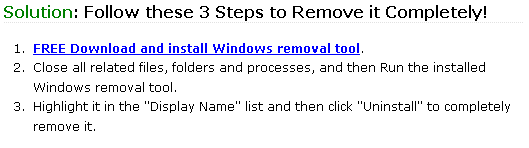

It is also recommended to run a FREE performance scan on to check out related Windows Error so as to resolve the potential program uninstall errors completely.
How to Uninstall it when you get error message
Are you one of many users that received error messages when you continuously tried to uninstall AI Suite 3? Here is the most common error message you might received.
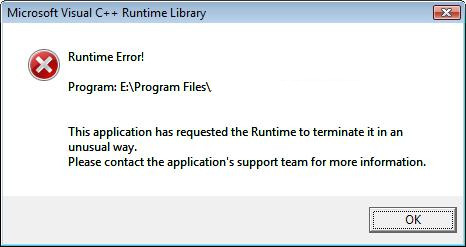
Look familiar? You must have tried the following steps:
Remove AI Suite 3 Using its default uninstaller
Delete AI Suite 3 with Windows Add/Remove Program
To completely remove AI Suite 3 from your computer and totally eliminate any uninstall errors and other hassle along the way, you still need to delete the related registry entries and unneeded folders of the program from your system.
(HKEY_LOCAL_MACHINE\Software\AI Suite 3)
C:\Program Files\AI Suite 3
(C:\Document and Settings\All Users\Application Data\)
(C:\Documents and Settings\%USER%\Application Data\AI Suite 3)
These manual uninstall steps are only recommended when you are comfortable with this process or if you’re a computer technician. It happens that some of the related files and registry entries still remain, leaving a potential risk to your PC. Thus, you get crazy and frustrated.
Uninstall AI Suite 3 in Easy Steps using an uninstaller (recommended)
Total Uninstaller is the best choice for you. With Total Uninstaller, you can remove and uninstall this program completely and easily, including its registry entries and files. Furthermore, other sticky unwanted programs on your PC can also be fully uninstalled. Doesn’t it sound great? By following the steps, you will be able to uninstall it quickly and thoroughly from your computer.
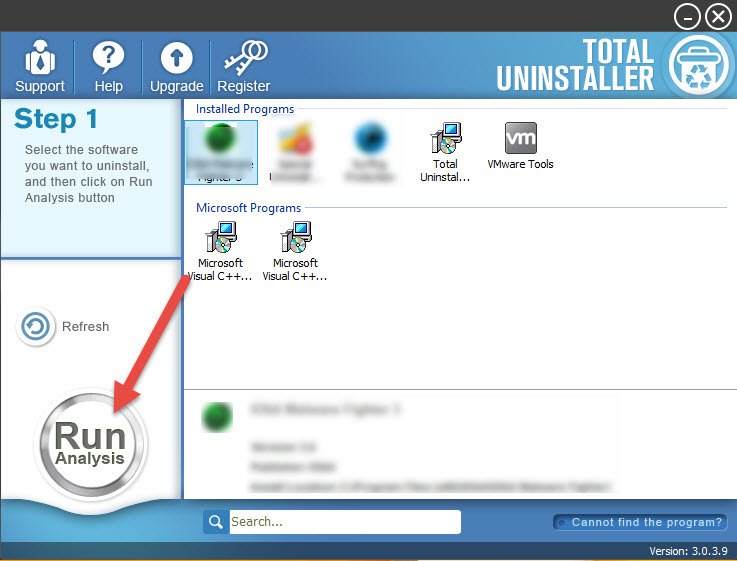
Step 1: Download Total Uninstaller, install and launch it.
Step 2: Check AI Suite 3 on the right. Press Run Analysis.
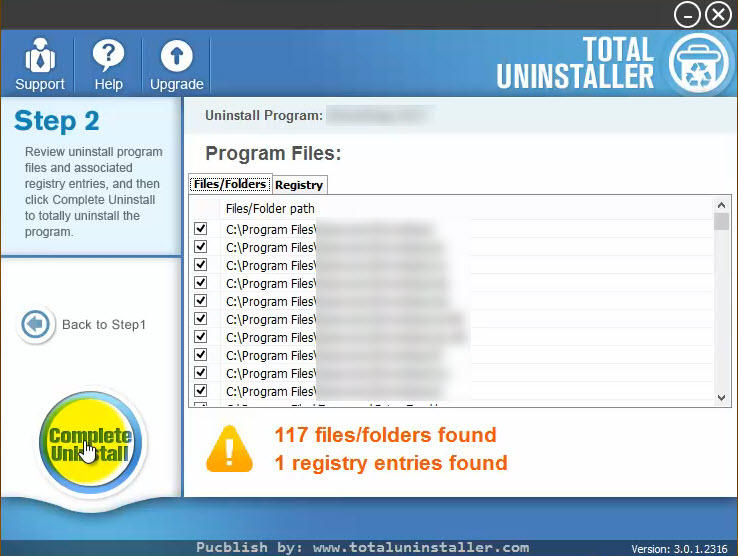
Step 3: Total Uninstaller will review the program files and associated registry entries. Click Complete Uninstall to start the normal uninstall process of the program.
Step 4: Click Yes to start the uninstall process.
Step 5: Wait for the standard uninstall process to be completed. Click Scan Leftovers.
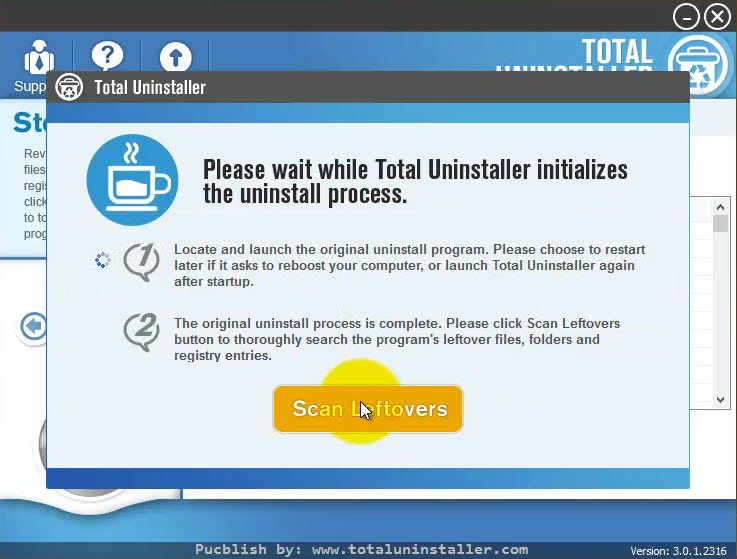
Step 6: Total Uninstaller will conduct a full scan on your computer for a few minutes. When it finish scanning, click Delete Leftovers to thoroughly remove the program and its leftovers.
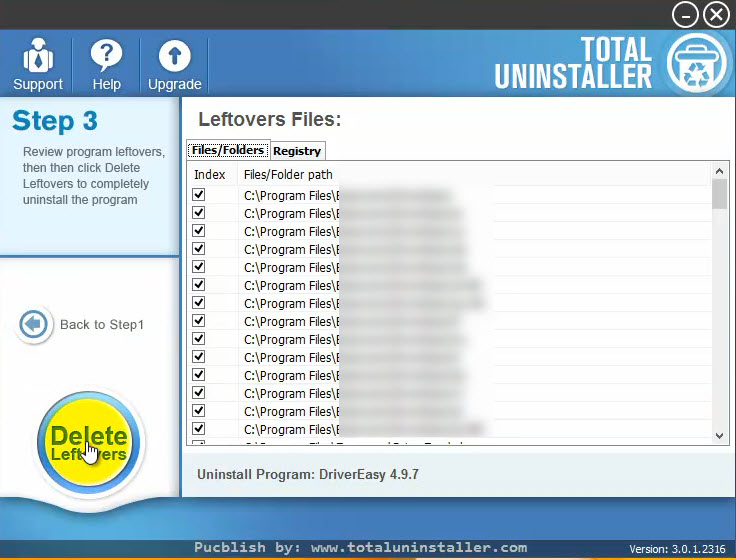
Step7: Total Uninstaller has now fully uninstall the program and deleted all files and extensions.
Step 8: Click OK to finish and now the unwanted application is totally uninstalled and removed from your PC.
Uninstall it using force uninstall method in easy steps
Below is a step by step guideline on how to force remove AI Suite 3 or other unneeded program from your computer for good.
Step1: Download Total Uninstaller, then follow the on screen prompts to install in on your computer.
Step2: Run Total Uninstaller. Click Cannot find the program? and select the installed folder path.
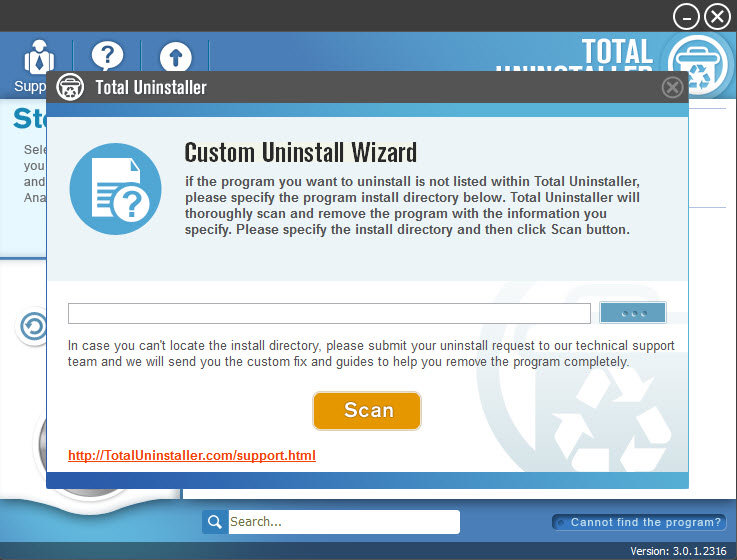
Step3: Click «Scan» to begin the uninstallation process. Follow the on-screen steps to finish the removal.
With the force uninstall steps, you can thoroughly uninstall AI Suite 3 and any unwanted program from your computer without worrying that it will leave down some unexpected entries both in program files and Windows registry.
Benefit of Total Uninstaller — Why make use of it
There are really some useless programs and software in your computer that are hard to uninstall or remove by simply using the default uninstaller or Window default program remover. Sometimes, this default uninstaller leaves a lot of leftover components and registry entries behind. Consequently, in this case, the computer performance and stabilization will be affected by the leftover components in the registry that become threats.
Total Uninstaller makes these things out of your computer if you make the most use of it. This tool provide a better and easier way to effectively and thoroughly uninstall any unwanted applications or components that the standard uninstaller of Window cannot remove.
What if your computer got infected by virus?
Most of the time people cannot find and delete the virus that infect certain program, especially those hidden programs. What’s more, some malicious file cannot remove by hand. So, it is best to fully uninstall the infected software before your computer gets totally haunted by these virus. So now! why not land to get the useful and professional tool to uninstall the malicious files and other software you don’t want to use any more? I am sure you will be satisfied with its powerful uninstalling features!