Как вставить javascript в wordpress
Безопасный путь добавления JavaScript в страницу под управлением WordPress — с помощью wp_enqueue_script() . Эта функция подключает скрипт, если он не был подключён ранее, и учитывает все его зависимости.
Использование
<?php wp_enqueue_script ( $handle , $src , $deps , $ver , $in_footer ); ?> Эта функция должна вызываться в привязке к действию wp_enqueue_scripts (для внешней части сайта), admin_enqueue_scripts (для панели управления) или login_enqueue_scripts (для страницы входа).
Параметры
Примеры
Примечание: Это функция не будет работать, если она вызвана из действия wp_head или wp_print_scripts, поскольку на момент выполнения этих действий скрипты уже должны быть добавлены в очередь. Корректные действия описаны в секции «Использование».
Загружаем штатный скрипт WordPress с нестандартного адреса
Замечание: В темах оформления не рекомендуется использовать сторонние JavaScript- или CSS-файлы по умолчанию, поскольку это ставит пользователей в зависимость от внешнего сервера, к которому у них нет доступа. Гораздо лучше использовать или рекомендовать плагин наподобие Use Google Libraries, который автоматически подключает с серверов Google CDN библиотеку jQuery той же версии, что используется в самом WordPress. Это снижает риск нарушения работы сайта плагинами и темами, в которых жёстко прописаны их собственные копии файла.
Допустим, вы хотите вместо библиотеки jQuery из состава WordPress подключить её CDN-копию. Добавьте этот код в файл functions.php активной темы:
Используя фильтр wp_enqueue_scripts (вместо фильтра init, на который ссылаются некоторые статьи на сторонних сайтах), мы избегаем регистрации альтернативной версии jQuery на страницах панели управления, что (среди прочего) снижает риск нарушения работы редактора записей при обновлении.
Загружаем скрипт scriptaculous
Загружаем скрипт, зависящий от scriptaculous
Добавим и загрузим новый скрипт, который зависит от scriptaculous (это также вызывет загрузку scriptaculous на странице):
Загружаем в теме оформления скрипт, зависящий от скрипта в WordPress
Часто требуется, чтобы перед JavaScript-файлами, поставляемыми с темой оформления, был загружен другой JavaScript-файл. WordPress предоставляет API, позволяющий при регистрации скрипта указать его зависимости. Например, тема с приведённым ниже кодом требует, чтобы перед скриптом custom_script.js была загружена библиотека jQuery:
Загружаем скрипты плагина только на его страницах
jQuery в режиме noConflict
Примечание: Библиотека jQuery, включенная в WordPress, загружается в режиме «no conflict». Это сделано, чтобы предотвратить проблемы совместимости с другими библиотеками, которые могут загружаться в WordPress.
В режиме «no-confict» ярлык $ недоступен, вместо него используется слово jQuery. Например:
нужно переделать так:
Чтобы использовать функцию $ как обычно, можно обернуть ваш код в такой фрагмент:
В этом фрагменте ваш код будет выполнен, когда страница полностью загрузится. Если по какой-то причине вы хотите, чтобы код был выполнен сразу (без ожидания события «ready» в DOM), можно использовать такой фрагмент:
Adding JavaScript to WordPress Tutorial (With or Without a Plugin)

As you build your site, you might have situations where you need to add JavaScript across your entire WordPress site or only to a certain piece of content.

This can be helpful for embedding third-party tools, adding tracking scripts like Google Analytics or Facebook Pixel, or even directly adding functionality to your site.
Thankfully, you have several options for adding JavaScript to WordPress, which are what we’re going to cover in this article.
Below, we’ll cover three broad approaches to using JavaScript on your WordPress site:
How to Add JavaScript to WordPress Pages and Posts
JavaScript is a programming language that can add interactive features to your website. Learning how to use it on your WordPress site, including specific sections, can help you leverage the code more effectively.
There are multiple ways to add JavaScript to your WordPress pages and posts. Whether you use a plugin, use functions and hooks, or edit your theme’s files, you can get the customization you want.
In this post, we’ll review what JavaScript is and how you can add custom code to WordPress. We’ll walk you through the process of each method and answer some frequently asked questions.
Can you use JavaScript in WordPress?
JavaScript is a programming language that you can use to improve the user experience (UX) of a website by making it more interactive and responsive.
For example, you could use JavaScript to create a popup window when a visitor clicks on a button. You might also display a message when someone hovers over an element on your page.
JavaScript can add calculators, video players, and other tools to WordPress pages and posts. While you’ll need some basic HTML and CSS knowledge to add JavaScript to WordPress, it’s a fairly straightforward process.
What to do before adding JavaScript code to WordPress
When adding JavaScript code to your WordPress site, it’s important to remember that errors in your code can break your entire site. If you’re not comfortable working with code, you might want to hire a developer to help you.
Otherwise, make sure you have a site backup before making any changes. That way, if something goes wrong, you can always revert to a working version of your website.
There are two parts of your WordPress site you need to back up before adding any customizations:
- Database: Where all your posts, pages, settings, and configurations are stored.
- Files: Your images, videos, themes, and plugins.
You can use a plugin like Jetpack to back up your WordPress site quickly and easily. Another option is to back up your files manually. You should also consider creating a child theme for adding custom code.
A child theme is a duplicate of your current theme that you can customize without affecting the original code. You can simply activate the original theme to revert any changes if you make a mistake. This also allows you to update your parent theme without losing the code changes you made.
Additionally, you might consider testing your custom JavaScript on a staging site before adding it to your live site. A staging site is a copy of your live website that you can use for testing purposes. It’s a good idea to set one up in case something goes wrong with your JavaScript changes.
How to add JavaScript to your whole WordPress site
If you want to add JavaScript to your entire WordPress site, there are a few different approaches. One method is to add a custom HTML file to your theme and then insert the JavaScript code into that file.
Another way is to create a WordPress plugin that will contain your JavaScript code. You can also simply edit your functions.php file and insert the code there.
Alternatively, to make changes across your entire WordPress site, you can add JavaScript to the header or footer. The easiest way is to install and activate the Insert Headers and Footers plugin. Let’s explore all four methods in depth.
Four ways to add custom JavaScript to WordPress
There are different ways you can add custom WordPress JavaScript to your website. Here’s a step-by-step guide for each:
Method 1: Use a plugin
The easiest way to add JavaScript to WordPress is with a plugin. This method is more flexible and easier to manage than adding the code directly to your theme.
If you’re not comfortable with coding or want a more user-friendly solution, we recommend using one of the many plugins available for adding JavaScript to WordPress.
Once the plugin is activated, navigate to Settings → Insert Headers and Footers in your WordPress dashboard.

You’ll see two boxes labeled Scripts in Header and Scripts in Footer. Any code you add to these boxes will be inserted into the header or footer of your site. This is where you’ll add your JavaScript.
Let’s say you want to add a JavaScript confirm box. In the Scripts in Header box, insert the following code:
This code will display a Try it button in the header. When you select the button, it will confirm that you pressed it.

You can test this feature out by going to your website and clicking on the Try it button.
Method 2: Add JavaScript to your theme
Adding JavaScript directly to your theme is one of the simplest methods. You’ll need to create a new file in your theme’s directory and name it something like “custom.js.”
Then, you can add your JavaScript code to that file and save it. Finally, edit your header.php file and add a line of code to load the new JavaScript file:
Remember to replace “custom.js” with the name of your file. Once you’ve added that line of code, save your header.php file and upload it to your server. Your JavaScript code should now be running on your entire WordPress site.
Method 3: Use WordPress functions and hooks
You can also add custom code with WordPress functions and hooks. A function is a piece of code that performs a specific action. For instance, the wp_enqueue_script() function is used to load a JavaScript file.
A hook is a WordPress feature that can add code without editing any core files. There are two types of hooks: actions and filters.
An action is a PHP function triggered at specific points during the loading of a page. As an example, the wp_head action hook is triggered before the </head> tag in your theme’s header.php file. You can use this hook to add custom code or scripts to your header.
Filters modify existing code or data. For example, the_content filter can alter the content of a post before it’s displayed.
To add custom JavaScript to your WordPress site using functions and hooks, you’ll need to insert your code into your child theme’s functions.php file.
Add a new folder in your WordPress directory to create a child theme. Then make a style.css file that will contain your child theme’s styles. Next, you’ll need to add the following code to your style.css file:
Now that you’ve created your child theme, you can activate it by going to Appearance → Theme File Editor from your WordPress dashboard. Navigate to the functions.php file, then add the following code:
When you’re done, save your changes.
Method 4: Create a plugin
If you want to keep your JavaScript code separate from your theme, you can create a WordPress plugin to contain it. Making a plugin is more involved than adding the code directly to your theme. Still, this approach can be more flexible and easier to manage.
To create a plugin, you first need to make a new directory in your WordPress installation’s wp-content/plugins directory. Name the directory something like “my-javascript-plugin.”
Then, create a new file in that directory and name it “my-javascript-plugin.php.” The contents of that file should look like this:
Replace the Plugin Name, Plugin URI, Description, Author, and Author URI fields with your values. These are just general information fields that describe your plugin.
Next, you need to add your JavaScript code to the file. The code should go below the initial plugin information but before the closing PHP tag (?>). Once you’ve added your code, save the file and upload it to your server.
Your plugin should now be installed and activated. You can verify it’s working by going to the Plugins page in your WordPress admin panel. You should see your plugin listed there.
How to add JavaScript to a specific WordPress page or post
If you want to add JavaScript to a specific WordPress page or post, you can insert code directly into the theme editor. Navigate to the functions.php file, then add the following code:
You will need to change the “1” in the above code to the post or page ID. You can find this number by opening the post from your dashboard, then finding the URL in the browser bar. The ID number will be next to “post=”:

Once you replace that number and add your custom JavaScript, remember to save your file.
How to add JavaScript to your WordPress menu
To add JavaScript to your WordPress menu, you’ll need to make a custom menu item. First, locate the menu item ID number using Developer Tools, then use jQuery to target that ID. This will trigger the script anytime a visitor clicks on the menu item.
How to add JavaScript to your WordPress footer
The easiest way to add JavaScript to your WordPress footer is with a plugin like Insert Headers and Footers. This tool can insert code into the header and footer of your WordPress site without editing any theme files.
To use Insert Headers and Footers, simply install and activate the plugin. Then, go to Settings → Insert Headers and Footers.
On the settings page, you’ll see three boxes for adding code to your site’s header, body, and footer. Just paste your JavaScript code into the appropriate Scripts in Footer box and click on the Save button.
Another method is editing your functions.php file. You can insert the following code to run JavaScript in the footer of your site:
This code will hook into wp_footer. Remember to save the file to update the changes when you’re done.
How to add JavaScript to a WordPress widget
To add JavaScript to a WordPress widget, you’ll need to edit the widget’s code. To do that, click on the widget’s menu and select Edit as HTML.

In the code editor of the block, add your <script> tags and JavaScript code. When you’re done, select the Update button.
How to add “onclick” JavaScript to a WordPress button
Adding an “onclick” event to a WordPress button is a great way to add extra functionality to your website. You could use an onclick event to trigger a popup window or display a message when the button is clicked.
To add an onclick event to a WordPress button, you’ll need to edit the button’s code and add the following attribute: onclick=”your_function()”. Be sure to replace “your_function()” with the JavaScript code you want to run when the button is clicked.
Once you have added the onclick attribute, hit the Save button. Your button should now have the onclick event added to it.
How to find & debug a JavaScript error on a WordPress page
To find and debug JavaScript errors, you can enable script debugging in your site’s wp-config.php file.
Open the file via a File Transfer Protocol (FTP) client or your File Manager. Then insert the following code:
Remember to place this code before the “That’s all, stop editing! Happy blogging” line.
To find and debug JavaScript errors on a WordPress page, you can use your browser. In Google Chrome, click on the menu icon (three vertical dots) in the top-right corner. Then, select More tools → Developer tools from the drop-down menu.

You can also access the developer tools by pressing Ctrl + Shift + J (Windows/Linux) or Cmd + Option + J (Mac).
Once the Developer tools are open, click on the Console tab. Here, you’ll see any JavaScript errors that have occurred on your WordPress site.

If you’re unsure what the error means or how to fix it, you can search for it online. Just copy and paste the error message into a search engine, and you should find some helpful results.
You can also try deactivating all of your WordPress plugins to see if that approach fixes the issue. If it does, you know that one of your plugins is causing the problem. You can also narrow down which tool is causing the issue by reactivating your plugins one at a time until you find the culprit.
If you’re still having trouble, consider contacting your WordPress hosting company for further assistance. They should be able to help you identify and fix the issue.
How to add other coding languages to WordPress (HTML, CSS, PHP)
There are various methods to add other coding languages to WordPress. For instance, you can use the Custom HTML or Code blocks.
Another method is installing a plugin like Code Snippets.
The Code Snippets plugin lets you add code directly in the editor and give it a title. You can also choose whether to execute the code in the header or footer of your site.
Frequently asked questions (FAQs) about adding JavaScript to WordPress
At this point, you should hopefully have a firm understanding of how to add JavaScript to WordPress. Now let’s take a moment to look at some FAQs.
What is the best way to add inline JavaScript to WordPress?
The best way to add inline JavaScript is to use the wp_add_inline_script() WordPress function.
What is the best way to add a JavaScript library to WordPress?
If you want to add a JavaScript library, you can do so by editing your theme’s code. We’ll add and use jQuery as an example.
In your WordPress dashboard, navigate to Appearance → Editor and locate the file named footer.php. Click on this file to edit it.
At the bottom of the file, you’ll see a line of code that looks like this: “wp_footer();”. Add the following code above this line:
Save your changes. Your jQuery library should now be added to WordPress. You can test it out by going to the front end of your website and seeing if it’s working correctly.
Can you add custom JavaScript using a WordPress shortcode?
You can use custom JavaScript with WordPress shortcodes. You’ll need to add the following code to your functions.php file:
This method will allow you to use the following shortcode in your post or page content. You can then use this same technique to enqueue any other scripts you need for your shortcode.
Can you add custom JavaScript using the Block Editor?
You can add custom JavaScript to your WordPress site using the Block Editor. To do this, simply add the Custom HTML block.

Then paste your JavaScript code into the block. Just be sure to use the opening <script> and closing </script> tags.
Can you add custom JavaScript using the Classic Editor (TinyMCE)?
WordPress recommends upgrading to the Block editor. But if you’re still using the Classic Editor (TinyMCE), you can add custom JavaScript in a few simple steps.
Navigate to the page or post where you want to insert the JavaScript. Next, in the editor toolbar, select the Text tab.

Here, you can insert your JavaScript code. Again, make sure to include the <script> tags.
Start customizing your WordPress site
Adding JavaScript to your WordPress site can create interactive features and improve your page’s user experience (UX). There are a few different ways to add JavaScript.
The best method for you will depend on your preferences and the nature of the code you’re adding. Working directly with your theme might be easiest if you’re just inserting a small amount of code. But if you’re adding a lot of code, using a plugin or editing functions.php might be better.
Adding JavaScript can slow down your site if it’s not optimized. Thankfully, Jetpack Boost is an easy, free tool to optimize your site speed and performance, and defer non-essential JavaScript when your loading your site’s pages. Not only will your visitors thank you for using Jetpack Boost, search engines may reward you with better rankings, too.
Simon has worked in marketing and product development for over 10 years, previously at HubSpot, Workday, and now Automattic (Jetpack). He has a varied education, with a degree in chemical engineering and a masters in computer science to his name. His passion is helping people and their businesses grow.
Explore the benefits of Jetpack
Learn how Jetpack can help you protect, speed up, and grow your WordPress site.
How to Use jQuery in WordPress: 2 Methods (Manually and Using a Plugin)

WordPress developers use JavaScript and libraries to create interactive elements on a web page and simplify the coding process. Among the most popular options is jQuery.
What makes using jQuery in WordPress special is the extensive plugin ecosystem. Instead of writing a jQuery script from scratch, developers can save time by employing reusable code snippets to customize WordPress plugins and themes.
If you want to create engaging websites using jQuery, this article will guide you through the entire process. We’ll also discuss what jQuery is, its key advantages, and how to add jQuery to WordPress.
What Is jQuery?
jQuery is a JavaScript library used for creating dynamic front-end components, such as rotating sliders. Its lightweight code enables web developers to manipulate HTML elements and validate data more efficiently.
Why Use jQuery
Apart from its plugin ecosystem, other reasons to use a jQuery library in WordPress are:
- Beginner-friendly. Since it uses a simple and short text format, jQuery code is easy to read and write.
- Compactness. A jQuery file is usually smaller than plain JavaScript, letting you perform the same tasks with fewer characters.
- Cross-browser compatibility. Popular browsers that support jQuery include Google Chrome, Microsoft Edge, Mozilla Firefox, Safari, and Opera.
- AJAX support. Developers can implement AJAX to build a responsive and user-friendly website.
- Lower bandwidth usage. jQuery can execute animation effects directly on the user’s browser, resulting in lower bandwidth usage.
How to Use jQuery in WordPress
There are two ways of adding jQuery scripts to a WordPress site – manually or using a WordPress plugin.
Let’s start with the manual method.
Adding jQuery Manually
If you have experience with JavaScript and WordPress development, follow these steps:
1. Switch to the Compatibility Mode
Before you start adding your own custom jQuery scripts to WordPress, it’s crucial to understand jQuery’s compatibility mode.
By default, jQuery uses the $ sign as a shortcut:
However, other JavaScript libraries on your site also implement the dollar sign in their syntax. To avoid conflicts, enter the compatibility mode by replacing the $ sign with jQuery.
Take a look at the following code:
The only problem with this mode is, writing jQuery instead of the shortcut means incorporating more characters, leading to bloated scripts.
To solve this issue, pick a new variable name to replace the dollar sign. The most common one is $j.
Simply add this code at the top of your jQuery scripts:
2. Make a Script File
After that, create a custom script file with the .js extension. Hostinger users can follow these steps:
Important! For beginners, we recommend creating a WordPress child theme first. This way, you can customize the styling, layout parameters, and scripts without changing the parent theme directory.
- Access hPanel → Hosting → Manage.
- On the left menu, select Files → File Manager.
- Enter public_html → wp-content.
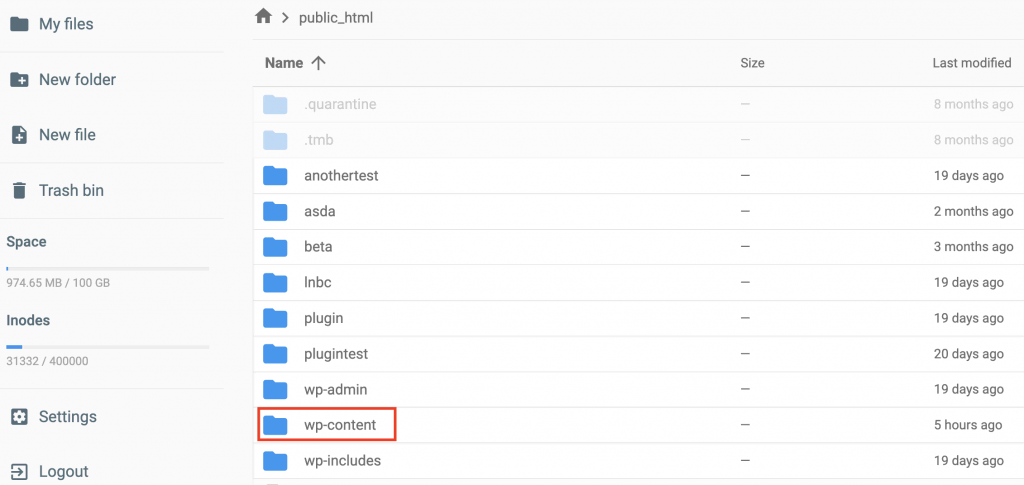
- Open the themes folder and select one of the installed themes.
- On the left menu, click New Folder and name the folder js.
- Click New File to create a new .js file – for instance: new_script.js.
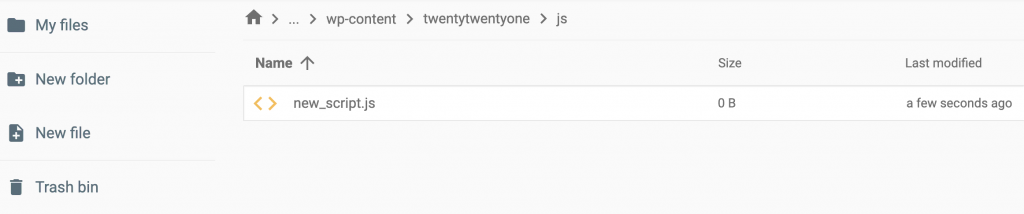
- Add jQuery scripts to the file.
- Repeat the same steps to customize WordPress plugins.
Pro Tip
If you’re unsure how to code a script, our guide What Is jQuery? A Beginner’s Introduction to the jQuery Library explains its main features.
3. Add Code Into the functions.php File
Before adding inline scripts to WordPress, locate the functions.php file in the theme’s folder.
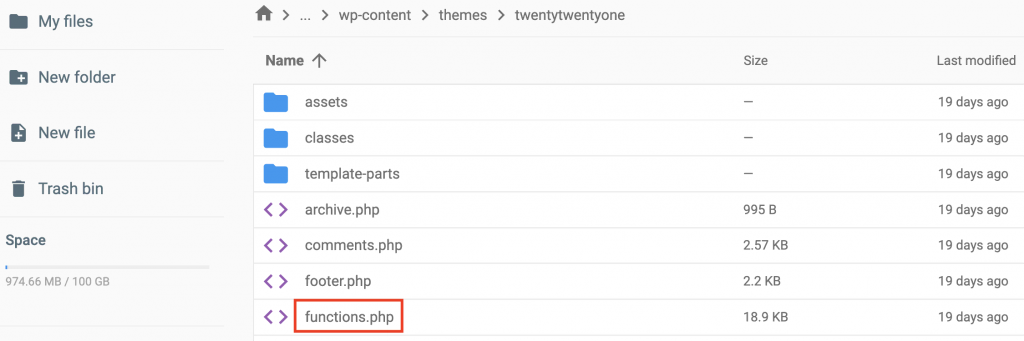
Open the file and add the following jQuery function at the top:
Make sure to replace new-script and new_script.js with the actual file names.
By inserting the wp_enqueue_script function into the PHP code, users can add a custom script and inform WordPress that it relies on jQuery.
It also helps WordPress locate the script file and customize the theme based on your jQuery scripts.
Adding jQuery via a WordPress Plugin
If adding scripts to WordPress manually is too technical for you, we recommend using jQuery WordPress plugins.
1. Pick a Plugin
WordPress offers various plugins to create interactive websites with jQuery. Here are our top picks for different use cases:
-
. While jQuery comes pre-loaded with WordPress, the platform often uses an outdated version. jQuery Updater ensures that your site automatically installs the latest version of this JavaScript library. . This tool is suitable for adding custom fields to posts and pages. Some of its jQuery-based fields include Color Picker, Google Map, Date Picker, and Time Picker. . This plugin lets you display error messages when users enter invalid data on Contact Form 7. You can create validation rules for URLs, dates, credit cards, and phone numbers. . Compatible with most WordPress themes, this plugin lets you split posts and pages into sliders.
Although installing these plugins simplifies the website designing process, you still need a basic knowledge of JavaScript and jQuery libraries to use them.
Suggested Reading
Conclusion
Knowing how to use jQuery in WordPress is crucial for any site owners and developers.
jQuery offers a lightweight solution to create interactive elements, edit pages, and customize the overall look of a WordPress website.
To add jQuery to WordPress scripts manually, switch to its compatibility mode, create a script file, and customize the functions.php file in your theme’s folder.
For beginners, WordPress jQuery plugins like Advanced Custom Fields will help with the process.
We hope this article will help you develop a more unique and engaging website. Good luck.
jQuery in WordPress FAQs
Below is some additional information about jQuery in WordPress.
Is jQuery Easy to Learn?
jQuery is generally considered easy to learn for beginners due to its concise syntax and intuitive API. Its popularity has led to a wealth of documentation and community support, making it a popular choice for front-end development.
What Are Some of the Drawbacks of Using jQuery?
jQuery drawbacks include increased page load times, overreliance leading to code bloat, accessibility issues, browser feature alternatives, and modern web development trends favoring alternative solutions like native JavaScript and newer frameworks. Careful consideration of jQuery’s use is important.
How Do I Upgrade to the Latest jQuery Version?
Upgrading to a newer version of jQuery makes a website more secure and faster. Upgrading to a newer version of jQuery includes identifying where jQuery is being used, adding the new version of jQuery in a testing mode, and testing areas of the site that use jQuery for issues.
Brian is a word addict and SEO fanatic that loves telling tech and digital marketing stories. Driven by his devotion to quality, he constantly looks for better ways to deliver content that inspires people.