Как в paint 3d написать текст (вставить, добавить, сохранить)
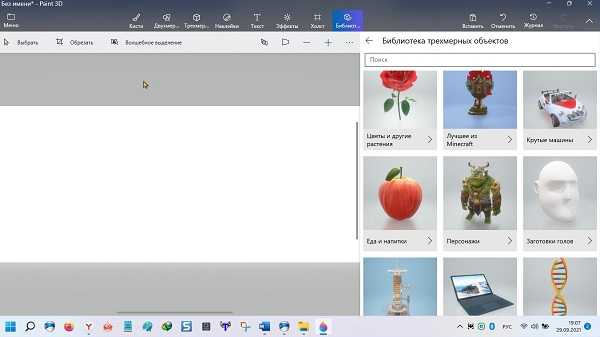
Виндовс 10, а теперь уже и виндовс 11 обзавелась программой paint 3d. Только находится на windows 11 paint 3d уже не в обычном, а отдельно.
Это, разумеется, это не Фотошоп, но тем не менее интерес среди пользователей у него есть, тем более что пользоваться им можно бесплатно.
Паинт 3д подкупает простотой. Если возьметесь за Фотошоп, например, чтобы написать 3d текст, вам понадобится пол дня чтобы хоть чуть-чуть освоить базовые функции, а без них ничего не сможете.
Как для меня, то главное достоинство это текст, только не простой, а именно 3д. Его можно вставить куда угодно, например добавить на картинку, для лучшего визуального восприятия.
Да есть там еще несколько функций, но они, толерантно говоря никуда не годятся, а вот чтобы сделать красивую завораживающую надпись он как раз кстати – просто и быстро.
Как в paint 3D вставить текст на картинку
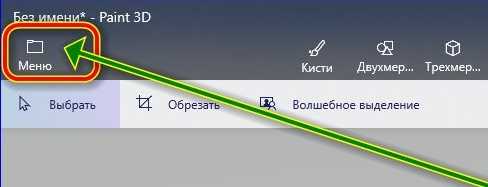
Этому научитесь мгновенно. Чтобы не ходить по кругу, я для примера возьму скриншот рабочего стола. Теперь на первом этапе в запущенном паинте 3д, нажимаем «Меню».
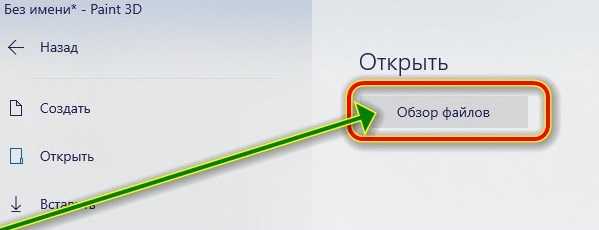
Затем в большом окне нажимаем «Обзор файлов».
Теперь выделяем нужную нам картинку и снизу щелкаем «Открыть».
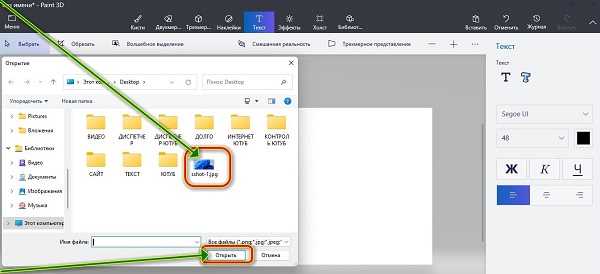
Следующие шаги нажать вверху на кнопку «Текст» и букву «Т» с правой стороны.
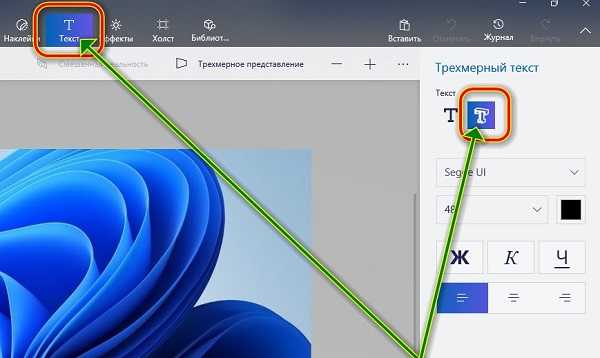
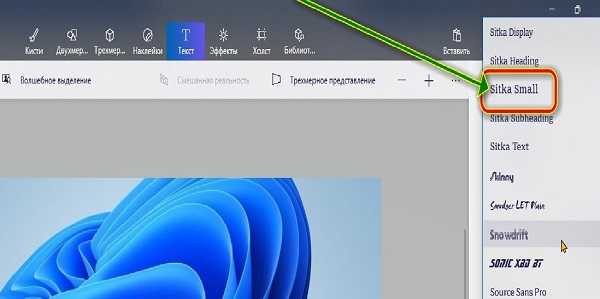
Теперь беремся за Шрифт. По умолчанию всегда «Segoe UI», но если нажать на него, то откроется множество других.
Найдите, тот который вам больше все по вкусу и щелкните по нему. Именно на выбранном вами и будет ваша надпись.
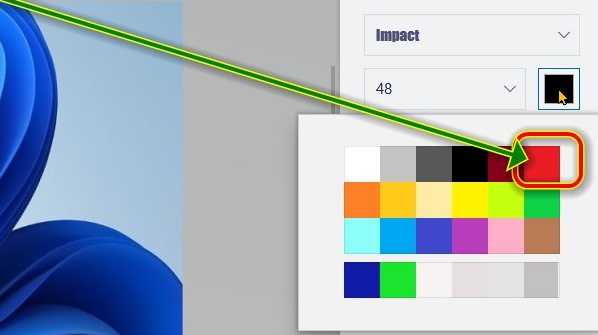
Далее возьмитесь за цвет. Нажмите на черный квадрат и выберите любимый или наиболее подходящий.
Далее на картинке с зажатой левой мышкой выделите место куда хотите добавить текст и можете вставить скопированный текст или напишите что хотите.
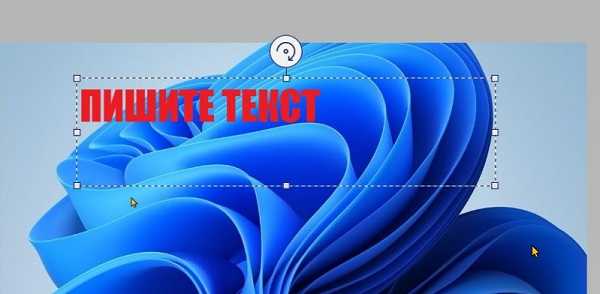
Далее щелкните по месте, где нет текста и крутя-вертя тремя белыми кнопками со стрелками с полукругом сделайте 3d текст.
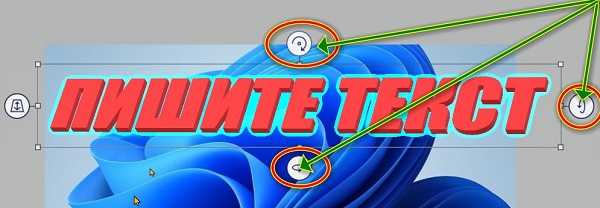
В конце щелкните на свободном месте и можете свою работу сохранить. После сохранения уже ничего не обрезается и не добавляется и невозможно изменить. Только начать с начала.
Как сохранить текст в paint 3d
Сохранить текст в паинт 3д, довольно просто. Нажмите опять меню (как делали раньше) и нажмите «Сохранить как».
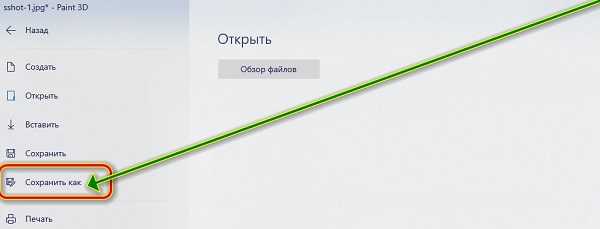
Затем жмите на значок «Изображение».
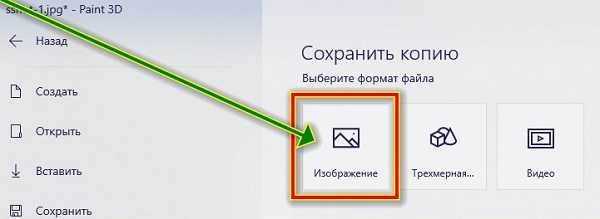
Далее снизу справа «Сохранить»
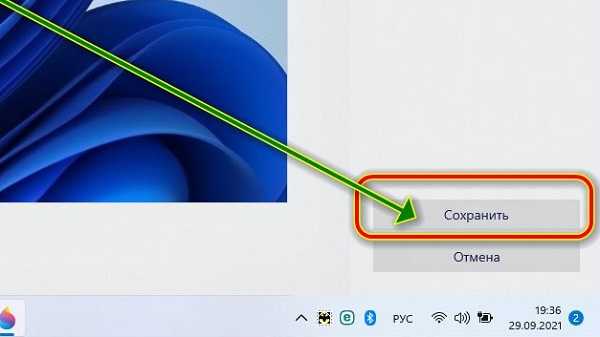
Теперь при желании напишите свое название и еще раз «Сохранить». Вот и все. Да первый раз может получится не совсем то, что хотелось бы, но это дело поправимое.
Несколько раз и вы профессионал. С первого раза всегда могут быть некоторые «глюки» — это со всеми так. Успеха.
Один комментарий к “Как в paint 3d написать текст (вставить, добавить, сохранить)”
Не так все просто! Этот редактор обрезает текст! Попробуйте загрузить фотку и максимальным размером букв (130) написать строчку вдоль всей фотографии и сохранить. У вас останется только треть текста, остальное справа он обрежет автоматически!
Как добавлять и редактировать текст в Paint 3D
Paint — одно из наиболее часто используемых приложений, по крайней мере, когда я рос на ПК. Это была забавная программа или инструмент, с помощью которого вы можете создать рисунок или что угодно, используя множество кистей, цветов и проявить свой художественный талант. Прошли годы, Microsoft обновила приложение Paint до Paint 3D. Что ж, наряду со всеми основными функциями, которые вы найдете в программном обеспечении Paint, Paint 3D также позволяет создавать классные 2D и 3D варианты текста.
Вы можете использовать эту функцию для создания подробных баннеров, плакатов и многого другого. В этом посте мы расскажем, как добавлять и редактировать текст в программе Paint 3D. Обратите внимание, что Paint 3D — это встроенное программное обеспечение, доступное при установке последней версии Windows на свой компьютер. С помощью этого поста вы сможете выполнять добавление, редактирование, форматирование и т. Д. с текстами на инструменте Paint 3D. С учетом сказанного, давайте сразу перейдем к самой статье:

- 1 Как добавлять и редактировать текст в Paint 3D
- 1.1 Добавить текст в Paint 3D
- 1.2 Редактировать текст в Paint 3D
Как добавлять и редактировать текст в Paint 3D
Ну, для начала, использование Paint 3D может быть немного новым для многих, поскольку функции Paint 3D изменились по сравнению с Paint. Это не так просто, как нажать кнопку, чтобы поместить текст в программу Paint 3D. Ознакомьтесь с приведенным ниже руководством и узнайте, как добавлять и редактировать текст в программе Paint 3D:
Добавить текст в Paint 3D
- Просто нажмите клавишу Windows на клавиатуре и выполните поиск Краска 3D.

- Запустите приложение.
- Нажми на Текст кнопку в верхней строке меню.

- На правой панели вы найдете два варианта: 2D и 3D как показано на изображении ниже.

- В зависимости от ваших предпочтений выберите вариант текста в 2D или 3D.
- Как только вы это сделаете, только вы сможете вставить текстовое поле.
- Перетащите мышь на холст и создайте текстовое поле.

- Убедитесь, что не щелкаете мышью за пределами текстового поля, если хотите продолжить форматирование текста внутри текстового поля.
- Это оно!
Редактировать текст в Paint 3D
Вы можете легко отформатировать стиль текста в Paint 3D. Вы можете изменить размер шрифта, стиль, выравнивание, цвет и т. Д. Если вы выбрали 2D, вы даже можете изменить цвет фона текстового поля. Есть несколько вариантов, которые вы можете сделать, как показано на изображении ниже. Однако обратите внимание, что пока вы форматируете текст, вы не должны щелкать мышью за пределами поля, потому что это завершит параметр форматирования для этого активного текстового поля. Более того, вы не сможете добавить больше текста в текстовое поле. Но вы можете вращать, изменять размер и выполнять другие свойства редактирования с правой панели.

Заворачивать!
Итак, вот это с моей стороны в этом посте. Надеюсь, вам понравилось это руководство о том, как добавлять и форматировать / редактировать текст в программе Paint 3D в ОС Windows. Сообщите нам в комментариях ниже, если вы нашли это руководство полезным. Чтобы узнать больше о таких потрясающих материалах, посетите нашу страницу. Руководства по Windows , Руководства по играм , Руководства по социальным сетям , iPhone , а также Руководства по Android чтобы узнать больше. Обязательно подпишитесь на нашу YouTube канал для потрясающих видео, связанных с Android, iOS и играми. До следующего поста… Ура!
Сертифицированный специалист по цифровому маркетингу Six Sigma и Google, работавший аналитиком в ведущей ТНК. Энтузиаст технологий и автомобилей, который любит писать, играть на гитаре, путешествовать, кататься на велосипеде и отдыхать. Предприниматель и блоггер.
Paint 3D app does not save inserted caption in the Text box
Paint 3D isn’t just for three-dimensional work. It has some great tools that enable even two-dimensional editing. As such, it is not only used to add 3D effects to images but also to edit 2D images. However, sometimes, when you add a caption or text to an image using 2D Text and click outside the picture, the caption/text just disappears instantly. This could be happening due to font and text box size conflict. But there is a workaround for this problem which will help you add the caption to your image.
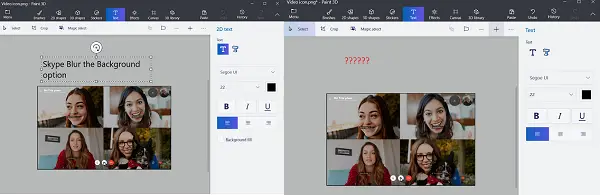
Paint 3D Text Box does not save inserted caption
1] If either the size of the text or the picture is very large, adjusting its size could fix this issue.
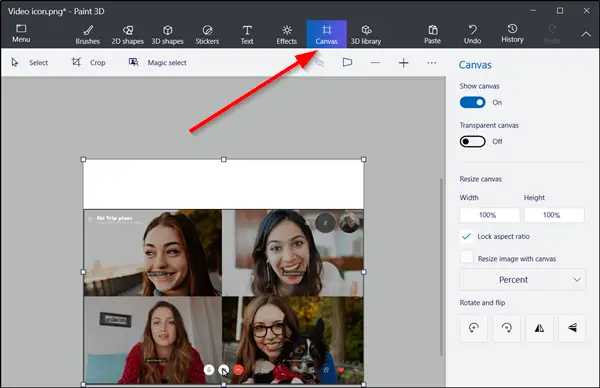
2] If this doesn’t solve your problem, do the following. Open the picture with Paint 3D application and select the ‘Canvas’ option. When selected, the option will add the adjusting handle alongside the borders. Now, simply move the handle to leave enough space for the desired text to be inserted.
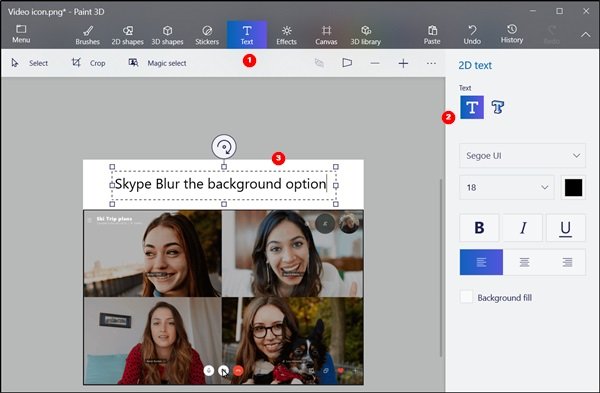
When done, hit the ‘Text’ button and select ‘2D Text’ option from the right pane. Now, enter the text you want to add to the picture. Click outside the Canvas to see if the text stays or disappears.
As you can see from the image below, we managed to insert the text on to the picture.
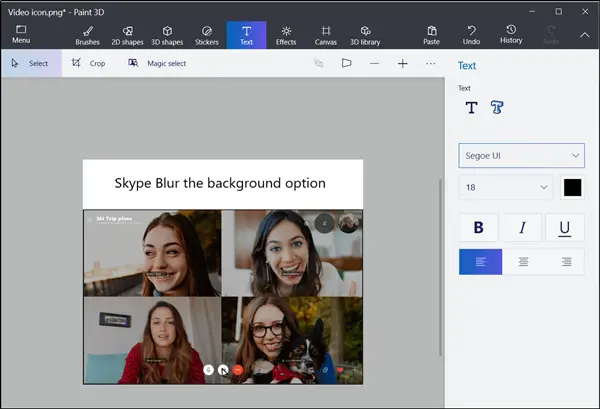
In the end, save the changes you made to the picture and close the Paint 3D app.
3] You can prepare your canvas to work in 2D by selecting Menu > Settings > Show perspective, and turn perspective off.
The action disables the option to create a 3D workspace that shows depth and relative size, recommended for 3D projects.
4] You could reset the Paint 3D app. To do this, open Settings > Apps > App & features > Paint 3D > Advanced Options > Reset.
5] If the above method fails to work, you can try removing the app via PowerShell and reinstalling it. For this, right-click the Start button, then from the context menu, choose ‘Windows PowerShell’ (Run as administrator).
Now, enter the following command and hit Enter:
Once removed, pause for a minute and then go to Microsoft Store to reinstall the Pain 3D app.
How To Edit Text In Paint 3D? – Ultimate Guide
Paint 3D is the refreshed version of the old Microsoft Paint that was introduced with the Windows 10 Creators update. It provides several 3D modeling features on top of the traditional Paint features. Even though Paint 3D is a refreshed version of the old Microsoft Paint, it doesn’t improve on several basic features that Paint still lacks.
One such feature is a proper text editing solution. Like Paint, Paint 3D also allows the addition of Textboxes. However, both Paint and Paint 3D have complications while editing the text box. Keeping these complications in mind, I have discussed in this article how to edit text in Paint 3D.
Also, read this article if you want to change the text color on Windows 10.
What Is The Issue With Editing Text Boxes In Paint?
Paint and Paint 3D has a simple complication while editing text boxes. What are Textboxes? They are the boxes that the user creates to enter words in their Paint projects. It is a simple process of selecting the Text box option and creating a box as big as the user wants and then enter the text they desire.
The user can change the color, font, size, and background of the text they enter. However, once the user confirms the entered text by clicking outside the box the text cannot be edited again. The text can be selected using the Select feature, the users can also copy, paste, move, resize, or rotate the text box, but they become unable to actually change the text file.
Microsoft has acknowledged that Paint and Paint 3D lacks the ability to edit the text files after they are confirmed, so we may see an update in the future solving this issue. Until then you can follow the guidelines given below to edit the text in Paint.
How To Edit Text Box In Paint?
Let’s start with editing text in the good old Paint. Read the steps carefully and you will be able to edit it. To edit the text in Paint, follow the steps given below:
- Open Paint and click create a new page.
- In the Home tab, click on the A icon in the Tools section.
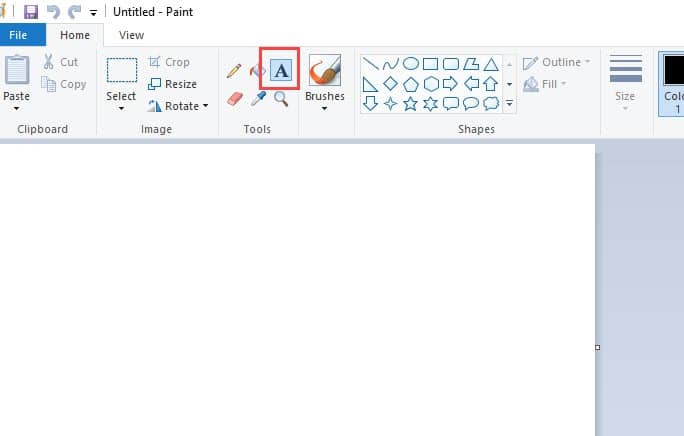
- Draw a box as big as you want. Don’t worry as you can change the box size.
- Click inside the box and type the text you want to enter.
- You can select the text and change the font from the Font section.
- Also, in the Font section, you will be able to change the size of the text, make it bold, italic, underline the text, or strikethrough.
- To change the color, select the text and click on the color you want to change to in the Colors section. You can further choose a color by clicking on the Edit Colors option and selecting the shade you want.
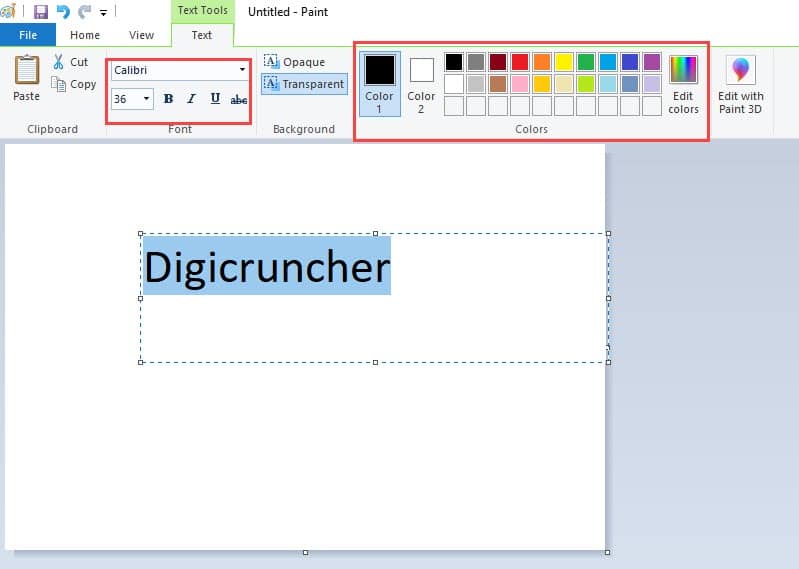
- After you are sure about the text you have entered, click outside the box in the sheet to confirm the text. Remember once you click outside the box, you can no longer edit the text in the box.
Now, you may not be able to edit the text after confirming it, but you can still move it.
- Click on the Select option in the Image section under the Home tab.
- Create a box around the text you want to move.
- Now you can move the selected text.
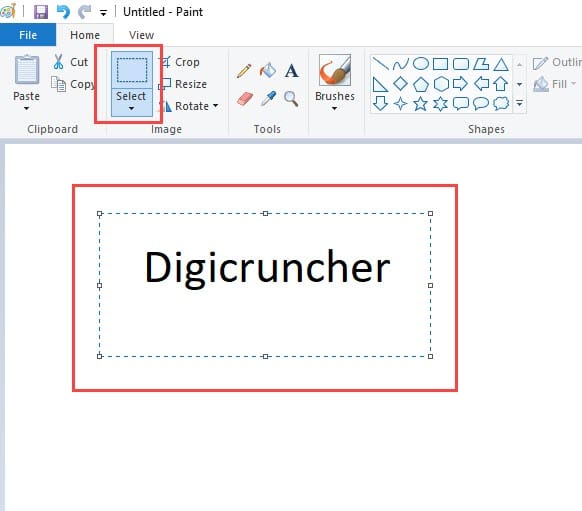
- To cut or copy the text, right-click on it, and select the option from the menu. Remember that you are not copying the text, but everything in the selected box. Similarly, you can also delete the text.
If you want to edit a text box that you have confirmed, the only way you can do it by deleting the text and writing a new one.
How To Edit Text In Paint 3D?
Editing the text in Paint 3D is similar to that of the Paint with some minor differences. One difference is that in Paint 3D you can type 3D text, which can also be rotated in 3D. Now, let’s see the steps for editing text in Paint 3D.
- Open Paint 3D and create a new project.
- Click on the T icon in the ribbon.
- On the right-panel, select whether you want to enter text in 3D or 2D.
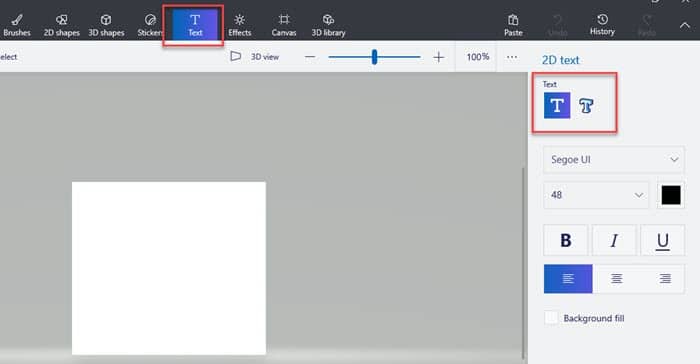
- Enter the desired text.
- To edit it, select the text and change the font, color, size, make it bold, italic, or underline it. Also, you can enter a background color and change the text position.
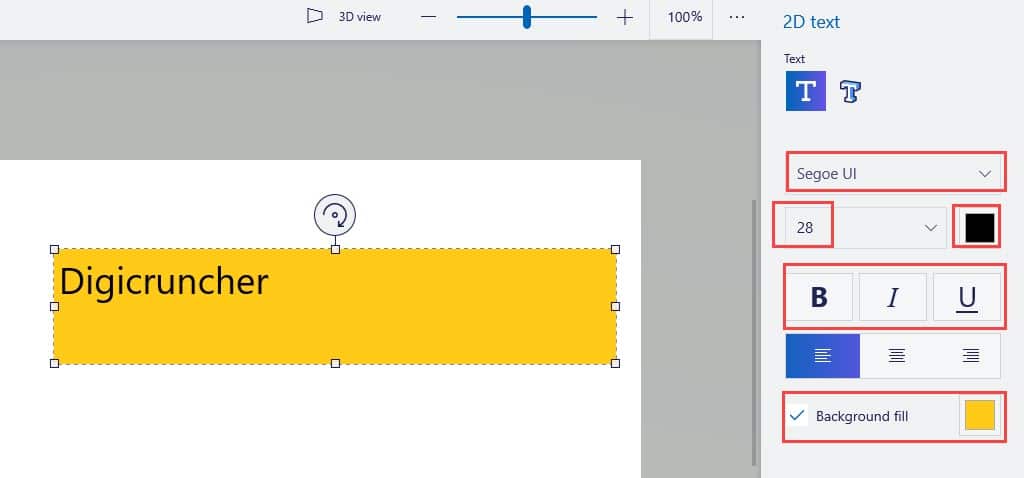
- After you are done, click outside the text box. This will confirm the text box and you won’t be able to edit the text again.
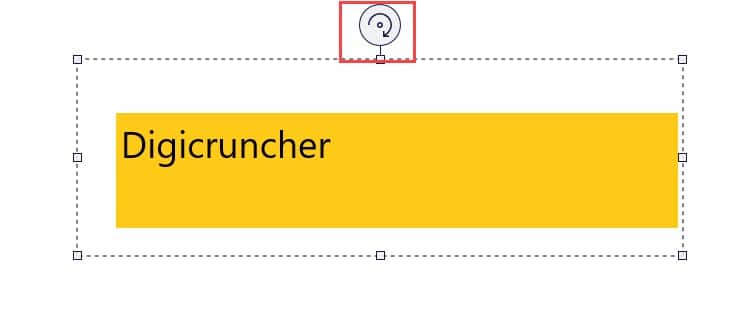
- After confirming the text, you can still change its size as a whole, rotate, flip, copy, cut, make it 3D all by selecting the Text again. Remember that whatever you do, it will change the entire section that is selected and not the text. This is how to edit text in Paint 3D.
Wrapping Up
So, there you have it. Now you know how to edit text in paint 3D. Remember that once you confirm the text in either Paint and Paint 3D, you cannot edit it again. If you have any other questions regarding this topic, ask them in the comment section below.
About Sanmay Chakrabarti
Sanmay is a Tech enthusiast. He has been troubleshooting PC issues for 6 years and writing about them for 4. Reading books, traveling to new places and listening to music are some of his favorite hobbies.
Comments
Marilyn Yoder says
After I entered text in the box and clicked outside the box, the right half of the text disappeared.
I’ve been having the same problem for several hours now. I have tried every fix I’ve seen that I understood how to do & nothing works. I am so unbelievably frustrated right now I’m about to cry. I have made projects this way dozens of times. I do not understand why this keeps happening! Exceedingly frustrating.