How to Make Text Vertical in InDesign — 2023

Using the Line tool or Pen tool in InDesign is very useful. This handy feature helps you draw lines, create arches in titles, or draw a vertical path. If you are experienced in InDesign, drawing vertical paths and adding text is simple. However, if you are just getting to know the application, using InDesign vertical text is not quite as easy. In this article, we’ll help you out with a quick guide on how to use the InDesign vertical justification shortcut.
How to Vertical Text in InDesign
There are several ways you can vertically align text in InDesign. One of the simplest methods is to place a space character between every character in the text. This might sound tedious, which is why we’ve outlined a more efficient method below:
- 1. Start by drawing a vertical path using the Line Tool, or Pen Tool. Hold down Shift while drawing, so that you keep it vertical as you drag or click.
- 2. Select the text on the Path tool by pressing «Shift + T», and then click anywhere on the path. Type or paste the text you want.
- 3. To make sure the text is vertical, choose «Justify All Lines paragraph alignment», or simply press «Command/Ctrl-Shift-F». This will spread the text across the entire path.
- 4. Next, set the stroke width to zero, or set the color to None, so that there is no visible stroke.
- 5. Double click on «Text on a path tool», and open the dialog box. Set the Effect popup menu to «Stair step» and then click «OK».
You have to remember that vertical text alignment and justification is calculated from the baseline position of each line of text in the frame. With that in mind, here are some options in the Vertical Justification section, and a description of what they do.
- If you want to vertically align text downwards from the top of the frame, choose «Top», which is also the default setting.
- If you want to center lines of text in the frame, choose «Center.»
- To vertically align lines or text from the bottom, click on «Bottom.»
- If you choose «Justify,» you will evenly distribute lines of text vertically between the top and bottom of the frame.
How to Edit Vertical Text in InDesign Files
You now know how to make text vertical in InDesign, but what happens when you export the document to PDF, and you still need to make certain adjustments? On its own, InDesign is one of the most popular applications used for creating graphical images and editing them. But sometimes you need to convert your file to PDF format for easier sharing, and make changes to it before sending.
This is why you need PDF software. You can use PDF software to edit documents, merge documents, convert documents, edit pictures, and even use OCR technology to scan PDF documents and make them fully editable. Wondershare PDFelement — PDF Editor is a great application with many useful editing features. Here is a quick breakdown of the program:
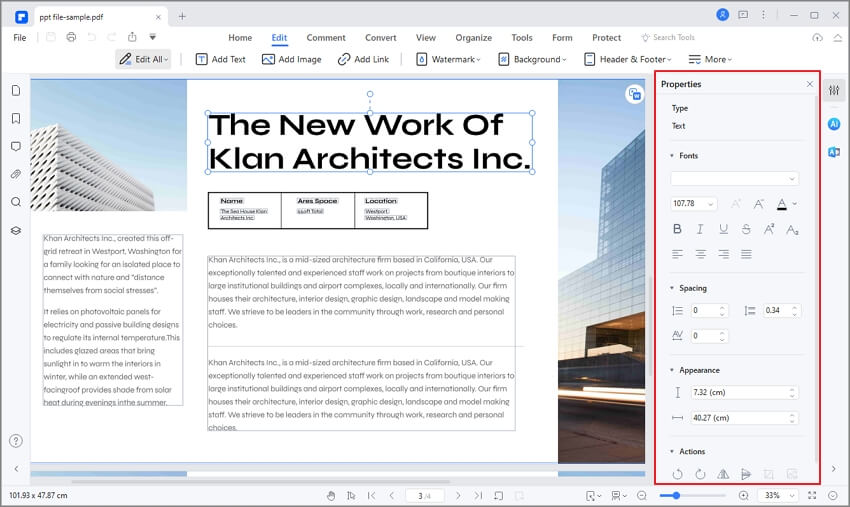
- Easily create and fill out fillable forms with interactive form controls.
- Protect information with password restrictions.
- Edit images by adding, removing, rotating, copying, pasting, replacing, and cropping them.
- Edit text with intuitive paragraph and single line mode.
- Crop, extract, merge, split, and insert PDF pages.
- Add annotations to documents, including sticky notes, comments, personalized drawing tools, and more.
Here is a quick guide on how to comment on and edit InDesign files with PDFelement:
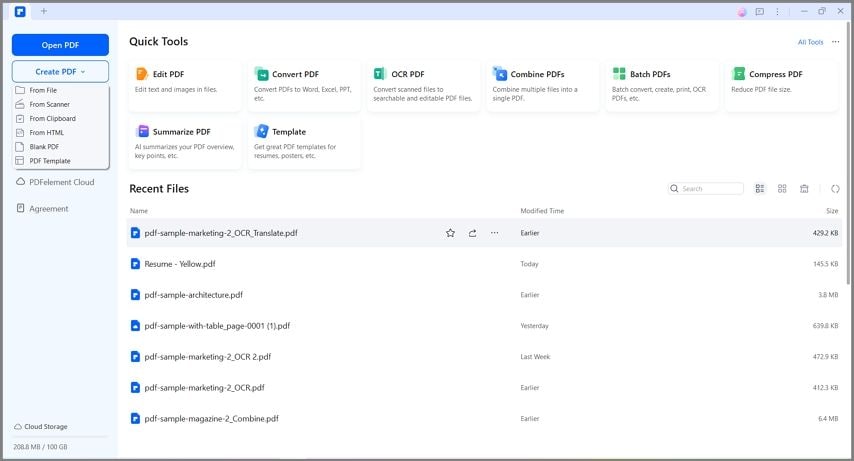
Step 1. Import InDesign File
Import the InDesign file into PDFelement, either by dragging and dropping it, or by clicking on «Create a PDF» and locating the InDesign file.
Step 2. Make Comment on InDesign File
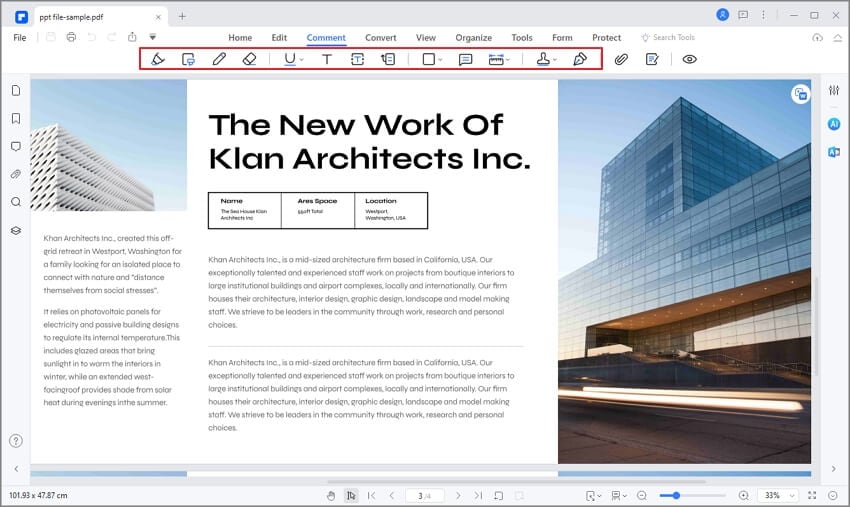
Comments are a common annotation tool, and you can add them by clicking «Comment» > «Note.» Once you add the note, you can click the «Select» button, and further edit it by dragging it to a certain area, copying and pasting it, and more.
Step 3. Edit InDesign File
To edit the PDF file, click on the «Edit» tab. You can change the text, add new text, and more. Choose whether you want a paragraph or single line mode. You can also edit images by clicking «Edit», and adding images. If you double-click on any image, you can rotate, replace, crop, extract, or delete it.
InDesign vertical text
InDesign Vertical Text is a type of text formatting in which we can arrange text in a vertical position. According to my, we can understand vertical text in two ways first one is changing the rotation of the text in a vertical position and the second one is type text vertically. I will explain both in this article and we will use some tools of tool panel, some options of the menu bar, and some other important features of this software for creating vertical text for different purposes. I will also explain to you how you can use it during designing layout for several project work of this software.
How to use and create Vertical text in InDesign?
We can create vertical text in InDesign for making an effective design layout and for managing text in a given text frame or there may be many reasons for creating a vertical text, it totally depends on your work requirement.
3D animation, modelling, simulation, game development & others
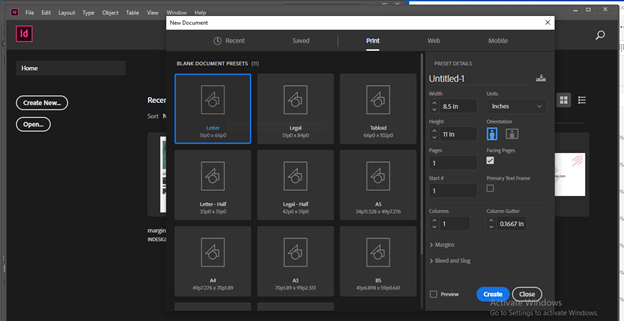
First, let us create a new document and for this purpose, I will click on Create New button on the welcome screen of this software and go with the default settings of the New Document dialog box.
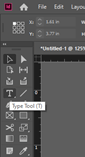
I will now take the type tool from the tool panel.
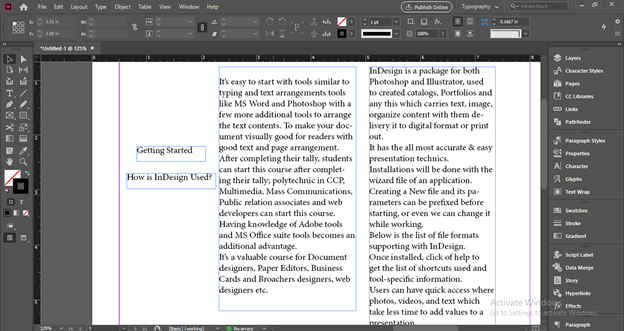
I have this text content here on my document page of this software and I will explain to you vertical text with the help of this text first.
I will change the text style and font size of these two texts.
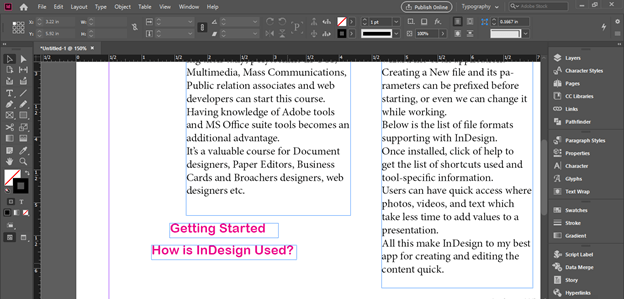
And now with the selection tool, we can rotate it like this. If we hold the shift button of the keyboard and then rotate it then it will rotate on the difference of 45 degrees.
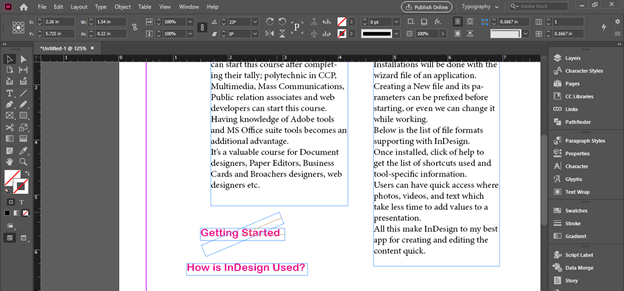
I will do the same with the other same text.
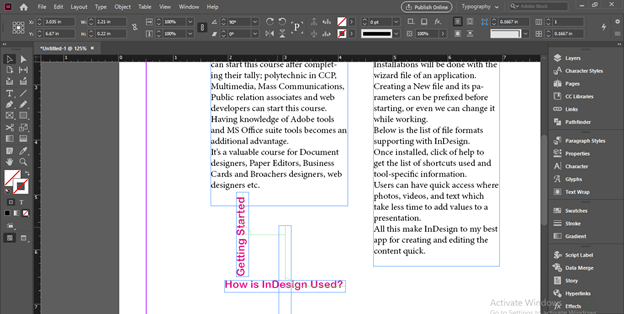
Now you can see both are in vertical position. So this is the first way in which we can rotate text in the vertical direction and set them with other text for making a good typography look.
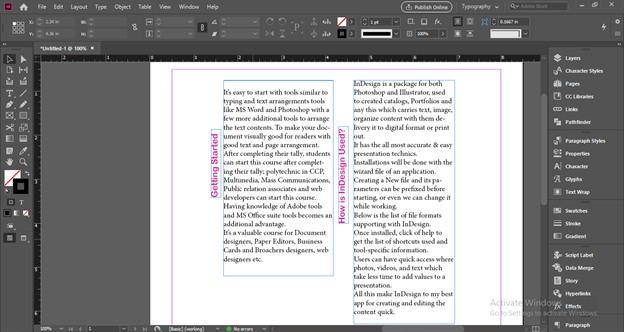
Now let me tell you how you can type a text vertically. For this purpose, we have to take the Line tool from the tool panel or press \ button of the keyboard as its shortcut key.
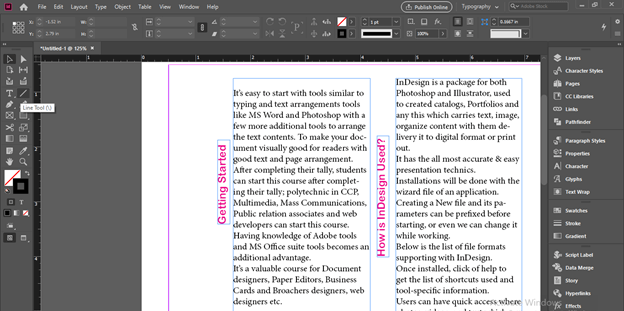
Now draw a vertical line like this. If we hold the shift key then the drawn line will be vertically straight.
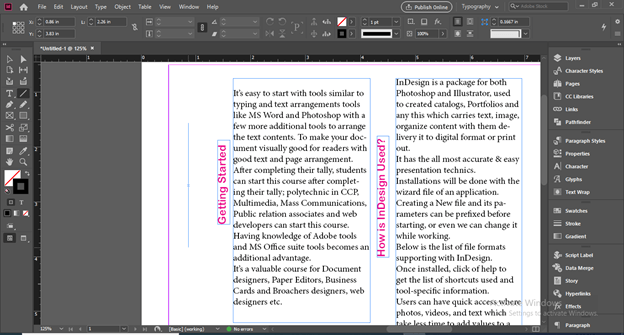
Now go to the tool panel and click on the drop arrow button of the Type tool. Here in this arrow we have Typed on a Path tool so select it. You can use the Shift + T buttons of the keyboard as its shortcut key.
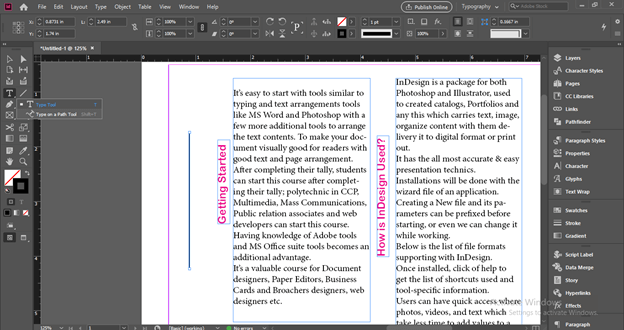
With the Path type tool click on the drawn line and once you click a blinking cursor for written a text will come on the line.
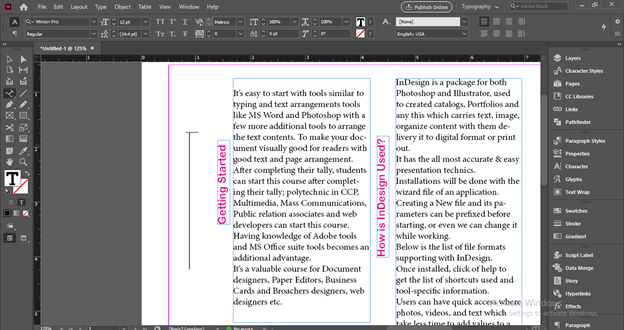
I will type InDesign as a text for this line. You can type your desired text here.
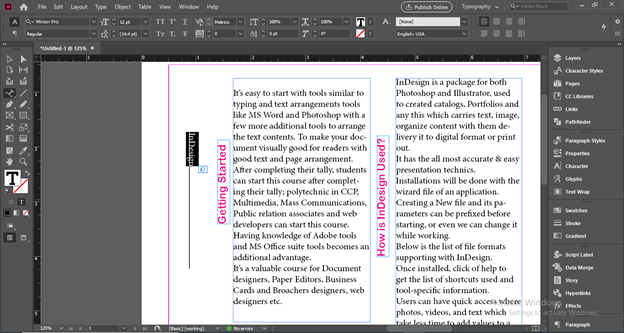
I will increase its font size and also change the font style then change its color also.
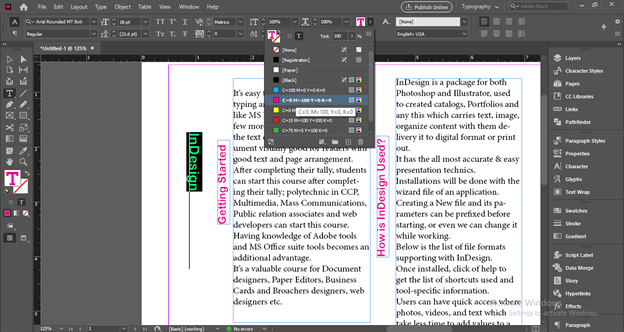
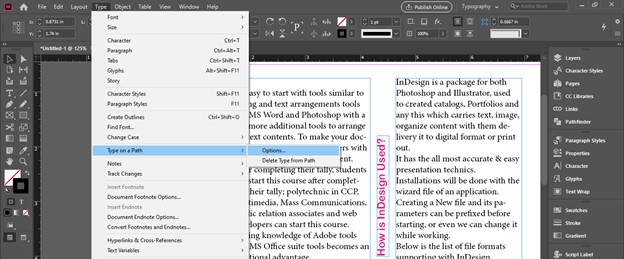
Now for making this text vertical, go to the Type menu of the menu bar and click on it. Choose ‘Options’ from the new scroll-down list of ‘Type on a Path option of scroll down list of Type menu.
Here a dialog box of ‘Type on Path’ will be open. Click on the drop arrow button of the Effect option of this dialog box.
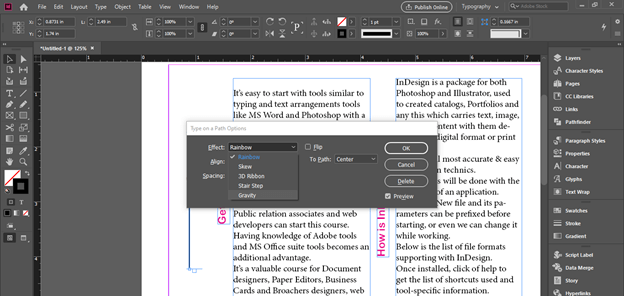
And choose the Stair Step option. Once you choose it you can see text will convert into vertical text.
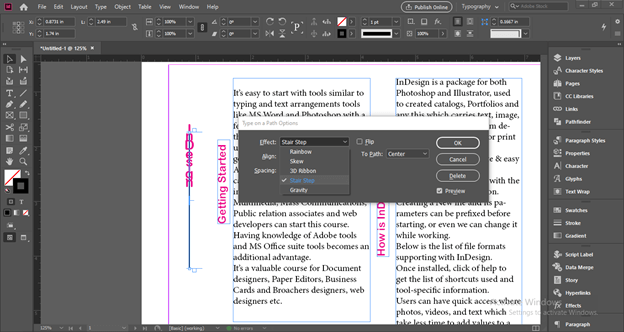
You can also adjust other parameters to aligning this text with the path. After having your desired settings click on the Ok button of this dialog box.
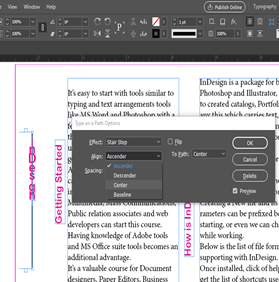
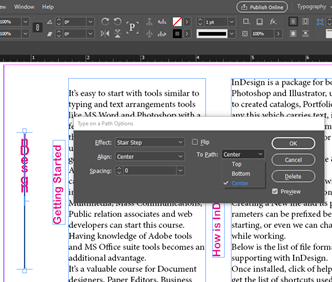
There is a Flip option you can click on it if you want to flip text vertically like this.
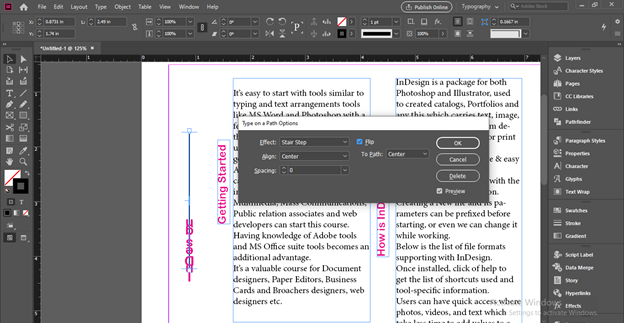
Now if we turn to preview mode by pressing the W key.
You can see there is the visible path of line with this vertical text.
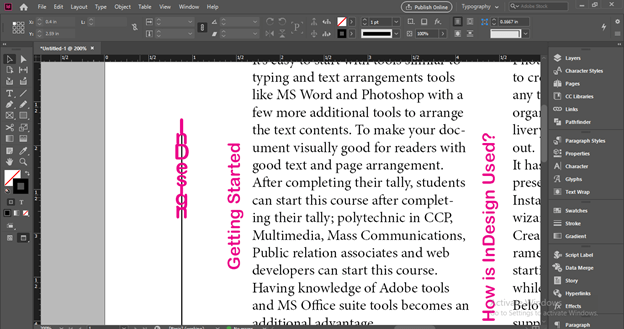
It is because there is a stroke on the line so go to the stroke color box and make the stroke off. Now you can see their only path.
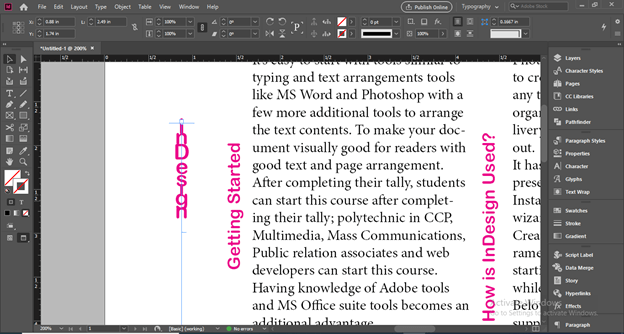
And when you deselect it you can see the vertical text clearly.
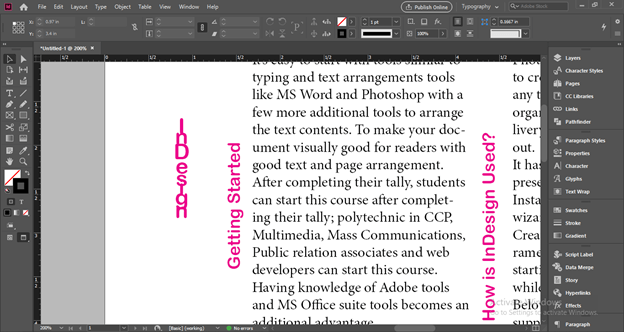
You can make changes in text format also after converting it in vertical text.
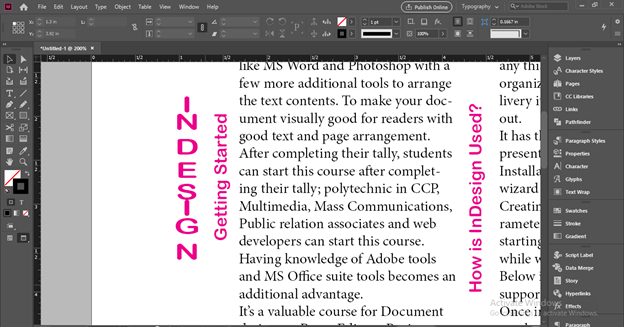
Now let me tell you how you can use this vertical text through an example. For that, I will again take a new document and place an image here. For placing the image I will go to the Place option of the File menu of the menu bar or you can press Ctrl + D as its shortcut key.
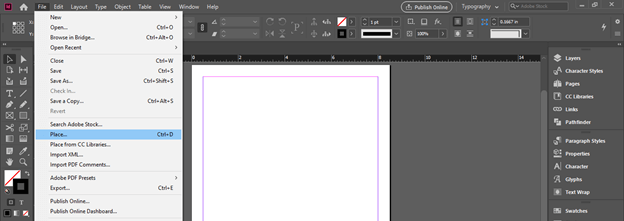
I will select this image from the opened dialog box.
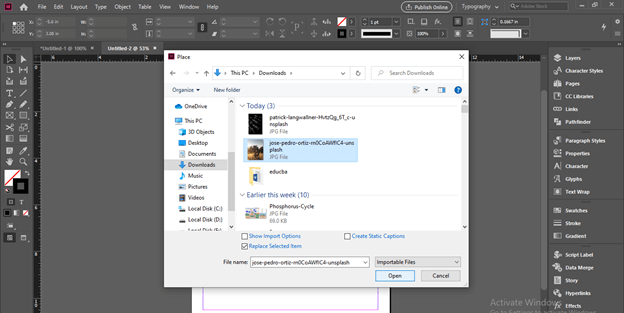
I have downloaded this beautiful image from Unsplash.com.
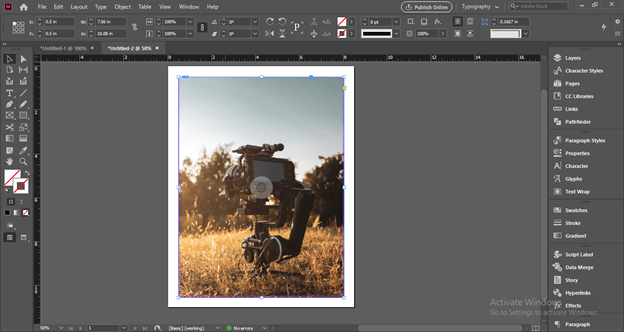
Now i will again draw a vertical line here like this.
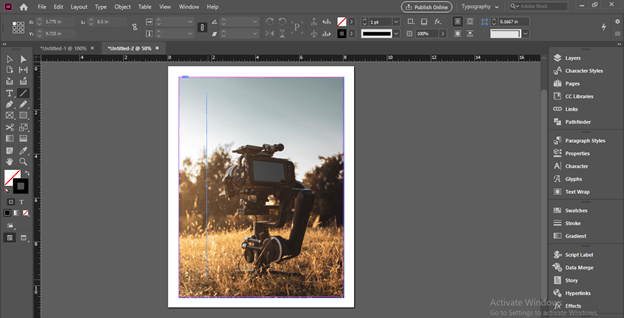
And type Photography word here.
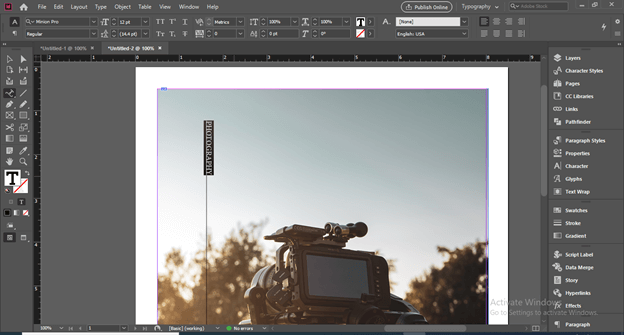
Now I will again open ‘Type a Paths Options’ dialog box and choose the same Stair step option as we chosen in the previous step.
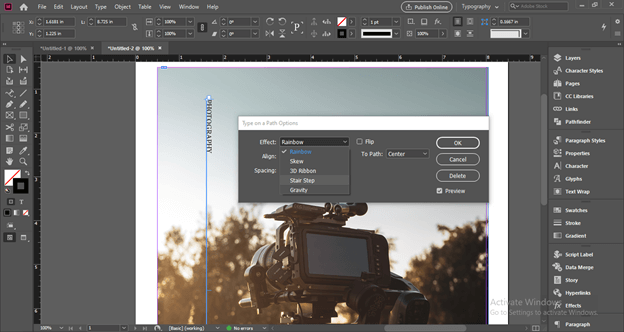
Now it is turn into vertical text like this.
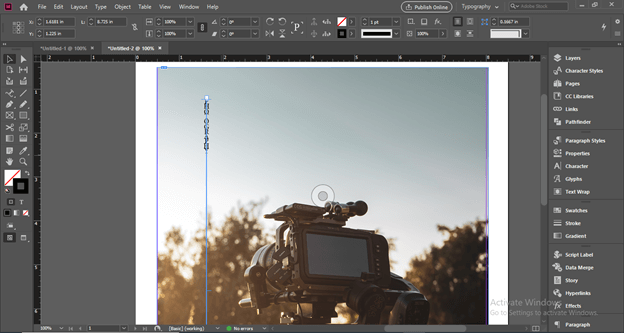
I will off the stroke of line now.
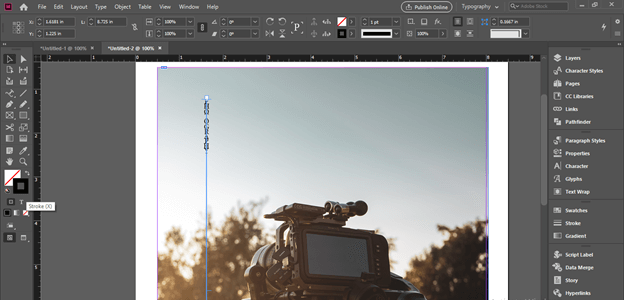
Now I will change the font size of this text.
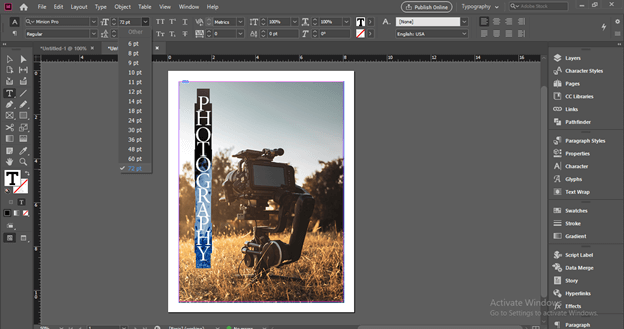
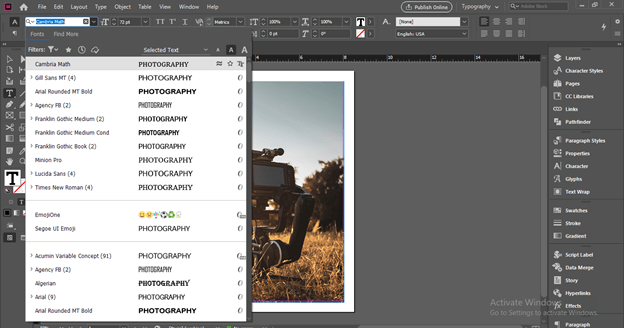
And choose this typeface of Serif font from the font style.
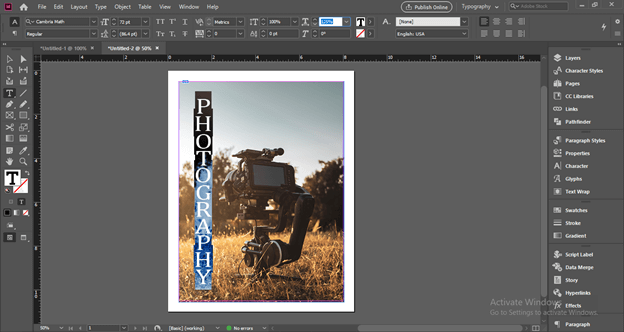
Now i will adjust the space between the letters of this text from the Character formatting panel which you can find at the top of the working screen.
Now I will select a text color box in the color box section.
And change the color of the text to this shape of blue.
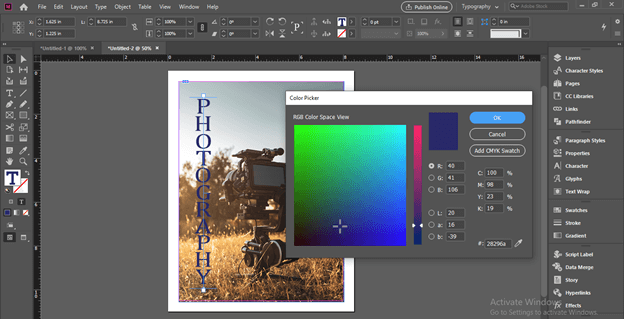
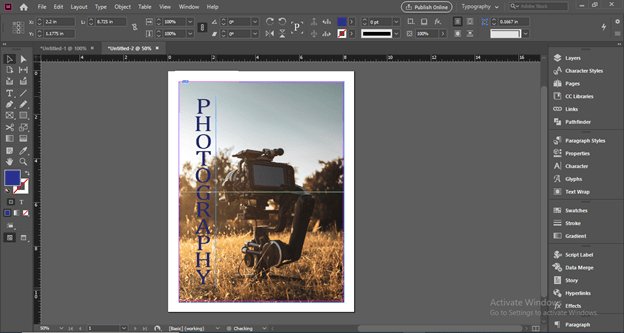
You can make a copy of this vertical text also. For making a copy you just have to select the path of this text and drag it by holding the Alt button on the keyboard.
Now I will add a gradient to duplicated text for adding some effect to it.
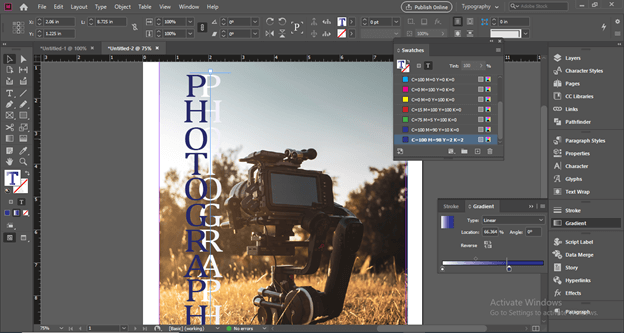
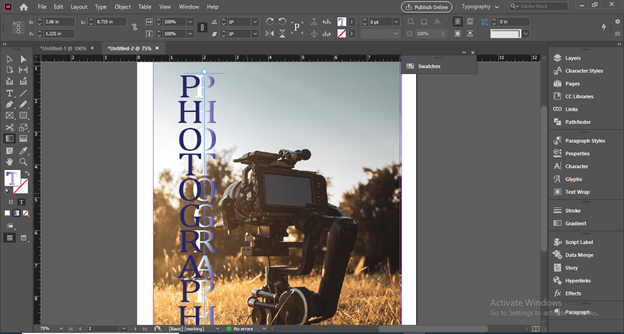
And set this gradient like this. You can see this way we can set a vertical text for making a good design that we can use with text content.
Conclusion
I’m sure you are definitely going to use this vertical text f in your design layout for making your design more and more effective. You can adjust the parameters of the Type on path tool for having a different types of results in the vertical text so start practicing on it for having good command on it.
Recommended Articles
This is a guide to InDesign vertical text. Here we discuss the important features of this software for creating vertical text for different purposes. You may also have a look at the following articles to learn more –
InDesign отсутствует кнопка выравнивания по вертикали
Вы можете выровнять текст по верхнему, центру или низу фрейма, используя значения интерлиньяжа и интервала между абзацами. Вы также можете выровнять текст по вертикали, что обеспечивает равномерные интервалы между строками независимо от их значений интерлиньяжа и интервала между абзацами. Вертикальное выравнивание: снизу (слева) и по ширине (справа)
Как сделать текст вертикальным в InDesign?
Чтобы переключить текст на вертикальную ориентацию, перейдите к «Тип» в верхнем меню и выберите «Текст на контуре» > Параметры. В разделе «Эффект» выберите «Шаг лестницы». В параметрах выравнивания выберите Центр. Нажмите ОК, чтобы закрыть окно.
Где находится инструмент «Выравнивание» в InDesign?
Вы используете панель «Выровнять» (Окно > Объект & Макет > Выровнять), чтобы выровнять или распределить объекты по горизонтали или вертикали вдоль выделения, полей, страницы или разворота.
Как выровнять текст без больших пробелов в InDesign?
Чтобы получить наглядное представление о любых проблемах с выравниванием текста в InDesign: выберите «Правка» (Windows) или InDesign (Mac), «Настройки», «Композиция». В разделе Highlight выберите H&J Нарушения (H&J = перенос и выравнивание) Нажмите ОК.
Как остановить разбиение слов в InDesign?
Отключить расстановку переносов
Снимите флажок «Перенос» на панели «Абзац». Выберите «Расстановка переносов» в меню панели «Абзац» или панели «Управление» и снимите флажок «Расстановка переносов» в диалоговом окне «Параметры расстановки переносов».
Как выравнивать столбцы в InDesign?
- Запишите начальное значение основного текста. .
- Выберите Редактировать > Предпочтения > Сетки (Windows) или InDesign > Предпочтения > Сетки (Mac OS). .
- Затем покажите базовую сетку с помощью View > Сетки & Гиды > Показать сетку базовой линии.
- Если вы не видите сетку сразу, немного увеличьте масштаб. .
- Наконец, выделите весь текст и выровняйте его по сетке.
Почему я вижу свою базовую сетку в InDesign?
Если у вас маленький экран, вы можете изменить настройки InDesign, чтобы сетка отображалась, когда вы смотрите на всю страницу. . Для этого выберите InDesign>Предпочтения>Сетки (Править>Предпочтения>Grids на ПК) и уменьшите значение View Threshold примерно до 50%.
Как вы читаете текст по вертикали?
Итак, хорошее практическое правило может заключаться в предпочтении варианта человеческой природы. То есть, если текст должен читаться НАД уровнем глаз, то он должен проходить снизу вверх. Если текст должен читаться НИЖЕ уровня глаз, он должен проходить сверху вниз.
Как сделать текст в PDF вертикальным?
Откройте PDF-файл и выберите Инструменты > Редактировать PDF > Добавить текст. Перетащите, чтобы определить ширину текстового блока, который вы хотите добавить. Для вертикального текста щелкните текстовое поле правой кнопкой мыши и выберите «Сделать направление текста вертикальным».
Как равномерно распределить строки в InDesign?
- Выберите ячейки в столбцах или строках, которые должны быть одинаковой ширины или высоты.
- Выбрать стол > Равномерно распределить строки или равномерно распределить столбцы.
Близость 
Близость 
Близость 
Свежие новости, интересные статьи и полезные гайды, связанные с графическим дизайном. Здесь вы найдете ответы на самые часто задаваемые вопросы
How to Align Text Vertically and Horizontally in InDesign
InDesign is a complex desktop publishing application developed by Adobe Systems that enables users to create posters, flyers, brochures and even magazines for clients as well as for various marketing purposes. With InDesign, you can insert text in your documents and customize it in a number of ways. To maintain consistency in your business documents, you may decide to align the text vertically and horizontally with the edges of the text box. Text alignment in Adobe InDesign is straightforward and the various alignment settings are relatively easy to master.
Align Text Horizontally
Launch Adobe InDesign and open the document containing text that you wish to align.
Press «T» to open the Type Tool or select it from the toolbox.
Click and drag on one of the pages to insert a text box and then type the text that you want to align horizontally.
Press «Ctrl-A» to select all of the text in the text box.
Click the «Align Left,» «Align Center,» «Align Right» or «Align Towards Spine» button near the top of the InDesign window to align the text horizontally with one of the edges of the text box.
Click the «Justify With Last Line Aligned Left,» «Justify With Last Line Aligned Center,» «Justify All Lines» or «Align Away From Spine» button near the top of the InDesign window to align the text horizontally with both edges of the text box.
Press «Ctrl-S» to save the document.
Align Text Vertically
Create a text box, type the text that you want to align vertically, and press «Ctrl-B» to open the Text Frame Options window. Alternatively, click «Object» and choose «Text Frame Options» from the menu.
Select «Top,» «Center,» «Bottom» or «Justify» in the Align box (in the Vertical Justification section) to align the text vertically. The first three options align the text with a single edge of the text box, while «Justify» aligns the text with both edges.
Click «OK» to apply the new settings, align the text and close the Text Frame Options window.