How to Get Windows 10 Classic Paint in Windows 11
Windows 11 has got the redesigned and modern (UWP) Paint app that has an updated UI that matches the new visual design of Windows 11. The modern Paint app’s new design includes rounded corners, Mica, and more. It has a new toolbar with updated icon designs, a rounded color palette, and a new set of drop-down menus for tools such as brushes, stroke size, and flip/rotate controls.
However, many folks still prefer the classic Windows 10 version of Microsoft Paint. If you want to get back the classic Windows 10 paint in Windows 11, this article is for you!
Restore Classic Paint in Windows 11
To get back classic Windows 10 version of Paint in Windows 11, follow these steps:
Step 1: Copy the classic Paint files
- Download Paint (Classic).zip [2.03 MB] and open the archive.
- Right-click on the “ Classic Apps ” folder and click Copy.
- Open the “ C:\Program Files ” folder.
- Right-click an empty area in the Program Files folder and choose Paste.
You now have the following folders and files:
Note: It’s suggested that you maintain the same directory names/structure as above. It’s because the registry file in “Step 3” below is pre-made for the above directory paths.
(The above files were copied from a Windows 10 21H2 computer. On Windows 10 21H2, Microsoft Paint is still a classic app available as an Optional Feature or Feature-On-Demand.)
Now, you should be able to launch classic Paint by double-clicking mspaint.exe .
What’s your locale – en-US or en-GB?
If you’re using a different locale, rename the “ en-US ” folder above to your LCID accordingly. For example, rename “ en-US ” to “ en-GB ” for English (UK), or “ en-CA ” for English (Canada). See the complete list of locale IDs (LCID) at the Microsoft Docs portal.
And, if your locale ID folder ( en-US , en-GB , etc) is not found, or mspaint.exe.mui is missing from your locale ID folder, mspaint.exe will throw the following error:
Step 2: Turn off mspaint.exe alias via Settings
The next step is to disable the App Execution alias for mspaint.exe. To do so:
- Open Settings.
- Click Apps → Apps & Features
- Expand “More settings”
- Click “App execution aliases”
- Disable the toggle switch for Paint ( mspaint.exe )
- Close Settings.
Note: Turning off the app execution alias for mspaint.exe will remove the following items for good so that you can run classic mspaint.exe alongside the modern Paint app:
Step 3: Register Microsoft Paint Classic with Default Apps
- Download add_classic_paint_default_apps.zip
- Extract the contents of the archive to a folder.
- Double-click “ add_classic_paint_default_apps.reg ” to apply the settings.
- Click Yes when asked for confirmation.
Contents of the Registry File
The above registry file contains the settings needed for Paint (Classic) to appear in Default Apps and the Open with dialog. These registry settings let you run classic Paint as well as the default/modern Paint app simultaneously. There is also an “undo” registry file provided in the archive, in case you want to revert the changes.
You can now open/associate an image file with classic Paint (mspaint.exe) via the Open with dialog.
And, as you see, Paint (Classic) is now listed in Default Apps alongside the modern Paint and Paint 3D apps.
One small request: If you liked this post, please share this?
- Pin it!
- Share it to your favorite blog + Facebook, Reddit
- Tweet it!
 report this ad
About the author
Ramesh Srinivasan is passionate about Microsoft technologies and he has been a consecutive ten-time recipient of the Microsoft Most Valuable Professional award in the Windows Shell/Desktop Experience category, from 2003 to 2012. He loves to troubleshoot and write about Windows. Ramesh founded Winhelponline.com in 2005.
10 thoughts on “How to Get Windows 10 Classic Paint in Windows 11”
Ramesh, thank you SO much. Just got upgraded and the lack of keyboard shortcuts in the new Paint is driving me crazy. I mostly use it as a landing spot / temporary editor for screenclips, so might not need to do the regedit. You are AWEsome!
The new Windows 11 Paint app is awful, the toolbar wastes so much space now. The new calculator was the same way, comically oversized. It’s obvious they are designing everything for tablets now and people’s fat fingers. I’m so glad it’s still possible to copy over the classic Windows 7 programs and use them.
Exactly! How am I supposed to edit an image when the stupid toolbar takes up so much of the screen!? It’s clearly designed by people who never use it for real work. Yes, I know “real” work is done in better paint programs, but I can do plenty in mspaint (at least I could in the old version) without having to install anything.
Just a question. I want to change the path and remove “Classic Apps” folder, Also change the name to “Paint”. I have changed the registery, the app path line to “Program Files/Microsoft Paint”, also “FriendlyAppName” to “Paint”. But it doesn’t work!
@armin: Not sure which registry keys you’ve changed. You may contact me via the feedback form here so that I can customize this for you.
Thanks. Could it possible to change installation path to “Program Files/Microsoft Paint” (instead of “Program Files/Classic Apps”). Also change “Paint (Classic)” to “Paint” in “Open with” menu?
THANK YOU so much!
Thank you Ramesh. I have been suffering and looking for months for a solution and your blog was the only place I could find the solution. Everywhere I went I ended up getting recommendations for Winaero and their classic paint version. It would run properly and I had to reinstall their classic pain over and over again in order to use it. THANK YOU.
Anzitutto ringraziamo Ramesh per la sua grande bravura e generosità…
Poi andiamo su Start a cercare il menu APP(licazioni), dopo su Impostazioni e andare su APP e infine Impostazioni Avanzate, cercando Alias di esecuzione.
Trovare in elenco MS Paint e Paint Brush di Windows 11 e disattivarli.
Poi lo strumento regedit per aprire il registro di Windows digitando Cortana Redgedit.exe.
Clicca cercando la chiave successiva HKEY_CURRENT_USER\Software\Microsoft\Windows\CurrentVersion\Applets\Paint\Settings
Qui si crea una cartella di nuova sottochiave chiamata “Disabilita ModernPaintBootstrap”.
Gli sarà scelto un valore DWORD a 32 bit.
Quando sarà creato daremo il valore 1 a questa sottochiave.
Una volta creato questo, lo salviamo con “aggiorna” e riavviamo Windows 11.
Dopo il riavvio possiamo verificare se l’aspetto classico è tornato al nostro MS Paint (ver. 10.0.14393.321) come Windows 10.
Questo metodo è l’opzione più duratura ed efficace che esiste per riportare Classic Paint sul nostro Windows 10.
Tuttavia Microsoft puntava su Paint 3D ma nemmeno questo programma ha avuto successo o faceva riavere il Paint precedente nel nostro Windows.
Si spera che, come con Internet Explorer, Microsoft lancerà in futuro un’applicazione separata da Classic Paint…
Se questo procedimento non basta bisogna scaricare il file .exe di maspaint versione per Windows 10 (tipo del 2017 o 2020) da qui:
https://www.winhelponline.com/blog/get-windows-10-classic-paint-in-windows-11/
Bisogna seguire passo passo tutta la procedura e spostare il file .exe installato su stessa cartella denominata in Program files.
Certe volte capita invece che l’antivirus lo blocchi (in container) o il sistema lo lasci in C:\VTRoot\HarddiskVolume6\Program files… dando errore in avvio!
Basta togliere la sua cartella trovata qui e spostarla sempre in C:\Windows\Program files per renderlo funzionale.
Altre volte non riesce ad eseguirsi perchè non corrisponde alla lingua del sistema operativo usato…
Allora basta rinominare tutte le cartelle, originali e copiate, tipo “en-US” in quello della lingua usata: pt-BR, ja-jp, it-IT…
Per essere sicuri che Windows 11 aggiunga il caro vecchio MS Paint (6,17 Mb) fra le applicazioni di base bisogna cliccare sul file:
“add_classic_paint_default_apps” per inserirne il comando nel registro.
E poi il file “undo” per debellarlo dal registro di Windows 11 (in ogni caso il PC va riavviato).
This is great, thanks! Is there a way to remove the large icons of “Clipboard, image, tool, etc.”?
Where is MS Paint in Windows 10 / 11, how to find,� run, start?
The solution for a fast access, for example, to edit an image or wallpaper is also suitable 4 Server 2019, 2016, . and Windows all Desktop OS!
In Windows-10 is the mspaint.exe full path, also in:�
C:\Windows\system32\mspaint.exe �e.g.� %WINDIR%\system32\mspaint.exe
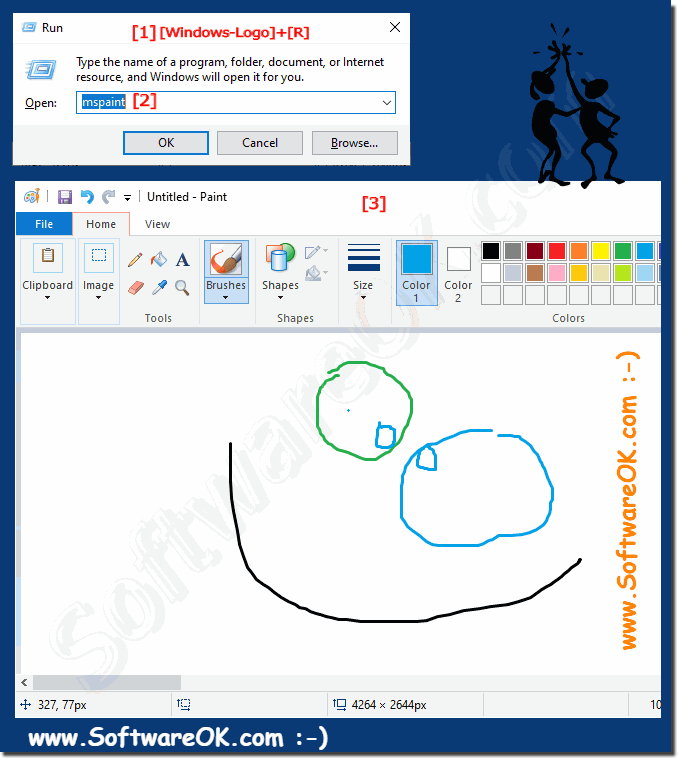
1.) Start the ms-paint via Run-Command Dialog in Windows 10/11!
1. Please press the keys [Windows Logo+R]
2. then simply enter the command mspaint
| (Image-1) Run the Paint in windows 10 via run-command dialog! |
 |
Despite all the benefits of the Windows 10 operating system, it can sometimes be quite difficult to find the right program that will eventually be needed.� This is such a common graphics editor as Paint, yet it’s hard to find for a large number of users.
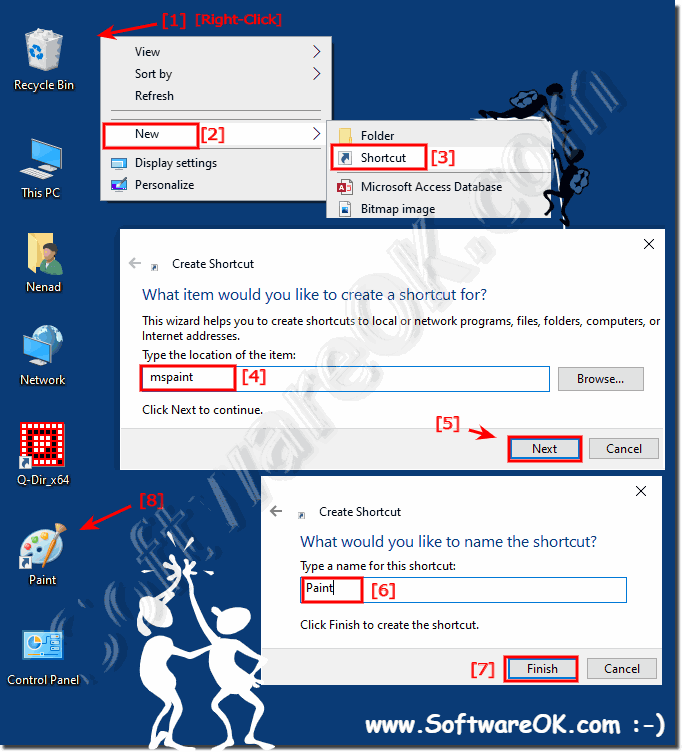
2.) Create a ms-paint desktop shortcut for the Windows-10/11 Desktop!
1. Right click�on a free space on the Windows desktop
2. select «New», «Shortcut»�( Right click = Long Tap on Tablet PC)
3. Now enter in the location the full path of the Windows 10 Paint: %WINDIR%\System32\mspaint.exe
(or «mspaint»)
4. Click the Button «Next».
5. Please enter the name for the Paint Desktop-Shortcut
6. You can mspaint.exe leave or enter «Paint» as name.
| (Image-2) Windows 10 desktop shortcut for Paint! |
 |
The Paint program is a simple graphics editor that lets you perform any operation on images. In the previous version of the operating system old Windows 7, it was very easy to run this program. It was in the start menu. At 10, this menu has changed slightly.
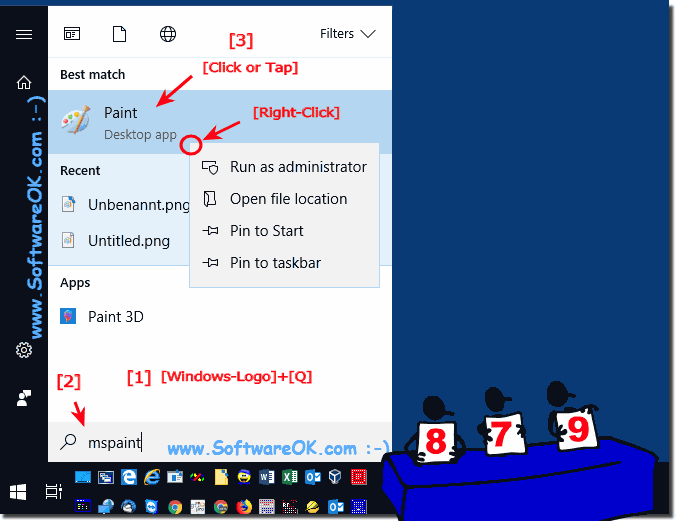
3.) Start the mspaint via Windows 10/11 search!
1.�Please click the Windows-Logo or the Windows-Logo Key!
1b. Or:�Use Keyboard-Shortcut Windows-Logo+Q�
2. Enter in Search Box mspaint and start the Paint in Windows-10!
2b. Or:�Do a right Click to start MS-Paint in Admin Mode
| (Image-3) Run paint from windows 10 search box! |
 |
Paint is a feature in Windows 10 that you can use to draw, color, and edit pictures. You can use Paint like a digital sketchpad to make simple pictures, creative projects, or to add text and designs to other pictures, such as those taken with your digital camera on Windows 10.
When you start Paint on Windows 10 , you’ll see an empty window; drawing and painting tools are located in the ribbon at the top of the window.
The ribbon in Paint includes a handy collection of drawing tools for Windows 10. You can use these tools to create freehand drawings and add a variety of shapes to your pictures on windows 10.
Some tools and shapes, such as the Pencil, Brush, Line, and Curve, let you make a variety of straight, curved, and squiggly lines. What you draw on new Windows-10 paint is determined by how you move the mouse as you draw. You can use the Line to draw a straight line.
4.) Run Paint when you start Windows 10 / 11 or Log in!
If you use paint very often, you also have the option to start the drawing program MS-Paint at the start. Ergo user login in MS Windows OS!�
Control-Panel in Autostart�for currently logged-on user please�use:
shell:startup �or� %appdata%\Roaming\Microsoft\Windows\Start Menu\Programs\Startup �
Add Control-Panel shortcut in Auto-Startup-Folder all users:
shell:common startup �or� %programdata%\Microsoft\Windows\Start Menu\Programs\Startup ���
Please use drop-action, for example, to add the MS-Paint to the Windows�startup folder.�
Useful Solutions To Fix Paint Not Working In Windows 11 [MiniTool Tips]
Microsoft Paint is an easy-to-use graphics editor. To make it easy for users to edit pictures and photos, Microsoft added Paint to every version of Windows as the default editor. The Windows 11 Microsoft Paint app has many improvements, but users said they find it not working sometimes. What happened? How to fix the issue?
Microsoft Paint, also known as MS Paint or Paint, is a simple raster graphics editor designed by Microsoft Corporation. It’s built into every version of Windows system to help users with graphics editing. Users don’t need to download other third-party image editors when they need to edit some photos. The Paint app has been improved a lot in Windows 11, including rounder corners, improved toolbar icons, new UI, and a new dark mode.
In general, users can open and use the Paint app in simple steps. However, problem occurs frequently and lots of users complain that their Paint not working in Windows 11: MS Paint not opening on Windows 11, MS Paint not working in Greek version of Windows 11, etc. What are the effective solutions to Windows 11 Paint not working? The following content tells all.
Use this to recover lost data from Windows 11 ASAP:
How to Open Paint on Windows 11
What are the commonly used ways to open MS Paint on Windows 11?
One: Search for Paint
- Click on the Start button in taskbar or press Start on keyboard to launch the Start menu.
- Navigate to the search box at the top, which shows Type here to search.
- Type Paint and you’ll see some search results.
- Click Paint App under the Best match or click Open under the Paint App on the right side.

Two: Open Paint from All Apps
- Launch Start menu.
- Go to All apps.
- Scroll down to the letter P section.
- Find and click on Paint.
Three: Start Paint from Run
- Press Windows + R.
- Type mspaint.
- Press Enter or click OK.
How to Fix Windows 11 Paint Not Working
Some users said the MS Paint is not opening or crashing on their Windows 11 PC. If this also happens to you, please follow the methods below to solve Paint not opening Windows 11 or MS Paint not working issue.
Try these simple workarounds for Paint not working in Windows 11:
- Close the Paint app and re-launch it.
- Reboot Windows 11.
- Double click on mspaint.exe from File Explorer.
- Disable/delete the recently installed apps, packages, etc.
- Uninstall and reinstall Paint Windows 11.
- Update MS Paint and the system.
Run Paint as Administrator
- Press Windows + S to open the search feature.
- Type paint.
- Right click on Paint under Best match.
- Select Run as administrator.
Run Windows Store App Troubleshooter
- Press Windows + I to open Settings.
- Select System on the left side.
- Select Troubleshoot on the right side.
- Click Other troubleshooters.
- Find Windows Store Apps.
- Click on the Run button and wait.

Windows 11 Settings not working is a terrible issue that bothers lots of the Windows 11 computer users. How to fix it?
Perform a DISM & SFC Scan
Run DISM scan:
- Press Windows + S.
- Type cmd.
- Click Run as administrator.
- Type exe /Online /Cleanup-image /Scanhealth and press Enter.
- Type exe /Online /Cleanup-image /Restorehealth and press Enter.
Run SFC scan:
- Run CMD as administrator.
- Type sfc /scannow and press Enter.
This page will show you how to recover files using CMD easily. You can recover data from USB pen drive, hard disk or other storage devices by command line.
Microsoft наконец открыла доступ к новому Paint для Windows 11
Компания Microsoft продемонстрировала в августе новое приложение Paint для Windows 11. Это одно из многих значительно переделанных приложений для новой ОС, включая Snipping Tool и Photos, но до настоящего момента новый Paint не был доступен даже в ранних тестовых сборках. Теперь Microsoft наконец-то начала распространять новый Paint для участников тестирования Windows Insider через канал для разработчиков.
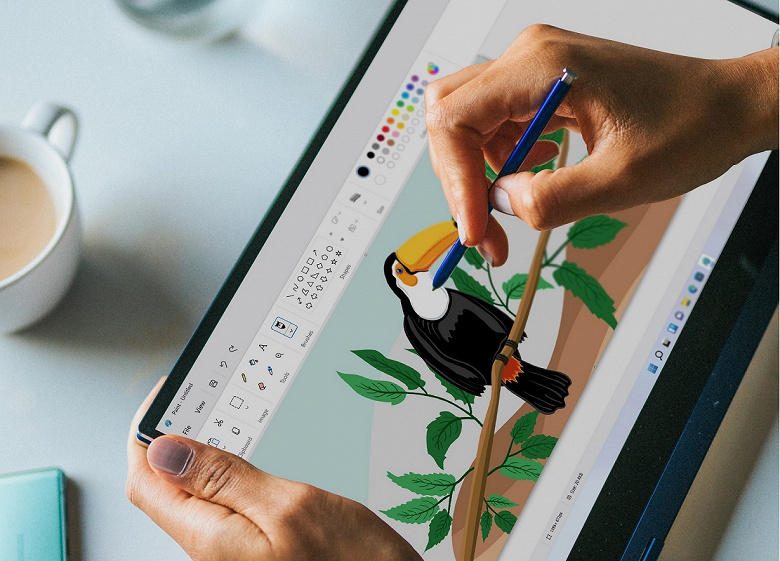
Microsoft называет новый Paint «современным вариантом классического приложения». В Paint для Windows 11 впервые за долгое время разработчики провели качественное визуальное обновление, приводя его в соответствие с дизайном новой ОС и остальных стандартных приложений.
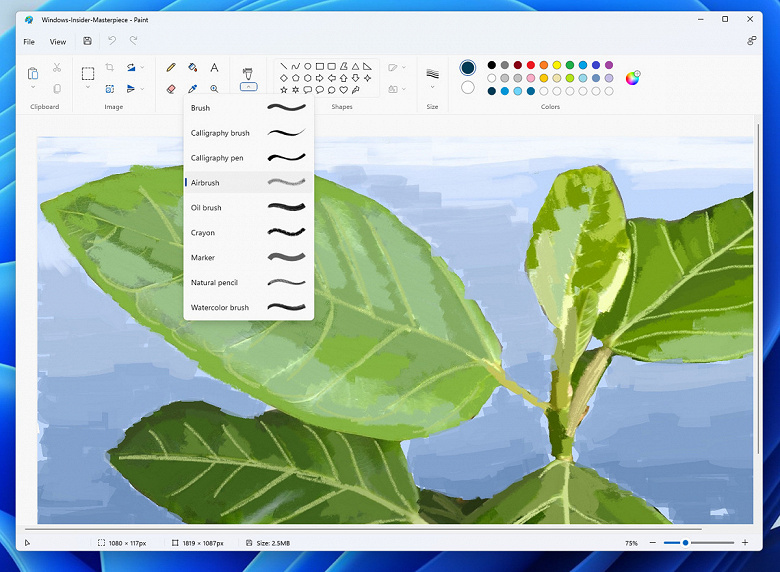
Переработка коснулась не только скруглённых углов — приложение также получило новую панель инструментов с переработанными значками, в нём появились новые выпадающие меню для кистей и так далее. Кроме того, появилась новая функция, ранее недоступная в Paint — инструмент для редактирования текста.
Microsoft планирует выпустить стабильную версию Windows 11 для пользователей уже 5 октября. Вероятнее всего, новый Paint на момент релиза Windows 11 останется в тестовой стадии.