Как настроить Clip Studio Paint под себя
По просьбам друзей решил записать несколько видосов о гибкой настройке рабочего пространства Cilp Studio под свои рисовательные нужды. Возможно кому-то здесь это тоже может пригодиться. Это первый видос, если он соберет хотя бы 20 лайков, то будет и второй.
Я обожаю CSP. Несмотря на то, что с Шопом я с 2008 года, он все равно мне кажется громоздким и неудобным для цифровой живописи. Хоть я и понимаю, что значительное число профессионалов работает в Шопе, мое сердце отдано CSP. По сути — это более продвинутый SAI.
Понял я это не сразу. Когда я только пытался начать рисовать в CSP то мне эта программа показалась чересчур сложной, с кучей непонятного функционала и иероглифов. Но я не прекращал попытки ей овладеть и раза с третьего смог пересесть на нее.
Надеюсь этот видос поможет тем, кто хочет попробовать поработать в классической японской проге для рисования манги (на самом деле рисовать там удобно все что угодно). Заранее спасибо за просмотр.
Clip studio paint как пользоваться
Если будете покупать, то версии Pro (которая дешевле) для курса достаточно.
В версии EX дополнительно есть разные инструменты для верстки книг, которые нам не понадобятся.
Если будете качать с торрентов, то там скорее всего будет лежать версия EX,
она включает в себя инструментарий Pro версии, и тоже подойдет. Но лучше купить, ибо программа часто обновляется и улучшается.
Примерно 4 раза в год на нее стабильно бывают большие скидки. Нужно следить за их сайтом и подписаться на новости.
- Закрыть все лишние.
- Оставить tool, subtool, tool property, layers, color (поменять на треугольник).
- Если вдруг что-то случайно закрыли — ищите в window.
- Выбрать pen > pen > G-pen.
- Дублировать ее (кликнуть правой кнопкой, duplicate subtool).
- Перетащить ее в новую группу.
- Переименовать в sketch (кликнуть правой кнопкой, settings of subtool).
- отключить нажатие в панели brush size
- включить pen pressure в панели opacity
- Stabilization 20
Группы инструментов (tools) > подгруппы инструментов (subtools) > конкретный инструмент.
Горячая клавиша S — наша кисть для рисования, ее можно дублировать с разными параметрами и новым кистям будет тоже присвоена эта
горячая клавиша. Таким образом вы можете выбирать их по очереди, или перенести вверх ту, которая больше нужна в данный момент
- мягкая — горячая клавиша E
- твердая — горячая клавиша R
ctrl + S или ctrl + shift + S
Сохранить проект, чтобы потом доделывать его
CLIP STUDIO FORMAT (.clip) — формат программы клип студио пэйнт.
PHOTOSHOP DOCUMENT (.psd) — формат программы Фотошоп, его потом можно открыть в фотошопе и работать с ним там. В этом формате не сохраняются векторные слои и перспективные линейки.
Если в будущем при сохранении в PSD у вас будут странные цвета,
то сохраняйте через file > save duplicate > psd
и там в окне psd export settings поставmnt галочку Embed ICC profile.
Сохранить картинку — формат .jpeg
ВНИМАНИЕ!
Если вы активно используете отражение экрана, то может сохранится отраженная версия.
Чтобы это исправить, зайдите в view> rotate/ flip и уберите галочку с flip horizontal.
выделите все слои и edit > transform > flip hotizontal.
Теперь сохраняйте.
Clip Studio Paint Pro: A Cult-Favorite with Serious Legs

Clip Studio Paint Pro started as a little-known favorite program of manga enthusiasts called Manga Studio. Now, it’s grown into a beast of a digital art software, combining aspects of Adobe Photoshop with those of popular sketching apps like Procreate.
This program combines raster and vector features, blends colors in real-time, and creates animation, all while…


Written by LUMOID Staff
Offering the most reliable information available for photographers, gear enthusiasts, techies, smartphone users, drone pilots, and more.
CLIP STUDIO Quick Manual
After launching, the «CLIP STUDIO START» screen will be displayed. Application and service information can be checked here.
Upon startup, choose whether to download additional materials from the cloud.
(Downloading may take some time to complete, depending on the connection status etc.)
Please download these at an appropriate time, following the instructions.
*Depending on your OS or version, the layout and functions may differ. Please update to the latest version.
Side menu
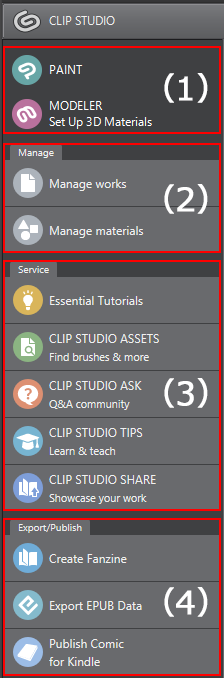
(1) Application launcher
Starts the software. In the iOS version, «Return to PAINT» will be displayed, closing the «CLIP STUDIO» dialog after selection.
(2) Manage
- Manage works
Check and manage your saved works, and sync to the cloud.
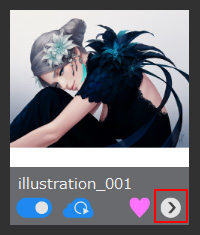 Displays a context menu to manage and control works via the (>) button of the displayed work.
* For more information about the cloud, please read the «User’s Guide to the Cloud».
* On the Windows and macOS versions, if you double-click a work, the «Manage works» screen will display. You can use this to do the same operations as the context menu. You can also check exported data (Kindle format, EPUB data, fanzine data).
Error messages
The following message may be displayed when editing materials: «Material database is being used right now, so this command cannot be executed. Please wait for a while and try it again.»
This is displayed when materials are edited while the material is updating.
To solve this, try editing at a later time, or close all running CLIP STUDIO software and try again.
[ASSETS] «Acquire latest information» Button
The latest information on the displayed material (material catalog) will be retrieved from «CLIP STUDIO ASSETS».
An icon will be displayed when an update is available.
(3) Services
- Essential Tutorials
Official lessons and tutorials by Celsys to help you start creating your own comics and drawings, as well as discover techniques of professional artists. - CLIP STUDIO ASSETS Find brushes & more
Download materials with «CLIP STUDIO ASSETS».
* With the Windows/macOS version it is possible to publish materials as well. - CLIP STUDIO ASK Q&A community
Consult with other creators on «CLIP STUDIO ASK», the official Q&A community. - CLIP STUDIO TIPS Learn & teach
Learn how to use the software, or teach and learn useful tips and tricks on «CLIP STUDIO TIPS». - CLIP STUDIO SHARE Showcase your work
With Clip Studio SHARE, you can publish your comics and illustration albums in an online viewer for easy reading.
(4) Export/Publish *Windows/macOS version only
This section links to services and functions for printing and publishing your work.
Menu bar

(1) CLIP STUDIO Button
Displays the start-up screen.
(2) Login (Button displaying the user name when logging in)
Displays the menu related to CLIP STUDIO account information.
(3) Cloud bar
Shows used capacity of the cloud.
If you click this, the «Cloud» menu will display. You can use this menu to back up or restore application settings. For more information about the cloud, please read the «User’s Guide to the Cloud».
* You cannot back up or recover application settings on the iPad version.
(4) Communication (left and right arrow icon)
Displays the status of any data transfer (upload/download) being executed.
(5) Announcements (bell icon)
Displays the notification menu for news, notifications etc.
(6) Settings (Gear icon)
Displays the settings menu. The menu varies depending on the OS.
Windows/macOS version
- Location of Materials
Change the location of the local save folder (directory path) that stores material data. - Download additional material now.
Some additional materials will only be downloaded as display data. This will download all data that has not yet been downloaded. - Download additional material at launch.
Upon launching CLIP STUDIO, the program will search for and download any additional materials on the cloud. - Change Background Image of Start Screen
You can change the background image of work history that shows on the start screen when you launch the program. - Maintenance menu
Restores settings, repairs damaged data, etc.
* Generally, please execute only when instructions are given via the support or manual etc.- Organize Works
If a work’s data stored in «Manage works» > «This device» becomes corrupted, you can try to recover or restore it.
If successful, «This device» will display as normal. If unsuccessful, an error message will pop up. - Organize Work Labels
If a label stored in «Manage works» > «This device» becomes corrupted, you can try to recover or restore it. - Organize Materials
Restores and repairs materials when the material information data etc. displayed in the «Manage materials» menu is corrupted.
If successful, the «Manage materials» menu will be displayed normally; if it fails, an error message will be displayed.
* When organizing, «Reset additional materials» will not be executed. - Organize Material Folders
Restores and repairs folders displayed in the «Manage materials» menu when they are corrupted. - Reset additional materials
Reset/restore materials that were installed with the installer then deleted or additional materials that were downloaded from the cloud. - Clear Display Settings of Confirmation Dialog
If executed when the «Do not show again» option is selected, those setting will be cancelled and turned off. - Do not send anonymous usage log
CLIP STUDIO may acquire usage logs for research (information that could identify an individual are never included).
When this setting is ON, usage logs will not be sent. - Adjust the display size if the screen display is too large
If the text or images are too large and can’t fit on the screen, check this box. - Set Kindle preview tool.
You can change the directory path for the installed Kindle preview tool.
iOS Version (iPad Version)
- Download additional material now.
Some additional materials will only be downloaded as display data. This will download all data that has not yet been downloaded. - Download additional material at launch.
Upon launching CLIP STUDIO, the program will search for and download any additional materials on the cloud. - Maintenance menu
Restores settings, repairs damaged data, etc.
* Generally, please execute only when instructions are given via the support or manual etc.- Organize Materials
Restores and repairs materials when the material information data etc. displayed in the PAINT «Materia palettel» is corrupted. If successful, the material will be displayed normally; if it fails, an error message will be displayed. - Organize Material Folders
Restores and repairs folders displayed in the PAINT «Material palette» when they are corrupted. - Reset additional materials
Reset/restore materials that have been deleted from the CLIP STUDIO PAINT Materials palette or additional materials that have been downloaded from the cloud. - Organize Works
Repairs and rebuilds work information data etc. displayed in the CLIP STUDIO «Manage works» menu if it is corrupted. If successful, the «Manage works» menu is displayed as normal; if it fails, an error message is displayed. - Organize Work Labels
Restores and repairs labels when the material information data etc. displayed in the CLIP STUDIO «Manage works» menu when they are corrupted. - Clear Display Settings of Confirmation Dialog
If executed when the «Do not show again» option is selected, those setting will be cancelled and turned off.
* The handling of usage log data is the same as the CELSYS usage agreement under «Sending of Information and use of cookies». Please refer to the above for further details.
- Organize Materials
- Organize Works