Как убрать "
Здравствуйте. Подскажите пожалуйста, как избавиться от такой проблемы?
В один день открываю ворд и тут на тебе. Работаю все время с ним, раньше вообще никаких проблем не возникало.
cats.jpg 264.55 Кб, файл не был скачан.
You don’t have the permssions to download the attachments of this post.
2 Ответ от ЮВ 22.08.2011 11:33:22
- ЮВ
- генерал-лейтенант
- Неактивен
- Зарегистрирован: 28.07.2010
- Сообщений: 284
- Поблагодарили: 43
Re: Как убрать "
Для начала проверьте, установлены ли галочки для отображения полей и скрытого текста
(Word 2003: Свойства>Параметры>Вид, поля показывать "Коды полей" и "Скрытый текст").
Их надо сбросить, сохранить документ и открыть заново.
Иногда это не помогает (наверное потому, что каким-то образом испортился используемый шаблон) .
3 Ответ от leelea 22.08.2011 11:38:35
- leelea
- рядовой
- Неактивен
- Зарегистрирован: 22.08.2011
- Сообщений: 3
Re: Как убрать "
Для начала проверьте, установлены ли галочки для отображения полей и скрытого текста
(Word 2003: Свойства>Параметры>Вид, поля показывать "Коды полей" и "Скрытый текст").
Их надо сбросить, сохранить документ и открыть заново.
Иногда это не помогает (наверное потому, что каким-то образом испортился используемый шаблон) .
у меня 2007, не могу найти. просто у меня в настройках многие символы не отображаются или текст неполный.. 
4 Ответ от viter.alex 22.08.2011 15:39:01
- viter.alex
- Модератор
- Неактивен
- Откуда: Харьков, Украина
- Зарегистрирован: 21.12.2009
- Сообщений: 884
- Поблагодарили: 140
Re: Как убрать "
Переключите режим отображения полей с помощью Alt+F9
5 Ответ от leelea 22.08.2011 15:50:01
- leelea
- рядовой
- Неактивен
- Зарегистрирован: 22.08.2011
- Сообщений: 3
Re: Как убрать "
Переключите режим отображения полей с помощью Alt+F9
сердечно благодарю! так и думала, что решается просто!))
Сообщений [ 5 ]
Страницы 1
Чтобы отправить ответ, вы должны войти или зарегистрироваться
Похожие темы
Форум Ворд Эксперт представляет собой средоточие полезной информации по вопросам работы в приложении Microsoft Word. На портале о Microsoft Office Word вы узнаете про: преобразование из excel в word. Портал русскоязычный, предназначен для помощи пользователям по вопросам работы с редактором и собрал большое количество полезной информации и инструкций по работе с программой. Наш сайт о Microsoft Office Word даст ответ про: как сменить диск по умолчанию.
Посетители ресурса могут познакомиться с обширным списком литературы по использованию программы, поискать обсуждение своей проблемы в ответах на часто возникающие вопросы и в готовых решениях. На портале о Microsoft Office Word вы узнаете про: нумерация первой страница в ворде. Если же искомое не найдено, можно обратиться со своим вопросом к старожилам сайта напрямую. Обязательно указывайте в вопросах, в какой версии вы работаете. Наш сайт о Microsoft Office Word даст ответ про: рамки-шаблоны для word.
На форуме Ворд Эксперт вы сможете научиться настраивать программу, форматировать и редактировать документы, разрабатывать шаблоны и даже научитесь писать макросы. Наш сайт о Microsoft Office Word даст ответ про: как перенести график из ехеля в ворд. При желании доверить это дело профессионалам можно оставить заявку на выполнение вашей работы в разделе «Заявки на разработку». Наш сайт о Microsoft Office Word даст ответ про: как удалить офис 2007.
Использование редактора на полную мощность поможет вам оптимизировать свою работу, добиться лучших результатов в максимально короткие сроки и не затрачивая при этом значительных усилий. Наш сайт о Microsoft Office Word даст ответ про: как сделаь рамку в вордовском документе по гост. В этом поможет форум Ворд Эксперт – лучший форум по работе с Microsoft Word.
How to Remove Hyperlinks in Word (also, Turn Off Hyperlinks)
Hyperlinks are clickable links that take you to a specific web page, or source, within or outside your Word document. Microsoft Word occasionally inserts clickable links where you do not want them (i.e., citations and within the text).
Links can be helpful in some cases, but they can also appear cluttered, unprofessional, or unnecessary in a printed document.

You can add or remove hyperlinks as needed depending on the requirements of your Word document.
When you enter or copy and paste URLs into Word, hyperlinks are added automatically to the Word document. To follow the link in Word, hold down the control (ctrl) key while clicking on it. It is hard to keep up with everything Microsoft Word does with so many features and functions.

Tip: To follow the link in Word for Mac, hold down the ⌘ command key while clicking on it.
While helpful hyperlinks can also be annoying, for example, when a user copies information from a website such as Wikipedia and pastes it into a Word document, the hyperlinks follow. These hyperlinks are useless because you do not want them in your document.
This article teaches you how to remove hyperlinks from a Word document so you can get back to work.
Table of Contents
Remove Hyperlinks in Word using Tools Menu Option
Microsoft Word Tools menu has an option that lets you remove hyperlinks from your document. Here’s how.
1. Highlight the hyperlink you want to remove and “Right-click” on it.


2. Click “Remove Hyperlink.”

3. The text/characters will revert to their original color and appear as default text.
Alternatively, you can right-click anywhere on a link and click “Edit Hyperlink” in the pop-up menu that appears. This option displays the window shown below. On that window, click “Remove Link” and then click “OK.”

Remove All Hyperlinks in MS Word using HotKeys
HotKeys make it faster and easier to delete hyperlinks in MS Word primarily because they delete multiple links regardless of how many are in your document. In the first process, the right-click method deletes hyperlinks one by one. Here is how to remove all hyperlinks in Word.
If there are numerous links on multiple pages, it is preferable to remove all hyperlinks in Word using hotkeys.
Windows users can use these hotkeys:
It is easy to remove all hyperlinks using Windows hotkeys. Here is how.
- To highlight the entire text in your Word document, press “Ctrl + A” simultaneously.
- To remove all the links, press “Ctrl + Shift + F9.”
Mac users can use these hotkeys:
To remove all hyperlinks using Mac hotkeys, do the following.
- To highlight the entire text in the article, press “CMD + A.”
- To remove all hyperlinks at once, press “CMD + fn + Shift + F9.”
Remove Hyperlinks From MS Word Documents using Macros
The Macro Recorder is a helpful tool included in Word that allows you to record a series of preferred options and playback the macro when needed. You can also manually enter Visual Basic code to create a macro that removes hyperlinks from all open Word documents.
To start, simultaneously press the “Alt + F11” hotkey to launch the Visual Basic editor. To open a Module window where you can enter macro code, select “Insert,” and click “Module.” Then, “Ctrl + C” to copy and “Ctrl + V” to paste the below code into the module window of MS Word.

1. To open the Visual Basic editor, simultaneously press the “Alt + F11” hotkey.
2. Click “Insert” on the “Microsoft Visual Basic for Applications” window.
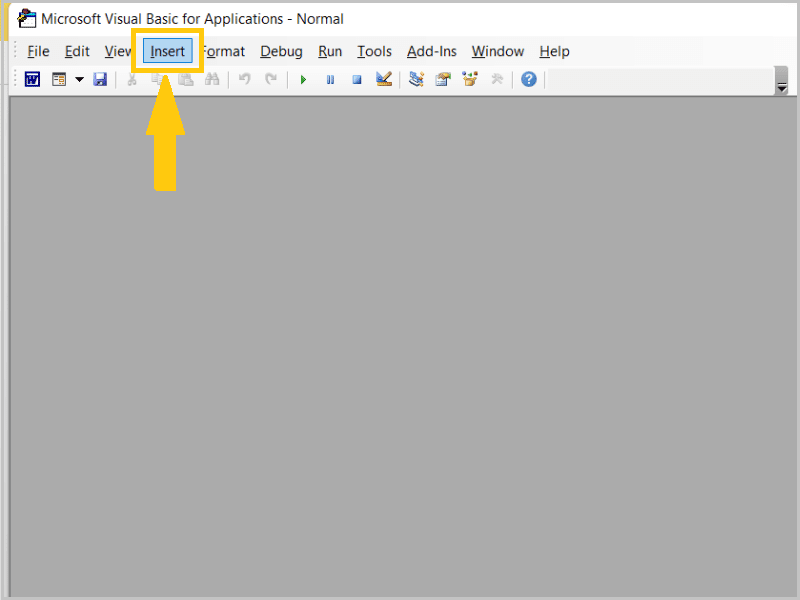

3. Select “Module” to bring up the Module window, where you can enter the macro code.

4. Highlight the code below and press “Ctrl + C” to copy and “Ctrl + V” to paste it into the MS Word module window.
Sub ClearHyperlinks()
Dim oField As Field
For Each oField In ActiveDocument.Fields
If oField.Type = wdFieldHyperlink Then
oField.Unlink
End If
Next
Set oField = Nothing
End Sub
Once you have pasted the above code, use the keyboard shortcut “Ctrl + S” to save the macro.

To run the macro, go back to your document, and do the following.
1. Click the “File” tab at the top.
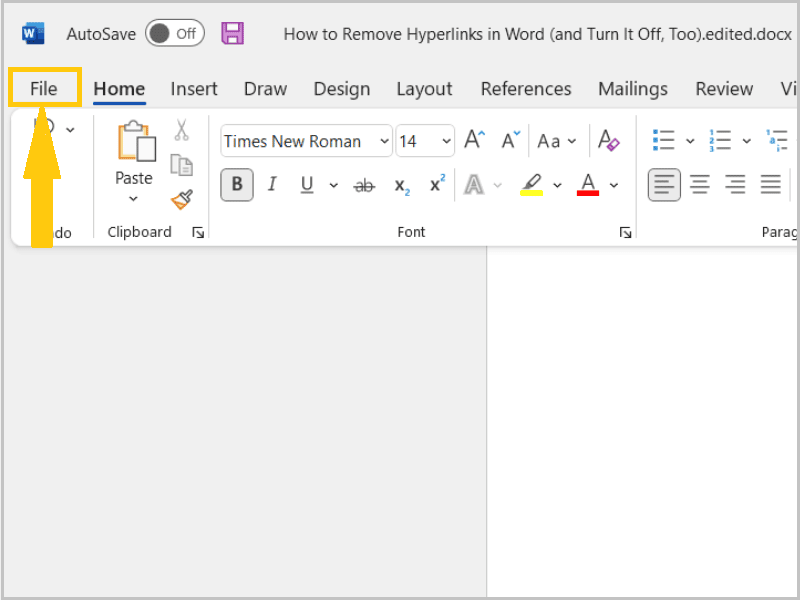

2. Click “Options” at the bottom.

3. In the Word Options window, select “Customize Ribbon.”
4. Under “Customize the Ribbon,” locate and check the “Developer” option and click “OK.”
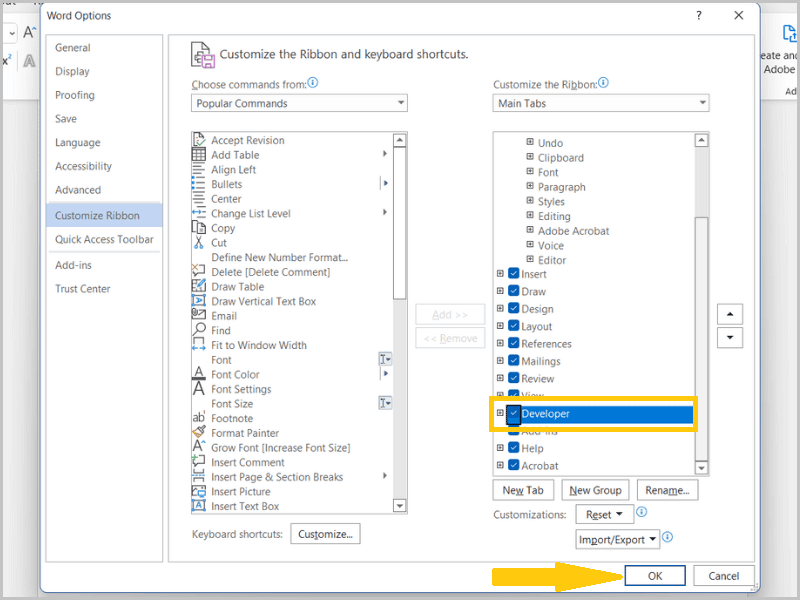
5. Then select the newly added “Developer” tab in the ribbon.

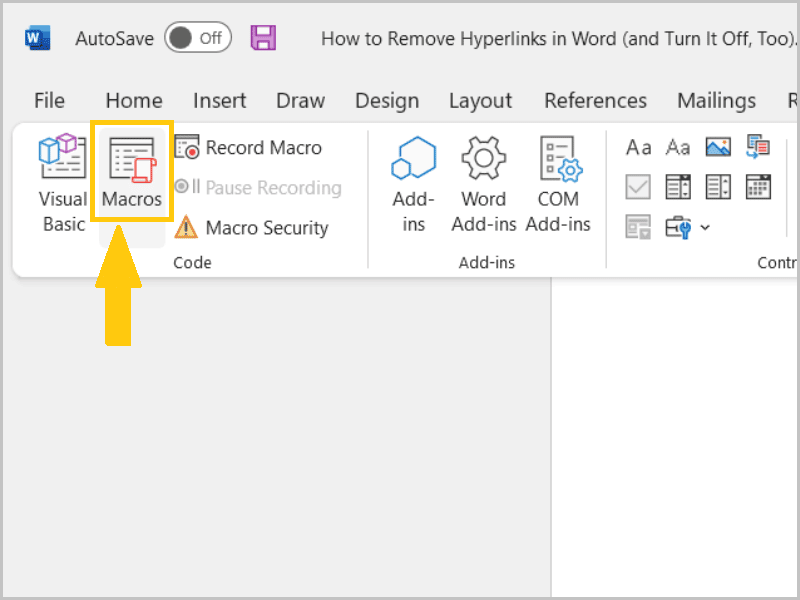
6. Click “Macros.”
7. Then choose “ClearHyperlinks” and click “Run.”

Congrats! You removed all hyperlinks in open Word documents at the same time.
Copying and Pasting Plain Text Hyperlinks
You may want to paste copied links as plain text to display the complete web address.
1. Copy the website link you want to use by pressing the “Ctrl + C” hotkey.

2. In MS Word, right-click and choose “Keep Text Only” from the context menu but do not press the “Enter” key after pasting the web address as that converts the URL to hyperlink format.

Tip: “Keep Text Only” option will appear only after copying the link or the web address you want to use.

Tip: To remove the hyperlink format from the URL, right-click on it and choose the Remove hyperlink option. It will convert the web address as a plain text hyperlink.
How to Turn Off Automatic Hyperlink Formatting in Word
Word converts URLs to hyperlinks automatically, but you can prevent this from happening. Here’s how.
1. Click the “File” tab.
2. Select the “Options” button from the left pane to open the “Word Options” window.

3. Select “Proofing” from the left menu.
4. Click the “AutoCorrect Options“ button.
5. Choose the “AutoFormat As You Type” tab.

6. Clear the check box “Internet and network paths with hyperlinks.”


7. Click on the “OK” button on the “AutoCorrect” and “Word Options” windows to apply changes.
All URLs entered in Word documents will now be displayed in plain text.
Conclusion
There are several methods for converting Word document links to plain text URLs. Word has hotkeys, context menu options, and macros that you can use to delete hyperlinks from Word documents.
To remove a hyperlink in Word on Mac: Launch a Word document with a hyperlink. Right-click on a link you wish to delete. Click the Hyperlink option and then select Remove Hyperlink.
Откуда вылезли hyperlink-и, когда их нет в ворде?
Во избежание чудес жмите в Word Ctrl+6. Это убьет гиперлинки нафиг.
- 01.04.2009
- #3
Ответ: Откуда вылезли hyperlink-и, когда их нет в ворде?
Mallard
Свинский
- 01.04.2009
- #4
Ответ: Откуда вылезли hyperlink-и, когда их нет в ворде?
Например Pages сам добавляет гиперлинк, если набирать текст типа www.rudtp.ru, а в TextEdit потом появляется HYPERLINK "http://www.rudtp.ru" www.rudtp.ru. Такштаааааа.
Вово! И форум тоже так делает!
- 01.04.2009
- #5
Ответ: Откуда вылезли hyperlink-и, когда их нет в ворде?
а форум типа не интернет, ага )
во-вторых, ну кто из авторов работает в пейджез? найди хоть одного )
Mallard
Свинский
- 01.04.2009
- #6
Ответ: Откуда вылезли hyperlink-и, когда их нет в ворде?
linosonic
Забанен
- 02.04.2009
- #7
Ответ: Откуда вылезли hyperlink-и, когда их нет в ворде?
Вообщем, мы отдали корректору на вторую читку.
Благо автор еще раз изменил некоторые части в книге, так что, наверное по любому надо было бы отдавать второй раз на читку.
How To Remove Hyperlinks from Microsoft Word Documents
Hyperlinks are clickable links within a document that will take you to a selected web page. Sometimes, Microsoft Word adds clickable links where you don’t want them (i.e., citations). Links may be helpful in some situations, but other times, they can look messy, unprofessional, or unnecessary in a printed document.

Depending on the needs of your document, you can either add or remove the hyperlinks as necessary.
MS Word automatically adds hyperlinks to documents when you enter or copy and paste URLs. You can follow the link by pressing the control button while clicking on it. With so many features and functions, it is challenging to keep up with everything Microsoft Word does. This article shows you how to remove hyperlinks from a document to get on with your work effectively.
Remove Hyperlinks using Word’s Context Menu Options
- Right-click on the chosen link in the document, then select “Remove Hyperlink.”

- The text/characters will change to the currently set color and become normal text.

Alternatively, you can right-click a link and select “Edit Hyperlink.” That option opens the window shown directly below. Press the Remove Link button on that window and click OK.

Remove All MS Word Hyperlinks using Hotkeys
Hotkeys make it quicker and easier to remove numerous hyperlinks in MS Word, mainly because they delete links in bulk no matter how many your document has. The right-click method in the first process only deletes hyperlinks one by one. Here’s how to use hotkeys to delete MS Word hyperlinks.
If there are many links on multiple pages, it’s better to remove all the hyperlinks with Word’s hotkeys.
Windows users can use these hotkeys:
- Press the “Ctrl + A” hotkey to select all the text in the document.
- Press the “Ctrl + Shift + F9” hotkey to remove all the links.

Mac users can use these hotkeys:
As with a standard Windows keyboard, press CMD+A to highlight all text within the article. Then use the CMD+fn+Shift+F9 keys and all hyperlinks in the document will be deleted.
- Press “CMD + A” to highlight all text within the article.
- Press press “CMD + fn + Shift + F9” to delete all hyperlinks at once.

Remove MS Word Hyperlinks From Documents using Macros
The Macro Recorder is a handy tool included in Word that enables recording a sequence of selected options and playing back the macro when required. You can also set up a macro that removes hyperlinks from all open Word documents by manually entering Visual Basic code instead.
First, press the Alt + F11 hotkey to open the Visual Basic editor. Click Insert > Module to open a Module window where you can input macro code. Copy (Ctrl + C) and Paste (Ctrl + V) the code below in Word’s module window.
- Press “Alt + F11” to open the Visual Basic editor.
- Select “Insert > Module” to open a “Module” window where you can input macro code.
- Copy (“Ctrl + C”) and Paste (“Ctrl + V”) the code below in Word’s module window.
Once finished with pasting the code above, press the “Ctrl + S” keyboard shortcut to save the macro. To run the macro, select “File > Macro > Macro” and choose “KillTheHyperlinksInAllOpenDocuments.” That will remove all the hyperlinks from open Word documents.
Copying and Pasting Plain Text Hyperlinks
There may be times when you want to paste copied links as plain text, displaying the complete web address.
- Copy the website link to Clipboard with the “Ctrl + C” hotkey.
- In MS Word, right-click and select “Keep Text Only” from the context menu, but don’t press the “Enter” key after pasting as that reverts the URL to hyperlink format.

Use Third-Party Add-Ons to Paste URLs as Plain Text in MS Word
Third-party add-ons make it easy to paste links as plain text in Microsoft Word documents.
Install Pure Text to Windows 10
Various third-party programs enable you to paste copied text without any formatting. For example, you could add the PureText program to Windows. That converts copied links to unformatted text when you press its “Win key + V” hotkey. You can also paste the text in Word documents by pressing the “Win key + V” keyboard shortcut.
Add Kutools to MS Word
Kutools is one of Word’s best add-ons that adds a whole new toolbar tab to the application. Kutools is retailing at $49 on its website, and there’s also a trial version. This add-on also gives you a quick way to remove all links in a document by clicking “Kutools > More” and then selecting the “Remove Hyperlinks” option. Alternatively, you can also select the “Enterprise” tab and click “Remove“ to erase link formatting from URLs.
How to Switch Off Word’s Automatic Hyperlink Formatting
Word automatically converts URLs to hyperlinks, but you can configure the application so that doesn’t happen.
- Select the “File” tab and “Options” to open the Word Options window.
- Click “Proofing > AutocorrectOptions“ to open the window shown directly below.

- Select the “AutoFormat As You Type” tab.
- Uncheck “Internet and network paths with hyperlinks checkbox.”Press the OK buttons on the AutoCorrect and Word Options windows. Now all URLs entered in Word documents will remain plain text.
In closing, there are various ways you can convert links to plain text URLs in Word documents. Word has hotkeys, context menu options, add-ons, and macros that help eliminate hyperlinks in Word docs. You can also remove hyperlinks from Excel spreadsheets.
Здравствуйте. Подскажите пожалуйста, как избавиться от такой проблемы?
В один день открываю ворд и тут на тебе. Работаю все время с ним, раньше вообще никаких проблем не возникало.
cats.jpg 264.55 Кб, файл не был скачан.
You don’t have the permssions to download the attachments of this post.
2 Ответ от ЮВ 22.08.2011 11:33:22
- ЮВ
- генерал-лейтенант
- Неактивен
- Зарегистрирован: 28.07.2010
- Сообщений: 284
- Поблагодарили: 43
Re: Как убрать "
Для начала проверьте, установлены ли галочки для отображения полей и скрытого текста
(Word 2003: Свойства>Параметры>Вид, поля показывать "Коды полей" и "Скрытый текст").
Их надо сбросить, сохранить документ и открыть заново.
Иногда это не помогает (наверное потому, что каким-то образом испортился используемый шаблон) .
3 Ответ от leelea 22.08.2011 11:38:35
- leelea
- рядовой
- Неактивен
- Зарегистрирован: 22.08.2011
- Сообщений: 3
Re: Как убрать "
Для начала проверьте, установлены ли галочки для отображения полей и скрытого текста
(Word 2003: Свойства>Параметры>Вид, поля показывать "Коды полей" и "Скрытый текст").
Их надо сбросить, сохранить документ и открыть заново.
Иногда это не помогает (наверное потому, что каким-то образом испортился используемый шаблон) .
у меня 2007, не могу найти. просто у меня в настройках многие символы не отображаются или текст неполный..
4 Ответ от viter.alex 22.08.2011 15:39:01
- viter.alex
- Модератор
- Неактивен
- Откуда: Харьков, Украина
- Зарегистрирован: 21.12.2009
- Сообщений: 884
- Поблагодарили: 140
Re: Как убрать "
Переключите режим отображения полей с помощью Alt+F9
5 Ответ от leelea 22.08.2011 15:50:01
- leelea
- рядовой
- Неактивен
- Зарегистрирован: 22.08.2011
- Сообщений: 3
Re: Как убрать "
Переключите режим отображения полей с помощью Alt+F9
сердечно благодарю! так и думала, что решается просто!))
Сообщений [ 5 ]
Страницы 1
Чтобы отправить ответ, вы должны войти или зарегистрироваться
Похожие темы
Форум Ворд Эксперт представляет собой средоточие полезной информации по вопросам работы в приложении Microsoft Word. На портале о Microsoft Office Word вы узнаете про: преобразование из excel в word. Портал русскоязычный, предназначен для помощи пользователям по вопросам работы с редактором и собрал большое количество полезной информации и инструкций по работе с программой. Наш сайт о Microsoft Office Word даст ответ про: как сменить диск по умолчанию.
Посетители ресурса могут познакомиться с обширным списком литературы по использованию программы, поискать обсуждение своей проблемы в ответах на часто возникающие вопросы и в готовых решениях. На портале о Microsoft Office Word вы узнаете про: нумерация первой страница в ворде. Если же искомое не найдено, можно обратиться со своим вопросом к старожилам сайта напрямую. Обязательно указывайте в вопросах, в какой версии вы работаете. Наш сайт о Microsoft Office Word даст ответ про: рамки-шаблоны для word.
На форуме Ворд Эксперт вы сможете научиться настраивать программу, форматировать и редактировать документы, разрабатывать шаблоны и даже научитесь писать макросы. Наш сайт о Microsoft Office Word даст ответ про: как перенести график из ехеля в ворд. При желании доверить это дело профессионалам можно оставить заявку на выполнение вашей работы в разделе «Заявки на разработку». Наш сайт о Microsoft Office Word даст ответ про: как удалить офис 2007.
Использование редактора на полную мощность поможет вам оптимизировать свою работу, добиться лучших результатов в максимально короткие сроки и не затрачивая при этом значительных усилий. Наш сайт о Microsoft Office Word даст ответ про: как сделаь рамку в вордовском документе по гост. В этом поможет форум Ворд Эксперт – лучший форум по работе с Microsoft Word.
How to Remove Hyperlinks in Word (also, Turn Off Hyperlinks)
Hyperlinks are clickable links that take you to a specific web page, or source, within or outside your Word document. Microsoft Word occasionally inserts clickable links where you do not want them (i.e., citations and within the text).
Links can be helpful in some cases, but they can also appear cluttered, unprofessional, or unnecessary in a printed document.
You can add or remove hyperlinks as needed depending on the requirements of your Word document.
When you enter or copy and paste URLs into Word, hyperlinks are added automatically to the Word document. To follow the link in Word, hold down the control (ctrl) key while clicking on it. It is hard to keep up with everything Microsoft Word does with so many features and functions.
Tip: To follow the link in Word for Mac, hold down the ⌘ command key while clicking on it.
While helpful hyperlinks can also be annoying, for example, when a user copies information from a website such as Wikipedia and pastes it into a Word document, the hyperlinks follow. These hyperlinks are useless because you do not want them in your document.
This article teaches you how to remove hyperlinks from a Word document so you can get back to work.
Table of Contents
Remove Hyperlinks in Word using Tools Menu Option
Microsoft Word Tools menu has an option that lets you remove hyperlinks from your document. Here’s how.
1. Highlight the hyperlink you want to remove and “Right-click” on it.
2. Click “Remove Hyperlink.”
3. The text/characters will revert to their original color and appear as default text.
Alternatively, you can right-click anywhere on a link and click “Edit Hyperlink” in the pop-up menu that appears. This option displays the window shown below. On that window, click “Remove Link” and then click “OK.”
Remove All Hyperlinks in MS Word using HotKeys
HotKeys make it faster and easier to delete hyperlinks in MS Word primarily because they delete multiple links regardless of how many are in your document. In the first process, the right-click method deletes hyperlinks one by one. Here is how to remove all hyperlinks in Word.
If there are numerous links on multiple pages, it is preferable to remove all hyperlinks in Word using hotkeys.
Windows users can use these hotkeys:
It is easy to remove all hyperlinks using Windows hotkeys. Here is how.
- To highlight the entire text in your Word document, press “Ctrl + A” simultaneously.
- To remove all the links, press “Ctrl + Shift + F9.”
Mac users can use these hotkeys:
To remove all hyperlinks using Mac hotkeys, do the following.
- To highlight the entire text in the article, press “CMD + A.”
- To remove all hyperlinks at once, press “CMD + fn + Shift + F9.”
Remove Hyperlinks From MS Word Documents using Macros
The Macro Recorder is a helpful tool included in Word that allows you to record a series of preferred options and playback the macro when needed. You can also manually enter Visual Basic code to create a macro that removes hyperlinks from all open Word documents.
To start, simultaneously press the “Alt + F11” hotkey to launch the Visual Basic editor. To open a Module window where you can enter macro code, select “Insert,” and click “Module.” Then, “Ctrl + C” to copy and “Ctrl + V” to paste the below code into the module window of MS Word.
1. To open the Visual Basic editor, simultaneously press the “Alt + F11” hotkey.
2. Click “Insert” on the “Microsoft Visual Basic for Applications” window.
3. Select “Module” to bring up the Module window, where you can enter the macro code.
4. Highlight the code below and press “Ctrl + C” to copy and “Ctrl + V” to paste it into the MS Word module window.
Sub ClearHyperlinks()
Dim oField As Field
For Each oField In ActiveDocument.Fields
If oField.Type = wdFieldHyperlink Then
oField.Unlink
End If
Next
Set oField = Nothing
End Sub
Once you have pasted the above code, use the keyboard shortcut “Ctrl + S” to save the macro.
To run the macro, go back to your document, and do the following.
1. Click the “File” tab at the top.
2. Click “Options” at the bottom.
3. In the Word Options window, select “Customize Ribbon.”
4. Under “Customize the Ribbon,” locate and check the “Developer” option and click “OK.”
5. Then select the newly added “Developer” tab in the ribbon.
6. Click “Macros.”
7. Then choose “ClearHyperlinks” and click “Run.”
Congrats! You removed all hyperlinks in open Word documents at the same time.
Copying and Pasting Plain Text Hyperlinks
You may want to paste copied links as plain text to display the complete web address.
1. Copy the website link you want to use by pressing the “Ctrl + C” hotkey.
2. In MS Word, right-click and choose “Keep Text Only” from the context menu but do not press the “Enter” key after pasting the web address as that converts the URL to hyperlink format.
Tip: “Keep Text Only” option will appear only after copying the link or the web address you want to use.
Tip: To remove the hyperlink format from the URL, right-click on it and choose the Remove hyperlink option. It will convert the web address as a plain text hyperlink.
How to Turn Off Automatic Hyperlink Formatting in Word
Word converts URLs to hyperlinks automatically, but you can prevent this from happening. Here’s how.
1. Click the “File” tab.
2. Select the “Options” button from the left pane to open the “Word Options” window.
3. Select “Proofing” from the left menu.
4. Click the “AutoCorrect Options“ button.
5. Choose the “AutoFormat As You Type” tab.
6. Clear the check box “Internet and network paths with hyperlinks.”
7. Click on the “OK” button on the “AutoCorrect” and “Word Options” windows to apply changes.
All URLs entered in Word documents will now be displayed in plain text.
Conclusion
There are several methods for converting Word document links to plain text URLs. Word has hotkeys, context menu options, and macros that you can use to delete hyperlinks from Word documents.
To remove a hyperlink in Word on Mac: Launch a Word document with a hyperlink. Right-click on a link you wish to delete. Click the Hyperlink option and then select Remove Hyperlink.
Откуда вылезли hyperlink-и, когда их нет в ворде?
Во избежание чудес жмите в Word Ctrl+6. Это убьет гиперлинки нафиг.
- 01.04.2009
- #3
Ответ: Откуда вылезли hyperlink-и, когда их нет в ворде?
Mallard
Свинский
- 01.04.2009
- #4
Ответ: Откуда вылезли hyperlink-и, когда их нет в ворде?
Например Pages сам добавляет гиперлинк, если набирать текст типа www.rudtp.ru, а в TextEdit потом появляется HYPERLINK "http://www.rudtp.ru" www.rudtp.ru. Такштаааааа.
Вово! И форум тоже так делает!
- 01.04.2009
- #5
Ответ: Откуда вылезли hyperlink-и, когда их нет в ворде?
а форум типа не интернет, ага )
во-вторых, ну кто из авторов работает в пейджез? найди хоть одного )
Mallard
Свинский
- 01.04.2009
- #6
Ответ: Откуда вылезли hyperlink-и, когда их нет в ворде?
linosonic
Забанен
- 02.04.2009
- #7
Ответ: Откуда вылезли hyperlink-и, когда их нет в ворде?
Вообщем, мы отдали корректору на вторую читку.
Благо автор еще раз изменил некоторые части в книге, так что, наверное по любому надо было бы отдавать второй раз на читку.
How To Remove Hyperlinks from Microsoft Word Documents
Hyperlinks are clickable links within a document that will take you to a selected web page. Sometimes, Microsoft Word adds clickable links where you don’t want them (i.e., citations). Links may be helpful in some situations, but other times, they can look messy, unprofessional, or unnecessary in a printed document.
Depending on the needs of your document, you can either add or remove the hyperlinks as necessary.
MS Word automatically adds hyperlinks to documents when you enter or copy and paste URLs. You can follow the link by pressing the control button while clicking on it. With so many features and functions, it is challenging to keep up with everything Microsoft Word does. This article shows you how to remove hyperlinks from a document to get on with your work effectively.
Remove Hyperlinks using Word’s Context Menu Options
- Right-click on the chosen link in the document, then select “Remove Hyperlink.”
- The text/characters will change to the currently set color and become normal text.
Alternatively, you can right-click a link and select “Edit Hyperlink.” That option opens the window shown directly below. Press the Remove Link button on that window and click OK.
Remove All MS Word Hyperlinks using Hotkeys
Hotkeys make it quicker and easier to remove numerous hyperlinks in MS Word, mainly because they delete links in bulk no matter how many your document has. The right-click method in the first process only deletes hyperlinks one by one. Here’s how to use hotkeys to delete MS Word hyperlinks.
If there are many links on multiple pages, it’s better to remove all the hyperlinks with Word’s hotkeys.
Windows users can use these hotkeys:
- Press the “Ctrl + A” hotkey to select all the text in the document.
- Press the “Ctrl + Shift + F9” hotkey to remove all the links.
Mac users can use these hotkeys:
As with a standard Windows keyboard, press CMD+A to highlight all text within the article. Then use the CMD+fn+Shift+F9 keys and all hyperlinks in the document will be deleted.
- Press “CMD + A” to highlight all text within the article.
- Press press “CMD + fn + Shift + F9” to delete all hyperlinks at once.
Remove MS Word Hyperlinks From Documents using Macros
The Macro Recorder is a handy tool included in Word that enables recording a sequence of selected options and playing back the macro when required. You can also set up a macro that removes hyperlinks from all open Word documents by manually entering Visual Basic code instead.
First, press the Alt + F11 hotkey to open the Visual Basic editor. Click Insert > Module to open a Module window where you can input macro code. Copy (Ctrl + C) and Paste (Ctrl + V) the code below in Word’s module window.
- Press “Alt + F11” to open the Visual Basic editor.
- Select “Insert > Module” to open a “Module” window where you can input macro code.
- Copy (“Ctrl + C”) and Paste (“Ctrl + V”) the code below in Word’s module window.
Once finished with pasting the code above, press the “Ctrl + S” keyboard shortcut to save the macro. To run the macro, select “File > Macro > Macro” and choose “KillTheHyperlinksInAllOpenDocuments.” That will remove all the hyperlinks from open Word documents.
Copying and Pasting Plain Text Hyperlinks
There may be times when you want to paste copied links as plain text, displaying the complete web address.
- Copy the website link to Clipboard with the “Ctrl + C” hotkey.
- In MS Word, right-click and select “Keep Text Only” from the context menu, but don’t press the “Enter” key after pasting as that reverts the URL to hyperlink format.
Use Third-Party Add-Ons to Paste URLs as Plain Text in MS Word
Third-party add-ons make it easy to paste links as plain text in Microsoft Word documents.
Install Pure Text to Windows 10
Various third-party programs enable you to paste copied text without any formatting. For example, you could add the PureText program to Windows. That converts copied links to unformatted text when you press its “Win key + V” hotkey. You can also paste the text in Word documents by pressing the “Win key + V” keyboard shortcut.
Add Kutools to MS Word
Kutools is one of Word’s best add-ons that adds a whole new toolbar tab to the application. Kutools is retailing at $49 on its website, and there’s also a trial version. This add-on also gives you a quick way to remove all links in a document by clicking “Kutools > More” and then selecting the “Remove Hyperlinks” option. Alternatively, you can also select the “Enterprise” tab and click “Remove“ to erase link formatting from URLs.
How to Switch Off Word’s Automatic Hyperlink Formatting
Word automatically converts URLs to hyperlinks, but you can configure the application so that doesn’t happen.
- Select the “File” tab and “Options” to open the Word Options window.
- Click “Proofing > AutocorrectOptions“ to open the window shown directly below.
- Select the “AutoFormat As You Type” tab.
- Uncheck “Internet and network paths with hyperlinks checkbox.”Press the OK buttons on the AutoCorrect and Word Options windows. Now all URLs entered in Word documents will remain plain text.
In closing, there are various ways you can convert links to plain text URLs in Word documents. Word has hotkeys, context menu options, add-ons, and macros that help eliminate hyperlinks in Word docs. You can also remove hyperlinks from Excel spreadsheets.
Для начала проверьте, установлены ли галочки для отображения полей и скрытого текста
(Word 2003: Свойства>Параметры>Вид, поля показывать "Коды полей" и "Скрытый текст").
Их надо сбросить, сохранить документ и открыть заново.
Иногда это не помогает (наверное потому, что каким-то образом испортился используемый шаблон) .
3 Ответ от leelea 22.08.2011 11:38:35
- leelea
- рядовой
- Неактивен
- Зарегистрирован: 22.08.2011
- Сообщений: 3
Re: Как убрать "
Для начала проверьте, установлены ли галочки для отображения полей и скрытого текста
(Word 2003: Свойства>Параметры>Вид, поля показывать "Коды полей" и "Скрытый текст").
Их надо сбросить, сохранить документ и открыть заново.
Иногда это не помогает (наверное потому, что каким-то образом испортился используемый шаблон) .
у меня 2007, не могу найти. просто у меня в настройках многие символы не отображаются или текст неполный..
4 Ответ от viter.alex 22.08.2011 15:39:01
- viter.alex
- Модератор
- Неактивен
- Откуда: Харьков, Украина
- Зарегистрирован: 21.12.2009
- Сообщений: 884
- Поблагодарили: 140
Re: Как убрать "
Переключите режим отображения полей с помощью Alt+F9
5 Ответ от leelea 22.08.2011 15:50:01
- leelea
- рядовой
- Неактивен
- Зарегистрирован: 22.08.2011
- Сообщений: 3
Re: Как убрать "
Переключите режим отображения полей с помощью Alt+F9
сердечно благодарю! так и думала, что решается просто!))
Сообщений [ 5 ]
Страницы 1
Чтобы отправить ответ, вы должны войти или зарегистрироваться
Похожие темы
Форум Ворд Эксперт представляет собой средоточие полезной информации по вопросам работы в приложении Microsoft Word. На портале о Microsoft Office Word вы узнаете про: преобразование из excel в word. Портал русскоязычный, предназначен для помощи пользователям по вопросам работы с редактором и собрал большое количество полезной информации и инструкций по работе с программой. Наш сайт о Microsoft Office Word даст ответ про: как сменить диск по умолчанию.
Посетители ресурса могут познакомиться с обширным списком литературы по использованию программы, поискать обсуждение своей проблемы в ответах на часто возникающие вопросы и в готовых решениях. На портале о Microsoft Office Word вы узнаете про: нумерация первой страница в ворде. Если же искомое не найдено, можно обратиться со своим вопросом к старожилам сайта напрямую. Обязательно указывайте в вопросах, в какой версии вы работаете. Наш сайт о Microsoft Office Word даст ответ про: рамки-шаблоны для word.
На форуме Ворд Эксперт вы сможете научиться настраивать программу, форматировать и редактировать документы, разрабатывать шаблоны и даже научитесь писать макросы. Наш сайт о Microsoft Office Word даст ответ про: как перенести график из ехеля в ворд. При желании доверить это дело профессионалам можно оставить заявку на выполнение вашей работы в разделе «Заявки на разработку». Наш сайт о Microsoft Office Word даст ответ про: как удалить офис 2007.
Использование редактора на полную мощность поможет вам оптимизировать свою работу, добиться лучших результатов в максимально короткие сроки и не затрачивая при этом значительных усилий. Наш сайт о Microsoft Office Word даст ответ про: как сделаь рамку в вордовском документе по гост. В этом поможет форум Ворд Эксперт – лучший форум по работе с Microsoft Word.
How to Remove Hyperlinks in Word (also, Turn Off Hyperlinks)
Hyperlinks are clickable links that take you to a specific web page, or source, within or outside your Word document. Microsoft Word occasionally inserts clickable links where you do not want them (i.e., citations and within the text).
Links can be helpful in some cases, but they can also appear cluttered, unprofessional, or unnecessary in a printed document.
You can add or remove hyperlinks as needed depending on the requirements of your Word document.
When you enter or copy and paste URLs into Word, hyperlinks are added automatically to the Word document. To follow the link in Word, hold down the control (ctrl) key while clicking on it. It is hard to keep up with everything Microsoft Word does with so many features and functions.
Tip: To follow the link in Word for Mac, hold down the ⌘ command key while clicking on it.
While helpful hyperlinks can also be annoying, for example, when a user copies information from a website such as Wikipedia and pastes it into a Word document, the hyperlinks follow. These hyperlinks are useless because you do not want them in your document.
This article teaches you how to remove hyperlinks from a Word document so you can get back to work.
Table of Contents
Remove Hyperlinks in Word using Tools Menu Option
Microsoft Word Tools menu has an option that lets you remove hyperlinks from your document. Here’s how.
1. Highlight the hyperlink you want to remove and “Right-click” on it.
2. Click “Remove Hyperlink.”
3. The text/characters will revert to their original color and appear as default text.
Alternatively, you can right-click anywhere on a link and click “Edit Hyperlink” in the pop-up menu that appears. This option displays the window shown below. On that window, click “Remove Link” and then click “OK.”
Remove All Hyperlinks in MS Word using HotKeys
HotKeys make it faster and easier to delete hyperlinks in MS Word primarily because they delete multiple links regardless of how many are in your document. In the first process, the right-click method deletes hyperlinks one by one. Here is how to remove all hyperlinks in Word.
If there are numerous links on multiple pages, it is preferable to remove all hyperlinks in Word using hotkeys.
Windows users can use these hotkeys:
It is easy to remove all hyperlinks using Windows hotkeys. Here is how.
- To highlight the entire text in your Word document, press “Ctrl + A” simultaneously.
- To remove all the links, press “Ctrl + Shift + F9.”
Mac users can use these hotkeys:
To remove all hyperlinks using Mac hotkeys, do the following.
- To highlight the entire text in the article, press “CMD + A.”
- To remove all hyperlinks at once, press “CMD + fn + Shift + F9.”
Remove Hyperlinks From MS Word Documents using Macros
The Macro Recorder is a helpful tool included in Word that allows you to record a series of preferred options and playback the macro when needed. You can also manually enter Visual Basic code to create a macro that removes hyperlinks from all open Word documents.
To start, simultaneously press the “Alt + F11” hotkey to launch the Visual Basic editor. To open a Module window where you can enter macro code, select “Insert,” and click “Module.” Then, “Ctrl + C” to copy and “Ctrl + V” to paste the below code into the module window of MS Word.
1. To open the Visual Basic editor, simultaneously press the “Alt + F11” hotkey.
2. Click “Insert” on the “Microsoft Visual Basic for Applications” window.
3. Select “Module” to bring up the Module window, where you can enter the macro code.
4. Highlight the code below and press “Ctrl + C” to copy and “Ctrl + V” to paste it into the MS Word module window.
Sub ClearHyperlinks()
Dim oField As Field
For Each oField In ActiveDocument.Fields
If oField.Type = wdFieldHyperlink Then
oField.Unlink
End If
Next
Set oField = Nothing
End Sub
Once you have pasted the above code, use the keyboard shortcut “Ctrl + S” to save the macro.
To run the macro, go back to your document, and do the following.
1. Click the “File” tab at the top.
2. Click “Options” at the bottom.
3. In the Word Options window, select “Customize Ribbon.”
4. Under “Customize the Ribbon,” locate and check the “Developer” option and click “OK.”
5. Then select the newly added “Developer” tab in the ribbon.
6. Click “Macros.”
7. Then choose “ClearHyperlinks” and click “Run.”
Congrats! You removed all hyperlinks in open Word documents at the same time.
Copying and Pasting Plain Text Hyperlinks
You may want to paste copied links as plain text to display the complete web address.
1. Copy the website link you want to use by pressing the “Ctrl + C” hotkey.
2. In MS Word, right-click and choose “Keep Text Only” from the context menu but do not press the “Enter” key after pasting the web address as that converts the URL to hyperlink format.
Tip: “Keep Text Only” option will appear only after copying the link or the web address you want to use.
Tip: To remove the hyperlink format from the URL, right-click on it and choose the Remove hyperlink option. It will convert the web address as a plain text hyperlink.
How to Turn Off Automatic Hyperlink Formatting in Word
Word converts URLs to hyperlinks automatically, but you can prevent this from happening. Here’s how.
1. Click the “File” tab.
2. Select the “Options” button from the left pane to open the “Word Options” window.
3. Select “Proofing” from the left menu.
4. Click the “AutoCorrect Options“ button.
5. Choose the “AutoFormat As You Type” tab.
6. Clear the check box “Internet and network paths with hyperlinks.”
7. Click on the “OK” button on the “AutoCorrect” and “Word Options” windows to apply changes.
All URLs entered in Word documents will now be displayed in plain text.
Conclusion
There are several methods for converting Word document links to plain text URLs. Word has hotkeys, context menu options, and macros that you can use to delete hyperlinks from Word documents.
To remove a hyperlink in Word on Mac: Launch a Word document with a hyperlink. Right-click on a link you wish to delete. Click the Hyperlink option and then select Remove Hyperlink.
Откуда вылезли hyperlink-и, когда их нет в ворде?
Во избежание чудес жмите в Word Ctrl+6. Это убьет гиперлинки нафиг.
- 01.04.2009
- #3
Ответ: Откуда вылезли hyperlink-и, когда их нет в ворде?
Mallard
Свинский
- 01.04.2009
- #4
Ответ: Откуда вылезли hyperlink-и, когда их нет в ворде?
Например Pages сам добавляет гиперлинк, если набирать текст типа www.rudtp.ru, а в TextEdit потом появляется HYPERLINK "http://www.rudtp.ru" www.rudtp.ru. Такштаааааа.
Вово! И форум тоже так делает!
- 01.04.2009
- #5
Ответ: Откуда вылезли hyperlink-и, когда их нет в ворде?
а форум типа не интернет, ага )
во-вторых, ну кто из авторов работает в пейджез? найди хоть одного )
Mallard
Свинский
- 01.04.2009
- #6
Ответ: Откуда вылезли hyperlink-и, когда их нет в ворде?
linosonic
Забанен
- 02.04.2009
- #7
Ответ: Откуда вылезли hyperlink-и, когда их нет в ворде?
Вообщем, мы отдали корректору на вторую читку.
Благо автор еще раз изменил некоторые части в книге, так что, наверное по любому надо было бы отдавать второй раз на читку.
How To Remove Hyperlinks from Microsoft Word Documents
Hyperlinks are clickable links within a document that will take you to a selected web page. Sometimes, Microsoft Word adds clickable links where you don’t want them (i.e., citations). Links may be helpful in some situations, but other times, they can look messy, unprofessional, or unnecessary in a printed document.
Depending on the needs of your document, you can either add or remove the hyperlinks as necessary.
MS Word automatically adds hyperlinks to documents when you enter or copy and paste URLs. You can follow the link by pressing the control button while clicking on it. With so many features and functions, it is challenging to keep up with everything Microsoft Word does. This article shows you how to remove hyperlinks from a document to get on with your work effectively.
Remove Hyperlinks using Word’s Context Menu Options
- Right-click on the chosen link in the document, then select “Remove Hyperlink.”
- The text/characters will change to the currently set color and become normal text.
Alternatively, you can right-click a link and select “Edit Hyperlink.” That option opens the window shown directly below. Press the Remove Link button on that window and click OK.
Remove All MS Word Hyperlinks using Hotkeys
Hotkeys make it quicker and easier to remove numerous hyperlinks in MS Word, mainly because they delete links in bulk no matter how many your document has. The right-click method in the first process only deletes hyperlinks one by one. Here’s how to use hotkeys to delete MS Word hyperlinks.
If there are many links on multiple pages, it’s better to remove all the hyperlinks with Word’s hotkeys.
Windows users can use these hotkeys:
- Press the “Ctrl + A” hotkey to select all the text in the document.
- Press the “Ctrl + Shift + F9” hotkey to remove all the links.
Mac users can use these hotkeys:
As with a standard Windows keyboard, press CMD+A to highlight all text within the article. Then use the CMD+fn+Shift+F9 keys and all hyperlinks in the document will be deleted.
- Press “CMD + A” to highlight all text within the article.
- Press press “CMD + fn + Shift + F9” to delete all hyperlinks at once.
Remove MS Word Hyperlinks From Documents using Macros
The Macro Recorder is a handy tool included in Word that enables recording a sequence of selected options and playing back the macro when required. You can also set up a macro that removes hyperlinks from all open Word documents by manually entering Visual Basic code instead.
First, press the Alt + F11 hotkey to open the Visual Basic editor. Click Insert > Module to open a Module window where you can input macro code. Copy (Ctrl + C) and Paste (Ctrl + V) the code below in Word’s module window.
- Press “Alt + F11” to open the Visual Basic editor.
- Select “Insert > Module” to open a “Module” window where you can input macro code.
- Copy (“Ctrl + C”) and Paste (“Ctrl + V”) the code below in Word’s module window.
Once finished with pasting the code above, press the “Ctrl + S” keyboard shortcut to save the macro. To run the macro, select “File > Macro > Macro” and choose “KillTheHyperlinksInAllOpenDocuments.” That will remove all the hyperlinks from open Word documents.
Copying and Pasting Plain Text Hyperlinks
There may be times when you want to paste copied links as plain text, displaying the complete web address.
- Copy the website link to Clipboard with the “Ctrl + C” hotkey.
- In MS Word, right-click and select “Keep Text Only” from the context menu, but don’t press the “Enter” key after pasting as that reverts the URL to hyperlink format.
Use Third-Party Add-Ons to Paste URLs as Plain Text in MS Word
Third-party add-ons make it easy to paste links as plain text in Microsoft Word documents.
Install Pure Text to Windows 10
Various third-party programs enable you to paste copied text without any formatting. For example, you could add the PureText program to Windows. That converts copied links to unformatted text when you press its “Win key + V” hotkey. You can also paste the text in Word documents by pressing the “Win key + V” keyboard shortcut.
Add Kutools to MS Word
Kutools is one of Word’s best add-ons that adds a whole new toolbar tab to the application. Kutools is retailing at $49 on its website, and there’s also a trial version. This add-on also gives you a quick way to remove all links in a document by clicking “Kutools > More” and then selecting the “Remove Hyperlinks” option. Alternatively, you can also select the “Enterprise” tab and click “Remove“ to erase link formatting from URLs.
How to Switch Off Word’s Automatic Hyperlink Formatting
Word automatically converts URLs to hyperlinks, but you can configure the application so that doesn’t happen.
- Select the “File” tab and “Options” to open the Word Options window.
- Click “Proofing > AutocorrectOptions“ to open the window shown directly below.
- Select the “AutoFormat As You Type” tab.
- Uncheck “Internet and network paths with hyperlinks checkbox.”Press the OK buttons on the AutoCorrect and Word Options windows. Now all URLs entered in Word documents will remain plain text.
In closing, there are various ways you can convert links to plain text URLs in Word documents. Word has hotkeys, context menu options, add-ons, and macros that help eliminate hyperlinks in Word docs. You can also remove hyperlinks from Excel spreadsheets.
Для начала проверьте, установлены ли галочки для отображения полей и скрытого текста
(Word 2003: Свойства>Параметры>Вид, поля показывать "Коды полей" и "Скрытый текст").
Их надо сбросить, сохранить документ и открыть заново.
Иногда это не помогает (наверное потому, что каким-то образом испортился используемый шаблон) .
у меня 2007, не могу найти. просто у меня в настройках многие символы не отображаются или текст неполный..
4 Ответ от viter.alex 22.08.2011 15:39:01
- viter.alex
- Модератор
- Неактивен
- Откуда: Харьков, Украина
- Зарегистрирован: 21.12.2009
- Сообщений: 884
- Поблагодарили: 140
Re: Как убрать "
Переключите режим отображения полей с помощью Alt+F9
5 Ответ от leelea 22.08.2011 15:50:01
- leelea
- рядовой
- Неактивен
- Зарегистрирован: 22.08.2011
- Сообщений: 3
Re: Как убрать "
Переключите режим отображения полей с помощью Alt+F9
сердечно благодарю! так и думала, что решается просто!))
Сообщений [ 5 ]
Страницы 1
Чтобы отправить ответ, вы должны войти или зарегистрироваться
Похожие темы
Форум Ворд Эксперт представляет собой средоточие полезной информации по вопросам работы в приложении Microsoft Word. На портале о Microsoft Office Word вы узнаете про: преобразование из excel в word. Портал русскоязычный, предназначен для помощи пользователям по вопросам работы с редактором и собрал большое количество полезной информации и инструкций по работе с программой. Наш сайт о Microsoft Office Word даст ответ про: как сменить диск по умолчанию.
Посетители ресурса могут познакомиться с обширным списком литературы по использованию программы, поискать обсуждение своей проблемы в ответах на часто возникающие вопросы и в готовых решениях. На портале о Microsoft Office Word вы узнаете про: нумерация первой страница в ворде. Если же искомое не найдено, можно обратиться со своим вопросом к старожилам сайта напрямую. Обязательно указывайте в вопросах, в какой версии вы работаете. Наш сайт о Microsoft Office Word даст ответ про: рамки-шаблоны для word.
На форуме Ворд Эксперт вы сможете научиться настраивать программу, форматировать и редактировать документы, разрабатывать шаблоны и даже научитесь писать макросы. Наш сайт о Microsoft Office Word даст ответ про: как перенести график из ехеля в ворд. При желании доверить это дело профессионалам можно оставить заявку на выполнение вашей работы в разделе «Заявки на разработку». Наш сайт о Microsoft Office Word даст ответ про: как удалить офис 2007.
Использование редактора на полную мощность поможет вам оптимизировать свою работу, добиться лучших результатов в максимально короткие сроки и не затрачивая при этом значительных усилий. Наш сайт о Microsoft Office Word даст ответ про: как сделаь рамку в вордовском документе по гост. В этом поможет форум Ворд Эксперт – лучший форум по работе с Microsoft Word.
How to Remove Hyperlinks in Word (also, Turn Off Hyperlinks)
Hyperlinks are clickable links that take you to a specific web page, or source, within or outside your Word document. Microsoft Word occasionally inserts clickable links where you do not want them (i.e., citations and within the text).
Links can be helpful in some cases, but they can also appear cluttered, unprofessional, or unnecessary in a printed document.
You can add or remove hyperlinks as needed depending on the requirements of your Word document.
When you enter or copy and paste URLs into Word, hyperlinks are added automatically to the Word document. To follow the link in Word, hold down the control (ctrl) key while clicking on it. It is hard to keep up with everything Microsoft Word does with so many features and functions.
Tip: To follow the link in Word for Mac, hold down the ⌘ command key while clicking on it.
While helpful hyperlinks can also be annoying, for example, when a user copies information from a website such as Wikipedia and pastes it into a Word document, the hyperlinks follow. These hyperlinks are useless because you do not want them in your document.
This article teaches you how to remove hyperlinks from a Word document so you can get back to work.
Table of Contents
Remove Hyperlinks in Word using Tools Menu Option
Microsoft Word Tools menu has an option that lets you remove hyperlinks from your document. Here’s how.
1. Highlight the hyperlink you want to remove and “Right-click” on it.
2. Click “Remove Hyperlink.”
3. The text/characters will revert to their original color and appear as default text.
Alternatively, you can right-click anywhere on a link and click “Edit Hyperlink” in the pop-up menu that appears. This option displays the window shown below. On that window, click “Remove Link” and then click “OK.”
Remove All Hyperlinks in MS Word using HotKeys
HotKeys make it faster and easier to delete hyperlinks in MS Word primarily because they delete multiple links regardless of how many are in your document. In the first process, the right-click method deletes hyperlinks one by one. Here is how to remove all hyperlinks in Word.
If there are numerous links on multiple pages, it is preferable to remove all hyperlinks in Word using hotkeys.
Windows users can use these hotkeys:
It is easy to remove all hyperlinks using Windows hotkeys. Here is how.
- To highlight the entire text in your Word document, press “Ctrl + A” simultaneously.
- To remove all the links, press “Ctrl + Shift + F9.”
Mac users can use these hotkeys:
To remove all hyperlinks using Mac hotkeys, do the following.
- To highlight the entire text in the article, press “CMD + A.”
- To remove all hyperlinks at once, press “CMD + fn + Shift + F9.”
Remove Hyperlinks From MS Word Documents using Macros
The Macro Recorder is a helpful tool included in Word that allows you to record a series of preferred options and playback the macro when needed. You can also manually enter Visual Basic code to create a macro that removes hyperlinks from all open Word documents.
To start, simultaneously press the “Alt + F11” hotkey to launch the Visual Basic editor. To open a Module window where you can enter macro code, select “Insert,” and click “Module.” Then, “Ctrl + C” to copy and “Ctrl + V” to paste the below code into the module window of MS Word.
1. To open the Visual Basic editor, simultaneously press the “Alt + F11” hotkey.
2. Click “Insert” on the “Microsoft Visual Basic for Applications” window.
3. Select “Module” to bring up the Module window, where you can enter the macro code.
4. Highlight the code below and press “Ctrl + C” to copy and “Ctrl + V” to paste it into the MS Word module window.
Sub ClearHyperlinks()
Dim oField As Field
For Each oField In ActiveDocument.Fields
If oField.Type = wdFieldHyperlink Then
oField.Unlink
End If
Next
Set oField = Nothing
End Sub
Once you have pasted the above code, use the keyboard shortcut “Ctrl + S” to save the macro.
To run the macro, go back to your document, and do the following.
1. Click the “File” tab at the top.
2. Click “Options” at the bottom.
3. In the Word Options window, select “Customize Ribbon.”
4. Under “Customize the Ribbon,” locate and check the “Developer” option and click “OK.”
5. Then select the newly added “Developer” tab in the ribbon.
6. Click “Macros.”
7. Then choose “ClearHyperlinks” and click “Run.”
Congrats! You removed all hyperlinks in open Word documents at the same time.
Copying and Pasting Plain Text Hyperlinks
You may want to paste copied links as plain text to display the complete web address.
1. Copy the website link you want to use by pressing the “Ctrl + C” hotkey.
2. In MS Word, right-click and choose “Keep Text Only” from the context menu but do not press the “Enter” key after pasting the web address as that converts the URL to hyperlink format.
Tip: “Keep Text Only” option will appear only after copying the link or the web address you want to use.
Tip: To remove the hyperlink format from the URL, right-click on it and choose the Remove hyperlink option. It will convert the web address as a plain text hyperlink.
How to Turn Off Automatic Hyperlink Formatting in Word
Word converts URLs to hyperlinks automatically, but you can prevent this from happening. Here’s how.
1. Click the “File” tab.
2. Select the “Options” button from the left pane to open the “Word Options” window.
3. Select “Proofing” from the left menu.
4. Click the “AutoCorrect Options“ button.
5. Choose the “AutoFormat As You Type” tab.
6. Clear the check box “Internet and network paths with hyperlinks.”
7. Click on the “OK” button on the “AutoCorrect” and “Word Options” windows to apply changes.
All URLs entered in Word documents will now be displayed in plain text.
Conclusion
There are several methods for converting Word document links to plain text URLs. Word has hotkeys, context menu options, and macros that you can use to delete hyperlinks from Word documents.
To remove a hyperlink in Word on Mac: Launch a Word document with a hyperlink. Right-click on a link you wish to delete. Click the Hyperlink option and then select Remove Hyperlink.
Откуда вылезли hyperlink-и, когда их нет в ворде?
Во избежание чудес жмите в Word Ctrl+6. Это убьет гиперлинки нафиг.
- 01.04.2009
- #3
Ответ: Откуда вылезли hyperlink-и, когда их нет в ворде?
Mallard
Свинский
- 01.04.2009
- #4
Ответ: Откуда вылезли hyperlink-и, когда их нет в ворде?
Например Pages сам добавляет гиперлинк, если набирать текст типа www.rudtp.ru, а в TextEdit потом появляется HYPERLINK "http://www.rudtp.ru" www.rudtp.ru. Такштаааааа.
Вово! И форум тоже так делает!
- 01.04.2009
- #5
Ответ: Откуда вылезли hyperlink-и, когда их нет в ворде?
а форум типа не интернет, ага )
во-вторых, ну кто из авторов работает в пейджез? найди хоть одного )
Mallard
Свинский
- 01.04.2009
- #6
Ответ: Откуда вылезли hyperlink-и, когда их нет в ворде?
linosonic
Забанен
- 02.04.2009
- #7
Ответ: Откуда вылезли hyperlink-и, когда их нет в ворде?
Вообщем, мы отдали корректору на вторую читку.
Благо автор еще раз изменил некоторые части в книге, так что, наверное по любому надо было бы отдавать второй раз на читку.
How To Remove Hyperlinks from Microsoft Word Documents
Hyperlinks are clickable links within a document that will take you to a selected web page. Sometimes, Microsoft Word adds clickable links where you don’t want them (i.e., citations). Links may be helpful in some situations, but other times, they can look messy, unprofessional, or unnecessary in a printed document.
Depending on the needs of your document, you can either add or remove the hyperlinks as necessary.
MS Word automatically adds hyperlinks to documents when you enter or copy and paste URLs. You can follow the link by pressing the control button while clicking on it. With so many features and functions, it is challenging to keep up with everything Microsoft Word does. This article shows you how to remove hyperlinks from a document to get on with your work effectively.
Remove Hyperlinks using Word’s Context Menu Options
- Right-click on the chosen link in the document, then select “Remove Hyperlink.”
- The text/characters will change to the currently set color and become normal text.
Alternatively, you can right-click a link and select “Edit Hyperlink.” That option opens the window shown directly below. Press the Remove Link button on that window and click OK.
Remove All MS Word Hyperlinks using Hotkeys
Hotkeys make it quicker and easier to remove numerous hyperlinks in MS Word, mainly because they delete links in bulk no matter how many your document has. The right-click method in the first process only deletes hyperlinks one by one. Here’s how to use hotkeys to delete MS Word hyperlinks.
If there are many links on multiple pages, it’s better to remove all the hyperlinks with Word’s hotkeys.
Windows users can use these hotkeys:
- Press the “Ctrl + A” hotkey to select all the text in the document.
- Press the “Ctrl + Shift + F9” hotkey to remove all the links.
Mac users can use these hotkeys:
As with a standard Windows keyboard, press CMD+A to highlight all text within the article. Then use the CMD+fn+Shift+F9 keys and all hyperlinks in the document will be deleted.
- Press “CMD + A” to highlight all text within the article.
- Press press “CMD + fn + Shift + F9” to delete all hyperlinks at once.
Remove MS Word Hyperlinks From Documents using Macros
The Macro Recorder is a handy tool included in Word that enables recording a sequence of selected options and playing back the macro when required. You can also set up a macro that removes hyperlinks from all open Word documents by manually entering Visual Basic code instead.
First, press the Alt + F11 hotkey to open the Visual Basic editor. Click Insert > Module to open a Module window where you can input macro code. Copy (Ctrl + C) and Paste (Ctrl + V) the code below in Word’s module window.
- Press “Alt + F11” to open the Visual Basic editor.
- Select “Insert > Module” to open a “Module” window where you can input macro code.
- Copy (“Ctrl + C”) and Paste (“Ctrl + V”) the code below in Word’s module window.
Once finished with pasting the code above, press the “Ctrl + S” keyboard shortcut to save the macro. To run the macro, select “File > Macro > Macro” and choose “KillTheHyperlinksInAllOpenDocuments.” That will remove all the hyperlinks from open Word documents.
Copying and Pasting Plain Text Hyperlinks
There may be times when you want to paste copied links as plain text, displaying the complete web address.
- Copy the website link to Clipboard with the “Ctrl + C” hotkey.
- In MS Word, right-click and select “Keep Text Only” from the context menu, but don’t press the “Enter” key after pasting as that reverts the URL to hyperlink format.
Use Third-Party Add-Ons to Paste URLs as Plain Text in MS Word
Third-party add-ons make it easy to paste links as plain text in Microsoft Word documents.
Install Pure Text to Windows 10
Various third-party programs enable you to paste copied text without any formatting. For example, you could add the PureText program to Windows. That converts copied links to unformatted text when you press its “Win key + V” hotkey. You can also paste the text in Word documents by pressing the “Win key + V” keyboard shortcut.
Add Kutools to MS Word
Kutools is one of Word’s best add-ons that adds a whole new toolbar tab to the application. Kutools is retailing at $49 on its website, and there’s also a trial version. This add-on also gives you a quick way to remove all links in a document by clicking “Kutools > More” and then selecting the “Remove Hyperlinks” option. Alternatively, you can also select the “Enterprise” tab and click “Remove“ to erase link formatting from URLs.
How to Switch Off Word’s Automatic Hyperlink Formatting
Word automatically converts URLs to hyperlinks, but you can configure the application so that doesn’t happen.
- Select the “File” tab and “Options” to open the Word Options window.
- Click “Proofing > AutocorrectOptions“ to open the window shown directly below.
- Select the “AutoFormat As You Type” tab.
- Uncheck “Internet and network paths with hyperlinks checkbox.”Press the OK buttons on the AutoCorrect and Word Options windows. Now all URLs entered in Word documents will remain plain text.
In closing, there are various ways you can convert links to plain text URLs in Word documents. Word has hotkeys, context menu options, add-ons, and macros that help eliminate hyperlinks in Word docs. You can also remove hyperlinks from Excel spreadsheets.
Переключите режим отображения полей с помощью Alt+F9
5 Ответ от leelea 22.08.2011 15:50:01
- leelea
- рядовой
- Неактивен
- Зарегистрирован: 22.08.2011
- Сообщений: 3
Re: Как убрать "
Переключите режим отображения полей с помощью Alt+F9
сердечно благодарю! так и думала, что решается просто!))
Сообщений [ 5 ]
Страницы 1
Чтобы отправить ответ, вы должны войти или зарегистрироваться
Похожие темы
Форум Ворд Эксперт представляет собой средоточие полезной информации по вопросам работы в приложении Microsoft Word. На портале о Microsoft Office Word вы узнаете про: преобразование из excel в word. Портал русскоязычный, предназначен для помощи пользователям по вопросам работы с редактором и собрал большое количество полезной информации и инструкций по работе с программой. Наш сайт о Microsoft Office Word даст ответ про: как сменить диск по умолчанию.
Посетители ресурса могут познакомиться с обширным списком литературы по использованию программы, поискать обсуждение своей проблемы в ответах на часто возникающие вопросы и в готовых решениях. На портале о Microsoft Office Word вы узнаете про: нумерация первой страница в ворде. Если же искомое не найдено, можно обратиться со своим вопросом к старожилам сайта напрямую. Обязательно указывайте в вопросах, в какой версии вы работаете. Наш сайт о Microsoft Office Word даст ответ про: рамки-шаблоны для word.
На форуме Ворд Эксперт вы сможете научиться настраивать программу, форматировать и редактировать документы, разрабатывать шаблоны и даже научитесь писать макросы. Наш сайт о Microsoft Office Word даст ответ про: как перенести график из ехеля в ворд. При желании доверить это дело профессионалам можно оставить заявку на выполнение вашей работы в разделе «Заявки на разработку». Наш сайт о Microsoft Office Word даст ответ про: как удалить офис 2007.
Использование редактора на полную мощность поможет вам оптимизировать свою работу, добиться лучших результатов в максимально короткие сроки и не затрачивая при этом значительных усилий. Наш сайт о Microsoft Office Word даст ответ про: как сделаь рамку в вордовском документе по гост. В этом поможет форум Ворд Эксперт – лучший форум по работе с Microsoft Word.
How to Remove Hyperlinks in Word (also, Turn Off Hyperlinks)
Hyperlinks are clickable links that take you to a specific web page, or source, within or outside your Word document. Microsoft Word occasionally inserts clickable links where you do not want them (i.e., citations and within the text).
Links can be helpful in some cases, but they can also appear cluttered, unprofessional, or unnecessary in a printed document.
You can add or remove hyperlinks as needed depending on the requirements of your Word document.
When you enter or copy and paste URLs into Word, hyperlinks are added automatically to the Word document. To follow the link in Word, hold down the control (ctrl) key while clicking on it. It is hard to keep up with everything Microsoft Word does with so many features and functions.
Tip: To follow the link in Word for Mac, hold down the ⌘ command key while clicking on it.
While helpful hyperlinks can also be annoying, for example, when a user copies information from a website such as Wikipedia and pastes it into a Word document, the hyperlinks follow. These hyperlinks are useless because you do not want them in your document.
This article teaches you how to remove hyperlinks from a Word document so you can get back to work.
Table of Contents
Remove Hyperlinks in Word using Tools Menu Option
Microsoft Word Tools menu has an option that lets you remove hyperlinks from your document. Here’s how.
1. Highlight the hyperlink you want to remove and “Right-click” on it.
2. Click “Remove Hyperlink.”
3. The text/characters will revert to their original color and appear as default text.
Alternatively, you can right-click anywhere on a link and click “Edit Hyperlink” in the pop-up menu that appears. This option displays the window shown below. On that window, click “Remove Link” and then click “OK.”
Remove All Hyperlinks in MS Word using HotKeys
HotKeys make it faster and easier to delete hyperlinks in MS Word primarily because they delete multiple links regardless of how many are in your document. In the first process, the right-click method deletes hyperlinks one by one. Here is how to remove all hyperlinks in Word.
If there are numerous links on multiple pages, it is preferable to remove all hyperlinks in Word using hotkeys.
Windows users can use these hotkeys:
It is easy to remove all hyperlinks using Windows hotkeys. Here is how.
- To highlight the entire text in your Word document, press “Ctrl + A” simultaneously.
- To remove all the links, press “Ctrl + Shift + F9.”
Mac users can use these hotkeys:
To remove all hyperlinks using Mac hotkeys, do the following.
- To highlight the entire text in the article, press “CMD + A.”
- To remove all hyperlinks at once, press “CMD + fn + Shift + F9.”
Remove Hyperlinks From MS Word Documents using Macros
The Macro Recorder is a helpful tool included in Word that allows you to record a series of preferred options and playback the macro when needed. You can also manually enter Visual Basic code to create a macro that removes hyperlinks from all open Word documents.
To start, simultaneously press the “Alt + F11” hotkey to launch the Visual Basic editor. To open a Module window where you can enter macro code, select “Insert,” and click “Module.” Then, “Ctrl + C” to copy and “Ctrl + V” to paste the below code into the module window of MS Word.
1. To open the Visual Basic editor, simultaneously press the “Alt + F11” hotkey.
2. Click “Insert” on the “Microsoft Visual Basic for Applications” window.
3. Select “Module” to bring up the Module window, where you can enter the macro code.
4. Highlight the code below and press “Ctrl + C” to copy and “Ctrl + V” to paste it into the MS Word module window.
Sub ClearHyperlinks()
Dim oField As Field
For Each oField In ActiveDocument.Fields
If oField.Type = wdFieldHyperlink Then
oField.Unlink
End If
Next
Set oField = Nothing
End Sub
Once you have pasted the above code, use the keyboard shortcut “Ctrl + S” to save the macro.
To run the macro, go back to your document, and do the following.
1. Click the “File” tab at the top.
2. Click “Options” at the bottom.
3. In the Word Options window, select “Customize Ribbon.”
4. Under “Customize the Ribbon,” locate and check the “Developer” option and click “OK.”
5. Then select the newly added “Developer” tab in the ribbon.
6. Click “Macros.”
7. Then choose “ClearHyperlinks” and click “Run.”
Congrats! You removed all hyperlinks in open Word documents at the same time.
Copying and Pasting Plain Text Hyperlinks
You may want to paste copied links as plain text to display the complete web address.
1. Copy the website link you want to use by pressing the “Ctrl + C” hotkey.
2. In MS Word, right-click and choose “Keep Text Only” from the context menu but do not press the “Enter” key after pasting the web address as that converts the URL to hyperlink format.
Tip: “Keep Text Only” option will appear only after copying the link or the web address you want to use.
Tip: To remove the hyperlink format from the URL, right-click on it and choose the Remove hyperlink option. It will convert the web address as a plain text hyperlink.
How to Turn Off Automatic Hyperlink Formatting in Word
Word converts URLs to hyperlinks automatically, but you can prevent this from happening. Here’s how.
1. Click the “File” tab.
2. Select the “Options” button from the left pane to open the “Word Options” window.
3. Select “Proofing” from the left menu.
4. Click the “AutoCorrect Options“ button.
5. Choose the “AutoFormat As You Type” tab.
6. Clear the check box “Internet and network paths with hyperlinks.”
7. Click on the “OK” button on the “AutoCorrect” and “Word Options” windows to apply changes.
All URLs entered in Word documents will now be displayed in plain text.
Conclusion
There are several methods for converting Word document links to plain text URLs. Word has hotkeys, context menu options, and macros that you can use to delete hyperlinks from Word documents.
To remove a hyperlink in Word on Mac: Launch a Word document with a hyperlink. Right-click on a link you wish to delete. Click the Hyperlink option and then select Remove Hyperlink.
Откуда вылезли hyperlink-и, когда их нет в ворде?
Во избежание чудес жмите в Word Ctrl+6. Это убьет гиперлинки нафиг.
- 01.04.2009
- #3
Ответ: Откуда вылезли hyperlink-и, когда их нет в ворде?
Mallard
Свинский
- 01.04.2009
- #4
Ответ: Откуда вылезли hyperlink-и, когда их нет в ворде?
Например Pages сам добавляет гиперлинк, если набирать текст типа www.rudtp.ru, а в TextEdit потом появляется HYPERLINK "http://www.rudtp.ru" www.rudtp.ru. Такштаааааа.
Вово! И форум тоже так делает!
- 01.04.2009
- #5
Ответ: Откуда вылезли hyperlink-и, когда их нет в ворде?
а форум типа не интернет, ага )
во-вторых, ну кто из авторов работает в пейджез? найди хоть одного )
Mallard
Свинский
- 01.04.2009
- #6
Ответ: Откуда вылезли hyperlink-и, когда их нет в ворде?
linosonic
Забанен
- 02.04.2009
- #7
Ответ: Откуда вылезли hyperlink-и, когда их нет в ворде?
Вообщем, мы отдали корректору на вторую читку.
Благо автор еще раз изменил некоторые части в книге, так что, наверное по любому надо было бы отдавать второй раз на читку.
How To Remove Hyperlinks from Microsoft Word Documents
Hyperlinks are clickable links within a document that will take you to a selected web page. Sometimes, Microsoft Word adds clickable links where you don’t want them (i.e., citations). Links may be helpful in some situations, but other times, they can look messy, unprofessional, or unnecessary in a printed document.
Depending on the needs of your document, you can either add or remove the hyperlinks as necessary.
MS Word automatically adds hyperlinks to documents when you enter or copy and paste URLs. You can follow the link by pressing the control button while clicking on it. With so many features and functions, it is challenging to keep up with everything Microsoft Word does. This article shows you how to remove hyperlinks from a document to get on with your work effectively.
Remove Hyperlinks using Word’s Context Menu Options
- Right-click on the chosen link in the document, then select “Remove Hyperlink.”
- The text/characters will change to the currently set color and become normal text.
Alternatively, you can right-click a link and select “Edit Hyperlink.” That option opens the window shown directly below. Press the Remove Link button on that window and click OK.
Remove All MS Word Hyperlinks using Hotkeys
Hotkeys make it quicker and easier to remove numerous hyperlinks in MS Word, mainly because they delete links in bulk no matter how many your document has. The right-click method in the first process only deletes hyperlinks one by one. Here’s how to use hotkeys to delete MS Word hyperlinks.
If there are many links on multiple pages, it’s better to remove all the hyperlinks with Word’s hotkeys.
Windows users can use these hotkeys:
- Press the “Ctrl + A” hotkey to select all the text in the document.
- Press the “Ctrl + Shift + F9” hotkey to remove all the links.
Mac users can use these hotkeys:
As with a standard Windows keyboard, press CMD+A to highlight all text within the article. Then use the CMD+fn+Shift+F9 keys and all hyperlinks in the document will be deleted.
- Press “CMD + A” to highlight all text within the article.
- Press press “CMD + fn + Shift + F9” to delete all hyperlinks at once.
Remove MS Word Hyperlinks From Documents using Macros
The Macro Recorder is a handy tool included in Word that enables recording a sequence of selected options and playing back the macro when required. You can also set up a macro that removes hyperlinks from all open Word documents by manually entering Visual Basic code instead.
First, press the Alt + F11 hotkey to open the Visual Basic editor. Click Insert > Module to open a Module window where you can input macro code. Copy (Ctrl + C) and Paste (Ctrl + V) the code below in Word’s module window.
- Press “Alt + F11” to open the Visual Basic editor.
- Select “Insert > Module” to open a “Module” window where you can input macro code.
- Copy (“Ctrl + C”) and Paste (“Ctrl + V”) the code below in Word’s module window.
Once finished with pasting the code above, press the “Ctrl + S” keyboard shortcut to save the macro. To run the macro, select “File > Macro > Macro” and choose “KillTheHyperlinksInAllOpenDocuments.” That will remove all the hyperlinks from open Word documents.
Copying and Pasting Plain Text Hyperlinks
There may be times when you want to paste copied links as plain text, displaying the complete web address.
- Copy the website link to Clipboard with the “Ctrl + C” hotkey.
- In MS Word, right-click and select “Keep Text Only” from the context menu, but don’t press the “Enter” key after pasting as that reverts the URL to hyperlink format.
Use Third-Party Add-Ons to Paste URLs as Plain Text in MS Word
Third-party add-ons make it easy to paste links as plain text in Microsoft Word documents.
Install Pure Text to Windows 10
Various third-party programs enable you to paste copied text without any formatting. For example, you could add the PureText program to Windows. That converts copied links to unformatted text when you press its “Win key + V” hotkey. You can also paste the text in Word documents by pressing the “Win key + V” keyboard shortcut.
Add Kutools to MS Word
Kutools is one of Word’s best add-ons that adds a whole new toolbar tab to the application. Kutools is retailing at $49 on its website, and there’s also a trial version. This add-on also gives you a quick way to remove all links in a document by clicking “Kutools > More” and then selecting the “Remove Hyperlinks” option. Alternatively, you can also select the “Enterprise” tab and click “Remove“ to erase link formatting from URLs.
How to Switch Off Word’s Automatic Hyperlink Formatting
Word automatically converts URLs to hyperlinks, but you can configure the application so that doesn’t happen.
- Select the “File” tab and “Options” to open the Word Options window.
- Click “Proofing > AutocorrectOptions“ to open the window shown directly below.
- Select the “AutoFormat As You Type” tab.
- Uncheck “Internet and network paths with hyperlinks checkbox.”Press the OK buttons on the AutoCorrect and Word Options windows. Now all URLs entered in Word documents will remain plain text.
In closing, there are various ways you can convert links to plain text URLs in Word documents. Word has hotkeys, context menu options, add-ons, and macros that help eliminate hyperlinks in Word docs. You can also remove hyperlinks from Excel spreadsheets.
Переключите режим отображения полей с помощью Alt+F9
сердечно благодарю! так и думала, что решается просто!))
Сообщений [ 5 ]
Страницы 1
Чтобы отправить ответ, вы должны войти или зарегистрироваться
Похожие темы
Форум Ворд Эксперт представляет собой средоточие полезной информации по вопросам работы в приложении Microsoft Word. На портале о Microsoft Office Word вы узнаете про: преобразование из excel в word. Портал русскоязычный, предназначен для помощи пользователям по вопросам работы с редактором и собрал большое количество полезной информации и инструкций по работе с программой. Наш сайт о Microsoft Office Word даст ответ про: как сменить диск по умолчанию.
Посетители ресурса могут познакомиться с обширным списком литературы по использованию программы, поискать обсуждение своей проблемы в ответах на часто возникающие вопросы и в готовых решениях. На портале о Microsoft Office Word вы узнаете про: нумерация первой страница в ворде. Если же искомое не найдено, можно обратиться со своим вопросом к старожилам сайта напрямую. Обязательно указывайте в вопросах, в какой версии вы работаете. Наш сайт о Microsoft Office Word даст ответ про: рамки-шаблоны для word.
На форуме Ворд Эксперт вы сможете научиться настраивать программу, форматировать и редактировать документы, разрабатывать шаблоны и даже научитесь писать макросы. Наш сайт о Microsoft Office Word даст ответ про: как перенести график из ехеля в ворд. При желании доверить это дело профессионалам можно оставить заявку на выполнение вашей работы в разделе «Заявки на разработку». Наш сайт о Microsoft Office Word даст ответ про: как удалить офис 2007.
Использование редактора на полную мощность поможет вам оптимизировать свою работу, добиться лучших результатов в максимально короткие сроки и не затрачивая при этом значительных усилий. Наш сайт о Microsoft Office Word даст ответ про: как сделаь рамку в вордовском документе по гост. В этом поможет форум Ворд Эксперт – лучший форум по работе с Microsoft Word.
How to Remove Hyperlinks in Word (also, Turn Off Hyperlinks)
Hyperlinks are clickable links that take you to a specific web page, or source, within or outside your Word document. Microsoft Word occasionally inserts clickable links where you do not want them (i.e., citations and within the text).
Links can be helpful in some cases, but they can also appear cluttered, unprofessional, or unnecessary in a printed document.
You can add or remove hyperlinks as needed depending on the requirements of your Word document.
When you enter or copy and paste URLs into Word, hyperlinks are added automatically to the Word document. To follow the link in Word, hold down the control (ctrl) key while clicking on it. It is hard to keep up with everything Microsoft Word does with so many features and functions.
Tip: To follow the link in Word for Mac, hold down the ⌘ command key while clicking on it.
While helpful hyperlinks can also be annoying, for example, when a user copies information from a website such as Wikipedia and pastes it into a Word document, the hyperlinks follow. These hyperlinks are useless because you do not want them in your document.
This article teaches you how to remove hyperlinks from a Word document so you can get back to work.
Table of Contents
Remove Hyperlinks in Word using Tools Menu Option
Microsoft Word Tools menu has an option that lets you remove hyperlinks from your document. Here’s how.
1. Highlight the hyperlink you want to remove and “Right-click” on it.
2. Click “Remove Hyperlink.”
3. The text/characters will revert to their original color and appear as default text.
Alternatively, you can right-click anywhere on a link and click “Edit Hyperlink” in the pop-up menu that appears. This option displays the window shown below. On that window, click “Remove Link” and then click “OK.”
Remove All Hyperlinks in MS Word using HotKeys
HotKeys make it faster and easier to delete hyperlinks in MS Word primarily because they delete multiple links regardless of how many are in your document. In the first process, the right-click method deletes hyperlinks one by one. Here is how to remove all hyperlinks in Word.
If there are numerous links on multiple pages, it is preferable to remove all hyperlinks in Word using hotkeys.
Windows users can use these hotkeys:
It is easy to remove all hyperlinks using Windows hotkeys. Here is how.
- To highlight the entire text in your Word document, press “Ctrl + A” simultaneously.
- To remove all the links, press “Ctrl + Shift + F9.”
Mac users can use these hotkeys:
To remove all hyperlinks using Mac hotkeys, do the following.
- To highlight the entire text in the article, press “CMD + A.”
- To remove all hyperlinks at once, press “CMD + fn + Shift + F9.”
Remove Hyperlinks From MS Word Documents using Macros
The Macro Recorder is a helpful tool included in Word that allows you to record a series of preferred options and playback the macro when needed. You can also manually enter Visual Basic code to create a macro that removes hyperlinks from all open Word documents.
To start, simultaneously press the “Alt + F11” hotkey to launch the Visual Basic editor. To open a Module window where you can enter macro code, select “Insert,” and click “Module.” Then, “Ctrl + C” to copy and “Ctrl + V” to paste the below code into the module window of MS Word.
1. To open the Visual Basic editor, simultaneously press the “Alt + F11” hotkey.
2. Click “Insert” on the “Microsoft Visual Basic for Applications” window.
3. Select “Module” to bring up the Module window, where you can enter the macro code.
4. Highlight the code below and press “Ctrl + C” to copy and “Ctrl + V” to paste it into the MS Word module window.
Sub ClearHyperlinks()
Dim oField As Field
For Each oField In ActiveDocument.Fields
If oField.Type = wdFieldHyperlink Then
oField.Unlink
End If
Next
Set oField = Nothing
End Sub
Once you have pasted the above code, use the keyboard shortcut “Ctrl + S” to save the macro.
To run the macro, go back to your document, and do the following.
1. Click the “File” tab at the top.
2. Click “Options” at the bottom.
3. In the Word Options window, select “Customize Ribbon.”
4. Under “Customize the Ribbon,” locate and check the “Developer” option and click “OK.”
5. Then select the newly added “Developer” tab in the ribbon.
6. Click “Macros.”
7. Then choose “ClearHyperlinks” and click “Run.”
Congrats! You removed all hyperlinks in open Word documents at the same time.
Copying and Pasting Plain Text Hyperlinks
You may want to paste copied links as plain text to display the complete web address.
1. Copy the website link you want to use by pressing the “Ctrl + C” hotkey.
2. In MS Word, right-click and choose “Keep Text Only” from the context menu but do not press the “Enter” key after pasting the web address as that converts the URL to hyperlink format.
Tip: “Keep Text Only” option will appear only after copying the link or the web address you want to use.
Tip: To remove the hyperlink format from the URL, right-click on it and choose the Remove hyperlink option. It will convert the web address as a plain text hyperlink.
How to Turn Off Automatic Hyperlink Formatting in Word
Word converts URLs to hyperlinks automatically, but you can prevent this from happening. Here’s how.
1. Click the “File” tab.
2. Select the “Options” button from the left pane to open the “Word Options” window.
3. Select “Proofing” from the left menu.
4. Click the “AutoCorrect Options“ button.
5. Choose the “AutoFormat As You Type” tab.
6. Clear the check box “Internet and network paths with hyperlinks.”
7. Click on the “OK” button on the “AutoCorrect” and “Word Options” windows to apply changes.
All URLs entered in Word documents will now be displayed in plain text.
Conclusion
There are several methods for converting Word document links to plain text URLs. Word has hotkeys, context menu options, and macros that you can use to delete hyperlinks from Word documents.
To remove a hyperlink in Word on Mac: Launch a Word document with a hyperlink. Right-click on a link you wish to delete. Click the Hyperlink option and then select Remove Hyperlink.
Откуда вылезли hyperlink-и, когда их нет в ворде?
Во избежание чудес жмите в Word Ctrl+6. Это убьет гиперлинки нафиг.
- 01.04.2009
- #3
Ответ: Откуда вылезли hyperlink-и, когда их нет в ворде?
Mallard
Свинский
- 01.04.2009
- #4
Ответ: Откуда вылезли hyperlink-и, когда их нет в ворде?
Например Pages сам добавляет гиперлинк, если набирать текст типа www.rudtp.ru, а в TextEdit потом появляется HYPERLINK "http://www.rudtp.ru" www.rudtp.ru. Такштаааааа.
Вово! И форум тоже так делает!
- 01.04.2009
- #5
Ответ: Откуда вылезли hyperlink-и, когда их нет в ворде?
а форум типа не интернет, ага )
во-вторых, ну кто из авторов работает в пейджез? найди хоть одного )
Mallard
Свинский
- 01.04.2009
- #6
Ответ: Откуда вылезли hyperlink-и, когда их нет в ворде?
linosonic
Забанен
- 02.04.2009
- #7
Ответ: Откуда вылезли hyperlink-и, когда их нет в ворде?
Вообщем, мы отдали корректору на вторую читку.
Благо автор еще раз изменил некоторые части в книге, так что, наверное по любому надо было бы отдавать второй раз на читку.
How To Remove Hyperlinks from Microsoft Word Documents
Hyperlinks are clickable links within a document that will take you to a selected web page. Sometimes, Microsoft Word adds clickable links where you don’t want them (i.e., citations). Links may be helpful in some situations, but other times, they can look messy, unprofessional, or unnecessary in a printed document.
Depending on the needs of your document, you can either add or remove the hyperlinks as necessary.
MS Word automatically adds hyperlinks to documents when you enter or copy and paste URLs. You can follow the link by pressing the control button while clicking on it. With so many features and functions, it is challenging to keep up with everything Microsoft Word does. This article shows you how to remove hyperlinks from a document to get on with your work effectively.
Remove Hyperlinks using Word’s Context Menu Options
- Right-click on the chosen link in the document, then select “Remove Hyperlink.”
- The text/characters will change to the currently set color and become normal text.
Alternatively, you can right-click a link and select “Edit Hyperlink.” That option opens the window shown directly below. Press the Remove Link button on that window and click OK.
Remove All MS Word Hyperlinks using Hotkeys
Hotkeys make it quicker and easier to remove numerous hyperlinks in MS Word, mainly because they delete links in bulk no matter how many your document has. The right-click method in the first process only deletes hyperlinks one by one. Here’s how to use hotkeys to delete MS Word hyperlinks.
If there are many links on multiple pages, it’s better to remove all the hyperlinks with Word’s hotkeys.
Windows users can use these hotkeys:
- Press the “Ctrl + A” hotkey to select all the text in the document.
- Press the “Ctrl + Shift + F9” hotkey to remove all the links.
Mac users can use these hotkeys:
As with a standard Windows keyboard, press CMD+A to highlight all text within the article. Then use the CMD+fn+Shift+F9 keys and all hyperlinks in the document will be deleted.
- Press “CMD + A” to highlight all text within the article.
- Press press “CMD + fn + Shift + F9” to delete all hyperlinks at once.
Remove MS Word Hyperlinks From Documents using Macros
The Macro Recorder is a handy tool included in Word that enables recording a sequence of selected options and playing back the macro when required. You can also set up a macro that removes hyperlinks from all open Word documents by manually entering Visual Basic code instead.
First, press the Alt + F11 hotkey to open the Visual Basic editor. Click Insert > Module to open a Module window where you can input macro code. Copy (Ctrl + C) and Paste (Ctrl + V) the code below in Word’s module window.
- Press “Alt + F11” to open the Visual Basic editor.
- Select “Insert > Module” to open a “Module” window where you can input macro code.
- Copy (“Ctrl + C”) and Paste (“Ctrl + V”) the code below in Word’s module window.
Once finished with pasting the code above, press the “Ctrl + S” keyboard shortcut to save the macro. To run the macro, select “File > Macro > Macro” and choose “KillTheHyperlinksInAllOpenDocuments.” That will remove all the hyperlinks from open Word documents.
Copying and Pasting Plain Text Hyperlinks
There may be times when you want to paste copied links as plain text, displaying the complete web address.
- Copy the website link to Clipboard with the “Ctrl + C” hotkey.
- In MS Word, right-click and select “Keep Text Only” from the context menu, but don’t press the “Enter” key after pasting as that reverts the URL to hyperlink format.
Use Third-Party Add-Ons to Paste URLs as Plain Text in MS Word
Third-party add-ons make it easy to paste links as plain text in Microsoft Word documents.
Install Pure Text to Windows 10
Various third-party programs enable you to paste copied text without any formatting. For example, you could add the PureText program to Windows. That converts copied links to unformatted text when you press its “Win key + V” hotkey. You can also paste the text in Word documents by pressing the “Win key + V” keyboard shortcut.
Add Kutools to MS Word
Kutools is one of Word’s best add-ons that adds a whole new toolbar tab to the application. Kutools is retailing at $49 on its website, and there’s also a trial version. This add-on also gives you a quick way to remove all links in a document by clicking “Kutools > More” and then selecting the “Remove Hyperlinks” option. Alternatively, you can also select the “Enterprise” tab and click “Remove“ to erase link formatting from URLs.
How to Switch Off Word’s Automatic Hyperlink Formatting
Word automatically converts URLs to hyperlinks, but you can configure the application so that doesn’t happen.
- Select the “File” tab and “Options” to open the Word Options window.
- Click “Proofing > AutocorrectOptions“ to open the window shown directly below.
- Select the “AutoFormat As You Type” tab.
- Uncheck “Internet and network paths with hyperlinks checkbox.”Press the OK buttons on the AutoCorrect and Word Options windows. Now all URLs entered in Word documents will remain plain text.
In closing, there are various ways you can convert links to plain text URLs in Word documents. Word has hotkeys, context menu options, add-ons, and macros that help eliminate hyperlinks in Word docs. You can also remove hyperlinks from Excel spreadsheets.