Восстановление базы данных 1С на SQL сервере
В разных ситуациях может потребоваться восстановление базы данных 1С из резервной копии. В этой статье опишим действия, которые необходимы для восстановления.
Перед тем, как начать это, требуется убедиться что выполнили следующие предварительные условия:
- иметь достаточные права на СУБД
- действительный файл резервной копии база дынных существует для базы данных
- действительные файлы журнала транзакции существуют для базы данных
Разрешения
Если восстанавливаемая база данных не существует, пользователь должен иметь разрешения create database , чтобы иметь возможность выполнить восстановление. Если база данных существует, разрешение выполнения по умолчанию назначаются членам sysadmin и dbcreator фиксированным ролям сервера и владельцу базы данных (dbo).
Разрешения восстановления предоставляются ролям, в которых информация о членстве всегда доступна на сервере. Поскольку членство в фиксированной роли базы данных можно проверить только тогда, когда база данных доступна и не повреждена (что не всегда имеется при выполнении восстановления, пользователи db_owner фиксированной роли базы данных не имеют разрешения на восстановлении.
Восстановление базы данных
Чтобы восстановить базу данных, выполните следующие действия:
- После подключения к соответствующему экземпляру СУБД MS SQL требуется щелкнуть имя сервера, чтобы развернуть дерево серверов в обозревателе объектов.
- Разверните Базы данных. В зависимости от базы данных, выберите пользовательскую базу данных или разверните Системные базы данных и выберите системную базу данных.
- Щелкните ПКМ базу данных, выберите «Задачи» > «Восстановить» > «База данных», чтобы открыть диалоговое окно «Восстановить базу данных».
- В разделе «Источник» страницы «Общие» укажите источник и расположение наборов резервных копий для восстановления, выбрав «Устройство» > «Добавить», а затем найдите файл резервной копии:

Рисунок 1 — Путь к файлу резервной копии
- В разделе «Назначение» страницы «Общие» поле «База данных» автоматически заполняется именем базы данных, введите новое имя в этом поле.
- В разделе «План восстановления» на странице «Общие» оставьте значение по умолчанию «До последней сохраненной резервной копии» или нажмите «Временная шкала», чтобы открыть диалоговое окно «Временная шкала резервного копирования», где вы можете вручную выбрать момент времени, чтобы остановить действие восстановления.
- В разделе Резервные копии для восстановления сетки выберите резервные копии для восстановления. Эта сетка отображает резервные копии, доступные для указанного местоположения. По умолчанию предлагается план восстановления.
- Чтобы просмотреть или выбрать дополнительные параметры, на панели «Параметры восстановления» на странице «Параметры» можно выбрать любой из следующих параметров, если это соответствует вашей ситуации:

Рисунок 2 — Окно об успешном завершении
С опциями (не обязательно):
- Перезаписать существующую базу данных ( with replace )
- Сохранить настройки репликации ( with keep_replication )
- Ограничить доступ к восстанавливаемой базе данных ( with restricted_user )
Выберите опцию для поля Состояние восстановления, которое определяет состояние базы данных после операции восстановления:
- restore with recovery — это поведение по умолчанию, которое оставляет базу данных готовой к использованию, откатывая незавершенные транзакции
- Дополнительные журналы транзакций не могут быть восстановлены
- Выберите эту опцию, если вы сейчас восстанавливаете все необходимые резервные копии
- Дополнительные журналы транзакций могут быть восстановлены
- База данных не может быть использована, пока она не будет восстановлена
- Он отменяет незавершенные транзакции, но сохраняет действия отмены в резервном файле, чтобы можно было восстановить эффекты восстановления
Сделайте резервную копию заключительного фрагмента журнала перед тем, как выбрать восстановление, если необходимо для выбранного вами момента времени.
Операции восстановления могут завершится неудачно, если есть активные подключения данных, поэтому желательно установить флажок Закрыть существующие соединения с базой данных назначения, чтобы убедиться, что все активные подключения между Management Studio и базой данных закрыты (этот флажок устанавливает базу данных в однопользовательский режим перед выполнением операций восстановления и устанавливает базу данных в однопользовательский режим после завершения).
Выберите Отображать запрос перед восстановлением каждой резервной копии, если вы хотите получать запросы между каждой операцией восстановления.
Нажимаем ОК, после этого выполнится восстановление базы данных и увидим информационное окно об успешном завершении.
MS SQL Database Restoration With NORECOVERY Command
A seasoned Database Administrator knows the importance of routine backups of the SQL backups. These backups become helpful in the catastrophic situations when you have lost the complete database, but a healthy database backup can restore all these database content along with tables, relationships, dependencies, keys, procedures, triggers, etc.
An SQL database backup is essential in following situations.
- In accidental deletion
- When there is storage failure
- In natural disaster situation
- Hard drive sector holding SQL database file is corrupted
- In hardware failures
- Data loss during database mirroring, archiving etc.
The restore process involves copying the data from the backup files and reassigning the logged transactions to the data in a forwarding manner until it reaches the restore point. The restore point is the consistent state of the database before it had lost the saved tables.
In MS SQL Server, you can conduct the restore process using two methods –
RECOVERY and NORECOVERY are the two SQL commands that complete the database restoration. Both these commands work on the SQL Backups but the RECOVERY command uses both REDO and UNDO parts. Whereas the NORECOVERY command does not require the UNDO part and completes the process. Before starting the restoration, you should learn both methods to recover the database better.
Restore with RECOVERY.
The RECOVERY procedure is the default option for the backup database restoration. It requires the REDO and UNDO actions during restoration.
REDO.
The REDO feature applies the logged transaction to the data from the backup file and then forwards it in the database until reaching the recover point.
UNDO.
UNDO features works opposite to the REDO, it rollbacks the uncommitted transactions and makes the database available to the users.
Note: Restore WITH RECOVERY process only requires the UNDO feature if the REDO feature is not able to be consistent with the database. Otherwise the recovery process stops itself if the database is made consistent with the REDO feature.
Restore with NORECOVERY.
NORECOVERY is the better restoration method that helps the Administrator to restore the database from multiple backup files. While the running of the NORECOVERY method, the database remains in the ‘restoring’ state which means that it will remain inaccessible for the usage and the user cannot run queries in it. It helps the Administrator to complete the complete restoration and retrieve the full information.
You can complete the restore process with NORECOVERY with the help of several T-SQL Commands that you need to run differently as per your requirement.
Example – 1
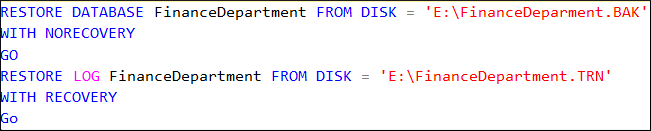
The first command to restore the database FinanceDepartment will put the database in the restoring state only after restoring it and allowing the additional backups. The second command will restore the same database with the help of transaction logs.
Example – 2
In the second example, you will see the flexibility of the NORECOVERY command to run multiple additional backups at once and the transaction log with both NORECOVERY and RECOVERY.
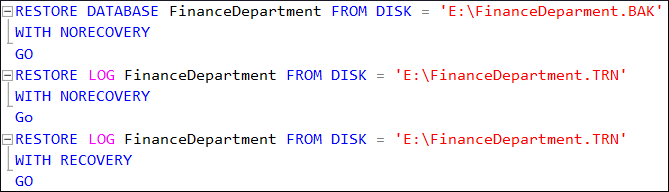
After completing the restoration, you need to make the database online again and you can do it by running the RECOVERY process easily.

The command will make the database online again from the restoring state.
SQL Administrators can also use the Microsoft SQL Server Management Studio to restore database with NORECOVERY command.
Select the Databases option, right-click on it and select the Restore Database option. Then click on Options from the left panel on the Restore Database page, select Restore with NORECOVERY option and click on OK.
Limitations of the default restoration WITH RECOVERY

As we mentioned earlier that WITH RECOVERY is the default setup given in the SQL Server. So, it requires only a single command to restore the database.
Differences between RECOVERY and NORECOVERY Options
- Recovery and NoRecovery both of these options need a SQL database backup. Recovery and NoRecovery are two command parts during the database restoration.
- The Recovery option will help if you have a single backup and if you want to recover directly. This recovery process, by default, involves both undo and redo parts, and no excess backup restoration is allowed. The RECOVERY option puts the database in the operational state.
- NORECOVERY advances the process so that the next action can be performed. If you have different types of backups (differential, transactional, etc) the NORECOVERY option should be the suitable choice.
Points to remember before starting the restoration
Before starting the restoration process using either the WITH RECOVERY or NORECOVERY option, you need to give your focus to some points that affect the quality of restoration.
- If you want to use the NORECOVERY process, then you should know that it will place the database in the restoring state and no longer available for use. So, you should plan it in advance.
- Depending on the severity of the corruption in the database, you should plan that whether you require full back up or partial backup.
- For a large size database, it is not easy to adjust the recovered data easily and it can create further problems. So, you can either increase the storage size or store the recovered data in the offline folder.
Conclusion
Both the manual restore processes provide only limited functionality to restore a large-sized database. They can take the help of backup files only if the corruption is not severe and if the whole database is corrupt, then you should not use these processes. Only a professional SQL Recovery software can handle deep corruption and recover the whole database. The benefit of using professional software is that it can provide you the option to restore the selected tables at a live SQL Server.
About Elias Macclure
Elias has a sleek writing style, and the reader may find that the extensive nuances of the material are covered in the article. He changes the writing style according to the platform and writes fine for Office 365 and SharePoint. He is an active reader and reads books by renowned writers including Charles Dickens, Sidney Sheldon and Agatha Christie. View all posts by Elias Macclure →
How to Perform MS SQL Server Restore with RECOVERY and Restore with NORECOVERY

Summary: This blog will discuss how to restore a database with RECOVERY and NORECOVERY options. Restoring the db with RECOVERY option is the default option for users with FULL backup. However, if you have different types of backups (differential, transactional, etc.) you may need to use the NORECOVERY option to combine the backups. You may also try restoring SQL database to its original form using Stellar Repair for MS SQL software. Download the software demo version to preview the recoverable db objects.

To prevent data loss and recover a SQL Server database from disaster, a DBA has to restore database backups. When it comes to restoring a database from backup, there are two main options the DBA can use: ‘With RECOVERY’ and ‘With NORECOVERY’.
How to Recover SQL database With RECOVERY and with NORECOVERY?
Requirements
Before performing recovery of SQL Server database using the RECOVERY and NORECOVERY options, you must have the following installed on your system.
- Any SQL Server version
- SQL Server Management Studio (SSMS)
- Stellar Repair for MS SQL installer
Getting started
Before restoring the db, make sure you create backup of the database first. You can create the backup using SSMS or T-SQL.
Steps to Create SQL Database Backup using SSMS
- Open SSMS, right-click on Databases, and then click Tasks > Back Up
- As per the requirement, you can perform a full backup. For this, select ‘FULL’ from ‘Recovery model’ under the ‘Source’ section. Next, specify the path where you want to store the backup of your database.
Note: You can also perform other types of backups such as differential and transactional.

Steps to Create SQL Database Backup using T-SQL in SSMS
You can generate T-SQL backup script to perform a backup task using SSMS. To do it, follow these steps:
- Click the Script button to create the backup script in a new query window and then save it to a new file or in the clipboard. You can also create a scheduled backup job.
To automate the backup process instead of configuring it manually, execute the following T-SQL code:
- If you need to take backup daily, it is possible to save the script action into a job:
This option will allow creating the backup in a Job. A job is a group of operations you can run in the SQL Server Agent. The SQL Server Agent is a SQL Server component with its own service used to run jobs.
- Specify the ‘Name’ and ‘Owner’ for the job.
- The step of the job contains the T-SQL Script that runs the backup:
- By default, the backup runs in the master database and you can modify the T-SQL code:
- You can also schedule the job to run at a specified time and day. For example, you can run the backup daily or monthly at 9:00 (Example)
- The code stores the backup in the c:\sql drive and the file name is sales.bak. The database to back up is the ‘sales’ database. For more information about the other arguments, refer to this link.
SQL Server Restore With Recovery and with NORECOVERY
Let’s discuss both these options in detail:
RECOVERY Option
Recovery is the default option. This option does a rollback and a roll forward. Use this option when you need to restore a database from a FULL backup. Follow these steps to restore database with recovery in SQL Server 2008 and above versions:
- In SSMS, right-click Databases, and then select the Restore Database option:
- In ‘Restore Database’ window, select the database that you want to restore and the backup available:
- In the ‘Options’ page, select the recovery state as RESTORE WITH RECOVERY:
- Additionally, you can use T-SQL instead of the SSMS GUI. This is useful if you want to automate the tasks:
In this example, it is not necessary to use the RECOVERY argument which is the default one, but I added it to understand the difference compared with the other option.
With NORECOVERY Option
Use the NORECOVERY option when you need to restore multiple backups. It puts the database in ‘RESTORING’ state to prevent users from accessing the database unless additional backups are restored. Restore with NORECOVERY is used for restoring each database backup except the last. The last backup can be restored using the RECOVERY option to bring the db online for usage.
For example, if you need to restore a full database backup followed by a transaction log backup, the full backup will be restored with NORECOVERY argument and then the log backup will be restored with recovery. Here’s how to do it:
Note: In the above query, the first command restores the db with NORECOVERY option, and the second command restores the log backup using the RECOVERY option.
Other Options to Restore the Data
If you do not have a backup or if it is damaged, you can use SQL Recovery software, such as Stellar Repair for MS SQL to restore your data. The software helps repair a damaged (corrupt) SQL database and restore it to its original state. You can download the software from here:
To use this software, you just need to select the MDF file and repair it. Once the file is repaired, you can use it to restore your SQL database.

For detailed steps to restore the database using Stellar Repair for MS SQL software, refer to this link.
Conclusion
The blog outlined the steps to create backups manually using SSMS and T-SQL code. It also discussed the process restore an MS SQL database using the RECOVERY and NORECOVERY options. Additionally, it explained using the Stellar Repair for MS SQL software to repair a damaged SQL Server database. If you have questions, feel free to ask in the comment box below.
About The Author
Priyanka is a technology expert working for key technology domains that revolve around Data Recovery and related software’s. She got expertise on related subjects like SQL Database, Access Database, QuickBooks, and Microsoft Excel. Loves to write on different technology and data recovery subjects on regular basis. Technology freak who always found exploring neo-tech subjects, when not writing, research is something that keeps her going in life.
7 comments
What is the average time taken by this tool to recover 15 GB data as I have more than 1TB data in my database?
It depends upon the system configuration.
Will this request coast a lot at cloud platform like AWS?
It depends on the service you use.
I am very impressed with the Stellar Team. Because they have always told about manual methods to resolve any issue. Really impressive.
But, I will prefer Stellar Repair for MS SQL to ensure 100% recover of lost MS SQL components.
How to Restore with Recovery Option in SQL Server
The Restore with Recovery option available in SQL Server for restoring backups is explained in detail, along with T-SQL codes used in its implementation.

Using SQL Server can be very tasking if you are not clear with its feature set, and what all to do with it. SQL Server is one of those software that floods the user with lots of options, features, commands etc. Apart from the bulk of data it allows you to store, it also gives you the option of backing it up. And beyond backing up the SQL databases, you also have multiple options for restoring the completed backups. Other than the different backup options provided by SQL Server, it also provides you with different restore options. Today we will discuss the RESTORE WITH RECOVERY option.
Restore With Recovery in SQL Server

One of the many restoration options available in SQL Server include the Restore with Recovery option, what it mainly does is to make the database available for use to allow users to get access to the restored version.
When using this restore option, if you give commands like RESTORE DATABASE, RESTORE LOG, then the WITH RECOVERY option will be automatically implemented. It is by default set to work with these commands, and does not need any special command to be activated.
If you have just taken a full backup, and need to restore it, the RESTORE WITH RECOVERY command will be activated by default. And once the restoration is done, you can begin using the data. If instead of a full backup, you are restoring through multiple backup files, the WITH NORECOVERY option should be used. This needs to be done for each restore you make, sparing the last one.
If the restore process for a database has not been completed, and you wish to recover it already, without all the additional backups, you should use the RESTORE DATABASE WITH RECOVERY option. This will put the database online to allow all users to access it.
T-SQL Statements for executing these options
The T-SQL script for all the recovery options mentioned above, have been explained below.
Using WITH RECOVERY to Restore Full Backups
As explained already, when you want to restore a full backup, this option will be activated by default, to specify it, use the following code:
Recovering a ‘Restoring’ State Database
To recover a database that is still not out of the restoring state, you can make use of the command given below. This will also help you make the database available for all users, including the end users.
Restoring Multiple Backups and Applying WITH RECOVERY to Last backup
When the very first restore is done, the NORECOVERY option is used to allow additional restores. On the second command all the transaction logs will be restored, bringing the database online to be used by end user. Make use of the following T-SQL Script for the same.
For avoiding any data loss, invest in a powerful SQL Server repair tool as a failsafe.