Export data from Oracle SQL Developer to Excel .xlsx
I have a small project where data from Oracle SQL Developer needs to be exported to Excel (using commands rather than tools in SLQ Developer), then create a graph. Using «spool» I can export to csv fine (but cant make a graph in csv) but when I try to export to xlsx it corrupts the whole excel sheet saying
Here is the code I used in SQL Developer.
Is there any way I can stop the data from becoming corrupted or is there another way to export data to a .xlsx file?
Oracle sql developer как выгрузить в excel
How to Export Data using SQL Developer
Updated: Nov 2009 for SQL Developer 2.1
After completing this How-To, you should be able to understand:
- How to export data to various file formats using SQL Developer
- How to export the object definitions in your schema
Table of Contents
- Introduction
Oracle SQL Developer provides utilities to export both the definitions of the objects in a schema and the data stored in those objects. In this How-To we start by exporting the data and then move onto exporting object definitions.
- Oracle SQL Developer
- Oracle Database 9.2.0.1 or later
- Access to the Sample User Account HR (See Step 2 of this Getting Started: Oracle SQL DeveloperGuide)
SQL Developer provides the ability to export user data to a variety of formats: CSV, XML, LOADER, TEXT, INSERT, HTML and XLS.
-
In order to export the data from a table you can either use the SQL Worksheet and write a SQL query to retrieve the required data or you can Click on the Data tab of a table definition. We’ll use this latter approach.
Expand the Connections Navigator and the Tables node.
Click on DEPARTMENTS.
Select the Data tab.
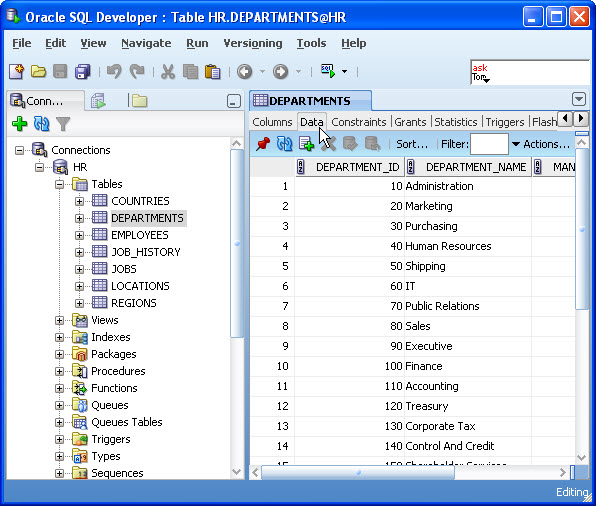
Select insert from the Export Data context menu. This will produce a file of insert statements.
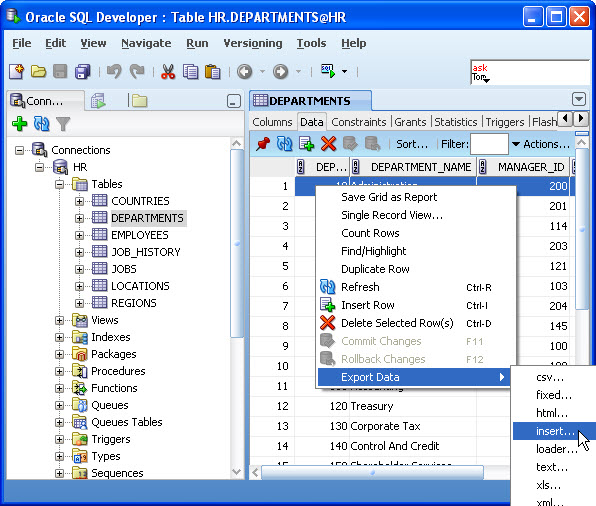
You can also fine tune what is exported by selecting the columns and adding a where clause to reduce the number of records returned. In this example, we’ll take the default of all the records and columns.
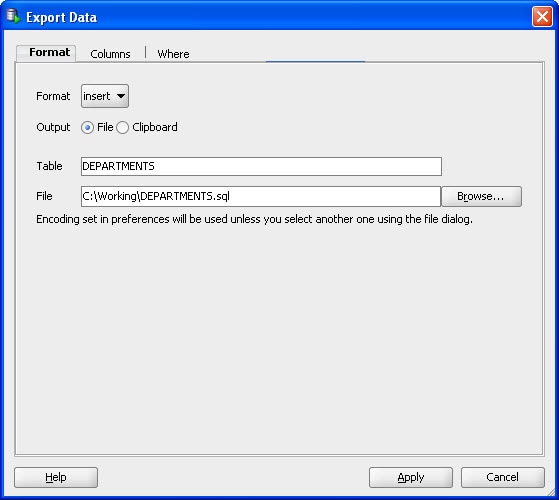
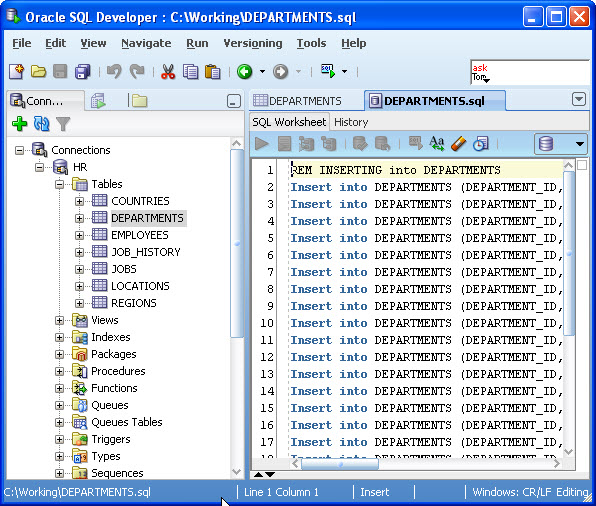
Exporting Object Definitions
SQL Developer provides the ability to export some or all of your object definitions to script files. You can use these as a backup of the object definitions or run them in another schema. In this exercise, you export all the object definitions and the data for the Departments table.
-
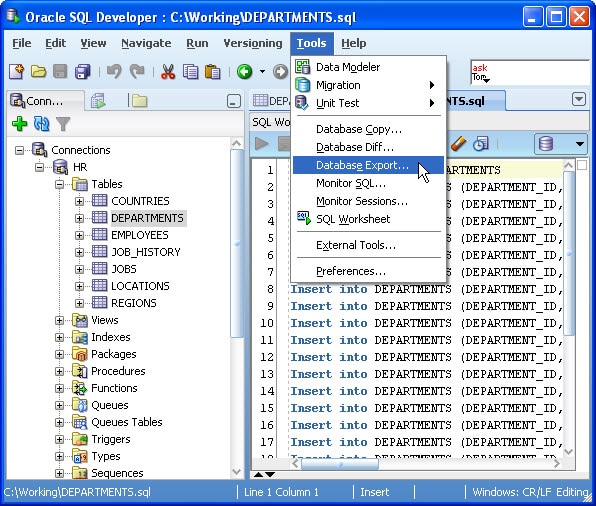
Using the main menu, select Tools->Database Export.
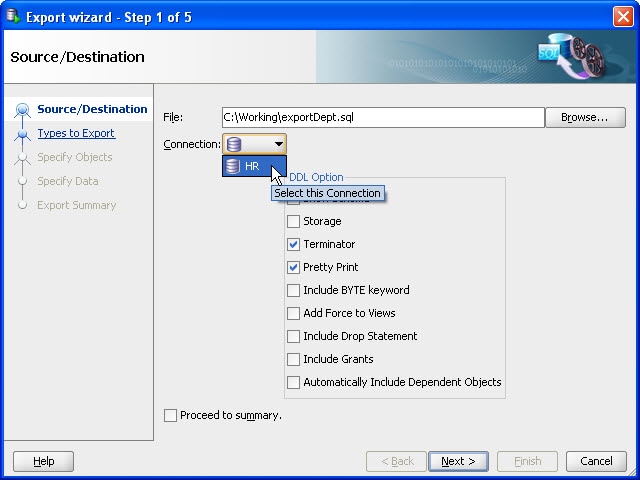
Click Next.
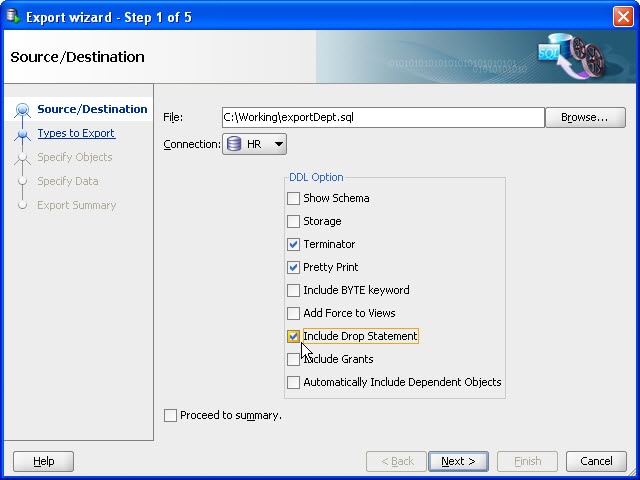
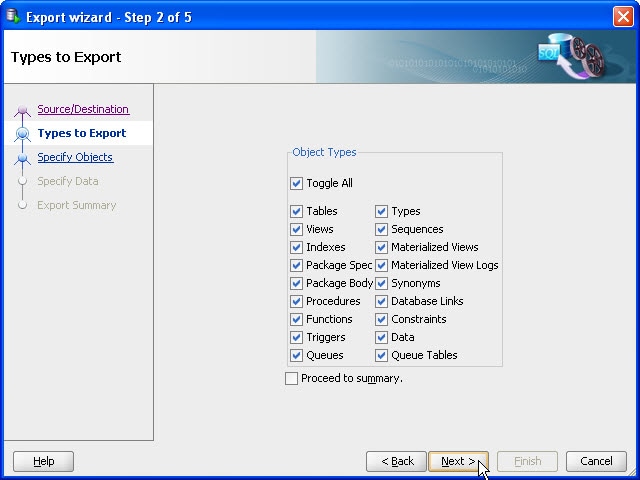
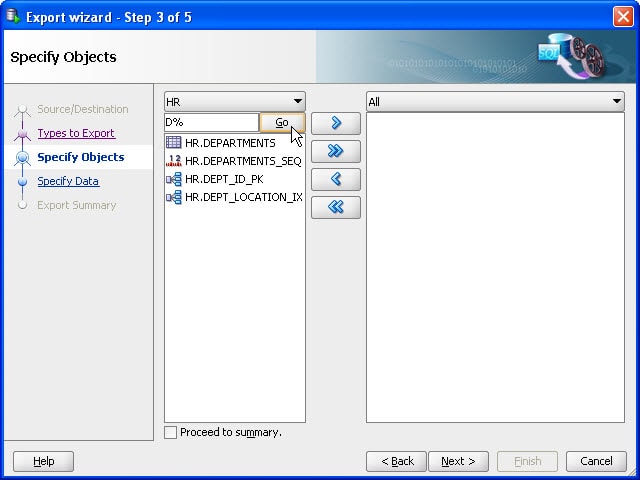
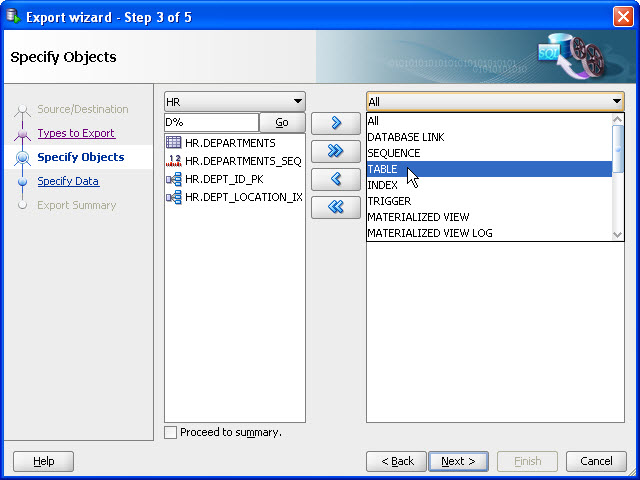
Click Go. The list now displays tables that start with «D».
How SQL Developer Export to Excel
The export function for query result is not so obvious for developers to find out. In this post, I will show how to export query result as a Excel file.
Show Query Result as Grid
To show the query result in a grid table, you have to use F9 or Ctrl + Enter to format query result in grid.

SQL Developer Query Result
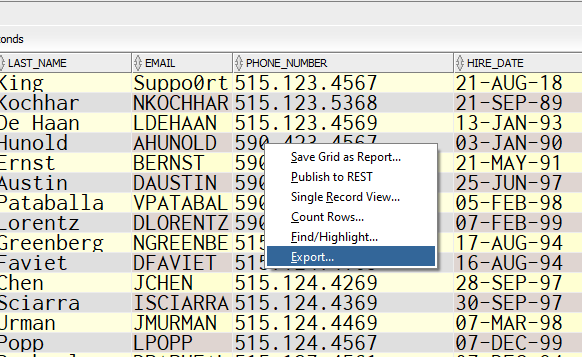
Right Click Mouse and Export
Move your cursor over anywhere on the grid and right click the mouse, you will see Export option.

SQL Developer Query Result — Export
Export Entire Table
If the data you want to export is a table, not a query result, you can directly right-click on the table and select Export in the menu.

SQL Developer — Table Menu — Export
Select Export Format
SQL Developer showed Export Wizard window for interaction. Although there’re many export types for us to select, we chose Excel format in this case.

SQL Developer Query Result — Export Format — Excel (.xls)
Select Text Encoding
I chose UTF-8 in order to match the database encoding.

SQL Developer Query Result — Export Encoding — UTF-8
Customize Filename
If you want to change the path, you can click Browse to navigate and choose a right directory to place.

SQL Developer Query Result — Export File Name — Browse
Review Export Job Before Executing
You can expand all options to see the content of the export job.

SQL Developer Query Result — Export — Summary
Check Content of Excel File
We open the Excel file in an application, so they can be viewed its content below.
Tutorial: Exporting Query Results
This is a 101 level type of topic – a fundamental bit of SQL Developer that I would encourage everyone to be familiar with. Why? Because it’s probably something you’ll be doing, A LOT. So let’s get into it, already!
You have two options for getting data from a query into a FILE.
- right-clicking on a result grid
- spooling to a file
Grid Exports
 The ubiquitous data grid!
Spooling
Exporting Data from a Grid
Here’s what happens.
You’re executing a query, browsing a TABLE, or running a report.
You right-click on it.
THIS
What happens next?
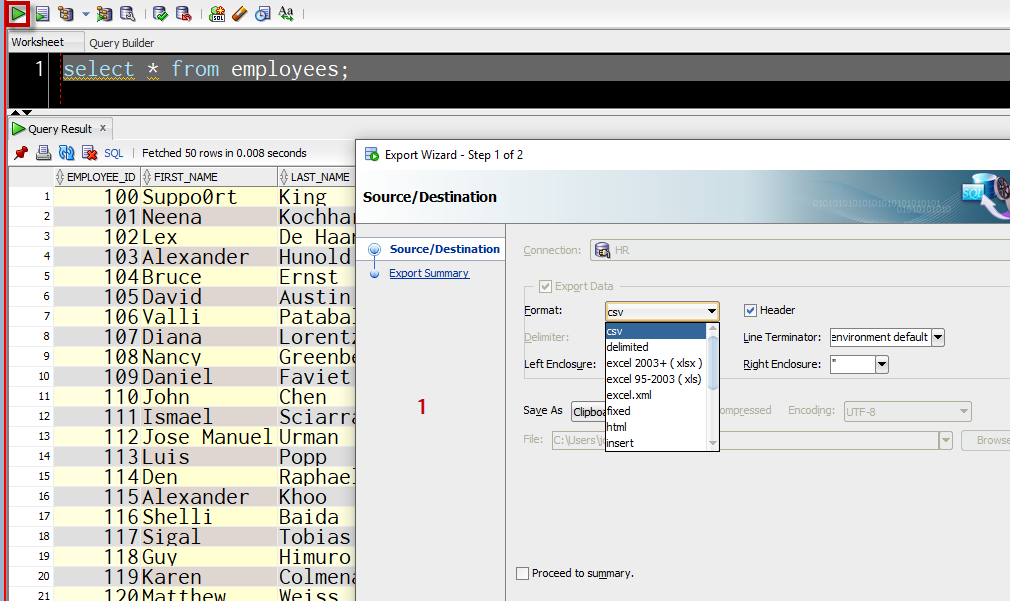
You get a 2 screen wizard. The first screen looks like this:
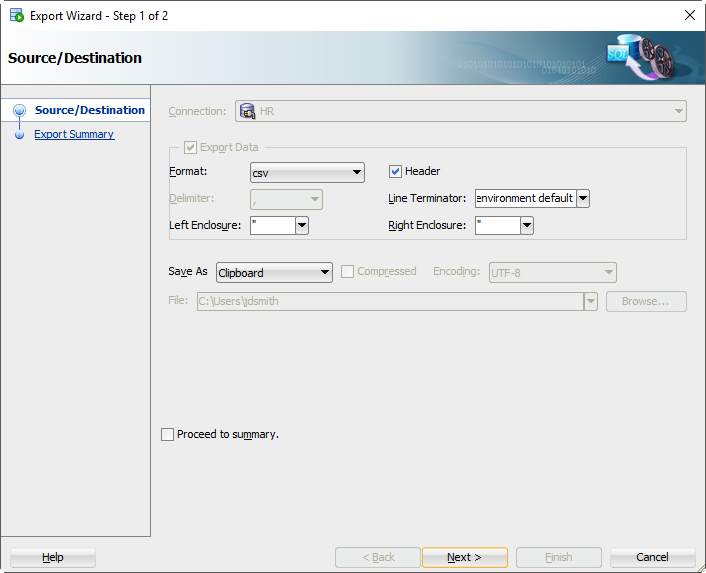 Here comes trick #1
Trick #1: You’re going to be doing this, A LOT. So, go into preferences and setup your defaults. You can see by my screenshot that I’m most frequently doing CSV exports directly to my clipboard.
Once you’ve set what you want, and click NEXT, you review what you’ve asked for and say FINISH.
But then what happens?
WE EXECUTE THE QUERY AGAIN. Grab the results, format them based Wizard settings, and feed them to the destination you’ve selected.
Trick #3: If you’re dealing with a large amount of records and are exporting to Excel, always choose the XLSX format (we list it first). If you choose XLS instead, stubbornly, it’s going to peter out after a hundred thousand rows or so…if you do not see the XLSX format option, that means YOU NEED TO UPGRADE SQL DEVELOPER.
Trick #4: If you have BLOBs in your query resultset, the ONLY way to export those out successfully is to use the Loader format option.
Exporting Data from a Script
Once you’ve ran the script and are looking at the results, the only way to get those into a file is to copy/paste.
So, what you need to do is tinker with your script, and have it use the SPOOL command.
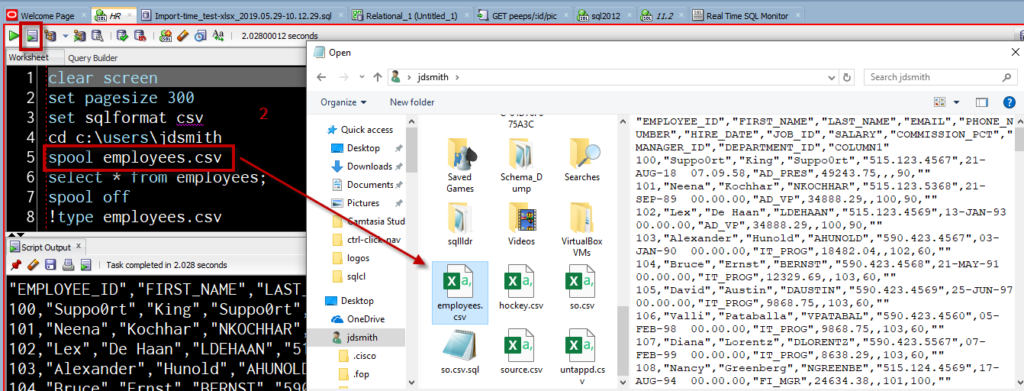
SPOOL is a SQL*Plus feature that we support in SQL Developer. You have access to this command and other script processing bits when you use THIS button (or F5) to execute something.
This one!
We do better than just support the SPOOL command. We have built some additional commands to make working with FILES much easier.
The ‘cool’ parts of this script are:
And that’s it. Well, that’s ALMOST it. If you have a VERY LARGE result-set, writing those query results to the screen AND to the file at the same time is going to be a major BUMMER.
And now you know, the rest of the story.
I’m a Distinguished Product Manager at Oracle. My mission is to help you and your company be more efficient with our database tools.
Product Managers who Blog..about their Products
Quick Tip: Spooling to ‘Excel’
Related Posts

TAB Completion in SQLcl, your modern command line for Oracle
Dropping an Oracle table with SQLcl and Liquibase
REPEAT after me, it’s easy to monitor with Oracle SQLcl!
SQL Developer 23.1 and the Instant Client
Oracle 23c Free Developer Release: MLE JS Modules & Snippets

Oracle SQL Developer 23.1 is now available
23 Comments
Hi Jeff, when exporting to .xlsx or .csv is it possible to change the font the data is exported in?
I doubt we assign a font to a csv file…
Do you mean file encoding?
Hope you are well. I have been trying to export the result of a query. However I seem to get the following stack trace:
java.lang.NullPointerException
at java.io.File.(File.java:277)
at oracle.dbtools.raptor.export.ExportGenerationOutputStream.closeCurrentStream(ExportGenerationOutputStream.java:537)
at oracle.dbtools.raptor.export.ExportGenerationOutputStream.finished(ExportGenerationOutputStream.java:464)
at oracle.dbtools.raptor.export.ExportAPI$1.doWork(ExportAPI.java:1490)
at oracle.dbtools.raptor.export.ExportAPI$1.doWork(ExportAPI.java:1453)
at oracle.dbtools.raptor.backgroundTask.RaptorTask.call(RaptorTask.java:199)
at java.util.concurrent.FutureTask.run(FutureTask.java:266)
at oracle.dbtools.raptor.backgroundTask.RaptorTaskManager$RaptorFutureTask.run(RaptorTaskManager.java:702)
at java.util.concurrent.Executors$RunnableAdapter.call(Executors.java:511)
at java.util.concurrent.FutureTask.run(FutureTask.java:266)
at java.util.concurrent.ThreadPoolExecutor.runWorker(ThreadPoolExecutor.java:1149)
at java.util.concurrent.ThreadPoolExecutor$Worker.run(ThreadPoolExecutor.java:624)
at java.lang.Thread.run(Thread.java:748)
The actual query that I am trying to run is about 660KB in size. I tried to reproduce the issue with the different query – shown below. The version of SQL developer is v18.4 . I was able to reproduce on v20.2 as well.
select sysdate, case when (1 = 2 or 1 = 2 or …. 1 = 2) THEN ‘EQUAL’ ELSE ‘NOT EQUAL’ end as CASE_VALUE from dual;
Around the time this SQL query reaches 8260-8280 bytes in size. The export from SQL developer fails with the above stack trace.
Just in case, please go try version 20.4, it has lots of bug fixes over 20.2.