SQL Server Management Studio (SSMS)
SQL Server Management Studio is a free multipurpose integrated tool to access, develop, administer, and manage SQL Server databases, Azure SQL Databases, and Azure Synapse Analytics. SSMS allows you to manage SQL Server using a graphical interface.
SSMS can also be used to access, configure, manage & administer Analysis services, Reporting services, & Integration services.
SSMS runs only on Windows. Use Azure Data Studio to run on your macOS or Linux (and also Windows). Install SQL Server Management Studio if you have not installed it yet.
To launch SSMS from the Start menu, click Start and scroll down and expand Microsoft SQL Server Tools 18. Click on Microsoft SQL Server Management Studio.
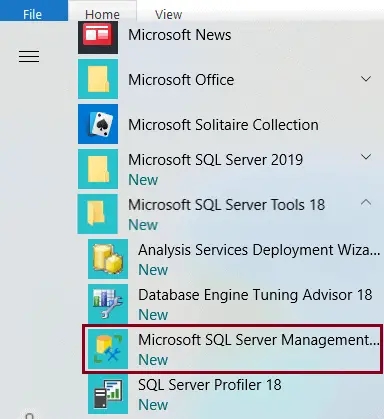 SQL Server Management Studio(SSMS)
Clicking on the "Microsoft SQL Server Management Studio" will open the following window to connect with the server.
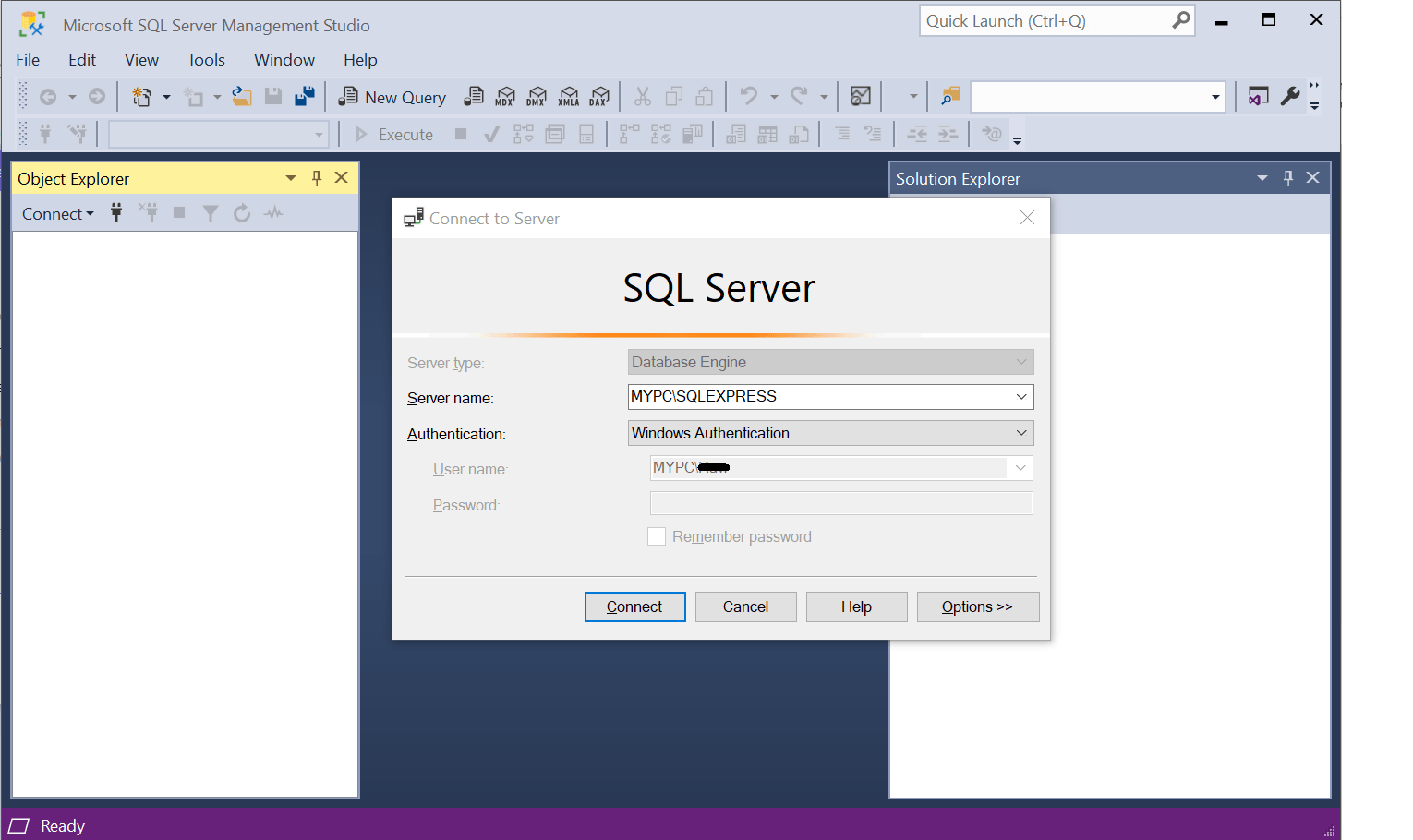 Connect to SQL Server Instance
Select Server Type, Server Name, and Authentication mode to connect with your server. SSMS can be used to connect with Database Engine, Analysis Services, Reporting Services, Integration Services, etc. Here, we will connect with our local SQL Server database, so select Database Engine as a server type.
Next, select the server name to which you want to connect. It can be a local or remote DB server. Select an appropriate server name or <Browse for more..> to browse server name.
Next, select the authentication mode. The latest version of SSMS offers five modes of authentication to choose from, as shown below. The most common is Windows Authentication and SQL Server Authentication.
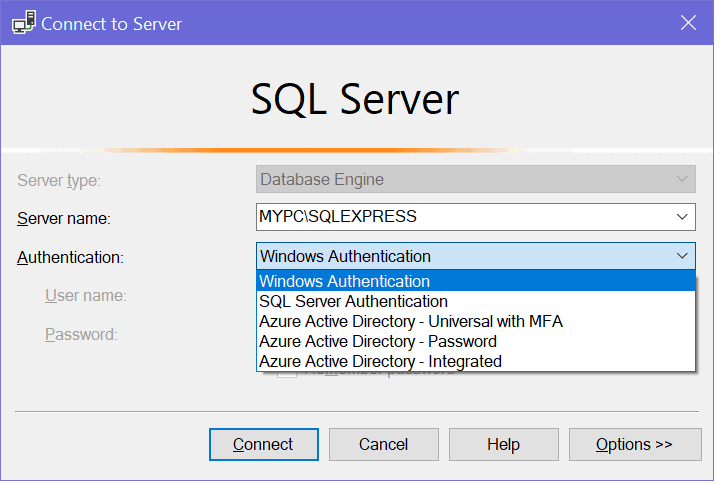 SQL Server Authentications
After selecting the authentication type and entering the user name and password (SQL authentication) and click on the Connect button.
On successful login, the SSMS opens the following window.
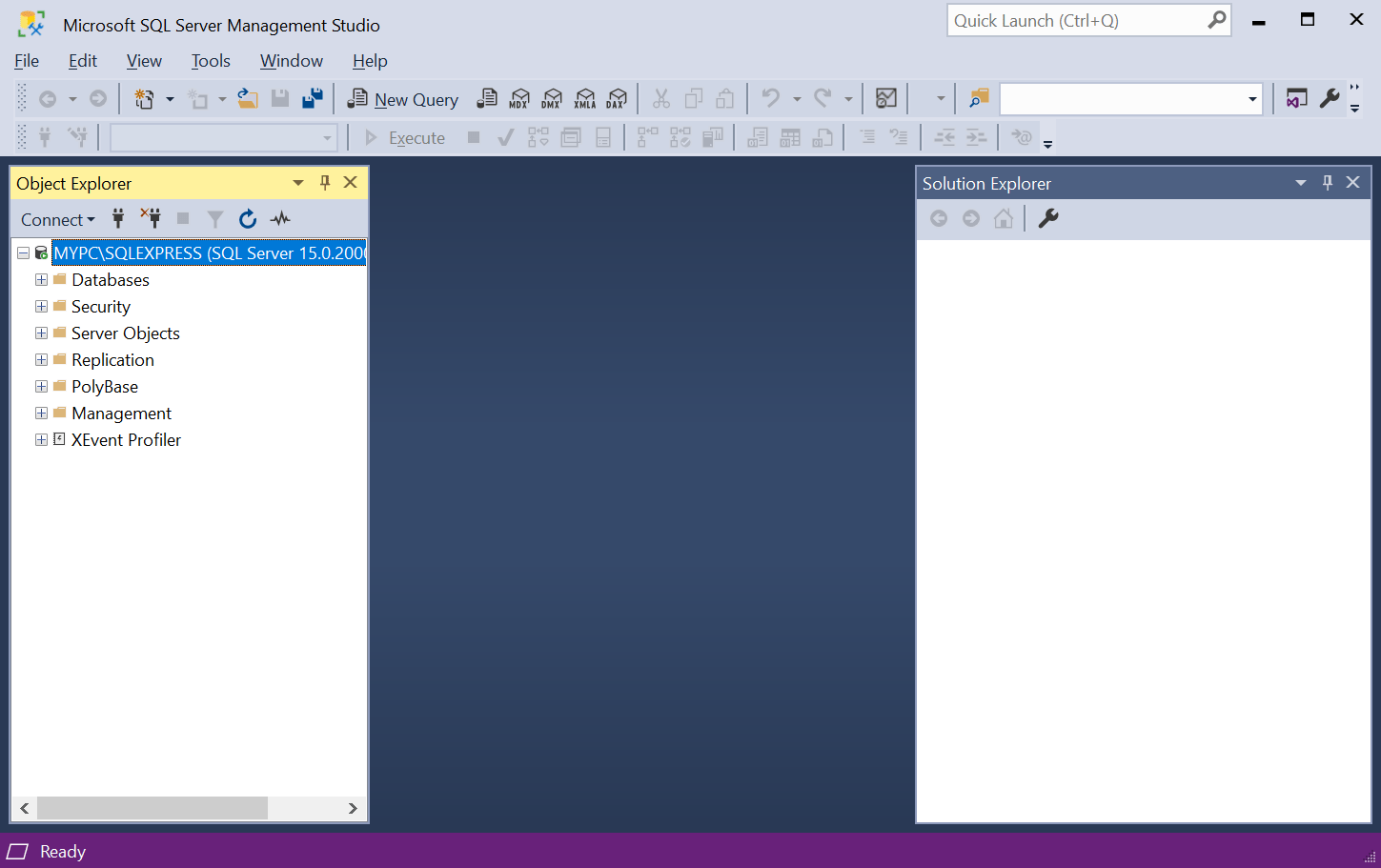 SQL Server Management Studio
SSMS Components
SQL Server Management Studio has the following components:
- Object Explorer
- Security
- Server Objects
- Query and Text Editor
- Template Explorer
- Solution Explorer
- Visual Database Tools
Object Explorer
Object Explorer contains different components of one or more instances of SQL Server in a hierarchical manner. You can view and manage components such as Databases, Security, Server Objects, Replication, Polybase, Management, etc. Expand the component node to see further objects.
For example, expand the Databases folder to see all the databases available in the server instance. Any new database you create will be available here. There is a default System databases folder, which hosts four default databases: master, model, msdb and tempdb.
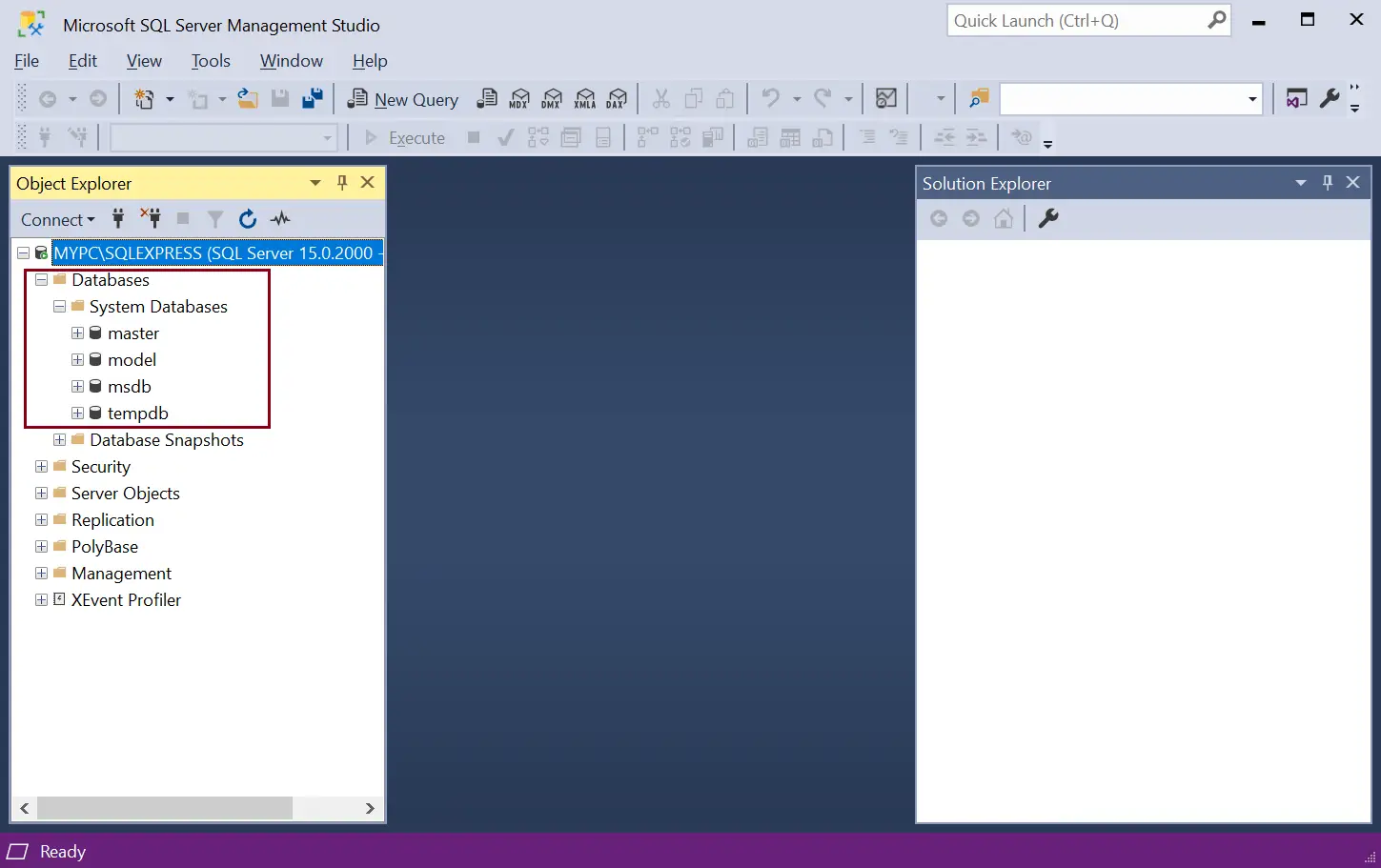 SQL Server Databases
Security
Managing security for your database server is extremely important. The Security node is below the Databases node in the Object Explorer. You can create Logins and assign Server roles for any database instance. In addition, you can assign role-based security to logins and users. The Server roles you create here have server-wide scope.
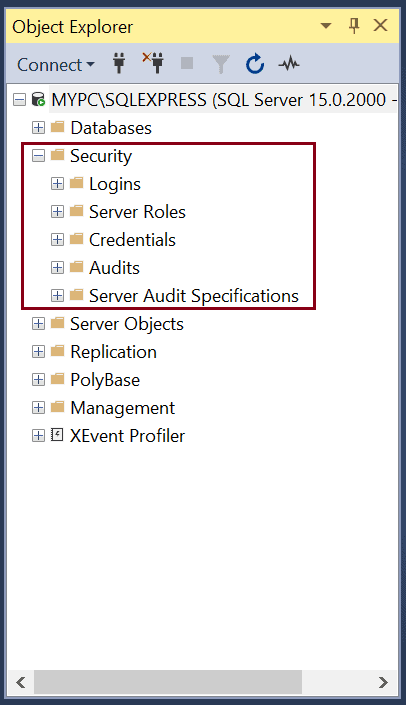 SQL Server Management Studio(SSMS)
Server Objects
The Server Objects node in SSMS has four sub-nodes: Backup devices, EndPoints, Linked Servers, and Triggers. A linked server is a method by which a SQL Server can talk to another ODBC database with a T-SQL statement. SQL Server EndPoints are a point of entry into SQL Server. It is a database object that defines a way in which the SQL Server can communicate over the network. All objects under Server Objects have server-wide scope.
 SQL Server Management Studio(SSMS)
Replication
Replication is a set of technologies for copying and distributing data and database objects between databases and synchronizing databases. This is mainly used for maintaining consistency between databases.
Polybase
Polybase allows your SQL Server to query directly from other SQL Server, Oracle, MongoDB, Hadoop clusters, Teradata, Cosmos DB by installing client connection software using T-SQL separately. Polybase is used for data virtualization.
Query and Text Editor
Open a query editor by clicking on the New Query on the tool bar. Query editor lets you create, edit & execute Transact SQL (T-SQL) statements. It is equipped with IntelliSense support by auto-completing the script by suggesting variants. This makes writing & debugging code easier and faster.
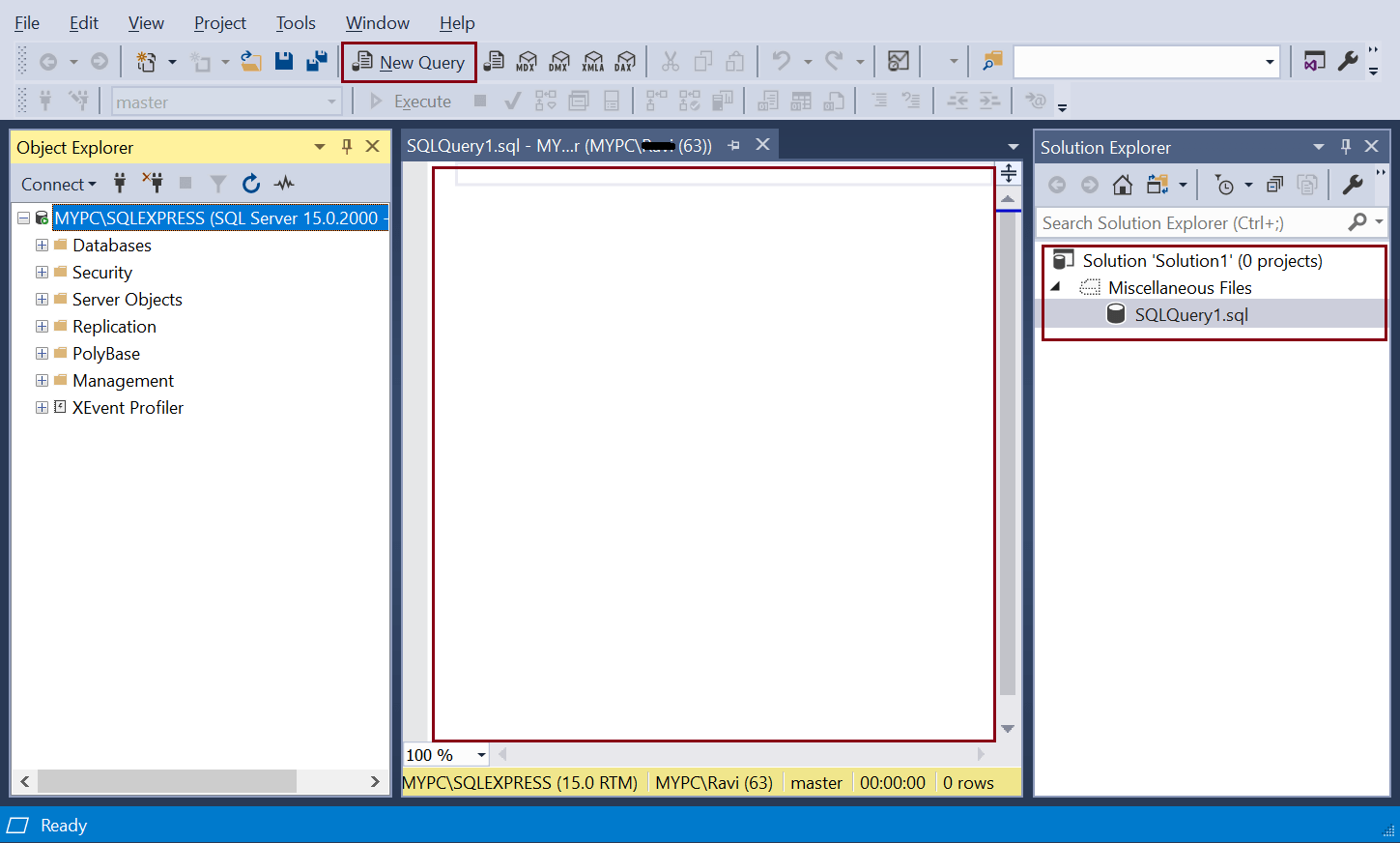 Query Editor
Template Explorer
Template explorer provides templates for creating various database objects. You can browse the available templates in Template Explorer and open it into a code editor window. You can also create your own custom templates.
Open Template Explorer from View menu -> Template Explorer. The following displays Create Database template.
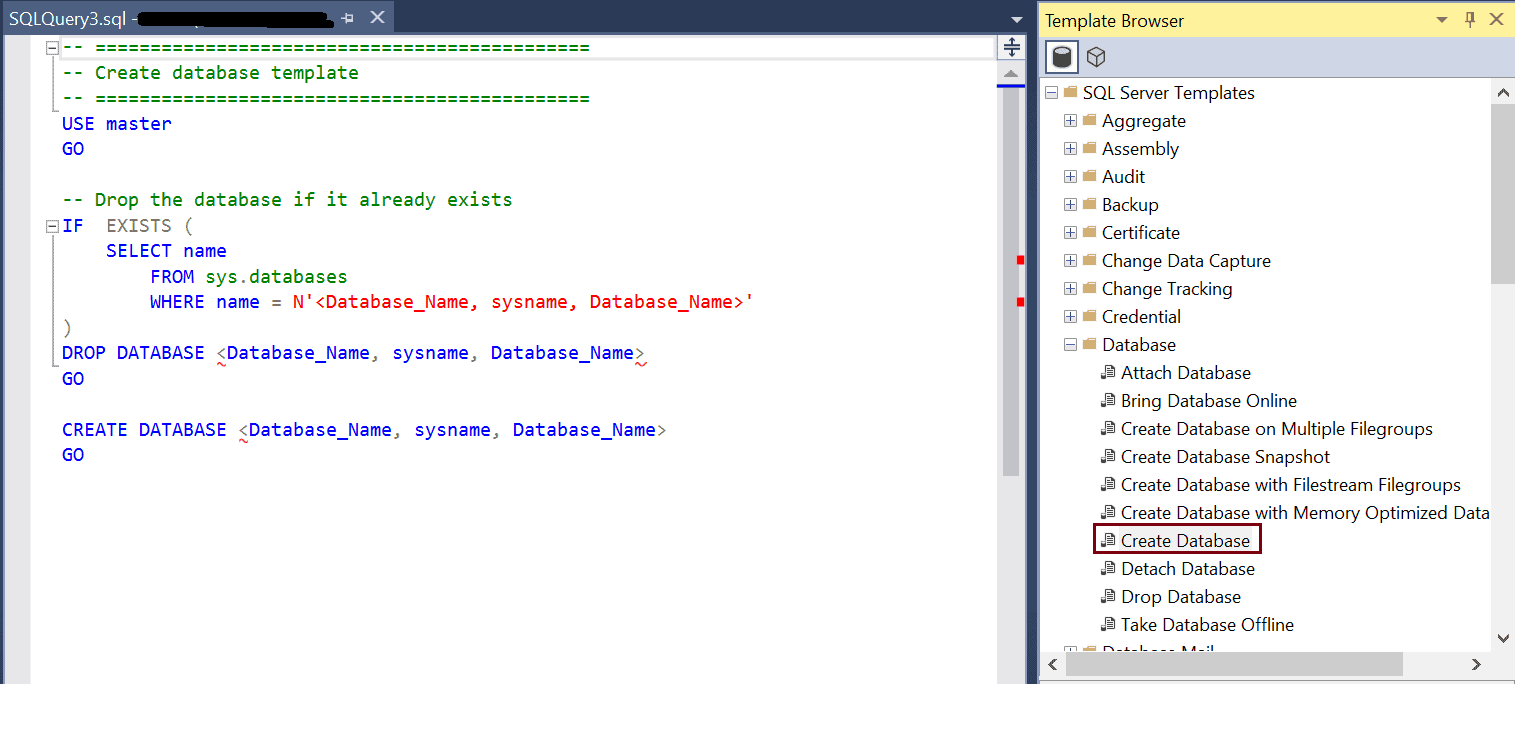 Template Explorer
Solution Explorer
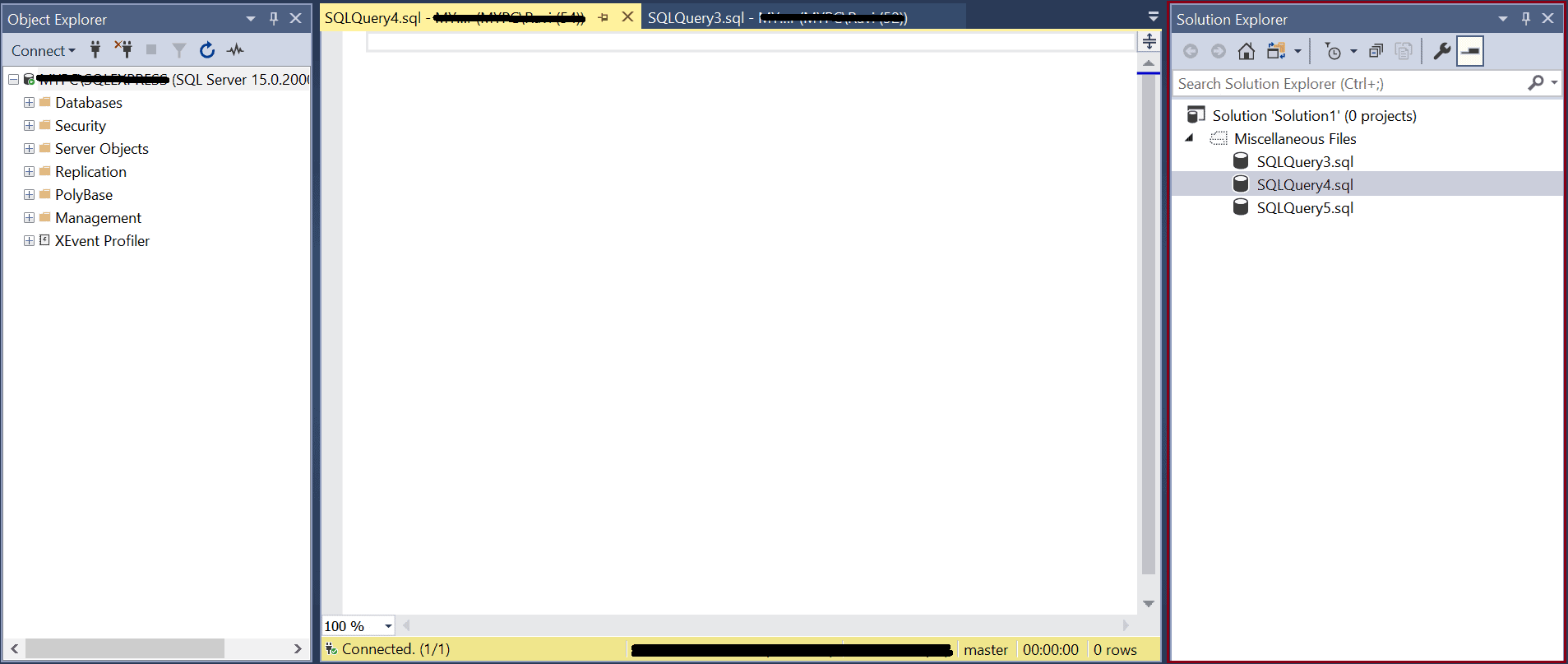
Solution explorer is used to manage administration items such as scripts and queries. Open it from View -> Solution Explorer menu.
 Template Explorer
Free Download: SQL Server Management Studio 18.8

SQL Server Management Studio (SSMS) is an integrated environment for accessing, configuring, managing, administering, and developing all components of SQL Server. SSMS combines a broad group of graphical tools with a number of rich script editors to provide developers and administrators of all skill levels access to SQL Server.
The SSMS 18.x installation doesn’t upgrade or replace SSMS versions 17.x or earlier. SSMS 18.x installs side by side with previous versions so both versions are available for use. If you have a previous GA version of SSMS 18 installed, installing SSMS 18.8 upgrades it to 18.8.
If a computer contains side-by-side installations of SSMS, verify you start the correct version for your specific needs. The latest version is labeled Microsoft SQL Server Management Studio 18.
Get it here:
Download – The version number for the latest release is 15.0.18369.0
New in this release
| New item | Details |
|---|---|
| Azure Data Studio installation integration | Installation of SSMS installs Azure Data Studio 1.25.1. |
| Analysis Services | Added support for Power BI Premium Gen2 workspaces. |
| Auditing | Added support for EXTERNAL_MONITOR and “operator audit”. |
| Integration Services | Improved IR Creation Wizard such that creating SSISDB is optional when creating SSIS IR |
In December 2021, releases of SSMS prior to 18.6 will no longer authenticate through Azure Active Directory with MFA. To continue utilizing Azure Active Directory authentication with MFA, you need SSMS 18.6 or later.
SQL Server Management Studio
Среда SQL Server Management Studio — это интегрированная среда для управления инфраструктурой SQL Server и базы данных SQL Azure. Среда Management Studio предоставляет средства для настройки, наблюдения и администрирования экземпляров SQL Server. Она также предоставляет средства для развертывания, отслеживания и обновления данных-уровня компонентов, таких как базы данных и хранилищ данных, используется приложениями, а также для создания запросов и скриптов.
Поддерживаемые версии SQL Server
- Эта версия SSMS работает со всеми поддерживаемыми версиями SQL Server (SQL Server 2008–SQL Server 2017) и предоставляет превосходную поддержку новейших облачных функций базы данных SQL Azure и хранилища данных SQL Azure.
- SQL Server 2000 или SQL Server 2005 напрямую не блокируются, однако некоторые функции могут работать неправильно.
- Кроме того, SSMS 17.X можно установить одновременно с SSMS 16.X или SQL Server 2014 SSMS и более ранними версиями.
Поддерживаемые операционные системы
При использовании последнего пакета обновления этот выпуск SSMS поддерживает следующие платформы: Windows 10, Windows 8, Windows 8.1, Windows 7 (SP1), Windows Server 2016, Windows Server 2012 (64-bit), Windows Server 2012 R2 (64-bit), Windows Server 2008 R2 (64-bit)
Примечание
SSMS 17.X основана на изолированной оболочке Visual Studio 2015, которая была выпущена до Windows Server 2016. Корпорация Майкрософт уделяет большое внимание совместимости приложений и гарантирует, что уже выпущенные приложения продолжат работать в последних выпусках Windows. Чтобы минимизировать проблемы с запуском SSMS в Windows Server 2016, убедитесь, что для SSMS установлены все последние обновления. При возникновении каких-либо проблем с SSMS в Windows Server 2016, обратитесь в службу поддержки. Служба поддержки определит, связана ли проблема с SSMS, с Visual Studio или с совместимостью SSMS и Windows. Затем ваш запрос будет перенаправлен соответствующей группе для дальнейшего изучения.
SQL Server Management Studio: MS SSMS Download & Install
SQL Server Management Studio (SSMS) is an IDE that provides a graphical interface for connecting and working with MS SQL server. It was launched with Microsoft SQL Server 2005 and is used for configuring, managing, and administering all components within Microsoft SQL Server.
In this SSMS tutorial, you will learn
How to Download and Install SQL Server Management Studio
Following are the steps on how to download and install Microsoft SQL Server Management Studio (SSMS):
Step 1) Install SQL Server Management Studio.
Go to this link and click on Download SQL Server Management Studio 18.0 (preview 6) for SSMS Download

Step 2) Double click on file.
Once downloaded we will get a .exe file named as “SSMS-Setup-ENU.exe.” Double click on it
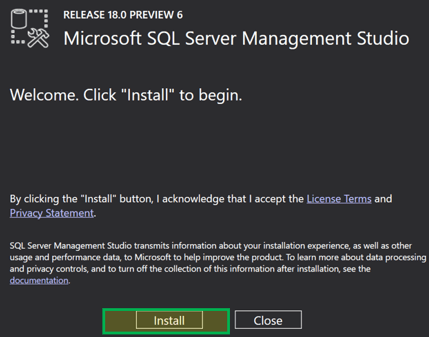
Step 3) Click on install button.
Below window will appear. Click on ‘Install’ button to install SQL Server Management Studio (SSMS) on your system
Step 4) Wait until process is done.
Installation will begin. Below screen will show Packages progress and Overall Progress.


How to access “Management Studio.”
Now, we’re ready to open “Management Studio. Go To Start Menu>Programs>Microsoft SQL Server Tools 18> Microsoft SSMS 18.
Below ‘Connect to Server’ screen will appear. Server Name defaults to the name selected while installing MS SQL server.

Let’s understand each of the above fields
- Server type: This is an option to select one out of four available MS SQL services option. We will be working on ‘Database Engine’ for creating and working with Database. Other Server type includes Analysis, Reporting & Integration Services.
- Server name: This is Server’s name where MS SQL Server is installed and need to establish the connection with that server. Generally, we use the server name as “Machine name\Instance.” Here Instance is the name given to SQL Server instance while SQL server installation.
- Authentication: This is defaulted to “Windows Authentication” if we use “Windows Authentication” during SQL Server Installation. Else, if we select ‘Mixed Mode (Windows Authentication & Windows Authentication)’ then Authentication will be defaulted to “SQL Server Installation.”
- User name\Password: If Authentication is selected other than “Windows Authentication” like “SQL server Installation” then these two fields will be required.
Click on ‘Connect.’ Now you will be connected to ‘Data Management Studio.’
Access “Management studio” using Command line.
Alternatively, we can also open MS SQL Management Studio using Window Command line. You need to have full path of ssms.exe. Below is default location and file name:
Path:

Here, are the steps to access via command line:
- Open Command Prompt by typing CMD in Search window.
- Type entire path followed by ssms.exe as shown below and Press ‘Enter’.

‘Connect to Server’ screen will appear in a similar way as described in the previous section.
Introduction to Data Management Studio IDE
Below is the start screen for Data Management Studio.

Let’s discuss each section in detail.
1) Object Explorer
The Object Explorer provides a tree view of the database objects contained in the server. This section shows all the Databases, Security, Server Object for quick reference. To view the components of each object, just click the + icon located to the left of the object which will expand it.

2) Databases Selection Dropdown
This dropdown allows the user to select the Database in which we will be running our queries.
3) Query Editor
Here we can write all our queries. MS SQL server provides interactive suggestions for tables, columns, etc. for easy queries creations and much more.
4) Execute button
This button will finally execute the query and return the results.
SSMS Tips and Issues
- Management Studio is a standalone product. It does not correspond to any specific version of SQL Server. For example, we can use SMMS Version 18 with SQL Server 2017, SQL Server 2016 as well.
- Large codes reduce readability. Use comments for better Readability. Put “–” in front of any line to comment it out.
- Group comment: We can comment out the group of line by selecting them all and clicking on Icon shown in below image.


In case of failure, the popup window will appear with the name
-
We often need the result of our query to be saved in text format for future references.

We can click and select the above-highlighted icon & run any Query. We will be prompt to specify the location where the file can be saved future reference.
SSMS Versions and Updates
SSMS first version was with SQL server 2005. SSMS remains an integral part of SQL server with SQL Server 2008, SQL Server 2012 and SQL Server 2016. In 2016, Microsoft started the first numerical series of versioning with the SSMS version number as 16.3. All series include 16.x, 17.x and 18.0 as version numbers.
Latest 18.0 series have the following versions: 18.0 (Preview 4), 18.0 (Preview 5) and 18.0 (Preview 6)
Until Dec 18, 2018 latest version is SSMS 18.0 (Preview 6)
SSMS supported operating systems
Below table shows SQL server edition and its corresponding supported Operating system. ‘Y’ means Supported and ‘N’ Means Not Supported.