9.5. Создание запроса на языке sql в субд Access
Если пользователь желает работать с БД, используя язык SQL, то он должен открыть окно Конструктора запроса и перейти в режим SQL по команде Вид / Режим SQL. В появившемся окне можно формировать запрос на языке SQL и редактировать его, используя для этого привычную технологию редактирования в текстовом редакторе.
Выполнение и сохранение на языке SQL осуществляется аналогично тому, как это делается в режиме Конструктора.
10. Инструментальные средства разработки прикладных программ в субд Access
10.1. Понятие макроса и модуля
Современные СУБД имеет богатый набор визуальных инструментальных средств для работы с БД и ее объектами. Но пользователю могут понадобиться сложные приложения, создание которых с помощью этих средств затруднительно или невозможно. В этом случае прибегают к разработке макросов и модулей.
Набор из одной или нескольких макрокоманд, каждая из которых выполняет определенное действие, называется макросом. Они выполняют особые, заданные пользователем задачи, и используются, главным образом, для автоматизации работы с формами и отчетами. Например, с помощью макроса можно: найти и отфильтровать записи, необходимые для составления отчета; в форму встроить командную кнопку для поиска нужных данных и др. Назначение макросов — автоматизация часто выполняемых операций без написания программ.
Пользователя иногда не могут удовлетворить даже макросы. Возникает необходимость в программировании задач. Access использует для этого язык Visual Basic for Applications (VBA). На языке VBA создаются модули – объекты БД, содержащие созданные пользователем процедуры. Процедура представляет собой совокупность операторов языка VBA, реализующую ряд логических шагов для выполнения конкретного действия.
Работая в среде Access, пользователь производит необходимые действия. Имеется возможность указать реакции Access на эти действия. Изменение состояния объекта БД, в момент возникновения которого можно изменить стандартный порядок обработки объекта и определить реакцию, называется событием. В Access только формы и отчеты являются объектами, для которых определены события. Например, события окна – Открытие, Закрытие, Изменение размера. Для обработки событий разрабатываются макросы или процедуры.
10.2. Классификация макрокоманд. Типы макросов
В макросах используются макрокоманды (их 50), которые можно классифицировать по назначению на:
макрокоманды для работы с данными в формах и отчетах (например, НайтиЗапись);
макрокоманды выполнения (например, ОткрытьЗапрос);
макрокоманды импорта/экспорта (например, ОтправитьОбъект);
макрокоманды для работы с объектами БД (например, КопироватьОбъект) и др. (например, Сообщение).
Макрос, в котором макрокоманды выполняются последовательно, одна за другой, называется линейным. Макрос, в котором отдельные макрокоманды или их наборы выполняются в зависимости от выполнения некоторого условия (задаваемого логическим выражением), называется макросом с условием. Если в одном макросе объединены несколько логически связанных макросов, то такой макрос называется групповым.
Как сделать запрос в sql access?
Приложение СУБД MS Access – это полноценный помощник для создания и ведения баз данных, заключенных в таблицы и массивы. Если база имеет слишком большой объем, быстро найти необходимые значения довольно сложно.
Именно поэтому в Access существует такая функция, как запросы. Рассмотрим, что это такое, как работает, какие имеет особенности.
Создание запросов в Microsoft Access
Чтобы разобраться, как создавать запросы в Access, нужно знать основные положения работы с СУБД.
Существует два способа выполнить данную процедуру:
- Конструктор запросов.
- Мастер запросов.
Первый способ дает возможность создать любой из всех доступных запросов в ручном режиме, но с небольшой оговоркой, заключающейся в том, что пользователь имеет опыт работы с приложением Access. Также он должен разбираться хотя бы в основных его задачах. Что касается второго способа, то его нужно рассмотреть более подробно.
Легкий путь для новичков
Знающий человек за несколько кликов мышью выбирает те компоненты, которые потребуются пользователю для выполнения запроса, а затем быстро формирует реестр, в соответствии с собранными ключевыми значениями. Если это первое знакомство с СУБД, и пользователь не представляет, как создавать запросы в Access, то выбирается программа Мастер.

В данном режиме можно ознакомиться и разобраться со следующими типами запросов:
- Простой.
- Перекрестный.
- Записи без подчиненных.
- Повторяющиеся записи.
Данный выбор осуществляется уже на первом этапе работы с Мастером. А в дальнейшем, следуя четким указаниям, даже начинающий пользователь легко создаст запрос. Познакомимся с его разновидностями.
Простой запрос
Этот инструмент работы с таблицами собирает нужные данные из указанных пользователем полей. Уже по названию видно, что это самый популярный тип запросов для новичков. Его удобство заключается в том, что такая процедура открывается в новой вкладке. Поэтому ответ на вопрос, как создать запрос в Access 2010, становится очевидным уже после открытия первого меню Мастера.

Перекрестный запрос
Этот тип выборки более сложный. Чтобы разобраться, как создать перекрестный запрос в Access с помощью «Мастера» в данном режиме, нужно кликнуть по этой функции в первом окне.

На экране появится таблица, в которой можно выбрать до трех столбцов, расположенных в оригинале.
Одно из оставшихся не выбранных полей может быть использовано в качестве заголовков таблицы запроса. На третьем этапе процедуры (пересечение) выбирается еще одно значение с вариативностью функцию (среднее значение, сумма, первый, последний).

На фото показано, что перекрестный запрос создан, и что по заданным параметрам совершены необходимые действия.
Повторяющиеся записи
Как понятно из названия, основное предназначение данного запроса – выборка всех одинаковых строк в таблице по указанным параметрам. Выглядит это так:

Кроме того, доступен выбор дополнительных полей, чтобы подобрать соответствие сразу в нескольких строках.
Чтобы выбрать повторяющиеся записи, нужно раскрыть список запросов и создать там новую папку. Далее в окошке «Новый запрос» выбрать строку «Поиск повторяющихся записей». Далее нужно следовать указаниям Мастера.
Записи без подчиненных
Это последний тип запросов, доступный в режиме «Мастер – Записи без подчиненных».
В этом случае ведется выборка только тех значений, которые не задействованы ни в одном поле таблиц и запросов, но которые уже созданы.
Данный тип актуален только в случаях, когда баз данных несколько.

Все эти четыре типа запросов являются базовой точкой для работы со сложными элементами, но позволяют легко разобраться, как создать запрос в базе данных Access.
Функции запросов в MS Access
Разберемся, зачем нужно выполнять описанные выше действия. Задача всех простых и сложных запросов в СУБД Access заключается в следующем:
- Сбор необходимых данных в таблицах, их последующих просмотр, редактирование, добавление новых значений.
- Прекрасный исходный материал для подготовки всевозможных форм отчетности.
- Проведение математических и статистических счетных процедур над целыми массивами данных с выводом итогов на экран (среднее значение, сумма, отклонение, итоги).
Запрос на выборку
Этот тип работы с базами данных является сложным, так как требует участия нескольких таблиц.
Необходимо, чтобы во всех таблицах были общие ключевые поля. В противном случае совершить операцию не получится.

Повторим, как создать запрос на выборку в Access. Сначала нужно создать простой запрос с выбором нужных полей. Уже здесь можно редактировать данные, чтобы привести их в желаемый вид. К слову, внесенные изменения перенесутся и в исходные таблицы, так что этот момент нужно учитывать.
В открывшемся окне конструктора заполняется окно «Добавление таблиц». Здесь нужно добавить те таблицы или запросы, из которых нужно вытаскивать исходные значения.

После добавления можно приступить к заполнению условий запроса. Для этого нам нужна строка «Поле». В ней нужно подобрать те значения из таблиц, которые будут отображаться при запросе.
Чтобы завершить операцию, нужно нажать на кнопку «Выполнить».
Запрос с параметрами
Это еще одна разновидность сложной процедуры, которая потребует от пользователя определенных навыков работы с базами данных. Одним из главных направлений такого действия является подготовка к созданию отчетов с объемными данными, а также получение сводных результатов. Как создавать запросы в Access 2007 с помощью конструктора, будет рассмотрено ниже.
Начинать данную процедуру по выборке данных нужно с создания простого запроса, чтобы выбрать нужные поля. Далее через режим Конструктора обязательно нужно заполнить поле «Условие отбора» и, уже исходя из внесенного значения, будет осуществляться отбор.
Таким образом, на вопрос о том, как создать запрос с параметром в Access, ответ простой — внести исходные параметры для выборки. Чтобы работать с Конструктором необходимо пользоваться Мастером запросов. Там создается первичные данные для фильтрации, которые служат основой дальнейшей работы.
Расширенный перекрестный запрос
Продолжаем усложнять ситуацию. Еще труднее для понимания является информация о том, как создавать запросы в Access, если присутствует несколько таблиц с данными. Перекрестный запрос уже рассматривался выше, как один из вариантов работы с Мастером. Однако, и в режиме «Конструктора» можно создавать подобный запрос.
Для этого необходимо нажать «Конструктор запросов» — «Перекрестный».
Открывается меню добавления исходных таблиц, а также возможность заполнения выборочных полей. Единственное, на что следует обратить внимание, – пункты «групповая операция» и «перекрестная таблица». Их нужно заполнять правильно, иначе процедура не будет выполнена корректно.

Перекрестные запросы – это наиболее простой способ поиска и выборки информации из нескольких источников данных, плюс с возможностью формирования диаграмм и графиков.


Более того, при использовании данной процедуры быстрее выполняется поиск, даже с несколькими вариантами развития.
Конечно, присутствуют и «подводные камни», которые могут помешать в работе. Например, при создании запроса на сортировку базы данных по значению столбцов система выдает ошибку. То есть доступна только сортировка по стандартным пунктам – «возрастание и убывание».
Краткие рекомендации
Подводя итоги, нужно сказать, что решить, как создавать запросы в Access – с помощью Мастера или Конструктора, должен сам пользователь. Хотя, для большинства людей, которые используют СУБД MS Access, больше подойдет первый вариант. Ведь Мастер сам сделает всю работу, оставив для пользователя только несколько кликов мышью, при выборе условий запроса.
Чтобы использовать расширенные настройки, явно необходим опыт работы с базами данных на уровне профессионала. Если в работе задействованы большие базы, лучше всего обратиться к специалистам, дабы избежать нарушения работы СУБД и возможных потерь данных.
Есть один момент, который доступен лишь программистам. Так как основным языком СУБД является SQL, то нужный запрос можно написать в виде программного кода. Чтобы работать в данном режиме, достаточно нажать на строку уже созданного запроса, и в открывшемся контекстном меню выбрать «Режим SQL».
В простейшем случае запрос реализует выбор из одной таблицы нужных полей, записей, соответствующих заданным условиям отбора, и просмотр результатов выполнения запроса.
Конструирование запросов на выборку с условиями отбора
Рассмотрим запросы на выборку в Access на примере получения информации из таблицы ТОВАР базы данных Поставка товаров.
Задача 1. Пусть необходимо выбрать ряд характеристик товара по его наименованию.
- Для создания запроса в окне базы данных выберите вкладку ленты — Создание (Create) и в группе Запросы (Queries) нажмите кнопку Конструктор запросов (Query Design). Откроется пустое окно запроса на выборку в режиме конструктора — ЗапросN (QueryN) и диалоговое окно Добавление таблицы (Show Table) (рис. 4.2).
- В окне Добавление таблицы (Show Table) выберите таблицу ТОВАР и нажмите кнопку Добавить (Add). Выбранная таблица будет отображена в области схемы данных запроса. Закройте окно Добавление таблицы (Show Table), нажав кнопку Закрыть (Close).
В результате выполненных действий в окне конструктора запросов (рис. 4.1) в верхней панели появится схема данных запроса, которая включает выбранные для данного запроса таблицы. В данном случае одну таблицу ТОВАР. Таблица представлена списком полей. Первая строка в списке полей таблицы, отмеченная звездочкой (*), обозначает все множество полей таблицы. Нижняя панель является бланком запроса, который нужно заполнить.

Кроме того, на ленте появляется и автоматически активизируется новая вкладка Работа с запросами | Конструктор (Query Tools | Design) (на рис. 4.3 представлена на часть этой вкладки), на которой цветом выделен тип созданного запроса — Выборка (Select). Таким образом, по умолчанию всегда создается запрос на выборку. Команды этой вкладки представляют инструментарий для выполнения необходимых действий при создании запроса. Эта вкладка открывается, когда в режиме конструктора создается новый запрос или редактируется существующий.
- Для удаления любой таблицы из схемы данных запроса установите на нее курсор мыши и нажмите клавишу . Для добавления ― нажмите кнопку Отобразить таблицу ( Show Table) в группе Настройка запроса (Query Setup) на вкладке Работа с запросами | Конструктор (Query Tools | Design) или выполните команду Добавить таблицу (Show Table) в контекстном меню, вызываемом на схеме данных запроса.
- В окне конструктора (рис. 4.4) последовательно перетащите из списка полей таблицы ТОВАР поля НАИМ_ТОВ, ЦЕНА, НАЛИЧИЕ_ТОВ в столбцы бланка запроса в строку Поле (Field).
- Для включения нужных полей из таблицы в соответствующие столбцы запроса можно воспользоваться следующими приемами:
- в первой строке бланка запроса Поле (Field) щелчком мыши вызвать появление кнопки списка и выбрать из списка нужное поле. Список содержит поля таблиц, представленных в схеме данных запроса;
- дважды щелкнуть на имени поля таблицы в схеме данных запроса;
- для включения всех полей таблицы можно перетащить или дважды щелкнуть на символе * (звездочка) в списке полей таблицы в схеме данных запроса.
- Если вы по ошибке перетащили в бланке запроса ненужное поле, удалите его. Для этого переместите курсор в область маркировки столбца сверху, где он примет вид черной стрелки, направленной вниз, и щелкните кнопкой мыши. Столбец выделится. Нажмите клавишу или выполните команду Удалить столбцы (Delete Columns) в группе Настройка запроса (Query Setup).
- В строке Вывод на экран (Show) отметьте поля, иначе они не будут включены в таблицу запроса.
- Запишите в строке Условия отбора (Criteria) наименование товара, как показа-но в бланке запроса на рис. 4.4. Так как выражение в условии отбора не содержит оператора, то по умолчанию используется оператор =. Используемое в выражении текстовое значение вводится в двойных кавычках, которые добавляются автоматически.
- Выполните запрос, щелкнув на кнопке Выполнить (Run) или на кнопке Режим (View) в группе Результаты (Results). На экране появится окно запроса в режиме таблицы с записью из таблицы ТОВАР, отвечающей заданным условиям отбора.
ЗАМЕЧАНИЕ
Окно запроса в режиме таблицы аналогично окну просмотра таблицы базы данных. Через некоторые таблицы запроса может производиться изменение данных базовой таблицы, лежащей в основе запроса. Запрос, просматриваемый в режиме таблицы, в отличие от таблицы базы данных Access 2010, не имеет столбца Щелкнуть для добавления (Click to Add), предназначенного для изменения структуры таблицы. В этом режиме на вкладке ленты Главная (Home) доступны те же кнопки, что и при открытии таблицы базы данных.
- Если при вводе сложного наименования товара вы допустили неточность, товар не будет найден в таблице. Использование операторов шаблона — звездочка (*) и вопросительный знак (?) (стандарт ANSI-89, используемый для запросов по умолчанию) или знак процента (%) и подчеркивания (_) (ANSI-92, рекомендуемый как стандарт для SQL Server), упрощает поиск нужных строк и позволяет избежать многих ошибок. Введите вместо полного имени товара Корпус* или Корпус%. Выполните запрос. Если в поле наименования товара одно значение начинается со слова «Корпус», результат выполнения запроса будет таким же, как в предыдущем случае. После выполнения запроса введенное выражение будет дополнено оператором Like «Корпус*». Этот оператор позволяет использовать символы шаблона при поиске в текстовых полях.
- Если необходимо найти несколько товаров, используйте оператор In. Он позволяет выполнить проверку на равенство любому значению из списка, который задается в круглых скобках. Запишите в строке условий отбора In («Корпуc MiniTower»;»HDD Maxtor 20GB»;»FDD 3,5″). В таблице запроса будет выведено три строки. В операторе In не допускается использование символов шаблона.
- Сохраните запрос, щелкнув на вкладке Файл (File) и выполнив команду Сохранить (Save). В окне Сохранение (Save As) введите имя запроса Пример1. Заметим, что имя запроса не должно совпадать не только с именами имеющихся запросов, но и с именами таблиц в базе данных.
- Закройте текущий запрос по команде контекстного меню Закрыть (Close) или нажав кнопку окна запроса Закрыть (Close).
- Выполните сохраненный запрос, выделив запрос в области навигации и выбрав в контекстном меню команду Открыть (Open).
- Для редактирования запроса выделите его в области навигации и выполните в контекстном меню команду Конструктор (Design View).
Задача 2. Пусть надо выбрать товары, цена которых не более 1000 руб., и НДС не более 10%, а также выбрать товары, цена которых более 2500 руб. Результат должен содержать наименование товара (НАИМ_ТОВ), его цену (ЦЕНА) и НДС (СТАВКА_НДС).
- Создайте новый запрос в режиме конструктора, добавьте таблицу ТОВАР. В окне конструктора (рис. 4.5) последовательно перетащите из списка полей таблицы ТОВАР в бланк запроса поля НАИМ_ТОВ, ЦЕНА, СТАВКА_НДС.
- Запишите Условия отбора (Criteria), как показано в бланке запроса на рис. 4.5. Между условиями, записанными в одной строке, выполняется логическая операция AND. Между условиями, записанными в разных строках, выполняется логическая операция OR.
- Выполните запрос, щелкните на кнопке Выполнить (Run) в группе Результаты (Results). На экране появится окно запроса в режиме таблицы с записями из таблицы ТОВАР, отвечающими заданным условиям отбора.
- Сохраните запрос, выполнив соответствующую команду в контекстном меню запроса, которое вызывается при установке курсора на заголовок запроса. Дайте ему имя Пример2.
Задача 3. Пусть надо выбрать все накладные за заданный период. Результат должен содержать номер накладной (НОМ_НАК), код склада (КОД_СК), дату отгрузки (ДАТА_ОТГР) и общую стоимость отгруженного товара (СУММА_НАКЛ).
- Создайте новый запрос в режиме конструктора, добавьте таблицу НАКЛАДНАЯ. В окне конструктора последовательно перетащите из списка полей таблицы НАКЛАДНАЯ в бланк запроса все необходимые поля.
- Для поля ДАТА_ОТГР в строке Условия отбора (Criteria) запишите Between #11.01.2008# And #31.03.2008#. Оператор Between задает интервал дат (в ANSI-92 вместо знака # используются одинарные кавычки ‘). Кроме того, этот оператор позволяет задать интервал для числового значения.
Для закрепления смотрим видеоурок:
Вычисляемые поля в запросах Access далее.
В MS Access можно создавать базы данных, таблицы, формы и другие отчеты. Эта статья поможет пользователю запускать SQL-запросы в MS Access. Можно выполнять те же запросы, которые используются в SQL для выборки данных из базы данных. Эта статья предназначена для пользователей, которые только что начали изучать MS Access и хотят выполнять SQL запросы в MS Access. Единственное условие, которое необходимо перед тем как приступить – это наличие доступа к базе данных, использующейся в организации.

Кликните Пуск—> Программы—> Microsoft Office—> Microsoft Office Access 2007. Приложение запуститься и откроется главное окно приложения.
Нажмите на кнопку Создать. Появится следующая страница. Нажмите на кнопку «Создать» выделенную зеленым цветом.
Пользователю предоставляются соответствующие варианты, после нажатия нажмите на кнопку «Создать» на странице выше. Теперь нажмите на выделенный пункт «Конструктор запросов»
Кликните «Закрыть» во всплывающем окне «Показать таблицы».
Перейдите к Инструментам запросов-> вкладка Конструктор и нажмите кнопку «Сквозная», как показано на рисунке ниже.
Нажмите на «Свойства», это одна из опций в «Инструментах запросов».
Свойство «Окно» появится на правой стороне экрана. Нажмите на текстовое поле «Строка подключения ODBC» и затем нажмите кнопку рядом с ODBC
MS Access and Structured Query Language (SQL)
In a previous post, we looked at some of the core concepts behind relational databases and how data should be organised to avoid some of the pitfalls of database design such as repetition and redundancy. In this post, we will be looking at how to use Structured Query Language (SQL) to interact with our databases through classic CRUD operations (Create, Update and Delete).
What is Structured Query Language?
The fundamental job of an MS Access database (or indeed any database) is to provide a home (base) for data (data). Hence database. Data is stored in entities which are referred to in MS Access as tables and this ability to store data provides us with an opportunity to read, update, insert and delete said data at a later date. In order to work with the data we have stored, we need to be able to communicate with the database. And in order to communicate with the database, we need to use Structured Query Language (SQL).
SQL provides us with the opportunity to read data from single or even multiple tables. We can use SQL to sum, count or average values stored in the database. SQL can also be used to insert new records, update existing ones and delete unwanted ones. Let’s examine what an SQL statement might look like.
The most basic statement you can write with SQL is called a SELECT statement.
SELECT Invoices.ID, Invoices.InvoiceNo, Invoices.Date, Invoices.OrganisationID FROM Invoices
In the above SQL statement we are retrieving the fields ID, InvoiceNo, Date and OrganisationID from an Invoices table.
Where will I find SQL?
In MS Access, SQL can be found in queries (view a query in SQL View). It can also be used in VBA to construct custom queries to manipulate data (this will be covered later in the post).
Note: In MS Access, every communication with the database uses SQL to some degree although this is not always obvious. When you create a form based off a table, the form is using SQL to communicate with the table but these interactions are buried inside MS Access.
SQL Keywords
When you use SQL to retrieve data, you are creating a query. If you take another look at the Select statement above, you will see that some of the words are in UPPER case (SELECT and FROM). These are called keywords and are fundamental to creating SQL queries.
Note: When writing SQL, it doesn’t matter if you use UPPER or lower case for the keywords. SELECT and select are treated exactly the same. There is, however, a convention to use UPPER case as it is easier to read.
There are many keywords in Structured Query Language. Here is a brief description of some of the more popular ones:
| Keyword | Description |
| SELECT | Used to retrieve data from a table. |
| INSERT | Used to add new rows of data to a table. |
| UPDATE | Used to update existing data in a table. |
| DELETE | Used to remove data from a table. |
| WHERE | Used to filter out certain rows based on some criteria. |
| ORDER BY | Used to return the data rows in a particular order based on one or more columns (fields). |
| JOIN, INNER JOIN & OUTER JOIN | Used to join tables together on primary and foreign key fields. |
| DISTINCT | Used to reduce the number of rows returned based on the uniqueness of a given column (field). |
| UNION | Used to join tables together that have an identical number of columns with identical data types. |
The CRUD Operations
It is worth remembering that, the fundamental purpose of a database, is to store and manipulate data. At the very basic level there are four actions that a database is required to perform. These activities are often referred to as CRUD operations. CRUD stands for Create, Read, Update and Delete. In SQL terms, these 4 operations translate to:
- Create = INSERT
- Read = SELECT
- Update = UPDATE
- Delete = DELETE
Let’s expand on the SELECT statement.
SELECT Query
In MS Access, you can create a SQL query by either writing the code directly (SELECT field FROM table) or you can use a special interface to help construct the code for you. This special interface method is known as Query-By-Example. It can be an excellent way to generate SQL code without having to be too adept at writing it. We will begin by showing you how to use the QBE editor.
Open the Teaching Institute Software System Database if you wish to practice creating and modifying queries.
In the ribbon, click Create and then select Query Design, the Query By Example editor will open (double-click on the image to enlarge it).
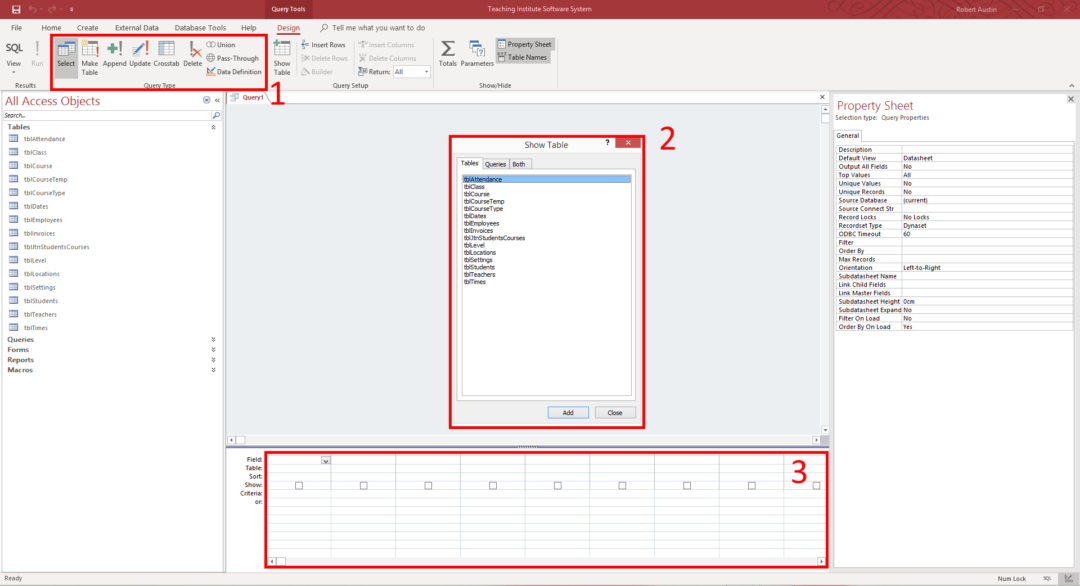
The three areas that have been highlighted are:
- The Query Type button group.
- The Show Table Dialog Box.
- The Query Grid.
We are going to create a simple query that will retrieve the StudentID, First Name, Last Name and Email Address from the tblStudents table.
- In the Show Table Dialog Box, double click tblStudents. You will see tblStudents appear in the query pane (item 1 in Figure 2).
- Close the Show Table Dialog Box.
- Double Click on StudentID, LastName, FirstName and EmailAddress in tblStudents in the newly added tblStudents table. You will see that these fields have been added to the query grid in the bottom half of the window (Item 2 in Figure 2). You can also click and drag the fields from the table to the query pane.
Your screen should now look something like this:
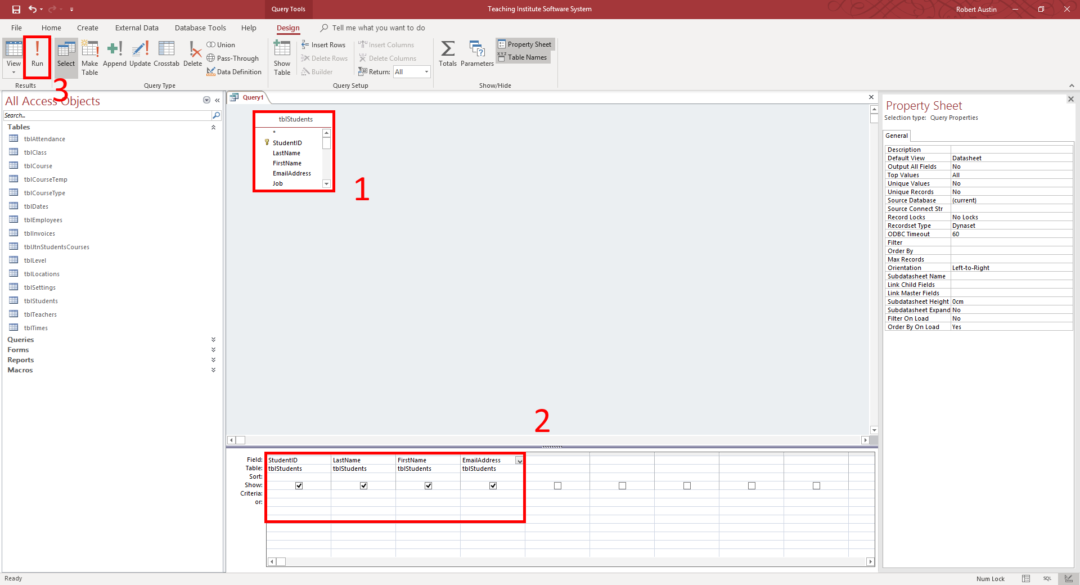
- In the ribbon select Run (Item 3 in Figure 2).
The results of the query are displayed in tabular form.
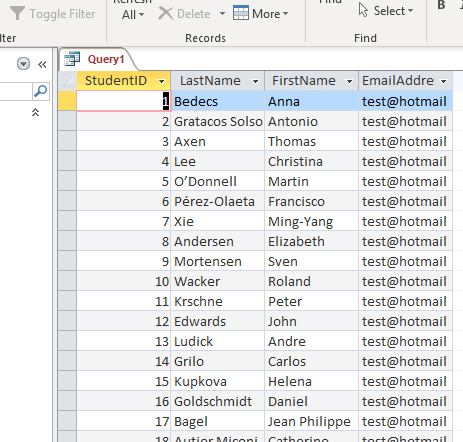 Figure 3
So, where is the SQL?
The point of the Query-By-Example editor is to make it simple to create queries in MS Access. What actually happens is that MS Access converts the Query-By-Example objects into SQL. Wouldn’t it be great if you could see the generated SQL? You bet it would!
To view the SQL code:
- Select the down arrow of the view button in the top left hand corner of the screen.
Select SQL view.
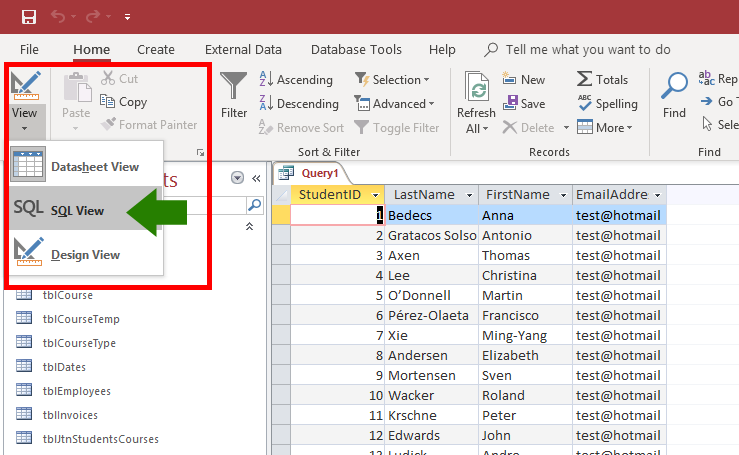
The generated SQL code is shown and reads:
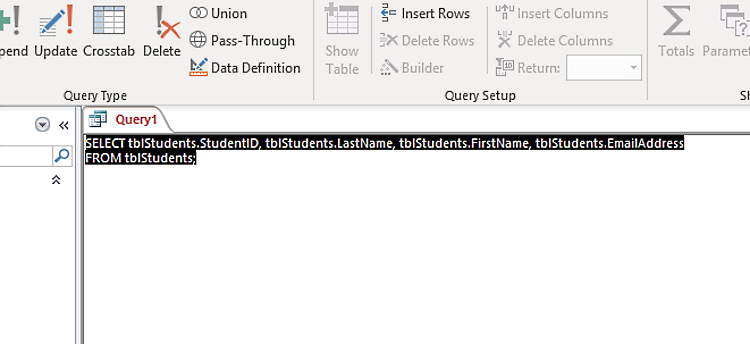
The Query-By-Example editor can be used instead of writing pure SQL which is both more convenient and a useful learning tool.
Summarising the SQL
Let’s summarise some of the details of the SQL statement in Figure 5.
- The SELECT keyword comes first. Then the table fields are referred to explicitly. This means that the fields are prefixed with the table name, and separated by a full stop (tblStudents.StudentID).
- Each of the table fields in the query is separated by a comma.
- The FROM keyword tells the database which table the table fields refer to.
- The end of the SQL command is indicated by the semi-colon (this semi-colon is not necessary when working with single queries).
Altering the SQL directly
In the above example, we began with the query in design mode. We then constructed a query using Query-By-Example before viewing the query as pure SQL. Let’s see what happens if we modify a pure SQL query and then view it using the Query-By-Example editor.
Using the pure SQL from Figure 5:
Place the cursor in the Query text between the tblStudents.EmailAddress field and the FROM keyword. Delete the tblStudents.EmailAddress field and the preceding comma. Your query should now look like this:
igure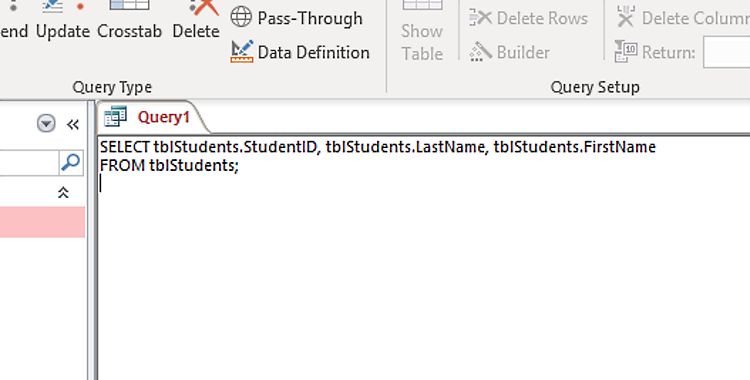 Figure 6
If you now switch to design view (View > Design View) you will see that the tblStudents.EmailAddress field has been removed from the Query Grid.
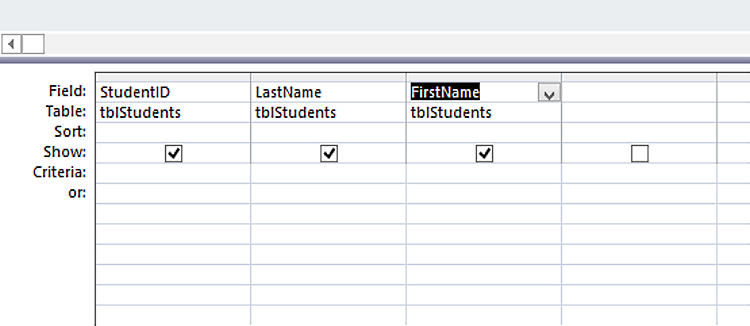 Figure 7
So, you have two options for creating SQL: through the Query-By-Example editor or using pure SQL.
Selecting Records by Criteria
The SELECT query is useful as it provides a simple way to extract data from the database. But we do not always want to retrieve every row from a table. Sometimes, we want to retrieve a subset of rows that match a certain criteria.
For example, we may only want to see records from the tblStudents table where the city is ‘New York’. Or we may only want to return employees from the tblEmployees table that have the job title of ‘Secretary’. These actions are achieved by using the WHERE clause.
- Open the QBE editor, remove any other tables and add the tblStudents table.
- Add StudentID, FirstName, LastName and City to the Query Grid
- In the City column add the text “New York” to the Criteria row and press Enter
Your Query Grid should look like Figure 8:
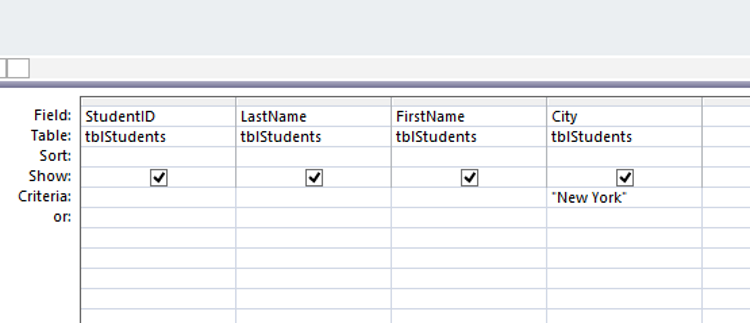
- Run the query and you will see that the only rows returned are those that have ‘New York’ in the city column.
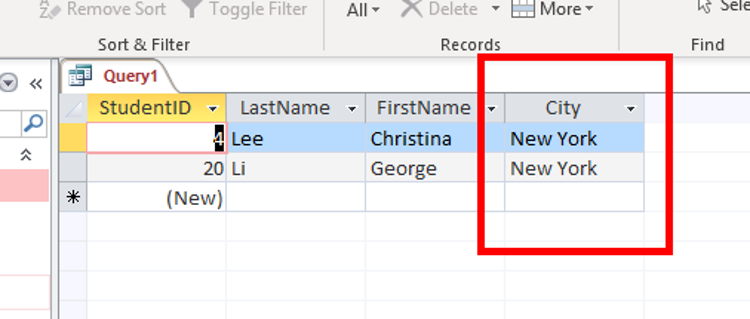 Figure 9
- Now switch to SQL view to see the SQL code for this query:
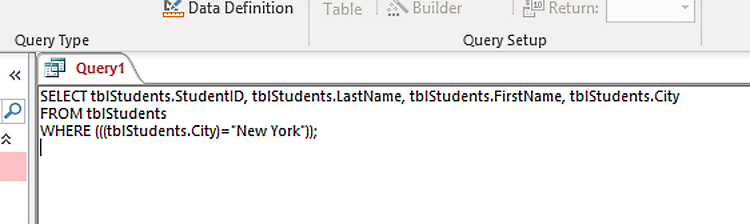 Figure 10
You can see that we have the standard SELECT query but a WHERE clause has been added to filter the records based on the criteria shown.
The WHERE clause comprises of the WHERE keyword followed by the field name tblStudents.City the comparison operator ‘=’ and the literal value that is being searched for “New York”.
You will notice that in converting it from a QBE query to pure SQL, parentheses have been added around the WHERE claus. This particular feature is a small annoyance that MS Access has, in that the parentheses are not necessary (certainly not in a simple query like this). The SQL could just as well read:
SELECT tblStudents.StudentID, tblStudents.LastName, tblStudents.FirstName, tblStudents.City FROM tblStudents WHERE tblStudents.City=”New York”;
The use of the WHERE clause is a very important concept to understand, particularly when using action queries such as UPDATE and DELETE (more on this later).
Comparison Operators
In the WHERE clause we have used a comparison operator (the equals sign). It is often useful to use other comparison operators such as:
- < Less than,
- > Greater than,
- <> Not equal to,
- <= Less than or equal to,
- >= Greater than or equal to.
In the following example, we are using the ‘>’ operator to find all courses that cost more than £119:
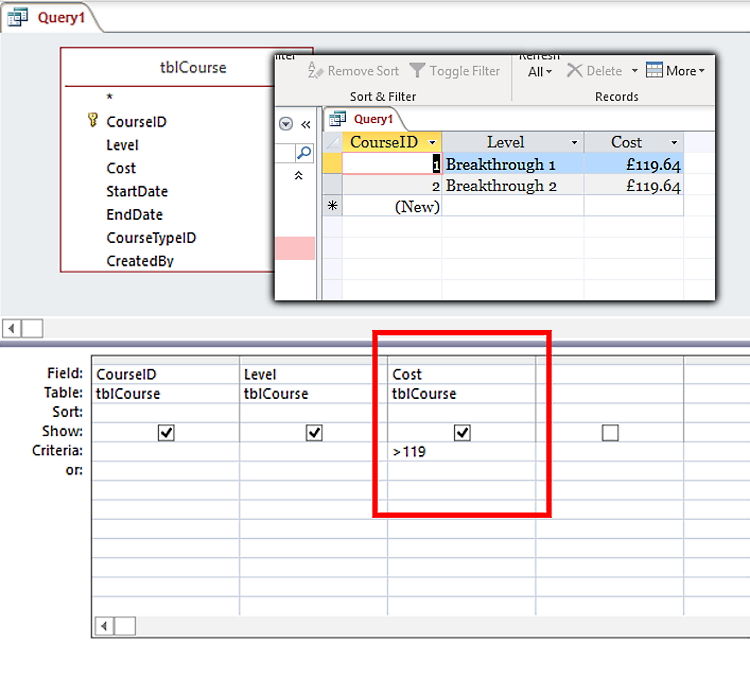 Figure 11
Comparison operators work intuitively with numeric values. When comparing strings, the greater than operator (>) will look for a string that comes after another string alphabetically. So, it is correct to say Dog > Cat (D comes after C) but incorrect to say Duck > Monkey (M does not come after D).
INSERT QUERY
The INSERT query allows us to add new records to the database. It is analogous to the Create function in our CRUD acronym, however, in the QBE window the INSERT query is accessed via the Append button.
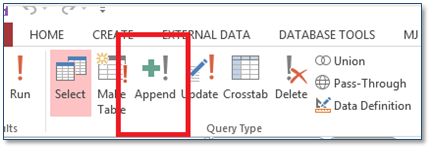 Figure 12
We are going to add a new record to the tblEmployees table using an INSERT action query.
- Open the QBE window and click on the Append button in the ribbon.
- In the append dialog box select tblEmployees:
 Figure 13
- In the query Grid type FName:”Tom” in the first row of the first column.
- Select FirstName from the drop down list in the Append To: row.
- In the query Grid type SName:”Cruise” in the first row of the second column.
- Select LastName from the drop down list in the Append To: row.
- In the query Grid type Job:”Drama Teacher” in the first row of the third column.
- Select Job Title from the drop down list in the Append To: row.
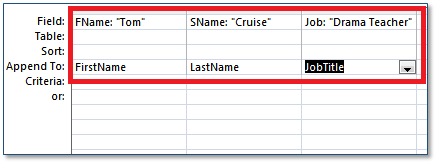
- Click the Run button to execute the query.
- You will get a warning that tells you that you are going to add rows to the table Click OK.
- Open the tblEmployees table and you should see that a new record has been inserted with the data we provided.
- Now switch to SQL view to see the SQL code for this query:
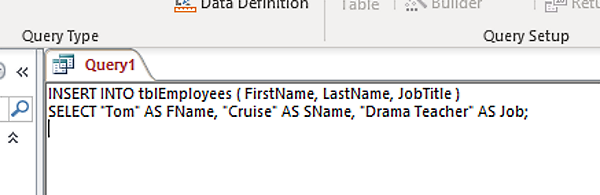 Figure 15
To summarise the query:
- The INSERT keyword is followed by the word INTO, this is followed by the name of the table and the fields that we are inserting.
- The second part of the query uses the SELECT keyword and then combines the literal data (“Tom” for example) with as “alias” (AS FName).
Another quirk of MS Access is the way it converts INSERT statements. Another (more succinct) way of writing the above would be:
INSERT INTO tblEmployees (FirstName, LastName, JobTitle) VALUES (“Tom”, “Cruise”, “Drama Teacher”)
The above statement is a more “standard” way of writing an INSERT statement.
UPDATE Query
An update query is used to change a value of one or more fields in an existing table row or number of rows. In our example, we are going to update some of the details relating to the record we have just added. In order to do this we need to somehow identify the row that contains our record.
- Open the tblEmployees table (we are starting with a fresh copy of the database so you will not see the previous entry).
- Choose a record to edit (we are going to choose the record for Gabrielle Luna).
- Make a note of the EmployeeID for the Gabrielle Luna record. In our case it is the number 3.
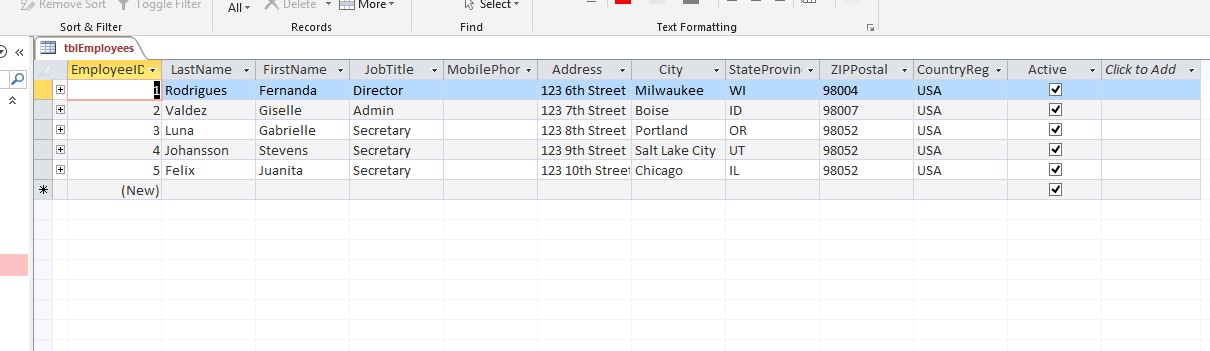 Figure 16
- Close the tblEmployees table.
We are going to use the EmployeeID value with a WHERE clause so that we are certain that we only update the record that we need to.
Note: This is why the WHERE clause is so important. If we run an action query such as UPDATE without specifying a WHERE clause, we will alter every record in the table.
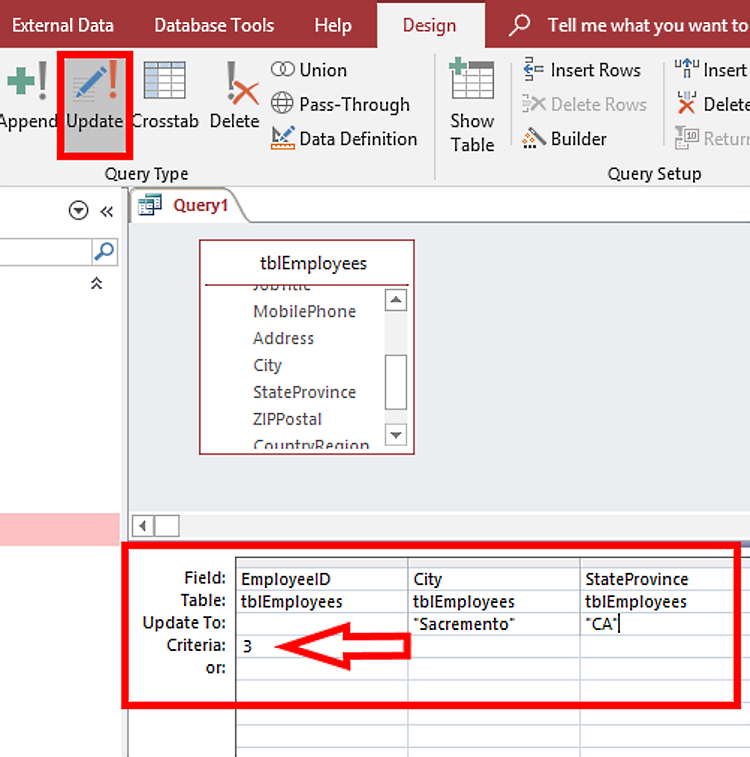
We are going to UPDATE two of the fields in the Gabrielle Luna record; City and StateProvince. To carry out this update we must do the following:
- Open the QBE editor and add the tblEmployees table.
- Click the Update button on the ribbon.
- In the first column of the query grid select EmployeeID.
- In the criteria row enter the ID value that we have just obtained from the tblEmployees table (3).
- In the second column select City
- In the Update To: row, type “Sacremento”.
- In the third column select StateProvince.
- In the Update To: row, type “California”.
The query builder should look like this:
Before we run this query, let’s take a look at the SQL code. Select SQL View:
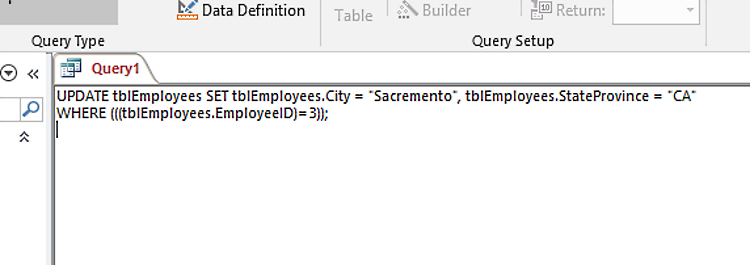 Figure 18
In this command the UPDATE keyword is followed by the table name, the SET clause then tells the database which fields to update and to which value. The WHERE clause comes next and it tells the database to only perform this UPDATE on the row WHERE the EmployeeID = 3.
Run the query and open the tblEmployees table to check that the fields for Gabrielle Luna have been updated.
Note: Again, the parentheses around the WHERE clause are unnecessary.
DELETE Query
The DELETE query is used to delete a record or multiple records from the database.
Note: For obvious reasons, be careful when using a delete query.
We are going to delete the Gabrielle Luna record from the database. But this time we are going to start using the SQL View and check our code in the QBE editor.
- Open the QBE editor, close the ‘Show Table’ dialog.
- Select SQL View.
- The word SELECT; will be shown in the view.
- Remove the word SELECT; and type this: DELETE * FROM tblEmployees WHERE EmployeeID = 3;
- Your query should look like this:
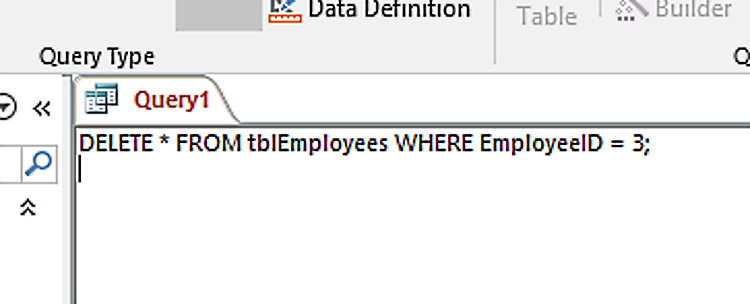 Figure 19
Note: This query has used the asterisk short cut *. The asterisk is used to indicate that all fields should be selected. This can be used in SELECT queries to return all columns. The asterisk is useful but should only be used when it is a definite requirement to return all columns. In all other cases the specific field names should be listed.
- Select Design View.
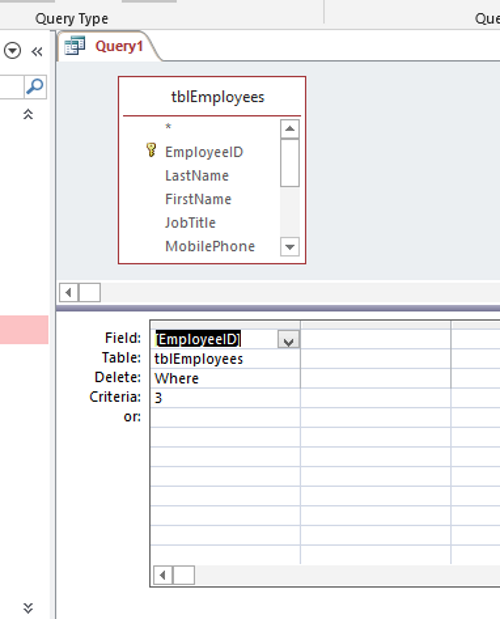 Figure 20
- Click the Run button to execute the query.
- You can check that Gabrielle Luna has been removed from tblEmployees by opening the tblEmployees table.
SELECT DISTINCT
Select distinct is used to return only unique rows of data. Let’s take a look at an example.
- Open the QBE editor.
- Select SQL View.
- Delete SELECT; and type: SELECT tblEmployees.JobTitle FROM tblEmployees;
- Run the query. You will have a list of JobTitles. The JobTitle “Secretary” will be repeated 5 times.
- Select SQL View.
- Add DISTINCT into your query like this: SELECT DISTINCT tblEmployees.JobTitle FROM tblEmployees;
- Run the query. You will now only have unique rows of data (every value will only appear once).
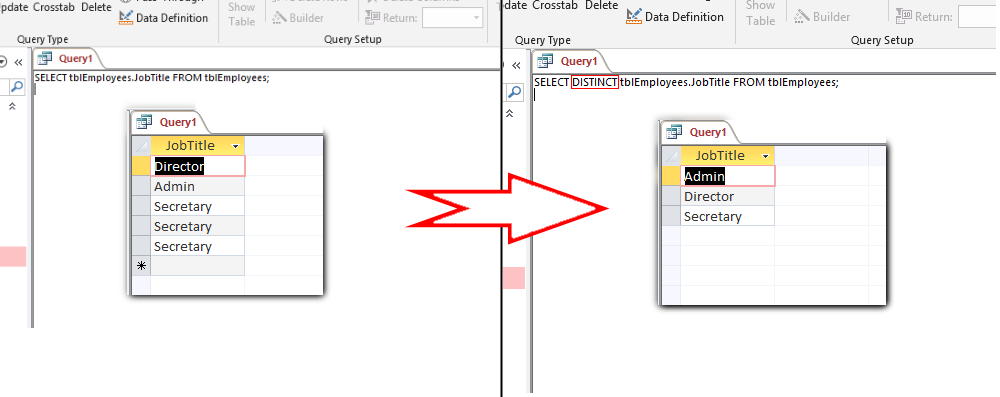 Figure 21
SELECT DISTINCT is a very useful keyword but can only be added to an SQL statement through SQL View. You cannot do it through the QBE editor.
ORDER BY
The ORDER BY clause sorts a query by a field or fields in either ascending or descending order.
- Open the QBE editor.
- Add tblEmployees.
- In the query grid:
- Choose tblEmployees for Table.
- Choose LastName for Field.
- Choose Ascending for Sort.
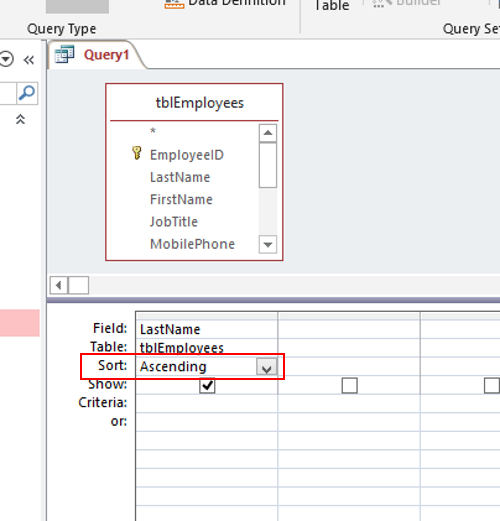 Figure 22
Note: Choosing Descending for the Sort field will reverse the order.
- Change to SQL view.
- The ORDER BY keyword has been added to the end of the SELECT statement.
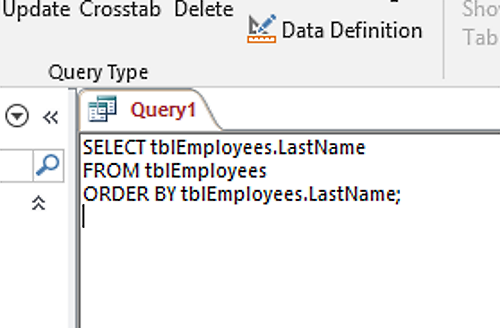 Figure 23
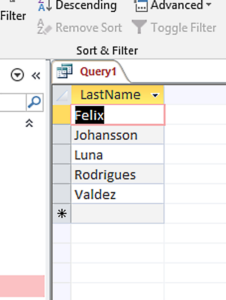
- Running the query will return this dataset:
JOINING TABLES
In a normalised database, tables will often contain fields that reference a field from another table. In Figure 25 below, the tblClass table contains a field called TeacherID and TeacherID is “linked” to the TeacherID of the table tblTeachers. This link provides an important protection: no value can be entered into tblClass.TeacherID unless it exists in tblTeachers.TeacherID. This ensures that we have a database that contains data integrity. It also gives us an opportunity to combine the two tables in a query. And the act of combining two or more tables in a query is referred to as “joining” tables.
From a purely SQL code perspective, joins can be difficult to write. But QBE pane provides us (yet again) with a great tool to visualise and learn the concepts of joining tables.
To see how tables are joined together do the following:
- Open the QBE editor.
- Add the tblTeachers table.
- Add the tblClass table.
- The relationship between the table already exists and is depicted by the line that connects them (the line travels from tblTeachers.TeacherID to tblClass.TeacherID).
- Add Teachers.LastName to the grid and then add tblClass.ClassDate.
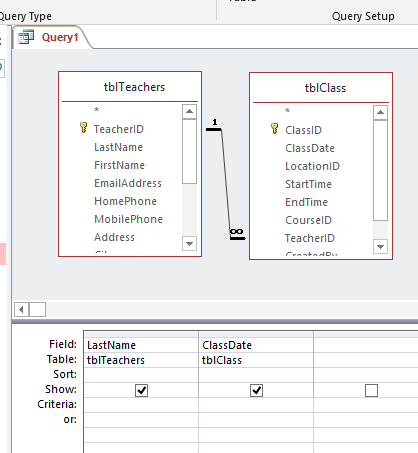
- Run the query.
- Switch to SQL View
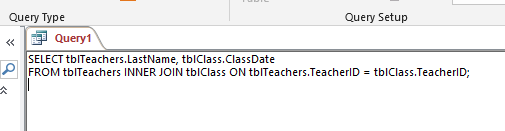
Let’s summarise what we can see:
- We see our normal SELECT query, with the fields explicitly identified by their table name prefix.
- The FROM clause lists the tables that we want to draw the information from.
- The INNER JOIN clause tells the database that we only want to see results where both of the tables contain a value in the TeacherID field.
- The ON keyword tells the database which two fields contain the related data.
Note: The INNER JOIN part of the SQL query was created by the line that joined the tblTeachers.TeacherID field to the tblClass.TeacherID field. We did not need to add anything to the query grid.
If we go back to the QBE editor, we can change the relationship type to include ALL of the records from the tblTeachers table and only matching records in the tblClass table.
- Right click on the table join (you have to be very careful to right-click on the line itself) and select Join Properties.
- The Join Properties dialog box appears.
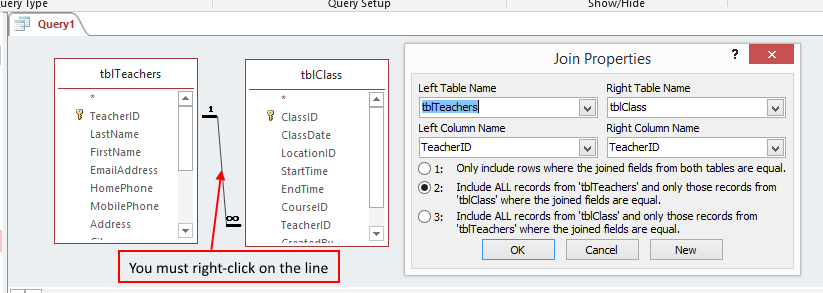
- The dialog box shows the tables that are selected and the columns upon which the join is created. The tables are identified as ‘Left’ and ‘Right’. Below this there is a list of join types.
- Select Option 2: Include all records from ‘tblTeachers and only those records from tblClass where the joined fields are equal.
- Click OK and run the query.
- Switch to SQL View.
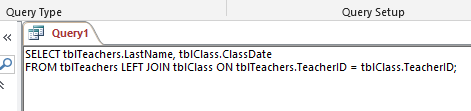
Here we see the SELECT query once again but the keyword LEFT has been added to indicate that ALL records from the ‘Left’ table must be returned. In this case, the “Left” table is tblTeachers. (B.T.W., There is an element of randomness as to the way in which tables are defined as “Left” and “Right”).
The difference between the 2 queries above is small but important. There are 3 teachers recorded in tblTeachers that do not have any classes allocated to them. By looking through the query results I can see that these are teachers named Lee, Xie and Mortensen (look for records with no value in the tblClass.ClassDate field).
Using SQL in VBA code
Writing your own SQL queries in VBA code is a great way to extend the functionality and usability of your database projects.
This part of the tutorial will concentrate on executing queries such as Select, Insert, Update and Delete in VBA code.
You will first need to open the VBA Editor and add a new Module.
- Press ALT + F11 on your keyboard.
- Right-click on TeachingDB.
- Mouse over Insert and click on Module.
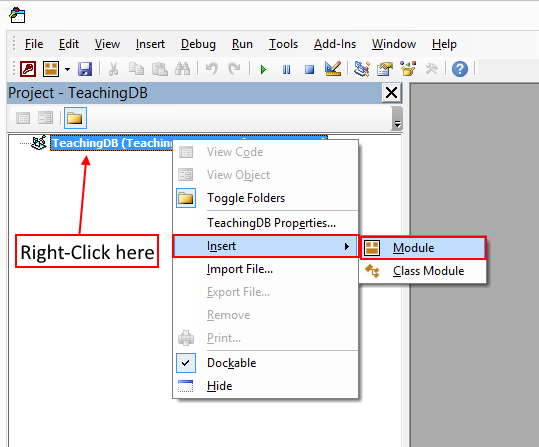
Let’s take a look at our newly created Module:
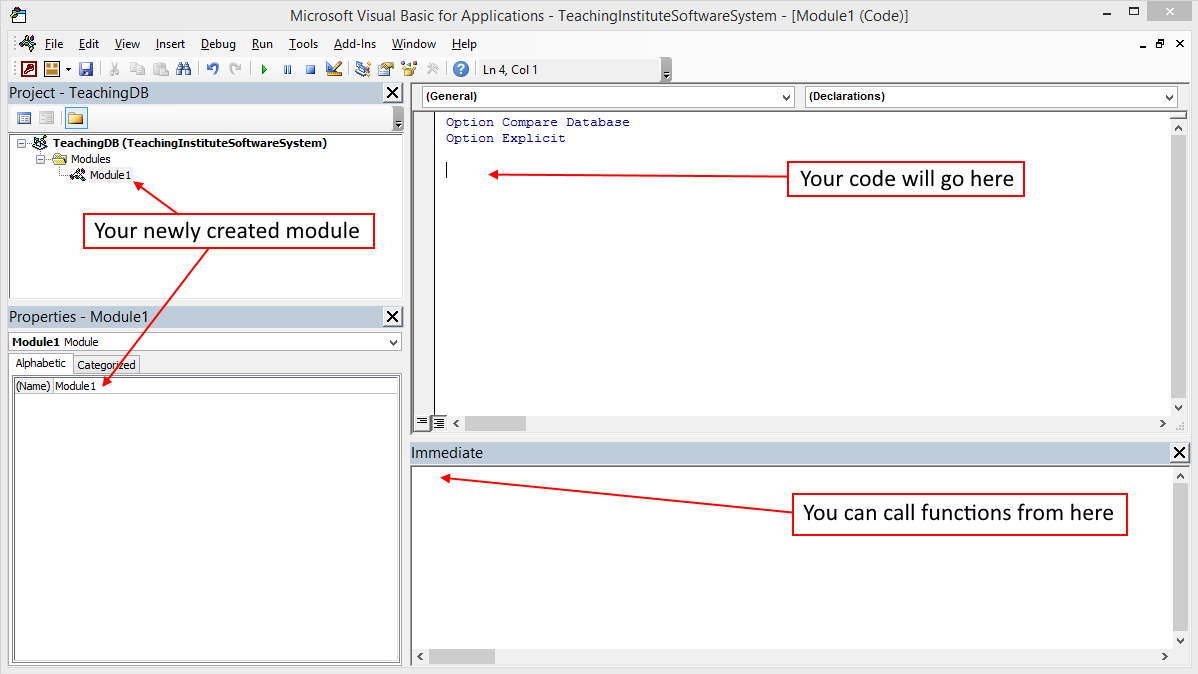
We will be adding code in the section labelled “Your code will go here” (obs).
Selecting Records
The first procedure you will write will be a procedure that uses SQL to select an Employee from the database.
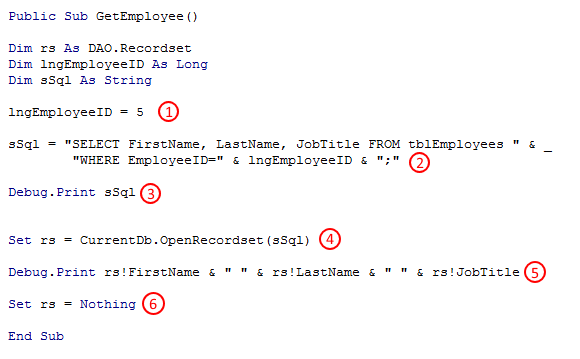
- We set the lngEmployeeID value to 5.
- We create an string that will represent the SQL query that we want to generate.
- We print the string to the Immediate Window so we can evaluate it.
- We open a recordset using the SQL query string we created earlier. A recordset is a dataset that we can interact with.
- We print some values from our recordset to the Immediate Window.
- We set the recordset variable to nothing (a clean-up operation).
To run the code, type GetEmployee into the Immediate Window and press return on your keyboard.
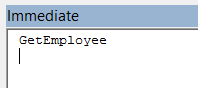
The code will print out the SQL query string (sSql) and some elements from the recordset.

It is very common to use a recordset to work with existing data in an MS Access project. The recordset itself can be edited and records can be updated, created and deleted although there are other, more SQL, ways to achieve this using the CurrentDB.Execute method (show below).
Inserting a Record
Let’s write some code to insert a record in tblEmployees.
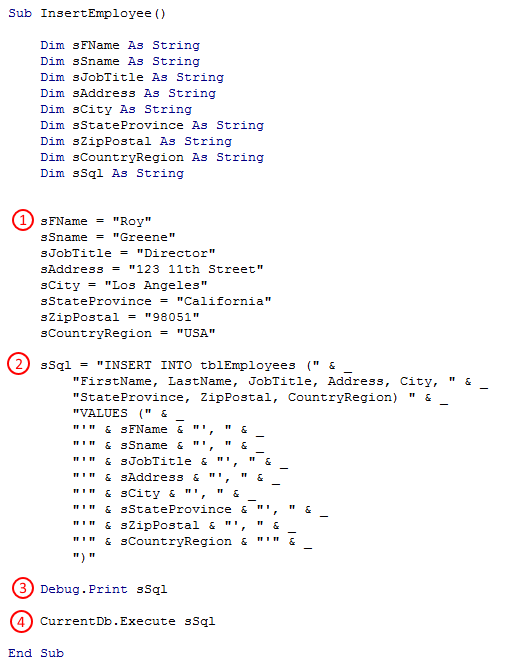
- We use a series of variables to store the values that we will be entering in the table.
- The SQL statement itself is stored in a variable called sSql and is a mix of literal string values and variables.
- We print the SQL statement to the ImmediateWindow. Although this is unnecessary, it can be useful to view the compiled SQL statement and error check it.
- We use the CurrentDB.Execute statement to run the SQL statement.
To run the code, type InsertEmployee into the Immediate Window and press return on your keyboard. The SQL statement will be printed to the Immediate Window…

…and if you open up tblEmployees, you will see that Roy Greene has been entered as a new Employee:

Updating a Record
We can also use the CurrentDB.Execute method to update existing record(s) in a table.
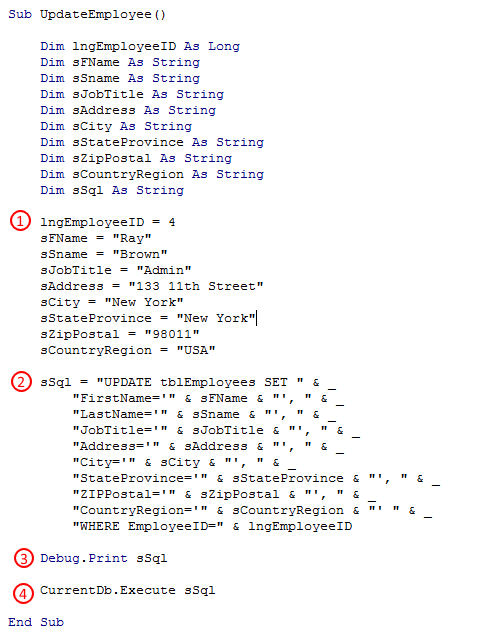
- We use a series of variables to store the values that we will be entering in the table.
- The SQL statement itself is stored in a variable called sSql and is a mix of literal string values and variables.
- We print the SQL statement to the ImmediateWindow. Although this is unnecessary, it can be useful to view the compiled SQL statement and error check it.
- We use the CurrentDB.Execute statement to run the SQL statement.
To run the code, type UpdateEmployee into the Immediate Window and press return on your keyboard. The SQL statement will be printed to the Immediate Window…

…and if you open up tblEmployees, you will see that EmployeeID 4 has been updated with the appropriate values.

Deleting a Record
Let’s use the CurrentDB.Execute method to delete an existing record in tblEmployees.
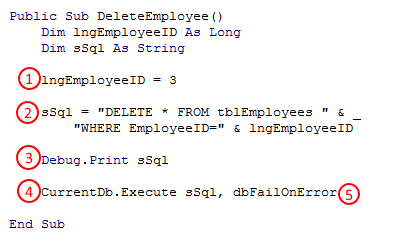
- In this instance, we only need the EmployeeID of the record we want to delete.
- The SQL statement itself is stored in a variable called sSql and is a mix of literal string values and variables.
- We print the SQL statement to the ImmediateWindow. Although this is unnecessary, it can be useful to view the compiled SQL statement and error check it.
- We use the CurrentDB.Execute statement to run the SQL statement.
- We have introduced the dbFailOnError option to the CurrentDB.Execute statement. This is an important statement because if the code can’t run for some reason (as we will see), without this option we would not receive a message indicating the reason why not.
To run the code, type DeleteEmployee into the Immediate Window and press return on your keyboard. The SQL statement will be printed to the Immediate Window…
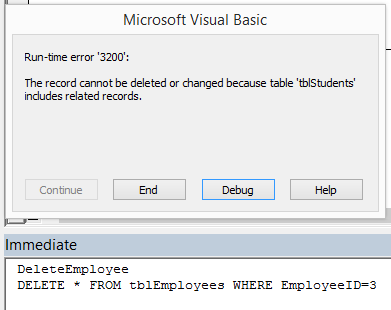
In Figure 41, we can see that after running the DeleteEmployee sub-procedure, we print the SQL statement to the Immediate Window (as expected) but the CurrentDB.Execute method throws an error. We are unable to delete EmployeeID 3 because EmployeeID 3 appears in tblStudents as a related record. Since we cannot create orphaned records in a well-designed relational database, this behaviour is both expected and welcome.
If we had not used the dbFailOnError option, we would not receive this message. The query would not run and the record would not get deleted but we would be unaware of this.
Summary
Let’s summarise some of the points we have covered in this post.
Structured Query Language is a language that enables objects to communicate with a database.
Some popular commands that SQL uses are SELECT (to retrieve records), INSERT (to create records), UPDATE (to update records) and DELETE (to delete) records.
When selecting records, it is possible to filter records using the WHERE keyword and sort records using the ORDER BY keyword.
MS Access provides two ways to write queries: using the Query-By-Example editor or by using pure SQL code.
You can use SQL in VBA by using a combination of string literals and variables to construct SQL statements that can be executed using the CurrentDB.Execute method.
Understanding SQL is an important step in understanding relational databases themselves. A good understanding of SQL will also enable you to migrate your application to a SQL Server back-end which is a popular and robust solution for thousands of businesses.
Как писать sql запросы в access
Учебные примеры запросов SQL в Microsoft Access и необходимые для них таблицы в формате .mdb. Примеры запросов SQL на выборку, изменение/обновление и удаление.
- Вы здесь:
- Главная

- Запросы SQL в MS Access
- 1. Функции СУБД MySQL. Введение
- 1. Функции работы с классами/объектами. Введение
- 1. Функции преобразования кодировок iconv. Введение
- 1. Функции обработки строк. Введение
- 1. Функции для работы с регулярными выражениями. Введение
- 1. Функции для работы с массивами. Введение
- 1. Функции для работы с Oracle. Введение
- 1. Функции сжатия Bzip2. Введение
- 1. Функции сжатия Zlib. Введение
- 1. Управление функциями. Введение
Популярные статьи
- Русско-узбекский разговорник. Любовь
- Русско-таджикский разговорник. Любовь
- Русско-узбекский разговорник. Первые слова
- Русско-таджикский разговорник. Первые слова
- Русско-узбекский разговорник. Поздравления
- Русско-узбекский разговорник. Приветствия и формулы вежливости
- Русско-казахский разговорник. Время, часы
- Разговорники
- Русско-таджикский разговорник. Поздравления
- Русско-казахский разговорник. Числа, счет, математика
- Русско-казахский разговорник. Времена года, месяцы, дни недели
- Русско-узбекский разговорник. Время, часы
Полулярные теги
- уроки html
- thead
- frame
- head
- html
- doctype
- align
- img
- rgb
- таблица
- colspan
- table
- tbody
- tfoot
- href
Копирование материалов сайта без прямой ссылки на источник запрещено.