Move SQL Server Maintenance Plan from One Server to Another
How do I transfer an existing SQL Server database maintenance plan from one server to another server? Read this tip to see the steps you need to follow.
Solution
Sometimes when there are many servers it’s helpful to setup a task on one server and replicate that task to all of the other servers. One of the tasks you may be using are SQL Server Maintenance Plans and you know how many steps you need to go through to setup the plan, so having the ability to replicate this same plan on other servers is very helpful.
In this tip, I am going to demonstrate the process of exporting an existing SQL Server Maintenance Plan and import it to another server without having to recreate the entire maintenance plan. This will reduce time, effort and the chance of making mistakes for the DBA and make the process much easier.
When we create any database maintenance plan, SQL Server will automatically create a SQL Server Integration Services Package (SSIS) with same name and deploy it in the MSDB database. If the maintenance plan is scheduled to execute at a specific time, a SQL Server Agent Job will be created automatically. Using Integration Services, we can export a SSIS package associated with a maintenance plan and import it to another server.
Sample Maintenance Plan
For this demonstration, I have created a database backup maintenance plan. It generates backups of master, MSDB and model databases and stores the backups to disk. The job is scheduled to execute at 12:00 AM each week.
Steps to Move Maintenance Plan
After the plan has been setup, we will perform the below tasks:
- Export Maintenance Plan from the source server.
- Edit the connection string in the Maintenance Plan.
- Import the Maintenance Plan on the destination server and execute it.
Export Maintenance Plan from Source Server
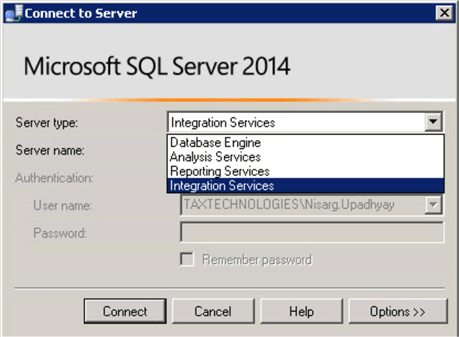
Connect to the Integration Services catalog on the source server using SQL Server Management Studio (SSMS) by opening SSMS and clicking on the Server type drop down box and selecting Integration Services as shown below.
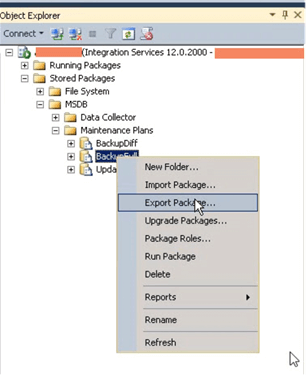
We have a few Maintenance Plans and we are going to export the BackupFull maintenance plan. To do this, navigate to Stored Packages > MSDB > Maintenance Plans in the object explorer. Right click the BackupFull maintenance plan and select Export Package as shown below.
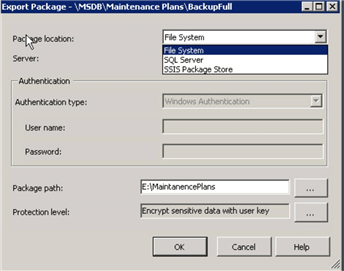
After clicking Export Package a dialog box ‘Export Package’ will open. Select File System in the Package Location to specify we want to save to the file system. In the Package path text box, enter the desired location and name of the file you want to save and click OK.
Change Connection String in Maintenance Plan
Now, we must update the connection string within the maintenance plan, so that it can access the databases on the server where we will import the package. If we don’t do this, when we execute the maintenance plan on the new server, it will try to connect to the source server and give an error. To avoid the error, edit the package as noted below.
SSIS packages are in XML format, which can be edited using Notepad or any other XML/text editor.
To change the connection string, perform the below steps:
- Right click on the exported maintenance plan and open it in Notepad.
- Find the connection string attribute DTS:ConnectionManager in the XML file as shown below.
- Change the server name in the connection string as shown in the below code. Replace <Destination Server Name> with name of the server where the package will be imported and save the file.
Import Maintenance Plan to Destination Server
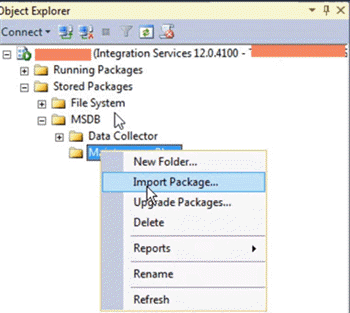
To import the maintenance plan on the destination server, connect to the Integration Services catalog on the destination server and navigate to Maintenance Plans as explained before. Now, right click on Maintenance Plan and select Import Package as shown in the below image.
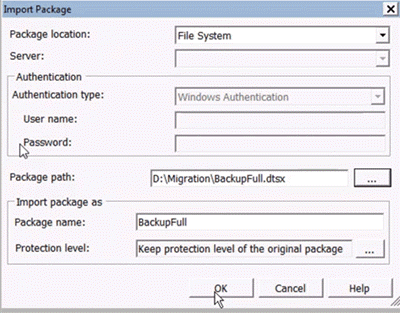
After clicking import package, a dialog box ‘Import Package’ will open. Select File System in Package location and enter the Package path for the file you just edited.
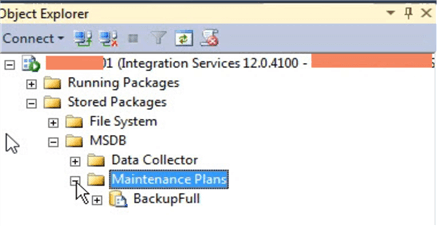
Once the package is imported, you will be able to see the imported package underneath the Maintenance Plans on the destination server as shown in the below image.
Verify and Test Package
Now let’s verify that maintenance plan has been created properly.
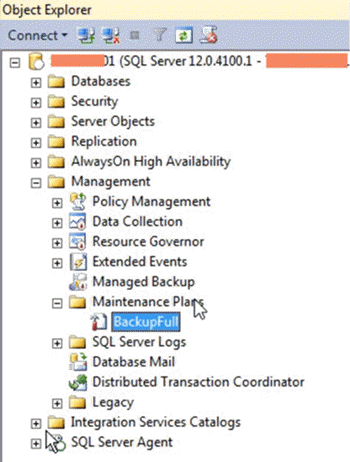
As I mentioned earlier, the maintenance plan will take backups of the system databases master, model and msdb. To view the maintenance plan, open SSMS and connect to database engine. In the object explorer navigate to Management > Maintenance Plans and you should see the imported maintenance plan.
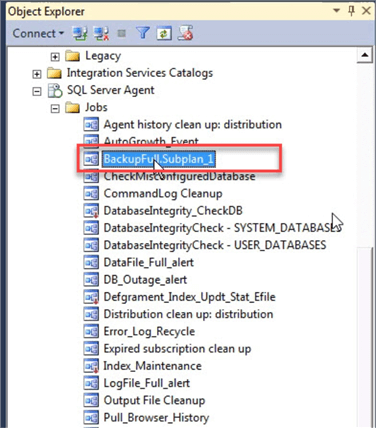
When we import the Maintenance plan, a SQL Server Agent Job associated with the maintenance plan will be created automatically. In this demo, backup job ‘ BackupFull.Subplan_1 ’ was created as shown in the below image.
Right click the job ‘BackupFull.Subplan_1’ and click execute and the job will start.
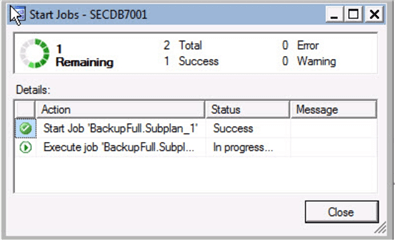
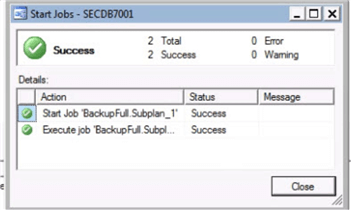
After few minutes, the job should complete successfully and the backups will be created.
Summary
In this tip, I demonstrated the process of exporting a maintenance plan from one server and importing it to another server.
I would like to take this opportunity to thank my friend Dolly Gupta, who helped me proof read my tip.
Next Steps
- Overview of database Maintenance plans.
- How to create Maintenance plan to generate database backup
- If you have issues connecting to Integration Services check out this tip


About the author
 Nisarg Upadhyay is a SQL Server Database Administrator and Microsoft certified professional with more than 5 years of experience.
Comments For This Article
Your demo looks like using SQL Server 2014. I am using SQL 2014 as well but I cannot see the related agent job being created automatically after import the package success. The version I am using is Microsoft SQL Server 2014 (SP3) (KB4022619) — 12.0.6024.0 (X64) .
Then I have to create the job manually after import the MSDB package.
I use SSMS connect to DB engine to generate agent job script, change the server name to destination server name, then run it on destination server to create the agent job, but I still get error when running the agent job. The error message is :
Executed as user: INTTTCCA\sqlservices. Microsoft (R) SQL Server Execute Package Utility Version 12.0.6024.0 for 64-bit Copyright (C) Microsoft Corporation. All rights reserved. Started: 1:42:46 PM Error: 2020-09-10 13:42:46.28 Code: 0xC002F210 Source: <4CC03679-9D91-42DE-91F2-F13398EF0413>Execute SQL Task Description: Executing the query «DECLARE @Guid UNIQUEIDENTIFIER EXECUTE msdb..sp. » failed with the following error: «The INSERT statement conflicted with the FOREIGN KEY constraint «FK_sysmaintplan_log_subplan_id». The conflict occurred in database «msdb», table «dbo.sysmaintplan_subplans», column ‘subplan_id’. The statement has been terminated.». Possible failure reasons: Problems with the query, «ResultSet» property not set correctly, parameters not set correctly, or connection not established correctly. End Error Error: 2020-09-10 13:42:55.19 Code: 0xC0024104 Source: Back Up Database Task Description: The Execute method on the task returned error code 0x80131501 (An exception occurred while executing a Transact-SQL statement or batch.). The Execute method must succeed, and indicate the result using an «out» parameter. End Error Error: 2020-09-10 13:42:55.19 Code: 0xC0024104 Source: <73625874-EABA-4A0F-8CD0-E9EC1F166F96>Description: The Execute method on the task returned error code 0x80131501 (An exception occurred while executing a Transact-SQL statement or batch.). The Execute method must succeed, and indicate the result using an «out» parameter. End Error DTExec: The package execution returned DTSER_FAILURE (1). Started: 1:42:46 PM Finished: 1:42:55 PM Elapsed: 9.188 seconds. The package execution failed. The step failed.
�Excellent, helped me.
You might also want to edit the exported file and mention to what DBs this is applicable.
Hello Bobby Russell,
Thanks for the valuable feedback.
You can script out SQL Job associated with the maintanence plan from source server and create it on destination server. Please refer below links:
First, thank you so much for publishing this. The connection change was what I was hung up on. I now have one other question. When I imported my package, none of the schedules imported with it. I am able to clone the agent task from the other server but without the schedule stored in the maintenance plan, the first time I make a plan change and save it, I’m going to loose my schedule, correct? Is there a way to bring the schedule over in the maintenance package?
Скопируйте планы обслуживания на другой сервер
Есть ли способ скопировать планы обслуживания из одного SQL Server 2012 в другой? Оба сервера не доступны через одну и ту же копию Management Studio одновременно (в разных сетях).
Перейдите на сервер, на котором существуют задания, в обозревателе объектов Management Studio выберите «Управление»> «Агент SQL Server» и выделите папку «Задания». Нажмите F7 (или View> Object Explorer Details). Вы должны увидеть несколько рабочих мест на правой панели. Выделите те, которые вы хотите скопировать, щелкните правой кнопкой мыши, Script Job As> Create To> Clipboard. Теперь подключитесь к другому серверу, откройте новое окно запроса, вставьте и нажмите F5. Гораздо проще, чем гадить с SSIS.
Возможно, вам придется предпринять дополнительные шаги, в зависимости от того, что планы делают. Подключитесь к экземпляру Integration Services, а не к экземпляру базы данных, разверните Хранимые пакеты> MSDB> Планы обслуживания, щелкните правой кнопкой мыши любой план и выберите Экспорт пакета. На другом сервере выполните те же действия, но щелкните правой кнопкой мыши Планы обслуживания и выберите Импортировать пакет. Вы должны будете сделать это для каждого плана.
Я нашел более хакерский способ.
Каждый План выполнения — одна запись в msdb.sysssispackages таблице.
Вы можете скопировать записи из msdb.sysssispackages таблицы исходного сервера в msdb.sysssispackages таблицу конечного сервера.
Просто создайте связанный сервер на исходном сервере и используйте эту Вставку с исходного сервера:
ИНФОРМАЦИЯ: Замена имени сервера имеет решающее значение для обработки целевого соединения в конструкторе плана обслуживания.
ВАЖНО: Копирование записей только копирует структуру плана обслуживания. Чтобы воссоздать задания, когда вы закончите копирование, вы ДОЛЖНЫ отредактировать каждый план Mantainence, сбросить расписание и сохранить его.
Перенос планов обслуживания (maintenance plans) на другой сервер
Вы когда-нибудь задавались необходимость перенести встроенные планы обслуживания (maintenance plans) на другой сервер? Эта задача оказалась не тривиальной. Сегодня я бы хотел поделиться с вами относительно простым способом решения данной задачи.
Если вы вдруг не знаете что такое планы обслуживания (maintenance plans), то это ничто иное, как пакет SQL Server Integration Services (далее SSIS), который можно создать в рамках визуального интерфейса SQL Server Management Studio (SSMS). На скриншоте вы можете увидеть, что созданный мною план обслуживания на самом деле находится на SSIS:

Я создал план обслуживания (Test_Maint) на моём SQL Server и подключился к локальному SSIS. Обратите внимание, что если у вас установлен SQL Server с экземпляром не по-умолчанию, то вам необходимо отредактировать SSIS, чтобы он подключался к нужной msdb. Для этого необходимо найти файл MsDtsSrvr.ini, обычно он находится в папке «<Program Files Installation>\Microsoft SQL Server\90\DTS\Binn. В нём необходимо поменять <ServerName>.</ServerName>, на необходимый вам сервер\экземпляр. После сохранения изменений необходимо перезапустить службу SSIS.
Продолжим, как вы видите, SSIS пакеты хранятся в базе данных msdb (они могут храниться и на файловой системе, если подключить их к SSIS особым образом). Теперь нам необходимо перенести наш план обслуживания (Test_Maint) на другой сервер, для этого необходимо выделить план > нажать правую кнопку мышки > выбрать «экспорт пакета» > в новом окне необходимо указать сервер, на который будем переносить план обслуживания и куда необходимо поместить пакет на том сервере > после всех настроек необходимо нажать «Ок». Если после нажатия «Ок», вам не выдало ошибки, значит план обслуживания успешно перенесён.
Можно сделать перенос через файловую систему, для этого нам необходимо в окне переноса выбрать «Файловую систему» и указать путь сохранения:

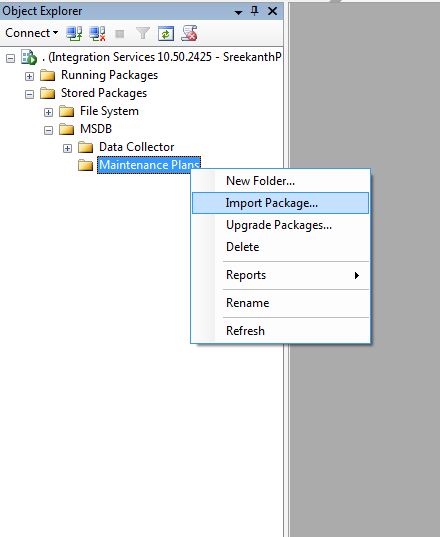
Теперь на сервере назначения нам так же нужно подключиться к SSIS, скопировать выгруженный план обслуживания на новый сервер и подключить его через «импорт пакета»:

С наилучшими пожеланиями.
Как сделать копию Плана обслуживания?
Есть MS SQL server 2019. На нём лежат 2 базы. Для одной я сделал План обслуживания (дольно здоровый). Как можно сделать копию этого плата, но для другой базы на том же сервере?
Может, скрипт для этого какой есть?
Ошибка плана обслуживания MS SQL 2008R2
Добрый день. Подскажите, пожалуйста, почему выдает вот такую ошибку? "Процесс не может получить.
Ошибка при создании плана обслуживания базы данных в SQL Server Management Studio
Здравствуйте! У меня возникла проблема при создании плана обслуживания базы данных в SQL Server.
что это за сервер отчетов и для чего он необходим при создании плана обслуживания базы?
в SQL EM при создании плана обслуживания базы, реч идет о связи основного сервера(резерв основной.
Долгое выполнение плана обслуживания по реорганизации индексов и обновлению статистики
Добрый день! MSSQL 2017 Standart, установлены последние обновления, Windows 2016. База 1С -.
Сообщение от fhorse
Кнопку Скрипт не нашёл Где она должна быть-то?
Переписать план на SQL — это, конечно, выход. Но я в этом языке не силён. Разбираться долго буду.
А можно как-то посмотреть каждый пункт плана в виде кода?
Сообщение от fhorse
Создание плана обслуживания резервного копирования БД для SQL Server 2008
Стоит следующая проблема: требуется на C# написать программу, которая создаёт план обслуживания.
Как сделать копию форума?
Мне нужно сделать резервную копию форума. Функция где я знаю. Но боюсь сам что-либо делать. Кто.
 Как сделать копию объекта
Всем привет. Как сделать копию объекта так, чтобы копия могла существовать не зависимо от.
Как сделать копию программы
Нужно,чтобы программа копировала сама себя на диск,только без пути в коде
Как Сделать Копию Базы
База стала так велика (около 4Г), что стандартный Конфигуратор не хочет ее выгружать. Сохранил.