Solve SQL Server Connection Error 26 — Error Locating Server/Instance Specified
While SQL Server client unable to establish connection to server, or SQL network interfaces error 26 occurs, you cannot locate server or instance specified, how to resolve it?
In following article, solutions will be provided to fix SQL Server connection error 26 occurring in SQL Server 2005/2008.
Part 1: Resolve SQL Server 2005 Connection Error 26
If it is just because of failed remote connection, try this way to open SQL Server 2005 remote connection.
Open Remote Connection in SQL Server Surface Area Configuration.
1. Open SQL Server Surface Area Configuration in Start All Programs Microsoft SQL Server 2005 Configuration Tools SQL Server Surface Area Configuration.
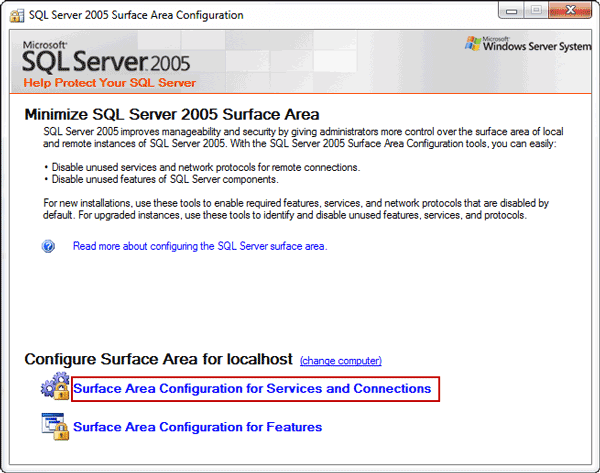
2. Navigate to Surface Area Configuration for Services and Connections Database Engine Remote Connections. Choose Local and remote connections and click Apply and OK to confirm these changes.
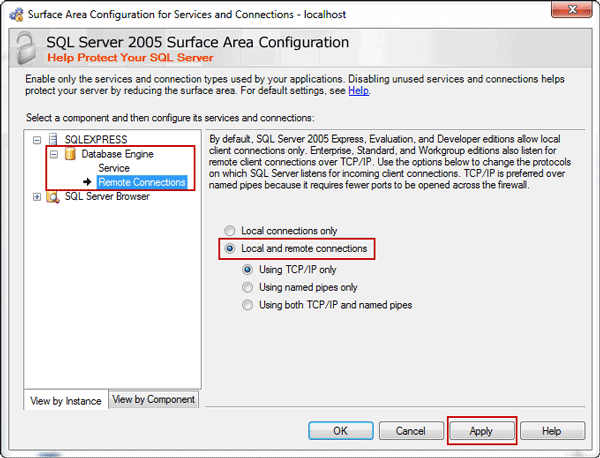
3. Restart SQL Server Services and connect SQL Server to server or instance specified.
If for wrong server name or instance, please add instance name after server name "\". Or remove "\" and instance after it, or directly type "." after server name.
Part 2: Solutions to Error Locating Server/Instance Specified in SQL Server 2008
After installing SQL Server 2008 on computer, if directly connect to server or instance specified, probably you would encounter such a problem.
Provider: SQL Network Interfaces, error: 26 — Error Locating Server/Instance Specified
In fact, as long as we know that that remote connection and SA account are disabled in SQL Server 2008 by default, solving this problem is still easy.
1. Steps to Configure SQL Server Management Studio (SSMS)
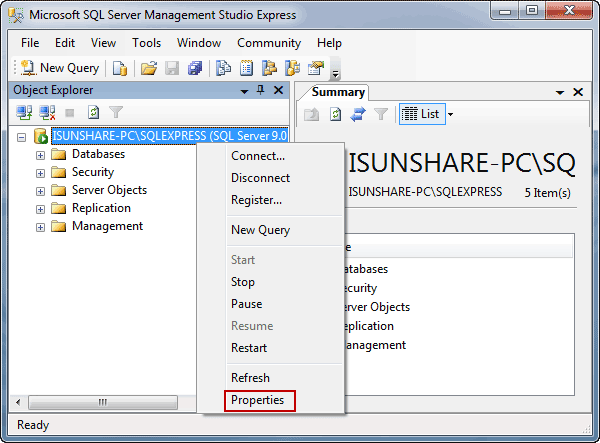
Step 1: Open SSMS and connect to SQL Server with Windows Authentication. Right-click SQL Server and choose Properties.
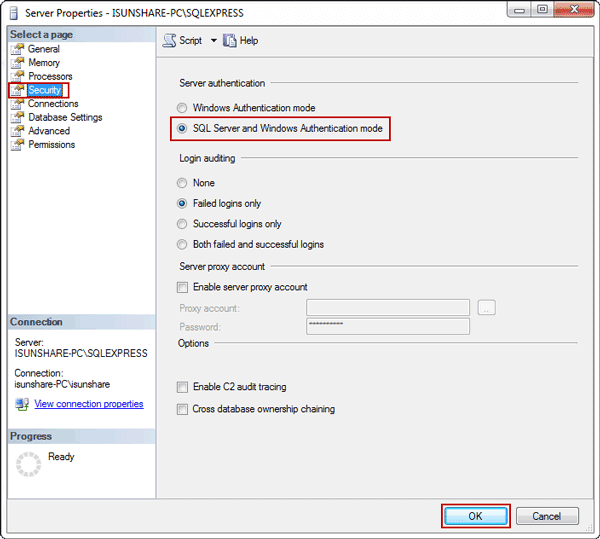
Step 2: Select Security option in left pane, and check "SQL Server and Windows Authentication" in the right pane to enable Mixed Authentication mode.
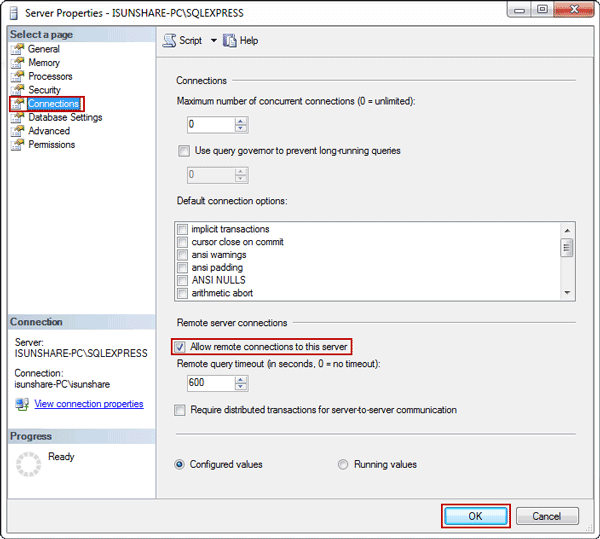
Step 3: Select Connections option in the left side and tick "Allow remote connections to this server" in the right side. Click OK. Close Server Properties window.
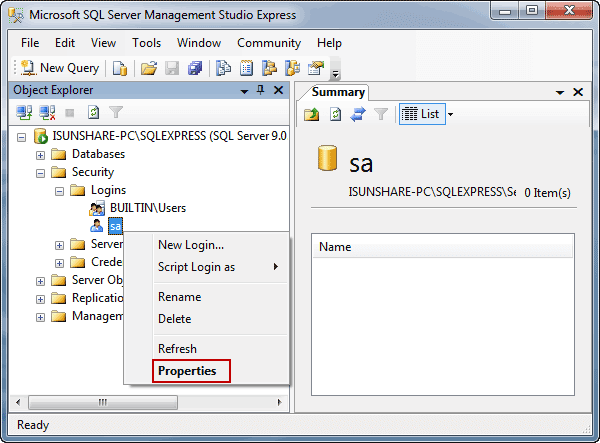
Step 4: Navigate to Security Logins sa. Right-click on "sa" account and choose Properties.
Step 5: Choose "SQL Server authentication" in the right pane and enter password in Password and Confirm password box for sa account logon.
Step 6: Click Status option in Login Properties window, and check Enabled to make SA account available for SQL Server connection. Click OK to finish SSMS configuration.
2. Steps to Configure SQL Server Configuration Manager (SSCM)
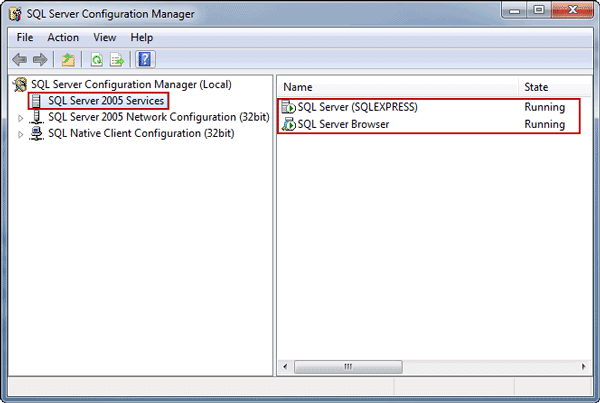
Step 1: Open SSCM and choose "SQL Server Services" in the left pane. Make sure SQL Server and SQL Server Browser is running.
Step 2: Double-click TCP/IP to open its properties setting window.
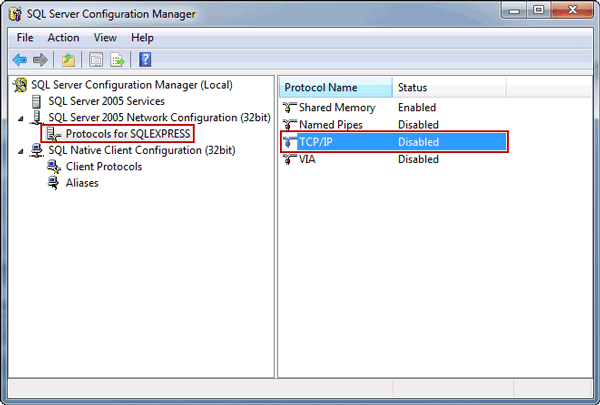
Step 3: Change it to be Enabled. Choose IP Addresses tab, set the PCP port 1433. And then enable TCP/IP in Client Protocols.
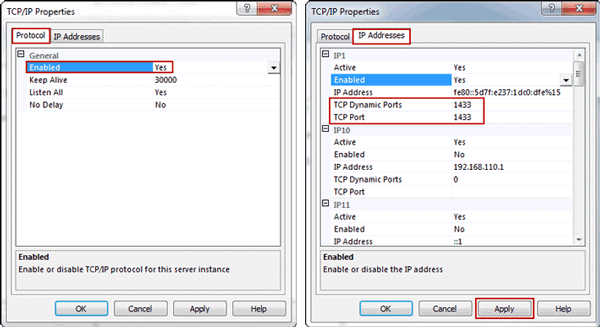
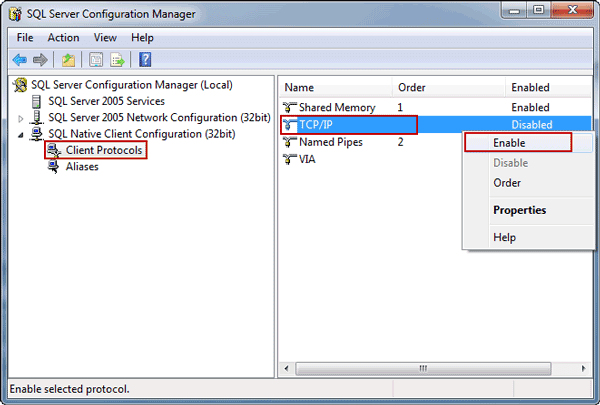
Generally, you can connect to server or instance now. But please check whether have added SQL Server to allowed programs in Windows Firewall. Otherwise, probably because of this reason, you still cannot connect to server or instance specified successfully.
Related Articles:

iSunshare is dedicated to providing the best service for Windows, Mac, Android users who are in demand for password recovery and data recovery.
Methods to Resolve SQL Server Error 26
Users often see “SQL Network Interfaces, error: 26 – Error Locating Server/Instance Specified” error message while connecting to SQL Server. This error 26 SQL server is quite common nowadays as a lot of users are complaining about it.
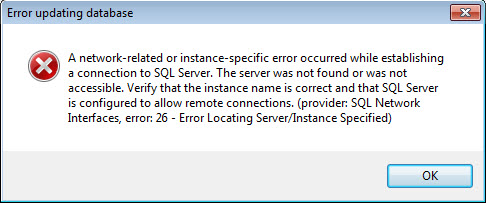
SQL Server Error 26 occurs when users trying to connect to a SQL Server named instance. The reason of the SQL Server Error 26 is the client stack could not receive SSRP response UPD packet from SQL Browser. Now, there a few ways to solve SQL network interfaces error 26 in a smart way. Stay tuned to know the best way.
SQL Error 26 Quick Solution in 5 Steps
- Downlaod & Launch tool in your PC
- Click on Open to Add database files
- Select Quick or Advance Scan mode
- Select Settings & Destination Location
- Click on Export button to get your results
Fix SQL Server Error 26
You have to create an incoming rule that allows traffic from all promising IP addresses that are configured for the failover cluster instance and from all possible IP addresses of the remote server. For this, just follow the below steps. We’re sure that this way users can easily get rid of this SQL network interfaces error 26 for sure.
-
- Open Adminstrative Tools, from Control Panel to begin solving error 26 SQL server
- In Adminstrative Tools, click on Windows Firewall with Advanced Security
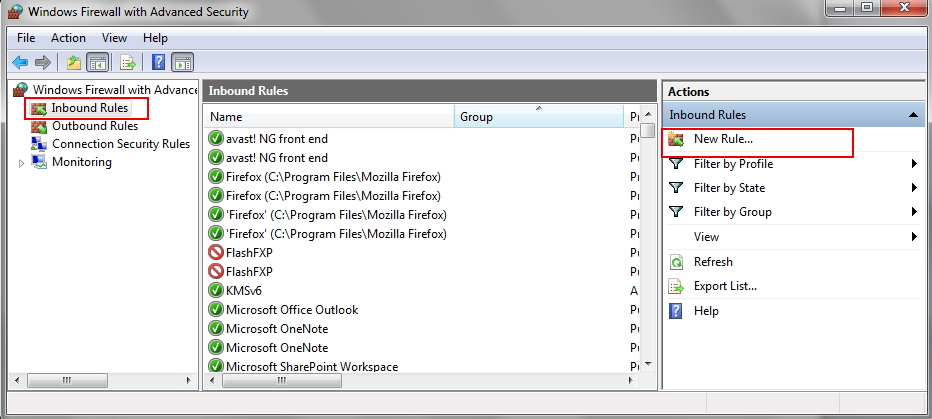
- Under Windows Firewall with Advanced Security on Local Computer column, click on the Inbound Rule and then select New Rule from the right pane
-
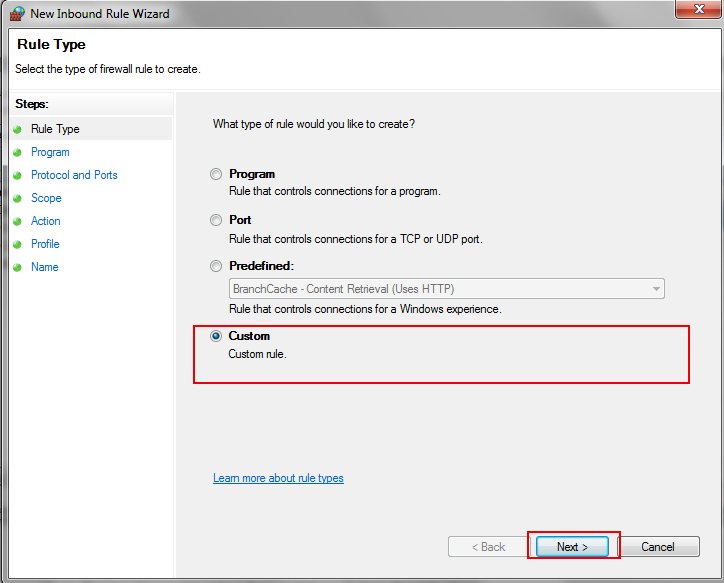
- From New Inbound Rule Wizard window, select Custom and then click on the Next button
-
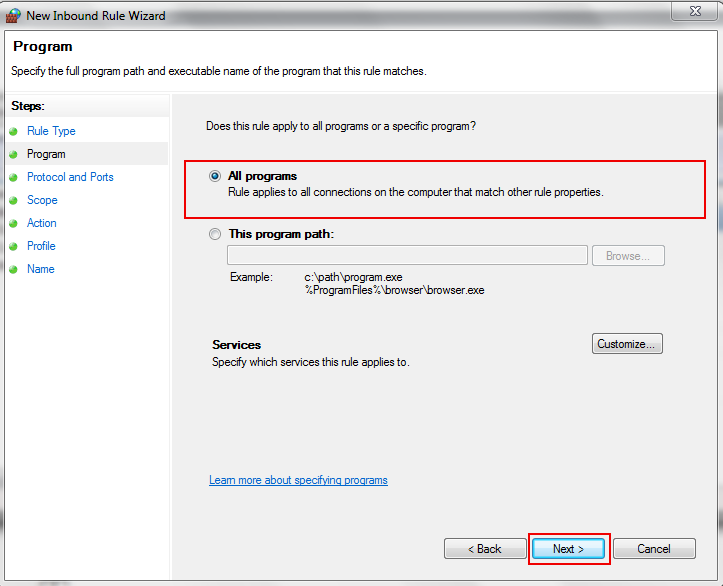
- Under Does this rule apply to all programs or a specific program? select All programs then click on Next button
-
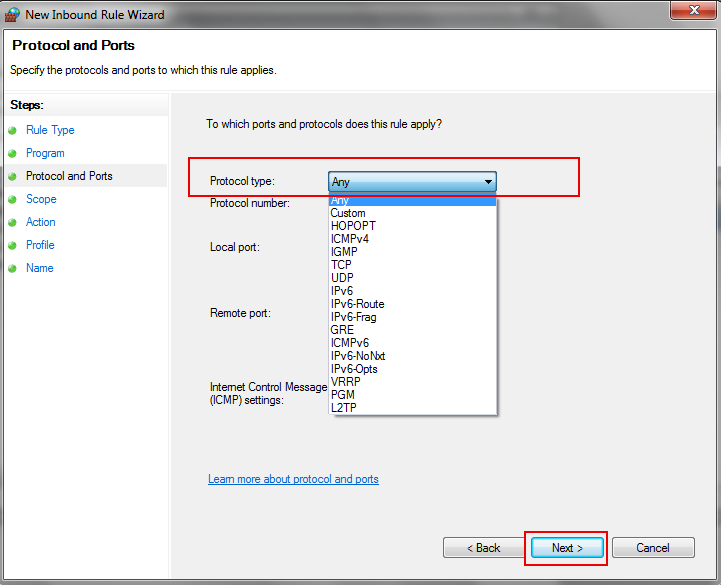
- Form Protocol type list, select Any and then click on Next button
-
- Under Which remote OP addresses does this rule apply to? select These IP addresses and then click on Add button
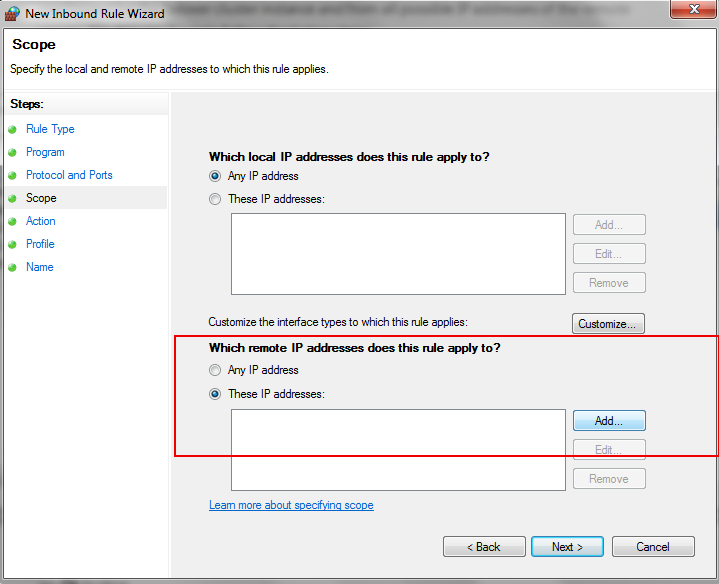
-
- In IP Address dialog box, under This IP address or subnet type the IP address and then click on Ok button
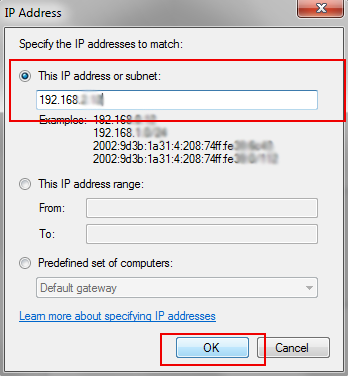
-
- Under What action should be taken when a connection matches the specified conditions? select Allow the connection and then click on Next button
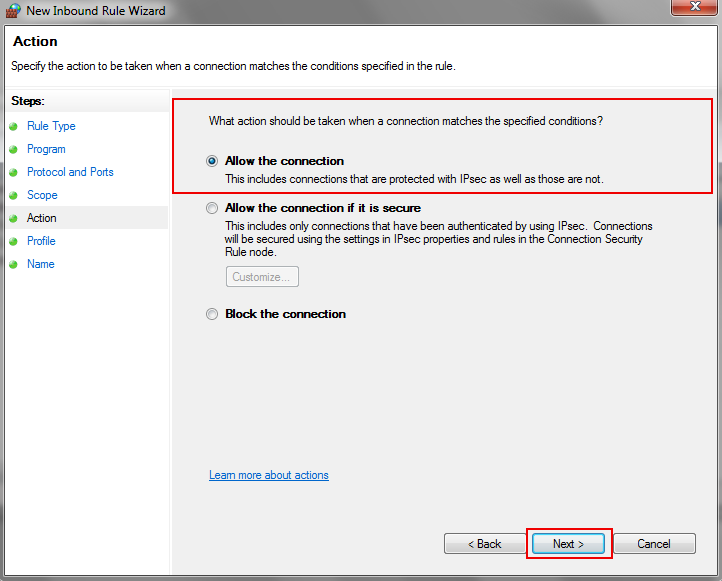
- Click on the Next button to complete the New Outbound Rule Wizard steps
Other Possible Causes of SQL Server Error 26 with Solution
SQL Server does not allow remote connections
- To resolve the SQL Server Error 26 open SQL Server Management Studio, Right click on the database and select properties
- On Security page, select SQL Server and Windows Authentication mode and click on Ok button
- Restart SQL Server
If you are still facing the Error 26, then there could be a same name conflict between two systems. Check whether the computer name, system name is same if yes, then try to system using its IP address. In addition this error 26 occurs with several issues that are mentioned below:
- SQL network interfaces, error: 26 – error locating server/instance specified
- provider: SQL network interfaces, error: 26 – error locating server/instance specified
- a network related or instance specific error in SQL server error 26
Experts’ Recommended Solution to Counter Errors Causes Due to Corruption
Now when there is some sort of data corruption issues present in the server, the SQL database might react differently than what it should usually do. Therefore, experts often suggest users to get the automated repair & recovery tool.
Downlaod the tool & then follow easy steps to repair damaged data & solve SQL network interfaces error 26 with ease. In addition, if you want to know how to make SQL server faster then this tool can remove corruption as well. Ultimately resulting in a faster server.
Step-1. Launch the Tool in your system & then Click the Open button.
Step-2. Select the Quick or Advanced Scan Mode as per your need.
Step-3. Set the SQL Server database details to continue further.
Step-4. Finally, Click on the Export button to finish the task.
Frequently Asked Questions
Q-1. What is connection error 26 in SQL Express?
A: It is crucial for users to ensure that the name of their server is correct & no typo on the name is present. Always make sure that your SQL browser service is running on the server in case you are trying to connect SQL instance on another server. Your machine should be reachable.
Q-2. How do I fix error code 26?
A: The device drivers of your system are closely connected to the error 26. Removing all external devices can be a solution too here.
Q-3. What is SQL Server error 26 client unable to establish connection because an error was encountered during handshakes before login?
A: The most common reason for this is when a client connects to a unsupported version of SQL Server. Here the the error occurs because the server is too busy to accept the new connections. In some cases, resource limitation is also an issue where maximum allowed connected are pre defined.
Q-4. How do I fix SQL query error?
A: There are 4 steps to fix SQL query error as mentioned below:
- Navigate to the failing line in SQL query.
- Check failing SQL syntax in SQL query.
- Check query logic in joins, subqueries, or CTEs.
- Go to troubleshooting error messages to finish.
Q-5. How to restart SQL Server?
A: Go to SQL Server Configuration Manager >> Select SQL Server Services, Right Click a named instance or SQL Server> Select from Start, Stop, Pause, Resume & Restart options.
Server Error in ‘/’ Application.
A network-related or instance-specific error occurred while establishing a connection to SQL Server. The server was not found or was not accessible. Verify that the instance name is correct and that SQL Server is configured to allow remote connections. (provider: SQL Network Interfaces, error: 26 — Error Locating Server/Instance Specified)
Description: An unhandled exception occurred during the execution of the current web request. Please review the stack trace for more information about the error and where it originated in the code.
Exception Details: System.Data.SqlClient.SqlException: A network-related or instance-specific error occurred while establishing a connection to SQL Server. The server was not found or was not accessible. Verify that the instance name is correct and that SQL Server is configured to allow remote connections. (provider: SQL Network Interfaces, error: 26 — Error Locating Server/Instance Specified)
Source Error:
Source File: c:\windows\Microsoft.NET\Framework\v2.0.50727\Temporary ASP.NET Files\root\2faf0579\37b1b4f4\App_Code.1mhfv5r1.3.cs Line: 21
Stack Trace:
Answers
Thank you for your post.
The reasons for throwing this issue could be wrong server name, disabled remote connection
and firewall blocking.Could you please follow the steps below to solve this issue?
· Check the server on which SQL Server is running can be accessible. You can use ping command to test that. For instance, ping <computer_name> or ping <IP_address>. The ping command may be block by the firewall, make sure ICMP is enabled in the firewall. More info, check: http://technet.microsoft.com/en-us/library/cc739791%28v=ws.10%29.aspx#BKMK_4.
· Choose appropriate protocol
· Configure Windows firewall accordingly based on what protocol you have chosen to use. For detailed information about how to configure Windows Firewall to allow SQL Server, please check http://msdn.microsoft.com/en-us/library/cc646023.aspx.
· Enable SQL Server Browser Services
You need to enable SQL Server Browser Services if the following are both true:
1. SQL Server is not listening on default 1433 port or not use default pipe name \\.\pipe\sql\query;
2. The corresponding TCP port or pipe name is not specified in the connection string (such as Srv1\SQL2008, 1500).
If you have enabled SQL Server Browser Services, you still need to open UDP 1434 port which is used by Browser Services in the Windows firewall.
Best Regards,
Peja TaoPlease remember to click "Mark as Answer" on the post that helps you, and to click "Unmark as Answer" if a marked post does not actually answer your question. This can be beneficial to other community members reading the thread.
- Proposed as answer by Peja Tao Friday, March 18, 2011 6:36 AM
- Marked as answer by Alex Feng (SQL) Friday, March 25, 2011 4:19 AM
All replies
If it works on your machine, but not on the provider host: Is on the host SQL Server installed with the same instance name and also the same credentials (Sql accounts to logon)? Otherwise you have to modify the connection string.
Olaf Helper
* cogito ergo sum * errare humanum est * quote erat demonstrandum *
Wenn ich denke, ist das ein Fehler und das beweise ich täglich
Blog XingThank you for your post.
The reasons for throwing this issue could be wrong server name, disabled remote connection
and firewall blocking.Could you please follow the steps below to solve this issue?
· Check the server on which SQL Server is running can be accessible. You can use ping command to test that. For instance, ping <computer_name> or ping <IP_address>. The ping command may be block by the firewall, make sure ICMP is enabled in the firewall. More info, check: http://technet.microsoft.com/en-us/library/cc739791%28v=ws.10%29.aspx#BKMK_4.
· Choose appropriate protocol
· Configure Windows firewall accordingly based on what protocol you have chosen to use. For detailed information about how to configure Windows Firewall to allow SQL Server, please check http://msdn.microsoft.com/en-us/library/cc646023.aspx.
· Enable SQL Server Browser Services
You need to enable SQL Server Browser Services if the following are both true:
1. SQL Server is not listening on default 1433 port or not use default pipe name \\.\pipe\sql\query;
2. The corresponding TCP port or pipe name is not specified in the connection string (such as Srv1\SQL2008, 1500).
If you have enabled SQL Server Browser Services, you still need to open UDP 1434 port which is used by Browser Services in the Windows firewall.
Best Regards,
Peja TaoPlease remember to click "Mark as Answer" on the post that helps you, and to click "Unmark as Answer" if a marked post does not actually answer your question. This can be beneficial to other community members reading the thread.
- Proposed as answer by Peja Tao Friday, March 18, 2011 6:36 AM
- Marked as answer by Alex Feng (SQL) Friday, March 25, 2011 4:19 AM
The problem is on your web.config. The application use the profile in your local database SQL it’s on the file machine.config C:\Windows\Microsoft.NET\Framework\v2.0.50727\config
in your machine.config you have this:
<membership>
<providers>
<add name="AspNetSqlMembershipProvider" type="System.Web.Security.SqlMembershipProvider, System.Web, Version=2.0.0.0, Culture=neutral, PublicKeyToken=b03f5f7f11d50a3a" connectionStringName="LocalSqlServer" enablePasswordRetrieval="false" enablePasswordReset="true" requiresQuestionAndAnswer="true" applicationName="/" requiresUniqueEmail="false" passwordFormat="Hashed" maxInvalidPasswordAttempts="5" minRequiredPasswordLength="7" minRequiredNonalphanumericCharacters="1" passwordAttemptWindow="10" passwordStrengthRegularExpression=""/>
</providers>
</membership>
<profile>
<providers>
<add name="AspNetSqlProfileProvider" connectionStringName="LocalSqlServer" applicationName="/" type="System.Web.Profile.SqlProfileProvider, System.Web, Version=2.0.0.0, Culture=neutral, PublicKeyToken=b03f5f7f11d50a3a"/>
</providers>
</profile>
<roleManager>
<providers>
<add name="AspNetSqlRoleProvider" connectionStringName="LocalSqlServer" applicationName="/" type="System.Web.Security.SqlRoleProvider, System.Web, Version=2.0.0.0, Culture=neutral, PublicKeyToken=b03f5f7f11d50a3a"/>
<add name="AspNetWindowsTokenRoleProvider" applicationName="/" type="System.Web.Security.WindowsTokenRoleProvider, System.Web, Version=2.0.0.0, Culture=neutral, PublicKeyToken=b03f5f7f11d50a3a"/>
</providers>
</roleManager>In your web.config you have to write this:
and add you connectionStringName.
- Proposed as answer by Phillip Quinlan Friday, March 2, 2012 2:21 AM
I am also facing same problem.I follow the above steps but didnt get any positive result. still facing problem.
A network-related or instance-specific error occurred while establishing a connection to SQL Server. The server was not found or was not accessible. Verify that the instance name is correct and that SQL Server is configured to allow remote connections. (provider: SQL Network Interfaces, error: 26 — Error Locating Server/Instance Specified)
Unable to connect to SQL Express "Error: 26-Error Locating Server/Instance Specified)
I am at an loose end with one particular box that is running SQL Server 2008 R2 Express.
- Windows Firewall is configured to allow inbound TCP & UDP 1433, 1434.
- Windows Firewall is configured to allow outbound TCP & UDP on any port.
- No other software AV/FW is currently running.
When I try to connect to xxx.xxx.xxx.xxx\sqlexpress , it times out with the following error:
TITLE: Connect to Server
Cannot connect to xxx.xxx.xxx.xxx\SQLEXPRESS.
ADDITIONAL INFORMATION:
A network-related or instance-specific error occurred while establishing a connection to SQL Server. The server was not found or was not accessible. Verify that the instance name is correct and that SQL Server is configured to allow remote connections. (provider: SQL Network Interfaces, error: 26 — Error Locating Server/Instance Specified) (Microsoft SQL Server, Error: -1)
I have checked that remote connections are allowed on the server.
I have confirmed TCP/IP is enabled and configured in SQL Server Configuration to allow connections on the external IP to 1433.
I have also used Wireshark from my local machine and I can see requests for 1433 UDP going to the remote server.
But using Wireshark on the remote server shows no inbound connection requests for 1433 UDP or anything from my external IP (with filtering to remote RDP from results).
This makes me think it is a firewall issue.
The server is hosted by an external company who have control over the PIX in front of our server.
I need to troubleshoot this as much as possible myself as the hosting company have no clue what they are doing.