Начало работы с MS SQL Server
Базу данных часто отождествляют с набором таблиц, которые хранят данные. Но это не совсем так. Лучше сказать, что база данных представляет хранилище объектов. Основные из них:
Таблицы : хранят собственно данные
Представления (Views): выражения языка SQL, которые возвращают набор данных в виде таблицы
Хранимые процедуры : выполняют код на языке SQL по отношению к данным к БД (например, получает данные или изменяет их)
Функции : также код SQL, который выполняет определенную задачу
В SQL Server используется два типа баз данных: системные и пользовательские. Системные базы данных необходимы серверу SQL для корректной работы. А пользовательские базы данных создаются пользователями сервера и могут хранить любую произвольную информацию. Их можно изменять и удалять, создавать заново. Собственно это те базы данных, которые мы будем создавать и с которыми мы будем работать.
Системные базы данных
В MS SQL Server по умолчанию создается четыре системных баз данных:
master : эта главная база данных сервера, в случае ее отсутствия или повреждения сервер не сможет работать. Она хранит все используемые логины пользователей сервера, их роли, различные конфигурационные настройки, имена и информацию о базах данных, которые хранятся на сервере, а также ряд другой информации.
model : эта база данных представляет шаблон, на основе которого создаются другие базы данных. То есть когда мы создаем через SSMS свою бд, она создается как копия базы model.
msdb : хранит информацию о работе, выполняемой таким компонентом как планировщик SQL. Также она хранит информацию о бекапах баз данных.
tempdb : эта база данных используется как хранилище для временных объектов. Она заново пересоздается при каждом запуске сервера.
Все эти базы можно увидеть через SQL Server Management Studio в узле Databases -> System Databases :
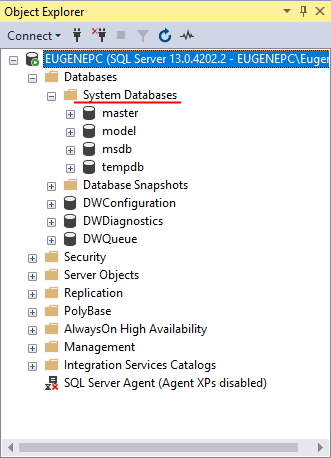
Эти базы данных не следует изменять, за исключением бд model.
Если на этапе установки сервера был выбран и установлен компонент PolyBase, то также на сервере по умолчанию будут расположены еще три базы данных, которые используется этим компонентом: DWConfiguration, DWDiagnostics, DWQueue.
Создание базы данных в SQL Management Studio
Теперь создадим свою базу данных. Для этого мы можем использовать скрипт на языке SQL, либо все сделать с помощью графических средств в SQL Management Studio. В данном случае мы выберем второй способ. Для этого откроем SQL Server Management Studio и нажмем правой кнопкой мыши на узел Databases . Затем в появившемся контекстном меню выберем пункт New Database :
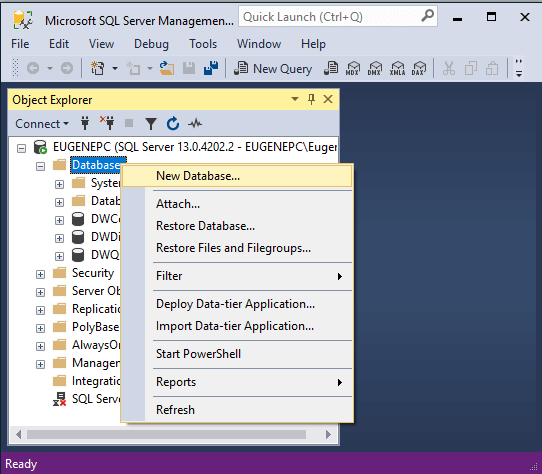
После этого нам открывается окно для создания базы данных:
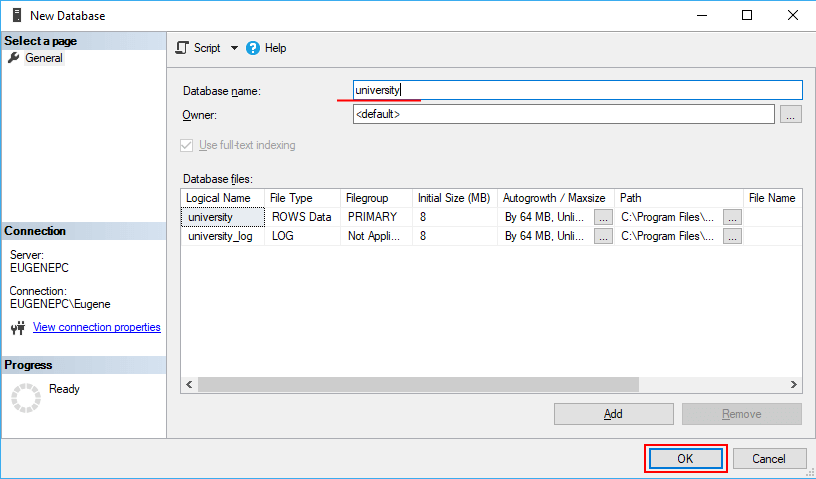
В поле Database необходимо ввести название новой бд. Пусть у нас база данных называется university .
Следующее поле Owner задает владельца базы данных. По умолчанию оно имеет значение <defult> , то есть владельцем будет тот, кто создает эту базу данных. Оставим это поле без изменений.
Далее идет таблица для установки общих настроек базы данных. Она содержит две строки — первая для установки настроек для главного файла, где будут храниться данные, и вторая строка для конфигурации файла логгирования. В частности, мы можем установить следующие настройки:
Logical Name : логическое имя, которое присваивается файлу базы данных.
File Type : есть несколько типов файлов, но, как правило, основная работа ведется с файлами данных (ROWS Data) и файлом лога (LOG)
Filegroup : обозначет группу файлов. Группа файлов может хранить множество файлов и может использоваться для разбиения базы данных на части для размещения в разных местах.
Initial Size (MB) : устанавливает начальный размер файлов при создании (фактический размер может отличаться от этого значения).
Autogrowth/Maxsize : при достижении базой данных начального размера SQL Server использует это значение для увеличения файла.
Path : каталог, где будут храниться базы данных.
File Name : непосредственное имя физического файла. Если оно не указано, то применяется логическое имя.
После ввода названия базы данных нажмем на кнопку ОК, и бд будет создана.
После этого она появится среди баз данных сервера. Если эта бд впоследствии не потребуется, то ее можно удалить, нажав на нее правой кнопкой мыши и выбрав в контекстном меню пункт Delete:
Рекомендуемый размер Initial Size SQL
Правильно! А всем тем, кто по глупости настроил MS SQL — немедленно вернуть настройки как было! Шаг увеличения в 1 мб -самый правильный шаг. Все рассчитанные значения — ересь! Да и вообще, все советы по настройке MS SQL — от дьявола.
Вот именно! И не важно, что на загрузку будет потрачено в несколько раз больше времени, из-за никому не нужных, но тем не менее многократных, операций увеличения файла данных на каждый мегабайт. главное что сервер не простаивает и драгоценное место на дисках, в среднем 3 коп. за 10 мб, экономится.
- Скопировать ссылку
- Перейти
Загрузка базы производится несколько раз за ее жизнь в несколько лет. На эту загрузку тратится 5 минут при указанных размерах Initial и размере базы, например, 10 Гб на стареньком восьмилетнем сервере с хилой памятью и 2 процами.(Конечно, на пользовательском десктопе вместо нормального сервера, это происходит в разы дольше — на всякий случай)
Если долго читать книжки по оптимизации и скурпулезно рассчитывать Initial, потратив несколько суток, можно сэкономить 3 минуты из тех пяти и стать счастливым и гордым от своего ума.
Может, формулу для вычисления шага напишете, если очень умный? А то троллить легко.
Choosing Default Sizes for Your Data and Log Files
Q: When you create a new database in SQL Server 2008 and SQL Server 2005, the data and log files have the following characteristics by default:
- Data: initial size 2MB; Autogrowth: by 1MB, unrestricted growth
- Log: initial size 1MB; Autogrowth: by 10 percent, unrestricted growth
These default values can easily be changed, and in a typical development environment these settings probably don’t mean much. However, having worked as a consultant at various companies, I can’t tell you how many organizations I've seen with high-volume production databases left with these default settings for years, so that they’ve grown to many gigabytes in size.
Wouldn’t these settings create an extremely fragmented database over time, with many Virtual Log Files (VLFs) that would heavily impact database performance? Why does Microsoft include these settings in SQL Server, and why isn’t this issue obvious to most DBAs?
A: First and foremost, I agree. I’ve never liked the defaults, but when I sit down to think about it, I struggle to come up with better default numbers. Don’t get me wrong, I think these are horrible default numbers, and I wouldn’t let a production database be created with them. However, I can’t expect Microsoft to use 1GB as a default for a growth amount, even though that could be much better. See, this is one of those annoying cases in which “it really, really depends” on your specific environment.
So let me start by saying I just wish Microsoft wouldn’t set any defaults, and I wish the UI was set up to ask the database creator questions about the database so that these settings would be specific to the environment. However, there are a few factors that might complicate things. To be more specific, I’ll break this down by the type of file because the properties, settings, and behaviors of the data portion and the log portion of the database are very different.
The Data Portion of the Database
The data portion of the database, which can consist of one or more file groups, each with one or more files, holds everything from your system tables to your user tables. You can specifically place objects within file groups, and therefore on specific storage. All of this sounds good, but how should you figure out what the placement should be? My general recommendations are as follows:
- Do a minimal amount of capacity planning to help define your initial size and a maximum size. This capacity planning doesn’t have to get you to the number of bytes you’re going to store, but it’s better to know something about your current size, expected growth, and the length of time that you expect this hardware to store your data without replacement.
- Don’t let autogrowth happen in your database because it leads to fragmentation. However, I would leave the autogrowth feature on so that when the numbers you came up with during capacity planning turn out to be a bit off from what actually happens, you minimize downtime by letting autogrowth kick in. You should also make sure that you’re monitoring growth so that you don’t find your database at the maximum with no disk space available.
- Set a maximum size that isn’t unlimited. I’d rather get an error and have to change only the maximum rather than find out that I have no disk space available.
- Set a reasonable growth size. Prior to SQL Server 2005, data files had to zero initialize all the disk space they allocate. If a database is large, this process can take a considerable amount of time. In SQL Server 2005, instant initialization was introduced. This feature makes file creation or file growth for the data portion extremely fast (essentially instant). However, it’s only allowed when your SQL Server instance has access to the Windows Perform Volume Maintenance Tasks permission. If your SQL Server instances aren’t running under the context of a local administrator (and I hope they aren’t), then you must explicitly grant this permission. But with this great performance gain comes a very minor security risk. I’ve explained the risk in my blog post “Instant Initialization—What, Why and How?”
All in all, there’s really no great default here because all of this hinges on the initial size of the database, as well as whether you can leverage instant initialization. The following are reasonable numbers for data file properties:
- Initial size: 50GB
- Growth rate: 5GB (with instant initialization on; without it, you might want to set this between 1GB and 2GB)
- Max size: 100GB
Note that if your database has Transparent Data Encryption (TDE) enabled, you can’t use instant initialization.
The Log Portion of the Database
The log portion of the database, which can consist of one or more files but doesn’t use file groups, holds all of your database’s changes until SQL Server no longer needs them (i.e., they aren’t required to be kept around for something such as a log backup, replication, or database mirroring). In essence, this really translates into the following two options:
- You decide that you want control to manage your transaction log and that you want the maximum number of recovery options. You’ve chosen to do log backups and stick within either the FULL and/or BULK_LOGGED recovery model. This is preferred if you want to minimize downtime and data loss. If you’re trying to maintain 24 × 7 availability, you might stay in the FULL recovery model and never allow changes to BULK_LOGGED. If you have a maintenance window, then you might allow temporary switches to the BULK_LOGGED recovery model to improve the performance of bulk (i.e., batch) operations. However, switching between recovery models isn’t something you should do without fully understanding the ramifications and requirements. This is well beyond the scope of this article but gives you a few things to think about.
- If you decide that you don’t want to do log management and that some data loss is acceptable, then you can use the SIMPLE recovery model. This model lets SQL Server clear the inactive portion of the transaction log after a checkpoint occurs, which helps to keep the transaction log smaller (overall) and reduce maintenance. However, this model has the highest amount of data loss because you’re only as good as your last full database backup (or differential backups).
Once you’ve chosen how you’re going to manage your transaction log, you can do capacity planning. Part of why you need to determine how you’re going to manage your log is because the recovery model is what defines how much activity will be stored in the log before it’s able to be cleared. Then, you can perform transaction log backups to back up and clear the inactive portion of the log. If you back up frequently, then theoretically you won’t need a large transaction log. However, remember that SQL Server can clear only the inactive portion of the log. If there are active transactions, they might not allow the log to clear immediately. This means that SQL Server will require a larger transaction log.
Once you fully understand how the log works, my general recommendations are as follows:
- Preallocate the transaction log to a reasonable initial size such that autogrowths are reduced or eliminated. When creating the transaction log, size it in chunks of 8000MB—not 8GB, as there’s a bug with increments of 4GB or more. For more information about the bug, read Paul’s blog post, “Bug: log file growth broken for multiples of 4GB.” So, if you’ve decided that you want a 100GB log, I’d size it as 8000MB, then alter it to 16000MB, then 24000MB, and so forth, stopping at 104000MB.
- Set the maximum size to a reasonable maximum such as 208000MB (for the log described in the first bullet) with a growth rate of 8000MB, but realize that the transaction log will always need to do zero initialization, and therefore a growth of 8000MB might take from a few seconds to a few minutes, but only when it’s actually growing. Once it grows, if you really do need that space, do not shrink the log.
The end result is that not everyone needs a transaction log measured in 10s of gigabytes or 100s of gigabytes. So a default of 8000MB would be too high, and for larger databases anything smaller would create a lot of fragmentation.
Sizing and optimizing the transaction log isn’t trivial, and you want to get this right; otherwise, you might end up with fragmentation in the log (e.g., too many or too few VLFs). And although this is no longer as big of a problem as it’s been in releases prior to SQL Server 2005, you should still size the log appropriately. Coming up with defaults that aren’t database specific is really hard. There just aren’t better generic numbers that Microsoft could use. I wish there were no defaults and that all databases had to have their settings explicitly set at creation. Additionally, I wish there were a wizard that explained many of these things (at least briefly) so that people would make better decisions earlier in the process. What these defaults have led to, as you stated in your question, is inefficient databases with settings that don’t scale.
In the end, I think we can agree that the defaults stink! And I hope that I’ve given you a few things to think about when sizing and setting up your database files appropriately.
Introduction
When you have installed SQL Server 2016 you will have noticed that the configuration for tempdb has changed.
Microsoft made a proper tempdb configuration easy to do via the GUI during installation.
Today I want to go through the settings offered and will measure performance of different setups.
What are the options?
During installation you can set the following values:
For TempDB datafiles:
| Setting | Default value |
|---|---|
| Number of files | 4 |
| Initial size (MB) | 8 |
| Autogrowth (MB) | 64 |
| Data directories | Default data directory, in my case C:\MSSQL\Instance root\MSSQL13.MSSQLSERVER\MSSQL\Data |
For TempDB logfile:
| Setting | Default value |
|---|---|
| Initial size (MB) | 8 |
| Autogrowth (MB) | 64 |
| Log directory | Default data directory, in my case C:\MSSQL\Instance root\MSSQL13.MSSQLSERVER\MSSQL\Data |

Configuration screen during SQL Server 2016 installation (I changed the directories already).
So what is the best setup?
This subject is not new for SQL Server 2016, but the installation procedure now just gives a better opportunity to set it up right the first time.
There are roughly five differentiators in the setup:
- Initial size (MB)
- Autogrowth (MB)
- Number of data files
- Location of data files
- Read/write performance of the different storage media
What are the considerations when setting these values?
Initial size (MB)
A larger initial size will accomplish two things:
- It will take longer before the file will have the need to grow.
- The file can be stored less fragmented on disk.
If you have enough disk space, the larger the better, there is no real downside on making the initial size quite large. More about this in my conclusion.
Autogrowth (MB)
With autogrowth the choice is a bit more delicated, as a small or large value will both have pros and cons, as pointed out in the schedule below.
| Autogrowth value | Pros | Cons |
|---|---|---|
| Small | More frequent smaller growth actions will cause less noticable hick ups | TempDB datafiles will become more fragmented. |
| Large | Tempdb datafiles will become less fragmented. | Less frequent larger growth actions might cause noticable hick ups |
Number of data files
In general, the recommendation is one data file per (logical) processor. You can configure more files than the number of (logical) processors, but do this only if you notice that this gives a better performance.
Location of data files
Locating the data files on different drives can have two effects:
- Queue length per disk drive in Windows (all scenarios, also with virtual disks residing on the same physical drive).
- Physical writes to the diskdrive can go in parallel (only when different physical drives).
The tests
The testcases
Creating combinations of all differentiators would just create *a lot* of testscenarios.
So I will be a bit pragmatic.
The testcases are chosen, so that they can be compared with at least one other testcase, of which one differentiator is different.
| Test # | # Data files | Init size (MB) | Auto growth (MB) | # Fol- ders | Scenario |
|---|---|---|---|---|---|
| 0 | 4 | 8 (x4) | 64 | 1 | Default installation (data files on OS disk) |
| 1 | 4 | 8 (x4) | 64 | 1 | Data files on dedicated drive |
| 2 | 4 | 8 (x4) | 64 | 4 | Data files on more drives |
| 3 | 4 | 2048 (x4) | 64 | 4 | Data files on more drives + Larger initial size |
| 4 | 4 | 8 (x4) | 256 | 4 | Data files on more drives + Larger autogrowth |
| 5 | 4 | 2048 (x4) | 64 | 1 | Data files on dedicated drive + Larger initial size |
| 6 | 4 | 2048 (x4) | 64 | 1 | Data files on dedicated drive + Larger initial size + TempDB on different SSD |
| 7 | 8 | 2048 (x8) | 64 | 1 | Data files on dedicated drive + Larger initial size + More data files |
| 8 | 4 | 8 (x4) | 64 | 1 | Default installation (data files on OS disk) + Larger initial size |
Test results

I will present you both two graphs as well as the raw data. I think especially the first graph gives some useful insights, as it compares all testcases with testcase 0 (default installation), by using an index 100 for testcase 0. If a different testcase performs better, the index will be less than 100. Also, in this way, the average result of both testsets (A and B) can be shown.
I left testcase 6 out of the graph, later I will tell why I did this.
Index-based comparison of testresults

Execution times of testcases for testset A and B
Test results figures
| Test # | Scenario | Testresult testset A (ms) | Testresult testset B (ms) |
|---|---|---|---|
| 0 | Default installation | 30359 | 232795 |
| 1 | Data files on dedicated drive | 28344 | 261467 |
| 2 | Data files on more drives | 22514 | 248484 |
| 3 | Data files on more drives + Larger initial size | 28040 | 210223 |
| 4 | Data files on more drives + Larger autogrowth | 24173 | 200632 |
| 5 | Data files on dedicated drive + Larger initial size | 19608 | 192587 |
| 6 | Data files on dedicated drive + Larger initial size + TempDB on different SSD | 123289 | 387646 |
| 7 | Data files on dedicated drive + Larger initial size + More data files | 19692 | 211501 |
| 8 | Default installation + Larger initial size | 20149 | 361844 |
Conclusion
Data files on dedicated drive + Larger initial size (test 5) gives the best performance for both testsets. Putting tempdb files on multiple disks can not win from this, however the differences are relatively small.
Surprisingly performance dramaticly decreases when the virtual disk on which tempdb is stored is moved to a different (faster) SSD (this is test 6)! I have no explanation for this. Therefore I will leave test 6 out of the analysis, by doing this physical storage is the same for all testcases and changes in performance are only caused by the other differentiators.
My most important conclusion is that the default values offered during installation are quite okay, except for two things:
The Initial size (MB)
You should really set the initial size to a big number (gigabytes if possible). Note that if you leave the number of files 4 (which I recommend), the space used is four times the size that you use for Initial size .
If you have a dedicated disk for tempdb (which is recommended), you might want to set the initial size of the datafile(s) to fill up the disk. You should then disable Autogrowth.
Also on a production server, check the size of tempdb files after a week of uptime (also the SQL instance may not have been restarted). Say the tempdb size of all files together (can also be one file) is 22GB. You could then set your initial size to 28GB in total, so 7GB per file if you configured 4 files. This would mean that during normal operation, the tempdb never has to grow.
Dedicated disk
It is a common best practive to put tempdb on a seperate disk so that the Windows Disk Queue does not have to compete with other read/write actions to that disk.
Other settings are somewhat less important but … think for yourself (my disclaimer)
In my opinion both putting tempdb files on multiple different disks and setting Autogrowth to a different value do not offer much performance benefit.
The Autogrowth value is even irrelevant if the initial size is so large that temdb never has to grow during normal operation.
But every server is different! Test and think for yourself.
My testresults are presented “AS IS” in the hope they will be useful as a starting point for further own analysis. I am not responsible for any disadvantage you might have by using my test results for your tempdb setup.
What if SQL Server is already installed and/or it is an older version?

No worries, you still can change the tempdb configuration.
You can move and add files using SQL scripts.
Initial size and Autogrowth you can also set with Management Studio.
Go to properties of tempdb

Here you can change Initial size and Autogrowth
By the way, I noticed that SQL Server does not delete moved tempdb files. So if you move tempdb files, you should delete the files on the old location, so that they do not use disk space and do not cause confusion for administrators.
Test justification
- All tests are done on a Hyper V Virtual Machine running Windows Server 2012 R2 and SQL Server 2016 Developer Edition.
- Change of physical storage type is done by moving vhdx files to different physical disks, and then change the file location in the settings of the Hyper V Virtual Machine (while it is not running, of course).
- Each test is done on an initial copy of the Virtual Machine , therewith the startsituation is equal for every test (e.g. no tempdb growth by previous tests).
- Tests where done with two sets of scripts (set A and B) that inserted, updated and deleted rows in temporary tables in tempdb. Set A consists of three sql scripts, and set B of five.
- All scripts were developed, so that all tempdb inserts started at the same time (maybe milliseconds difference in starttime only). This to ensure that every testrun was executed in the same way.
- All scripts were executed in SQL Server Management Studio.
- The first file of tempdb is stored on its own (virtual) disk except for testcase 0, where tempdb files are on the C-drive where Windows is installed.
- When spreading files over multiple virtual disks , the disks created for database files, log files, and backup files are used. This was done for pragmatic reasons during the test. This was defendable, because no other activity on databases and log files was going on during the test. It is however not recommended to spread tempdb like that in production environment, unless every disk is dedicated to be used for tempdb only.
- The host machine had the same applications open during every test, being a Windows Explorer and Microsoft Excel. No other applications that used CPU and could influence performance of the virtual machines were running.
- The tempdb log file was placed on a seperate disk (the same one) for each test. Therewith it was no subject of performance investigation. This would have at least doubled the number of testcases.
Wrap up
Microsoft did a good job in improving the setup options for tempdb in the installation procedure.
It is a bit of a pity that they did not go the last mile , giving the tempdb data files a more realistic Initial size .
Luckily this is easy to change during installation, and it is a quick win for anyone installing SQL Server 2016.
Download all the used scripts here.
(c) 2016 hansmichiels.com – Do not steal the contents – spread the link instead – thank you.

Hans Michiels
Hans is an Independent Business Intelligence and Datawarehouse Consultant & Microsoft SQL Server Consultant, working in the Netherlands. He has been working in the software industry since 1996, with SQL Server since the year 2001, and since 2008 he has a primary focus on datawarehouse- and business intelligence projects using Microsoft technology, using a Datavault and Kimball architecture. He has a special interest in Datawarehouse Automation and Metadata driven solutions. * Certified in Data Vault Modeling: Certified Data Vault 2.0 Practitioner, CDVDM (aka Data Vault 1.0) * Certified in MS SQL Server: * MCSA (Microsoft Certified Solutions Associate) SQL Server 2012 — MCITP Business Intelligence Developer 2005/2008 — MCITP Database Developer 2005/2008 — MCITP Database Administrator 2005/2008
10 thoughts on “SQL Server 2016 tempdb configurations benchmark (SQL Server Series)”
Why is it a con for both more and less fragmented in the temp db? When choosing the size.
Hans Michiels says:
Hi James,
You are right, the pros and cons for large autogrowth value should be the other way round, that’s for your feedback.
I have swapped them.
Best regards,
Hans
Good reading, Hans!
Curious what the impact will be with “Perform Volume Maintenance Tasks” policy on or off..
Also: I would never disable autogrowth, but leave it on as a back door..if you presize it big enough you wouldn’t need it anyways..but maybe just in case:)
Hans Michiels says:
Hi Eelco,
Thanks, the “Perform Volume Maintenance Tasks” policy is a good one, maybe I should try that.
You have a point with the autogrowth setting. But .. on a dedicated disk (I have seen disks of 40GB for tempdb) where all data files fill up the disk, it does not really matter if autogrowth is on or off. Also when the files are on a shared disk, other things might suffer lack of disk space if tempdb is growing excessively above expectations. So every situation is different and “it depends” is a cliche but so very true in this case, I think.
Best regards, Hans
Can not See core Number anywhere
4 files are bad with 24+ cores ang high load
Hans Michiels says:
Thanks for your useful input, Klaus, I did not know that. Good to keep in mind.
Best regards, Hans
You should have up to 8 files where the number of temp DB files is equal to the number of cores, but not to exceed 8. So up to including eight cores one file per core. Over 8 cores, 8 files.
Also, what is MAXDOP on the database in question? It should follow the same rule as above in most cases.
Hans Michiels says:
Hi Darryll,
Thanks for your information. The MAXDOP setting was most likely 0. As I wrote this article last year, I am not sure that the current setting of this virtual machine is the same, but this is likely.
Best regards, Hans
Hi Hans,
Thanks for the article!
In regards to test 6 and depending on how the SSD is attached and drivers used, is it possible that performance may suffer from “will only go as fast as the slowest drive”?
Hans Michiels says:
Hi John, this could in theory be possible, however the other disk was a faster SSD drive (PCIE x4) so I did not really understand at the time of writing the article what was going on. But yeah, it makes sense to think that the slowest disk will be the bottle neck.