Изменение голоса в Discord на компьютере
Поговорим о самой простой программе, знакомой всем тем, кто изменял голос в Skype. Она называется Clownfish и распространяется бесплатно, поэтому так популярна среди пользователей. В ее функциональность входят разные инструменты, но основным считается алгоритм изменения голоса по заготовленным шаблонам. Давайте разберемся с тем, как это осуществляется в Discord на компьютере.
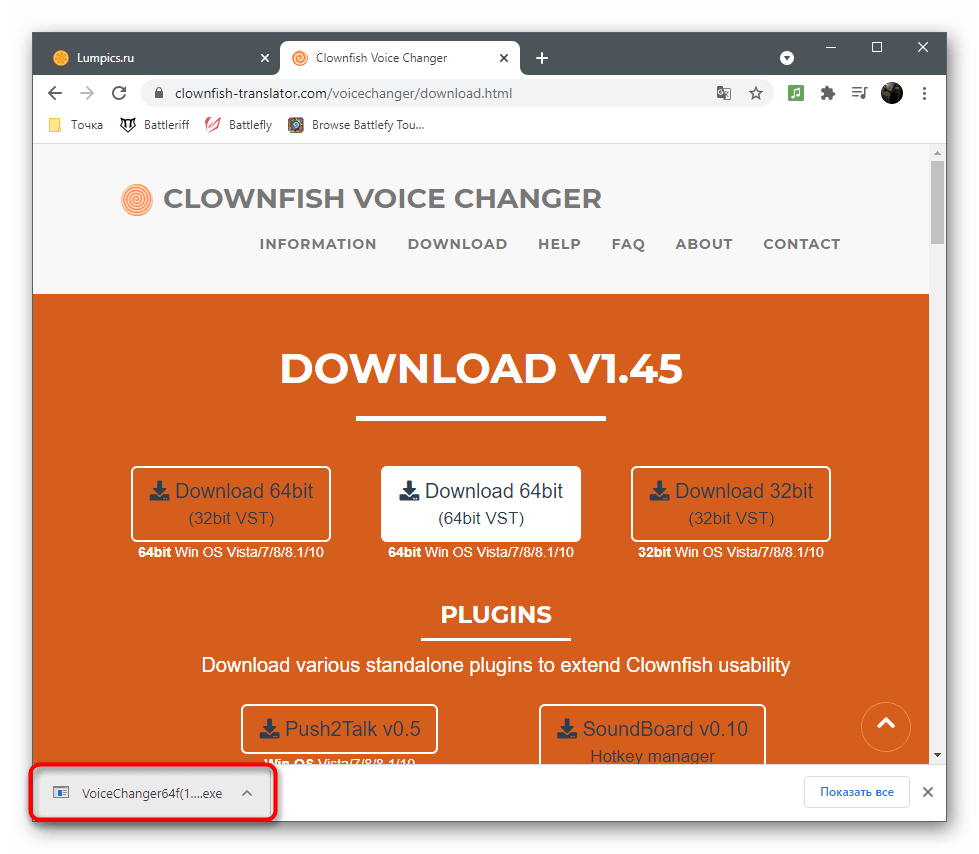
- Воспользуйтесь ссылкой выше, чтобы ознакомиться с обзором на Clownfish и попасть на официальный сайт программы. Выберите версию для своей операционной системы и начните загрузку.

- Ожидайте завершения скачивания исполняемого файла и кликните по нему для запуска.

На нашем сайте есть другая статья, полностью посвященная работе в программе Clownfish. В ней рассказывается о каждой из ее функций и демонстрируется пример того, как происходит изменение голоса в другом ПО, где используется микрофон. Если вы желаете постоянно взаимодействовать с данным софтом, рекомендуем ознакомиться с обзором по ссылке ниже.
Способ 2: Voicemod
Voicemod — более продвинутое, но платное решение, которое стало популярным не так давно. Сейчас разработчики активно продвигают его, обеспечивая полную совместимость с популярными играми, где присутствует голосовой чат. К списку поддерживаемого ПО относится и Discord, и даже на официальном сайте можно выполнить вход через учетную запись данного мессенджера. Попробовать Voicemod можно бесплатно, изменив свой голос при помощи доступных эффектов.
- Кликните по ссылке выше, чтобы перейти на официальный сайт и скачать пробную версию Войсмод.

- Обязательно войдите в учетную запись или создайте ее с нуля. Для авторизации можно использовать существующий аккаунт в Discord, Twitch или Google.

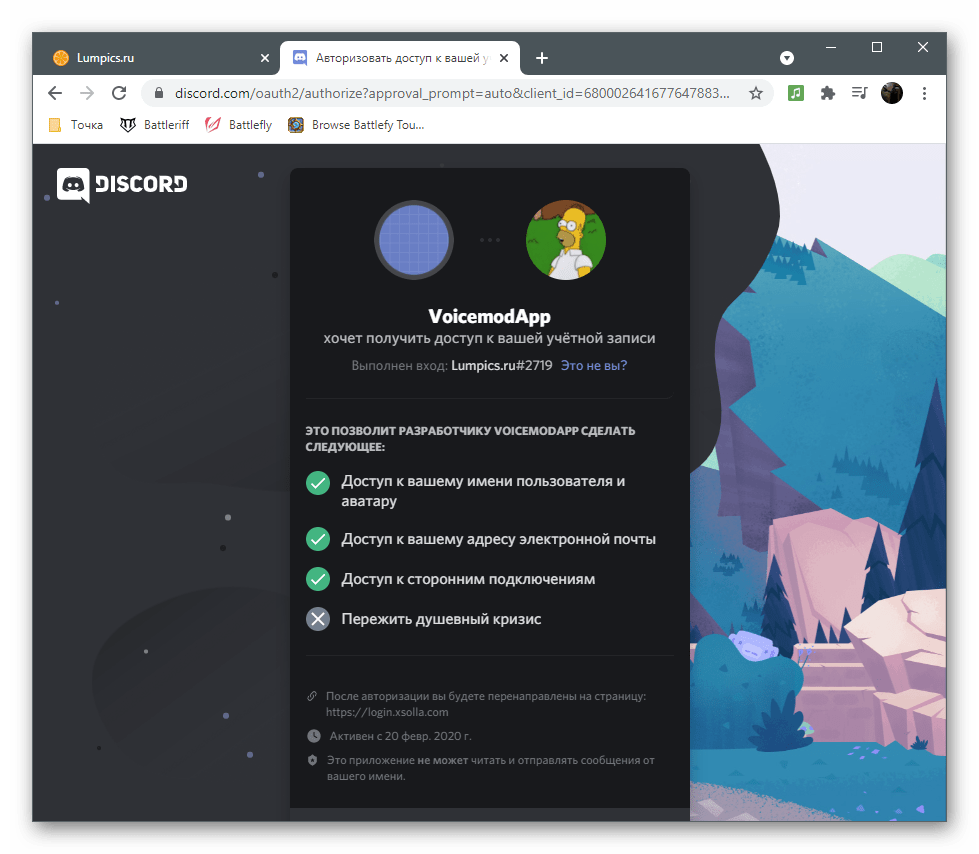
- При входе через Discord обязательно придется подтвердить разрешения для приложения.
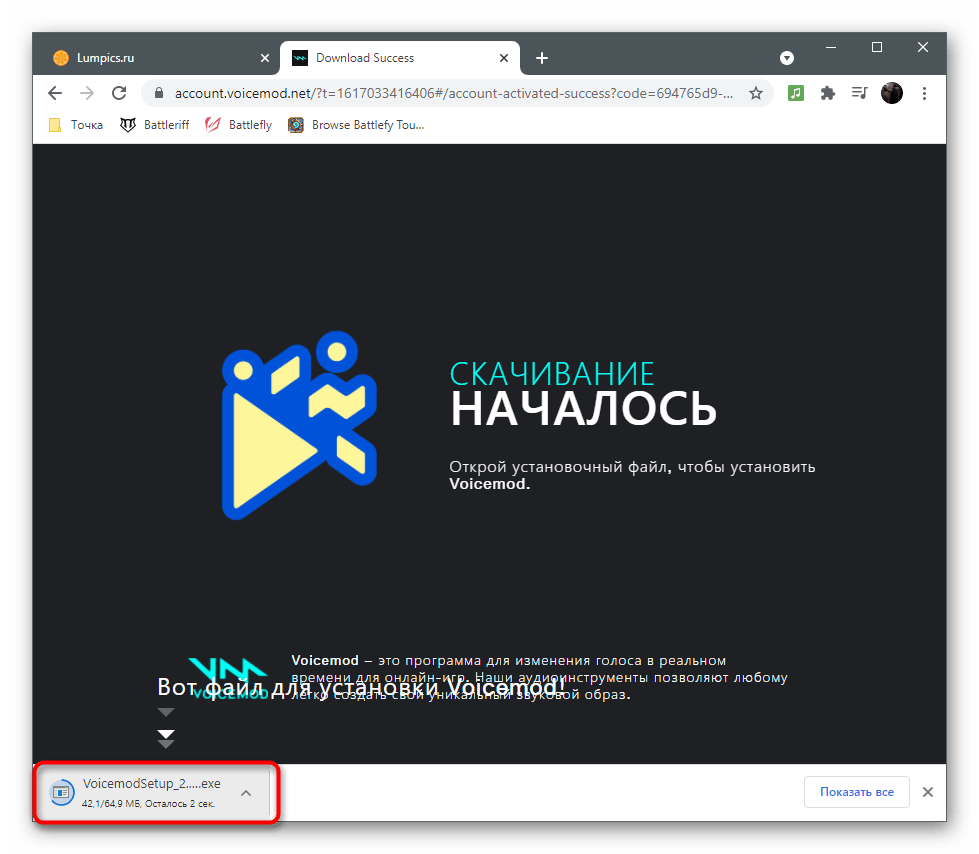
- После авторизации загрузка начнется автоматически, поэтому вам понадобится только подождать ее завершения и запустить файл для начала установки.
- Инсталляция происходит в стандартном режиме, знакомом многим, поэтому просто следуйте отобразившимся на экране инструкциям.

- Обязательно перезагрузите компьютер, чтобы новое виртуальное устройство работало корректно.

- Запустите Voicemod и нажмите кнопку «Продолжить с Voicemod».

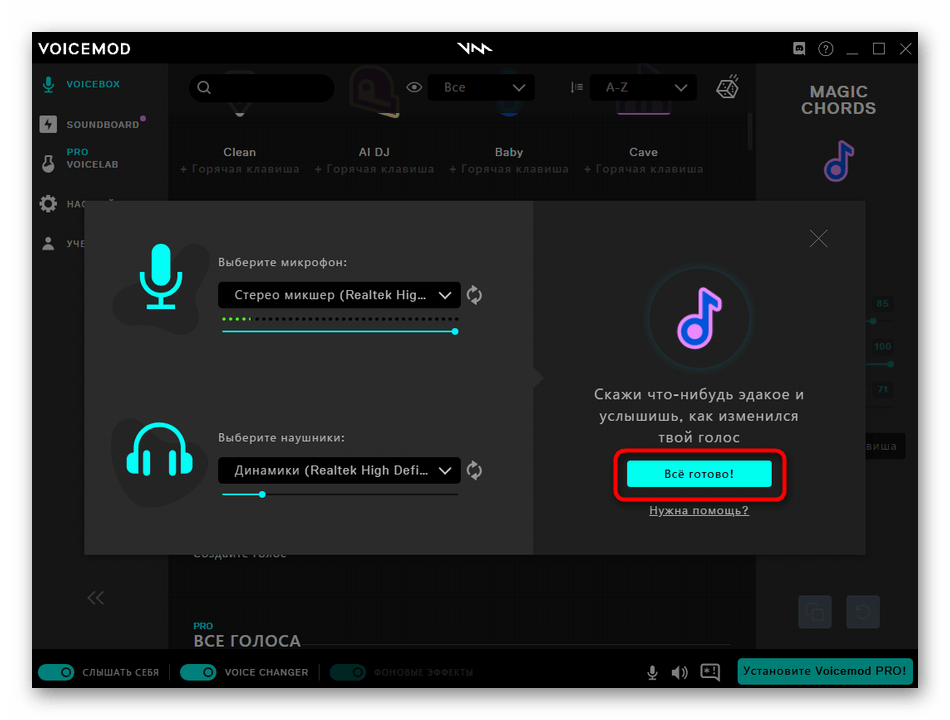
- При первом старте появится окно настройки, в котором понадобится выбрать микрофон и наушники.

- Проверьте, нормально ли вы слышите свой голос в наушниках или через динамики.

- Произнесите любую фразу, но в этот раз она будет уже с наложенным эффектом. Если слышно хорошо, кликните на «Все готово», чтобы завершить процесс настройки.
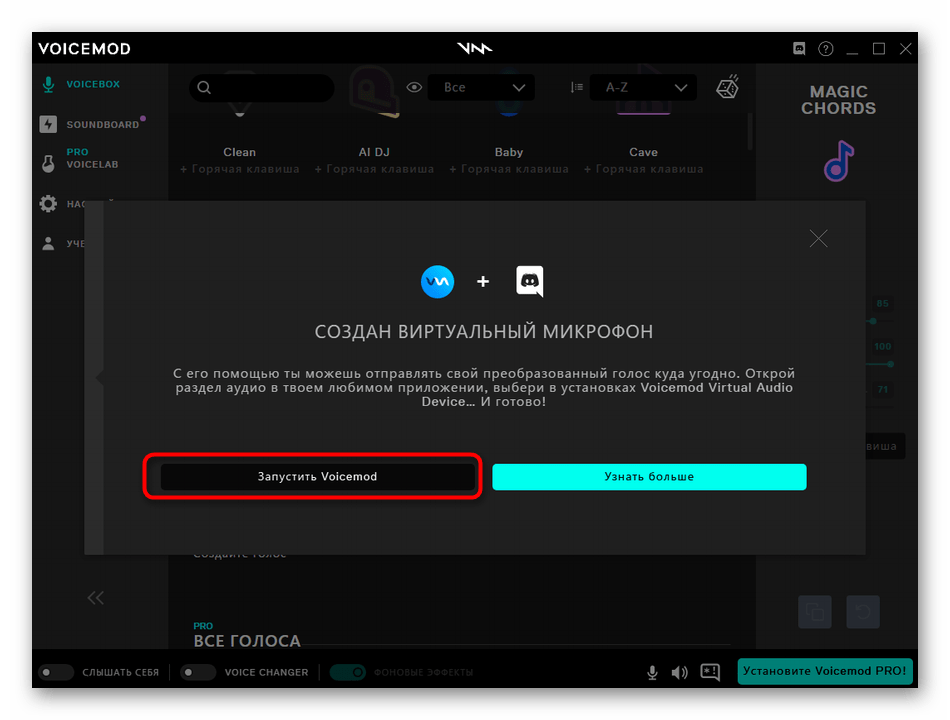
- Отобразится уведомление об успешном создании виртуального микрофона, после чего можно запустить Войсмод.
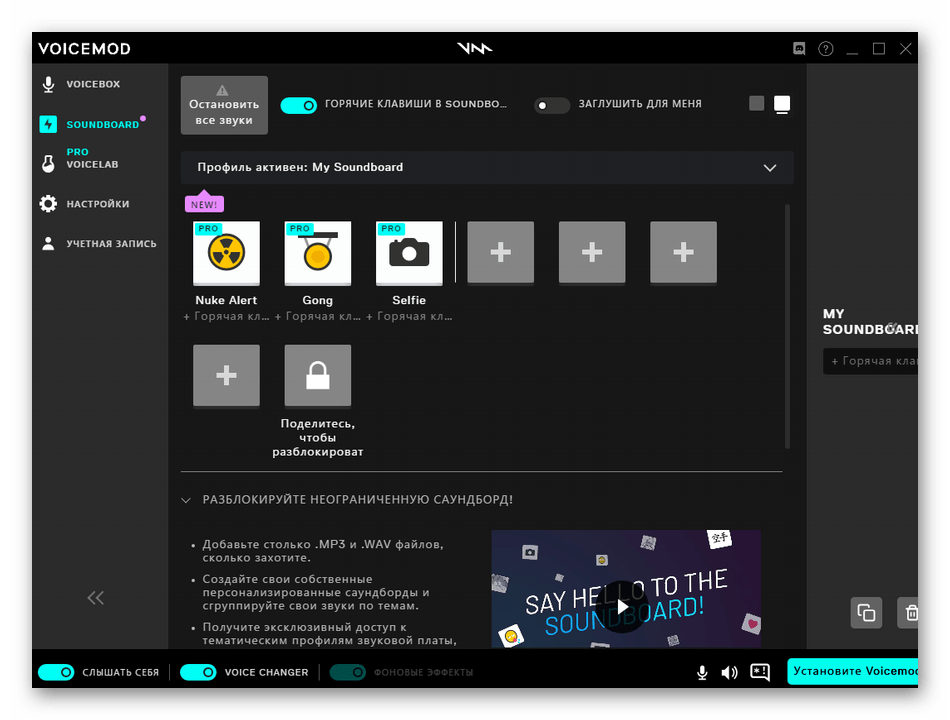
- Выберите один из бесплатных вариантов или приобретите полную версию Voicemod, чтобы разблокировать их все.

- Для прослушивания изменений еще перед началом разговора активируйте параметры «Слышать себя» и «Voice Changer».

- Используйте дополнительные функции Voicemod, чтобы управлять другими звуковыми эффектами или редактировать уже существующие. Кстати, можно добавить и свои звуки, хранящиеся в формате MP3, для воспроизведения их прямо при разговоре в Discord.
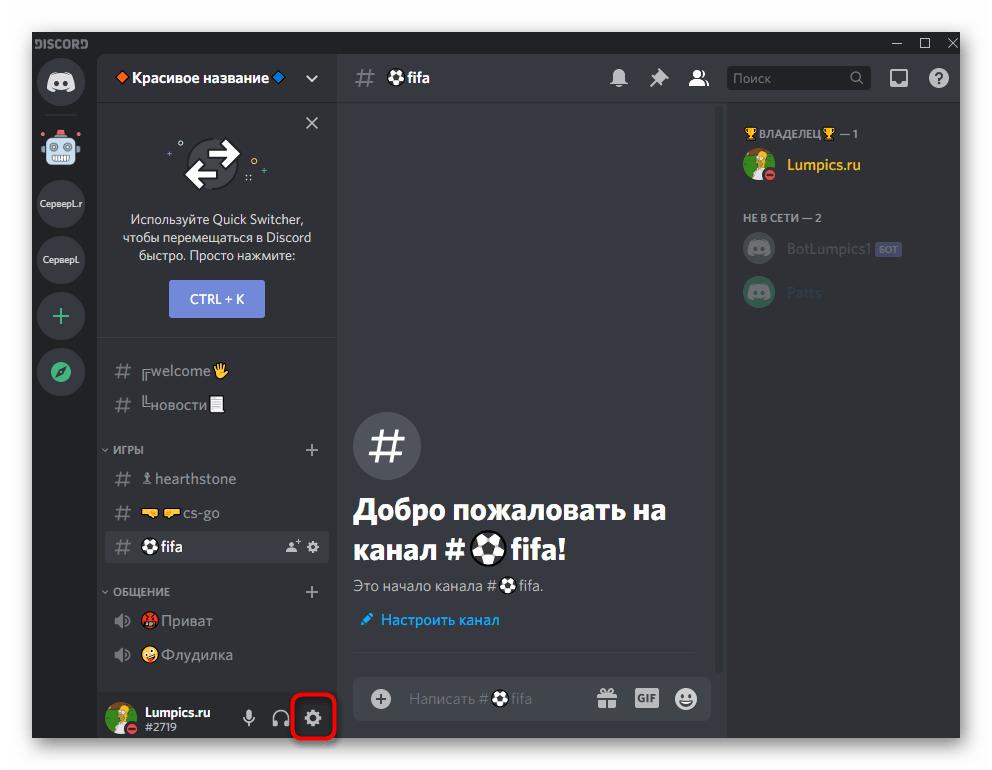
- После того, как все настройки выполнены, откройте Дискорд и перейдите в меню с пользовательскими настройками.
- Выберите там раздел «Голос и видео».

- Виртуальное устройство ввода с названием программы Войсмод должно быть добавлено — активируйте его.

- Общайтесь с пользователями, изменяя свой голос и воспроизводя другие звуки при помощи этого решения.
Способ 3: Voxal Voice Changer
В завершение разберем еще одну программу, которая называется Voxal Voice Changer. В ее функциональность входят исключительно инструменты для изменения голоса, а главное преимущество — разнообразие вариантов, среди которых можно найти самые разные голоса и эффекты, доступные для применения.
- Для начала загрузите Voxal Voice Changer на свой компьютер и установите данную программу.

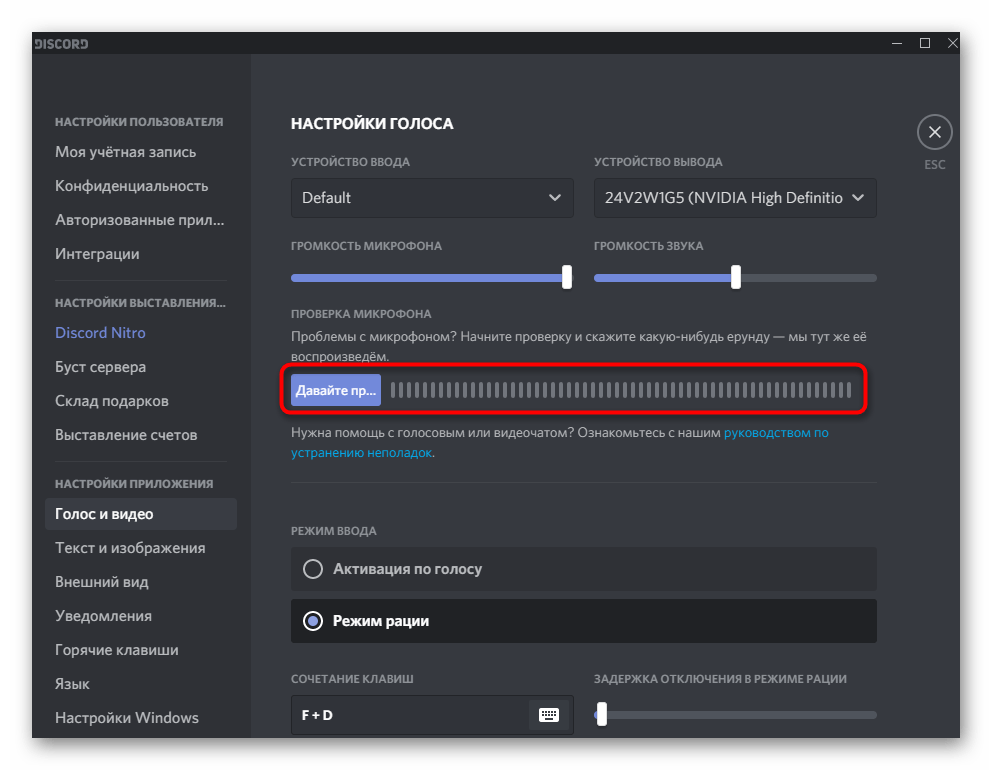
- Запустите ее и ознакомьтесь со списком изменений для голоса, отсортированных по разным папкам. Выберите любую, чтобы посмотреть настройки и проверить звучание.

- Используйте кнопки «Preview», «Record» и «Recordings» для прослушивания выбранного эффекта, его записи и перехода к просмотру уже готовых записей.

- Следите за состоянием голоса при помощи динамической полоски внизу. Она подскажет, является ли громкость приемлемой или ее стоит уменьшить. Осуществляется это регулировкой специально выделенного ползунка в этой же области.

- Дважды кликните по одному из эффектов, чтобы перейти в его настройки и изменить под себя, если что-то не устраивает.
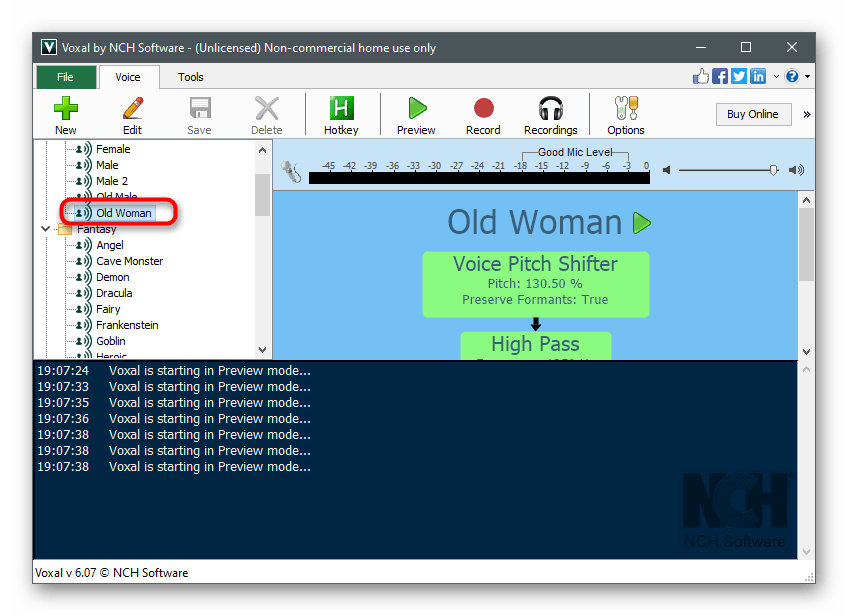
- В новом окне вы увидите доступные параметры компрессии, низких и высоких частот, эхо, тембра и реверберации. Каждая из этих настроек изменяется, за счет чего и получается новый голос, который можно создать самостоятельно и использовать при разговорах с друзьями.

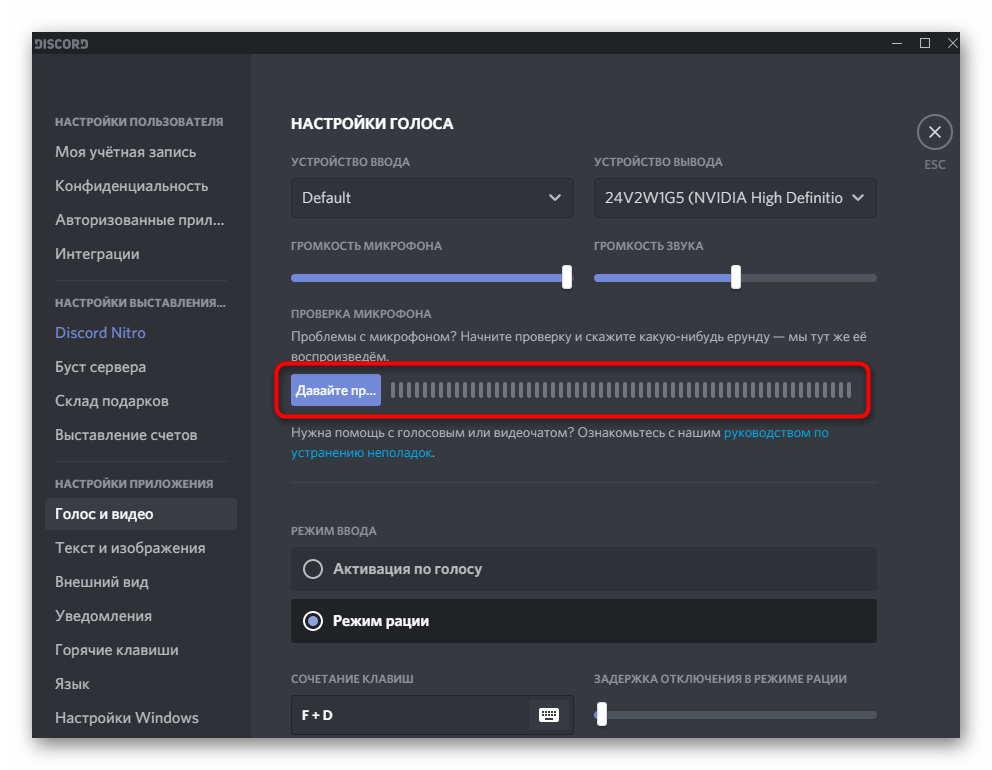
- По завершении настройки обязательно перейдите в Discord и воспользуйтесь функцией проверки микрофона, чтобы узнать, насколько хорошо удалось выставить параметры изменения голоса.
В этой статье мы рассмотрели всего три примера программ для изменения голоса в Дискорде, хотя их существует гораздо больше. Каждая из них обладает своими особенностями и уникальными параметрами. Если вас не устраивает ни один из предложенных вариантов, ознакомьтесь с другими популярными в обзорной статье на нашем сайте. Принцип их использования практически не отличается, поэтому разобраться во всем будет не так сложно.
Дополнительно отметим о существовании программы Soundpad, предназначенной для воспроизведения звуков вместо своего голоса или параллельно с ним. В ней уже есть список заготовленных композиций и возможность загрузить свои файлы. Настроить ее можно буквально за несколько минут, добавив необходимое количество треков. После этого останется запустить Discord и произвести его базовую настройку. Детально обо всем этом читайте далее.
Настройка и использование Changer Voice Voxal
Всем привет! Сегодня поговорим про то как настроить и пользоваться программой Changer Voice Voxal в популярной бесплатной программе общения Discord. Итак, поехали!
Бывают истории, когда при общении в Дискорд нужно поменять личный глас и придать ему необходимое звучание. В данном несомненно поможет даровое приложение Changer Voice Voxal.
Поставить программку возможно на компьютер и ноутбук с операционной системой Windows версии: 7, 8, 10, ХР, и Vista. Утилита несомненно поможет достичь частоты звука и придать ему необходимый эффект.
В данной заметке станет детальный ликбез программки, ее способности и настройка для работы в Дискорде.
Ликбез Voxal Voice Changer
Voxal Voice Changer – это утилита для трансформации голоса в формате реального времени и записях, изготовленных раньше. С ее поддержкой возможно заменять тон голоса, настроить подходящую тембральную тональность и прибавить эффект «эхо».
Программка трудится по принципу виртуального микрофона, который при поддержке опций замещает базисный. Кроме Дискорда, утилиту возможно применить в программке Teamspeak, Raidcall и Skype.
Приложение уточняется на британском языке, но ее интерфейс несложен, в следствие этого в том числе и и русских юзеров не появляется задач при работе с ней.
Даровая версия разрешает записывать голосовые сообщения до 30 секунд, собственно что довольно для общения в чате. В случае если нужно расширить перечень возможностей утилиты и записывать долгие голосовые письма, то возможно купить коммерческую версию ценой 13 $.
Особенности и перечень возможностей для Дискорда
Программка разрешает записывать голосовые сообщения в режиме реального времени, а затем отправлять их в чат. Приложение ведет взаимодействие буквально со всеми мессенджерами.
Перечень возможностей Voxal Voice Changer:
Готовые шаблоны для конфигурации голоса.
Вероятность точечной опции, дабы выбрать глас по собственному вкусу.
Вероятность наложение шумов находящейся вокруг среды.
Редактирование уже готовых шаблонов записи голоса.
Настройка жарких кнопок.
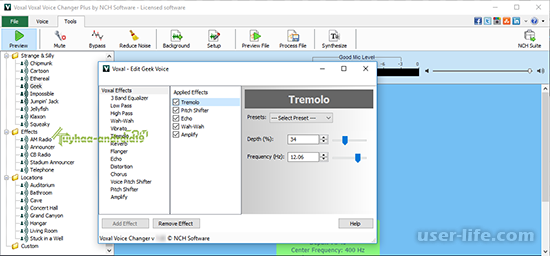
Voxal Voice Changer — известная программка для конфигурации голоса. Ее возможно скачать в 2-ух версиях: коммерческая и даровая. В продвинутой (платной) версии есть более готовых шаблонов для конфигурации голоса.
На начальном рубеже программку возможно скачать в даровой версии, в ней станет доступен целый важный перечень возможностей.
Для удобства юзеров в программке Voxal Voice Changer все звуковые шаблоны разбиты по категориям:
Люд и животные (женщина, малыш, мужик, собака и бас).
Дивные существа (демон, бот, пришелец).
Локации (шум моря, струи ветра и почти все другое).
В программке учтен шаблон мутации, который в случайном порядке изменяет глас, плавненько изменяя его на иную тональность. Утилита поддерживает большое количество своевременных шаблонов.
С их поддержкой возможно подшутить над ином или же в том числе и поменять пол собственному голосу.
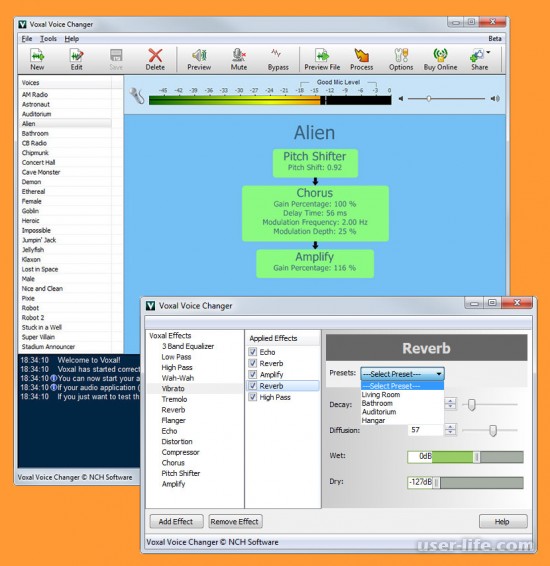
При запуске программки готовые шаблоны станут раскрываться в левой части экрана. Надо лишь только избрать походящий вариант и записать голосовое письмо. Все эффекты возможно прослушать в режиме реального времени.
Оригинальность
В случае если при выборе подходящего шаблона, впоследствии записи голоса и прослушки, юзер не услышат подходящего эффекта возможно исполнить ручную настройку.
Для сего нужно избрать готовый шаблон из предложенных разновидностей и перебежать в тотечной настройке, которая размещена в правом углу экрана. Тут есть следующие функции.
Сдвиг тона. В случае если передвинуть бегунок в правую сторону, глас делается больше пискливый, в соответствии с этим в левую сторону идет cнижение тона.
Смешение тембра. Сдвинув бегунок возможно выбрать для собственных целей подходящую тембральную расцветку голоса.
Звуковые эффекты. Функциям разрешает прибавить к главному голосу различныеразнообразные звуковые эффекты. Их возможно прибавить из готовых шаблонов или же нагрузить личный вариант.
Звуковой эффект возможно заблаговременно прослушать в опциях, в случае если вариант организует, возможно передаваться к грядущим характеристикам.
Графический эквалайзер. Функция разрешает поменять спектр голоса. Дабы пользоваться готовыми шаблонами эквалайзера, надо избрать кнопку «Preset» и пользоваться готовым вариантом.
Готовые эффекты. В разделе отражается перечень готовых эффектов, которые возможно использовать для голоса.
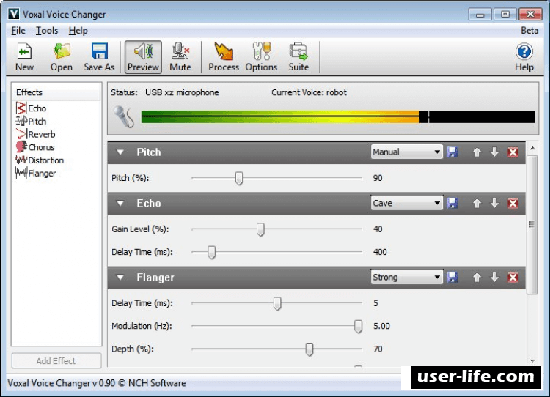
При поддержке точечной опции возможно уникализировать личный глас и придать ему желанное звучание.
Синтез речи
Синтез речи – это нужная функция, которая разрешает озвучивать готовый слово без подготовительной микрофонной записи. Дабы пользоваться предоставленной опцией нужно перебежать в раздел «Speech». Готовый слово надо воткнуть в программку и элементарно переместить в голосовое письмо с необходимым эффектом. Данная функция важно упрощает жизнь почти всем интенсивным юзерам Дискорда.
В один клик
Впоследствии выбора необходимый характеристик прибавить модифицированный глас в Дискорд возможно всего за раз клик. Программка механически запоминает все выставленные характеристики и использует их для всех голосовых извещений.
В программке есть интегрированный аудиорекордер, который разрешает записывать голосовые письма в безупречном качестве. Рекордер и диктофон работают для записи звука, вот лишь только перечень возможностей их различный.
Диктофон элементарно записывает звук без обработки, в неизмененном облике. Рекордер записывает звук в формате стерео и разрешает убрать все шумы и чужие призвуки.
Для стримеров и интенсивных юзеров чата, данная функция в высшей степени принципиальна. Без нее звук станет плохим.
Чистка от шумов
При записи голосовых извещений на экономный микрофон возможно подметить чужие шумы, которые станут глушить глас, и извращать запись.
В программке есть функция « чистка от шумов», которая убирает все чужие призвуки, разрешая достичь безупречного свойства звука в том числе и при применении дешевенького микрофона.
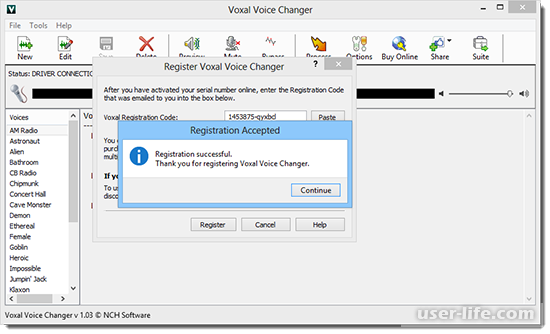
Как скачать и поставить программку
Приложение для конфигурации голоса Changer Voice Voxal весит в пределах 1 МВ. Закачивать ее рекомендовано на операционную систему Windows ХР, 7 и версии повыше.
Кроме различных операционных систем, есть различная разрядность компа: 32 или же 64 Бита. Нужно закачивать версии как раз для собственной разрядности ПК, в неприятном случае программка не станет установлена.
Дабы взглянуть разрядность ПК пользуйтесь следующей аннотацией.
Для Windows ХР и 7 надо избрать параметр «Мой компьютер» и надавить на вкладку «Свойства».
Для Windows версии 8 и повыше нужно избрать « Пуск» и перебежать к разделу « Система».
Внимание! При аппарате приложения Changer Voice Voxal на Windows Vista вероятны сбои при записи голоса и искажение звучания.
Руководство по инсталляции Changer Voice Voxal.
Перейдите по ссылке и установите программку на личный ПК.
Допустите приложению заносить перемены в прибор.
Дадите согласие с критериями внедрение и нажмите дальше.
Укажите папку, в которой станет сохранена программка, и нажмите дальше.
Впоследствии выполнения данных поступков раскроется программка для записи и конфигурации голоса.
Как настроить Voxal Voice Changer для Дискорда
Впоследствии установки, следуйте доскональной памятке, дабы настроить программку для Дискорда.
Надо избрать тротуар « Пуск» и перебежать к вкладке « Записывающее устройство».
Перебежать к разделу « Запись». В ней станет отображаться базисный и виртуальный микрофон.
По иконке виртуальный микрофон кликнуть правой кнопкой мыши и избрать место «Включить» и надавить кнопку « ОК».
Запустить Дискорд на собственном компе.
Забежать в личный профиль и избрать иконку в облике шестеренки.
Избрать параметр « Опции пользователя».
Избрать раздел « Голос» и в пункте « Прибор ввода» избрать виртуальный микрофон.
Настроить громкость звука при поддержке бегунка.
Избрать образ активации: по нажатию или же при поддержке голоса.
Сберечь настройку характеристик.
Ныне при общении в чатах глас станет применяться виртуальный микрофон.
Changer Voice Voxal – это программка, которая несомненно поможет не лишь только разыграть приятелей различными прикольными эффектами, но и еще уберет шумы и разрешает настроить подходящую высоту и тембр вашего естественного голоса.
Для отправки голосовых извещений продолжительностью наименее 30 секунд возможно пользоваться даровой версией.
В случае если потребуется отправлять долгие голосовые письма, то наилучшим вариантом станет приобретение коммерческой утилиты. Ныне вы будете иметь ввиду как воспользоваться Voxal Voice Changer и настроить ее в Дискорде.
Useful Tips: How to Use Voxal Voice Changer on Discord?
Have you ever tried to use Voxal Voice Changer on Discord? If not, then let’s share some useful information with you regarding this experience.

Max Wales
Discord is a fantastic software for communication like instant messaging, content delivery, video calls, voice calls, etc. It supports various operating systems, such as Windows, Mac, Linux, Android, iOS, iPad OS, and web browsers.
Do you know a way to have more fun with Discord? Using Voxal Voice Changer on Discord can double the fun and entertainment. To know more about Voxal voice changer and Discord, read the article below.
Part 1. What Is Voxal Voice Changer?
Part 2. How to Use Voxal Voice Changer on Discord
Part 3. How to Fix Voxal Voice Changer Not Working
Part 4. 3 Best Voxal Voice Changer Alternatives
Part 1. What Is Voxal Voice Changer?
Who doesn’t like to have fun by changing their voice? Voxal Voice Changer always takes the lead when we talk about voice changers. With this voice changer, you can add different sound effects to either any pre-recorded file or apply different effects in real-time. Interestingly, Voxal Voice Changer also lets its users create and customize voice effects without limits.
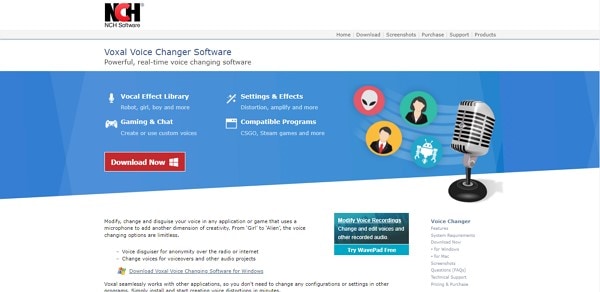
For gamers, Voxal Voice Changer is an ideal voice changer. This is because the voice changer is compatible with almost all your favorite gaming platforms. The fact that games are heavy, this voice changer does not interfere with any other running applications because it has a low CPU usage.
Moreover, both Windows and Mac users can use Voxal Voice Changer. Do you want to know some cool about this voice changer? Well, Voxal voice changer also has a text-to-speech tool that is fun to use.
Part 2. How to Use Voxal Voice Changer on Discord
If you have been using Discord for a while now, then you must have noticed that people use different voices like robots, aliens, babies, and whatnot. Are you excited to know the secret behind this? People use voice changers to double the fun. You can also use Voxal on Discord to enjoy. The voice changer has some system requirements that are as follows:
System Requirements
Windows 10, XP, Vista, 7, 8, 8.1 & 11
Mac OS X 10.5 & above
Step by Step Guide to Use Voxal Voice Changer on Discord
If you are bored with your normal voice, then change it with voice effects. Let us share the steps for your guidance to use Voxal Voice Changer on Discord.
Step 1: Let’s Download Voxal Voice Changer
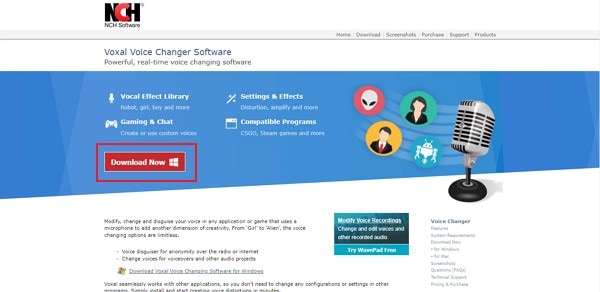
If you want to use Voxal on Discord, then start by downloading Voxal Voice Changer from its official website. Once the download is complete, you should install the voice changer on your PC or laptop.
Step 2: Launch Voxal Voice Changer
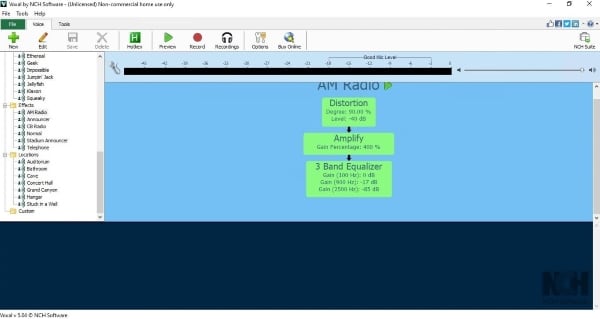
After the software has been installed, you can now launch it. For this, double click on the Voxal icon; this will lead you to its home screen.
Step 3: Open Discord
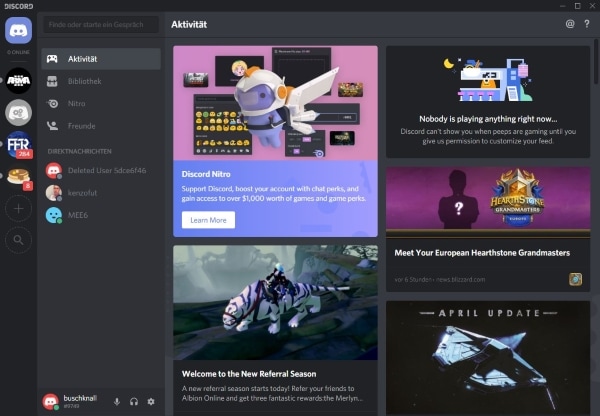
Now, you have to open Discord on your PC or laptop. Remember not to close the Voxal Voice changer; let it run in the background. This is how Discord will detect the application running in the background and will let you use Voxal on Discord.
Step 4: Open User Settings
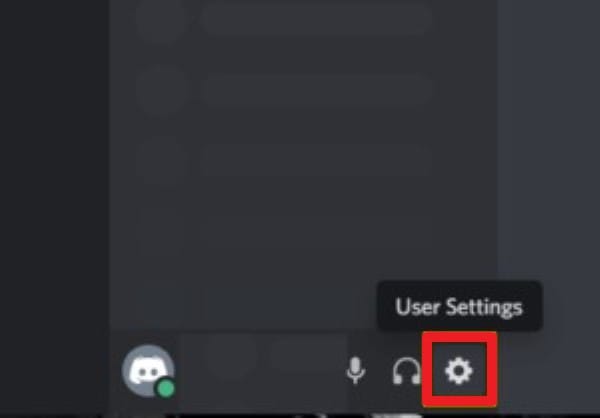
After you have accessed your discord account, head to the bottom left side and hit on the ‘User Settings’ option besides your username. Next, select the ‘Voice and Video’ option from the’ App Settings’ section.
Step 5: Set Input Device
You can change and customize your discord voice from Voice and Video section. Under the ‘Input Device’ category, ‘Default’ is selected. You can hit the down arrow can switch it to the ‘Voxal Voice Changer’ device.

Part 3. How to Fix Voxal Voice Changer Not Working
Is your Voxal voice changer not working? Do not panic; we will be discussing a systematic way to check why the Voxal voice changer is not working. You can follow the fixes shared below:
Proper Installation
The error in working might be because of an installation issue as the software might not be installed correctly. You should reinstall the software, which will resolve the issue. It will also help in establishing a better connection for a better user experience.
Selection of Correct Audio Stream
After a successful installation, if you still face any problem, that is because you are not selecting the correct audio stream. You have to select the correct input device, which in this case is Voxal Voice Changer.
Upgradation and Restarting
If the above discussed are not an issue, then your software might need an upgrade. There might be a pending upgrade that affects the working capacity. Whereas, if you have already upgraded the software, then you should restart it.
Active Microphone
The correct audio system has been selected if the installation is complete, and the software is also up to date. However, you still face any issue with Voxal; then your microphone might not be connected properly. Here are the steps to fix this:
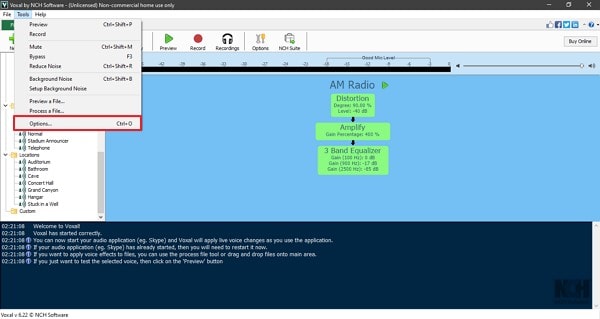
Step 1: After you have launched the Voxal Voice changer, tap on the ‘Tools’ section from the top menu bar and select the option of ‘Options.’
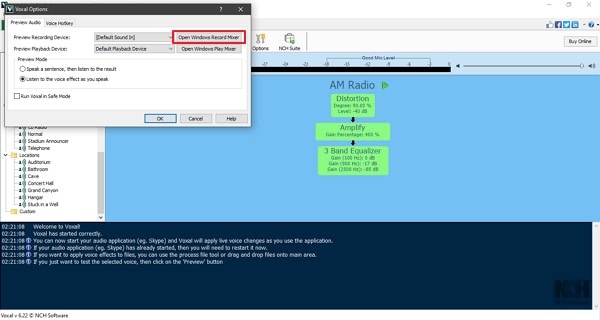
Step 2: A pop-up screen will show up; click on the ‘Open Windows Record Mixer’ next to ‘Preview Recording Device.’
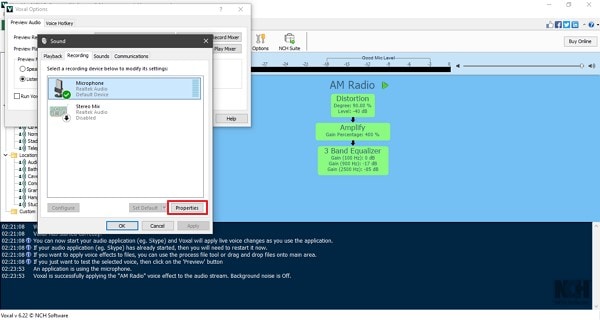
Step 3: Another screen will appear; select your microphone by clicking on it. Now, from the bottom left corner, hit the ‘Properties’ option.
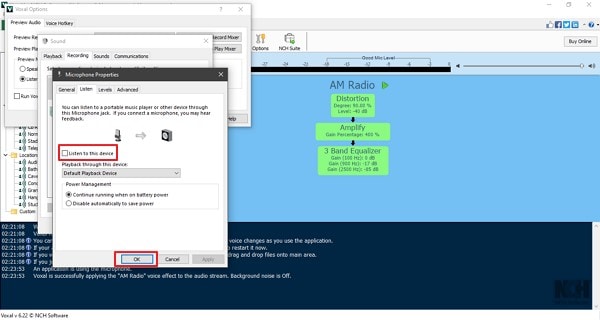
Step 4: From the Microphone Properties Array window, head to the ‘Listen’ tab and select the option of ‘Listen to this device.’ Lastly, hit on the ‘OK’ button in all the windows to close them.
Voice Effects
it is also possible that the Voxal voice changer is not applying any effects to your voice. To get rid of this problem, firstly, make sure that you have selected any voice effect. Secondly, ensure that Voxal is receiving proper signals from your microphone. If this is not the case, close both the programs, first open Voxal voice changer, and then open the program where you plan to add voice effects.
Part 4. 3 Best Voxal Voice Changer Alternatives
Although Voxal Voice Changer is a fantastic platform to use on Discord, other voice changers are equally good like Voxal. If you are excited to learn about the alternatives for Voxal voice changer, then let’s begin.
1. Voicemod
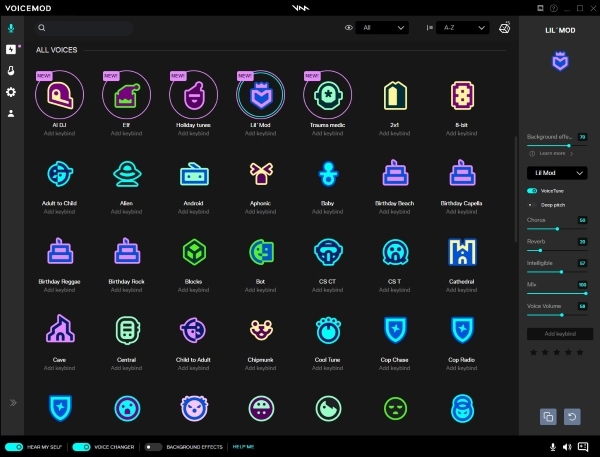
Voicemod can be used as an alternative to Discord and replace the Voxal voice changer. The voice changer modifies your voice online. Importantly, the software is compatible with multiple online games, including Fortnite, PUBG, and Minecraft. Windows users can easily use Voicemod and enjoy great things like online chatting and streaming.
It is compatible with Skype, Discord, VRChat, etc. You can change your voice in real-time with amazing effects like alien, chipmunk, baby, police, and whatnot.
2. Clownfish Voice Changer
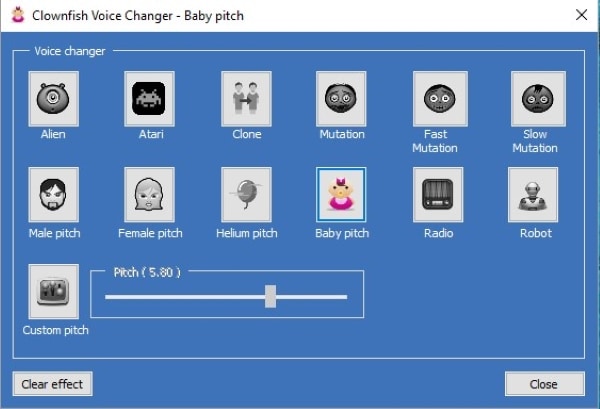
Ready to learn about the next alternative? The voice changer that supports multiple applications is Clownfish Voice Changer. The voice changer can change your voice on any application that uses a microphone on your computer. The voice changer does not put much load on your CPU, and it doesn’t affect the performance of the computer.
Clownfish voice changer is available for Windows. Among its different voice effects, some are a robot, baby pitch, female pitch, male pitch, and also Darth Vader. The voice changer supports applications like Viber, Discord, Skype, and TeamSpeak.
3. MorphVox
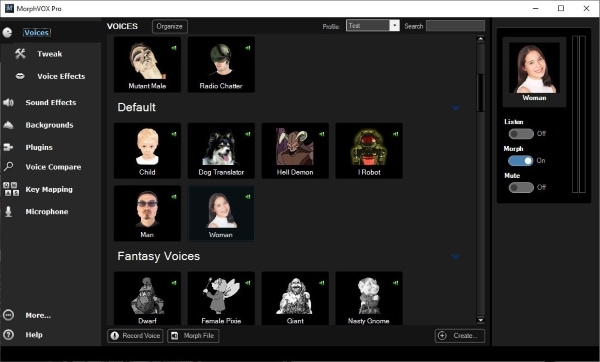
MorphVox is a famous and leading voice changer because of the wide range of features it offers. The voice changer is available as a free tool, MorphVox Junior, and a paid version is also available called MorphVox Pro. The fact that the voice changer can change your voice in real-time is ideal for online communication like Discord and also gaming.
The software is integrated with various sound effects and background tracks. Along with the integrated voices, you can also record your voices. MorphVox has super-fast chatting technology and delivers the best sound quality.
Final Thoughts
For any person who has been looking for ways to use Voxal on Discord, the article is for you. We have discussed Voxal Voice Changer in detail. We shared ways to fix any issue with the Voxal Voice Changer, and also, we shed light on 3 alternatives for Voxal.
Talking of recorded stream videos, they are rough and require editing. For this, let us suggest an awesome software that takes video editing to a new level. We are talking about Wondershare Filmora Video Editor.
You can color match, do split-screen, keyframing, motion tracking, and many more features are offered by Filmora. You can also get various effects, transitions, and elements from its media library.
How to Use Voxal on Discord 2023 [Step by Step]

If you are using Discord for a while, you may notice people are using different voice-changer tools to make their voices sound funny, bold, robotic, female, and more. This is the best option when you are playing an online game and don’t want to use your real voice. Saying that, if you are also interested in changing your voice on discord, then you can choose tons of the best tools out there. One of them is also a Voxal Voice changer.
Voxal is considered one of the best voice changer tools for discord. The reason why it becomes so popular is because of its variety of voice selection options. You can transform your voice into any type you want. Just select your desired voice, and you are good to go. However, if you don’t know to use Voxal on discord, then don’t worry; you came to the right article.
Okay, let’s get started!
Table of Contents
What Is Voxal Voice Changer?
Voxal is the best real-time voice changer software by NCH Software. It is available in both the free and paid version. If you are a beginner and only want to use it for your personal, then go with the free version. However, if you have other greater plans, then you can choose the paid version where you can get hands-on with more advanced tools. It is a little bit expensive but worth it for a voice changer.
You will not get disappointed with Voxal voice changer because there are so many good voices available such as alien, echo, girls, boys, robots, and many more. Just pick one by one at a different time and enjoy your daily stream.
Please enable JavaScript
Voxal is compatible with many apps such as Discord, Skype, CSGO, Hangout, and many other stream games.
How Safe Is Voxal Voice Changer To Use
When you are gaming online or live streaming, there are a number of users with a different voice than their original. Many of these users are using Voxal for real-time changes in their voice. So, it is safe to say that Voxal is legit and safe for users to use for daily streams.
In the Voxal voice changer, you are provided with a wide range of audio, video, music, graphic, and dictation tools for conversions in real-time. In case of further doubts and queries regarding the legitimacy of this application, you can even directly write to NCH software regarding this product for further details.
The System Requirements For Voxal Voice Changer On Discord
Now that we know what Voxal is and its safety to use, here are the system requirements if you are looking into using this feature on Discord.
- 32 or 64 Bits for Windows.
- Operating System x 10.5 or above on a Mac.
The PC you are working on must be able to load or run the Voxal application on it. The application also requires a working microphone that supports your system.
Download Voxal Voice Changer For All Devices
For the Voxal application to run on Discord, you need to download the application from an authorized site. Then, you will need to install the application in your system. Voxal voice changer is officially made for windows PC, so you cannot find its app on any app store. However, if you don’t own a laptop/PC or want it on your mobile, then you also have that option. Here, you can get Voxal voice changer on mobile and PC through these links.
Download Voxal On Mobile Device – Android / iOS (free)
Steps To Download And Install Voxal On PC
The steps to download and install Voxal on a PC are below.
Step 1: Visit The Official Voxal Site
First, go to the above link which is authorized by NCH Software as the official site to download Voxal. Do not visit or download from other sites which can be scams.
Step 2: Download Voxal For PC
Below the header on the left side of the screen, locate the ‘Download Now’ button. Click on it and the download for Voxal will automatically start.
Step 3: Install The Voxal File
Once the download is complete, then look for the .exe file on the folder. Next, double-click on the file and it will run. Finally, the installation for the Voxal application on your device is complete.
How To Use Voxal On Discord?
Now, if you are excited to change your voice to something interesting and funny using Voxal on discord, then have your way to the below-mentioned steps. The process is quite simple, and you can complete it within a few minutes.
Step 1: Launch Voxal
Once your Voxal is all set and ready for use, launch it. Double click on the Voxal icon and it will open the home interface.
Step 2: Open Discord
After that, open the Discord app on your PC. Do not close the Voxal application. If you close the Voxal application and do not let it run in the background then Discord will not detect the application.
Step 3: Go To User Settings
Now, head to the User settings option, which you can find at the left bottom side beside your username.
Step 4: Choose Voice And Video
Under App Settings, click on Voice and Video. This opens the discord voice settings where you can customize your discord voice and sound according to your needs.
Step 5: Set Voxal Voice Changer

In the input device section, you can see that discord is using your default laptop voice and sound. There, you have to switch it to Voxal voice changer. So, click on downward faced tiny arrow on the input device section and select Voxal Voice Changer device.
There you go; this is how you use Voxal on Discord. Quite simple, isn’t it?
Ways To Use Voxal Voice Changer In Mobile
As mentioned earlier, Voxal does not provide users with an application for the mobile interface on their official app stores. This is why you need to go for another trustworthy alternative which is from apk.
Do not download Voxal from random third-party sites which may consist of viruses or malware that may affect your devices. Besides this, make sure you disable your firewall and antivirus when you download the Voxal application from apk, as it is not the official application.
Few Tips After Downloading Voxal Voice Changer On Mobile
If you preferred to use Voxal for discord on mobile, then there are a few things that you should know before installing.
The first thing is always to remember to download the app from a trusted site only. This is all for your mobile security. If you don’t follow that, then your data and information are on high alert (risk). That’s why you can follow the above download link for Voxal.
The next thing is to turn off any antivirus or firewall on your device. This is not recommended, but somehow it’s not an official app, so your device may take it as malware. This leads to an error during the installation process.
Other than this, you are good to go.
Reasons For Voxal Voice Changer Not Working On Discord
Due to your device problems or even from the Voxal application itself, there can be multiple reasons why it won’t work on your device. So, in case of this, check the following things to ensure the Voxal application works well.
Install Voxal In Your Device Properly
First, there might be problems with the installation of Voxal causing problems with the application. Make sure you download the application from trustworthy sources and run the files properly.
Also, do not forget to run the Voxal application in the background when you open Discord.
Select The Correct Audio Stream
Next, if the Voxal application is installed properly and it still does not work then you may have missed selecting the correct audio stream on Discord.
Follow the steps of Discord – User Settings – Voice And Video – Input Device.
You do not need to change the output device, only change the input device to Voxal.
Update Discord App
Update the Discord application and check if the voice features work or not. Discord is an application that provides users with timely updates so make sure you are up to date.
Restart Discord App
Next, an issue could be with the Discord application itself. So, close the Discord application and start it again so it loads properly.
Check Microphone
The audio input is the first and foremost important feature when you’re using the Voxal application. So, check your device audio and the audio input in your Discord application as well. Test your microphone before using Voxal.
Re-Install Voxal
Follow the download process again and install the Voxal application with a new file. Sometimes, there can be problems with the .exe file so try this method. Do not forget to delete the previously downloaded file for this to work.
Check With All The Effects
Another problem could be with the effect you chose. So, try with multiple effects before you worry about the malfunction. Go for some extra effects and try the above steps if that still does not work.
Frequently Asked Questions
Here we have listed a few questions about Voxal Voice Changer.
Is Voxal Free?
Yes, Voxal voice changer is free to use as well as download. You don’t have to pay any bucks from your pocket to use Voxal software. So, be aware of the unauthorized websites which can cost money for Voxal. You may end up paying money, which you can get for free.
Voxal works on your windows pc without any disturbance. This way, you can edit or apply different voices according to your choice for discord. This is a fun way to chat with your friends on discord while playing games.
Can You Use Voice Changer on Discord Mobile?
Yes, you can use a voice changer on discord mobile. Just download discord on your Android and IOS devices then use the vocal voice changer app.
Conclusion
Now you can freely use Voxal on discord without any issues. Just choose the voice effect on Voxal and have fun during gaming as well as on Skype. But just don’t misuse the Voxal for other unnecessary things and to disturb people. It’s not a good thing!
If you have any queries, then leave a comment down below.
ABOUT ONLINE HELP GUIDE
Online Help Guide is a global, multi-platform media and entertainment service providing company that provides guides on all trending service on the internet, DIY hacks, recipes, that you would want to learn. “Your One Stop Solution”