How to Reset Samsung Galaxy Buds With or Without a Phone
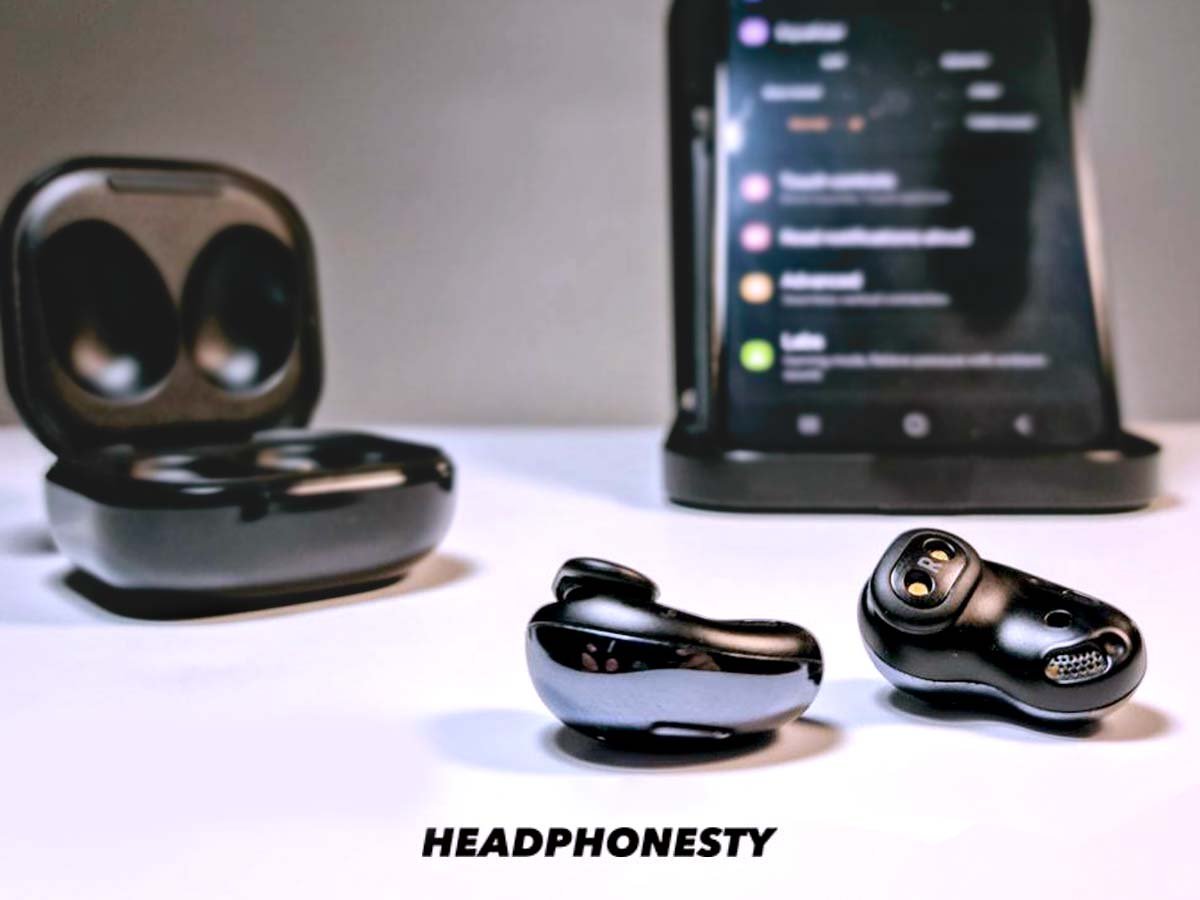
Having problems with Galaxy Buds? Learn how to restart or reset your earbuds to make them work properly, even without a phone!
Samsung’s eye-catching Galaxy Buds line is consistently recognized for its unique, lightweight, innovative designs. However, that doesn’t mean they’re entirely immune to a few flaws or software errors.
Fortunately, like most true wireless earbuds, you can resolve these issues by simply restarting or resetting your Galaxy Buds. The only catch is that, due to their design, the process isn’t always straightforward.
To help you with this, we’ve created this handy guide to walk you through how to restart and factory reset your Samsung Galaxy Buds. And no worries, you’re sure to find something that’ll work regardless of what Buds model you own – whether it’s the Buds, Buds+, Buds Live, Buds Pro, or the latest Buds2.
In This Article
How to Manually Restart Your Samsung Galaxy Buds
It isn’t uncommon to run into minor issues with your Galaxy Buds. Perhaps they aren’t charging or pairing correctly, or maybe they’re constantly getting disconnected.
While one sure-fire way to fix this is to do a hard reset, doing so will erase your device settings and data. So, for a less drastic approach, you can try restarting your earbuds instead.
“Resetting” and “restarting” are often used interchangeably, but they’re actually quite different.
Restarting involves simply turning your earbuds on and off, effectively refreshing the system. On the other hand, a factory/hard reset goes a bit further by restoring your earbuds to their default state. As such, you’ll need to pair them again with all your devices.
If you aren’t entirely sure what’s causing the issue with your earbuds, try restarting them first before going for a full-on reset. That way, you can avoid the hassle of setting them up again with your devices.
You can restart your Galaxy Buds in three simple steps. Just make sure that your earbuds have at least 20% battery life to avoid interrupting the process.
Here’s what you need to do:
-
Place your earbuds inside the charging case.
How to Factory Reset Your Samsung Galaxy Buds
If your earbud issues persist even after restarting, it’s time for a factory reset. As mentioned before, this will delete any settings or configurations. But, d on’t worry; resetting won’t remove software or firmware updates on your Galaxy Buds.
Before attempting this procedure, you’ll need to have the Samsung Galaxy Wearable app (for Android devices) or Samsung Galaxy Buds app (for iOS devices) installed on your phone.
Aside from resetting you Galaxy Buds, these apps hold a lot of handy features to boost your experience, including but not limited to: firmware updates, finding lost Galaxy Buds, and noise cancellation control.
Once you’re ready, you can factory reset your Galaxy Buds using the following steps:
-
Place both earbuds in the charging case.
This process is the same for Android and iOS devices, so it should be easy to follow. Once you’ve completed the reset, you can pair your earbuds with your phone.
How to Reset Your Samsung Galaxy Buds Without a Phone
Having the Samsung Wearable and Samsung Galaxy Buds apps is convenient, but there are several reasons why some folks might opt not to use them. Some of these reasons include:
- Not wanting constant push notifications
- Not wanting extra apps taking up valuable space on their device
- Compatibility issues between the Buds and device
The issue of compatibility is also of fundamental importance. As previously mentioned, while you can easily connect your Galaxy Buds to iOS devices, the app support on iOS devices is limited to the Buds+ and Buds Live, leaving the Galaxy Buds, Buds Pro, and Buds2 with no iOS support.
As such, you won’t be able to reset the latter two using the Samsung Galaxy Buds app.
Fortunately, if you’re using an unsupported Galaxy Buds model or just don’t want to download extra apps, there are still ways to manually restart your Galaxy Buds without your phone or the app. Here are two methods to do just that:
Reset your Galaxy Buds by holding the sensors
The Galaxy Buds have touch sensors on each earbud. These sensors are programmed with specific gestures to help you manage calls and music playback. However, one function rarely mentioned is that you can also use them to reset your Samsung Galaxy earbuds.
-
Place your earbuds in your ears.
Discharge and recharge
This involves draining the batteries of your Samsung earbuds until they’re completely dead (0%). In doing this, your buds undergo a forced reset that clears out any performance bugs or glitches. Then, you can recharge and reactivate them as you usually would, and you should see some improvement.
While the success rate of this tactic isn’t 100%, it’s a harmless solution that’s still worth trying out.
Bonus: How to Reset the Gear IconX Earbuds
The Gear IconX is the 2018 predecessor of the Galaxy Buds. Though the latter is much more streamlined, the former has features that lend it a significant advantage. This includes a built-in factory reset button that lets users do a hard reset without a phone.
Here’s how to reset the Gear IconX earbuds:
-
Peel off the rubber wing tip of the earbud and locate the reset button.
When Should You Reset Your Galaxy Buds?
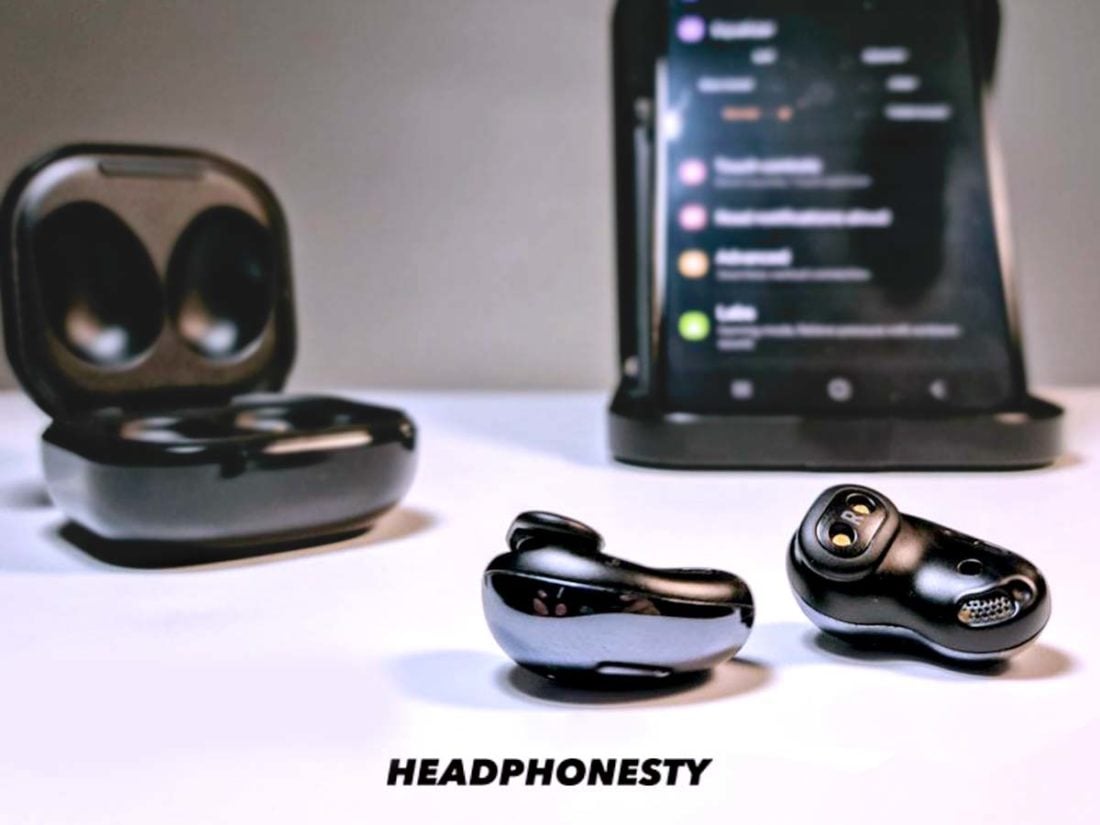
As mentioned at the beginning of this article, software errors do happen. Even the most technologically advanced products of behemoth brands like Samsung can’t escape them.
Many of these software issues vary depending on the product, but most fall under the following general categories:
- Bluetooth connection problems: This can include issues such as difficulties reconnecting to a paired device or connecting to a new one, dropped Bluetooth connections, and the inability to detect your earbuds via Bluetooth.
- Issues with battery charging: Known issues include batteries not charging correctly, batteries becoming drained when not in use, or a significant difference between the battery levels of each earpiece.
- Sound quality: The earbuds’ audio may sound poor, have noticeable echoes or reverberations, or have no sound at all.
If these issues are persistently plaguing you to the point that your Buds are becoming unresponsive, then that’s a good time to reset your Galaxy Buds.
Again, a reset turns off all functions, including the malfunctioning ones, and clears out your Buds’ memory, settings, and past connections. It essentially puts your earbuds in an almost brand new state, similar to giving the users a clean sheet of paper after doodling on a previous one.
Conclusion
To summarize, you can fix your Galaxy Buds with a simple restart. But if that fails, a factory reset should do the trick just as well.
Ultimately, not all issues need extensive technical knowledge. And despite the Galaxy Buds’ unique design, they’re not that complicated to sort out. Sometimes, a little touch and hold can do the trick.
Did you find this article helpful? If you have any tips and quick fixes for the Galaxy Buds, we’d like to hear from you! Drop us a comment below.
Samsung Galaxy Buds: не работает один наушник, не заряжается, не подключается, сброс настроек
В этой статье я расскажу о решении некоторых проблем, которые иногда случаются с беспроводными наушниками Samsung Galaxy Buds. Как в случае с любыми TWS наушниками, с бадсами тоже может произойти ситуация, когда правый или левый наушник перестает подключаться к телефону. Он просто не отображается в приложении Galaxy Wearable, телефон не видит наушник и он не заряжается в кейсе (сначала горит красный индикатор, а затем сразу зеленый, при этом наушник не заряжается) . Такие неполадки случаются со всеми моделями: Galaxy Buds Live, Galaxy Buds+ (Plus), Galaxy Buds Pro.
Практически любые проблемы с подключением, со звуком (когда звук плохого качества, есть какой-то шум, помехи, звук заикается и т. д.) , с подключением к другим устройствам решаются с помощью сброса настроек наушников до заводских. Дальше в статье я покажу, как это сделать. Или удалением наушников из списка подключенных устройств на телефоне и повторным подключением. Так же сброс может понадобиться в том случае, например, когда вы хотите подключить наушники Galaxy Buds к другому телефону или компьютер, а он их не видит.
Сброс настроек при любых проблемах с Galaxy Buds
Как оказалось, сброс настроек наушников Samsung Galaxy Buds можно сделать только через приложение на телефоне. Если я ошибаюсь – поправьте меня в комментариях. У них нет отдельной кнопки для аппаратного сброса настроек (как в случае с Gear IconX) и нет возможности восстановить заводские настройки зажав сенсорные кнопки на наушниках (так это работает на большинстве TWS наушников по этой инструкции) .
Сброс в приложении Galaxy Wearable:
- Открываем приложение Galaxy Wearable и выбираем свои наушники. Например, Galaxy Buds Live. Если к телефону подключены только одни наушники, то они будут выбраны по умолчанию.
- Ставим оба наушника в кейс и закрываем его. Наушники отключаться от телефона (вы это увидите в приложении) . Затем снова открываем кейс – наушник подключаться.
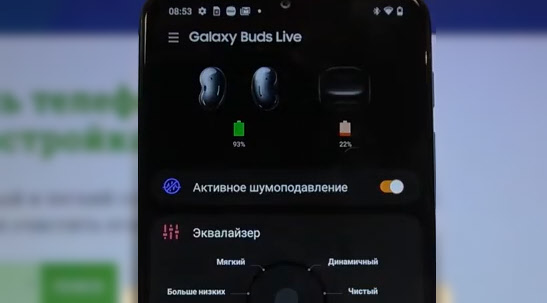
- В приложении выбираем пункт «Общие».

- Выбираем пункт «Сброс».
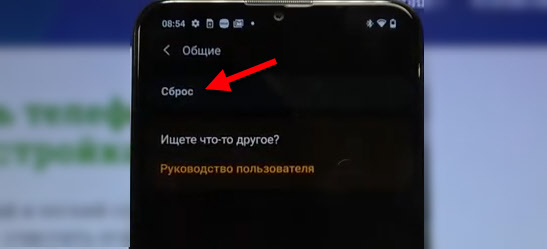
- Подтверждаем сброс параметров наушников Galaxy Buds нажав на кнопку «Сбросить».

- Теперь вы можете выполнить повторное подключение наушников к этому же телефону, или какому-то другому устройству. Просто откройте кейс и наушники будут доступны для подключения (видимы для других устройств) .
Если у вас другой телефон, не установлено приложение Galaxy Wearable, или нужно отключить наушники, например, от телефона, то можно просто удалить их в настройках Bluetooth. Подробнее в этой статье: как отключить или удалить Bluetooth наушники на телефоне, ноутбуке, компьютере, Айфоне или другом устройстве.
Если один наушник Galaxy Buds перестал работать и не заряжается
С этими наушниками иногда происходит проблема, когда правый или левый наушник перестает заряжаться. Соответственно он полностью разряжен и не работает. Подключается и работает только один наушник Samsung. Так же левый или правый наушник не отображается в приложении Galaxy Wearable. Он там просто неактивный.

Когда мы кладем этот наушник в кейс, индикатор на кейсе несколько секунд горит красным (идет зарядка) , а затем сразу горит зеленым (наушник заряжен) , но он не заряжается.

Скорее всего это происходит по той причине, что наушник был полностью разряжен и теперь он не может стартануть. Уходит в режим глубокого сна. Он не может получить зарядку. Его нужно завести. В интернете я нашел одно решение, которое судя по отзывам отлично работает. Сейчас я покажу, что нужно делать в такой ситуации.
Решение:
- Нужно зарядить кейс. А еще лучше, как мне кажется, подключить его к зарядке.
- Нужно извлечь из кейса рабочий наушник. Оставить только тот наушник, который не заряжается (Buds Pro, Buds Live, Buds+) .
- Дальше ставим в кейс проблемный наушник. Он сразу начинает заряжаться (индикатор на кейсе красный) и тут же перестает (индикатор горит зеленым) . Это вы можете увидеть на фото выше.
- Наша задача сделать так, чтобы индикатор на кейсе всегда горел красным цветом (пока наушник не зарядится до 100%) . Ставим наушник, он заряжается (индикатор красный) , как только он начинает гореть зеленым – мы разрываем контакт между наушником и кейсом (приподняв его рукой, или зубочисткой) и наушник снова заряжается (горит красным) . Продолжительность горения красного индикатора будет увеличиваться.
 Повторяем это действие много раз. У кого-то раза с 50 (у всех по-разному) наушник начинает заряжаться (постоянно горит красный индикатор) .
 - Когда постоянно будет гореть красный индикатор на кейсе, оставляем наушник на зарядке. В приложении наушник станет активным и возле него будет отображаться процент заряда.

- Ждем когда наушник (в моем случае Galaxy Buds+) полностью зарядится и можем пользоваться!
Если вам удалось решить проблему со своими наушниками – обязательно расскажите об этом в комментариях. Напишите какие наушник, какая была проблема и что помогло. Это очень полезная информация. Если ничего не помогло – вы можете подробно описать свою проблему, рассказать что случилось с вашими наушниками и я постараюсь вам помочь.
How Do You Reset Samsung Earbuds Manually? Resetting Galaxy Buds/Buds Pro.
Are you having any problems while connecting your Samsung earbuds while connecting to the device? So, before you consider a replacement or repair, it is suggested to try hard reset buds. resetting buds can solve most of the major errors. Read here about resetting the Samsung Galaxy earbuds.
Hard Reset Samsung Galaxy Buds
Samsung earbuds are one of the best products in the segment. Elegant design and nice sound output make it most popular among Android users.
Over time the Galaxy buds tend to show some common glitches including connectivity error, the sound coming from one earbud etc.
In such a hard reset can solve most of the errors on your Galaxy buds. There are two methods to hard reset Galaxy buds.
- Reset the Galaxy buds using the official app
- Resetting buds Manually(using censors)
Reset the Galaxy buds using the official app
- open the Galaxy Wearable app on your phone
- Scroll down and tap on About earbuds.
- Tap Reset earbuds.
- Tap Reset to confirm.
Note: Make sure that your Galaxy Buds is fully charged. Be sure to charge it using the charging case for at least 10 minutes.
Unfortunately resetting using app is not helpful for fixing the error.
So, here is the most useful tip to reset your Galaxy buds manually without app.
Hard Reset Galaxy buds Manually
Hard resetting Samsung buds will erase all data from storage. Also, the official app Galaxy Wearable will not be able to recognize buds automatically.
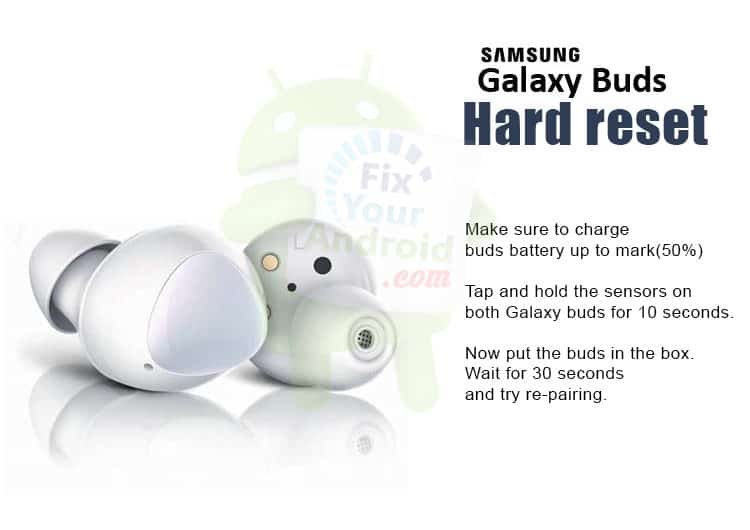
- Make sure to charge buds battery up to mark(50%)
- Tap and hold the sensors on both Galaxy buds for 10 seconds.
- Now put the buds in the box.
- Wait for 30 seconds and try re-pairing.
This will reset the galaxy buds to factory settings. Also, don’t forget to remove the buds from app as well.
Why do we Need to Reset Galaxy Buds?
- Unable to connect to a new device.
- Won’t re-establish connection with a previously paired device.
- Keeps disconnecting.
- Won’t update.
- Buds not Charging.
- Sounds robotic.
- No sounds from Buds or one earbud not working.
- etc
If you hear a robotic sound from your buds, a simple restart can also solve the error.
Still, if you are unable to connect Galaxy buds or they keep disconnecting constantly, it’s time to hit to local Galaxy store and get a physical examination.
Как перезапустить Galaxy Buds?
советы и хитрости для Android / by admin / August 05, 2021
Перезагрузка устройства всегда является окончательным решением любой проблемы. Не только Galaxy Buds, но и любое электронное устройство. Раньше я просил маму перезагрузить свое устройство, если у нее возникнут какие-либо проблемы со своим смартфоном. В случае с Galaxy Buds перезапуск может решить множество проблем. Если вы не знаете, как перезапустить, следуйте этой статье, чтобы перезапустить Galaxy Buds.
Galaxy Buds от Samsung, безусловно, являются флагманскими наушниками, но могут столкнуться с проблемами, которые нелегко решить. Если вы столкнетесь с какими-либо ошибками, например, что он не заряжается должным образом, не подключается, не включается, перезапуск может быть идеальным решением.

Как перезагрузить ваши Galaxy Buds
Перезапуск смартфона может быть простым вариантом, но перезапуск пары наушников Galaxy может стать проблемой, если вы с ним не знакомы. Но я могу быть уверен, что после этого урока вы сможете легко перезагрузить смартфон.
-
Убедитесь, что ваша пара галактических бутонов достаточно заряжена для выполнения этой диагностики.
Но, к сожалению, после перезапуска наушников ваши проблемы / вопросы еще не решены. Тогда это могла быть другая проблема. Что ж, волноваться не о чем, мы уже написали простую статью для сброс наушников galaxy . И особенно, если у вас возникли проблемы при подключении к смартфону или любому устройству ввода, ознакомьтесь с нашей статьей, чтобы исправить проблемы сопряжения .
У вас есть пара Galaxy Buds, устройство Samsung или любое устройство Android, и вам нужны такие простые учебные пособия? Тогда следите за обновлениями Советы и рекомендации GetDroidTips для Android и Руководство по устранению неполадок столбец.
Если у вас есть какие-либо вопросы по этому поводу, раздел комментариев всегда доступен для вас.
Привет! Я Шекхар Вайдья, блогер, ученик, изучающий CS и программирование.