Как исправить ошибку Galaxy A5 «Пользовательский бинарный файл заблокирован блокировкой FRP»
Сегодняшняя статья будет посвящена одной из неприятных проблем, с которыми может столкнуться пользователь Samsung Galaxy. В случае, упомянутом ниже, у владельца Galaxy A5 возникла проблема с загрузкой его устройства после обновления. Кажется, проблема вызвана страшной ошибкой: «Пользовательский двоичный файл заблокирован блокировкой FRP». Узнайте, как решить эту проблему, следуя нашим советам.
Прежде чем мы продолжим, мы хотим напомнить вам, что если вы ищете решение для вашей собственной проблемы #Android, вы можете связаться с нами по ссылке, приведенной внизу этой страницы. При описании вашей проблемы, пожалуйста, будьте максимально подробны, чтобы мы могли легко найти подходящее решение. Если вы можете, пожалуйста, включите точные сообщения об ошибках, которые вы получаете, чтобы дать нам представление, с чего начать. Если вы уже предприняли некоторые шаги по устранению неполадок, прежде чем написать нам, обязательно укажите их, чтобы мы могли пропустить их в наших ответах.
Проблема: Galaxy A5 не загружается и выдает ошибку «Пользовательский бинарный файл заблокирован блокировкой FRP»
Новый телефон. Установлены стандартные обновления программного обеспечения. Используется до батареи 18%. Похоже, не заряжается. Выключен. Получите сообщение, которое, по нашему мнению, гласит «Пользовательский бинарный файл заблокирован блокировкой FRP» очень маленьким красным цветом. Не уверен в FRP.
Следуя онлайн инструкциям. Принудительная перезагрузка и безопасный режим не работают. До попытки запуска в режиме восстановления. Не видел сообщения об установке обновления. Не стирал кеш, а выбрал систему перезагрузки, надеясь, что в ней сохранятся фотографии на Рождество. Был синий экран . думаю, что альтернативная ОС и заводская ОС, но не могу вспомнить. Выбранный завод. «Загружается . не выключайте цель» уже около 10 часов… догадка не работает, но не хочу пытаться выключить.
Решение : FRP относится к функции защиты от сброса к заводским настройкам, которая гарантирует, что только владелец может использовать телефон после сброса к заводским настройкам. FRP работает, запрашивая имя пользователя и пароль учетной записи Google, зарегистрированные на устройстве. Это происходит только после сброса настроек телефона. Что вам нужно сделать, это просто ввести правильные учетные данные учетной записи Google. Это имя пользователя и пароль для учетной записи Google, которую вы добавляете в телефон. Если вы не можете вспомнить правильное имя пользователя и пароль, вы можете сначала сбросить пароль своей учетной записи Google, а затем использовать новый, чтобы разблокировать устройство. Это работает только в том случае, если ваше устройство в настоящее время подключено к Wi-Fi (до перезагрузки). Если он вообще не подключен к Wi-Fi, сброс вашей учетной записи Google не поможет. В этом случае вам следует обратиться за помощью к Samsung для разблокировки телефона. Обязательно предоставьте подтверждение покупки устройства, чтобы они знали, что это вы его купили. Узнав, что вы являетесь законным владельцем, они могут использовать специальный инструмент для очистки телефона, минуя FRP.
Очистить раздел кэша
Если проблем с FRP нет, но ваш Galaxy A5 не может нормально загрузиться, сначала попробуйте стереть раздел кеша. Цель этого возможного решения — обеспечить обновление системного кэша. Иногда обновления могут повредить этот кеш и вызвать всевозможные проблемы. Вытирая раздел кеша, вы убедитесь, что у Android есть новый набор кешей при запуске. Вот как это сделать:
- Выключите устройство.
- Нажмите и удерживайте клавишу увеличения громкости и клавишу «Домой», затем нажмите и удерживайте клавишу питания.
- Когда появится экран с логотипом устройства, отпустите кнопку питания.
- Когда отобразится логотип Android, отпустите все клавиши («Установка обновления системы» будет отображаться в течение 30–60 секунд, прежде чем отобразятся пункты меню восстановления системы Android).
- Нажмите клавишу уменьшения громкости несколько раз, чтобы выделить «очистить раздел кэша».
- Нажмите кнопку питания, чтобы выбрать.
- Нажмите клавишу уменьшения громкости, чтобы выделить «да», и нажмите клавишу питания, чтобы выбрать.
- Когда раздел очистки кеша завершен, подсвечивается «Перезагрузить систему сейчас».
- Нажмите клавишу питания, чтобы перезагрузить устройство.
Сброс к заводским настройкам
Заводской сброс может стать необходимостью в этом случае, если ваш Galaxy A5 продолжает показывать ту же проблему после очистки раздела кеша. Поскольку телефон не может нормально загружаться, ваши личные данные будут удалены, и вы не сможете сохранить их заранее. Это одна из основных причин, по которой вы должны постоянно хранить резервные копии любых важных документов или файлов (фотографий, видео и т. Д.). На данный момент нет доступа к внутреннему устройству хранения, поэтому все файлы на нем вообще недоступны.
Чтобы восстановить заводские настройки Galaxy A5, вам необходимо снова загрузить телефон в режим восстановления. Вот как:
- Выключите устройство.
- Нажмите и удерживайте клавишу увеличения громкости и клавишу «Домой», затем нажмите и удерживайте клавишу питания.
- Когда появится экран с логотипом устройства, отпустите кнопку питания.
- Когда отобразится логотип Android, отпустите все клавиши («Установка обновления системы» будет отображаться в течение 30–60 секунд, прежде чем отобразятся пункты меню восстановления системы Android).
- Нажмите клавишу уменьшения громкости несколько раз, чтобы выделить «стереть данные / сброс настроек к заводским».
- Нажмите кнопку питания, чтобы выбрать.
- Нажимайте клавишу уменьшения громкости, пока не будет выделено «Да — удалить все пользовательские данные».
- Нажмите кнопку питания, чтобы выбрать и запустить общий сброс.
- По завершении основного сброса подсвечивается «Перезагрузить систему сейчас».
- Нажмите клавишу питания, чтобы перезагрузить устройство.
Установите прошивку вручную
Мы не знаем обстоятельств дела, но если что-то вызвало сбой системы при установке обновления, это может быть причиной проблемы. Прерывание обновления — один из самых надежных способов взлома системы. Во многих случаях должен помочь сброс к заводским настройкам, но если ничего не работает, последний шаг устранения неполадок, который может попробовать пользователь, — это прошить стоковую прошивку на устройство. «Прошивка» относится к исходной версии Android, поставляемой с устройством при первой распаковке, или к последующим версиям Android, предоставленным оператором. Существуют тысячи версий прошивок для любого устройства Samsung в любой момент времени, поэтому вы должны дополнительно изучить, какая версия прошивки вашего Galaxy A5. Как только вы узнаете этот факт, вы сможете найти хорошее руководство, которое поможет вам прошить эту прошивку на ваш телефон.
Мигание в основном является модификацией оригинального программного обеспечения вашего устройства, поэтому оно может временно или навсегда его сломать. Вот почему перепрошивка не рекомендуется Samsung. Вы должны сделать это на свой страх и риск.
Мы не предоставляем подробные инструкции по прошивке, так как нет универсального руководства даже для той же модели. Вы должны сделать свое собственное исследование, если вы хотите пойти на риск.
Получить помощь Samsung
Вместо того, чтобы рисковать здоровьем вашего устройства, мы рекомендуем подключить Samsung. Обратитесь в местный сервисный центр Samsung и дайте им починить ваше устройство.
Если ваш Galaxy A5 был предоставлен вашим оператором, попробуйте посмотреть, справятся ли они с ремонтом или заменой.
How to Fix Custom Binary Blocked by FRP Lock
If you get the custom binary blocked by FRP lock issue on your Samsung phone or other Android devices, it will be probably difficult to use it normally. To assist you in resolving this problem, we will show you several proven methods you can use when you blocked by FRP lock. Supports all Android devices, including Samsung series.
 Joy Taylor Last Updated: Mar. 02, 2023
DroidKit – Fix Custom Binary Blocked by FRP Lock in Clicks
Face custom binary blocked by FRP lock problem? DroidKit enables you to remove the FRP lock/Google account with simple clicks, so you can fix this issue easily. Covers all Samsung galaxy series, like Samsung S7/J5, etc.
Free DownloadGet it now
When you get the messages custom binary blocked by FRP/FAP lock on your Samsung screen, you will be unable to boot your phone normally. Usually, this issue happens when you’re trying to flash Samsung firmware but get the unauthorized binary file. What can I do if my phone blocked the screen and says “custom binary blocked by FRP lock”?
If you have no idea what this message is about or don’t know how to bypass it, you must either remove or bypass the specified lock. Well, it’s easier said than done, but we have a few proven strategies that will assist you, so let’s have a look. And all Samsung devices are covered, including Samsung Galaxy S7, Galaxy J5, etc.
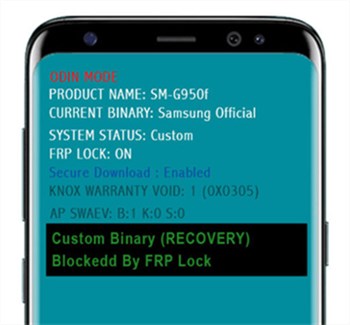
Unlock Custom Binary Blocked by FRP Lock
What Is Binary FRP lock?
Before we talk about the fixes to custom binary blocked by FRP problem, we should first understand: what is custom binary blocked by FRP lock.
FRP is an abbreviation for Factory Reset Protection and FRP Lock. And this new feature introduced by Android was first used in Android 5.1. While you may be shocked or unable to understand why this feature was added, its purpose is to protect your phone. Because this safeguard in Android phones can prevent unwanted software tampering and factory resets from taking place without the authorization of the original owner.
Why Is Custom Binary Blocked by FRP Lock?
Then, why you face the custom binary blocked by FRP lock issue? As we said, it is protection for your device. As a result, Binary Custom Blocked by FRP Lock frequently arises after you have reinstalled an AndroidOS or modified other critical internal settings on your phone. If you have changed the Stock Firmware, you will encounter this error.
FRP Lock appears to suggest the presence of a previously signed-in Google ID and Password, which must be entered again to activate the phone once it has been reset and when you start setting up your phone again.
Then, how to fix custom binary blocked by FRP lock Samsung? Although there has been a lot of discussion about this problem and some methods are given to bypass/remove this type of problem, you may not know which one is really helpful. For the sake of readers’ convenience, we’ve signed up for a Samsung smartphone and tested them one by one. In the following we summarizer helpful techniques that can assist you in resolving the issue when it occurs on your Samsung mobile.
Fix Custom Binary Blocked by FRP Lock via Android Toolkit [Best]
There are many solutions available for custom binary blocked by FRP lock, but not all of them work. Therefore, in this part, we will first introduce a method with the highest success rate to fix Samsung custom binary blocked by FRP. That is to use the one-stop Android Phone Tookit – DroidKit to remove or bypass FRP lock from your Samsung smartphone. Let’s have a look at some of the dedicated features of this tool:
* 100% Clean & Safe
- Remove FRP lock/Google account verification only with a few taps on buttons.
- You don’t need to enter the password to delete your Google account.
- Only a few minutes are needed. You will never wait for too long.
- Covers all Samsung series, like Samsung J5/J2/S7, etc. And the most recent Android OS 12/13 is also supported.
- The app can also unlock the Android password, pattern, PIN, and even the fingerprint lock.
- 100% Secure removing and unlocking operations. No data leakage will happen.
Now you can follow the steps below to fix custom binary blocked by FRP lock.
To Remove FRP Lock on Samsung :
Step 1: Launch the DroidKit app on your PC or Mac. Then, select FRP Bypass.

Bypass FRP Lock in DroidKit
Step 2: Connect your phone to your PC or Mac and then press the Start button.
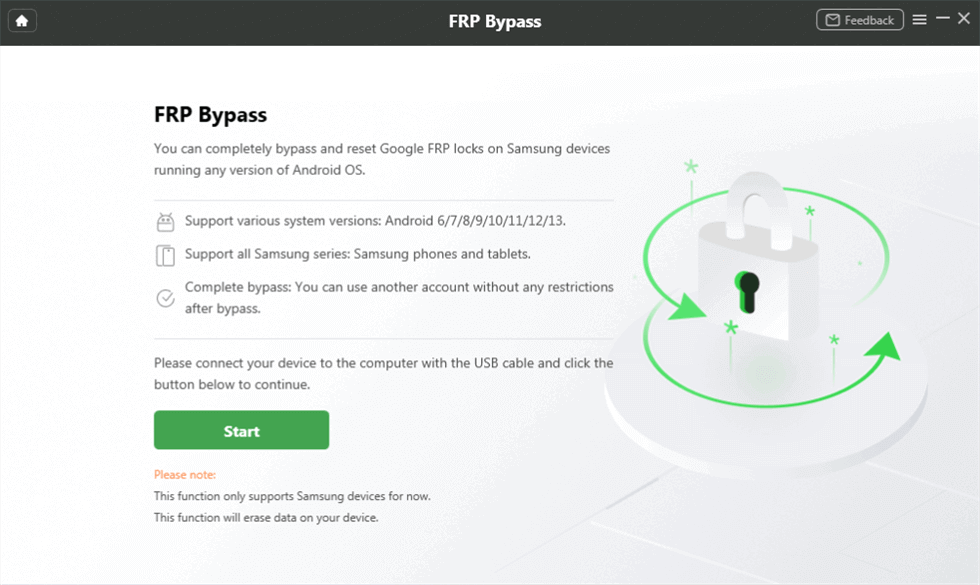
Connect your Device and Start
Step 3: When the configuration file is prepared, tap on Start to Bypass.
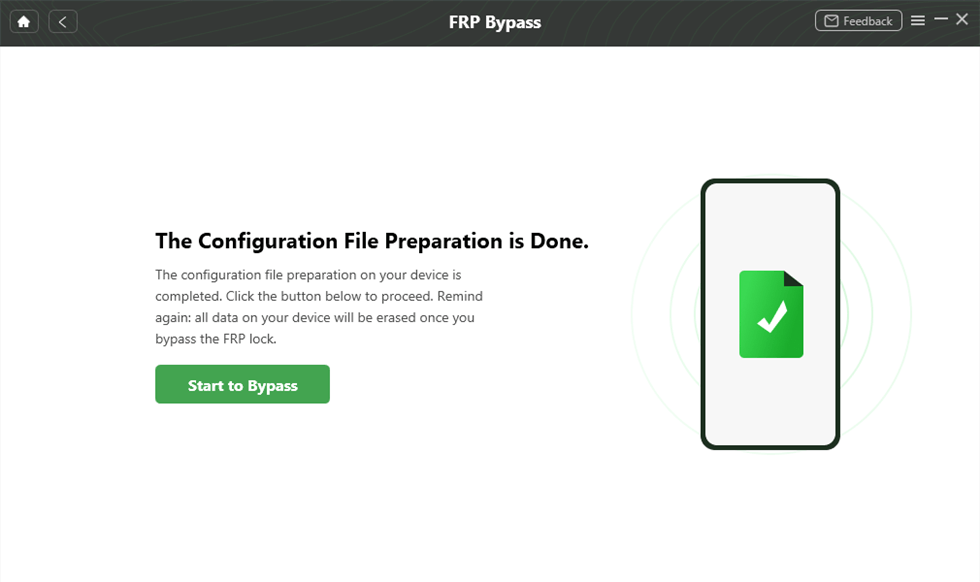
Click Start to Bypass
Step 4: Find out what version of Android your phone is running from the Recovery Screen, then select the matching version from the list under Select your Android system version.
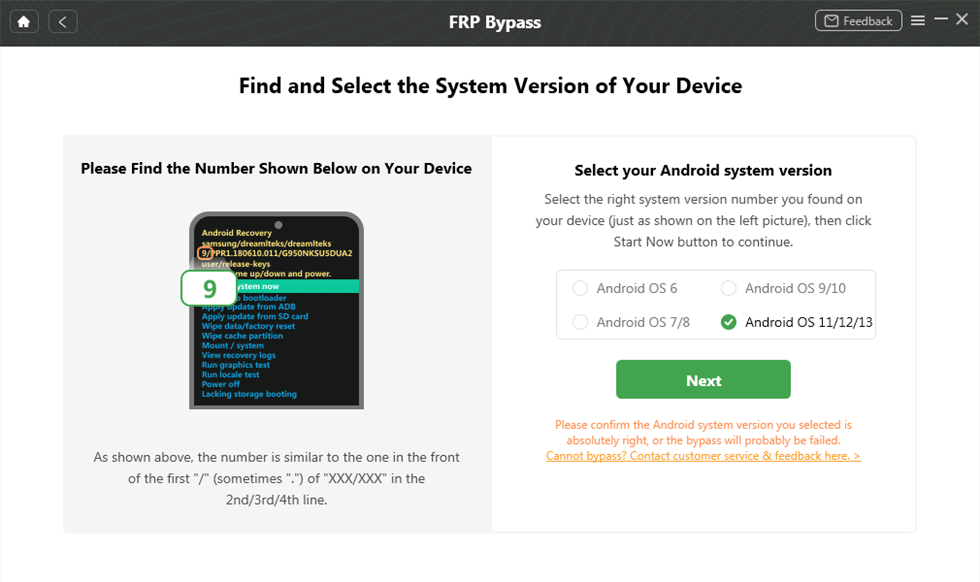
Select Android System Version
Step 5: F ollow the on-screen instructions to finish corresponding settings. Once finished, DroidKit will start bypassing immediately.
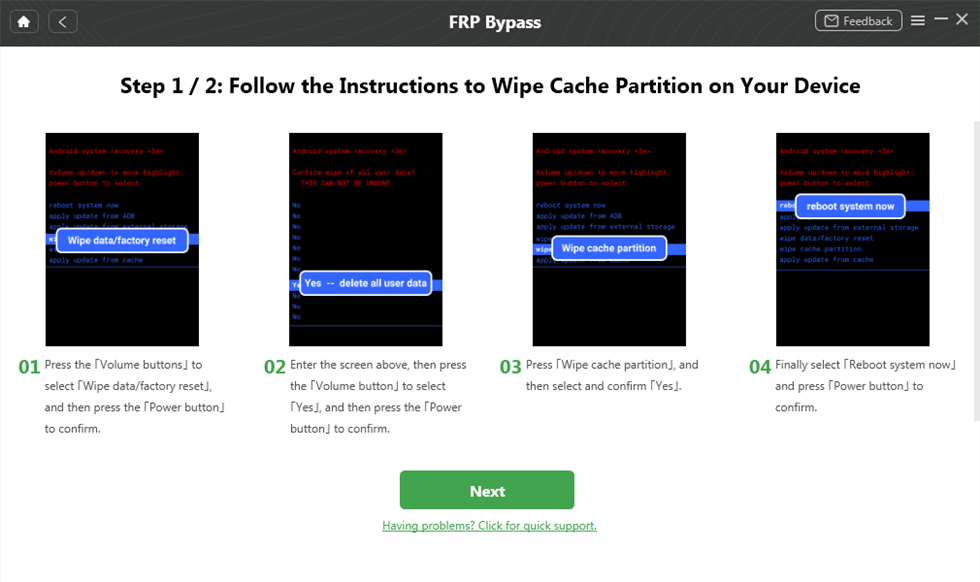
Wipe Cache Partition
Step 6: Later, the Google FRP lock is successfully removed and your phone will be restarted automatically.
Remove FRP Lock on Samsung [Video Tutorial]
* 100% Clean & Safe
Fix Custom Binary Blocked by FRP Lock via Force Restart
For most Android-related issues, a force restart has shown to be a very effective solution, and the displayed error message will prevent you from launching the device normally. As a result, force restart should be your first solution to fix custom binary blocked by FRP lock S7 or other Samsung series.
To do so, follow the below steps:
Step 1: Hold down the Power and Volume Down buttons for 5-7 seconds.
Step 2: Finally wait, till the device reboots.
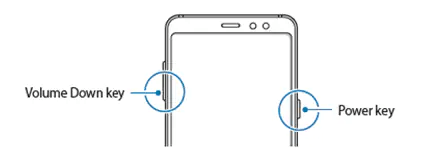
Reboot the Samsung Phone
This time, the custom binary message is not expected to appear. However, if it does, proceed to the next method.
Fix Custom Binary Blocked by FRP Lock via Factory Reset
If you have restarted your device but still found it is blocked by FRP lock, then you can try to factory reset your phone. A factory reset with recovery mode on your phone is also useful to bypass/remove the FRP Lock error. So just follow the guide below to fix custom binary blocked by FRP lock issue.
Step 1: Long press the Power on/off, home, and volume up buttons at the same time and wait for a screen with numerous options to appear.
Step 2: Now, scroll down with the degree Down key and select Wipe data/factory reset using the On/Off button.
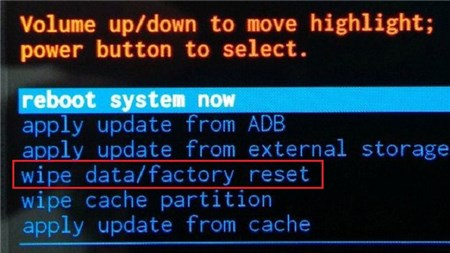
Wipe Data and Factory Reset your Device
Step 3: Now move to Yes – delete all user data to confirm to reset Samsung, and wait patiently for the process to complete and your phone to restart normally.
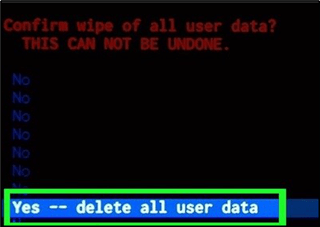
Confirm to Delete All User Data
Note: When we conduct a factory/hard reset, we will lose all of your data and settings stored on the phone. When the technique is finished, be prepared to reset your phone from scratch.
The issue is not meant to appear after the factory reset. But if it does, go to the next solution, which is explained below.
Fix Custom Binary Blocked by FRP Lock via Odin
Som eusers also ask: Does Odin Remove FRP Lock? Yes, you can use Odin to fix custom binary blocked by frp lock J5/J2 or other Samsung phone models. If the previous approaches failed to resolve the error, you must attempt this one. Using Download/Odin mode is a really effective method that has proven to be very effective nine times out of ten. So, let’s go over the steps to fix custom binary blocked by FRP lock problem.
Step 1: Download the latest version of Odin and then download the Stock firmware for your device.
Step 2: Next, put your android device into the Download Mode. Once you see the download screen, use the Volume Up button to continue. Use Volume down to cancel.
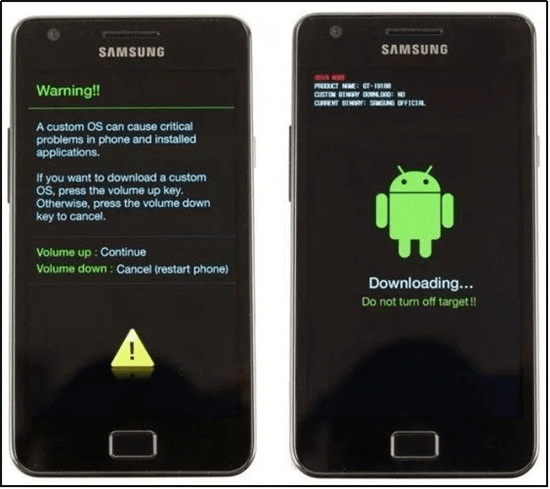
Enter Download Mode
Step 3: Now, run Odin and tap on Run As Administrator.
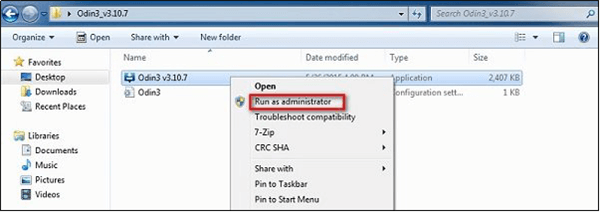
Run Odin as Administrator
Step 4: The Odin window will then open, and you will need to connect the device using the USB cord.
Step 5: Odin will quickly recognize the device and display it in its window.
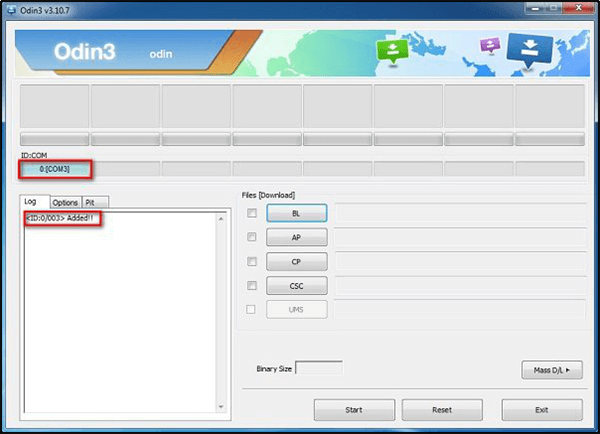
Samsung is Detected
Step 6: Then, choose the appropriate file types from the downloaded firmware by clicking on AP, CP, and CSC.
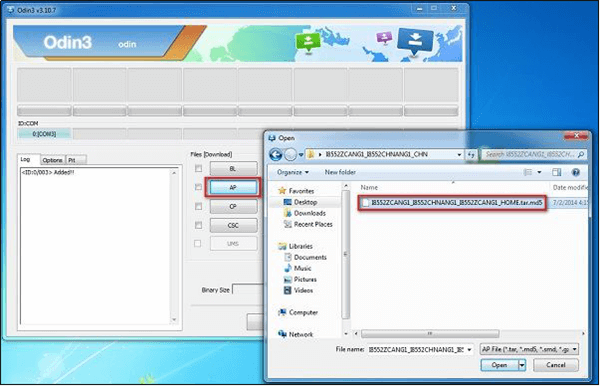
Step 7: When the files are added, tap on Start to kick off the process.
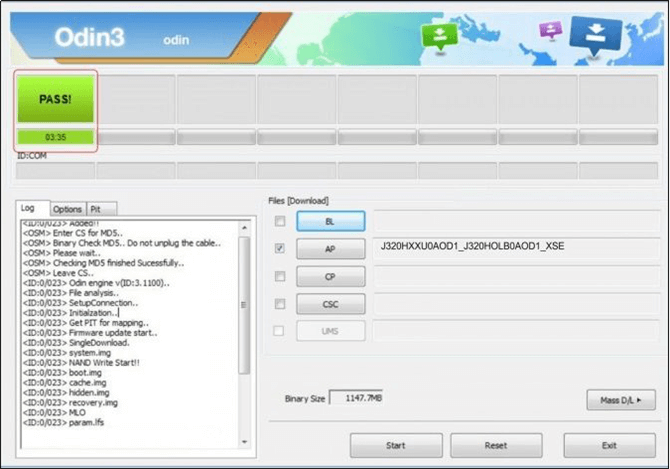
Odin Shows Pass Message
Step 8: Odin will display the Pass message after the procedure is completed, and the phone will reboot.
Bonus Tip: You may be interested in this guide on Odin mode – How to Fix Android Stuck in Odin Mode >
The Bottom Line
These are the useful methods we have tested to fix the custom binary blocked by FRP lock issue. There are lots of solutionsto this problem, however, there is no assurance that they will assist you in resolving your problem. But with Droidkit, you can easily overcome this issue, no matter what Samsung phone model you use. So why not try DroidKit for free first? It will not let you down.
* 100% Clean & Safe
Joy Taylor
Senior writer of the iMobie team as well as an Apple fan, love to help more users solve various types of iOS & Android-related issues.
Custom Binary Blocked by FRP Lock, Here is the Real Fix
It is natural for the users to get shocked by the appearance of Custom Binary Blocked by FRP (FAP) LOCK. Most of the users don’t have a single clue about this message.
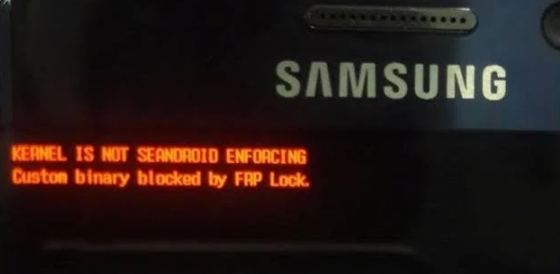
But if the error has appeared on your mobile, then you will not be able to boot the device. So, to fix this error, you need to either remove or bypass the said lock. Well, it’s easier said than done, but we have a few techniques that will help you, take a look.
Part 1. Why Does My Phone Say Custom Binary Blocked By FRP?
If Custom binary blocked by FAP lock has appeared, then it is related to an unauthorized binary file. Possibly, you have rooted our phone to flash new ROM/firmware or modification other internal settings on your phone, flashed a binary file on your smartphone, and the device is preventing itself from booting as it has detected modified files.
Part 2. What Is Custom Binary Blocked By FRP Lock?
FRP means Factory Reset Protection. The Binary Custom Block by FRP Lock is a considerably new feature. It was first introduced with Android 5.1. This is a protective function, designed to ensure that any unauthorized software is unable to tamper with your smartphone. And as the name says, it stops other people from Factory Resetting your mobile.
The FRP Lock error message will keep showoing on the screen no matter how many times we tend to restart your device.
Part 3. 100% Working Way to Fix «Custom Binary Blocked by FRP Lock» Error
How to fix Custom Binary Blocked by FRP? There are multiple fixes available for custom binary blocked by FRP Galaxy S6, but not 100% working. Here we highly recommended Tenorshare 4uKey for Android. It can 100% bypass the FRP lock without the Google account and password. The programs are equipped with multiple dedicated features, let’s have a look at them.
- The program is capable of unlocking the Android password, pattern, screen PIN and even the fingerprint lock.
- Efficiently get rid of Google account verification (FRP) on Samsung.
Besides all these, 4uKey for Android is equipped with a very convenient operating procedure, where you will be using its Remove Google Lock (FRP) feature to unlock the device. Here’s how to fix custom binary blocked by FRP;
So, download and install 4uKey on your computer and connect the Samsung mobile to it via USB cable. Now, run the program and select ‘Remove Google Lock (FRP) from the main interface.
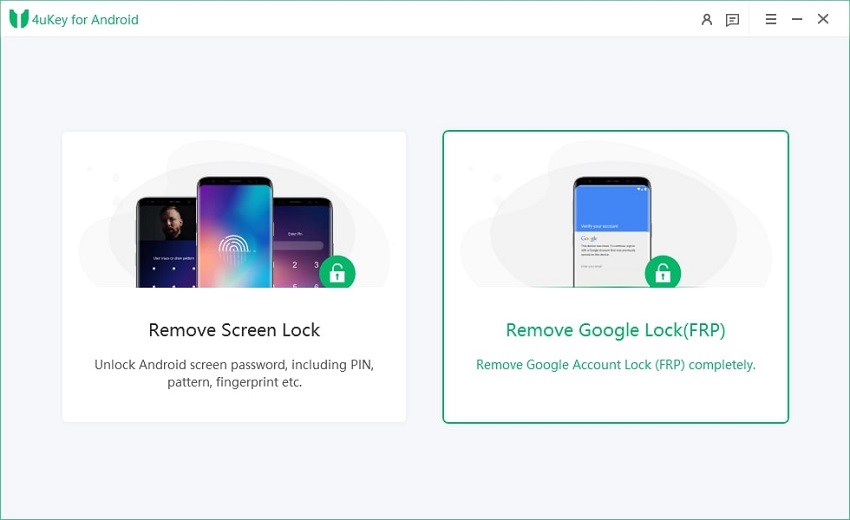
In the following page, select the version for your Samsung mobile system. Click ‘Send Notification’ to proceed.
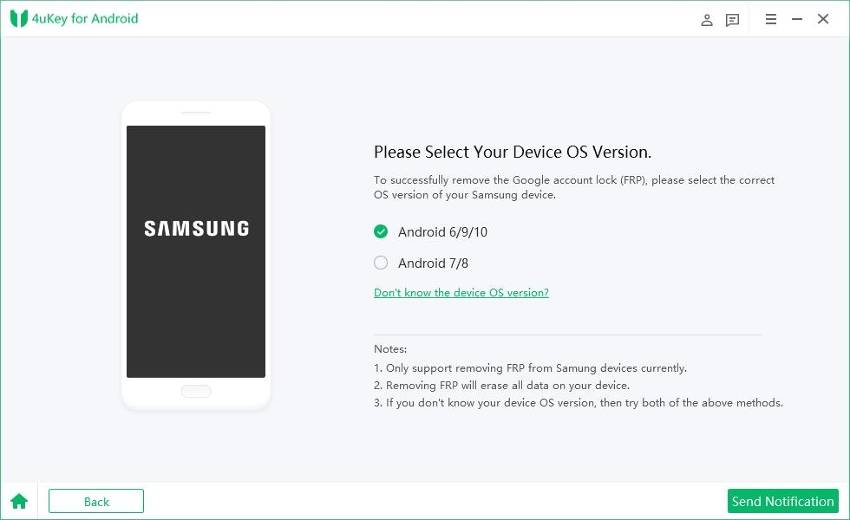
Now, you have to confirm the device info and notice, then click ‘Send Notification’.
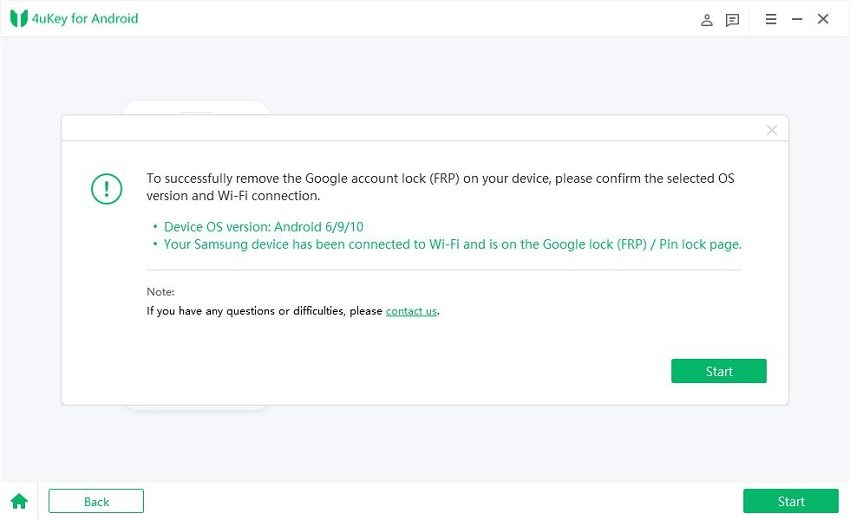
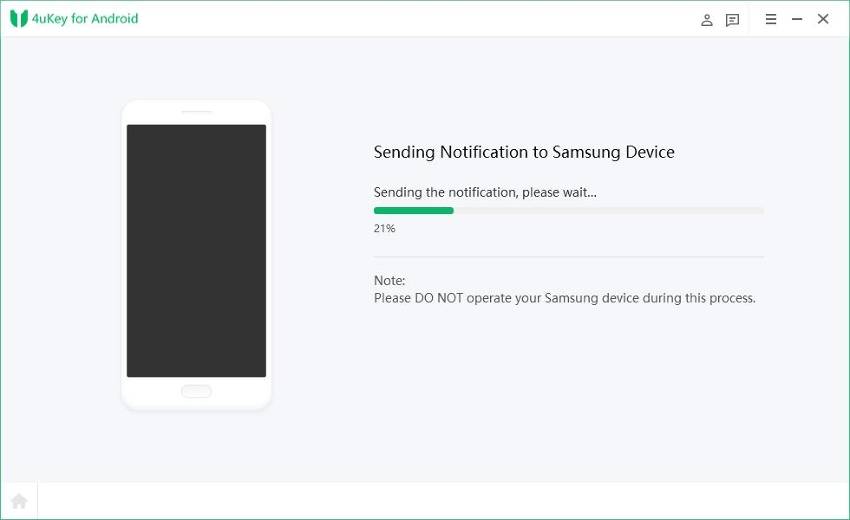
After that, 4uKey for Android will send a notification to your device. Check it on your phone.
Once you receive the notification, tap on View and proceed to set up the Samsung device by following the on-screen guide carefully.
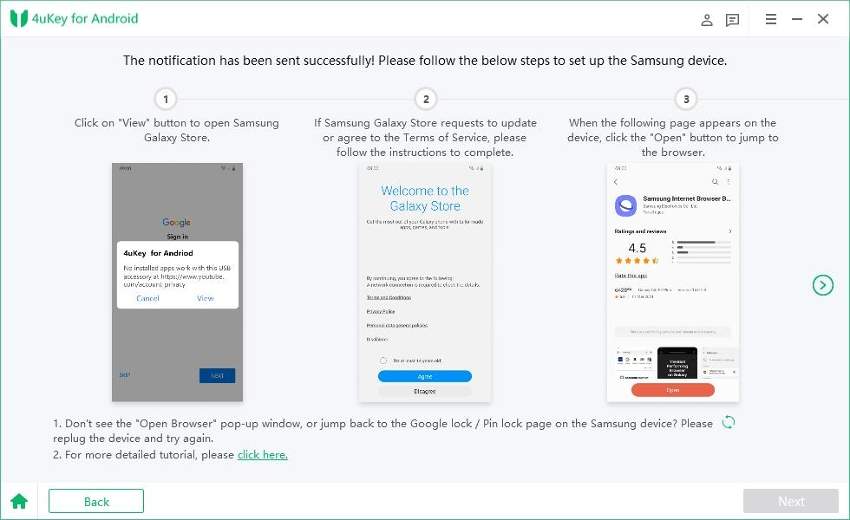
When all the steps are done, and the lock will be removed from your Samsung mobile.
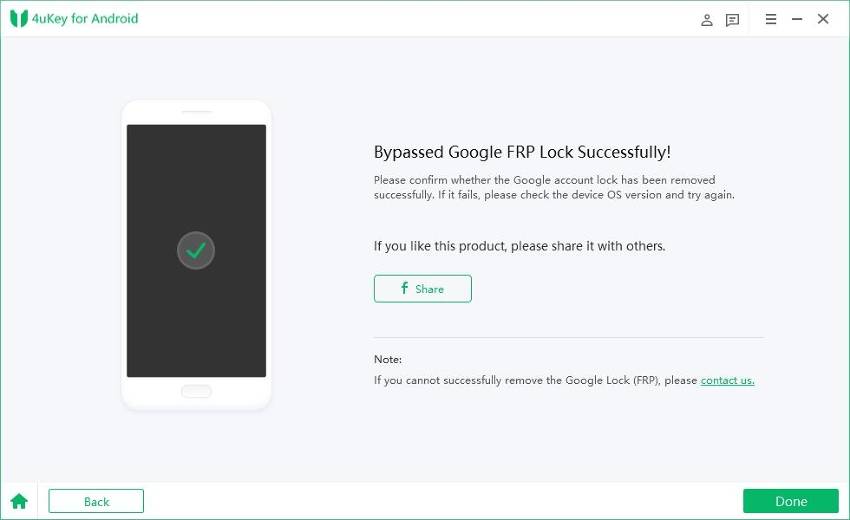
This is the most effective way to remove the FRP lock from Samsung mobiles, but there are other methods available too; you can check them out in the latter part of this article.
Part 4. Other Possible Ways to Bypass «Custom Binary Blocked by FRP Lock»
As discussed earlier, there are other ways to fix custom binary blocked by FRP lock Note 5. We have found 3 different methods, proven to be very effective. Let’s take a look;
1. Force restart your phone
How to fix custom binary blocked by FRP lock without computer? Well, for most Android related issues’ a force restart proved to be a very effective option, and the appeared error message will stop you from booting the device normally.
Step 1: Press and hold the Power button and the Volume Down button at the same time for 5-7 seconds.
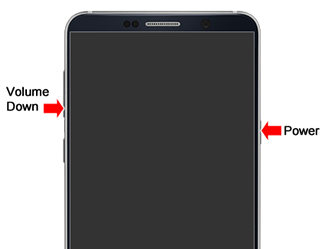
Step 2: Now wait, the device will reboot.
The custom binary message is not supposed to popup this time. But if it does, use the next procedure.
2. Wipe Data/Factory Reset in Recovery Mode
If force restart didn’t work, then you have to go for Factory Reset. The procedure is straightforward, let’s implement the following steps on your Samsung mobile;
Step 1: ress and hold the Power and Volume Up buttons together.
Step 2: After a few seconds, a screen will pop-up with multiple options.
Step 3: Now, you have to use your Volume keys to scroll down and select ‘Wipe Data/Factory Reset’ from the menu. After the option is highlighted, use the Power button to select the option.
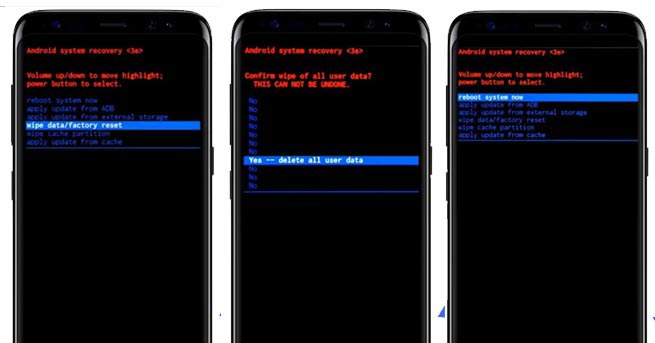
Step 4: Now, just wait for the completion of the process.
After the factory reset the error is not supposed to pop-up. But if it does, then use our last fix detailed below.
3. Flash Stock Firmware with Odin To Fix Custom Binary Blocked By FRP Lock S6
If the previous method were unable to get rid of the error, then you must try this solution. This is a very effective solution and 9 out of 10 times it has proven very effective. So, let’s check out the steps;
Step 1: Download the latest version of Odin on your computer.
Step 2: Then, you have to download the stock firmware for your device. So, provide the model number, country, and other details properly.
Step 3: After that, put the device into ‘Download Mode’. After the download screen appears, use the Volume Up button to continue.
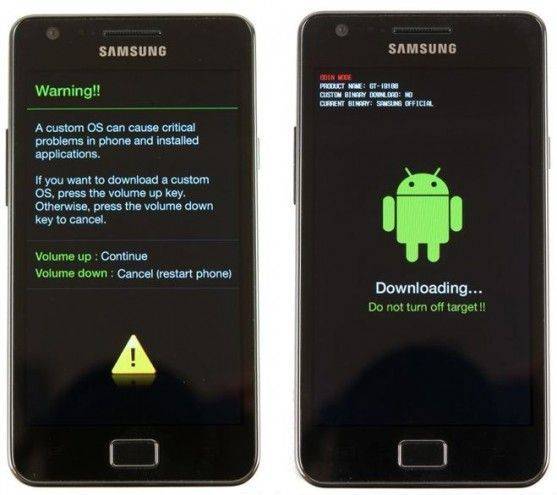
Step 4: Now, run Odin and select ‘Run As Administrator’.
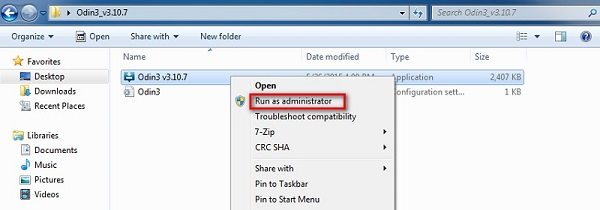
Step 5: Then the Odin window will open and connect the Samsung USB cable to connect the device.
Step 6: Odin will detect the device immediately and show it on its window.
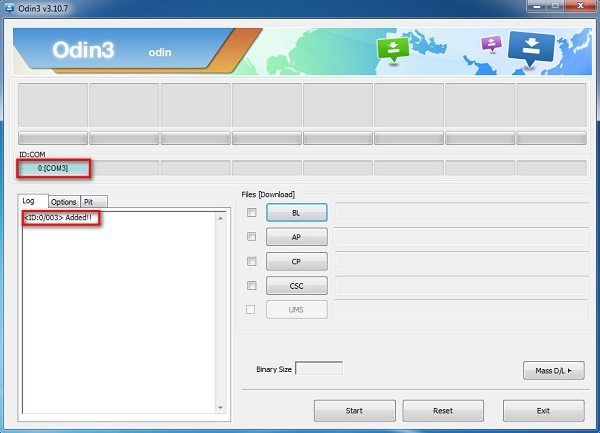
Step 7: Then, click on ‘AP’, ‘CP’ and ‘CSC’ and choose the respective file types from the downloaded firmware.
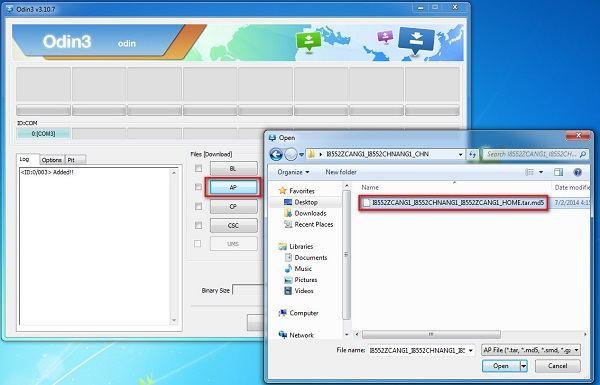
Step 8: After the files are added, click ‘Start’ to begin.
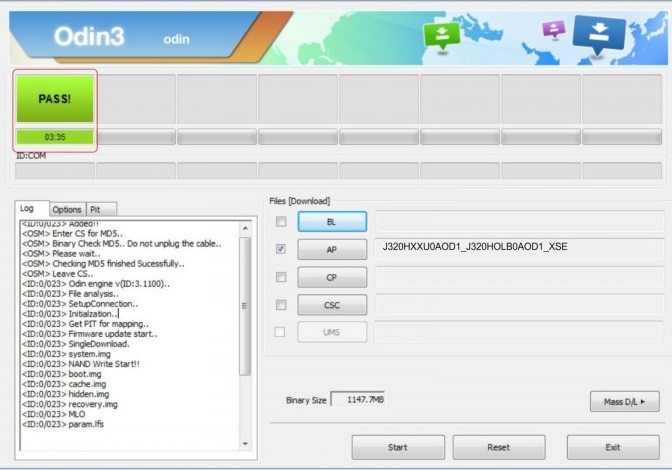
After the procedure is finished, Odin will show the ‘Pass’ message, and the phone will reboot.
Conclusion
Therefore, don’t get baffled if you are getting custom binary blocked by FRP lock on the screen. There is a solution available, and they are easy to use. But if you don’t want to take any chances, then use Tenorshare 4uKey for Android to bypass Google account lock on Android and fix custom binary blocked by FAP(FRP).
Fixed Custom Binary Blocked by FRP Lock
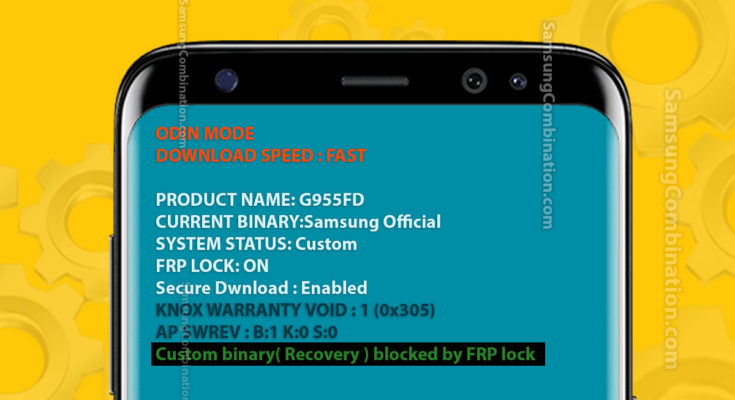
Fixed Custom Binary Blocked by FRP Lock Samsung. When we switch on our android phone and see “Custom Binary Blocked by FRP Lock” in red color at the top right of the screen. We would get confused and be uninformed about it. This type of error typically seems on the black screen when you flash a ROM software or root our device. but in the new devices, it will appease on the green screen.
All custom binary blocked issues.
- Boot – Custom binary ( boot ) blocked by FRP Lock
- Recovery – Custom binary ( Recovery ) blocked by FRP Lock
- Secure boot – Custom binary blocked by secure boot recovery IMG
- Installment balance – Custom binary boot blocked due to remaining installment balance
- All binaries are not allowed to be flashed due to kg locked
- The kernel is not Seandroid enforcing custom binary blocked by fap lock
- Recovery is not Seandroid Enforcing
- Could not do normal boot invalid kernel length
Custom binary ( boot ) blocked by FRP Lock
It’s necessary to bypass/remove this type of FRP lock to acres your phone and use it smoothly. Given below are ways to overcome or fix the Custom Binary Block error. which might be adapted to bypass/remove it. Also, read on to find out a lot of regarding this type of error message and causes for its occurrence.
fix Custom binary ( boot ) blocked by FRP Lock
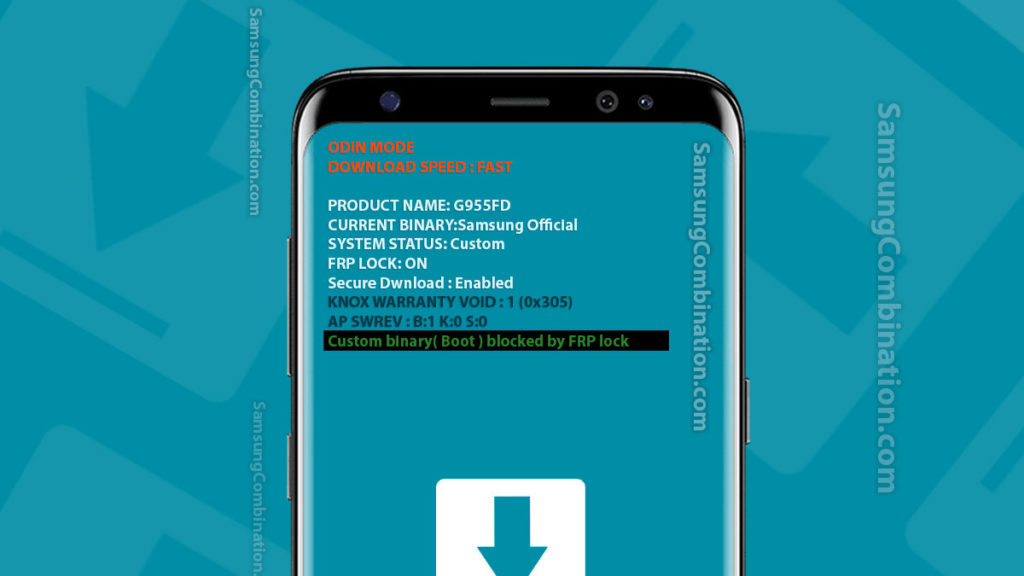
Can fix custom binary boot blocked by FRP Lock?
Recovery – Custom binary ( Recovery ) blocked by FRP Lock
Some time FRP Lock shows the previously signed in Google ID and password that must be signed in again to activate the android phone after we have reset your phone.
The Google Account is going to be asked for once we have a try to begin setting up your phone again. We are able to see this type of error if we’ve got changed the Stock firmware.
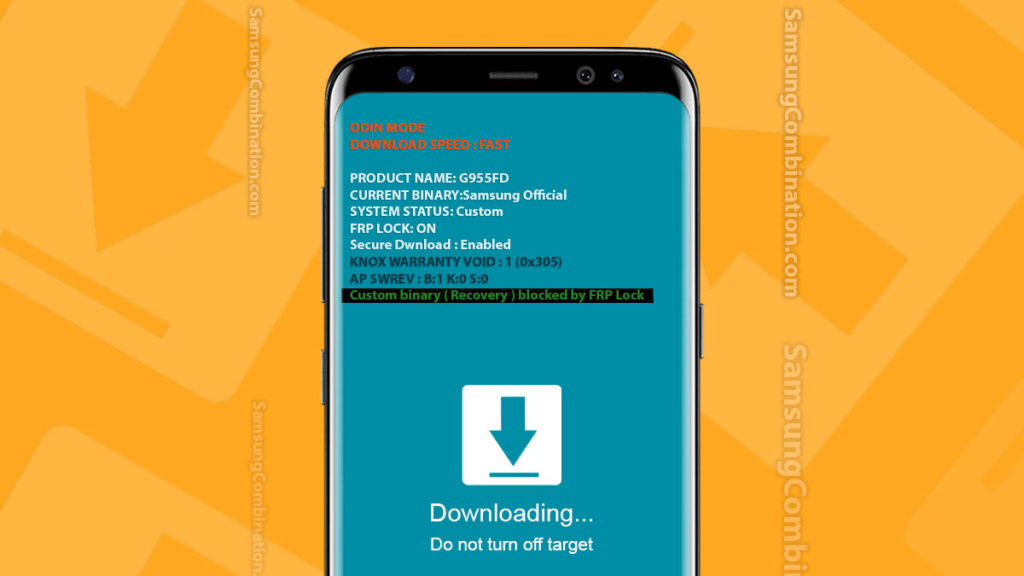
custom binary ( recovery ) blocked by FRP Lock
Secure boot – Custom binary blocked by secure boot recovery img
Custom binary blocked by secure boot recovery IMG may be a lot of talk about the issue and therefore, here are ways to bypass/remove this type of disorder. For the convenience of readers.
We’ve got signed to a Samsung smartphone and every one technique listed below is helpful in solving the problem.
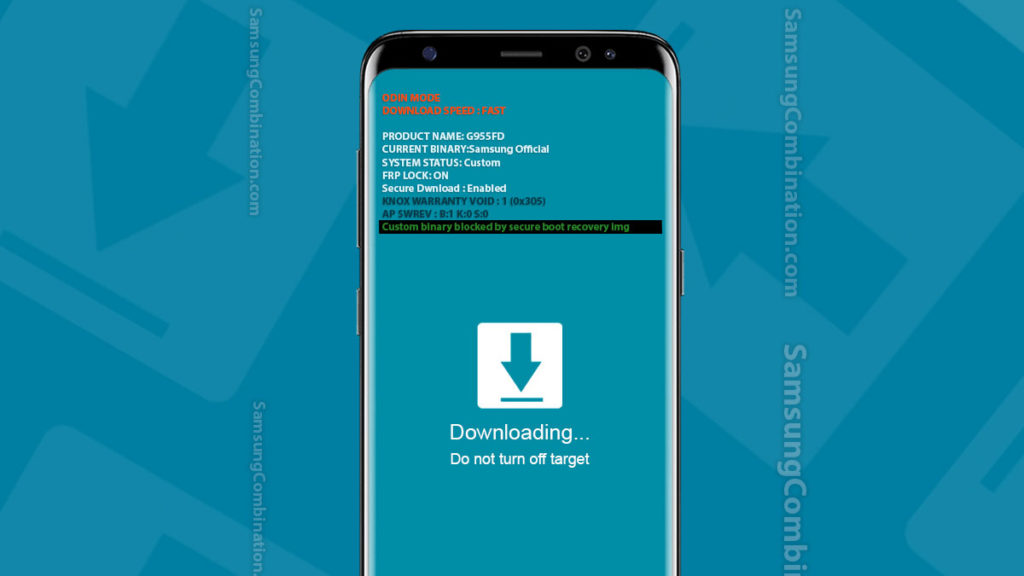 custom binary blocked by secure boot recovery img
Custom binary boot blocked due to remaining installment balance
Some time we may face Custom binary boot blocked due to remaining installment balance. This also an issue in samsung mobile phone.
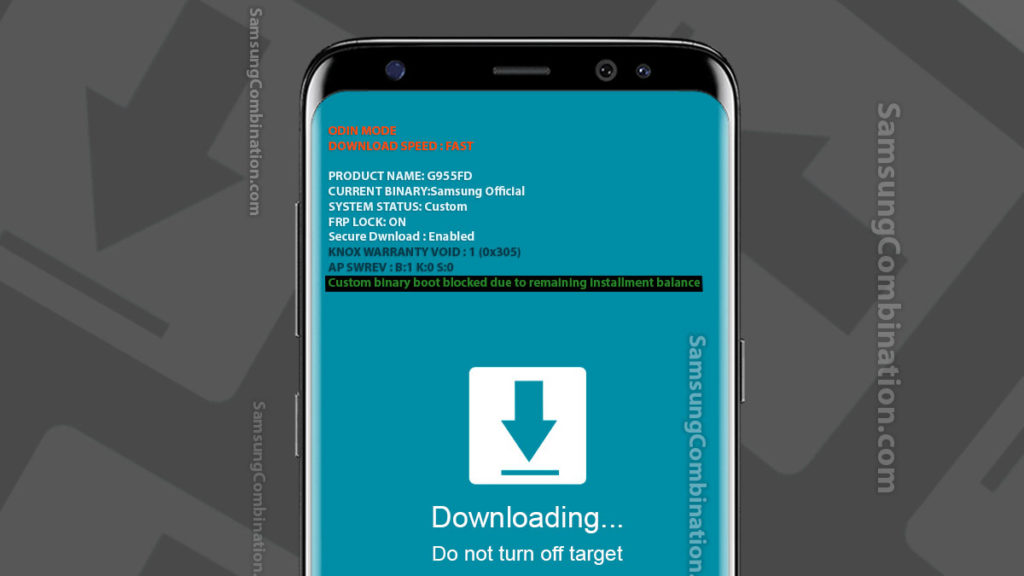 custom binary boot blocked due to remaining installment balance
All binaries are not allowed to be flashed due to kg locked
This kind of protecting security in android phones doesn’t let unauthorized software tampering and factory data reset without the original user permission. Hence, this type of problem typically happens after we have rooted our phone to flash new ROM/firmware or modification other internal settings on your phone.
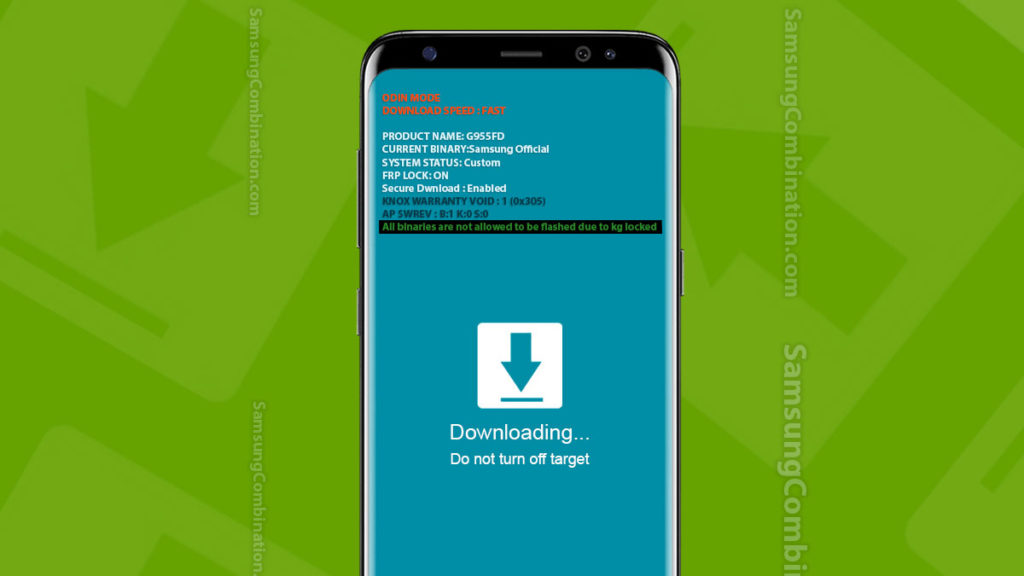
all binaries are not allowed to be flashed due to kg locked
FRP Bypass Tools to remove Google Account Verification (Recommended).
1 Method: what’s “Custom Binary Block by FRP Lock” Error?
2 Method: the way to Remove “Custom Binary Blocked by FRP”
3 Method: what’s “Custom Binary Block by FRP Lock” Error?
What’s “Custom Binary Block by FRP Lock” Error?
FRP stands for Factory Reset Protection and, higher known as Binary Custom Block by FRP Lock, and maybe a comparatively new security feature seen for the first time in android 5.1.
The FRP Lock error message can continue to show on the screen no matter how many times we tend to restart your device.
Follow the directions given following section to bypass/remove Binary Custom Block by FRP Lock error in easy and effective steps.
Fixed Custom Binary Blocked by FRP Lock
- Restarting your Samsung mobile forcefully is simple and doesn’t take a lot of your time. It fixes temporary software errors and stops all background operations running within the background. All we want to try and do is:
- Press the Power On/Off button and Volume Down button at the same time for 5-7 seconds as shown below.
- Wait for 2 minutes for the phone to reboot and start again.
- See that the Custom Binary Block error message doesn’t pop-up this kind of your time.
- However, if the matter persists even now, consider the following step.
- In case the Odin failed to flash Samsung Device or show you an error like Please get the approval to use the factory binary (Pit). You can also fix it. you need to select an extra setting on Odin and then tick on Nand flash. It will fix the error temporarily.
Factory reset in Recovery Mode
- Another helpful way to bypass/remove the FRP Lock error. It is to perform a factory reset on your phone. This type of will is enforced by booting into the Recovery Mode. To do so:
- Long press the power On/Off, Home and Volume Up button along and was for a screen with multiple choices appear before you.
- Now use the degree Down key to scroll down and choose “Wipe Data/Factory Reset” using the ability On/Off button as shown within the screenshot below.
- Wait with patience for the method to get over and for your phone to restart normally.
- Note: we are going to lose all of your data and settings stored within the phone once performing a factory/ hard reset. Be ready to set-up your phone from scratch once the method is over.
Flash Stock firmware with Odin
- If the ways explained above don’t remove/bypass the Binary Custom Block error. And your phone refuses as well normally, there’s only 1 factor left to try and do, i.e. flashing the stock firmware on your phone once more.
- This kind of appears like a tedious task however it solves the matter nine out of ten times. It positively values a strive. Carefully follow the instructions given below to flash stock firmware on your Samsung phone. don’t skip any of the steps.
- Firstly, We are going to download the newest version of Odin. We are able to have a go at it from pangu.in.
- Next, download the stock firmware for your device by getting into the proper model number, country name, and different details from combinationfirmwrae.com.
- Now, enter download mode Samsung phone by pressing the Down, Home, and On/Off button along for about 3-4 seconds. Once the download mode screen ( download logo) appears, press the Volume Up button to continue.
- Now launch Odin on your computer. Right-click and choose “Run as Administrator”.
- we can now see that Odin window will open before you.
- In this quite step, use an inspired Samsung USB Cable to attach your phone to the computer.
- Immediately, we are going to notice that Odin will recognize your phone. Add it to its main window on the computer.
- Now click on “AP”, “CP”, “CSC” and choose their individual file from the firmware. We have a tendency to downloaded previously.
- Once all file sorts are side, click on the “Start” button to start flashing.
- When the flashing method is over, the Odin window can show the “Pass” message and your phone will begin to START in normal condition.
FAQ – Custom binary blocked by FRP Lock
No, it is not possible to fix custom binary blocked by FRP lock without computer because it requires a Samsung Odin.
we can fix custom binary ( boot ) blocked by FRP Lock while installing firmware file. his issue occurs when you install Samsung with custom ROM.
After flash recovery image you may see custom binary recovery blocked by FRP Lock that is mean you have brick the system recovery you need to install recovery again.
this is a Samsung security for those customers who purchase Samsung mobile on installment. they have to face custom Binary blocked due to remaining installment payment?
You can fix custom binary blocked by cc mode Samsung S8 or j5 by flash stock firmware. this situation occurs when you root your device. this will work on S6 s7 edge j5 S8 S9 j7 prime and Note 9
You can remove custom binary blocked by FRP lock j7 prime and j7 pro but above steps. this will work on s7 edge j5 S8 S9 j7 prime and Note 9 You may also face all binaries that are not allowed to be flashed due to kg locked.
Yes, It is possible to turn off FRP lock on Samsung Note 9 S8 S9 or S7 edge after removing google account from the device. Go to settings and then account settings and delete all Gmail account from Samsung Note 8. it will turn off FRP lock on Samsung device.
In case you see custom binary blocked by secure boot recovery img in this case use Samsung four files to install Samsung firmware.
How to fixed Custom Binary Blocked by FRP Lock Youtube
In this video we have successfully Fixed Custom Binary Blocked by FRP Lock.
Conclusion:
So, the ways given above are amongst the simplest fixes to bypass/remove the Binary Custom Blocked by FRP Lock error message. Since FRP may be a protecting feature and prevents unnecessary resetting and meddling with the device’s software system,
It’s not very simple to upset however the techniques explained during this quite article build the task easy and simple.
These solutions are tried and tested by several users and therefore, we have a tendency to recommend them to the U.S. to bypass/remove the FRP Lock error.
Please don’t hesitate and make sure we have a tendency to try these steps to induce rid of Binary Custom Blocked by FRP Lock error message.
Related Posts
After update touchscreen not working
May 11, 2020 May 11, 2020
The phone is not running Samsung’s official software
April 19, 2020 October 28, 2020
How to Use Samsung Odin Download – Complete Guide
August 14, 2019 May 31, 2021
About admin
My name is Mohd Azam i have complete M. COM. from IGNOU in 2012 with first division. I have developed many android applications and i am also founder of SamsungCombination.com. This website is related for technology news, Reviews, Android Update, upcoming features, i and my team always work for the latest news and technology. We have great news about iPhone, Samsung , Xiaomi Mi, OPPO, VIVO, RealMe, Asus, HTC, LG, Motorola, Gionee, OnePlus, Sony Xperia, Nokia, Huawei Honor and many more. In starting i was lover of technology till now i am doing same thing. But now technology is updating very fast. So we are also working with full considerations.
3 Comments on “Fixed Custom Binary Blocked by FRP Lock”
Can I just say what a relief to find someone who actually knows what theyre talking about on the internet. You definitely know how to bring an issue to light and make it important. More people need to read this and understand this side of the story. I cant believe youre not more popular because you definitely have the gift.
Wow! Thank you! I permanently needed to write on my blog something like that. Can I take a portion of your post to my blog?