Как исправить ошибку «Не удалось запустить приложение, потому что не удалось инициализировать плагин платформы Qt» в Windows?
Проблема: как исправить ошибку «Не удалось запустить приложение из-за того, что не удалось инициализировать подключаемый модуль платформы Qt» в Windows?
Привет. Недавно после обновления Windows мне не удалось заставить OneDrive работать. Каждый раз, когда мой компьютер загружается, я получаю сообщение об ошибке «Не удалось запустить приложение, потому что не удалось инициализировать подключаемый модуль платформы Qt». Есть какие-нибудь советы, как решить эту проблему? Заранее спасибо.
- Способ 1. Скопируйте соответствующую папку в другое место
- Способ 2. Проверить системные файлы на наличие повреждений
- Способ 3. Попробуйте чистую загрузку
- Способ 4. Переустановите указанное приложение
- Метод 5. Удалите проблемное приложение через командную строку
- Защитите свою конфиденциальность в Интернете с помощью VPN-клиента
- Инструменты восстановления данных могут предотвратить безвозвратную потерю файлов
- использованная литература
Операционная система Windows состоит из множества компонентов — некоторые из них уже предустановлены, а другие необходимо реализовать вручную. Например, Node.js является одним из сторонних компонентов, которые вы можете увидеть практически на любом компьютере с Windows.
Qt основан на C ++ [1] фреймворк, предназначенный для создания приложений на Windows, Android, Linux, [2] и другие платформы. Хотя это не язык программирования сам по себе, приложения, основанные на нем, должны иметь установленную платформу на своих машинах, чтобы иметь возможность работать. К сожалению, эти зависимости могут создавать определенные проблемы по той или иной причине.
Когда что-то пойдет не так с платформой Qt, пользователи могут получить сообщение об ошибке «Не удалось запустить приложение, потому что не удалось инициализировать подключаемый модуль платформы Qt».
Эта ошибка может затронуть несколько приложений, включая такие игры, как Apex Legends, [3] автономные компоненты ( Dllhost ) или часто используемые приложения, такие как OneDrive. Последний находится на каждом компьютере с Windows и является чрезвычайно полезным приложением, обычно используемым для резервного копирования системы / файлов или дополнительного хранилища для пользовательских файлов.
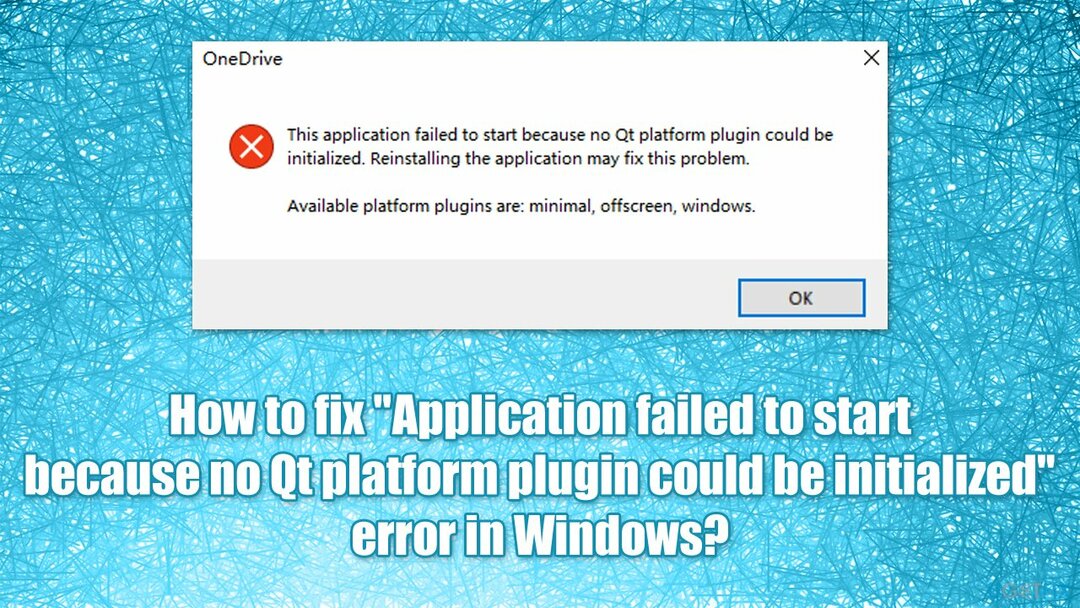
Вот полное сообщение, которое пользователи получают при обнаружении ошибки (текст сообщения об ошибке может отличаться в некоторых случаях):
Это приложение не удалось запустить, потому что не удалось инициализировать подключаемый модуль платформы Qt. Переустановка приложения может решить проблему.
Доступные плагины платформы: минимальные, закадровые, окна.
Хотя может показаться, что включение или установка платформы Qt исправит ошибку «Не удалось запустить приложение, потому что не удалось инициализировать подключаемый модуль платформы Qt», это не так. Однако переустановка приложения, у которого возникают проблемы с обнаружением плагина, может помочь.
К сожалению, это не всегда возможно, поскольку пользователи сообщали, что при попытке сделать это они получили ошибку «Не удается найти». Причина этого в том, что более новая версия приложения может уже присутствовать на устройстве, поэтому удаление невозможно. Есть способ обойти это.
В некоторых случаях причины ошибки могут быть не связаны с упомянутыми выше. Например, повреждение системного файла также может вызвать эту ошибку, поэтому мы рекомендуем попробовать запустить сканирование с помощью Reimage Стиральная машина Mac X9 программное обеспечение для ремонта, которое может автоматически устранять основные проблемы Windows. В противном случае используйте следующие методы, которые должны помочь вам навсегда решить эту ошибку.
Способ 1. Скопируйте соответствующую папку в другое место
Для восстановления поврежденной системы необходимо приобрести лицензионную версию Reimage Reimage .
- Нажмите Win + E на клавиатуре, чтобы открыть Проводник
- В левой части окна выберите Этот ПК
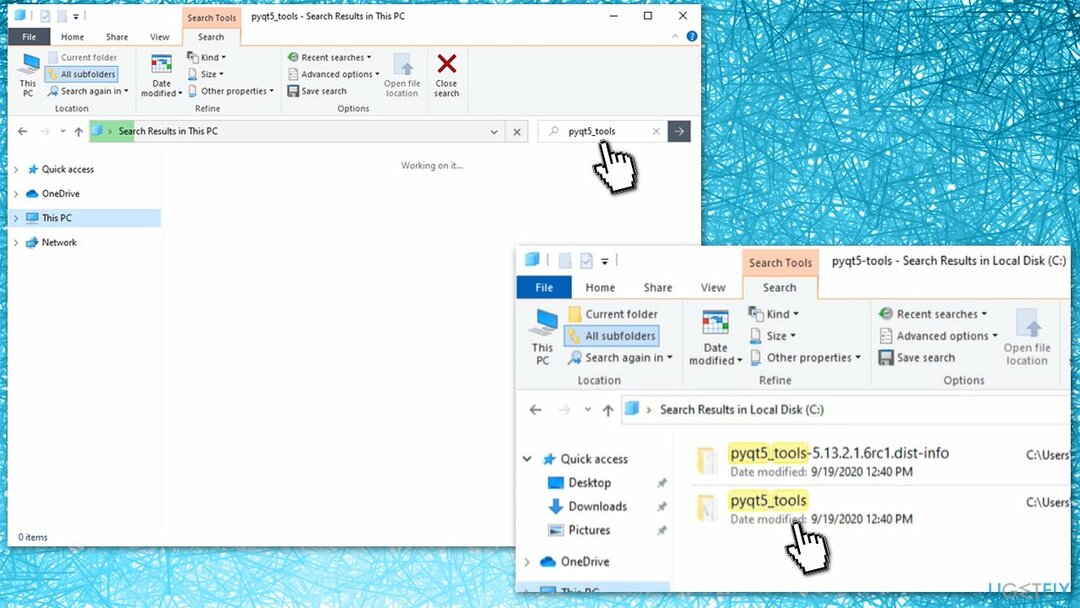
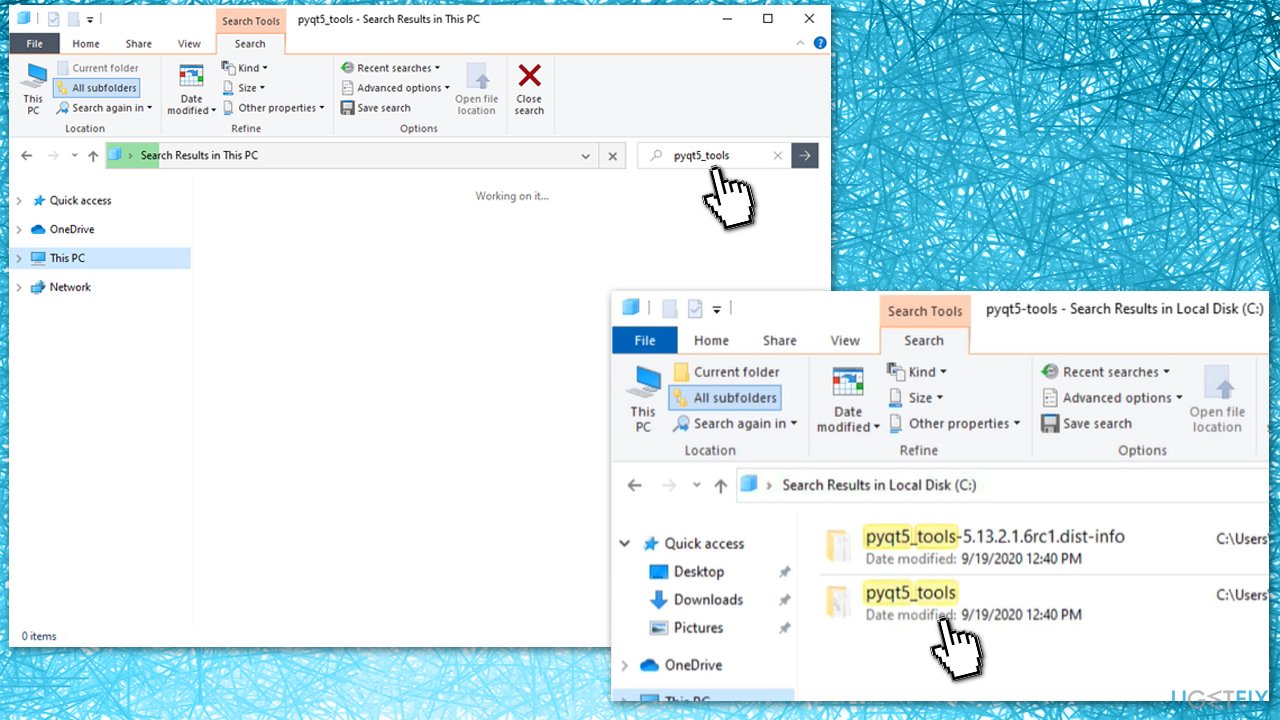
- В поле поиска в правом верхнем углу введите pyqt5_tools и ударил Входить
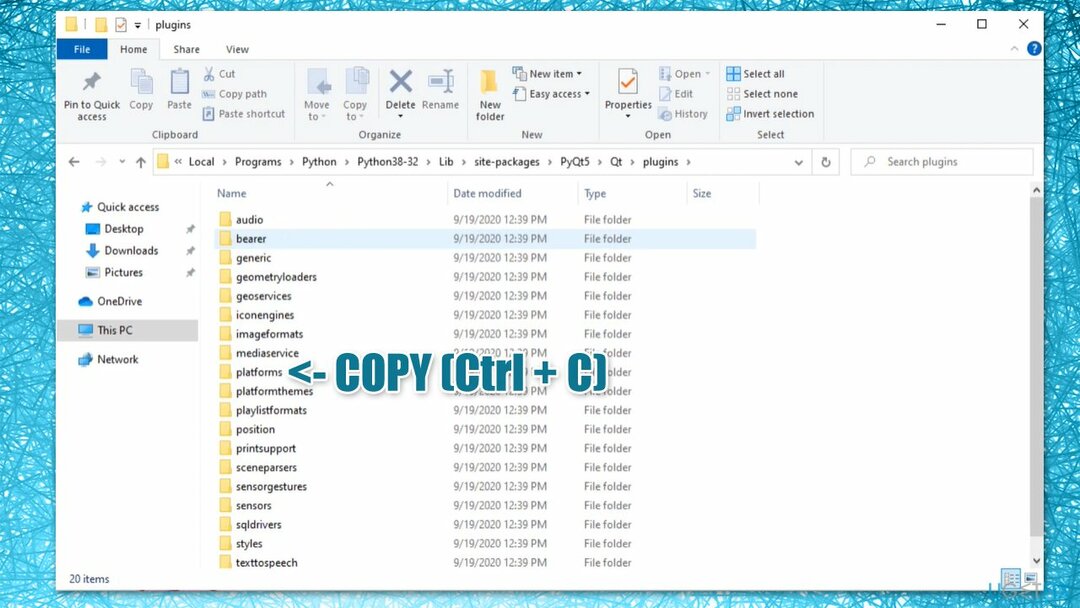
- Когда поиск будет завершен, щелкните правой кнопкой мыши на pyqt5_tools папку и выберите Расположение открытой папки
Способ 2. Проверить системные файлы на наличие повреждений
Для восстановления поврежденной системы необходимо приобрести лицензионную версию Reimage Reimage .
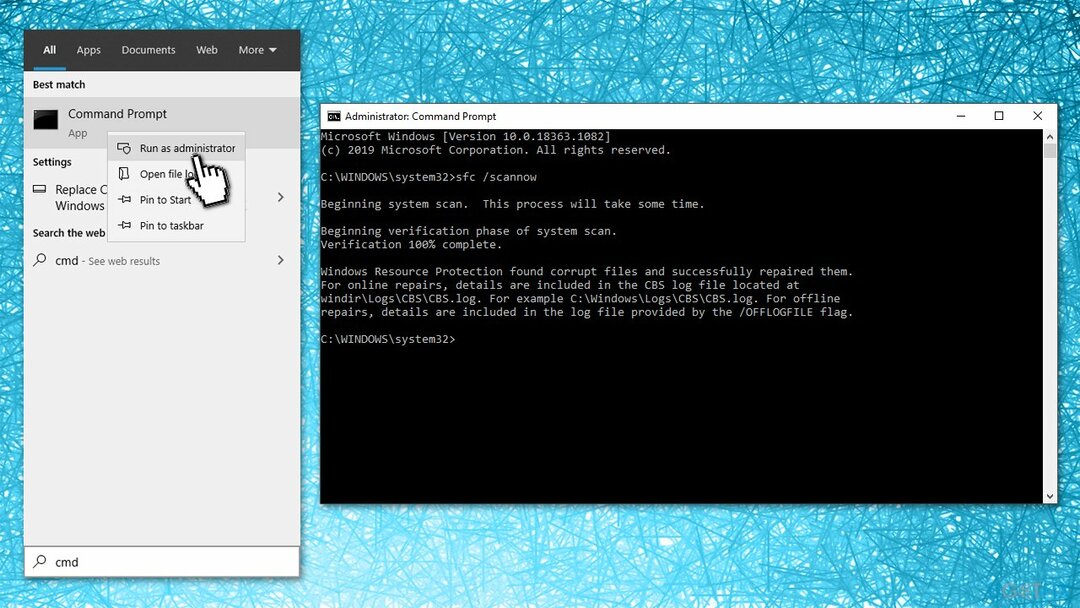
- Введите cmd в поиске Windows
- Щелкните правой кнопкой мыши на Командная строка и выберите Запустить от имени администратора
- Здесь введитеsfc / scannow и нажмите Входить
Способ 3. Попробуйте чистую загрузку
Для восстановления поврежденной системы необходимо приобрести лицензионную версию Reimage Reimage .
- Тип msconfig в поиске Windows нажмите Входить
- Перейти к Услуги вкладка
- Проверить Скрыть все службы Microsoft флажок и выберите Отключить все
- Перейти к Запускать вкладка и выберите Открыть диспетчер задач
- Здесь щелкните правой кнопкой мыши каждую запись и выберите Запрещать и закройте диспетчер задач
- Перейти к Ботинок вкладка, отметьте Безопасная загрузка и выберите Применить + ОК.
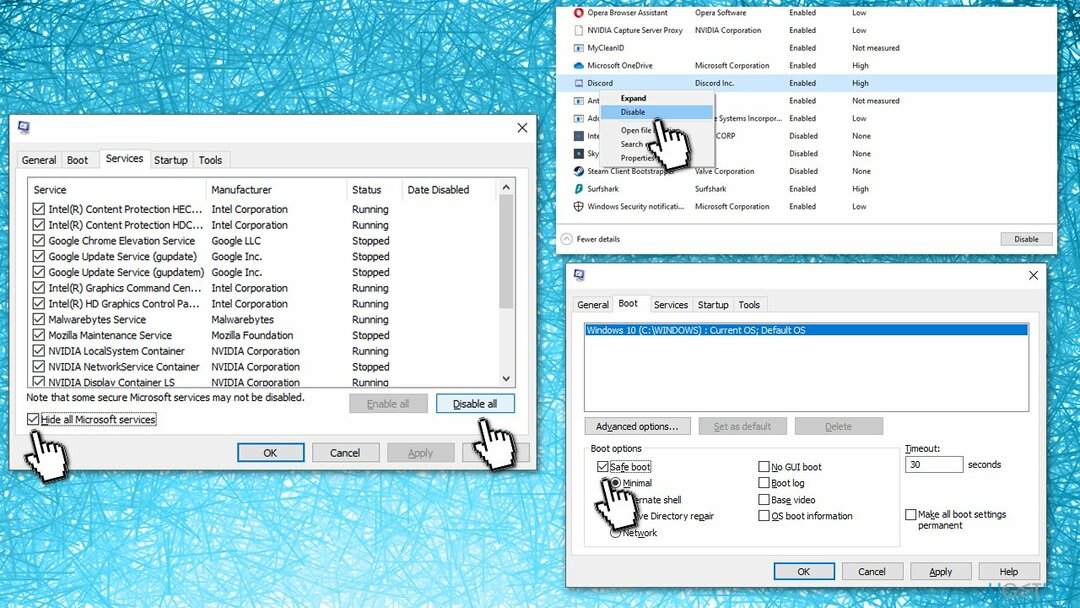
После загрузки обратно в Windows попробуйте запустить приложение, с которым у вас возникли проблемы. Если это решит вашу проблему, значит, виновато стороннее приложение. Чтобы исправить ошибку «Не удалось запустить приложение, потому что не удалось инициализировать подключаемый модуль платформы Qt», вам следует удалить все недавно установленные приложения и посмотреть, решит ли это вашу проблему в обычном режиме.
Способ 4. Переустановите указанное приложение
Для восстановления поврежденной системы необходимо приобрести лицензионную версию Reimage Reimage .
Вам следует попробовать удалить приложение, с которым у вас возникли проблемы, а затем установить его заново. Если вы имеете дело с OneDrive, вам следует сделать следующее:
- Нажмите Win + R на твоей клавиатуре
- в Бегать диалоговое окно, скопируйте и вставьте следующее:
% userprofile% \ AppData \ Local \ Microsoft \ OneDrive \ Update \ OneDriveSetup.exe - Пройдите этапы установки и начать сначала ваш компьютер
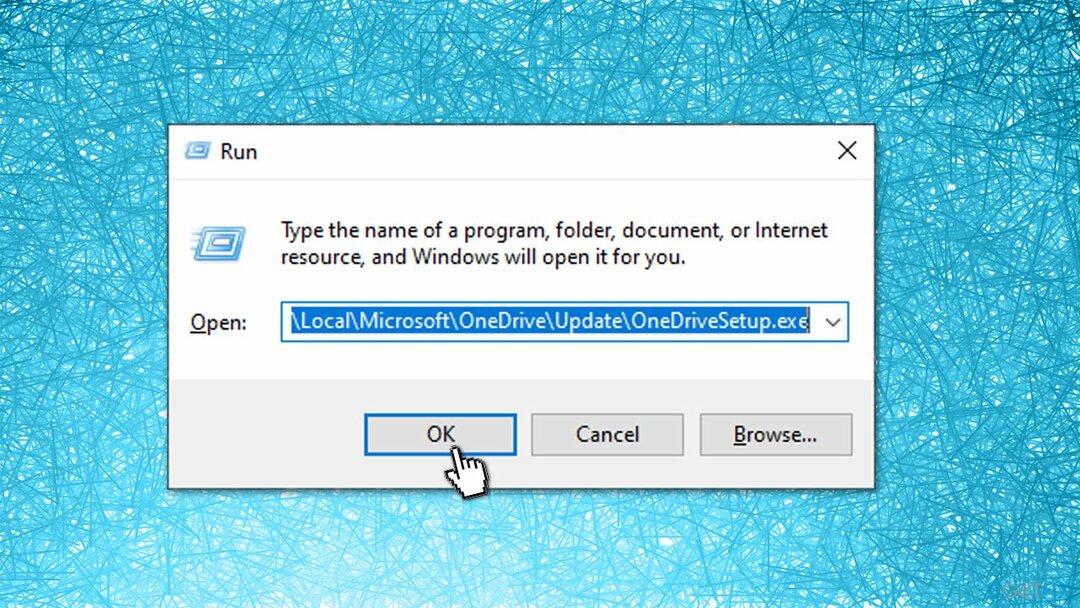
Если этот метод не работает и вы получаете сообщение об ошибке, перейдите к приведенному ниже методу, а затем повторите этот шаг.
Метод 5. Удалите проблемное приложение через командную строку
Для восстановления поврежденной системы необходимо приобрести лицензионную версию Reimage Reimage .
Удаление программы, которая не хочет удаляться, может быть трудным, хотя это возможно через PowerShell, так как вы можете запустить ее от имени администратора. Имейте в виду, что приведенный ниже пример относится к приложению OneDrive, и команда будет отличаться в зависимости от имени приложения и его местоположения.
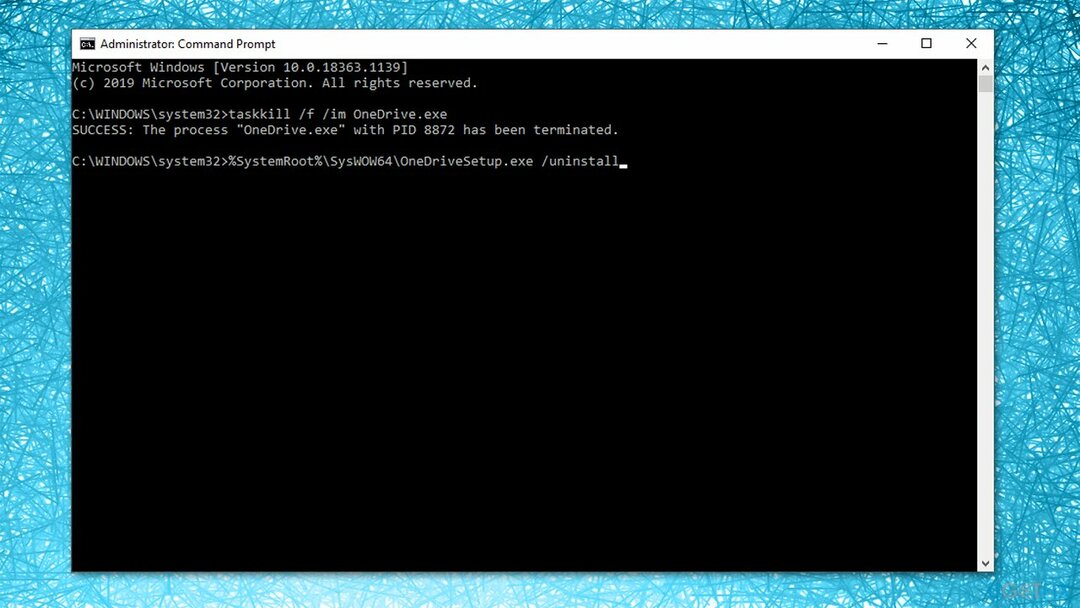
- Открытым Командная строка от имени администратора как объяснено выше
- Скопируйте и вставьте следующие команды, нажав Входить после каждого:
taskkill / f / im OneDrive.exe
% SystemRoot% \ SysWOW64 \ OneDriveSetup.exe / удалить
Исправляйте ошибки автоматически
Команда ugetfix.com делает все возможное, чтобы помочь пользователям найти лучшие решения для устранения их ошибок. Если вы не хотите бороться с методами ручного ремонта, используйте автоматическое программное обеспечение. Все рекомендованные продукты были протестированы и одобрены нашими профессионалами. Инструменты, которые можно использовать для исправления ошибки, перечислены ниже:
сделай это сейчас!
Скачать Fix
Счастье
Гарантия
сделай это сейчас!
Скачать Fix
Счастье
Гарантия

VPN имеет решающее значение, когда дело доходит до конфиденциальность пользователя . Онлайн-трекеры, такие как файлы cookie, могут использоваться не только платформами социальных сетей и другими веб-сайтами, но также вашим интернет-провайдером и правительством. Даже если вы примените самые безопасные настройки через веб-браузер, вас все равно можно будет отслеживать через приложения, подключенные к Интернету. Кроме того, браузеры, ориентированные на конфиденциальность, такие как Tor, не являются оптимальным выбором из-за пониженной скорости соединения. Лучшее решение для вашей максимальной конфиденциальности — это Частный доступ в Интернет — быть анонимным и безопасным в сети.
Программное обеспечение для восстановления данных — один из вариантов, который может вам помочь восстановить ваши файлы . После удаления файла он не исчезает в воздухе — он остается в вашей системе до тех пор, пока поверх него не записываются новые данные. Восстановление данных Pro это программа для восстановления, которая ищет рабочие копии удаленных файлов на вашем жестком диске. Используя этот инструмент, вы можете предотвратить потерю ценных документов, школьных заданий, личных фотографий и других важных файлов.
Не решенные "could not find or load the Qt platform plugin "windows" in "",
Up to recent, my windows 10 64bit laptop worked fine. However, suddently I get this error after loading certain .exe programs:
This application failed to start because it could not find or load the Qt platform plugin «windows»in «», Available platform plugins are: minimal, offscreen, windows.
Reinstalling the application may fix this problem.
I’m not a coder, I never used the Qt environment ever and other forum entries didn’t help so far, since as far as I went down the rabbit hole, this is all about building code in Qt.
All I like to do is run my programs again. This error occured with multiple programs: MikTex & Texworks and converter tools. So far this error is really denying my work and I have no clue.
Thanks in advance.
Kind regards,
J. Muller
All I like to do is run my programs again. This error occured with multiple programs: MikTex & Texworks and converter tools. So far this error is really denying my work and I have no clue.
Hi @jrmmuller, the most likely cause here is that your system PATH contains a folder that contains Qt DLLs. Have you installed any new software recently or modified your PATH (shortly before this issue began)?
If I’m right, then the short version of the solution is this: You must remove the offending folder from your PATH.
(NOTE: I said «most likely». There are many possible reasons for this error).
If you do not know how to check and edit your PATH, then we can guide you through the process. However, be prepared: This will involve multiple steps — I give you some instructions, then you carry them out and report back the details, then I give you further instructions based on what you found, then you carry them out and report back the details. iterating as many times as needed until the issue is resolved.
Hi and welcome to devnet forum
You are right and it is a Qt related issue.
However, the problem is with an application using Qt and therefore, they are probably the only devs being able to you.
The problem I see is that they have used a particular version of Qt and part of your installation may have been corrupted by whatever reason.
The Programs you are listing are probably all from the same open source project and tex related.
I have MikTex and stuff installed as well, but even though I am a developer and know parts of Qt application development, I would go the route and check the MikTex forum and eventually reinstall MikTex again.
Vote the answer(s) that helped you to solve your issue(s)
Thanks for your response. Actually it is partly for MikTex, the conversiontools are for converting photo files.
I tried installing and reinstalling Miktex and trying Texlive, but that didn’t help unfortunately.
All I like to do is run my programs again. This error occured with multiple programs: MikTex & Texworks and converter tools. So far this error is really denying my work and I have no clue.
Hi @jrmmuller, the most likely cause here is that your system PATH contains a folder that contains Qt DLLs. Have you installed any new software recently or modified your PATH (shortly before this issue began)?
If I’m right, then the short version of the solution is this: You must remove the offending folder from your PATH.
(NOTE: I said «most likely». There are many possible reasons for this error).
If you do not know how to check and edit your PATH, then we can guide you through the process. However, be prepared: This will involve multiple steps — I give you some instructions, then you carry them out and report back the details, then I give you further instructions based on what you found, then you carry them out and report back the details. iterating as many times as needed until the issue is resolved.
OK, that sounds as that might be the case. Unfortunately I don’t know how to edit the path or which could be the cause that modified the PATH. I’m not sure which applications I’ve installed since the error began.
If you could help me with the steps, that would be great!
If you could help me with the steps
Open cmd and type echo %QT_PLUGIN_PATH% if it’s not empty then delete it (just google: delete environmental variable windows #, where # is your windows version)
Open cmd and type echo %PATH% and press enter. You’ll see a list separated by ; of folder paths. Go line by line and make sure they do not point to a folder that contains a platforms folder that has qwindows.dll in it. If you find such a path edit the PATH variable and remove it (just google: edit environmental variable windows #, where # is your windows version)
«La mort n’est rien, mais vivre vaincu et sans gloire, c’est mourir tous les jours»
On a crusade to banish setIndexWidget() from the holy land of Qt
What version of MiKTeX are you using?
If you could help me with the steps, that would be great!
- Download ListDLLs from https://docs.microsoft.com/en-us/sysinternals/downloads/listdlls
- Extract the contents of the zip file into C:\ListDLLs
- Try to launch MiKTeX. When the error dialog appears («Could not find or load. «), leave it open; don’t close the dialog.
- Press Windows+R (this launches the «Run» window)
- Type «cmd» into the «Run» window and press Enter (this launches the Command Line, cmd, that @VRonin mentioned)
- In cmd, type cd C:\ListDLLs and press Enter
- In cmd, type ListDLLs.exe miktex and press Enter. You should see a long list of DLLs.
- In cmd, type ListDLLs.exe miktex > output.txt and press Enter. You should see a new text file.
- Open C:\ListDLLs\output.txt and copy+paste its contents here in this forum.
- You can close the error dialog now.
- In cmd, type echo %QT_PLUGIN_PATH% and press Enter. What gets shown after that? Write it here in this forum. (this is related to @VRonin’s suggestion)
I followed your steps and looked up the environmental variable. It turns out that the %Qt_Plugin_path% was indeed set by a certain program (numerical model) which I had installed. I deleted the variable and rebooted the system. As a result all the programs were functioning again without errors.
Considered this solved. Thanks a lot!
@JKSH
Hi JKSH, I appreciate your help. Thanks to your help and VRonin, my issue has been resolved.
@JKSH Your steps seem useful. However, I am working on pyzo. So I replaced all the words with ‘miktex’ with ‘pyzo’ (I’m amateur at coding as well). The cmd window spat out a long list of DLLs and the txt file was created after step 8.
However, I am not sure what you mean by copy and paste the contents ‘here’ in step nine.
I copied the text file info to the cmd window, but the programme says «. is not recognized as an internal or external command, operable program or batch file».
Not sure how to continue from here. Thanks
However, I am not sure what you mean by copy and paste the contents ‘here’ in step nine.
I’ve updated the post to clarify: Copy + paste its contents in this forum
I notice this thread — which I found searching the error msg in Google — just kind of died without coming to a resolution others could follow.
JKSH — I’m having the same issue with several programs. I’m not sure what I installed that did the damage, but I suspect it might be drivers for a pen display. I followed the steps you listed, but instead of for Krita, an open source paint program I use for testing. The following big list is what was in the output. I see several instances of QT in there, but I’m not sure what to do from there.
It may also be of interest that when I tried the «echo %QT_PLUGIN_PATH%» step, it just echoed «%QT_PLUGIN_PATH%» on it’s own line. Also, when I tried the process with another program name with the same problem — Medibang Paint Pro, with the executable named «MediBangPaintPro.exe» as C:\ListDLLs>ListDLLs.exe MediBangPaintPro or MediBangPaintPro.exe it returns «No matching processes were found.»
Thanks in advance, if you’re still in the mood to look into this. 🙂
I notice this thread — which I found searching the error msg in Google — just kind of died without coming to a resolution others could follow.
The OP’s (@jrmmuller) problem was resolved. In their case, the %QT_PLUGIN_PATH% variable was hijacked by another program so the variable had to be cleared
@KKekana was a different user.
when I tried the «echo %QT_PLUGIN_PATH%» step, it just echoed «%QT_PLUGIN_PATH%» on it’s own line.
This is good. It shows that the %QT_PLUGIN_PATH% variable has not been hijacked by another program. It means the root cause of your problem is different from the OP.
I’m having the same issue with several programs. I’m not sure what I installed that did the damage, but I suspect it might be drivers for a pen display.
Do all of these programs use Qt? Does the pen display driver use Qt?
Also, how did you install Krita? Does uninstalling + reinstalling it help?
The following big list is what was in the output.
2 things stood out to me:
- qwindows.dll is missing. Can you see if it’s on your system somewhere? I’d expect it to be at C:\Program Files\Krita (x64)\bin\platforms\qwindows.dll (unless Krita’s developers did something different)
- Krita is loading DLLs from C:\Program Files (x86)\Stardock\ — is this expected? What happens if you temporarily rename the Stardock folder; does Krita load properly then?
Do all of them use Qt? — I’m not sure, and I’m not sure how to find out.
How did I install Krita? — It would be non-helpful if I said «in the normal way» wouldn’t it? I’m definitely not a proper programmer, though I’m «programmer adjacent» in some aspects of my work, learning enough from programmers to describe it to non-programmers in pictures. Anyway, I downloaded an executable installer from Krita.org and let it do its thing. Is that the right information?
Does uninstalling and reinstalling help? — On the others I have encountered this problem with, it has. I haven’t done Krita yet, because I was hoping to find the original culprit, and thought there might be clues.
qwindows.dll is missing — Hey, I think Krita uses Qt! I found qwindows.dll in C:\Program Piles\Krita (x64)\bin\platforms
Using that newfound knowledge, I looked for it in Autodesk Sketchbook and MediBang Pro (other programs this has happened with) and found it in C:\Program Files\Autodesk\Sketchbook\platforms and C:\Program Files\Medibang\Medibang Paint Pro\platforms
I also looked for «qwindows» in the «program files» and «program files (x86) folders and found it in the folders of:
- MeshLab (Same error when I try to launch it — that means it’s not the culprit, right?)
- Logitech Gaming Software (I use a gaming mouse because it has lots of assignable buttons)
- Hamstersoft ZIP Archiver (which is Russian and scary as hell, but does a really good job)
- Allgorithmic Substance painter, Substance Designer, and Substance Player
- Several Photoshop plugins by Alien Skin (iirc, that may have been the first thing that threw this error, but they’ve been reinstalled)
- Autodesk Mudbox
- Adobe Bridge
- Explorer actually crashed once while doing this, and it still claims to be searching the program files folder — I’ll come back and edit this with any others it finds, or that it finds in Program Files (x86)
I did not find qwindows in the folder of the pen display driver / control software I suspected of having monkeyed things up. Am I right in thinking that means that driver / control software is innocent? With no more evidence than I had before, I now suspect Logitech. I’m sure this is how witch trials get started. 😉
Logitech suffers the same error on reboot, when it’s executable «LCore» can’t find the windows (qwindows?) platform plugin that is, in fact, in the platform folder. So I guess they’re innocent, too, right?
The other question asked — if it was expected for Krita to access Stardock — I guess so? Stardock makes Windows modification software, to change the look and behaviors of windows, menus, the desktop, icons, etc. So I guess Krita is getting instructions for things like menu animations.
Do all of them use Qt? — I’m not sure, and I’m not sure how to find out.
In general, you check for the presence of Qt DLLs (Qt5Core.dll, qwindows.dll) in the program’s folders.
How did I install Krita? — It would be non-helpful if I said «in the normal way» wouldn’t it? I’m definitely not a proper programmer, though I’m «programmer adjacent» in some aspects of my work, learning enough from programmers to describe it to non-programmers in pictures. Anyway, I downloaded an executable installer from Krita.org and let it do its thing. Is that the right information?
Yes, that’s the right information 🙂 Other possible ways to install Krita include «compile it from source».
Anyway, since you used the «normal way», that rules out the possibility of the error being caused by incorrect installation/compilation/deployment
Does uninstalling and reinstalling help? — On the others I have encountered this problem with, it has. I haven’t done Krita yet, because I was hoping to find the original culprit, and thought there might be clues.
From the symptoms you’ve described and the ListDLLs output you posted, I can’t see an easy way to find the root culprit, unfortunately.
The easiest thing to do might be to reinstall the affected software and move on with your life.
One other thing you could try: If you create a new user account on your PC, does that account manage to run the affected programs normally? If it does, that means something has gone wrong in your current Windows account itself. (I can’t explain how though)
qwindows.dll is missing — Hey, I think Krita uses Qt! I found qwindows.dll in C:\Program Piles\Krita (x64)\bin\platforms
Using that newfound knowledge, I looked for it in.
. I’ll come back and edit this with any others it finds, or that it finds in Program Files (x86)
That’s OK, you don’t have to give us a comprehensive list.
I asked about other Qt-based software because sometimes, problems occur when a piece of Qt-based software adds itself to the system-wide PATH (or QT_PLUGIN_PATH). This can cause other Qt-based software to load the wrong version of Qt DLLs.
However, given that you can repair individual programs by re-installing them, that probably means your problem is caused by something else.
I did not find qwindows in the folder of the pen display driver / control software I suspected of having monkeyed things up. Am I right in thinking that means that driver / control software is innocent? With no more evidence than I had before, I now suspect Logitech. I’m sure this is how witch trials get started. 😉
How to fix «Application failed to start because no Qt platform plugin could be initialized» error in Windows?
Issue: How to fix «Application failed to start because no Qt platform plugin could be initialized» error in Windows?
Hello. Recently, after a Windows update, I was unable to get OneDrive to work. Whenever my PC boots, I receive an error “Application failed to start because no Qt platform plugin could be initialized.” Any advice on how to deal with this issue? Thanks in advance.
- Method 1. Copy relevant folder to a different location
- Method 2. Check system files for damage
- Method 3. Try Clean Boot
- Method 4. Reinstall the application in question
- Method 5. Uninstall the problematic app via Command Prompt
- Protect your online privacy with a VPN client
- Data recovery tools can prevent permanent file loss
- References
Windows operating system consists of many components – some are already pre-installed while others need to be implemented manually. For example, Node.js is one of the third-party components you would see on almost any Windows computer.
Qt is a C++-based [1] framework that is designed to create applications on Windows, Android, Linux, [2] and other platforms. While it is not a programming language on its own, apps that are based on it need to have the framework installed on their machines to be able to run. Unfortunately, these dependencies can create certain issues due to one reason or another.
When something goes wrong with the Qt platform, users may receive the “Application failed to start because no Qt platform plugin could be initialized” error.
Several applications could be affected by this error, including games such as Apex Legends, [3] standalone components (Dllhost), or commonly-used apps as OneDrive. The latter resides in every Windows computer and is an extremely useful app commonly used for system/file backups or additional storage for user files.
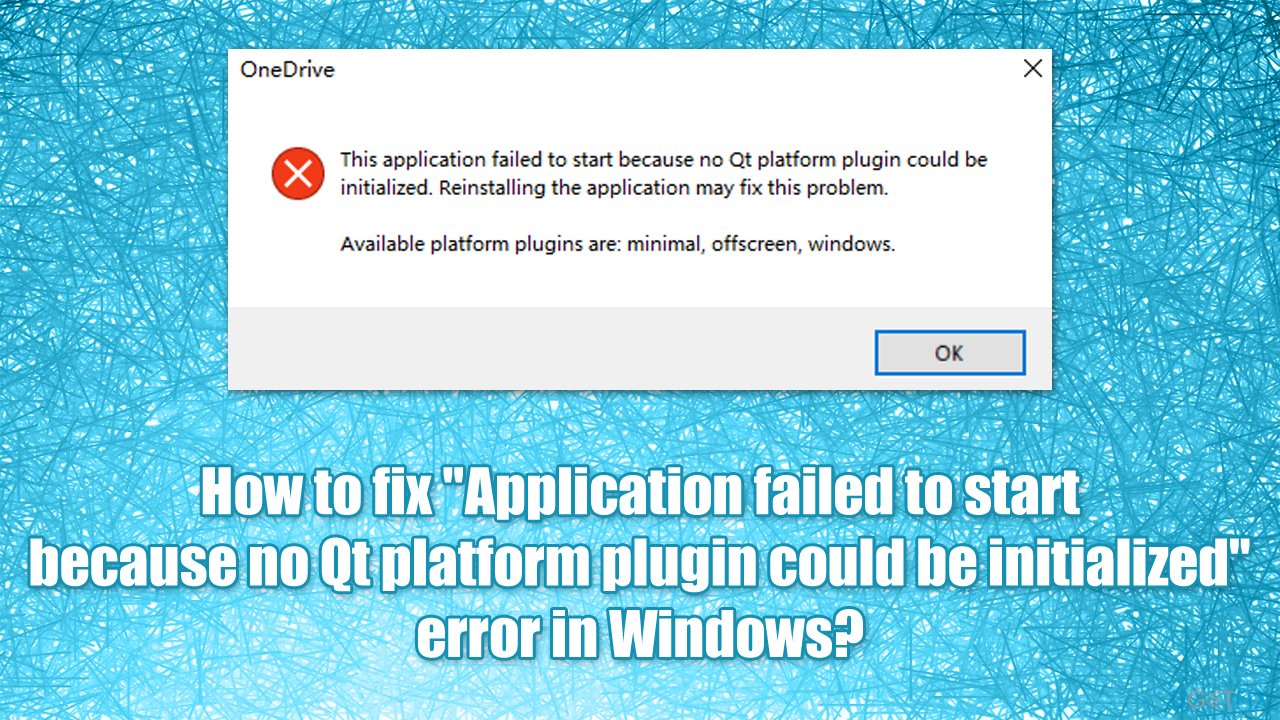
Here's the full message that users receive upon encountering the error (the error message text may vary in some instances):
This application failed to start because no Qt platform plugin could be initialized. Reinstalling the application may fix this problem.
Available platform plugins are: minimal, offscreen, windows.
While it may seem like enabling or installing the Qt platform would fix the “Application failed to start because no Qt platform plugin could be initialized” error, it is not the case. Reinstalling the app that is having difficulties detecting the plugin might help, however.
Unfortunately, that is not always possible, as users reported that they then received the “Can't be found” error while trying to do so. The reason for this being is that a newer version of the app may be already present on the device, hence uninstallation is not possible. There is a way around it.
In some cases, the reasons for the error could be unrelated to the ones mentioned above. For example, system file corruption might also cause this error, so we recommend you try running a scan with Fortect Mac Washing Machine X9 repair software that could fix underlying Windows issues automatically. Otherwise, proceed with the below methods that should help you solve this error for good.
Method 1. Copy relevant folder to a different location
- Press Win + E on your keyboard to open File Explorer
- On the left side of the window, select This PC
- In the search box on the top-right, type in pyqt5_tools and hit Enter
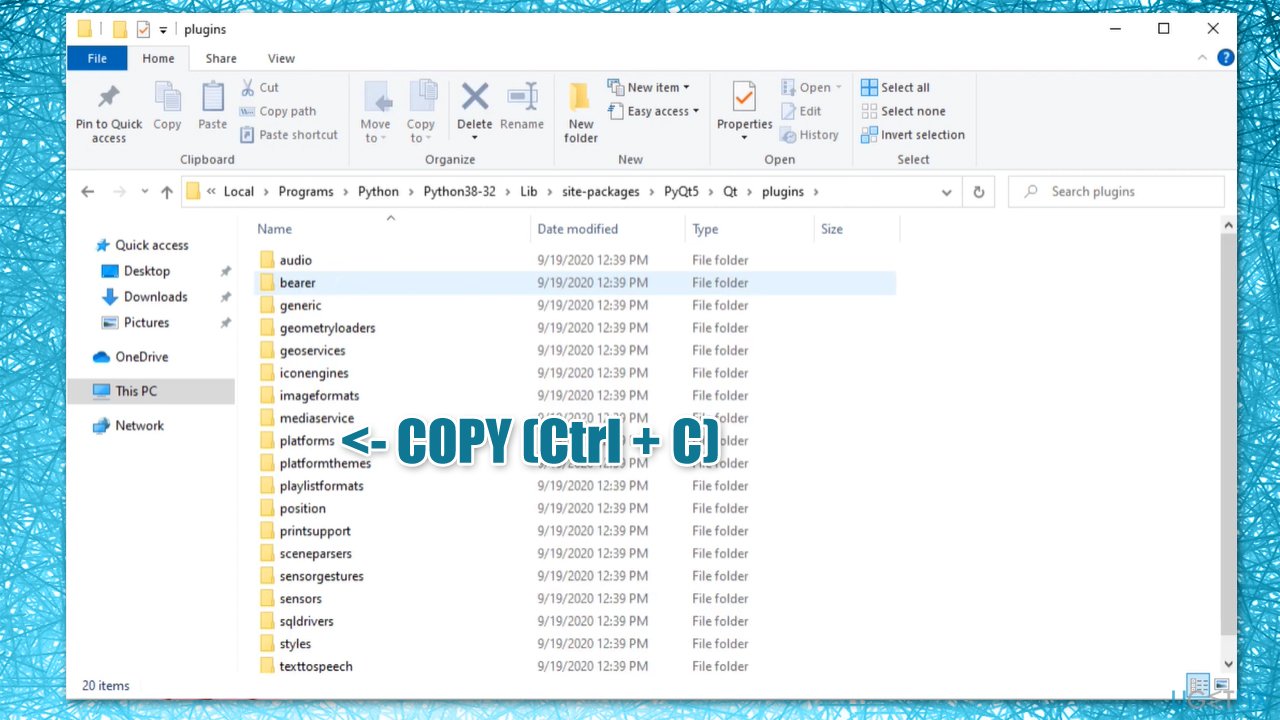
- When search is complete, right-click on pyqt5_tools folder and and select Open folder location
Method 2. Check system files for damage
- Type in cmd in Windows search
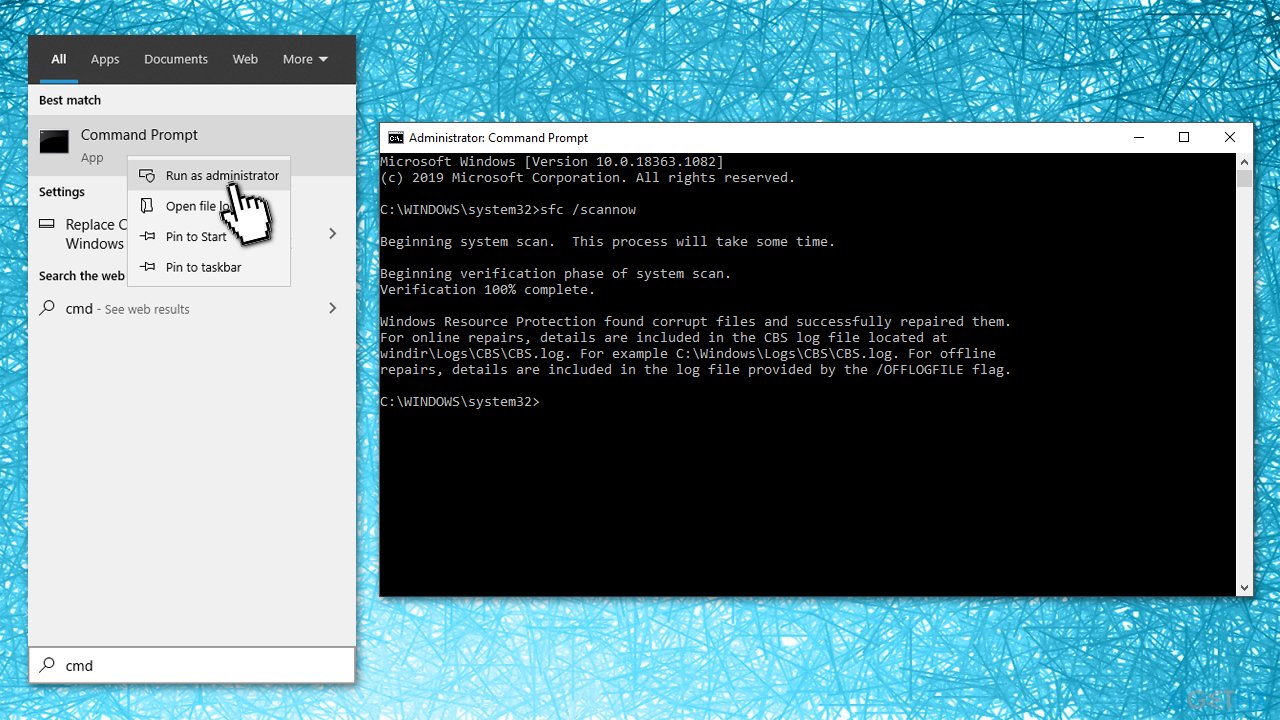
- Right-click on Command Prompt and select Run as administrator
- Here, typesfc /scannow and press Enter
Method 3. Try Clean Boot
- Type msconfig in Windows search, hit Enter
- Go to Services tab
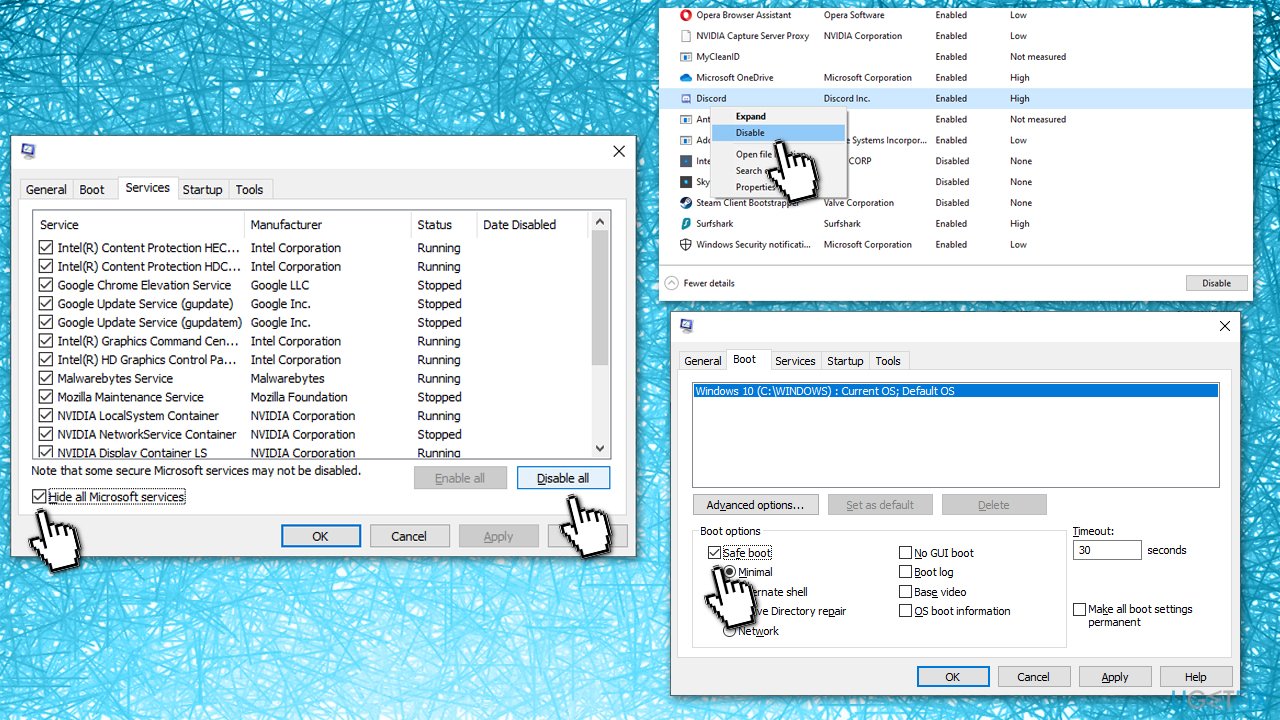
- Check the Hide all Microsoft services checkbox and select Disable all
- Go to Startup tab and pick Open Task Manager
- Here, right-click on every entry and select Disable and close the Task Manager
- Go to Boot tab, tick Safe Boot and select Apply + OK.
Once booted back into Windows, try running the app you were having problems with. If that fixes your problem, it means that there is a third-party application that is at fault. In order to fix the “Application failed to start because no Qt platform plugin could be initialized” error, you should uninstall all recently installed applications and see if that solves your problem in normal mode.
Method 4. Reinstall the application in question
You should try uninstalling the app you are having troubles with and then installing it anew. If you are dealing with OneDrive, you should do the following:
- Press Win + R on your keyboard
- In the Run dialog, copy and paste the following:
%userprofile%\AppData\Local\Microsoft\OneDrive\Update\OneDriveSetup.exe - Go through the installation steps and restart your PC
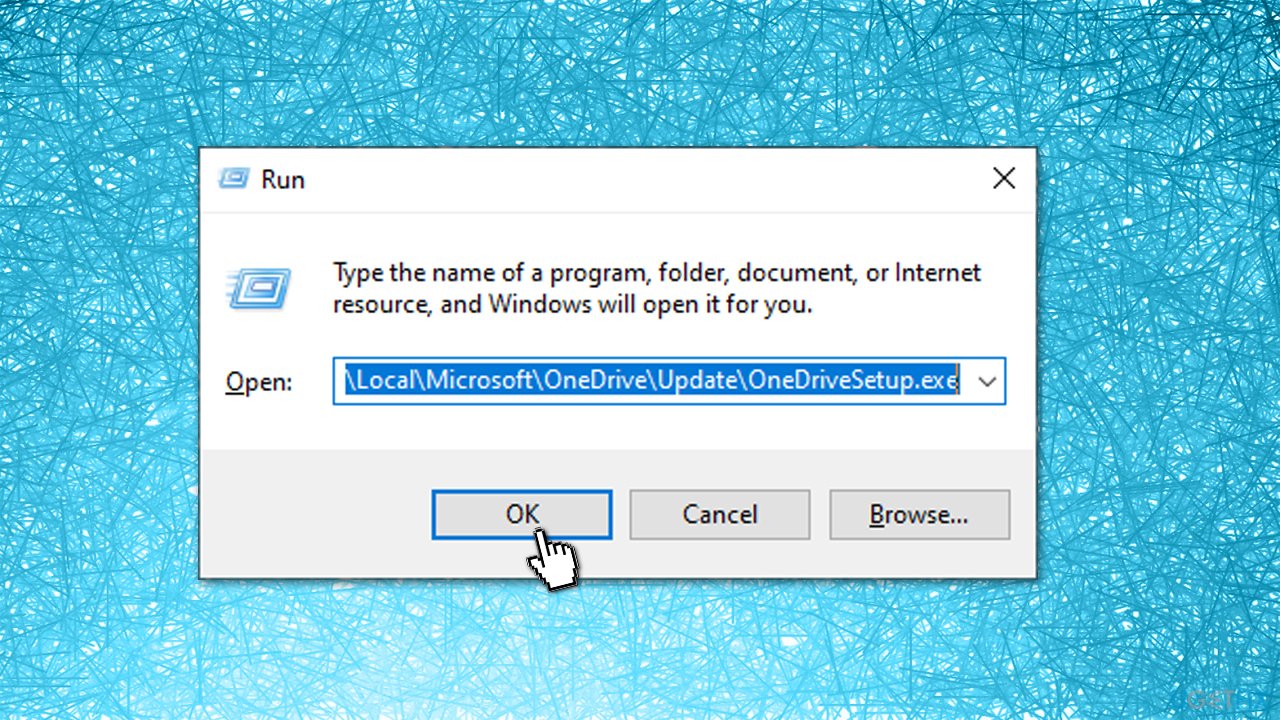
If this method does not work and you are presented with an error, proceed with the method below and then repeat this step.
Method 5. Uninstall the problematic app via Command Prompt
Uninstalling a program that does not want to uninstall might be difficult, although it is possible via PowerShell, as you can launch it as an administrator. Keep in mind that the below example is for the OneDrive application, and the command would differ depending on the app name and its location.
[Solved] No Qt Platform Plugin Could Be Initialized Error in Windows

Summary: No QT Platform Plugin Could Be Initialized error usually occurs while you try to access certain applications. This blog discusses the causes and fixes for this troublesome error. On the contrary, if you lose access to your data due to this error download and run professional data recovery software.


Many users have been reporting an error stating – ‘No Qt Platform Plugin Could be Initialized’ on different tech forums, including Microsoft and Reddit. You may get this annoying error whenever you try to access a third-party screencasting, gaming, or movie-streaming app on your system. Moreover, since the issue doesn’t specify any particular reason, it leaves you wondering. To ease things for you, we’ve shared some proven workarounds to resolve this error. Moreover, understanding the error and its possible causes will give you an edge in fixing it.
What does the ‘No Qt Platform Plugin Could Be Initialized’ error mean?
The complete error message says – This application failed to start because no QT platform plugin could be initialized.
For those who don’t know, QT is a cross-platform software used for creating GUI. Although it offers extensive support for Windows, you may experience compatibility issues due to older, outdated, or the broken software version installed.
The issue usually occurs when you try to access OBS Studio, Python, and Gaming apps (Origin, Civilization VI, etc.).You may also come across this problem while using movie streaming apps.
What causes No Qt Platform Plugin Could Be Initialized?
The probable reasons behind this bug could be several, including corrupted or damaged system files, incompatible or corrupted applications, buggy Windows updates, etc. While this error may seem problematic, some fixes shared below will help you get rid of it quite easily.
Fixes for No QT Platform Plugin Could Be Initialized Error
You can try out the below-discussed workarounds to remove the error – the application failed to start because no QT platform plugin could be initialized from the Windows system. These fixes are result-driven as many users have reportedly been able to resolve the error. With no further delay, let’s fix the problem for good!
#1 Change the QT File Location
Several users have been able to fix this error by simply changing the QT file location. This little trick can save a lot of your time and energy. Follow the below-said steps.
- Open File Explorer by pressing Windows + E and then go to This PC.
- There, open Local Disk (C:), and in the Search bar, type pyqt5_tools and hit Enter.
- When found, right-click on the pyqt5_tools folder and select the Open folder location option from the available ones.
- Open the PyQt5 folder on the next prompt, go to the Qt folder, and open the Plugins folder.
- Next, right-click on the platforms folder and select Copy.
- Go to Site-Packages from the address bar.
- Now, open the pyqt5_tools folder, and thereafter, open the Qt folder.
- Navigate to the bin folder and there, on the blank side, right-click and Paste the folder.
- Replace the files in the destination (if prompted).
#2 Run System File Checker Scan
There is a possibility that you’d encounter this error due to corrupted or damaged system files. To be sure, you can run SFC (System File Checker). It is a Windows built-in utility to replace the bad versions of system files with the right ones, thus fixing the problems. Follow the given steps:
- Run CMD (Command Prompt) as administrator.
- In the elevated cmd window, type the sfc/scannow command and press Enter.
- Wait for a while and let the process complete.
- Once done, read the instructions on the screen and check if you need to follow any further instructions.
- Finally, exit the Command Prompt window and check if the error persists.
#3 Perform Clean Boot
Various third-party apps installed on your system can also cause this error. Performing a clean boot will help you find the root cause behind the error and fix the issue. It is quite similar to booting your PC in Safe Mode. However, it provides more control over programs and services running at startup. Follow the given steps to do the same:
- Open Windows Search and type msconfig. It will show System Configuration, click Open to proceed.
- Go to the Services tab and select Hide all Microsoft Services > Disable all > Apply.
- Now, click OK and then follow Startup > Open Task Manager.
- There, identify the application with which you are facing the issue and click Disable.
- Close the window, and click OK to complete the process on the Startup tab.
- When your system will restart, it will be in a clean boot environment. If still, you’re having the error, remove the problematic app from your system.
#4 Uninstall Problematic App
If you see the error with some particular application, check the app version. If there’s an old or incompatible app version you’re using, you can uninstall it. Follow the given steps to do the same:
- Open Settings (press Windows + I) and then follow Apps > Apps & Features.
- Select the problematic app and click Uninstall > Uninstall.
- Finally, click Yes when prompted to confirm your action. That’s it. The app will be removed from your system.
#5 Reinstall the Correct App Version
If the application you removed is important, you can reinstall the latest compatible application version. While reinstalling the app, make sure that you’re downloading it from the official site only. Additionally, check the version you’re downloading and the app support. If there’s any issue, restart your system and see if you can do it now without any issues.
#6 Uninstall Buggy Windows Updates
If you encountered the error after installing any Windows update, you can simply uninstall it or perform a system restore. Remember, uninstalling the update will remove all the changes, and settings that occurred to your system. If certain, remove the buggy Windows update with the following steps:
- Open Settings by pressing Windows + I and then go to Update & Security > Windows Update > Update history.
- On the next prompt, click Uninstall updates.
- Select the update you recently installed and then click Uninstall.
The update will be removed. Reboot your system and see if the problem is solved.
No Qt Platform Plugin Could be Initialized Error- Gone for Good!
System errors like Application Failed to Start Because No Qt Platform Plugin Could be Initialized, are easily fixable. You just need to put more attention while performing the methods discussed above. Other than this, if you encounter a problem accessing your system or some folder, your data could be at risk. Keep professional data recovery software handy, it will help you big time even in the future.
People Also Ask
1. What is a Qt platform?
Qt is an open-source cross-platform software used for building GUI (Graphical User-Interface) and cross-platform applications. It allows staff members to manage the code versions, debug applications, build C++ widget-based apps, accelerate UI performance, and more.
2. How to install the Qt plugin in Visual Studio?
Run Qt Installer and once the installation is complete, open Microsoft Visual Studio and follow Extensions > Manage Extensions > Online. There, search for Qt Visual Studio Tools to install or update Qt VS Tools.
3. Where does Qt look for platform plugins?
Whenever you run an application, there is an application’s executable directory. This is the base directory where the Qt searches for plugins.
4. What is an App error with the value 0xc00007b in Windows?
The error code 0xc00007b occurs while accessing apps on their system. Mostly, gaming and designing applications or software are affected by this app error. However, it is fixable with some proven workarounds, such as downloading DLL files, reinstalling compatible applications, running CHKDSK, installing DirectX Module, and more.
About The Author
Mansi Verma is a Senior Technology Writer at Stellar®. She is a Tech enthusiast, holding over 8 years of experience in Data Recovery, IoT, Artificial Intelligence, and the Robotics technology domain. She loves researching and providing DIY solutions to solve Windows technical issues. In her spare time, she likes reading novels, and poetry. She also enjoys Travelling, Rafting, Trekking, etc.