Как запустить Windows PowerShell

Многие инструкции на этом сайте в качестве одного из первых шагов предлагают запустить PowerShell, обычно от имени администратора. Иногда в комментариях появляется от начинающих пользователей вопрос о том, как это сделать.
В этом руководстве подробно о способах открыть PowerShell, в том числе от администратора, в Windows 10, 8 и Windows 7, а также видео инструкция, где все эти способы показаны наглядно. Также может быть полезно: Способы открыть командную строку от имени администратора.
Запуск Windows PowerShell с помощью поиска
Моя первая рекомендация на тему запуска любой утилиты Windows, которую вы не знаете, как запустить — использовать поиск, он поможет почти всегда.
Кнопка поиска есть на панели задач Windows 10, в Windows 8 и 8.1 поле поиска можно открыть клавишами Win+S, а в Windows 7 найти в меню «Пуск». Шаги (на примере 10-ки) будут следующими.
- В поиск начните вводить PowerShell, пока не покажется необходимый результат.

- Если требуется запуск от имени администратора, нажмите по Windows PowerShell правой кнопкой мыши и выберите соответствующий пункт контекстного меню.

Как видите, очень просто и подходит для любой из последних версий Windows.
Как открыть PowerShell через контекстное меню кнопки «Пуск» в Windows 10
Если на вашем компьютере установлена Windows 10, то, пожалуй, ещё более быстрый способ открыть PowerShell — нажать правой кнопкой мыши по кнопке «Пуск» и выбрать нужный пункт меню (там присутствует сразу два пункта — для простого запуска и от имени администратора). Это же меню можно вызвать, нажав клавиши Win+X на клавиатуре.

Примечание: если в этом меню вместо Windows PowerShell у вас отображается командная строка, то заменить её на PowerShell вы, при желании, можете в Параметры — Персонализация — Панель задач, включив пункт «Заменить командную строку оболочкой Windows Powershell» (в последних версиях Windows 10 параметр включен по умолчанию).
Запуск PowerShell с помощью диалогового окна «Выполнить»
Еще один простой способ запуска PowerShell — использовать окно «Выполнить»:
- Нажмите клавиши Win+R на клавиатуре.
- Введите powershell и нажмите Enter или Ок.
При этом в Windows 7 можно установить отметку запуска от имени администратора, а в последней версии Windows 10, если при нажатии Enter или Ok удерживать клавиши Ctrl + Shift, то утилита также запуститься от имени администратора.
Видео инструкция
Другие способы открыть PowerShell
Выше перечислены далеко не все способы открытия Windows PowerShell, но, уверен, что их будет вполне достаточно. Если же нет, то:
- Можно найти PowerShell в меню пуск. Для запуска от администратора используйте контекстное меню.

- Можно запустить файл exe в папке C:\Windows\System32\WindowsPowerShell. Для прав администратора, аналогично, используем меню по правому щелчку мышью.

- Если ввести powershell в командной строке, также будет запущен нужный инструмент (но в интерфейсе командной строки). Если при этом командная строка была запущена от имени администратора, то и PowerShell будет работать от имени администратора.

Также, бывает, спрашивают, а что такое PowerShell ISE и PowerShell x86, которые находятся, например, при использовании первого способа. Отвечаю: PowerShell ISE — «Интегрированная среда сценариев PowerShell». По сути, с её помощью можно выполнять все те же команды, но, помимо этого, в ней присутствуют дополнительные возможности, облегчающие работу со скриптами PowerShell (справка, инструменты отладки, цветовая разметка, дополнительные горячие клавиши и т.п.). В свою очередь версии x86 нужны в случае, если вы работаете с 32-битными объектами или с удаленной системой x86.
Запуск «PowerShell» в ОС Windows 10
В абсолютном большинстве случаев, если вы не знаете, как открыть то или иное, стандартное для Виндовс 10 приложение, следует задействовать доступную на панели задач функцию поиска.
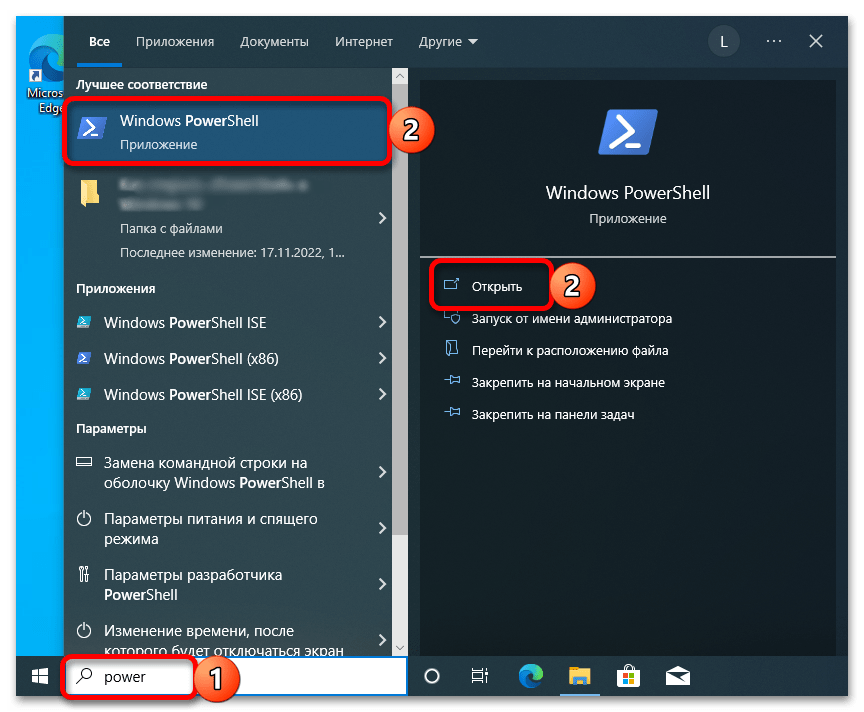
Для решения нашей задачи кликните по поисковому полю или воспользуйтесь клавишами «Win+S», после чего начните вводить запрос «PowerShell» — как только искомый компонент появится в списке «Лучшее соответствие», вы сможете его «Открыть», нажав по соответствующей надписи-ссылке или ярлыку с названием.
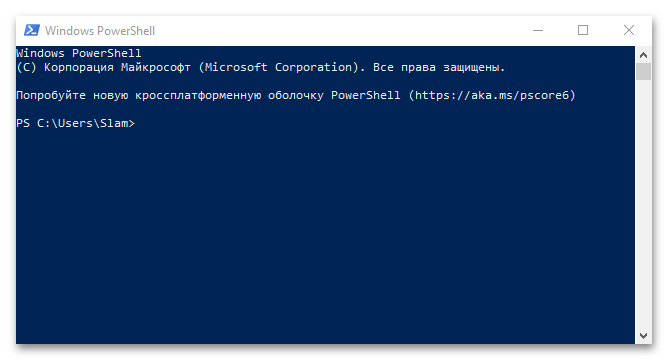
Способ 2: «Пуск»
Практически все системные приложения можно запустить через «Пуск», причем в случае с «ПоверШел» это можно сделать как из его основного меню, так и из дополнительного (контекстного).
Вариант 1: Главное меню
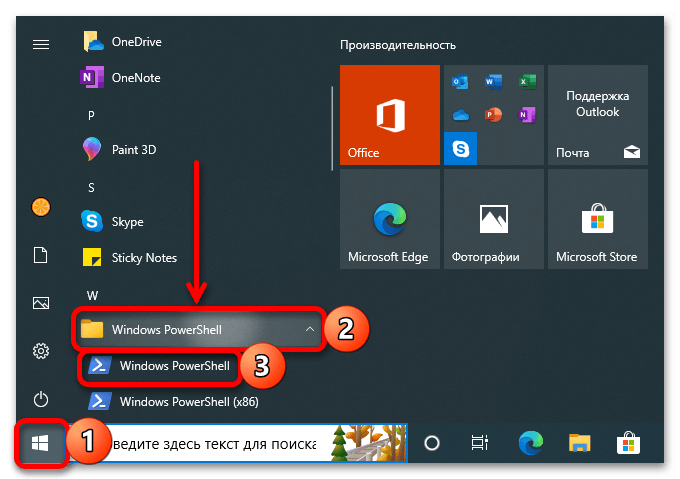
Вызовите меню «Пуск» с помощью кнопки на панели задач или клавиши «Win» на клавиатуре и пролистайте список с приложениями вниз. Найдите и откройте папку «Windows PowerShell», а затем запустите одиночным нажатием левой кнопки мышки (ЛКМ) одноименный исполняемый файл, первый в списке.
Вариант 2: Контекстное меню
Еще более простым и быстрым в своей реализации, чем два предложенных выше решения, является использование дополнительного меню кнопки «Пуск». Нажмите по нему правой кнопкой мышки (ПКМ) или воспользуйтесь клавишами «Win+X» и выберите пункт «Windows PowerShell».
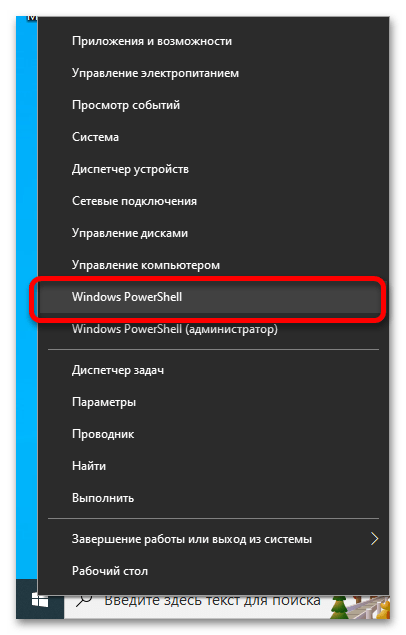
Обратите внимание! В контекстном меню «Пуска» по умолчанию находится именно «PowerShell», однако его вполне можно заменить на классическую «Командную строку». Если в списке опций вы видите второе, а не первое из обозначенных приложений, откройте системные «Параметры» (сочетание клавиш «Win+I»), перейдите к разделу «Персонализация», затем откройте вкладку «Панель задач» и переведите в активное положение отмеченный на изображении ниже переключатель. Если же таким образом вы хотите запускать стандартную консоль, наоборот, отключите его.

Способ 3: «Командная строка»
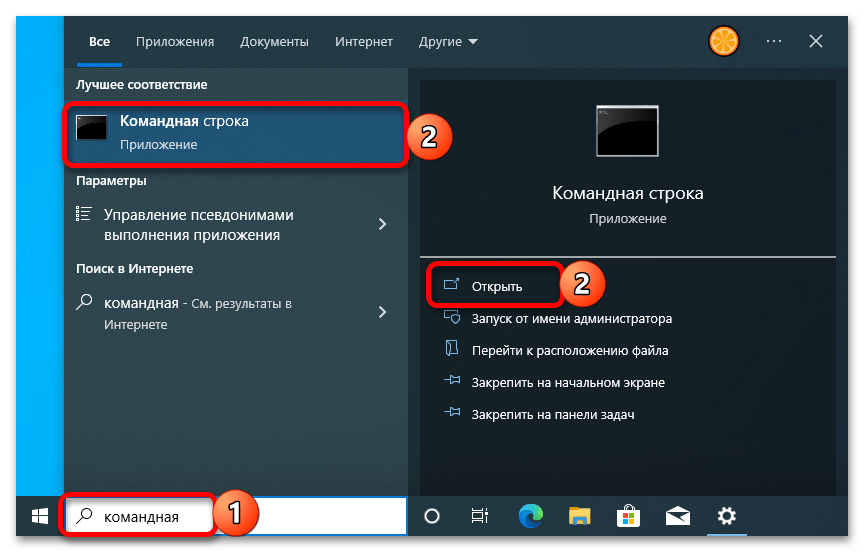
«ПоверШел» в некоторой степени представляет собой более усовершенствованный и современный аналог классической для разных версий ОС от Майкрософт консоли. При этом последнюю вполне можно задействовать для запуска первой.
-
Используя поиск или любой другой удобный способ, откройте «Командную строку».
Способ 4: «Выполнить»
Окно «Выполнить» — довольно удобный инструмент для быстрого запуска различных программ и компонентов, интегрированных в Windows 10, включая «PowerShell».
-
Воспользуйтесь системным поиском или сочетанием клавиш «Win+R» для вызова средства запуска.

Способ 5: «Диспетчер задач»
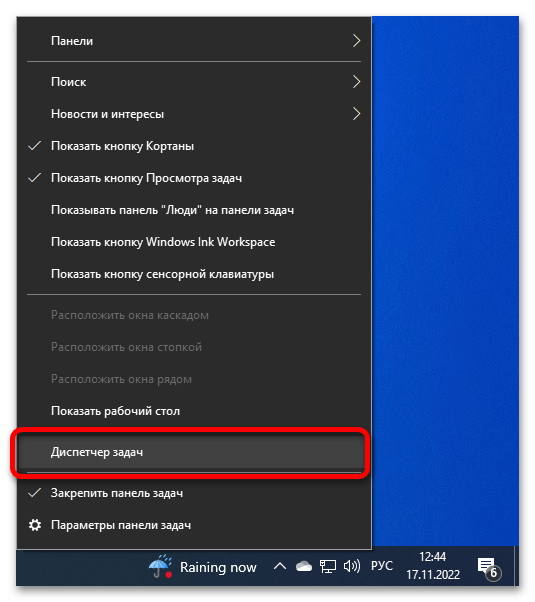
Встроенный в Windows 10 «Диспетчер задач» (ДЗ), помимо того, что позволяет мониторить состояние операционной системы, ее программных и аппаратных компонентов, также может использоваться и как средство запуска нужных программ и процессов.
-
Откройте «Диспетчер задач». Проще всего для этого воспользоваться сочетанием клавиш «Ctrl+Shift+Esc» или контекстным меню, вызываемым на кнопке «Пуск» либо пустом месте панели задач – в обоих случаях потребуется выбрать пункт с соответствующим названием.
Способ 6: Исполняемый файл
Каждое системное приложение имеет свой исполняемый файл, у «ПоверШел» таковой находится по следующему пути:
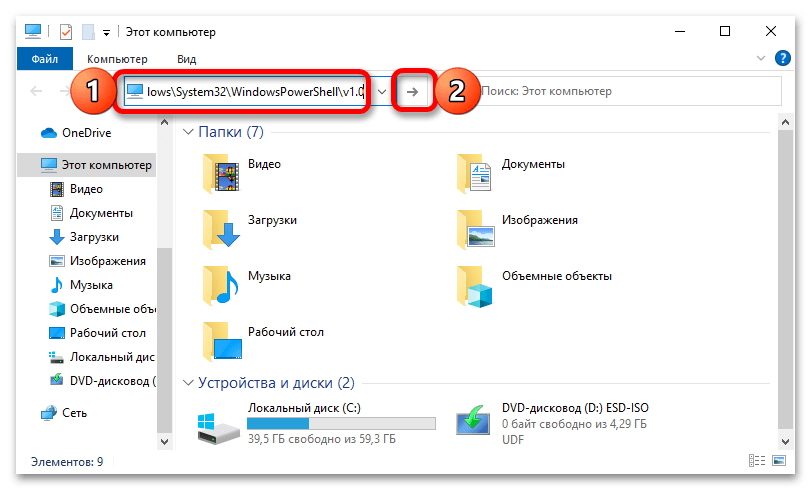
Используя «Проводник», перейдите в указанную директорию, пролистайте список представленных в ней папок и файлов вниз, найдите элемент с названием «powershell» (тот, что имеет уже узнаваемый по предыдущим способам значок), расширением «EXE» (если отображается) и типом «Приложение».
Как запустить PowerShell в Windows 10. Различные способы
В своих статьях я часто прошу читателя открыть PowerShell, чтобы выполнить ту или иную настройку системы. Кроме того, ряд команд PowerShell в Windows 10 могут реально сэкономить ваше время при выполнении повседневных задач. Сегодня мы рассмотрим различные способы открытия PowerShell в Windows 10.
PowerShell — это среда автоматизации задач и управления конфигурацией? созданная компанией Microsoft и состоящая из оболочки командной строки и связанного языка сценариев. Первоначально это был исключительно компонент Windows, известный как Windows PowerShell, но 18 августа 2016 года его исходные коды были открыты, а сама среда стала кроссплатформенным продуктов, который теперь можно установить и запустить, например, в Linux.
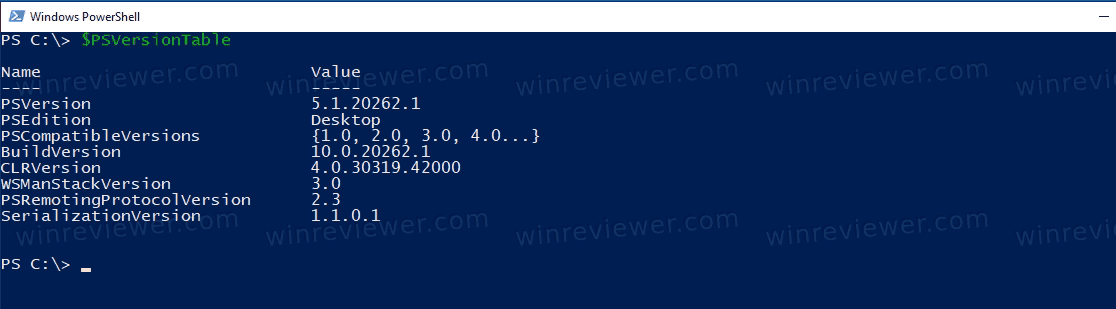
В этой статье мы рассмотрим различные способы, который можно использовать, чтобы запустить PowerShell в Windows 10. Мы начнём традиционно с меню Пуск.
Как запустить PowerShell в Windows 10
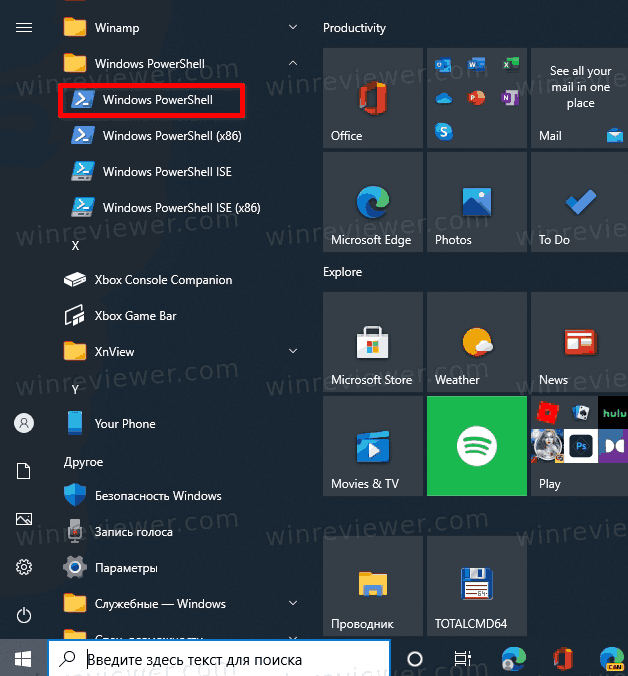
- Откройте меню «Пуск».
- Перейдите к папке «Служебные — Windows». Там вы найдете ярлык Windows PowerShell.
- Кликните мышкой на этом ярлыке, чтобы запустить PowerShell в Windows 10.
Кроме того, можно использовать поиск.
Как запустить PowerShell из Поиска Windows
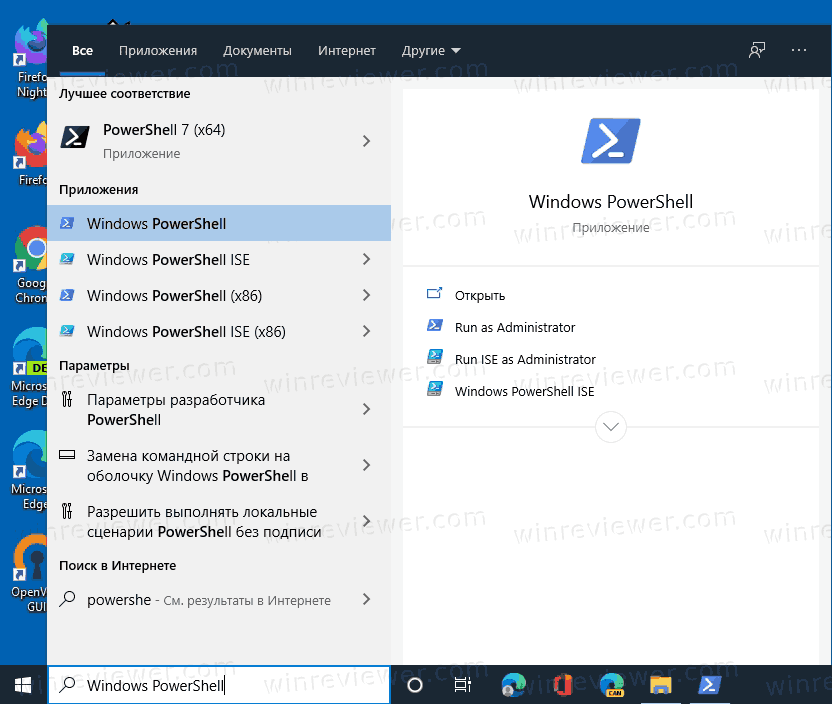
- Кликните на поле Поиска в панели задач.
- Введите powershell .
- Если поля поиска в панели задач нет, откройте меню «Пуск», нажав клавишу « Win ». Печатайте powershell прямо в меню Пуск.
- Просто нажмите Enter , чтобы запустить PoweShell.
Открыть PowerShell от Администратора можно из диалогового окна «Выполнить»
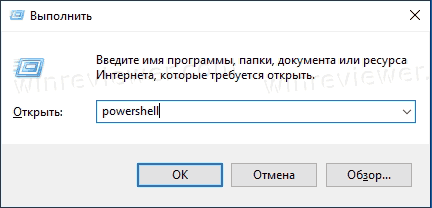
- Одновременно нажмите клавиши Win + R на клавиатуре и введите в поле Выполнить следующее: powershell .
- Нажмите Enter , чтобы открыть новый экземпляр PowerShell.
Как открыть PowerShell из меню «Win + X»
Это очень удобный способ в Windows 10. Начиная с Windows 8, Microsoft реализовала полезное меню Win+X, которое содержит множество полезных элементов, таких как Панель управления, Сетевые подключения и так далее. Оно содержит команды Windows PowerShell и Windows PowerShell (администратор). Первый — именно то, что нам нужно.
Чтобы получить доступ к этому меню в Windows 10, одновременно нажмите клавиши Win + X на клавиатуре.
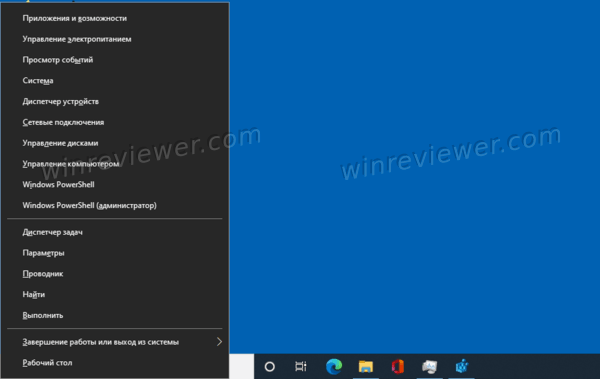
Совет: можно заменить PowerShell на классическую командную строку. Вот как это сделать: Как добавить Командную строку в меню Win + X в Windows 10
Наконец, вы также можете запустить PowerShell из Проводника.
Как запустить PowerShell из Проводника Windows 10
-
.
- Перейдите в какую-либо папку, например, на диск C: .
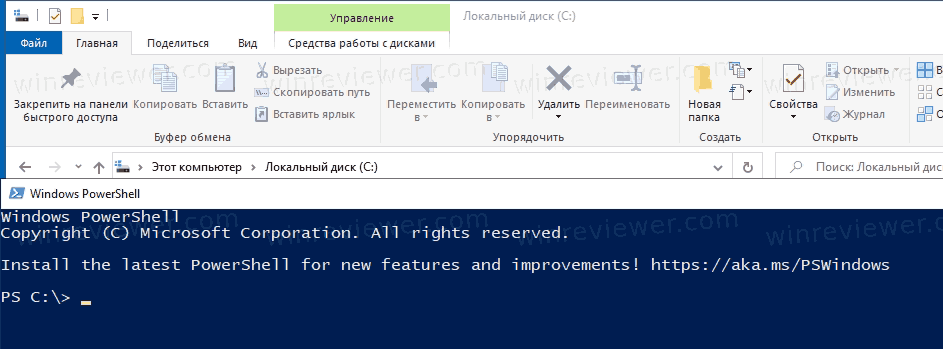
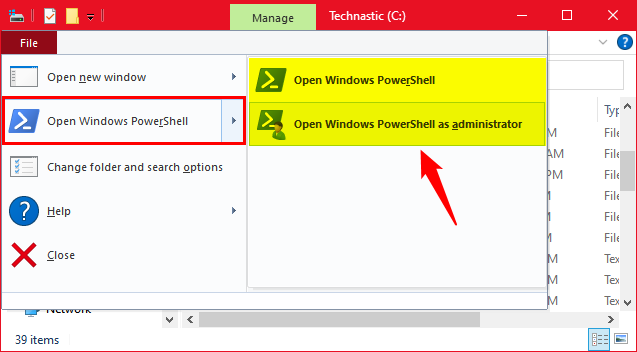
- Кликните Файл > Открыть Windows PowerShell > Открыть Windows PowerShell в Проводнике.
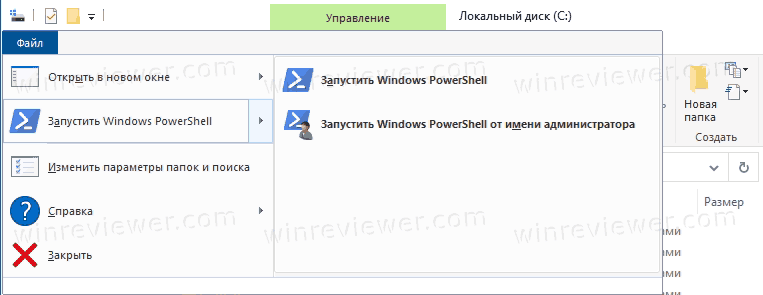
- PowerShell будет запущен в текущей папке.
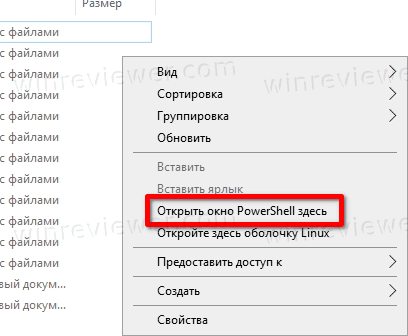
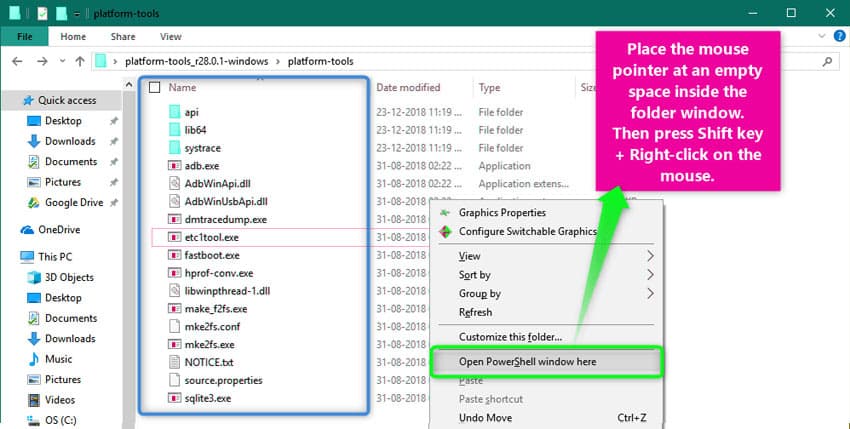
- Кроме того, можно нажать SHIFT на клавиатуре, и не отпуская щелкнуть правой кнопкой на папке. В меню будет пункт Открыть окно powershell здесь.
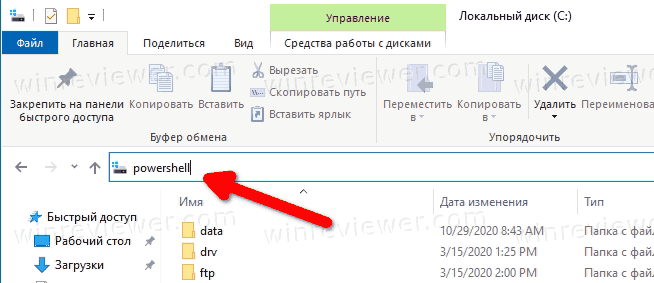
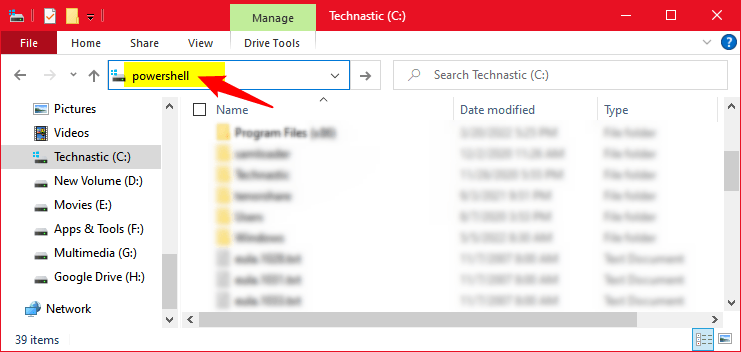
- Наконец, можно напечатать powershell прямо в адресной строке Проводника, и нажать Enter .
��Узнавайте о новых статьях быстрее. Подпишитесь на наши каналы в Telegram и Twitter.
Судя по тому, что вы читаете этот текст, вы дочитали эту статью до конца. Если она вам понравилась, поделитесь, пожалуйста, с помощью кнопок ниже. Спасибо за вашу поддержку!
Вы здесь: Главная страница » Windows » Windows 10 » Как запустить PowerShell в Windows 10. Различные способы
Публикации по теме
Автор: Сергей Ткаченко
Сергей Ткаченко создал этот сайт в далёком 2009 году, и с тех пор продолжает над ним работать, публикуя новые материалы о Windows и её приложениях практически каждый день. Посмотреть все записи автора Сергей Ткаченко
17 Ways to Open PowerShell in Windows 10 & 11
Windows PowerShell is a next-generation version of the CMD. It is a powerful shell program for power users. It can be used to execute a host of basic and complicated tasks. While you can do many things normally, for administrative tasks you must run PowerShell as an administrator. In this detailed article, we’ll be checking out all possible ways to open PowerShell in Windows 10 and Windows 11.
If you want to access all the settings shortcuts quickly without digging into layers of the Control Panel, you should try the Windows God Mode folder.
Command Prompt vs PowerShell
Several people take the Command Prompt or CMD and PowerShell to be the same. So, is PowerShell the same as the Command Prompt? Both the shells look pretty similar in appearance and functionality. However, they are different in many ways. Windows PowerShell can do things the Command Prompt can’t. For example-
- It can process variables with multiple data types.
- In PowerShell, the output of the commands is not limited to just text but also a collection of objects.
- You have to parse the output while using the Command Prompt but PowerShell does that itself.
- It can import additional functionality from external libraries while CMD cannot.
- It can automate processes and OS-related things more easily.
- PowerShell runtime can easily be integrated into .NET applications so that you can use all the classes defined in .NET.
Windows Command Prompt or CMD is the original shell for MS-DOS while Microsoft introduced PowerShell as an upgraded and more sophisticated version of CMD. The Command Prompt used to be the default shell on Windows PCs. However, with the Windows 10 build 14791 update, Microsoft replaced CMD with PowerShell as the new default shell for the OS. PowerShell has all the functionality of the Command Prompt but it has also been enhanced with system administration functionality.
Before you check out the ways to open PowerShell, do not forget to head over to my article describing 18 ways to open the Command Prompt in Windows 10.
1. Open PowerShell as Administrator from Power User Menu
Windows has a Power User Menu with advanced options. You can easily open PowerShell normally or as an administrator from here. There are 2 easy ways to access the Power User Menu in Windows.
- Right-click the Start menu or Windows icon at the bottom left corner of your computer’s screen.
- Press Windows + X keyboard shortcut.
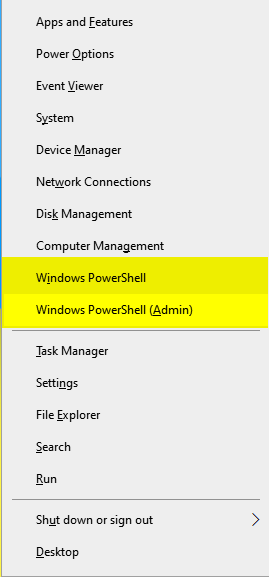
Once the Power User Menu pops up, choose Windows PowerShell or Windows PowerShell (Admin) to launch the program as administrator.
2. Run PowerShell from Start Menu
Windows 10 and 11 users can also open Powershell from the Start Menu. Click the Start icon and Scroll down to a folder called ‘Windows PowerShell‘. Click it and choose Windows PowerShell to run the program.
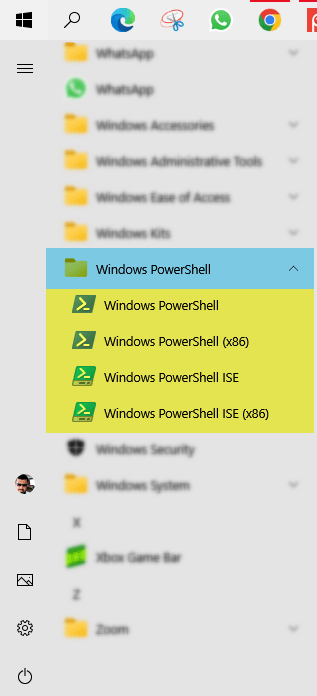
To run PowerShell from Start Menu as admin, right-click Windows PowerShell > More > Run as administrator.
3. Pin PowerShell to the Taskbar
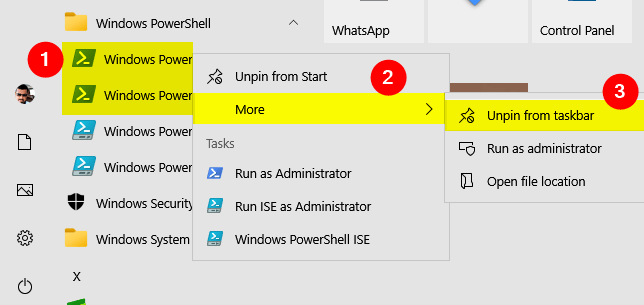
If you want to open PowerShell with a single click of your mouse, pinning it to the Taskbar of your Windows PC is a great idea. Click the Start icon, scroll down to ‘Windows PowerShell‘ and click it. Right-click Windows PowerShell, and click the More >Pin to Taskbar option. The PowerShell shortcut will be pinned to the Windows Taskbar.
4. Open PowerShell using Windows Terminal
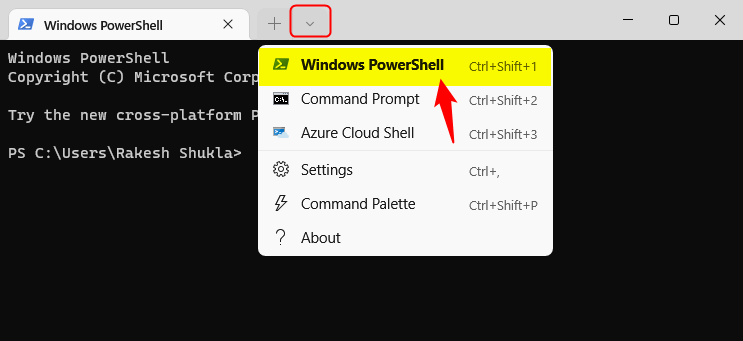
Microsoft introduced a new, modern, feature-rich terminal console called Terminal with Windows 11. It packs together 3 command-line tools: Command Prompt, PowerShell, and Azure Cloud Shell. Windows 10 users can install Windows Terminal from the Microsoft Store.
When you launch Windows Terminal, it’ll load PowerShell by default. However, if you want to open Command Prompt or Azure Cloud Shell, click the reversed caret icon and make a selection. Alternatively, you can also switch between different shells by using Ctrl + Shift + 1/2/3 keyboard shortcut. We have a list of more than 250 keyboard shortcuts for Windows 10 and 11 for you to check out.
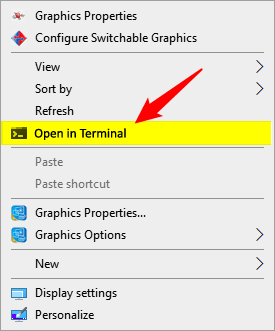
Once you install the Windows Terminal app, a new item named Open in Terminal will be added to your Context Menu. Thus, you get one more way to open PowerShell in Windows 10 at your disposal.
5. Open PowerShell from Search
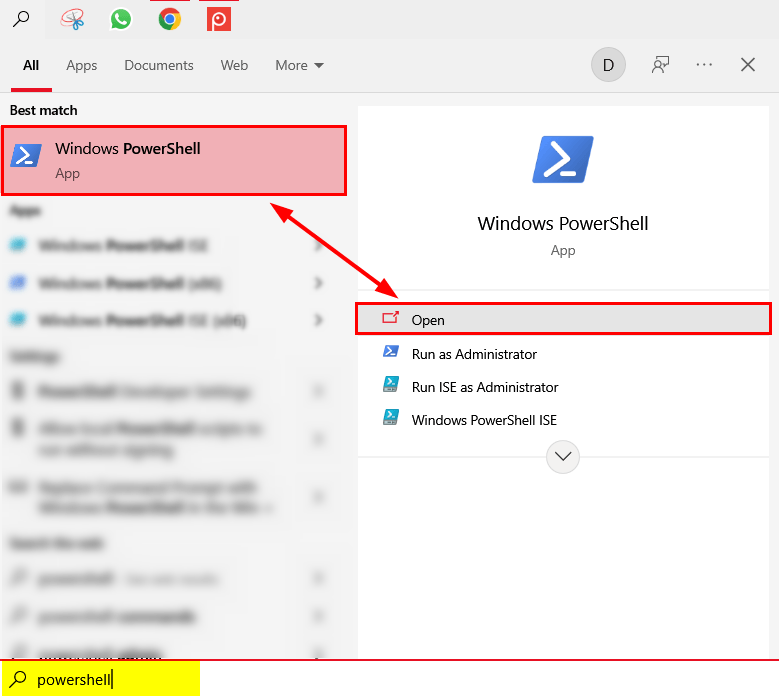
You can also open PowerShell using the Windows search functionality which allows you to search any file, document, or app on your computer. Click the Search icon > Search Box and type “PowerShell“. Either click Windows PowerShell on the left pane or the Open or Run as Administrator option in the right pane or the search window.
6. Open PowerShell Using Voice Command
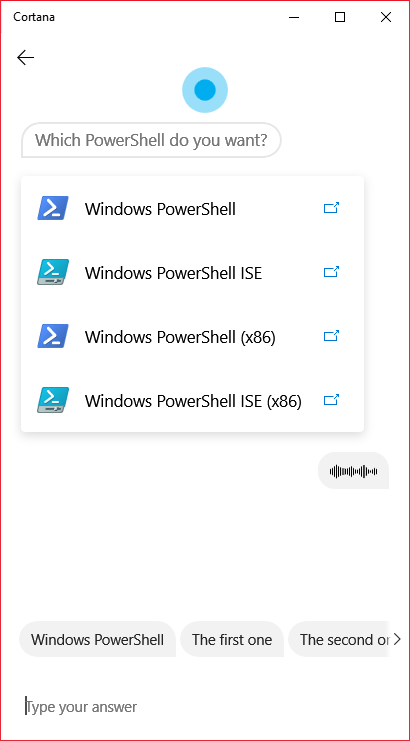
Every OS has its own digital assistant these days. Windows has one too and it’s called Cortana. You can open PowerShell in Windows 10 and 11 simply by giving a voice command to Cortana. Just launch the voice assistant by clicking the Cortana icon. Now click the microphone icon in the bottom-right corner of the app window, and say “open powershell“. Cortana will open a PowerShell window for you.
7. Run PowerShell from powershell.exe
There’s an executable file (.exe) for every app installed on a Windows PC. Just navigate to the Windows > System32 directory on your computer, look for ‘powershell.exe‘, and double-click it to launch PowerShell. You can open it as an administrator by performing a right-click action on the executable file. The powershell.exe location path on Windows 10 and 11 is as follows:
- C:/Windows/System32/WindowsPowerShell/v1.0/powershell.exe
- C:/Windows/SysWOW64/WindowsPowerShell/v1.0/powershell.exe

8. Open PowerShell as an Administrator from CMD
You can launch an instance of PowerShell from the Command Prompt, or just open PowerShell as an administrator from the CMD window itself. To run PowerShell while using the Command Prompt, just type start powershell.exe in the CMD window and press the Enter key.
However, if you want to open PowerShell from CMD as an admin, try the steps given below:
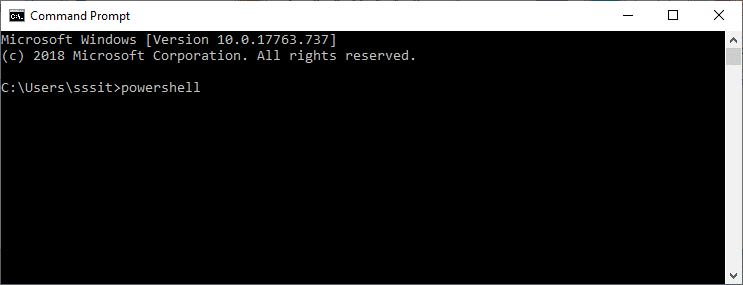
- Open the Command Prompt, type ‘powershell‘, and hit the Enter key.
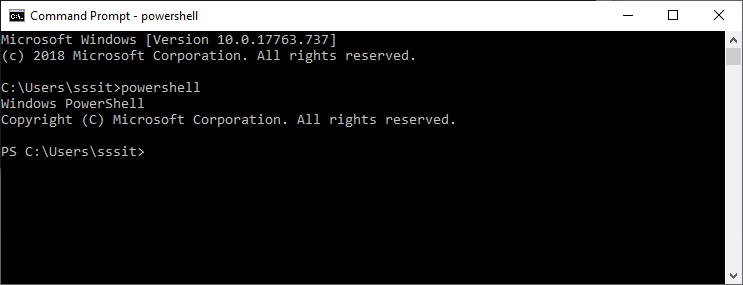
- The Command Prompt will turn into a PowerShell window.
- Now, type or paste start-process PowerShell -verb runas and press the Enter key.
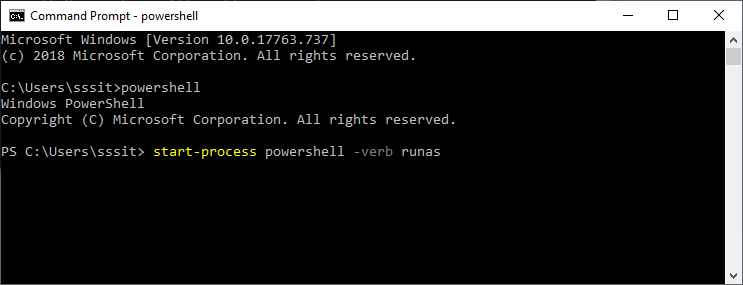
- Doing so will open PowerShell as an administrator.
To open PowerShell as an administrator from CMD using a single line of command, you can execute the following command:
powershell -Command «Start-Process PowerShell -Verb RunAs»
9. Open PowerShell Admin from PowerShell
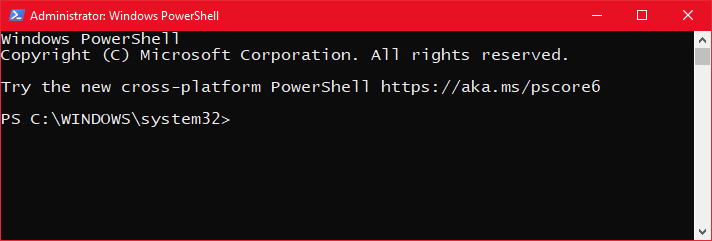
In case you want to open another instance of PowerShell from the current Powershell window, type start powershell.exe , and press the Enter key.
However, you can also open a new instance of PowerShell with administrative privileges using the following methods:
Method 1:
- Open Windows PowerShell, type ‘powershell‘ and press the Enter key to start a PowerShell session.
- Now, type Start-Process PowerShell -Verb RunAs and press Enter.
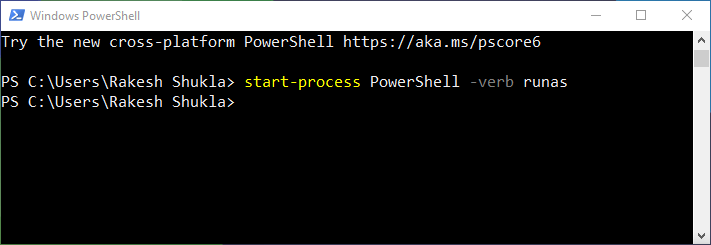
- This will bring up a new PowerShell window with admin privileges.
Method 2:
You can also use one of the following single-line commands to open PowerShell as an administrator from PowerShell itself.
start-process PowerShell -verb runas OR
powershell -Command «Start-Process PowerShell -Verb RunAs»
Method 3:
Alternatively, you can also launch PowerShell as admin from a normal PowerShell window as follows:
- Open PowerShell and execute the following command with your own username.
- When prompted, enter your computer’s password.
10. Run PowerShell from File Explorer Address Bar
If you want to open a PowerShell with a folder path, there is an easier way to do so in Windows 11, 10, or older. Open File Explorer on your PC, click the address bar, type “powershell” and press the Enter key. A PowerShell window will be launched.
11. Open PowerShell as Admin from File Explorer Menu
There is another way to launch Windows PowerShell in a folder in Windows 10 and 11. This method also offers a way to run PowerShell with the folder path as an administrator. Just open a folder window, click File > Open PowerShell, or Open Command Prompt as administrator.
12. Open PowerShell in a Folder in Windows 10/11
If you want to open PowerShell in a folder, there is yet another way to do it. You can use this method to run PowerShell with a file or folder path in Windows. Open the folder or directory where you want to open a PowerShell window. Make sure to placethe mouse pointer in a blank spot in the folder window, then press the Shift key + right-click. Choose the Open PowerShell window here. option in the context menu.
13. Open PowerShell from Task Manager
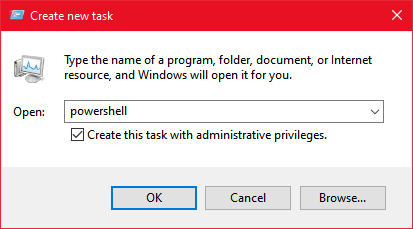
You can also open PowerShell in Windows 10 or 11 from the Task Manager. You can launch Task Manager using Ctrl + Shift + Esc keyboard shortcut. Click More details from the bottom-left corner of the Task Manager window. Click on File > Run new task. Now, type “powershell” in the text box of the Create New Task pop-up and click OK. You can select “Create this task with administrative privileges” option if you want to run PowerShell as an admin.
14. Create a PowerShell Shortcut
You can also create a PowerShell shortcut on the desktop to launch it whenever you want. To do that, right-click on the desktop or the location where you want to create a shortcut. Choose New > Shortcut from the Context Menu. Click the Browse option and navigate to C:\Windows\System32 or C:\Windows\SysWOW64 , choose powershell.exe. and click OK.
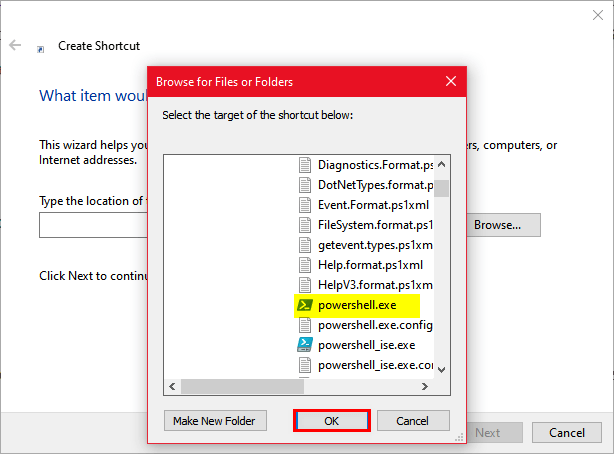
Now, choose Next and assign a name to the newly created shortcut and click Finish. In case you wish the shortcut to open PowerShell in admin mode, right-click on the shortcut icon, choose Properties > Advanced, select Run as administrator, and click OK.
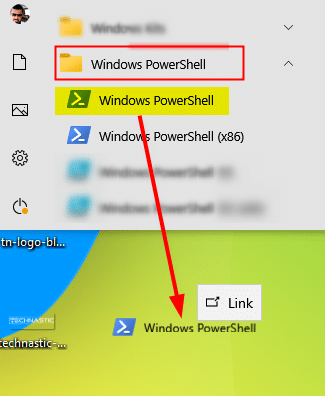
There is a simpler way to create a shortcut on the desktop for PowerShell. Open Start Menu, go to You can also create a PowerShell shortcut simply by dragging PowerShell to your computer’s desktop from Start Menu > Windows PowerShell folder and drag and drop the PowerShell shortcut on the desktop.
15. Open PowerShell from Microsoft Edge
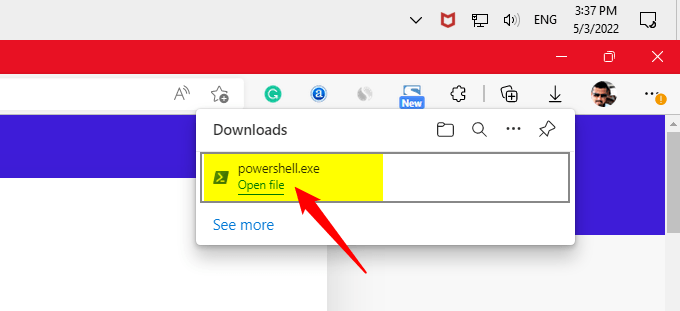
There is yet another way to open PowerShell in Windows 10 and 11. Launch the Microsoft Edge browser on your PC. Now type or paste the location path of the powershell.exe in the URL box.
- file://C:/Windows/System32/WindowsPowerShell/v1.0/powershell.exe
- file://C:/Windows/SysWOW64/WindowsPowerShell/v1.0/powershell.exe
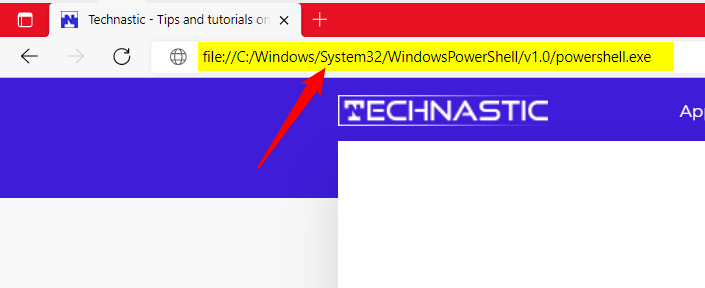
Then press the Enter key. A dialog box below the Downloads icon of the web browser will appear. Click the Open file option to open PowerShell.
16. Open PowerShell via the Run Box
You must be familiar with the Run app in Windows. It can be used to open a document, file, folder, and even a program. Press Windows + R on your keyboard to launch the Run app quickly. Type “powershell” in the text box and click OK. Doing so will open the PowerShell window.

17. Open PowerShell from Context Menu
There are a couple of ways to customize the Context Menu on Windows 10 and 11 using Registry Editor and Context Menu editor programs. You can easily add the option to open PowerShell via the context menu using the detailed steps described in our tutorial.
I think I have mentioned all possible ways to open the PowerShell in Windows 10 and Windows 11. In case you know any method that I might have missed here, feel free to share it with us.