joshschmelzle / remove-gamebar-powershell-win10.md
You’ve probably stumbled upon this researching how to remove the Xbox Game Bar. This gist includes a few different methods you can try. Please note that some of these first options are probably not be available unless you are running an older version of Windows 10.
Uninstalling/Removing the Game Bar (old Windows 10 build GUI options)
(this is no longer an option on any recent Windows 10 build)
- Press Windows Key or click on the Start menu.
- Start typing Xbox or Game Bar , until you get the Xbox Game Bar app to appear in the results.
- Right-click on the app and pick Uninstall . Answer Yes to the prompt, and wait for the process to finish.
Windows Build 19H1 (uninstall moved into Settings)
You might not have an Uninstall option in the right-click context menu. Try drilling into Settings and looking there.
- Press Windows Key or click on the Start menu.
- Start typing Xbox or Game Bar , until you get the Xbox Game Bar app.
- Right click on Xbox Game Bar and click Settings
- Scroll down and click Uninstall . Wait for the process to finish.
Windows Build 19H1/19H2 (uninstall button is now grayed out)
On my machine running Windows Build 10.0.18362 the uninstall button is grayed out. The button I’m referring to is here: Xbox Game Bar > Right Click > App Settings > Uninstall.
Game Bar Settings
Depending on why you’re trying to remove the Game bar, you might also try changing the Game bar settings.
Go to Search > «game bar settings» .
For the option that says Record game clips, screenshots, and broadcasting using Game Bar move the slider to the Off position. This should stop the default Win+G shortcut from opening the Game bar.
If you need Win+G for a different application (I ran into this), you should be able to change the shortcut, and you’re done! Go to Search > «game bar settings» > Game bar > Keyboard shortcuts . I verified this on my Surface Pro 1903/19H1/18362.
Removing Microsoft.Xbox* AppXPackage using PowerShell and DISM (short version)
Can’t find a way to uninstall the Game Bar using the GUI? The DISM tool and PowerShell might do the trick.
DISM is a Deployment Image Servicing and Management tool. You can use DISM from an elevated (admin) PowerShell prompt.
1. Open Windows PowerShell as an administrator (Windows Key > Start typing «PowerShell» > CTRL + SHIFT + ENTER)
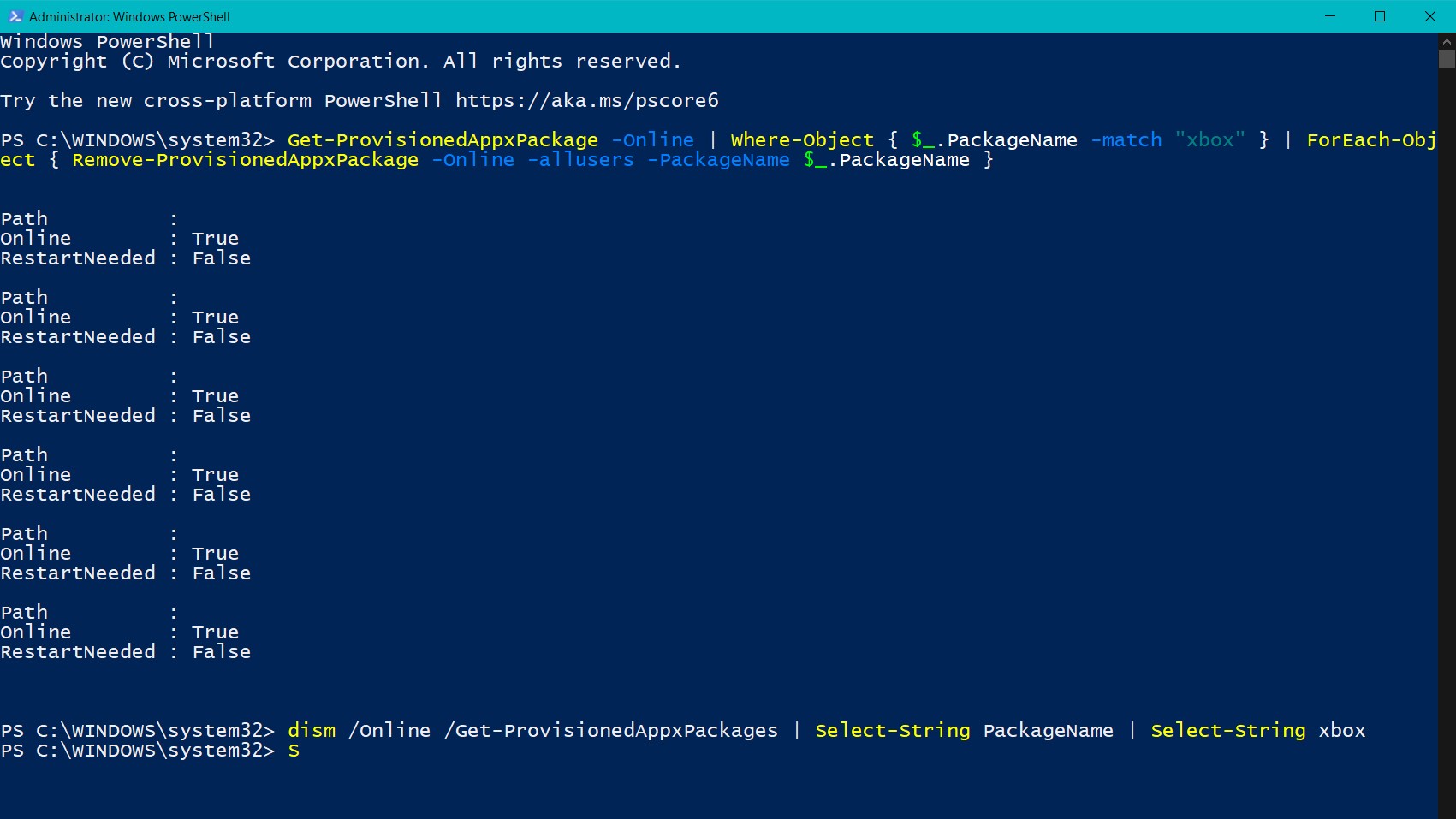
2. First run dism /Online /Get-ProvisionedAppxPackages | Select-String PackageName | Select-String xbox to see what xbox packages are actually on your system.
You can try to run the following command which will get the AppXPackages matching on xbox and attempt to remove them. There are several commands stringed together (thanks @bashenk for your help on this).
You can try this through DISM, or PowerShell. Either one should do the trick, pick one.
3a. DISM version:
3b. PowerShell cmdlet version:
If you want to remove packages for other users, you will need to pass in the -allusers parameter like so:
Ok — let’s see if the xbox packages are still there. Search for the xbox packages again. If there are no results, the respective appxpackages were removed.
You may need to reboot after.
Struggling removing certain Xbox packages like the XboxGamingOverlay?
@Svenster64 commented that they had issues on build 1909 removing the XboxGamingOverlay. Here is the PowerShell command that helped them:
Removing Microsoft.Xbox* AppXPackage using PowerShell and DISM (long and manual version)
This section expands on the short versions. It goes through separate commands instead of stringing commands together. Read this if you’re interested in what all the commands do.
Step 1. Remove AppxPackages from current user.
Open PowerShell as your current user (not as an administrator).
Identify user by running $env:Username :
Get list of xbox AppxPackages using Get-AppxPackage :
Step 2. Build your remove script using package names discovered in Step 1.
Which might look something like this:
You may notice one or more attempts to remove a package failed. We can clean that up using PowerShell as an administrator.
If your administrator account is a different account, you may need to use the -AllUsers parameter with certain commands.
Step 3. Check AppxPackage list again
Step 4. Launch PowerShell as an administrator
Now that we have an elevated command prompt. Let’s look at the AppxPackage list again. We may see a few more:
Note: if you want to remove for multiple users, you need to run with the -AllUsers parameter: Get-AppxPackage -AllUsers .
Let’s remove them:
We see one failed. Let’s try to use DISM to remove them.
Step 5: Get a list of DISM packages that match on xbox
Search provisioned packages, you might see more packages than what you found via the Remove-AppxPackage cmdlet.
Step 6: Remove the DISM packages that match on xbox
Build your script based on output found in step 5.
Run DISM as an administrator:
Run AppXPackage as a normal user:
Run AppXPackage as an elevated user:
In this example, I had difficulty removing the XboxGameCallableUI package.
Did something different to remove the Game bar? Please comment and let us know (except via apps like CCleaner).
I’ll try to keep this gist updated to help other folks stumbling onto this gist.
You might want to add ‘-allusers’ into your script:
Get-ProvisionedAppxPackage -Online | Where-Object < $_.PackageName -match "xbox" >| ForEach-Object
Confirming the above worked for me. 🙂

So if you download ccleaner protable » https://www.ccleaner.com/ccleaner/download/portable » here (this is a download link, will download if you click) you can go to tools and uninstall all the built in microsoft apps
@Darude-FOTR did you try using ccleaner to remove the xbox app and were you successful? ccleaner can go amok and have side effects, so i am cautious and don’t generally recommend it.
@Darude-FOTR @joshschmelzle And then you’re stuck dealing with whatever else CCleaner leaves behind. And it’s a typical target (apparently at least twice) for being hacked.
Removing via powershell works like a champ up through at least 1909.
what works for me Windows Registry Editor Version 5.00
; Settings — Gaming entry — Turn OFF
@MAP316 That doesn’t actually remove the component, it just hides the gaming settings entry access.
I removed it, but it still steals the Win+G keyboard input. Even assigning a new shortcut does not help, then it simply steals both. Anyone experienced that? I am using 1909 Enterprise
Worked for me on Windows 10 2004. Thank you!
The ‘short version’ worked on a desktop running Win 10 Pro version 1909, too.
well this is actually work for latest june update windows 10. thank you !
Thanks! It worked but I had to change the version of some PackageName (for example : Microsoft.XboxGamingOverlay)
«Short Version» worked for my system with the exception that
could not be removed because it is part of Windows.
After all of this, several services still remain. I have disabled them.

Worked like a cahrm. Thank you for making this
Yes, thank you so much. Nothing more annoying getting notifications using the pc and someone is using the xbox.
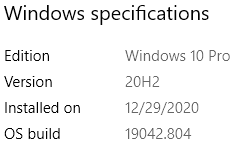
Thank you! On my remote work computer today this stupid widget popped up, and greyed out everything. I could not even open task manager. I had to force logoff, and log back on. Then I immediately used your Power shell method to remove it. Why would they even put this garbage in productivity workstations is beyond me (I only allow urgent and core updates, and this widget was showing install date of 6/19/2021). Windows 10 Pro 20H2 Build 19042.1052
None of the PowerShell commands work.
@crkinard what version and build of Windows? did another method work for you?
Thank you. Pretty annoying I need to go through this. Why is MS wasting my resources?
if it doesn’t work run powershell as administrator to using «Remove-AppxPackage Microsoft.XboxGameCallableUI_1000.15063.0.0_neutral_neutral_cw5n1h2txyewy»
use Nsudo open powershell with elevated permissions of «TrustedInstaller» and you can easily remove Microsoft.XboxGameCallableUI.
Thanks, man! This command worked on Windows 11:
Get-AppxPackage -AllUsers Microsoft.XboxGamingOverlay | Remove-AppxPackage
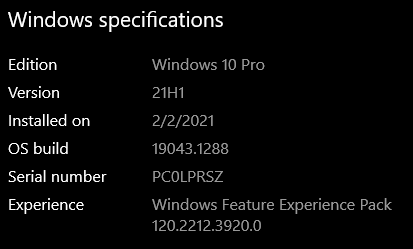
Thanks for the example @haikalshiddiq this worked perfectly on Windows 10 21H1
Reading LOTS of guides/tips about removing Appx/UWP/Xbox etc., I’ve finally got and understood the proper method, tried on different Windows versions and they all worked perfectly. Think I’d share here:
1. System App and essential framework, runtime components.
a) There is an Appx type that shouldn’t be removed — System App. You can find some «hackable» method to remove System Apps, and I won’t mention them here as we’re focusing on the supported and proper method of removing normal Appx packages. A System App usually has some properties such as:
- installed in Windows\SystemApps,
- package name ends with/PublisherID is «cw5n1h2txyewy» (instead of «8wekyb3d8bbwe» for normal apps)
- has properties ‘SignatureKind’ set as ‘System’ (since v1709), ‘NonRemovable’ set as ‘True’ (since v1809) (from command Get-AppxPackage)
Now you have the idea why the package Microsoft.XboxGameCallableUI_1000.18362.449.0_neutral_neutral_cw5n1h2txyewy got the error and shouldn’t be removed.
b) «.NET Framework», «VCLibs» etc. are essential framework, runtime components. As they’re dependencies for many other apps, you can’t remove them first and they shouldn’t be removed. However, as they’re still removable, so if you want to experiment, you can remove other apps first and you will eventually be able to remove these components.
2. Bundle
By defaults, the command Get-AppxPackage will only retrieve/list packages of Main and Framework types. But the type you should really notice is Bundle. Compare the two commands:
A Bundle type appx package usually has some properties:
-
package name contains
a) And the MAGIC thing is: if you remove the Bundle-type package via Remove-AppxPackage, it will also remove all of its «sibling» packages (which have same App Name and PackageFamilyName) COMPLETELY AND CLEANLY, no remnants whatsoever. It will also remove the package from the Provisioned packages list (as seen via Get-AppxProvisionedPackage).
b) Note: If you remove the Bundle-type package via Remove-AppxProvisionedPackage first, it will only remove the package from the Provisioned packages list! By defaults, there are about 5 Apps that are listed in the Provisioned packages list and don’t have their Bundle-type package — you need to run both «removal» commands on those Apps.
3. -AllUsers
In order to remove packages for ALL users, add -AllUsers parameter to «removal» commands. Yes, both Remove-AppxPackage and Remove-AppxProvisionedPackage
I bet you must have seen at least one tutorial saying that following piped commands would work:
Get-AppxPackage -AllUsers APP/PACKAGE-TO-BE-REMOVED | Remove-AppxPackage
but in facts, the correct piped commands would be:
Get-AppxPackage -AllUsers APP/PACKAGE-TO-BE-REMOVED | Remove-AppxPackage -AllUsers
Summary
So, in summary, the proper steps are:
- Avoid System Apps (unless you’re a super advanced user, obviously). Essential framework, runtime components such as «.NET Framework», «VCLibs» etc. can be removed if they’re the last packages to be removed.
- Check if an App has a Bundle-type package, find the correct package name (for manual removal), and remove it first via Remove-AppxPackage
- For apps that don’t have Bundle-type packages but are listed on Get-AppxProvisionedPackage output: it is suggested to remove them via Remove-AppxProvisionedPackage first and via Remove-AppxPackage later.
- Add -AllUsers parameter to the «removal» commands.
Examples:
a) Remove XboxGamingOverlay:
Get-AppxPackage -AllUsers -PackageTypeFilter Bundle *xboxgaming* | Remove-AppxPackage -AllUsers
b) Remove all Xbox-related apps and packages and avoid its System-type package:
For old Windows 10 versions (before v1709):
Get-AppxPackage -AllUsers -PackageTypeFilter Bundle *xbox* | where InstallLocation -match ‘WindowsApps’ | Remove-AppxPackage -AllUsers
For new Windows 10 versions (since v1709):
Get-AppxPackage -AllUsers -PackageTypeFilter Bundle *xbox* | where SignatureKind -ne ‘System’ | Remove-AppxPackage -AllUsers
b) Remove HEIFImageExtension (doesn’t have Bundle package, listed on Provisioned list):
How to Uninstall Xbox Game Bar Very Easily & Quickly
Xbox game bar is a built-in windows application that provides easy access to certain services and applications while playing any game. The application now comes as a default system application. While playing any game, the overlay appears on the gaming screen, through which users can access services like instant social media share, screen recording, live streaming, screenshot, chatting, and countless other services. But as we all know, everything has some advantages and some disadvantages. Games like Call of duty, destiny, diablo, and other online games don’t go well with the Xbox game bar. Every time the user plays the game and the game bar appears, the game crashes with a black screen. So in this guide, we will be demonstrating how to uninstall Xbox game bar.
Please enable JavaScript

Why does Xbox Game Bar Causes Issues?
Since there is no clear explanation behind the crashing of certain applications and games because of the Xbox game bar, we can’t say much. The issue might occur because of the services, as the game services conflict with the Xbox Game bar service, leading to the crashing. Since it is a system application, users have a hard time uninstalling it.
Similar Types of Game Bar Issues
- Greyed out
- Can’t do on Windows 10
- Desinstalar Xbox game bar
- How to disable the Xbox game bar
- How to reinstall the Xbox game bar
- How to disable Xbox game monitoring
- The Xbox game bar is not working
- Xbox game bar full trust
- On Windows 10
(Guide) How to Uninstall Xbox Game Bar
In this section, we will be going over different approaches you can take on this. Feel free to try methods; if one method doesn’t work, try another.
1. From the Start Menu
This is one of the old-fashioned ways of uninstalling applications. This How To Uninstall Xbox Game Bar in windows 10 method has worked for many users, so try it out. For reference, we have given all the steps.
- STEP 1. Open up the Start Menu and Search for Xbox Game Bar/ Xbox
- STEP 2. You will see the Xbox game bar in the search results
- STEP 3. While you are on the results page, right-click on the Xbox game bar and click Uninstall
- STEP 4. However, for some users, the Uninstall Button is inside the Settings button
- STEP 5. So, Start Menu > Type Xbox Game Bar/ Xbox >Right-click >Settings >Uninstall

2. Using Power Shell
- STEP 1. Open up the Power Shell window and run it with administrator permission
- STEP 2. Once you are in the power shell window, execute the below command

” Or “
- STEP 3. Once the command is executed, you can see that the Xbox game bar application no longer exists
3. Re-Install Xbox Game Bar
So if you have changed your mind and now want back the Xbox game bar, it is a fairly, very easy process. Follow the How To Uninstall Xbox Game Bar in Windows 7 steps.
- STEP 1. Go to the Start Menu and type Microsoft Store
- STEP 2. Once the Microsoft store has been opened up
- STEP 3. Simply head to the search bar, type Xbox game bar then hit enter
- STEP 4. Now from the search results, download the game bar, and it will be installed without any hassles
Conclusion:
This is the end of the How To Uninstall Xbox Game Bar guide. We have tried to cover all the possible ways of this. Furthermore, we have also demonstrated the steps for installing the Xbox game bar as well.
We hope this How To Uninstall Xbox Game Bar guide helped you; for more troubleshooting guides, tech reviews, and other tech stuff, follow us. Thank you!
Как удалить xbox game bar в windows 10 полностью
БлогNot. Удаляем XBox Game Bar из Windows 10
Удаляем XBox Game Bar из Windows 10
Заметил некоторое падение производительности на сложных задачах. Оказалось, виной всему «заботливо» впаренный Мелкософтом при очередном обновлении XBox Game Bar, шпионящий и не удаляемый штатными средствами.
С горя ковырнул реестр, но вот такой патч, кажется, так и не помог (как и любой патч, можно сохранить в файле с расширением .reg и выполнить от имени администратора):
Зато помогло удаление через PowerShell:
- Нажать комбинацию клавиш Win + S;
- Набрать в строке поиска PowerShell и выполнить программу от имени администратора;
- Ввести в консоли программы команду
После перезагрузки надоедливое приложение исчезнет.
Вторая беда — жрущий ресурсы процесс Office (не Microsoft Office, а просто Office), видимый в в журнале приложений диспетчера задач («Добро пожаловать в Office в Интернете»).
Удаляется штатными средствами — Пуск, Параметры, Приложения, Приложения и возможности.
Как удалить Xbox Game Bar, DVR и игровой мониторинг в Windows 10
Некоторым пользователям Windows 10 мешает системная игровая панель. Узнайте, как удалить Xbox Game Bar, видеорегистратор DVR и мониторинг подключенных игр полностью.
Для геймеров эти инструменты, встроенные в Виндовс – просто находка. Они позволяют не только оперативно подключаться к игре, но общаться с другими игроками онлайн, просто и легко записывать свои победы на видео.
 панель windows
Но тем, кто не играет, эти инструменты просто не нужны:
- панель Xbox Game Bar;
- видеорегистратор Game DVR;
- игровой мониторинг Xbox Game Monitoring.
Хотя визуально больше раздражает Xbox Bar, два других сервиса могут отбирать больше ресурсов у системы, хотя они и не используются. Поэтому полезно удалять их тоже.
Процедура удаления Game Bar
Игровая панель Game Bar встроена в операционную систему для облегчения использования приставки Xbox и геймпада. Для работы с панелью достаточно нажать клавишу Windows ы логотипом + G.
Если нет желания использовать панель, ее можно просто отключить. Для этого нужно:
- войти в Настройки, нажав кнопку Пуск;
- выбрать Игры;
- выбрать слева Игровая панель;
- в настройках Game Bar найти переключатель ниже надписи Record game clips (Запись игровых клипов);
- поставить переключатель в положение OFF.
Xbox Bar перестанет появляться при подключении к игре.
 как удалить панель
Отключение видеорегистратора Game DVR
Видеорегистратор призван записывать интересные моменты, но по-настоящему он нужен только завзятым геймерам или видеоблогерам, специализирующимся на стримах. Для остальных он является лишней нагрузкой потребляющей много ресурсов.
Для отключения Game DVR:
- войти в Настройки, нажав кнопку Пуск;
- выбрать Игры;
- выбрать слева Game DVR;
- переключатель «Запись в фоновом режиме» поставить в положение OFF.
Регистратор перестанет забирать ресурсы в фоновом режиме. Для его включения достаточно проделать то же самое, поставив переключатель в положение ON.
Отключение Xbox Game Monitoring
Monitoring позволяет отслеживать процессы подключения игр, но отключить этот сервис так же просто, как два предыдущих, не получится. Для этого придется вносить изменения в реестр системы.
Для отключения мониторинга:
- прежде всего, сделайте копию реестра системы на случай восстановления;
- нажмите сочетание клавиш Windows + R;
- введите regedit, нажмите Enter;
- последовательно двойными щелчками мыши открывайте: KEY_LOCAL_MACHINE -> SYSTEM -> CurrentControlSet -> Сервисы;
- нажмите xbgm;
- в правой части нажмите окна Start REG_DWORD правой кнопкой мыши;
- нажмите Edit;
- измените значение с 3 на 4;
- нажмите ОК.
Для включения мониторинга придется сделать то же самое, но установить по умолчанию значение 3.