What is the ARP command? How to Use it & Tutorial!
Last Updated: October 29th, 2020 by  Hitesh J in Guides, Windows
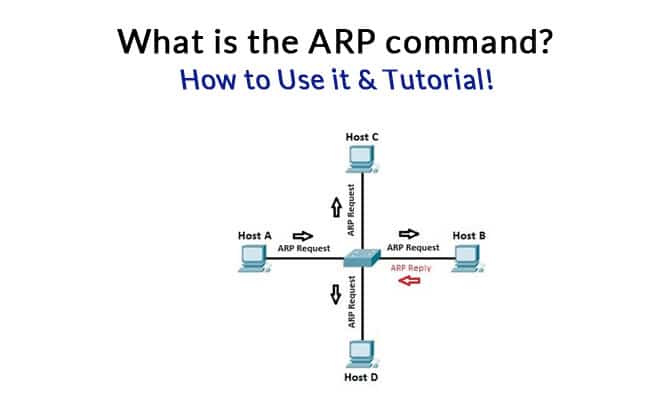
ARP stands for “Address Resolution Protocol” is a protocol for mapping an IP address to a physical MAC address on a local area network.
Basically, ARP is a program used by a computer system to find another computer’s MAC address based on its IP address.
Now you have a question “why do we need MAC address?”
The reason is simple, any local communications would use MAC address, not IP address.
When a computer wants to communicate with another computer on a different network, the IP address would be used. The IP address is like your mailing address while MAC address is like your name.
On a TCP/IP network, every computer is assigned IP address and some local server’ IP addresses are also given to a network client.
Now you’re probably wondering – “How often does your computer use ARP?”.
To demonstrate how ARP works let’s take an example.
ARP Command Example
On a local area network, a client computer tries to contact a server.
Here we are talking about communication between two computers on the same broadcast domain means a local area network. First, the client checks its ARP cache.
ARP cache is a table of IP addresses with their corresponding MAC addresses.
To view a Windows computer’s ARP table, open a command prompt and enter the following command:
You can see your computers ARP table in the following output:
Interface: 208.117.86.63 — 0x5
Internet Address Physical Address Type
208.117.86.1 00-00-5e-00-01-02 dynamic
208.117.86.255 ff-ff-ff-ff-ff-ff static
224.0.0.22 01-00-5e-00-00-16 static
224.0.0.252 01-00-5e-00-00-fc static
239.255.255.250 01-00-5e-7f-ff-fa static
The first column is IP address, a second column is corresponding to the MAC address.
The ARP entry is either static or dynamic.
Static ARP entry is manually added to the ARP cache table. Dynamic entries are what the ARP program gets.
They stay there until the ARP cache timeout has expired. Suppose no entry has been found for the server, the client computer will use ARP to send a message through the whole network.
This is a broadcast message to the local network that says who has the IP address so and so, and whats your MAC address.
When a server hears the broadcast message, they respond “yes” i have that IP address and here is my MAC address.
Now, let’s Break down the ARP Process Step by Step:
- The client sends a broadcast message because the destination MAC address is a broadcast address. Simply saying hello! anyone has IP address 192.168.0.10 if you hear me would you please give me your MAC address?, and here is my IP address and MAC address. Other devices hear the broadcast message and discard the ARP packet silently.
- When a server hears the message, it sends a unicast message to the client because the destination MAC address and IP address belong to the client.
- The client cache the servers MAC address. At the same time, the client updates its cache table for future reference.
ARP Summary
- It is a layer 2 protocol that uses a layer 3 IP address to find layer 2 MAC address.
- It operates on a LAN or the same broadcast domain because ARP relies on broadcasting.
- It uses the ARP table.
ARP Announcements
ARP Announcements are a way to officially “claim” the IP address on the network.
ARP announcement to update other hosts ARP tables without the need for an ARP request. It helps update the network faster when there was a recent change to hosts IP address.
Reverse ARP
A diskless computer that doesn’t have permanent storage would not be able to find its IP address because the IP addresses kept on the computer’s secondary storage.
So how does a diskless computer would determine its IP address?
The RARP protocol uses a physical network address to obtain the computer’s internet address.
RARP is a network layer protocol and It allows any host to obtain its IP address from the server.
The RARP mechanism supplies the target machine’s physical address to uniquely identify the processor and broadcast a RARP request. The server on the network then receives the message, look up the mapping table and replies to the sender.
Once the machine obtains its IP address, it stores the address in the memory. It does not use RARP until its reboot.
Maintenance of the IP addresses is difficult in RARP as each server must be configured with a table of static mapping between the hardware addresses and IP addresses.
RARP is outdated and is replaced by BOOTP and DHCP protocols.
Inverse ARP
Instead of using layer 3 that uses a IP address to find a MAC address, Inverse ARP uses MAC address to find IP addresses.
As this name suggests, Inverse ARP is just inverse of ARP.
It is used for device configuration and is enabled by default in ATM ( Asynchronous Transfer Mode ) Networks.
It is used to find layer 3 address from layer 2 address like, DLCI in frame relay.
It dynamically maps local DHCP or remote IP addresses when you configure frame relay. When using inverse ARP we know the DLCI or remote router but don’t know its IP address.
How to Use ARP
ARP Command is a TCP/IP utility used for viewing and modifying the local Address Resolution Protocol (ARP) cache.
ARP Cache contains recently resolved MAC addresses of Internet Protocol (IP) hosts on the network.
Run ARP command without any arguements will display a list of the command’s parameters.
You should see the following screen:
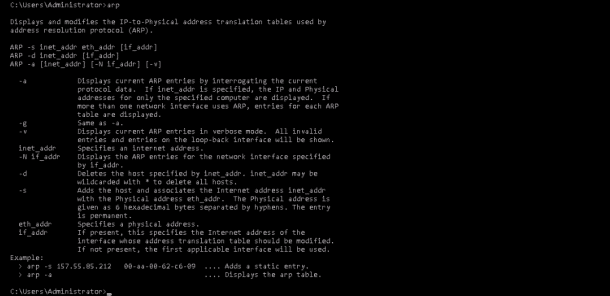
You can display the complete ARP cache by running the following command:
You should see the following output:
Interface: 208.117.86.63 — 0x5
Internet Address Physical Address Type
208.117.86.1 00-00-5e-00-01-02 dynamic
208.117.86.255 ff-ff-ff-ff-ff-ff static
224.0.0.22 01-00-5e-00-00-16 static
224.0.0.252 01-00-5e-00-00-fc static
239.255.255.250 01-00-5e-7f-ff-fa static
You can also find the ARP cache entry for a specific IP address by specifying the IP address with arp command:
arp -a 208.117.86.1
You should see the following output:
Interface: 208.117.86.63 — 0x5
Internet Address Physical Address Type
208.117.86.1 00-00-5e-00-01-02 dynamic
Conclusion
In the above guide, we’ve learned what is ARP and how it works. You also learned how to find the ARP cache of your local network and specific IP address.
We hope this will help you to troubleshoot network related problems and if you have any questions, please feel free to leave them below in the comments section!
ARP – To display ARP cache in Windows
Address Resolution Protocol is the one which is used to find the hardware address of a device (MAC Address) using its IP Address on the network. The Windows ARP tool helps to display and modify the ARP table on the system. A simple usage of arp command would be to display the ARP table: From the command prompt type,
This will display the ARP table on the system as follows:
C:\>arp -a
Interface: 192.168.0.2 — 0x3
Internet Address Physical Address Type
192.168.0.1 00-18-4d-f8-a4-6e dynamic
To clear the ARP table, use
If you want to delete a specific entry then simply type,
C:\> netsh interface ip delete arpcache
NOTE: In Windows Vista, you need to be an administrator to run the above commands
If you want to add a manual entry (static) then enter,
c:\> arp -s <IP Address> <Ethernet (MAC) Address>
Ex: arp -s 172.1.1.1 00-aa-00-62-c6-09
If there is more than one Interface on the system and you want to display all the ARP entries for the interface then
C:\> arp -a -N <Interface IP>
Ex: arp -a -N 192.168.0.2
Interface: 172.1.1.1 — 0x3
Internet Address Physical Address Type
172.1.1.1 00-28-4d-f1-d4-6e dynamic
A detailed Wiki article on ARP is available here
If you’re new here, you may want to subscribe to my RSS feed. Thanks for visiting!
8 Comments
Do you know some method that can help to delete fake arp entry on windows vista?
Execution of these commands fails:
“arp -d” should work. Might not be able to run the command if you are not an administrator?
What is the error when you try to delete the arp entry?
What is the timeout for cache entries for arp in Windows?
hi. should my arp table show ip of many of the computers in a network or should it show me only the default gateway? please be as clrear as you can be. thanks in advance.
ARP table should show entries from your local subnet. By default, your interface and the Default Gateway are in the same subnet and are shown. If you have any other host in the same subnet then try pinging it and lookup the arp table. You should see that IP in ur ARP table added
1. What command is used to display all entries in the ARP cache?
a.
2. What command is used to delete all ARP cache entries (flush the ARP cache)?
a.
3. What command is used to delete the ARP cache entry for 172.16.255.254?
a.
Step 2. Use the arp command to examine the local ARP cache, as shown in Example 9-2.
1. When you issued the command that displays ARP entries, what were the results?
a.
Step 3. Use the ping command to dynamically add entries to the ARP cache. Ping your neighbor in class.
1. How was the ARP entry added to the ARP cache? Hint: Review the Type column.
a.
2. What is the IP address of the destination pod host computer?
a.
3. What is the physical address of the destination pod host computer?
a.
4. Do not send any traffic to the computer accessed previously. Wait between 2 and 3 minutes, and check the ARP cache again. Was the ARP cache entry cleared?
a.
Issue the ping command to your default Gateway. Examine the ARP cache entry.
5. What is the IP address of the Gateway?
a.
6. What is the physical address of the Gateway?
a.
7. How was the address discovered?
a.
Issue the ping command to espn.com. Examine the ARP cache entry.
8. What is the physical address of espn.com?
a.
Step 4. Manually adjust entries in the ARP cache. (Hint: See some answers to step 3)
1. What command deletes all entries in the ARP cache?
a.
2. Consider a secure environment where the Gateway controls access to a web server that contains top-secret information. What is one layer of security that can be applied to ARP cache entries to help counter ARP spoofing?
a.
3. Simulate adding a static entry for the Gateway. What command adds a static ARP entry for the Gateway to the ARP cache?
a.
Task 2: Use Wireshark to Examine ARP Exchanges
Perform steps 1,2 as directed. For step 3, ping your gateway ping –n 1 10.21.32.11 and then ping espn.com as ping –n 1 199.181.132.250
Provide a scrn prnt of the WireShark window.
1. What is the first ARP packet?
a.
2. What is the second ARP packet?
a.
Fill in Table 9-8 with information about the first ARP packet.
Table 9-8 First ARP Packet
Field Value
Sender MAC address Answers will vary
Sender IP address Answers will vary
Target MAC address 00:00:00:00:00:00
Target IP address 172.16.255.254
Fill in Table 9-9 with information about the second ARP packet.
Table 9-9 Second ARP Packet
Field Value
Sender MAC address Answers will vary
Sender IP address 172.16.255.254
Target MAC address Answers will vary
Target IP address Answers will vary
Windows: ARP Command – Show Table & Clear Cache
An ARP (Address Resolution Protocol) is a communication protocol that works on a “Physical (Data-Link)” layer of a TCP/IP stack and is used to discover a MAC address of a device on a LAN (local-area network) based on its IP address.
An ARP table is used to store the discovered pairs of the MAC and IP addresses.
In this note i will show how to display the ARP table and how to clear the ARP cache using the Windows arp command.
Cool Tip: How to show a routing table in Windows! Read more →
Windows ARP Command
Show ARP Table
To display the current ARP table in Windows, use the arp command with the -a option:
Show the ARP table in a verbose mode:
To record an IP and MAC address of a device on a LAN to the ARP table, simply ping it:
To discover all the devices on a LAN, you can ping them all using this one-liner (adjust the IP of your network):
Clear ARP Cache
To start the elevated command prompt, press the ⊞ Win keybutton to open the start menu, type in cmd to search for the command prompt and press the Ctrl + Shift + Enter to start the command prompt as an administrator.
To clear the ARP cache in Windows, use the arp command with the -d option:
How Does ARP Work – Explained
When one computer wants to communicate with another computer on the same LAN, it creates an IP packet with the source and destination IP addresses carrying the data from an application and encapsulates it in an Ethernet frame with the source and destination MAC addresses.
Address Resolution Protocol: The sending computer obviously knows its source MAC address, but how does it know the destination MAC address? That’s where ARP comes into play!
To find out a MAC address of the destination computer (if it is not in the ARP cache yet), it sends an ARP request to the broadcast MAC address ff:ff:ff:ff:ff:ff (to the all devices on the LAN), and is basically asking:
Who has IP 192.168.1.95 and what is your MAC address?
The destination computer receives the message and replies with an ARP reply:
That’s me! And my MAC address is xx:xx:xx:xx:xx:xx
The source computer adds the MAC and IP addresses of the destination computer to its ARP table and starts sending the data.
Cool Tip: Check if TCP port is opened in PowerShell! Read more →
15 команд CMD для системного администратора
 Операционные системы
ARP — изменение таблиц преобразования IP-адресов
Команда arp отображает и изменяет таблицы преобразования IP-адресов в физические, используемые протоколом разрешения адресов (ARP).
Каждое сетевое устройство в сетях Ethernet, будь то сетевая карта или маршрутизатор, имеет так называемый MAC-адрес (Media Access Control — управление доступом к среде), который делится на две части:
- первая часть определят производителя;
- вторая — уникальный номер устройства.
Этот MAC-адрес нужен для того, чтобы однозначно в сети определять все устройства, в какой бы топологии сети они не находились. В двух словах каждое сетевое устройство хранит в своих записях таблицу MAC-адресов, с которыми оно «общалось» сетевыми пакетами.
arp -a — команда отображает текущую таблицу ARP для всех интерфейсов, присутcтвующих на компьютере. Таким образом можно увидеть отвечало ли конкретное устройство. Если нужной записи нет, то устройства не смогли обменяться пакетами.
arp -d — команда позволяет очистить полностью таблицу ARP.
Полный синтаксис команды arp можно узнать в командной строке Windows.
Команды CMD. ARP
driverquery — просмотр установленных драйверов устройств
Очень полезная утилита, которая умеет вывести список установленных драйверов устройств. Можно получить и путь к папке где установлен драйвер, если набрать команду с ключом /V. Утилита driverquery поможет без труда найти где расположен проблемный драйвер.
Команды CMD. Driverquery
Полный синтаксис работы утилиты можно узнать, набрав в командной строке driverquery /?.
gpupdate — обновление параметров групповых политик
Незаменимая команда для системных администраторов доменной сети Windows. Она поможет применить параметры Active Directory незамедлительно, если нужно. Для этого достаточно набрать команду с ключом /Force. Это поможет обновить групповые политики компьютера и пользователя. Если набрать команду без ключей, то произойдёт обновление только изменившихся политик.
hostname — показать имя компьютера
Простая команда, которая в консоли cmd покажет имя компьютера.
ipconfig — настройка протокола IP для Windows
Утилита командной строки ipconfig покажет текущие настройки протокола TCP/IP, позволит произвести обновление некоторых параметров, задаваемых при автоматическом конфигурировании сетевых интерфейсов при использовании протокола Dynamic Host Configuration Protocol (DHCP).
ipconfig: поможет узнать IP-адрес компьютера в сети и обновить DNS-адреса при необходимости
Так, ipconfig поможет вручную запросить IP-адрес у сервера DHCP, если по какой-то причине компьютер с Windows не получил его. Для запроса ip-адреса нужно набрать ipconfig /release, а затем ipconfig /renew.
Команда ipconfig /all позволит получить информацию о настройках протокола IP и, в том числе, о серверах DNS, используемых в системе.
Кроме того, Вы команда ipconfig /flushdns обновит DNS адреса.
Эти команды являются очень важными и полезными для администраторов сети Windows для устранения неполадок сети.
Ipconfig также может работать и с протоколом IP версии 6.
nbtstat — статистика протокола и текущих подключений TCP/IP с помощью NBT
NBT (Network BIOS через TCT/IP) или протокол NETBIOS — один из старейших протоколов, разработанный в далёком1983 году по заказу компании IBM. NETBIOS предназначен для передачи данных в пределах одного логического сегмента сети.
nbtstat -n — выводит список зарегистрированных NetBIOS-имен на компьютере. Список отображается для всех активных сетевых соединений.
nbtstat -RR — выполнит очистку и перерегистрацию NetBIOS-имен на локальном компьютере.
net — управление сетевой конфигурацией компьютера
net — целый комплекс команд, которые выводят результат подключения/отключения компьютера к общему ресурсу, отображают информацию о компьютерных соединениях. Для работы с утилитой потребуются права администратора Windows. Рассмотрим наиболее значимые команды net.
NET ACCOUNTS — используется для управления данными учетных записей пользователей, а также для изменения параметров входа в систему для всех учетных записей.
NET COMPUTER — добавляет/удаляет компьютеры в базу данных домена под управлением Active Directory. Эта команда может использоваться только на контроллерах домена. NET COMPUTER \\win7v /add — добавить к данному домену компьютер с именем win7v.
NET CONFIG — отображает информацию о настройке служб рабочей станции или сервера. NET CONFIG SERVER — отобразить текущие значения параметров настройки службы сервера.
NET FILE — отображает список открытых по сети файлов и может принудительно закрывать общий файл и снимать файловые блокировки.
NET GROUP и NET LOCALGROUP — команды практически идентичны, но первая выполняется на контроллере домена и относится к объектам Active Directory, а вторая – к локальным рабочим группам компьютера. NET LOCALGROUP — отобразить список групп для данного компьютера.
NET HELPMSG — выводит информацию о сетевых сообщениях Windows. Если ввести команду NET HELPMSG и номер ошибки, то Windows выведет пояснения для этого сообщения и предложит возможные варианты действий, которые можно предпринять для устранения ошибки. NET HELPMSG 51 — отобразить сведения о сообщении с номером 51
NET PAUSE и NET CONTINUE — предназначены для управления службами Windows: их перевода её в режим ожидания или продолжения работы.
NET SESSION — завершает текущие сеансы связи между данным компьютером и другими компьютерами сети или выводит их список. При использовании команды без параметров выводятся сведения о всех текущих сеансах связи с интересующим компьютером. Эта команда используется только на серверах.
NET SHARE — разрешает использовать серверные ресурсы другим пользователям сети. Когда команда используется без параметров, выводится информация о всех общих ресурсах компьютера. Для каждого ресурса выводится имя устройства или путь и соответствующий комментарий. NET SHARE Admin$ — отобразить сведения о разделяемом ресурсе Admin$
NET STOP и NET START — используются для остановки и запуска системных служб Windows. NET STOP dnscache — остановить службу DNS-клиента.
NET TIME — синхронизирует часы компьютера с часами другого компьютера или домена либо отображает время компьютера или домена. При использовании без параметров в домене Windows Server команда выводит текущую дату и время, установленные на компьютере, назначенном сервером времени для данного домена.
NET USE — подключает компьютер к общему ресурсу или отключает компьютер от общего ресурса. Когда команда используется без параметров, выводится список подключений данного компьютера. NET USE R: \\server\share — подключить в качестве сетевого диска R: сетевой ресурс share на сервере server.
NET USER — используется для создания и изменения учетных записей пользователей на компьютерах. При выполнении команды без параметров отображается список учетных записей пользователей данного компьютера. NET USER user1 — отобразить сведения о пользователе user1. Пример:
NET VIEW — отображает список общих ресурсов компьютера. NET VIEW /ALL— отображение всех общих ресурсов, включая $.
Более полный список команд и их синтаксис можно получить, вызвав команду с параметром /HELP. Например, NET USE /HELP.
Справка по команде netuse в CMD
netstat — сведения о состоянии сетевых соединений
Ввод команды netstat -an предоставит список открытых портов в настоящее время и связанных с ними IP-адресов. Эта команда также скажет Вам в каком состоянии находится порт.
Состояние соединения Listening говорит о том, что строка состояния отображает информацию о сетевой службе, ожидающей входящие соединения по соответствующему протоколу на адрес и порт, отображаемые в колонке Локальный адрес.
Состояние ESTABLISHED указывает на активное соединение. В колонке Состояние для соединений по протоколу TCP может отображаться текущий этап TCP-сессии определяемый по обработке значений флагов в заголовке TCP.
Возможные состояния:
CLOSE_WAIT — ожидание закрытия соединения.
CLOSED — соединение закрыто.
ESTABLISHED — соединение установлено.
LISTENING — ожидается соединение (слушается порт)
TIME_WAIT — превышение времени ответа.
nslookup — управление DNS
По большому счёту, утилита представляет собой аналог служб DNS-клиента в Windows и позволяет диагностировать и устранить проблемы с разрешением имен в системе DNS.
При запуске nslookup без параметров, утилита переходит в интерактивный режим, ожидая ввод команд пользователя.
nslookup google.ru — позволит установить разрешается ли имя google.ru на Вашем DNS-сервере.
nslookup -type=mx google.ru — то же, что и в предыдущем примере, но с указанием типа запрашиваемой записи -type=mx. Сервер DNS ответит на запрос утилиты nslookup перечислением почтовых серверов, обслуживающих домен google.ru.
Ещё больше возможностей команды nslookup можно получить из справки самой команды.
ping — опрос узла по имени или его IP-адресу
Иногда, необходимо узнать действительно ли отправляемые пакеты доходят до определенного сетевого устройства. И здесь Вам поможет утилита ping.
ping yandex.ru — команда будет посылать серию тестовых пакетов по указанному адресу yandex.ru. Если ответ приходит, то можно сказать, что удалённое устройство способно осуществлять связь с компьютером. В противном случае Вы сразу узнаете, что пакеты до компьютера не доходят, значит что-то блокирует обмен данными между устройством и компьютером.
Пакеты можно отправлять бесконечно много, указав ключ -t. При этом прервать отправку пакетов можно комбинацией клавиш Ctrl + C. Кроме того, ключём -w можно задать максимальное время ожидания для каждого ответа в милисекундах.
-l 1000 — позволит задать размер поля данных в байтах для каждого отправляемого запроса.
sc — диспетчер управления службами Windows
SC используется для конфигурирования, опроса состояния, остановки, запуска, удаления и добавления системных служб в командной строке Windows. При наличии соответствующих прав, команда SC может применяться для управления службами как на локальной, так и на удаленной системе.
Приведу несколько команд для примера:
sc query — запрашивает состояния службы или перечисляет состояний типов служб.
sc start myservice — запуск службы с именем myservice.
sc create myservice — создаёт службу. Записывает службу в реестр и базу данных служб.
sfc — проверка целостности системных файлов Windows
Чтобы произвести проверку системных файлов Windows, нужно будет запустить командную строку с правами администратора и ввести команду sfc /scannow. Если sfc обнаруживает любые поврежденные или отсутствующие файлы, он будет автоматически заменить их, используя кэшированные копии, сохраняемые Windows. Команде для проверки может потребовать полчаса и даже больше.
Справка по команде SFC для проверки целостности
systeminfo — сведения о конфигурации операционной системы Windows
Команда systeminfo поможет узнать о Вашей установленной системе много полезной информации, которую графический интерфейс не сможет показать.
shutdown — завершение работы или перезагрузка Windows
Команда shutdown во многом аналогична графической реализации кнопок выключения, перезагрузки, гибернации и так далее. Главное её достоинство — управление режимами выключения на удалённом компьютере.
Параметры запуска команды shutdown
tracert — трассировка маршрута к заданному узлу
Команда tracert отслеживает, сколько времени (в миллисекундах) требуется на отправку пакета до заданного узла. Каждый узел с указанием времени — это один шаг. Все шаги, которые выполняет пакет, прежде чем достигнет назначения, показываются в виде небольшой таблицы.
У системных администраторов команда tracert пользуется наибольшей популярностью.
Попробуйте запустить, например, tracert yandex.ru:
Запуск команды tracert с ключом -d позволит не использовать имена узлов, а показывать только IP-адреса.
Кроме того, команда tracert прекрасно работает с протоколом IPv6.
Эта статья может Вам более эффективно использоваться командную строку Windows. Эти 15 команд CMD являются незаменимыми у каждого опытного администратора. Конечно, имеются и другие не менее полезные команды, важность которых трудно оспорить. Но для начала этих 15 команд Вам будет достаточно.
Да и потом уже несколько лет Windows старается продвигать PowerShell, который предлагает ещё более богатый выбор команд для управления всеми параметрами Windows.
Если Вы считаете, что здесь не заслуженно отсутствуют другие важные команды CMD, то напишите об этом в комментариях.