How to Fix Windows 10 Update Error Code 0x800706ba
Recently many users reported facing Windows 10 update Error code 0x800706ba when attempting to install updates on their Windows 10 device. This error resulted in failed Windows Updates that prevent users from updating Windows. Corrupted system files might be the real culprit causing this error code.
If you’re also facing the same problem on your computer then don’t worry. In this article, we have explained some effective solutions that will help you to fix this issue.
What does error code 0x800706BA mean?
Normally, this occurs on the client computers that are running Windows XP and releases the remote COM+ object. The RPC ports that were used by DCOM must not be closed immediately afterward. In case the network gets disconnected within 20-30 seconds, the RPC ports will remain open for several hours. As a result, this leads to port exhaustion and ultimately causes COM+ object failure.
Fix Windows Update Error code 0x800706ba
Follow the below methods to fix Windows 10 update Error code 0x800706ba:
1] Run Windows Update Troubleshooter
Windows Update Troubleshooter is an inbuilt tool available in Windows 10 that helps in troubleshooting the error codes that prevent Windows updates. Running this tool might help in fixing Error code 0x800706ba as well. Follow the instructions given below to fix this error:
- Right-click on the Windows icon and click on Settings from the menu.
- In the Settings window, go to Update & Security > Troubleshoot
- Go to the right pane, and click on the Additional troubleshooter.
- Under the Getup and running section, select Windows Update and hit the Run the troubleshooter.
- Wait for the process to complete. Then follow the on-screen instruction to apply fixes.
Now check if the error code is solved.
2] Turn off Antivirus software
Third-party Antivirus software sometimes also interferes with the Windows update process. Therefore disabling these applications might fix the Error code 0x800706ba. Here are the steps to disable antivirus:
- Click Start, type Virus & threat protection, and select the same from the top of the menu.
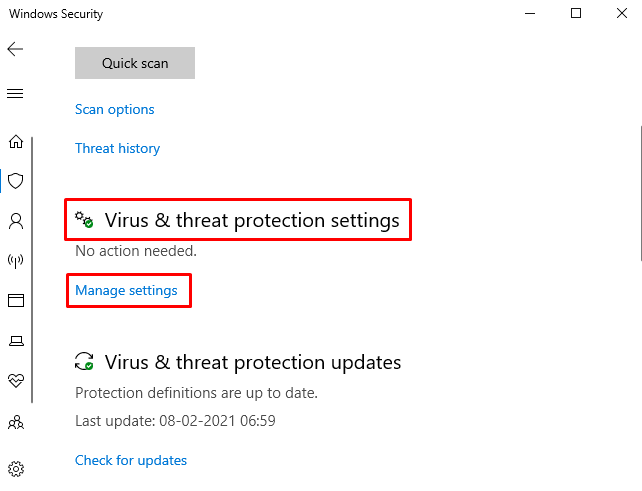
- Under the Virus & threat protection settings section, click on Manage settings.
- Now turn off the toggle switch under the Real-time protection section.
- Similarly, turn off the Cloud-delivered protection.
If you have third-party antivirus software also, right-click on the icon present in the taskbar and hit the Disable button.
Note: Antivirus software is essential to protect our PC against viruses and security threats. So once you have done it, don’t forget to turn on the security services.
3] Run SFC and DISM Scan
As mentioned, corrupted system files are the major reason for the Error code 0x800706ba. So repairing them using the SFC utility might help in fixing the error code. Here are the steps to run SFC:
-
.
- In the elevated window, type the command given below and hit Enter.
- Now, wait for the process to complete.
- Then close the Command Prompt window.
In the case when the problem still persists, then try to modify the corrupted file by running the DISM tool. Given below are the steps to run DISM:
- Open Command Prompt as administrator.
- In the elevated command prompt window, type the following command and hit Enter after each.

- Wait until the completion of the repair process. Then close the Command Prompt window.
Now try to update your Windows 10 and see if it solves the problem.
4] Turn on Critical Windows Update Services
There are several services available in Windows 10 that help in ensuring the updates. These services make sure that the update is securely downloaded and installed. It includes Windows Update, Background Intelligent Transfer service, and Workstation. In the case when these services are disabled, it leads to Error code 0x800706ba. So turning on these critical Windows update services might help you fix the issue. Here is the tutorial:
- Press the Windows+R shortcut key to open the Run dialog box.
- In the text box, type services.msc and hit enter.
- In the Services window, scroll down and search for Windows Update.
- Once you find the service, double-click on it.
- In the Properties window, set the Startup type to Automatic.
- Under the Service status section, hit the Start button if it is not running.
- Now click OK to save the changes.
- Similarly, search for the Background Intelligent Transfer service and Workstation service and make sure the Startup type of these services is set to Automatic. Also, click on the Start button (under Service status) if these services are Stopped.
- Restart your computer and try to update your Windows again.
5] Download update manually
Alternatively, you can download the update manually from the Microsoft Update Catalog and get it installed in your system. Follow the instructions given below to download the update manually:
- Open the Microsoft Update Catalogwebsite.
- In the search bar, type the update code and click OK.
- Now find the update that matches your need and get it downloaded by hitting the Download button available next to it.
- After the completion of the download, run the setup file and install it.
- Now reboot your PC and see if the Error code 0x800706ba is solved.
6] Reset Windows Update Components
In the case when none of the above methods helps in fixing the Error code 0x800706ba, then try resetting the Windows Update Components to their default state.
How do I fix error code 0x800706BA?
Since this is an update-related issue, one must try troubleshooting Windows Update, Disabling/Enabling All update-related services, and Clearing the Windows Update cache. If neither of these fixes work, make sure to manually download the relevant standalone package and install it on your PC.
Tip: If you are facing update, activation, or driver issues on your Windows PC, try RESTORO PC Repair Tool . This software will scan your device for potential issues and resolve them automatically.
Исправлено: сбой резервного копирования с ошибкой RPC 0x800706BA
 Исправлено: сбой резервного копирования с ошибкой RPC 0x800706BA — Направляющие
После обновления до Windows 10 V1803 пользователи сообщили об ошибке резервного копирования образа системы. В отчетах говорится, что резервное копирование образа системы не выполняется с кодом ошибки 0x800706BA. Этот код сообщает нам, что сервер удаленного вызова процедур (RPC) недоступен. Кроме того, очевидно, что эта ошибка присутствует только в 32-разрядной версии Windows 10, поскольку у пользователей 64-разрядной версии не было проблем с резервным копированием.
Что вызывает сбой резервного копирования с ошибкой RPC 0x800706BA?
Ошибка в 32-разрядной версии Windows 10 V1803: Если вы вернетесь к Windows 10 версии 1709, резервное копирование образа системы будет работать. Однако до тех пор, пока команда Microsoft не предоставит пользователям Windows обновление для исправления ошибки, маловероятно, что ошибка будет устранена. По-прежнему существуют решения, которые, хотя и не могут устранить ошибку, безусловно, быстро заставят вас снова выполнить резервное копирование.
Метод 1. Использование стороннего инструмента для резервного копирования
Поскольку существует проблема с самим программным обеспечением Windows, а именно с версией wbengine.exe 1803, загрузка внешнего инструмента без ошибок была бы лучшим вариантом, и он будет защищен от любых ошибок из обновлений Windows. Этот метод поможет вам установить популярную стороннюю альтернативу Macrium Reflect.
- Щелкните ссылку: Macrium Reflect, а затем щелкните значок Домашнее использование вариант загрузки.
- Следуйте инструкциям на сайте.
- Теперь откройте учетную запись электронной почты, которую вы ввели на веб-сайте, и щелкните предоставленную ссылку.
- Ваша загрузка начнется автоматически.
- Следуйте этим инструкциям, чтобы завершить установку.
- Все готово.
Метод 2: вернитесь к Windows 10 версии 1709
До сих пор об ошибке сообщалось только в 32-разрядной версии V1803 Windows 10, поэтому во всех предыдущих версиях, таких как Windows 10 версии 1709, эта ошибка отсутствует. Таким образом, возврат к более старой версии Windows 10 также является вариантом решения проблемы. Этот метод проведет вас через шаги, чтобы сделать именно это.
- Открой Настройки Windows приложение
- Нажми на Обновление и безопасность вариант.
- Нажми на Восстановление вкладку, а затем выберите «Вернуться к предыдущей версии Windows 10» вариант.
- Теперь нажмите 'Начать'.
- Windows 10 спросит вас, почему вы хотите откатиться, вы можете выбрать любой ответ, чтобы перейти к следующему шагу, где он попросит проверить наличие обновлений.
- Наконец, выберите 'Нет, спасибо' вариант и дождитесь установки более старой версии. Как только это произойдет, вы можете без проблем начать резервное копирование.
Метод 3. Замените неисправный файл 1803 wbengine.
Ошибка резервного копирования системного образа в версии Windows 1803 года была изолирована от дефектных wbengine.exe файл. Поскольку мы определили исходный файл, вызывающий ошибку, мы можем просто заменить его, чтобы устранить нашу ошибку. Этот метод проведет вас через этапы извлечения работающего файла wbengine из более старой версии Windows 10 и замены им встроенного поврежденного файла.
- Сначала откройте ссылку для загрузки работающей версии wbengine: Новый файл wbengine
- Распакуйте файл.
- Поиск wbengine.exe, щелкните его правой кнопкой мыши и выберите Показать в папке.
- Теперь щелкните правой кнопкой мыши по нему еще раз и выберите Свойства.
- Теперь нажмите на Безопасность таб.
- Теперь нажмите «Администраторы» или любую учетную запись пользователя, к которой у вас есть доступ.
- Щелкните значок редактировать вариант.
- Проверить Полный контроль коробка.
- Снова щелкните правой кнопкой мыши файл wbengine и замените его загруженной версией wbengine.exe, извлеченной ранее.
- Запустите его, чтобы убедиться, что он работает, а затем проверьте, устранена ли ошибка.
Метод 4: обновление до Windows 10 версии 1809
Среди всех улучшений и новых функций, которые есть в Windows 10 версии 1809, команда разработчиков Windows также подтвердила, что ошибка резервного копирования образа системы на 32-битном носителе также была исправлена.
Версия Windows 10 1809 должна быть выпущена к концу ноября и скоро будет доступна для всех пользователей Windows. Все, что вам нужно сделать, это:
- Нажми на Настройки приложение.
- Теперь нажмите на Обновление и безопасность.
- Выберите «Проверить наличие обновлений» вариант.
- Версия Windows 10 1809 появится в списке и будет готова к установке.
- После завершения установки попробуйте снова использовать программное обеспечение для резервного копирования образа системы. Теперь он должен работать.
Исправьте ошибку будильника iPhone или найдите альтернативное приложение будильника
Многие из вас, кто пытался проснуться утром от будильника вашего iPhone, этого не сделали. В сообщениях говорится, что после полуночи прошлой ночью приложение будильника на всех устройствах iO 4 прост.
Читать
Исправить iPhone Freeze
iO 6 и выше зависает на iPhone 4 и 4 случайно.Шаг 1. На вашем телефоне должна быть включена функция Aitive Touch.Шаг 2. Когда телефон зависает, коснитесь Вспомогательного касания и нажмите «Голос.
Читать
Исправьте ошибку «Число, измененное на первичное» на iPhone XS & XS Max
IPhone X и X Max едва исполнился месяц, но у обоих есть серьезные проблемы с сообщениями. При отправке другу M / MM-текста, а не iMeage, фраза «Номер изменен на Основной» появляется перед ка.
[FULL GUIDE] Windows Error Code 0x800706ba Repair

Numerous people have recently reported encountering the Windows 10 update error 0x800706ba while downloading and installing new updates on their Windows 10 devices. This critical Windows update services problem will cause an unsuccessful update. As a result, users will be unable to update their operating systems.
Recommended: To easily install drivers automatically, use the tool below.
There could be many reasons one might experience this critical Windows update services issue. It could be missing or corrupted system files and registry entries, complex applications installed in the system, malware infection, and/or corrupt or damaged drivers.
Furthermore, here are some of the situations when the Windows error 0x800706ba may appear:
- When attempting to download and install a fresh new Windows update.
- Trying to print a file or a misconfigured printer sharing settings.
- The Remote Procedure Call (RPC) server is unavailable.
If you’re experiencing a similar issue with your PC, have no fear. In this article, we’ve included a list of methods to assist you in resolving this problem. The repair process of each way may depend on how savvy you are in computers.
Initial Workarounds For Error 0x800706ba
Reboot your computer. One of the easiest ways to fix error 0x800706ba is to restart your system. Hopefully, this simple step will reset any problematic issue after rebooting your PC and check if you still receive the error 0x800706ba.
Configure Windows firewall service and disable antivirus software. Then check if you can complete the Windows updates. Sometimes, your antivirus software or Windows firewall option can interfere with your attempt to update.
If error 0x800706ba persists, go for the fixes mentioned below. The steps listed below are mainly easy to follow.
Fixing the Windows Update Error 0x800706ba
First Method – Run the Windows Update Troubleshooter Tool
The Windows Update Troubleshooter is a built-in application in Windows 10 that can help you resolve Windows error 0x800706ba and other failed Windows update issues. This program was created to diagnose and fix various computer issues quickly. As a result, it’s a good idea to try it first to repair Windows Update issues.
1. Press the “Windows” key on your keyboard and press “R.” This will open a small window where you can type “control update” in the run command window.

- When a new window opens, click “Troubleshoot” and “Additional Troubleshooters.”

- Next, click “Windows Update” and then “Run the Troubleshooter.”

- At this point, the troubleshooter will automatically scan and fix errors in your PC. Once done, you will see a pop-up window telling you what items were fixed.

- After the detected issues have been fixed, restart your computer to see if the failed Windows updates error 0x800706ba has been fixed.
Second Method – Use 3rd Party Software
Another good way to fix error code 0x800706ba is to use 3rd party software. Tools like Restoro work exceptionally well to locate Windows update errors. Furthermore, this tool can also find corrupt system files, malicious files, and more. You can easily follow on-screen instructions to start fixing error 0x800706ba.
Third Method – Run the Windows System File Checker (SFC) scan and the DISM Tool
You can use Windows SFC scan and DISM to examine and fix the corrupted file and 0x800706ba error. These tools are included with every version of Microsoft networks operating systems and are one of the most dependable ways to resolve any update issues.
1. Press the “Windows” and the letter “R” keys to bring up the Run dialog box. Then type in “cmd,” hold down the “ctrl and shift” keys together and press “enter.” Click “OK” on the prompt to grant administrator permission and open the command prompt.

- Type “sfc /scannow” and press “enter” on the Command Prompt window, and wait for the scan to complete once the scan is complete, restart your computer and confirm if the issue is fixed.

The System File Checker will now commence scanning and repairing your PC. You’ll need to restart your computer when done. Next, run the Windows Update tool to check if the Windows update error 0x800706ba has been fixed.
Fourth Method – Performing a DISM Scan
Another tool you could use to troubleshoot and fix Windows update issues, such as the error code, is the Windows DISM. You can use the Deployment Image Servicing and Management (DISM) tool to determine which drivers or packages are causing the problems.
1. Press the “Windows” key and the letter “R” to bring up the Run command window. Then type in “cmd,” hold down the “ctrl and shift” keys together and press “enter.” Click on “OK” on the prompt to grant administrator permission.
- Type in “DISM.exe /Online /Cleanup-image /Restorehealth” and press “enter.”

- Wait until the scan is complete and restart your computer. Open up the Windows Update tool, begin the update process, and see if the 0x800706ba error has been fixed.
Fifth Method – Manually Restart the Windows Update Services via CMD
Despite being one of the most widely used operating systems, Windows 10 is far from perfect. There may be times when the Operating System’s functionalities do not function properly. Resetting Windows Update Components is the most basic fix to this problem. The Windows Update services are in charge of installing updates, and if they fail during a Windows Update, they should be restarted.
- Hold down the “Windows” key and press the letter “R,” and type in “cmd” in the command line. Press down on both the “ctrl and shift” keys simultaneously and press “enter.” Select “OK” to grant administrator permission on the next prompt.
- In the command prompt window, type in the following entries individually and press enter after entering each command.
• net stop wuauserv
• net stop cryptSvc
• net stop bits
• net stop msiserver
• ren C:\\Windows\\SoftwareDistribution SoftwareDistribution.old
• ren C:\\Windows\\System32\\catroot2 Catroot2.old

Note: Both of the last two commands are only used to rename the Catroot2 and SoftwareDistribution folders
- Next, you must delete a particular file by performing the following steps. In the same CMD window, type in the following commands and press enter after each command:
• cd /d %windir%system32
- After entering the above commands, we will have to restart all the Background Intelligent Transfer Service (BITS) through the same CMD window. Remember to press enter after typing in each command.
• regsvr32.exe oleaut32.dll
• regsvr32.exe ole32.dll
• regsvr32.exe shell32.dll
• regsvr32.exe initpki.dll
• regsvr32.exe wuapi.dll
• regsvr32.exe wuaueng.dll
• regsvr32.exe wuaueng1.dll
• regsvr32.exe wucltui.dll
• regsvr32.exe wups.dll
• regsvr32.exe wups2.dll
• regsvr32.exe wuweb.dll
• regsvr32.exe qmgr.dll
• regsvr32.exe qmgrprxy.dll
• regsvr32.exe wucltux.dll
• regsvr32.exe muweb.dll
• regsvr32.exe wuwebv.dll
• regsvr32.exe atl.dll
• regsvr32.exe urlmon.dll
• regsvr32.exe mshtml.dll
• regsvr32.exe shdocvw.dll
• regsvr32.exe browseui.dll
• regsvr32.exe jscript.dll
• regsvr32.exe vbscript.dll
• regsvr32.exe scrrun.dll
• regsvr32.exe msxml.dll
• regsvr32.exe msxml3.dll
• regsvr32.exe msxml6.dll
• regsvr32.exe actxprxy.dll
• regsvr32.exe softpub.dll
• regsvr32.exe wintrust.dll
• regsvr32.exe dssenh.dll
• regsvr32.exe rsaenh.dll
• regsvr32.exe gpkcsp.dll
• regsvr32.exe sccbase.dll
• regsvr32.exe slbcsp.dll
• regsvr32.exe cryptdlg.dll
- Once all the commands have been entered, we need to reset the Windows Socket by typing in the following command. Once again, make sure to press enter after entering the command.
• netsh winsock reset
- Now that you have stopped the Windows Update services turn it back on to refresh it. Type in the following commands in the command prompt window.
• net start wuauserv
• net start cryptSvc
• net start bits
• net start msiserver

- Close the Command Prompt window and restart your computer. Once your computer is back on, run the Windows update to see if the error has been fixed.
Sixth Method – Enable/Restart the Background Intelligent Transfer services (BITS)
Background Intelligent Transfer Service (BITS) is a critical Windows 10 feature that must be enabled for any Windows Update to function. When the Windows Update Service fails, BITS allows your system to display an error notice but does not take further action. An issue occasionally causes the Windows update error 0x800706ba with BITS, and you should reset your BITS to fix the problem correctly.
- Press the Windows + R key on your keyboard to open the dialog box.
- In the dialog box, type “services.msc” and press Enter.
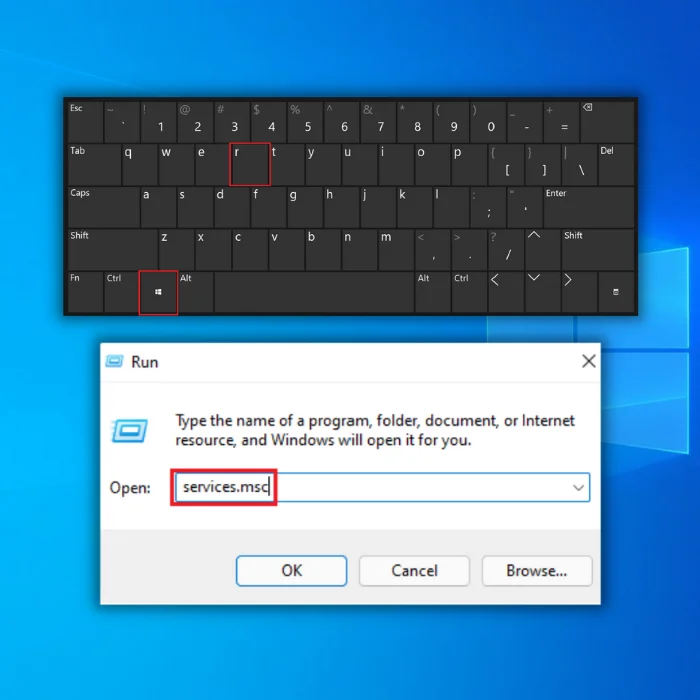
- Locate the Background Intelligent Transfer Service and then double-click on it to open up its properties.

- Next, verify that the Background Intelligent Transfer Service (BITS) is operating correctly. If you find out it is not working right, click the Start button.

- Proceed to the recovery tab and ensure that the first and second failures are set to the Restart service.
- Finally, confirm the selection and check if the updates are working just fine and if the error code 0x800706ba.
Seventh Method – Update Manually
If you’re having trouble getting the Windows Update program to download fresh updates automatically, you may update manually and install updates. Here are the procedures to take to do this.
- Check out the System Type your computer runs on by holding down “Windows Key + Pause Break.” This will bring up your Operating System type.
- Find out what Windows Update code you need to download. Click on the download button and install. Open our Windows Update tool and copy the update code that shows the error message. Please see the example below:

- When you have secured the code for the pending Windows Update, go to the Microsoft Update catalog here. Once you are on the website, type in the code in the search bar, and download and install the Windows updates setup file manually from the search results.

- Find the file that is appropriate for your system. Note that x64-based systems mean it is for 64-bit OS, and x86-based systems are for 32-bit OS.
Eighth Method- Turn On Critical Windows Update Services
In any client computer, several services play a critical role in ensuring smooth updates and reducing the chances of having error codes. Turning on these vital services will help fix the issue.
- Press the Windows+R shortcut key on your keyboard to open the Run dialog box.
- In the text box, type services.msc and hit enter.
- Once inside the Services window, scroll down and search for Windows Update.
- Locate the service, and double-click on it.
- Next, in the Properties window, set the Startup type to Automatic.
- Go to the Service status section, and hit the Start button if it is not running.
- Click OK to save the changes.
You also need to search for the Background Intelligent Transfer and Workstation services. Be sure the Startup type of these services is set to Automatic. Also, click on the Start button (under Service status) if these services are Stopped.
Restart your PC and try to update your Windows again.
Ninth Method – Reset Windows Update Components
If none of the suggestions above worked, you could try resetting the Windows Update Components into their default state.
Wrap Up
The best thing to do if you get the Windows Update error 0x800706ba while using the Windows Update Tool or installing a new program is to relax and not panic. This is a minor problem that can be fixed using any of the solutions we’ve offered.
Frequently Asked Questions
What is RPC server is unavailable?
The Remote Procedure Call (RPC) server is a network service that allows programs running on different devices on a network to communicate with each other. When the RPC server is unavailable, it means that this service is not running or responding to requests, which can prevent programs from communicating with each other and can cause various errors and issues. Several factors, such as network connectivity issues, server downtime, or problems with the RPC service itself, can cause this. To resolve this issue, IT professionals can try restarting the RPC service, troubleshooting network connectivity, or checking for server downtime.
What causes Windows update error 0x800706ba?
Several factors, such as network connectivity issues, problems with the RPC service, or server downtime, can cause error 0x800706ba.
How do I fix Windows update error 0x800706ba?
The Windows update error 0x800706ba typically occurs when there is a problem with the Windows Update service on your computer.
To fix the error, the first thing you should try is to restart your computer and then try to run the Windows Update again. This can often resolve temporary issues and allow the update to complete successfully.
If the error persists, the next step is to check for and fix any issues with the Windows Update service on your computer. To do this, you can use the “Windows Update troubleshooter” tool, a built-in utility in Windows that can automatically detect and fix common problems with the Windows Update service.
The RPC server is unavailable. (Exception from HRESULT: 0x800706BA)
Occasionally I get this error when working on remote computers. It’s hit or miss on which computer I get it on. But I am able to ping the computer and test-connection pans out. For example, the computer I got this error on today I was able to get to yesterday. I know the computer is on because It’s right next me.
6 Answers 6
Check to see if the Remote Procedure Call (RPC) service is running. If it is, then it’s a firewall issue between your workstation and the server. You can test it by temporary disabling the firewall and retrying the command.
Edit after comment:
Ok, it’s a firewall issue. You’ll have to either limit the ports WMI/RPC work on, or open a lot of ports in the McAfee firewall.
Here are a few sites that explain this:
UPDATE
It might be due to various issues.I cant say which one is there in your case. It may be because:
- DCOM is not enabled in host pc or target pc or on both
- your firewall or even your antivirus is preventing the access
- any WMI related service is disabled
Some WMI related services are:
- Remote Access Auto Connection Manager
- Remote Access Connection Manager
- Remote Procedure Call (RPC)
- Remote Procedure Call (RPC) Locator
- Remote Registry
For DCOM settings refer to registry key HKLM\Software\Microsoft\OLE , value EnableDCOM . The value should be set to ‘Y’.

My problem turned out to be blank spaces in the txt file that I was using to feed the WMI Powershell script.
I had the same problem when trying to run a PowerShell script that only looked at a remote server to read the size of a hard disk.
I turned off the Firewall (Domain networks, Private networks, and Guest or public network) on the remote server and the script worked.
I then turned the Firewall for Domain networks back on, and it worked.
I then turned the Firewall for Private network back on, and it also worked.
I then turned the Firewall for Guest or public networks, and it also worked.
Duting create cluster, my error was:

If anyone else is reading this eons later. My problem was I deployed a GPO a few months ago that disables printer spooling via Windows Firewall rules. One of the rules is "File and printer sharing (Spooler Service — RPC-EPMAP)". This was set to deny.
This blocked the "RPC Endpoint Mapper" port range inbound and didn’t specify a service. As a result this was blocking all traffic inbound on all RPC ports (tcp 1024-5000).
Disables the rule and this magically started working again.
TLDR; You need to allow the RPC Endpoint Mapper port range inbound on Windows firewall (tcp 1024-500) along with the WMI-In rule.