HTML5 <audio> and <video>
HTML5 has improved embedding of audio and video by providing native support for many different file types. In this guide, we’ll cover the various ways to embed audio and video, including browser compatibility and frameworks to streamline cross-browser compatibility.
Playing Audio
HTML5 introduced <audio> tag, as well as the JavaScript APIs, which allow the browser to play audio without the need for an external plugin. The most supported codecs for playing audio in HTML5 are Ogg Vorbis, MP3, and Wav. There is currently no single codec that plays across all browsers. To get around the potential for codec incompatibility, HTML5 allows you to specify multiple source files. The browser looks for the first mime-type it knows it can support.
A simple implementation with only one source looks like this:
An implementation with multiple sources looks like this:
If the browser doesn’t support the audio element, then it will display the message, “Sorry, but your browser doesn’t support audio.”
Helpful Libraries
Unfortunately, despite the inclusion of the HTML5 <audio> tag, there is still some friction in embedding audio and having that work seamlessly across all browsers and devices.
Handling multiple devices and browsers is made easier by using a library such as Sound Manager 2 or Buzz.
These libraries handle most of the inconsistencies around embedding audio, and let you focus on creating awesome web applications. Both of them provide graceful degradation to handle non-HTML5 browsers.
Javascript API
The HTML5 Audio Javascript API allows for programmatic control of loading and playing audio files. The API is very straightforward, and provides a robust way to control embedded audio.
Here’s a simple example. In this example, we’ll add a song, jump to 30 seconds into the song, and play it.
Retrieve the filename and duration:
Additional Reading
For a great tutorial with sample code that explains how to work with audio in the browser, see the ThinkVitamin audio tutorial. Also, HTML5Rocks’ Playground has sample code to help you get started.
Playing Video
Similar to audio, the <video> tag has been introduced in the HTML5 spec, allowing web developers to harness the ability to play video without relying on third-party plugins. Support for various video/audio codecs varies from browser to browser, so it is imperative that you plan for all potential browsers and devices when creating your web application.
Browser compatibility information for Ogg/Theora, WebM/VP8, and H.264 can be found at CanIUse.com.
Apple has launched a site that showcases the possibilities of HTML5 Video. More demos are available at html5video.org.
At its simplest form, an HTML5 video embed looks much like the audio example from above. Here’s how to add a video to your web app.
Since there is no single codec and container combination that is supported across all browsers, you will need to specify multiple sources. The browser will start at the first stream listed and go through all of them until it can successfully play one. It is important to specify the type field when embedding video. This tells the browser what the container type is, along with information about the video and audio codecs. If you do not specify the type field, the browser has to download a portion of each video until it can find one that it can successfully play.
A more in-depth discussion of types and syntax is available at Dive Into HTML5.
Flash Fallback
A fallback to Flash should be included, as it allows you to embed video on browsers that may not support your video source types. Adding in support to fallback to Flash is straightforward. Using the example above, we can add in support for Flash by adding it as a last option:
Browser Compatibility
For maximum compatibility it is advisable to include:
- A video source that uses H.264 baseline video and AAC “low complexity” audio in an MP4 container.
- A video source that uses WebM (VP8 + Vorbis)
- A video source that uses Theora video and Vorbis audio in an Ogg container.
- Fallback to Flash-based video player.
Most developers wanting to leverage the power of HTML5 video will need to consider not only the browser differences, but also backwards compatibility for browsers that do not support HTML5 specs.
Fortunately, libraries such as VideoJS and MediaElement.js simplify and streamline the process of embedding video on the web.
Additional Reading
For tutorials on how the <video> tag works and how you can get started, check out diveintohtml5. If you’d like to jump right in, HTML5Rocks’ Playground has great sample code.
Как сделать собственный видео-плеер на HTML5 Video
Ранее мы уже рассмотрели общие вопросы использования HTML5 Audio и Video и начали погружаться в детали, начав с задачи определения поддержки браузером нужного кодека. Сегодня мы рассмотрим задачу создания собственного видео-плеера на HTML5 Video.
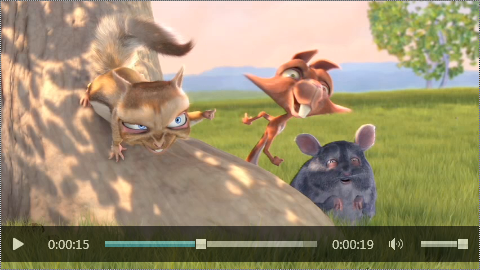
Напомню, что video-элемент сам по себе уже обеспечивает необходимый набор контролов для управления проигрыванием. Чтобы была видна панель управления воспроизведением, достаточно указать атрибут controls.
Однако, как я отмечал в вводной статье, со стандартными контролами есть проблема, которая заключается как раз в том, что выглядят они нестандартно. Другими словами, в каждом браузере они выглядят по-своему (проверить, как выглядят контролы в разных браузерах, можно на примере Video Format Support на ietestdrive.com — просто откройте его в двух-трех различных браузерах).
API для управления воспроизведением
Стандарт HTML5 для работы с видео вводит в DOM новый интерфейс — HTMLVideoElement, наследующий в свою очередь интерфейс HTMLMediaElement.
Интерфейс HTMLMediaElement
Это общий интерфейс для обоих медиа-элементов (аудио и видео), описывающий доступ к базовым возможностями работы с медиа-контентом: контроль источника контента, управление воспроизведением, изменение уровня звука и обработка ошибок. Основные свойства и методы, которые нам понадобятся:
Состояние сети и готовность к работе
src — ссылка (url) на воспроизводимый контент
buffered — буферизованные куски видео
Воспроизведение и контролы
currentTime — текущий момент проигрывания (с.)
duration — длительность медиа-контента (с.)
paused — находится ли воспроизведение на паузе
ended — закончилось ли проигрывание
muted — включение/выключение звука
volume — уровень звука [0, 1]
play() — начать проигрывание
pause() — поставить на паузу
События
oncanplay — можно начать проигрывание
ontimeupdate — изменена позиция проигрывания
onplay — запущено проигрыв
onpause — нажата пауза
onended — воспроизведение закончилось
Важно: это далеко не все методы и свойства, выставляемые через интерфейс HTMLMediaElement.
Интерфейс HTMLVideoElement
Видео отличается от аудио несколькими дополнительными свойствами:
width и height — ширина и высота контейнера для проигрывания видео;
videoWidth и videoHeight — внутреннее значение ширины и высоты видео, если размеры не известны, равны 0;
poster — ссылка на картинку, которую можно показывать, пока видео недоступно (обычно это один
из первых непустых кадров).
Разница между width/height и videoWidth/videoHeight в том, что последние — это собственные характеристики видео, в частности, с учетом соотношения сторон и других характеристик, в то время как контейнер для видео может быть любых размеров (больше, меньше, с другой пропорцией).
Play & Pause
Создание нашего собственного видео-плеера мы начнем с простой задачи: научимся запускать видео на проигрывание и останавливать воспроизведение. Для этого нам понадобятся методы play() и pause() и несколько свойств, описывающих текущее состояние видео-потока (мы также будем использовать библиотеку jQuery, не забудьте ее подключить).
Первым делом нам необходим video-элемент, которым мы хотим управлять, и элемент на который можно нажимать для управления текущим состоянием:
Обратите внимание на инвертирование состояния кнопки (paused) и действия (play).
Теперь надо добавить немного js-кода, чтобы нажатие на кнопку play переключало ее состояние и соответственно запускало видео-ролик или ставило его на паузу:
При желании можно сразу добавить несколько css-стилей для кнопок управления и их различных состояний и.
… казалось бы, все уже замечательно работает, но не тут-то было! Есть несколько мелочей, которые нам также нужно учесть.
Проигрывание сначала
Во-первых, нам нужно правильно обработать окончание проигрывания видео-ролика (если, конечно, оно не зациклено), и в этот момент нужно переключить кнопки управления так, чтобы вместо состояния «pause» было состояние «play»:
Контекстное меню
Во-вторых, браузеры обычно добавляют возможность управлять воспроизведением через контекстное меню. Это означает, что пользователь, вообще говоря, может что-то изменить в обход наших элементов управления. Этот момент нужно также отловить и внести необходимые изменения во внешний вид контролов. Для этого достаточно подписаться на события onplay и onpause.
Так как у нас становится многовато мест, где меняется внешний вид, самое время попутно произвести небольшой рефакторинг, убрав из изначального переключения режимов теперь уже дублирующую смену внешнего состояния:
Кликабельное видео
Наконец, наверняка, нам захочется, чтобы проигрывание и пауза переключались по нажатию на само видео, поэтому нужно добавить еще несколько строчек:
Текущий результат: 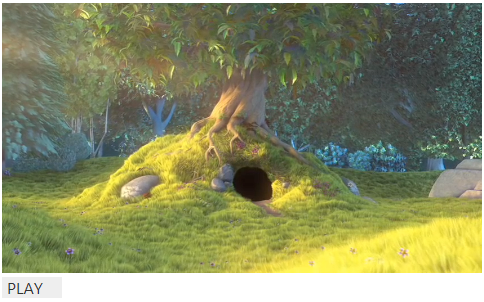
Прогресс
Теперь давайте перейдем к отображению прогресса проигрывания. Для начала необходимо добавить несколько элементов, которые будут использоваться для отображения текущего состояния и управления текущей позицией:
И соответствующие стили:
И несколько ссылок на соответствующие элементы для быстрого доступа в объект controls:
Первым делом, нам нужно понять, какова длительность ролика — для этого у video-элемента есть свойство duration. Отследить это значение можно, например, в момент готовности ролика к проигрыванию — по событию oncanplay:
В данном случае, мы попутно определяем, нужно ли отображать количество часов в видео-плеере (кстати, вообще говоря, спецификация предполагает, что длительность ролика может изменяться — в этот момент срабатывает событие ondurationchange, и к тому же быть бесконечной — например, при стриминге радио).
Также мы используем специальную функцию formatTime для перевода секунд в формат HH:mm:ss или mm:ss:
Для отображения процесса проигрывания нам понадобится событие ontimeupdate, срабатывающее при изменении текущего момента:
Свойство currentTime выдает в секундах текущее время. Его же можно использовать, чтобы изменить время проигрывания:
Также будет полезным показывать буферизацию видео, для этого можно отталкиваться от события onprogress, срабатывающего при загрузке новых порций видео:
Важный нюанс относительно свойства buffered, который нужно иметь в виду, заключается в том, что он предоставляет не просто время в секундах, а промежутки времени в виде объекта TimaRanges. В большинстве случаев это будет только один промежуток с индексом 0, и начинающийся с отметки 0c. Однако, если браузер использует HTTP range запросы к серверу, например, в ответ на попытки перейти к другим фрагментам видео-потока, промежутков может быть несколько. Также надо учитывать, что в зависимости от реализации браузер может удалять из буфера памяти уже проигранные куски видео.
Промежуточный результат: 
Наконец, давайте добавим еще небольшой штрих к нашем видео-плееру — возможность включать и выключать звук. Для этого добавим небольшой контрол с динамиком (SVG-иконка взята с сайта The Noun Project):
С соответствующими стилями для включенного и выключенного состояний:
Для переключения состояния динамика нам понадобится свойство mute:
(Стандартные методы jQuery для переключения css-классов не работают с SVG-элементами.)
Если вы хотите также менять уровень громкости, то вам поможет свойство volume, принимающее значения в диапазоне [0, 1].
Финальный результат: 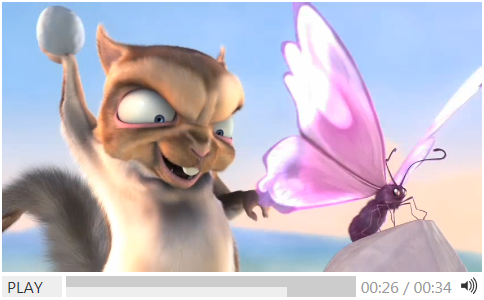
Что еще.
- проверка поддержки браузером HMTL5 Video, ,
- поддержка субтитров, в том числе для обеспечния accessibility.
Либо нужно делать соответствующие проверки или отлавливать возможные исключения. Исключения вообще надо отлавливать, например, событие onerror, возникающее при ошибке загрузки видео-потока 🙂
Из дополнительных опций, которые могут вам понадобиться: изменение скорости проигрывания. Для этого есть свойство playbackRate и соответствующее событие onratechange.
How to Style a Video Player and Create a Custom Player
In this tutorial, we’ll learn how to style a video element with CSS and how to create a custom video player.

Shahed Nasser
Read more posts by this author.
Shahed Nasser

In a previous tutorial, we looked into how to style an audio element with CSS. We looked at how to do it with the audio’s pseudo-selectors, and how to create an audio player of our own for more flexibility in styling it.
In this tutorial, we’ll learn how to style a video element with CSS. Similar to the previous tutorial, we’ll see how to do it with pseudo selectors and how to create a video player of our own.
Using Pseudo-Element Selectors
Video elements, by default, is not visible. We need to add the controls attribute to the HTML tag to make it visible.
Default Video Element
By default, here’s how a video element looks like:
Notice that the default video element looks different on every browser.
Video Pseudo-Element Selectors
Here are the video pseudo-element selectors that we can use to style a video element:
However, we’ll see in the examples below that styling with these selectors mostly only works with Chrome.
So, it’s recommended to view the examples below on Chrome to see how the styling works.
Style Video Player General Container
To style a video player’s general container, which includes all of the elements in a video player, we can use the pseudo-element selector video::-webkit-media-controls-panel . In the example below, we use it to change the background color of the video player.
Style Play Button
To style a video player’s play button, we can use the pseudo-element selector video::-webkit-media-controls-play-button . In the example below, we add a background color and a border-radius to the play button.
Style Volume Slider
To style a volume slider, we can use the pseudo-element selector video::-webkit-media-controls-volume-slider . In the example below, we add a background color to the volume slider as well as make some changes in its padding and margin.
Style Mute Button
To style the mute button, we can use the pseudo-element selector video::-webkit-media-controls-mute-button . In the example below, we add a background color as well as a border-radius to the mute button.
Style Timeline
To style the timeline of the video, we can use the pseudo-element selector video::-webkit-media-controls-timeline . In the example below, we add a background color as well as play with the padding and margin of the timeline.
Style Current Time
To style the current time of the video, we can use the pseudo-element selector video::-webkit-media-controls-current-time-display . In the example below, we change the text color of the current time.
Style Remaining Time
To style the remaining time of the video, we can use the pseudo-element selector video::-webkit-media-controls-time-remaining-display . In the example below, we change the text color of the remaining time.
Style the Full-Screen Button
To style the full-screen button of the video player, we can use the pseudo-element selector video::-webkit-media-controls-fullscreen-button . In the example below, we change the background color as well as the border radius of the button.
Create Custom Player
In this section, we’ll cover how to create a custom video player. Creating a custom video player guarantees that the video looks the same on all browsers, rather than our styling being supported by some browsers and not others.
When creating a custom player, that means we also have to add the wiring in JavaScript to make sure all the video functionalities are added to the video.
We’ll start first with the styling then move on to the JavaScript. You can find the full video player at the end of this section.
The video is from W3Schools and the icons are from Heroicons.
Style with CSS
We’ll first add the video inside a div element, which will be the container for the video element and the controls:
Then, we’ll add a simple styling related to the sizing of the video element:
This will show the video, but it will not have any controls so we cannot interact with it yet.

Next, we’ll add the controls. Add the following after the video element:
This includes a play button, the timeline as a range element, a sound element to mute and unmute the video, and a full-screen button.
First, we’ll add styling for the container of the controls. Add the following CSS:
This will make the display flex to ensure the items are placed next to each other perfectly. It will also position the controls at the bottom of the video and add a gradient background that goes from transparent to black.
We’ll also add some CSS to hide the controls when the video is playing and only show them on hover:
Next, we’ll style the buttons. We’ll add general styling that will be common for all the buttons:
This will remove the default background color and border of a button and add some nice opacity transition on hover. We’re also setting the stroke and fill of the SVG icons inside the buttons.
Then, we’ll add more specific styling for each of the buttons to specify the size of the icons. This is just because some of the buttons can be bigger than the others:
Finally, we need to style the timeline. The timeline is an input range element.
To style a range input element, we can use the following CSS pseudo-selectors:
The first three are cross-browser pseudo-selectors for the thumb which is used to change the range value. The second three are cross-browser pseudo-selectors for the track of the range input.
We’ll first add styling to the timeline range element as a whole:
This will set the width to 100% — 125px , where 125px is the width of the buttons combined with extra space. We also set the background color of the track.
Notice that we use the background-image attribute to indicate the time elapsed in the video. background-size will be used to indicate the progress of the video. In the beginning, it’s 0% . Later on, we’ll change background-size based on the video progress in JavaScript.
Next, we’ll style the thumb used to change the current time of the video:
This sets its color to white with some opacity. Then, on hover, we set the opacity to 1 . Note that the style properties are repeated for cross-platform pseudo-selectors. We are also setting the width, height, border-radius, and more.
Finally, we’ll style the track of the timeline:
This just removes the default appearance of the track.
Our player is visually ready and should look like this:

What’s left is to wire the controls with JavaScript and add the video functionalities.
Add Functionalities With JavaScript
We’ll start by declaring some variables we’ll use in our code. We’ll declare variables related to the icons of the buttons:
The reason we’re declaring them in JavaScript is to change between pause and play icons based on whether the video is playing or not, and to change between sound and mute icons based on whether the video is muted or not.
Then, we’ll declare variables for the HTML elements we created to be able to attach event listeners and more:
We’ve also added the isFullScreen variable which we’ll use later to toggle full-screen states.
We’ll start with the most basic functionality in a video player which is playing or pausing the video. We’ll add an event listener to the click event of the playButton . Inside the listener, we’ll check if the video is paused or not with the property paused on video and media elements:
If the video is paused, we play it, we add the class playing to the video container, and we change the icon to the pause icon. The reason we add the class playing is that in the CSS earlier we added styling to hide the controls when the video is playing.
If you try it out now, you’ll see that the video player now allows you to play and pause the video.
We’ll also add a listener to the onended event, which is triggered when the video ends, to change the icon back to play:
Next, we’ll add the functionality for the timeline. We’ll first add a listener to the media element event ontimeupdate which is triggered as the video is playing to indicate the current time of the video is changing. We’ll use it to change the background size of the timeline track as we mentioned above in the CSS section:
We use video.currentTime and video.duration to calculate the progress in percentage then change the value of the timeline range element and its background-size CSS property based on that percentage.
We’ll also add a listener to the change event on the timeline range element. When the user drags the thumb the video’s current time should change based on the position the user chose:
If you test it now, you’ll see that as the video progresses you’ll be able to see the progress in the timeline element. You can also seek the video using the timeline.
Next, we’ll add functionality to the sound button. When clicking on it, in the listener we will mute the video if it has sound and unmute it if the opposite. We’ll also change the icon of the sound button based on whether the video is muted or not:
Notice that we use video.muted to determine if the video is currently muted and to change whether it is muted or not.
If you test it now, you should be able to mute and unmute the video using the sound button.
Finally, we’ll add the functionality of the full-screen button. When the button is clicked, we’ll check if the video is in full screen using the variable isFullScreen . If the video is not in full-screen, we make it full screen. If it’s already in full-screen we exit full screen:
Note that when making the video full screen we use requestFullscreen , webkitRequestFullscreen or msRequestFullScreen based on what the current browser supports. Similarly, to exit full screen we use document.exitFullscreen , document.webkitExitFullscreen , or document.msExitFullscreen based on what the current browser supports.
If you test the full-screen button now, you should be able to switch to and from full screen for the video.
Final Video Player
Our video is now fully operational with play, pause, mute, unmute, full-screen, and seek functionalities. You can see the full video player below:
Conclusion
When styling video elements, you can use pseudo-selectors. However, the styling will not be supported by all browsers and the same player styling is not guaranteed.
Instead, you’ll need to create your own custom video player like we did above. You can add as many functionalities as you want. Creating your own custom player is a far more flexible and better solution.
If you like my content and want to support me, please share this article on your social media or Buy me a coffee!
Subscribe to Newsletter
Subscribe to the newsletter to be notified of new tutorials and articles!
Creating a cross-browser video player
This article describes a simple HTML video player that uses the Media and Fullscreen APIs and works across most major desktop and mobile browsers. As well as working fullscreen, the player features custom controls rather than just using the browser defaults. The player controls themselves won’t be styled beyond the basics required to get them working; full styling of the player will be taken care of in a future article.
Working example
Our example video player displays a clip from an open source movie called Tears of Steel, and includes typical video controls.

Note: You can see the example running live, or check out the source code on GitHub.
HTML Markup
To start off with, let’s take a look at the HTML that makes up the player.
The video
First of all the <video> element is defined, contained within a <figure> element that acts as the video container. To anyone familiar with HTML markup and the <video> element, there should be nothing here that surprises you.
Even though this player will define its own custom control set, the controls attribute is still added to the <video> element, and the player’s default control set is switched off later with JavaScript. Doing things this way still allows users who have JavaScript turned off (for whatever reason) to still have access to the browser’s native controls.
A poster image is defined for the video, and the preload attribute is set to metadata , which informs the browser that it should initially only attempt to load the metadata from the video file rather than the entire video file. This provides the player with data such as video duration and format.
Note: IE9 behaves differently than most other browsers when a poster attribute is set. Most browsers interpret the presence of a poster attribute to mean that the specified image is to be displayed until the user chooses to play the video. IE9 will only use the specified poster image in this way if preload=»none» is set; otherwise, it will take the first still of the video and display that instead.
Three different video sources are provided for the player: MP4, WebM, and Ogg. Using these different source formats gives the best chance of being supported across all browsers that support HTML video. For further information on video formats and browser compatibility, see supported media formats.
The code above would allow playback of the video in most browsers, using the browser’s default control set. The next step is to define a custom control set, also in HTML, which will be used to control the video.
The control set
Most browser’s default video controls have the following functionality:
- Play/pause
- Mute
- Volume control
- Progress bar
- Skip ahead
- Go fullscreen
The custom control set will also support this functionality, with the addition of a stop button.
Once again the HTML is quite straightforward, using an unordered list with list-style-type:none set to enclose the controls, each of which is a list item with float:left . For the progress bar, the progress element is taken advantage of, with a fallback provided for browsers that don’t support it (e.g. IE8 and IE9). This list is inserted after the <video> element, but inside the <figure> element (this is important for the fullscreen functionality, which is explained later on).
Each button is given an id so it can be easily accessed with JavaScript. The span within the <progress> element is for browsers that do not support the progress element and will be updated at the same time as progress (this span element won’t be visible on browsers that support progress ).
The controls are initially hidden with a CSS display:none and will be enabled with JavaScript. Again if a user has JavaScript disabled, the custom control set will not appear and they can use the browser’s default control set unhindered.
Of course this custom control set is currently useless and doesn’t do a thing: Let’s improve the situation with JavaScript.
Using the Media API
HTML comes with a JavaScript Media API that allows developers access to and control of HTML media. This API will be used to make the custom control set defined above actually do something. In addition, the fullscreen button will use the Fullscreen API, another W3C API that controls the ability of web browsers to show apps using your computer’s full screen.
Setup
Before dealing with the individual buttons, a number of initialization calls are required.
To begin with, it’s a good idea to first check if the browser actually supports the <video> element and to only set up the custom controls if it does. This is done by checking if a created <video> element supports the canPlayType() method, which any supported HTML <video> element should.
Once it has been confirmed that the browser does indeed support HTML video, it’s time to set up the custom controls. A number of variables pointing to HTML elements are required:
As mentioned earlier, the browser’s default controls now need to be disabled, and the custom controls need to be displayed:
With that done, a variable pointing to each of the buttons is now required:
Using these handles, events can now be attached to each of the custom control buttons making them interactive. Most of these buttons require a simple click event listener to be added, and a Media API defined method and/or attributes to be called/checked on the video.
Play/Pause
When a click event is detected on the play/pause button, the handler first of all checks if the video is currently paused or has ended (via the Media API’s paused and ended attributes); if so, it uses the play() method to play back the video. Otherwise the video must be playing, so it is paused using the pause() method.
The Media API doesn’t have a stop method, so to mimic this the video is paused, and its currentTime (i.e. the video’s current playing position) and the <progress> element’s position is set to 0 (more on the <progress> element later).
The mute button is a simple toggle button that uses the Media API’s muted attribute to mute the video: this is a Boolean indicating whether the video is muted or not. To get it to toggle, we set it to the inverse of itself.
Volume
Two volume control buttons have been defined, one for increasing the volume and another for decreasing it. A user defined function, alterVolume(direction) has been created that deals with this:
This function makes use of the Media API’s volume attribute, which holds the current volume value of the video. Valid values for this attribute are 0 and 1 and anything in between. The function checks the dir parameter, which indicates whether the volume is to be increased (+) or decreased (-) and acts accordingly. The function is defined to increase or decrease the video’s volume attribute in steps of 0.1, ensuring that it doesn’t go lower than 0 or higher than 1.
Progress
When the <progress> element was defined above in the HTML, only two attributes were set, value and min , both being given a value of 0. The function of these attributes is self-explanatory, with min indicating the minimum allowed value of the progress element and value indicating its current value. It also needs to have a maximum value set so that it can display its range correctly, and this can be done via the max attribute, which needs to be set to the maximum playing time of the video. This is obtained from the video’s duration attribute, which again is part of the Media API.
Ideally, the correct value of the video’s duration attribute is available when the loadedmetadata event is raised, which occurs when the video’s metadata has been loaded:
Unfortunately in some mobile browsers, when loadedmetadata is raised — if it even is raised — video.duration may not have the correct value, or even any value at all. So something else needs to be done. More on that below.
Another event, timeupdate , is raised periodically as the video is being played through. This event is ideal for updating the progress bar’s value, setting it to the value of the video’s currentTime attribute, which indicates how far through the video the current playback is.
As the timeupdate event is raised, the progress element’s value attribute is set to the video’s currentTime . The <span> element mentioned earlier, for browsers that do not support the <progress> element, is also updated at this time, setting its width to be a percentage of the total time played. This span has a solid CSS background color, which helps it provide the same visual feedback as a <progress> element.
Coming back to the video.duration problem mentioned above, when the timeupdate event is raised, in most mobile browsers the video’s duration attribute should now have the correct value. This can be taken advantage of to set the progress element’s max attribute if it is currently not set:
Note: for more information and ideas on progress bars and buffering feedback, read Media buffering, seeking, and time ranges.
Skip Ahead
Another feature of most browser default video control sets is the ability to click on the video’s progress bar to «skip ahead» to a different point in the video. This can also be achieved by adding a simple click event listener to the progress element:
This piece of code uses the clicked position to (roughly) work out where in the progress element the user has clicked, and to move the video to that position by setting its currentTime attribute.
Fullscreen
The Fullscreen API should be straight forward to use: the user clicks a button, if the video is in fullscreen mode: cancel it, otherwise enter fullscreen mode.
Alas it has been implemented in browsers in a number of weird and wonderful ways which requires a lot of extra code to check for various prefixed versions of attributes and methods to call the right one.
The visibility of the fullscreen button depends on whether the browser supports the Fullscreen API and that it is enabled:
Naturally the fullscreen button needs to actually do something, so, like the other buttons, a click event handler is attached in which we call a user defined function handleFullscreen :
The handleFullscreen function is defined as follows:
If the browser is currently in fullscreen mode, then it must be exited and vice versa. Interestingly document must be used for exiting/cancelling fullscreen mode, whereas any HTML element can request fullscreen mode, here the videoContainer is used as it also contains the custom controls which should also appear with the video in fullscreen mode.
Another user defined function — setFullscreenData() — is also called, which sets the value of a data-fullscreen attribute on the videoContainer (this makes use of data-states ).
This is used to set some basic CSS to improve the styling of the custom controls when they are in fullscreen (see the sample code for further details). When a video goes into fullscreen mode, it usually displays a message indicating that the user can press the Esc key to exit fullscreen mode, so the code also needs to listen for relevant events in order to call the setFullscreenData() function to ensure the control styling is correct: