CSS Button Image
Example 01: Using the CSS Style Tag to Add an Image in a Button in an HTML File
In this example, we will add an image inside a button using the CSS Style Tag in the file header. Inside the Style Tag, we will construct a class for the button, which will be called later in the body. Then, we will create a script in which we will add an image to a button using the technique we previously mentioned.
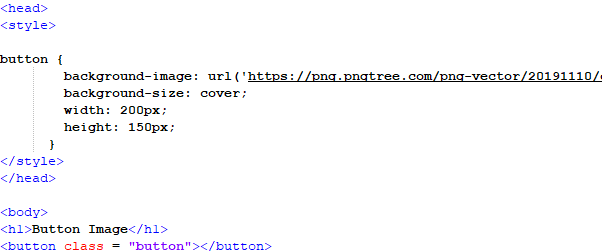
In the previous script, we opened a Style Tag in the file header. In this tag, we open the button class parameters in which we will define several designing properties for the button element. First, we add the image for the button’s background. We can add the image via “URL” or “src”. Then we add the background-size property which is stated as a “cover”. Then we define the width and height of the button as well. After this, we close the Style Tag and move to the body tag. In this tag, we add a heading using the h1 tag. Then, the button tag is called. In this tag, we call the styling class that we created earlier to inherit all the styling that are defined in the class. Then, we close all the remaining tags and save the file in the HTML format.

As we can see in the previous output, the image appears as a button on our browser’s page along with the heading. This justifies that the styling class was successfully inherited by the button tag.
Example 02: Adding an Image in a Button Using an Inline CSS Approach
In this instance, we will add an image to a button using the Inline CSS approach. We will add an image to a default button element of the Hypertext Markup Language by giving it an image’s URL in this method. Now, let us take a look at the script for this technique.: 
In the script reflected in the image, we can see that the file header is empty because we will use the Inline CSS approach in this example. We open our button tag. In the tag, we mention the CSS that we want the button to have in the style property. We mention all the styling in this property and separate them with semicolons. We also add an image using the background image keyword and assign an image via URL. Then the button tag is closed along with the body tag. After this, we open this HTML file on our browser.

The previous output is an evidence that the Inline Style Tag approach has been a success. We can see that the image is added to the button and the default button is now transformed into an image.
Example 03: Using the CSS Style Tags to Add an Image to a Button When it Hovers Over
We will add an image to a button that will appear only when the button is hovered upon in this example. We will use the Style Tag CSS to provide a button with such behavior in an HTML file. We will create a separate class to segregate this styling for a specific element in this example. To achieve this goal, we should write the following script:

In the previous script, we opened our head tag for the HTML file. In this tag, the styling of the button is defined by opening a class for the button element. In this class, we define the width and the height of the button first. Then, we add a property that turns the cursor into a pointer, and we give the text a reasonable size as well. Then, we add an inherited method called “hover” to the class. In this function, we add an image to the background via URL and assign a property to the background size called the “cover”.
After this, we close all the styling tags and move toward the body of this file. In the body tag, we add a heading using the h1 tag and the button tag is opened after the heading tag. In the button tag, we call the class that we created in the Style Tag of the file’s header. And then, close the button and body tag. After this, we open this file in our browser to get the following output:

The output that we see in this file is the result after the button has been hovered upon. When we hover over the button, the image that we assigned in the Style Tag of the file header appears.
Example 04: CSS Style Tag Transformation of a Default Button to an Icon for the Next and Previous Function
In this example, we will transform the two default buttons of the Hypertext Markup Language by using the CSS Style Tag. We will transform the two buttons in this example into the next and previous icons by adding an image in the Style Tag. We should write the following script to do so:
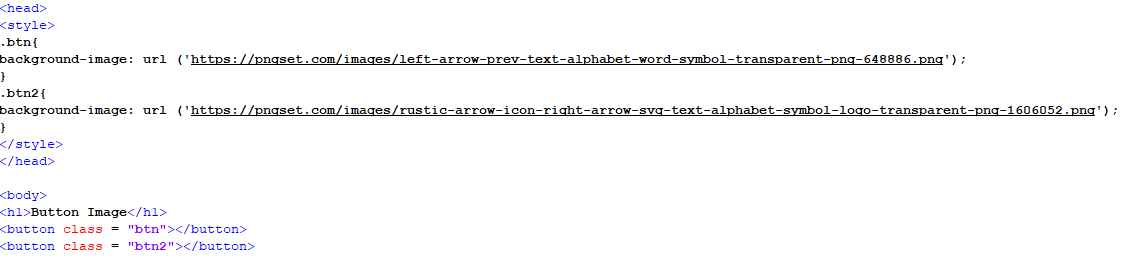
In the previous script, we add a Style Tag in the file header. Then, we create two classes for the two buttons in the Style Tag. In these classes, we add an image to both the buttons respectively, using the background image property and the URL format for the image. After assigning both classes with their properties, we close the style and head tag and open the body tag to create the content for our browser’s page. First, we give the border a heading with the help of the h1 tag, which is a heading size defined in HTML. Then, we create two buttons. In both these buttons, we assign the relative class defined in the Style Tag. After this, we close the tabs and open this file on our browser after saving it.
The previous output is the outcome of our script. As we can see, both the buttons are aligned and the images from the style classes are inserted correctly. Now, the default buttons are transformed into the next and previous icons for a web page by using CSS.
Conclusion
In this article, we discussed several examples of adding the images to a button using CSS. We used the Inline CSS and Style Tag CSS to add the images to a default button in an HTML file. We implemented several effects on a button to add an image like the hover effect or cover style background by using the Notepad++ to edit the HTML file. We used the different properties in the CSS styling of the button element to transform them into an attractive attribute in our webpage.
About the author

Aqsa Yasin
I am a self-motivated information technology professional with a passion for writing. I am a technical writer and love to write for all Linux flavors and Windows.
How do I use an image as a submit button?
Can someone help to change this to incorporate an image called BUTTON1.JPG instead of the standard submit button?
6 Answers 6
Use an image type input:


Just remove the border and add a background image in css


-
The Overflow Blog
Linked
Related
Hot Network Questions
Subscribe to RSS
To subscribe to this RSS feed, copy and paste this URL into your RSS reader.
Site design / logo © 2023 Stack Exchange Inc; user contributions licensed under CC BY-SA . rev 2023.5.24.43458
By clicking “Accept all cookies”, you agree Stack Exchange can store cookies on your device and disclose information in accordance with our Cookie Policy.
Делаем красивые кнопочки
Зачастую стандартный вид кнопочек не может сочетаться с концепцией дизайна, которую придумал дизайнер, поэтому он рисует свои кнопочки.
Что обычно делает верстальщик при виде такой кнопки? Правильно, просто напросто, вырезает ее как есть, и вставляет ее в верстку как картинку.
* This source code was highlighted with Source Code Highlighter .
Вроде бы все просто, но тогда верстальщику придется под каждую форму или ссылку вырезать новую картинку, тем самым плодя кучу картинок и тратя драгоценное время.
Я предлагаю следующий подход к этому делу (может кто-то уже придумал такой способ, но я сразу отмажусь, сказав, что я его еще не видел).
-
и conditional comments, чтобы научить IE6 понимать CSS-конструкции типа: div.button:hover
- Две картинки(1, 2) для CSS Sprites
- HTML + CSS
- Пара минут
Собственно вот HTML:
* This source code was highlighted with Source Code Highlighter .
<!—[if lte IE 6]>
<style type="text/css">
body <
behavior:url("csshover2.htc");
font-size:16px;
>
</style>
<![endif]—>
< style type ="text/css" >
.button <
display:inline-block;
line-height:22px;
padding:0 11px 0 0;
background:url(bg-button-r.gif) right 0 no-repeat;
cursor:pointer;
>
.button a, .button b, .button input <
display:inline-block;
padding:0 0 0 11px;
font-family:Arial;
font-size:13px;
font-weight:normal;
color:#000;
text-decoration:none;
outline:none;
background:url(bg-button-l.gif) 0 0 no-repeat;
border:none;
cursor:pointer;
>
.button input <
height:22px;
>
.button img <
vertical-align:middle;
border:none;
>
.button:hover <
background-position:100% -22px;
>
.button:hover a, .button:hover b, .button:hover input <
background-position:0 -22px;
margin:0;
padding:0 0 0 11px;
>
.button:active <
background-position:100% -44px;
>
.button:active a, .button:active b, .button:active input <
background-position:0 -44px;
>
</ style >
* This source code was highlighted with Source Code Highlighter .
Посмотреть в деле можно тут.
Все это дело тестировалось под IE6/7/8, Opera 9.62, Firefox 3.0.8, Chrome 1.0.154.53
Однако под IE8 возникает баг при нажатии на , пока что я его не победил.
Embed Image in a Button in HTML
This article will discuss several methods to embed an image in a <button> element in HTML. It means to fix or set a picture inside the HTML button.
Use the <img> Tag Inside the <button> Tag to Embed Image in the HTML Button
This <img> tag is used to embed an image on an HTML page. The images are not literally placed into the webpage; images are linked to the webpages by given pathways. This tag generates a space for the particular image. The tag has two required attributes, namely src and alt . We can create a clickable HTML button using the <button> tag in HTML. Placing the <img> tag inside the <button> tag creates a clickable HTML button with an image embedded in it.
For example, inside the HTML body, open the <button> tag. Specify type as button . Then, open the <img> tag and specify the image URL in the src attribute. Next, set height and width to 80 and 100 respectively. Finally, close all the previously opened tags in the following lines.
In the example below, we created a <button> element and inserted an image inside it to be embedded inside the button. We used a URL shortener to place the short URL of the image in the src tag. Thus, a button with an image can be created in HTML.
Use the <input type=»image»> Tag to Embed an Image in the HTML Button
The <input> tag specifies a input field where we can enter our data. There are many input types and control widgets allowed in HTML. Some of them are <input type=»button»> , <input type=»color»> , <input type=»email»> , <input type=»text»> . We can set the type attribute to image and set the src to embed an image in the input type. It will function as a button.
For example, inside the HTML body, open the <input> tag and specify type to image . Then, type the image URL in the src attribute. Next, write the style attribute and set the border to double . Also, add the height and width as 80 and 170 . Then, close the input tag and all the previously opened tags.
The example below illustrates a method to embed an image on an HTML page. The <type=»image»> tag specifies that we are inserting or using an image in our work. We have used the inline CSS to set the image’s border , height and width . We did this to make the image look more like a button. The value double specifies that a double border is used outside the image button. The height and width help the image to get into a definite size. If we don’t specify the height and width of an image, the page might flicker when the image loads. In this way, we can embed an image in an HTML button.