How to Add JavaScript to HTML
In this tutorial, we’ll show you how to add JavaScript to HTML. The beginning will include a short introduction to JavaScript, while the rest of the guide will focus on various ways of adding JavaScript to HTML.
If you want to display static content, for example, a set of images, then HTML can do the job for you. However, static pages are slowly becoming a thing of the past. Most of the content today is interactive and includes flashy slideshows, forms, and menus. They enhance user experience and add dynamicity to the website.
This is achieved by scripting languages and JavaScript is one of the most famous in this regard. It lets developers make websites that interact with the user and vice versa. Even though there are many other languages available, none of them is as popular as JavaScript. In order to utilize it to the greatest potential, it’s used in tandem with HTML.
How to Add JavaScript to HTML
There are two ways to add JavaScript to HTML and make them work together. Now that we have talked about JavaScript and have seen what some of its advantages can be, let’s take a look at some of the ways we can link JavaScript to HTML.
How to Add JavaScript Directly to a HTML File
The first way to add JavaScript to HTML is a direct one. You can do so by using the <script></script> tag that should encompass all the JS code you write. JS code can be added:
- between the <head> tags
- between the <body> tags
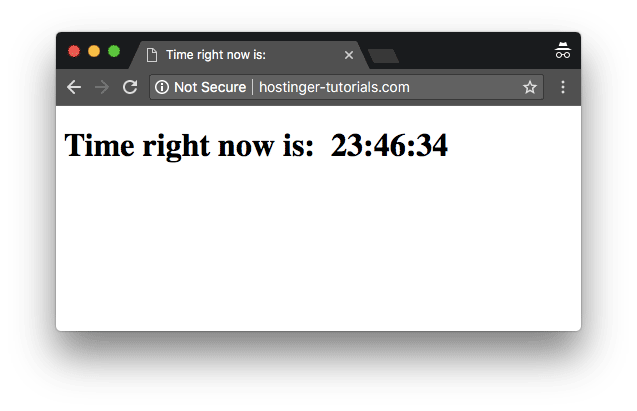
Depending on where you add the code the JavaScript in your HTML file, the loading will differ. The recommended practice is to add it in the <head> section so that it stays separated from the actual content of your HTML file. But placing it in the <body> can improve loading speed, as the actual website content will be loaded quicker, and only then the JavaScript will be parsed. For this example, let’s take a look at the following HTML file that is supposed to show the current time:
Right now, the above code doesn’t involve JavaScript and hence can’t show the actual time. We can add the following code to make sure it displays the correct time:
We will surround this code by <script> and </script> tags and put it in the head of the HTML code to ensure that whenever the page loads, an alert is generated that shows the current time to the user. Here’s how the HTML file will look after we add the code:
If you want to display the time within the body of the page, you will have to include the script within the <body> tags of the HTML page. Here’s how the code will look when you do so:
Here’s what the final result would look like:
How to Add JavaScript Code to a Separate File
Sometimes adding JavaScript to HTML directly doesn’t look like the best way to go about it. Mostly because some JS scripts need to be used on multiple pages, therefore it’s best to keep JavaScript code in separate files. This is why the more acceptable way to add JavaScript to HTML is via external file importing. These files can be referenced from within the HTML documents, just like we reference CSS documents. Some of the benefits of adding JS code in separate files are:
- When HTML code and JavaScript code is separated, the design principle of separation of concerns is met and it makes everything a lot more sustainable and reusable.
- Code readability and maintenance is made a lot easier.
- Cached JavaScript files improve overall website performance by decreasing the time taken by pages to load.
We can reference the JavaScript file within HTML like this:
The contents of the myscript.js file will be:
Important! Here it’s assumed that the myscript.js file is present in the same directory as the HTML file.
JavaScript Example to Validate an Email Address
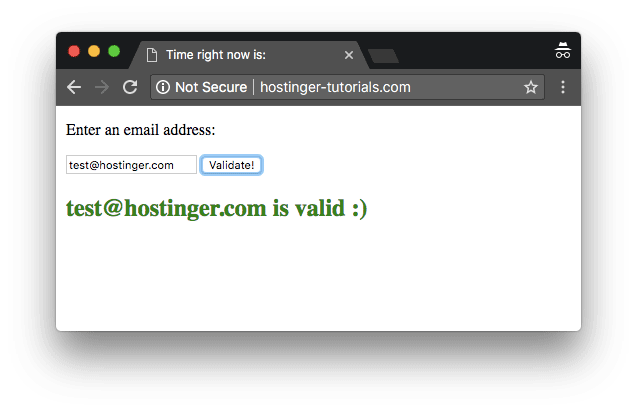
JavaScript powers your application by helping you validate user input at the client side. One of the most important user inputs that often need validation is email addresses. This JavaScript function can help you validate the entered email address before sending it to the server:
In order to attach this function to a form input, you can use the following code:
Here’s the result that you would get after combining all the ingredients together in a HTML file:
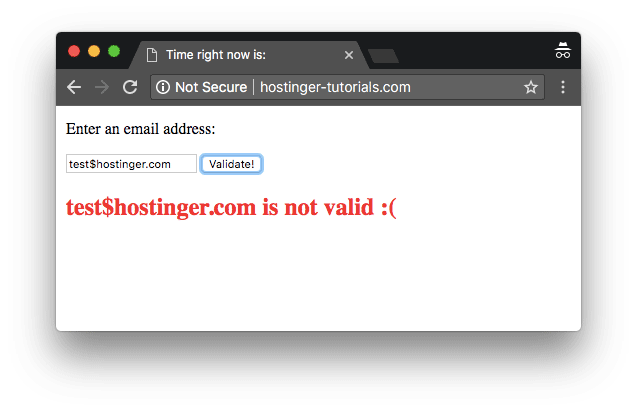
And if the validation is incorrect, the result will differ:
Congratulations! You have learned how to add JavaScript to HTML with a few basic examples.
Advantages of JavaScript
JavaScript was first known as LiveScript. But because Java was the talk of the town (the world really), Netscape deemed it right to rename it to JavaScript. Its first appearance dates back to 1995 within Netscape 2.0. Here are some of the best advantages of using JavaScript:
Minimalized Server Interaction
It’s a well-known fact that if you want to optimize the performance of a website, the best way is to reduce the communication with the server. JavaScript helps in this regard by validating user input at the client-side. It only sends requests to the server after running the initial validation checks. As a result, resource usage and amount of requests to the server reduces significantly.
Richer, User-Friendly Interfaces
By using JavaScript, you can create interactive client-side interfaces. For example adding sliders, slideshows, mouse roll-over effects, drag-and-drop features and so on.
Immediate Feedback to the User
By using JavaScript, you can ensure that users get an immediate response. For example, let’s imagine a user has filled a form and left one field empty. Without JavaScript validation, they will have to wait for the page to reload only to realize that they left an empty field. However, with JavaScript, they will be alerted instantly.
Easy Debugging
JavaScript is an interpreted language, which means that written code gets deciphered line by line. In case any errors pop up, you will get the exact line number where the problem lies.
Conclusion
In this article, we talked about the two different ways to add JavaScript in HTML code and once you get a hang of things, the possibilities of doing great things by using the two programming languages are endless. JavaScript can be used in combination with HTML to power modern web applications that are intuitive, interactive and user-friendly. By using simple client-side validation, it reduces server traffic and improves the overall efficiency of the website.
Domantas leads the content and SEO teams forward with fresh ideas and out of the box approaches. Armed with extensive SEO and marketing knowledge, he aims to spread the word of Hostinger to every corner of the world. During his free time, Domantas likes to hone his web development skills and travel to exotic places.
Your first look at JavaScript
Now it is time to get your hands dirty. This article provides a basic introduction to coding with JavaScript.
Introduction
In this article of the Web Standards Curriculum, we will cover the basics of JavaScript — how and where to use it, what problems to avoid, and general basics to get you started on your journey towards becoming a top-notch JavaScript developer.
What is JavaScript and how do you execute it?
JavaScript is a text-based language that does not need any conversion before being executed. Other languages like Java and C++ need to be compiled to be executable but JavaScript is executed instantly by a type of program that interprets the code called a parser (pretty much all web browsers contain a JavaScript parser).
To execute JavaScript in a browser you have two options — either put it inside a script element anywhere inside an HTML document, or put it inside an external JavaScript file (with a .js extension) and then reference that file inside the HTML document using an empty script element with a src attribute. We will look at both of these methods inside this section.
JavaScript does not have to stay inside browsers. To run JavaScript in console environment, please check out Mozilla Rhino; to run JavaScript in server environment, please check node.js.
Including your JavaScript inside your HTML document
The most basic inclusion of JavaScript inside your HTML page would look something like this:
You could put this anywhere inside your document and it would execute, but some places are definitely better than others — see the Where to put JavaScript section for guidance on this.
As there might be several different types of script available to use on web pages in the future, it makes sense to add the name of the script you are using as a MIME type:
Note: You will find script examples on the web that have a language="javascript" attribute. This is not part of any standard and is utterly useless; delete this where you can. This is a throwback to the bad old days, when VBScript was also in popular use on web pages. VBScript usage died however, as it only works in IE.
In the past there was a need to comment out JavaScript with an HTML comment to prevent browsers from showing the code as HTML. As this only applies to very old browsers you do not need to bother with that any longer. However, if you are using strict XHTML as your DOCTYPE, you need to enclose any JavaScript in a CDATA block to make it validate (do not worry about why — it is not really important at this stage in your learning):
However, for strict XHTML documents, it is much more sensible not to embed any JavaScript but instead keep it in an external document.
Linking to an external JavaScript file
In order to link to an external JavaScript (either on the same server or anywhere on the internet) all you have to do is to add a src attribute to your script element:
Upon meeting this element in a page, browsers will then load the file myscript.js and execute it. Any content inside the script element itself will be skipped when you provide a src attribute. The following example will load the file myscript.js and execute the code in it, but will not execute the alert inside the script element at all.
Keeping your code in an external JavaScript file makes a lot of sense:
- You can apply the same JavaScript functionality to several HTML documents and still keep maintenance easy: if there is a desired change in functionality all you need to do is change one single file.
- Your JavaScript will be cached by browsers. Caching means that browsers will take a copy of your JavaScript and store it on the computer of the visitors surfing on your site. The next time this user loads the same script it will not be taken from your server but from their own computers — thus loading much faster.
- You can easily find your script if you need to modify it, avoiding the need to scan through long HTML documents to find the place to fix a problem.
- Fixing errors becomes easier as a debugging tool or error console will tell you which file contains the error and reliably report the line number.
You can add as many JavaScript files as you want to a document, but there are several considerations to make before going down that route.
JavaScript and browser performance
Cutting up a lot of JavaScript into different files, each dealing with one task at a time, is a great idea to keep your functionality easy to maintain and allow for quick bug-fixing. For example, you could have several script blocks like these:
However, the development benefits of this are diminished by the effect this has on the performance of your document. This differs slightly from browser to browser but the worst-case scenario (which is sadly enough still the second most-used browser) does the following:
- Every time the browser encounters a script element, it will pause rendering (displaying) the document.
- It will then load the JavaScript file defined in the src attribute (if you use a script on another server you also have to wait until the browser finds that server).
- It then will execute the script before it goes on to accessing the next one.
All of this means that the display of your web site is slowed down until all of these steps happen for all the scripts you include. This can become annoying for your visitors.
One way around this is to use a backend script to create a single file from all the files you use. That way you have the benefit of keeping maintenance easy while simultaneously cutting down on delays to your web page display. There are several scripts like this on the web — one of them is written in PHP and available from Ed Eliot.
The delay in display also defines where you want to put your JavaScript in the document.
Where to put JavaScript
Technically you can put JavaScript anywhere in your document. The decision you have to make is to weigh performance against making it easy for developers to find your scripts and ensuring that your JavaScript enhancements work immediately for your visitors.
The classic best practice for placing scripts was in the head of the document:
This has the benefit of being a predictable location of scripts — developers know where to find them. It also has the benefit of ensuring that all JavaScript has been loaded and executed before the document is displayed.
The drawbacks are that your scripts delay the display of the document and that the script does not have access to the HTML in the document. You therefore need to delay the execution of any scripts that change the HTML of the document until the document has finished loading. This can be done with an onload handler or one of the various DOMready or contentAvailable solutions out there on the web — none of which are bullet-proof and most of which rely on browser-specific hacks.
Performance specialists have started to advocate placing your JavaScript at the end of the body instead:
This benefits your JavaScript by not delaying the display of the HTML and also means that any HTML you want to alter with JavaScript is already available.
You might confuse developers who maintain your code because this practice is not common yet. Another — more problematic — drawback is that the HTML becomes available before your JavaScript is loaded. While this is exactly what you want to achieve, it also means that visitors will start interacting with your interface before you get the chance to change it. Say for example you want to validate a form with JavaScript before it is submitted to the server — the form might get submitted before the script has been loaded. If you write your script as a mere enhancement (rather than relying on it) that is not a problem though — just an annoyance.
It is up to you to choose what fits the purpose of your website; you could even choose to do a mixture of both — put the scripts with very important functionality in the head , and call them in conjunction with the “nice-to-have” scripts at the end of the document.
Whatever you do, make sure that the order of your scripts is right, as browsers will load and parse them one after the other. This also brings us to another thing to consider when using JavaScript.
JavaScript security and the lack thereof
We cannot stress this enough. JavaScript is a wonderful language and can help you to build highly responsive and beautifully interactive web sites and applications, but where it falls down terribly is security. In short, there is no security model in JavaScript and you should not protect, encrypt, secure, or store anything vital or secret with it.
Every script on the page has the same rights — all of them can access each other, read out variables, access functions, and also override each other. If you have a function called init() in your first included script, and another one in your last included script, the original one will be overridden. We will come back to this problem in the best practices article of this course.
All of this would not be much of an issue if you never used other people’s scripts. However, seeing that most online advertising and statistics-tracking is done with JavaScript this will not be the case — you will use third party scripts all the time.
Scripts can also read cookies; using the prototype of a function you can override any native JavaScript function. Lastly, JavaScript can easily be turned off so you can forget about JavaScript protection being a good security measure.
JavaScript is always readily available for reading and analyzing by other developers. Of course you can pack (remove all unnecessary whitespace) and obfuscate (use random variable and function names) your scripts, but even those can be reverse-engineered; in this case the only person you stop from using your code easily is yourself. The availability of the source code and the ability to read and analyze it is possibility the main factor for the success of JavaScript — for years we learned by peeking at other people’s solutions. Nowadays this is luckily over as there are good books and tutorials available.
Whereas packing and obfuscation are useless as security measures, they are often done on medium and large scripts before the code is put live on the web as part of the publication process. This helps to cut down on the amount of bandwidth required to serve the site to its users. Saving a few bytes here and there may not seem significant on your blog about kittens, but it can add up to massive savings when you are dealing with a site with usage figures like those of google.com.
Techniques to avoid
The biggest problem with learning JavaScript is that there is a massive amount of outdated and possibly dangerous information out there. This is especially frustrating as a lot of this information is very well presented and gives a lot of beginners a “quick win” feeling of knowing JavaScript by copying and pasting some ready-made code.
As the environment JavaScript is being applied to is very much unknown (users can have any setup) and we do not know what decisions led to code we find on the web being created in a particular way, we should not point fingers at solutions. However, the following ideas are a thing of the past and you should only use them as a very last resort if you need them to support really old, bad browsers:
Как подключить JavaScript к HTML — 3 способа
JavaScript — язык программирования, который применяется в веб-разработке для оживления страниц. С его помощью можно создать интерактивные элементы и улучшить общее юзабилити. Чтобы подключить блоки JS-кода, нужно знать особенности синтаксиса языка и научиться пользоваться внешними источниками, о чем вы и узнаете в этой статье. Всего есть 3 актуальных способа интегрировать код JS в HTML.
Если вы только начинаете разбираться в JavaScript, рекомендуем прочитать статью по ссылке, в которой мы подробно рассказали о фишках языка.
Способ 1: JavaScript в HEAD
Если ранее вы изучали CSS для оформления страниц, то знаете, что его можно подключать напрямую или через link и только в теге HEAD. JS в этом плане удобнее, т. к. разработчик может интегрировать код как в начале HTML-страницы, так и в ее конце.
Чтобы в HTML-разметку добавить блоки кода, воспользуйтесь парным тегом script. Его необходимо использовать в начале и конце вставляемого фрагмента. В противном случае невозможно будет определить границы функции.
Данная функция срабатывает после клика на кнопку.
Не рекомендуем в HEAD собирать несколько скриптов, т. к. это усложняет загрузку страницы. А увеличение времени ожидания позже негативно скажется на SEO-продвижении, т. к. поисковые системы строго относятся к удобству пользования сайтами.
Также при интеграции кода непосредственно в разметку тяжелее читать код. Если программист работает в команде, он должен сделать написанные строки понятными для коллег. В примере использовано всего 3 строки, не учитывая теги, но в случаях, когда написано более 20 строк, воспринимать JavaScript-код станет проблематично.
Способ 2: JavaScript в тексте страницы
Подключение JavaScript в тело страницы, т. е. внутри тега body, формально ничем не отличается. Программист также должен расставить парные теги script, чтобы оповестить браузер о начале и конце кода скрипта.
Однако юзабилити и алгоритм работы страницы изменится. Из-за того что браузеры читают код сверху вниз, скрипты в HEAD могут повлиять на скорость загрузки сайта, особенно если у человека медленный интернет. А разместив, код в самом конце body, т. е. перед закрывающим тегом, пользователь во время загрузки JavaScript сможет как минимум посмотреть большую часть контента.
Рекомендуем во время разработки страниц всегда помнить о времени загрузки на устройствах с разной скоростью интернета. Если учесть это, то у пользователей точно не возникнут сложности из-за компиляции скриптов.
Способ 3: Подключаемый JS файл через внешний источник
Небольшие и уникальные сценарии удобнее интегрировать непосредственно в HTML-разметку. Это быстрее и не требует дополнительных инструментов.
Однако для крупных веб-приложений или скриптов, которые будут повторяться на других страницах, стоит создать специальные JS-файлы и подключать их с внешнего источника. Благодаря этому код станет лаконичнее, короче и проще, поэтому другие программисты легко поймут, за что отвечает код, где находятся границы и т. д.
Чтобы подключить внешний файл, вам снова потребуется конструкция
Только теперь вместо программы между тегами указывается путь к файлу с расширением .js.
Разрабатывая страницу для этой статьи, мы сначала сохранили готовый скрипт в файл loft.js, а во время работы прописали путь с атрибутом src=»». В результате получилось:
Также при желании можно использовать более подробную ссылку:
Разницы с точки зрения выполнения кода нет, т. е. подключение внешних файлов — это просто более удобный вариант работы с веб-приложениями, которыми программист часто пользуется. Благодаря имеющейся библиотеке достаточно зайти в нее, скопировать ссылку на программу и вставить в HTML. При этом вы можете использовать скрипты в любой части страницы.
Важно! Нельзя использовать в границах одной конструкции с парным тегом script ссылку на сторонний файл и непосредственно программный код. В подобном случае они не сработают. Если нужно добавить два и более скрипта подряд, создайте разные блоки, выделенные script.
Отложенный и асинхронный вывод JS
Активное использование интерактивных элементов на сайте может приводить к проблемам SEO-оптимизации и разработки сайтов, т. к. время загрузки страниц становится больше, а юзабилити ухудшается.
JavaScript блокирует работу парсера, т. е. разбор самого HTML-файла. Когда парсер доходит до скрипта, он останавливается и запускает его. Такая логика страницы создает сложности для пользователя, т. к. отрисовка ухудшается, даже если HTML-документ не зависит от кода на JavaScript.
Разберем проблему на примере:
В нем нет атрибутов для отложенного и асинхронного вывода, поэтому действия происходят строго по порядку. Во время обработки HTML парсер видит скрипт, извлекает и запускает его. Пока это происходит, остальная часть страницы не загружается.

Стандартный метод обработки кода
Если у человека слабый интернет, такой подход станет проблемой, поэтому разработчики чаще используют атрибуты async и defer для асинхронной и отложенной обработки JavaScript-кода.
Атрибут async
Его используют для того, чтобы сказать браузеру: скрипт должен выполняться асинхронно, т. е. без остановки обработки HTML во время извлечения JS-кода. Пример конструкции:

Асинхронный метод разбора
Парсер прекращает читать HTML только в момент выполнения скрипта. Благодаря этому можно ускорить загрузку страницы в 2–2,5 раза, поэтому данным атрибутом не стоит пренебрегать.
Для справки! Async работает только с внешними файлами. Он не доступен для блоков кода, интегрированных в HTML-разметку напрямую.
Атрибут defer
Он указывает браузеру, что скрипт должен выполняться только после того, как HTML-документ будет полностью разобран. Для этого программисты используют конструкцию:

Отложенный алгоритм разбора
Это удобный вариант для скриптов, которые не должны сразу же срабатывать. Если вы хотите добавить, например, просто кнопку в тело страницы, стоит использовать defer. Пока пользователь читает текст, скрипт запустится. В результате человеку не придется ждать, благодаря чему работать со страницей станет удобнее.
Какой алгоритм выполнения выбрать
Нельзя точно сказать, какой вариант лучше, т. к. выбор решения зависит от конкретной задачи и условий. Чтобы вам было проще определиться, мы подготовили 3 вопроса, которые нужно себе задать. Ответы на них помогут найти оптимальный алгоритм:
- Где находится скрипт? — Если он расположен в конце HTML-документа, т. е. прямо перед закрывающим тегом /body, то выбирайте стандартный метод выполнения. В таком случае парсер уже точно разберет основную часть страницы и скрипт не повлияет на юзабилити. Асинхронный или отложенный вариант уместен, когда JS-код стоит в начале страницы.
- Скрипт является самодостаточным? — Для файлов, не зависящих друг от друга, желательно использовать атрибут async, т. к. последовательность выполнения для них неважна.
- Полагается ли скрипт на DOM? — Часто разработчики добавляют на страницу функции, взаимодействующие с объектной моделью документа. Подобные блоки должны разбираться после полной обработки HTML. Их размещают внизу страницы либо в других частях и используют атрибут defer.
Также стоит учитывать размер скрипта. При работе с небольшими вариантами можно не задумываться об алгоритме, т. к. они существенно не повлияют на скорость загрузки. А в случае со скриптами, зависимыми друг от друга, пригодится стандартный способ разбора.
Как правильно подключить JS к HTML
Хотя технически нет ограничений на размещение тегов script, мы советуем подключать скрипты именно в body, а не head. Исключениями являются только страницы, которые без кода Javascript не отображаются, или необходимо сначала что-то показать посетителю перед отображением основного контента.
Во всех остальных случаях стоит размещать скрипты в теле страницы. Пользователи быстрее увидят то, зачем перешли по ссылке, благодаря чему пользовательский опыт улучшится. Даже если JS-блоки сработают с отставанием, это не станет такой проблемой, как длительное ожидание отрисовки.
Если же говорить о лучшем способе подключить JavaScript, то мы рекомендуем отдать предпочтение внешним библиотекам с JS-скриптами. Даже крупные веб-приложения будут запускаться быстро, особенно когда пользователь зайдет повторно, потому что файлы JavaScript сохраняются в кеше.
А в случае, когда потребуется доработка скрипта, вам не потребуется искать HTML-документ. В библиотеке находятся все имеющиеся разработки. И если вы внесете правки, то позже парсер будет автоматически брать обновленный файл.
Заключение
Теперь вы знаете, как подключать скрипты на HTML-страницу. Это несложно, т. к. JavaScript и HTML имеют простой синтаксис, а благодаря гибкости JS можно интегрировать код веб-приложения в любую часть документа. Главное — не забывать о времени загрузки страницы и юзабилити.
Для справки! Идеальной считается длительность ожидания до 0,5 секунд, а оптимальным — до 3 секунд. Если в ходе проверки вы обнаружили, что загрузка занимает больше времени, попробуйте другой алгоритм выполнения или удалите малозначимые скрипты.
How do I link a JavaScript file to a HTML file?
How do you properly link a JavaScript file to a HTML document?
Secondly, how do you use jQuery within a JavaScript file?

6 Answers 6
First you need to download JQuery library from http://jquery.com/ then load the jquery library the following way within your html head tags
then you can test whether the jquery is working by coding your jquery code after the jquery loading script
If you want to use your jquery scripts file seperately you must define the external .js file this way after the jquery library loading.
Test in real time

This is how you link a JS file in HTML
<script> — tag is used to define a client-side script, such as a JavaScript.
type — specify the type of the script
src — script file name and path

To include an external Javascript file you use the <script> tag. The src attribute points to the location of your Javascript file within your web project.
JQuery is simply a Javascript file, so if you download a copy of the file you can include it within your page using a script tag. You can also include Jquery from a content distribution network such as the one hosted by Google.
You can add script tags in your HTML document, ideally inside the which points to your javascript files. Order of the script tags are important. Load the jQuery before your script files if you want to use jQuery from your script.
Then in your javascript file you can refer to jQuery either using $ sign or jQuery . Example:
Below you have some VALID html5 example document. The type attribute in script tag is not mandatory in HTML5.
You use jquery by $ charater. Put libraries (like jquery) in <head> tag — but your script put allways at the bottom of document ( <body> tag) — due this you will be sure that all libraries and html document will be loaded when your script execution starts. You can also use src attribute in bottom script tag to include you script file instead of putting direct js code like above.

Highly active question. Earn 10 reputation (not counting the association bonus) in order to answer this question. The reputation requirement helps protect this question from spam and non-answer activity.
-
The Overflow Blog
Linked
Related
Hot Network Questions
Subscribe to RSS
To subscribe to this RSS feed, copy and paste this URL into your RSS reader.
Site design / logo © 2023 Stack Exchange Inc; user contributions licensed under CC BY-SA . rev 2023.5.24.43458
By clicking “Accept all cookies”, you agree Stack Exchange can store cookies on your device and disclose information in accordance with our Cookie Policy.