HTML container tags
So… everything in an HTML document is a container.
<p></p> may contains other elements like links and images.
<a></a> can do the same thing.
That’s true. But in this tutorial we’re gonna talk about big big containers which do not describe specific content type like text or image. They are commonly used to group other HTML elements into components like navigation bar , main content area , footer , …
And here are common container tags that you can choose to manage your webpage:
1| <nav></nav> – This container tags are used to group navigation links.
You can have more than one navigation panel in your website as people commonly use these tags for top navigation panel, side navigation panel, and document index.
2| <header></header> – This container tags are used to group introductory content. (big heading and introduction paragraph, logo, branding stuff…)
3| <article></article> – Just an article.
An article is a block of content which is independent from other sections of a webpage. (blog post, facebook post, …)
4| <section></section> – A section is a block of contents which does not fully contain a post like an article.
This container tags are commonly used to create an entry which has a heading, an excerpt and a read more .
5| <main></main> – If a webpage is not a blog post and it contains a list of category entries, then we should group up all entries using main tags.
6| <aside></aside> – I guess you have seen many webpages which have a small column placed aside their main content area. It can be a block of reference links or small widgets.
7| <footer></footer> – A block of contents at bottom of a webpage.
8| <div></div> – This container tags have no meaning to your webpage’s structure. Yet, it’s the most commonly used container. When you don’t know which container to use, then simple division is the choice.
HTML containers in action
Let’s take an example that we’re creating a simple webpage which has some navigation links at top, some sections to introduce yourself, and a footer contains copyright text.
We also assume that:
- The navigation bar will have dark color background and white text.
- The sections will stand on a nice background.
- And the footer will have dark color background and white text.
So, our HTML document should look like this:
Result: 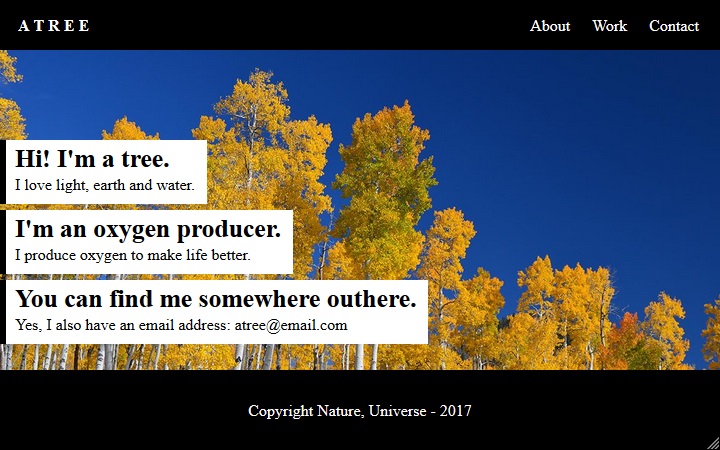
Does it work? No? I’m sorry. That was my bad. 😀
I’ve not told you something about container tags. They are simply used to group other HTML elements and produce no effect on the output.
Add the line of code below to the top of your HTML document (before the <nav> ); Save file and refresh your web browser again.
<link rel=»stylesheet» href=»https://codenart.github.io/css/atree.css»>
How about this time? Do you see a magic? 😀
That is CSS!
What is CSS? Why do we need it?
There are some important things that I would want to tell you at the beginning but my mind is quite forgetful.
HTML can only help us to tell web browser what to display.
To tell web browser how to display our contents aesthetically, we need some help from CSS: another simplified and easier-to-learn version of English.
As you’ve already known the most common HTML tags, this is a perfect time to learn CSS. My HTML tutorials will be continued but I recommend you to use them as references (use my site’s search box when you need to know something). You don’t need to read them all at the time because it’s boring. I promise. 😀
Learning HTML is just that. Trying some HTML tags and refreshing web browser.
There’s no more fun.
Learning CSS is different. We’ll try some CSS code and refresh web browser.
And there will be more fun.
Oh wait… It seems that there is no difference in the CSS learning process. 😀
But I assure you that learning CSS is much more fun.
There’s one more important thing I’ve to tell you about HTML containers.
Just give me 30 seconds more to finish this tutorial before we start our first CSS tutorial.
The extreme containers
Yes, there are some special HTML containers that I’ve not told you in the first section.
Just do this:
- Create a new HTML document.
- Give Atom this new mantra: ht
This is the basic HTML template and it is standard for any HTML document.
Our previous examples worked well because all the modern web browsers have a smart feature which automatically apply this template and put all of our contents inside the body container.
The head container is used to group some HTML elements that provide related information about our webpages to web browsers. Those elements will not be displayed on our webpages but they silently benefit us.
As you see that there is a <meta> tag. This element will allow us to use Unicode characters in our HTML document.
The next one is a couple of <title> tags , they help us to name the webpage and display this name at top of web browsers (tab bar).
The <html> container is the root container of the document. Something like a <div> . It’s just that.
And <!doctype html> , it tell web browsers that this document’s type is HTML . We don’t need to explore details about this one. Its story is about history of Markup Languages. We’d better to just leave the history at top of our HTML documents.
Our tutorial about HTML containers has finished! It’s time for Music!
Mother Earth is so generous. If only we give her the chance, she will restore everything in absolute abundance and beauty.
__Sadhguru
W3.CSS Containers
This article is light grey and the text is brown. This article is light grey and the text is brown. This article is light grey and the text is brown. This article is light grey and the text is brown. This article is light grey and the text is brown.
This is my Footer
The Container Class
The w3-container class adds a 16px left and right padding to any HTML element.
The w3-container class is the perfect class to use for all HTML container elements like:
Containers Provides Equality
The w3-container provides equality for all HTML container elements:
- Common margins
- Common paddings
- Common alignments
- Common fonts
- Common colors
To use a container, just add a w3-container class to any element:
Example
To add a color, just add a w3-color class:
Example
Headers and Footers
The w3-container class can be used to style headers:
Header
Example
Example
There is no difference in the way W3.CSS treats <div> and <header> elements.
The w3-container class can be used to style footers:
Footer
Footer information goes here
Example
Example
Many web pages use <div> elements instead of <header> and <footer> elements.
Articles and Sections
The w3-container class can be used to style <article> and <section> elements:
Example
<div >
<h2>London</h2>
<p>London is the most populous city in the United Kingdom,
with a metropolitan area of over 9 million inhabitants.</p>
</div>
<article >
<h2>Paris</h2>
<p>The Paris area is one of the largest population centers in Europe,
with more than 2 million inhabitants.</p>
</article>
<section class=»w3-container»>
<h2>Tokyo</h2>
<p>Tokyo is the center of the Greater Tokyo Area,
and the most populous metropolitan area in the world.</p>
</section>
Many web pages uses <div> elements instead of <article> and <section> elements.
Web Page Example
Header
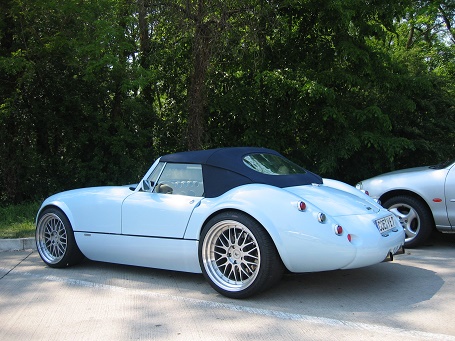
A car is a wheeled, self-powered motor vehicle used for transportation. Most definitions of the term specify that cars are designed to run primarily on roads. (Wikipedia)
Footer
Example using HTML <div> elements
<img src=»https://www.w3schools.com/w3css/img_car.jpg» alt=»Car» style=»width:100%»>
<div class=»w3-container»>
<p>A car is a wheeled, self-powered motor vehicle used for transportation. Most definitions of the term specify that cars are designed to run primarily on roads. (Wikipedia)</p>
</div>
Example using HTML semantic elements
<img src=»https://www.w3schools.com/w3css/img_car.jpg» alt=»Car» style=»width:100%»>
<article class=»w3-container»>
<p>A car is a wheeled, self-powered motor vehicle used for transportation. Most definitions of the term specify that cars are designed to run primarily on roads. (Wikipedia)</p>
</article>
Container Padding
The w3-container class has a default 16px left and right padding, and no top or bottom padding:
Example
Normally you will not have to change the default padding of a container, because paragraphs and heading provide margins that will simulate padding.
HTML container
div is a tag.
class is an attribute of div tag
container is a class name.
Also, we have container tags what it is:
- article
- section
- div
What is a «container» in HTML?
"container" is a class name in this HTML code: <div > your_text </div>
div is a tag.
class is an attribute of div tag
container is a class name.
How do I make a «container» box in HTML?
How do I make a "container" box in HTML?
To make a "container" HTML element you mast declare as a class name like: <div > your_text</div>
Tags: container class, fluid, tags, elements, box, border, template, row padding, responsive, size, width, center, table, background color
How do "containers" work in HTML?
As shown in the paragraphs above. A container is a <div> with a The container will affect all your_text under <div> > your_text</div>.
Also, we have container tags what it is:
- article
- section
- div
container class, fluid, tags, elements, box, border, template, row padding, responsive, size, width, center, table, background color
HTML container — html tutorial
This tool makes it easy to create, adjust, and experiment with custom colors for the web.
Magnews2 is a modern and creative free magazine and news website template that will help you kick off your online project in style.
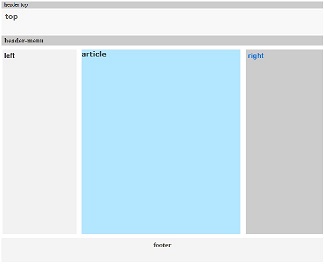
Find here examples of creative and unique website layouts.
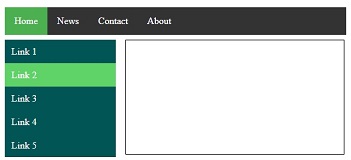
Find here examples of creative and unique website CSS HTML menu.
This tool makes it easy to create, adjust, and experiment with custom colors for the web.
Magnews2 is a modern and creative free magazine and news website template that will help you kick off your online project in style.
Find here examples of creative and unique website layouts.
Find here examples of creative and unique website CSS HTML menu.
Что такое container в html
HTML uses predefined tags that tell the browser how to display the content. Tags are nothing but some instructions that are enclosed in angle braces(i.e., <>). Tags are used in many places of the webpage but many users are often confused about some tags whether it is a container or an empty tag. They get this confusion because they don’t know for what tag there should be an ending tag along with the opening tag or not. There are two types of tags in HTML:
- Empty
- Container
Now, let us see the definitions and examples of the most commonly used HTML container and empty tags.
Container tags
Container tags are generally divided into three parts, i.e., opening tag, content(which will display on the browser), and closing tag. In the content part, they can also contain some other tags. These opening and closing tags are used in pairs which are start tag and end tag, which is often called ON and OFF tags. If you forget to close the container tag, the browser applies the effect of the opening tag until the end of the page. So be careful while working with container tags. The majority of tags present in HTML are container tags.
Syntax:
Some commonly used container tags are:
1. Essential Tags: Following tags are used to create the structure of the webpage:
- <html>….</html>: This marks the beginning and ending of the webpage also it tells that the document is an HTML document. This contains all other tags in between these tags which are considered for making a webpage.
- <head>…</head>: This tag is used to define the head part of the document which contains the information related to the webpage.
- <title>…</title>: This tag stores the description of the web page, whatever given in these tags appears on the tab name while opened by the browser. It is described in the head tag.
- <body>….</body>: This tag is used to display all the information or data, i.e, text, images, hyperlinks videos, etc., on the webpage to the user.
2. Headings: Following tags are used for headings:
<h1>….</h1> to <h6>…</h6>: It is used for including headings of different sizes ranging from 1 to 6.
3. Text formatters: Following tags are used for text formatting:
- <p>….</p>: When paragraphs are needed to be included, this tag is used
- <b>….</b>: Makes the contained text to bold.
- <i>…</i>: Makes the contained text to italic.
4. HyperLinks: Following tag is used to define a hyperlink in the webpage:
<a href=”link.com”>…</a>: When we link some other webpages we add the hyper links to other webpages using this <a …>…</a>tag.
5. Button tag: Following tag is used to create a click button:
<button>…</button>: This is used in many ways but mainly used to manipulate done by adding events and many more.
6. Division tag: Following tag is used to create a division:
<div>….</div>: This defines a section in a document. The webpage can be divided to different sections using the <div>….</div> tag.
7. Iframe tag: Following tag is used for inline framing:
<iframe src=”link.com> </iframe>: When some other document is to be embedded like some video or image into HTML we use this tag.
8. Navigation tag: Following tag is used to set a navigation link:
<nav>…</nav>: Defines a navigation bar that contains a set of menu or a menu of hyperlinks.
9. Script tag: Following tag is used to add JavaScript code to the webpage:
<script>…</script> : This contains the javascript code that adds interactivity to the webpage.
10. Lists: Following tags are used to write data in the form of ordered and unordered lists:
- <ol>…</ol>: This tag is used to create ordered lists.
- <ul>…</ul>: This tag is used to create unordered lists.
- <li>…</li>: This tag is used to add list items.
Empty Tags
The tags that do not contain any closing tags are known as empty tags. Empty tags contain only the opening tag but they perform some action in the webpage.