Uninstall Python in Ubuntu 22.04
In this guide, we will have a look at uninstalling Python in Ubuntu 22.04.
Prerequisites
To follow this guide, you need the following components:
- A properly-configured Linux system. Learn more about setting up an Ubuntu virtual machine on VirtualBox.
- Access to a non-root user with sudo privilege. Check out the article on using sudoers to manage the sudo privilege.
Python Major Releases
As of now, the two major versions of Python are:
- Python 2
- Python 3
Python 2 received its last update (v2.7.18) on April 20, 2020. It’s been mostly phased out in favor of Python 3. This move, however, caused a major uproar in the community. Python 2 was so popular that the EOL had to be pushed multiple times into the future.
Although deprecated, you may still come across some Python 2 installations for compatibility reasons. By default, Ubuntu comes with installed Python 3.
Method 1: Removing Python Using APT
Step 1: Finding the Installed Python Package
Run the following commands:
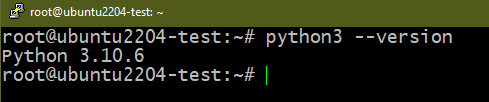
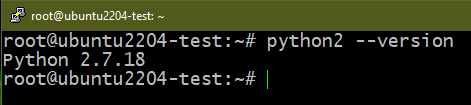
- We ask the Python executable to print its version.
- Ubuntu 22.04 comes with pre-installed Python 3. So, the first command returns a version number.
- Ubuntu 22.04 doesn’t come with pre-installed Python 2. So, the expected result is an error. However, if the command returns a version number, Python 2 is later installed.
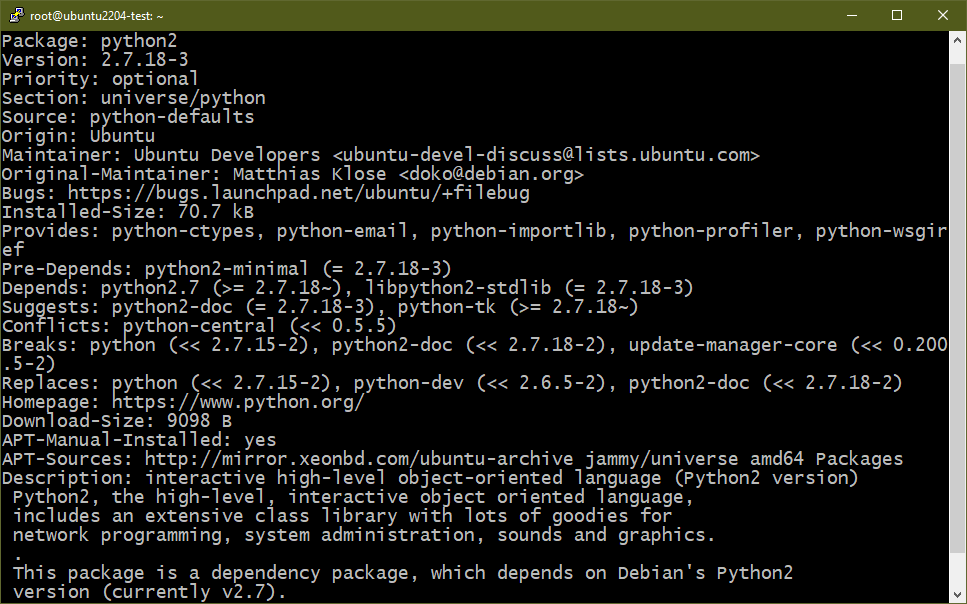
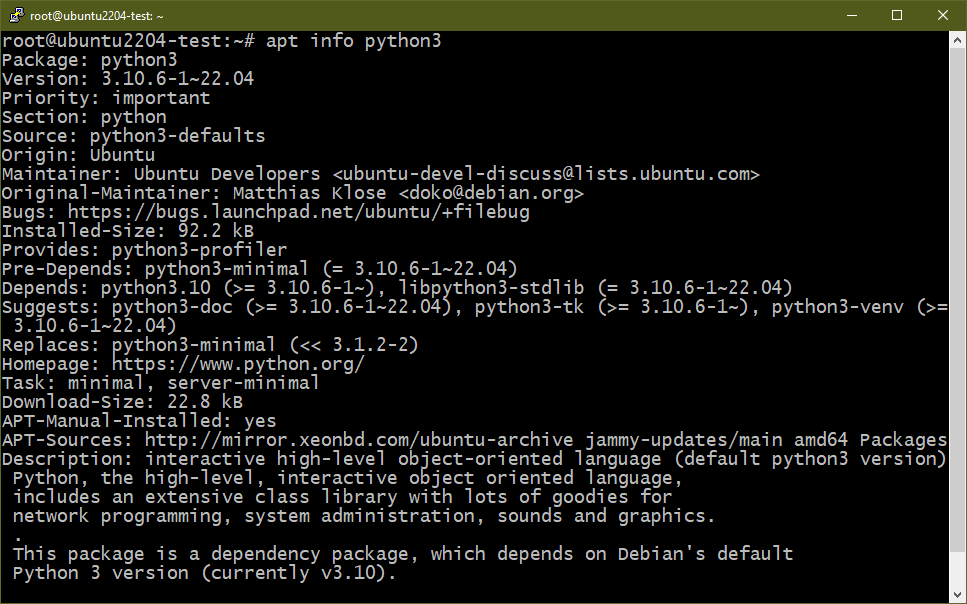
On Debian/Ubuntu, the core Python packages are as follows:
- Python 2: python2
- Python 3: python3
Step 2: Uninstalling Python
Now that we know what Python version is currently installed on the system, we can start to work on uninstalling them.
To remove Python 2, run the following command:
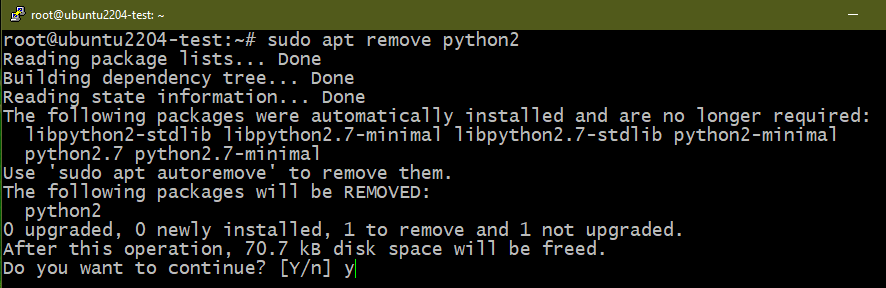
To remove Python 3, run the following command:

Optional: Remove All Python Packages
Removing all the Python-related packages is generally not recommended since various parts of the system depend on them. If you wish to proceed, ensure that you backed up all your important data.
To remove all the Python packages from the system, run the following command:
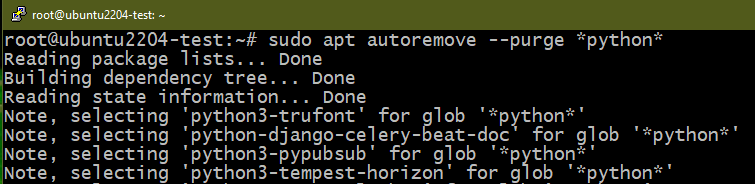
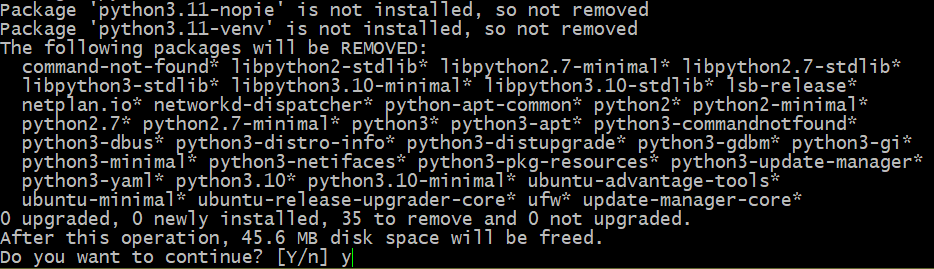
- The APT package manager looks for packages that match the given regular expression (*python*). The matching packages are marked for removal.
- APT also marks the dependencies of those packages for removal.
Method 2: Removing Python from the Source
If Python was compiled and installed from its source code, APT won’t be able to recognize the installation. In that case, the uninstallation process will be different.
Assuming you still have the source directory which contains the compiled Python package, run the following commands:
If you removed the source directory, you could try removing the installed libraries and binaries manually:
Note that this is meant to be the last resort. It may lead to corrupted and broken configurations throughout the system.
Method 3: Removing PyPy
PyPy aims to be a replacement for CPython (the default Python implementation). It’s built with RPython which was simultaneously developed with it. The key advantage to using PyPy other than CPython is performance. Although it’s an implementation of Python, certain differences can impact compatibility. Learn more about PyPy.
Similar to the classic Python, PyPy also has two major releases:
- PyPy 2 (pypy)
- PyPy 3 (pypy3)
To install PyPy, run the following commands:
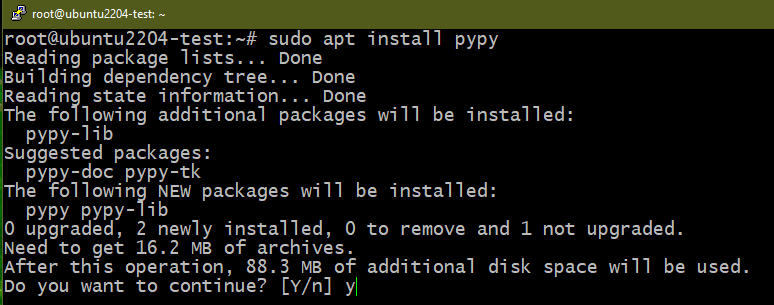

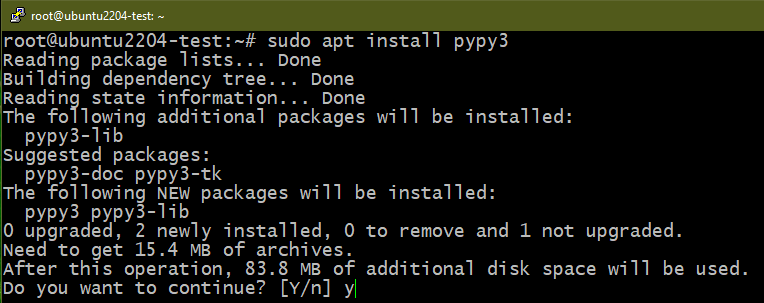

Similarly, to uninstall PyPy, run the following commands:
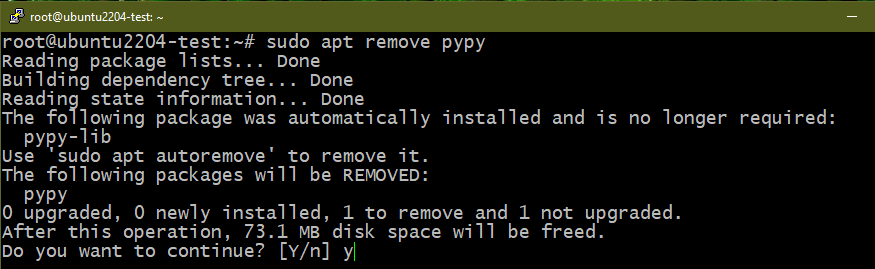
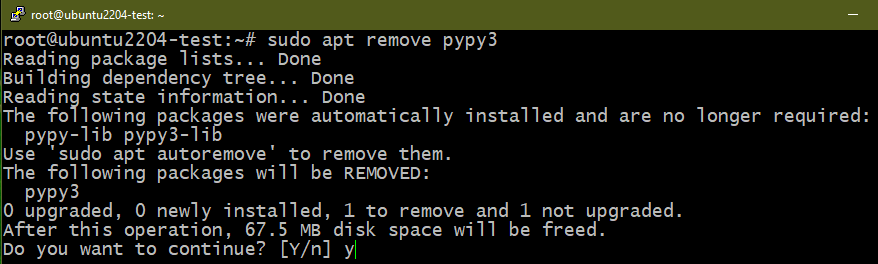
Bonus: Removing PIP
PIP is the de-facto standard package manager for Python packages/modules. By default, it’s configured to use the Python Package Index as the source of packages. Starting from Python 3 (v3.4 and later), PIP comes pre-installed with Python 3. The term “PIP” is a recursive acronym for “PIP Installs Packages”. Learn more about PIP.
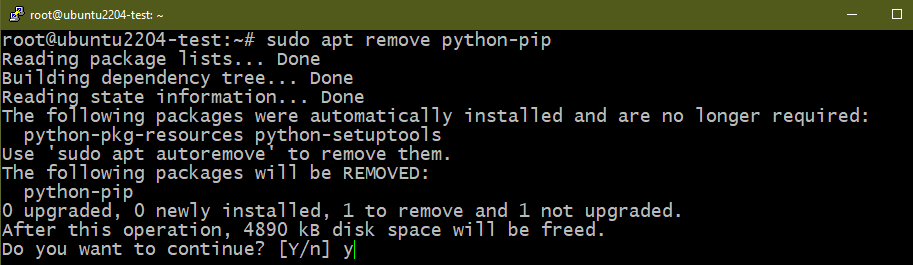
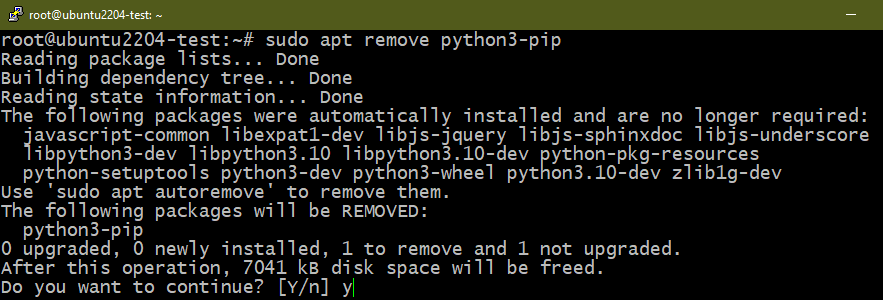
Similar to the Python major releases, PIP has unique versions for both Python 2 (python-pip) and Python 3 (python3-pip).
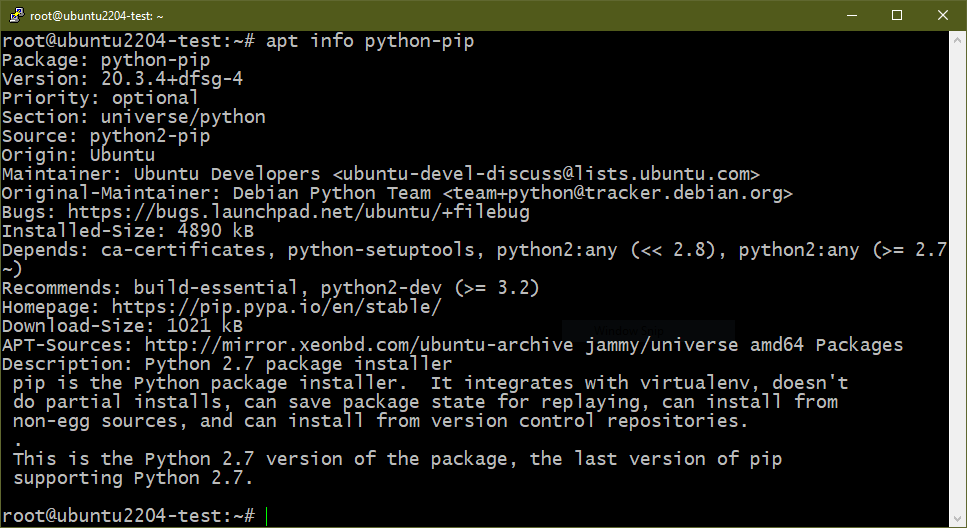
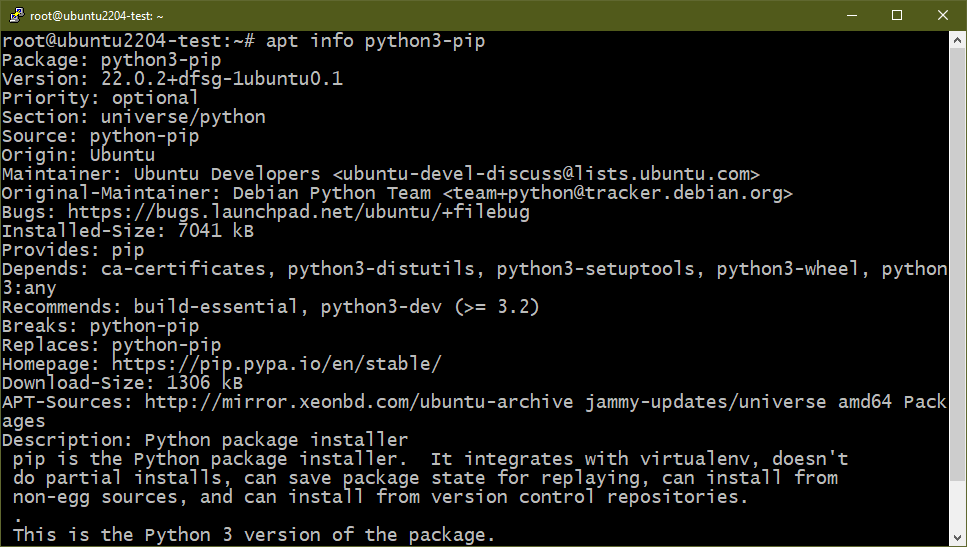
If you removed all the Python packages, PIP is also uninstalled by default. However, if you desire to specifically uninstall PIP, run the following commands:
Conclusion
We demonstrated the multiple ways of removing Python from Ubuntu 22.04. We demonstrated uninstalling both CPython and PyPy from the system using APT. We also discussed uninstalling Python if it is installed from the source code.
Need to reinstall Python? Check out this guide on installing Python on Ubuntu 22.04. Interested in starting your journey with Python? The following guide features 30 example scripts to get started. The Python sub-category also contains numerous guides on various aspects of Python programming.
About the author

Sidratul Muntaha
Student of CSE. I love Linux and playing with tech and gadgets. I use both Ubuntu and Linux Mint.
Uninstall Python in Ubuntu
This article demonstrates how to delete or uninstall Python from Ubuntu.
Check if Python Installed in Your System
Open the Terminal using Ctrl + Alt + T .
After opening the terminal, check whether your system has python installed or not by using the command python3 —version .
If the command replies with the specific version of python, then leave it because you have already installed python on your pc/desktop.
If the command replies with Command not found , then to install python, write the command sudo apt install python3 .
There are many ways for its uninstallation depending upon a user’s needs. Different commands in the terminal do different tasks.
If there is only a need to delete specific dependencies related to a specific module of python or if there is a need to delete all the dependencies or to remove the Python3 package.
Depending upon the specific needs and requirements, the user can run the commands in the terminal for specific actions.
Ways to Remove/Uninstall Python in Ubuntu
Uninstall/Delete a Specific Version
Suppose a user wants to delete a specific version of Python installed on the Ubuntu machine. Run the below command and enter your user password. The version of Python will be removed from the machine.
Remove Only the python3 Package
If a user wants to remove the specific package of Python, i.e., python 3.5 , run the below command and select and remove the python3 packages.
Remove Packages With Their Dependencies
Suppose you want to remove a package and all the dependencies related to that package, run the below-mentioned command, enter your ubuntu password, and the package will be removed along with its dependencies.
Remove Settings, Configs, Datafiles Collectively
Suppose a user wants to remove all the configurations and settings or data files related to a python package. In that case, he should mention the below command in the terminal and enter the machine’s password to continue.
Remove Configs, Data Files, and Dependencies of python3.5
If a user wants to collectively remove any Python package’s configuration, files, and dependencies, then the user must use the below command.
Command (for any version):
Command (for python3.5):
Hello! I am Salman Bin Mehmood(Baum), a software developer and I help organizations, address complex problems. My expertise lies within back-end, data science and machine learning. I am a lifelong learner, currently working on metaverse, and enrolled in a course building an AI application with python. I love solving problems and developing bug-free software for people. I write content related to python and hot Technologies.
How to Uninstall Python
We may want to remove Python in our Linux or Windows systems for different reasons – conflicting packages and the need for a given Python version are some top reasons. Unlike in Windows, Python is a core program in most Linux distributions. In this case, uninstalling Python without utmost care may cause your Linux system to break. This article focuses on how we can safely remove Python from Windows and Linux systems.
How to Uninstall Python in Linux
Most Linux distros come with Python installed. In fact, in most cases, the default Python coming with the operating system is a core package for the system such that if it is removed, the graphical display manager breaks down, among other awful things. Other Python version(s) can also be installed alongside Linux-inbuilt Python (we will discuss how to do this later). We can safely remove the Python built from the source, but removing the Python that came with the distribution is not recommended.
To uninstall Python installed from the source, follow these steps:
Step A. First of all, check all the Python versions installed using the whereis command in Linux
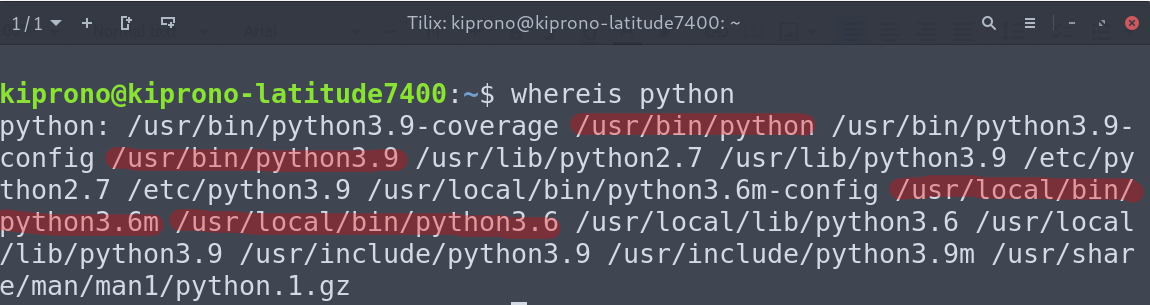 Figure 1: Locate source/binary and manuals for python commands using whereis.
From Figure 1, what we are after are the binaries. They are located at bin/or local/bin. The inbuilt Python is in bin/, whereas the Python built from the source is mainly installed at the local/bin. In our case, we have Python3.9 (inbuilt – we don’t want to uninstall this) and Python3.6 located in local/bin directory, and we can safely remove it.
The following list can fully explain the Linux directories we are interested in:
- /bin – binary or executable programs.
- /lib – it contains kernel modules and a shared library.
- /usr – user-related programs.
- The /usr/local directory is where locally compiled applications are installed by default, preventing them from mucking up the rest of the system.
- /etc – system configuration files.
Misc A: Why it is not recommended to uninstall Python at /usr/bin
Many programs in most Linux distributions depend on pre-installed Python. You can identify the default Python by running python on the terminal. You can also find it by using which command.
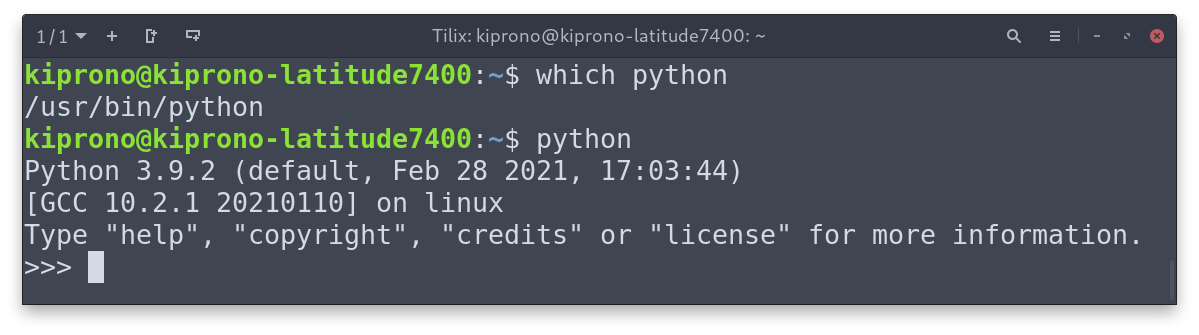 Figure 2: Locating Python interpreter: As shown in the Figure, python is located at /usr/bin/python. You can run “python” or “/usr/bin/python” to wake Python.
If we take a closer look at the long listing of /usr/bin you will realize that Python and its dependencies are linked to other programs.
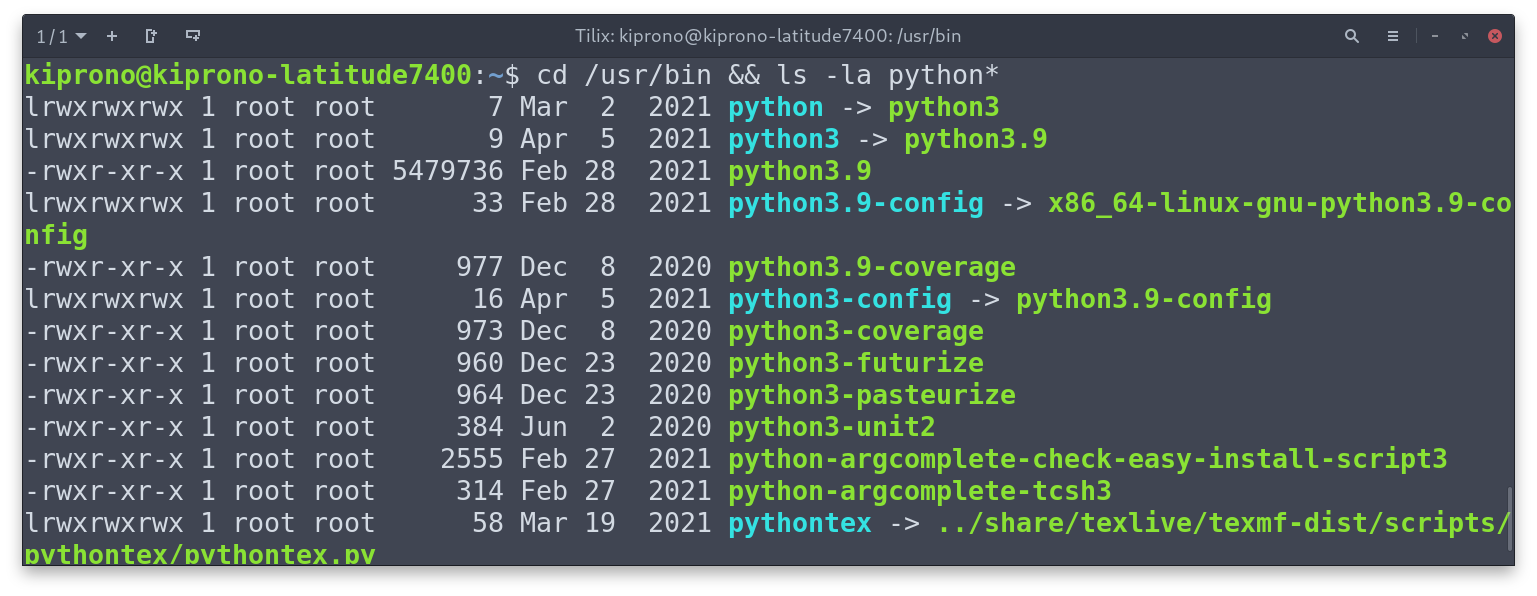
The Figure above shows that python points to python3, which is linked to python3.9 This means that running any of them wakes up Python 3.9.2 installed on the machine. Notice that the symbolic links also point to other locations containing other programs.
Since we now know why uninstalling built-in Python is not recommended, we can now see how we can remove Python we installed from the source.
Step B. Removing Python Installed from the Source in Linux
In most cases, manually installed Python will be located at the /usr/bin/local directory. It is safe to remove this Python. This can be achieved by manually removing the binary, configuration files, and all other files generated during the installation using the rm command. To do that, save the following commands on the bash file named “uninstall_python.sh” and execute it with sudo privileges.
Execute the bash file by running:
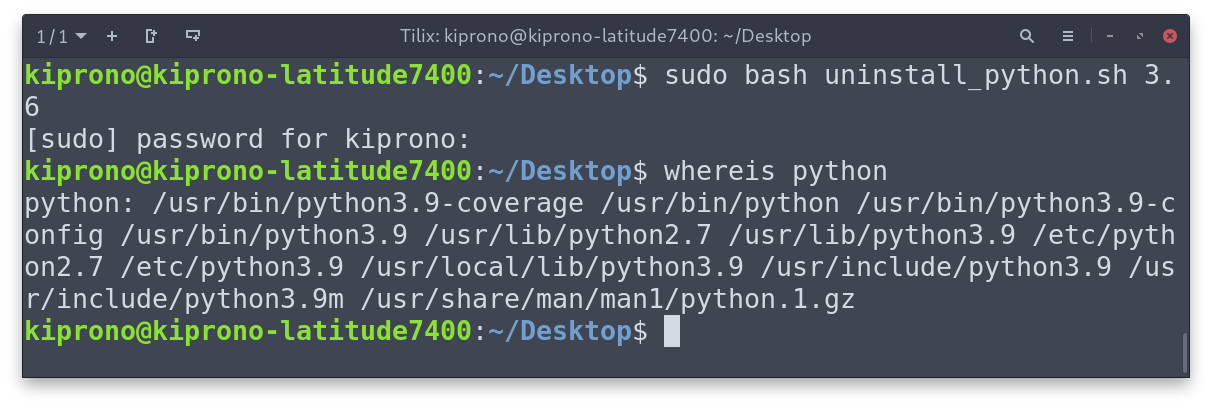
The bash script we just created removes all the files associated with Python 3.6, and now it is removed when you check it with whereis.
Uninstalling Python 2 in Linux
Note: I have never installed Python 2, but from the output above, notice that some Python2.7 libraries (/usr/lib/python2.7) exist. Other system programs probably use these libraries, so they are better not manually removed them using rm. Unless it is pre-installed, you can remove Python2.7 without any problem. You can run the following commands on the terminal to do that
Recommendations
As said earlier, we sometimes want to remove Python from our system because of conflicting packages or because we want a specific version of the programming language. You can avoid conflicting packages by running Python in a virtual environment. If you want a particular version of Python, you can install it alongside the Python coming with your Linux distribution.
Let’s discuss those two suggestions in the two coming sections.
How to Manually Install Python in Linux
Before we do, let’s check the Python version(s) installed.
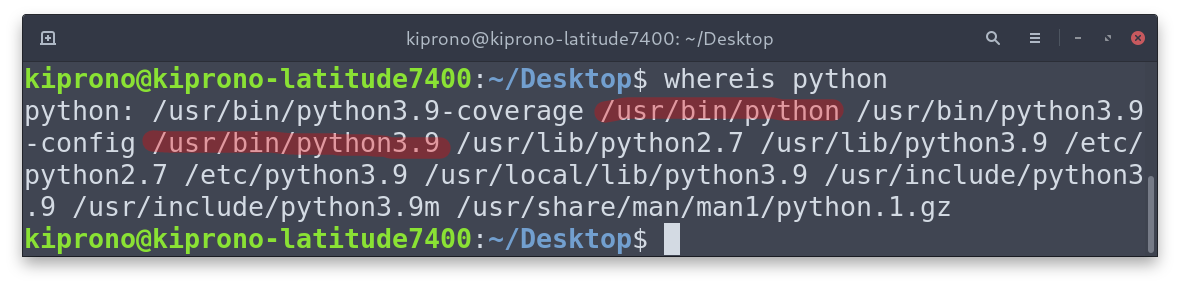
As we start, I have only the pre-installed Python. It is version 3.9.
Step 0: Update repositories and install dependencies required to build Python
On Debian-based distributions, execute:
On Fedora-based systems:
Step 1: Download the Stable Release of Python on its Official Website
In this step, go to https://www.python.org/downloads/source/ and download XZ compressed source tarball (.tar.xz) file. This file contains all the source files we can build to get the Python we want (I am downloading Python 3.10.5, so I get, Python-3.10.5.tar.xz file).
Step 2: Extract the tarball
Use the inbuilt extraction functionality to extract the tarball, or you can use the tar command in Python as follows
(In my case, I have to run tar -xf Python-3.10.5.tar.xz)
Step 3: Run the configuration
This is accomplished by running the following command on Linux Terminal
That is, cd into the extracted directory and run the configure file.
Step 4: Lastly, Build the package
Since we want to install this Python version along with the pre-installed one, we will run:
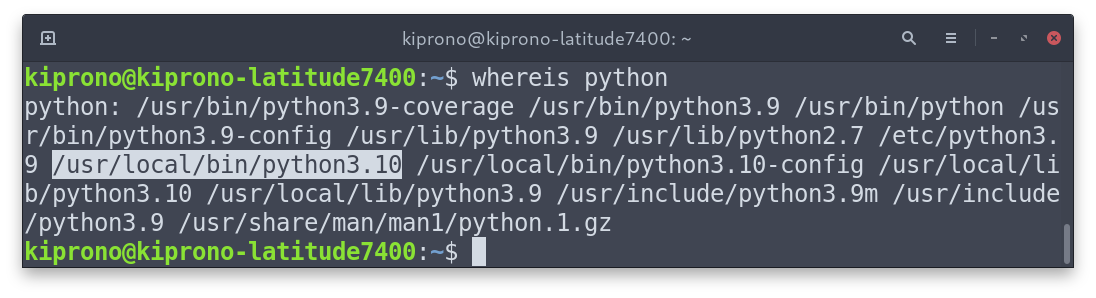 Figure 3: Now Python 3.10 is installed, and we can wake it up by running python3.10 or /usr/local/bin/python3.10
Creating Virtual Environment
A virtual environment in Python allows us to isolate the interpreter and packages from those packages installed in other virtual environments and on the default system location. It is recommended that a virtual environment should be created for each project so that package conflict is avoided.
Python provides a module venv that can allow us to make virtual environments. For example, if we want to make a virtual environment called env1 we will execute the following on the terminal.
That creates a directory called env1 with the interpreter and pre-installed libraries. To activate the environment, run
Once activated, the environment name will precede the terminal prompt ($). To deactivate the environment, just run
Uninstalling Python in Windows
To completely remove Python from your windows system, we need to do three things: Uninstall Python through the Control Panel, remove pip-installed packages, and delete Python from the system path.
A. Uninstall Python through the Control Panel
- Navigate to the Control Panel > Programs > Uninstall program and uninstall the Python version you want to be removed. You can open the Control Panel by searching on the Start Menu search bar or open the Run dialog box by clicking Windows Key + R and searching “control panel”.
B. Remove pip-installed packages
- Windows keeps these packages at %LOCALAPPDATA%\pip by default; therefore, we can trash it to remove them. %LOCALAPPDATA%\ is a hidden folder located at C:\Users\<username>\AppData.
C. Next is to remove Python from the Environment.
To do that, follow these steps:
- Open the Run dialog box by Clicking Windows Key + R,
- Type sysdm.cpl and click Enter. This should open the System Properties window. Go to the Advanced tab and click on Environment Variables at the bottom.
- On the environments, select the Python paths as shown below and Delete

report this ad
Recent Posts
- Remove Characters From String in Powershell
- Process Finished With Exit Code 0 in Python
- Optional Parameters in Powershell
- Write Output to Log Files in PowerShell Script
- Set HTTP proxy with Python Requests
report this ad report this ad report this ad report this ad
zhensongren / uninstall_python3.MD
bro did you find a way to fix it, my ubuntu also broken because of 2nd command. It would be grateful if you can help me with this.
Very careful before using above command.
In case you successfully uninstalled default package, use below command 😉
sudo apt-get install ubuntu-desktop
thank you my ubuntu was broken!! 🙂
bro did you find a way to fix it, my ubuntu also broken because of 2nd command. It would be grateful if you can help me with this.
I just used this command to fix ubuntu :
sudo apt-get install ubuntu-desktop
Very careful before using above command.
In case you successfully uninstalled default package, use below command 😉
sudo apt-get install ubuntu-desktop
Thank you!
My ubuntu was also broken
Destroyed my linux purging python, be careful
sudo apt-get purge . destroys dependencies . Be careful .
sudo apt-get install ubuntu-desktop
helps recover dependencies but not all
This is NOT the way to. do this.!
You will trash your system if you start purging like this.
Thank you for this. I had installed python3.10, it was causing problems and I couldn’t uninstall it through rm. I am still fairly new to linux so thank you.
yes, I’ve destroyed my computer and lost everything trying that, but my question still the same, how I can upgrade or deleted and then re-install the latest python version?
I use different python versions (3.8, 3.10) on my ubuntu. I decided to uninstall pythion3.10.
Now, anytime I install a package with pip, it is downloaded in ‘python3.10/site-packages/’ not ‘python3.8/site-packages/’
Does anyone know how I can resolve this? I cannot also install packages in a venv because it is always installing globally to ‘python3.10/site-packages/’
Please help. Thank you for your response
⚠ ⚠ ⚠ These commands ruined the whole WSL Ubuntu successfully! ⚠ ⚠ ⚠
thank you!
for readers in the future: just try searching and use other methods.
to repair python2.7 on Ubuntu: sudo apt-get install —reinstall python2.7 .
Note to self: Do not run commands on a github Gist without reading the comments section xD
I CANT BELIEVE UBUNTU CRASHED!! SUCH A FRAGILE USELESS OS
Some commands are best tried on virtual system first. Be careful.
installed and have no graphical interface
sudo apt install —reinstall ubuntu-desktop fixed
I ran this command and I’m using a WSL with Ubutu. Any ideas on how I can fix mine?
its helpful for me
Great! It helped me
yall really testing these commands on your laptops ? what docker or vm did to you to hate using it so much
Very nice. I just blew my VM. Thanks for nothing.
What the hell, my terminal got removed
Ye kisne de diye baccho ke haath mein laptop
DON’T TRY THIS AT HOME .
1st result when searching «ubuntu uninstall python» lmao
Thank you! My ubuntu was also broken ��
Don’t try it or will distroy Your ubuntu
how to get password
too late to read the comments
Thank you. I Just destroyed my ubuntu server
Destroyed my entire fing Ubuntu install, If anyone sees this comment, I would highly advise against using these commands, It will trash your system, if you fall victim to this, enter TTY console if you can, and type sudo apt-get update —fix-missing, then once this finishes, enter sudo apt install -f, this will fix the Ubuntu install, if it doesn’t you work you must reinstall Ubuntu somehow. For me, this method worked.