8 команд для Python по работе с файлами и файловой системой, которые обязательно нужно знать

Python становится все популярнее благодаря относительной простоте изучения, универсальности и другим преимуществам. Правда, у начинающих разработчиков нередко возникают проблемы при работе с файлами и файловой системой. Просто потому, что они знают не все команды, которые нужно знать.
Эта статья предназначена как раз для начинающих разработчиков. В ней описаны 8 крайне важных команд для работы с файлами, папками и файловой системой в целом. Все примеры из этой статьи размещены в Google Colab Notebook (ссылка на ресурс — в конце статьи).
Показать текущий каталог
Самая простая и вместе с тем одна из самых важных команд для Python-разработчика. Она нужна потому, что чаще всего разработчики имеют дело с относительными путями. Но в некоторых случаях важно знать, где мы находимся.
Относительный путь хорош тем, что работает для всех пользователей, с любыми системами, количеством дисков и так далее.
Так вот, для того чтобы показать текущий каталог, нужна встроенная в Python OS-библиотека:
Ее легко запомнить, так что лучше выучить один раз, чем постоянно гуглить. Это здорово экономит время.
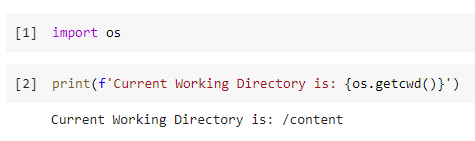
Имейте в виду, что я использую Google Colab, так что путь /content является абсолютным.
Проверяем, существует файл или каталог
Прежде чем задействовать команду по созданию файла или каталога, стоит убедиться, что аналогичных элементов нет. Это поможет избежать ряда ошибок при работе приложения, включая перезапись существующих элементов с данными.
Функция os.path.exists () принимает аргумент строкового типа, который может быть либо именем каталога, либо файлом.
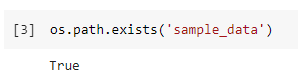
В случае с Google Colab при каждом запуске создается папка sample_data. Давайте проверим, существует ли такой каталог. Для этого подойдет следующий код:
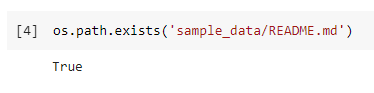
Эта же команда подходит и для работы с файлами:
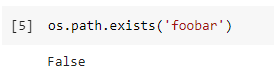
Если папки или файла нет, команда возвращает false.
Объединение компонентов пути
В предыдущем примере я намеренно использовал слеш "/" для разделителя компонентов пути. В принципе это нормально, но не рекомендуется. Если вы хотите, чтобы ваше приложение было кроссплатформенным, такой вариант не подходит. Так, некоторые старые версии ОС Windows распознают только слеш "\" в качестве разделителя.
Но не переживайте, Python прекрасно решает эту проблему благодаря функции os.path.join (). Давайте перепишем вариант из примера в предыдущем пункте, используя эту функцию:

Создание директории
Ну а теперь самое время создать директорию с именем test_dir внутри рабочей директории. Для этого можно использовать функцию
os.mkdir():
Давайте посмотрим, как это работает на практике.
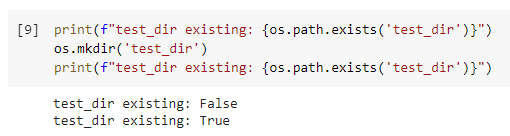
Если же мы попытаемся создать каталог, который уже существует, то получим исключение.
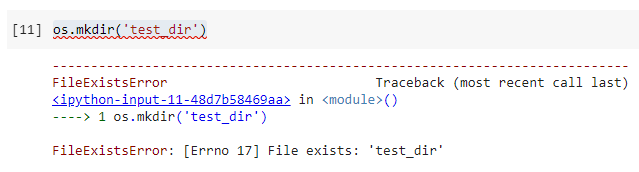
Именно поэтому рекомендуется всегда проверять наличие каталога с определенным названием перед созданием нового:
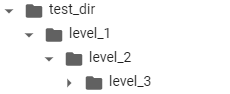
Еще один совет по созданию каталогов. Иногда нам нужно создать подкаталоги с уровнем вложенности 2 или более. Если мы все еще используем os.mkdir (), нам нужно будет сделать это несколько раз. В этом случае мы можем использовать os.makedirs (). Эта функция создаст все промежуточные каталоги так же, как флаг mkdir -p в системе Linux:
Вот что получается в результате.
Показываем содержимое директории
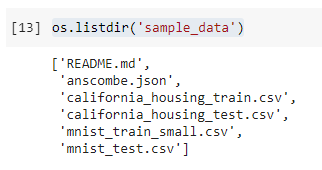
Еще одна полезная команда — os.listdir(). Она показывает все содержимое каталога.
Команда отличается от os.walk (), где последний рекурсивно показывает все, что находится «под» каталогом. os.listdir () намного проще в использовании, потому что просто возвращает список содержимого:
В некоторых случаях нужно что-то более продвинутое — например, поиск всех CSV-файлов в каталоге «sample_data». В этом случае самый простой способ — использовать встроенную библиотеку glob:
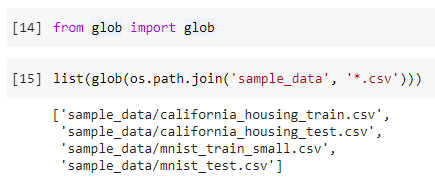
Перемещение файлов
Самое время попробовать переместить файлы из одной папки в другую. Рекомендованный способ — еще одна встроенная библиотека shutil.
Сейчас попробуем переместить все CSV-файлы из директории «sample_data» в директорию «test_dir». Ниже — пример кода для выполнения этой операции:
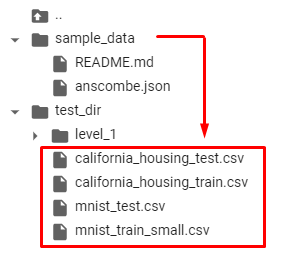
Кстати, есть два способа выполнить задуманное. Например, мы можем использовать библиотеку OS, если не хочется импортировать дополнительные библиотеки. Как os.rename, так и os.replace подходят для решения задачи.
Но обе они недостаточно «умные», чтобы позволить перемесить файлы в каталог.
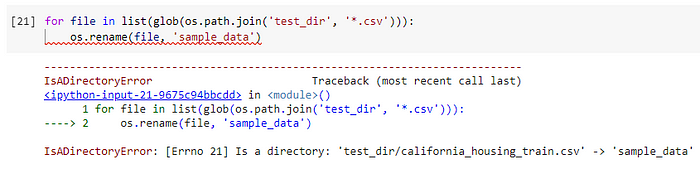
Чтобы все это работало, нужно явно указать имя файла в месте назначения. Ниже — код, который это позволяет сделать:
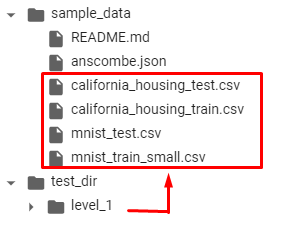
Здесь функция os.path.basename () предназначена для извлечения имени файла из пути с любым количеством компонентов.
Другая функция, os.replace (), делает то же самое. Но разница в том, что os.replace () не зависит от платформы, тогда как os.rename () будет работать только в системе Unix / Linux.
Еще один минус — в том, что обе функции не поддерживают перемещение файлов из разных файловых систем, в отличие от shutil.
Поэтому я рекомендую использовать shutil.move () для перемещения файлов.
Копирование файлов
Аналогичным образом shutil подходит и для копирования файлов по уже упомянутым причинам.
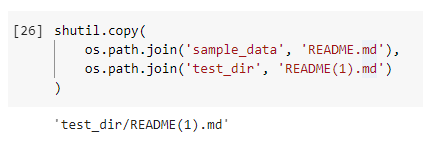
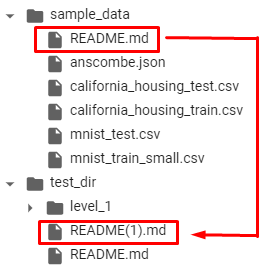
Если нужно скопировать файл README.md из папки «sample_data» в папку «test_dir», поможет функция shutil.copy():
Удаление файлов и папок
Теперь пришел черед разобраться с процедурой удаления файлов и папок. Нам здесь снова поможет библиотека OS.
Когда нужно удалить файл, нужно воспользоваться командой os.remove():
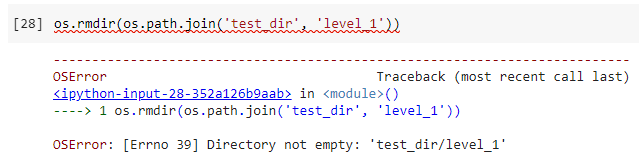
Если требуется удалить каталог, на помощь приходит os.rmdir():
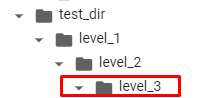
Однако он может удалить только пустой каталог. На приведенном выше скриншоте видим, что удалить можно лишь каталог level_3. Что если мы хотим рекурсивно удалить каталог level_1? В этом случае зовем на помощь shutil.
Функция shutil.rmtree() сделает все, что нужно:
Пользоваться ею нужно с осторожностью, поскольку она безвозвратно удаляет все содержимое каталога.
Собственно, на этом все. 8 важных операций по работе с файлами и каталогами в среде Python мы знаем. Что касается ссылки, о которой говорилось в анонсе, то вот она — это Google Colab Network с содержимым, готовым к запуску.
Python Check If File Exists
Summary: in this tutorial, you’ll learn how to check if a file exists.
When processing files, you’ll often want to check if a file exists before doing something else with it such as reading from the file or writing to it.
To do it, you can use the exists() function from the os.path module or is_file() method from the Path class in the pathlib module.
os.path.exists() function
Path.is_file() method
1) Using os.path.exists() function to check if a file exists
To check if a file exists, you pass the file path to the exists() function from the os.path standard library.
First, import the os.path standard library:
Second, call the exists() function:
If the file exists, the exists() function returns True . Otherwise, it returns False .
If the file is in the same folder as the program, the path_to_file is just simply the file name.
However, it’s not the case, you need to pass the full file path of the file. For example:
Even if you run the program on Windows, you should use the forward-slash ( / ) to separate the path. It’ll work across Windows, macOS, and Linux.
The following example uses the exists() function to check if the readme.txt file exists in the same folder as the program:
If the readme.txt file exists, you’ll see the following output:
Otherwise, you’ll see False on the screen:
To make the call to the exists() function shorter and more obvious, you can import that function and rename it to file_exists() function like this:
2) Using the pathlib module to check if a file exists
Python introduced the pathlib module since the version 3.4.
The pathlib module allows you to manipulate files and folders using the object-oriented approach. If you’re not familiar with object-oriented programming, check out the Python OOP section.
First, import the Path class from the pathlib module:
Then, instantiate a new instance of the Path class and initialize it with the file path that you want to check for existence:
Finally, check if the file exists using the is_file() method:
If the file doesn’t exist, the is_file() method returns False . Otherwise, it returns True .
Как проверить, существует ли файл или каталог в Python
При написании скриптов Python вы можете захотеть выполнить определенное действие, только если файл или каталог существует или нет. Например, вы можете захотеть прочитать или записать данные в файл конфигурации или создать файл, только если он уже не существует.
В Python есть много разных способов проверить, существует ли файл, и определить его тип.
В этом руководстве показаны три различных метода проверки существования файла.
Проверьте, существует ли файл
Самый простой способ проверить, существует ли файл, — это попытаться открыть файл. Этот подход не требует импорта какого-либо модуля и работает как с Python 2, так и с Python 3. Используйте этот метод, если вы хотите открыть файл и выполнить какое-либо действие.
В следующем фрагменте кода используется простой блок try-except. Мы пытаемся открыть файл filename.txt , и если файл не существует, возникает исключение IOError и IOError сообщение «Файл недоступен»:
Если вы используете Python 3, вы также можете использовать FileNotFoundError вместо исключения IOError .
При открытии файлов рекомендуется использовать ключевое слово with , которое обеспечивает правильное закрытие файла после завершения файловых операций, даже если во время операции возникает исключение. Это также делает ваш код короче, потому что вам не нужно закрывать файл с помощью функции close .
Следующий код эквивалентен предыдущему примеру:
В приведенных выше примерах мы использовали блок try-except и открывали файл, чтобы избежать состояния гонки. Условия состязания возникают, когда к одному файлу обращается более одного процесса.
Например, когда вы проверяете наличие файла, другой процесс может создать, удалить или заблокировать файл в период времени между проверкой и открытием файла. Это может привести к поломке вашего кода.
Проверьте, существует ли файл с помощью модуля os.path
Модуль os.path предоставляет несколько полезных функций для работы с os.path путей. Модуль доступен как для Python 2, так и для 3.
В контексте этого руководства наиболее важными функциями являются:
- os.path.exists(path) — возвращает true, если path — это файл, каталог или допустимая символическая ссылка.
- os.path.isfile(path) — возвращает истину, если path является обычным файлом или символической ссылкой на файл.
- os.path.isdir(path) — возвращает true, если path является каталогом или символической ссылкой на каталог.
Следующий оператор if проверяет, существует ли файл filename.txt :
Используйте этот метод, когда вам нужно проверить, существует ли файл или нет, прежде чем выполнять действие с файлом. Например, копирование или удаление файла .
Если вы хотите открыть и изменить файл, используйте предыдущий метод.
Проверьте, существует ли файл, используя модуль pathlib
Модуль pathlib доступен в Python 3.4 и выше. Этот модуль предоставляет объектно-ориентированный интерфейс для работы с путями файловой системы для различных операционных систем.
Как и в предыдущем примере, следующий код проверяет, существует ли файл filename.txt :
is_file возвращает истину, если path является обычным файлом или символической ссылкой на файл. Чтобы проверить наличие каталога, используйте метод is_dir .
Основное различие между pathlib и os.path заключается в том, что pathlib позволяет вам работать с путями как с объектами Path с соответствующими методами и атрибутами вместо обычных объектов str .
Если вы хотите использовать этот модуль в Python 2, вы можете установить его с помощью pip :
Выводы
В этом руководстве мы показали вам, как с помощью Python проверить, существует ли файл или каталог.
Если у вас есть какие-либо вопросы или отзывы, не стесняйтесь оставлять комментарии.
Python: Check if a File or Directory Exists

In this tutorial, you’ll learn how to use Python to check if a file or a directory exists. Being able to work with files is an important skill for someone using Python at any skill level. Being able to check if a file or a directory exists, in particular, allows us to run our code safely – thereby preventing accidental program crashes.
Python provides a wide array of options for interacting with your operating system. Because of this, you’ll learn a number of different ways to use Python to check if a file or a directory exists. By the end of this tutorial, you’ll have learned how to use the os and the pathlib modules, and how these approaches differ.
Check out some other tutorials, such as how to copy a file using Python, or how to use Python to delete a file.
The Quick Answer: Use pathlib .exists()
| Library | Function / Method | Checks |
|---|---|---|
| pathlib | Path.is_file() | File |
| pathlib | Path.is_dir() | Directory |
| pathlib | Path.exists() | File / Directory |
| os | path.isfile() | File |
| os | path.isdir() | Directory |
| os | path.exists() | File / Directory |
How to use Python to check if a file or directory exists in Python
In the next sections, you’ll learn how to use the two libraries and their functions / methods to check if a file or a directory exists.
Table of Contents
File Path Differences Between Windows, Mac OS, and Linux
Before we dive into the tutorial, let’s cover off some key distinctions between how file paths are handled in Windows, Mac OS and Linux. In all of our examples, we’ll use strings to store our paths. This has significant impacts when we’re using paths that contain multiple directories. Before we dive into these impacts, let’s see how the different operating systems store file paths:
-
are separated with a / character.,
- Directories in Windows are separated with a \ character
Why does this matter? Python interprets the \ character as an escape character, meaning that the character following the escape character is ignored. Because the \ character has a real, “literal” meaning in a Window file path, we will want to treat it as a real character.
Because of this, when we use Windows file paths, we will create a raw string. We can accomplish this by prepending the string with the letter r . We could also use \\ to escape each of our forward slashes, but converting the string to a raw string is much simpler.
If you’re using Windows, simply prepend a r to your string for each of the examples in this tutorial. This will convert the string to a raw-string, allowing each character (including the \ ) to be interpreted literally. The examples in this tutorial, will not work without this.
Check if a File Exists Using try and except
If you simply want to prevent your program from crashing when you try to, say, open a file, one of the easiest ways to accomplish this is to simply wrap everything in a try. except block.
With these types of blocks, we can try to perform an action, such as opening a file. We perform actions within this block, unless an exception is found. In particular, a FileNotFoundError is raised when a given file doesn’t exist.
Let’s see how we can safely perform this:
We can see here that simply doing this will allow the code to safely continue running if the file doesn’t exist. If the file does exist, then it allows us to process it in whichever way we may want to.
Using Python 2.7? The FileNotFoundError was only introduced in Python 3. If you want or need your code to be backwards compatible, then use the IOError in your except statement. The FileNotFoundError actually subclasses the IOError , meaning it would still catch the file not being found.
Understanding the Python Pathlib Library
The Python pathlib library uses an object-oriented approach to file paths. This is a great approaches as it simply allows us to create a Path object, which we can then use throughout our code. Because the module comes with a number of object methods and attributes, we can easily check, for example, if a file or directory exists.
The pathlib module was introduced in Python 3.4. Because of this, if you’re running an old version of Python, be sure to check out the section on the os library below.
Let’s begin by loading the Python pathlib module, including its Path object:
Once we’ve done this, we can create a Path object by passing in a file path. Let’s create a Path object and check its type using the built-in type() function.
We can see that this returns a pathlib object! Now that we have this object, we’re able to manipulate it in different ways or even check its attributes.
Check out my video below to see how you can use Pathlib to organize your files:
Use Python Pathlib to Check if a File Exists
Now that you’ve had a bit of an overview of what the Python pathlib module is, let’s begin taking a look at how we can use it to check if a file exists. As mentioned in the previous section, the Pathlib module takes an object-oriented approach to file paths. Because of this, we can use various attributes to learn more about our Path object.
One of these attributes is the .is_file() method, which is used to evaluate whether a Path object evaluates to a file. If the object points to a file, then the method will return True . Otherwise, the method returns False .
Let’s see how we can use the .is_file() method to check if a file exists:
Similarly, we can use this method in a conditional if statement. For example, we can use it to first check if a file exists and then do some actions.
Here we use a conditional if to check if a file exists before completing other actions. Because the method returns a boolean value, we can simply use the implied truthy-ness of is statement. This means that if a file doesn’t exist, then it will return False , indicating to the if statement to not continue.
Use Python Pathlib to Check if a Directory Exists
Similar to the Pathlib .is_file() method, Pathlib also comes with a method that checks if a path points to an existing directory. This method is called the .is_dir() method, which evaluates to True if the path points to a directory and that directory exists.
When we create a Path object with a file path, we can use the .is_dir() method to check if a directory exists.
Let’s see how this works in Python:
This looks very similar to the method for checking if a file exists, except that we pass a directory into the object, rather than a file. If a directory doesn’t exist, then the method will return False .
Use Python Pathlib to Check if a File or a Directory Exists
Pathlib also comes with an intuitive way to check if either a file or directory exists, regardless of its type. The benefit of this approach is that it’s all encompassing. The other methods actually check if a file is a file and if it exists (in the case of .is_file() ) and if a directory is a directory and if it exists (in the case of .is_dir() ).
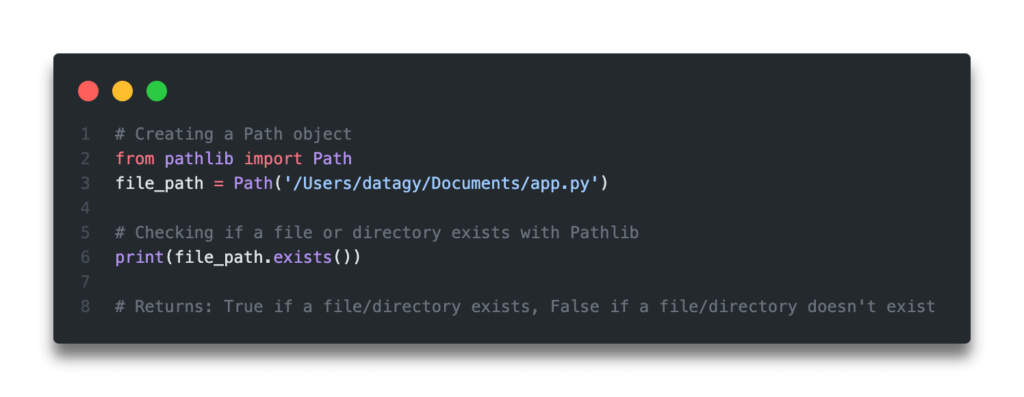
This method is the .exists() method, which evaluates whether or not the Path object actually points to an existing file or directory.
Let’s see how we can replicate our previous examples using this new method:
In the next section, you’ll learn how to use the os module to check if a file or directory exists.
Use Python os to Check if a File Exists
The Python os module allows us to interact with, well, the operating system itself. As part of this, there are a number of helpful functions included. One of these, path.isfile() returns a boolean value is a provided path is both a file and the file exists.
The path.isfile() function takes a single parameter, a string containing a path. It returns a boolean value.
Let’s see how we can use the function to check if a file exists using Python:
The function will return True if the path points to a file and the file exists. It will return False if the either the file doesn’t exist or the path doesn’t point to a file.
In the next section, you’ll learn how to use Python to check if a directory exists.
Use Python os to Check if a Directory Exists
Similar to the os.path.isfile() function, the os library comes with a function to check if a path points to a directory that exists. This function is the isdir() function, which takes a path as a parameter. The function returns True if the directory exists, and False if the directory doesn’t exist.
Let’s see how this works in Python:
In the final section, you’ll learn how to check if either a file or a directory exist in Python.
Use Python os to Check if a File or Directory Exists
In this final section, you’ll learn how to use the Python os module to check if a file or a directory exists. The difference here is that the function is agnostic to file or directory. Furthermore, it allows us to check if a file or directory exists – thereby overwriting the assumption that the function also checks the type of the path.
In this section, we’ll use the os.path.exists() function to check if a file and a directory exists:
Conclusion: Which Approach is Best?
In this tutorial, you learned how to use Python to check if a file or a directory exists. You learned how to use the pathlib library for an object-oriented approach to accomplish this. You then learned how to use the os library to check if either a file or a directory exists.
To learn more about the pathlib library, check out the official documentation here. To learn more about the os library, check out the official documentation here.