Post Template Files
There are many template files that WordPress uses to display the Post post type. Any content dealing with a blog or its posts are within the Post post type.
Index.php
index.php will display Post post types if there is no other template file in place. As stated in many places, every theme must have an index.php file to be valid. Many basic themes can get away with just using the index.php to display their Post post types, but the use cases given above would justify creating other template files.
Often you will want unique content structure or layout depending on what is being displayed. There are many templates you can use to customize content structure based on the context within the site. The two most notable post template files are home.php and single.php which display a feed of posts and a single post respectively.
Home.php
When a static front page is used and the site has a page defined for the blog list the home.php file is used for the designated blog list page. Use of this template is encouraged over creating a custom page template because blog pagination on a custom page template will not work properly. If there is no home.php in the theme index.php will be used instead.
Single.php
It’s good sense to build as simply as possible in your template structure and not make more templates unless you have real need for them. Therefore, most theme developers don’t create a single-post.php file because single.php is specific enough. For the most part, all themes should have a single.php . Below is an example of a single.php file from the theme Twenty Fifteen.
Singular.php
WordPress Version 4.3 added singular.php that comes in the hierarchy after single.php for posts, page.php for pages, and the variations of each. This template follows the rules of is_singular() and is used for a single post, regardless of post type. Themes that used the same code for both of those files (or included one in the other) can now simplify down to the one template.
Archive.php
Unless a developer includes meta data with permalinks in their templates, the archive.php will not be used. Meta data is information tied to the post. For example the date something was posted on, the author, and any categories, tags, or taxonomies used for the post are all examples of meta data. When a visitor to a website clicks on the meta data, the archive.php will render any posts associated with that piece of meta data. For example, if a visitor clicks on the name of an author, the archive.php will display all posts by that author.
Commonly, the title of the page being displayed by archive.php will be the name of the meta data the user clicked on. So if the user clicked on the Author’s name, the page name displaying all the other author’s posts will be the Author’s name and frequently there might be an additional description about the meta data. Here is a code example from Twenty Fifteen on their archive.php file. This snippet is the only piece of code that makes the archive.php file different from a home.php or index.php file.
Author.php and Date.php
Author.php and date.php are more specific archive type files. If you need a refresher check out where they fit within the template heirarchy. Generally, archive.php will suffice for most themes’ needs and you won’t need to create these templates.
Author.php
If you are building a theme designed for multiple authors, it might make sense to build an author.php template. In the author.php template you could provide more information about an author, their gravatar, pull in their social media sites, and then all posts written by them. This would be a step up from relying just on the archive.php file.
Additionally, you can build specific author.php files for individual author’s by using their author ID or nicename. For example, say John Doe is the head author for a site with many guest authors. You may want all the guest authors’ information to display with author.php but you might build a specific author page with more information for John Doe by creating author-johndoe.php or author-3.php if his author ID is 3.
Date.php
Similarly, if you are building a theme directed at magazine or news websites, a date.php file might make sense to build as these websites frequently organize their articles and posts by date or issue. Additionally, you could build a day.php , month.php , or year.php if you found enough justification for it.
Category.php, Tag.php, and Taxonomy.php
If you need a refresher on what categories, tags, & taxonomies are you can look at their page. Often you won’t need to build out these template files. However, in an example of building a theme for food bloggers, there are some use cases for building these specific templates. In a food blogger website, the categories could be Great Restaurants, Beautiful Food, Ethnic Cuisine, and Recipes.
Template Hierarchy
As discussed, template files are modular, reusable files, used to generate the web pages on your WordPress site. Some template files (such as the header and footer template) are used on all of your site’s pages, while others are used only under specific conditions.
This article explains how WordPress determines which template file(s) to use on individual pages. If you want to customize an existing WordPress theme it will help you decide which template file needs to be edited.
The Template File Hierarchy
Overview
WordPress uses the query string to decide which template or set of templates should be used to display the page. The query string is information that is contained in the link to each part of your website.
Put simply, WordPress searches down through the template hierarchy until it finds a matching template file. To determine which template file to use, WordPress:
- Matches every query string to a query type to decide which page is being requested (for example, a search page, a category page, etc);
- Selects the template in the order determined by the template hierarchy;
- Looks for template files with specific names in the current theme’s directory and uses the first matching template file as specified by the hierarchy.
With the exception of the basic index.php template file, you can choose whether you want to implement a particular template file or not.
Tip: In these examples, the PHP file extension is used. In block themes, HTML files are used instead, but the template hierarchy is the same.
If WordPress cannot find a template file with a matching name, it will skip to the next file in the hierarchy. If WordPress cannot find any matching template file, the theme’s index.php file will be used.
When you are using a child theme, any file you add to your child theme will over-ride the same file in the parent theme. For example, both themes contain the same template category.php , then child theme’s template is used.
If a child theme contains the specific template such as category-unicorns.php and the parent theme contains lower prioritized template such as category.php , then child theme’s category-unicorns.php is used.
Contrary, if a child theme contains general template only such as category.php and the parent theme contains the specific one such as category-unicorns.php , then parent’s template category-unicorns.php is used.
Examples
If your blog is at http://example.com/blog/ and a visitor clicks on a link to a category page such as http://example.com/blog/category/your-cat/ , WordPress looks for a template file in the current theme’s directory that matches the category’s ID to generate the correct page. More specifically, WordPress follows this procedure:
- Looks for a template file in the current theme’s directory that matches the category’s slug. If the category slug is “unicorns,” then WordPress looks for a template file named category-unicorns.php .
- If category-unicorns.php is missing and the category’s ID is 4, WordPress looks for a template file named category-4.php .
- If category-4.php is missing, WordPress will look for a generic category template file, category.php .
- If category.php does not exist, WordPress will look for a generic archive template, archive.php .
- If archive.php is also missing, WordPress will fall back to the main theme template file, index.php .
Visual Overview
The following diagram shows which template files are called to generate a WordPress page based on the WordPress template hierarchy.
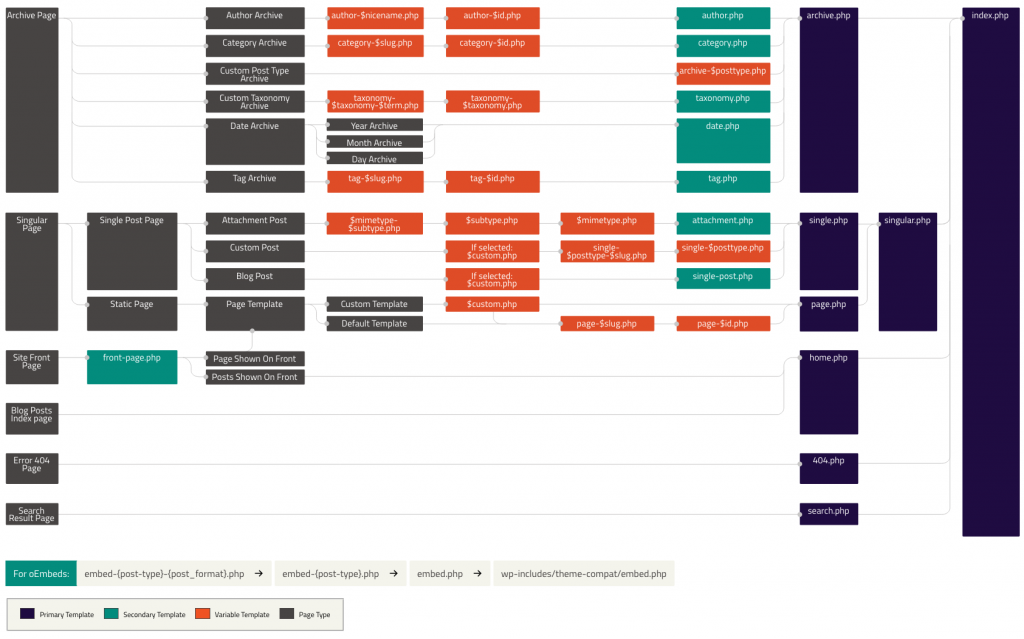
The Template Hierarchy In Detail
While the template hierarchy is easier to understand as a diagram, the following sections describe the order in which template files are called by WordPress for a number of query types.
Home Page display
By default, WordPress sets your site’s home page to display your latest blog posts. This page is called the blog posts index. You can also set your blog posts to display on a separate static page. The template file home.php is used to render the blog posts index, whether it is being used as the front page or on separate static page. If home.php does not exist, WordPress will use index.php .
- home.php
- index.php
Note: If front-page.php exists, it will override the home.php template.
Front Page display
The front-page.php template file is used to render your site’s front page, whether the front page displays the blog posts index (mentioned above) or a static page. The front page template takes precedence over the blog posts index ( home.php ) template. If the front-page.php file does not exist, WordPress will either use the home.php or page.php files depending on the setup in Settings → Reading. If neither of those files exist, it will use the index.php file.
- front-page.php – Used for both “your latest posts” or “a static page” as set in the front page displays section of Settings → Reading.
- home.php – If WordPress cannot find front-page.php and “your latest posts” is set in the front page displays section, it will look for home.php . Additionally, WordPress will look for this file when the posts page is set in the front page displays section.
- page.php – When “front page” is set in the front page displays section.
- index.php – When “your latest posts” is set in the front page displays section but home.php does not exist or when front page is set but page.php does not exist.
As you can see, there are a lot of rules to what path WordPress takes. Using the chart above is the best way to determine what WordPress will display.
Privacy Policy Page display
The privacy-policy.php template file is used to render your site’s Privacy Policy page. The Privacy Policy page template takes precedence over the static page ( page.php ) template. If the privacy-policy.php file does not exist, WordPress will either use the page.php or singular.php files depending on the available templates. If neither of those files exist, it will use the index.php file.
- privacy-policy.php – Used for the Privacy Policy page set in the Change your Privacy Policy page section of Settings → Privacy.
- custom template file – The page template assigned to the page. See get_page_templates() .
- page-
.php – If the page slug is privacy , WordPress will look to use page-privacy.php . - page-
.php – If the page ID is 6, WordPress will look to use page-6.php . - page.php
- singular.php
- index.php
Single Post
The single post template file is used to render a single post. WordPress uses the following path:
- single-
— .php – (Since 4.4) First, WordPress looks for a template for the specific post. For example, if post type is product and the post slug is dmc-12 , WordPress would look for single-product-dmc-12.php . - single-
.php – If the post type is product , WordPress would look for single-product.php . - single.php – WordPress then falls back to single.php .
- singular.php – Then it falls back to singular.php .
- index.php – Finally, as mentioned above, WordPress ultimately falls back to index.php .
Single Page
The template file used to render a static page ( page post-type). Note that unlike other post-types, page is special to WordPress and uses the following path:
- custom template file – The page template assigned to the page. See get_page_templates() .
- page-
.php – If the page slug is recent-news , WordPress will look to use page-recent-news.php . - page-
.php – If the page ID is 6, WordPress will look to use page-6.php . - page.php
- singular.php
- index.php
Category
Rendering category archive index pages uses the following path in WordPress:
- category-
.php – If the category’s slug is news , WordPress will look for category-news.php . - category-
.php – If the category’s ID is 6 , WordPress will look for category-6.php . - category.php
- archive.php
- index.php
To display a tag archive index page, WordPress uses the following path:
- tag-
.php – If the tag’s slug is sometag , WordPress will look for tag-sometag.php . - tag-
.php – If the tag’s ID is 6 , WordPress will look for tag-6.php . - tag.php
- archive.php
- index.php
Custom Taxonomies
Custom taxonomies use a slightly different template file path:
- taxonomy-
— .php – If the taxonomy is sometax , and taxonomy’s term is someterm , WordPress will look for taxonomy-sometax-someterm.php. In the case of post formats, the taxonomy is ‘post_format’ and the terms are ‘post-format- . i.e. taxonomy-post_format-post-format-link.php for the link post format. - taxonomy-
.php – If the taxonomy were sometax , WordPress would look for taxonomy-sometax.php . - taxonomy.php
- archive.php
- index.php
Custom Post Types
Custom Post Types use the following path to render the appropriate archive index page.
- archive-
.php – If the post type is product , WordPress will look for archive-product.php . - archive.php
- index.php
(For rendering a single post type template, refer to the single post display section above.)
Author display
Based on the above examples, rendering author archive index pages is fairly explanatory:
- author-
.php – If the author’s nice name is matt , WordPress will look for author-matt.php . - author-
.php – If the author’s ID were 6 , WordPress will look for author-6.php . - author.php
- archive.php
- index.php
Date-based archive index pages are rendered as you would expect:
- date.php
- archive.php
- index.php
Search Result
Search results follow the same pattern as other template types:
- search.php
- index.php
404 (Not Found)
Likewise, 404 template files are called in this order:
- 404.php
- index.php
Attachment
Rendering an attachment page ( attachment post-type) uses the following path:
.php – can be any MIME type (For example: image.php , video.php , pdf.php ). For text/plain , the following path is used (in order): - text-plain.php
- plain.php
- text.php
Embeds
The embed template file is used to render a post which is being embedded. Since 4.5, WordPress uses the following path:
- embed-
— .php – First, WordPress looks for a template for the specific post. For example, if its post type is post and it has the audio format, WordPress would look for embed-post-audio.php . - embed-
.php – If the post type is product , WordPress would look for embed-product.php . - embed.php – WordPress then falls back to embed .php .
- Finally, WordPress ultimately falls back to its own wp-includes/theme-compat/embed.php template.
Non-ASCII Character Handling
Since WordPress 4.7, any dynamic part of a template name which includes non-ASCII characters in its name actually supports both the un-encoded and the encoded form, in that order. You can choose which to use.
Here’s the page template hierarchy for a page named “Hello World ��” with an ID of 6 :
- page-hello-world-��.php
- page-hello-world-%f0%9f%98%80.php
- page-6.php
- page.php
- singular.php
The same behaviour applies to post slugs, term names, and author nicenames.
Filter Hierarchy
The WordPress template system lets you filter the hierarchy. This means that you can insert and change things at specific points of the hierarchy. The filter (located in the get_query_template() function) uses this filter name: «<$type>_template» where $type is the template type.
WordPress Template Hierarchy: Understanding Its Structure and How It Works
WordPress CMS uses template files to render website content on the front-end. When loading a web page, WordPress uses a query string to find the right template file to display the content.
The process of choosing the template file follows the WordPress template hierarchy. Understanding how the WordPress template hierarchy works is important whether you’re a WordPress developer or a casual user.
This article will explain the WordPress template hierarchy, how the theme template files are involved, and how themes use these templates to display website content. We will also explain every template category to better understand how WordPress renders each post type.
What Is the WordPress Template Hierarchy?
The WordPress template hierarchy is a structure that determines which template file to use when displaying a webpage. It uses the query string to search the hierarchy until it finds the first matching template.
What Are WordPress Template Files?
Template files are parts of WordPress architecture containing code that defines how WordPress will display the content on posts, pages, and other website areas. They are included with every WordPress theme to build the look and layout of the site.
In classic themes, templates are usually PHP files that contain HTML and PHP code. Meanwhile, block themes use HTML files that only contain HTML markup representing WordPress blocks.
To find the default template files, open the theme folder in your WordPress installation. For example, you can find the templates for the Twenty Twenty-One theme in the /public_html/wp-content/themes/twentytwentyone directory.
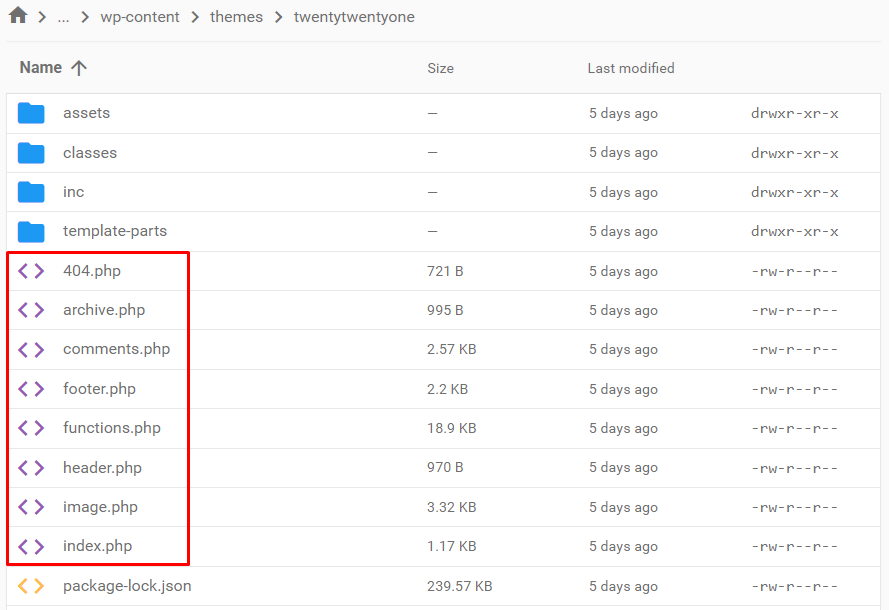
Most WordPress websites require several template files to work. Here are some common templates a typical WordPress site would use:
- index.php
- header.php
- sidebar.php
- footer.php
- functions.php
- single.php
- comments.php
Most blog posts use the single.php file as the default template for displaying content.
The page’s sidebar, header, and footer use sidebar.php, header.php, and footer.php, respectively.
The last three templates, functions.php, single.php, and comments.php are called template partials, as they can be added to multiple other templates.
How the WordPress Template Hierarchy Works
Themes tend to have multiple templates, so WordPress must decide which to use when displaying any page or blog post.
Some template files take precedence over all the others. These higher-priority template files will be the fallback if WordPress can’t find the appropriate template. This logic is the basis of the template hierarchy.
WordPress will search for the selected template file when a web page is requested. If it can’t find the correct template, it will follow the hierarchy to find the next most suitable template.
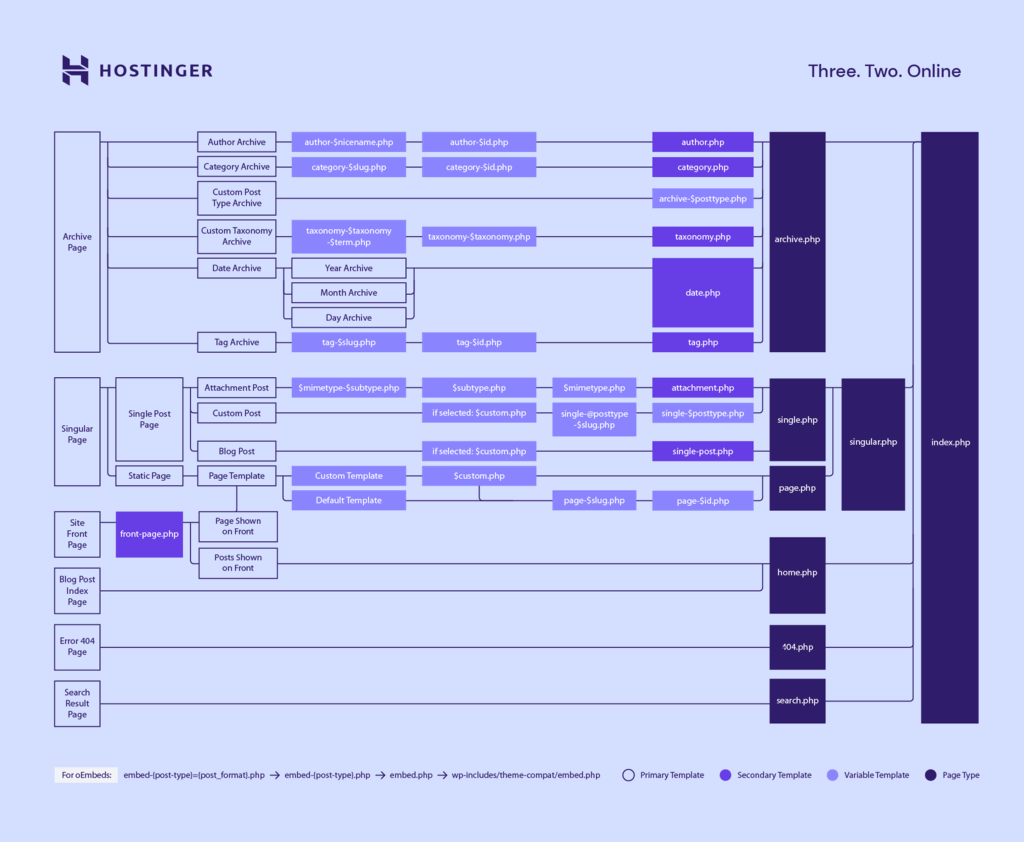
For example, if you try to load a web page for a hypothetical “hosting” category in a WordPress site, here’s what goes on in the background:
- WordPress will look for a template file called category-hosting.php within your current theme’s directory.
- If there’s no category-hosting.php file, WordPress will look for one that uses the category’s ID instead, such as category-2.php.
- If WordPress finds neither option, it will look for a generic category.php file instead.
- If it doesn’t find a file called category.php, WordPress will dial it back and look for the archive.php template.
- Finally, if all else fails, the platform will load your theme’s index.php file and use it as the page’s template.
A typical WordPress website is made up of several web page categories, each with a strictly-defined hierarchy.
WordPress Template Hierarchy Breakdown
We can categorize most WordPress websites into seven template types, each with its own hierarchy. For simplicity, we will only list PHP template files.
Front Page
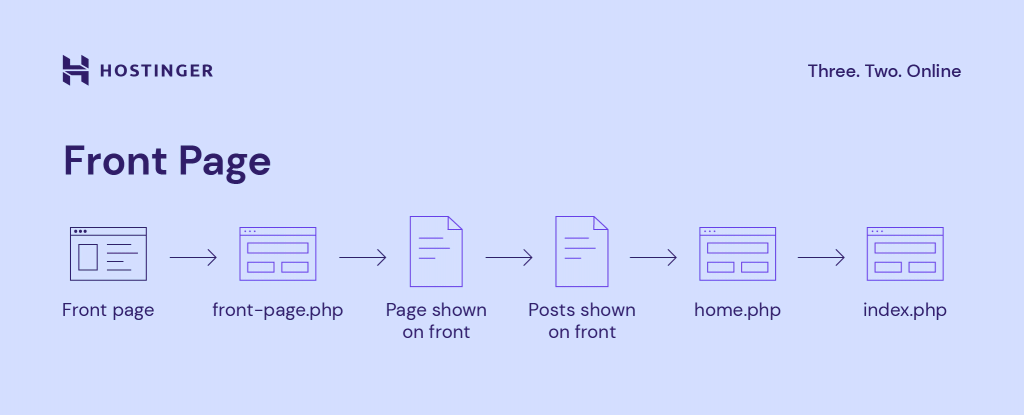
The site’s homepage or front page is the first page visitors will see. Its layout can vary greatly between websites. The front page hierarchy has three templates:
- front-page.php
- home.php
- index.php
WordPress will search for the front-page.php file first. If WordPress can’t find the template, it will find home.php. If both options are unavailable, index.php will be the last option.
WordPress will still follow its internal logic even if these three template files contain the same code and layout configuration.
Single Posts
WordPress posts and articles typically use a template from the single posts category.
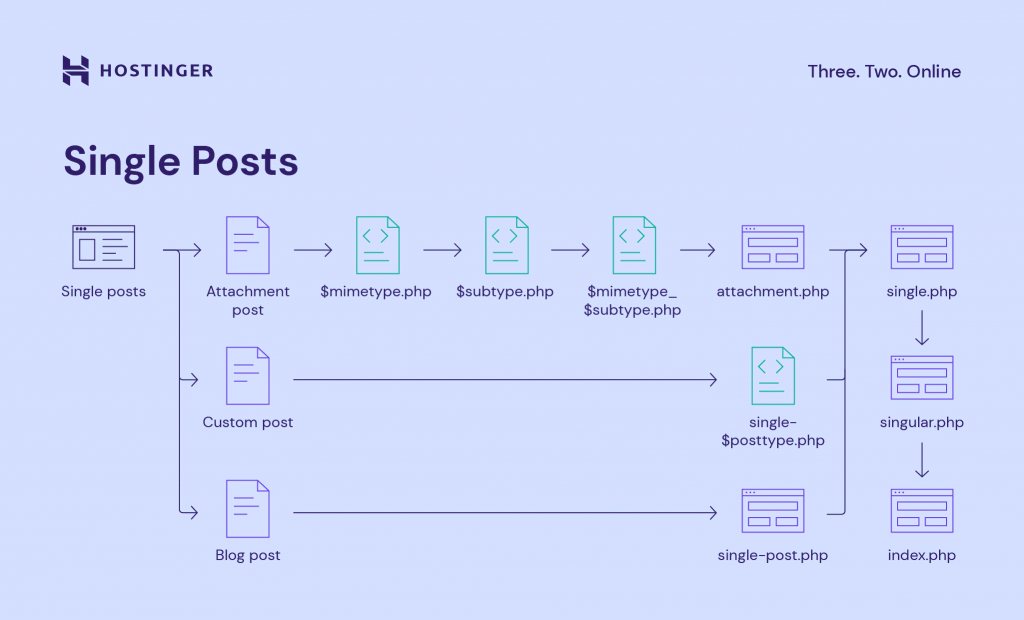
There are three main WordPress templates for single posts – single.php, singular.php, and index.php. Since there may be a template for a custom post type or a specific post, WordPress uses the following hierarchy for single posts:
- single-
— .php - single-
.php - single.php
- singular.php
- index.php
The first two templates are for the custom post type. For example, a WordPress eCommerce site has a product post and a computer-01 slug. In this case, WordPress will try to find a post-specific template of single-product-computer-01.php. This hierarchy allows you to be creative and design custom templates for custom post types or individual posts.
If it can’t find single-product-computer-01.php, it will use the template for the product post type – single-product.php. If neither is available, WordPress will look for the three remaining primary templates – single.php, singular.php, and index.php.
Single Pages
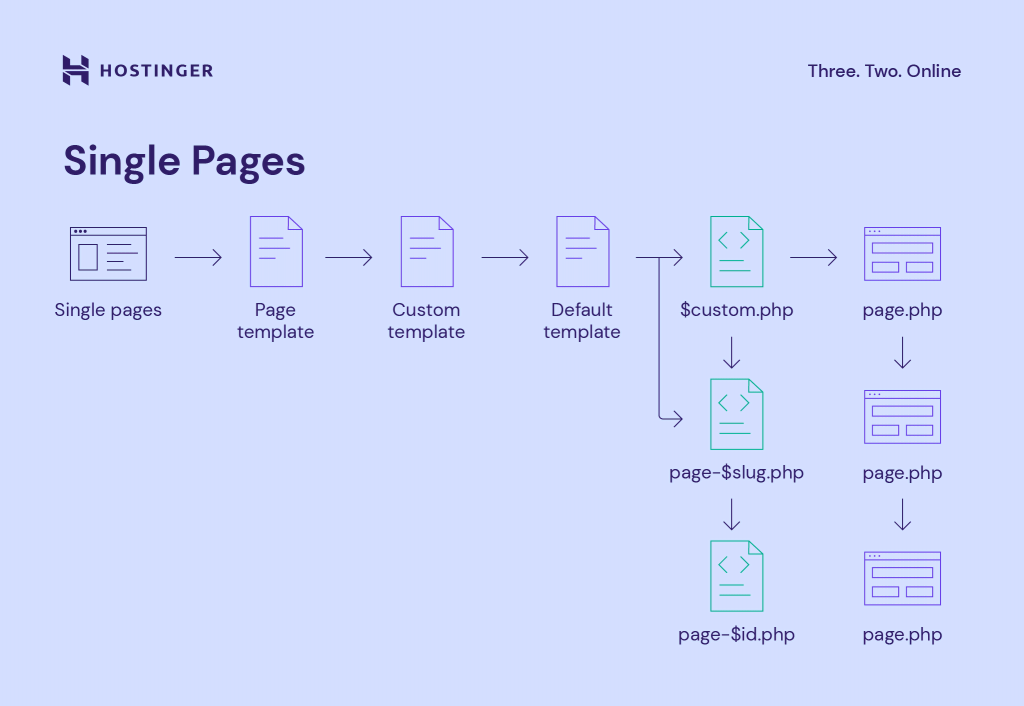
All static pages other than the site’s homepage will fall under the single pages template hierarchy. The hierarchy is similar to single posts, except for the possibility of using a custom template file.
A single page follows this hierarchy:
- Custom template file
- page-
.php - page-
.php - page.php
- singular.php
- index.php
WordPress allows you to assign a specific template. Therefore, it will first look for the template file assigned to a WordPress page. This lets you create a template for each page if you need a specific design or layout.
If there’s no specific assigned template, WordPress will try to find a custom page template that matches the page’s slug or ID.
For example, when loading website.com/about-us, WordPress will try to find the page-about-us.php template file. Or, if that page ID is six, page-6.php can also be used.
If no matching template file is found, WordPress will fall back to the default page.php, then singular.php, before ultimately falling back to index.php.
Category and Tag Pages
We’ve covered the category hierarchy in a previous section. The category archive page is one of the archive pages that fall back to the archive.php with the following hierarchy:
- category-
.php - category-
.php - category.php
- archive.php
- index.php
This hierarchy works just the same for single posts and pages. WordPress will look for a template unique to the category slug you want to load and then move on to its category page ID. If that approach fails, it will go with category.php or archive.php.
Category and tag pages use a similar hierarchical structure. The tag archive pages involve tag-
.php , tag-.php , and tag.php template files before returning to the archive.php and index.php.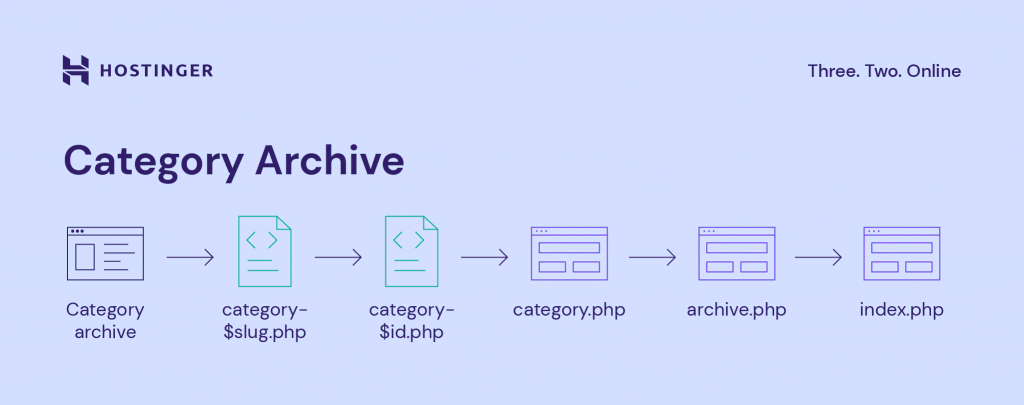
Custom Post Types
Custom post types are the types of content that don’t fit into the default classifications. Some common examples of custom post types are product and review, which you may see on WordPress eCommerce sites.
WordPress will look for the post type’s specific archive template before returning to archive.php or index.php. For example, for the product post type, WordPress will look for archive-
.php. Here is the hierarchy:- archive-
.php - archive.php
- index.php
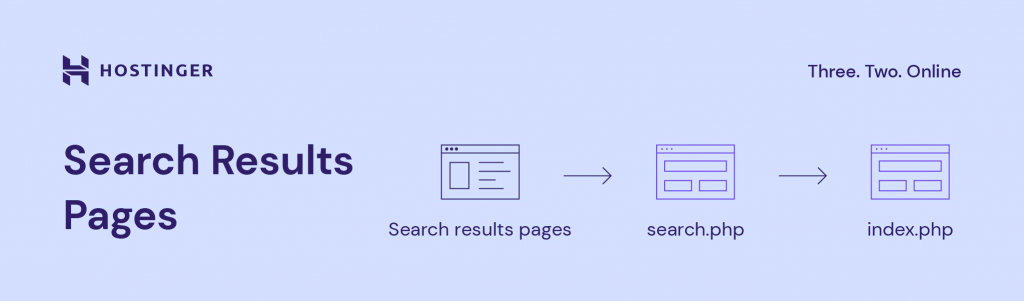
Search Results Pages
WordPress has a built-in search function. It requires the search.php template for the search results page. If the template is not found, WordPress will fall back to index.php, making its hierarchy simpler than other WordPress pages:
- search.php
- index.php
If your site relies on WordPress searches, ensure that your theme has the required template for the search page. That said, most modern themes, especially block themes, let you create a custom template easily.
404 Error Pages
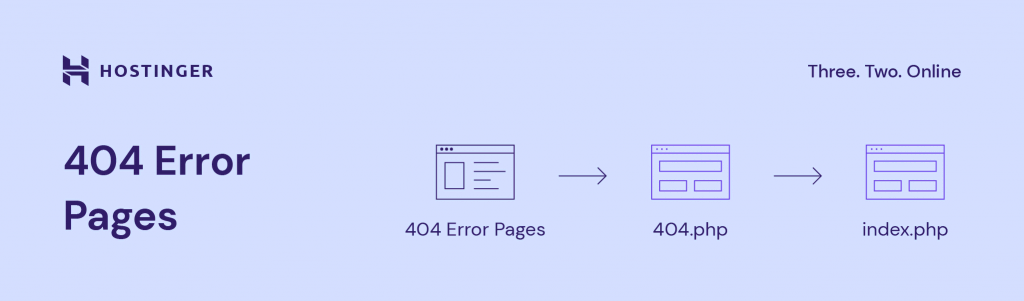
WordPress will return a 404 error page when visitors mistype the URL or try to access a page that doesn’t exist. The hierarchy for 404 error pages is simple – WordPress will look for the 404.php template file before returning to the index.php if it can’t find one:
- 404.php
- index.php
Most WordPress themes already include the 404.php file. However, if yours doesn’t, we recommend creating a custom error page template. Therefore, visitors will understand if such an error occurs.
How the WordPress Template Hierarchy Works in Child Themes
Using a child theme is a perfect way to safely customize theme files, including the WordPress template files. Unfortunately, if you customize the template files directly in the theme, updating the theme will revert all modifications.
When using child themes, WordPress loads the child theme files first, then fills in the missing parts from the parent theme’s files.
In other words, child themes add another layer to the template hierarchy. WordPress won’t load the parent theme’s counterpart if it finds a complete template file in the child theme.
For example, here’s the hierarchy when adding a custom single posts template to a child theme:
- single-
— within the child theme.php - single-
— within the parent theme.php - single-
.php within the child theme - single-
.php within the parent theme - single.php within the child theme
- single.php within the parent theme
- singular.php within the child theme
- singular.php within the parent theme
- index.php within the child theme
- index.php within the parent theme
Conclusion
The WordPress template hierarchy defines how WordPress loads different types of posts and pages. Some templates precede others, and WordPress will use the default index.php file as a definitive fallback if a specific page type doesn’t have a template.
Knowing how the hierarchy works is important, especially for WordPress theme development. You will understand what template files you need for customization and which ones you should create for custom post types.
Child themes let you safely modify template files. They only add another layer to the WordPress template hierarchy.
We hope this article helps you understand the WordPress template hierarchy. If you have any questions, feel free to leave us a comment.
Leo is a WordPress fanatic and contributor. He likes keeping up with the latest WordPress news and updates, and sharing his knowledge to help people build successful websites. When he’s not working, he contributes to WordPress documentation team and pampers his dogs.
Конструктивные элементы шаблона WordPress | Файл single.php

Продолжаем рассматривать конструктивные элементы шаблона WordPress. Сегодня на очереди файл single.php.
Как следует из самого названия файла, выводит он страницу с отдельным постом. По сути, ничем особенным он сильно не отличается от файла index.php за исключением нескольких моментов. Рассмотрим их.
Сначала точно также прицепляется шапка (файл header.php)
Следом идет полезное содержимое, или иначе — контент
Далее уже знакомая нам строка
<?php if (have_posts()) : while (have_posts()) : the_post(); ?> и т.д.
Однако в отличие от файла index.php здесь после содержимого поста:
<?php the_content(‘Читать полностью…’); ?>
Прицеплен код вывода комментариев:
Комментарии выводятся файлом comments.php. Про него будет отдельный пост.
Что еще есть интересного в файле single.php.
Ну, во-первых, следует заметить, что зачастую в шаблонах стандартно оформляют заголовок поста в виде ссылки. Что на главной странице, что на отдельной.
И если на главной странице это выглядит правильно и уместно, то на отдельной странице — довольно бестолково. Зачем ссылаться на самое себя?
Поэтому, если вы видите в шаблоне WordPress в файле single.php такую конструкцию:
то исправьте ее на следующую:
Во-вторых, само содержимое поста на отдельной странице выводится полностью. Поэтому код для его вывода можно записать так:
То есть, без всяких «Читать далее…». В скобках остаются лишь пара одинарных кавычек и все.
Все остальное, что касается вывода сопровождающих любой пост данных (дата, автор, тэги и пр.) практически идентично файлу index.php.
На этом все. Более подробно в следующий раз остановимся на выводе комментариев, а особенно на различных способах их оформления.