Where are PHP Errors Logged?

So when we encounter errors in our code, where exactly can we find them? At a high level, there are really only three places where PHP errors can be found: inline with program execution, in the system log, or in error monitoring tools like Rollbar.
Inline errors
By default, whenever an error or exception is thrown, PHP sends the error message directly to the user via STDOUT. In a command-line environment, this means that errors are rendered in the terminal. In a web environment, errors and exceptions get displayed directly in the browser.
While this behavior is useful for debugging problems in a development environment, it should be disabled in a production environment for security reasons. To do this, open up the PHP configuration file for the environment you are working in—typically found in a path that looks like /etc/php/:environment:/php.ini—and change the display_errors directive to Off.
Log files
While rendering errors to STDOUT is great for debugging issues in a development environment as they happen, it isn’t very useful in a production environment. This is where the error log comes into play. By default, PHP doesn’t log any errors, which means that this value must be explicitly set. To do so, open up the same PHP configuration file referenced above in your favorite editor and find the error_log directive.
There are two possible values for error_log: a custom log file and the syslog. If the syslog is used, then all PHP errors will be sent directly to the default system log file—in Linux, this is typically /var/log/syslog. The more manageable method is to use a custom log file. By doing this, you can isolate your PHP application’s logs from the rest of the system logs, which can make debugging issues significantly easier.
Logging in Laravel
While PHP’s default system logger is useful for bespoke applications, it is important to note that many application frameworks provide their own built-in logging mechanisms. A great example of this is the Laravel framework. In Laravel, the logging method can be changed within the log option of the application configuration file—found in config/app.php.
By default, Laravel maintains a single log file at storage/logs/laravel.log within the project directory, rather than the defined error_log option from the global PHP configuration.
Logging in Symfony
Because Laravel is built on top of Symfony, they share the same core logging mechanism—although the configuration differs between the two frameworks. Logging in Symfony and Laravel are both done using Monolog, a third-party PHP logging library that can be used to create and store logs in a large number of ways.
By default, Symfony logs are stored in var/log/dev.log and var/log/prod.log within the project directory, depending on the environment, but these defaults can be changed in the Monolog package configuration file found at config/packages/monolog.php.
What do PHP logs look like?
So, what exactly do PHP logs look like? In most instances, PHP logs follow a fairly predictable format:
In a nutshell, the log line above can be broken up into four parts: the date, the hostname, the process, and the error message. Whenever an error is encountered or an uncaught exception is thrown, the error message is printed along with the date, hostname, and process metadata to help pinpoint what happened, where it happened, and when it happened.
A primer on log levels
It is important to note that, in PHP, there are a handful of log levels that can be squashed or raised. While these log levels are determined by PHP itself, understanding what they are and mean is a crucial step towards being able to diagnose problems as they happen.
When display_errors is set to On, it can be useful to explicitly hide and show specific log levels so you can focus on one task at a time, such as critical errors, or cleaning up warnings. This can be accomplished using the built-in error_reporting method.
This method accepts an integer value that tells PHP which errors to display, and which ones to ignore. Through the use of bitwise operators (| meaning OR, & meaning AND, and
meaning NOT), we can clearly and easily define which errors we want to see.
Here are a few of the most common log levels. For more information about log levels (there are quite a few of them), take a look at PHP’s official documentation.
How to Check Your Website’s PHP Error Log

Any website can go through some troubles and stop working. When this happens, it will display an error message to you and the visitors. Unfortunately, messages such as HTTP 500 don’t provide a lot of information on why the error occurred and what you should do to fix it.
This is where the PHP error log comes into play. It’s a file that contains information about PHP errors that happen on a website.
Finding and checking the PHP error log can be tricky for a less tech-savvy user. Thus, this article will guide you on how to enable PHP error logging, check it, and understand the information logged.
Enable PHP Error Logging
It is only possible to check the PHP error log if it’s enabled on your web hosting account. Unfortunately, the error logging on a website’s directory is disabled by default in most cases.
However, before tweaking some code and the web hosting configuration, take a look at the PHP info to know whether PHP logging is enabled on your hosting account. Here are the steps to do so in hPanel:
- Log in to your hPanel account.
- Head to the Advanced section and click PHP Info.
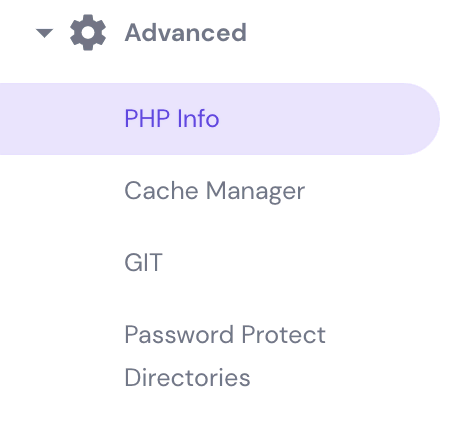
- Press CTRL + F for Windows or Command + F for MacOS to open the search bar. Type log_errors to find the log_errors row. If the value is Off, then the PHP error logging is disabled.

Or, if you don’t use hPanel, create a phpinfo.php file to access the PHP info. Use an FTP client or the hosting’s file manager and perform the following steps:
- Open the public_html directory.
- Create a phpinfo.php file. If the file already exists, open it and make sure it contains the code from Step 3.
- Open the file and insert the following line:
<?php
phpinfo();
?>
- Save and close the file.
- Go to yourdomain.com/phpinfo.php., replacing yourdomain with the actual domain name. It will show the PHP configuration details, like this:
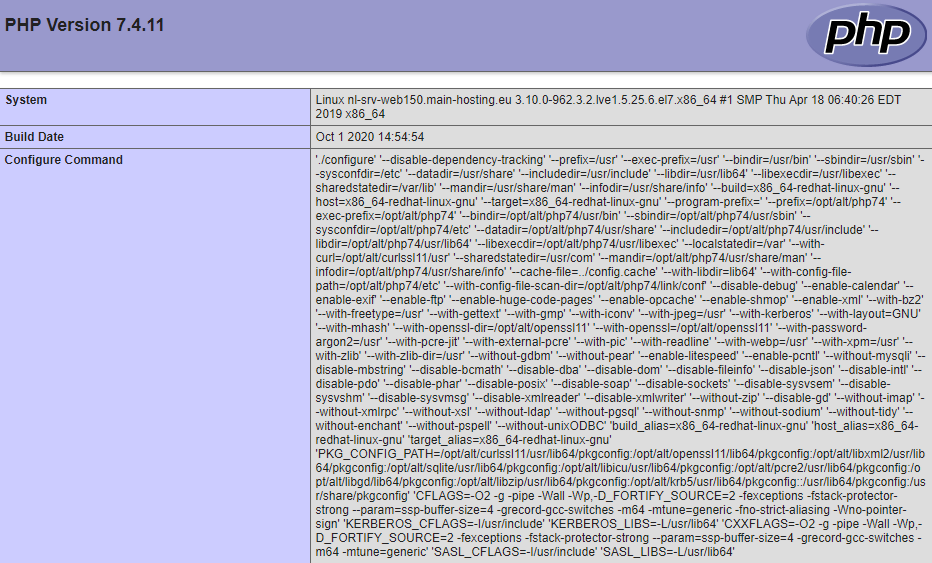
- Press CTRL + F for Windows or Command + F for MacOS to open the search bar on your web browser. Type log_errors to find the log_errors row. If the value is Off, then the PHP error logging is disabled.
There are three ways to turn on the PHP error log, depending on the hosting platform:
- Accessing the hPanel if you are Hostinger’s WordPress, cloud or shared plans.
- Editing the .htaccess file.
- Editing the php.ini file if you are a Linux desktop or Linux VPS hosting user.
Method 1: Using hPanel to Enable Error Log
Enabling PHP error logs on hPanel is easy as there’s a dedicated setting for that. Follow these simple steps:
- Access the hPanel.
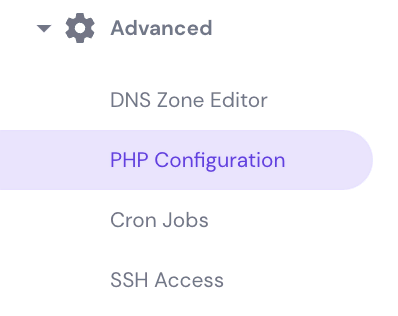
- Head to the Advanced section and click PHP Configuration:
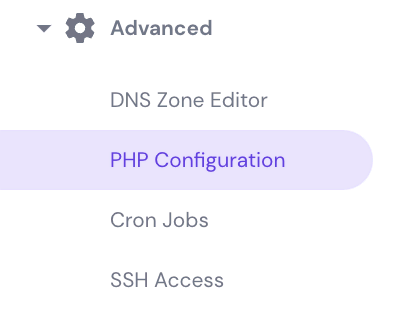
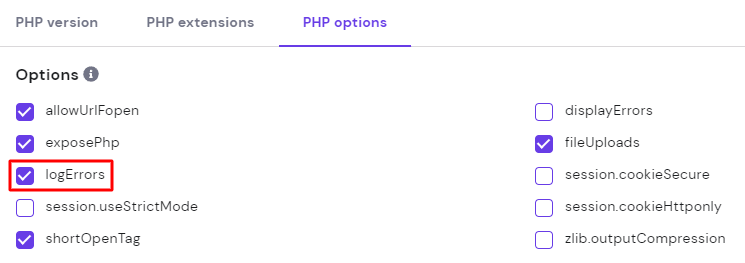
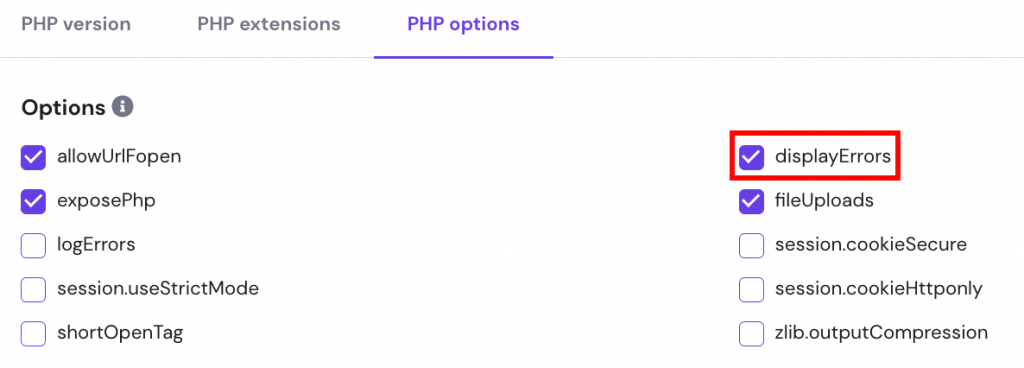
- Open the PHP options and tick the logErrors box:
- Scroll down to the bottom of the section and click Save.
The system now will generate the error_log file when the site encounters a PHP error. Follow these steps to open the file:
1. Open the File Manager and the Access all files of Hosting option:

2. Go to the .logs directory.

3. Find the error_log_[domain] file.
When you open the file, it will show the error log messages, including the date when the error occurred, the type of error, and even the details of the file and line that need correction.

In the example above, the error log specifies an unexpected IF syntax on line 109 of the functions.php file. Such information helps to locate the error quickly and take corrective action.
Method 2: Using hPanel to Display Errors
Additionally, hPanel lets you easily enable the displayErrors option. For that, refer to the following steps:
1. Access the hPanel.
2. Head to the Advanced → PHP Configuration section:
3. Open the PHP options and tick the displayErrors box:
4. Save the changes
5. Lastly, visit your website, and the PHP error will be displayed:
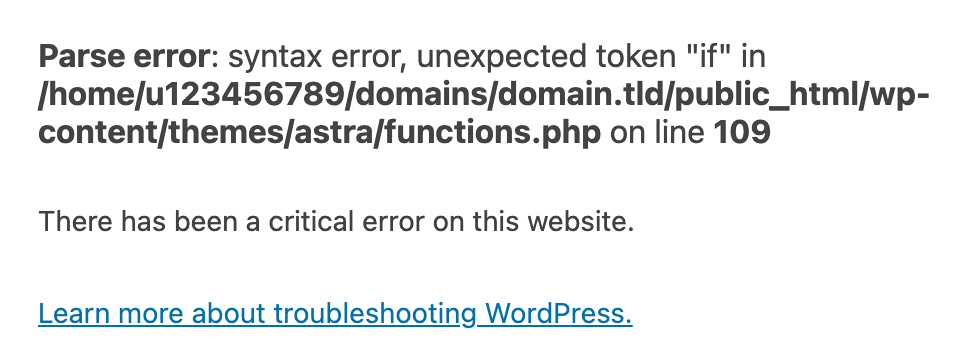
Method 3: Using the .htaccess file
If you don’t use Hostinger and can’t find any PHP error log settings on the provider’s control panel, enable it by editing the .htaccess file.
Locate the .htaccess file using the file manager or an FTP client. It should be located inside the site’s root directory. However, the file is hidden in some cases. In that case, go to the settings on the control panel or FTP client to display hidden files.
Important! Back up the .htaccess file before making any changes.
Once you’ve found the .htaccess file, follow the following steps:
- Open the .htaccess file and insert the following code:
php_flag log_errors on
php_value error_reporting 32767
php_value error_log «error_log.txt»
- Create a file titled error_log.txt in the public_html directory
- Save and close it. All PHP error logs will be reported in the error_log.txt file.
Now the PHP error logging is enabled. You can check it by using the PHP info again, and the Local Value should be on. Don’t worry if the Master Value is still off, as the local value will override it.
If the site encounters any trouble, open the error_log.txt, and you’ll see the PHP error logs.
Method 4: Using php.ini file
The third method to enable the PHP error log is by editing the php.ini file. It contains the default web server configuration for running PHP applications.
Note that the php.ini file is not accessible for shared hosting users as it requires server root access. Instead, this method is an alternative for Linux or VPS hosting users.
Locating the php.ini File
The directory may differ depending on whether it’s on the command line interface (CLI) or the web server’s operating system, such as Apache and Nginx.
Locate the php.ini file by accessing the PHP info. Once you open it, press CTRL + F for Windows or Command + F for MacOS to open the search bar and look for the Loaded Configuration File section. You’ll find the directory of the php.ini file.

Another method to find the configuration file is using the command line. Connect to the web server by using an SSH client and execute the following command:
It should print an output like this:

That said, here are the common directories for php.ini file depending on the operating system:
- CLI – /etc/php/7.4/cli/php.ini . Note that changing the PHP configuration in CLI won’t affect the web server.
- Apache – /etc/php/7.4/apache2/php.ini .
- Nginx or Apache with PHP-FPM – /etc/php/7.4/fpm/php.ini .
Important! If necessary, replace 7.4 with the PHP version you actually use.
Editing the php.ini File
Once you locate the php.ini file, open and edit it with the Nano text editor using the following command:
Note that you should adapt the command depending on the php.ini path. It should print an output like this:
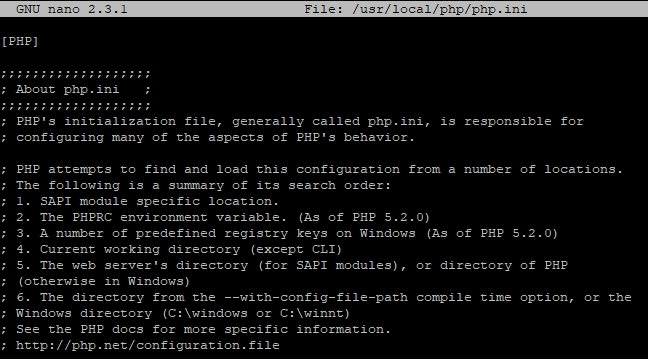
Once you open the php.ini file, it will display the configuration directives. Change the values of these directives to configure the PHP setup on your web server.
When it comes to PHP error logging, there are three primary directives:
- log_errors – toggles the PHP error logging. The default value is 0, which indicates that PHP error logging is disabled.
- error_log – sends the error message to the error log file. The default value is 0, and you should set the absolute path for the error log file.
- error_reporting – defines the minimum error reporting level. The value is null by default, and you should change its parameters to report all types of errors.
To configure those directives, simply use the following commands on the text editor:
Be sure to replace /path/filename with the desired path and file name of the error log file. Alternatively, use this command to log errors in the system log:
Apart from these three main directives, several others are related to PHP error logging, such as:
- display_errors – defines whether to display errors on the error output. We recommend disabling this as a security measure.
- log_error_max_length – defines the maximum length of logged errors. Set the value to zero to disable the limit.
- track_errors – specifies whether to store the last error message in the $php_errormsg variable.
Most Common PHP Error Log Types
One of the details that the PHP error log provides is the type of error that occurred. In general, there are four types of PHP errors. Understanding them is essential to know how to fix and prevent the same errors from happening again.
Warning Error
This error warns about a problem that may cause a more significant issue in the long run. However, it doesn’t stop the script execution.
The most common cause is using a file path that doesn’t exist. If you encounter this error, check the file name on the script or directory as a typo can make the script unable to find it.
Notice Error
A notice error is similar to a warning error, as it still allows the execution of the script. However, it usually indicates an undeclared or undefined variable in the script instead of a missing file.
Simply check the variable indicated in the error message.
Parse Error
A parse or syntax error indicates a wrong symbol, unclosed quote, missing semicolon, or misspelling in the script syntax. It terminates the script and can trigger error messages on WordPress sites.
The error logs will indicate the specific symbol or syntax that caused it, along with the file and code line, making it easy to fix the syntax error.
Here’s an example of a parse error message:
This error log indicates that there is a “2” character that’s not supposed to be in line 54 of the wp-config.php file. To fix it, open the file and delete the problematic character.
Pro Tip
When you open a file using hPanel’s File Manager, the text editor will mark the problematic line with an X. It helps find the error quickly and alerts you for parse errors when tweaking files.
Fatal Error
A fatal error happens when the script calls a function, but the function itself is not defined. Unlike the other types of PHP errors, a fatal error can crash the application. There are three types of fatal errors based on the time of occurrence:
- Startup fatal error – occurs when the system can’t run the code due to an error during the installation.
- Compile-time fatal error – occurs when the programmer tries to use an undefined class, function, or non-existent data.
- Runtime fatal error – similar to a compile-time fatal error, but it happens during the program execution.
Find the undefined function given in the error log and make sure to define and call the correct function. Also, check for any misspelling if you’re using an inbuilt function.
Here’s an example of a PHP fatal error:
In this case, open the index.php file mentioned in the error log and check the function on line 37 to ensure it is defined correctly.
Another common reason for a fatal error is exceeding the maximum execution time, which simply means that the PHP script takes longer to complete than the predetermined time limit. If this happens, the error log should look like this:
To fix it, you need to configure the PHP maximum execution time. It is possible to do it by editing the .htaccess file, configuring hPanel settings, or installing a WordPress plugin.
Conclusion
PHP error log helps you troubleshoot problems on a website by logging the error details, including the PHP file and code line that needs to be fixed. Having PHP error logging is a must, but, unfortunately, it’s not enabled by default.
Let’s recap the three methods to enable PHP error logging:
- Using hPanel – only applicable if you’re using Hostinger’s shared, WordPress, or cloud hosting service. It lets you easily enable PHP error logging or PHP error display in a few clicks.
- Editing the .htaccess file – applicable to almost all hosting users. Simply insert a few code lines into the .htaccess file.
- Editing the php.ini file – applicable to VPS and Linux hosting users who have root access. This method involves tweaking the PHP configuration in the server and defining the PHP error log file path.
Once you’ve got the PHP error logging enabled, check the error log file in the website directory unless you have specified the path differently.
However, it’s always best to prevent errors from happening. Thus, always make sure to type the correct PHP syntax when tweaking the website’s files. Also, pay attention to the indicator on the text editor when there’s a syntax mistake.
error_log
Sends an error message to the web server's error log or to a file.
Parameters
The error message that should be logged.
Says where the error should go. The possible message types are as follows:
| 0 | message is sent to PHP's system logger, using the Operating System's system logging mechanism or a file, depending on what the error_log configuration directive is set to. This is the default option. |
| 1 | message is sent by email to the address in the destination parameter. This is the only message type where the fourth parameter, additional_headers is used. |
| 2 | No longer an option. |
| 3 | message is appended to the file destination . A newline is not automatically added to the end of the message string. |
| 4 | message is sent directly to the SAPI logging handler. |
The destination. Its meaning depends on the message_type parameter as described above.
The extra headers. It's used when the message_type parameter is set to 1 . This message type uses the same internal function as mail() does.
Return Values
Returns true on success or false on failure. If message_type is zero, this function always returns true , regardless of whether the error could be logged or not.
Changelog
| Version | Description |
|---|---|
| 8.0.0 | destination and additional_headers are now nullable. |
Examples
Example #1 error_log() examples
<?php
// Send notification through the server log if we can not
// connect to the database.
if (! Ora_Logon ( $username , $password )) <
error_log ( «Oracle database not available!» , 0 );
>
// Notify administrator by email if we run out of FOO
if (!( $foo = allocate_new_foo ())) <
error_log ( «Big trouble, we’re all out of FOOs!» , 1 ,
«operator@example.com» );
>
// another way to call error_log():
error_log ( «You messed up!» , 3 , «/var/tmp/my-errors.log» );
?>
Notes
error_log() is not binary safe. message will be truncated by null character.
message should not contain null character. Note that message may be sent to file, mail, syslog, etc. Use appropriate conversion/escape function, base64_encode() , rawurlencode() or addslashes() before calling error_log() .
User Contributed Notes 20 notes
Advice to novices: This function works great along with «tail» which is a unix command to watch a log file live. There are versions of Tail for Windows too, like Tail for Win32 or Kiwi Log Viewer.
Using both error_log() and tail to view the php_error.log you can debug code without having to worry so much about printing debug messages to the screen and who they might be seen by.
Further Note: This works even better when you have two monitors setup. One for your browser and IDE and the other for viewing the log files update live as you go.
DO NOT try to output TOO LARGE texts in the error_log();
if you try to output massive amounts of texts it will either cut of the text at about 8ooo characters (for reasonable massive strings, < 32 K characters) or (for insanely massive strings, about 1.6 million characters) totally crash without even throwing an error or anything (I even put it in a try/catch without getting any result from the catch).
I had this problem when I tried to debug a response from a wp_remote_get(); all of my error_log() worked as they should, except for ONE of them. (-_-)
After about a day of debugging I finally found out why & that’s why I type this.
Apparently the response contained a body with over 1.6 million chars (or bytes? (whatever strlen() returns)).
If you have a string of unknown length, use this:
$start_index = 0;
$end_index = 8000;
error_log( substr( $output_text , $start_index , $end_index ) );
There is a limit on the maximum length that you can pass as the $message.
The default seem to be 1024 but can be changed by adjusting the value of the runtime configuration value of ‘log_errors_max_len’.
Beware! If multiple scripts share the same log file, but run as different users, whichever script logs an error first owns the file, and calls to error_log() run as a different user will fail *silently*!
Nothing more frustrating than trying to figure out why all your error_log calls aren’t actually writing, than to find it was due to a *silent* permission denied error!
when using error_log to send email, not all elements of an extra_headers string are handled the same way. «From: » and «Reply-To: » header values will replace the default header values. «Subject: » header values won’t: they are *added* to the mail header but don’t replace the default, leading to mail messages with two Subject fields.
error_log ( «sometext» , 1 , «zigzag@my.domain» ,
«Subject: Foo\nFrom: Rizzlas@my.domain\n» );
?>
—————%<————————
To: zigzag@my.domain
Envelope-to: zigzag@my.domain
Date: Fri, 28 Mar 2003 13:29:02 -0500
From: Rizzlas@my.domain
Subject: PHP error_log message
Subject: Foo
Delivery-date: Fri, 28 Mar 2003 13:29:03 -0500
quoth the docs: «This message type uses the same internal function as mail() does.»
mail() will also fail to set a Subject field based on extra_header data — instead it takes a seperate argument to specify a «Subject: » string.
php v.4.2.3, SunOS 5.8
You can easily filter messages sent to error_log() using «tail» and «grep» on *nix systems. This makes monitoring debug messages easy to see during development.
Be sure to «tag» your error message with a unique string so you can filter it using «grep»:
error_log(«DevSys1 — FirstName: $FirstName — LastName: $Lastname»);
On your command line:
tail -f /var/log/httpd/error_log | grep DevSys1
In this example, we pipe apache log output to grep (STDIN) which filters it for you only showing messages that contain «DevSys1».
The «-f» option means «follow» which streams all new log entries to your terminal or to any piped command that follows, in this case «grep».
Relative paths are accepted as the destination of message_type 3, but beware that the root directory is determined by the context of the call to error_log(), which can change, so that one instance of error_log () in your code can lead to the creation of multiple log files in different locations.
In a WordPress context, the root directory will be the site’s root in many cases, but it will be /wp-admin/ for AJAX calls, and a plugin’s directory in other cases. If you want all your output to go to one file, use an absolute path.
When logging to apache on windows, both error_log and also trigger_error result in an apache status of error on the front of the message. This is bad if all you want to do is log information. However you can simply log to stderr however you will have to do all message assembly:
LogToApache($Message) <
$stderr = fopen(‘php://stderr’, ‘w’);
fwrite($stderr,$Message);
fclose($stderr);
>
«It appears that the system log = stderr if you are running PHP from the command line»
Actually, it seems that PHP logs to stderr if it can’t write to the log file. Command line PHP falls back to stderr because the log file is (usually) only writable by the webserver.
Note that since typical email is unencrypted, sending data about your errors over email using this function could be considered a security risk. How much of a risk it is depends on how much and what type of information you are sending, but the mere act of sending an email when something happens (even if it cannot be read) could itself imply to a sophisticated hacker observing your site over time that they have managed to cause an error.
Of course, security through obscurity is the weakest kind of security, as most open source supporters will agree. This is just something that you should keep in mind.
And of course, whatever you do, make sure that such emails don’t contain sensitive user data.
Another trick to post «HTML» mail body. Just add «Content-Type: text/html; charset=ISO-8859-1» into extra_header string. Of course you can set charset according to your country or Env or content.
EG: Error_log(«<html><h2>stuff</h2></html>»,1,»eat@joe.com»,»subject :lunch\nContent-Type: text/html; charset=ISO-8859-1″);
<?php
//Multiline error log class
// ersin güvenç 2008 eguvenc@gmail.com
//For break use «\n» instead ‘\n’
Class log <
//
const USER_ERROR_DIR = ‘/home/site/error_log/Site_User_errors.log’ ;
const GENERAL_ERROR_DIR = ‘/home/site/error_log/Site_General_errors.log’ ;
/*
User Errors.
*/
public function user ( $msg , $username )
<
$date = date ( ‘d.m.Y h:i:s’ );
$log = $msg . » | Date: » . $date . » | User: » . $username . «\n» ;
error_log ( $log , 3 , self :: USER_ERROR_DIR );
>
/*
General Errors.
*/
public function general ( $msg )
<
$date = date ( ‘d.m.Y h:i:s’ );
$log = $msg . » | Date: » . $date . «\n» ;
error_log ( $msg . » | Tarih: » . $date , 3 , self :: GENERAL_ERROR_DIR );
>
$log = new log ();
$log -> user ( $msg , $username ); //use for user errors
//$log->general($msg); //use for general errors
?>
Depending on the error, you may also want to add an error 500 header, and a message for the user:
$message = ‘Description of the error.’;
error_log($message);
header($_SERVER[‘SERVER_PROTOCOL’] . ‘ 500 Internal Server Error’, true, 500);
exit($message);
When error_log() unexpectedly uses stdout, you should check if the php.ini value for error_log is empty in your CLI environment. Something as simple as this might restore expected behavior:
<?php ini_set ( ‘error_log’ , ‘error_log’ ); ?>
After scouring the internet for getting event logging to
work in syslog on Windows 2003, I found the following
from this post and was able to successfully get Windows
Event Viewer to log PHP errors/notices:
Где php хранит логи ошибок (error log)
Если вам необходимо найти ошибки которые выдает скрипт php при работе, можно воспользоваться лог файлом php.
По умолчанию он не включен, и для его активации необходимо в php.ini прописать:
Не забудьте создать файл php-scripts.log и дать на него права apache. После этого перезапусктить apache.
Есть проблемы с Linux сервер? Обращайтесь — [email protected]
Похожие статьи:
2 комментарии
А если в php.ini прописан этот файл так, как вы здесь указали (и phpinfo() выводит это), стоят права на этот файл 644 (rw-r—r—), пользователем установлен www-data, но логирование в этот файл не происходит? Апач перегружен несколько раз…
Что может быть сделано не так?
Апач в процессах работает от этого пользователя?
LOG_ERRORS = 1, так же попробуйте изменить уровень логирования. Проверьте права на паку выше.
Добавить комментарий Отменить ответ
УСЛУГИ
О КОМПАНИИ
Наша компания состоит из команды Linux/Windows администраторов с опытом более 15 лет, DevOps инженеров, специалистов в области информационной безопасности, виртуализации и облачных систем. Занимаемся круглосуточной поддержкой высоконагруженных сайтов и серверов. Выполняем проектирование, построение и поддержку наземных, облачных и гибридных инфраструктур.