Переменная PATH в Linux
Когда вы запускаете программу из терминала или скрипта, то обычно пишете только имя файла программы. Однако, ОС Linux спроектирована так, что исполняемые и связанные с ними файлы программ распределяются по различным специализированным каталогам. Например, библиотеки устанавливаются в /lib или /usr/lib, конфигурационные файлы в /etc, а исполняемые файлы в /sbin/, /usr/bin или /bin.
Таких местоположений несколько. Откуда операционная система знает где искать требуемую программу или её компонент? Всё просто — для этого используется переменная PATH. Эта переменная позволяет существенно сократить длину набираемых команд в терминале или в скрипте, освобождая от необходимости каждый раз указывать полные пути к требуемым файлам. В этой статье мы разберёмся зачем нужна переменная PATH Linux, а также как добавить к её значению имена своих пользовательских каталогов.
Переменная PATH в Linux
Для того, чтобы посмотреть содержимое переменной PATH в Linux, выполните в терминале команду:
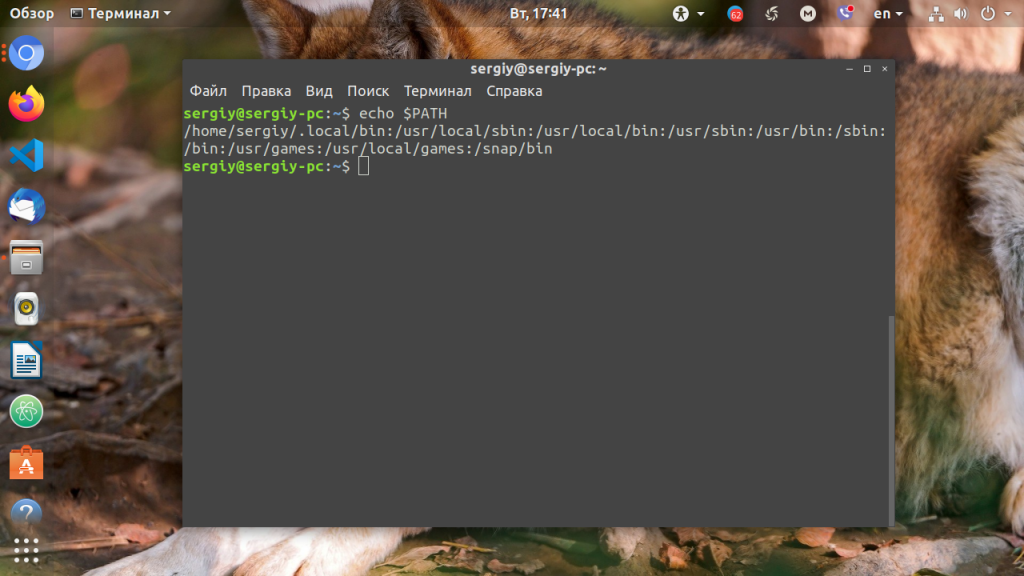
На экране появится перечень папок, разделённых двоеточием. Алгоритм поиска пути к требуемой программе при её запуске довольно прост. Сначала ОС ищет исполняемый файл с заданным именем в текущей папке. Если находит, запускает на выполнение, если нет, проверяет каталоги, перечисленные в переменной PATH, в установленном там порядке. Таким образом, добавив свои папки к содержимому этой переменной, вы добавляете новые места размещения исполняемых и связанных с ними файлов.
Для того, чтобы добавить новый путь к переменной PATH, можно воспользоваться командой export. Например, давайте добавим к значению переменной PATH папку/opt/local/bin. Для того, чтобы не перезаписать имеющееся значение переменной PATH новым, нужно именно добавить (дописать) это новое значение к уже имеющемуся, не забыв о разделителе-двоеточии:
Теперь мы можем убедиться, что в переменной PATH содержится также и имя этой, добавленной нами, папки:
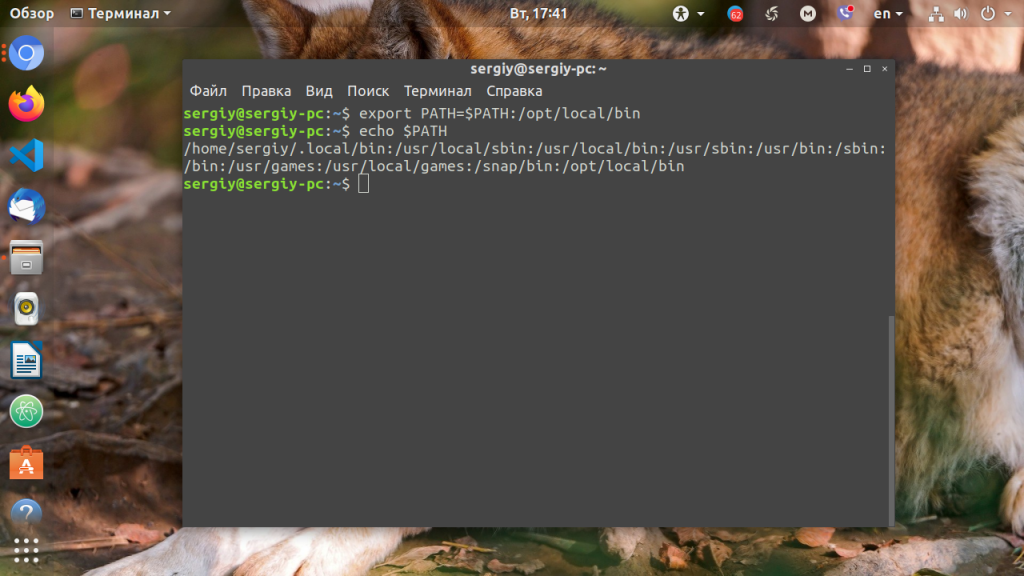
Вы уже знаете как в Linux добавить имя требуемой папки в переменную PATH, но есть одна проблема — после перезагрузки компьютера или открытия нового сеанса терминала все изменения пропадут, ваша переменная PATH будет иметь то же значение, что и раньше. Для того, чтобы этого не произошло, нужно закрепить новое текущее значение переменной PATH в конфигурационном системном файле.
В ОС Ubuntu значение переменной PATH содержится в файле /etc/environment, в некоторых других дистрибутивах её также можно найти и в файле /etc/profile. Вы можете открыть файл /etc/environment и вручную дописать туда нужное значение:
sudo vi /etc/environment
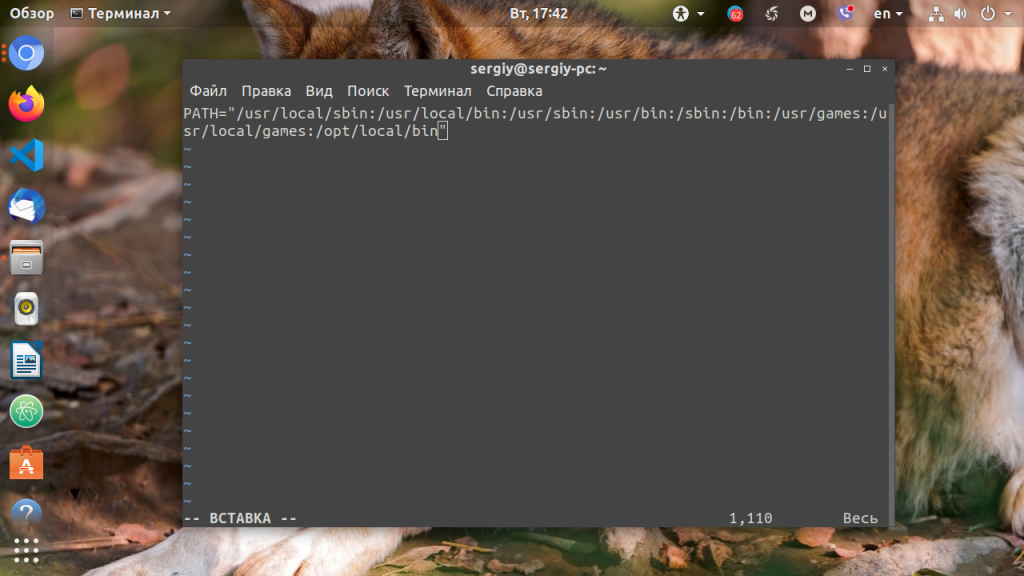
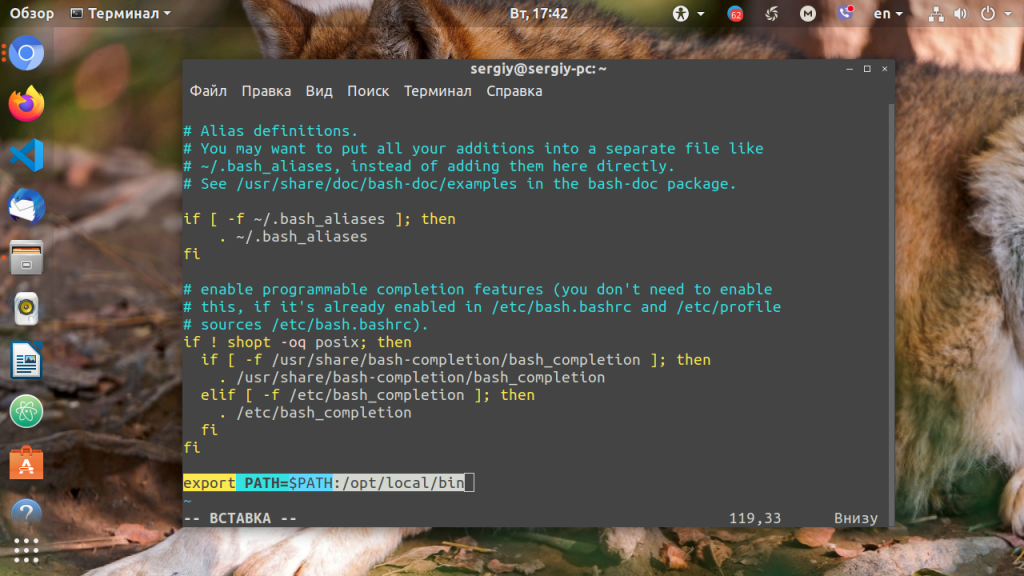
Можно поступить и иначе. Содержимое файла .bashrc выполняется при каждом запуске оболочки Bash. Если добавить в конец файла команду export, то для каждой загружаемой оболочки будет автоматически выполняться добавление имени требуемой папки в переменную PATH, но только для текущего пользователя:
Выводы
В этой статье мы рассмотрели вопрос о том, зачем нужна переменная окружения PATH в Linux и как добавлять к её значению новые пути поиска исполняемых и связанных с ними файлов. Как видите, всё делается достаточно просто. Таким образом вы можете добавить столько папок для поиска и хранения исполняемых файлов, сколько вам требуется.
Обнаружили ошибку в тексте? Сообщите мне об этом. Выделите текст с ошибкой и нажмите Ctrl+Enter.
How to permanently set $PATH on Linux/Unix [closed]
This question does not appear to be about a specific programming problem, a software algorithm, or software tools primarily used by programmers. If you believe the question would be on-topic on another Stack Exchange site, you can leave a comment to explain where the question may be able to be answered.
Closed 2 years ago .
The community reviewed whether to reopen this question last month and left it closed:
Original close reason(s) were not resolved
On Linux, how can I add a directory to the $PATH so it remains persistent across different sessions?
Background
I’m trying to add a directory to my path so it will always be in my Linux path. I’ve tried:
This works, however each time I exit the terminal and start a new terminal instance, this path is lost, and I need to run the export command again.
How can I do it so this will be set permanently?
/.profile for the terminal to read from the environment variables
24 Answers 24
You need to add it to your
Depending on what you’re doing, you also may want to symlink to binaries:
Note that this will not automatically update your path for the remainder of the session. To do this, you should run:

There are multiple ways to do it. The actual solution depends on the purpose.
The variable values are usually stored in either a list of assignments or a shell script that is run at the start of the system or user session. In case of the shell script you must use a specific shell syntax and export or set commands.
System wide
/etc/environment List of unique assignments. Allows references. Perfect for adding system-wide directories like /usr/local/something/bin to PATH variable or defining JAVA_HOME . Used by PAM and systemd.
/etc/environment.d/*.conf List of unique assignments. Allows references. Perfect for adding system-wide directories like /usr/local/something/bin to PATH variable or defining JAVA_HOME . The configuration can be split into multiple files, usually one per each tool (Java, Go, and Node.js). Used by systemd that by design do not pass those values to user login shells.
/etc/xprofile Shell script executed while starting X Window System session. This is run for every user that logs into X Window System. It is a good choice for PATH entries that are valid for every user like /usr/local/something/bin . The file is included by other script so use POSIX shell syntax not the syntax of your user shell.
/etc/profile and /etc/profile.d/* Shell script. This is a good choice for shell-only systems. Those files are read only by shells in login mode.
/etc/<shell>.<shell>rc . Shell script. This is a poor choice because it is single shell specific. Used in non-login mode.
User session
/.pam_environment . List of unique assignments, no references allowed. Loaded by PAM at the start of every user session irrelevant if it is an X Window System session or shell. You cannot reference other variables including HOME or PATH so it has limited use. Used by PAM.
/.xprofile Shell script. This is executed when the user logs into X Window System system. The variables defined here are visible to every X application. Perfect choice for extending PATH with values such as
/go/bin or defining user specific GOPATH or NPM_HOME . The file is included by other script so use POSIX shell syntax not the syntax of your user shell. Your graphical text editor or IDE started by shortcut will see those values.
/.<shell>_login Shell script. It will be visible only for programs started from terminal or terminal emulator. It is a good choice for shell-only systems. Used by shells in login mode.
/.<shell>rc . Shell script. This is a poor choice because it is single shell specific. Used by shells in non-login mode.
Notes
GNOME on Wayland starts a user login shell to get the environment. It effectively uses the login shell configurations
How to correctly add a path to PATH?
I’m wondering where a new path has to be added to the PATH environment variable. I know this can be accomplished by editing .bashrc (for example), but it’s not clear how to do this.

12 Answers 12
The simple stuff
depending on whether you want to add
/opt/bin at the end (to be searched after all other directories, in case there is a program by the same name in multiple directories) or at the beginning (to be searched before all other directories).
You can add multiple entries at the same time. PATH=$PATH:
/opt/node/bin or variations on the ordering work just fine. Don’t put export at the beginning of the line as it has additional complications (see below under “Notes on shells other than bash”).
If your PATH gets built by many different components, you might end up with duplicate entries. See How to add home directory path to be discovered by Unix which command? and Remove duplicate $PATH entries with awk command to avoid adding duplicates or remove them.
Some distributions automatically put
/bin in your PATH if it exists, by the way.
Where to put it
Put the line to modify PATH in
/.bash_profile or if that’s what you have. (If your login shell is zsh and not bash, put it in
The profile file is read by login shells, so it will only take effect the next time you log in. (Some systems configure terminals to read a login shell; in that case you can start a new terminal window, but the setting will take effect only for programs started via a terminal, and how to set PATH for all programs depends on the system.)
/.bash_rc is not read by any program, and
/.bashrc is the configuration file of interactive instances of bash. You should not define environment variables in
/.bashrc . The right place to define environment variables such as PATH is
/.bash_profile if you don’t care about shells other than bash). See What’s the difference between them and which one should I use?
Don’t put it in /etc/environment or
/.pam_environment : these are not shell files, you can’t use substitutions like $PATH in there. In these files, you can only override a variable, not add to it.
Potential complications in some system scripts
You don’t need export if the variable is already in the environment: any change of the value of the variable is reflected in the environment.¹ PATH is pretty much always in the environment; all unix systems set it very early on (usually in the very first process, in fact).
At login time, you can rely on PATH being already in the environment, and already containing some system directories. If you’re writing a script that may be executed early while setting up some kind of virtual environment, you may need to ensure that PATH is non-empty and exported: if PATH is still unset, then something like PATH=$PATH:/some/directory would set PATH to :/some/directory , and the empty component at the beginning means the current directory (like .:/some/directory ).
Notes on shells other than bash
In bash, ksh and zsh, export is special syntax, and both PATH=
/opt/bin:$PATH and export PATH=
/opt/bin:$PATH do the right thing even. In other Bourne/POSIX-style shells such as dash (which is /bin/sh on many systems), export is parsed as an ordinary command, which implies two differences:
So in shells like dash, export PATH=
/opt/bin:$PATH sets PATH to the literal string
/opt/bin/: followed by the value of PATH up to the first space. PATH=
/opt/bin:$PATH (a bare assignment) doesn’t require quotes and does the right thing. If you want to use export in a portable script, you need to write export PATH="$HOME/opt/bin:$PATH" , or PATH=
/opt/bin:$PATH; export PATH (or PATH=$HOME/opt/bin:$PATH; export PATH for portability to even the Bourne shell that didn’t accept export var=value and didn’t do tilde expansion).
¹ This wasn’t true in Bourne shells (as in the actual Bourne shell, not modern POSIX-style shells), but you’re highly unlikely to encounter such old shells these days.

/.bashrc", but unfortunately 100% of the programs that I have installed on my system that modify the path (FZF and Rust's Cargo) modify the path in .bashrc . I assume because FZF is written in Rust too it's following the pattern of Rust.
Either way works, but they don’t do the same thing: the elements of PATH are checked left to right. In your first example, executables in
/opt/bin will have precedence over those installed, for example, in /usr/bin , which may or may not be what you want.
In particular, from a safety point of view, it is dangerous to add paths to the front, because if someone can gain write access to your
/opt/bin , they can put, for example, a different ls in there, which you’d then probably use instead of /bin/ls without noticing. Now imagine the same for ssh or your browser or choice. (The same goes triply for putting . in your path.)

The bullet-proof way of Appending/Prepending
The usual methods for appending/prepending
may bring hard headaches.
The bullet-proof way to add a path (e.g.,
/opt/bin ) to the PATH environment variable is
Why?
This avoids the spurious leading/trailing colon when $PATH is initially empty, which can have undesired side effects and can become a nightmare, elusive to find (this answer briefly deals with the case the awk -way).
If parameter is null or unset, nothing is substituted, otherwise the expansion of word is substituted.
- nothing, if PATH is null or unset,
- $
: , if PATH is set.
Note: This is for bash.
I wonder why system scripts typically do not use this. EDIT: I have just found that scripts like devtoolset-6/enable actually use this,

I’m confused by question 2 (since removed from the question since it was due to an unrelated issue):
What’s a workable way to append more paths on different lines? Initially I thought this could do the trick:
but it doesn’t because the second assignment doesn’t only append
/opt/node/bin , but also the whole PATH previously assigned.
This is a possible workaround:
but for readability I’d prefer to have one assignment for one path.
that’s all that will be in your PATH. PATH is just an environment variable, and if you want to add to the PATH, you have to rebuild the variable with exactly the contents you want. That is, what you give as an example to question 2 is exactly what you want to do, unless I’m totally missing the point of the question.
I use both forms in my code. I have a generic profile that I install on every machine I work on that looks like this, to accommodate for potentially-missing directories:
Linux determines the executable search path with the $PATH environment variable. To add directory /data/myscripts to the beginning of the $PATH environment variable, use the following:
To add that directory to the end of the path, use the following command:
But the preceding are not sufficient because when you set an environment variable inside a script, that change is effective only within the script. There are only two ways around this limitation:
- If within the script, you export the environment variable it is effective within any programs called by the script. Note that it is not effective within the program that called the script.
- If the program that calls the script does so by inclusion instead of calling, any environment changes in the script are effective within the calling program. Such inclusion can be done with the dot command or the source command.
Inclusion basically incorporates the «called» script in the «calling» script. It’s like a #include in C. So it’s effective inside the «calling» script or program. But of course, it’s not effective in any programs or scripts called by the calling program. To make it effective all the way down the call chain, you must follow the setting of the environment variable with an export command.
As an example, the bash shell program incorporates the contents of file .bash_profile by inclusion. Place the following 2 lines in .bash_profile:
effectively puts those 2 lines of code in the bash program. So within bash, the $PATH variable includes $HOME/myscript.sh , and because of the export statement, any programs called by bash have the altered $PATH variable. And because any programs you run from a bash prompt are called by bash, the new path is in force for anything you run from the bash prompt.
The bottom line is that to add a new directory to the path, you must append or prepend the directory to the $PATH environment variable within a script included in the shell, and you must export the $PATH environment variable.
How to add a directory to the PATH?
How do I add a directory to the $PATH in Ubuntu and make the changes permanent?

17 Answers 17
Using
/.profile to set $PATH
A path set in .bash_profile will only be set in a bash login shell ( bash -l ). If you put your path in .profile it will be available to your complete desktop session. That means even metacity will use it.
Btw, you can check the PATH variable of a process by looking at its environment in /proc/[pid]/environ (replace [pid] with the number from ps axf ). E.g. use grep -z «^PATH» /proc/[pid]/environ
bash as a login shell doesn’t parse .profile if either .bash_profile or .bash_login exists. From man bash :
/.profile, in that order, and reads and executes commands from the first one that exists and is readable.
See the answers below for information about .pam_environment , or .bashrc for interactive non-login shells, or set the value globally for all users by putting a script into /etc/profile.d/ or use /etc/X11/Xsession.d/ to affect the display managers session.

Edit .bashrc in your home directory and add the following line:
You will need to source your .bashrc or logout/login (or restart the terminal) for the changes to take effect. To source your .bashrc , simply type
The recommended place to define permanent, system-wide environment variables applying to all users is in:
(which is where the default PATH is defined)
This will work in desktop or console, gnome-terminal or TTY, rain or shine 😉
To edit, open the terminal and type:
(or open the file using sudo in your favorite text editor)
To make it work without rebooting, run . /etc/environment or source /etc/environment . Since this file is just a simple script it will run and assign the new path to the PATH environment variable. To check run env and see the PATH value in the listing.

I think the canonical way in Ubuntu is:
create a new file under /etc/profile.d/
and give it execute permission

For complete newbies (like I am) who are more comfortable with GUI:
- Open your $HOME folder.
- Go to View → Show Hidden Files or press Ctrl + H .
- Right click on .profile and click on Open With Text Editor.
- Scroll to the bottom and add PATH=»$PATH:/my/path/foo» .
- Save.
- Log out and log back in to apply changes (let Ubuntu actually load .profile ).
For persistent environment variables available to particular users only. I highly recommend Ubuntu official documentation.
Referring to documentation above, I have setup my Android SDK path-tools by:

Put that line in your
It gets sourced whenever you open a terminal
EDIT: Based on the comments below, for a more general setting that will apply to all shells (including when you hit Alt — F2 in Unity), add the line to your
/.profile file. Probably shouldn’t do both however, as the path will be added twice to your PATH environment if you open a terminal.

/.bashrc , it'll only be available in the terminals you open. E.g. if you hit Alt+F2 and try to run a command from that dir, it won't find it. If you set it in
/.pam_environment , the gnome session (or whichever DE you use) will inherit it. Appending PATH in
/.bashrc also has the drawback that if you open/exec bash interactively from another interactive bash shell, it'll be appended multiple times.
/.profile is correct for personal paths, though; that's where Ubuntu adds the
/bin directory. And I confess that I exaggerated a slight bit on the number of ways — just a little.
/.profile in this case too.
Adding it to .bashrc will work but I think the more traditional way of setting up your path variables is in .bash_profile by adding the following lines.
According to this thread it appears as though Ubuntu’s behavior is slightly different than RedHat and clones.
To set it system wide, append the line export PATH=/path/you’re/adding:$PATH to the end of /etc/profile .
To add the directory for only the logged-in user, append the same line to

In terminal, cd to the_directory_you_want_to_add_in_the_path
This wasn’t my idea. I found this way to export path at this blog here.
The recommended way to edit your PATH is from /etc/environment file
Example output of /etc/environment :
For example, to add the new path of /home/username/mydir
Then, reboot your PC.
System-wide environment variables
A suitable file for environment variable settings that affect the system as a whole (rather than just a particular user) is /etc/environment. An alternative is to create a file for the purpose in the /etc/profile.d directory.
/etc/environment
This file is specifically meant for system-wide environment variable settings. It is not a script file, but rather consists of assignment expressions, one per line.
Note: Variable expansion does not work in /etc/environment.