Linux echo command
On Unix-like operating systems, the echo command prints text to standard output, e.g., the terminal.
This page covers the GNU/Linux version of echo.
Description
echo is a fundamental command found in most operating systems. It is frequently used in scripts, batch files, and as part of individual commands; anywhere you may need to output text.
Most command shells, including bash, ksh and csh implement echo as a built-in command. The behavior of built-in echo commands is similar, but the options may be different; those commands are not documented here.
This page covers the stand-alone program, /bin/echo. Its options are slightly different than the built-in echo command that is included in your shell. If you are using the bash shell, you can determine which echo is the default, using the type command:
To specify that you want to run the stand-alone program instead of the shell built-in, use its complete path in the command, i.e., run it like this:
This page describes the GNU/Linux stand-alone version of echo.
Syntax
Options
Options
These options may be specified before the string, and affect the behavior of echo.
| -n | Do not output a trailing newline. |
| -e | Enable interpretation of backslash escape sequences (see below for a list of these). |
| -E | Disable interpretation of backslash escape sequences. This is the default. |
Options
If a long option is specified, you may not specify a string to be echoed. These options are for getting information about the program only.
| —help | Display a help message and exit. |
| —version | Output version information and exit. |
Escape sequences
If you specify the -e option, the following escape sequences are recognized in your string:
| Sequence | Interpreted as |
|---|---|
| \\ | A literal backslash character («\«). |
| \a | An alert (The BELL character). |
| \b | Backspace . |
| \c | Produce no further output after this. |
| \e | The escape character; equivalent to pressing Esc . |
| \f | A form feed. |
| \n | A newline. |
| \r | A carriage return. |
| \t | A horizontal tab. |
| \v | A vertical tab. |
| \0NNN | Byte with octal value NNN (which can be 1 to 3 digits). |
| \xHH | Byte with hexadecimal value HH (which can be either 1 or 2 digits) |
Each shell generally has its own implementation of echo, which may be slightly different than the version described here. Refer to your shell’s documentation for details about the options it supports.
Examples
In the above command, the two words (Hello, and world!) are passed to echo as separate arguments, and echo prints them in sequence, separated by a space:
The next command produces the same output:
However, unlike the first example, the above command provides the single-quoted string ‘Hello, world!‘ as a single argument.
Single-quoting a string will reliably protect it from interpretation by the shell, passing special characters and escape sequences literally to echo.
For instance, in the bash shell, variable names are preceded by a dollar sign ($). In the next command, the variable name inside the quotes is treated literally; outside the quotes, it is converted to its value.
Escape sequences are not interpreted, by default:
However, if you provide the -e option, they are interpreted:
If you need to insert newlines in your echo output, specify the -e option and include the \n escape sequence wherever you want a new line:
Related commands
cat — Output the contents of a file.
printf — Write formatted output.
tac — Output the contents of files in reverse order.
tee — Route a file’s contents to multiple outputs.
touch — Update the timestamp of a file or directory.
tr — Translate one set of characters to another.
Bash Echo Examples
`echo` command can be used without any option. `echo` command of the following script is used to print a simple text, ‘Learn bash programming from LinuxHint.com’.
The following output will appear after running the script.

Example-2: Using `echo` command with -n option
‘echo’ command is used with ‘-n’ option in the following script. The new line is omitted from the output for this option.
The following output will appear after running the script.

Example-3: Using `echo` command with -e option
‘echo’ command is used with ‘-e’ option in the following script. For this, the function of backslash(\) is enabled and the output is generated by adding ‘tab’ space where ‘\t’ is used in the string.
The following output will appear after running the script.

Example-4: Using `echo` command with -E option
‘echo’ command is used with ‘-E’ option in the following script. This option disables the function of backslash(/). The new line(\n) used in the text will not work for the following command.
The following output will appear after running the script.

Example-5: Using variable in `echo` command
The value of the variable can be printed with other string in the `echo` command by placing the variable in the text. $price variable is used in the following `echo` command. But one thing you should remember when using the variable in the echo command, that is you must enclose the variable within double quotation(“) to read the value of the variable by `echo` command. If single quotation(‘) is used in the echo command then the value of the variable will not be parsed and the variable name will be printed as output.
The following output will appear after running the script.

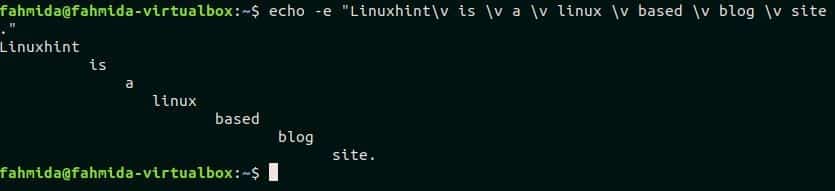
Example-6: Using ‘\v’ in `echo` command
‘\v’ is used to print the output vertically. The following `echo` command will print each word of the text, “Linuxhint is a Linux based blog site” vertically.
The following output will appear after running the script.
Example-7: Using ‘\c’ in `echo` command
‘\c’ is used to omit any part of the text. The following echo command will print, “Enrich your Linux knowledge from Linuxhint” by omitting the part tutorials and newline.
The following output will appear after running the script.

Example-8: Print the names of all files and folders using `echo` command
`echo` command can be used to read the files and folders of the current directory. When this command executes with ‘*’ then it will print the list of files and folders of the current working directory.
The following output will appear after running the script.

Example-9: Print the names of specific files using `echo` command
The specific file list of the current directory can be printed by using `echo` command. The following command will print the list of all text files from the current directory. In this way, you can search any file or folder by using `echo` command.
The following output will appear after running the script.

Example-10: Using `echo` command in the bash script
This example shows the use of `echo` command in a bash script. Create a file named ‘echoexpl.sh’ and add the following script. The function of ‘\r’ is to add a carriage return in the string. In this example, ‘\r’ is used at the starting and ending of the string. Here, the ‘-e’ option is used with the `echo` command that enables the function of ‘\r’.
echoexpl.sh
The text value of $string variable will be printed with a newline after running the script.

Conclusion:
The result of any script can be found by printing the appropriate output. So, print options are very important for any programming language. The use of one print option in bash is discussed in this tutorial. But the same task can be performed by another option in bash and the command is ‘printf’. Hope, the reader will get knowledge about the multiple uses of `echo` command after practicing the examples of this tutorial and they will be able to apply this command properly.
For more information watch the video!
About the author
Fahmida Yesmin
I am a trainer of web programming courses. I like to write article or tutorial on various IT topics. I have a YouTube channel where many types of tutorials based on Ubuntu, Windows, Word, Excel, WordPress, Magento, Laravel etc. are published: Tutorials4u Help.
Команда echo в Linux
Команда echo — это очень простая и в то же время часто используемая встроенная команда оболочки Bash. Она имеет только одно назначение — выводить строку текста в терминал, но применяется очень часто в различных скриптах, программах, и даже для редактирования конфигурационных файлов.
В этой статье мы рассмотрим что представляет из себя команда echo linux, как ее можно использовать и в каких ситуациях. Но сначала рассмотрим синтаксис самой команды.
Команда echo linux
Команда echo — это не системная утилита, у нее нет исполняемого файла. Она существует только внутри интерпретатора Bash. Синтаксис команды echo linux очень прост:
$ echo опции строка
Опций всего несколько, давайте рассмотрим их, чтобы вы могли лучше ориентироваться в работе утилиты:
- -n — не выводить перевод строки;
- -e — включить поддержку вывода Escape последовательностей;
- -E — отключить интерпретацию Escape последовательностей.
Это все опции, если включена опция -e, то вы можете использовать такие Escape последовательности для вставки специальных символов:
- /c — удалить перевод строки;
- /t — горизонтальная табуляция;
- /v — вертикальная табуляция;
- /b — удалить предыдущий символ;
- /n — перевод строки;
- /r — символ возврата каретки в начало строки.
Пожалуй, это все, что нужно знать о команде echo, а теперь давайте рассмотрим как с ней работать.
Примеры работы echo
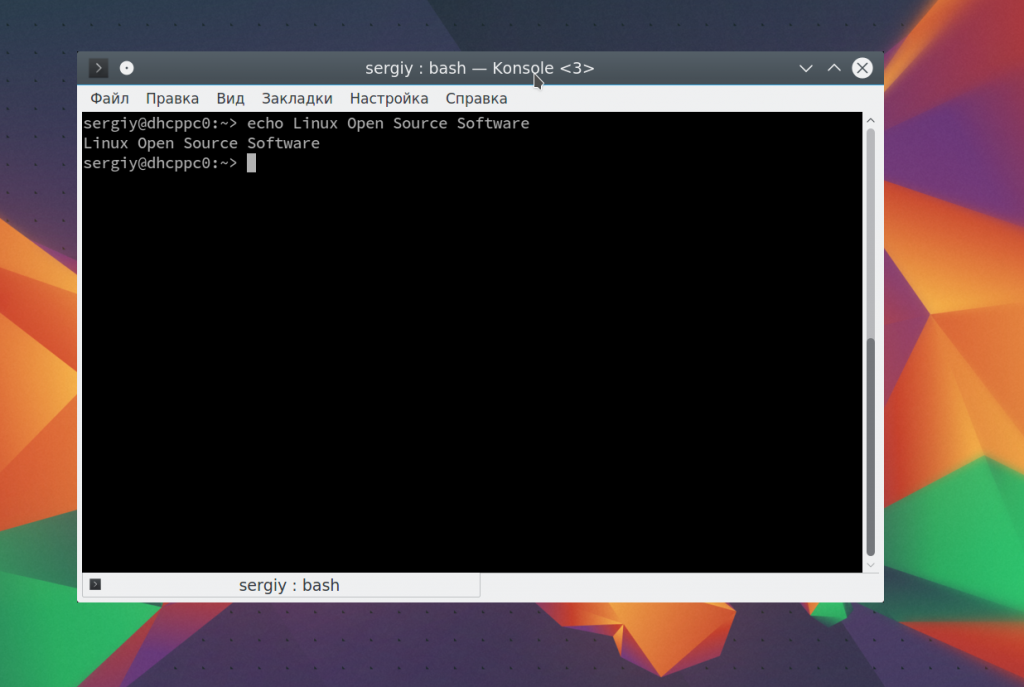
Давайте рассмотрим как пользоваться echo. Сначала просто выведем строку на экран:
echo Linux Open Source Software Technologies
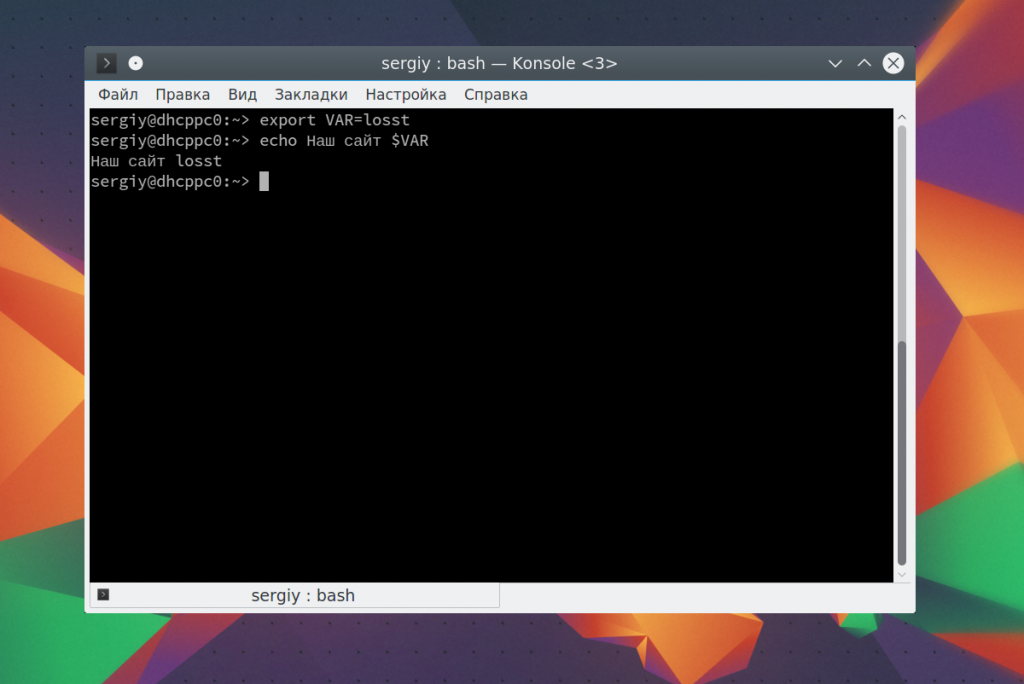
Также можно вывести значение переменной. Сначала объявим переменную:
Затем выведем ее значение:
echo Наш сайт $VAR
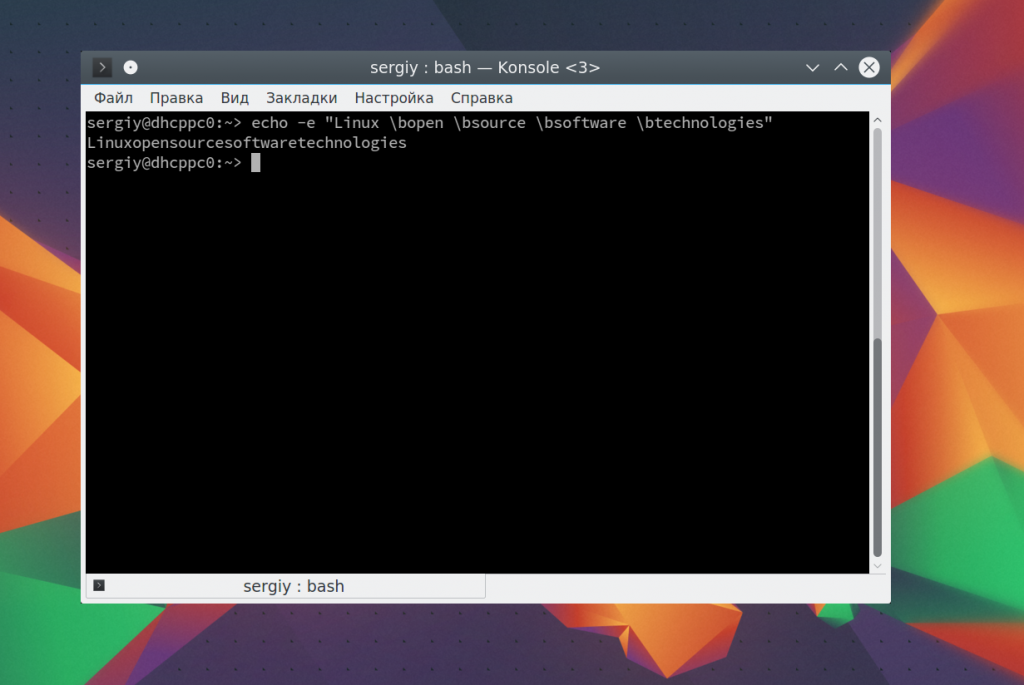
Как уже говорилось, с помощью опции -e можно включить интерпретацию специальных последовательностей. Последовательность \b позволяет удалить предыдущий символ. Например, удалим все пробелы из строки:
echo -e «Linux \bopen \bsource \bsoftware \btechnologies»
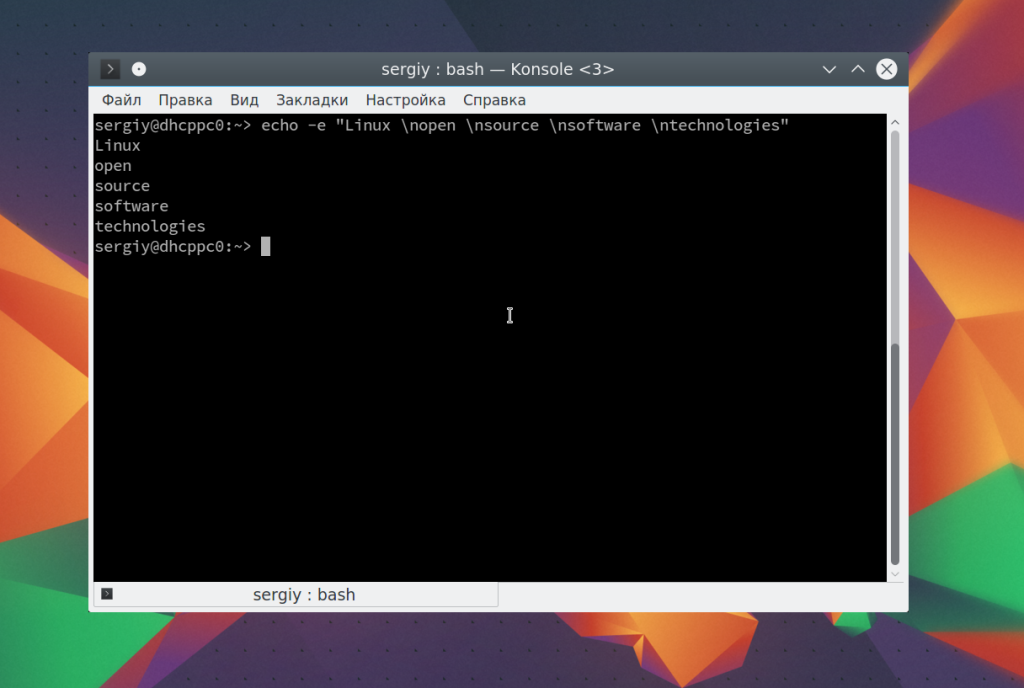
Последовательность \n переводит курсор на новую строку:
echo -e «Linux \nopen \nsource \nsoftware \ntechnologies»
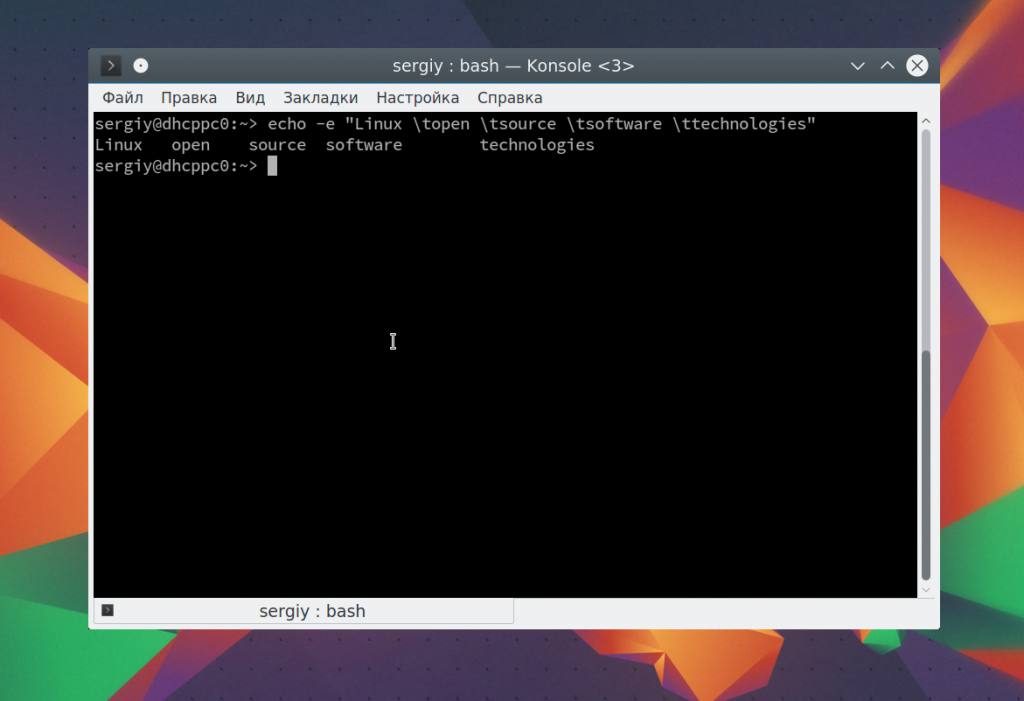
С помощью \t вы можете добавить горизонтальные табуляции:
echo -e «Linux \topen \tsource \tsoftware \ttechnologies»
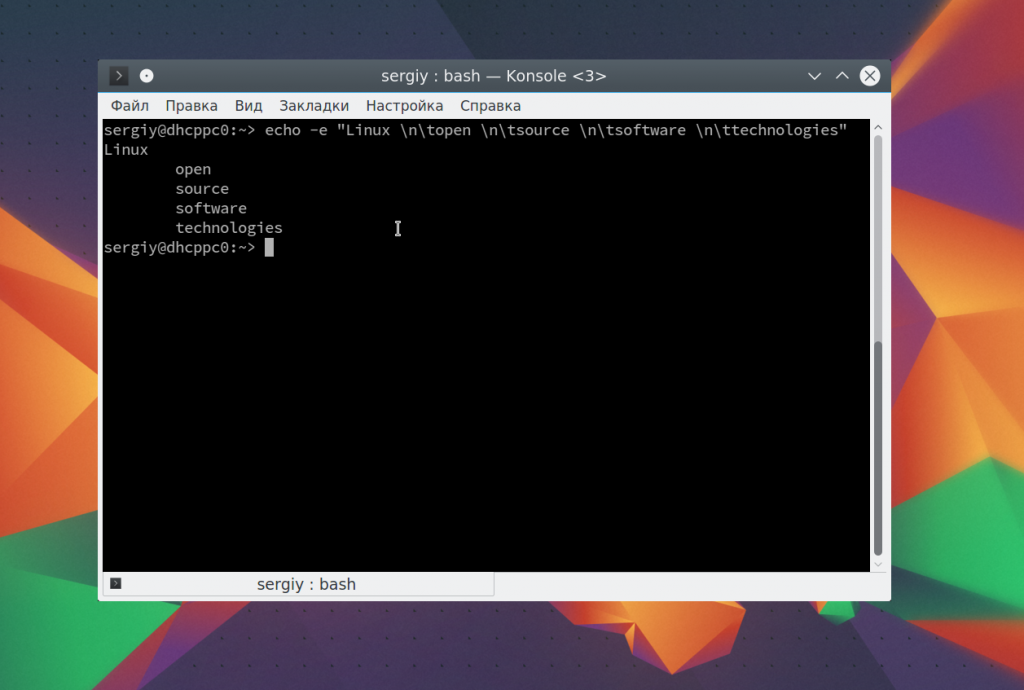
Можно совместить переводы строки и табуляции:
echo -e «Linux \tnopen \tnsource \tnsoftware \tntechnologies»
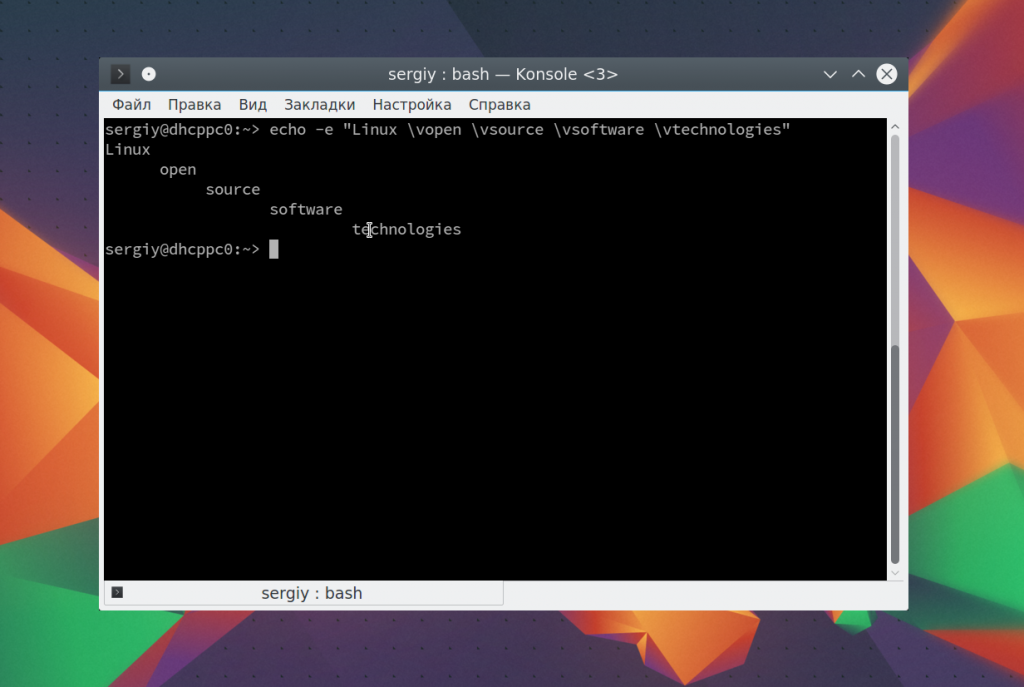
Точно так же можно применить вертикальную табуляцию:
echo -e «Linux \vopen \vsource \vsoftware \vtechnologies»
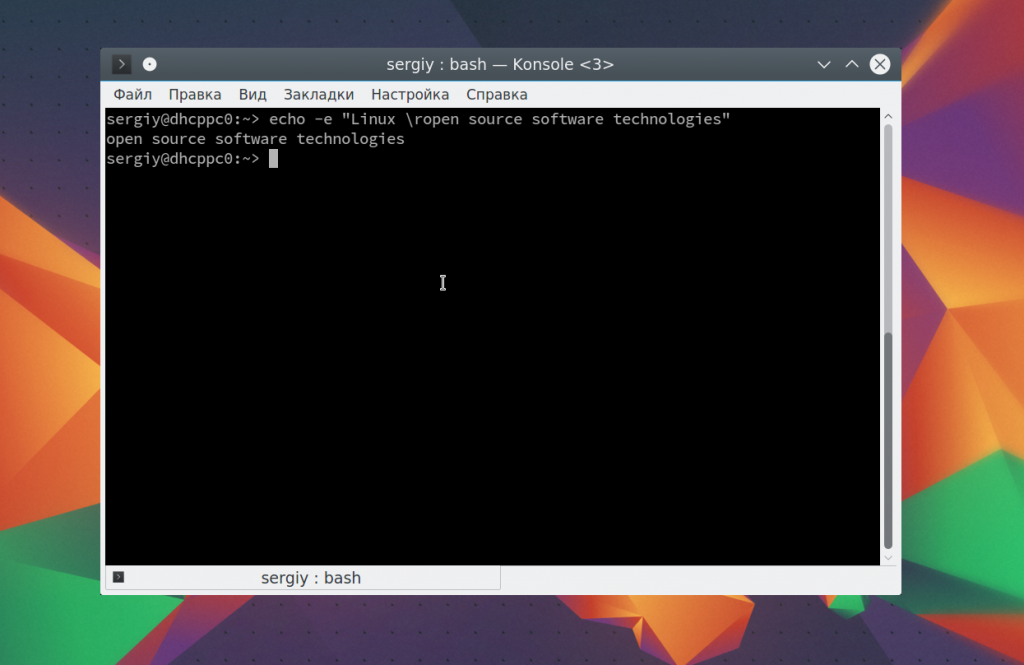
С помощью последовательности \r можно удалить все символы до начала строки:
echo -e «Linux \ropen source software technologies»
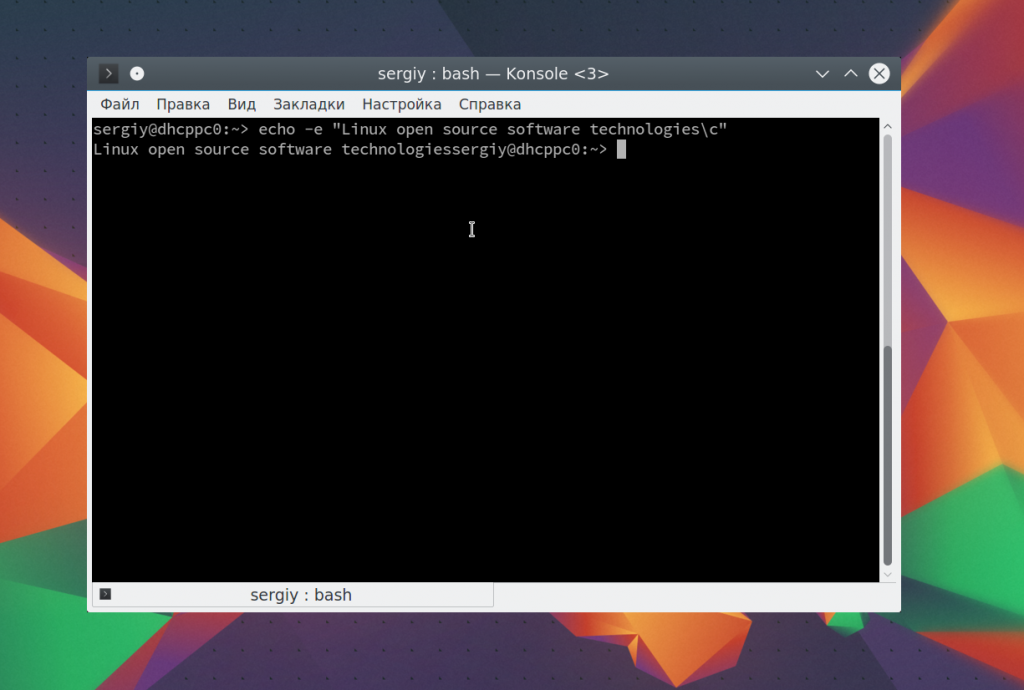
Последовательность -c позволяет убрать перевод на новую строку в конце сообщения:
echo -e «Linux open source software technologies\c»
Дальше — больше. Вы можете разукрасить вывод echo с помощью последовательностей управления цветом Bash. Для доступны такие цвета текста:
- \033[30m — чёрный;
- \033[31m — красный;
- \033[32m — зелёный;
- \033[33m — желтый;
- \033[34m — синий;
- \033[35m — фиолетовый;
- \033[36m — голубой;
- \033[37m — серый.
И такие цвета фона:
- \033[40m — чёрный;
- \033[41m — красный;
- \033[42m — зелёный;
- \033[43m — желтый;
- \033[44m — синий;
- \033[45m — фиолетовый;
- \033[46m — голубой;
- \033[47m — серый;
- \033[0m — сбросить все до значений по умолчанию.
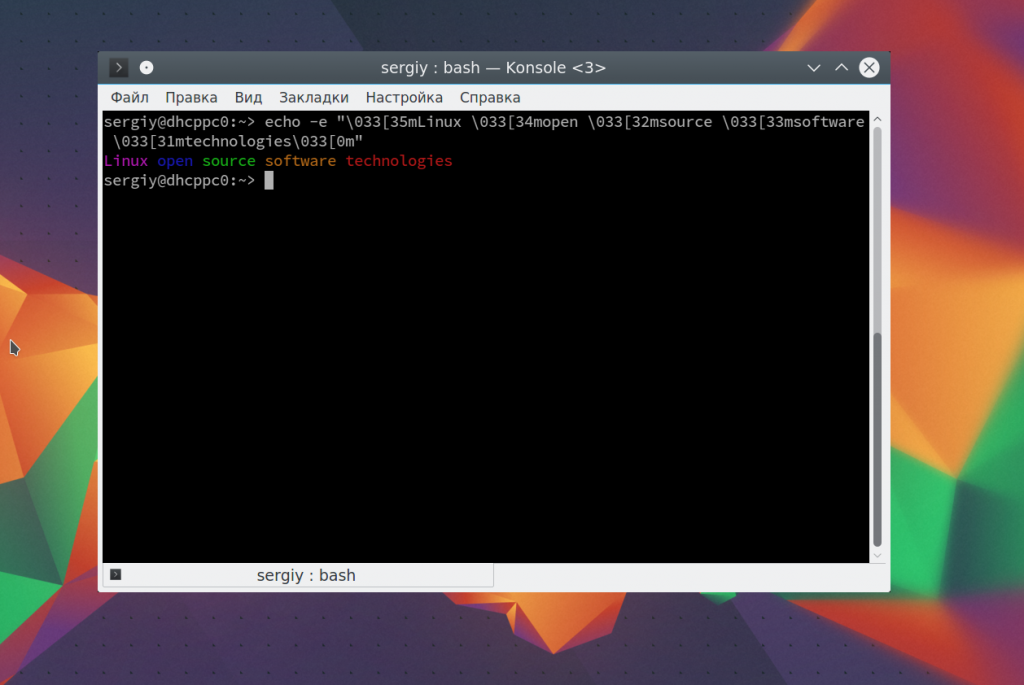
Например. раскрасим нашу надпись в разные цвета:
echo -e «\033[35mLinux \033[34mopen \033[32msource \033[33msoftware \033[31mtechnologies\033[0m»
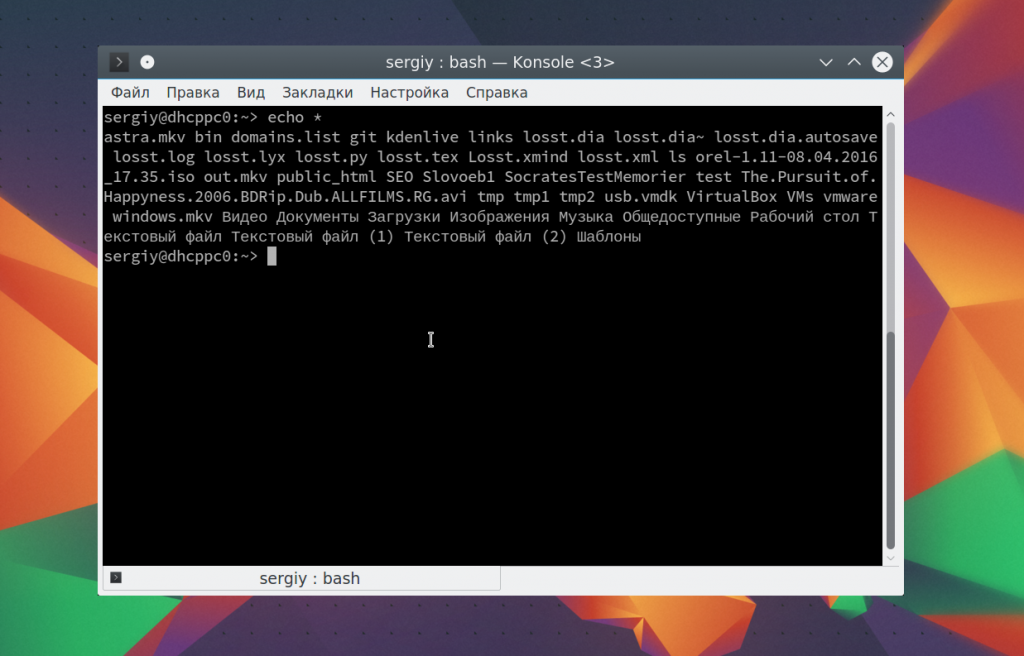
С основными параметрами команды echo разобрались, теперь рассмотрим еще некоторые специальные символы bash. Вы можете вывести содержимое текущей папки просто подставив символ *:
Также можно вывести файлы определенного расширения:
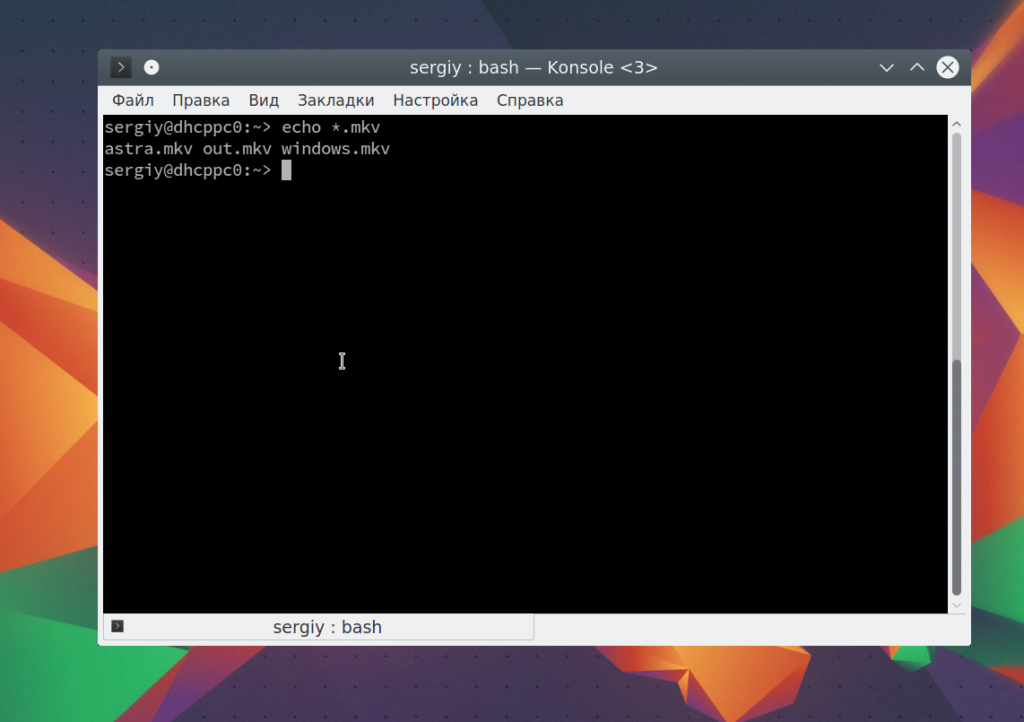
Я уже говорил, что echo можно использовать для редактирования конфигурационных файлов. Вы можете использовать запись echo в файл linux, если он пуст:
echo 1 > /proc/sys/net/ipv4/ip_forward
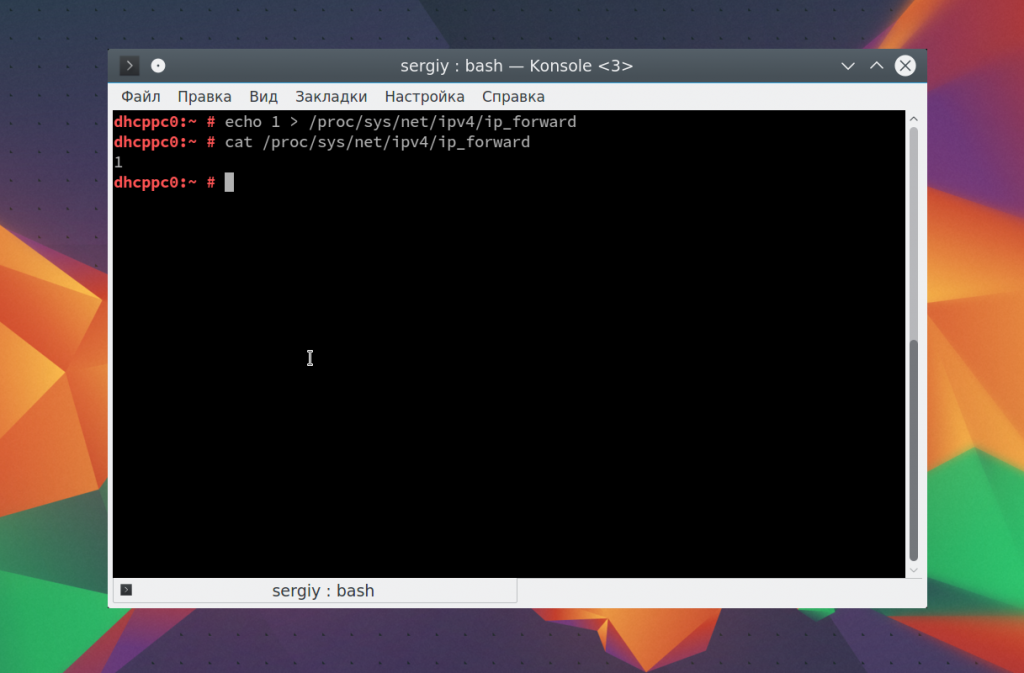
Если файл не пуст, и вам необходимо добавить свою строчку в конец файла используйте символ перенаправления вывода >>:
echo «UUID=09ec0871-2f55-4dd5-aeb2-cacc4a67907c /var/tmp btrfs subvol=@/var/tmp 0 0» >> /etc/fstab
Если строка содержит какие-либо специальные символы или может быть понята интерпретатором неоднозначно, следует заключить ее в кавычки.
Выводы
В этой статье была рассмотрена команда echo linux. Несмотря на свою простоту, она может применяться для решения различных задач и незаменима при написании простых скриптов. Надеюсь, эта информация была вам полезной.
Обнаружили ошибку в тексте? Сообщите мне об этом. Выделите текст с ошибкой и нажмите Ctrl+Enter.
How to Use echo Command in Bash Scripts in Linux
echo is a shell built-in command that is used to print the information/message to your terminal. It is the most popular command that is available in most Linux distributions and is typically used in bash scripts and batch files to print status text/string to the screen or a file.
In this article, I will show you how to use the echo command in Linux shell scripts.
How to Work With echo Command in Linux
When learning shell scripting this is the first command you will learn about to print something in your terminal. echo will print the output to stdout or you can also redirect the output to files. There are two versions of echo. One is bash builtin and the second one is an external command.
NOTE: Always builtin version takes precedence over external command.
Use the type command to get the path information about the echo command.
To get the list of options supported for the echo command, use the help option.
Example 1: No Arguments to echo Command
When you call the echo command without passing any arguments it prints an empty line.

an echo with no arguments
Example 2: Use echo With and Without Quotes
You can pass arguments to echo command with or without quotes. Take a look at the below example. I am printing the same statement with single and double quotes and without quotes and getting the same result.
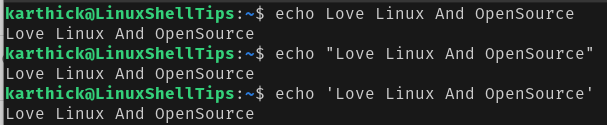
echo print output
There is a significant difference in when to use single and double quotes. When you use single quotes and any word contains a single quote then it will be treated as the end of quotes. Take a look at the below example where isn’t contains single quotes and is treated as the end of quotes.
In this case, using double quotes will make more sense.

Echo Single Vs Double Quotes
Example 3: Printing Variables with Echo Command
Values stored in variables can be printed to the terminal using the echo command. When you use single quotes variable $ will be interpreted as text and will not be expanded to its assigned value (welcome).
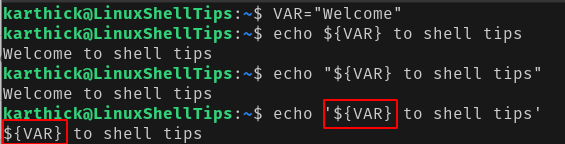
Echo Printing Variable Value
Example 4: Redirecting Output to File
You can redirect output to a file instead of printing it in a terminal using the redirection operator ( > and >> ).
- Using > operator will create a new file if not exists and write the data and if the file exists it will overwrite the data.
- Using >> operator will create a new file if not exists and append the data if the file exists.
Example 5: Supported Arguments
echo command supports three arguments.

Echo Arguments
By default when you run the echo command new line character is automatically appended at the end. If you want to suppress this behavior use -n flag.

Suppress New Line Character
By using the -E flag, the echo statement will treat all backslash-escaped characters as plain text. It is not mandatory to use -E flag because echo by default will not treat these as special characters.

Escaped Characters
To use backslash-escaped characters you have to use -e flag.
Example 6: Escaped Characters
echo command supports escape characters like newline, tab, vertical tab, and a few more. You can get the list of supported characters from the help command.
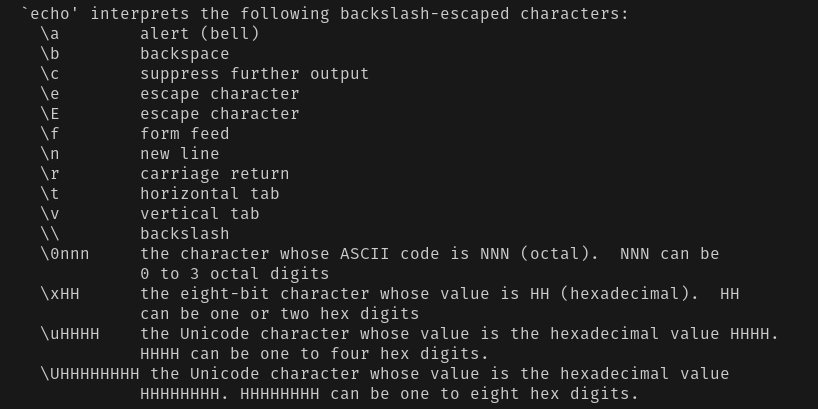
Escaped Characters
Let’s see frequently used escape characters in action. Note you have to use -e argument for any escape characters to be effective.
Newline character(\n) – This will be one of the commonly used escape characters. When you use \n it will add new lines.
Horizontal tab(\t) – To create horizontal tabs use \t which adds a single tab in your statement.
Vertical tab(\v) – To create vertical tabs use \v .
Carriage Return(\r) – Removes everything that comes before \r and prints only what is after \r .
Suppress Further Output(\c) – Carriage return removes everything that comes before it and \c will remove everything that comes after it.
If you want to treat any escape characters as normal characters you can use \\ . Let’s say you want \c to be treated as a normal value then use \\ followed by escape character \c .
That’s it for this article. The echo is a simple command to use and very easy to learn. We will catch you up with more shell script-related articles soon.