Uninstall Lenovo Solution Center to keep your data away from hackers

If you are a user of a laptop you may need to uninstall the Lenovo Solution Center tool, as a team of vulnerabiliy testing experts has revealed the existence of a critical vulnerability in this pre-installed software that, if exploited, could grant a threat actor system administrator privileges.
Experts at Pen Test Partners mention that this is a discretionary access control list (DACL) overwrite vulnerability; “Any user with low privileges could access sensitive files by exploiting a process that requires high privileges,” specialists say. In other words, it’s a classic privilege escalation vulnerability, widely used by hackers to gain access to resources on a system that only administrators can legitimately access.
According to vulnerability testing experts, hackers could write a “pseudofile” that, when executed by Solution Center, can access sensitive files that are otherwise inaccessible. Subsequently the malicious code can run on the system with administrator privileges, completely compromising the system.
Solution Center is a preinstalled software on all Lenovo laptops released between 2011 and 2018, so millions of devices are potentially exposed to the exploitation of this flaw. This tool was designed to monitor the security status of these computers, so it is a bit ironic that it has become such an important attack vector.
After the flaws were revealed, the company released a statement alerting users to the risk, inviting them to uninstall Solution Center, which by the way has already stopped receiving updates from Lenovo. “A critical vulnerability in Lenovo Solution Center that could give a hacker an escalation of privilege has been publicly disclosed; we recommend to all users of our security tools migrate to Lenovo Vantage or Lenovo Diagnostics, which continue receiving support,” the statement reads.
Unfortunately, not all it’s good news. Vulnerability testing specialists say that after receiving the flaw report, Lenovo modified the date it stopped releasing support for Solution Center to make it look like this happened before the release of the last version of the system, so experts fear that some users will remain exposed to exploitation.
Lenovo commented: “It’s very common for some customers to forget to transition to other solutions, even some people choose not to migrate to new products. In these cases, we continue to release updates for tools that have reached the end of their support, ensuring that users still enjoy protection and support, at least on a very small scale.”
While this controversy is resolved, vulnerability testing specialists from the International Institute of Cyber Security (IICS) recommend Lenovo computer users released between 2011 and 2018 to uninstall Solution Center as soon as possible. A standard manual to complete this process is available on the company’s website.
Что такое LSC.exe? Это безопасно или вирус? Как удалить или исправить это
LSC.exe это исполняемый файл, который является частью Центр Lenovo Solution Программа, разработанная Lenovo, Программное обеспечение обычно о 9.88 MB по размеру.
Расширение .exe имени файла отображает исполняемый файл. В некоторых случаях исполняемые файлы могут повредить ваш компьютер. Пожалуйста, прочитайте следующее, чтобы решить для себя, является ли LSC.exe Файл на вашем компьютере — это вирус или троянский конь, который вы должны удалить, или это действительный файл операционной системы Windows или надежное приложение.
LSC.exe безопасно, или это вирус или вредоносная программа?
Первое, что поможет вам определить, является ли тот или иной файл законным процессом Windows или вирусом, это местоположение самого исполняемого файла. Например, такой процесс, как LSC.exe, должен запускаться из C: \ Program Files \ Lenovo \ Lenovo Solution Center \ LSC.exe, а не где-либо еще.
Для подтверждения откройте диспетчер задач, выберите «Просмотр» -> «Выбрать столбцы» и выберите «Имя пути к изображению», чтобы добавить столбец местоположения в диспетчер задач. Если вы обнаружите здесь подозрительный каталог, возможно, стоит дополнительно изучить этот процесс.
Еще один инструмент, который иногда может помочь вам обнаружить плохие процессы, — это Microsoft Process Explorer. Запустите программу (не требует установки) и активируйте «Проверить легенды» в разделе «Параметры». Теперь перейдите в View -> Select Columns и добавьте «Verified Signer» в качестве одного из столбцов.
Если статус процесса «Проверенная подписывающая сторона» указан как «Невозможно проверить», вам следует взглянуть на процесс. Не все хорошие процессы Windows имеют метку проверенной подписи, но ни один из плохих.
- Находится в C: \ Program Files \ Lenovo \ Lenovo Solution Center \ вложенная;
- Издатель: Lenovo
- Полный путь: C: \ Program Files \ Lenovo \ Lenovo Solution Center \ LSC.exe
- Файл справки: www.lenovo.com/support
- URL издателя: www.lenovo.com
- Известно, что до 9.88 MB по размеру на большинстве окон;
Если у вас возникли какие-либо трудности с этим исполняемым файлом, перед удалением LSC.exe следует определить, заслуживает ли он доверия. Для этого найдите этот процесс в диспетчере задач.
Найдите его местоположение (оно должно быть в C: \ Program Files \ Lenovo \ Lenovo Solution Center \) и сравните размер и т. Д. С приведенными выше фактами.
Если вы подозреваете, что можете быть заражены вирусом, вы должны немедленно попытаться это исправить. Чтобы удалить вирус LSC.exe, вы должны Загрузите и установите приложение полной безопасности, например Malwarebytes., Обратите внимание, что не все инструменты могут обнаружить все типы вредоносных программ, поэтому вам может потребоваться попробовать несколько вариантов, прежде чем вы добьетесь успеха.
Кроме того, функциональность вируса может сама влиять на удаление LSC.exe. В этом случае вы должны включить Безопасный режим с загрузкой сетевых драйверов — безопасная среда, которая отключает большинство процессов и загружает только самые необходимые службы и драйверы. Когда вы можете запустить программу безопасности и полный анализ системы.
Могу ли я удалить или удалить LSC.exe?
Не следует удалять безопасный исполняемый файл без уважительной причины, так как это может повлиять на производительность любых связанных программ, использующих этот файл. Не забывайте регулярно обновлять программное обеспечение и программы, чтобы избежать будущих проблем, вызванных поврежденными файлами. Что касается проблем с функциональностью программного обеспечения, проверяйте обновления драйверов и программного обеспечения чаще, чтобы избежать или вообще не возникало таких проблем.
Согласно различным источникам онлайн, 3% людей удаляют этот файл, поэтому он может быть безвредным, но рекомендуется проверить надежность этого исполняемого файла самостоятельно, чтобы определить, является ли он безопасным или вирусом. Лучшая диагностика для этих подозрительных файлов — полный системный анализ с Reimage, Если файл классифицирован как вредоносный, эти приложения также удалят LSC.exe и избавятся от связанных вредоносных программ.
Однако, если это не вирус, и вам нужно удалить LSC.exe, вы можете удалить Lenovo Solution Center с вашего компьютера, используя его программу удаления, которая должна находиться по адресу: MsiExec.exe / X
- 1. в Меню Пуск (для Windows 8 щелкните правой кнопкой мыши в нижнем левом углу экрана), нажмите Панель управления, а затем под Программы:
o Windows Vista / 7 / 8.1 / 10: нажмите Удаление программы.
o Windows XP: нажмите Установка и удаление программ.
- 2. Когда вы найдете программу Центр Lenovo Solutionщелкните по нему, а затем:
o Windows Vista / 7 / 8.1 / 10: нажмите Удалить.
o Windows XP: нажмите Удалить or Изменить / Удалить вкладка (справа от программы).
- 3. Следуйте инструкциям по удалению Центр Lenovo Solution.
Распространенные сообщения об ошибках в LSC.exe
Наиболее распространенные ошибки LSC.exe, которые могут возникнуть:
• «Ошибка приложения LSC.exe».
• «Ошибка LSC.exe».
• «Возникла ошибка в приложении LSC.exe. Приложение будет закрыто. Приносим извинения за неудобства».
• «LSC.exe не является допустимым приложением Win32».
• «LSC.exe не запущен».
• «LSC.exe не найден».
• «Не удается найти LSC.exe».
• «Ошибка запуска программы: LSC.exe».
• «Неверный путь к приложению: LSC.exe».
Эти сообщения об ошибках .exe могут появляться во время установки программы, во время выполнения связанной с ней программы, Lenovo Solution Center, при запуске или завершении работы Windows, или даже во время установки операционной системы Windows. Отслеживание момента появления ошибки LSC.exe является важной информацией при устранении неполадок.
Как исправить LSC.exe
Аккуратный и опрятный компьютер — это один из лучших способов избежать проблем с Lenovo Solution Center. Это означает выполнение сканирования на наличие вредоносных программ, очистку жесткого диска cleanmgr и ПФС / SCANNOWудаление ненужных программ, мониторинг любых автозапускаемых программ (с помощью msconfig) и включение автоматических обновлений Windows. Не забывайте всегда делать регулярные резервные копии или хотя бы определять точки восстановления.
Looking for Solution to Uninstall Lenovo Solution Center? This Might Help!
Looking for a proper way to uninstall Lenovo Solution Center on PC, and don’t know what to do? Don’t worry, this page gives the full details & information to help successfully remove Lenovo Solution Center from computer.
Overview of Lenovo Solution Center (LSC)
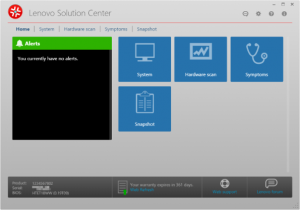
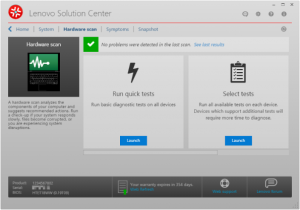
Lenovo Solution Center (LSC) software is installed in advance on many laptops and desktops by the company itself. It provides users with details about their system information and helps them manage updates and backups. It also gives information about the battery status, provides registration info management and the possibility to run hardware tests.
Supported Systems
- All ThinkPad
- All ThinkCentre
- All ThinkStation
- All Lenovo Essential
- All IdeaCentre
- All Lenovo Series Desktops and Laptops
Supported Operating Systems
- Windows 10 64-bit
- Windows 8.1 64-bit
- Windows 8 64-bit
- Windows 7 64-bit
Additional Information
- Please refer to the README file for the following:
- Installation Instructions
- How to run
- Summary of changes
- Limitations and considerations
Uninstall Lenovo Solution Center via Programs and Features
In Windows system, when users want to uninstall a program, he /she can go to the Programs and Features to uninstall it. So when you want to uninstall Lenovo Solution Center, the first solution is to uninstall it via Programs and Features.
Follow these steps:
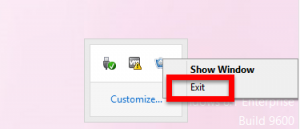
1. End task of Lenovo Solution Center
- Right click on the Hidden menu in lower right corner to show the hidden icons >> right click on the icon of Lenovo Solution Center to choose Exit.
- Or hold Ctrl + Shift + Esc keys on the keyboard to open Task Manager. Then click on the related process and click End Process (in Windows 7, Vista) or End Task (in Windows 8) button.
2. Uninstall Lenovo Solution Center via Programs and Features
In Windows 7 and Windows Vista:
- Click on Start at the bottom left of the screen
- Select Control Panel → Uninstall a program link.
- Find and select Lenovo Solution Center in the list, right-click it and select Uninstall
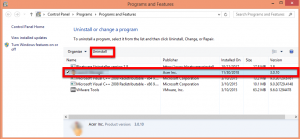
- Follow the process to finish the removal.
- Restart your computer.
In Windows 8 / 8.1:
- Click on Start at the bottom left of the screen
- Select Programs and Features
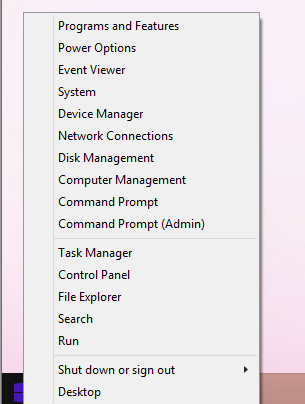
- Find and select Lenovo Solution Center in the list, right-click it and select Uninstall
- Follow the process to finish the removal.
- Restart your computer.
- Click on Start at the bottom left of the screen
- Select Apps and Features
- Find and select Lenovo Solution Center in the list, right-click it and select Uninstall
- Follow the process to finish the removal.
- Restart your computer
3. Delete the leftovers Files of Lenovo Solution Center
- Delete invalid registry entries / values:
- Click Start then select Run,
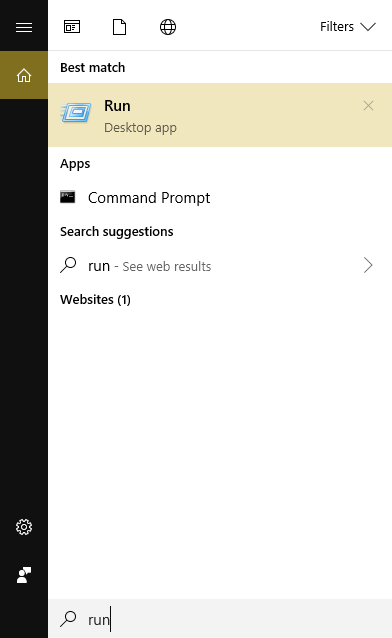
- Type in regedit in the dialog and click OK,
- Find and delete registry entries of the program, such as:
(HKEY_CURRENT_USER\Software\)
(HKEY_LOCAL_MACHINE\Software\ LenovoSolutionCenter)
(HKEY_LOCAL_MACHINE\Software\Microsoft\Windows\CurrentVersion\Run\eg ui)
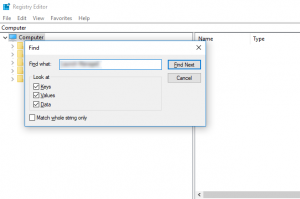
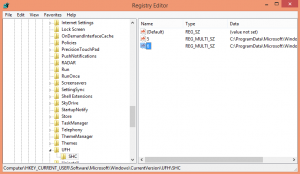
Failed to Uninstall Solution Center by Programs and Features, What to do?
Have problem to successfully uninstall Lenovo Solution Center from Programs and Features, what to do to successfully remove it without using the Programs and Features?
Lenovo Solution Center Uninstall – “Uninstall” is grayed out in Apps and Features:
“I installed the Lenovo Solution Center by mistake (I was trying to control the fan speed and read “Download and install the latest version of power manager from the Lenovo support site”).
I already have Lenovo Companion, which has all the functions of the Solution Center (so far as I know), and I fear there may be some duplication of functions/complications. This kind of problem happened with the old/new versions of the Solution Center in my old computer, and I’d like to avoid it by uninstalling the Solution Center.
However, in Apps and Features, “uninstall” is grayed out. How can I uninstall Solution Center?”
Easily Uninstall Lenovo Solution Center via Bloatware uninstaller
In order to solve the problem when fail to uninstall Lenovo Solution Center by Windows Programs and Features, we strongly recommend you to Bloatware uninstaller in daily life to easily get rid of any annoying software.
Follow these steps:
(Download & install Bloatware uninstaller from the green button)
Step 1
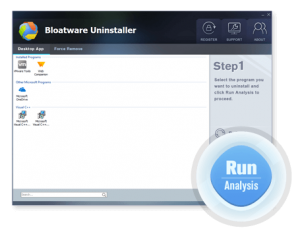
- Select Lenovo Solution Center on the interface, and then click the button “Run Analysis”;
Step 2
- Click on “Complete Uninstall” after all the components are scanned out;
- Click Next, and follow the prompts to complete the removal until it Finish;
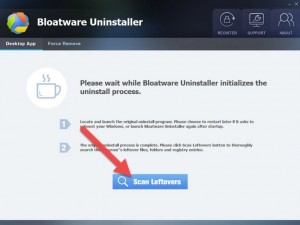
- Click on Scan Leftovers to conduct a full scan for the program leftover after it lights up.
Step 3
- Click on Delete Leftovers and then Yes in the pop-up confirmation dialog;
- After all the leftovers have been removed completely, click OK to end the process;
- Back to Step 1, you will find Lenovo Solution Center is gone, as well all the leftovers;
Now, your problem of removing Lenovo Solution Center might be gone for good, read more useful tutorials by clicking the below stories:
Lenovo Solution Center
A guide to uninstall Lenovo Solution Center from your system
Lenovo Solution Center is a Windows application. Read below about how to uninstall it from your computer. The Windows release was developed by Lenovo . Go over here where you can read more on Lenovo. More data about the application Lenovo Solution Center can be found at www.lenovo.com. The application is often installed in the C:\Program Files\Lenovo\Lenovo Solution Center directory. Keep in mind that this location can differ being determined by the user’s decision. MsiExec.exe /X <52753916-613B-4455-8022-A146CC17B1F6>is the full command line if you want to uninstall Lenovo Solution Center. GetIdeaBatteryInfoEM9.exe is the Lenovo Solution Center’s primary executable file and it takes around 58.47 KB (59872 bytes) on disk.
Lenovo Solution Center is composed of the following executables which occupy 12.60 MB ( 13214784 bytes) on disk:
- LSC.exe (9.31 MB)
- LSCNotify.exe (1.26 MB)
- QtWebEngineProcess.exe (12.00 KB)
- CheckLE.exe (138.47 KB)
- fp_smbios.exe (172.97 KB)
- KillProcessLSC.exe (13.47 KB)
- LSCService.exe (263.97 KB)
- LSCTaskService.exe (277.97 KB)
- LSCWinService.exe (264.97 KB)
- ThinkStationSIOMonitor.exe (100.47 KB)
- VerifyFramework.exe (58.47 KB)
- GetIdeaBatteryInfoEM9.exe (58.47 KB)
- fhsetup.exe (162.97 KB)
- fhsetup64.exe (181.97 KB)
- lsc_cli.exe (378.97 KB)
The information on this page is only about version 3.2.002.00 of Lenovo Solution Center. You can find below info on other application versions of Lenovo Solution Center:
- C:\Program Files\Lenovo\Lenovo Solution Center
- C:\Program Files\Lenovo\Lenovo Solution Center\4758cca.dll
- C:\Program Files\Lenovo\Lenovo Solution Center\aep.dll
- C:\Program Files\Lenovo\Lenovo Solution Center\App\Aspect.dll
- C:\Program Files\Lenovo\Lenovo Solution Center\App\battery\64\GetIdeaBatteryInfoEM9.exe
- C:\Program Files\Lenovo\Lenovo Solution Center\App\battery\64\LenovoEmExpandedAPI.dll
- C:\Program Files\Lenovo\Lenovo Solution Center\App\Business.dll
- C:\Program Files\Lenovo\Lenovo Solution Center\App\CheckLE.exe
- C:\Program Files\Lenovo\Lenovo Solution Center\App\Data.dll
- C:\Program Files\Lenovo\Lenovo Solution Center\App\DataInterface.dll
- C:\Program Files\Lenovo\Lenovo Solution Center\App\DiskPartitionInterface.dll
- C:\Program Files\Lenovo\Lenovo Solution Center\App\Entity.dll
- C:\Program Files\Lenovo\Lenovo Solution Center\App\FileHistory\fhsetup.exe
- C:\Program Files\Lenovo\Lenovo Solution Center\App\FileHistory\fhsetup64.exe
- C:\Program Files\Lenovo\Lenovo Solution Center\App\fp_smbios.exe
- C:\Program Files\Lenovo\Lenovo Solution Center\App\installService.bat
- C:\Program Files\Lenovo\Lenovo Solution Center\App\Interop.IWshRuntimeLibrary.dll
- C:\Program Files\Lenovo\Lenovo Solution Center\App\Interop.NetFwTypeLib.dll
- C:\Program Files\Lenovo\Lenovo Solution Center\App\Interop.PlaLibrary.dll
- C:\Program Files\Lenovo\Lenovo Solution Center\App\Interop.TaskScheduler.dll
- C:\Program Files\Lenovo\Lenovo Solution Center\App\KillProcessLSC.exe
- C:\Program Files\Lenovo\Lenovo Solution Center\App\ldiag\x64\getopt.dll
- C:\Program Files\Lenovo\Lenovo Solution Center\App\ldiag\x64\ldiag_service.dll
- C:\Program Files\Lenovo\Lenovo Solution Center\App\ldiag\x64\ldiagio.inf
- C:\Program Files\Lenovo\Lenovo Solution Center\App\ldiag\x64\ldiagio.sys
- C:\Program Files\Lenovo\Lenovo Solution Center\App\ldiag\x64\ldiagio_legacy.inf
- C:\Program Files\Lenovo\Lenovo Solution Center\App\ldiag\x64\ldiagio_legacy.sys
- C:\Program Files\Lenovo\Lenovo Solution Center\App\ldiag\x64\ldiagio_uefi.inf
- C:\Program Files\Lenovo\Lenovo Solution Center\App\ldiag\x64\ldiagio_uefi.sys
- C:\Program Files\Lenovo\Lenovo Solution Center\App\ldiag\x64\lsc_cli.exe
- C:\Program Files\Lenovo\Lenovo Solution Center\App\ldiag\x64\module_cpu.dll
- C:\Program Files\Lenovo\Lenovo Solution Center\App\ldiag\x64\module_memory.dll
- C:\Program Files\Lenovo\Lenovo Solution Center\App\ldiag\x64\module_motherboard.dll
- C:\Program Files\Lenovo\Lenovo Solution Center\App\ldiag\x64\module_pci_express.dll
- C:\Program Files\Lenovo\Lenovo Solution Center\App\ldiag\x64\module_raid.dll
- C:\Program Files\Lenovo\Lenovo Solution Center\App\ldiag\x64\module_storage.dll
- C:\Program Files\Lenovo\Lenovo Solution Center\App\ldiag\x64\module_video_card.dll
- C:\Program Files\Lenovo\Lenovo Solution Center\App\ldiag\x64\module_wireless.dll
- C:\Program Files\Lenovo\Lenovo Solution Center\App\ldiag\x64\msvcp100.dll
- C:\Program Files\Lenovo\Lenovo Solution Center\App\ldiag\x64\msvcr100.dll
- C:\Program Files\Lenovo\Lenovo Solution Center\App\ldiag\x64\pci.ids
- C:\Program Files\Lenovo\Lenovo Solution Center\App\ldiag\x64\pcicsa.inf
- C:\Program Files\Lenovo\Lenovo Solution Center\App\ldiag\x64\pcicsa_x64.sys
- C:\Program Files\Lenovo\Lenovo Solution Center\App\ldiag\x64\QtCore4.dll
- C:\Program Files\Lenovo\Lenovo Solution Center\App\ldiag\x64\sal.dll
- C:\Program Files\Lenovo\Lenovo Solution Center\App\ldiag\x64\storelib.dll
- C:\Program Files\Lenovo\Lenovo Solution Center\App\ldiag\x64\storelibir.dll
- C:\Program Files\Lenovo\Lenovo Solution Center\App\ldiag\x64\storelibir-2.dll
- C:\Program Files\Lenovo\Lenovo Solution Center\App\ldiag\x64\WdfCoInstaller01009.dll
- C:\Program Files\Lenovo\Lenovo Solution Center\App\LSCController.dll
- C:\Program Files\Lenovo\Lenovo Solution Center\App\LSCService.exe
- C:\Program Files\Lenovo\Lenovo Solution Center\App\LSCTaskService.exe
- C:\Program Files\Lenovo\Lenovo Solution Center\App\LSCWinService.exe
- C:\Program Files\Lenovo\Lenovo Solution Center\App\PostSharp.dll
- C:\Program Files\Lenovo\Lenovo Solution Center\App\PostSharp.xml
- C:\Program Files\Lenovo\Lenovo Solution Center\App\PwrMgrIF.dll
- C:\Program Files\Lenovo\Lenovo Solution Center\App\SuperIOCodes.xml
- C:\Program Files\Lenovo\Lenovo Solution Center\App\TaskScheduler.dll
- C:\Program Files\Lenovo\Lenovo Solution Center\App\ThinkStationSIOMonitor.exe
- C:\Program Files\Lenovo\Lenovo Solution Center\App\Util.dll
- C:\Program Files\Lenovo\Lenovo Solution Center\App\VerifyFramework.exe
- C:\Program Files\Lenovo\Lenovo Solution Center\App\WindowsRegistry.dll
- C:\Program Files\Lenovo\Lenovo Solution Center\atalla.dll
- C:\Program Files\Lenovo\Lenovo Solution Center\capi.dll
- C:\Program Files\Lenovo\Lenovo Solution Center\chil.dll
- C:\Program Files\Lenovo\Lenovo Solution Center\cswift.dll
- C:\Program Files\Lenovo\Lenovo Solution Center\gmp.dll
- C:\Program Files\Lenovo\Lenovo Solution Center\gost.dll
- C:\Program Files\Lenovo\Lenovo Solution Center\icudtl.dat
- C:\Program Files\Lenovo\Lenovo Solution Center\icuin54.dll
- C:\Program Files\Lenovo\Lenovo Solution Center\icuuc54.dll
- C:\Program Files\Lenovo\Lenovo Solution Center\libeay32.dll
- C:\Program Files\Lenovo\Lenovo Solution Center\libEGL.dll
- C:\Program Files\Lenovo\Lenovo Solution Center\libGLESv2.dll
- C:\Program Files\Lenovo\Lenovo Solution Center\LSC.exe
- C:\Program Files\Lenovo\Lenovo Solution Center\lsc.res
- C:\Program Files\Lenovo\Lenovo Solution Center\lscConfig.xml
- C:\Program Files\Lenovo\Lenovo Solution Center\LSCNotify.exe
- C:\Program Files\Lenovo\Lenovo Solution Center\lscUrls.xml
- C:\Program Files\Lenovo\Lenovo Solution Center\MemoryCapacity.xml
- C:\Program Files\Lenovo\Lenovo Solution Center\msvcp100.dll
- C:\Program Files\Lenovo\Lenovo Solution Center\msvcp120.dll
- C:\Program Files\Lenovo\Lenovo Solution Center\msvcr100.dll
- C:\Program Files\Lenovo\Lenovo Solution Center\msvcr120.dll
- C:\Program Files\Lenovo\Lenovo Solution Center\nuron.dll
- C:\Program Files\Lenovo\Lenovo Solution Center\nvdaControllerClient64.dll
- C:\Program Files\Lenovo\Lenovo Solution Center\padlock.dll
- C:\Program Files\Lenovo\Lenovo Solution Center\platforms\qminimal.dll
- C:\Program Files\Lenovo\Lenovo Solution Center\platforms\qwindows.dll
- C:\Program Files\Lenovo\Lenovo Solution Center\platforms\qwindowsd.dll
- C:\Program Files\Lenovo\Lenovo Solution Center\profile.xml
- C:\Program Files\Lenovo\Lenovo Solution Center\Qt5Core.dll
- C:\Program Files\Lenovo\Lenovo Solution Center\Qt5Gui.dll
- C:\Program Files\Lenovo\Lenovo Solution Center\Qt5Network.dll
- C:\Program Files\Lenovo\Lenovo Solution Center\Qt5Positioning.dll
- C:\Program Files\Lenovo\Lenovo Solution Center\Qt5Qml.dll
- C:\Program Files\Lenovo\Lenovo Solution Center\Qt5Quick.dll
- C:\Program Files\Lenovo\Lenovo Solution Center\Qt5WebChannel.dll
- C:\Program Files\Lenovo\Lenovo Solution Center\Qt5WebEngine.dll
- C:\Program Files\Lenovo\Lenovo Solution Center\Qt5WebEngineCore.dll
- C:\Program Files\Lenovo\Lenovo Solution Center\Qt5WebEngineWidgets.dll
- HKEY_LOCAL_MACHINE\Software\Lenovo\Lenovo Solution Center
- HKEY_LOCAL_MACHINE\Software\Microsoft\Windows\CurrentVersion\Uninstall\
- HKEY_LOCAL_MACHINE\Software\Microsoft\Windows\CurrentVersion\Installer\Folders\C:\Program Files\Lenovo\Lenovo Solution Center\
- HKEY_LOCAL_MACHINE\Software\Microsoft\Windows\CurrentVersion\Installer\Folders\C:\Windows\Installer\<52753916-613B-4455-8022-A146CC17B1F6>\
How to uninstall Lenovo Solution Center with Advanced Uninstaller PRO
Lenovo Solution Center is a program by Lenovo. Some computer users want to erase this application. Sometimes this is easier said than done because doing this by hand takes some skill related to removing Windows applications by hand. The best SIMPLE approach to erase Lenovo Solution Center is to use Advanced Uninstaller PRO. Here is how to do this:
1. If you don’t have Advanced Uninstaller PRO already installed on your system, install it. This is good because Advanced Uninstaller PRO is a very efficient uninstaller and all around tool to maximize the performance of your PC.
- go to Download Link
- download the program by pressing the DOWNLOAD button
- set up Advanced Uninstaller PRO
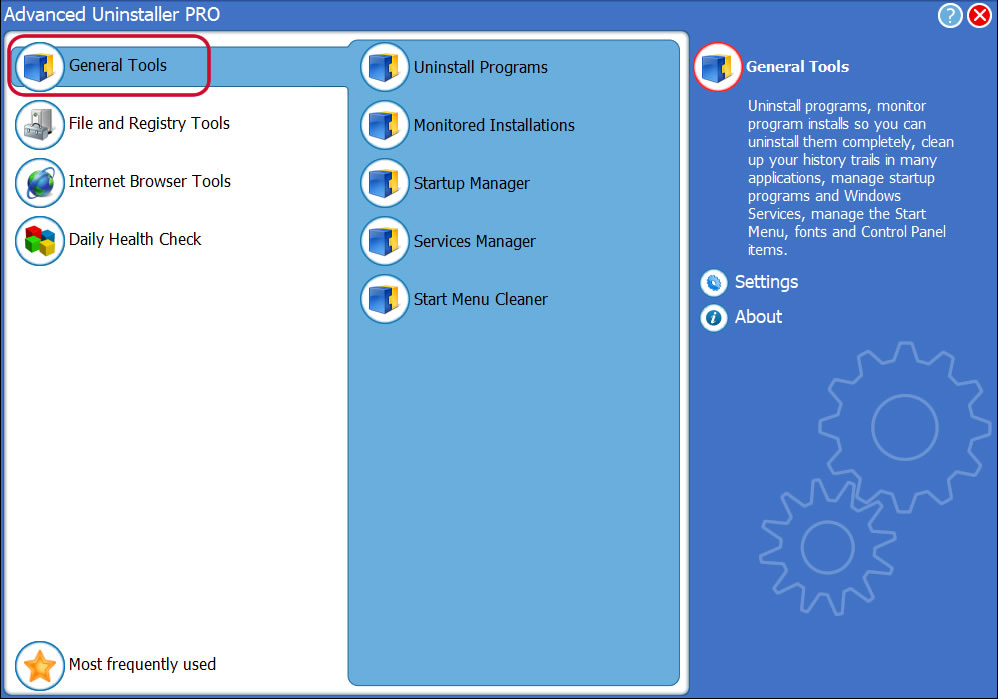
3. Click on the General Tools button
4. Click on the Uninstall Programs button
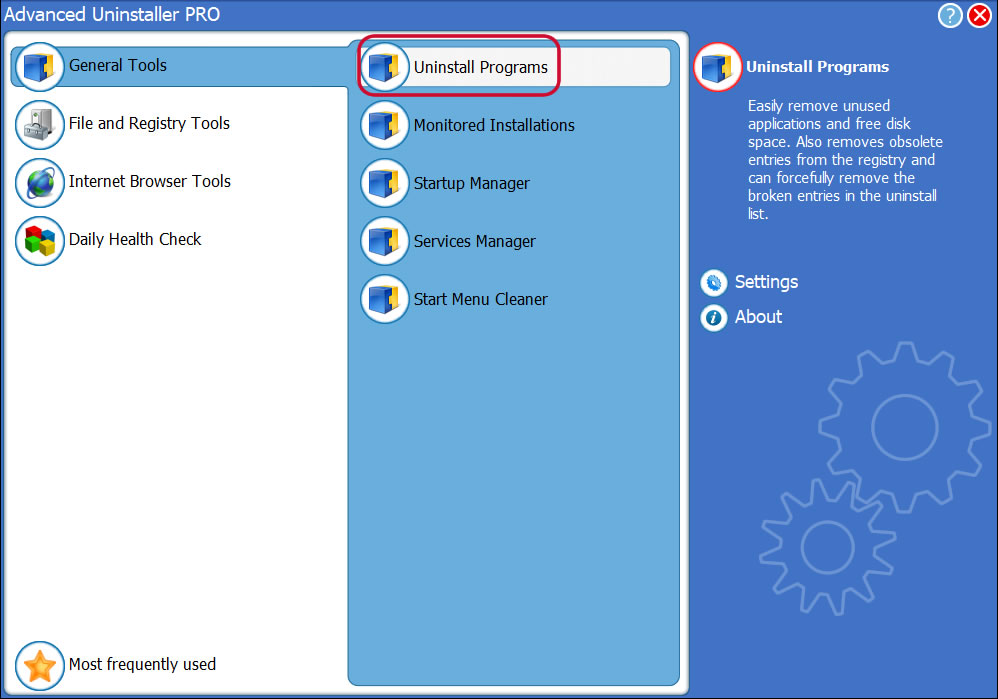
5. A list of the programs installed on your PC will be shown to you
6. Navigate the list of programs until you find Lenovo Solution Center or simply activate the Search field and type in «Lenovo Solution Center». If it exists on your system the Lenovo Solution Center application will be found automatically. Notice that after you select Lenovo Solution Center in the list of apps, the following information about the program is shown to you:
- Safety rating (in the left lower corner). The star rating explains the opinion other users have about Lenovo Solution Center, from «Highly recommended» to «Very dangerous».
- Opinions by other users — Click on the Read reviews button.
- Details about the program you wish to uninstall, by pressing the Properties button.
- The web site of the application is: www.lenovo.com
- The uninstall string is: MsiExec.exe /X
8. After uninstalling Lenovo Solution Center, Advanced Uninstaller PRO will offer to run a cleanup. Press Next to go ahead with the cleanup. All the items that belong Lenovo Solution Center which have been left behind will be detected and you will be able to delete them. By uninstalling Lenovo Solution Center using Advanced Uninstaller PRO, you are assured that no registry items, files or folders are left behind on your computer.
Your PC will remain clean, speedy and able to run without errors or problems.
Geographical user distribution
| United States | 39.46% | |
| United Kingdom | 8.16% | |
| Netherlands | 4.76% | |
| Canada | 4.76% | |
| Germany | 4.08% | |
| Finland | 3.4% | |
| Romania | 2.72% | |
| Turkey | 2.72% | |
| Sweden | 2.72% | |
| Switzerland | 2.04% |
- 10.0
- Windows 7 (6.1)
- Windows 8.1 (6.3)
- Windows 8 (6.2)
Disclaimer
This page is not a recommendation to uninstall Lenovo Solution Center by Lenovo from your computer, we are not saying that Lenovo Solution Center by Lenovo is not a good application for your PC. This page only contains detailed info on how to uninstall Lenovo Solution Center supposing you decide this is what you want to do. Here you can find registry and disk entries that other software left behind and Advanced Uninstaller PRO discovered and classified as «leftovers» on other users’ computers.