VBA – How to Rename or Delete a Module or Form
The first time you insert a module in VBA, it will automatically be given the name of “Module1” and subsequent module will become Module2, Module3 etc. Similarly, when you insert a UserForm it will be called UserForm1, UserForm2 etc.
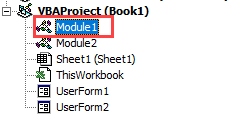
Renaming a Module
To rename your module or form, you need to have the properties window switched on in your VBE.
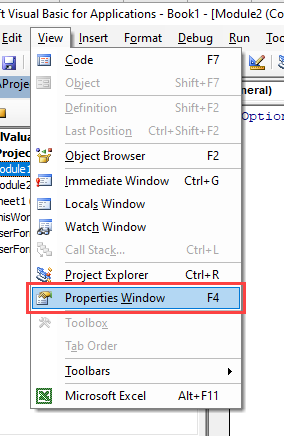
If the properties windows is not showing, press F4 or go to the menu bar and select View > Properties Window.
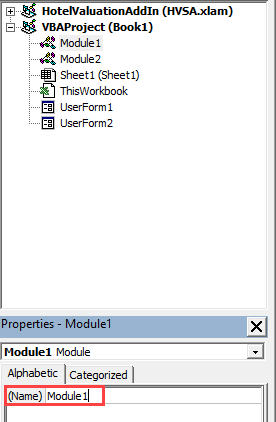
- Click on the module you wish to rename in the Project Explorer.
- Select the name property in the Properties Window (a module will only have this property; a form has multiple properties)
3. Delete the module name (in this case Module1) and type in the name you want to call your module.
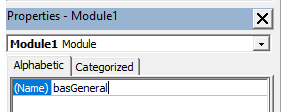
4. Press enter to rename the module.
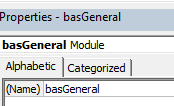
You rename your forms in the same manner.
Delete a Module
Occasionally you may have the need to remove a module or form that you no longer need.
Right-click on the module or form you wish to remove to show the right click short cut menu.
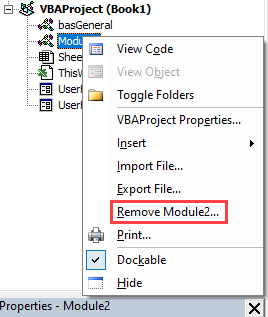
Click Remove (in this case Module2)
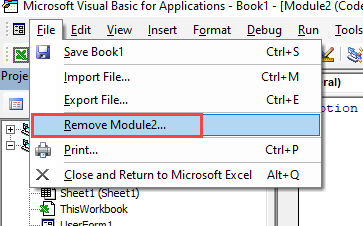
Click on the File menu, and then click on Remove (Module2).
A warning box will appear asking if you want to Export the module or form before you remove it. Exporting the module or form enables you to save it as an individual file for use in a different Excel project at some other time.
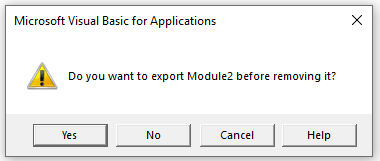
More often than not when you remove a module or form it is because you do not need it, so click No.
Name Modules & Forms
It is good practice to rename modules and forms in order to give them more meaningful names. For example, if UserForm1 is going to be a form for entering invoice details, we can rename it to frmInvoices. Similarly, if Module1 is going to be used to hold some general functions that are going to be used repetitively throughout your code, you could rename it to basGeneral or modGeneral (depending on which naming conventions you like to use).
It is a good idea to be consistent with the naming conventions, both in naming your modules and forms, as well as the variables that you use within your code. You will notice that I have written the first 3 letters of the module or form name in lowercase, and have a capital letter at the beginning of the description for the module or form. This is known as CamelCase (https://en.wikipedia.org/wiki/Camel_case) and is a good habit to get into when naming your objects. I have also used the Leszynski naming convention which is often used by Visual Basic programmers. (https://en.wikipedia.org/wiki/Leszynski_naming_convention).
VBA Coding Made Easy
Stop searching for VBA code online. Learn more about AutoMacro — A VBA Code Builder that allows beginners to code procedures from scratch with minimal coding knowledge and with many time-saving features for all users! 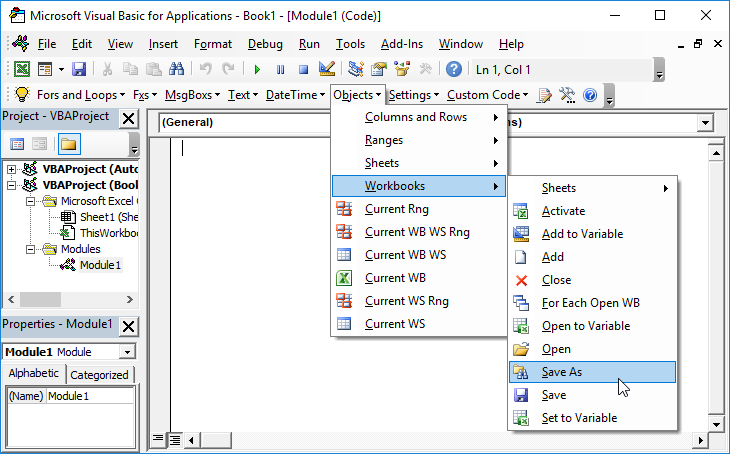
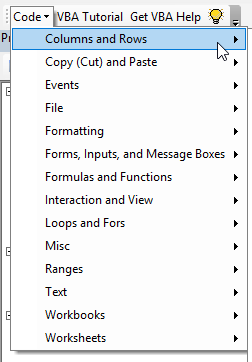
VBA Code Examples Add-in
Easily access all of the code examples found on our site.
Simply navigate to the menu, click, and the code will be inserted directly into your module. .xlam add-in.
How do I delete Module1 using VBA?
I want to delete Module1 using VBA commands within the VBA editor for Excel. Is this possible?
1 Answer 1
It’s complicated. See this link to learn more about why.
In short this is what you need to do:
First you need to reference VBIDE
VBIDE The VBIDE is the object library that defines all the objects and values that make up VBProject and the Visual Basic Editor. You must reference this library to use the VBA Extensibility objects. To add this reference, open the VBA editor, open your VBProject in the editor, and go to the Tools menu. There, choose References . In the References dialog, scroll down to Microsoft Visual Basic for Applications Extensibility 5.3 and check that item in the list. You can add the reference programmatically with code like:
Next, you need to grant ‘Trust access to the Visual Basic Project’
Next, you need to enable programmatic access to the VBA Project. In Excel 2003 and earlier, go the Tools menu (in Excel, not in the VBA editor), choose Macros and then the Security item. In that dialog, click on the Trusted Publishers tab and check the Trust access to the Visual Basic Project setting.
In Excel 2007, click the Developer item on the main Ribbon and then click the Macro Security item in the Code panel. In that dialog, choose Macro Settings and check the Trust access to the VBA project object model.
Now you can add the code to delete the module:
Deleting A Module From A Project
This code will delete Module1 from the VBProject. Note that you cannot remove any of the Sheet modules or the ThisWorkbook module. In general, you cannot delete a module whose Type is vbext_ct_Document.
Delete a module using VBA in Microsoft Excel
In this article we will create a macro to delete module from the workbook.
We will be using the MainModule as raw module.

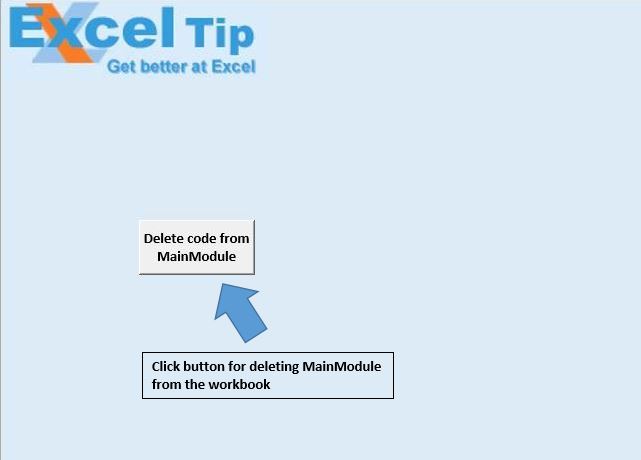
We want to get rid of this MainModule.
Click on this button for the same.

Logic explanation
In this article, we have created two macros, DeleteVBComponent and calling_procedure.
DeleteVBComponent
It takes the workbook name and module name as inputs, and deletes the module from the workbook.
calling_procedure
It is used to call the DeleteVBComponent macro with the active workbook and MainModule as inputs.
Code explanation
This code is used to disable the alert message.
This code is used to remove the module from the workbook.
This code is used to enable the alert message.
Please follow below for the code
If you liked this blog, share it with your friends on Facebook . Also, you can follow us on Twitter and Facebook .
VBA — Как переименовать или удалить модуль или форму

При первой вставке модуля в VBA ему автоматически будет присвоено имя «Модуль1», А последующий модуль станет Module2, Module3 и т. Д. Аналогичным образом, когда вы вставляете пользовательскую форму, она будет называться UserForm1, UserForm2 и т. Д.
Переименование модуля
Чтобы переименовать модуль или форму, вам необходимо включить окно свойств в вашем VBE.
Если окна свойств не отображаются, нажмите F4 или перейдите в строку меню и выберите Вид, Характеристики Окно.

- Щелкните модуль, который хотите переименовать, в Обозреватель проекта.
- Выберите свойство name в Окно свойств (модуль будет иметь только это свойство; форма имеет несколько свойств)

3. Удалите имя модуля (в данном случае Module1) и введите имя, которое вы хотите назвать своим модулем.

4. Нажмите Enter, чтобы переименовать модуль.

Таким же образом вы переименовываете свои формы.
Удаление модуля
Иногда вам может потребоваться удалить модуль или форму, которые вам больше не нужны.
Щелкните правой кнопкой мыши модуль или форму, которые вы хотите удалить, чтобы отобразить контекстное меню, вызываемое правой кнопкой мыши.

Нажмите Удалять (в этом случае Модуль2)
Нажать на Файл меню, а затем нажмите Удалите (Module2).

Появится окно с предупреждением, в котором вас спросят, хотите ли вы экспортировать модуль или форму, прежде чем удалять их. Экспорт модуля или формы позволяет сохранить его как отдельный файл для использования в другом проекте Excel в другое время.

Чаще всего, когда вы удаляете модуль или форму, это происходит потому, что он вам не нужен, поэтому нажмите Нет.
Именование модулей и форм
Рекомендуется переименовывать модули и формы, чтобы дать им более понятные имена. Например, если UserForm1 будет формой для ввода сведений о счете, мы можем переименовать ее в frmInvoices. Точно так же, если Module1 будет использоваться для хранения некоторых общих функций, которые будут повторно использоваться в вашем коде, вы можете переименовать его в basGeneral или modGeneral (в зависимости от того, какие соглашения об именах вы хотите использовать).