[VPN] Як налаштувати сервер VPN на маршрутизаторі ASUS – OpenVPN
Віртуальна приватна мережа: віртуальні приватні мережі шифрують ваше мережеве з’єднання, забезпечуючи безпечну передачу важливої інформації та запобігаючи її крадіжці. Дозволяє віддаленим споживачам (клієнтам VPN) безпечно підключатися до серверів VPN.
VPN має різноманітні методи підключення, ця стаття з маршрутизатором Asus підтримує сервер OpenVPN, щоб виконати налаштування, пов’язані зі вступом, а два інші підтримувані сервери (PPTP VPN, IPSec VPN) налаштування можуть посилатися на наступні відповідні поширені запитання. Рекомендації можна вибрати на основі типу VPN, який підтримує ваш пристрій.
Сервери VPN, які підтримуються бездротовими маршрутизаторами ASUS, відрізняються залежно від моделі, тому рекомендуємо переглянути посібник користувача продукту або сторінку технічних характеристик продукту, щоб переконатися, що ваш маршрутизатор підтримується.
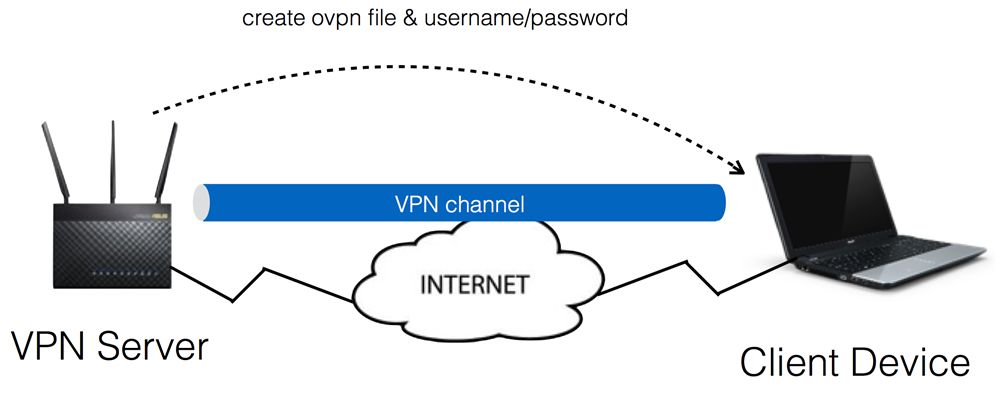
Крок 1. Підключіть свій комп’ютер або пристрій до маршрутизатора, запустіть веб-браузер і введіть http://router.asus.com, щоб увійти на сторінку входу в маршрутизатор. (Веб-інтерфейс користувача)

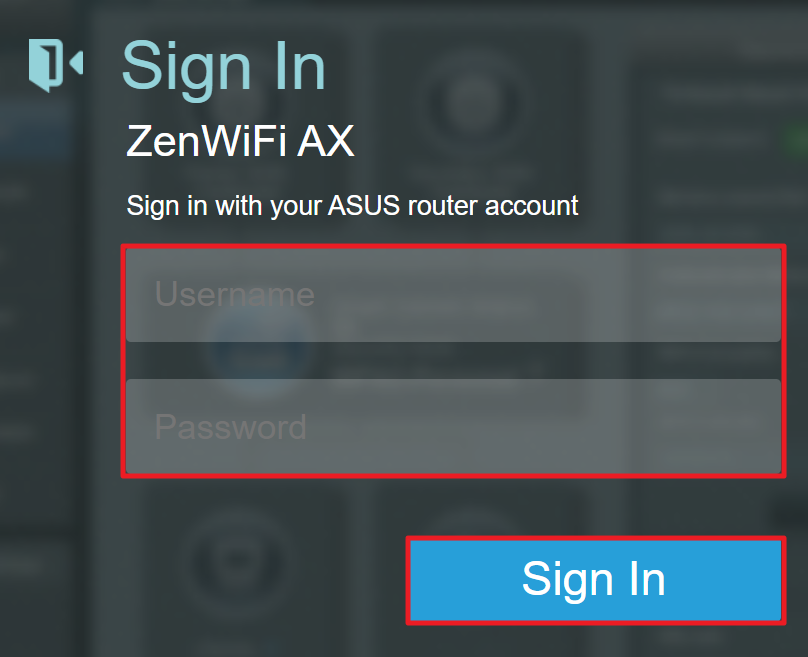
Крок 2. Введіть своє ім’я користувача та пароль на сторінці входу, а потім натисніть [Увійти].
Примітка. Якщо ви забули ім’я користувача та/або пароль, будь ласка, відновіть стан роутера до заводських умов. Зверніться до розділу Як скинути налаштування маршрутизатора до заводських налаштувань за замовчуванням? щоб дізнатися більше.
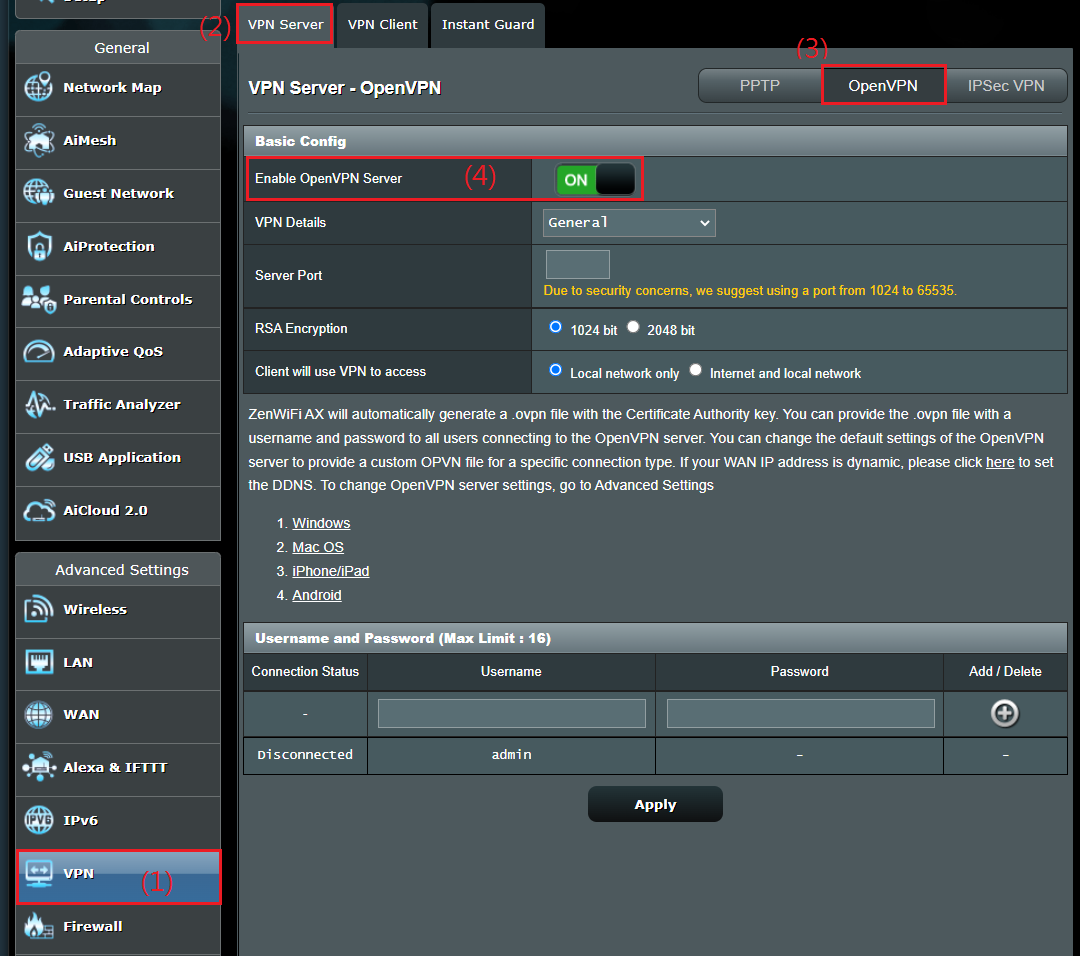
Крок 3. Перейдіть до [VPN] > [Сервер VPN] > [OpenVPN], установіть для Включити OpenVPN сервер значення [ON]
Крок 4. Загальні налаштування
a. Деталі VPN-з'єднання: за замовчуванням [Загальні]
b. Порт сервера: встановіть номер порту для прив’язки. Поточне значення за замовчуванням 1194 представляє офіційний номер порту IANA для OpenVPN.
c. Шифрування RSA: за замовчуванням [1024 біт].
d. Клієнт використовуватиме VPN для доступу: За замовчуванням [Лише локальна мережа]. Коли клієнт VPN підключається до сервера VPN, він може отримати доступ лише до локальної мережі під сервером VPN.
[Інтернет і локальна мережа]: коли клієнт підключається до сервера VPN, він може отримати доступ до локальної мережі під сервером VPN одночасно, а також може отримати доступ до Інтернету через сервер VPN.
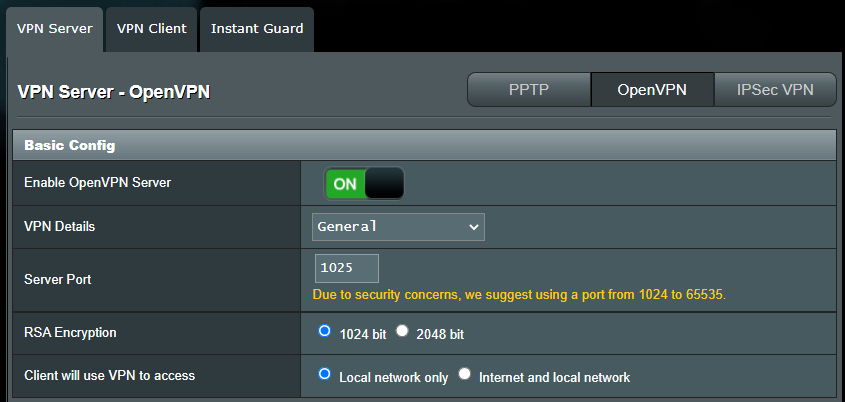
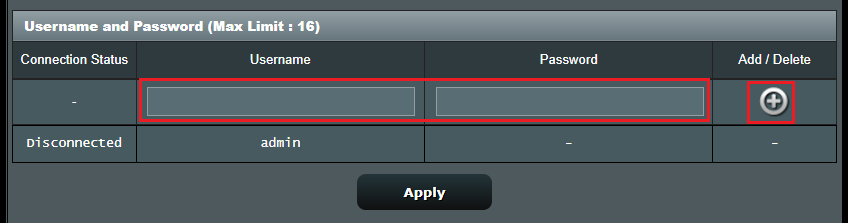
Крок 5. Введіть своє ім’я користувача та пароль у порожній стовпець і натисніть кнопку , щоб створити новий обліковий запис для вашого сервера OpenVPN.
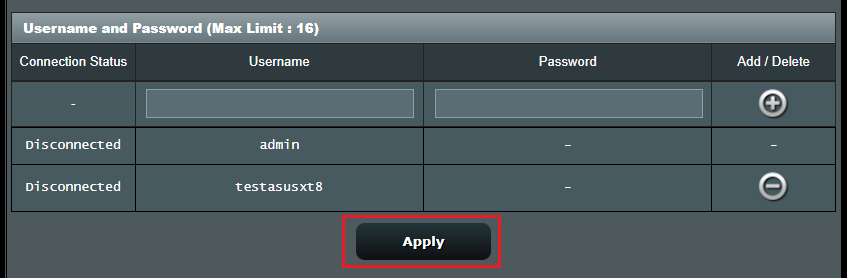
Крок 6. Пароль автоматично приховано, натисніть кнопку [Застосувати], щоб зберегти налаштування OpenVPN.
Ініціалізація налаштувань сервера OpenVPN і створення файлу конфігурації openv VPN займе кілька хвилин. Після цього натисніть кнопку [Експортувати], щоб зберегти файл конфігурації ovpn під назвою «client.ovpn».
Тепер ви завершили налаштування сервера OpenVPN. Будь ласка, перейдіть на сторону клієнта, щоб створити клієнтське підключення OpenVPN.

1. Скільки клієнтів підключення підтримується?
OpenVPN може підтримувати більше 10 підключень клієнтів, але стабільність залежить від пропускної здатності маршрутизатора.
2. Як зберегти файл конфігурації сервера OpenVPN?
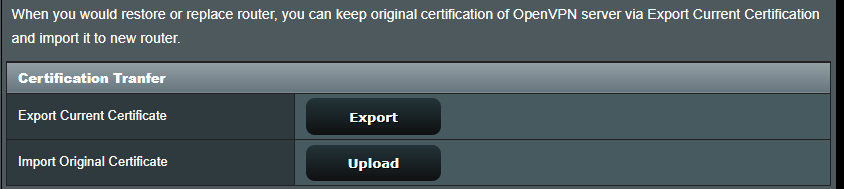
Коли ви хочете відновити або замінити маршрутизатор, ви можете зберегти оригінальну сертифікацію сервера OpenVPN за допомогою Експортувати поточну сертифікацію та імпортувати її на новий маршрутизатор.
3. Де розширені налаштування OpenVPN?
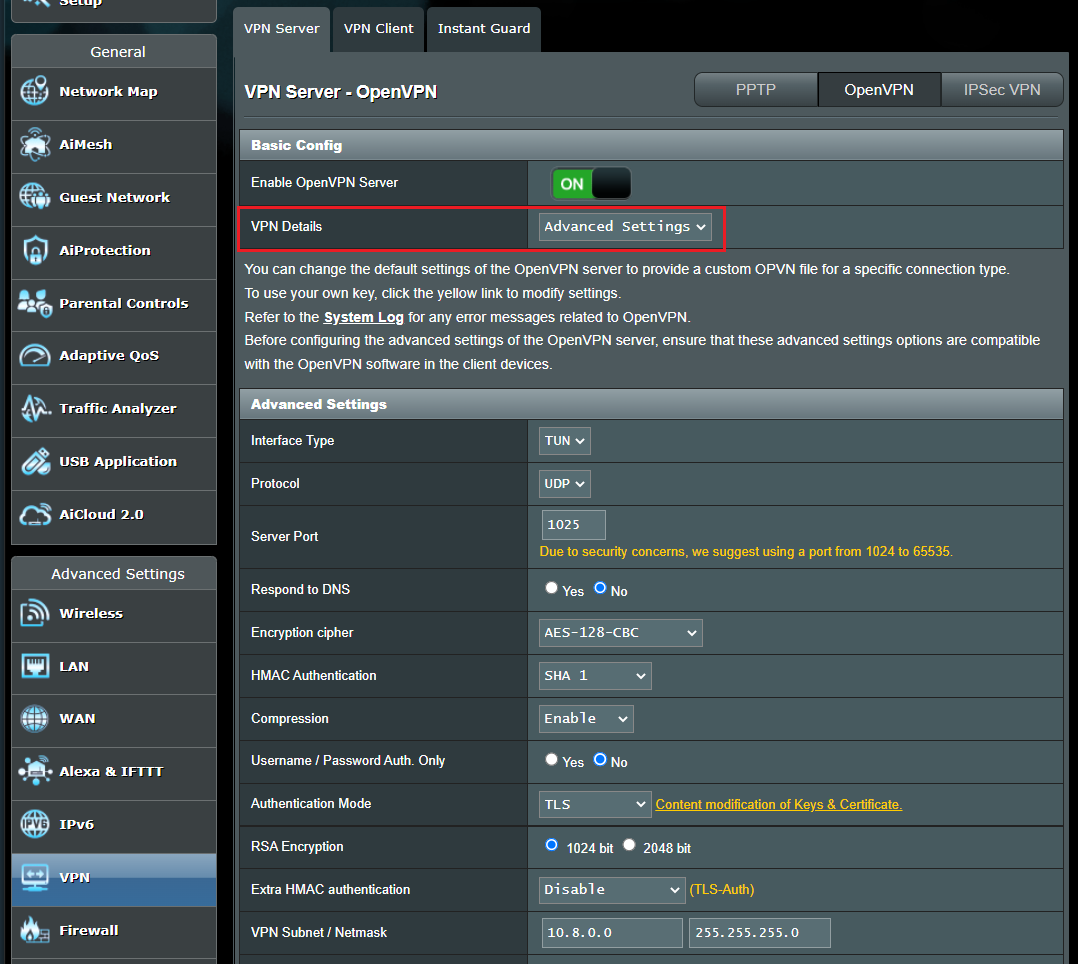
Ми пропонуємо розширені налаштування OpenVPN. За потреби перейдіть на сторінку [Деталі VPN] > [Додаткові налаштування] та виконайте подальшу настройку.
4. Як змінити ключі та сертифікат сервера OpenVPN?
Перейдіть на сторінку [Деталі VPN] > [Додаткові налаштування].
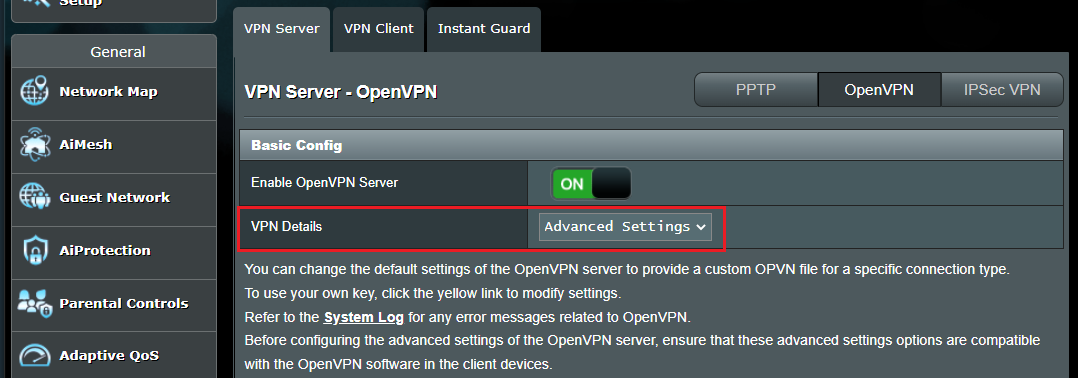
Клацніть [Модифікація вмісту ключів і сертифіката]

Змініть вміст і натисніть кнопку [Зберегти], щоб зберегти налаштування.
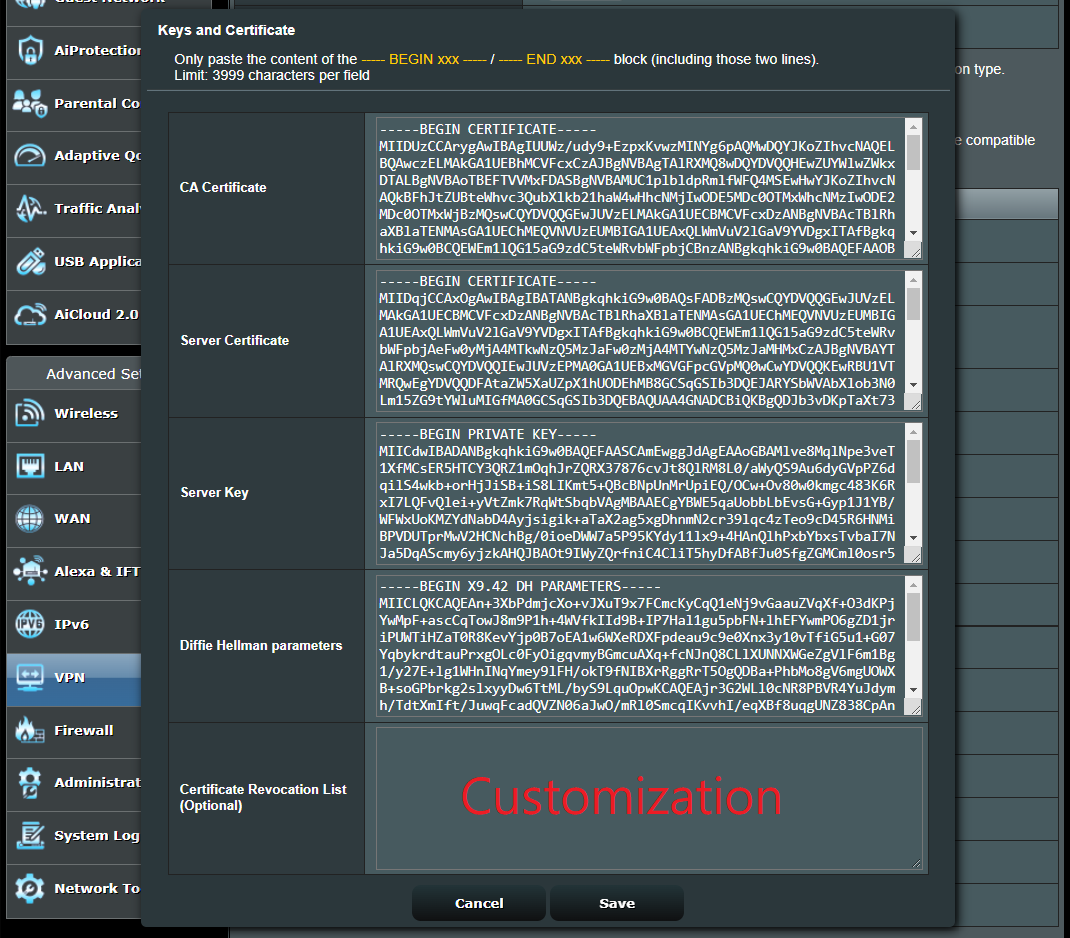
Натисніть кнопку [Застосувати], щоб зберегти налаштування OpenVPN.
Як отримати (утиліту/прошивку)?
Ви можете завантажити найновіші драйвери, програмне забезпечення, мікропрограми та посібники користувача в Центрі завантажень ASUS.
Якщо вам потрібна додаткова інформація про центр завантажень ASUS, перейдіть за цим посиланням.
[VPN] Как настроить VPN сервер на роутере Asus — OpenVPN
Отсканируйте QR-код, чтобы открыть эту страницу на вашем смартфоне.
[VPN] Как настроить VPN сервер на роутере Asus — OpenVPN
Введение
Виртуальная частная сеть: Виртуальные частные сети шифруют Ваше сетевое соединение, обеспечивая безопасную передачу важной информации и предотвращая ее кражу. Позволяет удаленным потребителям (VPN-клиентам) безопасно подключаться к VPN-серверам.
VPN имеет множество способов подключения, в этой статье информация о настройках OpenVPN сервера в маршрутизаторах Asus, для выполнения настроек, связанных с другими типами поддерживаемых серверов (PPTP VPN, IPSec VPN) настройки можно найти в следующих связанных часто задаваемых вопросах. Рекомендации могут быть выбраны в зависимости от типа VPN, поддерживаемого Вашим устройством.
Для настройки PPTP VPN сервера, пожалуйста, oбратитесь к https://www.asus.com/ru/support/FAQ/114892
Для настройки IPSec VPN сервера, пожалуйста, обратитесь к https://www.asus.com/support/FAQ/1044190
VPN-серверы, поддерживаемые беспроводными маршрутизаторами ASUS, различаются в зависимости от модели. Рекомендуется обратиться к руководству пользователя продукта или странице технических характеристик продукта, чтобы подтвердить, что Ваш маршрутизатор поддерживает данный функционал.
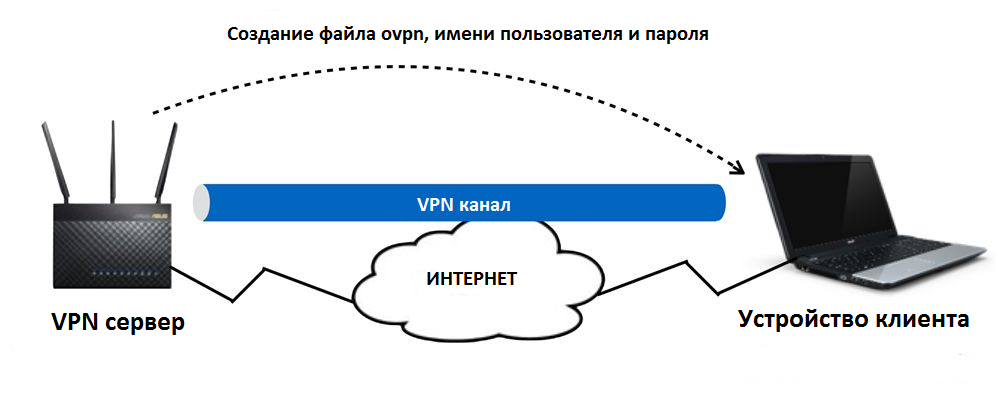
Шаг 1. Пожалуйста, подключите свой компьютер или устройство к маршрутизатору, запустите веб-браузер и введите http://router.asus.com, чтобы войти на страницу входа в маршрутизатор.(Графический веб интерфейс, GUI)
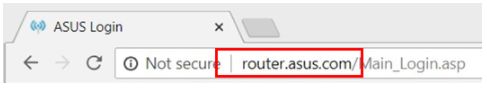
Примечание: воспользуйтесь ссылкой, чтобы узнать больше о том, как войти в интерфейс.
Шаг 2. Введите свое имя пользователя и пароль для входа на страницу входа, а затем нажмите [Войти].
Примечание: Если Вы забыли Имя пользователя и пароль, пожалуйста, сбросьте настройки роутера по умолчанию. Пожалуйста, обратитесь к Как сбросить настройки роутера по умолчанию?
Шаг 3. Откройте настройки [VPN] > [VPN Server] > [OpenVPN], Включите OpenVPN сервер — положение [ON].
Шаг4. Основные настройки
a. Подробнее о VPN: По умолчанию как [Основные].
b. Порт сервера: Укажите порт соединения. Текущий порт по умолчанию 1194 определяется IANA номерами портов для OpenVPN.
c. RSA Encryption: По умолчанию как [1024 bit].
d. Клиент будет использовать VPN для доступа: По умолчанию [Только локальная сеть]. Когда VPN-клиент подключается к VPN-серверу, он может получить доступ только к локальной сети за VPN-сервером.
[Интернет и локальная сеть]: Когда клиент подключается к VPN-серверу, он может одновременно получить доступ к локальной сети за VPN-сервером, а также может получить доступ к Интернету через VPN-сервер.
Шаг 5. Введите Ваши имя пользователя и пароль и щелкните по кнопке чтобы создать новую учетную запись для Вашего сервера OpenVPN.
Шаг 6. Пароль будет автоматически скрыт, щелкните [Применить], чтобы сохранить настройки OpenVPN.
Потребуется несколько минут, чтобы инициализировать настройки сервера OpenVPN и сгенерировать файл конфигурации openv. После этого, пожалуйста, нажмите кнопку [Экспорт], чтобы сохранить файл конфигурации ovpn с именем "client.ovpn".
Теперь Вы завершаете настройку OpenVPN на стороне сервера. Пожалуйста, перейдите на сторону клиента, чтобы установить клиентское соединение OpenVPN.
Для получения информации о настройках VPN-клиента ASUS Router, пожалуйста, обратитесь к
Вопросы-Ответы
1: Сколько клиентов может подключиться?
OPEN VPN может поддерживать более 10 клиентских подключений, но стабильность зависит от пропускной способности маршрутизатора.
2. Как сохранить файл настроек OpenVPN сервера?
Когда Вы хотите восстановить или заменить маршрутизатор, Вы можете сохранить исходную сертификацию сервера OpenVPN через Экспорт текущей сертификации и импортировать ее на новый маршрутизатор.
3. Где Дополнительные настройки OpenVPN?
Мы предоставляем более продвинутые настройки для OpenVPN. При необходимости, пожалуйста, перейдите к [VPN Details] >[Advanced Settings] для настройки.
4. Как изменить ключи и сертификат сервера OpenVPN?
Откройте страницу [VPN Details] >[Advanced Settings]
Щелкните по [Content modification of Keys & Certificate].
Измените содержимое и щелкните кнопку [Сохранить] для сохранения настроек.
Нажмите кнопку [Применить] для сохранения настроек OpenVPN.
Как скачать (Утилиты / ПО)?
Вы можете загрузить последние версии драйверов, программного обеспечения, микропрограмм и руководств пользователя в Центре загрузок ASUS.
How to set up OpenVPN client on Asus routers with ASUSWRT
Asus’s higher-end router models are some of the only consumer routers in the marketplace with built-in OpenVPN support. ASUSWRT (Asus’s custom router firmware) has native support for OpenVPN in both client and server mode.
This tutorial will show you how to configure your ASUS router to run as an OpenVPN client, which will set up a permanent VPN tunnel from the router.
This setup allows you to connect an unlimited number of devices to the same VPN connection.
This is perfect for devices that don’t have built-in VPN support such as:
- AppleTV
- FireTV
- Xbox (Xbox 360 & Xbox One)
- Playstation (PS3/PS4)
- Chromecast
- Roku
When you use our recommended Dual-Router VPN setup, it makes initiating a VPN connection as easy as switching wireless networks, allowing all of your computers and devices quick, secure access to VPN encryption.
ASUSWRT also supports the PPTP and L2TP VPN protocols, but OpenVPN is much more secure/flexible, and is definitely the recommended protocol.
Supported Routers
This tutorial will work for any ASUS router that comes with ASUSWRT firmware. Here is the current list of supported routers:
- RT-N66U
- RT-AC56U
- RT-AC66U
- RT-AC68U
- RT-AC68P
- RT-AC87U
- RT-AC3200
- RT-AC88U
- RT-AC3100
- RT-AC5300
What you need for this tutorial:
- A router running ASUSWRT (list in the previous section)
- An active VPN subscription to a provider with ASUSWRT-compatible OpenVPN configs
- The OpenVPN configuration (.ovpn) and files from your VPN service
- The Certificate Authority .crt file from your provider (some providers embed the certificate in the .ovpn file. We’ll go into more detail in the step-by-step instructions).
Almost all VPN providers will make their .ovpn files for all servers easily downloadable from either their knowledgebase/tech support pages, or from inside your account panel. If you aren’t sure where to find them, just ask live chat or submit a support ticket.
Which VPNs are compatible with ASUSWRT?
Most (but not all) VPN providers are currently capable with ASUSWRT. The reason being, that ASUSWRT firmware doesn’t support any advanced VPN configuration options beyond importing an OpenVPN config (.ovpn) file. Some VPN providers config files require the ability to add custom instructions to the routers’ openVPN client.
Don’t worry, if your VPN provider doesn’t natively support ASUSWRT, you have 4 options:
- Ask them to create a custom .ovpn file for you (most VPNs will probably do it if they are able)
- Install ASUSWRT-MERLIN firmware on your router (which allows advanced OpenVPN configurations).
- Flash the Tomato-shibby or DD-WRT firmware on your router (advanced users).
- Edit the .ovpn file yourself to include the advanced configuration options
A non-exhaustive list of compatible VPNs
This list includes only VPNs that I have personally tested an confirmed to be working with ASUSWRT. If your VPN is not on the list, it may well still work with an ASUSWRT router. My best advice is to contact your provider for support if you’re having difficulties.
VPNs confirmed to work with ASUSWRT routers:
- Private Internet Access
- Proxy.sh (using iOS/Android configs. Not windows configs)
- Torguard (they provide custom ASUSWRT configs)
- IPVanish (requires manually importing CA file after uploading .ovpn)
- Hidemyass
- VPN.ac
If you’ve gotten other providers to work, please let me know in the comments and I’ll add them to the list. Thanks!
Video Tutorial
Here’s the video setup guide. You can also use the text walk-thru in the remainder of the article.
How to access ASUSWRT OpenVPN client settings:
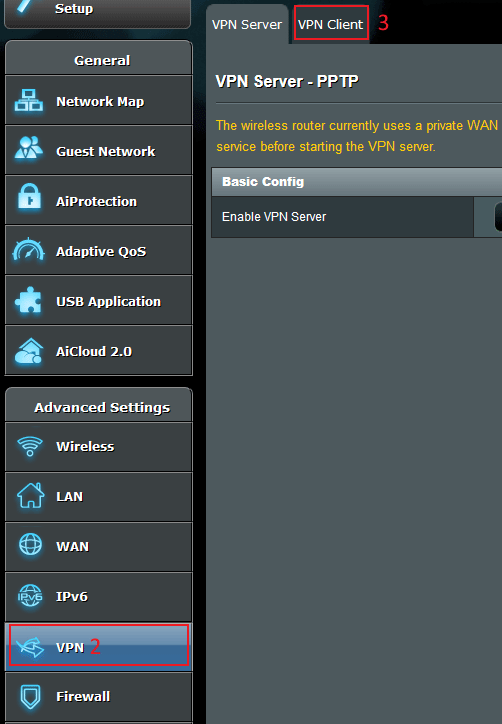
- Log in to your asus router control panel by typing the router IP address into your URL bar of your web browser. Since I’m using a dual-router setup, I changed my router to 192.168.2.1 but yours may be different. The default IP for Asus routers is 192.168.1.1
2. Under the advanced settings tab on the left side, go to ‘VPN’ (shown below)
3. Then click on the ‘VPN Client’ tab (shown below)
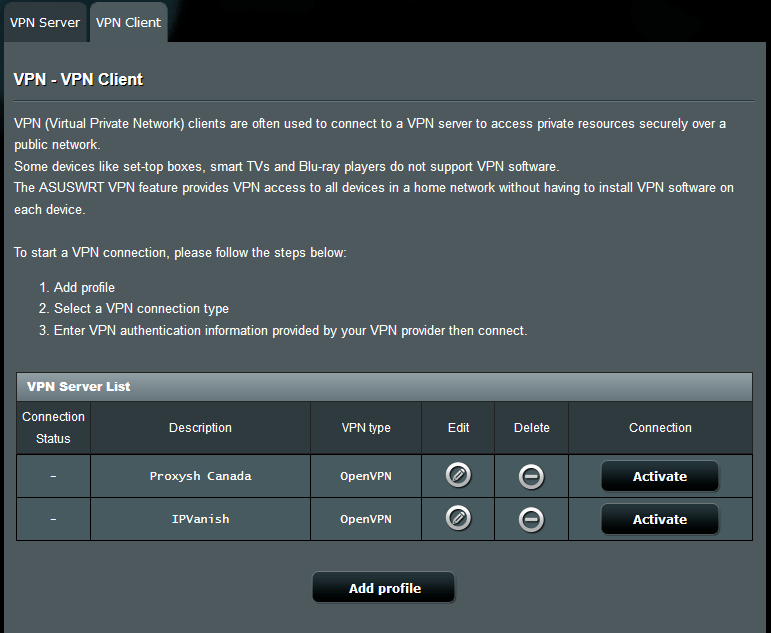
You should now be at the VPN Client screen, which should look something like the image below. You can click the ‘Add Profile’ button to create a new VPN connection.
Set up the OpenVPN connection
Now we’re ready to create a new OpenVPN profile for your router. You’ll need 3 pieces of information from your VPN provider:
- Your VPN Login/Password
- The .ovpn config file of the server location you want to use
- Your CA certificate file (some VPNs include the CA in your .ovpn file, others provide a separate .crt file)
Some info about .ovpn and CA certificates
Fortunately, ASUSWRT allows you to manually import the certificate file if your VPN provider doesn’t include it in your .ovpn files. When we setup the connection, ASUSWRT will actually warn you if the .ovpn file does not contain a CA, but we can also check in advance by opening your .ovpn file with a simple text editor like notepad.
If your .ovpn file does have a CA embedded, it will include something that looks like this:
<ca>
—–BEGIN CERTIFICATE—–
MIIDljCCAv+gAwIBAgIJANMiwLWxktowMA0GCSqGSIb3DQEBBQUAMIGPMQswCQYD
VQQGEwJSTzEMMAoGA1UECBMDQlVDMRIwEAYDVQQHEwlCdWNoYXJlc3QxDzANBgNV
BAoTBlZQTi5BQzEPMA0GA1UECxMGVlBOLkFDMQ8wDQYDVQQDEwZWUE4uQUMxDzAN
BgNVBCkTBlZQTi5BQzEaMBgGCSqGSIb3DQEJARYLaW5mb0B2cG4uYWMwHhcNMTIx
MTI2MTI0NDMzWhcNMjIxMTI0MTI0NDMzWjCBjzELMAkGA1UEBhMCUk8xDDAKBgNV
BAgTA0JVQzESMBAGA1UEBxMJQnVjaGFyZXN0MQ8wDQYDVQQKEwZWUE4uQUMxDzAN
BgNVBAsTBlZQTi5BQzEPMA0GA1UEAxMGVlBOLkFDMQ8wDQYDVQQpEwZWUE4uQUMx
GjAYBgkqhkiG9w0BCQEWC2luZm9AdnBuLmFjMIGfMA0GCSqGSIb3DQEBAQUAA4GN
qRI4JvSeZc4/ww==
—–END CERTIFICATE—–
</ca>
If not, it will be a much shorter config file (and won’t contain the ‘—-BEGIN CERTIFICATE—-‘ or ‘—-END CERTIFICATE—-‘ lines. Below is a full .ovpn file from IPVanish:
Step #1 – Create your OpenVPN profile
Click the ‘Add profile’ button to create a new VPN profile.
Select the ‘OpenVPN’ tab from the window that pops up.
Add a description of the profile. This will be the name that shows up in your list of available VPN connections. I like to use the following formula:
VPN name + server location
For this tutorial I’m using IPVanish’s Texas server so I’ll call it ‘IPVanish Texas’. Simple.
Also add your VPN username/password.
Step #2 – Import the .ovpn file
Click the ‘Browse…’ button to locate your .ovpn file.
Then find the directory where you saved it double click to open it in ASUSWRT.
Click ‘Upload’ to send the .ovpn file to your router.
You should now get a message saying ‘Upload Complete’. If it also says ‘Lack of certificate authority’ (meaning your .ovpn file doesn’t contain a certificate) then proceed to the next step to add one manually.
Step #3 – Add a CA client certificate (Optional)
This step is only required if your .ovpn file doesn’t contain a certificate already. You can either upload the .crt file to the router(provided by your VPN provider) or just copy and paste the certificate text (usually found in a how-to guide on your VPN’s website).
To import your CA file, follow these steps:
- Check the box ‘Import the CA file or edit the .ovpn file manually’
- Click ‘Browse…’ to locate your .crt file you downloaded from your provider
- Click ‘Upload’ to send it to the router.
So now our .crt file is successfully uploaded to the router. All that’s left to do is click ‘OK’ to save your profile. Now we can test the setup to make sure it’s working.
Step #4 – Test the VPN setup
Click the ‘Activate’ button to test your new VPN connection.
If the connection is successful, you’ll get a blue checkmark in the ‘Connection Status’ column like this:
Step #5 – Troubleshooting
If you get an ‘X’ instead of a checkmark, it means your settings are incorrect. Redo the setup and double-check that your username, password, and .crt file are all correct.
If all else fails, check your router’s log. Most .ovpn files will tell the router to log the VPN connection process to the primary router log for troubleshooting purposes. You can then share the log file with your VPN’s tech support team and they can help you troubleshoot the issue.
To access your router’s logs, go to: Advanced settings > System Log > general log
Wrapup and resources
Thanks for checking out this tutorial. Hopefully if you’ve made it this far, you’ve got yourself a fully functional VPN router.
Make sure to leave any questions or tips in the comment section, we go through and respond as often as possible.
Be well, and stay encrypted!
Read This Next

How to use the Best VPNs on your Amazon Kindle Fire Tablet

How to stop Video Throttling on Unlimited data plans (and stream in 4k)

How to share Unlimited 4G Data with your Router
147 thoughts on “How to set up OpenVPN client on Asus routers with ASUSWRT”
Please note that private Internet access does not supply .ovpn files. That was the reason I did not use them.
However, to be sure I checked again and mailed them again:
“Jul 26, 07:40 PDT
Do you supply .ovpn files for setting up an Asus router as a VPN client?”
I got this answer:
“Almost any router with VPN capability could work with our service. However, we only offer ready VPN setup guides for routers using specific router firmware. Here is a list of routers compatible with each of the currently supported firmware types:
( actual links removed because they gave spam indication when submitting)
The directions for router based VPN setups for these firmware can be found on this page ( removed Link)
In all likelihood, you will need to install (“flash”) such custom router firmware onto your router. Please note that router flashing falls outside our support scope, and doing so would be at your own discretion and liability.
It may be possible to configure VPN use on stock or other firmware, provided it has VPN configuration options, but we would not have a ready guide for its use. You could try to find help with such a setup on the PIA forum:
Trevor F.
Technical Support Specialist
Private Internet Access™”
PIA definitely has .ovpn files available. I think what the tech rep was saying is they don’t have specific setup tutorials for ASUSWRT or dedicated .ovpn files specifically for ASUSWRT.
However, the ‘default’ .ovpn files provided by private internet access on their support page work flawlessly with the setup described in our tutorial. I have used PIA on my router successfully for over a year, and I’ve verified both the VPN connection as well as proper encryption.
Nice guide, thank you!
I have 2 ASUS RT-AC88U routers; one for VPN and the other non-VPN. Ideally, I would like to just have one router, but use the guest WiFi network for VPN purposes, so I could just switch between WiFi networks when I want to connect to the internet via VPN or non-VPN.
Is this possible? Can I route internet traffic this way?
That’s a good question. On the stock ASUS firmware I don’t think it’s possible, however if you were to upgrade to ASUSWRT-Merlin (which is basically an ASUS-specific version of Tomato’s router firmware) I think you might be able to achieve this with some advanced routing/ip-tables tweaking.
Unfortunately, that level of networking sophistication is beyond my ability. Perhaps an IT pro will weigh in on the topic eventually. A good place to get a real answer would be stackexchange. If you do get a better answer, I’d be thrilled if you stop back and let me know how it works, and we’ll do our best to turn it into a tutorial. That would be a really useful trick.
For the record, I currently use a 2-router setup (though my ISP requires me to use their router as my primary, so I couldn’t drop it to one even if I wanted to).
I’m interested in this option as well. I found a wiki on github called “How to setup SSID for VPN and SSID for Regular ISP using OpenVPN” that seems to address this question, but it’s over my head technically so I can’t confirm that it works yet.
First off, I want to point out that these scrips (and the entire wiki) are devoted to ASUSWRT-merlin which is an unofficial (but excellent) third-party firmware designed to work natively with all ASUSWRT routers. These scrips won’t work with the stock firmware, you must upgrade to merlin. ASUSWRT-merlin is basically TomatoUSB firmware ported specifically for ASUS routers, and the functionality is virtually identical.
The wiki you found seems like a phenomenal resource, and it appears they have tons of plug and play scripts. However, the specific article you reference actually has a note at the start stating: “This WIKI is not complete. If you understand the script and would like to use it, feel free…” The script is also over my head as well, however it’s worth a shot trying to get it to work if having separate VPN routing on the same router is very important to you.
I also think you much be able to achieve the same effect easier by using policy-based routing: https://github.com/RMerl/asuswrt-merlin/wiki/Policy-based-routing, and simply route all traffic from your Guest SSID to the WAN and all traffic from your Primary SSID to the VPN. The wiki article doesn’t have a specific example for this use-case, but I bet with some trial and error and googling you can figure it out.
Hello,
If you already have 2 routers, isn’t the obvious solution to run your WAN into “Router A” (non-VPN), use it normally, then connect your “Router B” as a client of Router A, and install the VPN client on Router B? Connecting to Router A’s SSID should then put you ‘in front of’ the router running the VPN and be an open connection, whereas connecting to Router B’s SSID would always be a VPN connection.
Yep, that’s what I recommend in the dedicated VPN Router tutorial.
I was successfully able to reach to the last step and I do get the green check mark, however none of my devices are able to access internet if I leave the openVPN activated. Not sure what is going on, I have to deactivate and then only my android phone and fire stick will be connected to internet. Any thoughts on that?
Found out what the issue was, basically whenever the openVPN was active, it would change the route settings and hence there were 3 routes with the interface (iface) tunX. So I had to remove those routes and once I did that, everything is working smoothly.
Thanks for posting the fix! Where did you remove the routes, in ASUSWRT under static routes?
V4Vendeta I have the exact same problem on my flashed asus wrt.. Can you please elaborate on how exactly you fixed your problem??
V4Vendeta Could you tell me how you fixed the problem in detail? I’m having the same problem. Thanks
I have the exact same issue. I get the Checkmark, says Active and then nothing works. Can you please explain your fix?
I posted a fix a few posts down.
Try what I posted and you should be fine after that.
This information is extremely helpful. I have found documentation on VPN providers websites that support ASUSWRT for both ExpressVPN and NordVPN, specifically for the ASUS models. However I have received zero helpful information from IPVanish, and limited helpful information from Private Internet Access. How would I know which files I need to download and install if they absolutely offer no support regarding my needs? Any ideas?
The response from IPVanish is as follows.
For routers we only support DD-WRT and Tomato configuration. We cannot answer any of your questions if they do not pertain to any of this firmware.
We have .ovpn files and .crt files available but we only use them for manual OpenVPN configuration for Windows and Mac. We do not support router configuration using our OpenVPN and certificate files.
We do not offer killswitch.
Regards,
IPVanish only has one set of OpenVPN config files available for download, but they should work just fine for any device that is openVPN compatible. The configs can be found here: https://www.ipvanish.com/software/configs/.
Don’t worry if IPVanish support told you they only support DDWRT or Tomato. ASUSWRT works perfectly with almost any OpenVPN compatible VPN. I haven’t yet come across a provider that isn’t compatible. One quirk about IPVanish is if you disconnect and reconnect to the connection using your router control panel, it will often generate a routing error. This is a known issue on IPVanish’s side. It’s more of an annoyance than an actually security risk and your connection will still work correctly even if you get that message (but it’s good to verify your IP and location has changed by using a tool like ipleak.net iplocation.com.
Routers don’t have native support for advanced features like a VPN kill-switch, however you can ‘roll-your-own’ kill switch if you have some technical know-how and are willing to upgrade to a third-party firmware like TomatoUSB or ASUSWRT-Merlin. In the future this site will have some Merlin DIY tutorials, but honestly that’s a ways off.
Hi, I have set up IPVanish on my DSL-AC68U according to your instructions above however I am unable to get to any websites once I activate the vpn. I get the blue tick to say the connection is up but no websites will come up. Any ideas?
Which set of .ovpn files are you using for IPVanish? I think they recently upgrade their configs, making all previous files useless.
I have the same issues and I have the latest version from the ipvanish website.
VPN is connected and activated however all internet access is lost.
I was reading the HMA and i see that they say to enter their dns settings under your WAN settings. I have not tried this yet but will do soon.
Yep, just add a DNS server under LAN > DCHP Server (tab) > DNS Server
I found a fix for this.
Under you WAN settings, select NO for Connect to DNS Server automatically?
Use googles DNS servers as listed below;
DNS Server 1 = 8.8.8.8
DNS Server 2 = 8.8.4.4
You should now be able to browse the internet.
There are other public DNS servers but I chose googles as the ping to them is some of the lowest found.
Fantastic! Thank you Dean this has fixed it!
Many thanks for your time in responding.
Hi, I did the fix you posted above and am still not able to get anything to load. I keep getting a notification that the WAN IP is not the external IP so no external IP services will work. Any ideas?
This sounds like a router setup issue, not a VPN issue. Try the following…
1. Set your WAN ip to ‘automatic ip’
2. Make sure DHCP is enabled
3. Make sure WAN status shows ‘connected’ in the Network map tab
If there is a firmware update available, make sure to update. And it’s a good idea to restart your router after changing these settings regardless.
Thanks for the reply, everything is up to date including the most recent config files. I have everything above enabled and when I go to a page I get the following message:
site can’t be reached
DNS_PROBE_FINISHED_BAD_CONFIG
Thank you Dean. been 2 days figuring it out. I have a ASUS RT-AC68U and just ipvanish and activated the openvpn client ok (blue check mark) but would receive ‘… DNS address could not be found. … DNS_PROBE_FINISHED_BAD_CONFIG’. Changing the DNS servers under the WAN settings to the google servers fixed the problem. Curious as to how you figured that out. Thanks again so much!
I also wanted to say thank for this.
You’re quite welcome.
You’ve already been thanked – but I’d like to add to the aplomb.
I had the same issues as you all did here. I could see that there wan an active internet connection however nothing was being resolved.
If you typed an IP address of a website into your browser, you could browse to the site however when using the domain name, the domain name was not resolving to an IP.
I initially tried entering my ISP’s DNS servers to force them to resolve however that failed so I then tried Googles and they worked. I tried some other from OpenDNS too and they worked as well however doing a speed test between the few that I tried, Googles proved to have the lowest ping.
From what I understand, after doing some testing on the IPVanish Windows client, it uses Googles DNS server anyway.
I am glad that this has helped so many. It is quite frustrating when working on it for a few days with no result.
dear god, isn’t using google about the opposite of why you would ever want to run an VPN in the first place? if your VPN provider has DNS servers, why wouldn’t you use them?! I have the same model ASUS and when I tried putting my VPNs DNS servers in the WAN settings nothing would connect (PIA vpn); however, editing the config (.ovpn) file and adding “dhcp-option DNS a.b.c.d” (it allowed me to give it 2 such lines so I have a primare and secondary DNS lookup) worked flawlessly.. hope this helps?
I signed up to IPVanish because they claim to have multiple servers in the Atlanta area. I downloaded the OpenVPN and certificate file. It did not work on my new ASUSWRT router. I had to cancel the service.
If my asus rtac66u works like an vpnclient, how do i acces my Synology NAS DS216+ when i am away from home
Aka
Router is vpnclient
Nas behind the router , this should be a vpn server to be able to get acces from anywhere from the world.
Any ideas , info how to set this up ( besides setting up de vpnclient on the router as this is explained here)
Thx
Regards Niels
I believe the Ai Cloud feature of ASUSWRT is built for this exact purpose.
Same as Nick. merlin 380.61 on RT-AC68U doesnot give me the option to upload a .ca file. I can get to manually input the CA (between the BEGIN and END tags) but that doesn’t work:
Nov 29 16:15:40 rc_service: httpd 450:notify_rc start_vpnclient1
Nov 29 16:15:40 kernel: tun: Universal TUN/TAP device driver, 1.6
Nov 29 16:15:40 kernel: tun: (C) 1999-2004 Max Krasnyansky
Nov 29 16:15:41 openvpn[10513]: Options error: You must define CA file (–ca) or CA path (–capath)
Nov 29 16:15:41 openvpn[10513]: Use –help for more information.
Nov 29 16:15:41 syslog: VPN_LOG_ERROR: 452: Starting OpenVPN failed…
So far I don’t have any experience with Merlin, however I do know that it is basically a skin of the Tomato router firmware, so you may be able to follow VPN setup instructions for tomato and adapt them to Merlin.
There are also a couple Merlin guides for specific VPN providers floating around, which can probably help you troubleshoot what you’re doing wrong…
It is a priority for us to get an ASUSWRT-Merlin guide up early in 2017, but I’m sure you’d rather just get this done ASAP. I hope this helps!
After I press “activate” it just keep loading on “connection status”.. Any idea why?
This is my log:
TLS Error: TLS key negotiation failed to occur within 60 seconds (check your network connectivity)
TLS Error: TLS handshake failed
The handshake is the initial part of the VPN connection, where you and the VPN server securely exchange the 256-bit or 128-bit session encryption key. If the TLS handshake failed, most likely you either uploaded the wrong CA (certificate) file, or forgot to upload one altogether. Sometimes I forget to remember to save the changes after uploading the CA file also.
That happens to me occasionally. Typically I will just hit activate again, or refresh the page if the ‘activation’ refuses to time out.
I came across this site/thread after much frustration trying to reach a goal. I recently upgraded to the Asus RT-AC5300 router. My current 3rd party VPN service is Private Internet Access (PIA). Support through email with them has been a challenge.
My goal:
1. Have the ethernet ports on my network to have my local ISP IP address. (Most of these items are smart plugs or low traffic type items).
2. First 5 GHz connected to VPN using PIA within the US on a server on the east coast.
3. Second 5GHz connected to VPN using PIA outside of the US (example UK)
Could this all be running at the same time on this router?
Any advice, feedback or instruction would be much appreciated.
What you’re describing is not possible with ASUSWRT stock firmware, however it is (probably) possible with the 3rd-party ASUSWRT-Merlin firmware. Or at least you can likely achieve the same effect a different way (routing internal IP-ranges to the preferred encrypted/non-encrypted tunnel). Unfortunately, the actual implementation is beyond my technical knowledge. You can probably find help with the merlin firmware on snbforums.com, as several members are hardcore users. http://www.snbforums.com/threads/vpn-guest-network-rt-ac86u.25391/ is a thread discussing a similar goal.
Just FYI, on the stock firmware it isn’t possible to have 2 active VPN connections simultaneously on 1 router (1 active connection for each wifi network) which seems to be what you’re looking for. It’s conceivable that Merlin could do it, but I’d say odds are against it.
Thanks for the response. I failed to mention that I am using Merlin. I will check out the forum link you provided.
Please add VanishedVPN to your list.
Why is a 3rd party VPN provider necessary? I thought VPNs consisted of VPN software on my remote PC talking to VPN software on the router which allowed me access to a PC behind the router.
There are two different VPN modes on ASUSWRT routers: Client Mode, and Server mode.
What you’re talking about is running your router in VPN server mode, which allows remote access to your home network while you’re away.
This guide is about ‘Client’ mode, which allows you to route all of your home network’s devices through a remote VPN server. The purpose of this mode is usually to:
- Encrypt your traffic to prevent ISP spying or throttling
- Change your geo-location to access certain websites/services
- Keep your real IP address private so websites only see the VPN server’s IP
- Give VPN access to devices without built-in VPN support, like the Chromecast/Fire Stick
Once I sign up for and begin using a VPN, will I have to learn how to use Server mode to access my ethercorded local network machines from remote locations using remote access software like Teamviewer, or will a VPN break their connectability functions?
You could use a dual-router setup and connect those machines to the non-VPN router. Alternatively, Dynamic DNS might work, but I’m not sure.
I have been playing around recently with my AC88U and the VPN. No real issues so far with the exception of the VPN dropping out and all devices being exposed and the surprise of how much performance I lost with the connection. I have just applied the Merlin firmware and followed this tutorial (https://www.youtube.com/watch?v=oBLS7Wkn0C4). Working well so far and thought I would and I have seen an improvement as the Merlin firmware also allows you to reduce the MTU setting in the custom scripts so another win. Finally I have used PIA, ToRVPN but have had the best performance with NordVPN (all of which were set up easily using the steps above)
Yep, if you choose to run a VPN on your router instead of your PC/smartphone there will be a speed hit because the router’s CPU is very weak compared to a traditional device. Dual-core router CPU’s max out around 25-35mbps depending on the VPN configuration. You can use PPTP instead for faster speeds, but the encryption on PPTP is basically broken at this point.
Could you please tell me what firmware version you use?
Reason for asking: yesterday I purchased the same router just to setup a VPN client for PIA.
When I switched on the device it reported there was a firmware update, which I told it to install.
I configured everything to my best knowledge, as far as I can tell everything works, the connected devices have internet access, speed is about what it was before.
When I follow your steps to set-up the VPN client everything goes OK, it tells me the VPN is connected, so far so good.
However….. my connected devices have no internet now.
When I go to the router network tools and ping my ISP nothing happens, the result panel stays blank.
When I want to switch-off the VPN client the window “hangs” for a couple of minutes when I click the Client tab.
I use firmware version 3.0.0.4.380_7378 (which is not listed on the Asus site…. )
Any advise welcome, I don’t expect you to troubleshoot this remotely but knowing which firmware version you use would be welcome.
380_7378 is the latest firmware listed on the ASUS support website (for the AC68U) and I just updated to test out the VPN connection. It works flawlessly, so I’m guessing you have a configuration issue rather than a firmware issue. I recommend checking the router log for clues as to what’s going wrong, it will show the OpenVPN connection logs.
Also, just doublecheck to make sure you copied the CA certificate file manually as PIA doesn’t include one in their .ovpn config files.
If you still have concerns that the latest firmware is causing the problem you can simply flash a previous version from the ASUS support website. Let us know if you figure out the issue!
Never mind, got it!
It is as Dean said on the 20th of February.
I had the “Connect to DNS server automatically” set to “Yes”.
It makes sense, when the tunnel does not offer an automatic DNS server I have to provide one…..
Things are working now “as advertised”, all singing and dancing 🙂
FWIW we know now that the VPN client works under firmware version 3.0.0.4.380_7378 🙂
Ah just saw this after posting my earlier reply. Thanks for the update and glad to hear you got it working.
It seems that these instructions may be a little outdated? the new interface for ASUS RT-AC88U using WRT 380.65_4 is totally redesigned. I was trying to use this guide but it doesn’t really fit the new GUI. Any chance we can get an updated one?
The 380.65 firmware is the unofficial ‘Merlin’ build. My tutorial shows the ‘stock’ firmware which is provided directly by ASUS. We will have ASUSWRT-MERLIN tutorials coming out in the near future.
Does anything need to be set on the LAN DHCP SERVER tab? Do you need IP Pool address or domain name when setting up the PIA Client?
Also, my opvn from PIA came with a .crt file I was told to use as the certification. Do I still need to add a CA file manually? How do you do that and where can I find the CA info to add?
You will usually want DHCP to be turned ‘ON’ with your VPN router. This will allow the router to assign local IP addresses to all your connected devices. The only reason to turn it off would be if another router was handling the IP assignments. Even with a 2-router setup, we keep DHCP ‘On’ with each router on a different subnet (192.168.1.xxx vs 192.168.2.xxx)
The CA.crt file is what you need to upload manually as the CA file. When you’re configuring the VPN on ASUSWRT, after you load the .ovpn file, it will tell you whether the ovpn file is missing a CA, and that you need to upload it manually.
Here is a sys log after trying to activate my client. What do I need to do to get this to activate because Im just getting a blue X instead of a check mark? However my wan is showing connected. Sooo confused.
Apr 11 09:57:28 rc_service: httpd 472:notify_rc restart_vpncall
Apr 11 09:57:32 rc_service: httpd 472:notify_rc restart_vpncall
Apr 11 09:57:33 openvpn[2534]: OpenVPN 2.3.2 arm-unknown-linux-gnu [SSL (OpenSSL)] [LZO] [EPOLL] [eurephia] [MH] [IPv6] built on Mar 15 2017
Apr 11 09:57:33 openvpn[2536]: UDPv4 link local: [undef]
Apr 11 09:57:33 openvpn[2536]: UDPv4 link remote: [AF_INET]104.200.151.43:1198
Apr 11 09:57:33 openvpn[2536]: WARNING: this configuration may cache passwords in memory — use the auth-nocache option to prevent this
Apr 11 09:57:34 openvpn[2536]: [b5c7b32177572dd127bfb91a19b1db53] Peer Connection Initiated with [AF_INET]104.200.151.43:1198
Apr 11 09:57:37 openvpn[2536]: AUTH: Received control message: AUTH_FAILED
Apr 11 09:57:37 openvpn[2536]: SIGTERM[soft,auth-failure] received, process exiting
You got this error either because you didn’t manually add the latest CA.crt file, or your username/password is incorrect. We will have a ASUSWRT video tutorial coming out shortly, specifically for PIA. This should help w/ your setup if you’re still having troubles.
This is a great guide! Thank you!
One question about using IPVanish: How do I know which .ovpn file I should download from this page: https://www.ipvanish.com/software/configs/
For example, if I select one of the London .ovpn files will I need to connect the IPVanish application on my computer to the exact same server? Or will it simply mean that my router connects to that server?
Choose whichever ovpn file matches the location that you want your IP to originate from (and your traffic to be routed through). The router connects directly so you won’t need to use the IPVanish application on your devices at all.
Thanks for the positive feedback! We’re always encouraged to hear people are finding the guide helpful.
Is there a tutorial for setting up the Dual-Router thing? I’d like to add an AC-68U as a second router for VPN access but I don’t know how to make it a “sub-router” on the same network.
Thanks!
Great question. We have a full video tutorial coming on that exact setup option soon, but here’s the quick summary of how to do it:
You’ve got two routers. We’ll call the non-vpn router the ‘main router’ and the 2nd, vpn-enabled router the ‘vpn router.’
There are really only 3 or 4 steps:
1) Connect to main router and access the management portal of the main router by typing it’s local IP address into your URL bar. Usually it’s 192.168.1.1 by default. You want to check in the router settings to make sure ‘VPN-passthru’ is enabled. This will make sure the main router’s firewall doesn’t block the encrypted VPN connection as it passes through to the modem.
2) Now connect to the wireless network of the VPN router. We want to put the VPN router on a different subnet than the main router. In the ASUSWRT control panel, click on the ‘LAN’ tab under ‘advanced settings’. Then change the IP address of the router to 192.168.x.1 where ‘x’ is a different number than the main router. If your main router is …1.1, then use …2.1.
3) Still under the ‘LAN’ tab, choose ‘DHCP server’ from the tabs at the top. Make sure DHCP is enabled, we want the VPN router to hand out unique IP addresses on the routers own subnet. This way, all devices connected to the main router will have local IP 192.168.1.xyz and all devices on the VPN network will have IP 192.168.2.xyz
4) Now to connect the routers together, run an ethernet cable from any LAN port of the main router to the WAN (internet IN) port of the VPN router.
That’s pretty much it. They you can follow the OpenVPN setup steps in this tutorial to configure the VPN connection on your VPN router. One tip, is sometimes people find this setup doesn’t work correctly unless you set the DNS to ‘Automatic’ under the WAN tab of the ASUS control panel. Personally, I just use GoogleDNS or the DNS of my VPN provider and it works great.
I have two routers I plan to set up with one being the VPN router. One router is the ASUS RT-Ac68P, and the second router is the ASUS RT AC3100 which is supposedly a more powerful router. Which one would you recommend using as the main router, and which one to use as the VPN router?
Definitely use the AC3100 as the VPN router as you’ll get a bit more speed from thanks to the faster CPU. If the 68P is brand new (and returnable) you could downgrade to a mid-range router if you wanted. Assuming most devices will be connected to the ‘VPN router’ you don’t really need much power in the primary router. And for more control, you could install ASUSWRT-Merlin on the ac3100, allowing you to selectively route certain devices inside/outside the VPN.
Hello,
I have PIA and was able to set it up on an Asus RT N66U with stock firmware as you explain. However, when VPN is connected I am losing 90% or more of my speed (from about 75 mbps to only 5-7 mbps).
If I connect an individual laptop (not the router), speed goes down from 75 to around 60, which is acceptable for me.
What is the reason for the speed being hit so hard when I connect the VPN on the router? Is there anything I can do to fix the speed issue (as I will not be able to use the VPN from the router at these speeds)?
Many thanks!
The reason your speed is so slow on the N66U is it’s only a single-core CPU (much slower than your PC/phone). We also have an n66u for testing and can get 11-12mbps by choosing an ovpn file with 128-bit encryption. 256-bit encryption is the same speeds you’re getting (6-7mbps). That’s we recommend the ac68U as our top VPN router, it’s the cheapest dual-core CPU router ASUS makes and can handle 25-40 mbps speeds.
However all consumer-grade routers will eventually hit a speed limit because of their CPU. Even $300-400 routers will still max out around 50-75mbps when using openVPN. If you need faster speeds than that, you’ll have to run the VPN app on your pc instead.
I manually added the cert to the ovpn config file. The VPN panel of the Asus admin portal now shows the VPN as enabled. However, wireless devices still have no connectivity to the Internet. They remain connected to the SSID, but there’s no upstream connectivity for any wireless connection.
Did you end up figuring out the connectivity issue? Usually the ASUS router log can pinpoint the reasons for any VPN connection failure. For example, if you get an authorization error, then the username/password combo is wrong. With some VPNs you could also be using the wrong .ovpn files, but if memory serves PIA only has one set of .ovpn configs that get used for all devices.
A friend had a router-based openvpn setup on a linksys router. (ExpressVPN) It provided a very nice interface where you could easily switch between server choices and easily exclude or include specific devices. Yet when I installed the same software on an Asus router, no such exclusion/inclusion options are on the interface. Is there a way to do this?
The ExpressVPN router app is designed for specific Linksys router models. It doesn’t work properly on any other manufacturer’s router.
https://www.expressvpn.com/support/vpn-setup/expressvpn-existing-linksys-router/
I apologize if this has already been covered, but I recently purchased the RT-AC88u and am using for my home router. With all previous routers I have had, I could connect to home from my office using remote desktop. However, this router apparently does not allow this RD connection. I called up Asus and they said that I need third-party software to accomplish what I want to do. I hope I can find good advice on how to succeed with this here. Thank you for any comments! Joe
I’m 99.9% certain this can be accomplished, but I don’t quite have the technical expertise to guide you. I’d recommend posting a help request on the smallnetbuilder forums. Out of curiosity, is the AC88U your primary router or are you running it as a VPN router behind another router?
Also, if you’re running a VPN on this router, that could be the reason you can’t access the RD connection. You may need to install ASUSWRT Merlin that allows for selective routing inside/outside the VPN tunnel.
If you’re not running a VPN and this is the primary router, I expect it’s a pretty simple fix. Likely something you can fix with ‘static routes’ or adjusting the router’s NAT/Firewall settings.
Some months ago, I set up my ASUS RT-68U with OpenVPN client files like you indicated here. I came back to it today to add another profile and no longer see the OpenVPN “tab” when I click the “Add Profile” button:
Most likely you already have 5 profiles, which is the max that ASUSWRT allows for OpenVPN.
Ah, yes. It does have five profiles; I wondered if that might have been the problem.
Hi please can someone help.
First of all, apologies if this has been covered before, but I have no experience of router settings and am new to VPN. I am trying to install PIA on my ASUS RT-N66U router. I followed the tutorial video at the top of this page and got as far as successfully adding an Open VPN client profile, and could see the blue check mark in the circle when activated. Only now I cannot access anything online. Opening a new Chrome tab gives me the Google hompage, but webpages fail to load, and I get the following message:
“*webpage’s* server DNS address could not be found.
Try: Checking the proxy, firewall and DNS configuration
Running Windows Network Diagnostics
I had to factory reset my router before starting the whole process as I’d forgotten the security credentials, and there was a firmware update which I accepted (version 3.0.0.4.380_7743)
I noticed a post earlier by ‘Dean’, who suggests changing:
Use googles DNS servers as listed below;
DNS Server 1 = 8.8.8.8
DNS Server 2 = 8.8.4.4
On doing this, I can now access webpages with the VPN activated, but when I check iplocation.net, my IP address and server info is still the same?
And on a slightly different note, I read earlier that my router has only a single core processor and the AC68U is dual core. If successfully get the VPN up and running on my router, will it become too slow for streaming? Should I upgrade to AC68U?
Apologies once again for all of the questions – this is driving me mad as it looks so simple in the video!
Thanks in advance.
So apparently some VPNs don’t push a DNS configuration to their clients. PIA may be one of them. You can specify your own DNS like 8.8.8.8 (as you did) in the ASUS router control panel under: LAN > DHCP Server (tab) > DNS Server.
Alternatively, you can try editing your .ovpn config file before uploading to add the line:
“dhcp-option DNS 8.8.8.8” (Without the quotes). Just substitute whatever DNS server you want instead of 8.8.8.8. Preferably you would use your VPNs own DNS if they have one.
Enough people have asked this question (mostly on youtube) that we’ll be adding an article shortly.
I am trying to use my Android phone as my modem. I have an ASUS AC68U router and NordVPN currently. However, I still get DNS leaks with the WAN DNS settings set to not automatically connect and NordVPN DNS servers manually inputted (Netflix and Hulu still block me even with a working OpenVPN NordVPN client). It seems that connecting my phone as a 3G/4G USB application uses the same WAN menu interface and doesn’t allow me to both use my phone as a USB modem AND have the ASUS set up as a VPN router. Can I do this (USB phone modem + VPN router simultaneously) with ASUSWRT?
Also, kind of unrelated. PIA doesn’t work directly with Netflix, but if you set up a PIA OpenVPN on the router directly, would Netflix work under that scenario?
I’ll answer the easy question first. PIA won’t work with Netflix no matter how you set it up.
Can you explain your phone/router setup a bit more clearly? You’re currently using your phone tethered to the router as a 4G connection, and running NordVPN using ASUS’s built-in openvpn client?
Yes, I followed Method 1 in that link to the letter, but as it states you must default WAN to USB mode which does not allow you to manually specify DNS servers. To manually specify DNS servers within the ASUSWRT menus, you must change the WAN Type from “USB” to “WAN”.
Basically, it seems to me that it is one or the other in ASUSWRT: either you specify DNS servers manually or you switch over to USB mode and tether your phone as a 4G WAN. I need both to occur simultaneously: I need my phone to provide 4G internet while also funneling DNS traffic manually through the NordVPN servers.
The way my ASUS router is setup now, it uses my phone’s 4G internet, but still has DNS leaks which indicates to me that it isn’t or can’t do both. I am wondering if I am missing something, need more than one router to get this done, or this setup just can’t be accomplished in general.
Hi, is it possible to connect to multiple openvpn on ASUS AC88U at the same time?
I was able to do that on my laptop, but when I tried that on AC88U, when I activated one, the other got deactivated.
Actually, it IS possible with ASUS-WRT Merlin. By combining multiple VPN clients with selective routing, I was able to have different devices use different VPN tunnels simultaneously (at least I’m pretty sure this worked, it was over a year ago). You will have diminished speeds by running multiple VPNs at once though. If it’s economically practical, 2 separate routers might be a better solution.
I have a question about whether the Asus router can be set to automatically connect to the VPN when switched on – I’m having to connect the router to a laptop via Ethernet cable in order to force the connection.
By way of background I have a UK V:rgin Hub connected to the Asus AC-RT66U running the stock firmware with a PIA OpenVPN account which, in turn, is connected to a Samsung smart TV.
It’s just a bit of a pain to have to connect a laptop to the Asus for it to connect to the PIA – I can’t see any kind of ‘auto connect’ option in the Asus Firmware. Any clues if it’s possible?
If you upgrade to the ASUSWRT-Merlin Firmware, it adds the ability to ‘Start with WAN’ for VPN connections, meaning it will auto-connect when your router powers on. We have a complete Merlin OpenVPN configuration guide.
Nice!
This is great information.
I was having problems with my VPN not starting automagically.
I’m having significant issues with connecting my brand-new Asus AC-2600 CM-32 (Cable/Modem Router) to Nord. I have followed all of the tutorials to the letter and everytime I press the Activate button, it cycles for a couple of seconds before the Activate button reappears. I’ve tried it numerous times and have talked to the Nord folks extensively without any success. Not sure if there is an additional setting change that needs to be made on the router side that isn’t covered in the videos. I’m about to return the dang thing out of frustration but figured I’d check here before throwing in the towel. Any help/guidance would be greatly appreciated.
The first step is to diagnose the issue. Go into the ‘logs’ panel of your asus router immediately after a failed VPN connection. It should show you the point at which the VPN connection failed. The most common reasons however are outdated config files or incorrect username/password.
In rare cases, you may need to upgrade to ASUSWRT-Merlin firmware for more finegrained control of the VPN handshake, but I personally haven’t encountered a OpenVPN provider that didn’t work with the stock firmware.
I have been having the same problem with the ASUS CM-32. Both IPVanish and Private Internet Access have confirmed that this device is not supported. Has anyone found a VPN provider that works with ASUS CM-32? This is the recommended “buy your own” device for many ISPs so surprised there is not a VPN that supports it. Thanks.
As long as the router runs the ASUSWRT firmware, then ANY openvpn-capable VPN provider should work. Have you followed the tutorial and not had success? Check the router logs and see what step in the handshake/connection process is causing the issue.
Hopefully, someone has figured this out. I have tried OpenVPN Private Tunnel, IPVanish, and one other I can’t remember. Gave up a few months ago after wanting to cause harm to the ASUS tech support team for aimlessly stringing me along for a solid month. I would love to help work through this if necessary. Asuswrt has support for client and server built in, but there is no support for Merlin (I’m assuming due to the fact that it is a modem/router combo. I tried many different combinations of opvn and ca files before cancelling the vpn memberships. If anyone hasn’t found a solution, please let me know and I’ll start the process over again. I’m relieved to not be the only one with this issue.
It’s not clear, what’s the actual problem you’re having?
I set up open client with IPvanish, i get blue check mark but no internet traffic, shows im connected to router but no internet . Router is Asus AC5300
Try manually setting DNS servers to either 8.8.8.8 or your VPN provider’s DNS if they have one. This step fixed the issue for nearly all users.
Thank you for this guide. I subscribe to Trust.Zone, and they don’t officially support or provide a help file to enable VPN on a Asus router. Following your guide got it working for me, so thanks a lot 🙂
Excellent! Glad to hear you found our guide helpful.
I have an ASUS RT-AC68U router running in PPPoE Bridged mode behind a TP Link Modem.
Is it possible to run the OpenVPN Client on the Asus router in this mode?
It’s ok, installed Merlins firmware and got it working straight away.
Help
I am a nooby and have run into a serious problem. At least serious to me. when attempting to put ipvanish on my ac-66u routerI have gotten as far as uploading the opvn file for the server I want and I get the message that there is a lack of certificate of authority. On download of the ip vanish server list the first item is
ca.ipvanish.com then the description is that it is the security certificate. When I try to open this file I get a certificate information screen which says it is a root certificate that I am unable to access. Where is the certifiticate of authority file that I need?
ca.ipvanish.com.crt is the correct file. Don’t try to run it on your machine as that’s what’s causing the error. Simply download the file and then upload it to your router under the ‘manually add certificate authority’ dialog.
Many thanks for this guide, got it working on a Asus RT-AC87U running Merlin, using Newshosting VPN, which actuallly seems to use IPVanish according to speedtest.net. I also used policy rules so that only my download server uses the VPN. It was very easy.
Interesting, I haven’t heard of Newshosting but it is probably a white-label service that uses IPVanish’s network.
To be ready for this tutorial I read your related article to help decide which router to buy:
I followed that guide and ordered the RT-AC68U from Amazon & was very happily surprised that the one I received has an upgraded dual-core 1.4 GHz CPU for the same price
$140. I did some research and evidently I received the B2 Hardware version as referenced in this forum:
The RT-AC68Us are all sold out on Amazon right now and prices are high until more stock comes in but this could be a great boon going forward if 1.4 GHz is consistent going forward. At a minimum though your article should now say at least 1 GHz instead of 800 MHz.
On a related note you may also want to add the RT-AC86U as it seems to be in between the 68U & 88U price-wise at
$197 but may be the best performance for dedicated VPN with a 1.8 GHz dual-core plus it has some features that gamers may want.
Thanks again for all the information. I did some more digging including SSHing into my new 1.4 GHz RT-AC68U from Amazon and found out that it looks like the OpenVPN is typically a single core activity and thus the higher 1.4 GHz RT-AC68U should hit about 55 Mbps on OpenVPN which is pretty nice.
That being said the 1.8 GHz RT-AC86U should hit about 200+ Mbps which is essentially 400% (4X) more even though it is only 400 MHz faster (or 200 MHz in the single core behind OpenVPN). If I understand correctly this is because the RT-AC86U has AES-NI implemented in the chip at the hardware level…
With this in mind I respectfully recommend you update your article ‘Best VPN-Enabled ASUS Routers for VPN, Torrenting, or Cloud Drive’ to add the RT-AC86U as it is likely also potentially 400% faster than even the RT-AC5300 at 50% of the cost (
200 Mbps compared to
For more details you can reference this thread as it coupled with your two posts have really spurred my thinking:
Настройка openvpn-сервера на роутере ASUS
В таблице внизу страницы создать пользователя и пароль.
Экспортировать профиль. Это делается в том же разделе, ниже пункта Server mode есть кнопка Export.
openvpn-клиент — сайт openvpn.net. Раздел Download — Community downloads — installer для Windows (на момент написания заметки версия 2.4.4, которая не работает с Windows XP)
Запустить OpenVPN GUI, в трее щелкнуть правой кнопкой по ярлыку, выбрать "импорт конфигурации", найти профиль (файл с раширением .ovpn).
После импорта в контекстном меню иконки в трее выбрать "Подключить".
Ввести логин и пароль пользователя, созданного на маршрутизаторе.
Если при подключении openvpn-клиента в логе появляется сообщение об ошибке "TLS_ERROR: BIO read tls_read_plaintext error: error:14082174:SSL routines:SSL3_CHECK_CERT_AND_ALGORITHM:d h key too small", то необходимо сделать на маршрутизаторе новый профиль, но с использованием DH-key длиной 2048 бит.
Для этого можно использовать утилиту openssl for windows (на сайте раздел Download — Binaries Zip)
http://gnuwin32.sourceforge.net/packages/openssl.htm
Извечь файлы из архива и сгенерировать ключ (это может занять продолжительное время)
cd C:\Path_to_openssl_folder\openssl-0.9.8h-1-bin\bin\
openssl dhparam -out dh.pem 2048
Делается это в меню VPN — VPN сервер (расширенные настройки)
Напротив пункта Authorization mode, перейти по ссылке "Content modification of Keys & Certification".
Скопировать содержимое файла "dh.pem 2048" и заменить текущее значение в разделе "Diffie Hellman parameters"
Нажать "Применить" и сохранить настройки
Еще раз экспортировать профиль и импортировать его в vpn-клиенте.
Остальные настройки должны выглядеть примерно так:

Другие ошибки/предупреждения при подключении openvpn-клиента:
"WARNING: —ns-cert-type is DEPRECATED. Use —remote-cert-tls instead"
Внутри профиля можно сделать указанные изменения обычным текстовым редактором.
Дополнение:
В последних версиях прошивки от Merlin для роутеров ASUS, пул адресов для vpn-клиентов, описываемый в настройке "VPN Subnet/Netmask", не может совпадать с пулом адресов, выдаваемых в домашней сети. Т.е., если для внутренней домашней сети используется 192.168.1.0/24, то для vpn-клиентов нужно выдавать другой диапазон, например, 192.168.2.0/27. При этом на vpn-клиенте автоматически будет прописан маршрут на домашнюю сеть и доступ получить можно будет (если установлена настройка "Предоставить локальную сеть клиентам")