Discord JavaScript Error – How I finally solved it in 1 step only

I was trying to install discord on my pc and a weird error occurred like – “A fatal javascript error occurred. Error: Cannot find module ‘discord_desktop_core’“. I tried multiple things, as suggested on multiple websites, but nothing worked.
Generally, these errors occur either due to corrupt installation or wrongly file flagged by antivirus. Here is a tweet where Avast confirms that sometimes files are wrongly flagged and Discord is a victim of that.
But there are some malwares and potentially dangerous apps in the market with the name of Discord. So you have to be careful about it. Always download the software from genuine websites only. Bitdefender found a fake Discord Npm package. Similarly, Malwarebytes also blocked discord’s cdn because they found some dangerous file in it. But the issue was resolved later.
The errors could be in many forms like –
A JavaScript error occurred in the main process: Uncaught Exception: Error: Object has been destroyed at MenuItem.click
A fatal javascript error occurred. Error: Cannot find module ‘./core’
There are many more error types but they all could be solved by following the provided steps in this article.
Solution – Reinstall Discord but with proper steps
With the change in OS updates, drivers, antivirus policies etc., sometimes already installed software breaks. This happens a lot with JavaScript based software because this language is a scripting language and it’s primary use is in web based software. But since Discord is developed using javascript, so we are facing these error and issues.
I hope you have tried multiple things and still the problem is not solved. But in this article you will get the exact solution for this discord problem. Some of my students told me about these problems and I guess you faced them too –
“ The action can’t be completed because the folder or a file is open in another program ” while trying to delete discord folder from appdata or appdata/local.
Okay, let’s talk less and solve your discord issues without complicating things.
First of all, try to open this article in your mobile device because you will need to restart your computer in safemode.
Step 1 – Restart computer in safemode
We need to uninstall the current discord software. The best way is to enter into safemode of windows operating system. I will show the instructions for windows 10.
-
Open your windows login screen.


Now you PC is in Safe Mode. It means you can easily uninstall Discord without having errors. Safe mode will look like this –

You can see there is Safe Mode written at all 4 corners of the screen. This indicates that you are in safemode.
Step 2: Uninstall Discord from Add or Remove Program Setting
Remove discord from your PC using Add or Remove program setting.
-
From windows search bar, find “Add or Remove Program”.


Step 3: Remove Discord directory from Local and Roaming folder of AppDir
Now we have to remove all the traces of discord from our pc. There are files in local and roaming folder which we need to delete.
-
Open run utility by pressing windows key (
) + R. Or searching run in start.


Your PC will restart in normal mode now.
Step 4: Reinstall Discord
Now you can install the latest version of Discord from official website.
Hope this solves your discord javascript error issue. If you are still getting the error then check if your antivirus is blocking the discord files. Whitelist it’s directory. The steps to do that is completely dependent on the antivirus you are using.
As a personal suggestion, you should always use MalwareBytes because I found it best in the market. It helps in removing virus, trojans, adwares, malwares, ransomwares and all the potentially dangerous applications. It also has free browser extension which will protect you from all dangerous websites. Also, it is very cheap and affordable.
Discord JavaScript Error: How to Completely Resolve It?

Discord is a popular communication platform that allows users to chat via image, text, audio, or video. It is especially useful for the gaming community, but its reach has expanded to other sectors as well, such as education and business.
The thing is, as with any other program, you might run into problems when using the Discord app. So, if you encounter the Discord JavaScript error while trying to install or launch it, don’t worry. You are not alone. Several users have reported receiving the JavaScript error that’s also known to affect other messenger apps like Skype.
In our post today, we’ll share the ultimate guide on how to stop getting a JavaScript error on Discord. Hopefully, one of these solutions will work, and you should get back to using the program without issues.
We recommend that you try the solutions one after the other until you find one that works for you.
What Does the “A JavaScript Error Occurred in the Main Process” Message Mean?
JavaScript error messages can be annoying and frustrating, especially for the casual user. Usually, this happens when a script in a web page or app fails to execute correctly, probably due to an error.
As mentioned earlier, the Discord JavaScript error shows up when you try to launch the app or while using it. Typically, a window displaying the “A JavaScript error occurred in the main process” message will pop up afterward.
Other parts of the error message will also be displayed, showing the affected path or the source of the problem. Usually, the information might be too complicated for an ordinary computer user to comprehend, but it serves significant importance to tech experts.
Unfortunately, it is not easy to determine the exact causes of this error. However, some of the possible scenarios include:
- Running Discord with administrator permissions
- The Discord app or its settings may be corrupted
- The ‘Quality Windows Audio Video Experience’ service, which is related to the core functionality of Discord has been disabled.
How to Fix the Discord JavaScript Error on Windows 10
Solution 1: Delete Discord Files
These troubleshooting technique works with many programs, especially when you suspect that the app’s files could be corrupted. Usually, when you install a program like Discord on your computer, it stores temporary files that enable it to function correctly.
When these files get corrupted, the program associated with them won’t run properly. So, our first step involves resetting Discord settings by deleting folders in the “%AppData% and %LocalAllData% directories.
Here are the instructions:
- Exit Discord in the system tray and terminate all processes related to Discord via Task Manager.
- Next, open File Explorer, select This PC, and navigate to the path:
- C:\Users\<Username>\AppData\Discord
- If you don’t see the AppData folder, click the View tab on File Explorer’s ribbon, and check the Hidden items box. This will reveal some of the files and folders that Windows intentionally keeps hidden. Alternatively, press the Win + R keyboard shortcut, type “%AppData%” (no quotes) in the Run box and hit Enter.
- Now, once you find the Discord folder in the AppData folder, go ahead and delete it.
- Next, open the Run box again using the Win + R shortcut keys or right-click Start and select Run from the list of options that appear.
- Type “%LocalAppData%” (no quotes), and press Enter or click OK.
- Find the Discord folder and delete it.
Once you are sure that all files associated with the Discord app have been deleted, try to launch it to check if it works.
Solution 2: Run Discord Without Administrator Permissions
Generally, most programs require administrator rights to work properly. However, in Discord’s case, it might be the opposite. Some users reported that running Discord without logging in using their administrator accounts resolved the “A JavaScript error occurred in the main process of Discord” error message.
To do so, follow these simple steps:
- Locate the Discord icon on your desktop, right-click it and open its “Properties”.
- In the “Discord Properties” window, open the “Compatibility” tab, and uncheck the box next to “Run this program as an administrator”.
- Click OK > Apply to apply the changes, and exit the window. If you encounter any dialogs, be sure to confirm them for the changes to take effect.
Now, check if you still encounter the Discord JavaScript error when you try to run it. If you do, try the next solution.
Solution 3: Set the Startup Type of the Quality Windows Audio Video Experience Service to Automatic
The Quality Windows Audio Video Experience service enables audio-video streaming applications like Discord to run properly. Therefore, if the service is not running, Discord might run into the JavaScript error.
Check if the service is running, and if not, set the Startup Type: to Automatic.
Here’s how:
- Press the Win + R shortcut, type in “services.msc” (no quotes) in the Run box, and hit Enter.
- Search for the Quality Windows Audio Video Experience Service from the list on the Services window. To quickly do so, try pressing the letter Q on your keyboard.
- Once you find it, right-click it and select Properties or simply double-click it to open its properties window.
- From the Properties window, you will be able to see if the service is running by checking the Services status option below Startup Type. If it shows Running, click Stop and then click Start to run it again.
- Be sure to change the Startup Type to Automatic before applying the changes.
Now run Discord and check if the problem persists. If it does, check out the next solution below.
Solution 4: Check if Your Antivirus is Causing the Issue
In some cases, your antivirus program might quarantine some specific files that may interfere with the launching of Discord. In turn, the program may no longer access the files. When this happens, it displays the JavaScript error message.
To resolve this problem, all you need to do is add Discord to your antivirus program’s exception list. To do this, access your antivirus application, and check if any Discord files have been quarantined. Note that the process may differ depending on the antivirus software that you are using.
If you can’t grasp how it is done, refer to your antivirus manual. If you don’t find any files blocked, then the problem lies elsewhere. In that case, continue with the next solution.
Solution 5: Reinstall Discord
If all else fails, reinstalling Discord is your last resort. This method is effective because you will install a fresh copy of the program, which means replacing all the files and settings of Discord. For this process to be successful, be sure to log into your administrator account since you won’t be able to uninstall programs using a non-administrator account.
- You can uninstall Discord via Control Panel or the Settings app. To proceed, go to your Start menu, search for Control Panel, and run it. You can also click the gear icon to open Settings.
- Locate Discord from the list of installed programs and click Uninstall.
- You should see the Discord wizard, which will guide you through the uninstallation process. Click Yes when prompted to choose whether you want to “completely remove Discord on your computer.”
- When the process is complete, click Finish.
- The next step is to install Discord afresh. That means visiting the official Discord website, downloading the program, and installing it on your computer. Follow the on-screen instructions to ensure that you install it properly.
You should now be able to launch and use the program without running into the JavaScript error.
Keep Your System Safe with Auslogics Anti-Malware
Your online safety should be a top priority whenever you get online, be it to stream your favorite videos, play online PC games, or use chat apps like Discord. That said, not all anti-malware applications are created equally, and you want one that can safeguard your files and keep your computer secure.
We recommend Auslogics Anti-Malware, a program trusted by millions of users across the globe to provide continuous protection against all kinds of malware and viruses. On top of that, it checks your browser extensions for data leaks, giving you peace of mind when browsing.
The best part about Auslogics Anti-Malware is that it is compatible with Windows Defender, the built-in security tool for Windows 10. So, it acts to enhance your PC’s security.
The program is designed to check the temporary folders for any security issues and thwart them before they affect your computer. You can even set automatic scans to ensure round-the-clock protection. In a nutshell, using Auslogics-Anti-Malware provides top-notch protection against cybercriminals and cyber threats.
a fatal javascript error occurred discord windows 7
A JavaScript error occurred in the main process: Discord, Faceit, Skype
При запуске программ как Discord, Skype или Faceit может появится сообщение об ошибке «A JavaScript error occurred in the main process» в Windows 10/8.1/7. В большинстве случаях ошибка может возникать из-за повреждение самой программы, отключена служба Audio Video Experience или когда программа запускается с правами администратора.
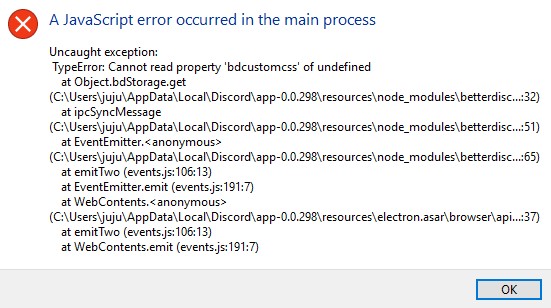
Удаление параметров для Discord, Skype или Faceit
Discord или Faceit
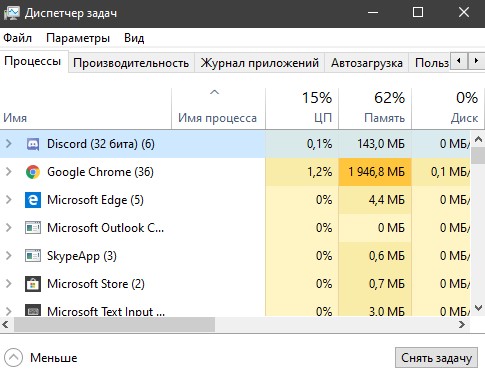
Шаг 1. Откройте диспетчер задач нажав сочетание кнопок Ctrl+Shift+Esc. Найдите в писке программу, которая выдает ошибку «A JavaScript error occurred in the main process«, выделите её и ниже нажмите на «Снять задачу«, чтобы завершить процесс данной программы.
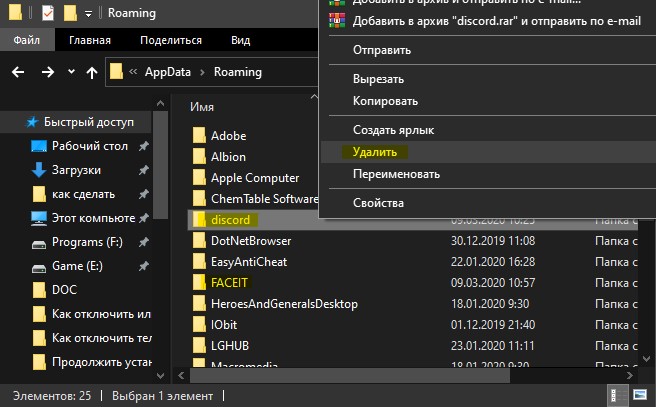
Шаг 2. Нажмите сочетание кнопок Win+R и введите %appdata%, чтобы быстро открыть расположение временных файлов программ. Найдите папку с именем программы, в данном случае diskort, и удалите её.
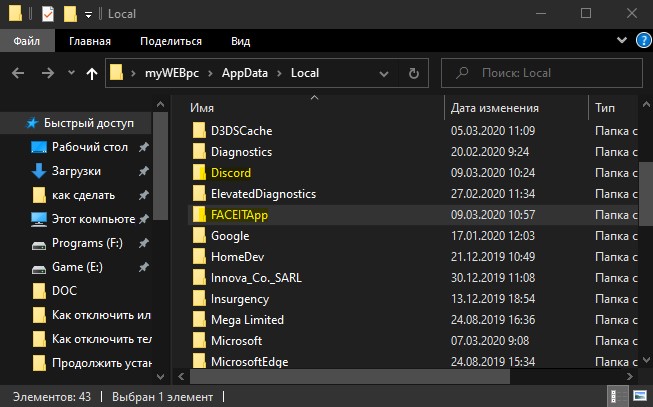
Шаг 3. Нажмите снова Win+R и введите %localappdata%, найдите папку с именем программы, которая выдает ошибку JavaScript и удалите её. Обратите внимание, что папка Diskort называется в точности, в отличие от Faceit, где есть на конце app.
Skype
В программе скайп тоже может возникнуть ошибка «A JavaScript error occurred in the main process«. Это связано с тем, что нужен Internet Explorer 11, а в Windows 7 его нет, там последняя версия 8. Некоторые пользователи пытаются удалить этот браузер даже в Windows 10 не понимая того, что это не совсем браузер, и он отвечает за работу некоторых системных функций. Вы должны выполнить следующие действия:
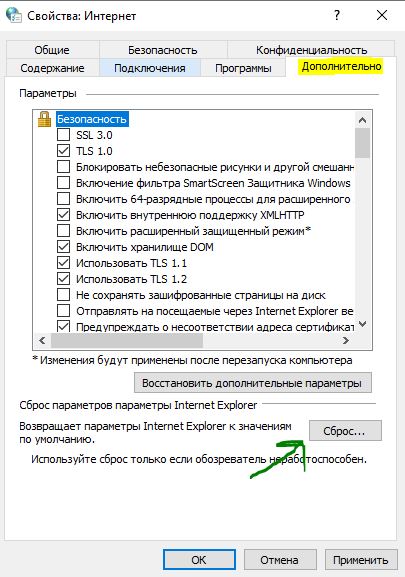
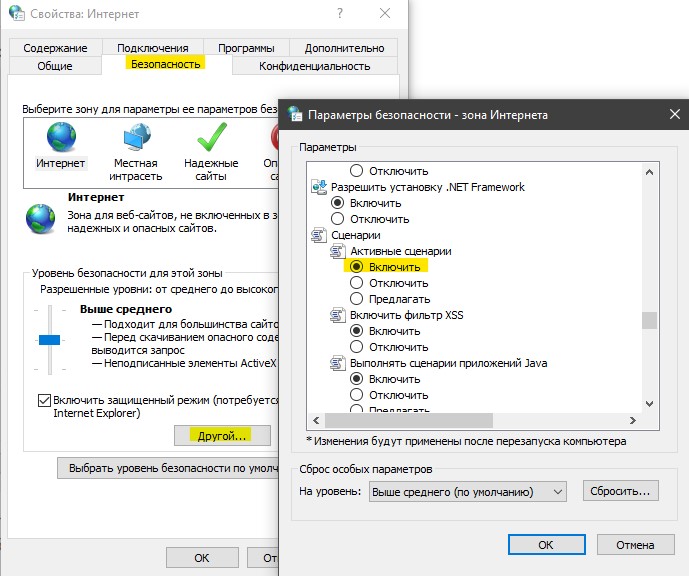
Служба Quality Windows Audio Video Experience
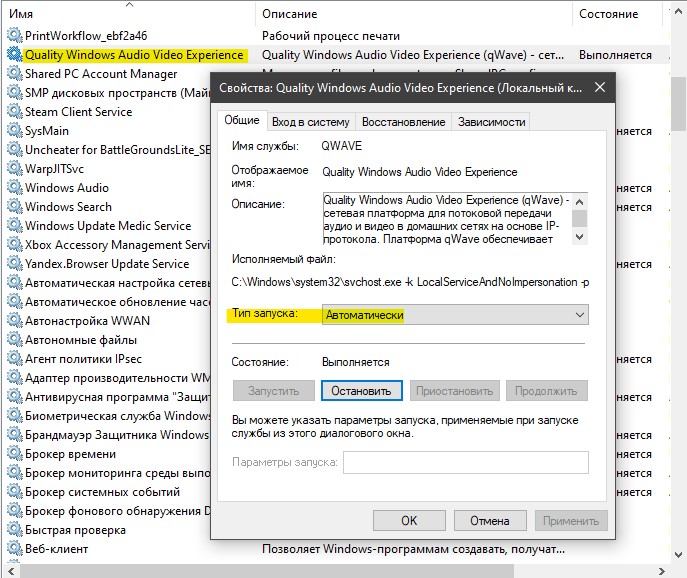
Изменение типа запуска службы качества Quality Windows Audio Video Experience с «Вручную» на «Автоматически» позволяет устранить ошибку JavaScript для многих пользователей.
Нажмите Win+R и введите services.msc, чтобы быстро открыть службы. В списке служб найдите Quality Windows Audio Video Experience и щелкните по ней два раза, чтобы открыть свойства. Нажмите «Остановить«, если она работает, далее выберите тип запуска «Автоматически» и «Запустить«.
Запустите программу без прав администратора
Найдите исполняемый файл программы, которая выдает ошибку «A JavaScript error occurred in the main process» и нажмите по ней правой кнопкой мыши и выберите «Свойства». Перейдите во вкладку «Совместимость» и уберите галочку «Запускать эту программу рот имени админа«.
Что значит ошибка a fatal javascript error occurred в Дискорде
Далеко не всегда работа приложений в фоне происходит гладким образом: в зависимости от многих внешних факторов в процессе работы периодически возникают ошибки, на решение которых можно потратить несколько часов. Discord в этом плане не исключение, а одна из ошибок при работе с мессенджером выводит сообщение формата «fatal javascript error occured in the main process». Неопытным пользователям, как правило, сложнее разобраться в ситуации, но на деле всё не так уж и страшно.

По каким причинам появляется ошибка fatal javascript error occurred discord
Для начала необходимо понимать, что JavaScript — это распространённый язык программирования, используемый, в том числе и для Discord. Соответственно, ошибка дискорда с параметром «fatal javascript error occured» связана с некорректной работой операционной системы и невозможностью мессенджера в процессе компиляции считывать определённые файлы из-за их отсутствия.
Чаще всего ошибка выскакивает при запуске дискорда в windows 10 из-за следующих факторов:

Как исправить проблему на компьютере
Прежде всего необходимо выяснить первопричину проблемы и проанализировать ситуацию: определить, до какого момента приложение работало стабильно и после каких действий выскочила ошибка, в результате чего дискорд не открывается. В любом случае перед обновлением, или удалением с последующей переустановкой необходимо почистить информацию, которая с высокой степенью вероятности провоцирует ошибку. Таким образом:
Если не помогло, и дискорд по прежнему не запускается, — возвращаемся к пункту обновления, удаления и переустановки.

В большинстве случаев чистка временных файлов помогает решить проблему, но, зачастую вмешательство антивируса и его активности по устранению вирусов сводит результат на нет, так как антивирусное ПО удаляет ключевые файлы приложения из-за невозможности излечения.
Обновление Discord
Обновление дискорда на компьютере не должно вызвать существенных проблем, однако, имеются подводные камни: программа может не предложить автоматическое обновление до последней версии в момент эксплуатации и тогда обновлять придётся через переустановку мессенджера, или в принудительном порядке.
Принудительно обновить Discord без удаления можно следующим образом:
Способ не слишком надёжный — возможен бесконечный процесс обновления. В таком случае останется удаление и переустановка мессенджера.
Удаление и переустановка Discord
Настраивать программу придётся с нуля, так как конфигурационные файлы были удалены.
Причины и исправление ошибки Javascript в Discord
При использовании любимого мессенджера появляется ошибка A fatal javascript error occurred Discord? Не волнуйтесь — прочитайте статью и узнайте причины возникновения данной неполадки и способы её устранения.
Суть ошибки и причины появления
Дословный перевод текста неполадки означает: “Произошла фатальная ошибка JavaScript”. Как видно из перевода, речь идет о наличии проблемы с JavaScript. Что это за понятие? Если говорить коротко, то JavaSript — это специальный язык программирования, который использовался для создания мессенджера Дискорд.
В том случае, если при запуске Дискорда или во время его использования появляется ошибка, связанная с JavaScript, значит, имеет место повреждение, отсутствие или некорректная работа файлов приложения. Также причиной возникновения сбоев в работе мессенджера могут быть:
Хотя текст неполадки говорит, что ошибка является фатальной, но не всё так плохо, как кажется на первый взгляд. Что делать, если Дискорд не запускается и пугает вас ошибкой со страшным словом “fatal”?
Устранение неполадки
Первым делом нужно исключить вредоносное воздействие вирусов. Перед запуском проверки в антивирусной программе закройте Discord, а также через “Диспетчер задач” отключите все процессы, связанные с ним. Теперь запускайте сканирование на предмет поиска вирусов. В случае обнаружения вредоносного ПО удалите его при помощи антивирусного приложения.
Перед входом в Дискорд установите запуск мессенджера от имени администратора. Для этого проделайте 5 шагов:
Настроить запуск мессенджера от имени администратора можно также способом, состоящим всего из 3 шагов:
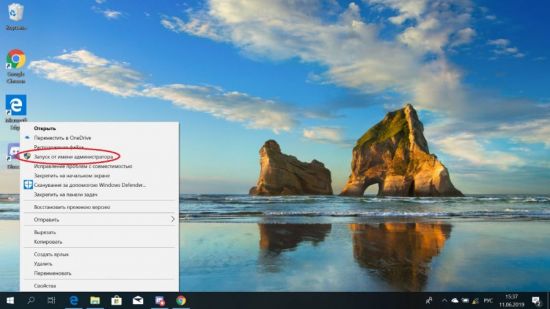
После проделанных действий запустите Дискорд. Если вход в приложение удался и дальнейшая работа не прерывается уведомлением об ошибке, значит, проблема была в вирусном заражении. Если после манипуляций с антивирусом Discord по-прежнему не работает, тогда переходите к следующему этапу действий.
Официальный сайт Дискорда в разделе “Решение проблем” рекомендует способ, помогающий при различных сбоях приложения. Данный метод подразумевает выполнение целого ряда действий, но его эффективность подтверждена многими пользователями.
Итак, перед выполнением действий, направленных на устранение возникшей проблемы, выйдите из Discord и с помощью “Диспетчера задач” отключите все процессы мессенджера. Далее сделайте следующее:
1. Одновременно нажмите клавиши “Win” и “R”.
2. В появившейся командной строке введите без кавычек следующий текст: “%AppData%” и нажмите “Enter”.
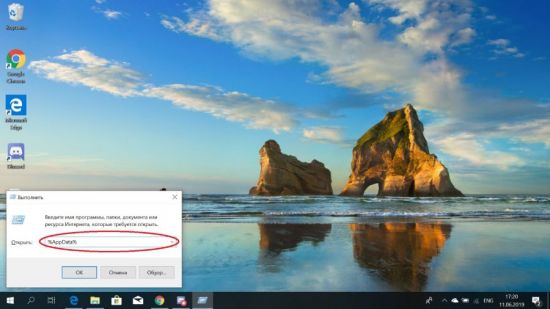
3. Найдите папку Дискорда и удалите её.
4. Снова вызовите команду “Выполнить”, нажав комбинацию кнопок “Win” + “R”.
5. Теперь введите текст: “%LocalAppData%”. Текст должен быть без кавычек.
7. Здесь отыщите папку Дискорда и удалите её полностью.
8. Перезапустите Windows.
9. Переустановите мессенджер. Для установки воспользуйтесь ссылкой https://discordapp.com/api/download?platform=win.
После выполненного алгоритма действий, скорее всего, вы снова сможете общаться с друзьями в Дискорде.
Если вы испробовали все советы, перечисленные в статье, и мессенджер по-прежнему выдает ошибку, тогда обратитесь за помощью к технической службе поддержки Дискорда. Для этого заполните заявку на получение помощи. Воспользуйтесь ссылкой https://support.discordapp.com/hc/ru/requests/new.
В обращении в службу технической поддержки максимально подробно изложите суть проблемы и способы, которые применяли для самостоятельного решения вопроса. Также можно приложить сделанные скриншоты для визуальной демонстрации неполадки.
САМОЕ ВАЖНОЕ! Discord порой выдает некоторые ошибки, в числе которых неполадка с JavaScript. Пусть вас не пугает, если данная проблема именуется “фатальной”. Примените приведенные в статье советы и решите вопрос самостоятельно. Приятного общения в Дискорде!
Ошибка «a fatal JavaScript error occurred» в Discord
Ошибка «a fatal JavaScript error occurred» в Discord может возникнуть из-за разных факторов – свидетельствует она о том, что проблемы появились во время выполнения одного из процессов. В большинстве случаев легко решаема – главное, знать действенные способы!
Остаточные файлы
Чаще всего ошибка джава скрипт в Дискорде появляется из-за внутреннего конфликта файлов. Если ранее вы уже устанавливали мессенджер, а потом удалили его – скорее всего, причина именно в остаточных данных. Они мешают работать новому приложению, отсюда конфликт и появление ошибок.
Не переживайте, нам не придется залезать в реестр и вручную искать оставшиеся файлы. Мы исправим ошибку JavaScript при запуске Дискорда другим путем:


Как правило, этого достаточно, чтобы убрать оповещение «a fatal JavaScript error occurred» в Дискорде. Но стоит также завершить ненужные процессы – это легко!

После этого оповещение «fatal JavaScript error» в Discord должно исчезнуть, и вы сможете без лишних трудностей запустить программу!
Обновление и переустановка
Если это не помогло, прибегнем к другому способу – попробуем обновить программу до последней версии.


Подождите, пока процесс не завершится – теперь попробуйте снова открыть мессенджер, проблема «JavaScript error» в Discord должна исчезнуть.
Обновление не помогает? Тогда будем удалять приложение, а затем переустановим его с официального сайта.


Не переживайте, ваши данные, настройки, история сообщений, сервера, удалены не будут – достаточно просто войти в свою учетную запись, чтобы восстановить всю личную информацию.
Что еще можно сделать?
Если ничего не помогает избавиться от «JavaScript error occurred» в Discord, можно попробовать запустить сканирование антивирусной программой и последующую очистку устройства от вирусов. Возможно, какие-то вредоносные файлы вызывают конфликт во время запуска приложения.
Иногда ошибка «a fatal Java error occurred» в Discord может появляться из-за конфликта приложений. В таком случае лучше попробовать закрыть все сторонние программы (через Диспетчер задач). Чаще всего «мешают» фоновые приложения, их нужно свернуть в первую очередь.
Ошибка JavaScript в Дискорде решена! Теперь вы вооружены – если снова столкнетесь с проблемой, сможете с легкостью подобрать правильный путь решения.
Ошибка JavaScript в Discord
Discord отлично подходит для голосового общения, особенно во время игровых сессий. Программа стильно выглядит, не нагружает систему и работает очень стабильно. Но совсем в ней ошибок избежать, к сожалению, невозможно. Изредка пользователи сталкиваются с тем, что при запуске Дискорда ошибка в JavaScript. При появлении такого сбоя программа закрывается и отказывается запускаться. Что же делать в такой ситуации? Давайте разбираться.
Методы решения проблемы
Самое простое решение любой компьютерной проблемы – банальная перезагрузка. Вполне возможно, что после этого Дискорд вернется к стабильной работе, и больше вы с таким не столкнетесь.
Но как поступить, если данный способ не сработал? Есть два действенных решения:
Начинать нужно с первого, а если он не даст нужного результата, то переходить ко второму.
Обновление Discord до последней версии
Вообще программа должна обновляться автоматически, но при определенных условиях или системном сбое данная функция перестает работать. А значит, нужно запустить процедуру вручную. Сделать это можно без каких-либо проблем, ведь открывать Discord совсем не обязательно.
Просто следуйте такому алгоритму:
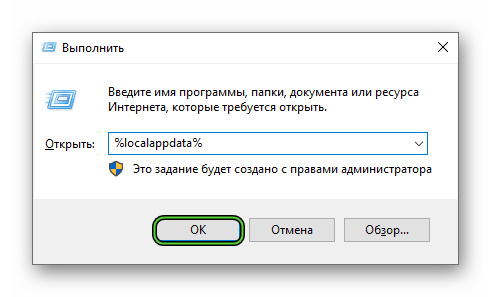

Попробуйте запустить Дискорд любым удобным способом. Ошибка JavaScript должна исчезнуть. А если это не так, то переходите к другому решению.
Полная переустановка
Скорее всего, были повреждены компоненты программы, например, из-за сбоя системы или неудачного обновления. Остается только полностью ее переустановить. Все ваши данные при этом будут сохранены, но придется заново входить в учетную запись.
Процедуру можно разделить на три шага: удаление Дискорда, чистка остаточных файлов и повторная установка. Рассмотрим каждый из них по отдельности.
Инструкция по удалению:
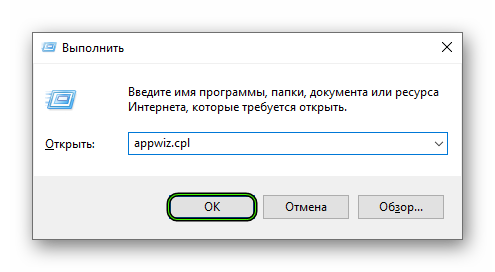
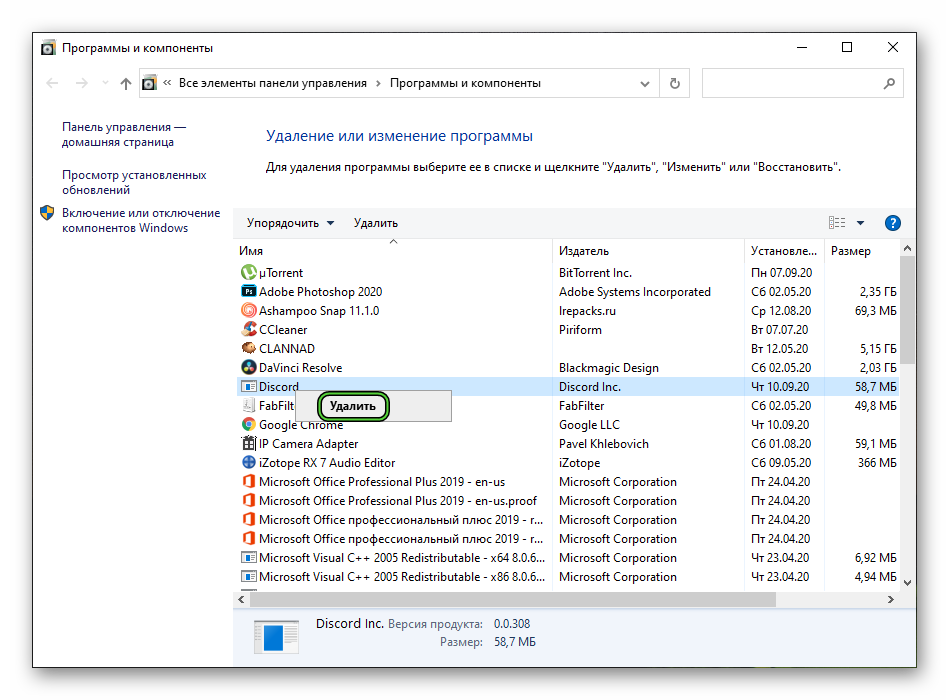
Инструкция по чистке остаточных файлов:

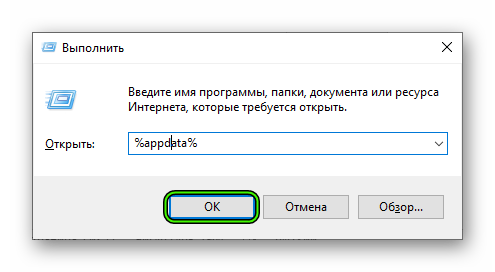
Инструкция по повторной установке:


Завершение
В большинстве случаев для решения ошибки «A fatal JavaScript error occurred» в Discord хватает первого способа, заключающегося в ручном обновлении программы. Но изредка все же требуется полная переустановка. К счастью, это предельно простая процедура, если знать правильный принцип действия.
Easy Ways To Solve “Discord Javascript Error”

Discord is quite a useful application when it comes to gaming. However, since the Discord community has been increasing drastically, it is not just a gamers hub anymore.
Like all other apps, Discord is also prone to many errors, and “Discord Javascript Error” is one of them. In this guide, let me help you getting solve this error in no time.
Let’s go through each solution and find which one is going to solve the problem.
What Is JavaScript Discord Error? And How To Fix It?
Many users have reportedly experienced this Javascript Error. However, it is one of those errors that have little to no underlying reasons discovered. There is not much information about this error on Discord’s official website as well. However, this error has some tried and tested solutions.
Head to the solutions below to run the Discord Error-free:
Related guides:
#1. Delete Discord Files
Just like all other programs, Discord stores temporary data on the computer to make it function as efficiently as possible. But, sometimes, these data files are the main culprit behind displaying this error and interfere when a program runs.
Now, to start the Discord error-free, it is important to delete the troublesome files.
Follow these steps to delete the discord files:
- First of all, Close the Discord from the Task Manager. To do so, right-click on the taskbar and select task manager from the drop menu. Locate the discord process from the running programs and select End Task.
- Now open the run dialogue box either by searching in the Windows Search Bar or by right-clicking the Windows start menu icon and then selecting the run from the options.
- Once the run windows appear, type “%appdata%” in the dialogue box and hit the run button.

- Now once the corresponding Window opens, search for the folder named “discord” and right-click and press delete from the menu
- Now launch the run dialogue box once again as in step 2.
- Type “%localappdata%” in the dialogue box and press the run button.
- Again find the Discord folder in this directory and delete it by right-clicking and then selecting delete from the menu.

- Go to the Discord installation folder and relaunch the Discord setup. Follow the on-screen installation instructions.
#2. Whitelist/Remove Discord Files From Antivirus Software
Almost all the well-known antiviruses block some of the Discord installation files altering the access to those files.
Sometimes this blockage of files can cause a JavaScript error for Discord. One common file that is totally under the eye of every Antivirus is the “discord_voice” file. Now, to fix this issue, the simplest thing to do is to whitelist the discord files from Antivirus that is picking up and quarantining.
So there are tons of Antiviruses available in the market, and each has a different way to whitelist files. However, we are here using ever famous and free Avast antivirus.
- Firstly, open the Avast by right-clicking the Avast icon and selecting the Open Avast User interface option from the menu.
- Now once the Avast interface opens, click on the Protection tab from the options running down on the left of the Avast Screen.

- Click on the Virus Chest option displayed on the right. In this section, you’ll find all the quarantined files.

- Now locate the Discord-related files in the list. Discord files can be identified easily as they start with Discord_ mostly or some similar variant.
- Now, as you’ll hover over the files, three dots will appear, click those and then select “restore and add an exception” from the given list.
- Now repeat step 5 above for each discord file.
- Restart the installation for Discord.
To avoid any future interruptions from Avast when installing the Discord, we can add the discord folders in exception in Avast. That means the installation process will be smooth without any interruptions from Avast or Avast, putting the files again in Virus Chest.
Follow these steps:

- Again open the Avast as shown above.
- Now go to settings by clicking on the menu icon located in the top right windows of Avast.
- Then go to the General section displayed on the left.
- Select the Exceptions option from the left in the general section.
- Click on the “Add exception” option. Then browse the discord installation folder.
- Select “Exception.”
- Now, launch the Discord installer to install the Discord.
#3. Solution For Windows 7 Users
This solution is especially for the Windows 7 users who struggle to install and then run Discord on their computer.
However, few users have tried and tested a few tweaks that can fix this problem in no time. The solution is quite simple, keep reading to know how you can fix Discord javascript error for Windows 7.
- Firstly, click on the Start Menu in your Windows 7. Then locate the “Computer” in the left menu, right-click on the “computer,” and select manage from the drop-down menu. Allow the administrative permissions to proceed.
- Now go to the Server Manager and then features. Click the option “add features” located on the right side.
- Once the add feature wizard opens, locate the “Quality Windows Audio Video Experience” option. Check the given box and then click on Next to move forward.
- Now, confirm the installation and ensure that you have selected an option named QWAVE when confirming.
- Click the “Install” button and wait until the installation completes. Once the installation finishes, restart your computer. In this way, you’ll be saving the changes made to your PC.
#4. Perform The Clean Reinstall
If you are not running Windows Server and also there are no issues related to the Antivirus, this method is the one for you! This method has successfully worked for many users, so give it a try.
The solution might be intuitive. However, each and every step of this solution is important. To reinstall the Discord properly, follow these steps:
- Firstly, make sure that you have logged in to your PC as an administrator. This is necessary because only an administrator can delete the program files.
- Now, search for the control panel from the Start menu. In windows 10, you can go to the control panel by clicking on the gear icon.
- Once the control panel, view the options according to categories from the top right corner. Then locate “Uninstall a program” under the Programs section in the control panel.

- Alternatively, if you are using the Settings app on the windows, click on the “Apps” option. This will open the list of all the installed programs on your PC.

- Now locate the Discord app in the settings app or control panel.
- Now click uninstall, this will open the uninstallation wizard for the Discord. The Window will prompt you, to select “completely remove Discord on your computer.” Click yes to proceed with the uninstallation.

- Click Finish when the uninstallation completes and closes the Window.
So you think uninstalling the Discord removes all the files? Uh-uh, No! There are several related folders that need to be removed that are actually the problem in Discord Javascript Error. It is an essential step to reinstall the Discord properly.
To delete such files, follow the steps given below:

- Open the Run dialog box, either by searching it on the search bar or by clicking the Windows + R keys simultaneously. This will open the run box.
- Once the dialog box opens, type %appdata% in the box and click “OK.”
- This will open a directory and locate the Discord folder in the given files. Right-click the Discord folder and select the delete option from the menu
- Now open the Run dialog box again as in step 1. Then type %localappdata% in the dialog box and click “OK.”
- Again, locate the Discord folder and delete that as well.
- Ensure that the Discord folders are completely deleted and there is no remaining folder.
Now that all the uninstallation and deletion of discord files are done, it is time to reinstall the Discord from scratch. Firstly, download the latest version of Discord setup from its official website.
Then, follow the on-screen installation steps and make sure you are following the steps carefully. Now, hopefully, the javascript error won’t appear again.
#5. Launch Discord Without Administrative Privileges/Rights

- Right Click the Discord application and select the “properties” option. You can find the application on your Desktop or pin it to your taskbar. If you can’t find it, simply search in the search bar.
- Once the Window opens, go to the shortcut tab and then select the “Advanced..” button.
- Uncheck the option Run as administrator and then click OK to save changes.
- Then again, go to the compatibility tab and uncheck the option “run as administrator” there as well. Apply changes by clicking OK.
Now, this will start the Discord as non-admin every time you launch the Discord. This might solve your problem, however, if it doesn’t give the administrative privileges again and then relaunch the Discord.
My Final Verdict:
This marks the end of our discussion on How to fix the Discord javascript error. Above are the few most commonly approached to resolve the Javascript issue while installing the Discord.
These methods are not just Javascript error centric. Even if you have some other Discord issue, try the fixes above, and 9/10 times these will make the issue go away.

Bobby Segura
A gaming enthusiast who enjoys everything from the Vagrant Story to Assassin’s Creed. His interest in gaming soon transformed into passion, and he started working as an author of NeoGamr. I keep an eye on all the latest gaming trends and cover them asap.
My expertise is in Software and Application, Internet Research, Console Gaming, Video Games and Gaming, and Gaming & Games.